На чтение 5 мин. Просмотров 333 Опубликовано 20.04.2021
SKSE64, что является сокращением от Skyrim Script Extender 64, представляет собой инструмент для модификации, который играет важную роль в использовании сложных модов для игры Skyrim Special Edition. Совсем недавно стало поступать много сообщений о пользователях, которые не могут запустить игру после того, как установили моды через исполняемый файл skse64. В некоторых случаях игра запускается с черным экраном, а в других не запускается вообще. 
Содержание
- Что мешает SKSE64 работать?
- Решение 1. Предоставление доступа в брандмауэре
- Решение 2. Разрешение Skyrim через Защитник/Антивирус Windows
- Решение 3. Откат версии игры
- Решение 4. Отключение неисправных модов
Что мешает SKSE64 работать?
Мы исследовали этот вопрос и разработали полное руководство по решениям, которые, как сообщалось, помогли решить проблему для большинства пользователей. Кроме того, мы изучили причины, из-за которых возникла ошибка, и некоторые из наиболее распространенных причин перечислены ниже.
- Брандмауэр: в некоторых случаях брандмауэр Windows блокирует соединение определенных элементов игры с серверами, в результате чего игра не возможность правильного запуска.
- Антивирус/Защитник Windows: в некоторых случаях Защитник Windows или антивирус, установленный на вашем компьютере, блокирует skse64 или игру из Бег. Защитник или антивирус в качестве ложного сигнала тревоги могут определить приложение как опасное и, следовательно, вызвать его остановку.
- Обновления: если игра обновляется, старый Skyrim script extender больше не работает с обновленной игрой, потому что версия игры и приложение skse64 должны быть одинаковыми, чтобы они могли работать вместе. Таким образом, вы можете либо обновить SKSE, либо откатить версию игры.
- Неисправные моды: Возможно, что определенный мод может вызывать проблему с игра. Обычно, если игра обновляется, старые моды не работают. Разработчики модов обычно выпускают новые версии модов после обновлений игры.
Теперь, когда у вас есть базовое понимание характера проблемы, мы перейдем к к решениям. Однако рекомендуется попробовать реализовать эти решения в указанном порядке, чтобы гарантировать, что ни одно из них не конфликтует друг с другом.
Решение 1. Предоставление доступа в брандмауэре
В некоторых случаях брандмауэр Windows блокирует соединение определенных элементов игры с серверами, в результате чего игра не запускается правильно. Поэтому на этом шаге мы собираемся добавить исключение для игры в брандмауэр Windows.
- Нажмите на Пуск Menu и выберите значок « Настройки ».
- В настройках нажмите « Обновления и безопасность ».
- Выберите вариант« Безопасность Windows »из на левой панели.
- Нажмите на параметр « Брандмауэр и защита сети ».
- Выберите параметр « Разрешить приложение через брандмауэр ».
- Нажмите « Изменить настройки », чтобы предоставить необходимые разрешения .
- Разрешить « Skyrim » и все приложения, связанные со Skyrim, через « Public » и « Private » сетей.
- Не забудьте также разрешить « Steam ».
- Нажмите « OK «, запустите игру и проверьте , сохраняется ли проблема.

Решение 2. Разрешение Skyrim через Защитник/Антивирус Windows
В некоторых случаях Защитник Windows или антивирус, установленный на вашем компьютере, блокирует запуск skse64 или игры. Защитник Windows или антивирус в качестве ложного сигнала тревоги могут определить приложение как опасное и, следовательно, вызвать его остановку. Поэтому на этом этапе мы собираемся добавить исключение в Защитник Windows. Для чего:
- Нажмите на Пуск Меню и выберите значок « Настройки ».
- В настройках нажмите « Обновления и безопасность ».
- Выберите« Windows Security »на левой панели.
- Теперь выберите « Вирус и угроза защита .
- Нажмите на параметр « Управление Настройки » в разделе « Настройки защиты от вирусов и угроз ».
- Теперь прокрутите вниз и нажмите« Добавить или удалить исключение »под заголовком« Исключения ».
- Нажмите « Добавить исключение » и выберите « Папка ».
- Сейчас добавьте в это папку установки Skyrim .
Нет te: Если вы используете антивирус, не забудьте также добавить исключение в ту папку или отключить его перед следующим шагом. - Выполнить игру и проверьте , сохраняется ли проблема.

Решение 3. Откат версии игры
Если игра обновляется, skse64 не работает с недавно обновленной игрой. Обычно skse64 также получает обновления от разработчиков, но если они еще не обновлены, вы можете попробовать откатить версию игры. Для этого:
- Перейти на этот сайт.
- Введите « Skyrim » в поле поиска вверху и нажмите « Enter . «.
- Обратите внимание на число « APPID », отображаемое перед « The Elder Прокрутки V: Skyrim », список.
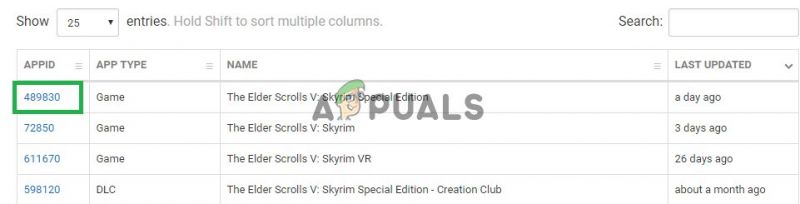
- Нажмите на номер , и откроется новая страница, внутри которой нажмите« Depot «.

- Теперь откроется новая страница внутри нее, запишите номер « ID » , указанный за Skyrim Special Edition exe .

- Сейчас нажмите на этот номер, чтобы открыть новую страницу.
- Внутри новой страницы нажмите в параметре « Manifests ».

- Сейчас примечание вниз на число, которое старше , чем дата новое обновление было выпущено . например, если обновление было выпущено 5 дней назад, запишите то, которое было указано более пяти дней назад.

- Теперь щелкните правой кнопкой мыши ярлык Steam для запуска на рабочем столе и выберите « Свойства «.
- В целевых окнах введите« -console »после того, как ранее написанный текст закончится без любой пробел .
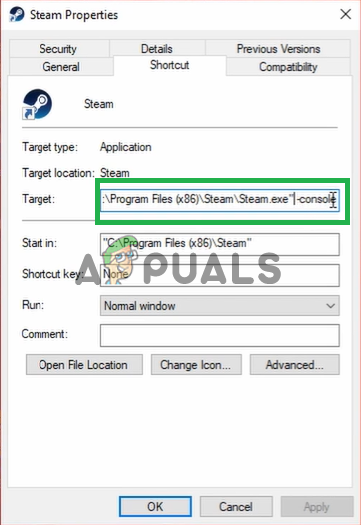
- После применив изменения, откройте Steam через этот ярлык и нажмите « Console «.

- В консоли введите« download-depot (номер идентификатора приложения) ( Идентификационный номер склада) (номер идентификатора манифеста) »и нажмите« Enter «.
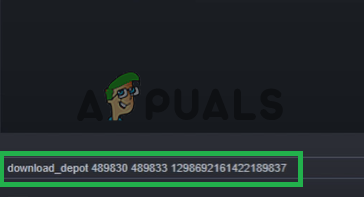
- ФО Страница, в которой более старая версия загружается , будет отображаться в console .

- После завершения загрузки перейдите к этому папку и скопируйте загруженный туда исполняемый файл .

- Вставьте исполняемый файл в игру installation и выберите « Копировать и заменить »..
- Теперь это вернет игру обратно к более старой версии.
Решение 4. Отключение неисправных модов
Возможно, определенный Mod может быть причиной проблемы с игрой. Обычно, если игра обновляет , более старые моды не на нее. Разработчики модов обычно выпускают более новые версии Mods после игры обновления . Поэтому убедитесь, что все моды обновлены до своих последних версий. Кроме того, отключите все моды , которые вызывают проблемы с игрой и чьи обновления еще не
-
Partition Wizard
-
Partition Manager
- How to Fix SKSE 64 Not Working Issue
How to Fix SKSE 64 Not Working Issue [Partition Manager]
By Linda | Follow |
Last Updated January 07, 2021
To install and run mods in Skyrim, you may need to make sure SKSE 64 is installed and operated normally first. However, some people report that they have encountered SKSE 64 not working issue. In this post, MiniTool Partition Wizard offers 3 ways to solve this problem.
Skyrim is a very popular video-game among gamers and many people may like to install mods in this game. To install these mods, the premise is the installation of SKSE 64 (Skyrim Script Extender x64). However, some people report that they have encountered SKSE 64 not working issue.
When I load my game, I’ll get a notification via SkyUI that my SKSE64 is not running. I tried to reinstall the game to get rid of all older mods. I installed SKSE64 and SkyUI but it’s still not working. I have no clue what could be malfunctioning and I have no idea how to find out. I mean I always installed the newest version available… — steamcommunity.com
Then, how to solve this problem? Please keep reading to get solutions.
Fix 1. Reinstall Corresponding SKSE 64
One of reasons why the SKSE 64 doesn’t work is that the installed SKSE 64 version is not compatible with the SSE version. This case usually occurs the first times you use the SKSE 64. To solve this problem, please follow the steps below:
- Right-click the Skyrim shortcut on the desktop and choose Open file location.
- In the folder, right-click the game executable file (.exe file) and choose Properties.
- In the Properties window, skip to Details tab and check Product version
- Go to Skyrim Script Extender website and download the corresponding SKSE 64. In this step, please make sure the runtime build number is the same as the production version of the Skyrim.
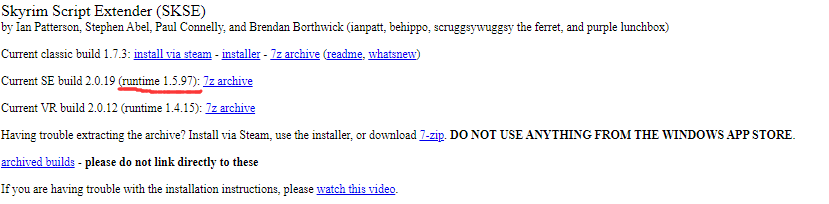
But if there is no suitable SKSE 64 version, you may need to roll back the game or update the game. On the other hand, if the SKSE 64 worked well before and then suddenly the SKSE 64 not working issue occurs, this method may not apply to you and you should try other measures.
Fix 2. Allow Skyrim Through Firewall and Antivirus Protection
The Firewall and antivirus software will protect your computer from virus, malwares, etc. However, they may sometimes block some gaming elements, making the SKSE 64 not work. To solve the SKSE 64 not working issue, please refer to the steps below:
- Click on the Start Menuand select the Settings
- Navigate to Updates & Security > Windows Security > Firewall & Network Protection.
- Click Allow an application through firewall
- Click on Change Settings and then grant the necessary permissions. Please allow Steam, Skyrim, and all the Skyrim related applications through both Public and Private
- Click on OK.
- Come back to the Updates & Security > Windows Security page and then click Virus and threat protection.
- Click on the Manage Settings option under the Virus & Threat Protection Settings
- Click on Add or Remove an Exclusion under the Exclusions
- Click on Add an Exclusion and select Folder. Then, add the Skyrim installation folder to this.
After performing the above steps, run the game to see whether the problem is solved.
Fix 3. Disable Faulty Mods
Sometimes, a certain Mod may have errors, causing SKSE 64 not working. In this case, you should disable these problematic mods. And this may solve the problem.
About The Author

Position: Columnist
Author Linda has been working as an editor at MiniTool for 1 year. As a fresh man in IT field, she is curious about computer knowledge and learns it crazily. Maybe due to this point, her articles are simple and easy to understand. Even people who do not understand computer can gain something.
By the way, her special focuses are data recovery, partition management, disk clone, and OS migration.
-
Partition Wizard
-
Partition Manager
- How to Fix SKSE 64 Not Working Issue
How to Fix SKSE 64 Not Working Issue [Partition Manager]
By Linda | Follow |
Last Updated January 07, 2021
To install and run mods in Skyrim, you may need to make sure SKSE 64 is installed and operated normally first. However, some people report that they have encountered SKSE 64 not working issue. In this post, MiniTool Partition Wizard offers 3 ways to solve this problem.
Skyrim is a very popular video-game among gamers and many people may like to install mods in this game. To install these mods, the premise is the installation of SKSE 64 (Skyrim Script Extender x64). However, some people report that they have encountered SKSE 64 not working issue.
When I load my game, I’ll get a notification via SkyUI that my SKSE64 is not running. I tried to reinstall the game to get rid of all older mods. I installed SKSE64 and SkyUI but it’s still not working. I have no clue what could be malfunctioning and I have no idea how to find out. I mean I always installed the newest version available… — steamcommunity.com
Then, how to solve this problem? Please keep reading to get solutions.
Fix 1. Reinstall Corresponding SKSE 64
One of reasons why the SKSE 64 doesn’t work is that the installed SKSE 64 version is not compatible with the SSE version. This case usually occurs the first times you use the SKSE 64. To solve this problem, please follow the steps below:
- Right-click the Skyrim shortcut on the desktop and choose Open file location.
- In the folder, right-click the game executable file (.exe file) and choose Properties.
- In the Properties window, skip to Details tab and check Product version
- Go to Skyrim Script Extender website and download the corresponding SKSE 64. In this step, please make sure the runtime build number is the same as the production version of the Skyrim.
But if there is no suitable SKSE 64 version, you may need to roll back the game or update the game. On the other hand, if the SKSE 64 worked well before and then suddenly the SKSE 64 not working issue occurs, this method may not apply to you and you should try other measures.
Fix 2. Allow Skyrim Through Firewall and Antivirus Protection
The Firewall and antivirus software will protect your computer from virus, malwares, etc. However, they may sometimes block some gaming elements, making the SKSE 64 not work. To solve the SKSE 64 not working issue, please refer to the steps below:
- Click on the Start Menuand select the Settings
- Navigate to Updates & Security > Windows Security > Firewall & Network Protection.
- Click Allow an application through firewall
- Click on Change Settings and then grant the necessary permissions. Please allow Steam, Skyrim, and all the Skyrim related applications through both Public and Private
- Click on OK.
- Come back to the Updates & Security > Windows Security page and then click Virus and threat protection.
- Click on the Manage Settings option under the Virus & Threat Protection Settings
- Click on Add or Remove an Exclusion under the Exclusions
- Click on Add an Exclusion and select Folder. Then, add the Skyrim installation folder to this.
After performing the above steps, run the game to see whether the problem is solved.
Fix 3. Disable Faulty Mods
Sometimes, a certain Mod may have errors, causing SKSE 64 not working. In this case, you should disable these problematic mods. And this may solve the problem.
About The Author
Position: Columnist
Author Linda has been working as an editor at MiniTool for 1 year. As a fresh man in IT field, she is curious about computer knowledge and learns it crazily. Maybe due to this point, her articles are simple and easy to understand. Even people who do not understand computer can gain something.
By the way, her special focuses are data recovery, partition management, disk clone, and OS migration.
Обновлено 2023 января: перестаньте получать сообщения об ошибках и замедлите работу вашей системы с помощью нашего инструмента оптимизации. Получить сейчас в эту ссылку
- Скачайте и установите инструмент для ремонта здесь.
- Пусть он просканирует ваш компьютер.
- Затем инструмент почини свой компьютер.
Вы можете использовать skse64 или Skyrim Script Extender 64 для Skyrim Special Edition, чтобы применять моды Skyrim. Это полезный инструмент, но иногда вы получаете сообщение об ошибке через SkyUI «skse64 not working» при загрузке игры. Эта ошибка чаще встречается в более новых версиях Skyrim SKSE64. Игра не может быть загружена с исполняемыми модами, пока пользователь не исправит проблему. Из-за этой ошибки вы можете не получать другие уведомления, такие как обновление SKSE64.

Прежде чем выполнять рекомендуемые действия по устранению неполадок для этой конкретной проблемы, первое, что вам следует сделать, это попытаться перезагрузить компьютер. Это обновит операционную систему, удалит поврежденные временные данные и очень эффективно решит большинство проблем с программным обеспечением.
Есть несколько факторов, которые могут вызвать эту конкретную проблему, от вмешательства антивируса до неисправного мода. Вот рекомендуемые шаги по устранению неполадок вы должны предпринять, чтобы решить эту проблему.
В остальной части Skyrim могут играть роль несколько факторов, это зависит от пользователя. Однако мы пытаемся найти некоторые распространенные причины ошибки skse64:
- Брандмауэр Windows: Защитник брандмауэра Windows блокирует разрешения на запуск для skse64. В большинстве случаев skse64 успешно запускается после добавления межсетевого экрана в белый список.
- Сторонние приложения: мы используем множество сторонних антивирусных программ из соображений безопасности. Однако эти приложения вызывают конфликты с другими модами или взломанными приложениями. Если у вас есть стороннее антивирусное программное обеспечение, оно может заблокировать процесс Skyrim Script Extender, идентифицировав его как вредоносное ПО.
- Обновление Skyrim: игра изменяет старую версию Skyrim. Однако, когда мы обновляем нашу текущую игру Skyrim, старый Skse больше не работает с новой моделью Skyrim.
- Неисправная версия мода: возможно, вы пытаетесь использовать в игре мод с ошибками. Попробуйте скачать моды из проверенных источников. Также попробуйте использовать последние версии модов. Разработчики выпускают их после исправления ошибок.
Обновление за январь 2023 года:
Теперь вы можете предотвратить проблемы с ПК с помощью этого инструмента, например, защитить вас от потери файлов и вредоносных программ. Кроме того, это отличный способ оптимизировать ваш компьютер для достижения максимальной производительности. Программа с легкостью исправляет типичные ошибки, которые могут возникнуть в системах Windows — нет необходимости часами искать и устранять неполадки, если у вас под рукой есть идеальное решение:
- Шаг 1: Скачать PC Repair & Optimizer Tool (Windows 10, 8, 7, XP, Vista — Microsoft Gold Certified).
- Шаг 2: Нажмите «Начать сканирование”, Чтобы найти проблемы реестра Windows, которые могут вызывать проблемы с ПК.
- Шаг 3: Нажмите «Починить все», Чтобы исправить все проблемы.

Разрешить SKESE64 через брандмауэр Windows
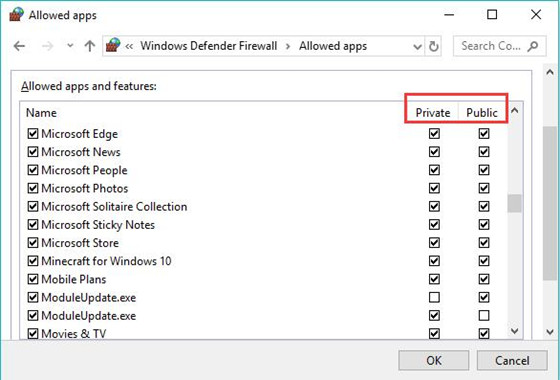
Вы должны разрешить доступ к SKESE6 через брандмауэр вашего ПК. Брандмауэр может мешать SKESE 64, если он не распознает его или обнаруживает, что это не программа или системный файл.
- Найдите брандмауэр в поле поиска и нажмите Enter, чтобы переключиться на Windows Firewall Protector.
- Найдите на левой панели средство защиты брандмауэра Windows и щелкните Разрешить приложение или работу через средство защиты брандмауэра Windows.
- Затем нажмите «Изменить настройки».
- Узнайте о Skyrim и всех связанных приложениях, а затем авторизуйте их как в общедоступных, так и в частных сетях.
- Нажмите кнопку ОК.
Теперь вы можете проверить, работает ли SKSE64 с игрой Skyrim, такой как The Elder Scrolls V: Skyrim Special Edition, с доступом через брандмауэр.
Авторизуйте Skyrim в своем антивирусном ПО.
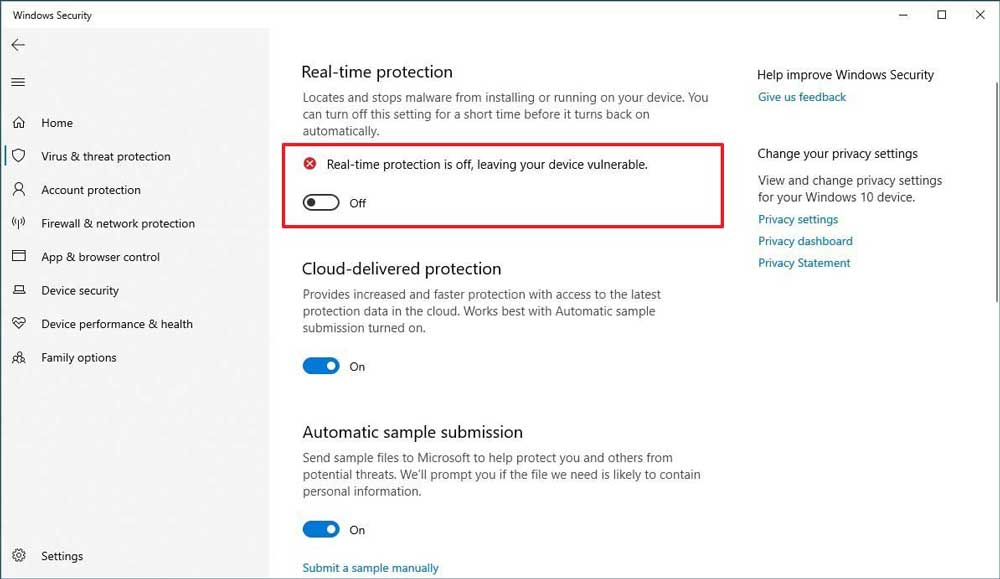
- Перейдите в Пуск и щелкните значок Параметры в левой строке меню.
- В окне настроек найдите и выберите «Обновления и безопасность».
- Теперь проверьте левую область в новом окне.
- Найдите Безопасность Windows и щелкните по нему.
- На правой панели окна в разделе Параметры найдите и выберите Защита от вирусов и угроз.
- В открывшемся новом окне нажмите Управление параметрами, выделенными синим цветом на правой панели окна в разделе Параметры защиты от вирусов и угроз.
- Прокрутите вниз, чтобы найти вариант — добавьте или удалите исключение и щелкните по нему. Параметр отображается синим цветом под заголовком «Исключения».
- Теперь используйте указатель мыши, чтобы выбрать кнопку «Добавить исключение», и выберите параметр «Папка» в раскрывающемся меню.
- Теперь добавьте папку Skyrim.
- Сохраните изменения, затем закройте все окна.
- Вернитесь на главный экран и попробуйте запустить игру.
- Проверьте, сохраняется ли проблема с SKSE64.
Отключите неисправные моды
Последний шаг в устранении неполадок — деактивировать все плохие моды, которые может вызвать проблему.
- Запустите The Elder Scrolls V: Skyrim Special Edition и выберите «Моды» в главном меню.
- Найдите в своей библиотеке модов, которые хотите удалить.
- Выберите мод, который хотите удалить, и выберите «Удалить» или «Деактивировать».
Убедитесь, что проблема с Skyrim Script Extender 64 все еще не работает.
У вас проблемы с компьютером? Свяжитесь с нами, используя эту форму. Мы постараемся вам помочь.
Совет экспертов: Этот инструмент восстановления сканирует репозитории и заменяет поврежденные или отсутствующие файлы, если ни один из этих методов не сработал. Это хорошо работает в большинстве случаев, когда проблема связана с повреждением системы. Этот инструмент также оптимизирует вашу систему, чтобы максимизировать производительность. Его можно скачать по Щелчок Здесь

CCNA, веб-разработчик, ПК для устранения неполадок
Я компьютерный энтузиаст и практикующий ИТ-специалист. У меня за плечами многолетний опыт работы в области компьютерного программирования, устранения неисправностей и ремонта оборудования. Я специализируюсь на веб-разработке и дизайне баз данных. У меня также есть сертификат CCNA для проектирования сетей и устранения неполадок.
Сообщение Просмотров: 222
Skyrim is an iconic action RPG that was created by Bethesda Game Studios. A part of this game’s success was because of its ability to support various kinds of mods. Since its release in 2011, it has had nearly 70,000 unique mod submissions on Nexus mods alone.
The Skyrim Script Extender 64 or SKSE64 is an important tool used by most Skyrim mods to add functionality and scripting capabilities to the game. However, some users have reported that their SKSE is not working. Instead, their game is not running or instantly crashes.
This situation also happens after you reapply SKSE64 on a fresh install of Skyrim Special Edition. The game sometimes would not run at all, compared to an unmodded version of Skyrim SE. So, how can you fix the problem of Skyrim SKSE not working or SKSE 64 not working? Read on to learn more.
Table of Contents
- 1 What Causes the Skyrim SKSE64 Not Working error?
- 2 How to Fix the SKSE64 Not Working error in Skyrim?
- 2.1 Fix #1: Install Steam and its Apps outside of C: Program Files
- 2.2 Fix #2: Grant Windows Defender Firewall access
- 2.3 Fix #3: Add both Skyrim apps and Steam to Exclusions on Windows Defender
- 2.4 Fix #4: Reinstall SKSE to Skyrim
- 2.5 Fix #5: Disable Auto-Updates from Steam
- 3 Final Thoughts
What Causes the Skyrim SKSE64 Not Working error?
- Permissions – Your Steam, as well as Steam apps, will be installed by default on your computer’s Program Files folder. This folder also contains main Windows files, which might prevent it from running as a safety precaution.
- Windows Firewall – Some of Skyrim’s processes might be blocked by Windows Firewall upon launch. This includes the SKSE64 script extender, which will lead to an error.
- Antivirus – If you have any third-party security software running, it might label Skyrim and its game files as a threat, and will prevent it from launching properly.
- Improper installation of SKSE64 – This might be a common problem for most Skyrim SE users who have recently applied SKSE 64. We will also discuss the installation steps to see if you missed an important step.
- SKSE is not compatible with the current game version – SKSE64 has different versions out there that you can install. You must apply a version that’s best suited for your version of Skyrim SE.
Those are the most common reasons why SKSE64 is not working. It might also cover the reasons for other SKSE errors, so make sure to read the fixes below.
How to Fix the SKSE64 Not Working error in Skyrim?
Regardless of your situation, these fixes will help you solve SKSE64 – related problems with ease. These in-detail fixes will ensure smooth gameplay with a modded version of Skyrim SE.
Make sure to go through each one and check which fix works for you.
Fix #1: Install Steam and its Apps outside of C: Program Files
Installing your games to a different directory than the Program Files folder will exempt Steam and its games from any app permissions which will run most of the game’s files including mods.
Another trick to do is to run the SKSE64 application as an administrator. To do this, follow these steps:
- Right-click on the SKSE64 application and click Properties.
- Select the Compatibility tab.
- Then, tick the box next to the option Run this program as an administrator.
Fix #2: Grant Windows Defender Firewall access
You can grant application access to Skyrim as well as the SKSE64 by adding both of those apps to the Firewall’s exception list. Here’s how to do it:
- Using the search menu, type Windows Defender Firewall and click to open.
- Select Allow an app or feature through Windows Defender Firewall on the left sidebar.
- Then, click Change Settings.
- From the list of applications, find the Skyrim applications and tick the checkbox that is near to Skyrim applications. Also, don’t forget to allow the Steam application.
- Once done, click OK.
- Open Skyrim and check if the problem persists.
Fix #3: Add both Skyrim apps and Steam to Exclusions on Windows Defender
Windows Defender is a known app to prevent any unknown software from running as a part of its security measures—it might include the SKSE64 application.
To prevent this, it’s best to include all Skyrim apps and Steam to the excluded items so they won’t be scanned or be prevented from launching. Follow the steps below to add the mentioned apps to the excluded items:
- Right-click on the Start icon and select Settings.
- Select Update & Security.
- Click Windows Security from the list of options on the left side.
- Then, click Virus & threat protection.
- Under the Virus & threat protection settings, choose Manage settings.
- Next, scroll down until you see Exclusions. Under it click Add or remove exclusions.
- Click the Add an exclusion button and select Folder.
- At this point, go to Skyrim’s folder location. Select it and click Select Folder.
- Launch Skyrim and check if it works properly.
If you have any third-party antivirus software installed, also allow the said apps on the exclusion or exception lists.
Fix #4: Reinstall SKSE to Skyrim
Some users reported that their modded version of Skyrim SE is not launching. It was later found out that it was due to improper installation of SKSE.
Chances are, a step was skipped or done incorrectly, which will affect the whole installation process. To help you solve the SKSE64 not working error, here are the SKSE installation steps:
- Go to the official website of Skyrim Script Extender (SKSE).
- Make sure to find the build that’s compatible with your current game version.
- Then, click the link beside the build number to download.
- From the downloads folder, extract the downloaded SKSE file.
- Next, open Skyrim’s game directory. This is generally located in Steam > steamapps > common > Skyrim Special Edition.
- From your SKSE folder, hold CTRL and select the Data (folder), skse .dll file, skse64_loader.exe, skse64_steam_loader.dll. Then, drag those files to your Skyrim directory.
- Next, open the Mod Organizer app from your desktop.
- From the dropdown menu on the right, you should be able to see SKSE from the programs list. If not, select <Edit…> on top of the programs dropdown list and navigate to your game directory. Then, select skse64_loader.exe.
- You can now launch Skyrim by clicking Run.
Fix #5: Disable Auto-Updates from Steam
Some users reportedly can run Skyrim SE without any problems and will suddenly come across an error message. This is due to Steam’s auto-update function.
Steam typically updates all games on your game library on its latest version. In this case, if you’re running a modded version of Skyrim, the SKSE64 version must be compatible at all times, or else you will come across some compatibility problems.
To prevent this, go to Steam > Settings > Downloads tab, tick the Only auto-update games between: option, and select a time to manually allow any updates to Skyrim SE. This way you can find a new SKSE build that will work with the new version of Skyrim SE.
If you run out of disk space after an update, then you may get the Steam stuck preallocating disk space error when you next try to install a game.
Final Thoughts
Skyrim is still one of the best action RPGs out there. Due to its active gaming community, players are actively contributing mods that are essential for a unique gaming experience.
Users however can encounter some problems when running certain mods—one of them is related to SKSE64. Hence, this in-depth guide will help you in fixing your Skyrim in-game issues with ease.
Релиз: Skyrim SE: The Last Dark 3.3
Скачать
Подробнее
Стать VIP
Релиз: Skyrim SE: Dragon Fantasy v2.3
Скачать
Подробнее
Релиз: Skyrim AE: The Last Revenge v1.0 Alpha
Скачать
Подробнее
Релиз: Cities: Skylines — Lastrium Pack: v1.0
Скачать
Релиз обновления: «Дух павших миров» / A Soul of Fallen Worlds 3.1.1h
Скачать
Skyrim is well-loved by many users but like many other games it can have glitches. Some people report their SKSE64 is not working properly. It might just freeze and show an error message. SKSE64 is short for Skyrim Script Extender 64, and this mod tool plays an important role in applying complicated mods on Skyrim.

Even if you are using an up to date version of Skyrim SKSE64 you might still get this error, which means you won’t be able to start the game after applying your mods. The game might launch but only give you a black screen. So what are some of the causes of this SKSE64 error?
Possible Causes of SKSE64 Error
First of all, the Windows Firewall settings might be the culprit, stopping the gaming elements from connecting to the server. This can result in the game not launching correctly.
Another reason could be your Windows Defender or other antivirus software you have on your machine which is stopping the game from launching. Some over-eager antivirus programs wrongly identify Skyrim as a threat.
Another reason is that the mods you install are causing some kind of a conflict. When you update the game, the mods tend not to work properly and you need to update those too.
If you update Skyrim, the old SKSE won’t work – for this you will need to update both or else roll the game back to the previous version.
Let’s take a look at some of the best solutions to fix this Skyrim issue:
Solution #1: Grant Windows Firewall Access
Sometimes the firewall on a PC can stop various gaming elements, stopping the computer connecting to the game on the server. This will prevent its launch. Try these steps to see whether your Windows Firewall is to blame for the error:

- Open the Start menu.
- Click on Settings.
- Now choose Update and Security.
- Choose the Windows Security option on the left.
- Choose the Firewall & Network Protection option.
- Click on: Allow an application through firewall.
- Click on Change Settings.
- Allow Skyrim on both the public and private networks, as well as apps related to Skyrim.
- Make sure Steam is enabled.
- Click OK then run the game to see if the issue has been fixed.
Solution #2: Add an Exclusion to your Antivirus or Windows Defender
Windows Defender, which comes already installed on a new PC, helps protect from threats. The same is true of antivirus software. However, it has been known for this type of software to stop SKSE64 from launching or running, or to interfere with the game. In order to prevent this, you will need to add an exception to Windows Defender and your antivirus program, so they know Skyrim is not a threat.

- Open the Start menu.
- Click on Settings.
- Click on Update & Security.
- Select Windows Security on the left side.
- Click on Virus & Threat Protection.
- Now choose Manage Settings.
- Find the Exclusion heading then click on Folder.
- Add the Skyrim folder to this location.
- Run the game and see whether the error has been fixed.
Solution #3: Roll Back Your Game Version
SKSE64 is supposed to be updated whenever there is a Skyrim update, in order for them both to be able to work together. If Skyrim updates but the SKSE64 has not, then you can roll the game back to the previous version to avoid incompatibility problems.

- Open your web browser.
- Navigate to the Steam Database site.
- Type Skyrim in the search field, then click enter.
- Find the entry of ‘The Elder Scrolls V: Skyrim’.
- Write down the corresponding APPID number.
- Click on the number; a new page will open.
- Choose the Depot option.
- Write the section ID number which is next to ‘Skyrim Special Edition.exe’.
- Click on the number; a new page opens.
- Choose the Manifests option.
- Write down the number older than the newest release date.
- For example, if the update came out 5 days ago, write the number listed before 5 days ago.
- Navigate to the desktop.
- Right click on the Steam launcher shortcut.
- Click on Properties.
- Type ‘console’ in the Target box after the earlier text.
- Don’t leave a space at the end of the word.
- Click Apply and then click OK.
- Use the shortcut to open Steam and click Console.
- Type ‘download-depot’ then the App ID number, or depot ID number, or manifest ID number.
- Press enter.
- Go to the folder where the older version download is (on the Console option).
- Find the executable download, then copy it.
- Paste it in the game installation folder, using ‘Copy & Replace’.
- This reverts your Skyrim to the previous version.
- Try running it to see whether this solves the error.
Solution #4: Disable Any Defective Mods
Mods can sometimes cause issues which result in this error, if the game updates without the mods also updating. Developers typically release mod updates at the same time as game updates. If the update is taking longer though, you might need to disable any problematic mods until the updates are released.
Try to find the update first, and if it isn’t available then disable the mods only. This is how to disable the mods:
- Open the Elder Scrolls game.
- Open the menu.
- Click on mods.
- Find the ones causing the error and disable them.
- Restart the game to see whether this helped.
You won’t be able to play Skyrim until you have fixed the SKSE64 not working error, so try the above solutions in the same order they are written. Hopefully one of these fixes will solve the issue.
#1


Posted 12 December 2018 — 05:12 am
Hermit835
-

- Members
-

- 4 posts
Stranger

SSE Error Message.png 93.93KB
2 downloads
I get this when I create a new character. I Decompressed the original file, then copy/paste both .dll files and the .exe file into
SteamsteamappscommonSkyrim Special Edition folder
then copy/paste/merge the data folder into the same as the .dll and .exe.
If I’m not mistaken, it’s just as the readme and video instructed.
All of my mods are up to date.
 Back to top
#2
Jannifer
Posted 12 December 2018 — 05:45 am
Jannifer
-

- Moderators
-

- 7,861 posts
dragon goddess
Okay, when you unpack the archive, the simplest thing to do is to copy/paste all of the files and folders except the SRC folder (which is only necessary for mod authors) into SteamsteamappscommonSkyrim Special Edition. In other words, everything goes into the installation directory. Allow the Data folders to merge. That’s it. All .dll and .exe files must be in the installation folder, not the Data folder. Then, start the game with the skse64_loader.exe.
Hope this helps. 
- Back to top
#3
LeddBate
Posted 12 December 2018 — 06:15 am
Also, here is Gopher’s excellent video on the basics of installing (and running) skse. While six years old, everything in it still applies. It also shows you how to use a mod manager to install (and why you should) as an option.
- Back to top
#4
stef1066
Posted 12 December 2018 — 02:02 pm
stef1066
-

- Members
-
- 22 posts
Journeyman
Hi all
Not happy my Skyrim se, is not working I’ve updated to the new SKSE 64 build 2.0.12 (runtime 1.5.62).
All is installed in the right place, the game starts to load then just cuts out.
Any ideas what I have done wrong.
Thanks all
- Back to top
#5
Telcontar86
Posted 13 December 2018 — 02:52 am
Hi allÃÂ
Not happy my Skyrim se, is not working I’ve updated to the new SKSE 64 build 2.0.12 (runtime 1.5.62).
All is installed in the right place, the game starts to load then just cuts out.
Any ideas what I have done wrong.
Thanks all
I’m in the same boat. I’ve copied the dll files and the loader, updated my data folder and I’ve updated all the mods I have that use the Script Extender that have released updates.
LOOT says that everything is up to date and I’ve sorted the load order at least 3 times
It starts to load and then simply… doesn’t. It doesn’t even get as far as the Bethesda logo
I checked to see if Skyrim loaded on its own and it does, so it’s gotta be the skse loader somehow
Edited by Telcontar86, 13 December 2018 — 02:54 am.
- Back to top
#6
LeddBate
Posted 13 December 2018 — 05:15 am
If you are both CTDing right after the Bethesda logo, you most likely have a mod conflict. Two (or more) mods are either conflicting and/or one (or more) mods are reaching out for a dependency (like a needed patch to accommodate another mod) and you are crashing because of this.
In your mod manager (I’m presuming you’re using one) disable (do NOT remove, just disable) all plugins except, Skyrim.esm, Update.esm, Dawnguard.esm, HearthFires.esm, and Unofficial Skyrim Special Edition Patch.esp. Now try to start your game. If it still crashes you have another issue. Possibly a corrupted download of the game or maybe just some files that didn’t get properly updated. Try verifying your files through Steam.
Once your game is running, re-enable ten plug-ins (and any needed dependencies for those plug-ins) and try to launch again. When you start crashing again, you’ve got at least one of your conflicts narrowed down to those ten mods. Re-enable one at a time until you find it. Then read that mod’s description thoroughly. Chances are good you’ll find why that mod is causing the crash. Either through a conflict or a missing patch.
Some general advice for future mod-list building:
Here are some things you should consider when you add more than a handful of mods:
1) Mod Conflicts. If your Skyrim crashes to the destop (CTD) the moment the loading screen appears, it is very likely you have a mod conflict. Add only one or two mods at a time (and test them) to avoid having to plow through dozens of mods trying to find the one that’s causing your game to crash. Also, RTFM. Mod authors WILL tell you what other mods (and/or types of mods) that their mod conflicts with. But that doesn’t do you any good if you don’t read that info before installing. Sometimes a patch is available to prevent a ctd from happening (or to prevent the mod from conflicting in some other way, like overwriting some scenery and causing weird in-game effects like floating trees and Mammoths raining from the sky. (Yes, that happens.)
2) Overwrites. When NMM installs mods, it will often stop and ask you a question like: «Do you want this mod to install (whatever) over (whatever) that already exists due to (whatever)? with about eight different options. Again, many mod authors will tell you what options to choose when installing their mod. When those instructions are not present, I’ve found it is usually best to answer «Yes to all» or the equivalent answer offered.
3) Load Order. Load order is literally the order that the mods are loaded into your game. This is just as important as overwrites. A «poor» load order will cause lots of issues ranging from weird in-game effects to CTDs. You can manually alter your load order in the «Plug-In» tab of NMM, but there’s a better way. Download LOOT and install it. Point it at your directory where your mods are and let LOOT sort them. Not only will LOOT give you a better load order, but it will warn you about mods that need «cleaning» of dirty edits in them. And you can do that with TES5Edit. (or SSEEDIT for SE.) It’s quite simple to use. However, be warned that some mods have INTENTIONAL dirty edits. Cleaning those mods will likely break them. How to know? Simple, the mod author will warn you if his/her mod has deliberate dirty edits.
4 SKSE. SKSE is short for «SKyrim Script Extender.» Many popular mods use really cool and helpful interfaces like MCM (Mod Control Menus.) These mods require SKSE to function. Download SKSE and watch Gopher’s video (linked in the description at the SKSE site) for what SKSE does exactly and how to install it. Don’t worry, Gopher explains it clearly and concisely.
- Back to top
#7
Telcontar86
Posted 13 December 2018 — 04:26 pm
I’m crashing before the Bethesda logo, but I will see if the plug-ins advice will work when I get home from school
I had a completely stable set-up before the update so a skse dependant mod is likely the culprit.
Thanks
Edited by Telcontar86, 13 December 2018 — 04:27 pm.
- Back to top
#8
Hermit835
Posted 17 December 2018 — 10:46 pm
Hermit835
-
- Members
-
- 4 posts
Stranger
I’ve checked and double checked, as explained in my original post, everythiing has been installed correctly. I’ve even wiped the game, mods, everything, and started from scratch. All I have now, is Skyrim SE, SkSE 64, and Racemenu mod. I have done exactly as the video linked has instructed, even made a .rar file. I am still getting the same error.
- Back to top
#9
DTHBLADE1987
Posted 29 December 2018 — 03:45 am
DTHBLADE1987
-

- Supporter
-
- 1 posts
Stranger
new install of SKSE64 2.0.12 and having the same problem as Hermit835, run skse_loader and a short command prompt looking window loads then closes, nothing else happens.
- Back to top
#10
TalulaAboutTown
Posted 14 January 2019 — 06:42 am
TalulaAboutTown
-

- Premium Member
-

- 6 posts
Stranger
possible fix to everyone else getting the crash before the bethesda logo, a new install of skse aint gonna help ya, your problem is in your skyrim directory. Find the folder called SKSE, in it you will likely find another folder called Plugins, delete the SKSE folder. I don’t know what it was doing there, because reinstalling SKSE doesn’t cause this folder to appear, i think i may have accidentally installed or tried to install SKSE through Vortex with the rest of my .Zip and .rar and .7z files that were in my manual mods installation folder. Either that, or it was put there by one of the mods I was intending to use. If I find out what exactly was doing this, I’ll post an edit. Good luck and I hope this helps.
- Back to top
Содержание
- 1 Что мешает работе SKSE64?
- 2 Решение 1. Предоставление доступа в брандмауэре.
- 3 Решение 2. Разрешение Skyrim через Защитника Windows / Антивирус.
- 4 Решение 3: откат версии игры.
- 5 Решение 4. Отключение неисправных модов.
SKSE64 — сокращение от Skyrim Script Extender 64 — это инструмент для моддинга, который является элементарным в использовании сложных модов для игры Skyrim Special Edition. Совсем недавно поступало много сообщений о пользователях, которые не могут запустить игру после того, как они установили моды через исполняемый файл skse64. В некоторых случаях игра запускается с черным экраном, а в других она вообще не запускается.
 Skyrim Special Edition.
Что мешает работе SKSE64?
Мы исследовали этот вопрос и разработали полное руководство по решениям, которые, как сообщалось, решали проблему для большинства пользователей. Кроме того, мы рассмотрели причины, из-за которых возникла ошибка, и некоторые из наиболее распространенных причин перечислены ниже.
- Брандмауэр: В некоторых случаях брандмауэр Windows блокирует определенные элементы игры от установления контакта с серверами, что приводит к невозможности правильного запуска игры.
- Антивирус / Защитник Windows: В некоторых случаях установленный на вашем компьютере Защитник Windows или антивирус блокирует запуск skse64 или игры. Защитник или Антивирус как ложная тревога могут обнаружить приложение как опасное и, следовательно, вызвать его остановку.
- Обновления: Если игра обновляется, старый расширитель скриптов Skyrim больше не работает с обновленной игрой, потому что версия игры и приложение skse64 должны быть одинаковыми, чтобы они могли работать вместе. Поэтому вы можете обновить SKSE или откатить версию игры.
- Неисправные Моды: Вполне возможно, что определенный мод может вызвать проблемы с игрой. Обычно, если игра обновляет старые моды, они не работают. Разработчики Модов обычно выпускают более новые версии Модов после обновления игры.
Теперь, когда у вас есть общее представление о природе проблемы, мы перейдем к ее решению. Тем не менее, рекомендуется попытаться реализовать эти решения в указанном порядке, чтобы ни одно из них не конфликтовало друг с другом.
Решение 1. Предоставление доступа в брандмауэре.
В некоторых случаях брандмауэр Windows блокирует определенные элементы игры от установления контакта с серверами, что приводит к невозможности правильного запуска игры. Поэтому на этом этапе мы собираемся добавить исключение для игры в брандмауэр Windows.
- Нажмите на Начните Меню и выберите «настройки» значок.
- Внутри настроек, нажмите на «Обновления БезопасностьВариант.
- Выбрать «Безопасность Windows»С левой панели.
- Нажмите на «Брандмауэр Защита сетиВариант.
- Выбрать «Разрешить приложение через брандмауэрВариант.
- Нажмите на «Изменить настройкиДо даровать необходимо разрешений.
- Разрешать «Skyrim«И все приложения, связанные с Skyrim через оба»общественного» а также «ЧастныйСети.
- Не забудьте также разрешать «Пар«.
- Нажмите на «Хорошо«, бежать игра и проверять чтобы увидеть, если проблема не устранена.
Разрешение приложения через брандмауэр
Решение 2. Разрешение Skyrim через Защитника Windows / Антивирус.
В некоторых случаях установленный на вашем компьютере Защитник Windows или антивирус блокирует запуск skse64 или игры. Защитник Windows или Антивирус как ложная тревога могут обнаружить приложение как опасное и, следовательно, вызвать его остановку. Поэтому на этом этапе мы собираемся добавить исключение в Защитник Windows. Для которого:
- Нажмите на Начните Меню и выберите «настройки» значок.
- Внутри настроек, нажмите на «Обновления БезопасностьВариант.
- Выбрать «Windows БезопасностьС левой панели.
- Теперь выберите «Вирус а также угроза защита«.
- Нажми на «управлять настройкиВариант под «Вирус Настройки защиты от угрозЗаголовок.
- Теперь прокрутите вниз и нажмите «Добавить или удалить исключение» под «ИсключенияЗаголовок.
- Нажмите на «Добавить исключениеИ выберите «скоросшиватель«
- Сейчас добавлять Skyrim установочная папка к этому.
Замечания: Если вы используете антивирус, обязательно добавьте исключение в папку или отключите его перед следующим шагом. - Бежать игра и проверять чтобы увидеть, если проблема не устранена.
Добавление исключения в Защитник Windows.
Решение 3: откат версии игры.
Если игра обновляется, skse64 не работает с новой обновленной игрой. Обычно skse64 также получает обновление от своих разработчиков, но если это еще не сделано, вы можете попытаться откатить версию игры. Для этого:
- Идти на этот сайт.
- Тип «Skyrim»В окне поиска сверху и нажмите«Войти«.
- Заметка вниз по «APPID”Номер отображается перед” Старейшина Свитки В: Skyrim».
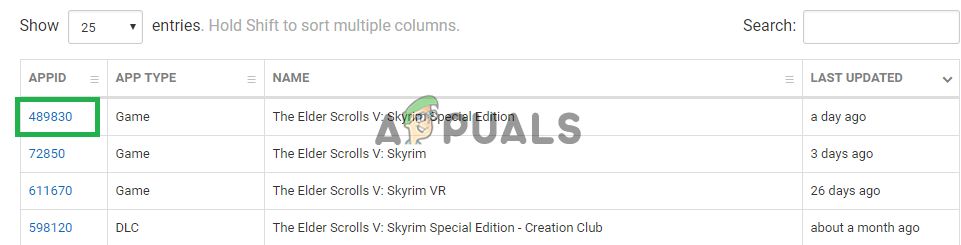 Копирование «AppID»
 - Нажмите на число и откроется новая страница, внутри которой нажмите «Депо«.
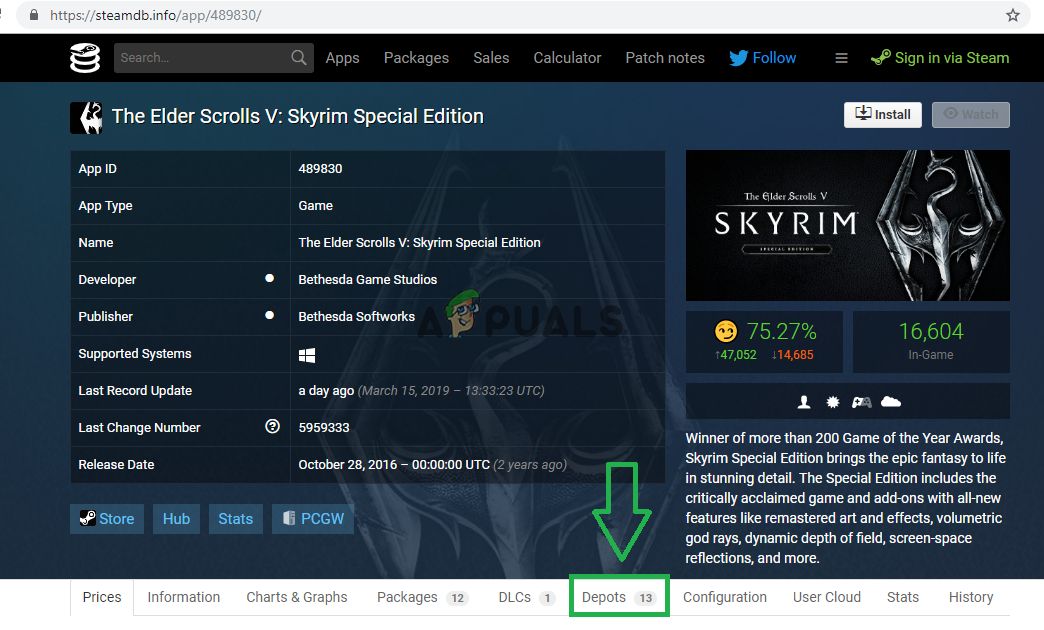 Нажав на «Депо»
 - Откроется новая страница, внутри которой запишите «Я БЫ» число перечислены за Skyrim Специальный Издание EXE.
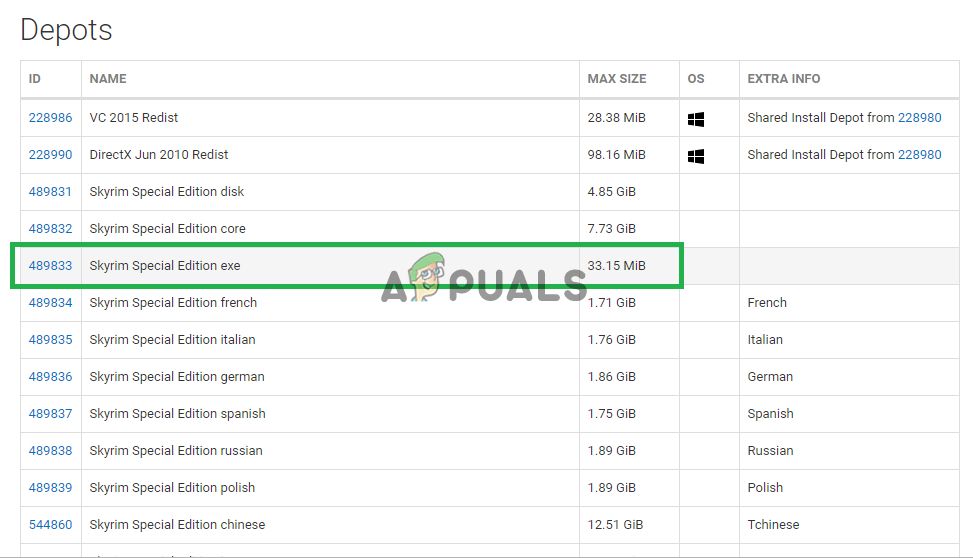 Записывая это число
 - Сейчас щелчок на этот номер открыть на новую страницу.
- Внутри новой страницы, щелчок на «МанифестыВариант.
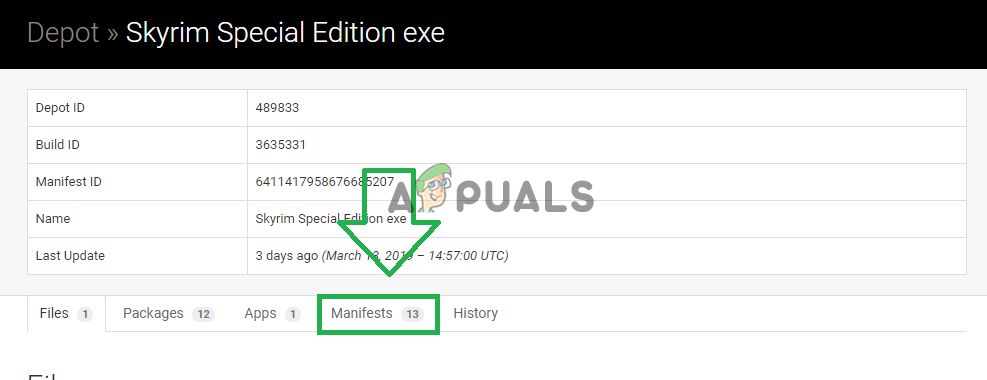 Нажав на опцию «Манифесты».
 - Сейчас нота вниз число, которое старшая чем Дата новый Обновить было вышел. например, если обновление было выпущено 5 дней назад, запишите то, что было указано более пяти дней назад.
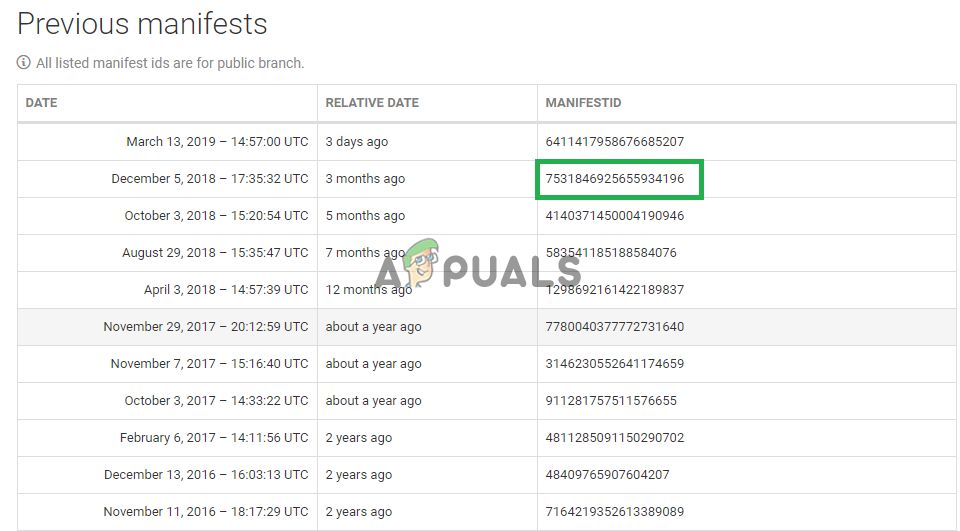 Записывать номер
 - Теперь щелкните правой кнопкой мыши на Пар ярлык запуска на рабочий стол и выберите «свойства«.
- В целевых окнах введите «-приставка»После окончания ранее написанного текста без любой пространство.
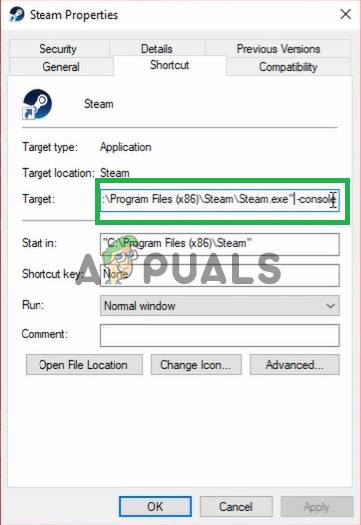 Добавление новой команды к цели.
 - После применение перемены, открыть поднимитесь через этот ярлык и нажмите «Приставка«.
 Открытие консоли внутри пара.
 - Внутри Приставка, введите «download-depot (идентификационный номер приложения) (идентификационный номер депо) (идентификационный номер манифеста)И нажмите «Войти«.
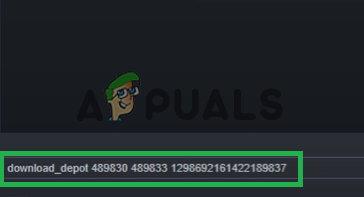 Введите команду в консоли Steam.
 - Папка, в которой старшая версия в настоящее время загруженный будет отображается на приставка.
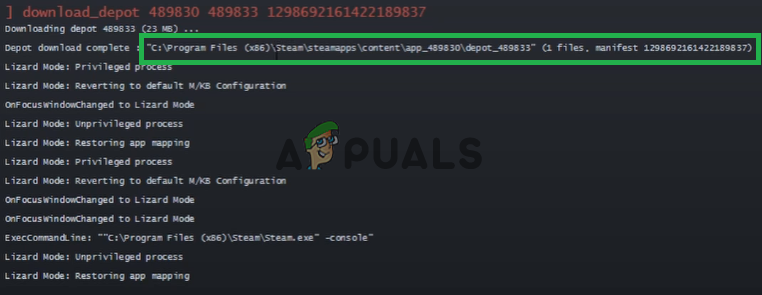 Папка отображается в этой области консоли.
 - После завершения загрузки перейдите к этому папка а также копия исполнимый скачать там.
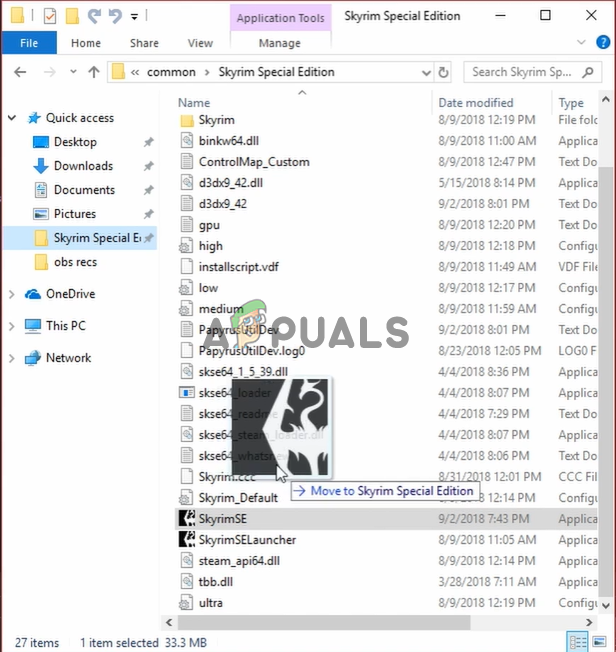 Копирование исполняемого файла в папку установки игры.
 - Вставить исполнимый внутри игра монтаж папку и выберите «Копировать и заменить«.
- Это будет сейчас возвращаться игра назад на старую версию.
Решение 4. Отключение неисправных модов.
Возможно, что определенный модификация может быть причиной проблемы с игрой. Обычно, если игра обновления старший Модификации не Работа в теме. Разработчики модов обычно релиз новее версии Модификации после игра обновления. Поэтому убедитесь, что все Модификации являются обновленный до их последних версий. Также, запрещать любой модов которые вызывая проблемы с игрой и чьи обновления иметь не еще был вышел.