In this article, we will discuss the Message Box Widget of the PyQT5 module. It is used to display the message boxes. PyQt5 is a library used to create GUI using the Qt GUI framework. Qt is originally written in C++ but can be used in Python. The latest version of PyQt5 can be installed using the command:
pip install PyQt5
What is a Message Box?
Message Boxes are usually used for declaring a small piece of information to the user. It gives users a pop-up box, that cannot be missed, to avoid important errors and information being missed by the users and in some cases, the user cannot continue without acknowledging the message box.
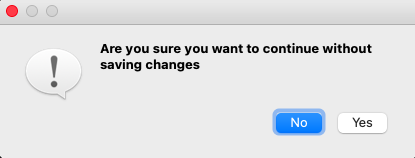
Based on the applications there are four types of message boxes. The following is the syntax for creating a message box. For any of the boxes, instantiation needs to be done.
Syntax:
msg_box_name = QMessageBox()
Now according to the requirement an appropriate message box is created.
Types of Message Box
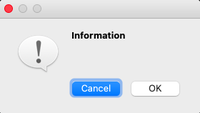
Information Message Box
This type of message box is used when related information needs to be passed to the user.
Syntax:
msg_box_name.setIcon(QMessageBox.Information)
Question Message Box
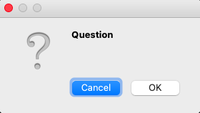
This message box is used to get an answer from a user regarding some activity or action to be performed.
Syntax:
msg_box_name.setIcon(QMessageBox.Question)
Warning Message Box
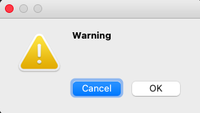
This triggers a warning regarding the action the user is about to perform.
Syntax:
msg_box_name.setIcon(QMessageBox.Warning)
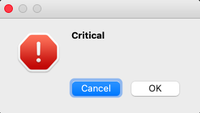
Critical Message Box
This is often used for getting the user’s opinion for a critical action.
Syntax:
msg_box_name.setIcon(QMessageBox.Critical)
Creating a simple Message Box using PyQt5
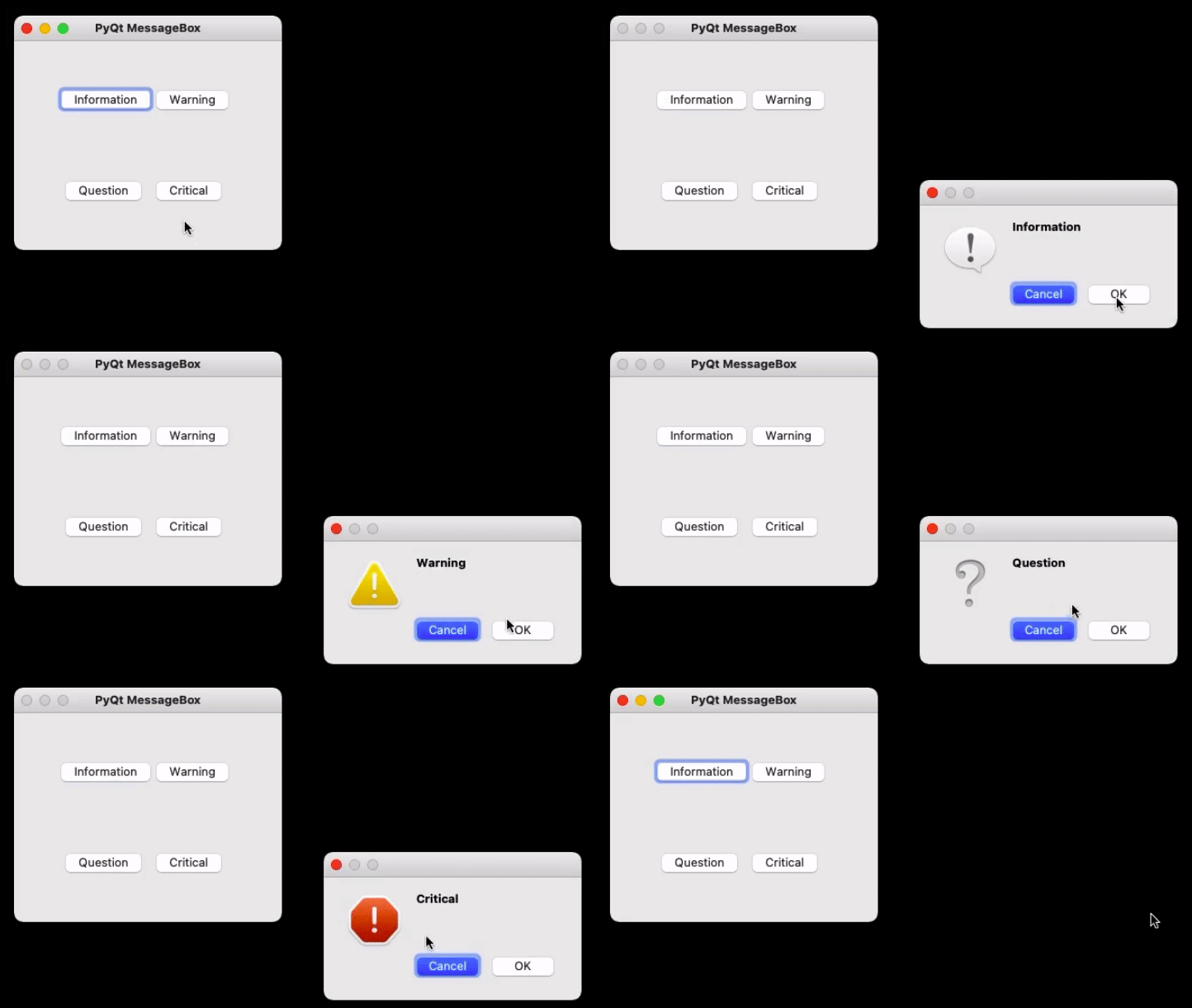
Now to create a program that produces a message box first import all the required modules, and create a widget with four buttons, on clicking any of these a message box will be generated.
Now for each button associate a message box that pops when the respective button is clicked. For this first, instantiate a message box and add a required icon. Now set appropriate attributes for the pop that will be generated. Also, add buttons to deal with standard mechanisms.
Given below is the complete implementation.
Program:
Python
import sys
from PyQt5.QtWidgets import *
def window():
app = QApplication(sys.argv)
w = QWidget()
b1 = QPushButton(w)
b1.setText("Information")
b1.move(45, 50)
b2 = QPushButton(w)
b2.setText("Warning")
b2.move(150, 50)
b3 = QPushButton(w)
b3.setText("Question")
b3.move(50, 150)
b4 = QPushButton(w)
b4.setText("Critical")
b4.move(150, 150)
b1.clicked.connect(show_info_messagebox)
b2.clicked.connect(show_warning_messagebox)
b3.clicked.connect(show_question_messagebox)
b4.clicked.connect(show_critical_messagebox)
w.setWindowTitle("PyQt MessageBox")
w.show()
sys.exit(app.exec_())
def show_info_messagebox():
msg = QMessageBox()
msg.setIcon(QMessageBox.Information)
msg.setText("Information ")
msg.setWindowTitle("Information MessageBox")
msg.setStandardButtons(QMessageBox.Ok | QMessageBox.Cancel)
retval = msg.exec_()
def show_warning_messagebox():
msg = QMessageBox()
msg.setIcon(QMessageBox.Warning)
msg.setText("Warning")
msg.setWindowTitle("Warning MessageBox")
msg.setStandardButtons(QMessageBox.Ok | QMessageBox.Cancel)
retval = msg.exec_()
def show_question_messagebox():
msg = QMessageBox()
msg.setIcon(QMessageBox.Question)
msg.setText("Question")
msg.setWindowTitle("Question MessageBox")
msg.setStandardButtons(QMessageBox.Ok | QMessageBox.Cancel)
retval = msg.exec_()
def show_critical_messagebox():
msg = QMessageBox()
msg.setIcon(QMessageBox.Critical)
msg.setText("Critical")
msg.setWindowTitle("Critical MessageBox")
msg.setStandardButtons(QMessageBox.Ok | QMessageBox.Cancel)
retval = msg.exec_()
if __name__ == '__main__':
window()
Output
In this article, we will discuss the Message Box Widget of the PyQT5 module. It is used to display the message boxes. PyQt5 is a library used to create GUI using the Qt GUI framework. Qt is originally written in C++ but can be used in Python. The latest version of PyQt5 can be installed using the command:
pip install PyQt5
What is a Message Box?
Message Boxes are usually used for declaring a small piece of information to the user. It gives users a pop-up box, that cannot be missed, to avoid important errors and information being missed by the users and in some cases, the user cannot continue without acknowledging the message box.
Based on the applications there are four types of message boxes. The following is the syntax for creating a message box. For any of the boxes, instantiation needs to be done.
Syntax:
msg_box_name = QMessageBox()
Now according to the requirement an appropriate message box is created.
Types of Message Box
Information Message Box
This type of message box is used when related information needs to be passed to the user.
Syntax:
msg_box_name.setIcon(QMessageBox.Information)
Question Message Box
This message box is used to get an answer from a user regarding some activity or action to be performed.
Syntax:
msg_box_name.setIcon(QMessageBox.Question)
Warning Message Box
This triggers a warning regarding the action the user is about to perform.
Syntax:
msg_box_name.setIcon(QMessageBox.Warning)
Critical Message Box
This is often used for getting the user’s opinion for a critical action.
Syntax:
msg_box_name.setIcon(QMessageBox.Critical)
Creating a simple Message Box using PyQt5
Now to create a program that produces a message box first import all the required modules, and create a widget with four buttons, on clicking any of these a message box will be generated.
Now for each button associate a message box that pops when the respective button is clicked. For this first, instantiate a message box and add a required icon. Now set appropriate attributes for the pop that will be generated. Also, add buttons to deal with standard mechanisms.
Given below is the complete implementation.
Program:
Python
import sys
from PyQt5.QtWidgets import *
def window():
app = QApplication(sys.argv)
w = QWidget()
b1 = QPushButton(w)
b1.setText("Information")
b1.move(45, 50)
b2 = QPushButton(w)
b2.setText("Warning")
b2.move(150, 50)
b3 = QPushButton(w)
b3.setText("Question")
b3.move(50, 150)
b4 = QPushButton(w)
b4.setText("Critical")
b4.move(150, 150)
b1.clicked.connect(show_info_messagebox)
b2.clicked.connect(show_warning_messagebox)
b3.clicked.connect(show_question_messagebox)
b4.clicked.connect(show_critical_messagebox)
w.setWindowTitle("PyQt MessageBox")
w.show()
sys.exit(app.exec_())
def show_info_messagebox():
msg = QMessageBox()
msg.setIcon(QMessageBox.Information)
msg.setText("Information ")
msg.setWindowTitle("Information MessageBox")
msg.setStandardButtons(QMessageBox.Ok | QMessageBox.Cancel)
retval = msg.exec_()
def show_warning_messagebox():
msg = QMessageBox()
msg.setIcon(QMessageBox.Warning)
msg.setText("Warning")
msg.setWindowTitle("Warning MessageBox")
msg.setStandardButtons(QMessageBox.Ok | QMessageBox.Cancel)
retval = msg.exec_()
def show_question_messagebox():
msg = QMessageBox()
msg.setIcon(QMessageBox.Question)
msg.setText("Question")
msg.setWindowTitle("Question MessageBox")
msg.setStandardButtons(QMessageBox.Ok | QMessageBox.Cancel)
retval = msg.exec_()
def show_critical_messagebox():
msg = QMessageBox()
msg.setIcon(QMessageBox.Critical)
msg.setText("Critical")
msg.setWindowTitle("Critical MessageBox")
msg.setStandardButtons(QMessageBox.Ok | QMessageBox.Cancel)
retval = msg.exec_()
if __name__ == '__main__':
window()
Output
'''
О диалоге
 Ошибка диалогового окна
 Предупреждение Диалог
 Вопрос: диалог
 Сообщение Диалог
'''
import sys
from PyQt5.QtWidgets import *
from PyQt5.QtCore import *
from PyQt5.QtGui import *

class QMessageboxDemo(QWidget):
    def __init__(self):
        super(QMessageboxDemo,self).__init__()
        self.initUI()

    def initUI(self):
        self.setWindowTitle("Cmessagebox Case")

        self.resize(300,400)

        layout = QVBoxLayout()
        self.button1 = QPushButton(«Дисплей о диалоге»)
        self.button1.clicked.connect(self.showdialog)
        # Диалог отображения сообщения
        self.button2 = QPushButton(«Дисплейное сообщение» Диалог ')
        self.button2.clicked.connect(self.showdialog)
        #предостережение
        self.button3 = QPushButton(«Диалог предупреждения отображения»)
        self.button3.clicked.connect(self.showdialog)
        #
        self.button4 = QPushButton(«Дисплей ошибки Диалог»)
        self.button4.clicked.connect(self.showdialog)

        # Диалог вопроса
        self.button5 = QPushButton(«Дисплей вопрос диалог»)
        self.button5.clicked.connect(self.showdialog)

        layout.addWidget(self.button1)
        layout.addWidget(self.button2)
        layout.addWidget(self.button3)
        layout.addWidget(self.button4)
        layout.addWidget(self.button5)
        self.setLayout(layout)
    def showdialog(self):
        text = self.sender().text()

        if text == «Дисплей о диалоге»:
            # Qmessagebox.about (self, 'title', 'content')
            QMessageBox.about(self,'на',«Это вопрос о диалоге»)
        elif text == «Дисплейное сообщение» Диалог ':
            reply = QMessageBox.information(self,'Новости',«Это сообщение сообщение».,
            QMessageBox.Yes | QMessageBox.No,QMessageBox.Yes)
            print(reply)
        elif text == «Диалог предупреждения отображения»:
            QMessageBox.warning(self,'предостережение',«Это диалог предупреждения», QMessageBox.Yes | QMessageBox.No,QMessageBox.Yes)
        elif text == «Дисплей ошибки Диалог»:
            QMessageBox.critical(self, 'ошибка', «Это диалоговое окно ошибки», QMessageBox.Yes | QMessageBox.No, QMessageBox.Yes)
        elif text == «Дисплей вопрос диалог»:
            QMessageBox.critical(self, 'Подсказка', «Это оперативное диалоговое окно», QMessageBox.Yes | QMessageBox.No, QMessageBox.Yes)


if __name__ == '__main__':
    app =QApplication(sys.argv)
    main = QMessageboxDemo()
    main.show()
    app.exit(app.exec_())

5 ответов
Qt включает в себя класс диалога для сообщений об ошибках QErrorMessage который вы должны использовать, чтобы ваш диалог соответствовал системным стандартам. Чтобы показать диалог, просто создайте объект диалога, затем вызовите .showMessage(). Например:
error_dialog = QtWidgets.QErrorMessage()
error_dialog.showMessage('Oh no!')
Вот минимальный рабочий пример скрипта:
import PyQt5
from PyQt5 import QtWidgets

app = QtWidgets.QApplication([])

error_dialog = QtWidgets.QErrorMessage()
error_dialog.showMessage('Oh no!')

app.exec_()
mfitzp
24 окт. 2016, в 19:04
Поделиться
Все вышеперечисленные варианты не работали для меня, используя Komodo Edit 11.0. Просто вернул «1» или, если не был реализован «-1073741819».
Полезным для меня было: решение Ванлока.
def my_exception_hook(exctype, value, traceback):
    # Print the error and traceback
    print(exctype, value, traceback)
    # Call the normal Exception hook after
    sys._excepthook(exctype, value, traceback)
    sys.exit(1)

# Back up the reference to the exceptionhook
sys._excepthook = sys.excepthook

# Set the exception hook to our wrapping function
sys.excepthook = my_exception_hook
ZF007
13 нояб. 2017, в 20:15
Поделиться
Следующее должно работать:
msg = QMessageBox()
msg.setIcon(QMessageBox.Critical)
msg.setText("Error")
msg.setInformativeText(e)
msg.setWindowTitle("Error")
Это не тот же тип сообщения (разные GUI), но довольно близко. e — выражение для ошибки в python3
Надеюсь, что это помогло,
Narusan
24 окт. 2016, в 18:21
Поделиться
Не забудьте вызвать .exec() _ для отображения ошибки:
msg = QMessageBox()
msg.setIcon(QMessageBox.Critical)
msg.setText("Error")
msg.setInformativeText('More information')
msg.setWindowTitle("Error")
msg.exec_()
NShiell
08 янв. 2019, в 12:47
Поделиться
Чтобы показать окно сообщения, вы можете вызвать это определение:
from PyQt5.QtWidgets import QMessageBox

def clickMethod(self):
    QMessageBox.about(self, "Title", "Message")
Karam Qusai
17 апр. 2019, в 10:06
Поделиться
Ещё вопросы
- 1Максимальный размер текстовой области в Borderlayout
- 0Передача значений во всплывающее окно по почте?
- 1Неспособность использовать Docker для запуска проекта
- 0На основании статуса в URL, чтобы назначить задачу в Joomla
- 0выполнить onChange, когда определенное условие / событие обнаружено jQuery
- 0Удаление вида из DOM в магистрали
- 0Разрешить число, буквы и любой символ в моей строке
- 0Что не так с этой командой MySQL?
- 1Ошибка типа: apply () отсутствует 1 обязательный позиционный аргумент: ‘func’
- 1Ошибка Python при загрузке изображения из Интернета (ошибка HTTP 400: неверный запрос)
- 1Android Показать изображение по пути
- 1STS v3.5.0.RELEASE x64 не поддерживает горячую замену классов VM
- 0Работа с неуправляемой памятью в c #
- 1Используйте модель Google Cloud AutoML для прогнозирования изображения, которое хранится в облачном хранилище Google Cloud в функции Firebase
- 1Связать ключевое слово в TextView с файлом / каталогом
- 0AngularJS ненужный промежуток
- 1xlsxwriter и панды для отчетности
- 0Перенаправление в новый домен на основе параметров GET
- 1Отдельная логика и рендеринг потоков?
- 0Базовый JSON Jquery
- 1Событие пожара WPF DataGridRow на MouseOver
- 1https получить запрос Python (HTTPS / SSL)
- 0PHPUnit — получить статус прохождения теста + имя в tearDown ()
- 0Как преобразовать мою ручку в угловое дерево?
- 1Централизация получения переменной сеанса в ресурсе REST Джерси
- 0Список повторений не обновляется, когда меню и содержимое находятся в другом шаблоне (Ionic Framework)
- 0Nebulous C ++ Ошибка компиляции
- 0MYSQL ИНДЕКС ДЛЯ Несколько комбинаций столбцов?
- 0C ++ — член структуры указывать на массив
- 0Ошибка компоновщика Duplicate Symbol при попытке связать libFlurryAds
- 1модульное тестирование атрибутов валидатора dataannotations
- 1Возможность изменения элементов ArrayList
- 0HTML / CSS проблема с элементами, движущимися при разных разрешениях экрана
- 0Avg в sql добавляет нули после числа
- 0Мой sql фильтр по последней дате
- 0Удалить несколько выбранных строк DataTable одним щелчком мыши?
- 0jQuery не работает на моем сайте?
- 1Передача данных в событие — Объединить события
- 1Форма Android EditText Показать клавиатуру на резюме
- 0Мерцание в GDI независимо от использования памяти DC и BitBlit
- 0Поиск в теле письма без загрузки — IMAP
- 0Отображение XML в HTML с таблицей стилей CSS
- 0ошибка утечки окна не решена после вставки данных в MySQL
- 0php удалить переменную QUERY_STRING
- 0AngularStrap — загрузить файл шаблона в модальный шаблон как внутренний контент
- 0Ошибки браузера Chrome при обновлении grunt служат в угловом веб-приложении
- 0Событие jquery image.load не запускается, если image.src установлен из события pagehow, и возвращается на ту же страницу
- 1Доступ к элементу в другой деятельности
- 1Маршаллинг родной функции
В обычном Python (3.x) мы всегда используем showerror () из модуля tkinter для отображения сообщения об ошибке, но что мне делать в PyQt5, чтобы отображать точно такой же тип сообщения?
5 ответов
Лучший ответ
Qt включает в себя класс диалогового окна для сообщений об ошибках QErrorMessage, который вам следует используйте, чтобы ваш диалог соответствовал системным стандартам. Чтобы показать диалог, просто создайте объект диалога, затем вызовите .showMessage(). Например:
error_dialog = QtWidgets.QErrorMessage()
error_dialog.showMessage('Oh no!')
Вот минимальный рабочий пример скрипта:
import PyQt5
from PyQt5 import QtWidgets

app = QtWidgets.QApplication([])

error_dialog = QtWidgets.QErrorMessage()
error_dialog.showMessage('Oh no!')

app.exec_()
14
mfitzp
24 Окт 2016 в 20:43
Все вышеперечисленные опции не работают для меня, используя Komodo Edit 11.0. Только что вернул «1» или, если не реализовано, «-1073741819».
Для меня было полезно: решение Vanloc.
def my_exception_hook(exctype, value, traceback):
    # Print the error and traceback
    print(exctype, value, traceback)
    # Call the normal Exception hook after
    sys._excepthook(exctype, value, traceback)
    sys.exit(1)

# Back up the reference to the exceptionhook
sys._excepthook = sys.excepthook

# Set the exception hook to our wrapping function
sys.excepthook = my_exception_hook
5
ZF007
13 Ноя 2017 в 23:13
Следующее должно работать:
msg = QMessageBox()
msg.setIcon(QMessageBox.Critical)
msg.setText("Error")
msg.setInformativeText(e)
msg.setWindowTitle("Error")
Это не тот же тип сообщения (разные GUI), но довольно близко. e — выражение для ошибки в python3
Надеюсь, что помог, Нарусан
3
ekhumoro
25 Окт 2016 в 17:35
Чтобы показать окно сообщения, вы можете вызвать это определение:
from PyQt5.QtWidgets import QMessageBox, QWidget

MainClass(QWidget):
    def __init__(self):
        super().__init__()

    def clickMethod(self):
        QMessageBox.about(self, "Title", "Message")
4
Karam Qusai
17 Апр 2019 в 12:45
Не забудьте вызвать .exec () _ для отображения ошибки:
msg = QMessageBox()
msg.setIcon(QMessageBox.Critical)
msg.setText("Error")
msg.setInformativeText('More information')
msg.setWindowTitle("Error")
msg.exec_()
11
NShiell
8 Янв 2019 в 15:02
When creating a Python GUI, you may want to show the message box QMessageBox at some point. The QMessageBox is a dialog that shows an informational message. It can optionally ask the user to click any of the buttons that show inside it.
Pyqt comes with messagebox support in both PyQt4 and PyQt5. The class to be used is QMessageBox.
In this tutorial you’ll learn how to show a message box on buton click.
Related course: Create PyQt Desktop Appications with Python (GUI)
QMessageBox example
The first thing to do, if you haven’t done so, is to install the PyQt GUI module.
Import QMessageBox from the PyQt5 widgets
from PyQt5.QtWidgets import QMessageBox
A messagebox can easily be added to the window using the code:
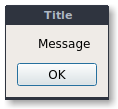
QMessageBox.about(self, "Title", "Message")
The code below create a window with a button. If you click on the button it shows a messagebox.
The messagebox is created with QMessageBox.about(self,title,message). This sets the window title and message too.
import sys
from PyQt5 import QtCore, QtWidgets
from PyQt5.QtWidgets import QMainWindow, QLabel, QGridLayout, QWidget
from PyQt5.QtWidgets import QPushButton
from PyQt5.QtWidgets import QMessageBox
from PyQt5.QtCore import QSize

class MainWindow(QMainWindow):
    def __init__(self):
        QMainWindow.__init__(self)

        self.setMinimumSize(QSize(300, 200))
        self.setWindowTitle("PyQt messagebox example - pythonprogramminglanguage.com")

        pybutton = QPushButton('Show messagebox', self)
        pybutton.clicked.connect(self.clickMethod)
        pybutton.resize(200,64)
        pybutton.move(50, 50)

    def clickMethod(self):
        QMessageBox.about(self, "Title", "Message")

if __name__ == "__main__":
    app = QtWidgets.QApplication(sys.argv)
    mainWin = MainWindow()
    mainWin.show()
    sys.exit( app.exec_() )
Related course: Create PyQt Desktop Appications with Python (GUI)
QMessageBox types
There are several types of icons that can be set in PyQt messagebox, they are: information, question, warning and critical.
Depending on the type of message box you want to show, you can change it to the one you need for your application.
msg.setIcon(QMessageBox.Information)
msg.setIcon(QMessageBox.Question)
msg.setIcon(QMessageBox.Warning)
msg.setIcon(QMessageBox.Critical)
QMessageBox buttons
You can set the default buttons shown in a message box. You can do that with the method setStandrdButtons(), then add the buttons you need.
msg.setStandardButtons(QMessageBox.Ok | QMessageBox.Cancel)
It comes with a whole range of buttons:
- QMessageBox.Ok
- QMessageBox.Open
- QMessageBox.Save
- QMessageBox.Cancel
- QMessageBox.Close
- QMessageBox.Yes
- QMessageBox.No
- QMessageBox.Abort
- QMessageBox.Retry
- QMessageBox.Ignore
You can test which button is clicked by capturing its return value:
ret = QMessageBox.question(self, 'MessageBox', "Click a button", QMessageBox.Yes | QMessageBox.No | QMessageBox.Cancel, QMessageBox.Cancel)

if ret == QMessageBox.Yes:
    print('Button QMessageBox.Yes clicked.')
If you are new to Python PyQt, then I highly recommend this book.
Download PyQt Examples