Have you ever wondered why the screen suddenly turns white while browsing your website, displaying a «HTTP 500 error»?
This is a problem that can occur from time to time, especially when you start updating your theme or modules from your PrestaShop online store..
But there is a simple solution, as you will see in today’s article.
Once you have created your online store and set up everything you need to start selling your products or services, a HTTP 500 error (or internal server error) may appear. No need to panic!
However, we recommend that you take the time to resolve it, because if an error of this type persists over time, it can lead to serious losses for your company’s website, since it prevents users from browsing your site and therefore, purchasing your products.
But first of all, what is this error?
A server displays a HTTP 500 error (or internal server error) when it cannot process a request, a request that should be correct in principle.
Since each server can use its own texts and terminology, the error message can take many forms.
Here are some of the most common error messages:
- «Error 500 (Internal Server Error)»
- «Error 500 — Internal server error»
- «Internal server error»
- «HTTP ERROR 500»
- «Error 500»
- «HTTP Error 500»
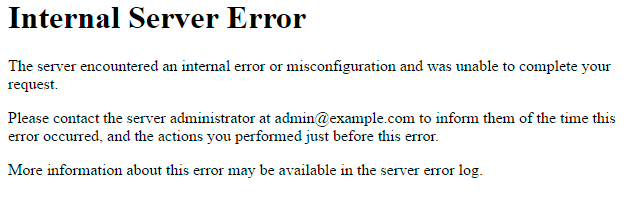
Of course, such an anomaly can be rather worrying if you own an online store and this store is your main source of income.
And for web developers, it’s a nightmare: a frantic race to get your site up and running again.
But how serious is a 500 error?
Although it sounds terrifying, encountering such a problem on your online store is not the end of the world.
In this article, we will explain how to fix it in your PrestaShop shop.
So next time, you will have nothing to worry about, and can act quickly to avoid delaying your sales any further!
How can I detect a HTTP 500 error in my PrestaShop shop?
In summary, this famous 500 error is the web server’s way of saying «Oops! An error has occurred, but we can’t tell you more.»
This is known as a server-side problem.
In other words, a failure has occurred within the hosting service which hosts the website.
This is a very general warning, usually due to problems with PHP settings, programming or website permissions.
In most cases, this glitch is accompanied by a rather brief explanation, similar to this one:
The server reported an unexpected error and cannot complete the client’ s request.
It is very important not to confuse it with the HTTP 404 error (page not found), that is also covered in this blog, and available to consult at any time.
Remember that this error can occur in any browser and operating system (so no, buying the new Apple Mac Pro will not prevent you from being confronted with it at some point…)
» Here is a screenshot with an example of how this error may be displayed:
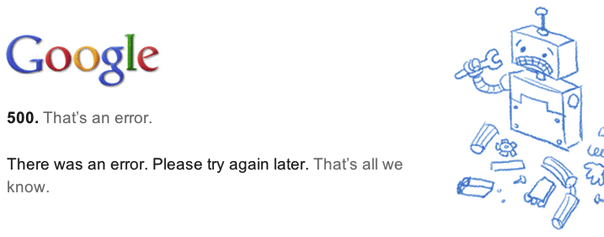
How can I fix a HTTP 500 error on my online store website?
Although the error message is not very detailed, PrestaShop will give you more in-depth information about this problem.
Some servers, due to their configuration, often hide more specific error messages.
Therefore, if you have the same problem on your site and the error messages are too vague, you can activate your web host’s FTP or CPanel error reports in your PrestaShop shop.
There are 2 ways to enable these reports, depending on the version you are using:
» From PrestaShop v1.4 to v1.5.2
- Open config/config.inc.php
- On line 29, you will find this line: @ini_set(‘display_errors’,’off’);
- Replace it with: @ini_set(‘display_errors’,’on’);
» PrestaShop v1.5.3 and later versions (including 1.6 and 1.7)
- Open config/defines.inc.php
- On line 28, you will find this line: define(‘_PS_MODE_DEV_’, false);
- Replace it with: define(‘_PS_MODE_DEV_’, true);
Once error reports from the FTP or CPanel are activated, you can browse your store’s front or back office to find out what the problem is.
Also, if you cannot access your website due to error 500, you can enable the error report and refresh the page that failed to display.
You will then be provided more information that will help you to understand the causes and location of this incident.
What can cause an error 500?
Now that you have more information, you can use some of the standard tips below to deepen your understanding.
To begin, review the most common causes of the problem. If we know the cause of the problem, it is much easier to find the right solution and act accordingly.
The problem may be related to the following causes:
1. Permission error
In many cases, you will find that folder permissions are not set correctly.
To correct this error, simply set a file or folder authorisation to 755 instead of 777 (or vice versa).
In general, 777 permissions are incredibly unprotected and even an amateur hacker can enter your files and add harmful malware.
Check the specific permissions features with your host, as some servers use different rules.
2. Incorrect configuration of the.htaccess file
Internal server problems are often caused by a poorly configured .htaccess file.
As far as PrestaShop is concerned, the problems are generally related to URL re-writing options and activating «friendly URLs».
A .htaccess file’s format is very strict, and even an incorrect character or command could cause an internal 500 server error. Therefore, from the «friendly URLs» option, indicating «NO» could be a solution (don’t forget to save your changes).
We recommend that you backup your.htaccess file and restore it from the back office, or disable friendly URLs.
3. Waiting time has expired
Each server has its own waiting time, which determines how long a script will run.
If the function or script exceeds this time limit, you will receive a 500 error.
Here are the PrestaShop scripts that may take too long to load:
- Importing CSV files.
- Backup files.
- Loading translations.
- Import/export.
- Regenerating miniature views.
In most cases, the server time limit is 30 seconds, which is not enough for these scripts.
In this case, you should contact your host and ask them to change this setting (at least temporarily).
4. Obsolete modules
When updating your shop (for example: if you upgrade from version 1.6 to version 1.7), you may encounter obsolete modules or modules that are incompatible with this new version of PrestaShop.
This can generate 500 errors. In this case, we will need to review all the Addons you have previously installed, or at least those that are available in a more recent version.
We recommend that you always have the official PrestaShop Marketplace page ready (or saved in your favourites), where you can obtain official modules, which are always up-to-date.
What if this HTTP 500 error persists in my shop once I have completed these checks?
In this case, you should consult the Apache and PHP error logs.
While some of these may be provided by your host, you may need to contact them directly to access the files.
«There are other solutions available on our forum»
Even if it seems obvious at first glance, when you receive specific PrestaShop information concerning the error or log file, you may want to do a Google search (focus on the problem and add the word «PrestaShop» to your search).
You will then find various information and tutorials for the type of error that occurred.
You will also certainly find discussions on the PrestaShop forum, entitled «[RESOLVED]».
Go through it carefully and, if after reading this post, you still haven’t been able to correct your error, be sure to register on the PrestaShop forums and ask for help.
With over a million members, you are sure to find answers to your questions, with the help of other users.
There are also official PrestaShop support plans.
These will allow you to contact us, and to obtain additional assistance from one of our representatives.
Conclusion
At the beginning of this article, we told you that a HTTP 500 error or internal server error is not as bad as it seems.
Now you have the right tools to correct one of the most dreaded errors amongst Internet users.
Start your online store with the PrestaShop online software, and continue selling your products or services with total peace of mind!
Исправлением ошибок данного класса должен заниматься программист, системный администратор или продвинутый пользователь, который умеет читать тексты ошибок и понимает, как их исправлять.
Для начала надо получить конкретный текст ошибки, т.к. сообщение «500 Server Error» говорит лишь о наличии ошибки на сервере, но конкретно — ни о чём. Это сделано специально разработчиками PrestaShop, чтобы обычный пользователь (потенциальный покупатель в вашем интернет-магазине) не видел не понятного для него текста об ошибке, чтобы он не «пугался».
Сообщение «500 Server Error» отображается при условиях: режим отладки PrestaShop выключен, а сама ошибка относится к обрабатываемому классу ошибок: PrestaShopException. В этом случае, конкретный текст ошибки записывается в файл. В свежих версиях PrestaShop 1.7 для хранения описания ошибки создаётся файл в директории «/var/logs» с наименованием, содержащим дату, когда эта ошибка произошла, например, «20200929_exception.log» (произошла в 2020 году, 09 месяца, 29 числа). В старых версиях PrestaShop 1.7 директория с файлами находится в другом месте: «/app/logs». А в PrestaShop 1.6 и 1.5 — в директории «/log». Файл содержит список с детальным описанием ошибок, произошедших за ту же дату. Для каждой ошибки приводится следующая полезная информация: дата и время возникновения ошибки; текст ошибки; файл и номер строки, в которой она произошла. Пример описания ошибки в файле:
2020/09/29 — 14:04:25: Link to database cannot be established: SQLSTATE[08004] [1040] Too many connections at line 127 in file classes/db/DbPDO.php
В случае, когда режим отладки PrestaShop выключен, но сама ошибка не относится к обрабатываемому классу ошибок PrestaShopException, то будет отображена пустая страница (белый экран, как иногда говорят пользователи). В этом случае PrestaShop не запишет ошибку в файл, то есть, узнать, какая конкретно ошибка произошла у пользователя будет сложнее (для этого нужно изучать логи ошибок веб-сервера за определённую дату — не стану раскрывать данную тему в деталях; все панели управления имеют раздел, касающийся логов веб-сервера; путь к логам веб-сервера в каждой из операционных систем — отличается; веб-сервер может также быть использован разный, но зачастую, это Apache2).
Если вам известно, как воспроизвести ошибку (например, по словам пользователя), то вы можете включить режим отладки PrestaShop и выполнить порядок действий до обнаружения ошибки — в этом случае, она будет отображена уже на странице браузера. Причём, информация может быть дана более детальная (со стеком вызова методов/функций).
Для исправления ошибки нужно изучить: текст об ошибке, конкретную строку кода, где она произошла и принять решение по её исправлению. Для обычного пользователя — это довольно сложная задача. Поэтому у меня такой, довольно очевидный, совет: скопируйте текст ошибки и вставьте его в строку поиска поисковика (Google, Yandex), в начало добавив версию PrestaShop и само слово PrestaShop, например:
PrestaShop 1.7 Link to database cannot be established: SQLSTATE[08004] [1040] Too many connections at line 127 in file classes/db/DbPDO.php
Как правило, на частые ошибки PrestaShop, в сети находятся ответы. Если ошибка связана с коммерческим модулем, то в сети может не найтись достаточно информации для её исправления. Поэтому, если вы поняли по тексту ошибки, что она относится к определённому модулю, то вы можете обратиться к разработчику данного модуля за помощью.
При 500 ошибке нужно проверять error_log в папке сайта. В данном случае есть ошибки в скрипте либо версия PHP нужна другая, требования к ПО нужно узнать у разработчика скрипта.
new/error_log
[19-Jun-2020 04:11:34 US/Eastern] PHP Warning: count(): Parameter must be an array or an object that implements Countable in /home/h2oua/public_html/new/var/cache/prod/smarty/compile/63/b1/ec/63b1ecce0406dada43299ac0fb74064437ffd849_2.file.blockwishlist_button.tpl.php on line 24
[19-Jun-2020 04:11:34 US/Eastern] PHP Warning: count(): Parameter must be an array or an object that implements Countable in /home/h2oua/public_html/new/var/cache/prod/smarty/compile/63/b1/ec/63b1ecce0406dada43299ac0fb74064437ffd849_2.file.blockwishlist_button.tpl.php on line 24
в админ папке в логе видно, что параметры подключения к mysql вообще не указаны.
new/admin4862edxxe/error_log
[19-Jun-2020 04:01:47 US/Eastern] PHP Fatal error: Uncaught PDOException: SQLSTATE[28000] [1045] Access denied for user ‘root’@’localhost’ (using password: NO) in /home/h2oua/public_html/new/vendor/doctrine/dbal/lib/Doctrine/DBAL/Driver/PDOConnection.php:43
Stack trace:
#0 /home/h2oua/public_html/new/vendor/doctrine/dbal/lib/Doctrine/DBAL/Driver/PDOConnection.php(43): PDO->__construct(‘mysql:host=127….’, ‘root’, », Array)
#1 /home/h2oua/public_html/new/vendor/doctrine/dbal/lib/Doctrine/DBAL/Driver/PDOMySql/Driver.php(44): DoctrineDBALDriverPDOConnection->__construct(‘mysql:host=127….’, ‘root’, », Array)
#2 /home/h2oua/public_html/new/vendor/doctrine/dbal/lib/Doctrine/DBAL/Connection.php(360): DoctrineDBALDriverPDOMySqlDriver->connect(Array, ‘root’, », Array)
#3 /home/h2oua/public_html/new/vendor/doctrine/dbal/lib/Doctrine/DBAL/Connection.php(942): DoctrineDBALConnection->connect()
#4 /home/h2oua/public_html/new/src/PrestaShopBundle/Kernel/ModuleRepository.php(59): DoctrineDBALConnection->query(‘SELECT name FRO…’)
#5 /home/h2oua/public_html in /home/h2oua/public_html/new/vendor/doctrine/dbal/lib/Doctrine/DBAL/Driver/AbstractMySQLDriver.php on line 103
[19-Jun-2020 04:11:51 US/Eastern] PHP Fatal error: Uncaught PDOException: SQLSTATE[28000] [1045] Access denied for user ‘root’@’localhost’ (using password: NO) in /home/h2oua/public_html/new/vendor/doctrine/dbal/lib/Doctrine/DBAL/Driver/PDOConnection.php:43
Stack trace:
#0 /home/h2oua/public_html/new/vendor/doctrine/dbal/lib/Doctrine/DBAL/Driver/PDOConnection.php(43): PDO->__construct(‘mysql:host=127….’, ‘root’, », Array)
#1 /home/h2oua/public_html/new/vendor/doctrine/dbal/lib/Doctrine/DBAL/Driver/PDOMySql/Driver.php(44): DoctrineDBALDriverPDOConnection->__construct(‘mysql:host=127….’, ‘root’, », Array)
#2 /home/h2oua/public_html/new/vendor/doctrine/dbal/lib/Doctrine/DBAL/Connection.php(360): DoctrineDBALDriverPDOMySqlDriver->connect(Array, ‘root’, », Array)
#3 /home/h2oua/public_html/new/vendor/doctrine/dbal/lib/Doctrine/DBAL/Connection.php(942): DoctrineDBALConnection->connect()
#4 /home/h2oua/public_html/new/src/PrestaShopBundle/Kernel/ModuleRepository.php(59): DoctrineDBALConnection->query(‘SELECT name FRO…’)
#5 /home/h2oua/public_html in /home/h2oua/public_html/new/vendor/doctrine/dbal/lib/Doctrine/DBAL/Driver/AbstractMySQLDriver.php on line 103
Содержание
- What is the HTTP 500 error and how can I fix it in my PrestaShop online store?
- What is a HTTP 500 error?
- But how serious is a 500 error?
- How can I detect a HTTP 500 error in my PrestaShop shop?
- » Here is a screenshot with an example of how this error may be displayed:
- How can I fix a HTTP 500 error on my online store website?
- There are 2 ways to enable these reports, depending on the version you are using:
- » From PrestaShop v1.4 to v1.5.2
- » PrestaShop v1.5.3 and later versions (including 1.6 and 1.7)
- What can cause an error 500?
- 1. Permission error
- 2. Incorrect configuration of the.htaccess file
- 3. Waiting time has expired
- 4. Obsolete modules
- What if this HTTP 500 error persists in my shop once I have completed these checks?
- «There are other solutions available on our forum»
- Conclusion
- Prestashop Error 500 – Top 7 reasons, and how to fix them
- What is HTTP 500 Internal Sever Error?
- How to troubleshoot Error 500
- Troubleshooting Error 500 in Prestashop
- Just tell me how to fix this
- 1. Low PHP Memory Limit
- How to increase PHP Memory Limit
- 2. Wrong file & folder permissions
- 3. Corrupted files or wrong encoding
- 4. Coding error in recently installed/updated module or theme
- 5. Missing PHP modules
- 6. Database connection limit
- 7. Stale cache, incorrect .htaccess and many others
- None of these fixes worked. What now?
- Conclusion
- 13 Comments
What is the HTTP 500 error and how can I fix it in my PrestaShop online store?

Have you ever wondered why the screen suddenly turns white while browsing your website, displaying a «HTTP 500 error»?
This is a problem that can occur from time to time, especially when you start updating your theme or modules from your PrestaShop online store..
But there is a simple solution, as you will see in today’s article.
Once you have created your online store and set up everything you need to start selling your products or services, a HTTP 500 error (or internal server error) may appear. No need to panic!
However, we recommend that you take the time to resolve it, because if an error of this type persists over time, it can lead to serious losses for your company’s website, since it prevents users from browsing your site and therefore, purchasing your products.
But first of all, what is this error?
What is a HTTP 500 error?
A server displays a HTTP 500 error (or internal server error) when it cannot process a request, a request that should be correct in principle.
Since each server can use its own texts and terminology, the error message can take many forms.
Here are some of the most common error messages:
- «Error 500 (Internal Server Error)»
- «Error 500 — Internal server error»
- «Internal server error»
- «HTTP ERROR 500»
- «Error 500»
- «HTTP Error 500»
Of course, such an anomaly can be rather worrying if you own an online store and this store is your main source of income.
And for web developers, it’s a nightmare: a frantic race to get your site up and running again.
But how serious is a 500 error?
Although it sounds terrifying, encountering such a problem on your online store is not the end of the world.
In this article, we will explain how to fix it in your PrestaShop shop.
So next time, you will have nothing to worry about, and can act quickly to avoid delaying your sales any further!
How can I detect a HTTP 500 error in my PrestaShop shop?
In summary, this famous 500 error is the web server’s way of saying «Oops! An error has occurred, but we can’t tell you more.»
This is known as a server-side problem.
In other words, a failure has occurred within the hosting service which hosts the website.
This is a very general warning, usually due to problems with PHP settings, programming or website permissions.
In most cases, this glitch is accompanied by a rather brief explanation, similar to this one:
The server reported an unexpected error and cannot complete the client’ s request.
It is very important not to confuse it with the HTTP 404 error (page not found), that is also covered in this blog, and available to consult at any time.
Remember that this error can occur in any browser and operating system (so no, buying the new Apple Mac Pro will not prevent you from being confronted with it at some point. )
» Here is a screenshot with an example of how this error may be displayed:
How can I fix a HTTP 500 error on my online store website?
Although the error message is not very detailed, PrestaShop will give you more in-depth information about this problem.
Some servers, due to their configuration, often hide more specific error messages.
Therefore, if you have the same problem on your site and the error messages are too vague, you can activate your web host’s FTP or CPanel error reports in your PrestaShop shop.
There are 2 ways to enable these reports, depending on the version you are using:
» From PrestaShop v1.4 to v1.5.2
- Open config/config.inc.php
- On line 29, you will find this line: @ini_set(‘display_errors’,’off’);
- Replace it with: @ini_set(‘display_errors’,’on’);
» PrestaShop v1.5.3 and later versions (including 1.6 and 1.7)
- Open config/defines.inc.php
- On line 28, you will find this line: define(‘_PS_MODE_DEV_’, false);
- Replace it with: define(‘_PS_MODE_DEV_’, true);
Once error reports from the FTP or CPanel are activated, you can browse your store’s front or back office to find out what the problem is.
Also, if you cannot access your website due to error 500, you can enable the error report and refresh the page that failed to display.
You will then be provided more information that will help you to understand the causes and location of this incident.
What can cause an error 500?
Now that you have more information, you can use some of the standard tips below to deepen your understanding.
To begin, review the most common causes of the problem. If we know the cause of the problem, it is much easier to find the right solution and act accordingly.
The problem may be related to the following causes:
1. Permission error
In many cases, you will find that folder permissions are not set correctly.
To correct this error, simply set a file or folder authorisation to 755 instead of 777 (or vice versa).
In general, 777 permissions are incredibly unprotected and even an amateur hacker can enter your files and add harmful malware.
Check the specific permissions features with your host, as some servers use different rules.
2. Incorrect configuration of the.htaccess file
Internal server problems are often caused by a poorly configured .htaccess file.
As far as PrestaShop is concerned, the problems are generally related to URL re-writing options and activating «friendly URLs».
A .htaccess file’s format is very strict, and even an incorrect character or command could cause an internal 500 server error. Therefore, from the «friendly URLs» option, indicating «NO» could be a solution (don’t forget to save your changes).
We recommend that you backup your.htaccess file and restore it from the back office, or disable friendly URLs.
3. Waiting time has expired
Each server has its own waiting time, which determines how long a script will run.
If the function or script exceeds this time limit, you will receive a 500 error.
Here are the PrestaShop scripts that may take too long to load:
- Importing CSV files.
- Backup files.
- Loading translations.
- Import/export.
- Regenerating miniature views.
In most cases, the server time limit is 30 seconds, which is not enough for these scripts.
In this case, you should contact your host and ask them to change this setting (at least temporarily).
4. Obsolete modules
When updating your shop (for example: if you upgrade from version 1.6 to version 1.7), you may encounter obsolete modules or modules that are incompatible with this new version of PrestaShop.
This can generate 500 errors. In this case, we will need to review all the Addons you have previously installed, or at least those that are available in a more recent version.
We recommend that you always have the official PrestaShop Marketplace page ready (or saved in your favourites), where you can obtain official modules, which are always up-to-date.
What if this HTTP 500 error persists in my shop once I have completed these checks?
In this case, you should consult the Apache and PHP error logs.
While some of these may be provided by your host, you may need to contact them directly to access the files.
«There are other solutions available on our forum»
Even if it seems obvious at first glance, when you receive specific PrestaShop information concerning the error or log file, you may want to do a Google search (focus on the problem and add the word «PrestaShop» to your search).
You will then find various information and tutorials for the type of error that occurred.
You will also certainly find discussions on the PrestaShop forum, entitled «[RESOLVED]».
Go through it carefully and, if after reading this post, you still haven’t been able to correct your error, be sure to register on the PrestaShop forums and ask for help.
With over a million members, you are sure to find answers to your questions, with the help of other users.
These will allow you to contact us, and to obtain additional assistance from one of our representatives.
Conclusion
At the beginning of this article, we told you that a HTTP 500 error or internal server error is not as bad as it seems.
Now you have the right tools to correct one of the most dreaded errors amongst Internet users.
Start your online store with the PrestaShop online software, and continue selling your products or services with total peace of mind!
Источник
Prestashop Error 500 – Top 7 reasons, and how to fix them
by Visakh S | May 28, 2018
“500 Internal Server Error” or plain “Internal Server Error” is common in Prestashop installations.
As a Server Administration Service provider, we’ve seen a wide range of reasons for this error in Nginx servers, Apache, IIS, LiteSpeed and more.
It can range from Memory limits and File permission issues to obscrure Deadlock errors and Cache issues.

Here’s what an HTTP error 500 looked like in a Prestashop hosted in Nginx.
What is HTTP 500 Internal Sever Error?
“500” is an universal error code used by all Web Servers to say, “Some error happened. I have no clue what!”
Yeah, not very helpful.
But, the HTTP error logs can (and often will) show you what has gone wrong.
How to troubleshoot Error 500
Every web server will have an error log.
For Apache servers, it is usually located at /var/log/apache/error.log . It will show you something like:
[Wed Apr 18 12:59:12.862338 2018] [php7:error] [pid 3538] [client XX.XX.XX.XX:31504] PHP Fatal error: Out of memory (allocated 2097152) (tried to allocate 59462712 bytes) in /home/myuser/public_html/classes/Configuration.php on line 206
Again, not very helpful unless you know what these numbers mean.
Now, let’s look at another option.
Troubleshooting Error 500 in Prestashop
In Prestashop, you can also get some additional information by turning on error reporting in the file “config/defines.inc.php”
- For Prestashop v1.5.2 and lower, change @ini_set(‘display_errors’, ‘off‘); to @ini_set(‘display_errors’, ‘on‘); .
- For Prestashop v1.5.3 and higher, change define(‘_PS_MODE_DEV_’, false); to define(‘_PS_MODE_DEV_’, true); .
Then take the page that gave you the error once more, and you’ll see something like this:
[PrestaShopDatabaseException]
Db->executeS() must be used only with select, show, explain or describe queries at line 471 in file classes/db/Db.php
465.
466. // This method must be used only with queries which display results
467. if (!preg_match(‘#^s*(?s*(select|show|explain|describe|desc)s#i’, $sql))
OK, that can look scary too.
Just tell me how to fix this
Now, if you are like most website owners, you’ll want to know what are the common reasons for this error, so that you can try out some solutions yourself.
Don’t worry, we have you covered.
Here we have the top 7 reasons why you’ll get this error, and what you can do to fix them.
1. Low PHP Memory Limit
The most common reason we’ve seen for error 500 is low memory limit for PHP.
Many web hosts set the default memory allocation for PHP as 32 MB, 64 MB or 128 MB.
However, Prestashop requires at least 128 MB to function, and throw in some more for add-ons if you need them.
So, a sensible memory allocation is “256 MB”. If you have a VPS, set it to “512 MB”.
How to increase PHP Memory Limit
There are many ways to increase PHP memory size.
Some hosts provide web administration interface. Some allow command line access.
Here’s one way that we’ve seen to be working for many:
- Login to your FTP account.
- Download .htaccess file.
- Add the line php_value memory_limit 512M in the file, and save
- Re-upload the file.
If you are not sure how to do this, or if editing is disallowed in your account, our Prestashop experts can help you fix this. Click here to submit a support request. We are online 24/7.
2. Wrong file & folder permissions
Some servers that have SuPHP or Fast-CGI enabled can be especially sensitive to file and folder permissions.
The right permissions for files is 644 and folders is 755 .
If you see from the server logs or Prestashop error report that file permissions maybe the issue, try resetting the permissions using the commands:
find /home/USERNAME/public_html -type d -exec chmod 755 <> ;
find /home/USERNAME/public_html -type f -exec chmod 644 <> ;
Replace /home/USERNAME/public_html with the path to your web directory.
You might also do this from an admin front-end (if you are provided with one).
Warning : Take a backup of your site before you execute any command.
If you are not sure how to reset the file and folder permissions, click here to request support. Our Prestashop experts are online 24/7.
3. Corrupted files or wrong encoding
Many Prestashop owners come to us saying the site broke after they tried to change something.
We’ve seen that often these issues are caused by incorrect file encoding or stray spaces that’s inserted while editing the files.
If you are not a web hosting expert, the best way to solve this is to download a fresh copy of Prestashop, and replace recently changed files.
If you’ve made extensive changes to your files, you’ll need to manually check the file formats and comb for syntax errors.
If you find that difficult, don’t worry. We can do it for you in a few minutes. Click here to open a support request to our Prestashop experts. We’re online 24/7.
4. Coding error in recently installed/updated module or theme
Prestashop addons (themes and modules) help you setup a shop just like you imagined.
But the downside is that some of these themes and modules might not be well maintained.
Many times we’ve seen some module using deprecated functions, or incorrect code, causing Prestashop to display the white screen.
So, if error 500 was shown after you recently installed or upgraded a new addon, try deleting that addon folder from backend. It should be located in the /themes/ or /modules/ folder in your Prestashop’s public_html .
If you are unable to find out which addon caused the error, we can fix that for you. Click here to open a support request to our 24/7 Prestashop support team.
5. Missing PHP modules
A common issue we’ve seen with Prestashop sites in VPSs is that they lack all the needed PHP modules.
For Prestashop to function, it needs:
To check if these modules are enabled for your website, copy the below code into a file called phpinfo.php and upload it to your site. Then take it in a browser, and check for these extensions.
phpinfo();
?>
If any of those modules are missing, check your server’s php.ini to see if it is enabled. If not, you’ll need to install them.
Installing modules can get a bit technical. If you suspect PHP modules are missing in your server, click here to request support from our Prestashop experts. We can fix that for you in a few minutes.
Note: Remember to delete the phpinfo.php file once you are done. Hackers could use that to target specific vulnerabilities.
6. Database connection limit
Some users have reported the error : “PrestaShop Fatal error: no utf-8 support. Please check your server configuration“.
This might look like UTF-8 support isn’t enabled in the server.
But in reality, it is just Prestashop unable to run a database query.
Some servers have database query limits (eg. 10,000 queries per hour). Any query above that limit wouldn’t be sent to the MySQL database, and it’ll show the UTF-8 error.
Of course it is also possible that the UTF-8 encoding in your database might be changed due to some reason.
If you have a VPS, you can fix this by changing the max_questions variable in the MySQL configuration file to 0 (means unlimited).
If you need help fixing the database limits, our Prestashop experts are online 24/7. Click here to open a support request.
7. Stale cache, incorrect .htaccess and many others
OK, this is not exactly ONE reason. This point exists to say there could be a lot more other reasons why Error 500 can happen.
Some of them are:
- .htaccess errors : Syntax errors in .htaccess files, especially those used to pass PHP variables can cause compilation errors.
- Security settings : Some security settings such as mod_security limits can cause the execution to fail. It’ll need to be found out by looking at the web server logs.
- Many more : Basically anything that blocks the proper execution of Prestashop files can cause this error. If none of these seem to fit your issue, you’ll need to enable Error Reporting.
None of these fixes worked. What now?
There’s good news and bad news.
Bad news is that you’ll really have to geek out the cryptic log files.
Good news is that, you really don’t have to.
Here at Bobcares, our Prestashop experts do this kind of troubleshooting all day long.
It’ll take us only a few minutes to go through the logs and zero in on the solution.
Conclusion
Prestashop error 500 can happen due to PHP memory limits, file permission issues, database connection errors, and more. Here we have listed the top 7 reasons for this error, and how you can resolve it yourself.
Or it may be an openbase_dir problem like we had on carcasadura.ro
Thanks for your help, it worked for me.
Agree with the 7 causes you mentioned.. as a developer, wrong query syntax also cause 500 error..
Mon problème était que j’ai installé manuellement Prestashop V7 alors que mon site avait la version V6, et après plusieurs recherches j’ai trouvé qu’on ne pouvait pas passer de Prestashop V6 à la version V7, alors qu’avant on pouvait passer de la V5 à la V6, désormais ce n’est plus possible. C’est pour cette raison que j’ai rencontré l’erreur 500, en vérifiant le fichier log j’ai eu le message suivant :
Link to database cannot be established: SQLSTATE[HY000] [1045] Access denied for user ‘nels_prestash’@’localhost’ (using password: YES) at line 127 in file classes/db/DbPDO.php
J’espère que ça aidera d’autres personnes.
Bonjour Lucinda,
Oui, la mise à niveau de Prestasop peut entraîner des erreurs pouvant nécessiter une correction manuelle.
I am working on prestashop 1.7. When I click ‘Add Category’ from Category it shows: 500 – Internal Server Error
I am pasting here the error as it is:
500 – Internal Server Error
This is a temporary server error.
Please try to reload the webpage later.
If you are the webmaster of this site please log in to Cpanel and check the Error Logs. You will find the exact reason for this error there.
Common reasons for this error are:
Incorrect file/directory permissions: Above 755.
In order files to be processed by the webserver, their permissions have to be equal or below 755. You can update file permissions with a FTP client or through cPanel’s File Manager.
Incorrect Apache directives inside .htaccess file.
Make sure you have not specified unsupported directives inside the local .htaccess file. Such include PHP settings and Apache module settings.
Hello Rizwan,
Thank you for the inputs.
Источник
“500 Internal Server Error” or plain “Internal Server Error” is popular when installing and using any web platform. Not only PrestaShop but you might also encounter this error on WordPress, Shopify, Magento websites and so on. This disreputable HTTP Error 500 could turn an online store owner’s smile to a bewildered frown with one click. The fear of lost sales, it stonewalls your customers’ ability to browse your store and purchase products. For web developers, this error is a nightmare. Everyone has to scurry to get his or her stores back online.
As terrible as it sounds, it’s not too scary. On this post, I’ll explain the error and offer some troubleshooting ideas for your PrestaShop store. The next time you encounter this error, instead of hiding under your blanket, you’ll be prepared to act fast, handle the issue and keep on making deals. Even if you’re not using PrestaShop, these solutions can still worth to take a try.
How to perceive the HTTP Error 500
It’s necessary to not confound the HTTP Error 500 with the Error 404 Page Not Found. To deal with the error, firstly, we have to go over the various ways you may see this error message on your PC. There are different appearances of this message due to each host/server is permitted to adjust the way it’s shown. Here are some regular ways you may see this error.
- «500 Internal Server Error»
- «Internal Server Error»
- «500 Error»
- «HTTP 500 — Internal Server Error»
- «HTTP 500 Internal Error»
- «HTTP Error 500»
Most occasions you will see this message accompanied by different types of this classic familiar line «The server encountered an internal error or misconfiguration and was unable to complete your request». And this error can appear on any web browser and any operating system. Here is a screen capture of one of the forms Error 500 may be displayed on your browser.
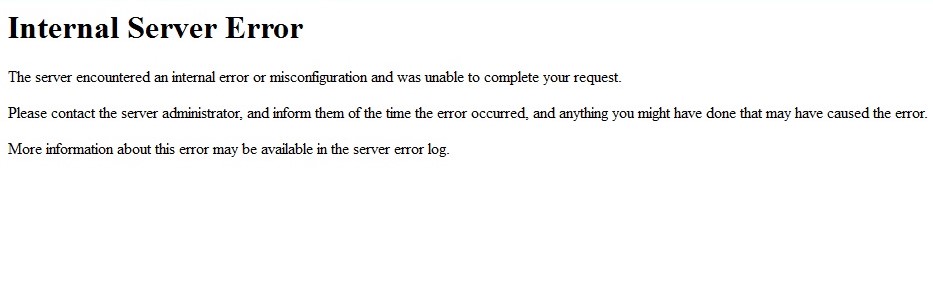
So, what is the HTTP Error 500?
Simply put, the Error 500 is the way your web server saying «Something turned out badly but I have no clue what it is!» Well, it’s really unhelpful at all. But, the HTTP error logs can (and usually will) show you what has gone wrong.
How can I troubleshoot HTTP Error 500?
Each web server will have an error log. For Apache servers, it is usually located at /var/log/apache/error.log. It will show you something like this:
[Thu Nov 22 12:59:12.862338 2018] [php7:error] [pid 3538] [client XX.XX.XX.XX:31504] PHP Fatal error: Out of memory (allocated 2097152) (tried to allocate 59462712 bytes) in /home/myuser/public_html/classes/Configuration.php on line 206
Again, not very helpful unless you recognize what these numbers mean. But don’t be worry, we still have another option.
Troubleshooting Error 500 for PrestaShop website
If your PrestaShop store is suffering from this error, you can get some detailed information by turning on PrestaShop’s Error Reporting in the file “config/defines.inc.php”. There are 2 ways to turn on Error Reporting depending on what PrestaShop version you have. For PrestaShop v1.4 through v1.5.2
- Open config/config.inc.php
- On or around line 29 you will find this line @ini_set(‘display_errors’, ‘off’);
- Change that line to read @ini_set(‘display_errors’, ‘on’);
For PrestaShop v1.5.3 and higher versions
- Open config/defines.inc.php
- On or around line 28 you will find this line define(‘_PS_MODE_DEV_’, false);
- Change that line to read define(‘_PS_MODE_DEV_’, true);
Then back to the page that gave you the error once more, and you’ll see something like this:
[PrestaShopDatabaseException] Db->executeS() must be used only with select, show, explain or describe queries at line 471 in file classes/db/Db.php 465. 466. // This method must be used only with queries which display results 467. if (!preg_match(‘#^s*(?s*(select|show|explain|describe|desc)s#i’, $sql))
OK, more info but still scary for us.
Just show me how to fix this error
For most PrestaShop store owners, you’ll want to know the most common ways this problem is caused so that you can try out some solutions yourself. Here we have the best 5 reasons why Error 500 occurs, and what you can do to address them.
1. File and folder permission is wrong
Some servers that have SuPHP or Fast-CGI turned on can be especially sensitive to file and folder permissions. The right permission for files is 644 and folders is 755. If you see from the server logs or PrestaShop error report that file permissions may be the problem, try resetting the permissions with these commands:
find /home/USERNAME/public_html -type d -exec chmod 755 {} ; find /home/USERNAME/public_html -type f -exec chmod 644 {} ;
Replace /home/USERNAME/public_html with the path to your web directory.
Note: Take a backup of your site before you execute any command
2. Incorrectly configured .htaccess file
Most of the times, you will receive an internal server error when the htaccess file is configured incorrectly. The main culprits of the htaccess errors are «URL Rewrite» settings or Friendly URL enabling. The htaccess syntax is very strict, if you add an incorrect command, or even an incorrect character, your server will return error 500. Make a backup of your htaccess and regenerate the htaccess file either through the back office or by toggling the Enable Friendly URL option.
3. Server timeout
Every server has their own timeout setting, which sets the time that any given script can run. If the function or script crosses that limit, Error 500 will occur. The most common scripts in PrestaShop that may take too long to load are CSV Imports, backups, translation loading, import/exports and thumbnail regeneration. Many server limits are set to 30 seconds, which is not long enough to run these scripts. You should contact your hosting provider and inquire about changing the limit, at least temporarily.
4. Low PHP memory limit
Many web hosts set the default memory allocation for PHP as 32 MB, 64 MB or 128 MB. However, PrestaShop requires at least 128 MB to function and put in some more for modules if you need them. So, a suitable memory allocation is 256 MB. If you have a VPS, set it to 512 MB.
5. Missing PHP modules
A common issue seen with PrestaShop sites in VPSs is that they lack all the needed PHP modules. To help PrestaShop function, we will need:
- Mcrypt
- OpenSSL
- Zip
- Curl
- GD
- PDO
To check if these modules are enabled for your website, copy the code below into «phpinfo.php» file and upload it to your site. Then open it in a browser, and check for these extensions.
<? phpinfo(); ?>
If any of those modules are missing, open your server’s php.ini file to see if it is enabled. If not, you’ll need to install them manually.
Note: Remember to delete the phpinfo.php file once you are done. Hackers could use that to target specific vulnerabilities.