В Powershell существует несколько уровней ошибок и несколько способов их обработать. Проблемы одного уровня (Non-Terminating Errors) можно решить с помощью привычных для Powershell команд. Другой уровень ошибок (Terminating Errors) решается с помощью исключений (Exceptions) стандартного, для большинства языков, блока в виде Try, Catch и Finally.
Как Powershell обрабатывает ошибки
До рассмотрения основных методов посмотрим на теоретическую часть.
Автоматические переменные $Error
В Powershell существует множество переменных, которые создаются автоматически. Одна из таких переменных — $Error хранит в себе все ошибки за текущий сеанс PS. Например так я выведу количество ошибок и их сообщение за весь сеанс:
Get-TestTest
$Error
$Error.Count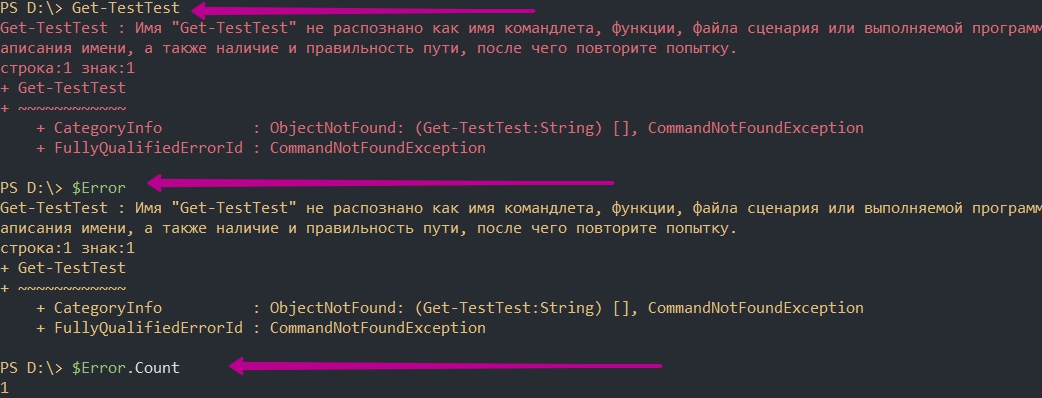
При отсутствии каких либо ошибок мы бы получили пустой ответ, а счетчик будет равняться 0:

Переменная $Error являет массивом и мы можем по нему пройтись или обратиться по индексу что бы найти нужную ошибку:
$Error[0]

foreach ($item in $Error){$item}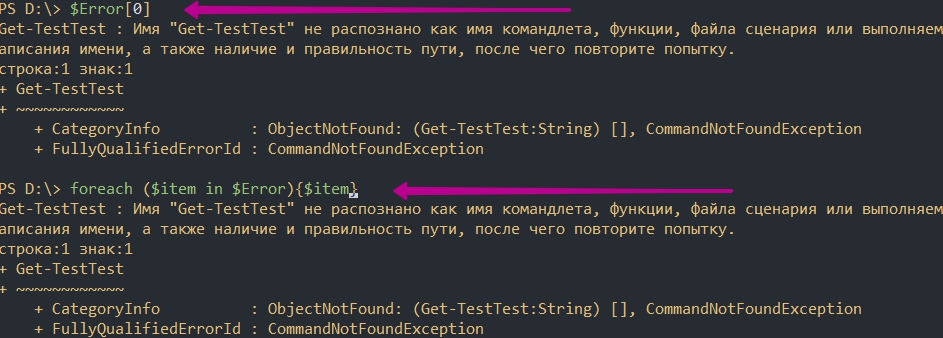
Свойства объекта $Error
Так же как и все что создается в Powershell переменная $Error так же имеет свойства (дополнительную информацию) и методы. Названия свойств и методов можно увидеть через команду Get-Member:
$Error | Get-Member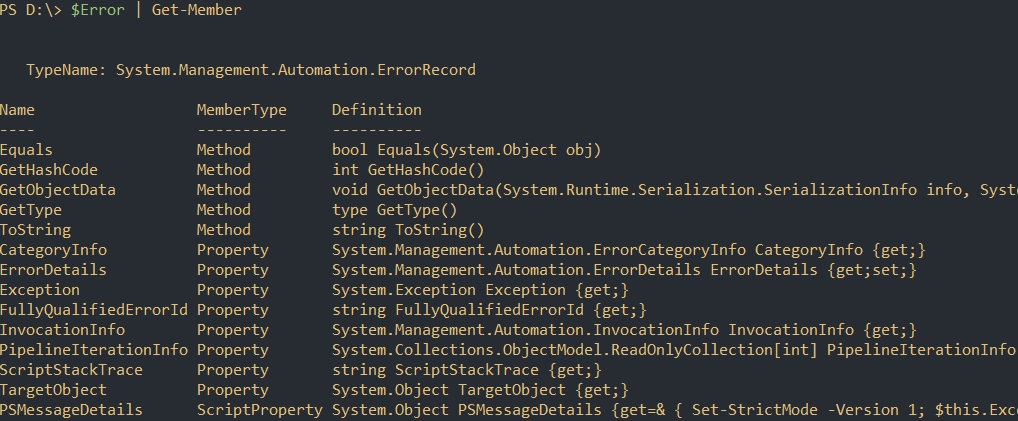
Например, с помощью свойства InvocationInfo, мы можем вывести более структурный отчет об ошибки:
$Error[0].InvocationInfo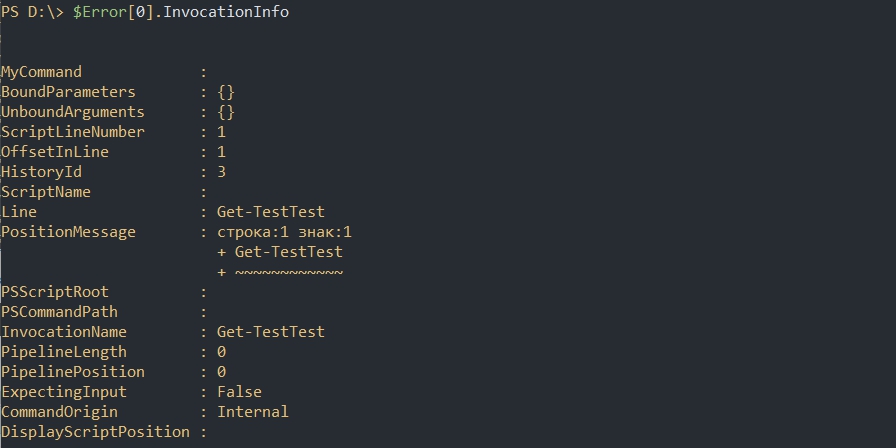
Методы объекта $Error
Например мы можем очистить логи ошибок используя clear:
$Error.clear()
Критические ошибки (Terminating Errors)
Критические (завершающие) ошибки останавливают работу скрипта. Например это может быть ошибка в названии командлета или параметра. В следующем примере команда должна была бы вернуть процессы «svchost» дважды, но из-за использования несуществующего параметра ‘—Error’ не выполнится вообще:
'svchost','svchost' | % {Get-Process -Name $PSItem} --Error 
Не критические ошибки (Non-Terminating Errors)
Не критические (не завершающие) ошибки не остановят работу скрипта полностью, но могут вывести сообщение об этом. Это могут быть ошибки не в самих командлетах Powershell, а в значениях, которые вы используете. На предыдущем примере мы можем допустить опечатку в названии процессов, но команда все равно продолжит работу:
'svchost111','svchost' | % {Get-Process -Name $PSItem}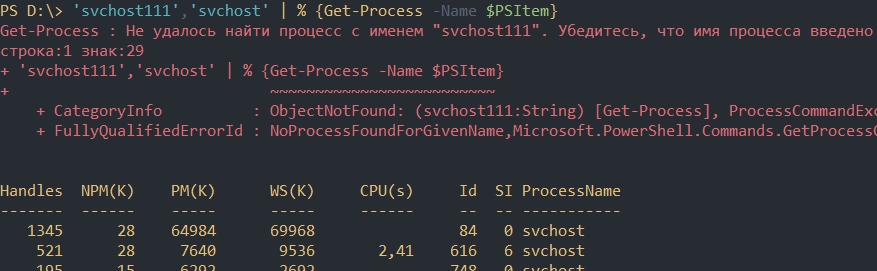
Как видно у нас появилась информация о проблеме с первым процессом ‘svchost111’, так как его не существует. Обычный процесс ‘svchost’ он у нас вывелся корректно.
Параметр ErrorVariable
Если вы не хотите использовать автоматическую переменную $Error, то сможете определять свою переменную индивидуально для каждой команды. Эта переменная определяется в параметре ErrorVariable:
'svchost111','svchost' | % {Get-Process -Name $PSItem } -ErrorVariable my_err_var
$my_err_var
Переменная будет иметь те же свойства, что и автоматическая:
$my_err_var.InvocationInfo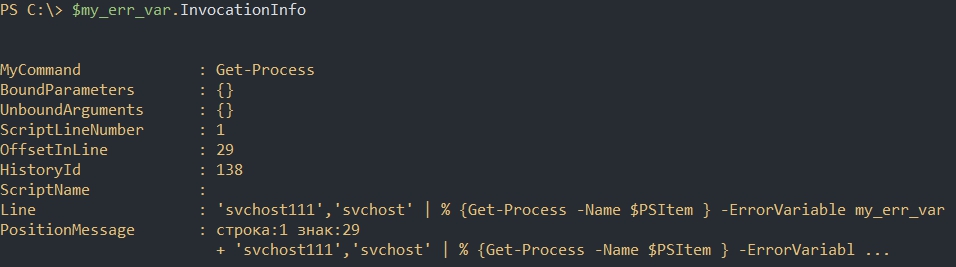
Обработка некритических ошибок
У нас есть два способа определения последующих действий при ‘Non-Terminating Errors’. Это правило можно задать локально и глобально (в рамках сессии). Мы сможем полностью остановить работу скрипта или вообще отменить вывод ошибок.
Приоритет ошибок с $ErrorActionPreference
Еще одна встроенная переменная в Powershell $ErrorActionPreference глобально определяет что должно случится, если у нас появится обычная ошибка. По умолчанию это значение равно ‘Continue’, что значит «вывести информацию об ошибке и продолжить работу»:
$ErrorActionPreference
Если мы поменяем значение этой переменной на ‘Stop’, то поведение скриптов и команд будет аналогично критичным ошибкам. Вы можете убедиться в этом на прошлом скрипте с неверным именем процесса:
$ErrorActionPreference = 'Stop'
'svchost111','svchost' | % {Get-Process -Name $PSItem}
Т.е. скрипт был остановлен в самом начале. Значение переменной будет храниться до момента завершения сессии Powershell. При перезагрузке компьютера, например, вернется значение по умолчанию.
Ниже значение, которые мы можем установить в переменной $ErrorActionPreference:
- Continue — вывод ошибки и продолжение работы;
- Inquire — приостановит работу скрипта и спросит о дальнейших действиях;
- SilentlyContinue — скрипт продолжит свою работу без вывода ошибок;
- Stop — остановка скрипта при первой ошибке.
Самый частый параметр, который мне приходится использовать — SilentlyContinue:
$ErrorActionPreference = 'SilentlyContinue'
'svchost111','svchost' | % {Get-Process -Name $PSItem}
Использование параметра ErrorAction
Переменная $ErrorActionPreference указывает глобальный приоритет, но мы можем определить такую логику в рамках команды с параметром ErrorAction. Этот параметр имеет больший приоритет чем $ErrorActionPreference. В следующем примере, глобальная переменная определяет полную остановку скрипта, а в параметр ErrorAction говорит «не выводить ошибок и продолжить работу»:
$ErrorActionPreference = 'Stop'
'svchost111','svchost' | % {Get-Process -Name $PSItem -ErrorAction 'SilentlyContinue'}
Кроме ‘SilentlyContinue’ мы можем указывать те же параметры, что и в переменной $ErrorActionPreference.
Значение Stop, в обоих случаях, делает ошибку критической.
Обработка критических ошибок и исключений с Try, Catch и Finally
Когда мы ожидаем получить какую-то ошибку и добавить логику нужно использовать Try и Catch. Например, если в вариантах выше мы определяли нужно ли нам отображать ошибку или останавливать скрипт, то теперь сможем изменить выполнение скрипта или команды вообще. Блок Try и Catch работает только с критическими ошибками и в случаях если $ErrorActionPreference или ErrorAction имеют значение Stop.
Например, если с помощью Powershell мы пытаемся подключиться к множеству компьютеров один из них может быть выключен — это приведет к ошибке. Так как эту ситуацию мы можем предвидеть, то мы можем обработать ее. Процесс обработки ошибок называется исключением (Exception).
Синтаксис и логика работы команды следующая:
try {
    # Пытаемся подключиться к компьютеру
}
catch [Имя исключения 1],[Имя исключения 2]{
    # Раз компьютер не доступен, сделать то-то
}
finally {
    # Блок, который выполняется в любом случае последним
}
Блок try мониторит ошибки и если она произойдет, то она добавится в переменную $Error и скрипт перейдет к блоку Catch. Так как ошибки могут быть разные (нет доступа, нет сети, блокирует правило фаервола и т.д.) то мы можем прописывать один блок Try и несколько Catch:
try {
    # Пытаемся подключится
}
catch ['Нет сети']['Блокирует фаервол']{
    # Записываем в файл
}
catch ['Нет прав на подключение']{
    # Подключаемся под другим пользователем
}
Сам блок finally — не обязательный и используется редко. Он выполняется самым последним, после try и catch и не имеет каких-то условий.
Catch для всех типов исключений
Как и было показано выше мы можем использовать блок Catch для конкретного типа ошибок, например при проблемах с доступом. Если в этом месте ничего не указывать — в этом блоке будут обрабатываться все варианты ошибок:
try {
   'svchost111','svchost' | % {Get-Process -Name $PSItem -ErrorAction 'Stop'}
}
catch {
   Write-Host "Какая-то неисправность" -ForegroundColor RED
}
Такой подход не рекомендуется использовать часто, так как вы можете пропустить что-то важное.
Мы можем вывести в блоке catch текст ошибки используя $PSItem.Exception:
try {
   'svchost111','svchost' | % {Get-Process -Name $PSItem -ErrorAction 'Stop'}
}
catch {
   Write-Host "Какая-то неисправность" -ForegroundColor RED
   $PSItem.Exception
}
Переменная $PSItem хранит информацию о текущей ошибке, а глобальная переменная $Error будет хранит информацию обо всех ошибках. Так, например, я выведу одну и ту же информацию:
$Error[0].Exception
Создание отдельных исключений
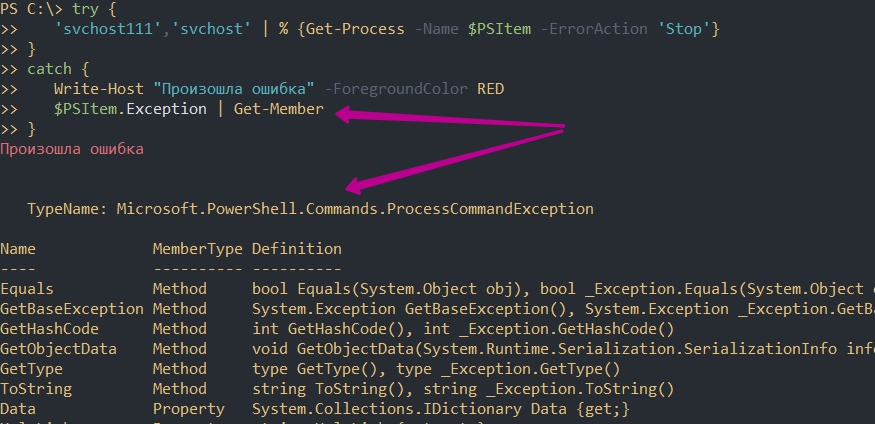
Что бы обработать отдельную ошибку сначала нужно найти ее имя. Это имя можно увидеть при получении свойств и методов у значения переменной $Error:
$Error[0].Exception | Get-Member
Так же сработает и в блоке Catch с $PSItem:
Для вывода только имени можно использовать свойство FullName:
$Error[0].Exception.GetType().FullName
Далее, это имя, мы вставляем в блок Catch:
try {
   'svchost111','svchost' | % {Get-Process -Name $PSItem -ErrorAction 'Stop'}
}
catch [Microsoft.PowerShell.Commands.ProcessCommandException]{
   Write-Host "Произошла ошибка" -ForegroundColor RED
   $PSItem.Exception
}
Так же, как и было описано выше мы можем усложнять эти блоки как угодно указывая множество исключений в одном catch.
Выброс своих исключений
Иногда нужно создать свои собственные исключения. Например мы можем запретить добавлять через какой-то скрипт названия содержащие маленькие буквы или сотрудников без указания возраста и т.д. Способов создать такие ошибки — два и они тоже делятся на критические и обычные.
Выброс с throw
Throw — выбрасывает ошибку, которая останавливает работу скрипта. Этот тип ошибок относится к критическим. Например мы можем указать только текст для дополнительной информации:
$name = 'AD.1'

if ($name -match '.'){
   throw 'Запрещено использовать точки в названиях'
}
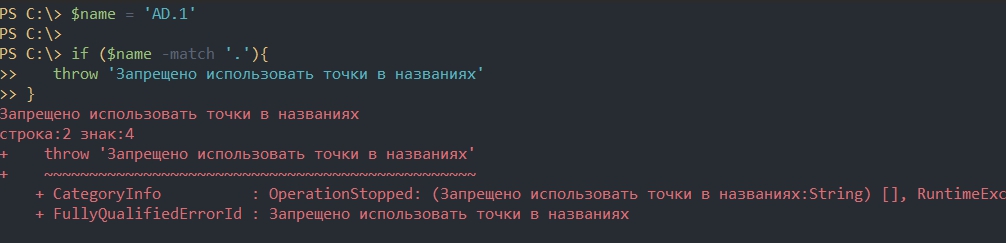
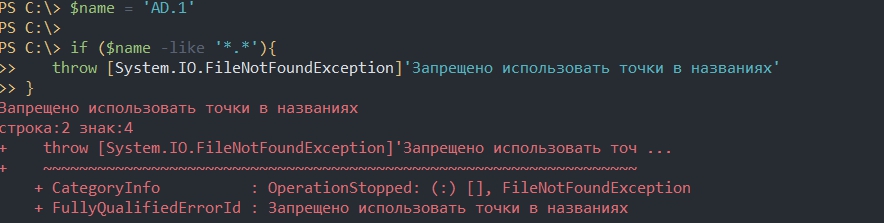
Если нужно, то мы можем использовать исключения, которые уже были созданы в Powershell:
$name = 'AD.1'

if ($name -like '*.*'){
   throw [System.IO.FileNotFoundException]'Запрещено использовать точки в названиях'
}
Использование Write-Error
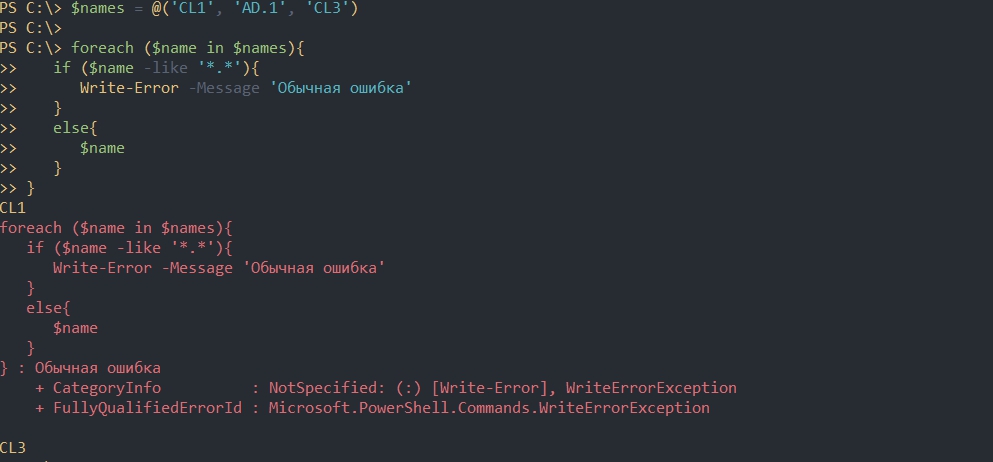
Команда Write-Error работает так же, как и ключ ErrorAction. Мы можем просто отобразить какую-то ошибку и продолжить выполнение скрипта:
$names = @('CL1', 'AD.1', 'CL3')

foreach ($name in $names){
   if ($name -like '*.*'){
      Write-Error -Message 'Обычная ошибка'
   }
   else{
      $name
   }
}
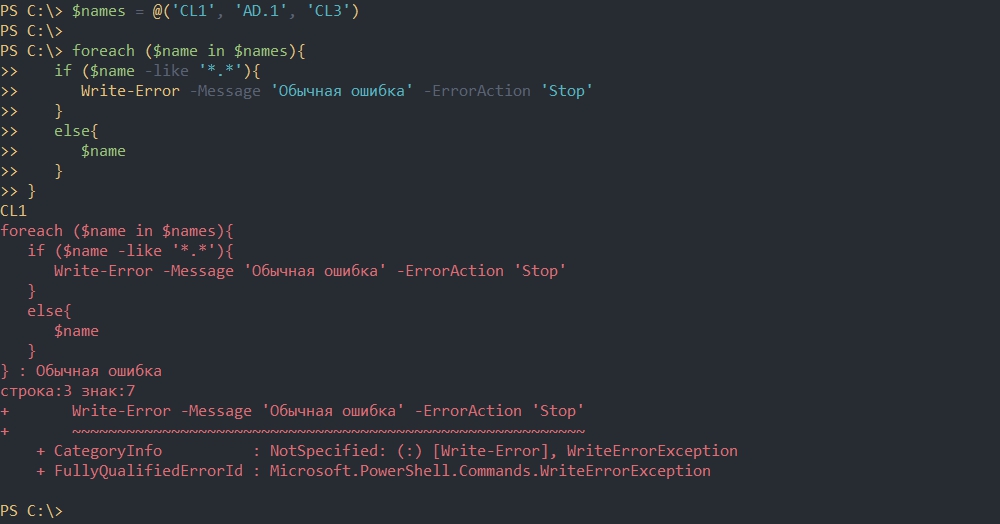
При необходимости мы можем использовать параметр ErrorAction. Значения этого параметра были описаны выше. Мы можем указать значение ‘Stop’, что полностью остановит выполнение скрипта:
$names = @('CL1', 'AD.1', 'CL3')

foreach ($name in $names){
   if ($name -like '*.*'){
      Write-Error -Message 'Обычная ошибка' -ErrorAction 'Stop'
   }
   else{
      $name
   }
}
Отличие команды Write-Error с ключом ErrorAction от обычных команд в том, что мы можем указывать исключения в параметре Exception:
Write-Error -Message 'Обычная ошибка' -ErrorAction 'Stop'

Write-Error -Message 'Исключение' -Exception [System.IO.FileNotFoundException] -ErrorAction 'Stop'
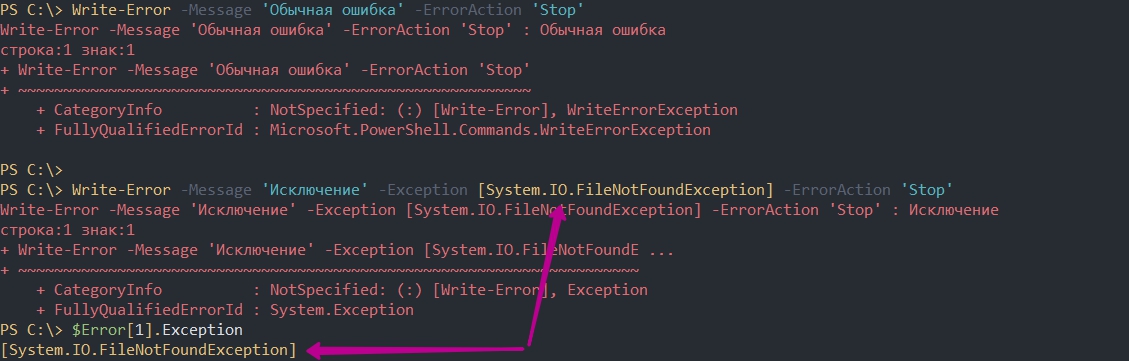
В Exception мы так же можем указывать сообщение. При этом оно будет отображаться в переменной $Error:
Write-Error -Exception [System.IO.FileNotFoundException]'Моё сообщение'
…
Теги:
#powershell
#ошибки
Вообще я редко вижу смысл в том чтобы отлавливать ошибки в скриптах, но недавно ко мне попалась задача, где необходимо было обработать ошибки в скрипте PowerShell. Дело в том что данный скрипт использовался как часть работы System Center Orchestrator. Для этого я использовал Try/Catch/Finaly . Но все по порядку.
Немного про ошибки
Ошибки можно условно разделить на две больших категории.
- Прерывающие
- Не прерывающие
Первые завершают выполнение конвейера с ошибкой. Т.е. дальнейшие команды в конвейере не выполняются. Например, вы не правильно указали имя команды. Вторая категория лишь генерирует ошибку, но конвейер продолжает выполняться далее. Например, вы запросили содержимое не существующего каталога.
В любом случае всю информацию о всех ошибках можно поглядеть в переменной $error. Последняя ошибка идет с индексом 0, т.е. $error[0] — покажет последнюю ошибку. А $error[0].Exception описание последней ошибки.
|
1 2 3 4 5 6 7 8 9 10 11 12 13 14 15 16 17 18 19 20 21 22 23 24 25 26 27 |
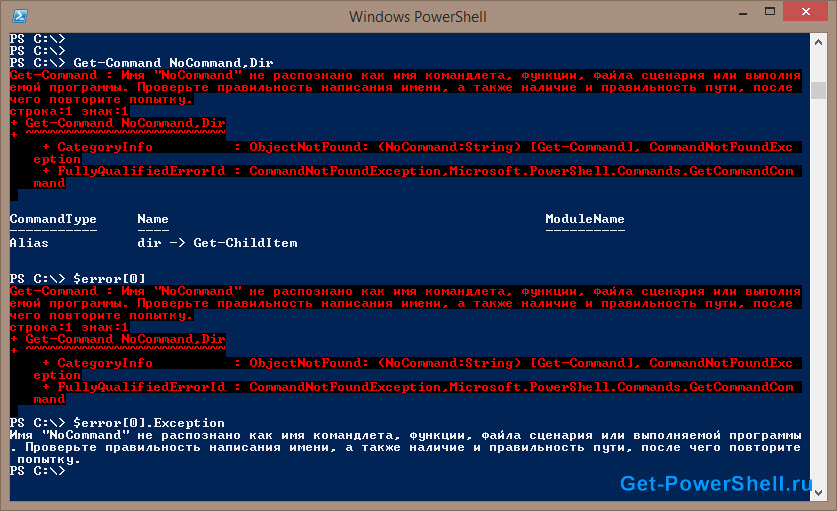
PS C:> Get-Command NoCommand,Dir Get-Command : Имя «NoCommand» не распознано как имя командлета, функции, файла сценария или выполняемой программы. Пров ерьте правильность написания имени, а также наличие и правильность пути, после чего повторите попытку. строка:1 знак:1 + Get-Command NoCommand,Dir + ~~~~~~~~~~~~~~~~~~~~~~~~~ + CategoryInfo : ObjectNotFound: (NoCommand:String) [Get-Command], CommandNotFoundException + FullyQualifiedErrorId : CommandNotFoundException,Microsoft.PowerShell.Commands.GetCommandCommand CommandType Name ModuleName —————— —— ————— Alias dir -> Get-ChildItem PS C:> $error[0] Get-Command : Имя «NoCommand» не распознано как имя командлета, функции, файла сценария или выполняемой программы. Пров ерьте правильность написания имени, а также наличие и правильность пути, после чего повторите попытку. строка:1 знак:1 + Get-Command NoCommand,Dir + ~~~~~~~~~~~~~~~~~~~~~~~~~ + CategoryInfo : ObjectNotFound: (NoCommand:String) [Get-Command], CommandNotFoundException + FullyQualifiedErrorId : CommandNotFoundException,Microsoft.PowerShell.Commands.GetCommandCommand PS C:> $error[0].Exception Имя «NoCommand» не распознано как имя командлета, функции, файла сценария или выполняемой программы. Проверьте правильн ость написания имени, а также наличие и правильность пути, после чего повторите попытку. |
Этот же пример, но в виде рисунка для наглядности.
Для того чтобы выяснить была ли в какой-то части кода ошибка необходимо использовать Try. Это помогает избавиться от неожиданного и некорректного завершение вашего скрипта. Позволяя так же корректно завершить его работу.
Синтаксис выглядит в общем случае так.
|
Try { часть кода в которой ищем ошибку } Catch { [тип ошибки, которую ищем] код, который будет выполнен когда ошибка будет найдена } Finally { код, который будет выполнен в любом случае } |
Однако использование Finally и определение типа ошибки — опционально и может не использоваться.
Для проверки напишем вот такой код где используем Try в PowerShell для того чтобы обработать ошибку деления на ноль и вывести информацию об ошибке.
|
try { [float](4/0) } catch { Write-Host «Error!!!» Write-Host $error[0].Exception } |
Как видно я произвожу деление на ноль в блоке try, т.е. совершаю прерывающую ошибку. Только прерывающие ошибку будут отловлены. А далее в блоке catch произвожу уже необходимые отладочные действия, т.е. произвожу обработку ошибки.. В моей исходной задаче я в данном блоке заносил информацию об ошибках в специальный лог файл, но давайте попробуем запустить мой данный пример.
|
PS C:> .test.ps1 Error!!! System.Management.Automation.RuntimeException: Попытка деления на нуль. —-> System.DivideByZeroException: Попытка делен ия на нуль. —— Конец трассировки внутреннего стека исключений —— в System.Management.Automation.ExceptionHandlingOps.CheckActionPreference(FunctionContext funcContext, Exception exce ption) в System.Management.Automation.Interpreter.ActionCallInstruction`2.Run(InterpretedFrame frame) в System.Management.Automation.Interpreter.EnterTryCatchFinallyInstruction.Run(InterpretedFrame frame) в System.Management.Automation.Interpreter.EnterTryCatchFinallyInstruction.Run(InterpretedFrame frame) |
Увы в блоке try в PowerShell должна присутствовать прерывающая ошибка.
Преобразуем не прерывающую ошибку в прерывающую
Существует общий параметр для всех командлетов в PowerShell -ErrorAction. Данный параметр может принимать четыре значения
- Continue — выводит ошибку и продолжает выполнение
- SilentlyContinue — не выводит ошибку и продолжает выполнение
- Stop — завершает выполнение
- Inquire — спрашивает у пользователя как поступить
В нашем случае подходит действие stop. Если использовать параметр со значением -ErrorAction Stop, то при возникновении ошибки при выполнении команды, данная ошибка прерывает выполнение команды. Ниже пример скрипта, использующего -ErrorAction Stop.
|
try { Dir NoFolder -ErrorAction Stop } catch { Write-Host «Error!!!» Write-Host $error[0].Exception } |
Ниже результат выполнения данного скрипта
|
PS C:> .test.ps1 Error!!! System.Management.Automation.ItemNotFoundException: Не удается найти путь «C:NoFolder», так как он не существует. в System.Management.Automation.SessionStateInternal.GetChildItems(String path, Boolean recurse, C mdletProviderContext context) в Microsoft.PowerShell.Commands.GetChildItemCommand.ProcessRecord() |
В моей исходной задаче try в PowerShell необходимо было использовать для всех команд в скрипте. Поскольку обработка ошибки была общей для любой ошибки в скрипте весь скрипт можно поместить в один Try, конечно это не совсем правильно, но зато просто. Чтобы каждый раз не писать -ErrorAction Stop. Можно воспользоваться переменной $ErrorActionPreference, которая имеет те же значения и сходна по действию, однако распространяет свое действие на все командлеты в скрипте.
|
$ErrorActionPreference = «stop» try { Dir Folder Get-Process -ComputerName TestPC } catch { Write-Host «Error!!!» Write-Host $error[0].Exception } |
Вместо заключения
Конечно, по началу вы мало будете задумываться об поиске ошибок, используя множество условных конструкций вы их минимизируете. Однако использование try в PowerShell позволит минимизировать случаи неожиданного завершения скрипта.
Error handling is just part of life when it comes to writing code. We can often check and validate conditions for expected behavior. When the unexpected happens, we turn to exception handling. You can easily handle exceptions generated by other people’s code or you can generate your own exceptions for others to handle.
Index
- Index
- Basic terminology
- Exception
- Throw and Catch
- The call stack
- Terminating and non-terminating errors
- Swallowing an exception
- Basic command syntax
- Throw
- Write-Error -ErrorAction Stop
- Cmdlet -ErrorAction Stop
- Try/Catch
- Try/Finally
- Try/Catch/Finally
- Throw
- $PSItem
- PSItem.ToString()
- $PSItem.InvocationInfo
- $PSItem.ScriptStackTrace
- $PSItem.Exception
- $PSItem.Exception.Message
- $PSItem.Exception.InnerException
- $PSItem.Exception.StackTrace
- Working with exceptions
- Catching typed exceptions
- Catch multiple types at once
- Throwing typed exceptions
- Write-Error -Exception
- The big list of .Net exceptions
- Exceptions are objects
- Re-throwing an exception
- Re-throwing a new exception
- $PSCmdlet.ThrowTerminatingError()
- Try can create terminating errors
- $PSCmdlet.ThrowTerminatingError() inside try/catch
- Public function templates
- Trap
- Closing remarks
Basic terminology
We need to cover some basic terms before we jump into this one.
Exception
An Exception is like an event that is created when normal error handling can not deal with the issue. Trying to divide a number by zero or running out of memory are examples of something that will create an exception. Sometimes the author of the code you are using will create exceptions for certain issues when they happen.
Throw and Catch
When an exception happens, we say that an exception is thrown. To handle a thrown exception, you need to catch it. If an exception is thrown and it is not caught by something, the script will stop executing.
The call stack
The call stack is the list of functions that have called each other. When a function is called, it gets added to the stack or the top of the list. When the function exits or returns, it will be removed from the stack.
When an exception is thrown, that call stack is checked in order for an exception handler to catch it.
Terminating and non-terminating errors
An exception is generally a terminating error. A thrown exception will either be caught or it will terminate the current execution. By default, a non-terminating error is generated by Write-Error and it adds an error to the output stream without throwing an exception.
I point this out because Write-Error and other non-terminating errors will not trigger the catch.
Swallowing an exception
This is when you catch an error just to suppress it. Do this with caution because it can make troubleshooting issues very difficult.
Basic command syntax
Here is a quick overview of the basic exception handling syntax used in PowerShell.
Throw
To create our own exception event, we throw an exception with the throw keyword.
function Do-Something
{
    throw "Bad thing happened"
}
This creates a runtime exception that is a terminating error. It will be handled by a catch in a calling function or exit the script with a message like this.
PS:> Do-Something

Bad thing happened
At line:1 char:1
+ throw "Bad thing happened"
+ ~~~~~~~~~~~~~~~~~~~~~~~~~~
    + CategoryInfo          : OperationStopped: (Bad thing happened:String) [], RuntimeException
    + FullyQualifiedErrorId : Bad thing happened
Write-Error -ErrorAction Stop
I mentioned that Write-Error does not throw a terminating error by default. If you specify -ErrorAction Stop then Write-Errorgenerates a terminating error that can be handled with a catch.
Write-Error -Message "Houston, we have a problem." -ErrorAction Stop
Thank you to Lee Daily for reminding about using -ErrorAction Stop this way.
Cmdlet -ErrorAction Stop
If you specify -ErrorAction Stop on any advanced function or Cmdlet, it will turn all Write-Error statements into terminating errors that will stop execution or that can be handled by a catch.
Do-Something -ErrorAction Stop
Try/Catch
The way exception handling works in PowerShell (and many other languages) is that you first try a section of code and if it throws an error, you can catch it. Here is a quick sample.
try
{
    Do-Something
}
catch
{
    Write-Output "Something threw an exception"
}

try
{
    Do-Something -ErrorAction Stop
}
catch
{
    Write-Output "Something threw an exception or used Write-Error"
}
The catch script only runs if there is a terminating error. If the try executes correctly, then it will skip over the catch.
Try/Finally
Sometimes you don’t need to handle an error but still need some code to execute if an exception happens or not. A finally script does exactly that.
Take a look at this example:
$command = [System.Data.SqlClient.SqlCommand]::New(queryString, connection)
$command.Connection.Open()
$command.ExecuteNonQuery()
$command.Connection.Close()
Any time you open or connect to a resource, you should close it. If the ExecuteNonQuery() throws an exception, the connection will not get closed. Here is the same code inside a try/finally block.
$command = [System.Data.SqlClient.SqlCommand]::New(queryString, connection)
try
{
    $command.Connection.Open()
    $command.ExecuteNonQuery()
}
finally
{
    $command.Connection.Close()
}
In this example, the connection will get closed if there is an error. It will also get closed if there is no error. The finally script will run every time.
Because you are not catching the exception, it will still get propagated up the call stack.
Try/Catch/Finally
It is perfectly valid to use catch and finally together. Most of the time you will use one or the other, but you may find scenarios where you will use both.
$PSItem
Now that we got the basics out of the way, we can dig a little deeper.
Inside the catch block, there is an automatic variable ($PSItem or $_) of type ErrorRecord that contains the details about the exception. Here is a quick overview of some of the key properties.
For these examples, I used an invalid path in ReadAllText to generate this exception.
[System.IO.File]::ReadAllText( '\testnofilefound.log')
PSItem.ToString()
This will give you the cleanest message to use in logging and general output. ToString() is automatically called if $PSItem is placed inside a string.
catch
{
    Write-Output "Ran into an issue: $($PSItem.ToString())"
}

catch
{
    Write-Output "Ran into an issue: $PSItem"
}
$PSItem.InvocationInfo
This property contains additional information collected by PowerShell about the function or script where the exception was thrown. Here is the InvocationInfo from the sample exception that I created.
PS:> $PSItem.InvocationInfo | Format-List *

MyCommand             : Get-Resource
BoundParameters       : {}
UnboundArguments      : {}
ScriptLineNumber      : 5
OffsetInLine          : 5
ScriptName            : C:blogthrowerror.ps1
Line                  :     Get-Resource
PositionMessage       : At C:blogthrowerror.ps1:5 char:5
                        +     Get-Resource
                        +     ~~~~~~~~~~~~
PSScriptRoot          : C:blog
PSCommandPath         : C:blogthrowerror.ps1
InvocationName        : Get-Resource
The important details here show the ScriptName, the Line of code and the ScriptLineNumber where the invocation started.
$PSItem.ScriptStackTrace
This property will show the order of function calls that got you to the code where the exception was generated.
PS:> $PSItem.ScriptStackTrace
at Get-Resource, C:blogthrowerror.ps1: line 13
at Do-Something, C:blogthrowerror.ps1: line 5
at <ScriptBlock>, C:blogthrowerror.ps1: line 18
I am only making calls to functions in the same script but this would track the calls if multiple scripts were involved.
$PSItem.Exception
This is the actual exception that was thrown.
$PSItem.Exception.Message
This is the general message that describes the exception and is a good starting point when troubleshooting. Most exceptions have a default message but can also be set to something custom when the exception is thrown.
PS:> $PSItem.Exception.Message

Exception calling "ReadAllText" with "1" argument(s): "The network path was not found."
This is also the message returned when calling $PSItem.ToString() if there was not one set on the ErrorRecord.
$PSItem.Exception.InnerException
Exceptions can contain inner exceptions. This is often the case when the code you are calling catches an exception and throws a different exception. They will place the original exception inside the new exception.
PS:> $PSItem.Exception.InnerExceptionMessage
The network path was not found.
I will revisit this later when I talk about re-throwing exceptions.
$PSItem.Exception.StackTrace
This is the StackTrace for the exception. I showed a ScriptStackTrace above, but this one is for the calls to managed code.
at System.IO.__Error.WinIOError(Int32 errorCode, String maybeFullPath)
at System.IO.FileStream.Init(String path, FileMode mode, FileAccess access, Int32 rights, Boolean useRights, FileShare share, Int32 bufferSize, FileOptions options, SECURITY_ATTRIBUTES secAttrs, String msgPath, Boolean bFromProxy, Boolean useLongPath, Boolean checkHost)
at System.IO.FileStream..ctor(String path, FileMode mode, FileAccess access, FileShare share, Int32 bufferSize, FileOptions options, String msgPath, Boolean bFromProxy, Boolean useLongPath, Boolean checkHost)
at System.IO.StreamReader..ctor(String path, Encoding encoding, Boolean detectEncodingFromByteOrderMarks, Int32 bufferSize, Boolean checkHost)
at System.IO.File.InternalReadAllText(String path, Encoding encoding, Boolean checkHost)
at CallSite.Target(Closure , CallSite , Type , String )
You will only get this stack trace when the event is thrown from managed code. I am calling a .Net framework function directly so that is all we can see in this example. Generally when you are looking at a stack trace, you are looking for where your code stops and the system calls begin.
Working with exceptions
There is more to exceptions than the basic syntax and exception properties.
Catching typed exceptions
You can be selective with the exceptions that you catch. Exceptions have a type and you can specify the type of exception you want to catch.
try
{
    Do-Something -Path $path
}
catch [System.IO.FileNotFoundException]
{
    Write-Output "Could not find $path"
}
catch [System.IO.IOException]
{
     Write-Output "IO error with the file: $path"
}
The exception type is checked for each catch block until one is found that matches your exception. It is important to realize that exceptions can inherit from other exceptions. In the example above, FileNotFoundException inherits from IOException. So if the IOException was first, then it would get called instead. Only one catch block will be invoked even if there are multiple matches.
If we had a System.IO.PathTooLongException then the IOException would match but if we had a InsufficientMemoryException then nothing would catch it and it would propagate up the stack.
Catch multiple types at once
It is possible to catch multiple exception types with the same catch statement.
try
{
    Do-Something -Path $path -ErrorAction Stop
}
catch [System.IO.DirectoryNotFoundException],[System.IO.FileNotFoundException]
{
    Write-Output "The path or file was not found: [$path]"
}
catch [System.IO.IOException]
{
    Write-Output "IO error with the file: [$path]"
}
Thank you /u/Sheppard_Ra for suggesting this addition.
Throwing typed exceptions
You can throw typed exceptions in PowerShell. Instead of calling throw with a string:
throw "Could not find: $path"
Use an exception accelerator like this:
throw [System.IO.FileNotFoundException] "Could not find: $path"
But you have to specify a message when you do it that way.
You can also create a new instance of an exception to be thrown. The message is optional when you do this because the system has default messages for all built in exceptions.
throw [System.IO.FileNotFoundException]::new()
throw [System.IO.FileNotFoundException]::new("Could not find path: $path")
If you are not yet using PowerShell 5.0, you will have to use the older New-Object approach.
throw (New-Object -TypeName System.IO.FileNotFoundException )
throw (New-Object -TypeName System.IO.FileNotFoundException -ArgumentList "Could not find path: $path")
By using a typed exception, you (or others) can catch the exception by the type as mentioned in the previous section.
Write-Error -Exception
We can add these typed exceptions to Write-Error and we can still catch the errors by exception type. Use Write-Error like in these examples:
# with normal message
Write-Error -Message "Could not find path: $path" -Exception ([System.IO.FileNotFoundException]::new()) -ErrorAction Stop

# With message inside new exception
Write-Error -Exception ([System.IO.FileNotFoundException]::new("Could not find path: $path")) -ErrorAction Stop

# Pre PS 5.0
Write-Error -Exception ([System.IO.FileNotFoundException]"Could not find path: $path") -ErrorAction Stop

Write-Error -Message "Could not find path: $path" -Exception ( New-Object -TypeName System.IO.FileNotFoundException ) -ErrorAction Stop
Then we can catch it like this:
catch [System.IO.FileNotFoundException]
{
    Write-Log $PSItem.ToString()
}
The big list of .Net exceptions
I compiled a master list with the help of the Reddit/r/PowerShell community that contains hundreds of .Net exceptions to complement this post.
- The big list of .Net exceptions
I start by searching that list for exceptions that feel like they would be a good fit for my situation. You should try to use exceptions in the base System namespace.
Exceptions are objects
If you start using a lot of typed exceptions, remember that they are objects. Different exceptions have different constructors and properties. If we look at the documentation for System.IO.FileNotFoundException, we will see that we can pass in a message and a file path.
[System.IO.FileNotFoundException]::new("Could not find file", $path)
And it has a FileName property that exposes that file path.
catch [System.IO.FileNotFoundException]
{
    Write-Output $PSItem.Exception.FileName
}
You will have to consult the .Net documentation for other constructors and object properties.
Re-throwing an exception
If all you are going to do in your catch block is throw the same exception, then don’t catch it. You should only catch an exception that you plan to handle or perform some action when it happens.
There are times where you want to perform an action on an exception but re-throw the exception so something downstream can deal with it. We could write a message or log the problem close to where we discover it but handle the issue further up the stack.
catch
{
    Write-Log $PSItem.ToString()
    throw $PSItem
}
Interestingly enough, we can call throw from within the catch and it will re-throw the current exception.
catch
{
    Write-Log $PSItem.ToString()
    throw
}
We want to re-throw the exception to preserve the original execution information like source script and line number. If we throw a new exception at this point it will hide where the exception started.
Re-throwing a new exception
If you catch an exception but you want to throw a different one, then you should nest the original exception inside the new one. This allows someone down the stack to access it as the $PSItem.Exception.InnerException.
catch
{
    throw [System.MissingFieldException]::new('Could not access field',$PSItem.Exception)
}
$PSCmdlet.ThrowTerminatingError()
The one thing that I don’t like about using throw for raw exceptions is that the error message points at the throw statement and indicates that line is where the problem is.
Unable to find the specified file.
At line:31 char:9
+         throw [System.IO.FileNotFoundException]::new()
+         ~~~~~~~~~~~~~~~~~~~~~~~~~~~~~~~~~~~~~~~~~~~~~~
    + CategoryInfo          : OperationStopped: (:) [], FileNotFoundException
    + FullyQualifiedErrorId : Unable to find the specified file.
Having the error message tell me that my script is broken because I called throw on line 31 is a bad message for users of your script to see. It does not tell them anything useful.
Dexter Dhami pointed out that I can use ThrowTerminatingError() to correct that.
$PSCmdlet.ThrowTerminatingError(
    [System.Management.Automation.ErrorRecord]::new(
        ([System.IO.FileNotFoundException]"Could not find $Path"),
        'My.ID',
        [System.Management.Automation.ErrorCategory]::OpenError,
        $MyObject
    )
)
If we assume that ThrowTerminatingError() was called inside a function called Get-Resource, then this is the error that we would see.
Get-Resource : Could not find C:Program Files (x86)Reference
AssembliesMicrosoftFramework.NETPortablev4.6System.IO.xml
At line:6 char:5
+     Get-Resource -Path $Path
+     ~~~~~~~~~~~~
    + CategoryInfo          : OpenError: (:) [Get-Resource], FileNotFoundException
    + FullyQualifiedErrorId : My.ID,Get-Resource
Do you see how it points to the Get-Resource function as the source of the problem? That tells the user something useful.
Because $PSItem is an ErrorRecord, we can also use ThrowTerminatingError this way to re-throw.
catch
{
    $PSCmdlet.ThrowTerminatingError($PSItem)
}
This will change the source of the error to the Cmdlet and hide the internals of your function from the users of your Cmdlet.
Try can create terminating errors
Kirk Munro points out that some exceptions are only terminating errors when executed inside a try/catch block. Here is the example he gave me that generates a divide by zero runtime exception.
function Do-Something { 1/(1-1) }
Then invoke it like this to see it generate the error and still output the message.
&{ Do-Something; Write-Output "We did it. Send Email" }
But by placing that same code inside a try/catch, we see something else happen.
try
{
    &{ Do-Something; Write-Output "We did it. Send Email" }
}
catch
{
    Write-Output "Notify Admin to fix error and send email"
}
We see the error become a terminating error and not output the first message. What I don’t like about this one is that you can have this code in a function and it will act differently if someone is using a try/catch.
I have not ran into issues with this myself but it is corner case to be aware of.
$PSCmdlet.ThrowTerminatingError() inside try/catch
One nuance of $PSCmdlet.ThrowTerminatingError() is that it creates a terminating error within your Cmdlet but it turns into a non-terminating error after it leaves your Cmdlet. This leaves the burden on the caller of your function to decide how to handle the error. They can turn it back into a terminating error by using -ErrorAction Stop or calling it from within a try{...}catch{...}.
Public function templates
One last take a way I had with my conversation with Kirk Munro was that he places a try{...}catch{...} around every begin, process and end block in all of his advanced functions. In those generic catch blocks, he as a single line using $PSCmdlet.ThrowTerminatingError($PSitem) to deal with all exceptions leaving his functions.
function Do-Something
{
    [cmdletbinding()]
    param()

    process
    {
        try
        {
            ...
        }
        catch
        {
            $PSCmdlet.ThrowTerminatingError($PSitem)
        }
    }
}
Because everything is in a try statement within his functions, everything acts consistently. This also gives clean errors to the end user that hides the internal code from the generated error.
Trap
I focused on the try/catch aspect of exceptions. But there is one legacy feature I need to mention before we wrap this up.
A trap is placed in a script or function to catch all exceptions that happen in that scope. When an exception happens, the code in the trap will get executed and then the normal code will continue. If multiple exceptions happen, then the trap will get called over and over.
trap
{
    Write-Log $PSItem.ToString()
}

throw [System.Exception]::new('first')
throw [System.Exception]::new('second')
throw [System.Exception]::new('third')
I personally never adopted this approach but I can see the value in admin or controller scripts that will log any and all exceptions, then still continues to execute.
Adding proper exception handling to your scripts will not only make them more stable, but it will also make it easier for you to troubleshoot those exceptions.
I spent a lot of time talking throw because it is a core concept when talking about exception handling. PowerShell also gave us Write-Error that handles all the situations where you would use throw. So don’t think that you need to be using throw after reading this.
Now that I have taken the time to write about exception handling in this detail, I am going to switch over to using Write-Error -Stop to generate errors in my code. I am also going to take Kirk’s advice and make ThrowTerminatingError my goto exception handler for every funciton.
Have you ever run a script or a PowerShell cmdlet and get confronted with a screaming wall of text – in red – like the one shown below?
Not a reader? Watch this related video tutorial!
Not seeing the video? Make sure your ad blocker is disabled.
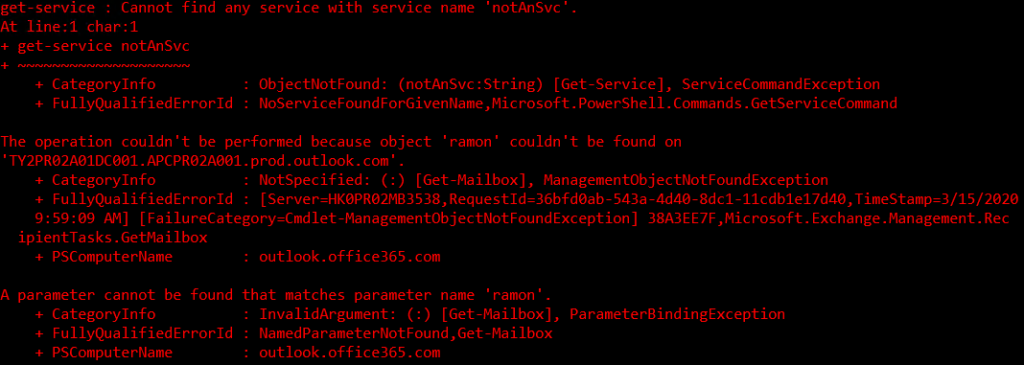
Errors can become overwhelming and confusing. And most of all, errors are often hard to read, which makes determining what and where the script went wrong near impossible.
Luckily, you have some options in PowerShell to make this better through error handling. Using error handling, errors can be filtered and displayed in such a way that it’s easier to make sense of. And, understanding the error makes it easy to add more logic to error handling.
In this article, you will learn about errors in PowerShell and how they can be intercepted to perform error handling using the PowerShell Try Catch blocks (and finally blocks).
Understanding How Errors Work in PowerShell
Before diving into error handling, let’s first cover a few concepts around errors in PowerShell. Understanding errors can lead to better error handling strategies.
The $Error Automatic Variable
In PowerShell, there are a lot of automatic variables, and one of them is the $Error automatic variable. PowerShell uses the $Error variable to store all errors that are encountered in the session. The $Error variable is an array of errors sorted by most recent.
When you first open a PowerShell session, the $Error variable is empty. You can check it so by calling the $Error variable.
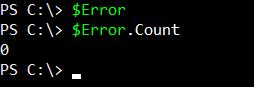
As you can see, the $Error variable starts off empty. But, once an error is generated, the error will be added and stored into the $Error variable.
In the example below, the error is generated by deliberately getting a service name that does not exist.
PS> Get-Service xyz
PS> $Error
PS> $Error.Count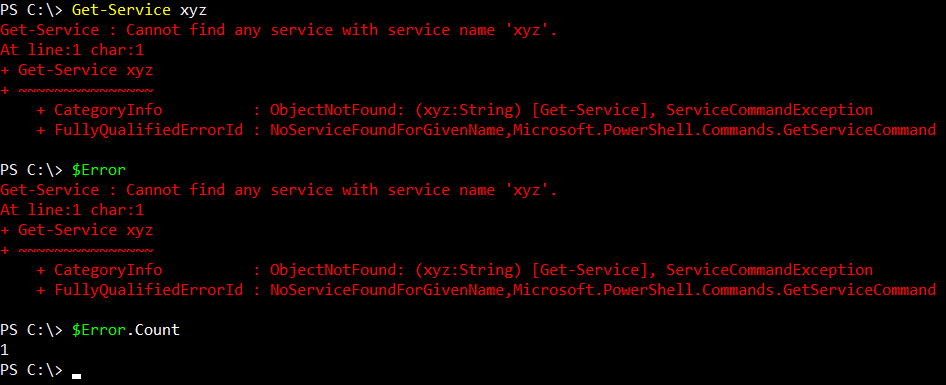
As you can see from the output above, the generated error was added to the $Error variable.
The $Error variable contains a collection of errors generated in the PowerShell session. Each error can be access by calling its array position. The latest error will always be at index 0.
For example, the latest error can be retrieved using
$Error[0].
The $Error Object Properties
Since everything in PowerShell is an object, the $Error variable is an object, and objects have properties. By piping the $Error variable to the Get-Member cmdlet, you should see the list of the properties available.
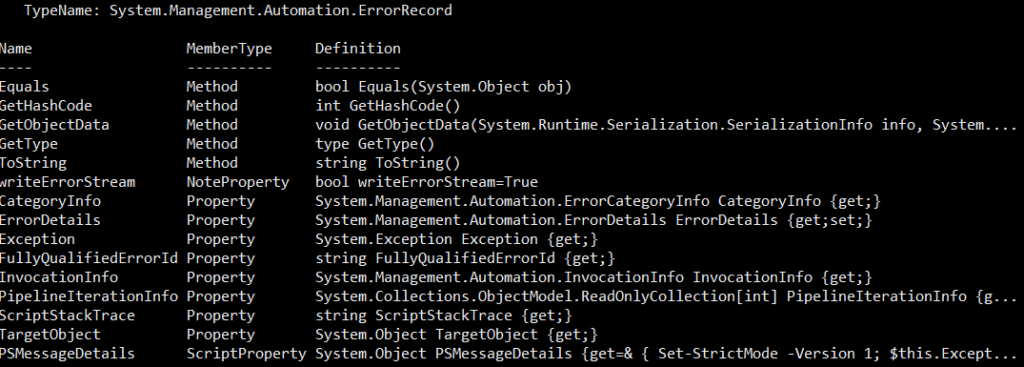
To determine the reason for the error, you can view the content of the InvocationInfo property using the command below.
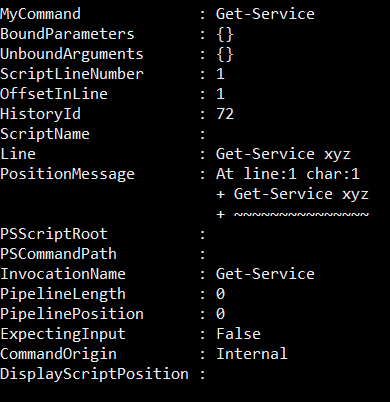
Now, you could do the same with the other properties and discover what other information you can find!
Terminating Errors
Terminating errors stop the execution flow when it is encountered by PowerShell vs non-terminating errors. There are several ways a terminating error can occur. One example is when you call a cmdlet with a parameter that does not exist.
As you’ll from the screenshot below, when the command Get-Process notepad runs, the command is valid, and the details of the notepad process are displayed.

But, when a parameter that does not exist is used like Get-Process notepad -handle 251, the cmdlet displays an error that the handle parameter is not valid. Then, the cmdlet exits without showing the details of the notepad process.

Non-Terminating Errors
Non-terminating errors are errors that do not stop the execution of the script or command. For example, check out the code below. This code gets the list of file names from the fileslist.txt file. Then, the script goes through each file name, read the contents of each file, and outputs it on the screen.
$file_list =  Get-Content .filelist.txt
foreach ($file in $file_list) {
    Write-Output "Reading file $file"
    Get-Content $file
}
The contents of the filelist.txt file are the file names shows in the list below.
File_1.log
File_2.log
File_3.log
File_4.log
File_5.log
File_6.log
File_7.log
File_8.log
File_9.log
File_10.log
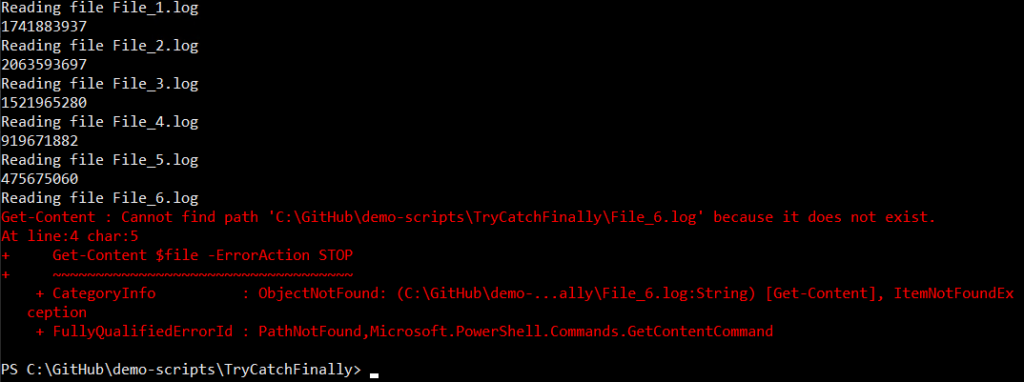
But what if File_6.log didn’t actually exist? When you run the code, you’d expect an error will happen because the script cannot find the File_6.log. You’ll see a similar output shown below.
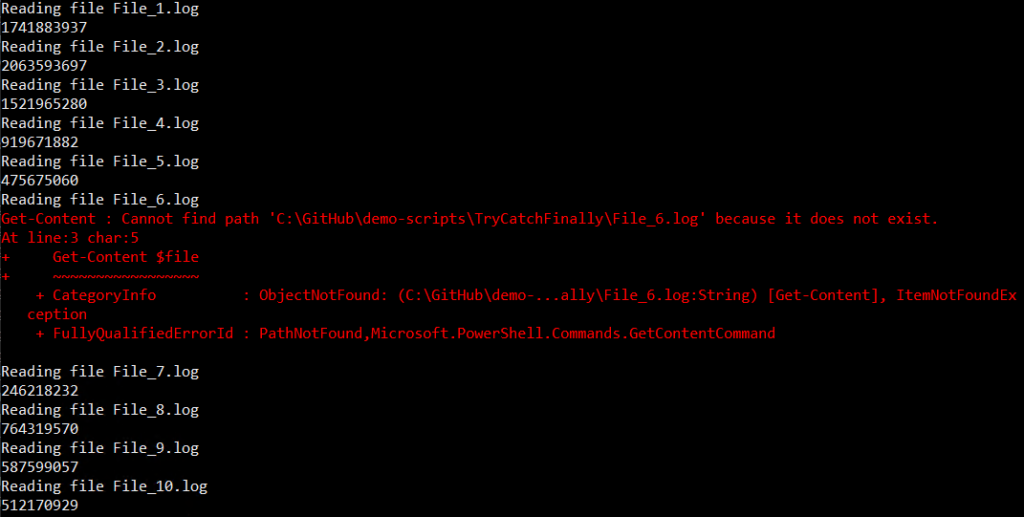
As you can see from the screenshot of the result above, the script was able to read the first five files in the list, but when it tried to read the file File_6.txt, an error is returned. The script then continued to read the rest of the files before exiting. It did not terminate.
The $ErrorActionPreference Variable
So far, you’ve learned about the terminating and non-terminating errors and how they differ from each other. But, did you know that a non-terminating error can be forced to be treated as a terminating error?
PowerShell has a concept called preference variables. These variables are used to change how PowerShell behaves many different ways. One of these variables is called $ErrorActionPreference.
The $ErrorActionPreference variable is used to change the way PowerShell treats non-terminating errors. By default, the $ErrorActionPreference value is set to Continue. Changing the value of the $ErrorActionPreference variable to STOPforces PowerShell to treat all errors as terminating errors.
Use the code below to change the $ErrorActionPreference value.
$ErrorActionPreference = "STOP"To learn more about other valid $ErrorActionPreference variable values, visit PowerShell ErrorActionPreference.
Now, refer back to the example used in the Non-Terminating Errors section in this article. The script can modified to include the change in $ErrorActionPreference like the code shown below:
# Set the $ErrorActionPreference value to STOP
$ErrorActionPreference = "STOP"
$file_list =  Get-Content .filelist.txt
foreach ($file in $file_list) {
    Write-Output "Reading file $file"
    Get-Content $file
}
Running the modified code above will behave differently than before when the $ErrorActionPreference value is set to the default value of Continue.
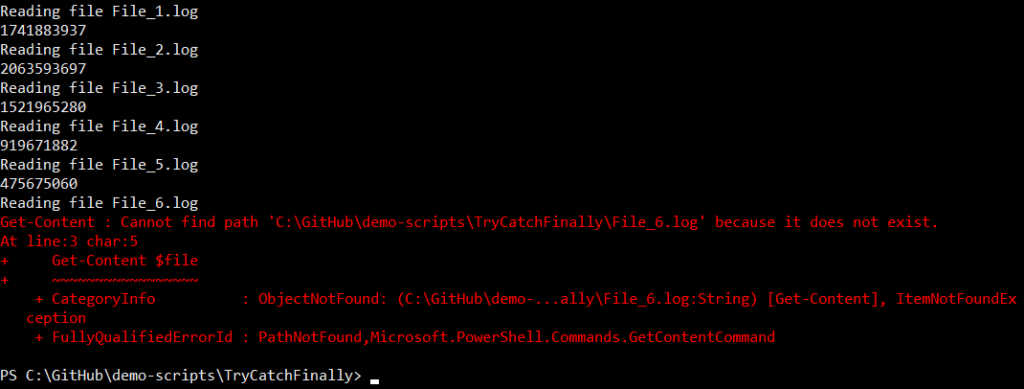
$ErrorActionPreference variableAs you can see from the screenshot of the result above, the script was able to read the first five files in the list, but when it tried to read the file File_6.txt, an error is returned because the file was not found. Then, the script terminated, and the rest of the files are not read.
The
$ErrorActionPreferencevalue is only valid in the current PowerShell session. It resets to the default value once a new PowerShell session is started.
The ErrorAction Common Parameter
If the $ErrorActionPreference value is applied to the PowerShell session, the ErrorAction parameter applies to any cmdlet that supports common parameters. The ErrorAction parameter accepts the same values that the $ErrorActionPreference variable does.
The ErrorAction parameter value takes precedence over the $ErrorActionPreference value.
Let’s go back and use the same code in the previous example. But, this time, the ErrorAction parameter is added to the Get-Content line.
# Set the $ErrorActionPreference value to default (CONTINUE)
$ErrorActionPreference = "CONTINUE"
$file_list =  Get-Content .filelist.txt
foreach ($file in $file_list) {
    Write-Output "Reading file $file"
		# Use the -ErrorAction common parameter
		Get-Content $file -ErrorAction STOP
}
After running the modified code, you’ll see that even though the $ErrorActionPreference is set to Continue, the script still terminated once it encountered an error. The script terminated because the PowerShell ErrorAction parameter value in Get-Content is set to STOP.
ErrorAction parameterUsing PowerShell Try Catch Blocks
At this point, you’ve learned about PowerShell errors and how the $ErrorActionPreference variable and PowerShell ErrorAction parameters work. Now, it’s time you learn about the good stuff – the PowerShell Try Catch Finally blocks.
PowerShell try catch blocks (and optional finally block) are a way to cast a net around a piece of code and catch any errors that return.
The code below shows the syntax of the Try statement.
try {
    <statement list>
}
catch [[<error type>][',' <error type>]*]{
    <statement list>
}
finally {
    <statement list>
}
The Try block contains the code that you want PowerShell to “try” and monitor for errors. If the code in the Try block encounters an error, the error is added to the $Error variable and then passed to the Catch block.
The Catch block contains the actions to execute when it receives an error from the Try block. There can be multiple Catch blocks in a Try statement.
The Finally block contains that code that will at the end of the Try statement. This block runs whether or not an error was uncounted.
Catching Non-Specific Errors (Catch-All) with PowerShell ErrorAction
A simple Try statement contains a Try and a Catch block. The Finally block is optional.
For example, to catch a non-specific exception, the Catch parameter should be empty. The example code below is using the same script that was used in the The $ErrorActionPreference Variable section but modified to use the Try Catch blocks.
As you can see from the code below, this time, the foreach statement is enclosed inside the Try block. Then, a Catch block contains the code to display the string An Error Occurred if an error happened. The code in the Finally block just clears the $Error variable.
$file_list = Get-Content .filelist.txt
try {
    foreach ($file in $file_list) {
        Write-Output "Reading file $file"
        Get-Content $file -ErrorAction STOP
    }
}
catch {
    Write-Host "An Error Occured" -ForegroundColor RED
}
finally {
    $Error.Clear()
}
The code above, after running in PowerShell, will give you this output shown below.
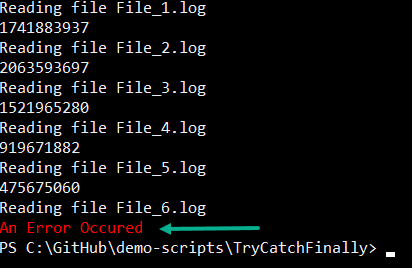
The output above shows that the script encountered an error, ran the code inside the Catch block, and then terminated.
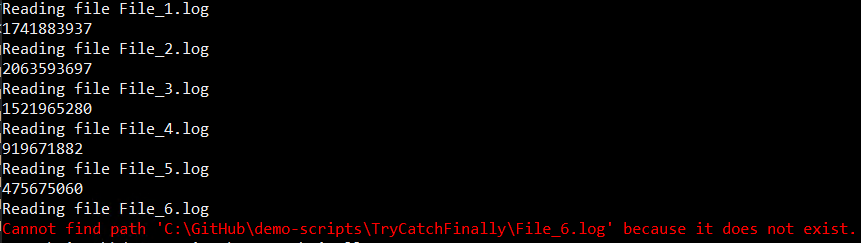
The error was handled, which was the point of error handling. However, the error displayed was too generic. To show a more descriptive error, you could access the Exception property of the error that was passed by the Try block.
The code below is modified, specifically the code inside the Catch block, to display the exception message from the current error that was passed down the pipeline – $PSItem.Exception.Message
$file_list = Get-Content .filelist.txt
try {
    foreach ($file in $file_list) {
        Write-Output "Reading file $file"
        Get-Content $file -ErrorAction STOP
    }
}
catch {
    Write-Host $PSItem.Exception.Message -ForegroundColor RED
}
finally {
    $Error.Clear()
}
This time, when the modified code above is run, the message displayed is a lot more descriptive.
Catching Specific Errors
There are times when a catch-all error handling is not the most appropriate approach. Perhaps, you want your script to perform an action that is dependent on the type of error that is encountered.
How do you determine the error type? By checking the TypeName value of the Exception property of the last error. For example, to find the error type from the previous example, use this command:
$Error[0].Exception | Get-MemberThe result of the code above would look like the screenshot below. As you can see, the TypeName value is displayed – System.Management.Automation.ItemNotFoundException.
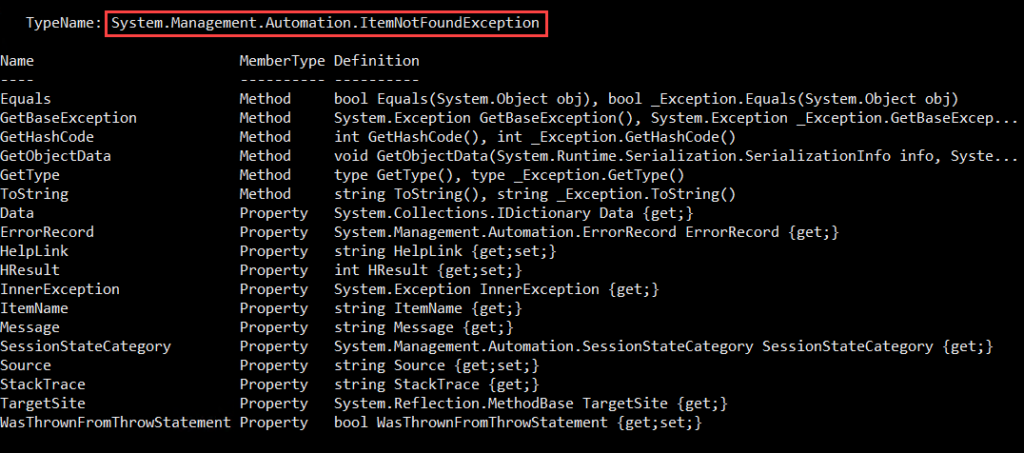
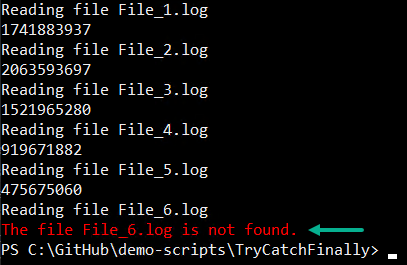
Now that you know the error type that you need to intercept, modify the code to catch it specifically. As you see from the modified code below, there are now two Catch blocks. The first Catch block intercepts a specific type of error (System.Management.Automation.ItemNotFoundException). In contrast, the second Catch block contains the generic, catch-all error message.
$file_list = Get-Content .filelist.txt
try {
    foreach ($file in $file_list) {
        Write-Output "Reading file $file"
        Get-Content $file -ErrorAction STOP
    }
}
catch [System.Management.Automation.ItemNotFoundException]{
    Write-Host "The file $file is not found." -ForegroundColor RED
}
catch {
    Write-Host $PSItem.Exception.Message -ForegroundColor RED
}
finally {
    $Error.Clear()
}
The screenshot below shows the output of the modified code above.
Conclusion
In this article, you’ve learned about errors in PowerShell, its properties, and how you can determine an error’s specific type. You’ve also learned the difference between how the $ErrorActionPreference variable and the PowerShell ErrorAction parameter affects how PowerShell treats non-terminating errors.
You have also learned how to use the PowerShell Try Catch Finally blocks to perform error handling, whether for specific errors or a catch-all approach.
The examples that are shown in this article only demonstrates the basics of how the Try Catch Finally blocks work. The knowledge that I hope you have gained in this article should give you the starting blocks to start applying error handling in your scripts.
Further Reading
- About_Try_Catch_Finally
- About_Automatic_Variables
- Back to Basics: The PowerShell foreach Loop
- Back to Basics: Understanding PowerShell Objects
Murphy’s Law is an old saying that promises, «Anything that can go wrong will go wrong.» Coders and programmers know this saying particularly well. If you’ve spent any time writing code, you understand why. What coder doesn’t know the feeling of writing the perfect script that accomplishes just what you need, but some external variable pops up that causes it to malfunction?
In this blog post, we’re going to discuss the process for anticipating potential errors, mistakes and problems with your scripts and code: error handling. We’ll look at a small, simple program and insert some key lines and functions that will show you how to spot errors and identify them, rather than let your programs and machines churn along with faulty inputs.
What is a PowerShell Exception?
Quick Definition: A PowerShell exception is an error that happens while running PowerShell scripts, errors that PowerShell needs to be handled for it. PowerShell will try to handle errors on its own, but exceptions are, as the name may suggest, exceptions to its ability to do so. When an exception occurs, the phrase used is «throw». Handling a «thrown» exception means «catching» it, which is telling the script what to do. If a thrown exception isn’t caught, the script stops.
What is PowerShell Error Handling?
Quick Definition: Error handling in PowerShell is a process of analyzing your code for where exceptions could occur, for what exceptions could happen, and then writing code that anticipates and handles those exceptions.
An Overview of PowerShell Error Handling
In this video, Don Jones covers error handling in PowerShell. Something that sets a good script apart from a truly great one is its ability to respond to errors that you anticipated ahead of time. Watch as Don demonstrates the fine art of error handling.
When is Error Handling Necessary?
One of the things that really sets apart a good script from a great script is the script’s ability to respond to errors that you can anticipate ahead of time. It’s called Error Handling.
If you’re writing code or programming behavior for a computer, doing error handling can help in a number of ways. First of all, written well, a program can inform you what’s wrong — like a patient explaining symptoms to their doctor. Not only that, a program that stops at an exception won’t waste time and resources continuing a process that’s doomed to failure.
Don’t mistake error handling with faulty scripting. Errors in code can be a problem too, but usually it’s easy to spot those before running the program. Most people know the old «missing semicolon ruins day» problem. Error handling is about finding externalities — variables that you and your program don’t have control over while the program is doing its job.
Since the goal of error handling is to anticipate errors and then deal with them as they occur rather than just allow PowerShell to explode, the first step is spending some time with the program. Take a look at the following script and try to spot where you think errors might occur.
param (
        $computername = 'localhost'
)
   $os = Get-WmiObject -Class Win32_OperatingSystem -ComputerName $computername
   $system = Get-WmiObject -Class Win32_ComputerSystem -ComputerName $computername
   $props = @ {        'ComputerName'=$computername;
                'OSVersion'=$os.caption;
                'TotalRAM'=$system.TotalPhysicalMemory;
                'Manufacturer'=$system.Manufacturer}
   $obj = New-Object =TypeName PowerShellObject -Property $props
   Write-Output $obj
Now, because this is a short one, it’s reasonably safe to assume that errors are going to happen on one of these two lines – if they happen anywhere:
   $os = Get-WmiObject -Class Win32_OperatingSystem -ComputerName $computername
   $system = Get-WmiObject -Class Win32_ComputerSystem -ComputerName $computername
These are really the only two lines that are doing anything. They’re «leaving» the code and working with data from an external source. They’re working with an external entity. Some of the errors that we can anticipate include the computer in question not being available when we try to query it, or it could be that we don’t have permission to query it. There are a few things that could go wrong, but they’ll likely happen on those lines.
How to Code PowerShell Error Handling
There are three big steps to writing error handling in PowerShell: first is to identify where an error may occur: which command. Then, you put that command inside a try { } block. Third, you put inside a catch { } block what should be done if the error happens. We’ll walk through these three steps next.
First of all, choose one command — typically one. While it’s possible to do error handling for a block of commands, it’s usually best to limit your focus. Plus, the method we’ll be demonstrating below works best on one command. So, choose your one command and wrap it in a try-catch block.
$os = Get-WmiObject -Class Win32_OperatingSystem -ComputerName $computernameThat’s part of the first step to writing PowerShell error handling: identify the command you think might cause an error. The second step is to put it inside a try { } block. Although the third step is to put inside the catch { } block whatever we want to do in the event of an error occurring, there’s another tweak we have to do first.
Most PowerShell commands are going to need a little bit of extra work. Still inside the try { } block, you’ll have to add a parameter to your function called ErrorAction and set it to «Stop».
try {
   $os = Get-WmiObject -Class Win32_OperatingSystem -ComputerName $computername
} catch {
}
Sometimes you’ll see that as -EA, which is what we’ll abbreviate it as going forward. Now, it’s possible you might want to take a different action based on the type of error that occurs. And so, you can capture the error in an -ErrorVariable. We’re going to call it «x».
try {
   $os = Get-WmiObject -Class Win32_OperatingSystem -ComputerName $computername -EA Stop
} catch {
}
Sometimes you’ll see that abbreviated -EV, which is again what we’ll abbreviate it as going forward. Also, it’s important to note that the variable name for the error does not include a dollar sign ($).
Next, we have to ask ourselves what we want to do about it when an error occurs? Well, let’s say we want to write the computer name that failed to a log file. To do that, we take the computer name variable $computername, and pump it to a file. And Append it to whatever else is in there:
try {
   $os = Get-WmiObject -Class Win32_OperatingSystem -ComputerName $computername -EA Stop -EV x
} catch {

}
Maybe we also want to display a warning on the screen. We can make up our own error message, but for now let’s keep it pretty boilerplate: «Error talking to $computername : $x»
try {
   $os = Get-WmiObject -Class Win32_OperatingSystem -ComputerName $computername -EA Stop -EV x
} catch {
   $computername | out-File c:errors.txt -Append

}
Note, be sure to keep that additional space behind the first variable «$computername». And, by using double quotation marks, we can include these variables and they’ll be expanded into their values.
How to Optimize Your PowerShell Error Handling
The trick to good PowerShell error handling is applying logic and reasoning to your code. Really good error handling anticipates errors and thinks about their consequences. Before we move on, let’s take a look at what our changes so far have gotten us:
try {
   $os = Get-WmiObject -Class Win32_OperatingSystem -ComputerName $computername -EA Stop -EV x
} catch {
   $computername | out-File c:errors.txt -Append
   Write-Warning "Error talking to $computername : $x"
}
$system = Get-WmiObject -Class Win32_ComputerSystem -ComputerName $computername
   $props = @ {        'ComputerName'=$computername;
                'OSVersion'=$os.caption;
                'TotalRAM'=$system.TotalPhysicalMemory;
                'Manufacturer'=$system.Manufacturer}
   $obj = New-Object =TypeName PowerShellObject -Property $props
   Write-Output $obj
But let’s think about this. If the computer doesn’t respond to the first query,
try {

   $os = Get-WmiObject -Class Win32_OperatingSystem -ComputerName $computername -EA Stop -EV x
} catch {
   $computername | out-File c:errors.txt -Append
   Write-Warning "Error talking to $computername : $x"
}
Then, down inside the catch { }, we’ll tell the program to set that variable to false if and when we get an error:
try {
   $everything_is_ok = $true
   $os = Get-WmiObject -Class Win32_OperatingSystem -ComputerName $computername -EA Stop -EV x
} catch {
   $computername | out-File c:errors.txt -Append
   Write-Warning "Error talking to $computername : $x"
}
And then, wrap the output in an if statement regarding that variable:
$system = Get-WmiObject -Class Win32_ComputerSystem -ComputerName $computername
   $props = @ {        'ComputerName'=$computername;
                'OSVersion'=$os.caption;
                'TotalRAM'=$system.TotalPhysicalMemory;
                'Manufacturer'=$system.Manufacturer}
   $obj = New-Object =TypeName PowerShellObject -Property $props
   Write-Output $obj
So what is this doing? What it’s telling our program is that if our first function fails, the lines inside our catch { } will execute. When that happens, our variable becomes false, and none of the subsequent lines wrapped inside the if { } will ever execute. After all, if the first query failed, there’s no point in trying the second one – it’ll almost certainly fail too.
Once again, this is a small example. But hopefully it helps illustrate one of the approaches you can take to uncovering not just the first thrown exception in a program, but what to do about subsequent functions too.
How to Test Your PowerShell Error Handling
It’s always a good idea to check your code, both for success states and failure states, and this program is no different. If you can do it from your own device, go ahead and save the above code and give it a test. The program we’ve written is going to search for a server «localhost», which should obviously be discoverable on the network. If you’re like us, running the program results in success.
Of course, it’s not enough that your successes succeed correctly. You also want your failures to fail correctly. The way we can test for the errors we’ve anticipated is by changing our first parameter, «localhost» to the name of a server that definitely doesn’t exist on the network. We went with «NOTONLINE».
After we run that, eventually there will be an error. We see: «Error talking to NOTONLINE» followed by the exception that occurred: «The RPC server is unavailable.»
Not only that, but we can pull up errors.txt and see that the name of that computer was successfully logged to the file.
The thing to remember about Error Handling in PowerShell is the -ErrorAction. That tells the command, «Look, if a problem happens, rather than just keep going and trying to continue, I want you to stop and throw a complete exception — a trappable exception.» Without the -EA Stop, no part of the try-catch block would function.
In fact, removing it shows quite a different result. We’ll leave our «NOTONLINE» server name, remove the -EA Stop from our code, and try running the code again.
If you’re doing this too, you might find that your Windows Management Instrumentation takes a while to time out. But once it finally does, you should see an error that’s far less manageable. That’s because this time the error comes directly from the command. It’s not a warning generated by the code which detected an error, it’s a full-on uncaught exception. Not only that, but the second command tried to run, and a different WMI error came through for that. Because the input for the second function was an error, the output of it is gibberish.
The difference should be obvious: if you can avoid a full-blown error and instead catch every exception as a warning and halt the functions, you do a lot for your program. Not only do you prevent time, energy, and resources from being wasted, but you also increase the chances of pinpointing where the error occurred and how you can fix it.
If you leave PowerShell to its own devices, it’ll try to carry out your commands as best it can, with increasingly faulty data coming from error after error. Instead, tell it you want it to stop when there’s an error so that you can fix what caused it. You should see now that the -ErrorAction Stop is the key to making ErrorHandling work in PowerShell.
Wrapping Up
If you’re looking to master PowerShell, CBT Nuggets has training that will do much more than one blog post could. Here, we only had time to address some of the top-level ideas of PowerShell error handling, but consider this PowerShell 7 training that features 9 hours of training and 104 videos about scripts, and automation.