Аналоги > и >> в PowerShell
Если вы знакомы с операторами командной строки Linux, то вы можете знать, что оператор «>» перенаправляет вывод в файл, если файл существует, то он перезаписывается, если файл не существует, то он создаётся и в него записывается содержимое.
В PowerShell этот оператор также работает, например, в следующей команде результат работы командлета будет сохранён в файл man.txt:
Get-Help about_Comparison_Operators -Full > man.txt
В Linux существует ещё один оператор для перенаправления стандартного вывода, это «>>», который работает аналогично предыдущему, но если файл уже существует, то вместо перезаписи, новые данные дописываются в файл, например, следующая команда допишет выводом командлета содержимое файла man.txt, а если его нет, то создаст этот файл:
Get-Help about_Comparison_Operators -Full >> man.txt
В PowerShell вы можете использовать «>» и «>>» если вам достаточно простого перенаправления вывода в файл. Также имеется командлет Out-File который кроме выполнения перенаправления вывода имеет дополнительную функциональность.
Перенаправление вывода в PowerShell
По умолчанию PowerShell отправляет выходные данные своей команды в консоль PowerShell. Однако вы можете направить вывод в текстовый файл, и вы можете перенаправить вывод ошибок в обычный поток вывода.
Для перенаправления вывода можно использовать следующие методы:
- Использовать командлет Out-File, который отправляет выходные данные команды в текстовый файл. Как правило, вы используете командлет Out-File когда вам нужно использовать его параметры, такие как параметры -Encoding, -Force, -Width или -NoClobber.
- Использовать командлет Tee-Object, который отправляет вывод команды в текстовый файл, а затем отправляет его в конвейер.
- Использовать операторы перенаправления PowerShell.
Операторы перенаправления PowerShell
Операторы перенаправления позволяют отправлять потоки данных в файл или выходной поток SUCCESS.
Операторы перенаправления PowerShell используют следующие числа для представления доступных выходных потоков:
| № потока | Описание | Представлен в |
|---|---|---|
| 1 | SUCCESS Stream | PowerShell 2.0 |
| 2 | ERROR Stream | PowerShell 2.0 |
| 3 | WARNING Stream | PowerShell 3.0 |
| 4 | VERBOSE Stream | PowerShell 3.0 |
| 5 | DEBUG Stream | PowerShell 3.0 |
| 6 | INFORMATION Stream | PowerShell 5.0 |
| * | All Streams | PowerShell 3.0 |
[!ПРИМЕЧАНИЕ] В PowerShell также есть поток PROGRESS, но он не используется для перенаправления.
Ниже перечислены операторы перенаправления PowerShell, где n представляет номер потока. Поток SUCCESS (1) используется по умолчанию, если поток не указан.
| Оператор | Описание | Синтаксис |
|---|---|---|
| > | Отправить указанный поток в файл. | n> |
| >> | ДОБАВИТЬ указанный поток к файлу. | n>> |
| >&1 | _Перенаправляет_ указанный поток в поток SUCCESS. | n>&1 |
[!ПРИМЕЧАНИЕ] В отличие от некоторых оболочек Unix, вы можете перенаправлять другие потоки только в поток SUCCESS.
Примеры:
Пример 1: Перенаправление ошибок и вывод в файл
dir 'C:', 'fakepath' 2>&1 > .dir.log
В этом примере dir запускается для двух элементов, один из который завершится успешно, а для другого — с ошибкой.
Он использует «2>&1» для перенаправления потока ERROR в поток SUCCESS и «>» для отправки результирующего потока SUCCESS в файл с именем dir.log.
Пример 2: Отправить все данные потока SUCCESS в файл
.script.ps1 > script.log
Эта команда отправляет все данные потока SUCCESS в файл с именем script.log.
Пример 3. Отправка потоков Success, Warning и Error в файл
&{
	Write-Warning "hello"
	Write-Error "hello"
	Write-Output "hi"
} 3>&1 2>&1 > P:Tempredirection.log
В этом примере показано, как можно комбинировать операторы перенаправления для достижения желаемого результата.
- 3>&1 перенаправляет поток WARNING в поток SUCCESS.
- 2>&1 перенаправляет поток ERROR в поток SUCCESS (который теперь также включает все данные потока WARNING)
- > перенаправляет поток SUCCESS (который теперь содержит потоки WARNING и ERROR) в файл с именем C:tempredirection.log)
Пример 4: Перенаправить все потоки в файл
.script.ps1 *> script.log
В этом примере все потоки выводятся из сценария с именем script.ps1 в файл с именем script.log.
Пример 5: Подавить все данные Write-Host и Information Stream
&{
	Write-Host "Hello"
	Write-Information "Hello" -InformationAction Continue
} 6> $null
В этом примере подавляются все данные Information Stream (информационного потока). Дополнительные сведения о командлетах потока INFORMATION смотрите разделах Write-Host и Write-Information.
Смотрите также: Аналог echo в PowerShell
Примечания:
1. Операторы перенаправления, которые не добавляют данные (> и n>), перезаписывают текущее содержимое указанного файла без предупреждения.
2. Однако, если файл доступен только для чтения, является скрытым или системным файлом, перенаправление ТЕРПИТ НЕУДАЧУ. Операторы перенаправления добавления (>> и n>>) не записывают в файл, доступный только для чтения, но они добавляют содержимое в системный или скрытый файл.
3. Чтобы принудительно перенаправить содержимое в доступный только для чтения, скрытый или системный файл, используйте командлет Out-File с его параметром -Force.
4. Когда вы пишете в файлы, операторы перенаправления используют кодировку Unicode. Если файл имеет другую кодировку, выходные данные могут быть отформатированы неправильно. Чтобы перенаправить содержимое в файлы, отличные от Unicode, используйте командлет Out-File с его параметром -Encoding.
5. Возможная путаница с операторами сравнения
Оператор «>» не следует путать с оператором сравнения Больше (часто обозначается как «>» в других языках программирования).
В зависимости от сравниваемых объектов вывод с использованием «>» может показаться правильным (поскольку 36 не больше 42).
if (36 > 42) { "true" } else { "false" }
false
Однако проверка локальной файловой системы позволяет увидеть, что был создан файл с именем 42, а в него записано содержимое 36.
dir

    Mode                LastWriteTime         Length Name
    ----                -------------         ------ ----
    ------          1/02/20  10:10 am              3 42

    cat 42
    36
Попытка использовать обратное сравнение «<» (меньше чем) приводит к системной ошибке:
if (36 < 42) { "true" } else { "false" }
    At line:1 char:8
    + if (36 < 42) { "true" } else { "false" }
    +        ~
    The '<' operator is reserved for future use.
    + CategoryInfo          : ParserError: (:) [], ParentContainsErrorRecordException
    + FullyQualifiedErrorId : RedirectionNotSupported
Если требуется числовое сравнение, следует использовать -lt и -gt.
Смотрите также: Операторы сравнения в PowerShell
Как в PowerShell дописать вывод в файл
Итак, оператор «>» перенаправляет вывод, который в противном случае попал бы на экран, в файл. Этот оператор полностью переписывает файл, если он уже существует.
Для того, чтобы вместо замены содержимого файла дописать в него, можно использовать оператор «>>»:
Get-Help about_Comparison_Operators -Full >> man.txt
Командлет Out-File для сохранение в файл в PowerShell
Командлет Out-File отправляет вывод в файл. Когда вам нужно указать параметры для вывода, используйте Out-File вместо оператора перенаправления («>»).
Как дописать файл. Аналог «>>» в Out-File
Для того, чтобы добавить вывод в конец существующего файла (вместо его перезаписи), используйте в вашей команде опцию -Append.
Как указать кодировку
Для изменения кодировки по умолчанию, используйте опцию «-Encoding КОДИРОВКА». Кодировкой по умолчанию является UTF8NoBOM.
Опция -Encoding задаёт тип кодировки для целевого файла. Значение по умолчанию — UTF8NoBOM. Кодировка — это динамический параметр, который поставщик FileSystem добавляет в Set-Content. Этот параметр работает только на дисках с файловой системой. Допустимые значения этого параметра следующие:
- ASCII: использует кодировку для набора символов ASCII (7-бит).
- BigEndianUnicode: кодирует в формате UTF-16, используя порядок байтов с прямым порядком байтов.
- OEM: использует кодировку по умолчанию для MS-DOS и консольных программ.
- Unicode: кодируется в формате UTF-16 с использованием порядка байтов с прямым порядком байтов.
- UTF7: кодирует в формате UTF-7.
- UTF8: кодирует в формате UTF-8.
- UTF8BOM: кодирует в формате UTF-8 с меткой порядка байтов (BOM)
- UTF8NoBOM: кодирует в формате UTF-8 без метки порядка байтов (BOM)
- UTF32: кодирует в формате UTF-32.
Начиная с PowerShell 6.2, параметр -Encoding также позволяет использовать числовые идентификаторы зарегистрированных кодовых страниц (например, «-Encoding 1251») или строковые имена зарегистрированных кодовых страниц (например, «-Encoding «windows-1251»».
Как указать путь до файла
Обязательным аргументом командлета Out-File является путь до файла в который будет сделано сохранение выводимых данных. Вы можете указать его с опцией -FilePath, либо опустить эту опцию и указать путь до файла без неё.
Обратите внимание, что вы не можете использовать подстановочные знаки в пути до файла.
Смотрите также: Подстановочные символы в PowerShell
Как переписать файл только для чтения
С помощью опции -Force вы можете переопределить атрибут только для чтения и перезаписать существующий файл, доступный только для чтения. Параметр -Force не отменяет ограничения безопасности, то есть если у вас нет прав на записи в указываемый файл, то вы всё равно не сможете записать в него..
Как не добавлять символ новой строки (newline) в конец файла
При записи в файл, в конец будет добавлен символ перехода на новую строку. То есть если в файл будут добавлены другие данные, то они будут записаны с новой строки. Если вы не хотите, чтобы добавлялся символ новой строки, то используйте опцию -NoNewline. Если для формирования вывода используется несколько строк, то по умолчанию они разделяются пробелом, эта опция также отменяет вставку пробелов между строк.
Как запретить перезаписывать существующий файл
Опция -NoClobber предотвращает перезапись существующего файла и отображает сообщение о том, что файл уже существует. По умолчанию, если файл существует по указанному пути, Out-File перезаписывает файл без предупреждения.
Что может быть вводом командлета Out-File
В Out-File вы можете отправить по конвейеру любые объекты, а не только строки (как например в Set-Content и Add-Content). Например, следующая команда сохраняет практически пустой файл:
Get-ComputerInfo | Set-Content test3.txt
Но с помощью Out-File весь вывод будет сохранён в файл:
Get-ComputerInfo | Out-File test4.txt
Командлеты типа Out- не форматируют объекты; они просто визуализируют их и отправляют в указанное место отображения. Если вы отправляете неформатированный объект командлету Out-, этот командлет отправляет его командлету форматирования перед его визуализацией.
Чтобы отправить вывод команды PowerShell командлету Out-File, используйте конвейер. Вы можете хранить данные в переменной и использовать параметр -InputObject для передачи данных в командлет Out-File.
Out-File отправляет данные, но не создаёт никаких объектов вывода. Если вы направите вывод Out-File в Get-Member, командлет Get-Member сообщает, что объекты не были указаны.
Пример 1: Отправить вывод и создать файл
Get-Process | Out-File -FilePath .Process.txt
Get-Content -Path .Process.txt

    NPM(K)    PM(M)      WS(M)     CPU(s)      Id  SI ProcessName
     ------    -----      -----     ------      --  -- -----------
         29    22.39      35.40      10.98   42764   9 Application
         53    99.04     113.96       0.00   32664   0 CcmExec
         27    96.62     112.43     113.00   17720   9 Code
Командлет Get-Process получает список процессов, запущенных на локальном компьютере. Объекты Process отправляются по конвейеру в командлет Out-File. Затем Out-File использует параметр -FilePath и создаёт файл с именем Process.txt в текущем каталоге. Команда Get-Content получает содержимое из файла и отображает его в консоли PowerShell.
Пример 2: Предотвратить перезапись существующего файла
Get-Process | Out-File -FilePath .Process.txt -NoClobber

    Out-File : The file 'C:TestProcess.txt' already exists.
    At line:1 char:15
    + Get-Process | Out-File -FilePath .Process.txt -NoClobber
    +               ~~~~~~~~~~~~~~~~~~~~~~~~~~~~~~~~~~~~~~~~~~~
Командлет Get-Process получает список процессов, запущенных на локальном компьютере. Объекты Process отправляются по конвейеру в командлет Out-File. Затем Out-File использует параметр -FilePath и пытается выполнить запись в файл в текущем каталоге с именем Process.txt. Параметр -NoClobber предотвращает перезапись файла и отображает сообщение о том, что файл уже существует.
Пример 3: Сохранение вывода в файл в кодировке ASCII
$Procs = Get-Process
Out-File -FilePath .Process.txt -InputObject $Procs -Encoding ASCII -Width 50
Командлет Get-Process получает список процессов, запущенных на локальном компьютере. Объекты процесса хранятся в переменной $Procs. Затем Out-File использует параметр -FilePath и создаёт файл с именем Process.txt в текущем каталоге. Параметр -InputObject передаёт объекты с процессами из $Procs в файл Process.txt. Параметр -Encoding преобразует вывод в формат ASCII. Параметр -Width ограничивает каждую строку в файле 50 символами, поэтому некоторые данные могут быть усечены.
Пример 4: Использование провайдера и отправка вывода в файл
Set-Location -Path Alias:

Get-Location

    Path
    ----
    Alias:

Get-ChildItem | Out-File -FilePath C:TestDirAliasNames.txt

Get-Content -Path C:TestDirAliasNames.txt

    CommandType     Name
    -----------     ----
    Alias           % -> ForEach-Object
    Alias           ? -> Where-Object
    Alias           ac -> Add-Content
    Alias           cat -> Get-Content
Команда Set-Location использует параметр -Path для установки текущего местоположения провайдера реестра «Alias:». Командлет Get-Location отображает полный путь к «Alias:». Get-ChildItem отправляет объекты по конвейеру командлету Out-File. Out-File использует параметр -FilePath, чтобы указать полный путь и имя файла для вывода, C:TestDirAliasNames.txt. Командлет Get-Content использует параметр -Path и отображает содержимое файла в консоли PowerShell.
Связанные статьи:
- Решение проблем с кодировкой вывода в PowerShell и сторонних утилитах, запущенных в PowerShell (100%)
- Ошибки «Оператор «<» зарезервирован для использования в будущем» и «The ‘<‘ operator is reserved for future use.» (РЕШЕНО) (100%)
- Аналог echo в PowerShell (56%)
- Как в PowerShell менять набор выводимых по умолчанию данных (56%)
- Как выводить данные без таблицы в PowerShell (56%)
- Тонкая настройка вывода с Format-Table (RANDOM — 56%)
Иногда возникает необходимость в рамках сессии PoSh запустить CMD утилиты. Структура вызова этих команд, из-за вложенности или например из-за удаленного выполнения, может усложниться, а результат их работы станет менее предсказуемым.
В этом случае нам может помочь перенаправление стандартного вывода
Выполнение команды с помощью «символа вызова»
Вызов утилиты CMD через & «ping» ya.ru выводится в самом окне PoSh, а не во внешнем окне CMD
Перенаправление из командлета Start-Process
Можно перенаправить вывод с помощью специального параметра RedirectStandardOutput
Start-Process ping "8.8.8.8" -WindowStyle Hidden -RedirectStandardOutput "C:SO.txt"
Функция позволяющая задать набор значений для запуска процесса
В том числе задать перенаправление стандартного вывода и вывода ошибок
При этом используется .NET класс System.Diagnostics.ProcessStartInfo
# Задаем параметры запуска процесса
$pinfo = New-Object System.Diagnostics.ProcessStartInfo
$pinfo.FileName = "nslookup"
$pinfo.Arguments = "google.com", "8.8.8"
$pinfo.UseShellExecute = $false
$pinfo.CreateNoWindow = $true
$pinfo.RedirectStandardOutput = $true
$pinfo.RedirectStandardError = $true

# Создаем объект процесса, используя заданные параметры
$process = New-Object System.Diagnostics.Process
$process.StartInfo = $pinfo

# Запускаем процесс и ждем его завершения
$process.Start() | Out-Null
$process.WaitForExit()

# Получаем в отдельные переменные стандартный вывод и ошибки
$exitCode = $process.ExitCode
$stderr = $process.StandardError.ReadToEnd()
$stdout = $process.StandardOutput.ReadToEnd()

# Собираем результаты в один объект, для удобства
$result = [pscustomobject]@{
        ExitCode = $exitCode
        stderr = $stderr.Trim()
        stdout = $stdout.Trim()
    }

$result | ft -Wrap
Из-за того что IP адрес в Arguments указан заведомо неверно, мы получим об этом ошибку в переменную $stderr

Как исправить проблему с кодировкой смотрите здесь
Плюс использования этого скрипта заключается в том, что вывод будет записан в отдельные переменные, а так же в нем определяется «код выхода», по которому можно назначить обработку событий.
С кодами ошибок можете ознакомиться например здесь.
А прочитать про варианты выполнения команд оболочки CMD из сеанса PoSh можно тут
Записки администратора
Error Handling is a very important concept in every programming language including PowerShell which gives us several possibilities to manage errors in code.
In this article, I will try to cover as many as possible error handling concepts with examples from my practice and one of the important concepts is writing errors in external Error Log text file.
Why Should We Bother Handling Errors In PowerShell
It is no fun to run any code or application full of errors and bugs as the matter a fact it is quite annoying so in order for users to have a pleasant experience handling the errors is one of the essentials in programming.
PowerShell is no exception to that way of thinking and programming ethics although it can take some additional coding and effort but trust me it is always worth it.
I would be more than happy to share my experience with error handling and even more satisfied if I can hear your tips from the field so we can all enrich our knowledge on this very important subject.
Here is a general approach to error handling and logging errors into the external text file. I have an example in the next subheading that further explain each step so everything is much more understandable.
- Identify which Commands need Error Handling in your Function, CmdLet or Script.
- Set the ErrorAction parameter to value Stop for the command that needs Error Handling. This will stop executing the command when an error occurs and it will show the error message. Basically, we are making non-terminating errors into terminating in order to be able to handle the error in the catch block.
- Command that has ErrorAction parameter set to value Stop is wrapped in Try { } block. So when Error occurs handling of the code will jump from the Try block to Catch block.
- In Catch { } block that immediately follows after Try {} block, the error is handled by writing to the error log file on the disk.
- We use our own Write-ErrorLog CmdLet inside Catch{ } block to write the error in a text file on the disk. (See the explanation and code here)
- We have an additional switch error parameter to decide whether we want to write an error in the log file or not. This is totally optional.
- Use the Finally { } block if needed.
- Test the whole setup by intentionally breaking the code while in the development phase.
- Since some of the CmdLets calls are Scheduled we have routine to check external Error Log text file at least once a week and investigate errors that are caught. This step is part of improving the overall quality of the written code.
Example Of PowerShell Error Handling
To show you Error Handling and implement previously defined steps I will use my own Get-CPUInfo CmdLet which is in the Common module of the Efficiency Booster PowerShell Project. Efficiency Booster PowerShell Project is a library of CmdLets that help us IT experts in day to day IT tasks.
In order to follow me along, I highly encourage you to download the zip file with the source code used in this example.
Here is the location of Get-CPUInfo script:
…[My] DocumentsWindowsPowerShellModules3common

Let’s use steps defined in the previous subheading to this example.
Step 1. I have identified the command that needs Error Handling in Get-CPUInfo CmdLet and that is a call to Get-CimInstance CmdLet.
Get-CimInstance @params Step 2. So I have set up the ErrorAction parameter to the value ‘Stop‘ for Get-CimInstance CmdLet in order to force non-terminating errors into terminating and then to be able to handle such errors.
INFO: I use parameter splatting when running CmdLet. If you want to know more about parameter splating please read this article.
            $params = @{ 'ComputerName'=$computer;
                         'Class'='Win32_Processor';
                         'ErrorAction'='Stop'}
            $CPUInfos = Get-CimInstance @params |
                            Select-Object   @{label="ServerName"; Expression={$_.SystemName}},
                                            @{label="CPU"; Expression={$_.Name}},
                                            @{label="CPUid"; Expression={$_.DeviceID}},
                                            NumberOfCores,
                                            AddressWidth
Step 3. Wrap up the call to Get-CimInstance CmdLet into the Try Block in order to be able to handle the error in a catch block that follows.
         try {
            Write-Verbose "Start processing: $computer - $env - $logicalname"
            Write-Verbose "Start Win32_Processor processing..."
            $CPUInfos = $null
            $params = @{ 'ComputerName'=$computer;
                         'Class'='Win32_Processor';
                         'ErrorAction'='Stop'}
            $CPUInfos = Get-CimInstance @params |
                            Select-Object   @{label="ServerName"; Expression={$_.SystemName}},
                                            @{label="CPU"; Expression={$_.Name}},
                                            @{label="CPUid"; Expression={$_.DeviceID}},
                                            NumberOfCores,
                                            AddressWidth
            Write-Verbose "Finish Win32_Processor processing..."
            foreach ($CPUInfo in $CPUInfos) {
                Write-Verbose "Start processing CPU: $CPUInfo"
                $properties = @{ 'Environment'=$env;
                                 'Logical name'=$logicalname;
                                 'Server name'=$CPUInfo.ServerName;
            	                 'CPU'=$CPUInfo.CPU;
            	                 'CPU ID'=$CPUInfo.CPUid;
            	                 'Number of CPU cores'=$CPUInfo.NumberOfCores;
                                 '64 or 32 bits'=$CPUInfo.AddressWidth;
                                 'IP'=$ip;
                                 'Collected'=(Get-Date -UFormat %Y.%m.%d' '%H:%M:%S)}
                $obj = New-Object -TypeName PSObject -Property $properties
                $obj.PSObject.TypeNames.Insert(0,'Report.CPUInfo')
                Write-Output $obj
                Write-Verbose "Finish processing CPU: $CPUInfo"
            }
 Write-Verbose "Finish processing: $computer - $env - $logicalname"
        }
Step 4. When the error occurs in the try block it is handled in the Catch Block.
It is important to notice following in the catch block of code:
- Get-CPUInfo CmdLet switch parameter $errorlog has been used to decide whether to log the errors in an external text file or not. This is completely optional.
- Certain Error properties are collected using an automatic variable $_ ($PSItem is another name for the same variable). If you want to know more about which properties we collect please read here.
- Collected data about the error that will be handled has been passed to another CmdLet Write-ErrorLog that will write the data in an external text log file. Please read here about Write-ErrorLog CmdLet.
catch {
            Write-Warning "Computer failed: $computer - $env - $logicalname CPU failed: $CPUInfos"
            Write-Warning "Error message: $_"
            if ( $errorlog ) {
                $errormsg = $_.ToString()
                $exception = $_.Exception
                $stacktrace = $_.ScriptStackTrace
                $failingline = $_.InvocationInfo.Line
                $positionmsg = $_.InvocationInfo.PositionMessage
                $pscommandpath = $_.InvocationInfo.PSCommandPath
                $failinglinenumber = $_.InvocationInfo.ScriptLineNumber
                $scriptname = $_.InvocationInfo.ScriptName
                Write-Verbose "Start writing to Error log."
                Write-ErrorLog -hostname $computer -env $env -logicalname $logicalname -errormsg $errormsg -exception $exception -scriptname $scriptname -failinglinenumber $failinglinenumber -failingline $failingline -pscommandpath $pscommandpath -positionmsg $pscommandpath -stacktrace $stacktrace
                Write-Verbose "Finish writing to Error log."
            }
        }
Step 5. I have already mentioned that Write-ErrorLog CmdLet has been used to write the error data into an external text log file. Read more about this CmdLet here.
Step 6. I did not need Finally { } block for this example.
Step 7. In the development phase, I was intentionally breaking Get-CPUInfo CmdLet to test my error handling code.
Step 8. If Get-CPUInfo CmdLet is part of the scheduled code I would look regularly Error log file and work on correcting all the bugs in the code produced by Get-CPUInfo CmdLet.
Chain Of Events When PowerShell Error Occurs
Let’s talk a little bit about what is happening when an error occurs in PowerShell and which events are triggered one after another.
- Call to CmdLet is failing and error has just occurred.
- Since we have ErrorAction parameter set to value Stop our non-terminating error has forced into terminating error so the execution of code stops.
- The error that is failing in the CmdLet is written in the $Error automatic variable by the PowerShell.
- We have forced the error to be terminating in order to be able to handle with try catch finally block of error handling.
- Since our CmdLet call is wrapped in Try block and error is terminating PowerShell can trigger error handling looking for a Catch block.
- We can have several Catch blocks for one try block. If we have a Catch block that handles the actual error number that block is executed.
- Otherwise, PowerShell will look Catch block that handles all error numbers.
- Optionally in the Catch block, we can have code that will write the error in the external text Error log file.
- We can use the automatic variable $Error or $_ object to read Error data and write them in the external file.
- If there is no Catch block PowerShell will look for Catch block in parent call if we have nested calls.
- If there are no further Catch block or no Catch block at all that will handle error then PowerShell looks for Finally block to execute which is used to clean up resources as needed.
- After executing Finally block error message will be sent to the error stream for further processing.
In further sections of this article, you can read in more detail about the many terms mentioned (ErrorAction, $Error, Try Catch Finally, Terminating, Non-Terminating, etc ) in this bulleted list in order to better understand them.
How To Write PowerShell Errors Into The External Log File
Here I will explain the code of Write-ErrorLog CmdLet that writes error data that occurs in CmdLets and handle the error data into an external text file.
Error data are written in the file named Error_Log.txt in folder PSlogs.


Write-ErrorLog CmdLet is part of the Efficiency Booster PowerShell Project and if you want to download the source code of this CmdLet please click here.
Here is the location of Write-ErrorLog script which is part of the Utils module:
…[My] DocumentsWindowsPowerShellModules2utils

Write-ErrorLog CmdLet Code
Here is the code of the whole Write-ErrorLog CmdLet.
<#
.SYNOPSIS
Writes errors that occur in powershell scripts into error log file.
.DESCRIPTION
Writes errors that occur in powershell scripts into error log file.
Error log file and error log folder will be created if doesn't exist.
Error log file name is Error_Log.txt and it has been saved into ..DocumentsPSlogs

.PARAMETER hostname
Name of the computer that is failing.

.PARAMETER env
Environment where computer is located. For example: Production, Acceptance, Test, Course etc.

.PARAMETER logicalname
Type of the server that is failing. For example: Application, Web, Integration, FTP, Scan, etc.

.PARAMETER errormsg
Error message.

.PARAMETER exception
Error number.

.PARAMETER scriptname
Name of the powershell script that is failing.

.PARAMETER failinglinenumber
Line number in the script that is failing.

.PARAMETER failingline
Content of failing line.

.PARAMETER pscommandpath
Path to the powershell command.

.PARAMETER positionmsg
Error message position.

.PARAMETER stacktrace
Stack trace of the error.

.EXAMPLE
Write-ErrorLog -hostname "Server1" -env "PROD" -logicalname "APP1" -errormsg "Error Message" -exception "HResult 0789343" -scriptname "Test.ps1" -failinglinenumber "25" -failingline "Get-Service" -pscommandpath "Command pathc." -positionmsg "Position message" -stacktrace "Stack trace"

.EXAMPLE
Help Write-ErrorLog -Full

.LINK
Out-File
#>
Function Write-ErrorLog {
[CmdletBinding()]
param (

    [Parameter(Mandatory=$false,
                HelpMessage="Error from computer.")]
    [string]$hostname,

    [Parameter(Mandatory=$false,
                HelpMessage="Environment that failed. (Test, Production, Course, Acceptance...)")]
    [string]$env,

    [Parameter(Mandatory=$false,
                HelpMessage="Type of server that failed. (Application, Web, Integration...)")]
    [string]$logicalname,

    [Parameter(Mandatory=$false,
                HelpMessage="Error message.")]
    [string]$errormsg,

    [Parameter( Mandatory=$false,
                HelpMessage="Exception.")]
    [string]$exception,

    [Parameter(Mandatory=$false,
                HelpMessage="Name of the script that is failing.")]
    [string]$scriptname,

    [Parameter(Mandatory=$false,
                HelpMessage="Script fails at line number.")]
    [string]$failinglinenumber,

    [Parameter(Mandatory=$false,
                HelpMessage="Failing line looks like.")]
    [string]$failingline,

    [Parameter(Mandatory=$false,
                HelpMessage="Powershell command path.")]
    [string]$pscommandpath,

    [Parameter(Mandatory=$false,
                HelpMessage="Position message.")]
    [string]$positionmsg,

    [Parameter(Mandatory=$false,
                HelpMessage="Stack trace.")]
    [string]$stacktrace
)
BEGIN {

        $errorlogfile = "$homeDocumentsPSlogsError_Log.txt"
        $errorlogfolder = "$homeDocumentsPSlogs"

        if  ( !( Test-Path -Path $errorlogfolder -PathType "Container" ) ) {

            Write-Verbose "Create error log folder in: $errorlogfolder"
            New-Item -Path $errorlogfolder -ItemType "Container" -ErrorAction Stop

            if ( !( Test-Path -Path $errorlogfile -PathType "Leaf" ) ) {
                Write-Verbose "Create error log file in folder $errorlogfolder with name Error_Log.txt"
                New-Item -Path $errorlogfile -ItemType "File" -ErrorAction Stop
            }
        }
}
PROCESS {

            Write-Verbose "Start writing to Error log file. $errorlogfile"
            $timestamp = Get-Date
            #IMPORTANT: Read just first value from collection not the whole collection.
            "   " | Out-File $errorlogfile -Append
            "************************************************************************************************************" | Out-File $errorlogfile -Append
            "Error happend at time: $timestamp on a computer: $hostname - $env - $logicalname" | Out-File $errorlogfile -Append
            "Error message: $errormsg" | Out-File $errorlogfile -Append
            "Error exception: $exception" | Out-File $errorlogfile -Append
            "Failing script: $scriptname" | Out-File $errorlogfile -Append
            "Failing at line number: $failinglinenumber" | Out-File $errorlogfile -Append
            "Failing at line: $failingline" | Out-File $errorlogfile -Append
            "Powershell command path: $pscommandpath" | Out-File $errorlogfile -Append
            "Position message: $positionmsg" | Out-File $errorlogfile -Append
            "Stack trace: $stacktrace" | Out-File $errorlogfile -Append
            "------------------------------------------------------------------------------------------------------------" | Out-File $errorlogfile -Append

            Write-Verbose "Finish writing to Error log file. $errorlogfile"
}
END {

}
}
#region Execution examples
#Write-ErrorLog -hostname "Server1" -env "PROD" -logicalname "APP1" -errormsg "Error Message" -exception "HResult 0789343" -scriptname "Test.ps1" -failinglinenumber "25" -failingline "Get-Service" -pscommandpath "Command pathc." -positionmsg "Position message" -stacktrace "Stack trace" -Verbose
#endregion
Write-ErrorLog CmdLet Explained
Let’s make our hand’s a little bit “dirty” and dive into PowerShell code.
In the BEGIN block we:
- Check if folder PSlogs exist in the (My) Documents folder of the current user.
- If the PSlogs folder doesn’t exist then create the folder.
- Check if file Error_Log.txt exists in the folder PSlogs.
- If Error_Log.txt doesn’t exist then create the file.
- Now we can move on to PROCESS block code.
BEGIN {

        $errorlogfile = "$homeDocumentsPSlogsError_Log.txt"
        $errorlogfolder = "$homeDocumentsPSlogs"

        if  ( !( Test-Path -Path $errorlogfolder -PathType "Container" ) ) {

            Write-Verbose "Create error log folder in: $errorlogfolder"
            New-Item -Path $errorlogfolder -ItemType "Container" -ErrorAction Stop

            if ( !( Test-Path -Path $errorlogfile -PathType "Leaf" ) ) {
                Write-Verbose "Create error log file in folder $errorlogfolder with name Error_Log.txt"
                New-Item -Path $errorlogfile -ItemType "File" -ErrorAction Stop
            }
        }
}
In the PROCESS block:
- We format the line of text that we want to write into the log file.
- Then we pipe formatted text to Out-File CmdLet with the Append parameter to write that line of text in the file.
- We repeat the process of formatting the line of text and appending of that line to the Error log file.
PROCESS {

            Write-Verbose "Start writing to Error log file. $errorlogfile"
            $timestamp = Get-Date
            #IMPORTANT: Read just first value from collection not the whole collection.
            "   " | Out-File $errorlogfile -Append
            "************************************************************************************************************" | Out-File $errorlogfile -Append
            "Error happend at time: $timestamp on a computer: $hostname - $env - $logicalname" | Out-File $errorlogfile -Append
            "Error message: $errormsg" | Out-File $errorlogfile -Append
            "Error exception: $exception" | Out-File $errorlogfile -Append
            "Failing script: $scriptname" | Out-File $errorlogfile -Append
            "Failing at line number: $failinglinenumber" | Out-File $errorlogfile -Append
            "Failing at line: $failingline" | Out-File $errorlogfile -Append
            "Powershell command path: $pscommandpath" | Out-File $errorlogfile -Append
            "Position message: $positionmsg" | Out-File $errorlogfile -Append
            "Stack trace: $stacktrace" | Out-File $errorlogfile -Append
            "------------------------------------------------------------------------------------------------------------" | Out-File $errorlogfile -Append

            Write-Verbose "Finish writing to Error log file. $errorlogfile"
}
$PSItem or $_
$PSItem contains the current object in the pipeline object and we use it to read Error properties in this case.
Just a quick explanation of each Error property from the $_ ($PSItem) automatic variable that we collect and write in Logfile:
- $_.ToString() – This is Error Message.
- $_.Exception – This is Error Exception.
- $_.InvocationInfo.ScriptName – This the PowerShell script name where Error occurred.
- $_.InvocationInfo.ScriptLineNumber – This is line number within the PowerShell script where Error occurred.
- $_.InvocationInfo.Line – This is the line of code within PowerShell script where Error occurred.
- $_.InvocationInfo.PSCommandPath – This is the path to the PowerShell script file on the disk.
- $_.InvocationInfo.PositionMessage – This is a formatted message indicating where the CmdLet appeared in the line.
- $_.ScriptStackTrace – This is the Trace of the Stack.
As you can see on the screenshot below we collect really useful information about the Error that we handle in the Logfile. The pieces of information are presented in very neatly fashion so we can immediately see:
- which error occurred,
- what were the message and exception,
- where the error occurred (script name, script location, line number and line of the code in the script)
- even the call stack is shown if needed.
Here are the final result and an example of one formatted error logged in Error_Log.txt file.
************************************************************************************************************
Error happend at time: 09/11/2019 18:20:41 on a computer: APP01 -  -
Error message: The WinRM client cannot process the request. If the authentication scheme is different from Kerberos, or if the client computer is not joined to a domain, then HTTPS transport must be used or the destination machine must be added to the TrustedHosts configuration setting. Use winrm.cmd to configure TrustedHosts. Note that computers in the TrustedHosts list might not be authenticated. You can get more information about that by running the following command: winrm help config.
Error exception: Microsoft.Management.Infrastructure.CimException: The WinRM client cannot process the request. If the authentication scheme is different from Kerberos, or if the client computer is not joined to a domain, then HTTPS transport must be used or the destination machine must be added to the TrustedHosts configuration setting. Use winrm.cmd to configure TrustedHosts. Note that computers in the TrustedHosts list might not be authenticated. You can get more information about that by running the following command: winrm help config.
   at Microsoft.Management.Infrastructure.Internal.Operations.CimAsyncObserverProxyBase`1.ProcessNativeCallback(OperationCallbackProcessingContext callbackProcessingContext, T currentItem, Boolean moreResults, MiResult operationResult, String errorMessage, InstanceHandle errorDetailsHandle)
Failing script: C:UsersdekibDocumentsWindowsPowerShellModules3commonGetCPUInfo.ps1
Failing at line number: 214
Failing at line:             $CPUInfos = Get-CimInstance @params |

Powershell command path: C:UsersdekibDocumentsWindowsPowerShellModules3commonGetCPUInfo.ps1
Position message: C:UsersdekibDocumentsWindowsPowerShellModules3commonGetCPUInfo.ps1
Stack trace: at Get-CPUInfo, C:UsersdekibDocumentsWindowsPowerShellModules3commonGetCPUInfo.ps1: line 214
at , : line 1
------------------------------------------------------------------------------------------------------------
TIP: If your scripts are scheduled in Task Manager the best practice is to have a routine of regularly checking the Error Log file and investigate the errors that occurred since the last check. I am doing this once a week.
Errors In PowerShell
There are two types of Errors in PowerShell:
- Terminating
- Non-Terminating
Terminating Errors
Here are the important features of Terminating errors:
- terminates execution of command or script
- triggers Catch block and can be error handled by the Catch block.
Examples are syntax errors, non-existent CmdLets, or other fatal errors
Non-Terminating Errors
Here are important features of Non-Terminating Error:
- A non-fatal error.
- Allows execution to continue despite the failure that just occurred.
- It doesn’t trigger the Catch block and cannot be Error Handled in the Catch block by default.
Examples are permission problems, file not found, etc.
How To Force Non-Terminating Errors Into Terminating
Use the ErrorAction parameter with value Stop to force non-terminating error into terminating as in the following example. The reason why we want to make non-termination error into terminating one is to be able to catch the error when occurs.
$AuthorizedUser = Get-Content .DocumentsWindowsPowerShellProfile.ps1 -ErrorAction Stop Basically, the workflow is as follows.
- When an error occurs,
- a non-terminating error has changed into terminating one since we have Stop value on ErrrorAction parameter,
- then since terminating error has occurred try block will send the error handling to catch block where error can be processed and
- optionally written to the external log,
- optionally error handling can continue in the final block.
NOTE: ErrorAction parameter overrides temporarily ErrorActionPreference variable while the call to CmdLet has been processed.
How To Treat All Errors As Terminating
We use the ErrorActionPreference variable to treat all errors as terminating by setting to the value Stop in the:
- script
- or session
Write the following line of code at the begging of the script to treat all errors as terminating.
$ErrorActionPreference = StopType in Windows PowerShell Console the same command to setup terminating errors for the session.
ErrorAction Common Parameter
ErrorAction parameter belongs to the set of common parameters that we can use with any CmdLet. If we set CmdLetBinding on Advanced Functions than PowerShell automatically makes common parameters available for that command.
This is a parameter that I always use with CmdLets that need error handling since the ErrorAction Parameter determines how the CmdLet responds to a non-terminating error. It has several values that we will talk about in a minute but the value that I like to use is Stop and it is used to make non-terminating errors into terminating errors as written in previous sections.
The ErrorAction parameter overrides the value of the $ErrorActionPreference variable when applied to the specific command.
Here are valid values:
- Continue (Default)
- This is the default setting. Display error then continues execution.
- Stop
- Display error, and stop the execution.
- Inquire
- Displays error message and the user is asked to continue with execution.
- SilentlyContinue
- No error message is displayed and execution is continued. However, the error message is added to the $Error automatic variable.
- Ignore
- The same as SilentlyContinue, No error message is displayed and execution is continued. However, Ignore does not add an error message to the $Error automatic variable.
- Suspend
- This one is for workflows. A workflow job is suspended to investigate what happened, then the workflow can be resumed.
$ErrorActionPreference Preference Variable Explained
$ErrorActionPreference preference variable determines how Windows PowerShell responds to a non-terminating error (an error that does not stop the cmdlet processing) in a script, cmdlet or at the command line
If we want to override the value of the ErrorActionPreference preference variable for the specific command we use the ErrorAction common parameter as explained here.
The valid values for $ErrorActionPreference preference variable are:
- Continue (Default)
- This is the default setting. Display error then continues execution.
- Stop
- Display error message, and stop the execution.
- Inquire
- Displays error message and the user is asked to continue with execution.
- SilentlyContinue
- No error message is displayed and execution is continued. However, the error message is added to the $Error automatic variable.
- Suspend
- This one is for workflows. A workflow job is suspended to investigate what happened, then the workflow can be resumed.
Error Handling With Try/Catch/Finally Blocks
Try, Catch, and Finally, blocks are used to handle terminating errors in the scripts, functions, and CmdLets. A non-terminating error does not trigger Try block and Windows PowerShell will not look for Catch block to handle the error. So we need to force a non-terminating error to become terminating error using ErrorAction parameter with value Stop whenever we call some CmdLet or Advanced function.
Try block is used as part of the code that PowerShell will monitor for errors. The workflow in the Try block is as follows:
- Try block is the section of code that will be monitored for errors by Windows PowerShell.
- When the error occurs within Try block the error is saved to $Error automatic variable first.
- Windows PowerShell searches for a Catch block to handle the error if the error is terminating. If the Catch block has not been found in current scope Windows PowerShell will search for catch block in parent scopes for nested calls.
- Then the Finally block is run if exists.
- If there is no Catch block than the error is not handled and the error is written to the error stream.
One Try block can have several Catch Blocks that will handle different error types.
Catch block usually handles the error.
The Finally block is optional and can be only one. Usually, it is used to clean up and free the resources.
The syntax for Try, Catch, and Finally block:
try { }
catch [],[]
   { }
catch { }
finally { }
Getting Error Information With $Error Automatic Variable
$Error automatic variable is an array of error objects (both terminating and the non-terminating) that occurred in the current PowerShell session. The most recent error that occurred is written with index 0 in the array as $Error[0]. If we have just opened the Windows PowerShell session the $Error variable is an empty array and ready to be used.
Check the number of Errors in $Error variable with the following code:
$Error.CountTo prevent the error from being written in $Error automatic variable set ErrorAction parameter to value Ignore.
$Error variable is a rich object that has many useful properties worth reading and helpful for further understanding of the error that just occurred.
Let’s see some useful properties and in section Write-ErrorLog CmdLet Explained I have explained to you some useful examples of properties that are interesting to be written in an external log file.
$error[0] | Get-Member
$Error.CategoryInfo | Get-Member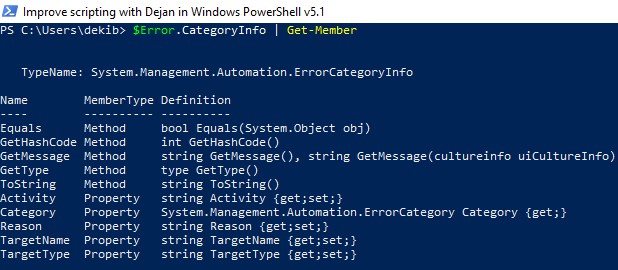
$Error[0].Exception
$Error.InvocationInfo | Get-Member
Write-Error CmdLet
Write-Error CmdLet writes an object to the error stream.
Please read this article from Microsoft PowerShell documentation regarding this CmdLet.
Handling Errors from non-PowerShell processes
We can run applications from PowerShell script like for example, PsExec.exe or robocopy.exe and they are external processes for PowerShell. Since it is an external process, errors from it will not be caught by our try/catch blocks in PowerShell script. So how we will know whether our external process was successful or not.
Well, we can use the $LastExitCode PowerShell automatic variable.
PowerShell will write the exit code to the $LastExitCode automatic variable when the external process exits. Check the external tool’s documentation for exit code values but usually, 0 means success and 1 or greater values mean a failure.
Useful PowerShell Error Handling Articles
Here are some useful articles and resources:
- Windows PowerShell Error Reporting
- About Try Catch Finally
- About CommonParameters
- About Automatic Variables
- About Preference Variables
- Write-Error
- About Throw
- About Break
- About Continue
PowerShell has several redirection operators that can be used to redirect specific type of output to a file. For example, if you want to redirect all errors produced by different cmdlet in your script to a text file, you can use Error redirection to do so.
It is particularly helpful when you want to hide errors from appearing on the screen but need them to identify any possible issues and improving the script. Sometimes, when you have a script deployed in production, you can ask users (who are using your script) for the error redirection file to troubleshoot the script.
To send errors to specified file, use 2> file.name
To append errors to a specified file, use 2>> file.name
Following examples attempts to delete files from c:temp folder and redirects any errors to c:errors.txt file.
PS C:> Get-ChildItem -Path c:temp

Directory: C:temp

Mode                LastWriteTime     Length Name
----                -------------     ------ ----
-a---         4/24/2016   2:45 PM        972 errors.txt
-a---         4/24/2016   2:48 PM      21085 ex2.docx
-a---         4/24/2016   2:49 PM        274 test.txt
-a---         4/24/2016   2:47 PM       8008 test.xlsx
-a---         4/24/2016   2:49 PM        289 test2.ps1

PS C:> Get-ChildItem -Path C:temp | Remove-Item 2> C:errors.txt
PS C:>
If above command has not resulted in any error, you will not see c:errors.txt or anything in the file. if the command produced any errors, it will be there in the error file. In example above, two documents were open and they were not deleted. notice how errors were not shown on the console but they were redirected to given error file:
PS C:> get-content C:errors.txt
Remove-Item : Cannot remove item C:tempex2.docx: The process cannot access the file 'C:tempex2.docx' because it is being used by another
process.
At line:1 char:31
+ Get-ChildItem -Path C:temp | Remove-Item 2> c:errors.txt
+                               ~~~~~~~~~~~~~~~~~~~~~~~~~~~~
+ CategoryInfo          : WriteError: (C:tempex2.docx:FileInfo) [Remove-Item], IOException
+ FullyQualifiedErrorId : RemoveFileSystemItemIOError,Microsoft.PowerShell.Commands.RemoveItemCommand
Remove-Item : Cannot remove item C:temptest.xlsx: The process cannot access the file 'C:temptest.xlsx' because it is being used by
another process.
At line:1 char:31
+ Get-ChildItem -Path C:temp | Remove-Item 2> c:errors.txt
+                               ~~~~~~~~~~~~~~~~~~~~~~~~~~~~
+ CategoryInfo          : WriteError: (C:temptest.xlsx:FileInfo) [Remove-Item], IOException
+ FullyQualifiedErrorId : RemoveFileSystemItemIOError,Microsoft.PowerShell.Commands.RemoveItemCommand
PS C:> Get-ChildItem C:temp
Notice that the error message redirected to the file is same as you would see on the console when not handling (by means of -ErrorAction, Try/Catch etc.). It shows line number that has thrown the error and helps in troubleshooting the script/code.
2> c:errors.txt in Remove-Item cmdlet in the pipeline is used to direct the errors to given text file (here c:errors.txt). If you need to append to a file instead of overwriting/creating a new one (2> c:errors.txt creates the file if does not exist or overwrites it if it exist), use append operator (2>> c:errors.txt):
PS C:> Get-ChildItem -Path C:temp | Remove-Item 2>> c:errors.txt
One important point to note is, you shouldn’t always be just redirecting errors. There are times when you need to handle errors in a script and take appropriate action. In those cases, its better to use error handling (using try/catch, -ErrorAction parameter of supported cmdlets etc.) to handle the error appropriately.
В Powershell существует несколько уровней ошибок и несколько способов их обработать. Проблемы одного уровня (Non-Terminating Errors) можно решить с помощью привычных для Powershell команд. Другой уровень ошибок (Terminating Errors) решается с помощью исключений (Exceptions) стандартного, для большинства языков, блока в виде Try, Catch и Finally.
Как Powershell обрабатывает ошибки
До рассмотрения основных методов посмотрим на теоретическую часть.
Автоматические переменные $Error
В Powershell существует множество переменных, которые создаются автоматически. Одна из таких переменных — $Error хранит в себе все ошибки за текущий сеанс PS. Например так я выведу количество ошибок и их сообщение за весь сеанс:
Get-TestTest
$Error
$Error.Count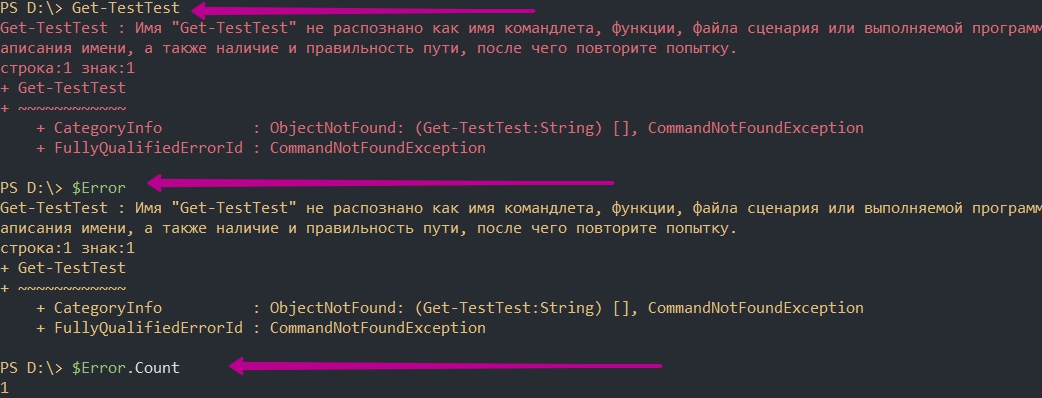
При отсутствии каких либо ошибок мы бы получили пустой ответ, а счетчик будет равняться 0:

Переменная $Error являет массивом и мы можем по нему пройтись или обратиться по индексу что бы найти нужную ошибку:
$Error[0]

foreach ($item in $Error){$item}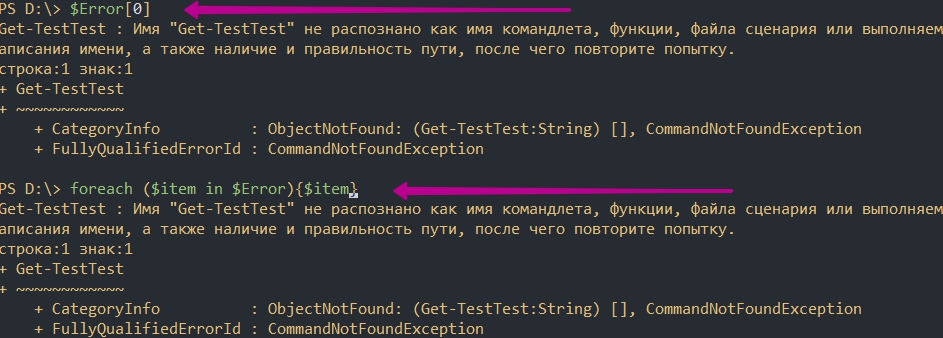
Свойства объекта $Error
Так же как и все что создается в Powershell переменная $Error так же имеет свойства (дополнительную информацию) и методы. Названия свойств и методов можно увидеть через команду Get-Member:
$Error | Get-Member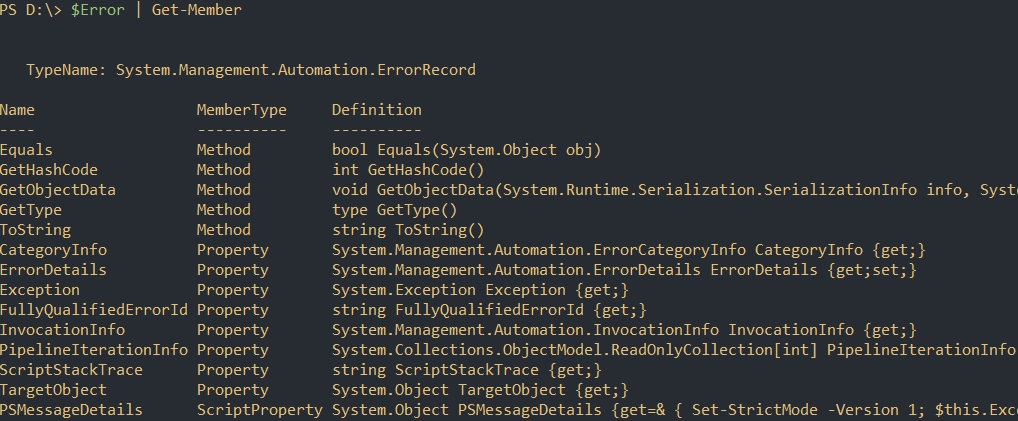
Например, с помощью свойства InvocationInfo, мы можем вывести более структурный отчет об ошибки:
$Error[0].InvocationInfo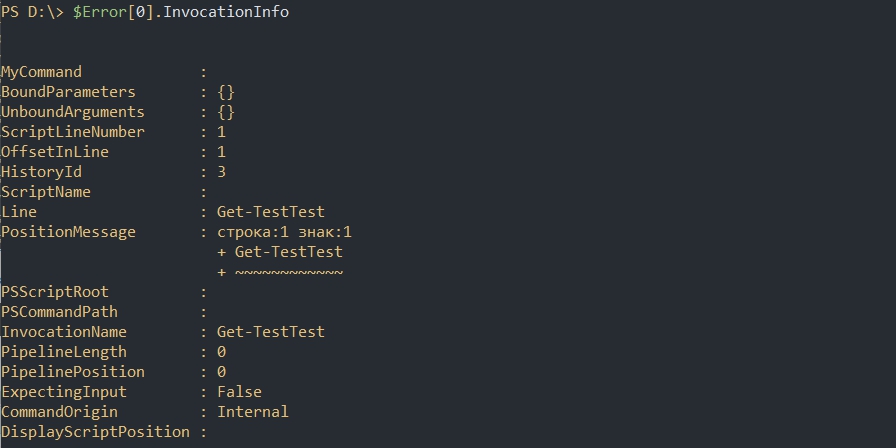
Методы объекта $Error
Например мы можем очистить логи ошибок используя clear:
$Error.clear()
Критические ошибки (Terminating Errors)
Критические (завершающие) ошибки останавливают работу скрипта. Например это может быть ошибка в названии командлета или параметра. В следующем примере команда должна была бы вернуть процессы «svchost» дважды, но из-за использования несуществующего параметра ‘—Error’ не выполнится вообще:
'svchost','svchost' | % {Get-Process -Name $PSItem} --Error 
Не критические ошибки (Non-Terminating Errors)
Не критические (не завершающие) ошибки не остановят работу скрипта полностью, но могут вывести сообщение об этом. Это могут быть ошибки не в самих командлетах Powershell, а в значениях, которые вы используете. На предыдущем примере мы можем допустить опечатку в названии процессов, но команда все равно продолжит работу:
'svchost111','svchost' | % {Get-Process -Name $PSItem}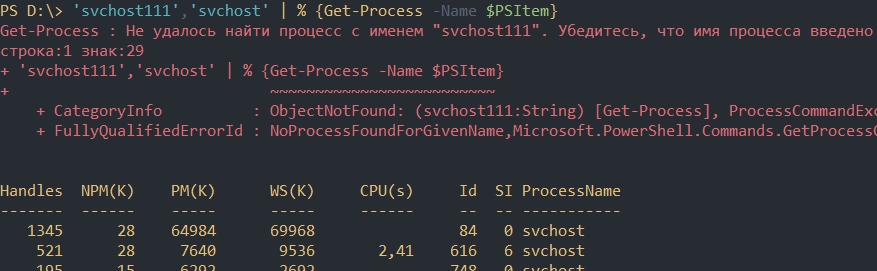
Как видно у нас появилась информация о проблеме с первым процессом ‘svchost111’, так как его не существует. Обычный процесс ‘svchost’ он у нас вывелся корректно.
Параметр ErrorVariable
Если вы не хотите использовать автоматическую переменную $Error, то сможете определять свою переменную индивидуально для каждой команды. Эта переменная определяется в параметре ErrorVariable:
'svchost111','svchost' | % {Get-Process -Name $PSItem } -ErrorVariable my_err_var
$my_err_var
Переменная будет иметь те же свойства, что и автоматическая:
$my_err_var.InvocationInfo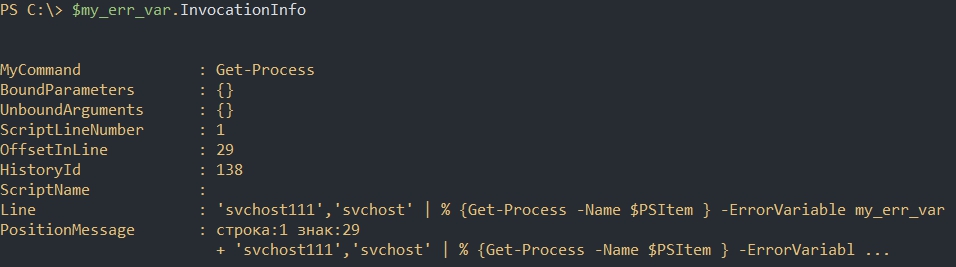
Обработка некритических ошибок
У нас есть два способа определения последующих действий при ‘Non-Terminating Errors’. Это правило можно задать локально и глобально (в рамках сессии). Мы сможем полностью остановить работу скрипта или вообще отменить вывод ошибок.
Приоритет ошибок с $ErrorActionPreference
Еще одна встроенная переменная в Powershell $ErrorActionPreference глобально определяет что должно случится, если у нас появится обычная ошибка. По умолчанию это значение равно ‘Continue’, что значит «вывести информацию об ошибке и продолжить работу»:
$ErrorActionPreference
Если мы поменяем значение этой переменной на ‘Stop’, то поведение скриптов и команд будет аналогично критичным ошибкам. Вы можете убедиться в этом на прошлом скрипте с неверным именем процесса:
$ErrorActionPreference = 'Stop'
'svchost111','svchost' | % {Get-Process -Name $PSItem}
Т.е. скрипт был остановлен в самом начале. Значение переменной будет храниться до момента завершения сессии Powershell. При перезагрузке компьютера, например, вернется значение по умолчанию.
Ниже значение, которые мы можем установить в переменной $ErrorActionPreference:
- Continue — вывод ошибки и продолжение работы;
- Inquire — приостановит работу скрипта и спросит о дальнейших действиях;
- SilentlyContinue — скрипт продолжит свою работу без вывода ошибок;
- Stop — остановка скрипта при первой ошибке.
Самый частый параметр, который мне приходится использовать — SilentlyContinue:
$ErrorActionPreference = 'SilentlyContinue'
'svchost111','svchost' | % {Get-Process -Name $PSItem}
Использование параметра ErrorAction
Переменная $ErrorActionPreference указывает глобальный приоритет, но мы можем определить такую логику в рамках команды с параметром ErrorAction. Этот параметр имеет больший приоритет чем $ErrorActionPreference. В следующем примере, глобальная переменная определяет полную остановку скрипта, а в параметр ErrorAction говорит «не выводить ошибок и продолжить работу»:
$ErrorActionPreference = 'Stop'
'svchost111','svchost' | % {Get-Process -Name $PSItem -ErrorAction 'SilentlyContinue'}
Кроме ‘SilentlyContinue’ мы можем указывать те же параметры, что и в переменной $ErrorActionPreference.
Значение Stop, в обоих случаях, делает ошибку критической.
Обработка критических ошибок и исключений с Try, Catch и Finally
Когда мы ожидаем получить какую-то ошибку и добавить логику нужно использовать Try и Catch. Например, если в вариантах выше мы определяли нужно ли нам отображать ошибку или останавливать скрипт, то теперь сможем изменить выполнение скрипта или команды вообще. Блок Try и Catch работает только с критическими ошибками и в случаях если $ErrorActionPreference или ErrorAction имеют значение Stop.
Например, если с помощью Powershell мы пытаемся подключиться к множеству компьютеров один из них может быть выключен — это приведет к ошибке. Так как эту ситуацию мы можем предвидеть, то мы можем обработать ее. Процесс обработки ошибок называется исключением (Exception).
Синтаксис и логика работы команды следующая:
try {
    # Пытаемся подключиться к компьютеру
}
catch [Имя исключения 1],[Имя исключения 2]{
    # Раз компьютер не доступен, сделать то-то
}
finally {
    # Блок, который выполняется в любом случае последним
}
Блок try мониторит ошибки и если она произойдет, то она добавится в переменную $Error и скрипт перейдет к блоку Catch. Так как ошибки могут быть разные (нет доступа, нет сети, блокирует правило фаервола и т.д.) то мы можем прописывать один блок Try и несколько Catch:
try {
    # Пытаемся подключится
}
catch ['Нет сети']['Блокирует фаервол']{
    # Записываем в файл
}
catch ['Нет прав на подключение']{
    # Подключаемся под другим пользователем
}
Сам блок finally — не обязательный и используется редко. Он выполняется самым последним, после try и catch и не имеет каких-то условий.
Catch для всех типов исключений
Как и было показано выше мы можем использовать блок Catch для конкретного типа ошибок, например при проблемах с доступом. Если в этом месте ничего не указывать — в этом блоке будут обрабатываться все варианты ошибок:
try {
   'svchost111','svchost' | % {Get-Process -Name $PSItem -ErrorAction 'Stop'}
}
catch {
   Write-Host "Какая-то неисправность" -ForegroundColor RED
}
Такой подход не рекомендуется использовать часто, так как вы можете пропустить что-то важное.
Мы можем вывести в блоке catch текст ошибки используя $PSItem.Exception:
try {
   'svchost111','svchost' | % {Get-Process -Name $PSItem -ErrorAction 'Stop'}
}
catch {
   Write-Host "Какая-то неисправность" -ForegroundColor RED
   $PSItem.Exception
}
Переменная $PSItem хранит информацию о текущей ошибке, а глобальная переменная $Error будет хранит информацию обо всех ошибках. Так, например, я выведу одну и ту же информацию:
$Error[0].Exception
Создание отдельных исключений
Что бы обработать отдельную ошибку сначала нужно найти ее имя. Это имя можно увидеть при получении свойств и методов у значения переменной $Error:
$Error[0].Exception | Get-Member
Так же сработает и в блоке Catch с $PSItem:
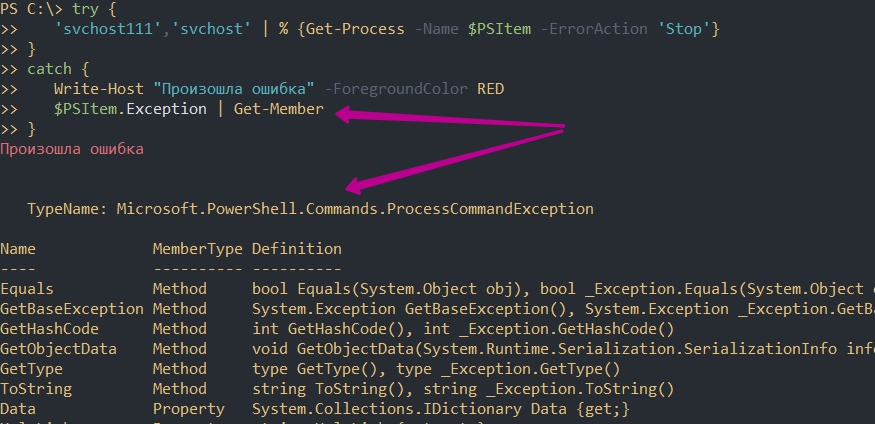
Для вывода только имени можно использовать свойство FullName:
$Error[0].Exception.GetType().FullName
Далее, это имя, мы вставляем в блок Catch:
try {
   'svchost111','svchost' | % {Get-Process -Name $PSItem -ErrorAction 'Stop'}
}
catch [Microsoft.PowerShell.Commands.ProcessCommandException]{
   Write-Host "Произошла ошибка" -ForegroundColor RED
   $PSItem.Exception
}
Так же, как и было описано выше мы можем усложнять эти блоки как угодно указывая множество исключений в одном catch.
Выброс своих исключений
Иногда нужно создать свои собственные исключения. Например мы можем запретить добавлять через какой-то скрипт названия содержащие маленькие буквы или сотрудников без указания возраста и т.д. Способов создать такие ошибки — два и они тоже делятся на критические и обычные.
Выброс с throw
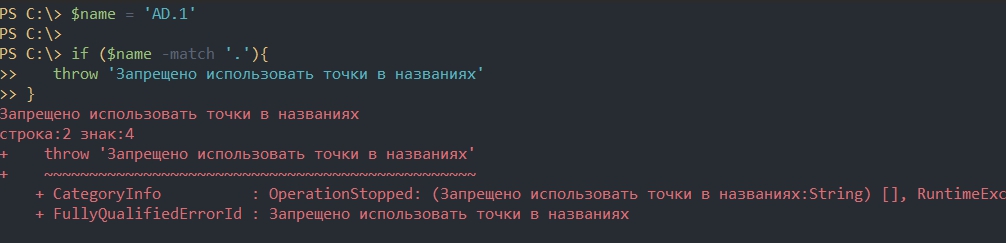
Throw — выбрасывает ошибку, которая останавливает работу скрипта. Этот тип ошибок относится к критическим. Например мы можем указать только текст для дополнительной информации:
$name = 'AD.1'

if ($name -match '.'){
   throw 'Запрещено использовать точки в названиях'
}
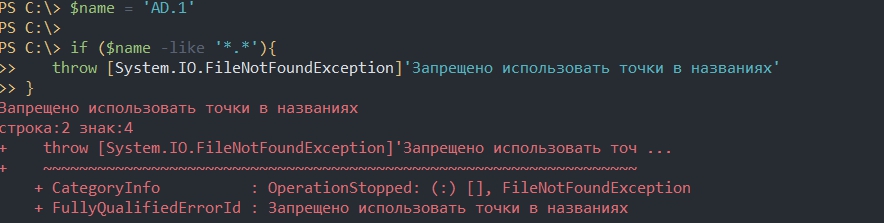
Если нужно, то мы можем использовать исключения, которые уже были созданы в Powershell:
$name = 'AD.1'

if ($name -like '*.*'){
   throw [System.IO.FileNotFoundException]'Запрещено использовать точки в названиях'
}
Использование Write-Error
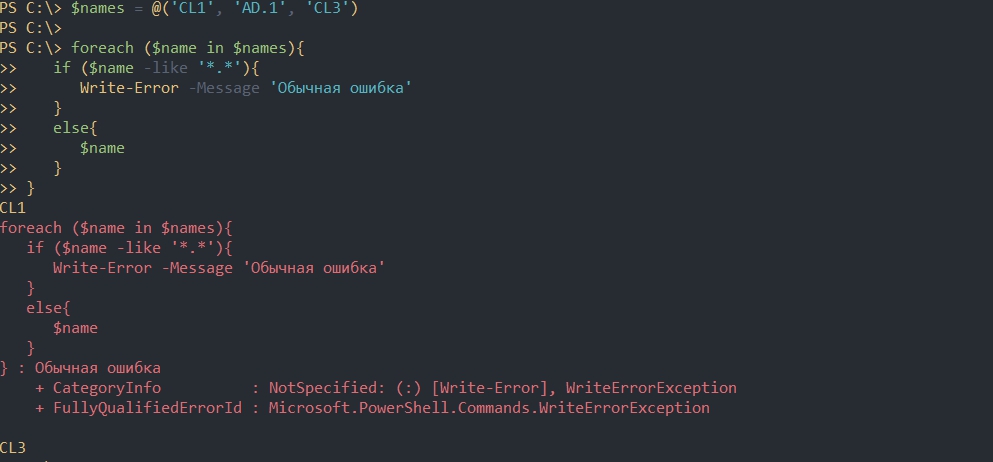
Команда Write-Error работает так же, как и ключ ErrorAction. Мы можем просто отобразить какую-то ошибку и продолжить выполнение скрипта:
$names = @('CL1', 'AD.1', 'CL3')

foreach ($name in $names){
   if ($name -like '*.*'){
      Write-Error -Message 'Обычная ошибка'
   }
   else{
      $name
   }
}
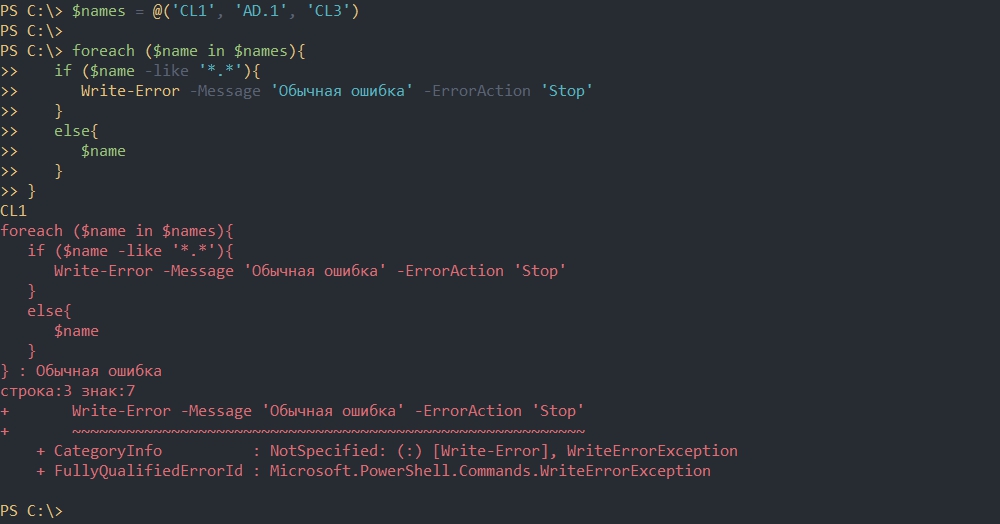
При необходимости мы можем использовать параметр ErrorAction. Значения этого параметра были описаны выше. Мы можем указать значение ‘Stop’, что полностью остановит выполнение скрипта:
$names = @('CL1', 'AD.1', 'CL3')

foreach ($name in $names){
   if ($name -like '*.*'){
      Write-Error -Message 'Обычная ошибка' -ErrorAction 'Stop'
   }
   else{
      $name
   }
}
Отличие команды Write-Error с ключом ErrorAction от обычных команд в том, что мы можем указывать исключения в параметре Exception:
Write-Error -Message 'Обычная ошибка' -ErrorAction 'Stop'

Write-Error -Message 'Исключение' -Exception [System.IO.FileNotFoundException] -ErrorAction 'Stop'
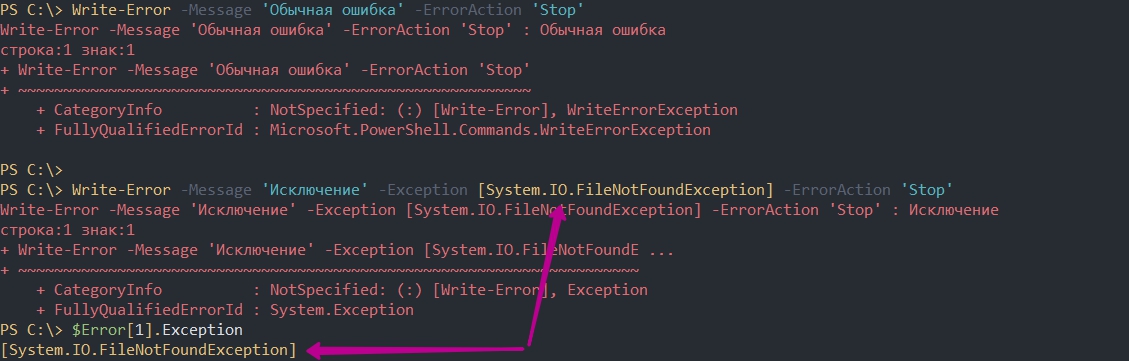
В Exception мы так же можем указывать сообщение. При этом оно будет отображаться в переменной $Error:
Write-Error -Exception [System.IO.FileNotFoundException]'Моё сообщение'
…
Теги:
#powershell
#ошибки