Symptoms
When you run a Visual Basic for Applications macro in Microsoft Excel, you may receive the following or similar error message:
Run-time error ‘1004’:
Method ‘SaveAs’ of object ‘_Worksheet’ failed
Cause
This behavior can occur when both the following conditions are true:
-
You are using a Visual Basic for Applications macro to save a worksheet.
-and-
-
You specify the file format as the constant xlWorkbookNormal.
For example, the following code causes this error to occur:
Sub A()
   Dim myNewSheet As Worksheet
   Set myNewSheet = ActiveSheet
   FileNameBin = "c:ABC"
   myNewSheet.SaveAs Filename:=FileNameBin, FileFormat:=xlWorkbookNormal
End Sub
Workaround
Microsoft provides programming examples for illustration only, without warranty either expressed or implied, including, but not limited to, the implied warranties of merchantability and/or fitness for a particular purpose. This article assumes that you are familiar with the programming language being demonstrated and the tools used to create and debug procedures. Microsoft support professionals can help explain the functionality of a particular procedure, but they will not modify these examples to provide added functionality or construct procedures to meet your specific needs.
If you have limited programming experience, you may want to contact a Microsoft Certified Partner or Microsoft Advisory Services. For more information, visit these Microsoft Web sites:
Microsoft Certified Partners — https://partner.microsoft.com/global/30000104
Microsoft Advisory Services — http://support.microsoft.com/gp/advisoryservice
For more information about the support options that are available and about how to contact Microsoft, visit the following Microsoft Web site:http://support.microsoft.com/default.aspx?scid=fh;EN-US;CNTACTMS
To work around this behavior, change the file format specification from the constant xlWorkbookNormal to 1. The example code functions normally if changed to:
Sub A()
   Dim myNewSheet As Worksheet
   Set myNewSheet = ActiveSheet
   FileNameBin = "c:ABC"
   myNewSheet.SaveAs Filename:=FileNameBin, FileFormat:=1
End Sub
NOTE Even though you are saving a worksheet, all worksheets in the selected workbook are saved when the file format is set to xlWorkbookNormal or 1.
Status
Microsoft has confirmed that this is a problem in the Microsoft products that are listed at the beginning of this article.
Need more help?
Hello,
I have code designed to create an archive of my main sheet (as a .xlsx) by copying the sheet > saving the copied sheet in a new workbook > doing things to the sheet within the new workbook > saving and closing new workbook then continuing the rest of my code.
Everything works as coded except when the user selects (or keeps selected) the same file location, in the SaveAs dialog, that the original file (with the running VBA) is in. It returns a «Method ‘SaveAs’ of object ‘_Workbook’ failed» error.
I created an «If» check to see if the selected file location from the SaveAs dialog is the same as the file location of the original and was able to create an error handler (avoid the error), but not an error solution. I want to default to the same file location as the original, and regardless I want the user to be able to save into the same file location, especially since that is a very typical thing to do.
Line (59) with error 1004:
ActiveWorkbook.SaveAs fileName:=PathAndFile_Name, FileFormat:=xlOpenXMLWorkbook
ShiftYear (what code is in) and PleaseWait are userforms, and «Troop to Task — Tracker» is the sheet I’m copying.
Code with error:
'<PREVIOUS CODE THAT DOESN'T PERTAIN TO THE SAVEAS ISSUE>

'''Declare variables:
'General:
Dim NewGenYear As Integer, LastGenYear As Integer, year_create_counter As Integer
NewGenYear = 0: LastGenYear = 0: year_create_counter = 0
'Personnel:
Dim cell_person As Range, cell_num As Range
Dim cell_num_default As Range
'Archive:
Dim Sheet_Archive As Worksheet, ShVal As Integer
Dim ObFD As FileDialog
Dim File_Name As String
Dim PathAndFile_Name As String
Dim Shape_Clr As Shape
Dim cell_color_convert As Range

'<A WHOLE BUNCH OF OTHER CHECKS AND CODE THAT DOESN'T PERTAIN TO THE SAVEAS ISSUE>

'Set then launch SaveAs dialog:
If ShiftYear.CheckBox5.Value = True Then 'Archive <=5 year(s) data externally - Checked:
    For Each Sheet_Archive In ThisWorkbook.Sheets
    Select Case Sheet_Archive.CodeName
    Case Is = "Sheet4", "Sheet5", "Sheet6", "Sheet7"
    ShVal = Sheet_Archive.Name
    If Sheet_Archive.Range("A2").Value <> "N/A" And ShVal <> ShiftYear.Shift_3.Value Then
    File_Name = "Archive " & Sheet_Archive.Name & "_" & ThisWorkbook.Name 'Set default (suggested) File Name
    Set ObFD = Application.FileDialog(msoFileDialogSaveAs)
    With ObFD
        .Title = "Archive Year(s) - Personnel Tracker"
        .ButtonName = "A&rchive"
        .InitialFileName = ThisWorkbook.Path & "" & File_Name 'Default file location and File Name
        .FilterIndex = 1 'File Type (.xlsx)
        .AllowMultiSelect = False
        .InitialView = msoFileDialogViewDetails
        .Show
        If .SelectedItems.count = 0 Then
        MsgBox "Generation and archiving canceled. No year(s) were created, shifted, or overwritten. To continue generating without archiving, uncheck the ""Archive <=5 year(s) calendar/personnel data externally before overwriting"" box then click ""Generate"" again." _
        , vbExclamation, "Year Shift & Creation - Personnel Tracker"
        '<MY CODE THAT TURNS OFF MACRO ENHANCEMENT>
        Exit Sub
        Else
        PathAndFile_Name = .SelectedItems(1)
        End If
    End With
    Application.DisplayAlerts = False

'Load year to be archived:
    Worksheets("Formula & Code Data").Range("I7").Value = Sheet_Archive.Name
    Worksheets("Formula & Code Data").Range("I13").Value = "No"
    Call Load_Year.Load_Year

'Copy Troop to Task - Tracker sheet into new workbook and format:
    PleaseWait.Label2.Caption = "Creating " & Sheet_Archive.Name & " archive file ..."
    DoEvents
    File_Name = Right(PathAndFile_Name, Len(PathAndFile_Name) - InStrRev(PathAndFile_Name, "")) 'Update File Name to user's input
    ThisWorkbook.Sheets("Troop to Task - Tracker").Copy

    ActiveWorkbook.SaveAs fileName:=PathAndFile_Name, FileFormat:=xlOpenXMLWorkbook 'New workbook save and activate

    '<ALL MY CODE THAT CHANGES THE NEW WORKBOOK>

    Excel.Workbooks(File_Name).Activate
    Excel.Workbooks(File_Name).Close savechanges:=True 'New workbook save and close
    Application.DisplayAlerts = True
    End If
    End Select
    If (Sheet_Archive.CodeName = "Sheet4" Or Sheet_Archive.CodeName = "Sheet5" _
    Or Sheet_Archive.CodeName = "Sheet6" Or Sheet_Archive.CodeName = "Sheet7") _
    And ShVal <> ShiftYear.Shift_3.Value Then
    PleaseWait.Label2.Caption = "" & Sheet_Archive.Name & " archive file complete"
    DoEvents
    Else: PleaseWait.Label2.Caption = "Initailizing archive ..."
    DoEvents: End If
    Next Sheet_Archive
ElseIf ShiftYear.CheckBox5.Value = False Then 'Archive <=5 year(s) data externally - Unchecked:
    'Do Nothing
End If 'Archive <=5 year(s) data externally - END

'<CONTINUING CODE THAT DOESN'T PERTAIN TO THE SAVEAS ISSUE>
Code with error handler:
'<PREVIOUS CODE THAT DOESN'T PERTAIN TO THE SAVEAS ISSUE>

'''Declare variables:
'General:
Dim NewGenYear As Integer, LastGenYear As Integer, year_create_counter As Integer
NewGenYear = 0: LastGenYear = 0: year_create_counter = 0
'Personnel:
Dim cell_person As Range, cell_num As Range
Dim cell_num_default As Range
'Archive:
Dim Sheet_Archive As Worksheet, ShVal As Integer
Dim ObFD As FileDialog
Dim File_Name As String
Dim PathAndFile_Name As String
Dim Shape_Clr As Shape
Dim cell_color_convert As Range

'<A WHOLE BUNCH OF OTHER CHECKS AND CODE THAT DOESN'T PERTAIN TO THE SAVEAS ISSUE>

'Set then launch SaveAs dialog:
If ShiftYear.CheckBox5.Value = True Then 'Archive <=5 year(s) data externally - Checked:
    For Each Sheet_Archive In ThisWorkbook.Sheets
    Select Case Sheet_Archive.CodeName
    Case Is = "Sheet4", "Sheet5", "Sheet6", "Sheet7"
Archive_Error:
    ShVal = Sheet_Archive.Name
    If Sheet_Archive.Range("A2").Value <> "N/A" And ShVal <> ShiftYear.Shift_3.Value Then
    File_Name = "Archive " & Sheet_Archive.Name & "_" & ThisWorkbook.Name 'Set default (suggested) File Name
    Set ObFD = Application.FileDialog(msoFileDialogSaveAs)
    With ObFD
        .Title = "Archive Year(s) - Personnel Tracker"
        .ButtonName = "A&rchive"
        .InitialFileName = ThisWorkbook.Path & "" & File_Name 'Default file location and File Name
        .FilterIndex = 1 'File Type (.xlsx)
        .AllowMultiSelect = False
        .InitialView = msoFileDialogViewDetails
        .Show
        If .SelectedItems.count = 0 Then
        MsgBox "Generation and archiving canceled. No year(s) were created, shifted, or overwritten. To continue generating without archiving, uncheck the ""Archive <=5 year(s) calendar/personnel data externally before overwriting"" box then click ""Generate"" again." _
        , vbExclamation, "Year Shift & Creation - Personnel Tracker"
        '<MY CODE THAT TURNS OFF MACRO ENHANCEMENT>
        Exit Sub
        Else
        PathAndFile_Name = .SelectedItems(1)
        End If
    End With
    Application.DisplayAlerts = False

'Load year to be archived:
    Worksheets("Formula & Code Data").Range("I7").Value = Sheet_Archive.Name
    Worksheets("Formula & Code Data").Range("I13").Value = "No"
    Call Load_Year.Load_Year

'Copy Troop to Task - Tracker sheet into new workbook and format:
    PleaseWait.Label2.Caption = "Creating " & Sheet_Archive.Name & " archive file ..."
    DoEvents
    File_Name = Right(PathAndFile_Name, Len(PathAndFile_Name) - InStrRev(PathAndFile_Name, "")) 'Update File Name to user's input
    ThisWorkbook.Sheets("Troop to Task - Tracker").Copy

    If PathAndFile_Name = ThisWorkbook.Path & "" & File_Name Then 'Error handler
Archive_Error_Actual:
    MsgBox "You cannot save into the same location as this Tracker, in this version. Please select a different file location." _
    , vbExclamation, "Year Shift & Creation - Personnel Tracker"
    'UPDATE MESSAGE AND FIGURE OUT WAY TO FIX RUNTIME ERROR WHEN SAVING TO SAME LOCATION AS THE TRACKER!!!
    ActiveWorkbook.Close savechanges:=False
    GoTo Archive_Error
    End If
    On Error GoTo Archive_Error_Actual
    ActiveWorkbook.SaveAs fileName:=PathAndFile_Name, FileFormat:=xlOpenXMLWorkbook 'New workbook save and activate

    '<ALL MY CODE THAT CHANGES THE NEW WORKBOOK>

    Excel.Workbooks(File_Name).Activate
    Excel.Workbooks(File_Name).Close savechanges:=True 'New workbook save and close
    Application.DisplayAlerts = True
    End If
    End Select
    If (Sheet_Archive.CodeName = "Sheet4" Or Sheet_Archive.CodeName = "Sheet5" _
    Or Sheet_Archive.CodeName = "Sheet6" Or Sheet_Archive.CodeName = "Sheet7") _
    And ShVal <> ShiftYear.Shift_3.Value Then
    PleaseWait.Label2.Caption = "" & Sheet_Archive.Name & " archive file complete"
    DoEvents
    Else: PleaseWait.Label2.Caption = "Initailizing archive ..."
    DoEvents: End If
    Next Sheet_Archive
ElseIf ShiftYear.CheckBox5.Value = False Then 'Archive <=5 year(s) data externally - Unchecked:
    'Do Nothing
End If 'Archive <=5 year(s) data externally - END

'<CONTINUING CODE THAT DOESN'T PERTAIN TO THE SAVEAS ISSUE>
Any solution to this is much appreciated!
Hello,
I have code designed to create an archive of my main sheet (as a .xlsx) by copying the sheet > saving the copied sheet in a new workbook > doing things to the sheet within the new workbook > saving and closing new workbook then continuing the rest of my code.
Everything works as coded except when the user selects (or keeps selected) the same file location, in the SaveAs dialog, that the original file (with the running VBA) is in. It returns a «Method ‘SaveAs’ of object ‘_Workbook’ failed» error.
I created an «If» check to see if the selected file location from the SaveAs dialog is the same as the file location of the original and was able to create an error handler (avoid the error), but not an error solution. I want to default to the same file location as the original, and regardless I want the user to be able to save into the same file location, especially since that is a very typical thing to do.
Line (59) with error 1004:
ActiveWorkbook.SaveAs fileName:=PathAndFile_Name, FileFormat:=xlOpenXMLWorkbook
ShiftYear (what code is in) and PleaseWait are userforms, and «Troop to Task — Tracker» is the sheet I’m copying.
Code with error:
'<PREVIOUS CODE THAT DOESN'T PERTAIN TO THE SAVEAS ISSUE>

'''Declare variables:
'General:
Dim NewGenYear As Integer, LastGenYear As Integer, year_create_counter As Integer
NewGenYear = 0: LastGenYear = 0: year_create_counter = 0
'Personnel:
Dim cell_person As Range, cell_num As Range
Dim cell_num_default As Range
'Archive:
Dim Sheet_Archive As Worksheet, ShVal As Integer
Dim ObFD As FileDialog
Dim File_Name As String
Dim PathAndFile_Name As String
Dim Shape_Clr As Shape
Dim cell_color_convert As Range

'<A WHOLE BUNCH OF OTHER CHECKS AND CODE THAT DOESN'T PERTAIN TO THE SAVEAS ISSUE>

'Set then launch SaveAs dialog:
If ShiftYear.CheckBox5.Value = True Then 'Archive <=5 year(s) data externally - Checked:
    For Each Sheet_Archive In ThisWorkbook.Sheets
    Select Case Sheet_Archive.CodeName
    Case Is = "Sheet4", "Sheet5", "Sheet6", "Sheet7"
    ShVal = Sheet_Archive.Name
    If Sheet_Archive.Range("A2").Value <> "N/A" And ShVal <> ShiftYear.Shift_3.Value Then
    File_Name = "Archive " & Sheet_Archive.Name & "_" & ThisWorkbook.Name 'Set default (suggested) File Name
    Set ObFD = Application.FileDialog(msoFileDialogSaveAs)
    With ObFD
        .Title = "Archive Year(s) - Personnel Tracker"
        .ButtonName = "A&rchive"
        .InitialFileName = ThisWorkbook.Path & "" & File_Name 'Default file location and File Name
        .FilterIndex = 1 'File Type (.xlsx)
        .AllowMultiSelect = False
        .InitialView = msoFileDialogViewDetails
        .Show
        If .SelectedItems.count = 0 Then
        MsgBox "Generation and archiving canceled. No year(s) were created, shifted, or overwritten. To continue generating without archiving, uncheck the ""Archive <=5 year(s) calendar/personnel data externally before overwriting"" box then click ""Generate"" again." _
        , vbExclamation, "Year Shift & Creation - Personnel Tracker"
        '<MY CODE THAT TURNS OFF MACRO ENHANCEMENT>
        Exit Sub
        Else
        PathAndFile_Name = .SelectedItems(1)
        End If
    End With
    Application.DisplayAlerts = False

'Load year to be archived:
    Worksheets("Formula & Code Data").Range("I7").Value = Sheet_Archive.Name
    Worksheets("Formula & Code Data").Range("I13").Value = "No"
    Call Load_Year.Load_Year

'Copy Troop to Task - Tracker sheet into new workbook and format:
    PleaseWait.Label2.Caption = "Creating " & Sheet_Archive.Name & " archive file ..."
    DoEvents
    File_Name = Right(PathAndFile_Name, Len(PathAndFile_Name) - InStrRev(PathAndFile_Name, "")) 'Update File Name to user's input
    ThisWorkbook.Sheets("Troop to Task - Tracker").Copy

    ActiveWorkbook.SaveAs fileName:=PathAndFile_Name, FileFormat:=xlOpenXMLWorkbook 'New workbook save and activate

    '<ALL MY CODE THAT CHANGES THE NEW WORKBOOK>

    Excel.Workbooks(File_Name).Activate
    Excel.Workbooks(File_Name).Close savechanges:=True 'New workbook save and close
    Application.DisplayAlerts = True
    End If
    End Select
    If (Sheet_Archive.CodeName = "Sheet4" Or Sheet_Archive.CodeName = "Sheet5" _
    Or Sheet_Archive.CodeName = "Sheet6" Or Sheet_Archive.CodeName = "Sheet7") _
    And ShVal <> ShiftYear.Shift_3.Value Then
    PleaseWait.Label2.Caption = "" & Sheet_Archive.Name & " archive file complete"
    DoEvents
    Else: PleaseWait.Label2.Caption = "Initailizing archive ..."
    DoEvents: End If
    Next Sheet_Archive
ElseIf ShiftYear.CheckBox5.Value = False Then 'Archive <=5 year(s) data externally - Unchecked:
    'Do Nothing
End If 'Archive <=5 year(s) data externally - END

'<CONTINUING CODE THAT DOESN'T PERTAIN TO THE SAVEAS ISSUE>
Code with error handler:
'<PREVIOUS CODE THAT DOESN'T PERTAIN TO THE SAVEAS ISSUE>

'''Declare variables:
'General:
Dim NewGenYear As Integer, LastGenYear As Integer, year_create_counter As Integer
NewGenYear = 0: LastGenYear = 0: year_create_counter = 0
'Personnel:
Dim cell_person As Range, cell_num As Range
Dim cell_num_default As Range
'Archive:
Dim Sheet_Archive As Worksheet, ShVal As Integer
Dim ObFD As FileDialog
Dim File_Name As String
Dim PathAndFile_Name As String
Dim Shape_Clr As Shape
Dim cell_color_convert As Range

'<A WHOLE BUNCH OF OTHER CHECKS AND CODE THAT DOESN'T PERTAIN TO THE SAVEAS ISSUE>

'Set then launch SaveAs dialog:
If ShiftYear.CheckBox5.Value = True Then 'Archive <=5 year(s) data externally - Checked:
    For Each Sheet_Archive In ThisWorkbook.Sheets
    Select Case Sheet_Archive.CodeName
    Case Is = "Sheet4", "Sheet5", "Sheet6", "Sheet7"
Archive_Error:
    ShVal = Sheet_Archive.Name
    If Sheet_Archive.Range("A2").Value <> "N/A" And ShVal <> ShiftYear.Shift_3.Value Then
    File_Name = "Archive " & Sheet_Archive.Name & "_" & ThisWorkbook.Name 'Set default (suggested) File Name
    Set ObFD = Application.FileDialog(msoFileDialogSaveAs)
    With ObFD
        .Title = "Archive Year(s) - Personnel Tracker"
        .ButtonName = "A&rchive"
        .InitialFileName = ThisWorkbook.Path & "" & File_Name 'Default file location and File Name
        .FilterIndex = 1 'File Type (.xlsx)
        .AllowMultiSelect = False
        .InitialView = msoFileDialogViewDetails
        .Show
        If .SelectedItems.count = 0 Then
        MsgBox "Generation and archiving canceled. No year(s) were created, shifted, or overwritten. To continue generating without archiving, uncheck the ""Archive <=5 year(s) calendar/personnel data externally before overwriting"" box then click ""Generate"" again." _
        , vbExclamation, "Year Shift & Creation - Personnel Tracker"
        '<MY CODE THAT TURNS OFF MACRO ENHANCEMENT>
        Exit Sub
        Else
        PathAndFile_Name = .SelectedItems(1)
        End If
    End With
    Application.DisplayAlerts = False

'Load year to be archived:
    Worksheets("Formula & Code Data").Range("I7").Value = Sheet_Archive.Name
    Worksheets("Formula & Code Data").Range("I13").Value = "No"
    Call Load_Year.Load_Year

'Copy Troop to Task - Tracker sheet into new workbook and format:
    PleaseWait.Label2.Caption = "Creating " & Sheet_Archive.Name & " archive file ..."
    DoEvents
    File_Name = Right(PathAndFile_Name, Len(PathAndFile_Name) - InStrRev(PathAndFile_Name, "")) 'Update File Name to user's input
    ThisWorkbook.Sheets("Troop to Task - Tracker").Copy

    If PathAndFile_Name = ThisWorkbook.Path & "" & File_Name Then 'Error handler
Archive_Error_Actual:
    MsgBox "You cannot save into the same location as this Tracker, in this version. Please select a different file location." _
    , vbExclamation, "Year Shift & Creation - Personnel Tracker"
    'UPDATE MESSAGE AND FIGURE OUT WAY TO FIX RUNTIME ERROR WHEN SAVING TO SAME LOCATION AS THE TRACKER!!!
    ActiveWorkbook.Close savechanges:=False
    GoTo Archive_Error
    End If
    On Error GoTo Archive_Error_Actual
    ActiveWorkbook.SaveAs fileName:=PathAndFile_Name, FileFormat:=xlOpenXMLWorkbook 'New workbook save and activate

    '<ALL MY CODE THAT CHANGES THE NEW WORKBOOK>

    Excel.Workbooks(File_Name).Activate
    Excel.Workbooks(File_Name).Close savechanges:=True 'New workbook save and close
    Application.DisplayAlerts = True
    End If
    End Select
    If (Sheet_Archive.CodeName = "Sheet4" Or Sheet_Archive.CodeName = "Sheet5" _
    Or Sheet_Archive.CodeName = "Sheet6" Or Sheet_Archive.CodeName = "Sheet7") _
    And ShVal <> ShiftYear.Shift_3.Value Then
    PleaseWait.Label2.Caption = "" & Sheet_Archive.Name & " archive file complete"
    DoEvents
    Else: PleaseWait.Label2.Caption = "Initailizing archive ..."
    DoEvents: End If
    Next Sheet_Archive
ElseIf ShiftYear.CheckBox5.Value = False Then 'Archive <=5 year(s) data externally - Unchecked:
    'Do Nothing
End If 'Archive <=5 year(s) data externally - END

'<CONTINUING CODE THAT DOESN'T PERTAIN TO THE SAVEAS ISSUE>
Any solution to this is much appreciated!
Summary:
In this post, I have included the complete information about Excel runtime error 1004. Besides that I have presented some best fixes to resolve runtime error 1004 effortlessly.
To fix Runtime Error 1004 in Excel you can take initiatives like uninstalling Microsoft Work, creating a new Excel template, or deleting The “GWXL97.XLA” File. If you don’t have any idea on how to apply these methods then go through this post.
Here in this article, we are going to discuss different types of VBA runtime error 1004 in Excel along with their fixes.
What Is Runtime Error 1004 In VBA Excel?
Excel error 1004 is one such annoying runtime error that mainly encounters while working with the Excel file. Or while trying to generate a Macro in Excel document and as a result, you are unable to do anything in your workbook.
This error may cause serious trouble while you are working with Visual Basic Applications and can crash your program or your system or in some cases, it freezes for some time. This error is faced by any versions of MS Excel such as Excel 2007/2010/2013/2016/2019 as well.
To recover lost Excel data, we recommend this tool:
This software will prevent Excel workbook data such as BI data, financial reports & other analytical information from corruption and data loss. With this software you can rebuild corrupt Excel files and restore every single visual representation & dataset to its original, intact state in 3 easy steps:
- Download Excel File Repair Tool rated Excellent by Softpedia, Softonic & CNET.
- Select the corrupt Excel file (XLS, XLSX) & click Repair to initiate the repair process.
- Preview the repaired files and click Save File to save the files at desired location.
Error Detail:
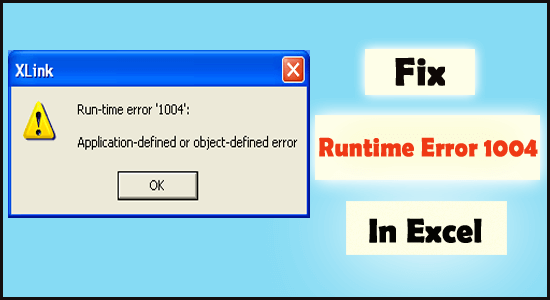
Error Code: run-time error 1004
Description: Application or object-defined error
Screenshot Of The Error:

Don’t worry you can fix this Microsoft Visual Basic runtime error 1004, just by following the steps mentioned in this post. But before approaching the fixes section catch more information regarding runtime error 1004.
Excel VBA Run Time Error 1004 Along With The Fixes

The lists of error messages associated with this Excel error 1004 are:
- VB: run-time error ‘1004’: Application-defined or object-defined error
- Excel VBA Runtime error 1004 “Select method of Range class failed”
- runtime error 1004 method range of object _global failed visual basic
- Excel macro “Run-time error ‘1004″
- Runtime error 1004 method open of object workbooks failed
- Run time error ‘1004’: Method ‘Ranger’ of Object’ Worksheet’ Failed
- Save As VBA run time Error 1004: Application defined or object defined error
Let’s discuss each of them one by one…!
#1 – VBA Run Time Error 1004: That Name is already taken. Try a different One
This VBA Run Time Error 1004 in Excel mainly occurs at the time of renaming the sheet.
If a worksheet with the same name already exists but still you are assigning that name to some other worksheet. In that case, VBA will throw the run time error 1004 along with the message: “The Name is Already Taken. Try a different one.”
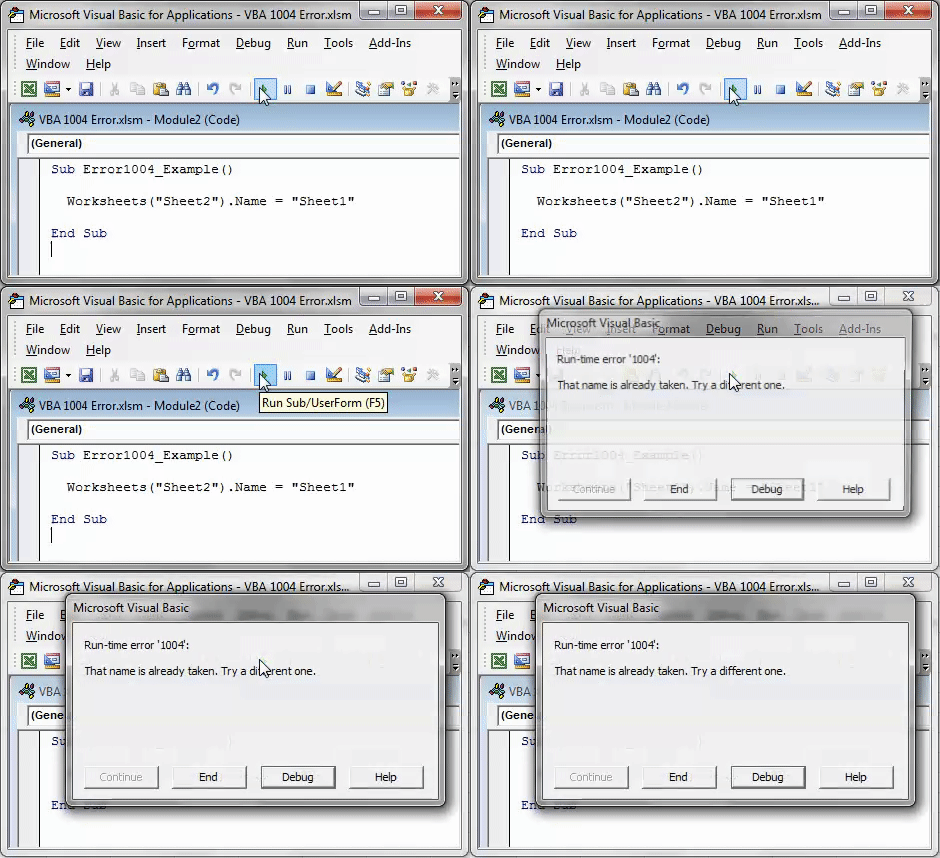
Solution: You can fix this error code by renaming your Excel sheet.
#2 – VBA Run Time Error 1004: Method “Range” of object’ _ Global’ failed
This VBA error code mainly occurs when someone tries to access the object range with wrong spelling or which doesn’t exist in the worksheet.
Suppose, you have named the cells range as “Headings,” but if you incorrectly mention the named range then obviously you will get the Run Time Error 1004: Method “Range” of object’ _ Global’ failed error.
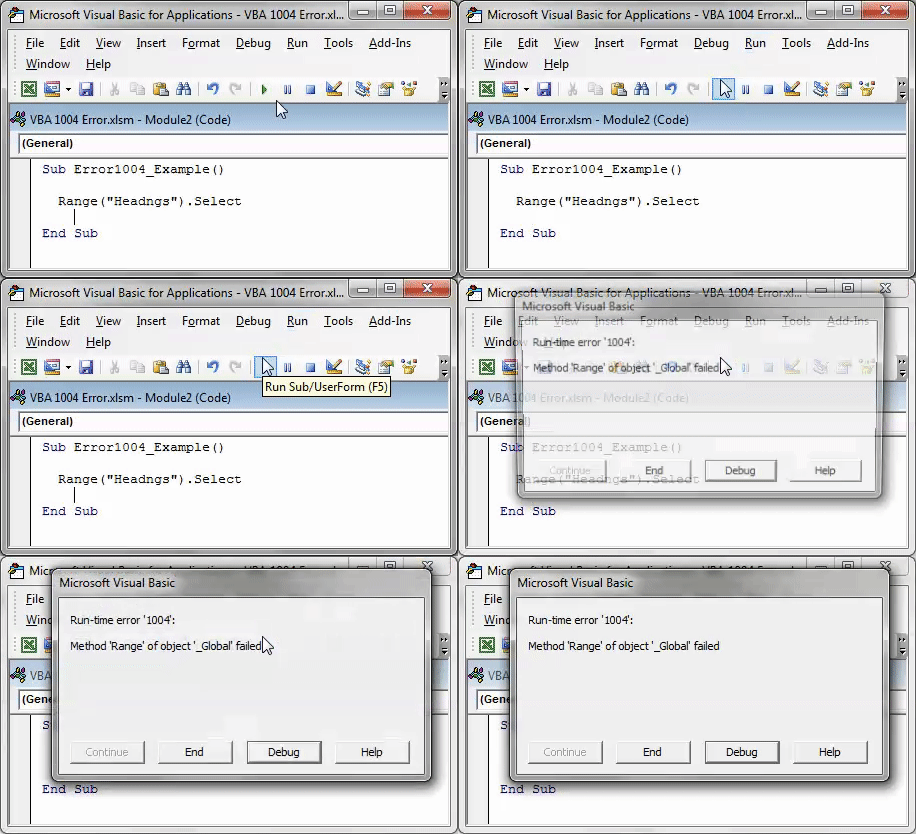
Solution: So before running the code properly check the name of the range.
# 3 – VBA Run Time Error 1004: Select Method of Range class failed
This error code occurs when someone tries to choose the cells from a non-active sheet.
Let’s understand with this an example:
Suppose you have selected cells from A1 to A5 from the Sheet1 worksheet. Whereas, your present active worksheet is Sheet2.
At that time it’s obvious to encounter Run Time Error 1004: Select Method of Range class failed.
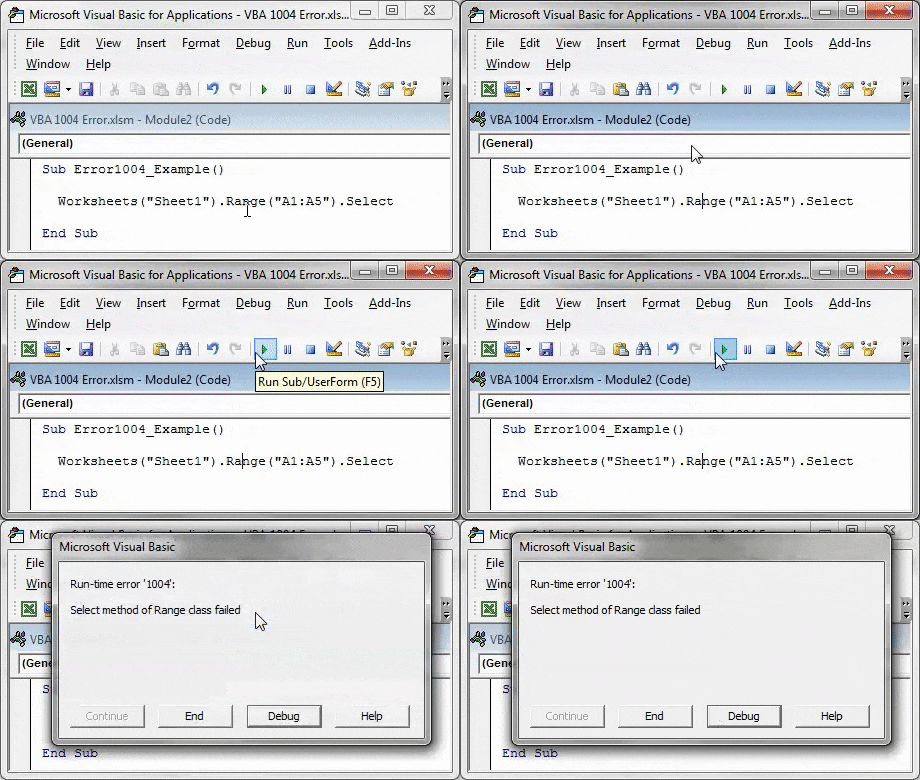
Solution: To fix this, you need to activate the worksheet before selecting cells of it.
#4 – VBA Runtime Error 1004 method open of object workbooks failed
This specific run time Error 1004 arises when someone tries to open an Excel workbook having the same workbook name that is already open.
In that case, it’s quite common to encounter VBA Runtime Error 1004 method open of object workbooks failed.

Solution: Well to fix this, first of all close the already opened documents having a similar name.
#5 – VBA Runtime Error 1004 Method Sorry We Couldn’t Find:
The main reason behind the occurrence of this VBA error in Excel is due to renaming, shifting, or deletion of the mentioned path.
The reason behind this can be the wrong assigned path or file name with extension.
When your assigned code fails to fetch a file within your mentioned folder path. Then you will definitely get the runtime Error 1004 method. Sorry, and We couldn’t find it.
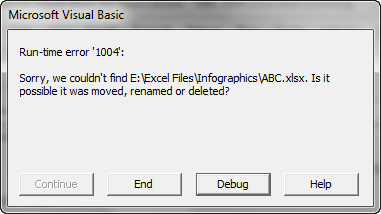
Solution: make a proper check across the given path or file name.
#6 – VBA Runtime Error 1004 Activate method range class failed
Behind this error, the reason can be activating the cells range without activating the Excel worksheet.
This specific error is quite very similar to the one which we have already discussed above i.e Run Time Error 1004: Select Method of Range class failed.
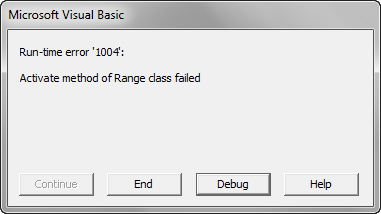
Solution: To fix this, you need to activate your excel sheet first and then activate the sheet cells. However, it is not possible to activate the cell of a sheet without activating the worksheet.
Why This Visual Basic Runtime Error 1004 Occurs?
Follow the reasons behind getting the run time error 1004:
- Due to corruption in the desktop icon for MS Excel.
- Conflict with other programs while opening VBA Excel file.
- When filtered data is copied and then pasted into MS Office Excel workbook.
- Due to application or object-defined error.
- A range value is set programmatically with a collection of large strings.
Well, these are common reasons behind getting the VBA runtime error 1004, now know how to fix it. Here we have described both the manual as well as automatic solution to fix the run time error 1004 in Excel 2016 and 2013. In case you are not able to fix the error manually then make use of the automatic MS Excel Repair Tool to fix the error automatically.

Follow the steps given below to fix Excel run time error 1004 :
1: Uninstall Microsoft Work
2: Create New Excel Template
3: Delete The “GWXL97.XLA” File
Method 1: Uninstall Microsoft Work
1. Go to the Task Manager and stop the entire running programs.
2. Then go to Start menu > and select Control Panel.
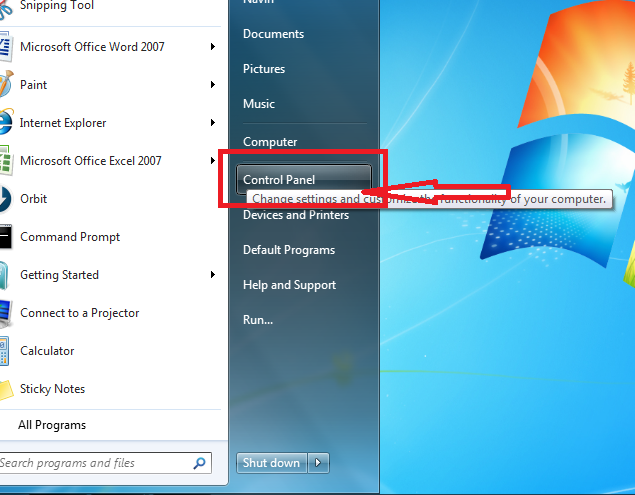
3. Next, in the Control Panel select Add or Remove Program.

4. Here, you will get the list of programs that are currently installed on your PC, and then from the list select Microsoft Work.
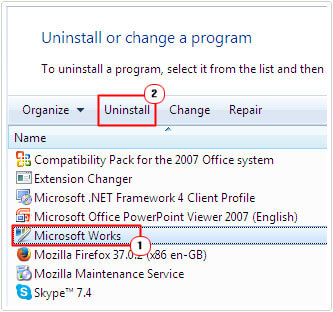
5. And click on uninstall to remove it from the PC.
It is also important to scan your system for viruses or malware, as this corrupts the files and important documents. You can make use of the best antivirus program to remove malware and also get rid of the runtime error 1004.
Method 2: Create New Excel Template
Another very simple method to fix Excel runtime error 1004 is by putting a new Excel worksheet file within a template. Instead of copying or duplicating the existing worksheet.
Here is the complete step on how to perform this task.
1.Start your Excel application.
2. Make a fresh new Excel workbook, after then delete the entire sheets present on it leaving only a single one.
3. Now format the workbook as per your need or like the way you want to design in your default template.
4. Excel 2003 user: Tap to the File>Save As option

OR Excel 2007 or latest versions: Tap to the Microsoft Office button after then hit the Save As option.

5. Now in the field of File name, assign name for your template.
6. On the side of Save as type there is a small arrow key, make a tap on it. From the opened drop menu
- Excel 2003 users have to choose the Excel Template (.xlt)

- And Excel 2007 or later version have to choose the Excel Template (.xltx)

7. Tap to the Save.
8. After the successful creation of the template, now you can programmatically insert it by making use of the following code:
Add Type:=pathfilename
Remarks:
From the above code, you have to replace the pathfilename with the complete path including the file name. For assigning the exact location of the sheet template you have just created.
Method 3: Delete The “GWXL97.XLA” File
Follow another manual method to fix Excel Runtime Error 1004:
1. Right-click on the start menu.
2. Then select the Explore option.
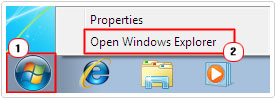
3. Then open the following directory – C:Program FilesMSOfficeOfficeXLSTART

4. Here you need to delete “GWXL97.XLA” file

5. And open the Excel after closing the explorer
You would find that the program is running fine without a runtime error. But if you are still facing the error then make use of the automatic MS Excel Repair Tool, to fix the error easily.
Automatic Solution: MS Excel Repair Tool
MS Excel Repair Tool is a professional recommended solution to easily repair both .xls and .xlsx file. It supports several files in one repair cycle. It is a unique tool that can repair multiple corrupted Excel files at one time and also recover everything included charts, cell comments, worksheet properties, and other data. This can recover the corrupt Excel file to a new blank file. It is extremely easy to use and supports both Windows as well as Mac operating systems.
* Free version of the product only previews recoverable data.
Steps to Utilize MS Excel Repair Tool:
Conclusion:
Hope this article helps you to repair the runtime error 1004 in Excel and recovers Excel file data. In this article, we have provided a manual as well as automatic solution to get rid of Excel run-time error 1004. You can make use of any solution according to your desire.
Good Luck!!!

Summary
Article Name
How To Repair Runtime Error 1004 In Excel
Description
Try best fixes to resolve Excel runtime error 1004. METHOD 1: Uninstall Microsoft Work, METHOD 2: Create New Excel Template, METHOD 3: Delete The «GWXL97.XLA” File AND MORE…
Author
Publisher Name
Repair MS Excel Blogs
Publisher Logo

Priyanka Sahu

Priyanka is an entrepreneur & content marketing expert. She writes tech blogs and has expertise in MS Office, Excel, and other tech subjects. Her distinctive art of presenting tech information in the easy-to-understand language is very impressive. When not writing, she loves unplanned travels.
- Remove From My Forums
-
Question
-
I have a Excel(2010) workbook with three worksheets of data. I have VBA code to save one of the worksheets to a .CSV file at the root of the hard drive. Use case: click button to run macro:
1 — Prompts to save the worksheet.
2 — Displays the worksheet to be saved.
3 — Then popup error message: Run time error «1004» Cannot Access Read Only Document.
4 — program hangs with a copy of the worksheet that is to be saved. It hangs on the ActiveWorkbook.SavesAs line.
I was able to force a debug and locate the line that is hanging:
Response = MsgBox(Msg, Style, title, Help, Ctxt)
If Response = vbYes Then
Application.DisplayAlerts = False
Worksheets(«Teams»).Copy
ActiveWorkbook.SaveAs Filename:=»C:Team_Stats_» & Format(Now(), «YYYYMMDDhhmmss») & «.csv», FileFormat:=xlCSV, CreateBackup:=False
ActiveWorkbook.Close
Application.DisplayAlerts = True
Else
Exit Sub
End If
Answers
-
-
Marked as answer by
Tuesday, March 12, 2013 1:12 AM
-
Marked as answer by
As Hugo stated, it could be an issue with the mapped drive. I prefer to use the full UNC path (\Thismachine…), in case the workbook gets used on a machine that doesn’t have the mapped drive set up.
I thought the missing extension could be the problem, but I just tested it in Excel 2013 and it automatically added .xlsx to the filename.
The issue is probably due to the wbNew reference. It’s completely unnecessary and should not be combined with ActiveWorkbook. Basically, you should have either a reference to a workbook, or use the predefined ActiveWorkbook reference. I’d also recommend using ThisWorkbook instead, since the user might click on another book while code is running.
Public Sub Copy_Save_R2()
    Dim wbNew As Workbook
    Dim fDate As Date

    fDate = Worksheets("Update").Range("D3").Value

    Application.DisplayAlerts = False
    ThisWorkbook.SaveAs Filename:="Q:R2 Portfolio Prints#Archive - R2 PortfolioR2 Portfolio - CEC A " & Format(fDate, "mm-dd-yyyy") & ".xlsx"
    Application.DisplayAlerts = True

    ThisWorkbook.Sheets("Update").Activate
End Sub
Edit: Added Application.DisplayAlerts commands to prevent any Save popups, such as using .xlsx instead of .xlsm, and overwriting an existing copy.
Edit 2018-08-11: Added escape backslashes to fix UNC path display. Added strike-through to inaccurate statement about the With statement (see comments below). Basically, since nothing between With and End With begins with a ., the statement isn’t doing anything at all.
Майкрософт Эксель — одна из самых популярных электронных таблиц, используемых во всем мире как для личных, так и для деловых целей. Это универсальное место для хранения, организации и обработки данных организованным способом. MS Excel поставляется в основном с двумя расширениями, то есть в формате XLS и XLSX. Однако, помимо невероятной популярности, ошибки во время выполнения — обычная неприятность для очень многих пользователей Windows, и одной из самых распространенных является ошибка. Ошибка выполнения 1004.
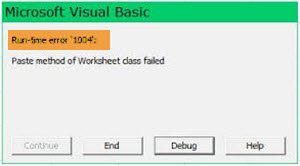
В этом руководстве мы собираемся обсудить эту распространенную ошибку времени выполнения 1004 и некоторые из лучших исправлений для ее легкого решения.
Что такое ошибка времени выполнения 1004 в Excel?
Ошибка выполнения 1004 — это код ошибки, относящийся к Microsoft Visual Basic, который, как известно, беспокоит пользователей Microsoft Excel. С этой ошибкой сталкиваются любые версии MS Excel, такие как Excel 2007, 2010, 2013, 2016, 2019. Ни одна версия Microsoft Excel не застрахована от угрозы Runtime Error 1004.
С этой ошибкой в основном сталкиваются пользователи, когда они работают с файлом Excel или пытаются создать макрос в документе Excel. Это может вызвать серьезные проблемы при работе с приложениями Visual Basic и привести к полному сбою программы или даже всей системы; иногда это может привести к зависанию системы, запрещая пользователям что-либо делать в своей системе.
Типы сообщений об ошибках
Сообщения об ошибках, которые больше всего связаны с этой ошибкой времени выполнения, следующие:
- VB: ошибка времени выполнения ‘1004’: ошибка приложения или объекта
- Ошибка выполнения Excel VBA 1004 «Ошибка выбора метода класса Range»
- ошибка времени выполнения 1004 диапазон метода объекта _global не удалось Visual Basic
- Макрос Excel «Ошибка выполнения» 1004?
- Ошибка выполнения 1004 не удалось открыть метод объектных книг
- Ошибка времени выполнения «1004»: сбой метода «Рейнджер» объекта «Рабочий лист»
- «Сбой метода в ПРИЛОЖЕНИИ ПРИЛОЖЕНИЯ ОБЪЕКТНОЙ программы».
Если вы столкнулись с какой-либо из этих ошибок, вы можете исправить ее с помощью нашего руководства.
Каковы причины?
Ошибка 1004 — это общий код, связанный с MS Excel, но не связанный с одной точной причиной. Следовательно, в этом случае точная причина, по которой может появиться эта ошибка, будет варьироваться от случая к случаю и от обстоятельств к обстоятельствам. От проблем с конфигурацией до проблем с программным обеспечением, ниже мы перечислили краткий обзор распространенных причин ошибки времени выполнения 1004 в Excel:
- Значок рабочего стола MS Excel может быть поврежден
- Файл VBA Excel конфликтует с другим приложением
- Из-за ошибки, указанной в приложении или объекте
- Из-за отсутствия зависимого файла
- Из-за вируса, трояна или вредоносного ПО
- Из-за неверных ключей реестра и так далее.
Это были некоторые из наиболее частых причин получения ошибки времени выполнения 1004 в MS Excel; Теперь давайте разберемся с различными исправлениями.
Здесь мы подробно описали как ручные, так и автоматические решения для исправления ошибки выполнения 1004. Вы можете использовать любой из следующих методов, чтобы решить проблему.
- Создать новый шаблон Excel
- Запустите сканирование на вирусы
- Для VB: ошибка времени выполнения ‘1004’, измените размер записей легенды
Давайте подробно рассмотрим каждый из этих методов.
1]Создайте новый шаблон Excel
В некоторых случаях для устранения этой проблемы достаточно просто вставить новый лист из шаблона вместо создания копии существующего листа. Вот что вам нужно сделать:
1]Откройте MS Excel в вашей системе
2]Нажмите ‘CTRL + N‘для создания нового листа Microsoft Excel или просто выберите’Пустая книга‘с первого экрана.
3]После этого удалите все листы в книге, кроме одного.
4]Теперь отформатируйте оставшуюся книгу. Также обратите внимание, что эту книгу можно изменить в соответствии с вашими индивидуальными потребностями.
5]В конце перейдите к ‘Файл> Сохранить как‘, чтобы сохранить новый рабочий лист в формате файла шаблона Excel (.xltx или .xlt).
6]После успешного создания шаблона вы можете вставить его программно, используя следующую строку кода:
Таблицы.Добавить Тип: = путь имя файла
Пожалуйста, обрати внимание — Не забудьте заменить новое имя файла на настоящее имя документа.
2]Запустите сканирование на вирусы
Очень важно сканировать компьютерную систему на наличие вредоносных программ и вирусов, поскольку они могут повредить файлы и важные документы и показать ошибку времени выполнения 1004 в MS Excel. Иногда очень помогает хорошая антивирусная программа.
3]Для VB: ошибка времени выполнения «1004», измените размер записей легенды.
Если вы столкнулись с ошибкой времени выполнения 1004 при запуске макроса Microsoft Visual Basic для приложений (VBA), вы можете использовать этот метод для временного решения.
Обычно эта ошибка возникает при попытке запустить макрос VBA, который использует метод LegendEntries для внесения изменений в записи легенды на диаграмме Microsoft Excel. На этот раз вы можете получить следующее сообщение об ошибке:
Ошибка времени выполнения ‘1004’: ошибка приложения или объекта
Эта ошибка возникает, когда диаграмма Excel содержит больше записей легенды, чем имеется место для отображения записей легенды на диаграмме Excel. В этом случае Microsoft Excel может усекать записи легенды.
Чтобы обойти это поведение, создайте макрос, который уменьшает размер шрифта текста легенды диаграммы Excel до того, как макрос VBA внесет изменения в легенду диаграммы, а затем восстановите размер шрифта легенды диаграммы, чтобы он был похож на следующий пример макроса. .
Sub ResizeLegendEntries()
With Worksheets("Sheet1").ChartObjects(1).Activate
      ' Store the current font size
      fntSZ = ActiveChart.Legend.Font.Size
'Temporarily change the font size.
      ActiveChart.Legend.Font.Size = 2
'Place your LegendEntries macro code here to make
         'the changes that you want to the chart legend.
' Restore the font size.
      ActiveChart.Legend.Font.Size = fntSZ
   End With
End Sub
Мы надеемся, что эта статья поможет вам исправить ошибку времени выполнения 1004 в Microsoft Excel. Это руководство дает вам как ручное, так и автоматическое решение, чтобы избавиться от этой ошибки; вы можете использовать любое решение в зависимости от ваших потребностей.
Читать дальше: Клавиши со стрелками не работают в Microsoft Excel.
Ошибка выполнения Excel 1004 обычно возникает, когда вы работаете с поврежденным документом. Вы также получаете эту ошибку, если открываете файл VBA Excel, когда ваш Excel конфликтует с другими программами.
Ошибка выполнения Excel 1004 может появиться из-за множества других основных проблем. Наиболее распространенные сообщения об ошибках включают следующее:
VB: ошибка времени выполнения «1004»: ошибка, определяемая приложением или объектом
Ошибка выполнения Excel VBA 1004 «Не удалось выбрать метод класса Range»
ошибка выполнения 1004 диапазон методов объекта _global не удалось Visual Basic
Макрос Excel «Ошибка выполнения ‘1004″
Ошибка выполнения 1004. Не удалось открыть книгу объектов.
Ошибка времени выполнения «1004»: сбой метода «Рейнджер» рабочего листа объекта
Сохранить как ошибка времени выполнения VBA 1004: ошибка, определяемая приложением или объектом
Если вы получите какую-либо из этих ошибок, вы можете исправить ошибку, используя решения здесь.
Что такое ошибка времени выполнения 1004 в Excel?
Ошибка времени выполнения характерна для приложений, которые интегрируют сценарий Microsoft Visual Basic для приложений (также известный как VBA) для выполнения повторяющихся задач.
Все приложения Microsoft Office используют это специфичное для Windows программирование, но наиболее распространенные проблемы возникают в Excel, особенно в Excel 2007.
Многие пользователи сообщают о проблемах при создании макросов. Макрос — это функция Excel, которая записывает нажатия клавиш и клики, чтобы помочь вам автоматизировать повторяющиеся задачи.
Часто эта задача конфликтует с VBA, что приводит к ошибке 1004. Другой распространенной причиной является поврежденное приложение Excel или поврежденный файл XLS.
Другие возможные причины, связанные с этой ошибкой, включают количество записей легенды, превышающее доступное пространство, и конфликт файлов между Excel и другими приложениями.
Хорошей новостью является то, что эта ошибка существует уже некоторое время, и есть несколько проверенных методов, которые помогут вам ее исправить.
Как исправить ошибку выполнения 1004 в Excel?
1. Удалите Microsoft Works
- Нажмите комбинацию CTRL + ALT + DEL и нажмите «Диспетчер задач».
- Закройте все программы, которые открыты в данный момент.
- Затем нажмите Windows + R, чтобы открыть утилиту «Выполнить».
- Здесь введите appwiz.cpl и нажмите кнопку ОК.

- В списке программ, установленных на вашем компьютере, найдите Microsoft Works. Щелкните его правой кнопкой мыши и нажмите « Удалить».
2. Создайте еще один шаблон Excel
- Запустите Microsoft Excel на своем компьютере.
- Затем создайте новую книгу Microsoft Excel, нажав комбинацию CTRL + N или выбрав Пустая книга на первом экране.

- После создания рабочей книги удалите все листы в рабочей книге, кроме одного.
- Отформатируйте эту книгу, которую вы сохранили.
- Вы можете изменить эту книгу в соответствии с вашими потребностями.
- Наконец, выберите «Файл» > «Сохранить как», чтобы сохранить файл в формате шаблона Excel (.xltx или. xlt).
- Используйте этот формат для Excel в 2017 году и выше.
- Когда документ успешно сохранен, вы можете вставить шаблон с помощью этого кода:
Add Type:=pathfilenameНе забудьте заменить имя файла на фактическое имя документа.
3. Удалите GWXL97.XLA.
- Начните с открытия проводника на вашем компьютере.
- Вы можете сделать это, нажав Windows + E.
- Затем щелкните адресную строку, введите следующий путь
C:/Users/user name/AppData/Local/Microsoft Excel
и нажмите Enter:

- Здесь откройте папку XLStart.
- Наконец, найдите файл GWXL97.XLA и удалите его.
Зная, что существует множество причин ошибки времени выполнения 1004 в Excel, может сработать только одно решение. С помощью этого руководства теперь вы можете исправить ошибку времени выполнения Microsoft Excel 1004 и восстановить данные файла.