
rushchel |
|
|
Статус: Новичок Группы: Участники Сказал(а) «Спасибо»: 2 раз |
Добрый день! Имеется веб-сервис, собранный с помощью КриптоПро .NET SDK v1.0.6397 Код: Описание сервера: Для тестов создавал контейнер и самоподписанный сертификат с помощью утилиты csptest.exe Код: Права для пользователя IIS на сертификат выданы. Код: Аналогичный код для сертификата с алгоритмом 2001-го года работает нормально. Отредактировано пользователем 13 июня 2018 г. 10:51:20(UTC) |
 |
|

|
Максим Коллегин |
|
|
Статус: Сотрудник Группы: Администраторы Сказал «Спасибо»: 21 раз |
Попробуйте https://www.cryptopro.ru…/1.0.6675.0/NETSetup.exe |
|
Знания в базе знаний, поддержка в техподдержке |
|
|
|
WWW |


|
rushchel |
|
|
Статус: Новичок Группы: Участники Сказал(а) «Спасибо»: 2 раз |
Автор: Максим Коллегин Попробуйте https://www.cryptopro.ru…/1.0.6675.0/NETSetup.exe Переустановил КриптоПро .NET, перезагрузил. Ошибка осталась та же. |
|
|
|

|
Максим Коллегин |
|
|
Статус: Сотрудник Группы: Администраторы Сказал «Спасибо»: 21 раз |
Что-то у меня нет уверенности, что -makecert сделает ключ 2012 криптопровайдера. Сделайте лучше на нашем тестовом центре: http://www.cryptopro.ru/certsrv |
|
Знания в базе знаний, поддержка в техподдержке |
|
|
|
WWW |
|
|
rushchel
оставлено 13.06.2018(UTC) |
 1 пользователь поблагодарил Максим Коллегин за этот пост.
|
rushchel |
|
|
Статус: Новичок Группы: Участники Сказал(а) «Спасибо»: 2 раз |
Автор: Максим Коллегин Что-то у меня нет уверенности, что -makecert сделает ключ 2012 криптопровайдера. Сделайте лучше на нашем тестовом центре: http://www.cryptopro.ru/certsrv Блин, спасибо! Заработало после генерации сертификата на вашем тестовом центре. |
|
|
|
|
Максим Коллегин |
|
|
Статус: Сотрудник Группы: Администраторы Сказал «Спасибо»: 21 раз |
Нужно было указать тип при генерации -provtype 80 |
|
Знания в базе знаний, поддержка в техподдержке |
|
|
|
WWW |
|
|
rushchel
оставлено 13.06.2018(UTC) |
|
rushchel |
|
|
Статус: Новичок Группы: Участники Сказал(а) «Спасибо»: 2 раз |
Автор: Максим Коллегин Нужно было указать тип при генерации -provtype 80 Спасибо! Буду использовать. Тема закрыта |
|
|
|
| Пользователи, просматривающие эту тему |
|
Guest |
Быстрый переход
Вы не можете создавать новые темы в этом форуме.
Вы не можете отвечать в этом форуме.
Вы не можете удалять Ваши сообщения в этом форуме.
Вы не можете редактировать Ваши сообщения в этом форуме.
Вы не можете создавать опросы в этом форуме.
Вы не можете голосовать в этом форуме.
Форум КриптоПро
»
Средства криптографической защиты информации
»
КриптоПро .NET
»
The specified cryptographic service provider (CSP) does not support this key algorithm.

Дмирий Соколов |
|
|
Статус: Новичок Группы: Участники
|
Не могу разобраться почему .Net при разборе СМЭВ сообщения подписанного по ГОСТ 2012-256 Algorithm=»urn:ietf:params:xml:ns:cpxmlsec:algorithms:gostr34102012-gostr34112012-256″ выдает The specified cryptographic service provider (CSP) does not support this key algorithm.
КриптоПро .NET SDK 1.0.7132.2 в osinfo.xml выдает только <csp> а тут не должно быть информации о поддержке ГОСТ 2012 ? |
 |
|


 osinfo.xml
 |
Максим Коллегин |
|
|
Статус: Сотрудник Группы: Администраторы Сказал «Спасибо»: 21 раз |
Автор: Дмирий Соколов а тут не должно быть информации о поддержке ГОСТ 2012 ? Нет, эту информацию мы не включали в osinfo. Должно работать, приложите сообщение и пример кода, которым пытаетесь разобрать. |
|
Знания в базе знаний, поддержка в техподдержке |
|
|
|
WWW |


| Пользователи, просматривающие эту тему |
|
Guest |
Форум КриптоПро
»
Средства криптографической защиты информации
»
КриптоПро .NET
»
The specified cryptographic service provider (CSP) does not support this key algorithm.
Быстрый переход
Вы не можете создавать новые темы в этом форуме.
Вы не можете отвечать в этом форуме.
Вы не можете удалять Ваши сообщения в этом форуме.
Вы не можете редактировать Ваши сообщения в этом форуме.
Вы не можете создавать опросы в этом форуме.
Вы не можете голосовать в этом форуме.
- Remove From My Forums
-
Question
-
Hello!
I’m trying to use a GDBurti (SafeSign) smartcard with .NET, but I got a problem.
The following code line is throwing an CryptographicException:
RSACryptoServiceProvider signAlg = (RSACryptoServiceProvider)cert.PrivateKey;
«cert» is a X509Certificate2 object, that is associated with a private key of a GDBurti smartcard.
The complete stack is:
The specified cryptographic service provider (CSP) does not support this key algorithm.
at System.Security.Cryptography.Utils.GetKeyPairHelper(CspAlgorithmType keyType, CspParameters parameters, Boolean randomKeyContainer, Int32 dwKeySize, SafeProvHandle& safeProvHandle, SafeKeyHandle& safeKeyHandle)
at System.Security.Cryptography.RSACryptoServiceProvider.GetKeyPair()
at System.Security.Cryptography.RSACryptoServiceProvider..ctor(Int32 dwKeySize, CspParameters parameters, Boolean useDefaultKeySize)
at System.Security.Cryptography.X509Certificates.X509Certificate2.get_PrivateKey()The code works well with Aladdin eToken and Rainbow IKey2000, but not with GDBurt smartcards.
Any help will be apreciated.
Thank you very much.
Answers
-
From the error message, the CLR is asking the smart card to create an RSA algorithm and the smart card is saying that it doesn’t support RSA. However, the certificate has an OID that the CLR is mapping to RSA — which is why we’re asking for it in the first place. The bug could either be in the certificate itself (having an incorrect OID), or in the CLR (mapping the OID to the wrong algorithm). What’s the value of cert.GetKeyAlgorithm() ?
-Shawn
Добрый день дорогие друзья! Сегодня будем рассматривать проблему с программой АРМ ФСС, а именно «ошибка: набор ключей не определен». С данной ошибкой Вы скорее всего столкнетесь, при загрузке ЭЛН. Будем справлять! Поехали!
АРМ ФСС ошибка: набор ключей не определен
Если у Вас не получается самостоятельно решить данную проблему, то Вы можете перейти в раздел ПОМОЩЬ и Вам помогут наши специалисты.
С данной проблемой я столкнулся, как раз при загрузке электронного больничного. Для начала обновим АРМ ФСС. Как обновить АРМ ФСС прочитайте вот тут.
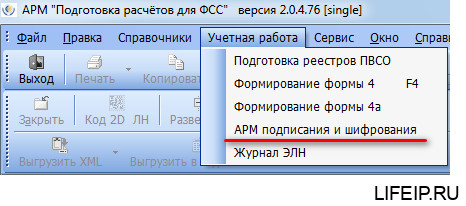
Теперь перейдем в раздел меню «Учетная работа» и выберем «АРМ подписания и шифрования».
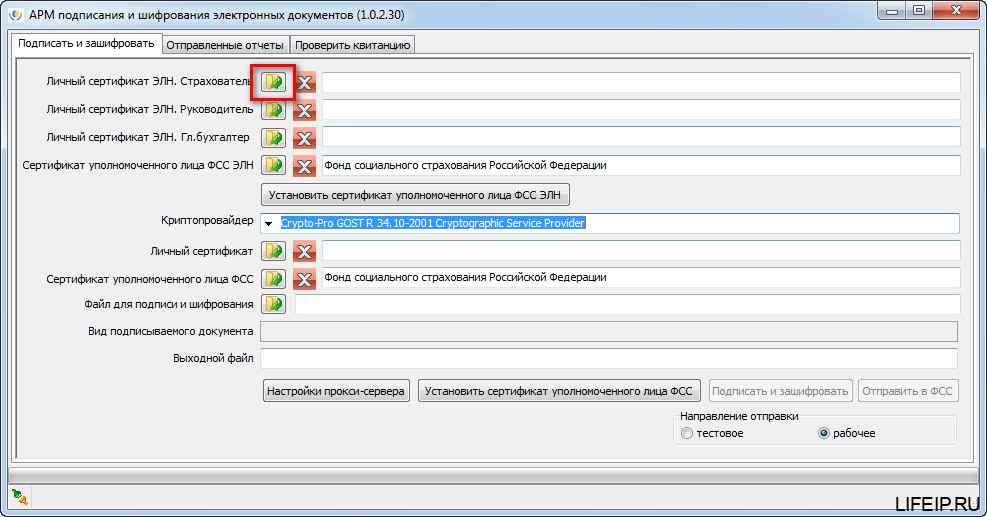
Теперь будем внимательными! Нам необходимо проставить правильные ключи. То есть, правильно выбрать наши сертификаты.
Какие сертификаты ставить при загрузке больничного в АРМ ФСС
Переходим в раздел «Личный сертификат ЭЛН. Страхователь». Это сертификат нашей организации! Выбираем его, нажав на кнопку с открытой папкой.
Переходим в раздел личные, и выбираем наш сертификат.
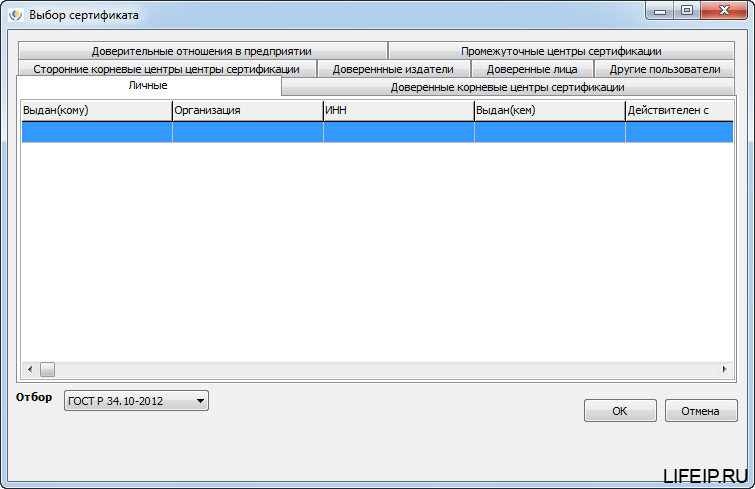
СТОП! Ни одного сертификата? Это уже странно!
В АРМ ФСС не отображаются сертификаты, что делать?
С 2019 года, мы переходим на новый ГОСТ по электронной подписи. Называется он ГОСТ 2012. До 2019 года мы использовали сертификаты выпущенные под ГОСТ 2001. Получается, что 2019 год переходный между двумя ГОСТ. Сейчас разрешено использовать сертификат и 2001 ГОСТа и 2012. Если Вы перевыпускали или выпускали новый сертификат в 2019 году, то с вероятностью 99% у Вас уже новый ГОСТ 2012. Если Вы выпускали сертификат в 2018, то скорее всего еще 2001. В этом вся проблема. Теперь найдем наши сертификаты!
Обратите внимание, что в новых версиях появился переключатель на разные ГОСТ.
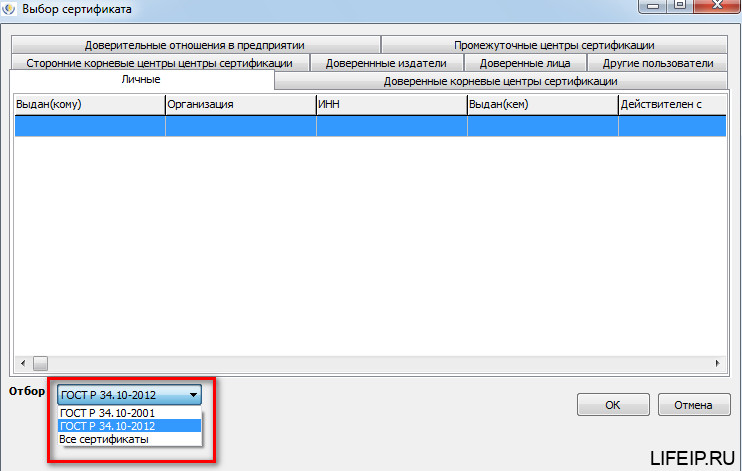
Переключая данный режим, Вы увидите Ваши сертификаты. Попробуйте сначала поставить ГОСТ 2001, если сертификаты не отобразились, поставьте ГОСТ 2012. Я уверен, Вы найдете свой сертификат.
Все, мы нашли наш спрятанный сертификат, теперь идем дальше!
Устанавливаем сертификаты руководителя
Личный сертификат ЭЛН. Руководитель. Выставляете сертификат директора, как правило, он совпадает с сертификатом организации.
А вот дальше не торопитесь!
Устанавливаем правильного криптопровайдера
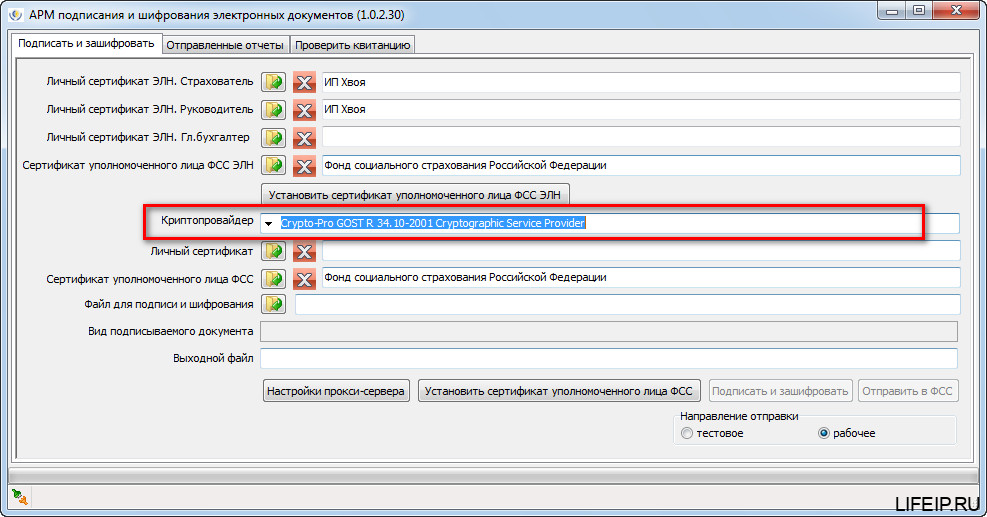
Теперь нам нужно определиться с криптопровайдером. Звучит страшно и сложно, но сейчас все будет понятно!
Поднимаемся выше и смотрим, сертификат какого ГОСТа мы выбирали. Если у Вас сертификат ГОСТ 2001, то в строке «Криптопровайдер» выбираете пункт «Crypto-Pro GOST R 34.10-2001 Cryptographic Service Provider». Если Ваш сертификат 2012 ГОСТа, то выбираете «Crypto-Pro GOST R 34.10-2012 Cryptographic Service Provider».
Устанавливаем сертификаты ФСС
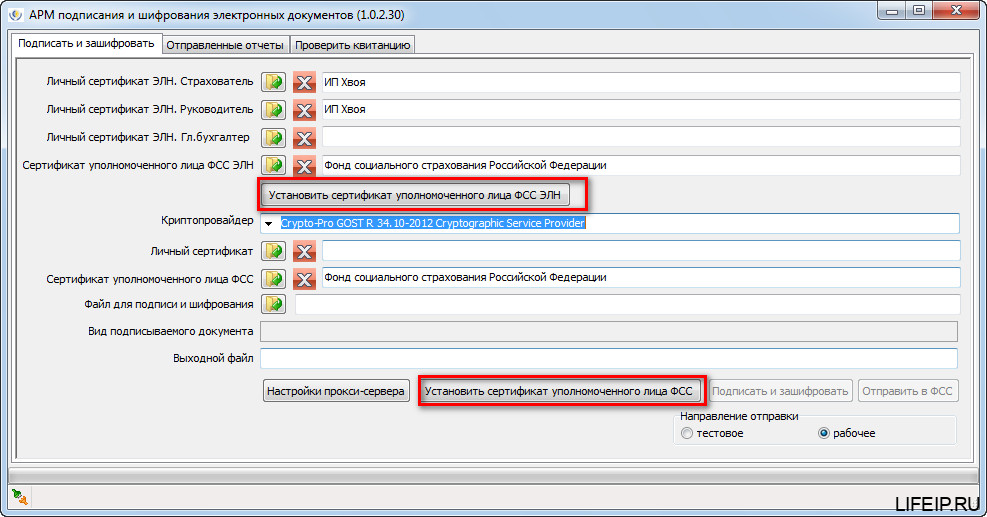
Тут все очень просто. Во-первых по данной теме у меня уже есть статья, там подробно все описано, поэтому писать еще раз не буду. Прочитать ее можно вот тут.
Просто скажу, что для успешной установки Вам нужно нажать 2 кнопки: «Установить сертификат уполномоченного лица ФСС ЭЛН» и «Установить сертификат уполномоченного лица ФСС».
Далее снова выбираем «Личный сертификат», это сертификат нашей фирмы. В итоге, правильная таблица выглядит так.
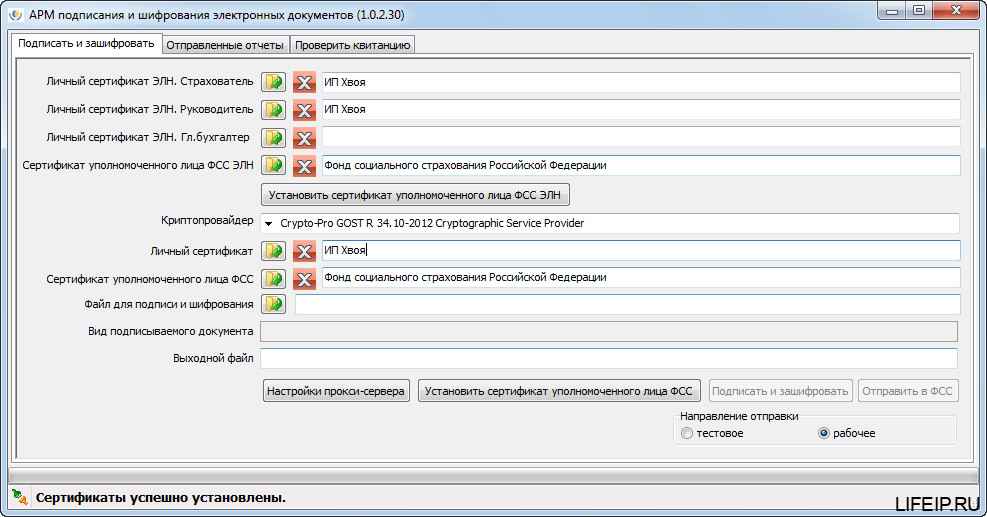
Нет заветной кнопки «сохранить». Вот сейчас закрою окно и все пропадёт! Вас тоже это постоянного напрягает? И меня! Но нет, смело закрываем, настройки не собьются!
РЕШЕНО! АРМ ФСС ошибка: набор ключей не определен
Друзья! Если вдруг ошибка у Вас не пропала, экспериментируйте с сертификатами и ГОСТами, со строчкой Криптопровайдер. Вся ошибка кроется именно в этом! Если же у Вас все-таки не получается самостоятельно настроить, то переходите в раздел «ПОМОЩЬ», и я Вам помогу!
Если Вам нужна помощь профессионального системного администратора, для решения данного или какого-либо другого вопроса, перейдите в раздел ПОМОЩЬ, и Вам помогут наши сотрудники.
На этом все! Теперь Вы знаете, что делать, если у Вас ошибка в программе АРМ ФСС ошибка: набор ключей не определен.
Если у Вас появятся вопросы задавайте их в комментариях! Всем удачи и добра!
Присоединяйтесь к нам в социальных сетях, чтобы самыми первыми получать все новости с нашего сайта!
I get this error while trying to set up a DSACryptoServiceProvider to be used for a DSA Signature on a HSM that accepts DSA Signature :
«The specified cryptographic service provider (CSP) does not support this key algorithm.»
Call stack :
at System.Security.Cryptography.Utils.GetKeyPairHelper(CspAlgorithmType keyType, CspParameters parameters, Boolean randomKeyContainer, Int32 dwKeySize, SafeProvHandle& safeProvHandle, SafeKeyHandle& safeKeyHandle)
at System.Security.Cryptography.DSACryptoServiceProvider.GetKeyPair()
at ProjektDemoHSM.Controller.setDSAAlgo(Dictionary`2 listProp) in Controller.cs:line 788
Code :
CSP = new CspParameters(1, "Luna Cryptographic Services for Microsoft Windows");
l.788 : DSAcsp = new DSACryptoServiceProvider(CSP);
And I am sure the CSP accepts DSA as : (I spared you the whole list of supported algorithms)
c:Program FilesSafeNetLunaClientKSP>certutil -csp "Luna Cryptographic Services for Microsoft Windows" -csptest
  Signature Algorithms:
    DSA

  Asymmetric Algorithms:
    DSA

CertUtil: -csptest command completed successfully.
If anyone had any idea what could cause such an error, I am interessed. FYI, I am running on .NET 3.5, and trying to use an HSM Luna SA. I have no problem using RSACryptoServiceProvider or ECDsaCng, but «DSA just won’t work. Thanks in advance!
|
DabblerS 2 / 2 / 1 Регистрация: 08.07.2017 Сообщений: 42 |
||||
|
1 |
||||
Указанный поставщик криптографических услуг не поддерживает данный алгоритм ключей23.02.2019, 20:40. Показов 3238. Ответов 1 Метки нет (Все метки)
Есть следующий код:
В последней строке происходит исключение: «Указанный поставщик криптографических услуг (Cryptographic Service Provider, CSP) не поддерживает данный алгоритм ключей.» System.Security.Cryptography.CryptographicExceptio n
__________________
0 |

|
OwenGlendower Администратор
15226 / 12265 / 4902 Регистрация: 17.03.2014 Сообщений: 24,867 Записей в блоге: 1 |
||||
|
23.02.2019, 21:43 |
2 |
|||
|
РешениеDabblerS, попробуй добавить
Потому что в документации сказано: Чтобы указать поставщика, совместимый с DSA класса, передайте значение 13.
1 |

 Сообщение было отмечено DabblerS как решение
Ошибка с кодом 0x80090008 мешает проводить подписи документов провайдера КриптоПро CSP в программе КриптоАРМ. Сам разработчик говорит, что проблема в сертификате, его нужно переустановить и все будет работать правильно. Однако из форумов мы узнали, что дело не только в этом. Есть немало ситуаций, в которых проблема заключается в некоторых особенностях системы, конфликтах, неполадках реестра и т. п. Все найденные нами способы решения неполадки будут описаны ниже.
Не удалось создать подпись из-за ошибки: Указан неправильный алгоритм. (0x80090008).
Ошибка создания подписи: Указан неправильный алгоритм (0x80090008).
Как исправить ошибку 0x80090008?
Многие начинают с переустановки КриптоАРМ и это действительно может помочь в некоторых случаях. Нельзя назвать этот способ рекомендованным, скорее альтернативным или даже запасным. Вот действительно полезные методы исправления.
Официальное решение
Как нам и рекомендует разработчик, следует переустановить сертификат подписи через КриптоАрм или КриптоПро CSP. Исходя из опыта создателя программного обеспечения, метод срабатывает у большинства затронутых пользователей.
Инструкция:
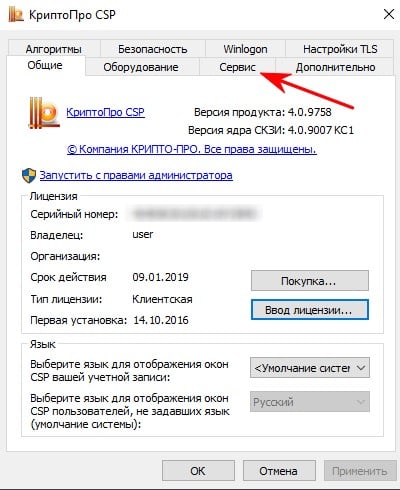
- Открываем программу КриптоПро CSP, входим в свой аккаунт и переходим в раздел «Сервис».
- Ищем элемент «Просмотреть сертификаты в контейнере…» и нажимаем на кнопку «Обзор».
- Выбираем подходящий контейнер и жмем по кнопке «Установить».
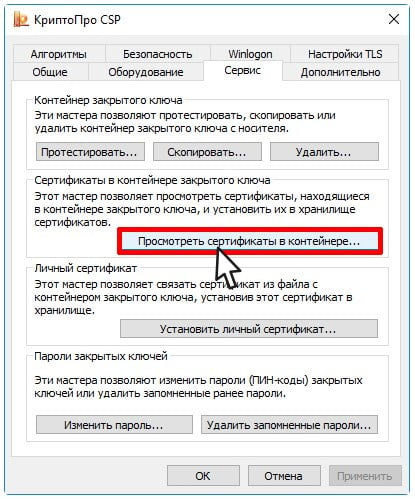
Подобное можно сделать и через КриптоАРМ, нужно только перейти в раздел с сертификатами, нажать на кнопку «Экспорт» и активировать пункт «Нет не экспортировать закрытый ключ». В качестве кодировки лучше выбрать DER. Затем снова делается «Импорт», выбрав «Установить личный сертификат» и «Поместить сертификат в контейнер».
Изменить владельца сертификата
Решение может пригодиться в том случае, если возникла какая-то ошибка или неправильно распределены полномочия пользователей. Нужно просто изменить владельца сертификата на тот профиль, который используется для подписи.
Что нужно сделать:
- Переходим в КриптоАРМ в раздел «Профили».
- Жмем на кнопку «Управление профилями» и переходим в тот аккаунт, рядом с которым стоит зеленая галочка.
- На вкладке «Общие» ищем элемент «Владелец сертификата».
- Добавляем в список пользователя, у которого появляется ошибка: «Указан неправильный алгоритм 0x80090008».
- Осталось только «Применить» и вернуться назад, чтобы попробовать выполнить подпись заново.
Дополнительные решения
Некоторых пользователям удалось исправить проблему другими способами, порой несколько банальными, но на ум они сразу не приходят. Мы собрали их решения здесь, чтобы помочь тем людям, которые не смогли получить облегчение после предыдущих действий.
Что еще можно попробовать:
- Отключить или удалить Avast. За данным антивирусом замечено негативное влияние на программы КриптоАРМ и КриптоПро CSP.
- Переустановить программу. Важно не просто выбрать установку, но и включить пункт во время инсталляции под названием «Расширенная совместимость с продуктами Microsoft».
- Обновить программу «Подготовка пакета электронных документов для государственной регистрации». Если она устарела, могут быть проблемы.
- Установить плагин. На этой странице можно проверить есть ли у вас плагин для подписи, а также насколько стабильно он работает. При обнаружении проблем появятся уведомления с подсказками.
Перечисленных решений должно быть достаточно, чтобы исправить ошибку 0x80090008. По крайней мере, все рассмотренные нами случаи подпадают под одну из указанных категорий.
by Milan Stanojevic
Milan has been enthusiastic about technology ever since his childhood days, and this led him to take interest in all PC-related technologies. He’s a PC enthusiast and he… read more
Updated on January 14, 2022
- The Cryptographic Service Provider is a software library used to encrypt documents such as Word and Excel or to perform user authentication using Smart Cards.
- Errors related to a CSP usually mean that tampering was detected: computer viruses or critical files changed for unknown reasons. Having pirated software can lead to these issues. Read on to see what to do.
- For authentication or privacy, multiple steps are taken to ensure safety. Check out our articles from the encryption section to learn more.
- Fix annoying errors related to Windows. Follow the instructions from our guides in the Windows 10 Errors Hub that we have prepared.
XINSTALL BY CLICKING THE DOWNLOAD FILE
This software will repair common computer errors, protect you from file loss, malware, hardware failure and optimize your PC for maximum performance. Fix PC issues and remove viruses now in 3 easy steps:
- Download Restoro PC Repair Tool that comes with Patented Technologies (patent available here).
- Click Start Scan to find Windows issues that could be causing PC problems.
- Click Repair All to fix issues affecting your computer’s security and performance
- Restoro has been downloaded by 0 readers this month.
Windows Cryptographic Service Provider error is an error related to signing documents, and unless you sign PDF documents on a regular basis you probably aren’t going to see this error often.
As we already mentioned Windows Cryptographic Service Provider error occurs when trying to sign PDF documents or while trying to access CAC-enabled websites.
If you sign PDF documents often this error can cause you a lot of problems, but fortunately, there’s a solution.
Windows Cryptographic Service Provider error can create many problems on your PC, and speaking of this error, here are some similar issues that users reported:
- The Windows Cryptographic Service Provider reported an error the keyset is not defined, key does not exist, key not valid, object was not found, invalid signature, the parameter is incorrect, access is denied – There is a variety of error messages that can appear, but if you encounter them, you should be able to fix them using one of our solutions.
- The Windows Cryptographic Service Provider error Adobe – This issue can occur with Adobe Acrobat, and if you encounter it, be sure that Adobe Acrobat is up to date. If necessary, check for available updates and download them.
- The Windows Cryptographic Service Provider error the security token does not have – This is another error that you can encounter. To fix it, just remove the unwanted certificates and check if that helps.
- Windows Cryptographic Service Provider reported an error code 0, 1400 – According to users, these errors can occur due to third-party software, most notably ePass2003, and if you’re using this tool, be sure to remove it and check if that solves your problem.
How do I fix problems with Windows Cryptographic Service Provider?
1. Update the driver for the signature device
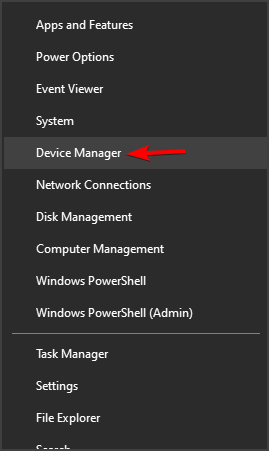
- Right-click the Start button and select Device Manager from the list.
- Find your digital signature device.
- Right-click on the driver and select Update driver.
- Now you can choose to Search automatically for drivers, or the second option if you already have the correct driver that you downloaded from the manufacturer.
This issue can be caused by a problematic driver of your signature device so the best option here is to try to update the driver with the latest one.
2. Install the latest updates for Adobe Acrobat
Many users reported Windows Cryptographic Service Provider errors while using Adobe Acrobat. It seems that this issue occurs if your Acrobat is out of date. However, you can fix the issue simply by updating Adobe Acrobat to the latest version.
To check for updates manually, simply go to Help > Check for updates. If any updates are available, they will be downloaded automatically in the background. Once Adobe Acrobat is updated to the latest version, the issue should be resolved completely.
Warning: the Windows Cryptographic Service Provider error might show in case you are running an unlicensed version of the Adobe software. If you are not sure about it, we recommend getting it from the official page.
⇒ Get Adobe Acrobat
3. Choose a different signature certificate
When trying to sign PDF documents don’t use the default signature certificate, instead use the drop-down menu and select different signature certificates. If that signature certificate also gives you an error try using a different one.
4. Set Cryptographic Provider to CSP
If you keep getting Windows Cryptographic Service Provider errors, you might have to change your Cryptographic provider to CSP. This is relatively simple to do, and you can do it by following these steps:
- Open the SafeNet Authentication Client Tools. You can open it by going to its installation directory or by right-clicking the SafeNet icon in the system tray and selecting Tools from the menu.
- When SafeNet Authentication Client Tools opens click the ‘golden gear’ symbol in the top in order to open Advanced View.
- In Advanced View expand Tokens and navigate to the certificate you want to use for signing. They should be located under the User certificates group.
- Right-click on your certificate and choose Set as CSP from the drop-down menu. You’ll need to repeat Step 4 for all certificates that you’re using.
- Close SafeNet Authentication Client Tools and try signing the documents again.
After changing the Cryptographic provider, the problem should be completely resolved.
5. Remove unwanted certificates
Sometimes Windows Cryptographic Service Provider error can appear due to certain certificates that are on your PC. However, you can fix the issue simply by finding and removing the unwanted certificates. You can remove unwanted certificates by doing the following:
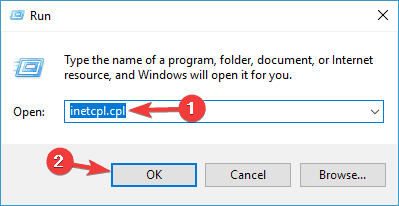
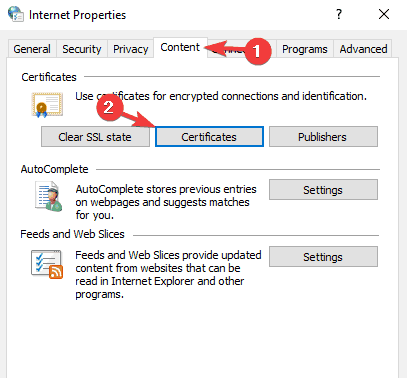
- Press Windows Key + R and type inetcpl.cpl. Press Enter to run it.
- Go to the Content tab and click the Certificates button.
- Now you’ll see a list of your certificates.
- Select the problematic certificates and click the Remove button.
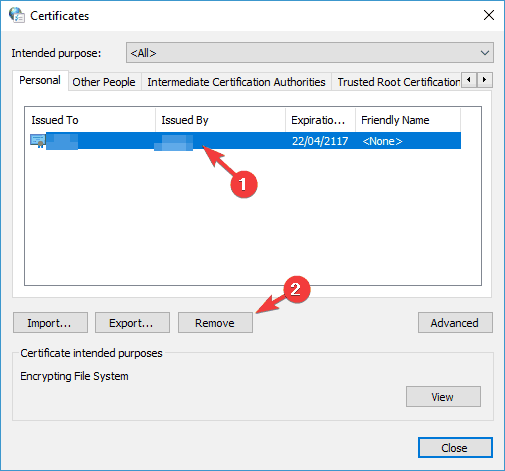
- Click close and then click OK.
- Close Internet Explorer and all Adobe Acrobat Documents.
- Try signing the documents again.
Once you remove unwanted certificates, check if the problem is still there.
6. Reinstall ePass2003 software
Some PC issues are hard to tackle, especially when it comes to corrupted repositories or missing Windows files. If you are having troubles fixing an error, your system may be partially broken.
We recommend installing Restoro, a tool that will scan your machine and identify what the fault is.
Click here to download and start repairing.
This error can occur when using ePass2003 e-token, so let’s uninstall the ePass2003 software and install it again.
- Press Windows Key + I to open the Settings app. Now navigate to the Apps section.
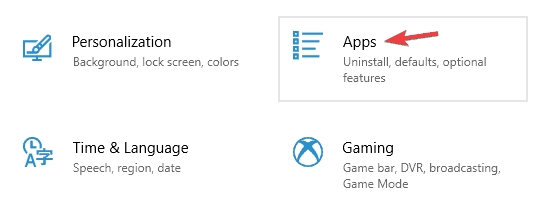
- Find and remove ePass2003 software.
- Restart your computer.
- When your computer boots install ePass2003 again.
- When installing ePass2003 make sure that you select Microsoft CSP when choosing the CSP option.
- After installing ePass2003 again everything should be back to normal and Windows cryptographic service provider error should be resolved.
Sometimes using this method won’t work since there might be some leftover files and registry entries that might interfere with your system and cause Windows Cryptographic Service Provider error to reappear.
In order to prevent that, you’ll need to completely remove ePass2003 software from your PC. The best way to do that is to use capable uninstaller software.
Uninstaller software is designed to remove any application from your PC, including all of its files and registry entries, and by using this software you’ll ensure that the application is completely removed.
Then, you can find lots of uninstaller programs on the market but it’s more suitable to choose from the best uninstaller software on Windows 10.
Once you remove ePass2003 with uninstaller software, install it again and check if the issue is still there.
7. Modify your registry
If you keep getting Windows Cryptographic Service Provider error while using Adobe Acrobat, the issue might be your settings. Most settings are stored in the registry, and in order to fix this problem, we’ll have to remove a few values from the registry.
This is relatively simple, and you can do it by following these steps:
- Press Windows Key + R and enter regedit. Press Enter or click OK.
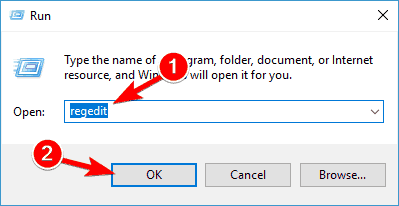
- When Registry Editor opens, navigate to
HKEY_CURRENT_USERSoftwareAdobeAdobe Acrobat11.0This key might be slightly different depending on the version of Adobe Acrobat you’re using.
- In the left pane locate the Security key, right-click it and choose Export.
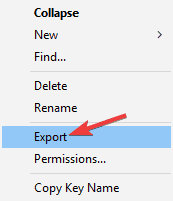
- Enter the desired name for your backup, choose a save location, and click the Save button. If any new problems appear after modifying the registry, you can just run the file you created in order to restore it.

- After doing that, right-click the Security key and then choose Delete from the menu.
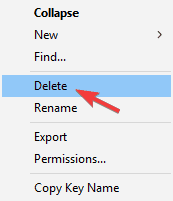
- When the confirmation dialog appears, click Yes.
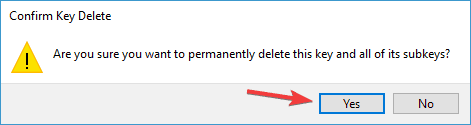
After doing that, open Adobe Acrobat once again and the issue should be resolved.
8. Use your Smart Card or Active Key
According to users, you might be able to fix Windows Cryptographic Service Provider error on your PC simply by using a Smart Card or an Active Key. If you don’t have a Smart Card or Active Key that contains a copy of your certificate, this solution won’t work for you, so you might just skip it.
To fix this problem, you just need to do the following:
- Insert the Smart Card or Active Key.
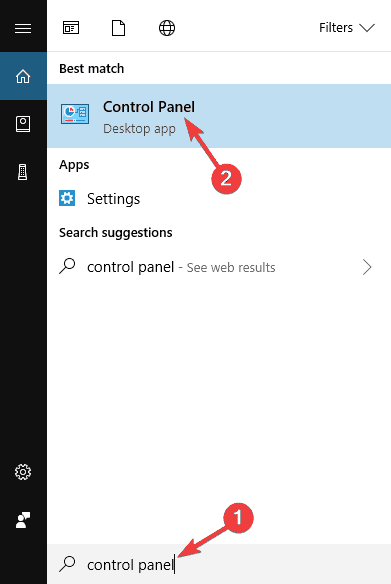
- Now press Windows Key + S and enter control panel. Select Control Panel from the list.
- When the Control Panel opens, go to the User Accounts section.
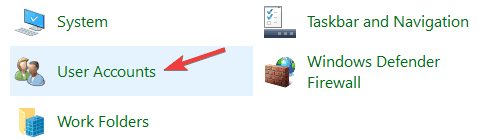
- From the left pane, select Manage your file encryption certificates.
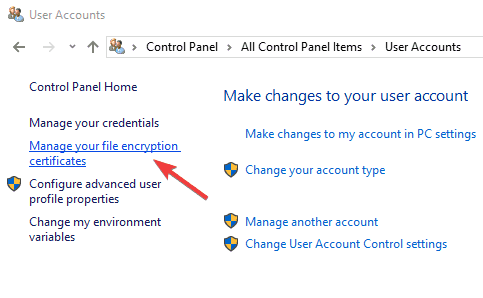
- When a new window appears, click Next.
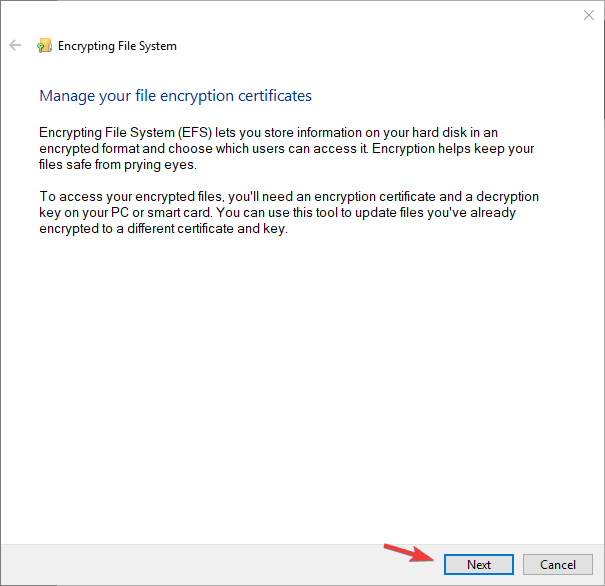
- Select Use this certificate option. If it’s not available, click the Select Certificate button.

- Now you’ll see Smart Card/Active Key screen. Login if needed.
- Click Next once your certificate is loaded.
- When you get to the Update your previously encrypted files window, check All Logical Drivers and update encrypted files.
- Click Next and Windows should update your certificates without any problems.
This is an advanced solution, but several users claim that it works, so if you have Smart Card or an Active Key, you might want to try it out.
9. Create a new signature
According to users, Windows Cryptographic Service Provider error can appear with Adobe DC, and the best way to fix this issue is to create a new signature with a Windows certificate. After doing that, the problem should be resolved and everything will start working again.
Windows Cryptographic Service Provider error can be problematic, but we hope that you managed to fix it using the solutions from this article.
Still having issues? Fix them with this tool:
SPONSORED
If the advices above haven’t solved your issue, your PC may experience deeper Windows problems. We recommend downloading this PC Repair tool (rated Great on TrustPilot.com) to easily address them. After installation, simply click the Start Scan button and then press on Repair All.
