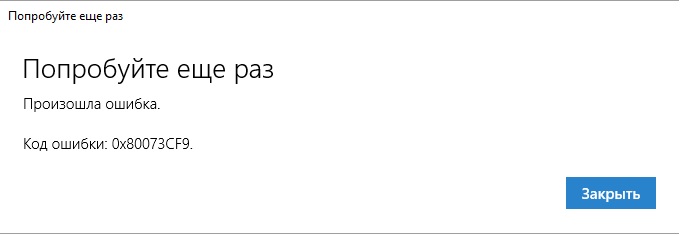
Ошибка 0x80073CF9 может проявляться у пользователей Windows 8/8.1/10 во время установки или обновления установленного приложения в Магазине Windows. Сообщение ошибки, в большинстве случаев, выглядит так:
Попробуйте еще раз
Произошла ошибка.
Код ошибки: 0x80073CF9
В общем, сообщение ошибки не предоставляет какой-то важной информации о возникшей с Магазином Windows проблеме. Появившись, ошибка 0x80073CF9 заблокирует главный функционал Магазина Windows до тех пор, пока проблема не будет решена. Именно решением этой ошибки мы и займемся в данной статье. Всего мы рассмотрим четыре метода: использование утилиты SFC, создание папки AUInstall или AppReadiness, сброс Магазина Windows и удаление определенной записи в Реестре Windows. Итак, давайте начнем.
Содержание
- Методы решение ошибки 0x80073CF9
- Метод №1 Использование SFC
- Метод №2 Создание папки AUInstallAgent/AppReadiness
- Метод №3 Сброс кэша Магазина Windows
- Метод №4 Удаление ключа
Методы решение ошибки 0x80073CF9
Метод №1 Использование SFC
Ошибка 0x80073CF9 может являться результатом повреждения системных файлов, которые непосредственно участвую в работе Магазина Windows 8 и 10. Что именно стало причиной их повреждения – невероятно сложно определить. Однако, вы можете попытаться восстановить системные файлы с помощью предназначенной для этого утилиты под названием System File Checker.
Итак, для запуска этой утилиты, вам потребуется выполнить следующие шаги:
- Нажмите Windows+S.
- Впишите«Командная строка».
- Нажмите ПКМ на результат и выберите «Запустить от имени администратора».
- Впишите sfc /scannow и нажмите Enter.
- Дождитесь окончания работы утилиты System File Checker, а затем перезагрузите компьютер.
Снова зайдите в Магазин Windows. Попробуйте скачать или обновить какое-то приложение, чтобы проверить наличие ошибки 0x80073CF9. Если все пройдет нормально – дело заключалось в повреждениях системных файлов. Если же ошибка все еще присутствует, то давайте двигаться дальше.
Метод №2 Создание папки AUInstallAgent/AppReadiness
Если вы столкнулись с ошибками при использовании Магазина Windows(а в нашем случае – это ошибка 0x80073CF9), то рекомендуется проверить наличия в системе папки AUInstallAgent(или AppReadiness). Данная папка является очень важной для корректной работы Магазина Windows. Если она отсутствует в вашей системе по той или иной причине – это может вызвать некоторые проблемы, например, ошибку 0x80073CF9.
Пройдите в директорию C:Windows и попробуйте найти папку AUInstallAgent(или AppReadiness). Если ее нет, то создайте ее в этой директории и перезагрузите свой компьютер. Зайдя повторно в систему, проверьте наличие ошибки 0x80073CF9 в Магазине Windows. В большинстве случаев, данный способ наиболее часто помогает пользователям при появлении этой проблемы.
Метод №3 Сброс кэша Магазина Windows
Если все вышеперечисленные методы не смогли принести положительного результата при решении ошибки 0x80073CF9, то, возможно, что-то не так с приложением самого Магазина Windows на вашем компьютере. Зачастую, виновником ситуации становятся накопления кэша приложения.
Сброс кэша Магазина Windows можно выполнить всего за несколько секунд: нажмите Windows+R. Затем впишите WSReset.exe и нажмите Enter. Во время очистки кэша Магазин Windows может закрываться и открываться. Как только очистка кэша будет завершена, перейдите в Магазин и проверьте наличие ошибки 0x80073CF9.
Метод №4 Удаление ключа
У нас с вами остался последний метод, в котором мы будем удалять определенный ключ из Реестра Windows. Однако, перед удалением, мы настоятельно рекомендуем вам создать резервную копию Реестра, так как, в некоторых случаях, модификация Реестра может привести к нестабильности и критическому сбою во время работы операционной системы.
Итак, нажмите Windows+R, чтобы открыть утилиту «Run…». Теперь пропишите Regedit.exe и нажмите Enter, чтобы открыть Редактор Реестра Windows. Открыв окно редактора, найдите в нем ключ HKEY_LOCAL_MACHINESoftwarePoliciesMicrosoftWindowsAppxAllowAllTrustedApps = 1 и удалите его из реестра. Завершив удаление ключа, закройте Редактор Реестра и перезагрузите свой компьютер. Данный метод помог некоторым из пользователей при борьбе с ошибкой 0x80073CF9, и мы надеемся, что он вам точно также поможет.
Cleaning the system cache is an easy fix for this
by Ivan Jenic
Passionate about all elements related to Windows and combined with his innate curiosity, Ivan has delved deep into understanding this operating system, with a specialization in drivers and… read more
Published on October 11, 2022
Reviewed by
Vlad Turiceanu

Passionate about technology, Windows, and everything that has a power button, he spent most of his time developing new skills and learning more about the tech world. Coming… read more
- The error code 0x80073cf9 is one of the many issues associated with the Store but not one to avoid easily.
- Error 0x80073cf9 stops you from installing apps; sometimes, only a complete reboot will rid you of it.
- In our article, we list all known methods to solve the 0x80073cf9 Microsoft Store error.
- One logical step is to get your system back to a point in time before encountering the error, and we will show you how to do so.

XINSTALL BY CLICKING THE DOWNLOAD FILE
This software will repair common computer errors, protect you from file loss, malware, hardware failure and optimize your PC for maximum performance. Fix PC issues and remove viruses now in 3 easy steps:
- Download Restoro PC Repair Tool that comes with Patented Technologies (patent available here).
- Click Start Scan to find Windows issues that could be causing PC problems.
- Click Repair All to fix issues affecting your computer’s security and performance
- Restoro has been downloaded by 0 readers this month.
The error code 0x80073cf9 in Windows is usually triggered when you try to install a new application from the Microsoft Store.
This error code prevents you from installing the app and will give you two options. You may either relaunch or cancel the installation process, but unfortunately, neither option will work.
The Microsoft Store error 0x80073cf9 may also appear when you try to update an application to make it suitable for Windows 10.
We will show you how to permanently fix this issue and prevent it from happening again.
What does error 0x80073CF9 mean?
If you get this error message, it signifies that Windows 10 is preventing you from installing specific programs.
Most users who experienced this error said it is not a widespread issue since some users may experience it while installing specific applications. However, others say they cannot access the Store because of error code 0x80073cf9.
There could be a variety of reasons that trigger this error, including:
- Problematic applications – Some third-party software may trigger the error, so you must uninstall the app.
- Malware infection – In this case, you will need a full computer scan to eliminate any malware or virus on the computer.
- Compatibility issues with antivirus software – Third-party antivirus software may not be compatible with the OS. Therefore, we suggest temporarily disabling it or switching to a different solution in this case.
- Microsoft Store apps – Windows comes with a built-in store troubleshooter. So it would help if you run it to resolve the problem.
Users have faced different variations of this 0x80073cf9 error, including in games and applications like Sea of Thieves, Intune, Autopilot, Minecraft, Game Pass, and Forza Horizon 5.
This is not an exhaustive list of triggers, but regardless, using the solutions we recommend would help fix the issue.
How do I fix the error code: 0x80073cf9?
- What does error 0x80073CF9 mean?
- How do I fix the error code: 0x80073cf9?
- 1. Clean the cache
- 2. Uninstall problematic apps
- 3. Use specialized software to repair Store apps
- 4. Use System Restore
- 5. Create the AUInstallAgent folder
- 6. Disable your antivirus
- 7. Turn off your firewall
- 8. Run the Microsoft Store troubleshooter
- How do I fix the 0x80073cf9 Microsoft Store error on Windows 11?
- How do I run WSReset EXE?
1. Clean the cache
1. Open the Run dialog using Windows + R.
2. Paste the script below inside the Run dialog box: WSReset.exe
3. Hit Enter to run the command.
4. The Windows Store command prompt should appear; wait for it to disappear automatically.
5. Check whether the issue persists.
The first easy fix you should try out to solve code: 0x80073cf9 is to clear your Windows PC’s cache. You can easily do this via the Run dialog.
2. Uninstall problematic apps
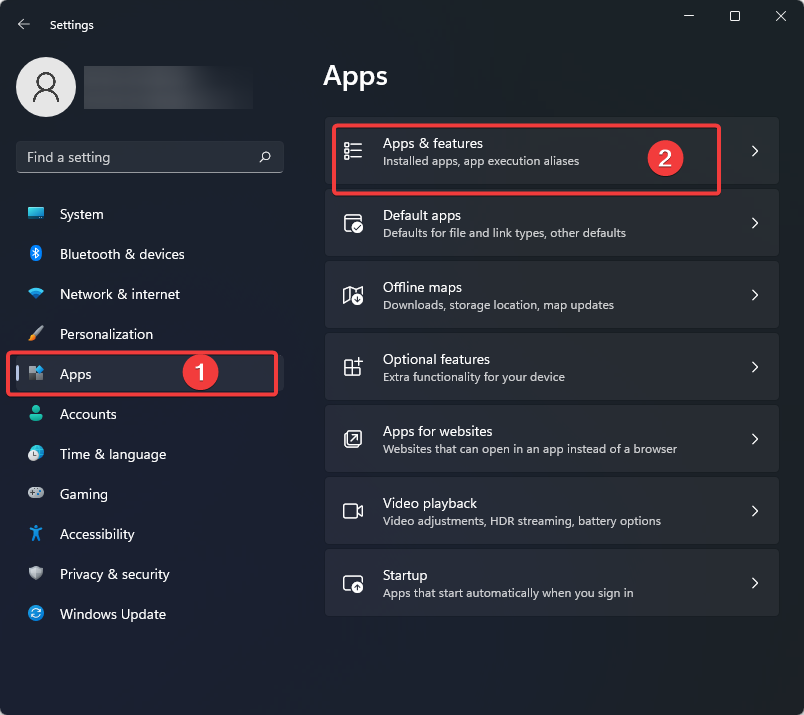
- Open up the Settings app.
- Click on Apps on the left pane, then select Apps & features from the right.
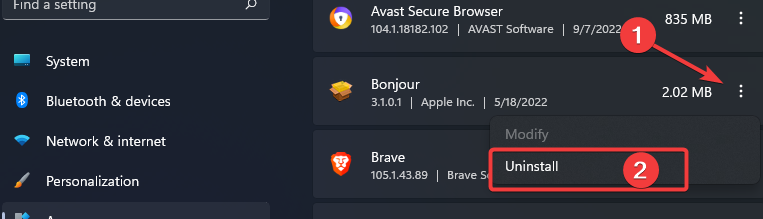
- Scroll down to your most recently added app, click on the ellipses and select Uninstall.
3. Use specialized software to repair Store apps
Some PC issues are hard to tackle, especially when it comes to corrupted repositories or missing Windows files. If you are having troubles fixing an error, your system may be partially broken.
We recommend installing Restoro, a tool that will scan your machine and identify what the fault is.
Click here to download and start repairing.
Although updating your system is always a good idea, things can go south. For example, there have been numerous instances when Windows updates caused issues, from incompatibility between system features to outdated drivers, etc.
Windows Update is meant to improve the overall performance of your operating system, integrate new features, and even upgrade the existing ones. However, there are times when certain errors may occur out of the blue.
Thankfully, if you happen to run into such issues, there is a specialized Windows repair software that can help you solve them in no time, and it is called Restoro.
This is how you can fix registry errors using Restoro:
- Download and install Restoro.
- Launch the application.
- Wait for the application to find any system stability issues and possible malware infections.
- Press Start Repair.
- Restart your PC for all the changes to take effect.
After the process is completed your computer should work perfectly fine and you will no longer have to worry about Windows Update errors of any kind.
⇒ Get Restoro
Disclaimer: This program needs to be upgraded from the free version in order to perform some specific actions.
4. Use System Restore
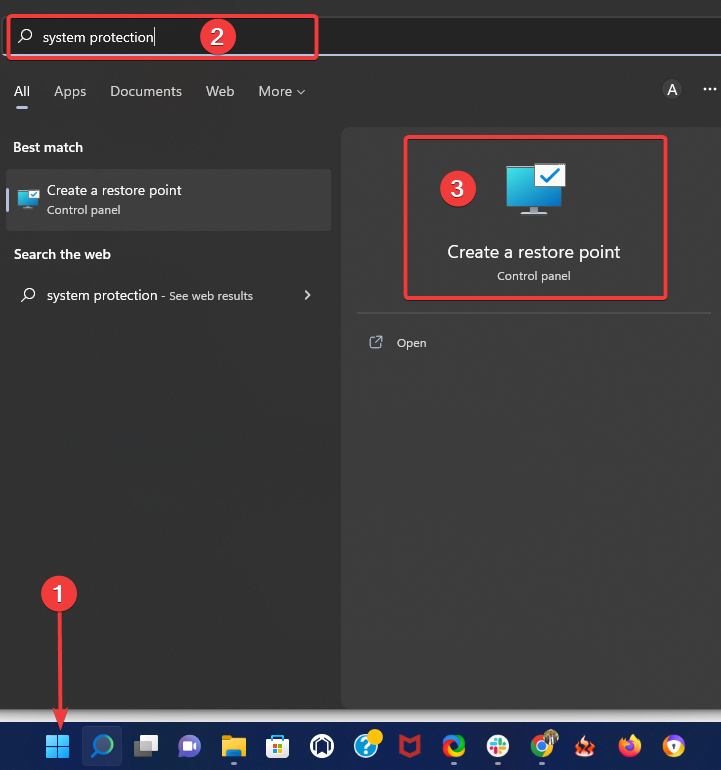
- Click the Start menu, type system protection, and select the Create a restore point app.
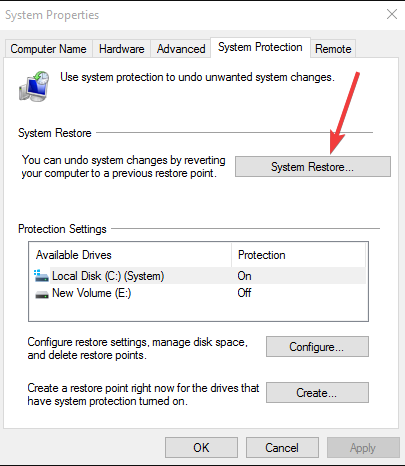
- Click on the System Restore button.
- On the restore window, click the Next button.
- Select a restore point, and click Next again.
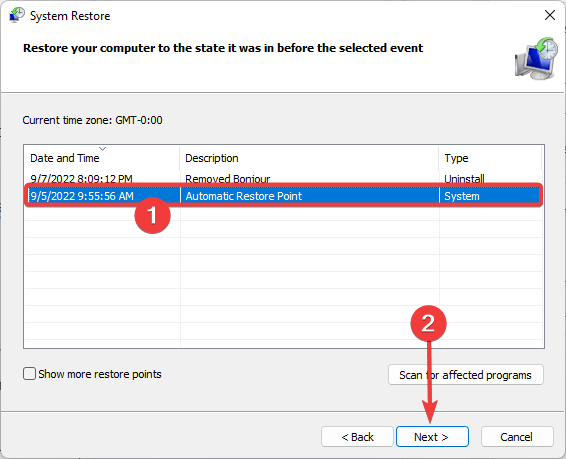
- You will need to follow the screens’ instructions to complete the process.
Note: Before performing the system restore, we suggest you write down the apps you installed so that you can get them back after this process.
5. Create the AUInstallAgent folder
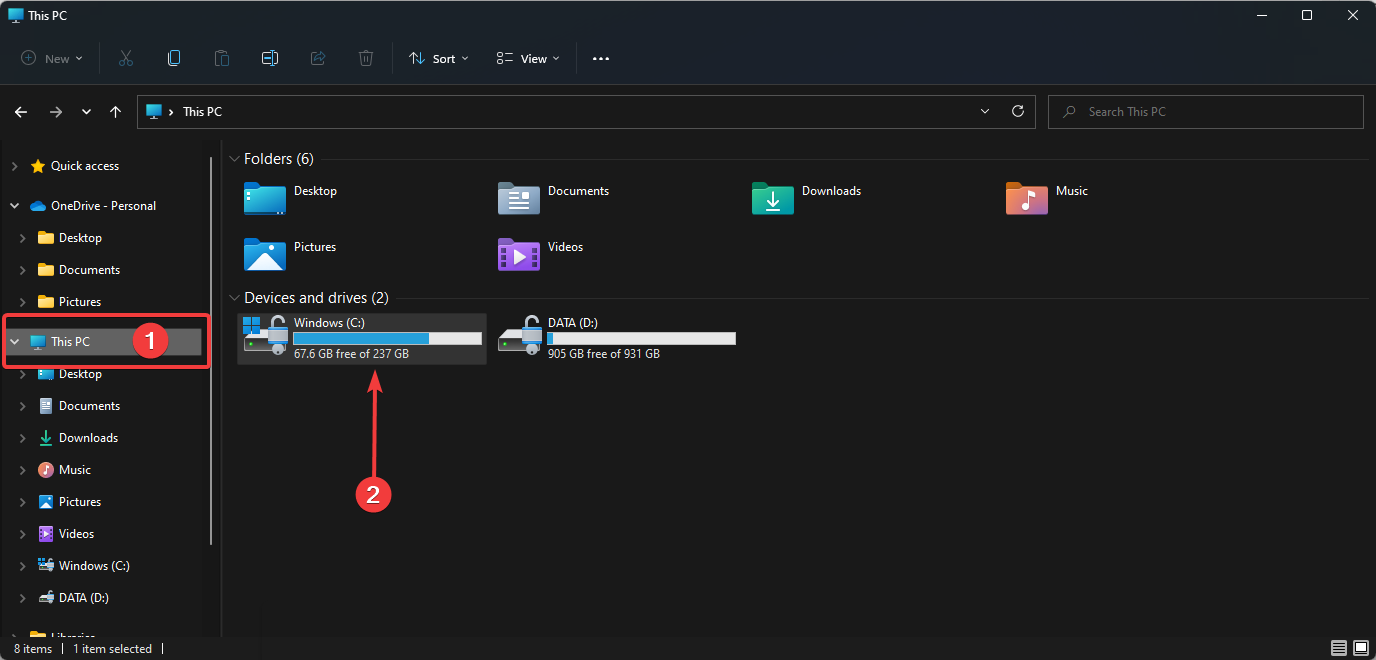
- Open the File Explorer, click on This PC, and select the partition where you have Windows 10 installed.
- Double-click on the Windows folder you have in the partition.
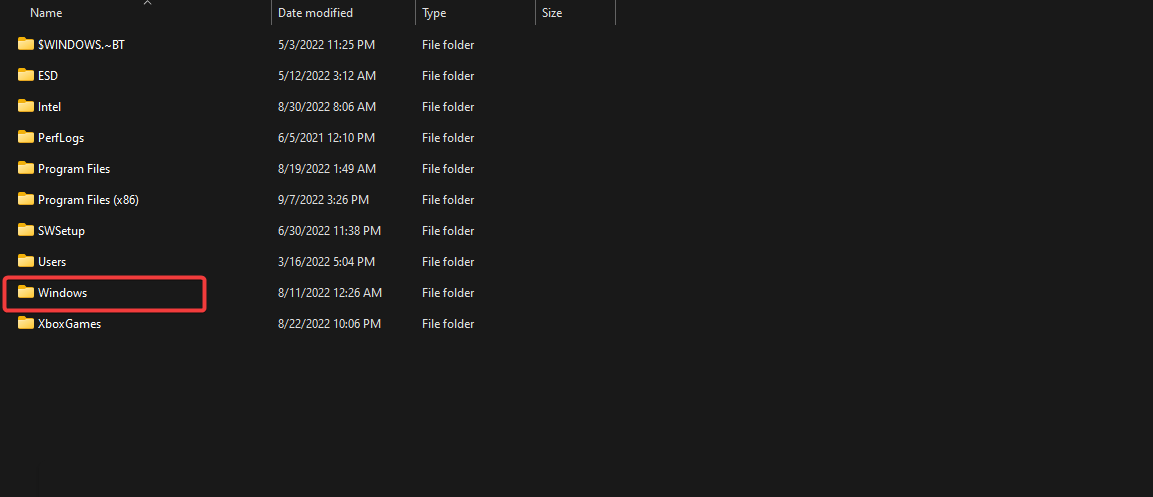
- Check the Windows folder and see if you have another folder named AUInstallAgent.
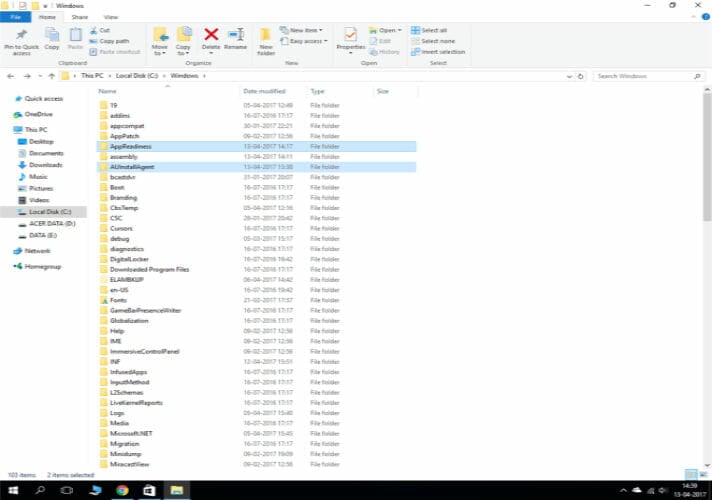
- If you don’t have the AUInstallAgent folder, you need to right-click the Windows directory and create a new folder with that name.
- Then reboot the Windows 10 device.
- Projector Not Turning On: Why & How to Fix [Epson, Dr.J]
- Fix: You Have Been Denied Permission to Access This Folder
- Chassis Intruded Fatal Error System Halted: How to Fix
- How to Fix Continuous Beeping When Computer is Turned On
6. Disable your antivirus
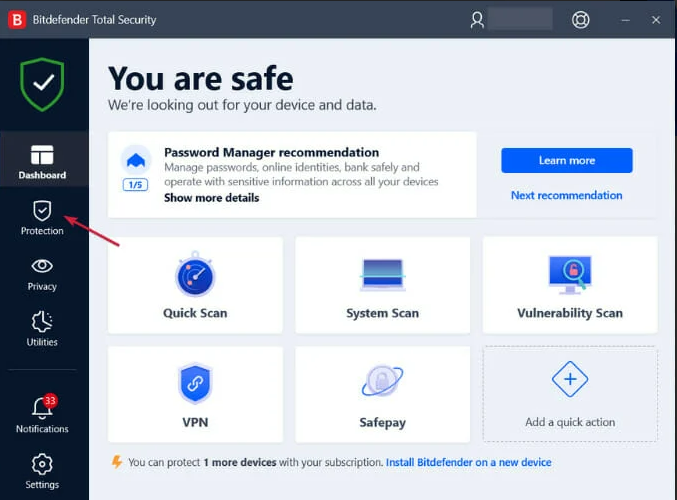
- Open the third-party antivirus and access the Protection or Security menu. We offer Bitdefender as an example, but all antiviruses can be disabled from their menus.
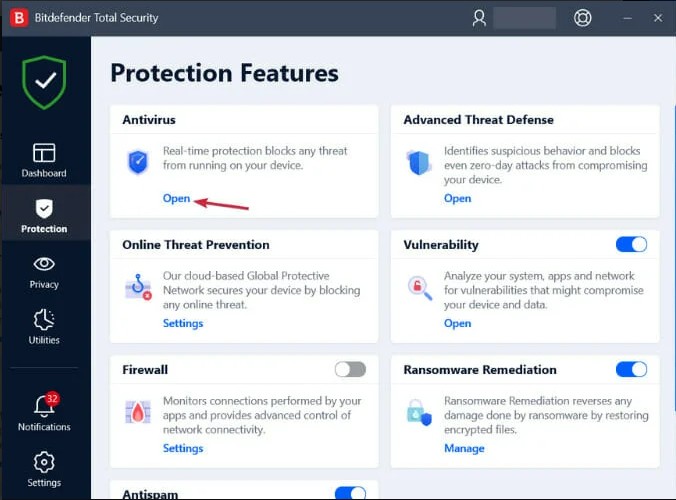
- Click the Open button under antivirus.
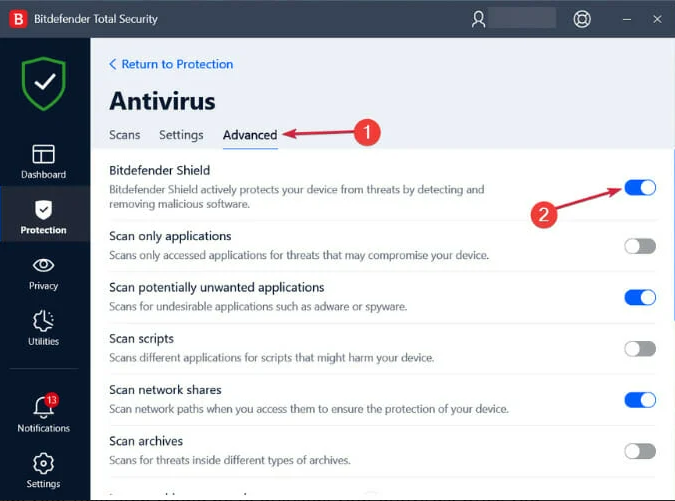
- Lastly, select the Advanced tab and click the switch to turn off Bitdefender Shield.
- Check if the 0x80073cf9 error still exists.
If you have an antivirus, you need to disable it and check if your apps install correctly afterward.
If they install correctly, it is an issue related to your antivirus, as it blocks the app installation process.
7. Turn off your firewall
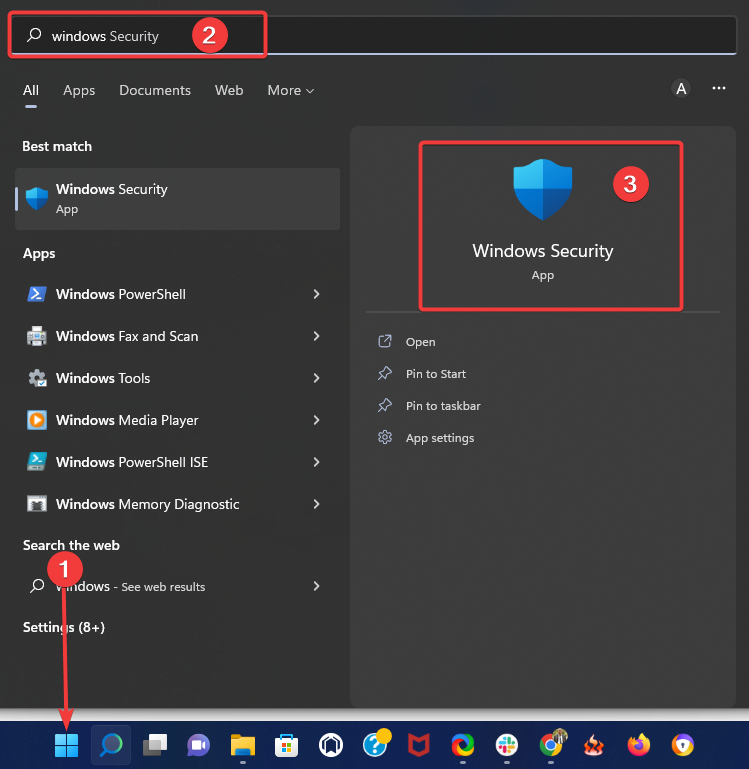
- Click the Start button, type windows security, then select the Windows Security app.
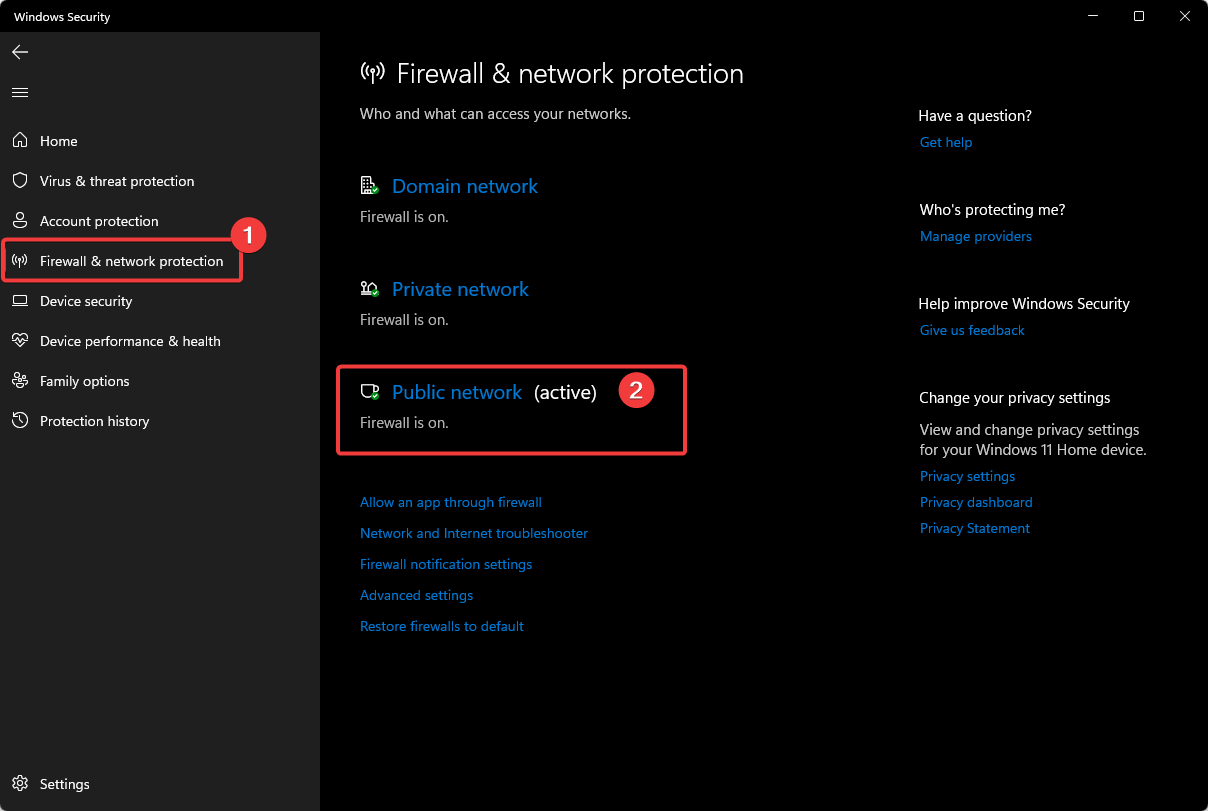
- Click Firewall & network protection in the left pane, then select Public network from the right pane.
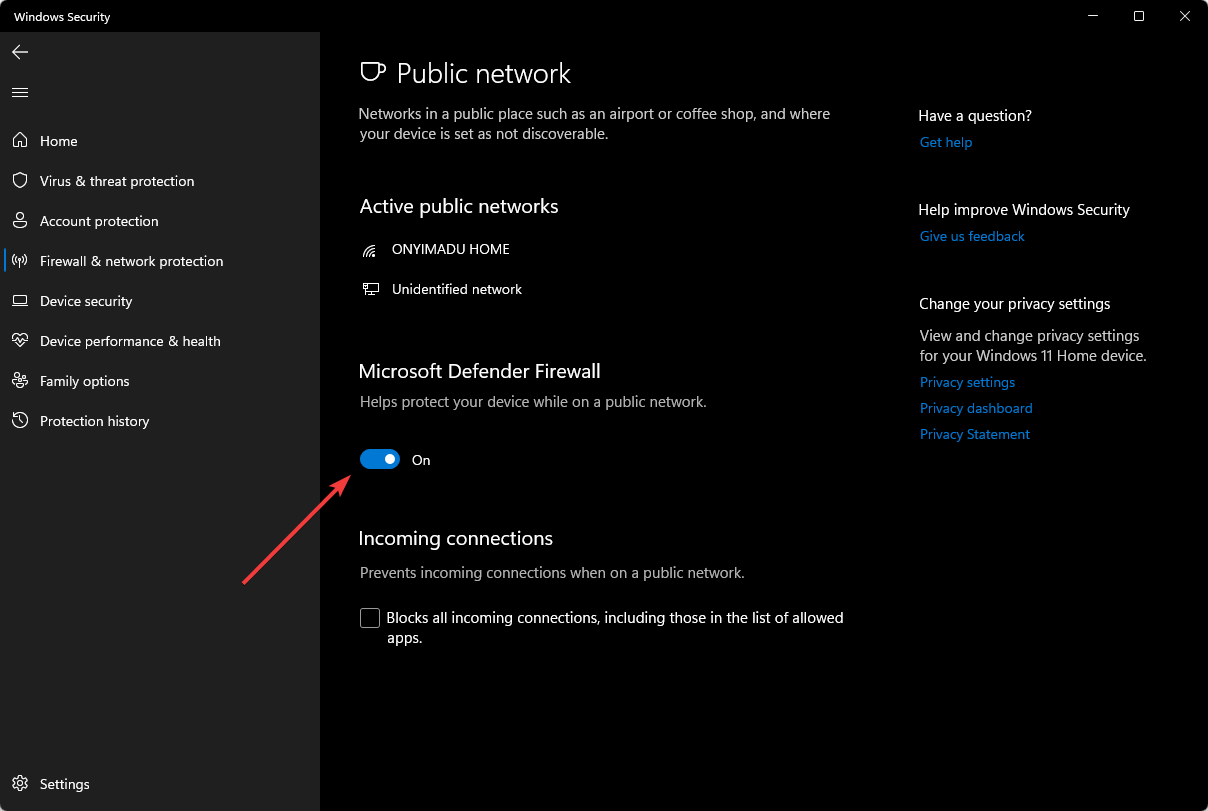
- Toggle off Microsoft Defender Firewall.
- Check if the 0x80073cf9 error still exists.
Your firewall may also trigger the annoying Microsoft Store error 0x80073cf9. As a result, one of the quickest and safest solutions is to disable it.
Once you’ve disabled your firewall, download and install the app that initially triggered this error code, and then you can re-enable your firewall.
8. Run the Microsoft Store troubleshooter
If the problem persists, try running Windows 10’s built-in troubleshooter. This tool can fix general technical issues affecting your Microsoft Store Apps.
- Open the Settings app, scroll through the right pane and click on Troubleshoot.
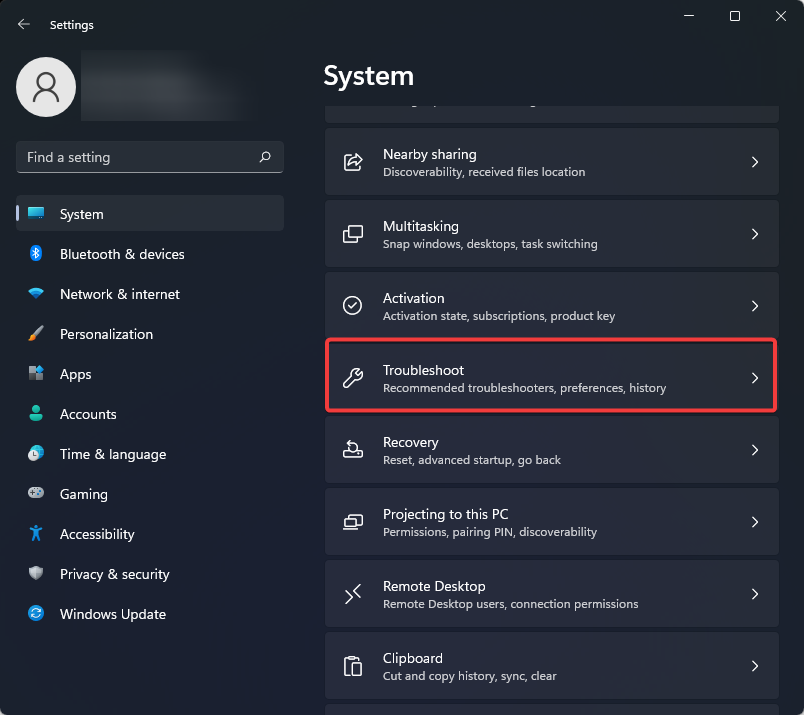
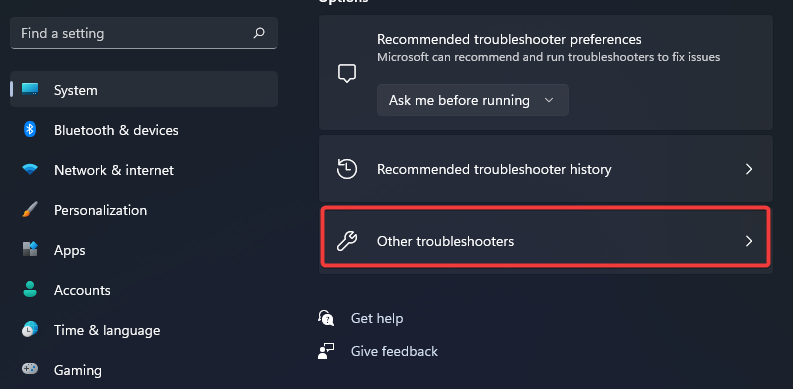
- Click on Other troubleshooters.
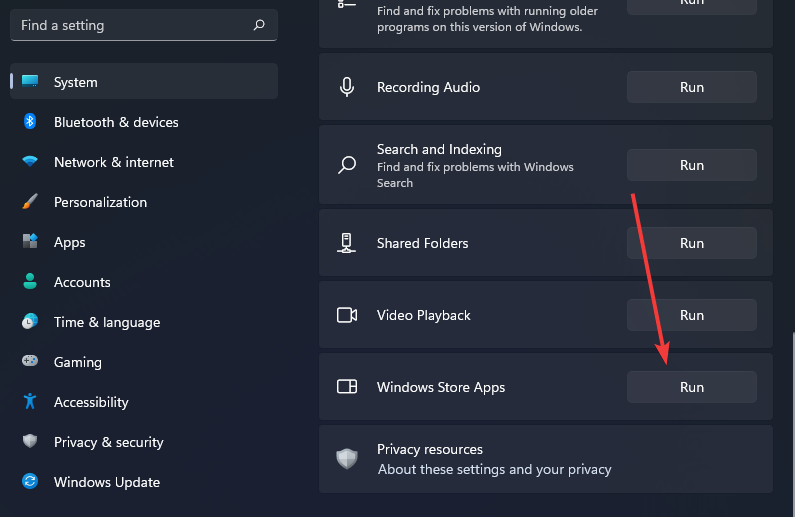
- Scroll down to Windows Store Apps and click Run.
How do I fix the 0x80073cf9 Microsoft Store error on Windows 11?
Except for a few minor differences, the abovementioned steps will work in Windows 10 and 11. Since, on both OS versions, users experience the code: 0x80073cf9 error for the same reasons.
It would help if you only adapt the solutions to your specific situation. So, for example, if you get this error after installing a new Windows 11 application, you should uninstall it.
Other solutions that will also work on Windows 11 include:
- Disabling your antivirus
- Deactivating your firewall
- Using specialized restore tools
How do I run WSReset EXE?
- Open the Run dialog using Windows + R.
- Paste the script below and hit Enter.
WSReset.exe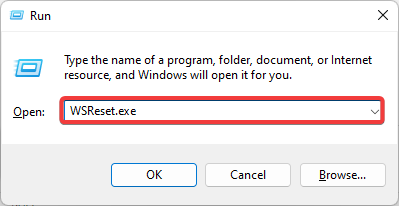
- The Windows Store command prompt should appear; wait for it to disappear automatically.
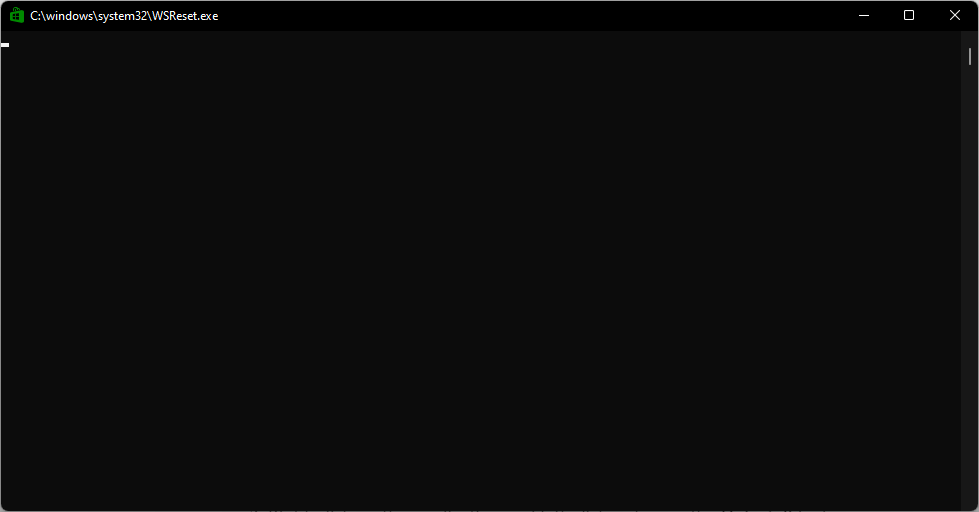
Running this tool is an easy way of clearing the Microsoft Store app cache on Windows 10 and 11.
There you go; these are a few options that you can try to fix the error code 0x80073cf9 and get back to your daily activity.
These solutions will work if you encounter the error messages error 0x80073cf9 this app couldn t be installed, 0x80073cf9 intune, and HRESULT: 0x80073CF9.
As always, we have not written these fixes in any particular order, so you should try what seems the most appropriate to your specific situation.
If you have any questions, let us know in the comments below.
Still having issues? Fix them with this tool:
SPONSORED
If the advices above haven’t solved your issue, your PC may experience deeper Windows problems. We recommend downloading this PC Repair tool (rated Great on TrustPilot.com) to easily address them. After installation, simply click the Start Scan button and then press on Repair All.

Newsletter
Cleaning the system cache is an easy fix for this
by Ivan Jenic
Passionate about all elements related to Windows and combined with his innate curiosity, Ivan has delved deep into understanding this operating system, with a specialization in drivers and… read more
Published on October 11, 2022
Reviewed by
Vlad Turiceanu
Passionate about technology, Windows, and everything that has a power button, he spent most of his time developing new skills and learning more about the tech world. Coming… read more
- The error code 0x80073cf9 is one of the many issues associated with the Store but not one to avoid easily.
- Error 0x80073cf9 stops you from installing apps; sometimes, only a complete reboot will rid you of it.
- In our article, we list all known methods to solve the 0x80073cf9 Microsoft Store error.
- One logical step is to get your system back to a point in time before encountering the error, and we will show you how to do so.
XINSTALL BY CLICKING THE DOWNLOAD FILE
This software will repair common computer errors, protect you from file loss, malware, hardware failure and optimize your PC for maximum performance. Fix PC issues and remove viruses now in 3 easy steps:
- Download Restoro PC Repair Tool that comes with Patented Technologies (patent available here).
- Click Start Scan to find Windows issues that could be causing PC problems.
- Click Repair All to fix issues affecting your computer’s security and performance
- Restoro has been downloaded by 0 readers this month.
The error code 0x80073cf9 in Windows is usually triggered when you try to install a new application from the Microsoft Store.
This error code prevents you from installing the app and will give you two options. You may either relaunch or cancel the installation process, but unfortunately, neither option will work.
The Microsoft Store error 0x80073cf9 may also appear when you try to update an application to make it suitable for Windows 10.
We will show you how to permanently fix this issue and prevent it from happening again.
What does error 0x80073CF9 mean?
If you get this error message, it signifies that Windows 10 is preventing you from installing specific programs.
Most users who experienced this error said it is not a widespread issue since some users may experience it while installing specific applications. However, others say they cannot access the Store because of error code 0x80073cf9.
There could be a variety of reasons that trigger this error, including:
- Problematic applications – Some third-party software may trigger the error, so you must uninstall the app.
- Malware infection – In this case, you will need a full computer scan to eliminate any malware or virus on the computer.
- Compatibility issues with antivirus software – Third-party antivirus software may not be compatible with the OS. Therefore, we suggest temporarily disabling it or switching to a different solution in this case.
- Microsoft Store apps – Windows comes with a built-in store troubleshooter. So it would help if you run it to resolve the problem.
Users have faced different variations of this 0x80073cf9 error, including in games and applications like Sea of Thieves, Intune, Autopilot, Minecraft, Game Pass, and Forza Horizon 5.
This is not an exhaustive list of triggers, but regardless, using the solutions we recommend would help fix the issue.
How do I fix the error code: 0x80073cf9?
- What does error 0x80073CF9 mean?
- How do I fix the error code: 0x80073cf9?
- 1. Clean the cache
- 2. Uninstall problematic apps
- 3. Use specialized software to repair Store apps
- 4. Use System Restore
- 5. Create the AUInstallAgent folder
- 6. Disable your antivirus
- 7. Turn off your firewall
- 8. Run the Microsoft Store troubleshooter
- How do I fix the 0x80073cf9 Microsoft Store error on Windows 11?
- How do I run WSReset EXE?
1. Clean the cache
1. Open the Run dialog using Windows + R.
2. Paste the script below inside the Run dialog box: WSReset.exe
3. Hit Enter to run the command.
4. The Windows Store command prompt should appear; wait for it to disappear automatically.
5. Check whether the issue persists.
The first easy fix you should try out to solve code: 0x80073cf9 is to clear your Windows PC’s cache. You can easily do this via the Run dialog.
2. Uninstall problematic apps
- Open up the Settings app.
- Click on Apps on the left pane, then select Apps & features from the right.
- Scroll down to your most recently added app, click on the ellipses and select Uninstall.
3. Use specialized software to repair Store apps
Some PC issues are hard to tackle, especially when it comes to corrupted repositories or missing Windows files. If you are having troubles fixing an error, your system may be partially broken.
We recommend installing Restoro, a tool that will scan your machine and identify what the fault is.
Click here to download and start repairing.
Although updating your system is always a good idea, things can go south. For example, there have been numerous instances when Windows updates caused issues, from incompatibility between system features to outdated drivers, etc.
Windows Update is meant to improve the overall performance of your operating system, integrate new features, and even upgrade the existing ones. However, there are times when certain errors may occur out of the blue.
Thankfully, if you happen to run into such issues, there is a specialized Windows repair software that can help you solve them in no time, and it is called Restoro.
This is how you can fix registry errors using Restoro:
- Download and install Restoro.
- Launch the application.
- Wait for the application to find any system stability issues and possible malware infections.
- Press Start Repair.
- Restart your PC for all the changes to take effect.
After the process is completed your computer should work perfectly fine and you will no longer have to worry about Windows Update errors of any kind.
⇒ Get Restoro
Disclaimer: This program needs to be upgraded from the free version in order to perform some specific actions.
4. Use System Restore
- Click the Start menu, type system protection, and select the Create a restore point app.
- Click on the System Restore button.
- On the restore window, click the Next button.
- Select a restore point, and click Next again.
- You will need to follow the screens’ instructions to complete the process.
Note: Before performing the system restore, we suggest you write down the apps you installed so that you can get them back after this process.
5. Create the AUInstallAgent folder
- Open the File Explorer, click on This PC, and select the partition where you have Windows 10 installed.
- Double-click on the Windows folder you have in the partition.
- Check the Windows folder and see if you have another folder named AUInstallAgent.
- If you don’t have the AUInstallAgent folder, you need to right-click the Windows directory and create a new folder with that name.
- Then reboot the Windows 10 device.
- Projector Not Turning On: Why & How to Fix [Epson, Dr.J]
- Fix: You Have Been Denied Permission to Access This Folder
- Chassis Intruded Fatal Error System Halted: How to Fix
6. Disable your antivirus
- Open the third-party antivirus and access the Protection or Security menu. We offer Bitdefender as an example, but all antiviruses can be disabled from their menus.
- Click the Open button under antivirus.
- Lastly, select the Advanced tab and click the switch to turn off Bitdefender Shield.
- Check if the 0x80073cf9 error still exists.
If you have an antivirus, you need to disable it and check if your apps install correctly afterward.
If they install correctly, it is an issue related to your antivirus, as it blocks the app installation process.
7. Turn off your firewall
- Click the Start button, type windows security, then select the Windows Security app.
- Click Firewall & network protection in the left pane, then select Public network from the right pane.
- Toggle off Microsoft Defender Firewall.
- Check if the 0x80073cf9 error still exists.
Your firewall may also trigger the annoying Microsoft Store error 0x80073cf9. As a result, one of the quickest and safest solutions is to disable it.
Once you’ve disabled your firewall, download and install the app that initially triggered this error code, and then you can re-enable your firewall.
8. Run the Microsoft Store troubleshooter
If the problem persists, try running Windows 10’s built-in troubleshooter. This tool can fix general technical issues affecting your Microsoft Store Apps.
- Open the Settings app, scroll through the right pane and click on Troubleshoot.
- Click on Other troubleshooters.
- Scroll down to Windows Store Apps and click Run.
How do I fix the 0x80073cf9 Microsoft Store error on Windows 11?
Except for a few minor differences, the abovementioned steps will work in Windows 10 and 11. Since, on both OS versions, users experience the code: 0x80073cf9 error for the same reasons.
It would help if you only adapt the solutions to your specific situation. So, for example, if you get this error after installing a new Windows 11 application, you should uninstall it.
Other solutions that will also work on Windows 11 include:
- Disabling your antivirus
- Deactivating your firewall
- Using specialized restore tools
How do I run WSReset EXE?
- Open the Run dialog using Windows + R.
- Paste the script below and hit Enter.
WSReset.exe - The Windows Store command prompt should appear; wait for it to disappear automatically.
Running this tool is an easy way of clearing the Microsoft Store app cache on Windows 10 and 11.
There you go; these are a few options that you can try to fix the error code 0x80073cf9 and get back to your daily activity.
These solutions will work if you encounter the error messages error 0x80073cf9 this app couldn t be installed, 0x80073cf9 intune, and HRESULT: 0x80073CF9.
As always, we have not written these fixes in any particular order, so you should try what seems the most appropriate to your specific situation.
If you have any questions, let us know in the comments below.
Still having issues? Fix them with this tool:
SPONSORED
If the advices above haven’t solved your issue, your PC may experience deeper Windows problems. We recommend downloading this PC Repair tool (rated Great on TrustPilot.com) to easily address them. After installation, simply click the Start Scan button and then press on Repair All.
Newsletter
На чтение 5 мин. Просмотров 2.9k. Опубликовано 03.09.2019
Когда вы получаете ошибку 0x80073cf9 в Windows 8 или Windows 10, это обычно происходит при попытке установить новое приложение из Магазина Microsoft. Этот код ошибки в основном не позволяет вам установить приложение, и он даст вам два варианта. Вы можете либо снова запустить процесс установки, либо отменить его.

К сожалению, какой бы вариант вы ни выбрали, он не будет работать. Код ошибки 0x80073cf9 также может появляться при попытке обновить приложение, чтобы оно подходило для Windows 8 или Windows 10. Если вы попытаетесь перезагрузить компьютер с Windows 8 или Windows 10, это может сработать в редких случаях. Но если вы будете следовать Шаги, перечисленные ниже, вы увидите, как навсегда решить эту проблему и предотвратить ее повторение.
Содержание
- Исправить ошибку Windows Store 0x80073cf9
- 1. Синхронизация лицензий
- 2. Удалите проблемные приложения
- 3. Создайте папку AUInstallAgent
- 4. Отключите антивирус
- 5. Отключите брандмауэр
- 6. Запустите средство устранения неполадок Магазина Windows.
- 7. Используйте Восстановление системы
Исправить ошибку Windows Store 0x80073cf9
- Синхронизация лицензий
- Удалить проблемные приложения
- Создайте папку AUInstallAgent
- Отключи свой антивирус
- Выключите брандмауэр
- Запустите средство устранения неполадок Магазина Windows
- Использовать восстановление системы
1. Синхронизация лицензий
- Нажмите и удерживайте кнопку «Windows» на клавиатуре.
- После того, как вы попадете на стартовый экран, вам нужно будет щелкнуть левой кнопкой мыши или нажать на «Магазин Windows», который у вас есть.
- После того, как вы попадете в магазин Windows, вам нужно будет нажать и удерживать кнопку «Windows» и кнопку «I».
- Щелкните левой кнопкой мыши на «Обновления приложений».
-
Щелкните левой кнопкой мыши или нажмите «Синхронизировать лицензии здесь».

- Позвольте ему выполнить свою работу и перезагрузите устройство Windows 8 или Windows 10.
- Попробуйте установить приложение или обновить приложение и посмотреть, появляется ли по-прежнему это сообщение об ошибке.
2. Удалите проблемные приложения
- Перейдите на начальный экран в Windows 8 или Windows 10, как вы сделали выше.
- Найдите приложение, с которым у вас проблемы.
-
Щелкните правой кнопкой мыши на приложении и щелкните левой кнопкой мыши или нажмите на функцию «Удалить».

- Щелкните левой кнопкой мыши или нажмите «Магазин Windows» на начальном экране после удаления приложения.
- Введите название приложения, которое вы удалили, и установите его снова из Магазина Windows.
- СВЯЗАННЫЕ: Полное исправление: Магазин Windows не работает в Windows 10
3. Создайте папку AUInstallAgent
- Щелкните левой кнопкой мыши значок «Рабочий стол» на начальном экране.
- Откройте значок «Мой компьютер», дважды щелкнув по.
- Откройте раздел, в котором установлена Windows 8 или Windows 10.
- Дважды щелкните папку «Windows», которая находится в разделе.
-
В папке Windows проверьте и проверьте, есть ли у вас другая папка с именем «AUInstallAgent».
Примечание. Если у вас нет папки «AUInstallAgent», вам нужно щелкнуть правой кнопкой мыши в каталоге «Windows» и создайте новую папку с таким именем. - После того, как вы создали папку, вам нужно перезагрузить устройство Windows 8 или Windows 10.
- Проверьте и посмотрите, есть ли у вас эта проблема.
4. Отключите антивирус
Если у вас есть антивирус, вам нужно будет отключить его и проверить правильность установки приложений после этого. Если они установлены правильно, то это проблема, связанная с вашим антивирусом, так как он блокирует процесс установки приложения.
- СВЯЗАННО: что делать, когда антивирус блокирует файлы EXE против вашей воли
5. Отключите брандмауэр
Ваш брандмауэр может также вызвать раздражающую ошибку Microsoft Store 0x80073cf9. В результате, одним из самых быстрых и безопасных решений является его отключение. После того, как вы отключили брандмауэр, загрузите и установите приложение, которое первоначально вызвало этот код ошибки, а затем вы можете снова включить брандмауэр.
6. Запустите средство устранения неполадок Магазина Windows.
Если проблема сохраняется, попробуйте запустить встроенное средство устранения неполадок Windows 10. Этот инструмент может исправить общие технические проблемы, влияющие на приложения Магазина Windows. Чтобы запустить его, перейдите в «Настройки»> «Обновление и безопасность»> «Устранение неполадок»> выберите «Приложения Магазина Windows» и запустите средство устранения неполадок.

7. Используйте Восстановление системы
- Нажмите и удерживайте кнопку «Windows» и кнопку «X».
- Вам нужно будет щелкнуть левой кнопкой мыши на функцию «Система», которую вы видите на экране.
- Теперь, когда вы открыли «Системную панель управления», вам нужно щелкнуть левой кнопкой мыши по функции «Защита системы», которая есть у вас в левой части этого окна.
-
Щелкните левой кнопкой мыши или нажмите на кнопку «Восстановление системы», которая есть в окне.

-
Вам нужно будет следовать инструкциям на экране и выбрать предыдущую точку восстановления, чтобы восстановить настройки системы до того, как они были до того, как вы получили это сообщение об ошибке.
Примечание. Перед тем, как выполнить Восстановление системы Я предлагаю вам записать приложения, которые вы установили после создания точки восстановления, чтобы вы могли установить их снова после завершения этого процесса.
Итак, вот несколько вариантов, которые вы можете попробовать, чтобы исправить код ошибки 0x80073cf9 и вернуться к своей повседневной деятельности. Если у вас есть какие-либо вопросы, сообщите нам об этом в комментариях ниже.
Магазин Windows может быть одним из наиболее часто используемых приложений в Windows 10, но у него есть свои проблемы. Хотя Microsoft пытается улучшить его с каждым обновлением, пользователи по-прежнему сообщают о многих ошибках. Одна из наиболее распространенных ошибок – . Попробуйте еще раз, что-то пошло не так. Код ошибки 0x80073CF9, если вам это нужно. 
Ошибка Магазина Windows 0x80073CF9
Код ошибки 0x80073CF9 обозначает сбой серьезности, когда вы продолжаете загружать, устанавливать или обновлять приложения Windows. Если вы получаете код ошибки 0x80073CF9, вот что вам нужно сделать, чтобы решить эту проблему.
1] SFC-сканирование
Запустите сканирование SFC, поскольку это может помочь восстановить поврежденные системные файлы.
2] Переключение с беспроводного на проводное соединение
Время от времени загрузка не работает правильно с беспроводными соединениями. Попробуйте подключить систему к сети и возобновите загрузку. Если он не подключается к проводному соединению напрямую, попробуйте выполнить следующие действия:
1] Нажмите Win + R, чтобы открыть окно «Выполнить». Введите команду ncpa.cpl и нажмите Enter, чтобы открыть окно «Сетевые подключения».
2] Щелкните правой кнопкой мыши беспроводную сеть и выберите «Отключить». Это отключит беспроводную сеть, и система будет вынуждена подключиться к проводной сети.
Проверьте, поможет ли это решить проблему или перейдите к следующему решению.
3] Создайте папку AppReadiness
1] Перейдите в C: >> Windows, где C: системный диск.
2] Щелкните правой кнопкой мыши в любом месте открытого пространства и выберите «Создать»> «Папка».
3] Назовите новую папку AppReadiness .
4] Откройте папку и убедитесь, что путь к папке должен быть C: Windows AppReadiness , где C: системный диск.
Магазин Windows сохранит данные в этой папке. Когда он отсутствовал, Store не может создать его самостоятельно, и эта проблема была исправлена.
4] Разрешить магазину доступ к папке «Пакеты»
Эта ошибка также возникает при создании папки AppReadiness, но у Магазина Windows недостаточно прав для записи в папку «Пакеты».
1] Папка «Пакеты» находится по пути: C: ProgramData Microsoft Windows AppRepository . Этот путь может иметь несколько скрытых папок. Если вы не можете их найти, перейдите на вкладку «Вид» и выберите «Скрытые элементы».
2] Для внесения изменений в папку AppReadiness необходимы разрешения администратора. Щелкните правой кнопкой мыши папку и выберите «Свойства».
3] На вкладке «Безопасность» нажмите «Дополнительно», а затем «Продолжить».
4] Разрешить полный доступ к SYSTEM.
5] Нажмите «Применить», а затем «ОК», чтобы сохранить настройки и перезагрузить систему.
Дополнительные предложения здесь – Ошибка 0x80073cf9 при установке приложений из Магазина Windows.
Надеюсь, это поможет!
- Remove From My Forums
-
Общие обсуждения
-
Добрый день!
Есть приложение в store. Оно разрабатывается для WP8.1, так же было совместимо с WP10.
После последнего билда, не ставиться из магазина на устройства WP10, выдает ошибку 0x80073CF9.
Пакет был собран так же как и прошлый, в манифесте никаких изменений не сделано. В логах удалось отловить ошибку:
FindPackagesForUserWithPackageTypes returned unexpected exception. Ресурс ошибки: enduserwindowsupdateclientinstallagentlibinstallitem.cpp.Похоже что проблемы совместимости, но раньше таковых не наблюдалось. Может кто с таким сталкивался, или знает как решить?
-
Изменен тип
13 апреля 2016 г. 7:05
тема неактивна
-
Изменен тип
Download PC Repair Tool to quickly find & fix Windows errors automatically
Windows Store might be one of the most used applications on Windows 10 – but it does come with its share of problems. While Microsoft has been trying to improve upon it with every update, users still report many errors. One of the more common errors is – Try that again, Something went wrong, The error code is 0x80073CF9, in case you need it.
Error code 0x80073CF9 denotes Severity Failure when you go on to download, install or update Windows apps.If you receive error code 0x80073CF9, here is what you need to do to fix the problem.
1] SFC scan
Run an SFC scan as it can help to repair corrupt system files.
2] Switch from wireless to wired connection
At times, downloads don’t work right with wireless connections. Try connecting your system to the network hard-wired and resume the download. If it doesn’t connect to the wired connection directly, try the following steps:
1] Press Win + R to open the Run window. Type the command ncpa.cpl and press Enter to open the Network Connections window.
2] Right-click on your wireless network and select Disable. This would disable the wireless network and the system would be forced to connect to the wired network.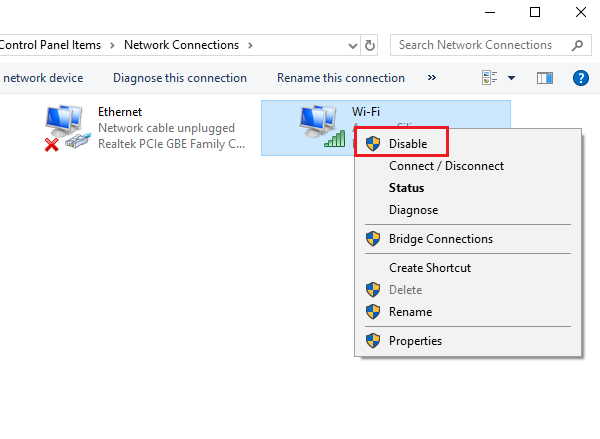
Check if it helps resolve the issue or move to the next solution.
3] Create the AppReadiness folder
1] Go to C:Windows, where C: is the system drive.
2] Right-click anywhere in the open space and select New > Folder.
3] Name the new folder AppReadiness.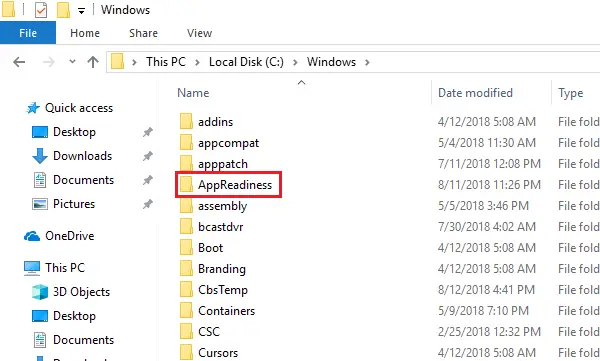
4] Open the folder and make sure the path to the folder should be C:WindowsAppReadiness where C: is the system drive.
Windows Store will save data in this folder. When it was absent, the Store iss unable to create it on its own, an issue which has been corrected now.
4] Allow the Store access to the Packages folder
This error also occurs when the AppReadiness folder is created, but the Windows Store does not have enough permissions to write to the Packages folder there.
1] The Packages folder is located on the path: C:ProgramDataMicrosoftWindowsAppRepository. This path might have a few hidden folders. In case you are unable to find them, go to the View tab and check Hidden items.
2] Making changes to the AppReadiness folder needs Administrator permissions. Right-click on the folder and select Properties.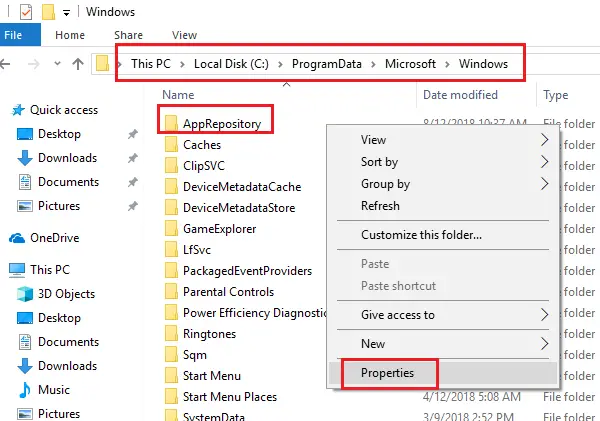
3] In the Security tab, click Advanced and then Continue.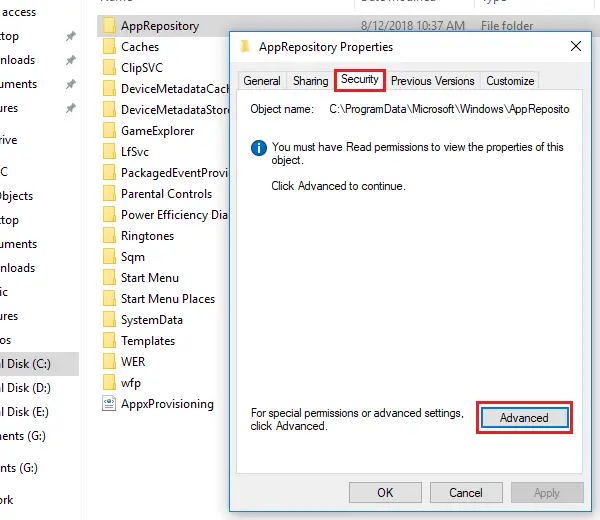
4] Allow full access to SYSTEM.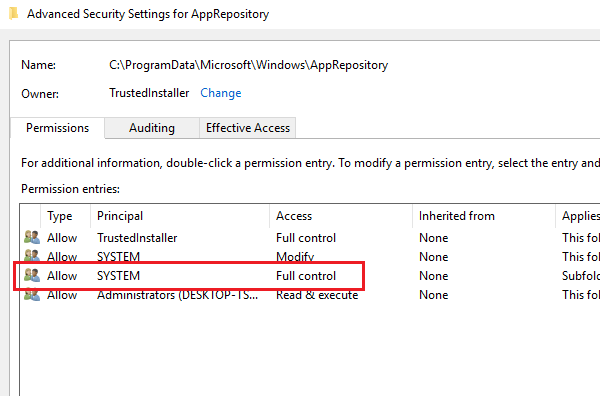
5] Click on Apply and then OK to save the settings and restart the system.
More suggestions here – Error 0x80073cf9 while installing Apps from Windows Store.
Hope this helps!

Karan Khanna is a passionate Windows user who loves troubleshooting Windows 11/10 problems in specific and writing about Microsoft technologies in general.
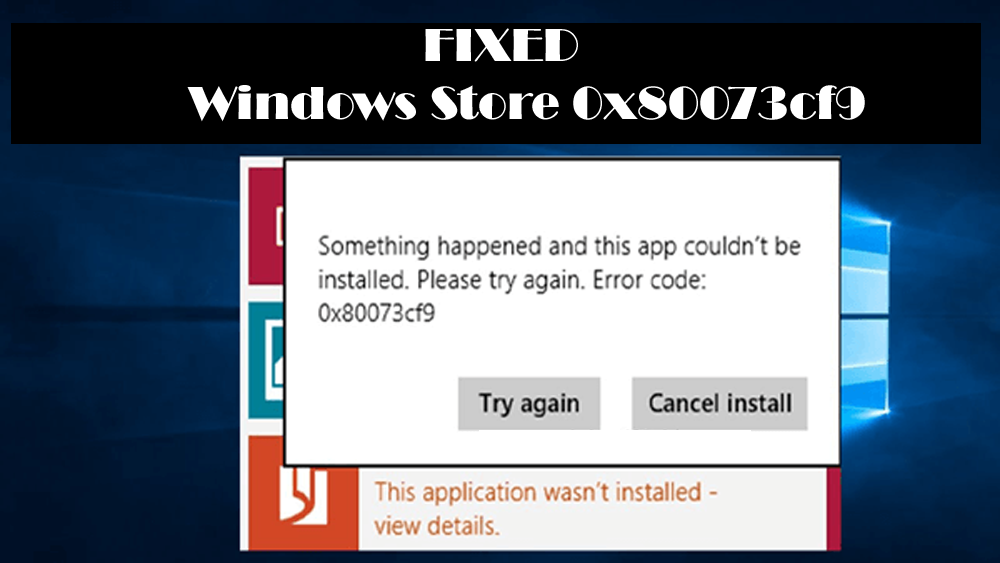
Are you unable to install an app from Windows store? Is your Windows store showing you the below error?
Something happened and this app couldn’t be installed. Please try again. Error code: 0x80073cf9
If your answer is YES and you have encountered this error message then you must fix this error 0x80073cf9 soon to start installing the apps again
Basically when you get this error, it means that it blocks the users from installing then applications from Windows 10.
This irritating error can be fixed by applying some tricks that given in this article, but it is recommended to create a System Image Backup in Windows 10. This will help you to deal with any other issue that generates while applying the given solutions.
Go through this article and perform the methods to solve the Windows store 0x80073cf9 and run the application without any hassle.
In order to solve the error 0x80073cf9 in Windows store, go though the fixes mentioned below, get rid of this error and install the apps from Windows store without any further error.
Method #1: Try Deleting OLE Folder from the Registry
Deleting the OLE folder from the registry had also helped some users in solving the error 0x80073cf9 from Windows.
Here are the steps to delete OLE folder but before that make sure you take the backup of your Windows registry before deleting any key or folder.
- Press Windows + R key
- Type regedit and hit the enter key
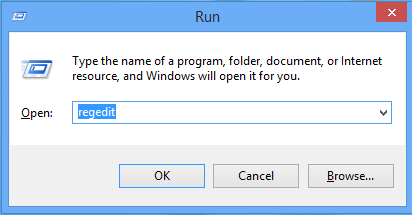
- Navigate: HKEY_CURRENT_USERSoftwareMicrosoft
- Look for OLE folder, make a backup and delete it
After deleting the folder, restart your PC and open the Windows store and see if the 0x80073cf9 Windows store got fixed or not.
Method #2: Create AUInstallAgent Folder
Creating AUInstallAgent folder in Windows can help you overcome the 0x80073cf9 Microsoft store error.
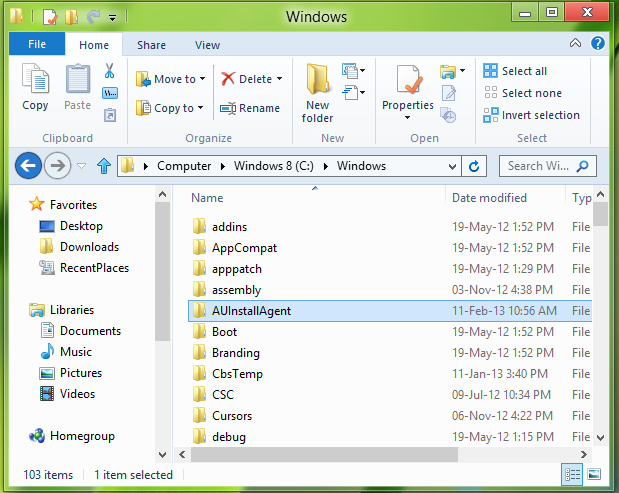
First of all, navigate to C:Windows folder and see if the AUInstallAgent directory is there or not.
If the folder is not present then you have to recreate it and then try to check for the error. Follow the steps to proceed further:
- Click on This PC
- Select local Disk (C:) and select Windows
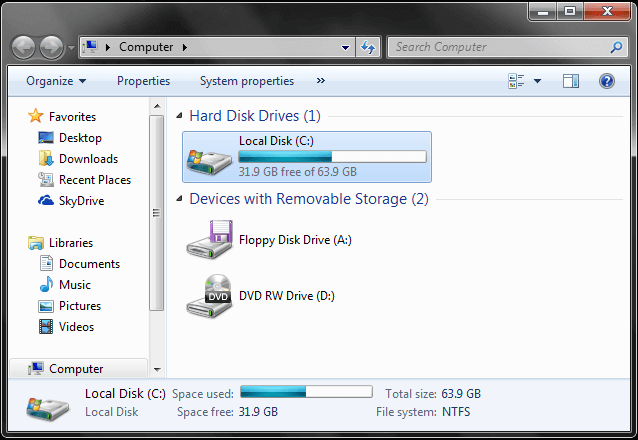
- Right-click on the blank space
- Click on New and select folder
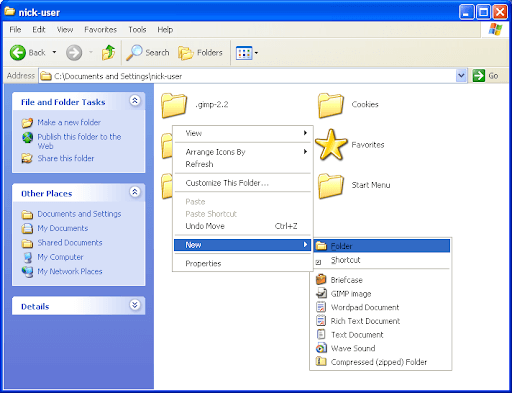
- Now, after you prompted by User Account Control, just click Yes.
- And then give that folder a name ‘AUInstallAgent’.
- Now simply reboot Windows 10 and then go to the Windows App Store so that you can install the app again and check if it is successful or not.
Also check for a folder “AppReadiness” is present inside C:Windows or not, if not then create it and leave it empty.
If you are unable to repair “Something happened and this app couldn’t be installed Error Code 0x80073cf9” on your Windows 10 or 8 system with the above-given tricks then don’t worry because below some more methods are given to deal with this issue with ease.
Method #3: Try To Re-Register Windows Store Apps
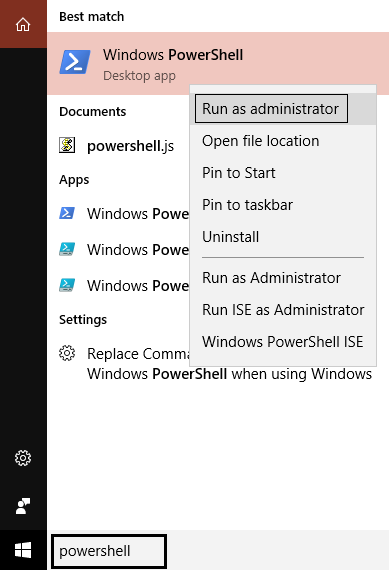
Re-registering the Windows store app might help you in overcoming the Windows store error 0x80073cf9. follow the steps given-below to re-register the Windows Store app:
- Press Windows + Q -> type PowerShell and choose Windows PowerShell from the displayed search results. Run Windows PowerShell with administrator privilege.
- In the PowerShell window, type below-given command and press Enter key then:
Get-AppXPackage | Foreach {Add-AppxPackage -DisableDevelopmentMode -Register “$($_.InstallLocation)AppXManifest.xml”}
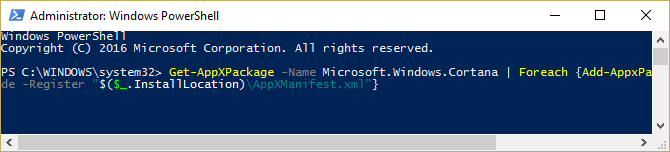
- After the competition of above-given command close Windows PowerShell and restart your system.
Now, try to launch the Windows store and see if the error 0x80073cf9 is solved or not.
Method #4: Try To Reset Windows Store Cache with WSReset.exe
Here is another method that will solve the 0x80073cf9 Windows Store, try to reset Windows Store cache with WSReset.exe and make Windows store error-free.
Follow the steps to reset Windows Store:
- Navigate to the Start Screen or the Windows Modern UI screen
- Type WSReset.exe

- Run this as administrator
- Windows Store will open automatically and you’ll get a confirmation message: “The cache for the Store was cleared. You can now browse the Store for apps”.

Now, try to install or update the apps and see if it is working without the error code: 0x80073cf9 or not, it is hoped that the above-given tricks or methods will solve the issue with ease.
Method #5: Perform system file checker
Sometimes it happens that due to missing or corrupted system file the 0x80073cf9 Windows store can appear on Windows screen. Therefore, it suggested to run an SFC scan to fix this error and repair the corrupt files.
Follow the steps to perform an SFC scan:
- Press the Windows icon
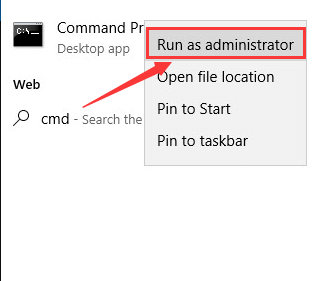
- Type cmd, right-click on the result and select run as administrator
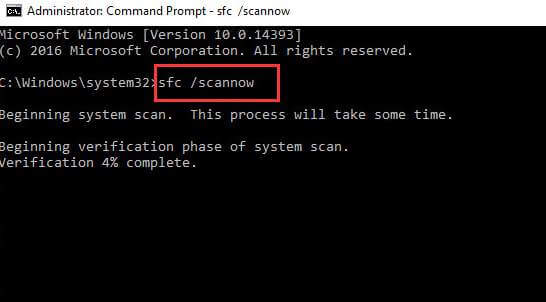
- In the command prompt window, type sfc/scannow and hit the enter key
Wait for a couple of minutes for the scanning process to get completed and then restart your PC
Now, open Windows store and try to install an app and see if the error code: 0x80073cf9 still persists or not.
Method #6: Disable Your Antivirus
If you are running an antivirus on your system then you have to disable it and then check your apps if the apps are installing correctly afterward or not.
If the apps are installing correctly then it is definitely related to your antivirus because it blocks the installation process of the apps.
Method #7: Turn Off Your Firewall
Sometimes apart from the above issues, your firewall may trigger the most annoying error called Microsoft Store error 0x80073cf9.
And as a result, you have to disable it at any cost and this is the only safest and the quickest solution you can try at that time.
After you disable the firewall then you can again download and install the app that can trigger initially this error code and you can then re-enable the firewall.
Method #8: Run Windows Store Troubleshooter
After trying the above solutions, if you still find that the 0x80073cf9 Microsoft store then try to run Windows built-in troubleshooter. If you run troubleshooter then you can repair general technical issues that affect your Windows Store Apps.
However, if you want to launch it then you can follow the below steps:
- Press Windows icon
- Go to Settings
- Click on Update & Security
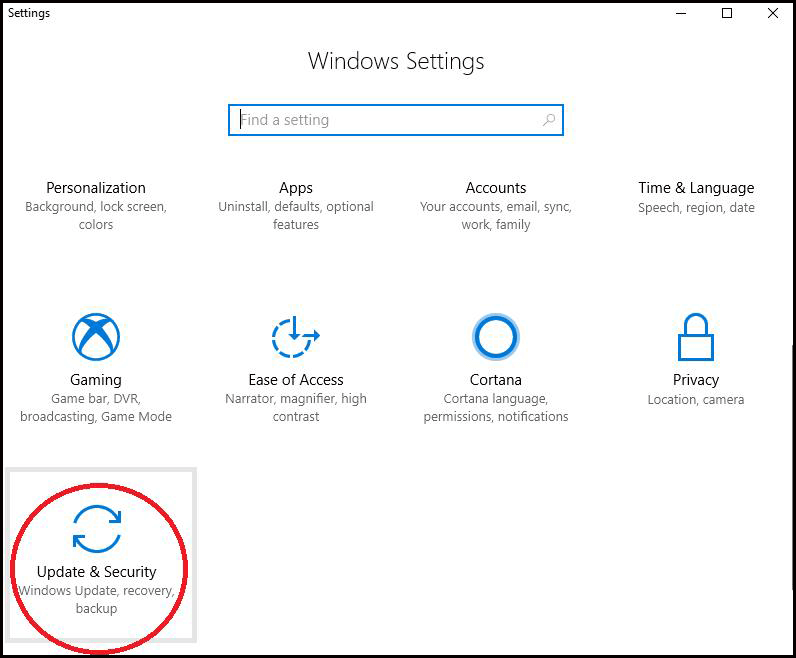
- Select Troubleshooter
- Look for Windows Store Apps
- Click on Run the Troubleshooter

- Now, wait for the troubleshooting process to get completed and after that restart your Windows.
Try to launch the Windows Store and check whether the 0x80073cf9 Windows Store error is fixed or not.
Method #9: Use System Restore
You can also use System Restore to solve this app couldn’t be installed Error 0x80073cf9. System restore will revert back your PC to the previous state and fixing the issue.
Perform system restore by following the below-mentioned steps:
- You can press and hold the buttons “Windows” and “X” together.
- After this, you will be required to left-click on the feature “System” showed on the screen.
- Now after opening the “System Control Panel”, left-click on the feature called “System Protection” you have already on that window.
- Now you can left-click or even tap on the button “System Restore”.
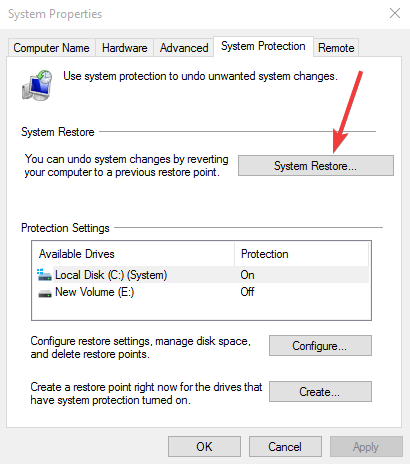
- After this, you will be required to follow the instructions on the screen and then select the restore point seen previously in order to bring the system settings back to know how they were looking before you got this error.
Best & Easy Solution to Fix Windows Store 0x80073cf9
The methods stated above will surely work in solving the error code: 0x80073cf9 from Windows. If you are a non-technical person and find difficulty in performing the manuals then here is an easy solution for you.
Try the PC Repair Tool. This tool will not only solves the Microsoft store error 0x80073cf9 but also other Windows errors such as DLL, update, registry, application, game, BSOD and prevent viruses, repairs damaged system files and many other things.
You just have to download this tool and rest of the work will be done automatically without any hassle
Get PC Repair Tool to Fix Windows Store 0x80073cf9
Conclusion
You may encounter the Error code: 0x80073cf9 While Installing Apps from Windows Store in Windows 10 & 8. However, you can solve this error with the help of the above-mentioned methods in this article one after the other.
In case none of them work in fixing the error 0x80073cf9, then go with the easy solution provided above and get rid of this error.
It is expected that your problem is resolved with the help of this article. If you have any queries then you can write to us by visiting our FB page and don’t forget to give a big thumbs up.

Hardeep has always been a Windows lover ever since she got her hands on her first Windows XP PC. She has always been enthusiastic about technological stuff, especially Artificial Intelligence (AI) computing. Before joining PC Error Fix, she worked as a freelancer and worked on numerous technical projects.
Содержание
- 1 Восстановление поврежденных системных файлов
- 2 Способ 1: создать папку AppReadiness
- 3 Способ 2: переключиться с беспроводного на проводное соединение
- 4 Способ 3: предоставить доступ Store к папке Packages
- 5 Способ 4: создание новой учетной записи Microsoft
ошибка 0x80073CF9 является серьезной ошибкой, обычно возникающей в обновлениях Магазина Windows при сбое. Магазин Windows — это способ установки и обновления программ (называемых «приложениями») на компьютерах с Windows 8 и 10. Через Windows Store можно получить как платные, так и бесплатные приложения, всего их 699 000.

В некоторых случаях при попытке загрузить или обновить приложение через Магазин Windows возникает ошибка 0x80073CF9, которая останавливает все дальнейшие загрузки и обновления приложений. Чтобы устранить эту ошибку, следуйте приведенному ниже методу.
Восстановление поврежденных системных файлов
Загрузите и запустите Reimage Plus для сканирования поврежденных файлов из Вот, если обнаружены, что файлы повреждены и отсутствуют, восстановите их с помощью Reimage Plus в дополнение к выполнению описанных ниже методов.
Способ 1: создать папку AppReadiness
Перейдите в раздел, где установлена Windows (C: по умолчанию) и откройте папку Windows или удерживайте Ключ Windows а также Нажмите R. Тип C: Windows и нажмите Хорошо. Здесь создайте новую папку, щелкнув правой кнопкой мыши и выбрав новый, и нажав скоросшиватель. Назовите папку AppReadiness. Окончательный путь к папке должен быть «C: Windows AppReadiness». Магазин Windows должен теперь работать должным образом.
Способ 2: переключиться с беспроводного на проводное соединение
В некоторых случаях Магазин выдаст ошибку, если вы используете WiFi. В этом случае попробуйте переключиться на проводное подключение, подключив кабель Ethernet к устройству и маршрутизатору, через который вы получаете подключение к Интернету.
Как только он подключен, удерживайте Ключ Windows а также Нажмите R. Тип ncpa.cpl и нажмите Хорошо. Щелкните правой кнопкой мыши беспроводной адаптер и выберите «Отключить», попробуйте обновления / загрузки — если он работает, снова щелкните правой кнопкой мыши беспроводной адаптер, чтобы включить его, а затем отсоедините кабель Ethernet.
Способ 3: предоставить доступ Store к папке Packages
Эта ошибка иногда возникает, когда Магазин не может записать какие-либо данные в пакеты папка, которая находится внутри C: ProgramData Microsoft Windows AppRepository папка.
Во-первых, убедитесь, что вы можете просматривать скрытые папки и файлы, перейдя Начните > Панель управления > Внешний вид и Персонализация > Свойства папки > Посмотреть > Расширенные настройки > нажмите «Показать скрытые файлы, папки и диски»> Нажмите Хорошо.
Правый клик AppRepository и выберите Свойства. Нажмите Безопасность -> продвинутый -> Продолжить и разрешить полный доступ к системе ВСЕ ПРИКЛАДНЫЕ ПАКЕТЫ и СИСТЕМА.
Способ 4: создание новой учетной записи Microsoft
Возможно, используемая учетная запись Microsoft препятствует нормальной работе Магазина Windows и других стандартных приложений Microsoft. Поэтому на этом этапе мы будем создавать новую учетную запись Microsoft. Для этого:
- Нажмите на «Стартовое меню»И выберите«настройки» значок.
- Внутри настроек, нажмите на «Счета».
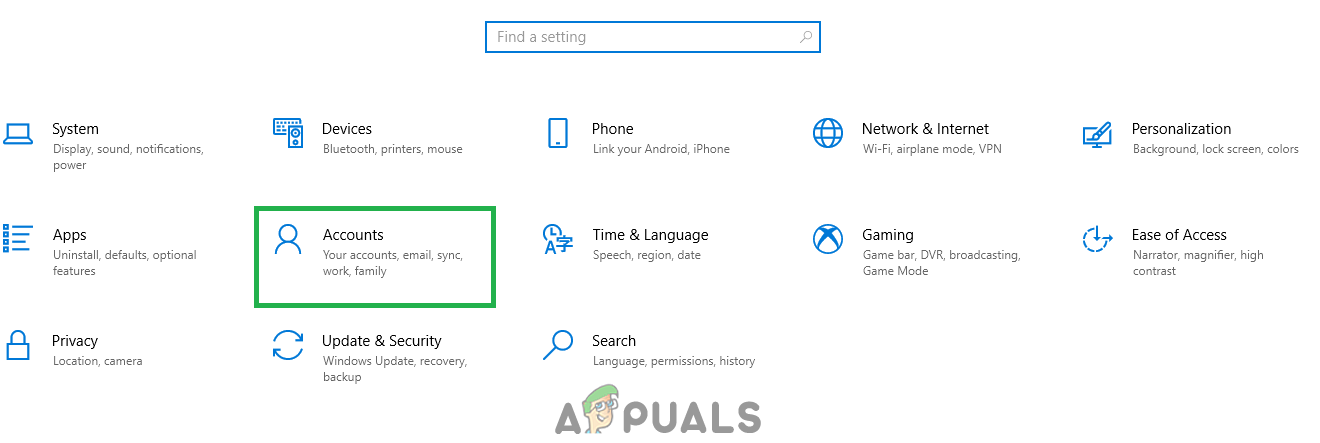 Выбор «Аккаунтов» в настройках
 - Выбрать «семья Другие люди» от оставил панель и щелчок на «Добавить кого-то еще на этот компьютер«.
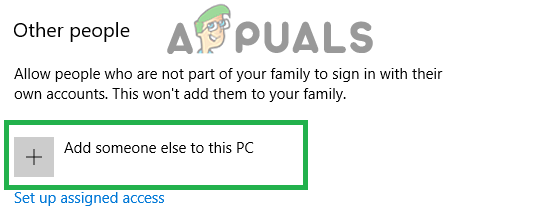 Нажав на «Семья» Другие люди »и выбрав« Добавить кого-то еще на этот компьютер »
 - Нажмите на «У меня нет информации о входе этого человека»И выберите«Добавить пользователя без учетной записи MicrosoftНастройки.
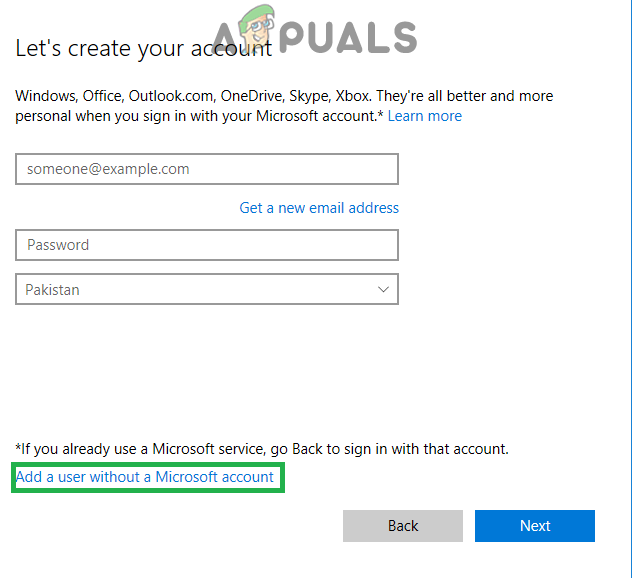 Нажав на кнопку «Добавить без учетной записи Microsoft»
 - Войти полномочия для учетной записи, которую вы хотите создать и щелчок на «следующий«.
- Как только учетная запись создана, щелчок на учетная запись и выберите «+ Изменить учетная запись тип» Вариант.
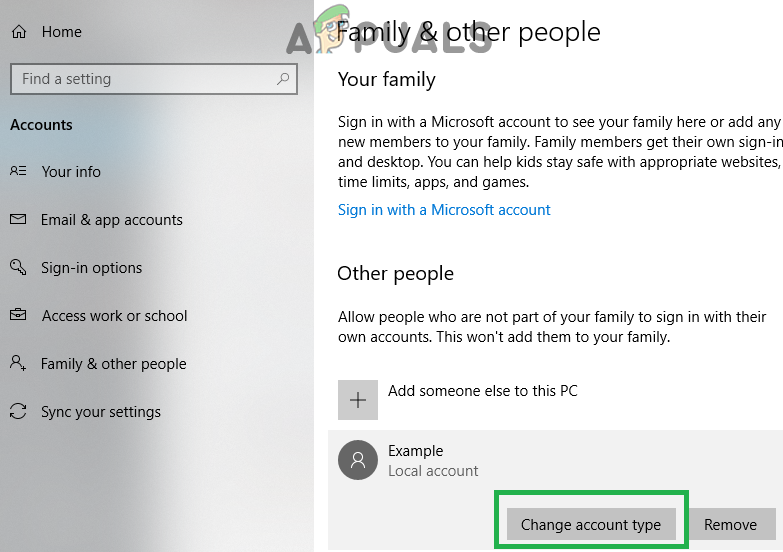 Нажав на «Изменить тип учетной записи».
 - Нажмите на падать и выберите «администраторИз вариантов.
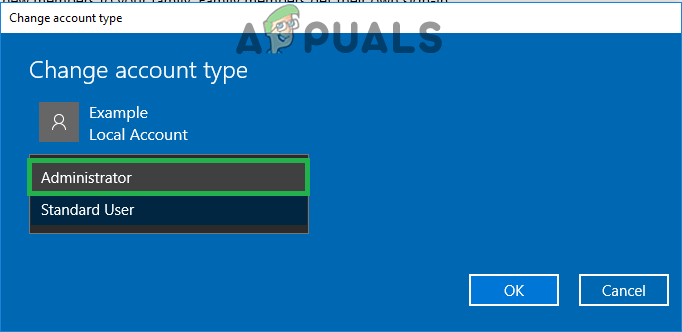 Выбор «Администратор» из списка
 - Нажмите на «Хорошо» а также знак вне ток учетная запись.
- Войдите в новый учетная запись, бежать приложение и проверять чтобы увидеть, если проблема не устранена.