You are here means you are facing “ora-01033 oracle initialization or shutdown in progress” error while trying to login into the Oracle database. A few days ago I faced the same issue and here are the steps that I have followed to troubleshoot which helped me login into the database successfully.
This article will help you understand the error message, possible causes, and their solutions. So without wasting time, let’s start digging into the error message.
What does “ora-01033 oracle initialization or shutdown in progress” error mean?
The error message is very clear and explains that the Oracle initialization or shutdown process is in progress, hence we cannot perform any other action on the database till initialization/shutdown is in progress. After completion of either initialization or shutdown, you will be able to perform the required action on the database.
There are following five reasons that may result in the error message and the steps you need to follow in order to fix the error.
1. The database is in the middle of starting or shutdown process
Reason:
If you have just started or shut down the database and executed a new command then you may end up receiving “ora-01033 oracle initialization or shutdown in progress” error message as already some process is going on and you are trying to execute a new command.
Solution:
Wait for the process to complete. Sometimes starting or shutdown down the database may take some time due to system performance or some processes are used in another application. If you still facing the same error after some time, then check out the below point.
2. An issue with the database services
Reason:
There may be some issues with the database services. Either database services are stopped or getting issues while starting. Many users have observed that they faced an issue while starting the database service due to updated security settings. Due to security settings, users may face port or access-related issues.
Solution:
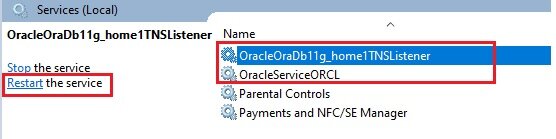
Restart the database services. Check if database services are up and running. There is a possibility of the database service got hung and in that case, restarting the Oracle services will solve the issue. Here are the steps to do so.
- Got to search bar, type Services and select Services app.
- Restart Oracle Service and then Oracle Listener Service as shown below.
3. Forced shutdown or incomplete shutdown of database
Reason:
When you execute a command to shut down the database, database software internally executes some stepwise procedures to shut down the database. And it may take a few minutes. If you forcefully close the database service or shut down the system due to a power cut issue in between the database shutdown process then it may result in a complete shutdown of the database. Which can cause the above error message while login into the database again.
Solution:
Shut down and start the database. If there is any issue during the shutdown and startup process then try shutting down the database forcefully and start again using the below steps.
- Open command prompt and log in as sysdba using the following command
sqlplus / as sysdba - Enter the following command to forcefully shutdown database
shutdown abort; - Execute the below command to startup the database again
startup;
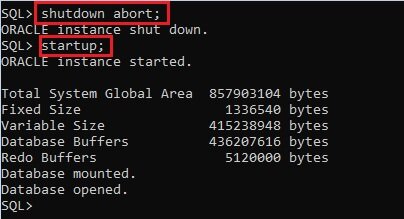
Now try to login into the database and you should be able to log in without any error message. If you are still getting the error then try the next step.
4. The database is not mounted or opened
Reason:
If the database is not mounted properly, while starting the database then it can result in the error message “ora-01033 oracle initialization or shutdown in progress“. If the database is mounted then it’s available for the database administrators only. Normal users can’t access a database that is mounted but not opened.
Solution:
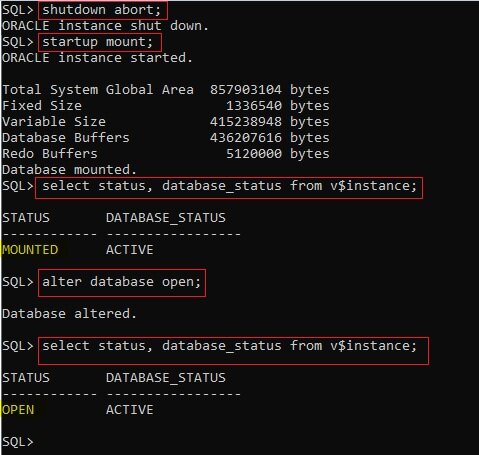
Try to mount and open the database using the following steps and it should fix the error.
If the database is mounted but not open then you may end up getting the error as well. To check whether the database is MOUNTED or OPEN or neither of those, you can execute points #4 and #6 to understand the current status.
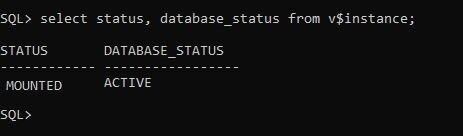
Note: If STATUS is MOUNTED then it means the database is mounted but not opened.
- Open command prompt and log in to database as sysdba.
sqlplus / as sysdba - Forcefully shutdown database.
shutdown abort; - Mount the database.
startup mount; - Check whether the database is mounted or not.
select status, database_status from v$instance; - Open the database.
alter database open; - Check whether the database is open or not.
select status, database_status from v$instance;
5. Corrupted database files
Some intentional or unintentional invalid activity may damage some database files. If DBF, CTL, or ORA files are corrupted then it can cause the error “ora-01033 oracle initialization or shutdown in progress”.
If all the above steps do not work and you are still getting the same error message, then uninstall the database software and install it again. Before uninstalling the DB, make sure you take a backup of the data.
Create a new database instance and try to import the previous database files if you have taken the backup of the running instance.
Note: It’s highly recommended to take a backup of the database from time to time. If you come across such issues where it cannot be resolved, then restoring the DB to a previous stage is easy or else you will end up losing all the data.
Final thoughts:
We hope you are able to get rid of the “ora-01033 oracle initialization or shutdown in progress” error using the above steps. Let us know in the comments which steps helped you fix the error. If you are still having challenges, do mention them in the comment section and we would be happy to help you.
Read also:
How to use Column Mode Editing in Notepad++
Introduction
Before starting the topic, first I want to explain why this started up or shutdown error occurs. Sometimes while making the clone of production database into a test server this type of error may be encountered.So there are the following major reasons why ORA-01033 error occurs:
- The ORA-01033 error also happens when you have leftover RAM regions held by the OS that makes Oracle think that an instance is already running.
- The ORA-01033 error also happens when the database is not open.
- The ORA-01033: ORACLE initialization or shutdown in progress error can also happen when Oracle is attempting startup or shutdown and is «hanging» on a resource such as a failed disk, writing to redo, etc.

To fix this error follow the bellow steps,
Step 1
Open command prompt and give the command,
- sqlplus / as sysdba

When you hit the ENTER key, it shows it’s connected to Oracle 12c.

Step 2
To check the connection name, use the following command,
- show con_name;

When you hit the ENTER key, It shows connection CDB$ROOT (container Database Selected from root).
Step 3
Check the schema name and connection id using the below command–
- select name,con_id from v$pdbs;

When you hit the ENTER key, it shows the name of schema object with respect to their id’s.

Note that, in PDB$SEED the ‘SEED’ is template, used to create a new pluggable database within the container database (CDB).
Step 4
Now, select name of pluggable database from active services whose connection id=3, by using the following command –
- select name from v$active_services where con_id=3;

When you hit the ENTER key, It shows the name ‘pdborcl’.

Step 5
Now, close the command prompt and follow the below procedure.
- Open the ‘app’ folder which is created, while installing the oracle 12c.
- After opening the ‘app’ folder open the ‘DB user folder’. The ‘DB user folder’ is that folder, whose name you assigned by your own, while installing oracle 12c. In my case it is ‘sanghdeep’.
- After this, you see the same folder. From those folders, open the ‘product’ folder.

- After opening the ‘product’ folder, open the ‘12.1.0’ folder. It varies from your Oracle DB version.
- After opening the ‘12.1.0’ folder, open the ‘dbhome_1’ folder.
- The ‘dbhome_1’ folder contains many different types of folders, from those folders you should open the ‘ NETWORK ‘ folder.

- After opening the ‘NETWORK’ folder, open the ‘ADMIN’ folder.

- After opening the ‘ADMIN’ folder, open the ‘ tnsnames.ora’ file in any text editor.

After opening the ‘ tnsnames.ora’ file in text editor, you see the following code.
- # tnsnames.ora Network Configuration File: E:appsanghdeepproduct12.1.0dbhome_1networkadmintnsnames.ora
- # Generated by Oracle configuration tools.
- LISTENER_ORCL = (
- ADDRESS = (PROTOCOL = TCP)(HOST = localhost)(PORT = 1521)
- ) ORACLR_CONNECTION_DATA = (
- DESCRIPTION = (
- ADDRESS_LIST = (
- ADDRESS = (PROTOCOL = IPC)(KEY = EXTPROC1521)
- )
- ) (
- CONNECT_DATA = (SID = CLRExtProc) (PRESENTATION = RO)
- )
- ) ORCL = (
- DESCRIPTION = (
- ADDRESS = (PROTOCOL = TCP)(HOST = localhost)(PORT = 1521)
- ) (
- CONNECT_DATA = (SERVER = DEDICATED) (SERVICE_NAME = orcl)
- )
- )
From the above code copy the last portion of the code i.e.:
- ORCL = (
- DESCRIPTION = (
- ADDRESS = (PROTOCOL = TCP)(HOST = localhost)(PORT = 1521)
- ) (
- CONNECT_DATA = (SERVER = DEDICATED) (SERVICE_NAME = orcl)
- )
- )
And paste it at the end of the whole code. Then, make the change into it as follows. After making the following changes save it.
- PDBORCL = (
- DESCRIPTION = (
- ADDRESS = (PROTOCOL = TCP)(HOST = localhost)(PORT = 1521)
- ) (
- CONNECT_DATA = (SERVER = DEDICATED) (SERVICE_NAME = pdborcl)
- )
- )
Finally ensure that your entire code will looks as follows. And close the ‘tnsnames.ora’ file and also close the ‘app’ folder.
- # tnsnames.ora Network Configuration File: E:appsanghdeepproduct12.1.0dbhome_1networkadmintnsnames.ora
- # Generated by Oracle configuration tools.
- LISTENER_ORCL = (
- ADDRESS = (PROTOCOL = TCP)(HOST = localhost)(PORT = 1521)
- ) ORACLR_CONNECTION_DATA = (
- DESCRIPTION = (
- ADDRESS_LIST = (
- ADDRESS = (PROTOCOL = IPC)(KEY = EXTPROC1521)
- )
- ) (
- CONNECT_DATA = (SID = CLRExtProc) (PRESENTATION = RO)
- )
- ) ORCL = (
- DESCRIPTION = (
- ADDRESS = (PROTOCOL = TCP)(HOST = localhost)(PORT = 1521)
- ) (
- CONNECT_DATA = (SERVER = DEDICATED) (SERVICE_NAME = orcl)
- )
- ) PDBORCL = (
- DESCRIPTION = (
- ADDRESS = (PROTOCOL = TCP)(HOST = localhost)(PORT = 1521)
- ) (
- CONNECT_DATA = (SERVER = DEDICATED) (SERVICE_NAME = pdborcl)
- )
- )
Step 6
Open the command prompt as ‘administrator’ and give the following command.
- lsnrctl reload

When you hit the ENTER key, it shows a description about connection.

Step 7
Now, give the command,
- sqlplus / as sysdba

When you hit the ENTER key, it shows a description about connection.

Step 8
To alter the session from container database to pluggable database give the command-
- alter session set container=pdborcl;

When you hit the ENTER key, it shows session altered.

Step 9
To check if the session is altered from CDB$ROOT to PDBORCL use the following command-
- show con_name;

When you hit the ENTER key, It shows connection name as ‘PDBORCL’.

Step 10
Now check the connection mode, give the following command-
- select name,open_mode from v$pdbs;

When you hit the ENTER key, It shows connection mode is ‘OPEN_MODE’ but pluggable database is ‘MOUNTED’

Step 11
Now, alter the pluggable database to change the open mode from ‘MOUNTED’ to ‘READ WRITE’, by using the command-
- alter pluggable database open;

Step 12
To ensure the ‘OPEN_MODE’ of pluggable database is changed from ‘MOUNTED’ to ‘READ WRITE’, once again use the command-
- select name,open_mode from v$pdbs;
When you hit the Enter key, ‘OPEN_MODE’ is ‘READ WRITE’.

Step 13
Now the pluggable database is altered and the open mode is also changed as ‘READ WRITE’. So we can unlock the HR Schema. To unlock the HR schema use the following command,
- alter user HR identified by HR account unlock;
When you hit the Enter key, then HR schema will unlock and it shows user altered.

Step 14
To connect with the pluggable database using HR schema use the following command-
- conn HR/HR @pdborcl;
When you hit the Enter key, it shows as connected.

Step 15
- show user;
When you hit the Enter key, it shows USER is “HR”.

In this way, we successfully fix the ORA-01033 error, to unlock th HR schema object. Now we can connect with pluggable database using HR user. Open the SQL developer tool and enter username as ‘HR’ and password is also ‘HR’ and click on ‘OK’ button.

Now you see that, the ORA-01033 error is successfully fixed and we successfully connected with pluggable database using HR schema object/HR user.

Summary
In this article we learned about how to fix the start up or shutdown error (ORA — 01033 error).
Introduction
Before starting the topic, first I want to explain why this started up or shutdown error occurs. Sometimes while making the clone of production database into a test server this type of error may be encountered.So there are the following major reasons why ORA-01033 error occurs:
- The ORA-01033 error also happens when you have leftover RAM regions held by the OS that makes Oracle think that an instance is already running.
- The ORA-01033 error also happens when the database is not open.
- The ORA-01033: ORACLE initialization or shutdown in progress error can also happen when Oracle is attempting startup or shutdown and is «hanging» on a resource such as a failed disk, writing to redo, etc.
To fix this error follow the bellow steps,
Step 1
Open command prompt and give the command,
- sqlplus / as sysdba
When you hit the ENTER key, it shows it’s connected to Oracle 12c.
Step 2
To check the connection name, use the following command,
- show con_name;
When you hit the ENTER key, It shows connection CDB$ROOT (container Database Selected from root).
Step 3
Check the schema name and connection id using the below command–
- select name,con_id from v$pdbs;
When you hit the ENTER key, it shows the name of schema object with respect to their id’s.
Note that, in PDB$SEED the ‘SEED’ is template, used to create a new pluggable database within the container database (CDB).
Step 4
Now, select name of pluggable database from active services whose connection id=3, by using the following command –
- select name from v$active_services where con_id=3;
When you hit the ENTER key, It shows the name ‘pdborcl’.
Step 5
Now, close the command prompt and follow the below procedure.
- Open the ‘app’ folder which is created, while installing the oracle 12c.
- After opening the ‘app’ folder open the ‘DB user folder’. The ‘DB user folder’ is that folder, whose name you assigned by your own, while installing oracle 12c. In my case it is ‘sanghdeep’.
- After this, you see the same folder. From those folders, open the ‘product’ folder.
- After opening the ‘product’ folder, open the ‘12.1.0’ folder. It varies from your Oracle DB version.
- After opening the ‘12.1.0’ folder, open the ‘dbhome_1’ folder.
- The ‘dbhome_1’ folder contains many different types of folders, from those folders you should open the ‘ NETWORK ‘ folder.
- After opening the ‘NETWORK’ folder, open the ‘ADMIN’ folder.
- After opening the ‘ADMIN’ folder, open the ‘ tnsnames.ora’ file in any text editor.
After opening the ‘ tnsnames.ora’ file in text editor, you see the following code.
- # tnsnames.ora Network Configuration File: E:appsanghdeepproduct12.1.0dbhome_1networkadmintnsnames.ora
- # Generated by Oracle configuration tools.
- LISTENER_ORCL = (
- ADDRESS = (PROTOCOL = TCP)(HOST = localhost)(PORT = 1521)
- ) ORACLR_CONNECTION_DATA = (
- DESCRIPTION = (
- ADDRESS_LIST = (
- ADDRESS = (PROTOCOL = IPC)(KEY = EXTPROC1521)
- )
- ) (
- CONNECT_DATA = (SID = CLRExtProc) (PRESENTATION = RO)
- )
- ) ORCL = (
- DESCRIPTION = (
- ADDRESS = (PROTOCOL = TCP)(HOST = localhost)(PORT = 1521)
- ) (
- CONNECT_DATA = (SERVER = DEDICATED) (SERVICE_NAME = orcl)
- )
- )
From the above code copy the last portion of the code i.e.:
- ORCL = (
- DESCRIPTION = (
- ADDRESS = (PROTOCOL = TCP)(HOST = localhost)(PORT = 1521)
- ) (
- CONNECT_DATA = (SERVER = DEDICATED) (SERVICE_NAME = orcl)
- )
- )
And paste it at the end of the whole code. Then, make the change into it as follows. After making the following changes save it.
- PDBORCL = (
- DESCRIPTION = (
- ADDRESS = (PROTOCOL = TCP)(HOST = localhost)(PORT = 1521)
- ) (
- CONNECT_DATA = (SERVER = DEDICATED) (SERVICE_NAME = pdborcl)
- )
- )
Finally ensure that your entire code will looks as follows. And close the ‘tnsnames.ora’ file and also close the ‘app’ folder.
- # tnsnames.ora Network Configuration File: E:appsanghdeepproduct12.1.0dbhome_1networkadmintnsnames.ora
- # Generated by Oracle configuration tools.
- LISTENER_ORCL = (
- ADDRESS = (PROTOCOL = TCP)(HOST = localhost)(PORT = 1521)
- ) ORACLR_CONNECTION_DATA = (
- DESCRIPTION = (
- ADDRESS_LIST = (
- ADDRESS = (PROTOCOL = IPC)(KEY = EXTPROC1521)
- )
- ) (
- CONNECT_DATA = (SID = CLRExtProc) (PRESENTATION = RO)
- )
- ) ORCL = (
- DESCRIPTION = (
- ADDRESS = (PROTOCOL = TCP)(HOST = localhost)(PORT = 1521)
- ) (
- CONNECT_DATA = (SERVER = DEDICATED) (SERVICE_NAME = orcl)
- )
- ) PDBORCL = (
- DESCRIPTION = (
- ADDRESS = (PROTOCOL = TCP)(HOST = localhost)(PORT = 1521)
- ) (
- CONNECT_DATA = (SERVER = DEDICATED) (SERVICE_NAME = pdborcl)
- )
- )
Step 6
Open the command prompt as ‘administrator’ and give the following command.
- lsnrctl reload
When you hit the ENTER key, it shows a description about connection.
Step 7
Now, give the command,
- sqlplus / as sysdba
When you hit the ENTER key, it shows a description about connection.
Step 8
To alter the session from container database to pluggable database give the command-
- alter session set container=pdborcl;
When you hit the ENTER key, it shows session altered.
Step 9
To check if the session is altered from CDB$ROOT to PDBORCL use the following command-
- show con_name;
When you hit the ENTER key, It shows connection name as ‘PDBORCL’.
Step 10
Now check the connection mode, give the following command-
- select name,open_mode from v$pdbs;
When you hit the ENTER key, It shows connection mode is ‘OPEN_MODE’ but pluggable database is ‘MOUNTED’
Step 11
Now, alter the pluggable database to change the open mode from ‘MOUNTED’ to ‘READ WRITE’, by using the command-
- alter pluggable database open;
Step 12
To ensure the ‘OPEN_MODE’ of pluggable database is changed from ‘MOUNTED’ to ‘READ WRITE’, once again use the command-
- select name,open_mode from v$pdbs;
When you hit the Enter key, ‘OPEN_MODE’ is ‘READ WRITE’.
Step 13
Now the pluggable database is altered and the open mode is also changed as ‘READ WRITE’. So we can unlock the HR Schema. To unlock the HR schema use the following command,
- alter user HR identified by HR account unlock;
When you hit the Enter key, then HR schema will unlock and it shows user altered.
Step 14
To connect with the pluggable database using HR schema use the following command-
- conn HR/HR @pdborcl;
When you hit the Enter key, it shows as connected.
Step 15
- show user;
When you hit the Enter key, it shows USER is “HR”.
In this way, we successfully fix the ORA-01033 error, to unlock th HR schema object. Now we can connect with pluggable database using HR user. Open the SQL developer tool and enter username as ‘HR’ and password is also ‘HR’ and click on ‘OK’ button.
Now you see that, the ORA-01033 error is successfully fixed and we successfully connected with pluggable database using HR schema object/HR user.
Summary
In this article we learned about how to fix the start up or shutdown error (ORA — 01033 error).
Summary: in this tutorial, you will learn how to fix the ORACLE initialization or shutdown in progress error when you connect to the Oracle Database.
Sometimes, you may encounter the following error when you connect to an Oracle pluggable database in Oracle Database 12c:
Code language: SQL (Structured Query Language) (sql)
An error was encountered performing the requested operation: ORA-01033: ORACLE initialization or shutdown in progress 01033. 00000 - "ORACLE initialization or shutdown in progress" *Cause: An attempt was made to log on while Oracle is being started up or shutdown. *Action: Wait a few minutes. Then retry the operation. Vendor code 1033
To fix this issue, you use the follwing steps:
First, launch the SQL*Plus program and login to the database instance as a SYSDBA user:
Code language: SQL (Structured Query Language) (sql)
Enter user-name: ot@pdborcl as sysdba Enter password: <password>
This statement connected to the PDBORCL database using the OT user.
Second, issue the following statement to check the status of the current instance:
Code language: SQL (Structured Query Language) (sql)
SQL> select status, database_status from v$instance; STATUS DATABASE_STATUS ------------ ----------------- MOUNTED ACTIVE
The output showed that the instance status is mounted.
Third, change the state of the Oracle Database instance to OPEN:
Code language: SQL (Structured Query Language) (sql)
SQL> alter database open; Database altered.
For more information on the Oracle Database stages, check it out the Startup Oracle Database instance tutorial.
Finally, double check the database status by using the following statement:
select status, database_status from v$instance; STATUS DATABASE_STATUS ------------ ----------------- OPEN ACTIVECode language: SQL (Structured Query Language) (sql)
The instance status is open and available to all users for normal operations.
Now, you should be able to connect to the OT pluggable database without any issue.
Was this tutorial helpful?
Я только что пошел на работу этим утром, и клиент позвонил, чтобы сказать, что к системе нельзя получить доступ, и имя пользователя и номер пользователя не могут быть загружены! Когда я услышал этот вопрос, первым делом я подумал, был ли сервер перезапущен, почему не были запущены связанные службы базы данных Oracle, и когда я проверил эти службы, я обнаружил, что связанные службы были запущены. Вторая идея — проверить, был ли изменен файл конфигурации программы и нет ли исключений. Третья — подключиться к базе данных Oracle с использованием PL / SQL. После ввода имени пользователя и пароля отображается следующая ошибка: ora-01033: выполняется инициализация или завершение работы oracle или завершение работы ;
После поиска по Интернету я наконец нашел несколько решений с подробными шагами, а именно:
Первое решение:
Первый шаг — запустить cmd.
 Первый шаг, sqlplus / NOLOG
Шаг 2: SQL> подключите sys / change_on_install как sysdba
Совет: успешный
Третий шаг, SQL> выключение нормальное
Советы:база данныхБаза данных была закрыта. База данных была выгружена. Процедура ORACLE была закрыта.
Шаг 4: SQL> монтирование при запуске
Шаг 5: SQL> изменить базу данных;
Советы: (Я не столкнулся со следующей ошибкой посадки во время работы)
Ошибка в строке 1: ORA-01157: невозможно идентифицировать / заблокировать файл данных. 19 — см. Файл трассировки DBWR.
ORA-01110: файл данных 19: « » C: oracle oradata oradb FYGL.ORA »
Этот раздел файла подсказки немного отличается в зависимости от ситуации каждого человека.
Продолжайте вводить шестой шаг: SQL> изменить файл базы данных 19 автономный сброс;
Шаг 7. Повторяйте шаги 5 и 6, пока не появится подсказка «База данных изменилась».
Продолжайте набирать shutdown normal, загрузочное монтирование в порядке

Я проверил это снова и обнаружил, что это все еще не решило мою проблему;
Второй метод:
После остановки связанных служб Oracle, после перезапуска я обнаружил, что могу войти в систему в обычном режиме.
Оригинальная ссылка:https://www.cnblogs.com/wangsaiming/p/3688141.html
You will see this error very often during data guard setup, the main reason for this error is the password files are not copied to from primary to standby.
ORA-01033: ORACLE initialization or shutdown in progress.
Cause: An attempt was made to log on while Oracle is being started up or shutdown.
Action: Wait a few minutes. Then retry the operation
If you don’t have any password file then create one using below command on primary and copy to standby node.
$orapwd file=orapwDG password=xxxxxx
In case of RAC, the password file might be on Primary cluster DB which was stored in ASM, but on standby you have copied the password file to $ORACLE_HOME/dbs
Run below commands to on both primary and standby
For ex:- On Primary
$ srvctl config database -d DG
Database unique name: DG
Database name: DG
Oracle home: /home/oracle/product/12.2.0.1/dbhome_1
Oracle user: oracle
Spfile: +DISK1/DG/ parameterfile/spfileDG.ora
Password file: +DISK1/DG/ parameterfile/pwdDG
For ex:- On standby
$ srvctl config database -d DG_std
Database unique name: DG_std
Database name: DG
Oracle home: /home/oracle/product/12.2.0.1/dbhome_1
Oracle user: oracle
Spfile: +DISK1/DG/ parameterfile/spfileDG.ora
Password file: /home/oracle/product/12.2.0.1/dbhome_1/dbs/orapwDG
Also users see this error on normal database. There are many possible reasons for this error.
1. You may get this error if Database might not opened
2. Startup/shutdown is in the middle and hung up.
3. If you are trying to connect to wrong database
4. Database might be in down for recovery
Please make sure you check below
1. If the database is not opened then use command “alter database open” .
2. Check target DB is in the middle of startup or shutdown as system is very busy or has some issues. You need to verity alert.log to find out the real issue.
3. Verify all environment variable are set correct and In case if DB is down startup the database
4. In case if user doing recovery and not successful and below steps will help to recover the DB
SQL> startup mount
ORACLE Instance started
SQL> recover database
Media recovery complete
SQL> alter database open;
Database altered
Regards
Satishbabu Gunukula, Oracle ACE