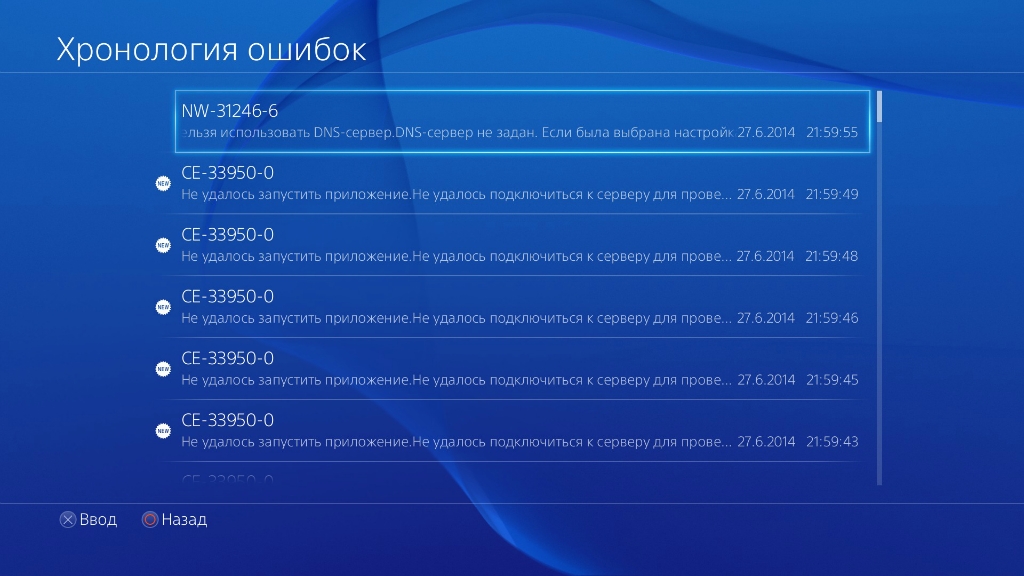
Игра на Playstation 4 является отличным способом на время убежать из реальности. Поэтому неудивительно, что внезапно возникающие проблемы портят настроение и сильно мешают при прохождении очередного уровня. Нередко о неприятности предупреждает сообщение на экране «ошибка NW-31246-6». Что это значит, и каким образом необходимо устранять данную задержку в досуге?
Причина появления ошибки
Справка! Все глюки, которые возникают на приставке, имеют группировку. По начальным буквам шифра можно сразу понять, какой формат проблемы предстоит решать. Например, NW (Network Library) – ошибки сетевой библиотеки, а 31246-6 – сбой параметров DNS сервера либо не заданные настройки.
Смысл DNS сервера заключается в том, чтобы заменять собой адресную книгу Интернета. Компьютер, который подключён к всемирной сети, получает личный идентификатор в виде цифрового значения – IP, а каждый сайт обладает собственным доменным именем. Его главная задача сводится к трансляции доменного имени в IP и обратный процесс. Порой в данной цепочке происходят сбои, вызванные следующими причинами:
- отсутствует подключение к Интернету;
- ошибочные настройки роутера или модема;
- некорректные данные брандмауэра;
- критическое состояние драйвера сетевой карты;
- заражение вирусом;
- технические работы у провайдера;
- проблемы программного обеспечения.
Внимание! К устранению неполадок стоит приступать, начиная с проверки элементарных настроек. Только в случае провала, нужно переходить к более сложным программным действиям.
Ошибки DNS могут возникнуть по вине Интернет-провайдера. Если все устройства работают в прежнем режиме, а ошибка появляется снова и снова лишь на одном компьютере, она напрямую связана именно с неправильной работой самой техники.
Как исправить ошибку
Вернуть прежнее состояние Playstation 4 необходимо как можно быстрее, поскольку ошибка NW-31246-6 может повлечь за собой целую цепочку аналогичных проблем в системе. За основу можно взять следующий алгоритм:
1. Отключите приставку и модем маршрутизатора минимум на 3 минуты и повторите соединение, чтобы обновить Интернет.
2. Зайдите в меню, выберите вкладку «Настройки]», оттуда перейдите в графу «Сеть» и нажмите на Проверить соединение с Интернетом».
3. Проверьте доступ Speedtest, используя смартфон или компьютер. Если скорость Интернета низкая, обратитесь к своему провайдеру или переместитесь в зону, где более сильный сигнал Wi-Fi.
4. Теперь подключите кабель Ethernet. Если он работает исправно, должны возникнуть проблемы с модулем.
5. Подключитесь к модему напрямую.
6. Убедитесь, что параметры «Основной DNS» и «Дополнительный DNS» заданы правильно, иначе система может не получить IP-адрес.
Важно! Если данная информация отсутствует, обратитесь к Интернет провайдеру за разъяснениями. Проблема может быть вызвана брандмауэром, ограничителем или родительским контролем.
7. Перезагрузите маршрутизатор и повторно настройте параметры сети Playstation 4.
8. Перейдите в «Просмотр соединения» и увеличьте свой IP-адрес за последние три цифры, чтобы избежать конфликта с другими устройствами.
9. Далее переключитесь на «Сеть», затем на «Настройка подключения к Интернету», после чего выберите форму WiFi или LAN Cable (смотря что используете).
10. Выберите графу «Пользовательский» и вручную введите IP-адрес, подсеть и шлюз, который можно скопировать ранее.
11. Если вдруг у вас нет DNS-сервера, используйте Google Public: первичный 8.8.8.8 и вторичный DNS: 8.8.4.4
12. Для установки MTU выберите автоматический режим и настройте на 1473, а в строчке выбора прокси-сервера значение «Не использовать».
Теперь повторно проверьте ваше соединение. Упомянутая проблема должна исчезнуть сразу после очередного включения приставки.
Код ошибки NW-31246-6 сам по себе не доставит проблем. Наоборот, он позволяет своевременно выявить изъяны в DNS сервере. Сами настройки могут занять много времени, особенно, если придётся консультироваться с провайдером. Но каждый пользователь может самостоятельно исправить данный сбой и далее играть на Playstation 4 сколько угодно.
NW-31246-6 — это очередная сетевая ошибка, которая периодически возникает при использовании различных функций PS4. К ошибке прикладывается сообщение, в котором утверждается, что «PS4 не удалось подключиться к сети из-за некорректных параметров DNS».
Причина появления ошибки NW-31246-6
Как правило, ошибка NW-31246-6 появляется из-за некорректных параметров DNS, которые были автоматически заданы программным обеспечением PS4. Почему такая ситуация возникает — непонятно. Скорее всего, виной тому какой-то специфический баг в ПО консоли либо неполадки на выбранном DNS-сервере.
Решение ошибки NW-31246-6 на PS4
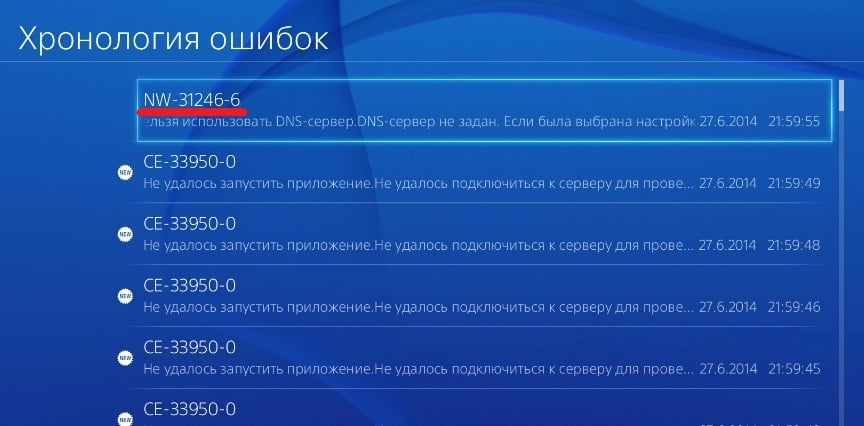
Как правило, избавиться от данной ошибки можно с помощью установки параметров DNS на консоли вручную. Не переживайте, с данной задачей сможет справиться даже зеленый новичок. Главное — делать все в точности с нашими указаниями, и у вас все получится.
- Откройте раздел «Настройки» на своей консоли;
- перейдите в подраздел «Сеть» и выберите пункт «Установить соединение с Интернетом»;
- выберите тип вашего подключения: «Wi-Fi» или «Кабель LAN» (важный выбор!);
- далее выберите пункт «Специальный» (и подключитесь к беспроводной сети, используя логин и пароль, если вы выбрали «Wi-Fi»);
- задайте следующий ряд настроек:
- Настройки IP-адреса — Автоматически;
- Имя хоста DHCP — Не указывать;
- Настройки DNS — Вручную;
- теперь важный момент: Основной DNS — 37.235.1.174, Дополнительный DNS — 37.235.1.177;
- продолжаем с сетевыми параметрами:
- Настройки MTU — Автоматически;
- Прокси-сервер — Не использовать.
На этом настройка DNS для сетевого подключения на PS4 заканчивается. Проверьте наличие ошибки NW-31246-6. Если вышеуказанное решение оказало неэффективным, рекомендуем обратиться к своему Интернет-провайдеру или в техническую поддержку PlayStation.
The NW-31246-6 error code is another networking error that can pop up from time to time on the PS4. A message usually comes up saying the PS4 cannot connect to the internet because the DNS settings are invalid.
The most common cause of this error is that the DNS Servers have not been specified in the connection settings. Entering them in manually (Google DNS 8.8.8.8 and 8.8.4.4) can often quickly solve this problem, and unplugging and resetting your PS4 and router for 15 minutes can also fix the error. Otherwise, reconfigure your entire connection as Automatic/Easy.
Lets look at the two main solutions in turn, followed by some other options to get rid of this error.
Solution #1 – Manually Configure Your DNS Servers
Looking through the forums where people have had trouble with this error code, this solution is the one that most commonly fixed it. The NW-31246-6 error code most often comes up because the DNS servers have not been configured, or entered incorrectly so the console cannot connect to the internet.
Fixing this is easy – you just need to go into your PS4’s internet settings and configure DNS! Here are the basic steps:
- Go to Settings…..Network…..Set Up Internet Connection
- Select Wi-Fi or LAN depending on your connection type
- Select Custom
- Run through all the settings as they are, without changing them, until you get to DNS Settings.
- For DNS, switch to Manual.
- Manually enter one of the following pairs of DNS servers in the Primary and Secondary boxes
-
- Google DNS – Primary 8.8.8.8 Secondary 8.8.4.4
- Cloudflare DNS – Primary 1.1.1.1 Secondary 1.0.0.1
- See also our Best DNS for Gaming article for more pairs of DNS servers you can use. Google DNS are the most common and usually the most effective, as they have servers all over the world.
-
- Save and test connection for see if it works. In most cases this should get you back online.
- See the video below for a demonstration of how to do it.
Solution #2 – Do a Quick and/or Hard Reset of Your Router & PS4
If your DNS settings have already been specified, or entering them does not get rid of this error message, than another method that some users have found to work is simply to do a hard reset of the PS4 and the router.
Firstly, try just a quick reset/restart of your PS4 and router, and then try configuring your internet connection as described above in solution 1 – run through everything as default, and then manually input your DNS servers. If this doesn’t work, then you can try a full reset of your console and router.
This means powering both of them fully off, unplugging them for 15 minutes before plugging them back in again. This can refresh and reset all the networking settings, like IP address/DNS servers, back to default, and sometimes restores the connection if it failed before.
Solution #3 – Resolving IP Address Errors
Some users report that they get IP address error codes (“couldn’t find an IP address/IP timeout”, or something similar), when trying to fix this error code. This is likely due to the network settings being incorrectly configured initially, or in the process of trying to manually set your DNS servers, you made a mistake somewhere and knocked your network settings off course.
One way of fixing this is the 15 minute reset mentioned above, as it resets all settings, including the IP address, to default and should allow you to get back online. However, for users who don’t want to do this, or aren’t able to because other people are using the internet, here’s another option:
If you suddenly start getting IP address errors, you need to make sure you run through the exact manual DNS setting steps detailed above without making any mistakes or selecting Custom for any settings you don’t need to. Remember, you go to Settings….Network….Set Up Internet Connection, then select your connection type (Wi-Fi or LAN), then Custom.
After this, you need to run through all the settings as they are without modifying any of them. Only switch to manual when you get to DNS Settings. Don’t select “manual” for, or alter, any other settings; just click through them as they are without scrolling up or down until you get to DNS. IP should be set to Automatic
If you’re 100% sure you’ve done all this correctly, and you’re still now getting IP address errors, or have just got completely lost in the Settings, then you’ll need to reconfigure your connection again, entirely as Automatic/Default/Easy Settings.
Here are the steps for this:
- Go to Settings…Network….Set Up Internet Connection.
- Select Wi-Fi or LAN depending on your connection type
- The embedded video above shows you how to get to this point.
- This time though, select Easy instead of Custom
- If on Wi-Fi, it may ask you to select your Wi-Fi network and/or enter your password. This is on the back of your router on a sticker.
- Click all the buttons as they are, without changing anything. It should all be automatic and easy.
- This should configure all your network settings as Default/Automatic, including the IP address, and should allow you to get back online.
- Test the internet connection to make sure it can find the IP address now.
- If, after doing this, your PS4 CAN find the IP address, but still gets a DNS or other error, then revert back to Solution #1, following the steps exactly as written down. Don’t manually customize any settings except DNS.
- If your connection test takes a very long time, or the speeds are very poor, see the next section for more tips.
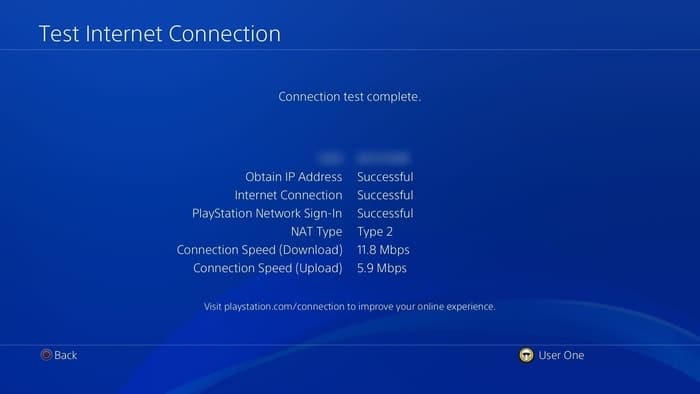
Obtain IP Address needs to be successful as a very first step. If it isn’t, reconfigure your connection as Easy/Auto
Solution #4 – Improve Your Connection
Another problem users seem to report when trying to fix this NW-31246-6 error is that when they’ve finished setting up the connection is instructed, Internet Connection tests either take too long, or don’t complete, or they even get an error message of “cannot connect within the time limit” or something similar.
If this is what’s happening with you, then the real issue is more likely a weak connection between your console and router, especially if using Wi-Fi.
You can try and move closer or move any obstructions out the way, but really the best way around this in general is to get off Wi-Fi altogether and just switch to a wired connection instead, as it will deliver a much better connection than Wi-Fi in almost all cases.
Click the links to view 10m and 20m ethernet/LAN cables on Amazon.
However, it’s true that running long cables through the house isn’t possible or practical for everyone, so an alternative option to get a wired connection to your router even when you’re a long way from it is to use a Powerline Adapter.
These are a kit of 2 adapters, one of which plugs in and connects to your router, the other of which plugs in and connects to your console. The two plugs then communicate through the existing house wiring to deliver a wired connection to your PS4, usually with much higher speeds and lower ping than if you are were to stay on Wi-Fi. There’s no need to run long cables through the house.
They can be a great way of bypassing Wi-Fi even if you are a long way from the router and keep getting these connection error messages, and using wired instead for a much more solid connection to your router.
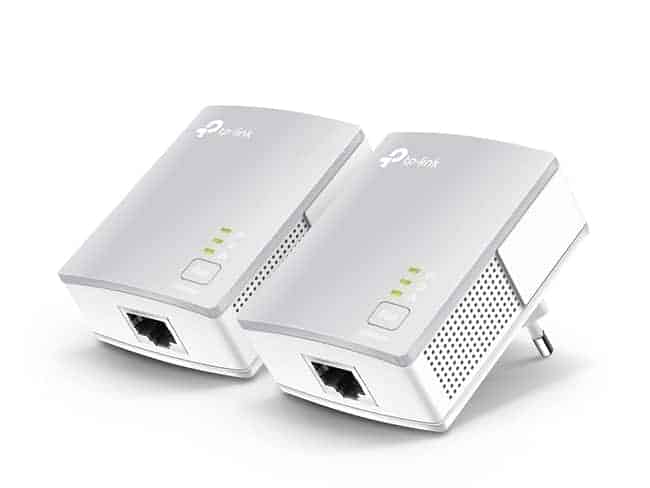
You can find links to the TP Link Nano Powerline adapter, pictured above, plus more advanced models, on our Powerline Adapters page.
If none of these methods are working to get you back online with this error code, then you are best contacting PlayStation Support for further advice.
note: This error is occoured due to invalid DNS settings

Error nw-31246-6 is another ps4 network error that appears on the ps4 if your DNS configuration is not done on the right way.
This Error nw-31246-6 appears on the screen when DNS settings are not valid so make sure to solve the ps4 DNS issue to fix the error nw-31246-6 to play the game on your console.
We are sharing all the possible options that might cause the error nw-31246-6 and now today we are going to solve the error with every possible solution.
Manually change DNS settings to fix the error nw-31246-6
Another ps4 dns error:
What you have to keep in mind is you have to provide the correct DNS to work correctly otherwise you will get error nw-31246-6.
Steps to fix the error NW-31246-6
- Step 1 : go to the Settings on the PS4 and click on that option

Now click on the Network option just above the sound and screen click on that.
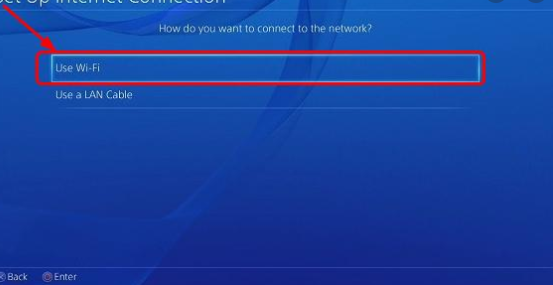
Now You have to choose the network connection option that you are using i recommend you use LAN for a better internet connection on the ps4.
Click on the WIFI option if you are connected from WIFI
Click on the LAN option if you are connected through the Cable
Now you have to choose IP address as Automatic.
Click on the Automatic MTU settings
Now we have to add manually the DNS server address there are primary DNS option and Secondary DNS

There are the lots of Free and paid DNS if you want to use Free DNS then we have a large number of Free DNS available we are going to provide some Free List of the DNS server list which can be used by you.
List of DNS server for Ps4
| DNS Provider | Primary DNS | Secondary DNS |
|---|---|---|
| Cloudflare | 1.1.1.1 | 1.0.0.1 |
| Comodo SecureDNS | 8.26.56.26 | 8.20.247.20 |
| DNSAdvantage | 156.154.70.1 | 156.154.71.1 |
| Dyn | 216.146.35.35 | 216.146.36.36 |
| FreeDNS | 37.235.1.174 | 37.235.1.177 |
| 8.8.8.8 | 8.8.4.4 | |
| Level 3 | 209.244.0.3 | 209.244.0.4 |
| OpenDNS | 208.67.220.220 | 208.67.222.222 |
| OpenNIC | 23.94.60.240 | 128.52.130.209 |
| Uncensored DNS | 91.239.100.100 | 89.233.43.71 |
| Verisign | 64.6.64.6 | 64.6.65.6 |
| Yandex | 77.88.8.8 | 77.88.8.1 |
Now use any above DNS on your ps4 and save the settings after this test your internet connection.

If your connection and setup are successful then you will see like above. Now try to run any application or games and check if the error is still or kicked out and finally this will fix the error on ps4 nw-31246-6.
If your problem is still not fixed then we have last but not the least weapon to fix the error nw-31246-6.
If you are still confused then read this article in details about the DNS and its configuration
Hard Reset router to fix the error nw-31246-6

Sometimes Due to the Changes in the Router configuration error code nw-31626-6 appears on the PS4 screen there are only the two chances for the error code 31626-6 that is Mis-configuration on the ps4 dns or the router.
The easy way to fix the router issue is to Hard reset the router.
How to hard reset the router to fix the error nw-31626-6
- Turn on the router and wait for 1 – 2 minutes for complete start of the router don’t make hurry
- There will be small button for the hard reset click on that button for 20- 30 seconds.
- Now your router will be off and on automatic and your router will be hard reset into default as it comes from the company.
- Now configure your router from the start.
- login to router and configure ssid password and connect to ps4.
- Now check if the error will be fixed on 99% cases this error solves
In this way we completely solve the error NW-31246-6.
Frequently Asked Questions
How to fix the error NW 31246 6?
To fix this error We have to change the DNS settings and Reset the router if needed. I recommend you to use the Google DNS for fast connection.
why error code nw 31246-6 appear
Sometimes due to the reconfiguration or inputting the wrong DNS throws the error code nw-31246-6 so be sure to input correct dns
Find out what is a DNS error on PS4 & how to fix it for good 🎮
by Vlad Turiceanu
Passionate about technology, Windows, and everything that has a power button, he spent most of his time developing new skills and learning more about the tech world. Coming… read more
Updated on January 13, 2023
Reviewed by
Alex Serban

After moving away from the corporate work-style, Alex has found rewards in a lifestyle of constant analysis, team coordination and pestering his colleagues. Holding an MCSA Windows Server… read more
- PS4 DNS errors appear when you have internet connectivity problems.
- You can repair connection issues in PS4 by configuring the DNS settings or resettings your system.
- Here’s how to fix DNS error PS4 NW-31253-4 and resume gaming at will.
- CPU, RAM and Network limiter with hot tab killer
- Integrated with Twitch, Discord, Instagram, Twitter and Messengers directly
- Built-in sound controls and custom music
- Custom color themes by Razer Chroma and force dark pages
- Free VPN and Ad blocker
- Download Opera GX
If you’re here, you’re most likely having issues with your DNS and your Playstation console. In case you’re wondering what is DNS on PS4. Now, DNS stands for Domain Name System, and it’s vital for mapping IP addresses to domain names.
If you try to connect to the Internet on a PS4 with incorrect DNS servers, you’re likely to get error messages, such as:
- DNS error NW-31253-4
- PS4 NW-31254-5
- PS4 DNS error NW-31251-2 – points to a similar network issue but not from your DNS configuration. Whenever you get this error, it means that your system cannot connect to WiFi.
- DNS error PS4 NW-31250-1
- DNS error PS4 NW-31247-7
The most common DNS error PS4 users encounter takes the form of the NW-31253-4 error code. However, users experiencing similar issues have also reported the following cases:
- A DNS server cannot be used
- A DNS error has occurred PS4 – Another possible variation of this issue is: a serious error has occurred on PS4.
- DNS server not responding PS4
- A DNS server is not set PS4
- DNS error PS5
- Pdanet PS4 DNS error
- PS4 download DNS error
- PS4 DNS error NW-33986-9, respectively CE-33986-9
Why does my PS4 say a DNS server cannot be used?
The reason for encountering these error messages is that you have misconfigured DNS settings. The consequence is grave enough to not be ignored.
With any of these errors from the NW-31253-4 error code and beyond, you won’t be able to make use of PlayStation’s online services. In this sense, it’s fair to say that error code NW-31253-4 is similar to Playstation’s network sign-in error.
So, what is a DNS error on PS4 exactly? It’s a connectivity error that can arise due to misconfigured DNS settings or when your network changes and the system attempts to map your old configuration to the new networking settings.
How do you fix a DNS error on PS4?
- Why does my PS4 say a DNS server cannot be used?
- How do you fix a DNS error on PS4?
- 1. Manually configure DNS settings on PS4
- 2. Reset your DNS settings on PS4
- 3. Disable the firewall and leave PS4 ports open
Before we dig here are a few preliminary checks for you to thick:
- ➡️ Restart both your PS4 console and your router. If needed, you can also factory reset your router to default values.
- ➡️ Check that your DNS settings are correct
- ➡️ Verify that there is no outage or maintenance intervention – scheduled or unscheduled – on your ISP’s side
1. Manually configure DNS settings on PS4
- Power on your PS4 and go to Settings.
- Navigate to Network and choose Set Up Internet Connection.
- Choose an internet connection type between Wi-Fi and LAN.
- Connect your router or ethernet cable.
- Click on Custom setup.
- Change the IP Address Settings to Automatic.
- Go to the DNS Settings and change it to Manual.
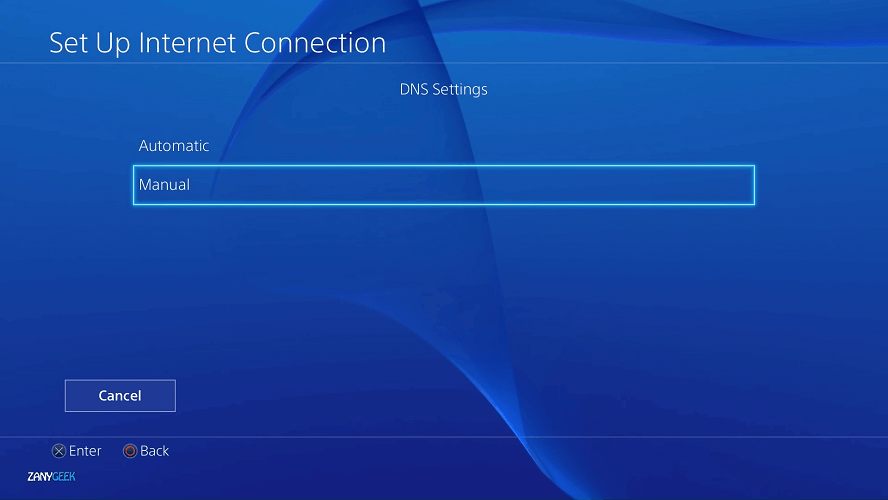
- Enter the address of the default Google DNS servers – Primary: 8.8.8.8 and Secondary: 8.8.4.4.
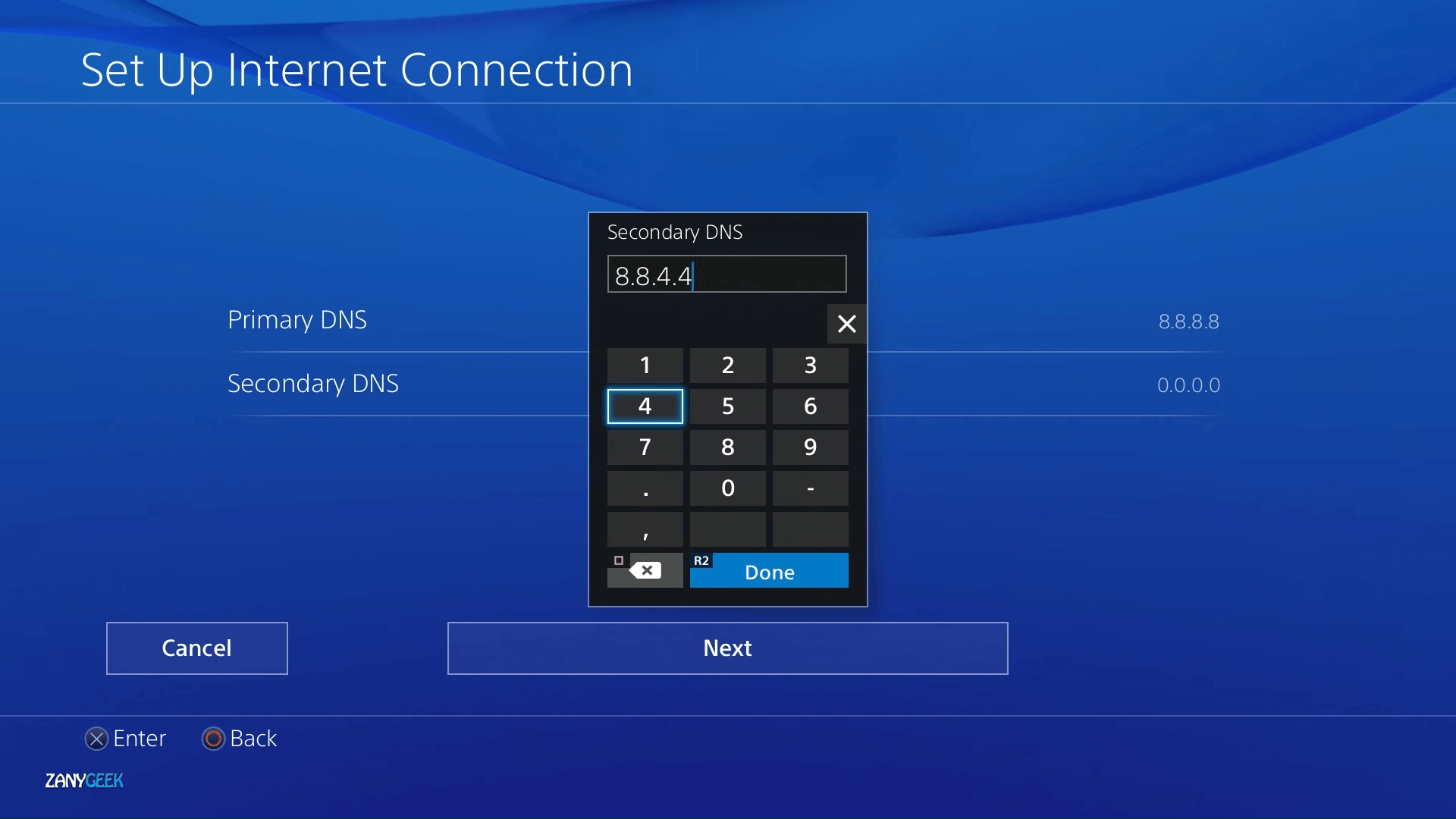
- Hit the Next button.
- Select Automatic.
- Choose the Do Not Use option in your proxy server.
Note: In Step 8, you can also use other DNS servers. For example, Open DNS – Primary: 208.67.222.222; Secondary: 208.67.220.220. Cloudflare DNS settings – Primary: 1.1.1.1, Secondary: 1.0.0.1.
Some PC issues are hard to tackle, especially when it comes to corrupted repositories or missing Windows files. If you are having troubles fixing an error, your system may be partially broken.
We recommend installing Restoro, a tool that will scan your machine and identify what the fault is.
Click here to download and start repairing.
If the DNS error PS4 still appears after configuring the correct DNS server settings, then you need to reset your network settings. Follow the guide below carefully.
2. Reset your DNS settings on PS4
- Turn off the PS4 console.
- Disconnect the system from power as well as your router.
- Leave it in this state for 4 minutes.
- Boot the PS4 into Safe Mode by pressing the Power button and holding it for 10 seconds.
- Connect your controller using a reliable USB cable.
- Click on Option 4 – Restore Default Settings.
How do you reset DNS settings on PS4? This method should do. Check if you’re still getting the NW-31253-4, NW-31254-5, NW-31250-1, and NW-31246-6 PS4 DNS errors.
Don’t worry, this method doesn’t delete your game data or media files. It only resets your console settings to their default values and fixes the PS4 DNS error stating that a DNS server cannot be used.
Manually configuring the DNS settings is PlayStation’s recommended fix for PS4 DNS errors. Therefore, changing your DNS settings after resetting your console is bound to get rid of the annoying errors.
- PlayStation 4 Error Codes CE-34878-0, CE 30005-8 [Full Fix]
- PS4 error codes SU-30746-0, SU-42118-6 [Solved]
- A Problem Occurred in Extended Storage on PS4 [Expert Fix]
- 3 Simple Ways to Fix PS4 System Software Update Error
- [FIX] Playstation 4 error NW-31473-8
3. Disable the firewall and leave PS4 ports open
- Open your router’s admin panel or online interface. (Usually, all it takes is entering your router’s IP address in the URL bar from your browser).
- Use your assigned credentials to log in.
- Locate the Firewall section and disable it. (Note that the name of this option can vary, according to your specific router model or brand).
- If you only need to open the PS4 ports, look for the ports option instead and forward them to the IP address corresponding to your PS4.
In order to obtain the IP address and other details that might come in handy such as DNS, subnet mask, and default Gateway:
- Open the Settings menu on your PS3.
- Go to Network.
- This time select View Connection Status instead of Set Up Internet Connection.

NOTE
These are the port numbers you need to open in order for the PSN servers to properly connect to the Internet:
➡️ TCP: 80, 443, 3478, 3479, 3480
➡️ UDP: 3478, 3479
Your PS4 requires specific ports in order to be able to properly communicate with dedicated servers from the PlayStation network.
If you own a router with a built-in firewall, the rules behind can end up blocking these ports and thus triggering the infamous DNS error PS4.
Apply the solutions above when your system shows you the PS4 system error saying that the DNS server cannot be used.
With working DNS servers, you’ll be able to access all your PlayStation internet services with no issues.

Newsletter
КатегорииHardware FAQ
Владельцы PlayStation 4 сталкиваются с различными проблемами, решить которые без гайда невозможно. Рассмотрим, как исправить ошибку DNS на PS4, которая может маркироваться одним из следующих сообщений – NW-31250-1, NW-31254-5, NW-31253-4.
Пошагово разберём причины, последствия и методы устранения.
Что означает NW-31253-4?
Возникает при входе в PSN, а порой и при загрузке игровых обновлений. Как правило, истинной причиной неполадки являются сбившиеся настройки в самой приставке, либо на маршрутизаторе. Соответственно, начните с перезагрузки консоли, а затем и своего домашнего модема.
Иногда нужно не перезагружать, а именно отключить консоль, отсоединив от неё провода и выждав минут 5-10. В редких случаях придётся перейти к шагу 3, на котором следует поменять DNS-адреса.
Какие DNS-адреса прописать на PS4:
- Основной DNS: 8.8.8.8;
- Дополнительный DNS: 8.8.4.4.

Соответствующий пункт располагается в разделе меню «Настройки», затем «Сеть», «Установить соединение с Инетом», «Использовать LAN/WiFi», «Специальный», «Авто», «Не выбирать», «Задать вручную». После всех манипуляций проверьте доступ к Интернету.
Как исправить ошибку NW-31250-1?
Напрямую не связана с пользовательским устройством, поскольку проблема кроется в серверах самой Sony. Перезагрузите гаджет, либо выждите какое-то время, пока работоспособность служб не будет устранена. Узнать текущий статус PSN можно по этой ссылке.
Что значит NW-31254-5?
Проблема заключается в нестабильном отклике или высоком пинге до принимающего гаджета. Иногда приставка коннектится не к ближайшему серверу японской корпорации, а к удалённому. Например, вы живёте в России, а подключение происходит к серверным системам в США. Результат – задержка в 300-500 мс и выше.
Инструкция аналогична описанной выше (замена адресов на гугловские). И убедитесь, что ваш провайдер не проводит технические работы.
Подписывайтесь на наши каналы в Яндекс.Дзене и на YouTube! Копирование текстов с сайта GameNewsBlog.ru запрещено. Комментарии закрыты ввиду невозможности их модерации.
