Как исправить ошибку 0x887A0006 при запуске игр на Windows?
Ошибка 0x887A0006 является типичной проблемой для многих геймеров на компьютерах с Windows. Интересный факт: наиболее часто с ней сталкиваются игроки Apex Legends. Однако появление подобного кода возможно и во многих других играх.
Как правило, с этой ошибкой приходится бороться владельцам видеокарт от Nvidia. В сообщении ошибки содержится следующая информация:
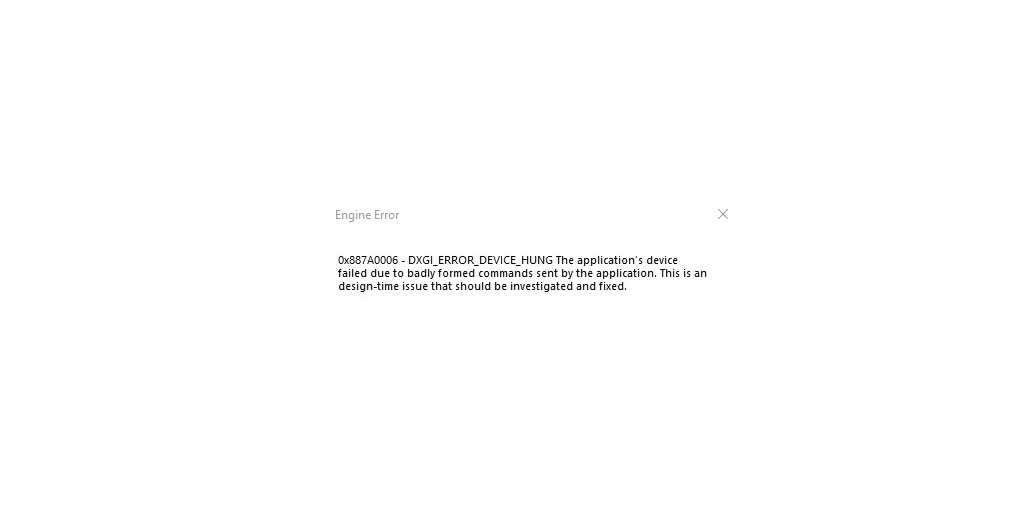
0x887A0006 – DXGI_ERROR_DEVICE_HUNG The application’s device failed due to badly formed commands sent by the application. This is an desing-time issue that should be investigated and fixed.
Проще говоря, система сообщаем, что ваша видеокарта работает не совсем корректно с запускаемым приложением. Ниже вы сможете найти причины ошибки 0x887A0006 и методы для ее решения.
Содержание
- Причины ошибки 0x887A0006
- Методы решения ошибки 0x887A0006
- Метод №1 Запуск лаунчера Origin от Администратора
- Метод №2 Модификация реестра (Apex Legends)
- Метод №3 Восстановление игры Origin
- Метод №4 Откат видеодрайвера
- Метод №5 Сброс разгона видеокарты
- Лаунчер Origin не имеет прав администратора.
- В реестре системы отсутствует определенный ключ.
- Поврежденные файлы игры.
- Нестабильные бета-драйвер видеокарты.
- Нестабильный разгон видеокарты.
Методы решения ошибки 0x887A0006
Метод №1 Запуск лаунчера Origin от Администратора
Некоторые пользователи сообщили, что им удалось избавиться от ошибки 0x887A0006, запустив клиент лаунчера Origin от имени Администратора. Зайдите в корневую папку лаунчера и найдите исполнительный файл Origin.exe. Нажмите на него ПКМ и выберите «Запуск от имени администратора».
Проверяем, исчезла ли ошибка. Разумеется, подобное решение сработает только в том случае, если вы запускаете что-то из Origin, тем не менее мы рекомендуем запустить от админа и саму игрушку. Сделайте все точно также, как и показано выше, но только с исполнительным файлом (.exe) игры.
Оказывается, конкретно эта ошибка может быть вызвана конфликтом между недавно выпущенными драйверами для видеокарты и движком Apex Legends. Не хотите делать откат видеодрайвера? Тогда вам потребуется немного «пошаманить» в редакторе реестра Windows.
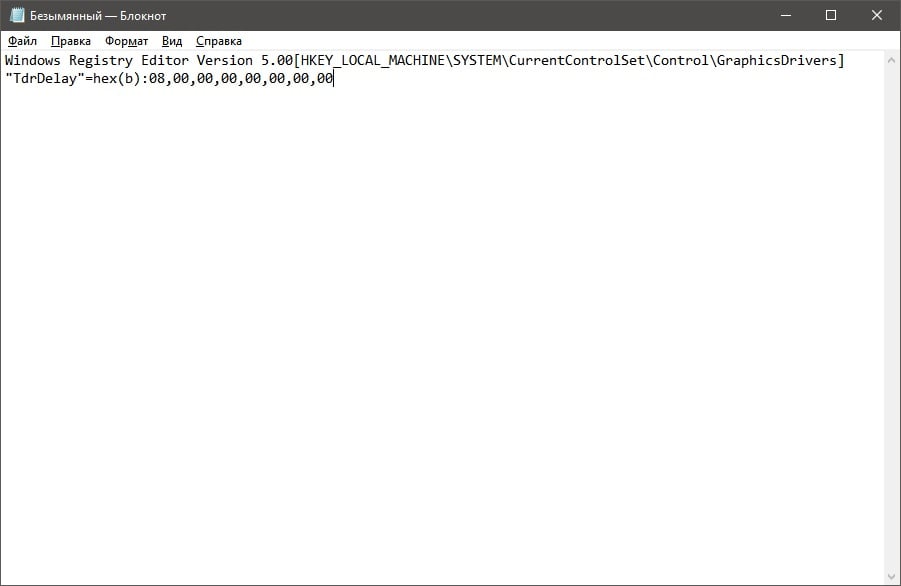
Нажмите на клавиатуре Windows+R, чтобы вызвать перед собой окошко «Выполнить». Далее пропишите в пустой строчке окна notepad и нажмите Enter. Оказавшись в Блокноте, вставьте в него следующие значения:
- Windows Registry Editor Version 5.00
[HKEY_LOCAL_MACHINESYSTEMCurrentControlSetControlGraphicsDrivers]
“TdrDelay”=hex(b):08,00,00,00,00,00,00,00
Если же у вас на компьютере стоит все еще 32-битная Windows, то вставьте в Блокнот эти значения:
- Windows Registry Editor Version 5.00
[HKEY_LOCAL_MACHINESYSTEMCurrentControlSetControlGraphicsDrivers]
“TdrDelay”=dword:00000008
Теперь нажмите на пункт «Файл» в строке меню и выберите «Сохранить как…». Назвать файл можно как угодно — это не имеет значения, но убедитесь, что его расширение было изменено с .txt на .reg.
Как только reg-файл будет создан, запустите его и подтвердите свои намерения в появившемся диалоговом окошке. После добавления ключей и значений в реестр системы перезагрузите компьютер и попытайтесь запустить Apex Legends. Ошибка 0x887A0006 не должна вас больше беспокоить.
Метод №3 Восстановление игры Origin
Возможно, файлы запускаемой вами игры в Origin были каким-то образом повреждены. В таком случае вам необходимо воспользоваться функцией восстановления. Откройте лаунчер Origin и перейдите в свою библиотеку игр.
Кликните на значок нужной вам игрушки ПКМ и выберите опцию «Восстановить». Теперь вам следует просто ожидать завершения процесса восстановления, что может занять около часа-полтора, в зависимости от железа вашего компьютера.
Метод №4 Откат видеодрайвера
Еще один довольно эффективный метод — отказ драйвера для графического ускорителя. Возможно, новая версия драйвера крайне нестабильно работает с запускаемой вами игрой. Итак, нажмите Windows+R, после чего пропишите devmgmt.msc и нажмите Enter. Открыв перед собой Диспетчер устройств, раскройте раздел «Видеоадаптеры».
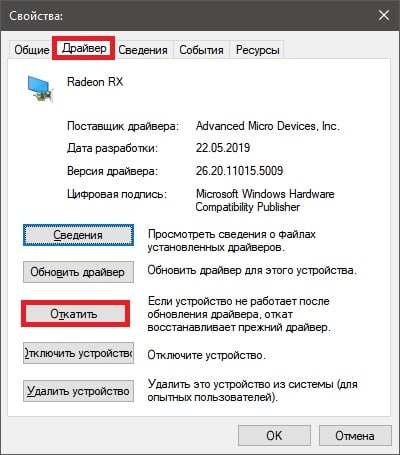
Нажмите ПКМ на свою видеокарту и перейдите в свойства устройства. Теперь переключитесь на вкладку «Драйвер» и нажмите на кнопку «Откатить». Далее просто следуйте инструкциям на экране для отката видеодрайвера к предыдущей версии. Проверьте, исчезла ли ошибка 0x887A0006.
Метод №5 Сброс разгона видеокарты
У некоторых пользователей ошибка 0x887A0006 возникла из-за не самого удачного разгона своей видеокарты. Они просто сбросили значение частот на базовый уровень — и проблема была разрешена. Перед появлением проблемы пытались немного подразогнать свою видеокарту? Сбросьте разгон и ошибка 0x887A0006 должна исчезнуть.
Продукт: Apex Legends
Платформа:PC
Укажите, на какой платформе вы играете. ПК
Номер модели видеокарты AMD или Nvidia GTX 1080
Укажите объем памяти в Гб 16 ГБ
Какой у вас тег игрока/PSN ID/учетная запись EA? Killingus1337
Укажите свой Тег игрока/PSN ID/Учетную запись EA Killingus1337
Вы используете дополнительное программное обеспечение с функцией Оверлей? Да
Если да, укажите, пожалуйста, какое. GeForce Expirience
Если вы отключаете данное программное обеспечение, что-нибудь изменяется? Нет
Какой Легендой вы играли? Лайфлайн, Бладхаунд, Рейф, Мираж
Какими Легендами играли ваши напарники по отряду? Неважно
Где возникла проблема? Во время матча
В какой части карты или меню вы находились? Если не помните точное название, опишите местность или свои действия в меню На всей карте или в любой момент в меню
Что происходило в момент возникновения ошибки? Например: использовали умение или определенное оружие, ваш напарник покинул игру и т.д. Нахождение в главном меню, падение из корабля, во время боя, вне него, а также загрузка
Испытали ли ваши напарники такую же ошибку? Нет
Сколько матчей вы сыграли на момент появления ошибки 216 часов в игре
Когда произошла эта ошибка? (ДД/ММ/ГГГГ, часы и минуты) Начала появлятся около месяца назад (27.09.2020), но особенно часто стала появлятся в последнюю неделю. Часовой пояс — GMT+2
Как часто возникает ошибка? 50% — 99%
Насколько серьезной была ваша ошибка? Серьезно влияет на геймплей
Что происходит, когда возникает ошибка? Игра вылетает на рабочий стол и в окне выдает ошибку «0x887A0006 – DXGI_ERROR_DEVICE_HUNG The application’s device failed due to badly formed commands sent by the application. This is an desing-time issue that should be investigated and fixed.»
Что должно происходить? Ошибка не должна вылетать.
Шаги. Как нам воспроизвести данную ошибку? Не знаю, так как не имею понятия почему она происходит.
Я нашёл в интернете много способов решения этой проблемы, но ни один мне не помог. Каждый раз во время игры вылетает эта ошибка под номером «0x887A0006 «. Я пробовал переустанавливать драйвера видеокарты, переустанавливать игру, восстанавливать игру через origin, модифицировал реестр Windows сообщением «Windows Registry Editor Version 5.00 [HKEY_LOCAL_MACHINESYSTEMCurrentControlSetControlGraphicsDrivers] “TdrDelay”=hex(b):08,00,00,00,00,00,00,00» в .reg файле, а также запускал игру и ориджин от имени администратора — ошибка продолжает вылетать. Может ли кто-то помочь?
Уже делал этот пост раньше, но его посчитали спамом. Переписал второй раз.
When you try to run Marvel’s Avengers game, you may get an error message with an error code (0x997A0006: DXGI_ERROR_DEVICE_HUNG).
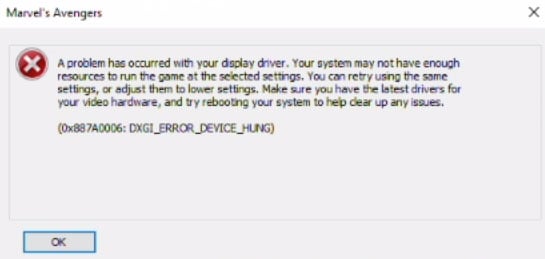
The error says: «A problem occurred with your display driver. Your system may not have enough resources to run the game at the selected settings. You can retry using the same settings, or adjust them to lower settings. Make sure you have the latest drivers for your video hardware, and try rebooting your system to help clear up any issues.
(0x997A0006: DXGI_ERROR_DEVICE_HUNG)»
How to fix DXGI_ERROR_DEVICE_HUNG error in Marvel’s Avengers
If you are facing this issue, don’t worry! It is possible to run the game properly by trying the possible solutions in this guide.
#1 SLI
This issue could occur if SLI mode is enabled. I was watching Lirik’s Marvel’s Avengers live stream on Twitch and he encountered the DXGI_ERROR_DEVICE_HUNG error. He solved the problem by disabling SLI mode in the Nvidia control panel. So if you have SLI you should try to disable it.
#2 GPU drivers
As the error message says, you must update the GPU driver. Maybe there is a bug in the Nvidia control panel so you should uninstall the driver using the DDU utility, then install the latest driver.
#3 Graphics settings
You can try to launch Marvel’s Avengers after lowering the graphics settings in the game’s launcher.
- Run the game
- Go to the Settings menu in the launcher
- On the «Display» tab, check the Fullscreen
- Set the Anti-Aliasing to Off
- On the «Graphics» tab, set the Preset to Lowest
- Make sure that all the options on the right are unchecked, then click the OK button.
- Now, click on the Play button.
And also, if your PC does not meet the minimum requirements, the game may crash and then you may encounter the DXGI_ERROR_DEVICE_HUNG error.
Minimum System Requirements for Marvel’s Avengers:
- OS: Windows 10 64-bit
- Processor: i3-4160 or AMD equivalent
- Memory: 8 GB RAM
- Graphics: NVIDIA GTX 950 / AMD 270 (min 2GB video ram)
- DirectX: Version 12
- Storage: 75 GB available space

Are you reading this article because you are bothered by 0x887a0006 DXGI_ERROR_DEVICE_HUNG?
If yes, this article comprises the answers to that question. So you may learn how to address the issue without worrying anymore.
0x887a0006 DXGI_ERROR_DEVICE_HUNG

In simplest terms, DXGI_ERROR_DEVICE_HUNG is a pretty common error related to DirectX in your Windows Operating System.
Well, this error can appear along with some other text. It may read, “Directx function “GetDeviceRemoveRreason” failed with DXGI_ERROR_DEVICE_HUNG.”
Otherwise, the same error can be displayed with the error code 0x887a0006. This specific error tends to appear particularly when you play games. Immediately after the appearance of this 0x887a0006 error, the respective game will crash.
And it is an annoying experience. But you shouldn’t worry – below are the solutions you can try.
PS: here are the top solutions to fix the HDMI port not working issue you should check out.
Solution 1: Update the Graphics Card Drives
Did you know that missing or outdated video card drivers can cause 0x887a0006 DXGI_ERROR_DEVICE_HUNG? The truth is that it is one of the major causes of this error.
So, if you experience DXGI_ERROR_DEVICE_HUNG upon launching a game, be sure that you check the graphics card’s drivers. You should immediately fix it if it is not up-to-date by downloading the latest, most appropriate drivers.
With that said, there are two main ways to update the graphics. They are; the manual method and the automatic method. In the below section, let’s take a look at both of those options and proceed.
● Manual Method
The manual method, of course, is pretty challenging and time-consuming compared to the automatic method. It best suits those with enough patience and experience in handling driver updates.
As per this method, you should visit the manufacturer’s official website and search for the respective driver. Then, download the driver and install it on the faulty computer where 0x887a0006 DXGI_ERROR_DEVICE_HUNG is present.
In this case, you should be very careful in choosing the correct driver from the correct website. Otherwise, you may download the old, wrong, or incompatible driver.
If not, you may even download malware mistakenly. That will only worsen the case. So, if you are a novice or don’t have enough time, just look for the automatic method.
● Automatic Method
Those with little or no time to waste can consider an automatic method the best. You will seek the assistance of a special Driver Easy tool in this method.
Driver Easy is a powerful tool that can recognize your system easily. It can find the correct drivers with ease from the official manufacturer. This tool will never leave any room for error in searching for drivers.
The best thing about this tool is that it automates the entire process. To download and install drivers, you can simply use a single-click operation. It doesn’t want you to know the technical specifications of the PC or the drivers.
When it comes to Driver Easy, it gives you two main options; the Free version and the Pro version. Even the free version lets you download drivers from official sites, but one by one.
On the other hand, the pro version downloads all the drivers at once with a single click. So you can decide which option to use.
Mentioned Below Are the Steps to Update Drivers Using Driver Easy.
- First, download Driver Easy on your PC and install it.
- You can launch Driver Easy to see its main interface. Then, click on the option called “Scan Now.” After that, Driver Easy will perform a scan of the PC. Then, it will look for potential errors related to drivers.

- Now, you should click on the option called “Update.” It is located next to the flagged graphics card. Driver Easy will download the correct, most recent version of the driver. Please note that even the free version of Driver Easy will do this.
- However, if you want to update all drivers at once, go for the Pro version. That will let you download and install drivers with a single-click operation. To do that, click on “Update All.”

- Once the update is done, restart the PC, and the changes will be applied.
Besides, if you wonder how to fix the blue screen dxgkrnl.sys error, this post will tell you what causes this issue and how you can resolve it.
Solution 2: If the CPU Is Overclocked, Stop It
Because of the increased CPU speed, your applications or games may crash. As a result, you may get a 0x887a0006 DXGI_ERROR_DEVICE_HUNG message.
So, if you have already overclocked the CPU, you will have to reduce the clock speed. If, on the other hand, you haven’t overclocked your CPU, you can skip this solution.
- First, you should perform a restart on your PC. You can then enter BIOS. That can be done by pressing the F2 or Delete keys. That should be done when your manufacturer’s logo appears on the screen.
- Now, select Advanced Chipset Features and go to CPU Multiplier. That appears in the drop-down menu.
- As the final step, enter the command Restore Default Settings into the text box.
- You can then press F10 to save the settings and exit BIOS.
Please remember that BIOS settings may vary from one system to another. So, you should read the instructions on the screen when proceeding.
Once you have done that, run the game again after restarting your computer, so it should work now. That means the 0x887a0006 issue is gone.
Solution 3: Update your PC’s DirectX
Well, 0x887a0006 DXGI_ERROR_DEVICE_HUNG occurs because of the result of the DirectX feature on your computer. Because of that, you can try to update DirectX and see if you can fix the 0x887a0006 error.
If you are unsure about doing it, please follow the steps below for guidance.
- First, you should launch DirectX Diagnostic Tool on your PC. You can do that by entering “dxdiag” in the Run window and pressing Enter to launch it.
Please note that you’ll see a confirmation dialog box when you open DirectX Diagnostic Tool for the first time. All you need is to say “Yes” to that.
- Now, in the System Information section of the System tab, you’ll see what DirectX version you are running.

If you have Windows 11/10/8/8.1, you can update your operating system to install the most recent DirectX version.
However, the approach differs for Windows 7, Vista, and XP. In that case, you can access the Microsoft website to obtain the necessary instructions.
Solution 4: Adding a Registry Key
- To open Search, press Windows + S on your keyboard. Then, in the search box, type registry and select Registry Editor APP from the results list.
- Navigation to the following location is required in this step. Graphics Drivers can be found under Computer > HKEY_LOCAL_MACHINE. Then, choose SYSTEM and go to CurrentControlSet. Finally, go to Control.
- Now, check if the GraphicsDrivers folder has been checked before proceeding. You should now proceed to create a new registry key. Start by right-clicking any empty area in the right pane. Then, go to New and select QWORD (64-bit) from the context menu.
Choose New and DWORD (32-bit) if your system runs on a 32-bit OS.
- Then, you should specify the name TdrLevel for the new key.
- Now, you should double-click TdrLevel to make some changes.
- Set the value of the date to zero (0) in the Value date field.
- Also, “Hexadecimal” should be selected as the base option.
- Now, hit “OK” and restart the PC. Check if the 0x887a0006 error is gone.

Solution 5: Roll-back Drivers
The following procedure can be used to restore previous versions of the driver if the current version is corrupt.
- First, you should go to the Device Manager. Just enter the text Device Manager in the search box so you can do that.
- Now, select the graphics card that you are currently using from the list of Display adapters.
- After that, right-click on it and choose Properties.

- Now, you can navigate to the “Driver.”
- Select the option called “Roll back driver.” After that, please select a reason from the drop-down menu that appears and click Yes to complete it.

Solution 6: Deactivate the Sound Card
Sometimes, you can fix the 0x887a0006 DXGI_ERROR_DEVICE_HUNG error by deactivating the sound card. Here’s how to do that.
- Open Device Manager and select Sound, Video, and Audio Devices from the drop-down menu.
- Disable your sound card device by selecting it from the context menu of the right-click menu.
- Check to see if the problem continues.
- If not, you can even physically unplug your sound card from your computer if possible.
Solution 7: Check Your RAM Sticks
If you have multiple RAM cards installed and one is faulty, 0x887a0006 DXGI_ERROR_DEVICE_HUNG can occur. So, check that by unplugging each stick.
So, those are the solutions to fix the 0x887a0006 error. Did it work for you? Please let us know.
This website uses cookies to ensure you get the best experience on our website
Некоторые геймеры во время игры на компьютере с Windows 11 или Windows 10 могут столкнуться с одним из вариантов сообщений DXGI_ERROR_DEVICE. Геймеры на ПК могут столкнуться с этой ошибкой в игровых сервисах, таких как Apex, Steam, Epic Games, Origin. В этом посте представлены наиболее адекватные решения этой ошибки.
Что такое DXGI?
DXGI — это графическая инфраструктура Microsoft DirectX. Он обрабатывает перечисление графических адаптеров, перечисление режимов отображения, выбор форматов буферов, совместное использование ресурсов между процессами и представление визуализированных кадров окну или монитору для отображения. Он используется Direct3D 10, Direct3D 11 и Direct3D 12.
В таблице, полученной от Microsoft, в конце этого сообщения указаны ошибки, которые могут быть возвращены функцией DXGI. Решения, предлагаемые в этом посте, применимы к любым ошибкам.
Если вы столкнулись с какими-либо DXGI_ERROR сообщения на вашем игровом ПК с Windows, вы можете попробовать наши рекомендуемые решения ниже в произвольном порядке и посмотреть, поможет ли это решить проблему.
- Обновите графический драйвер
- Остановить разгон (если применимо)
- Обновить / установить DirectX
- Отключите сглаживание в настройках панели управления NVIDIA
- Добавьте ключ TdrLevel в реестр
- Измените значение LoadApplnit_DLLs в реестре
- Отключить синхронизацию Steam Cloud
- Переустановите игровой клиент / игру.
Давайте посмотрим на описание процесса, связанного с каждым из перечисленных решений.
Перед тем, как попробовать приведенные ниже решения, проверьте наличие обновлений и установите все доступные биты на свое устройство Windows и посмотрите, появится ли ошибка снова.
1]Обновите графический драйвер
В DXGI_ERROR_DEVICE сообщения, которые геймеры могут получать на своих игровых компьютерах с Windows, можно исправить, обновив драйвер графического адаптера.
2]Остановить разгон (если применимо)
Это решение требует, чтобы вы перестали разгонять процессор. Итак, если вы разогнали свой компьютер, вы можете просто отменить изменение в зависимости от используемого программного обеспечения для разгона. Как правило, запускайте программное обеспечение и ищите вариант остановки разгона. После этого перезагрузите компьютер и посмотрите, решена ли проблема. В противном случае перейдите к следующему решению.
3]Обновить / установить DirectX
Некоторые экземпляры этой ошибки связаны с DirectX. Это решение требует, чтобы вы удостоверились, что в вашей системе Windows установлена последняя версия DirectX.
4]Отключить сглаживание
Это решение требует, чтобы вы отключили сглаживание в настройках панели управления NVIDIA. Вот как:
- Откройте Панель управления NVIDIA.
- На левой панели навигации выберите параметр «Управление настройками 3D».
- Теперь перейдите в Глобальные настройки> Сглаживание.
- Теперь отключите функцию сглаживания.
- Закройте панель управления NVIDIA.
Проверьте, решена ли проблема. Если нет, попробуйте следующее решение.
5]Добавьте ключ TdrLevel в реестр
Добавление и отключение обнаружения и восстановления тайм-аута (TDR) в реестре может решить проблему. Для этого следуйте инструкциям в нашем руководстве по исправлению ошибки DXGI_ERROR_DEVICE_REMOVED.
6]Измените значение LoadApplnit_DLLs в реестре
Поскольку это операция реестра, рекомендуется создать резервную копию реестра или создать точку восстановления системы в качестве необходимых мер предосторожности. После этого вы можете действовать следующим образом:
Компьютер HKEY_LOCAL_MACHINE SOFTWARE Microsoft Windows NT CurrentVersion Windows
- В нужном месте на правой панели дважды щелкните запись LoadApplnit_DLLs, чтобы изменить ее свойства.
- В диалоговом окне свойств введите 0 в поле Vтекущие данные поле.
- Нажмите OK или Enter, чтобы сохранить изменения.
- Закройте редактор реестра.
- Перезагрузите компьютер.
При загрузке проверьте, решена ли проблема. Если нет, попробуйте следующее решение.
7]Отключить синхронизацию Steam Cloud
Функция синхронизации Steam Cloud синхронизирует ваши игровые файлы, чтобы сохранить их от случайного удаления, а также делает ваши игры доступными для игры на другом ПК.
Это решение требует, чтобы вы отключили параметр синхронизации Steam Cloud. Вот как:
- Запустите клиент Steam на своем ПК.
- Щелкните вкладку Библиотека.
- В своей библиотеке щелкните правой кнопкой мыши проблемную игру и выберите «Свойства».
- В разделе «Свойства» перейдите на вкладку «Обновления».
- Теперь снимите флажок Включить синхронизацию Steam Cloud.
- Щелкните Применить.
- Закройте Steam.
- Перезагрузите компьютер.
Если проблема все еще не решена, попробуйте следующее решение.
8]Переустановите игровой клиент / игру.
Это решение требует, чтобы вы удалили игровой клиент (желательно использовать программу удаления стороннего программного обеспечения), у вас возникли проблемы с запуском игры, перезагрузите компьютер, а затем загрузите и переустановите последнюю версию игрового клиента на вашем Windows 11 / 10 шт. Вы также можете удалить и переустановить игру, в которой возникает данная ошибка.
Надеюсь это поможет!
Коды ошибок, которые могут быть возвращены функцией DXGI — Источник: docs.microsoft.com.
DXGI_ERRORConstant / valueDescription DXGI_ERROR_ACCESS_DENIED0x887A002B Вы пытались использовать ресурс, к которому у вас не было необходимых прав доступа. Эта ошибка чаще всего возникает при записи в общий ресурс с доступом только для чтения. DXGI_ERROR_ACCESS_LOST0x887A0026 Неверный интерфейс дублирования рабочего стола. Интерфейс дублирования рабочего стола обычно становится недействительным, когда на рабочем столе отображается другой тип изображения. DXGI_ERROR_ALREADY_EXISTS0x887A0036L Требуемый элемент уже существует. Это возвращается DXGIDeclareAdapterRemovalSupport, если функция вызывается не в первый раз. DXGI_ERROR_CANNOT_PROTECT_CONTENT0x887A002ADXGI не может обеспечить защиту содержимого в цепочке подкачки. Эта ошибка обычно возникает из-за более старого драйвера или при использовании цепочки подкачки, несовместимой с защитой содержимого. DXGI_ERROR_DEVICE_HUNG0x887A0006 Устройство приложения не удалось из-за неправильно сформированных команд, отправленных приложением. Это проблема времени разработки, которую следует изучить и исправить. DXGI_ERROR_DEVICE_REMOVED0x887A0005 Видеокарта была физически удалена из системы, или произошло обновление драйвера для видеокарты. Приложение должно уничтожить и воссоздать устройство. Для помощи в устранении проблемы вызовите ID3D10Device :: GetDeviceRemovedReason. DXGI_ERROR_DEVICE_RESET0x887A0007 Ошибка устройства из-за неверно сформированной команды. Это проблема времени выполнения; Приложение должно уничтожить и воссоздать устройство. DXGI_ERROR_DRIVER_INTERNAL_ERROR0x887A0020 Драйвер обнаружил проблему и был переведен в состояние удаления устройства. Событие DXGI_ERROR_FRAME_STATISTICS_DISJOINT0x887A000BAn (например, цикл питания) прервало сбор статистики представления. DXGI_ERROR_GRAPHICS_VIDPN_SOURCE_IN_USE0x887A000C Приложение попыталось получить исключительное право собственности на вывод, но не удалось, потому что какое-то другое приложение (или устройство в приложении) уже приобрело право собственности. DXGI_ERROR_INVALID_CALL0x887A0001 Приложение предоставило недопустимые данные параметра; это должно быть отлажено и исправлено до выпуска приложения. DXGI_ERROR_MORE_DATA0x887A0003 Буфер, предоставленный приложением, недостаточно велик для хранения запрошенных данных. DXGI_ERROR_NAME_ALREADY_EXISTS0x887A002C Указанное имя ресурса в вызове IDXGIResource1 :: CreateSharedHandle уже связано с каким-то другим ресурсом. DXGI_ERROR_NONEXCLUSIVE0x887A0021 Ресурс глобального счетчика используется, и устройство Direct3D в настоящее время не может использовать ресурс счетчика. DXGI_ERROR_NOT_CURRENTLY_AVAILABLE0x887A0022 Ресурс или запрос в настоящее время недоступны, но могут стать доступными позже. DXGI_ERROR_NOT_FOUND0x887A0002 При вызове IDXGIObject :: GetPrivateData переданный GUID не распознается как переданный ранее в IDXGIObject :: SetPrivateData или IDXGIObject :: SetPrivateDataInterface. При вызове IDXGIFactory :: EnumAdapters или IDXGIAdapter :: EnumOutputs числовой порядковый номер выходит за пределы допустимого диапазона. DXGI_ERROR_REMOTE_CLIENT_DISCONNECTED0x887A0023 Зарезервировано DXGI_ERROR_REMOTE_OUTOFMEMORY0x887A0024 Зарезервировано DXGI_ERROR_RESTRICT_TO_OUTPUT_STALE0x887GI0029 теперь выводится цепочка с ограниченным контентом. DXGI_ERROR_SDK_COMPONENT_MISSING0x887A002D Операция зависит от компонента SDK, который отсутствует или несовместим. DXGI_ERROR_SESSION_DISCONNECTED0x887A0028 Сеанс служб удаленных рабочих столов в настоящее время отключен. DXGI_ERROR_UNSUPPORTED0x887A0004 Запрошенная функция не поддерживается устройством или драйвером. DXGI_ERROR_WAIT_TIMEOUT0x887A0027Интервал ожидания, истекший до того, как стал доступен следующий кадр рабочего стола. DXGI_ERROR_WAS_STILL_DRAWING0x887A000A Графический процессор был занят в момент, когда был сделан вызов для выполнения операции, и не выполнял или не планировал операцию. S_OK Метод прошел без ошибок.
Что означает ошибка при чтении файла Pak?
Если вы столкнулись с ошибкой при чтении pak-файла в Apex Legends на вашем компьютере с Windows 11/10, скорее всего, это связано с поврежденными файлами игры, которые вы легко можете исправить. Чтобы исправить ошибку, вам просто нужно удалить поврежденный файл игры, а затем перезапустить игру. Если это не сработает, вы можете восстановить файлы игры, и Steam или Origin автоматически заменит все поврежденные файлы.
Как исправить ошибку двигателя Apex?
Если вы столкнулись с ошибкой Apex Legends Engine в своей системе Windows, вы можете решить эту проблему, следуя этим инструкциям: щелкните правой кнопкой мыши значок Apex Legends и выберите «Открыть расположение файла». В папке проводника щелкните правой кнопкой мыши исполняемый файл r5apex и выберите «Свойства». Щелкните вкладку «Совместимость». Теперь установите флажок «Запуск от имени администратора» и нажмите «Применить». Теперь вы можете запустить игру без проблем.
.

Всем привет и С новым годом! С Ларкой проблемы, хотелось провести с ней немного свободного времени, но увы, каждые 5-10 минут вылет вот с этой загадочной аббревиатурой (0x887A0006: DXGI_ERROR_DEVICE_HUNG). Что делать, не знаю, может кто подскажет? Система такая: i3 4330, GTX 650 (1Gb), ОЗУ 10Gb, БП 400Вт. Windows 10 x64.

Ошибка DXGI_ERROR_DEVICE_REMOVED сообщает о некорректной работе видеокарты.
Это может быть связано с ошибками в работе драйверов видеокарты, перегревом устройства, нарушением питания, загрузки ресурсов видеокарты другими программами и т.д.
Существует также несколько способов исправить ее самостоятельно:
— обновите DirectX;
— установите последнюю версию драйвера для Вашей видеокарты или откатите на более раннюю;
— если Вы занимались разгоном видеокарты, верните изначальные значения;
— убедитесь в том, что Ваша видеокарта получает достаточное количество энергопитания.
но 1 гиг видеопамяти это очень мало. Когда дойдешь до советской базы поймешь
Да, понятно что видео карта слабая для этой игрухи, но где то в сети встречал описание этой же проблемы и на более мощных машинах и видео картах, увы вылетает)). Спасибо за рекомендации!!!

Metalist1925
драйвер для видюхи стоит последний. dx full. 2 гига памяти видюхи. на самых низких настройках игры слетает.
играю в другие новые игры нормально. а здесь полный пипец. устал постоянно перезапускать игру.
у меня 1060 3 гб всё равно ошибка что делать ? 80 фпс всё вроде норм

+
все ультра, кроме сглаживания откл, эта ошибка.
Quickly fix the 0x887a0006 DXGI_ERROR_DEVICE_HUNG Apex Legends
by Priya Ahluwalia
Priya Ahluwalia is a writer who specializes in technology, particularly Microsoft Windows. She writes about the latest developments in know-how and current trends in the technology industry. When… read more
Updated on November 14, 2022
Reviewed by
Alex Serban

After moving away from the corporate work-style, Alex has found rewards in a lifestyle of constant analysis, team coordination and pestering his colleagues. Holding an MCSA Windows Server… read more
- You can fix the 0x887a0006 Dxgi error device hung in Apex Legends problem by running the game with admin privileges and updating your GPU driver.
- The error means that the outdated graphics card cannot process what is being displayed by the game, so it crashes.
- A missing key in the Registry editor, GPU overclock, and corrupted or missing files can also cause the game to crash.
XINSTALL BY CLICKING THE DOWNLOAD FILE
This software will keep your drivers up and running, thus keeping you safe from common computer errors and hardware failure. Check all your drivers now in 3 easy steps:
- Download DriverFix (verified download file).
- Click Start Scan to find all problematic drivers.
- Click Update Drivers to get new versions and avoid system malfunctionings.
- DriverFix has been downloaded by 0 readers this month.
Apex Legends have been hit by a mysterious bug and many gamers are complaining that Apex Legends crashes out at the logo screen.
If you’re having issues with the game and getting a 0x887a0006 DXGI error device hung Apex Legends error code, this guide should be helpful.
Game crashes are the most annoying thing that can happen to you, especially when you’re trying to reach a new level or constantly investing in new characters.
What does DXGI_ERROR_DEVICE_HUNG mean?
According to Microsoft, the DXGI ERROR DEVICE HUNG error is a problem with command transmission between the system hardware and games.
When it happens repeatedly, this error might be very problematic for certain Windows games. However, with the right solutions, you can get rid of it.
What causes DXGI hung?
Apex Legends error message 0x887a0006 could be caused by several different factors, some of which are listed below:
- Admin Privileges: Administrative privileges are required to keep the game running smoothly. The game might crash or trigger errors if it does not have the required permission.
- Outdated Drivers: Some games are not compatible with older graphics cards, which can cause the game to crash. To fix this, you just need to update your Windows 11 drivers.
- Missing Files: If any of the game’s files are missing or corrupted, the game will not load correctly.
- Registry missing key: Some users have reported this error because of a missing key in the Windows Registry that helps to load the game’s graphics. If the key is missing, the game may not load and can result in crashes.
- GPU overclocking: Several people pointed out that this might have been due to GPU overclocking.
How do I fix the Apex error 0x887a0006?
- What causes DXGI hung?
- How do I fix the Apex error 0x887a0006?
- 1. Run Apex Legends with Administrative privileges
- 2. Revert to the stock frequency
- 3. Run Windows Update Troubleshooter
- 4. Repair missing or corrupted files
- 5. Update the Graphics card drivers
- 6. Add a new key in the Registry Editor
- 7. Rollback the Graphics driver
- Is Apex Legends free to play?
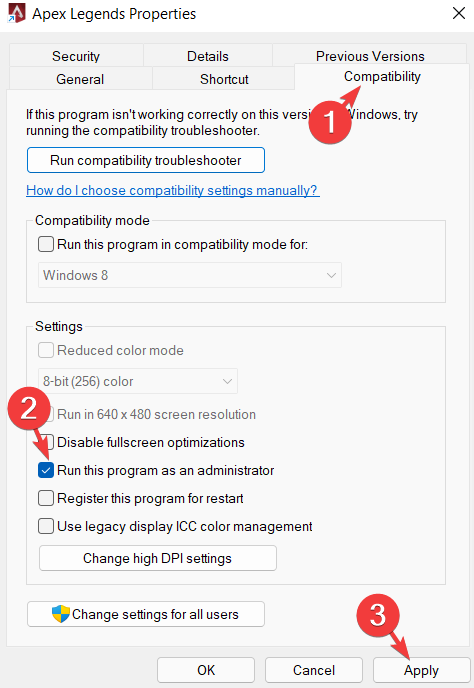
The game needs administrative privileges to function properly. If these permissions are not granted, you can perform it manually as in the example below.
1. Press the Windows key and type Apex Legends into the Search bar.
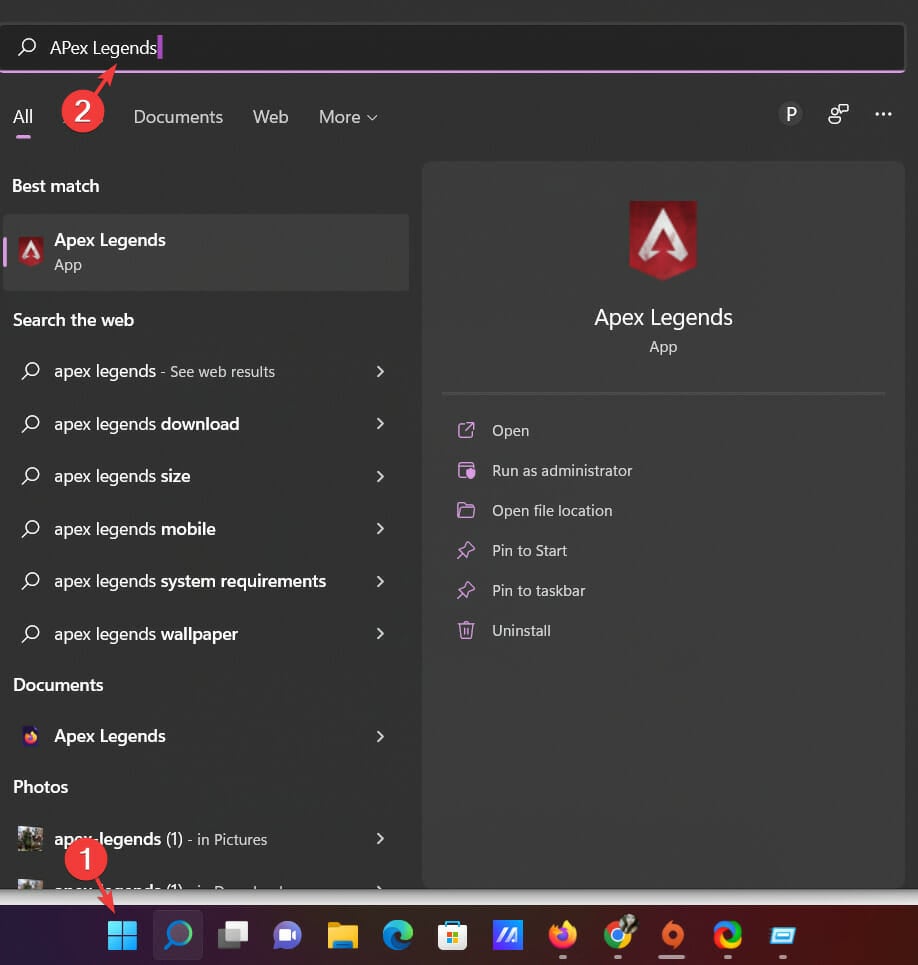
2. In the right pane, right-click the Apex Legends icon and choose Open file location.
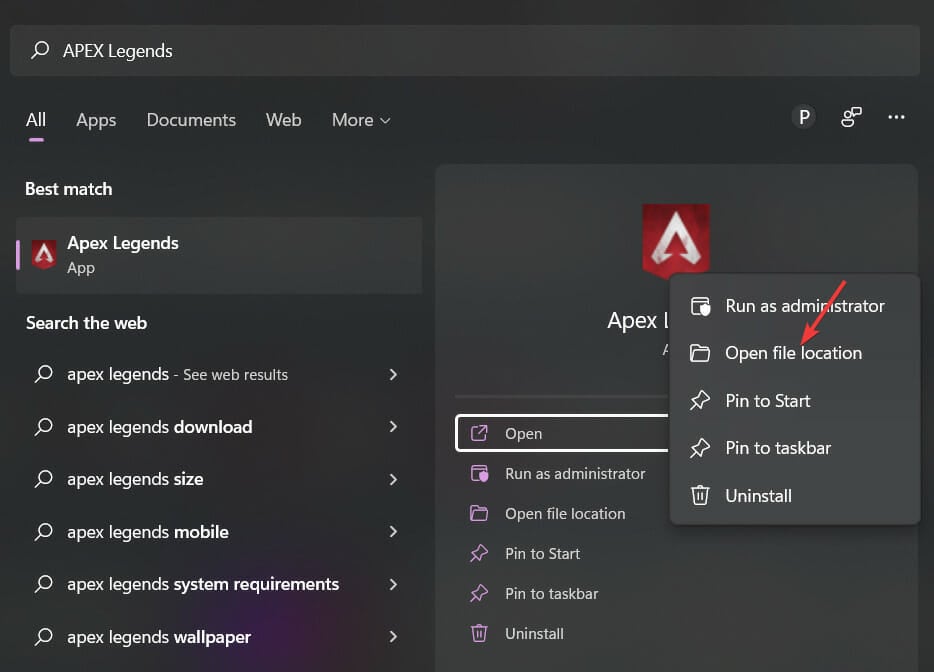
3. Find the Origins.exe file in your game’s folder and right-click on it.
4. Select Properties to switch over to the Compatibility tab.
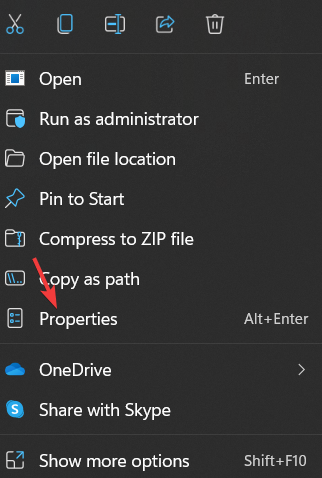
5. In the compatibility tab, check the Run this program as an Administrator option, then click Apply.
2. Revert to the stock frequency
If you overclock the graphics card by increasing its frequency to a number higher than it was set at by the manufacturer, several issues might arise.
The developers of the game may be limiting the card’s frequency because they know this can increase the card’s temperature and even result in instability.
Some PC issues are hard to tackle, especially when it comes to corrupted repositories or missing Windows files. If you are having troubles fixing an error, your system may be partially broken.
We recommend installing Restoro, a tool that will scan your machine and identify what the fault is.
Click here to download and start repairing.
Thus, it is recommended to avoid overclocking the graphics card and revert to factory settings with the help of the best overclocking software for Intel and AMD CPUs.
Applying these changes can help you get rid of the issue.
3. Run Windows Update Troubleshooter
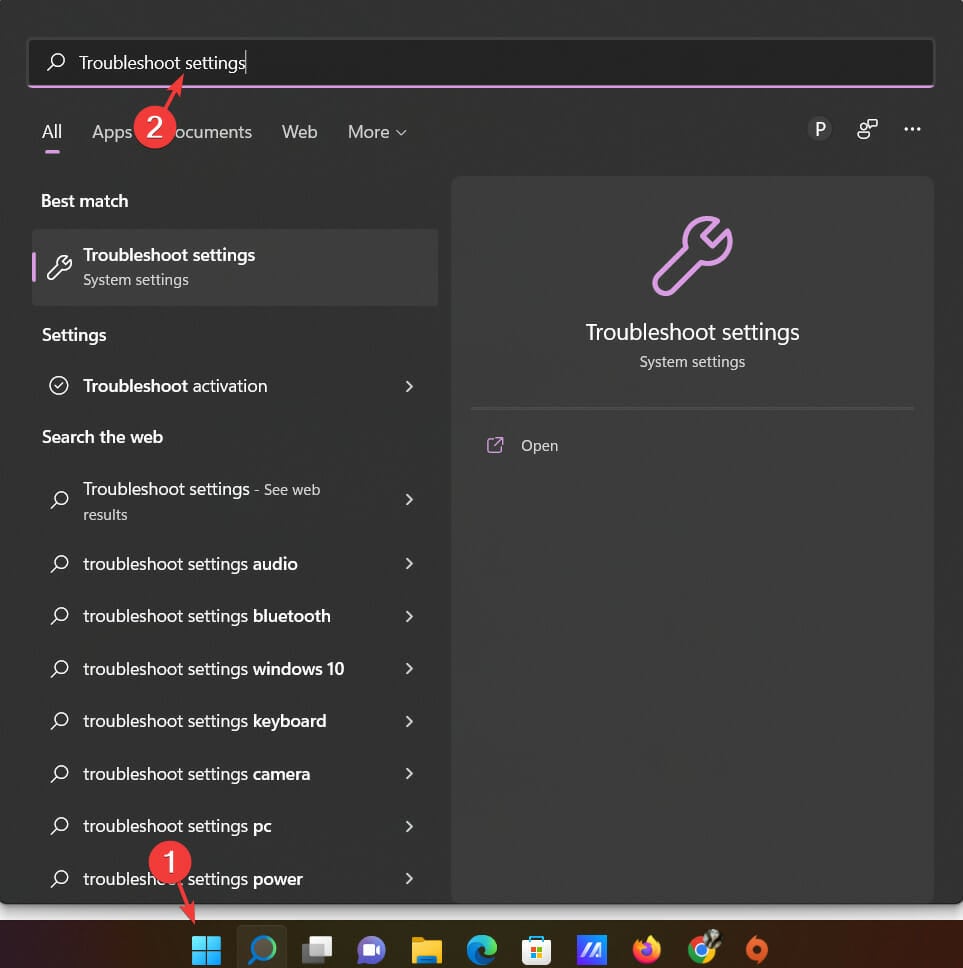
- Go to the Windows Search bar and type Troubleshoot Settings. Once done, hit Enter.
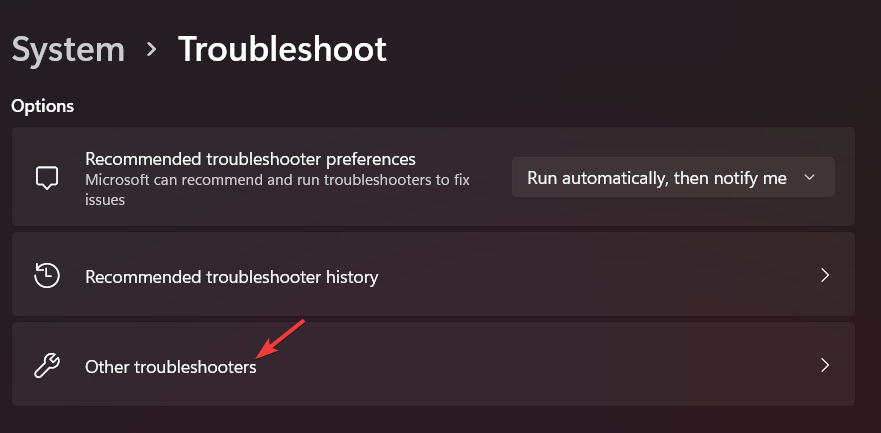
- In the right pane, select the option, Other troubleshooters.
- Navigate to Windows update and click on Run.
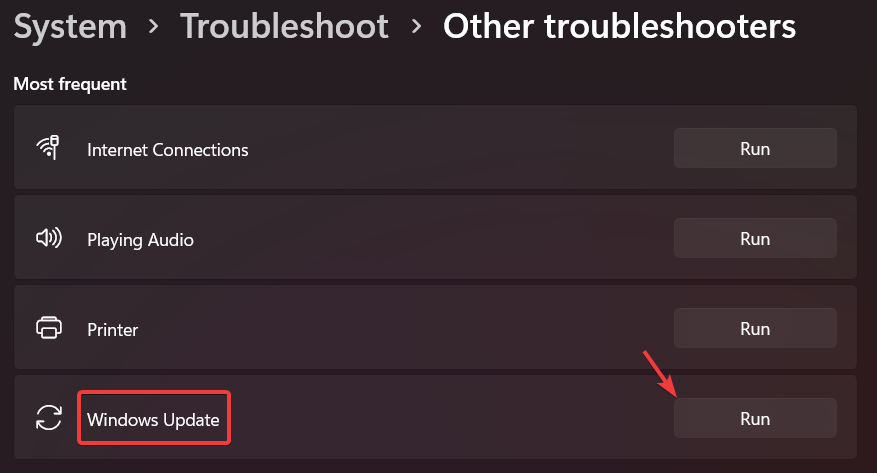
Updating your Windows can help fix multiples issue including the 0x887a0006 dxgi_error_device_hung Apex Legends error. In case the issue persists, move on to the next method.
4. Repair missing or corrupted files
- To identify the problem with the game, open the Origin client, sign in to your account, and go to Game Library.

- Once there, right-click on Apex Legends.

- Next, click the Settings icon and select Repair Game.
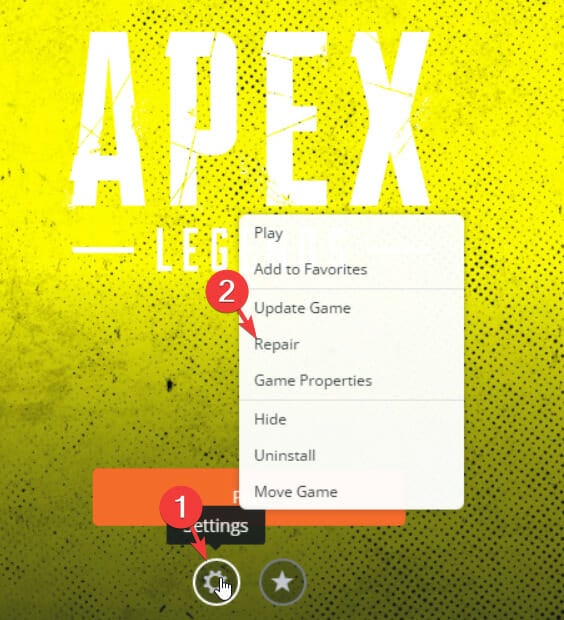
- Now, the client will begin verifying the game files. Once the verification process is complete, it will automatically repair any missing or corrupted files.
- Go back to the Home screen and try running Apex Legends again.
Game files can sometimes go missing or become corrupted over time. When this happens, the game might crash. Therefore, applying this method might help in fixing the issue.
5. Update the Graphics card drivers
- Press the Windows key on your keyboard and type Device Manager into the Search bar.
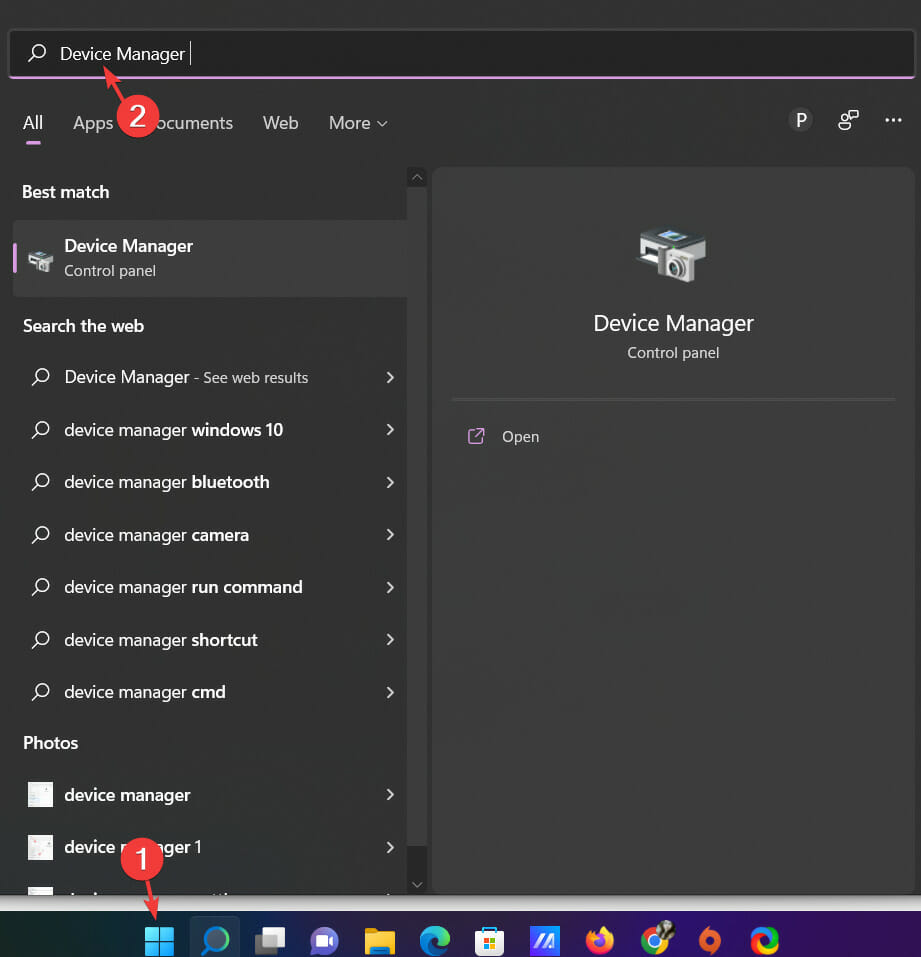
- In the right pane, click on Open application.
- Once in the Device Manager window, scroll down and expand Display Adapters from the menu.
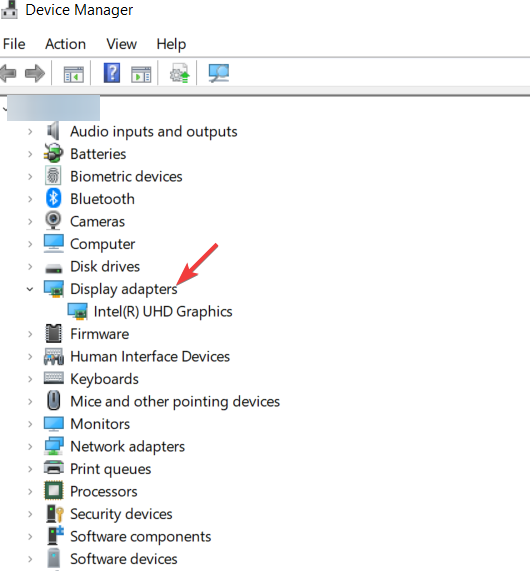
- From the pop-up that appears, select Update driver.
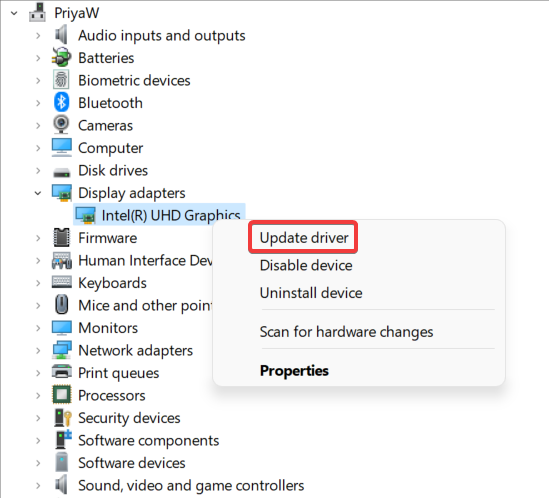
- Next, choose the option Search automatically for drivers.
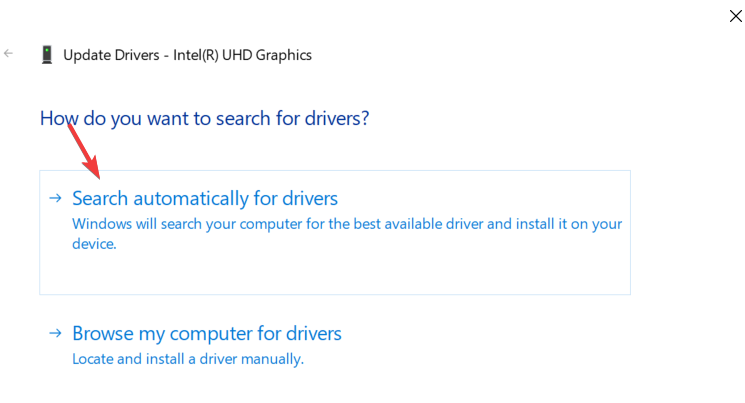
- Windows will now scan your system for outdated drivers and, if found, it will automatically update them and ask you to restart your PC.
The game isn’t optimally designed to run effortlessly on old Graphics cards and this leads to random crashes. Therefore, updating the Graphics driver may help resolve the issue.
If you want to update and install your graphics card drivers more easily and fully automated, you have specialized software created for this task.
Using DriverFix, you will start by scanning the entire system and detecting outdated or missing drivers. Then, just select the device driver you need to update or choose all the outdated drivers at once.
⇒ Get DriverFix
- Steam Content Servers Unreachable Error: 7 Quick Fixes
- Steam Update Stuck or Not Downloading: 7 Simple Fixes
- Steam Not Responding On PC: 5 Quick Fixes
- Minecraft Keeps Crashing Windows 10: Why & How to Fix
6. Add a new key in the Registry Editor
- Click the Windows key on your keyboard and type Notepad. Hit Enter.
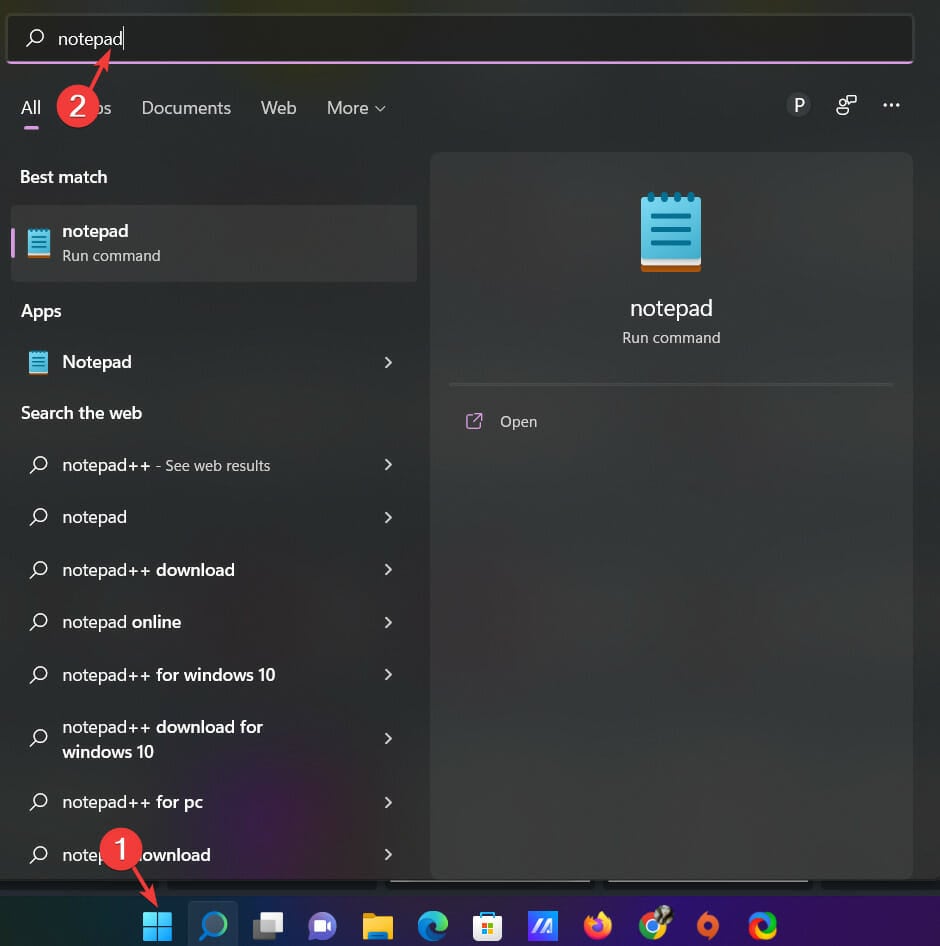
- Now, copy and paste the following into the text window of your Notepad.
[HKEY_LOCAL_MACHINESYSTEMCurrentControlSetControlGraphicsDrivers] "TdrDelay"=hex(b):08,00,00,00,00,00,00,00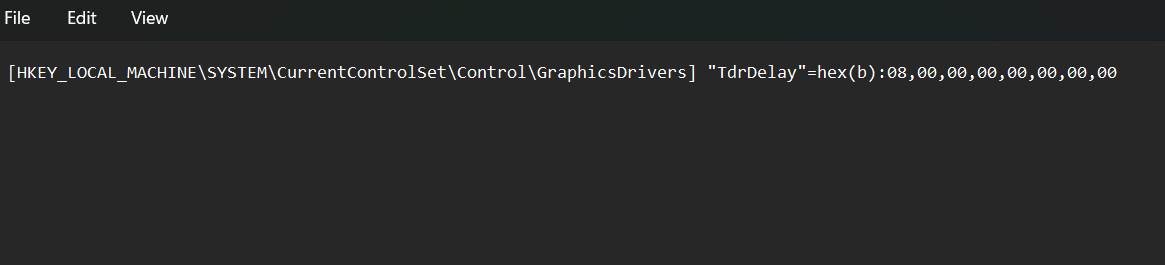
- Next, go to Files tab and click on Save as.
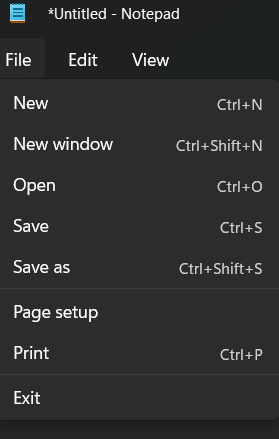
- In the next window, choose Desktop and hover over to Save as type.
- Select All Files as the file format and name it FIX.REG.
- Press Save and close your Notepad.

- Right-click the file you have just created.
- When prompted to ask whether you want to allow this app to make changes to your device, press Yes to confirm and then click OK.
- Launch Apex Legends again and see if it works this time.
The error can also be caused due to missing registry key. Thus, adding a new key can help fix the problem.
7. Rollback the Graphics driver
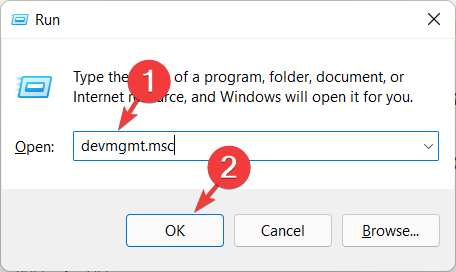
- Press Windows + R key simultaneously and type devmgmt.msc into the Run dialog window. Once done, click OK.
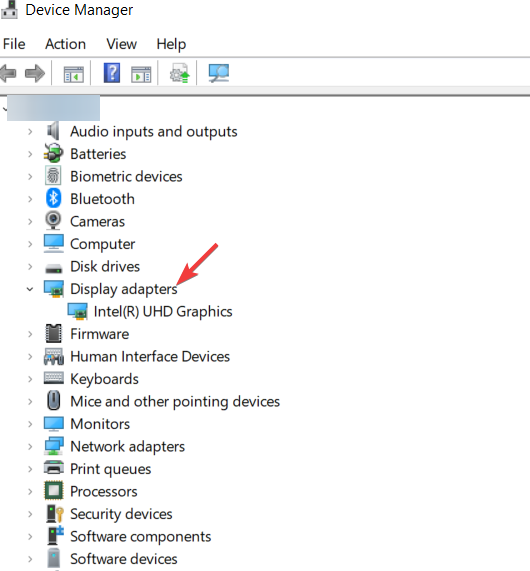
- In the Device Manager window, scroll down and click on Display Adapter.
- From the pop-up that appears, choose the option Properties.

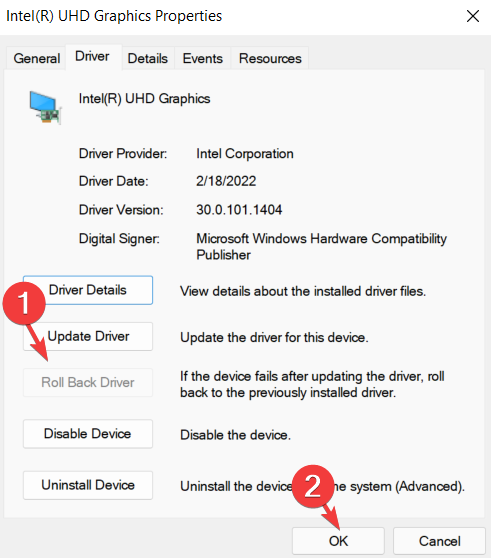
- Navigate to the Driver tab and scroll down to select the option Roll back driver.
- Finally, click OK to save the changes.
Sometimes the current Graphics driver isn’t compatible with your device and this can result in issues like random crashes.
Therefore, you might be able to get rid of the annoying error by simply rolling back the driver.
Many players want to know if Apex Legends is free to play. The game was released in early November 2020 and has attracted millions of players worldwide, making it one of the best PC games of all time.
However, while Apex Legends is free to download, some in-game purchases can add up quickly. Some users have also complained that Apex Legends won’t launch on their PC.
Don’t worry though, we have you covered on all these issues, and you can find them in our common Apex Legends bugs guide.
Furthermore, you may also want to check our guide on the best VPNs for Apex Legends to reduce pin and lag
We hope the methods above have helped you get rid of the error. If you have any questions, do let us know in the comments section below.
Still having issues? Fix them with this tool:
SPONSORED
If the advices above haven’t solved your issue, your PC may experience deeper Windows problems. We recommend downloading this PC Repair tool (rated Great on TrustPilot.com) to easily address them. After installation, simply click the Start Scan button and then press on Repair All.

Newsletter
Quickly fix the 0x887a0006 DXGI_ERROR_DEVICE_HUNG Apex Legends
by Priya Ahluwalia
Priya Ahluwalia is a writer who specializes in technology, particularly Microsoft Windows. She writes about the latest developments in know-how and current trends in the technology industry. When… read more
Updated on November 14, 2022
Reviewed by
Alex Serban
After moving away from the corporate work-style, Alex has found rewards in a lifestyle of constant analysis, team coordination and pestering his colleagues. Holding an MCSA Windows Server… read more
- You can fix the 0x887a0006 Dxgi error device hung in Apex Legends problem by running the game with admin privileges and updating your GPU driver.
- The error means that the outdated graphics card cannot process what is being displayed by the game, so it crashes.
- A missing key in the Registry editor, GPU overclock, and corrupted or missing files can also cause the game to crash.
XINSTALL BY CLICKING THE DOWNLOAD FILE
This software will keep your drivers up and running, thus keeping you safe from common computer errors and hardware failure. Check all your drivers now in 3 easy steps:
- Download DriverFix (verified download file).
- Click Start Scan to find all problematic drivers.
- Click Update Drivers to get new versions and avoid system malfunctionings.
- DriverFix has been downloaded by 0 readers this month.
Apex Legends have been hit by a mysterious bug and many gamers are complaining that Apex Legends crashes out at the logo screen.
If you’re having issues with the game and getting a 0x887a0006 DXGI error device hung Apex Legends error code, this guide should be helpful.
Game crashes are the most annoying thing that can happen to you, especially when you’re trying to reach a new level or constantly investing in new characters.
What does DXGI_ERROR_DEVICE_HUNG mean?
According to Microsoft, the DXGI ERROR DEVICE HUNG error is a problem with command transmission between the system hardware and games.
When it happens repeatedly, this error might be very problematic for certain Windows games. However, with the right solutions, you can get rid of it.
What causes DXGI hung?
Apex Legends error message 0x887a0006 could be caused by several different factors, some of which are listed below:
- Admin Privileges: Administrative privileges are required to keep the game running smoothly. The game might crash or trigger errors if it does not have the required permission.
- Outdated Drivers: Some games are not compatible with older graphics cards, which can cause the game to crash. To fix this, you just need to update your Windows 11 drivers.
- Missing Files: If any of the game’s files are missing or corrupted, the game will not load correctly.
- Registry missing key: Some users have reported this error because of a missing key in the Windows Registry that helps to load the game’s graphics. If the key is missing, the game may not load and can result in crashes.
- GPU overclocking: Several people pointed out that this might have been due to GPU overclocking.
How do I fix the Apex error 0x887a0006?
- What causes DXGI hung?
- How do I fix the Apex error 0x887a0006?
- 1. Run Apex Legends with Administrative privileges
- 2. Revert to the stock frequency
- 3. Run Windows Update Troubleshooter
- 4. Repair missing or corrupted files
- 5. Update the Graphics card drivers
- 6. Add a new key in the Registry Editor
- 7. Rollback the Graphics driver
- Is Apex Legends free to play?
The game needs administrative privileges to function properly. If these permissions are not granted, you can perform it manually as in the example below.
1. Press the Windows key and type Apex Legends into the Search bar.
2. In the right pane, right-click the Apex Legends icon and choose Open file location.
3. Find the Origins.exe file in your game’s folder and right-click on it.
4. Select Properties to switch over to the Compatibility tab.
5. In the compatibility tab, check the Run this program as an Administrator option, then click Apply.
2. Revert to the stock frequency
If you overclock the graphics card by increasing its frequency to a number higher than it was set at by the manufacturer, several issues might arise.
The developers of the game may be limiting the card’s frequency because they know this can increase the card’s temperature and even result in instability.
Some PC issues are hard to tackle, especially when it comes to corrupted repositories or missing Windows files. If you are having troubles fixing an error, your system may be partially broken.
We recommend installing Restoro, a tool that will scan your machine and identify what the fault is.
Click here to download and start repairing.
Thus, it is recommended to avoid overclocking the graphics card and revert to factory settings with the help of the best overclocking software for Intel and AMD CPUs.
Applying these changes can help you get rid of the issue.
3. Run Windows Update Troubleshooter
- Go to the Windows Search bar and type Troubleshoot Settings. Once done, hit Enter.
- In the right pane, select the option, Other troubleshooters.
- Navigate to Windows update and click on Run.
Updating your Windows can help fix multiples issue including the 0x887a0006 dxgi_error_device_hung Apex Legends error. In case the issue persists, move on to the next method.
4. Repair missing or corrupted files
- To identify the problem with the game, open the Origin client, sign in to your account, and go to Game Library.
- Once there, right-click on Apex Legends.
- Next, click the Settings icon and select Repair Game.
- Now, the client will begin verifying the game files. Once the verification process is complete, it will automatically repair any missing or corrupted files.
- Go back to the Home screen and try running Apex Legends again.
Game files can sometimes go missing or become corrupted over time. When this happens, the game might crash. Therefore, applying this method might help in fixing the issue.
5. Update the Graphics card drivers
- Press the Windows key on your keyboard and type Device Manager into the Search bar.
- In the right pane, click on Open application.
- Once in the Device Manager window, scroll down and expand Display Adapters from the menu.
- From the pop-up that appears, select Update driver.
- Next, choose the option Search automatically for drivers.
- Windows will now scan your system for outdated drivers and, if found, it will automatically update them and ask you to restart your PC.
The game isn’t optimally designed to run effortlessly on old Graphics cards and this leads to random crashes. Therefore, updating the Graphics driver may help resolve the issue.
If you want to update and install your graphics card drivers more easily and fully automated, you have specialized software created for this task.
Using DriverFix, you will start by scanning the entire system and detecting outdated or missing drivers. Then, just select the device driver you need to update or choose all the outdated drivers at once.
⇒ Get DriverFix
- Steam Content Servers Unreachable Error: 7 Quick Fixes
- Steam Update Stuck or Not Downloading: 7 Simple Fixes
- Steam Not Responding On PC: 5 Quick Fixes
- Minecraft Keeps Crashing Windows 10: Why & How to Fix
6. Add a new key in the Registry Editor
- Click the Windows key on your keyboard and type Notepad. Hit Enter.
- Now, copy and paste the following into the text window of your Notepad.
[HKEY_LOCAL_MACHINESYSTEMCurrentControlSetControlGraphicsDrivers] "TdrDelay"=hex(b):08,00,00,00,00,00,00,00 - Next, go to Files tab and click on Save as.
- In the next window, choose Desktop and hover over to Save as type.
- Select All Files as the file format and name it FIX.REG.
- Press Save and close your Notepad.
- Right-click the file you have just created.
- When prompted to ask whether you want to allow this app to make changes to your device, press Yes to confirm and then click OK.
- Launch Apex Legends again and see if it works this time.
The error can also be caused due to missing registry key. Thus, adding a new key can help fix the problem.
7. Rollback the Graphics driver
- Press Windows + R key simultaneously and type devmgmt.msc into the Run dialog window. Once done, click OK.
- In the Device Manager window, scroll down and click on Display Adapter.
- From the pop-up that appears, choose the option Properties.
- Navigate to the Driver tab and scroll down to select the option Roll back driver.
- Finally, click OK to save the changes.
Sometimes the current Graphics driver isn’t compatible with your device and this can result in issues like random crashes.
Therefore, you might be able to get rid of the annoying error by simply rolling back the driver.
Many players want to know if Apex Legends is free to play. The game was released in early November 2020 and has attracted millions of players worldwide, making it one of the best PC games of all time.
However, while Apex Legends is free to download, some in-game purchases can add up quickly. Some users have also complained that Apex Legends won’t launch on their PC.
Don’t worry though, we have you covered on all these issues, and you can find them in our common Apex Legends bugs guide.
Furthermore, you may also want to check our guide on the best VPNs for Apex Legends to reduce pin and lag
We hope the methods above have helped you get rid of the error. If you have any questions, do let us know in the comments section below.
Still having issues? Fix them with this tool:
SPONSORED
If the advices above haven’t solved your issue, your PC may experience deeper Windows problems. We recommend downloading this PC Repair tool (rated Great on TrustPilot.com) to easily address them. After installation, simply click the Start Scan button and then press on Repair All.