-
#1
Привет! Kyocera TaskAlfa 2553ci не отправляет сканы по электронной почте. Сначала бы вроде сканирование проходит удачно но при доставке на электронную почту появляется ошибка:
Ошибка передачи
Не удалось передать электронную почту
Проверьте способы проверки подлинности отправителя и получателя.
Код ошибки 3101
Последнее редактирование: 25.05.2021

-
#2
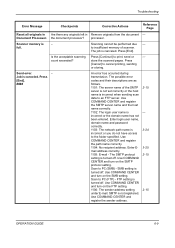
Проверьте настройки TLS, на принтере и со стороны почтового сервера.

Устранение неисправностей
5-18
Код ошибки:3101
Правильно ли работает
сервер?
Убедитесь, что сетевая среда
(сервер, концентратор или другая
сеть LAN) работает правильно.
—
Установлен ли метод
аутентификации, при
котором сервер не может
нормально реагировать?
Проверьте настройки на сервере и
клиенте. (Например, убедитесь,
что настройки включения/
отключения аутентификации
SMTP/POP одинаковые на сервере
и клиенте.)
—
Код ошибки:3201
Включен ли
неподдерживаемый метод
аутентификации SMTP?
Проверьте настройки
аутентификации SMTP на сервере
и клиенте. На аппарате можно
использовать нижеуказанные
методы аутентификации SMTP.
CRAM-MD5 / DIGEST-MD5 /
ОБЫЧНАЯ /ВХОД
—
Код ошибки:4201,
5101, 5102, 5103, 5104,
7101, 7102, 720f
–
Выключите и затем включите
главный включатель питания. Если
эта ошибка возникнет повторно,
запишите код ошибки, который
отображается на дисплее
сообщений, и обратитесь к
специалисту по обслуживанию.
(См. процедуру в Сбой аппарата
Вызовите сервисный
персонал.)
—
Код ошибки:9181
Возможно, отсканированы
999 страниц оригиналов?
Если число страниц оригинала
превышает 999, передавайте
страницы отдельными пакетами.
—
Сообщение об
ошибке
Контрольные вопросы
Меры по устранению
Страница
для
справки

Finally got this resolved. What a headache.
Intermedia’s support really leaves a lot to be desired. They’re quick to close a ticket on you if they think nothing is wrong on their end, even if it’s not resolved on your end. I was not satisfied because I knew it had to do with something on their end, so I would continue to question them for a solution, and keep the ticket open. After repeatedly telling me that the problem is on my end, that something on my side was blocking port 25 it turns out it was on THEIR end. Here’s why.
One of the troubleshooting steps they had me do on Thursday (3 days after the problem started) was to try and telnet into one of their SMTP servers, and let them know the result.
220 exmf003-4.intermedia.net Microsoft ESMTP MAIL Service Version: 2.0
helo me@liquidagents.com
250 exmf003-4.intermedia.net
mail from:me@liquidagents.com
250 2.1.0 Ok
rcpt to:kgraham@liquidagents.com
554 5.7.1 Service unavailable; Client host [x.x.x.x] blocked using cbl.rbl.intermedia.net; Blocked — see http:/ Opens a new window/cbl.abuseat.org/lookup.cgi?ip=x.x.x.x Opens a new window
data
554 5.5.1 Error: no valid recipients
421 4.7.0 exmf003-4.intermedia.net Error: too many errors
Turns out that there was a trojan on our network, and it was trying to do something on the SMTP relay connection to Intermedia at a particular time on Monday. Intermedia’s filtering system blocked that connection to us and our IP address (from our ISP’s FiOS) was blacklisted on CBL. Out of the hundred or so sites that list blacklisted IPs CBL was the only one that had our IP address on it, which is also the only one Intermedia is using (i guess).
The telnet result tells me to go to http:/ Opens a new window/cbl.abuseat.org Opens a new window and lookup info about our IP (not shown). It explains that we had the ZBot/Zeus trojan. I did a scan on all computers after that but I couldn’t find anything. Considering it happened on Monday it may have already been cleaned by our McAfee Enterprise daily scans, which states that this particular trojan can be detected and cleaned by McAfee’s DAT. I’ll have to go through the logs from Monday.
So I contacted CBL and had our IP address de-listed. That option is on the page that shows your information as to why it was blacklisted. Today our port 25 SMTP relay to Intermedia is working again.
The whole point is I was right all along. It was nothing on our end that was blocking access to port 25. They were blocking it. If they could have told me 3 days ago that they were blocking us and gave me the reason why I would have been able to work on cleaning out the trojan and de-listing our IP address from CBL then. Instead i’ve wasted countless hours of lost productivity looking for something I didn’t have to. I did let them know of my displeasure with the way their support team handled my ticket. All I get is a puny apology.
I did learn a few new troubleshooting steps to try and hopefully I gave you guys some other ideas to consider. A useful website to use is www.mxtoolbox.com Opens a new window Opens a new window to check on MX Records and blacklisted IPs.
I need to work on a more efficient way of receiving log notifications.
So there you go!
Was this post helpful?
thumb_up
thumb_down
-
-
May 16 2013, 10:58
- Наука
- Работа
- Cancel
Сделал по этой статье: http://admsoft.ru/skanirovanie-v-e-mail-na-kyocera-fs-1028mfp
Важно по настройке SMTP:
Настройка SMTP
Прежде всего, для отправки сканов с Kyocera FS-1028MFP по электронной почте необходимо настроить параметры SMTP сервера. Сам аппарат выступает в роли почтового клиента.
В WEB-интерфейсе Kyocera FS-1028MFP, который называется Kyocera Command Center (KCC), делаем вход в систему (пароль по умолчанию: admin00). В меню «Дополниетльно — SMTP — Общие» убеждаемся, что Протокол SMTP включен. Вводим имя или IP-адрес своего почтового сервера в поле «Имя сервера SMTP», Протокол аутентификации: Вкл, Аутентифицировать как: Другой. Вводим имя пользователя и пароль для авторизации на сервере SMTP. Проверяем авторизацию на сервере кнопкой «Тест».
В разделе «Параметры электронной почты» поправляем разрешенный размер сообщения и вводим адрес отправителя. Текст, введенный в поле «Сигнатура» будет отображаться в теле письма (само изображение будет во вложении). Подтверждаем изменения кнопкой «Передать». Теперь Kyocera FS-1028MFP готов отправлять сканы по электронной почте.
Адресатов для отправки можно ввести в Адресную книгу самого устройства в меню «Основные — Адресная книга — Контакты». Ссылка «Добавить контакт» открывает формуляр нового контакта. Достаточно ввести Имя (можно кириллицей) и адрес электронной почты.
У меня в веб интерфейсе на тесте писал — OK
Но почту не слал — писал ошибка 3101.
Нашел ответ тут: http://www.kyocera-toner.ru/forum/showthread.php?fid=38&tid=3824
3101 — это адрес отправителя указан неправильно.
Оказывается важный параметр — Адрес отправителя: поставил нужный и все ок. (бла-бла@mail.ru)
Сделал ксати через майл ру — мой служебный Exchange ваще не знает как МФУ авторизировать 🙁
Answer #1: Posted by freginold on February 2nd, 2013 6:15 PM
This answer was accepted by the poster of the original question.
freginold

Member since:
December 20th, 2011
Points:
23,240,715

1,100
points
Hi, there are a number of things that could be causing your error. I’m guessing you’ve already verified that 587 is the correct port number, so a good first step is to try setting it up with the SMTP server’s IP address rather than the host name (though since the test worked OK this probably won’t change anything). If it does work with the IP address, you know it’s a problem with your DNS server or DNS settings.
There is a good thread on CopyTechNet.com that you might want to check out. Some ideas thrown out there for this error include making sure that you’ve input the domain name in the correct format or in capital letters, using Telnet to check the SMTP server, and double checking the Kyocera’s gateway settings.
Good luck! Hope that helps.
Answer #2: Posted by svasqu01 on July 15th, 2013 1:03 PM
svasqu01

Member since:
July 15th, 2013
Points:
240
340
points
I know this answer becausde I worked for Kyocera. Port 587 is a smtp port that uses SSL. The Kyocera 3050 does not support SSL. You can browse the Command Center of your device by ip address go to Advanced tab. Login is admin00. If you use Google port 25 you can scan to email to only Google users, on port 587, to anyone, but the kicker is the machine has to support SSL or you’ll get 3101 errors all day long. You will get an authentication ‘OK’, but without SSL support when you send it will bounce it with error 3101. Legacy Kyoceras work just dandy on smtp port 25, but most all hosted email providers are no longer supporting port 25. it’s port 995 on pop, and either 465 0r 587 smtp, all SSL. Call your Kyocera rep and find out if there is a firmware upgrade that will enable SSL.
KM-NET ADMIN Operation Guide for Ver 2.0 — Page 18
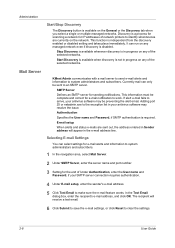
…the navigation area, select Mail Server.
2 Under SMTP Server, enter the server name and port number.
3 Setting for IP addresses of the selected networks. E-mail setup
When alerts and status e-mails are currently on any… managed networks. This function is a process for scanning a network for the end of the selected networks. It can only be sent to identify what devices are sent out, …
KM-NET ADMIN Operation Guide for Ver 2.0 — Page 64
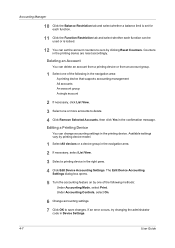
… the Balance Restriction tab and select whether a balance limit is set for each function.
11 Click the Function Restriction tab and select whether each function can be used or is locked.
12 You can set the account counters to zero by printing device model.
1 Select All devices or a device group in the navigation area. 2 If necessary, select List View…
KM-NET ADMIN Operation Guide for Ver 2.0 — Page 75
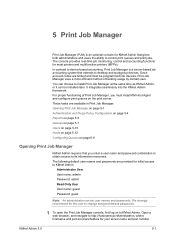
…KM Host Agent and configure print queues on to KMnet Admin. The console provides real-time job monitoring, control and accounting functions for your server name and port number. For proper functioning… devices. The following default user names and passwords are placeholders for most printers and multifunction printers (MFPs). It integrates seamlessly into devices, Print Job Manager uses …
KM-NET ADMIN Operation Guide for Ver 2.0 — Page 100
… Admin. K
KM Host Agent Software component that lets you limit the number of programs from Sun Microsystems, Inc. Managed Device A device that uses SNMP to configure Job Release. MIB (Management Information Base) A database that is also used to collect information about the devices managed by drag and drop.
MFP Multifunction Printer (or Multifunction Peripheral) A single device that…
KM-NET Viewer Operation Guide Rev-5.2-2010.10 — Page 49
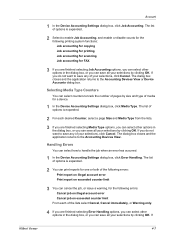
… a device.
1 In the Device Accounting Settings dialog box, click Media Type. Handling Errors
You can print reports for one or both of options is expanded.
2 Select to the Accounting Devices View. The list of options is expanded.
2 You can select how to the Accounting Devices View or Device Accounts dialog box. The list of the following printing system functions…
KM-NET Viewer Operation Guide Rev-5.2-2010.10 — Page 71
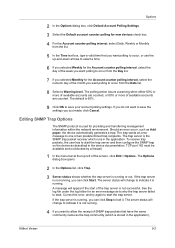
…Click OK to save the settings you want to indicate it . If the trap server is used for providing and transferring management …port 162 must be available and not blocked by a firewall.
1 In the menu bar at the top left of available accounts are counted. See the log file under the log folder for an error message as Add paper, the device automatically generates a trap. The trap sends an error…
KM-NET Viewer Operation Guide Rev-5.2-2010.10 — Page 72
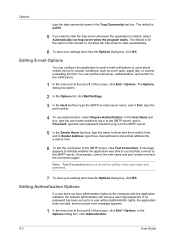
…able to successfully connect to the SMTP server, click Test Connection. You can set up a user login password….port number and test the connection again. Editing Authentication Options
If a user does not have administrator rights on the computer with the application installed, the network administrator can configure the application to send e-mail notifications to start , and an access error…
Kyocera Command Center Operation Guide Rev 6.3 — Page 11
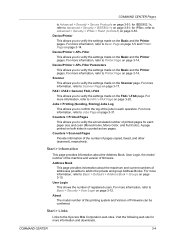
… the Basic and the Printer pages. For more information, refer to verify the settings made on the Basic and the Printer pages.
About
The model number of this printing system and Version of pages copied, faxed, and other (scanned), respectively. Device/Printer > APL.Filter
This allows you to Scanner Page on page 3-17.
Counters…
Kyocera Command Center Operation Guide Rev 6.3 — Page 15
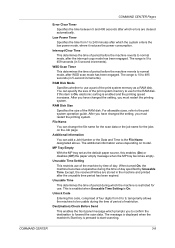
… of restriction. Unlock Code
Entering this code, comprised of four digits from 1 to start scanning.
The range is restricted for use for the jobs on model. RAM Disk Size
Specifies the size of day. Unusable Time Setting
This restricts use a part of period before the machine reverts to be usable during the time of…
Kyocera Command Center Operation Guide Rev 6.3 — Page 25
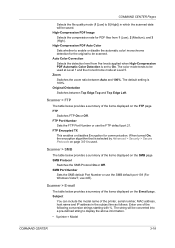
… > Security > Secure Protocols on the E-mail page. Subject
You can include the model name of the printer, serial number, MAC address, host name and IP address in which the scanned data will be used . FTP Port Number
Sets the FTP Port Number or use 445). When turned On, the encryption algorithm that is used at Level 1 and the monochrome mode at…
Kyocera Command Center Operation Guide Rev 6.3 — Page 27
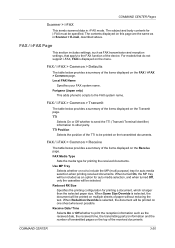
… page. Reduced RX Size Specifies the printing configuration for printing a document, which is displayed on…function of the device. The subject and body contents for auto media selection when printing received documents. Local FAX Name
Specifies your FAX system name. Use…i-FAX
This sends scanned data in Scanner > E-mail, described above. FAX / i-FAX Page
This section includes settings, such as…
Kyocera Command Center Operation Guide Rev 6.3 — Page 36
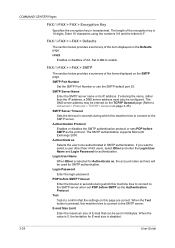
… supports Microsoft Exchange 2000. If you want to be configured. POP before SMTP as the protocol. When the Test button is pressed, this machine tries to connect to the SMTP server. When the value is disabled.
3-29
User Guide
SMTP Port Number
Set the SMTP Port Number or use the SMTP default port 25. Login Password Enter the login password. The DNS server address…
Kyocera Command Center Operation Guide Rev 6.3 — Page 48
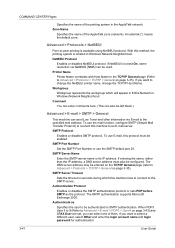
… Microsoft Exchange 2000. Advanced > Protocols > NetBEUI
Peer-to Advanced > E-mail > POP3 > User # on page 3-35). SMTP Port Number
Set the SMTP Port Number or use E-mail, this machine tries to connect to be left blank.)
Advanced > E-mail > SMTP > General
This machine can send Low Toner and other information via NetBIOS (NMB) can also be authenticated in Windows Network Neighborhood…
Fax System (M) Operation Guide Rev-2.0 — Page 143
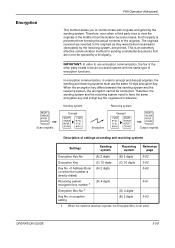
… Address Book (or when the number is not used.
OPERATION GUIDE
5-59 IMPORTANT: In order to use the same 16-digit encryption key. registered in reception setting
(B) 2 digits
5-63
†. This is prevented from knowing the actual contents of the originals. Key No. in advance.
Sending system
Receiving system
Encrypt
Decrypt
Scan originals
Encryption
Output originals…
Scan System Operation Guide (Functions Edition) Rev-9 — Page 1
Operation Guide
Click on the button to jump to FTP server Using the Scanner Function Sending Scanned Image Data to Your Computer
Sending Scanned Image Data by Email Using TWAIN Capabilities
Adding File Information to Scanned Image Data Sending Scanned Image Data to the desired section.
Scan System Operation Guide (Functions Edition) Rev-9 — Page 5
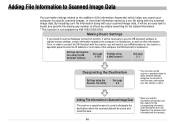
… sender s) name. Making Basic Settings
If you intend to use the Database Connection function, it will need to use the DB Assistant software to register various settings, certain information related to the computer it will be saved and send that is not available by KM-1650/2050/2550.
Adding File Information to Scanned Image Data
The scanner s operation…
Scan System Operation Guide (Functions Edition) Rev-9 — Page 6
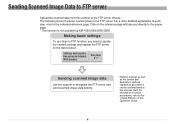
… will take you need to the proper page. * This function is not available by KM-1650/2050/2550/C850. Settings and registration using an Internet Web browser
See page 2-1
Sending scanned image data
Use the scanner to the FTP server directly. Sending Scanned Image Data to FTP server
Upload the scanned data from the scanner to designate the FTP server…
Scan System Operation Guide (Functions Edition) Rev-9 — Page 254
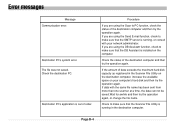
… operation again.
Destination PC’s system error.
The file was not saved.
Procedure
If you are using the Send E-mail function, check to PC function, check the status of the destination computer and then try the operation again, or change the file name. If you are using the Scan to make sure that the SMTP server is running , or consult…
3050/4050/5050 Operation Guide Rev-3 (Advanced) — Page 311
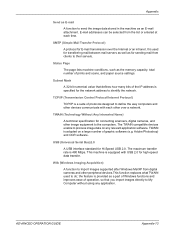
… improves ease of operation, so that defines how many bits of prints and scans, and paper source settings.
E-mail addresses can be selected from digital cameras and other peripheral devices.This function replaces what TWAIN used for connecting scanners, digital cameras, and other over the Internet or an intranet. Subnet Mask
A 32-bit numerical value…
3050/4050/5050 Operation Guide Rev-3 (Basic) — Page 183
…E-mail: SMTP is incorrect when sending scan data to PC (SMB) — to insufficient memory of the SMTP server is not set correctly or the host name is not registered. Is the acceptable scanning Press [Continue] to cancel printing, sending
or storing. store the scanned pages. Scanning cannot be performed due — The possible error codes and their descriptions are as follows. 1101…