Если ваш Андроид-планшет (или смартфон) внезапно осчастливил вас сообщением «Недостаточно места в памяти устройства» или еще более пугающим «insufficient storage available», хотя этой самой памяти у него (и вы в этом точно уверены) предостаточно, то переживать особо не стоит. Вы не первый(ая), кому приходится сталкиваться с этой довольно распространенной ошибкой ОС Android.
А раз ошибка не редкая и уже известная, значит, кто-то грамотный уже придумал, как ее устранить.
Конечно, так бывает не всегда, но в этот раз действенная «таблетка» от этой болезни действительно уже есть.
Итак, как устранить ошибку «Недостаточно места в памяти устройства» (insufficient storage available) на Андроиде:
ШАГ 1 — находим 2 мегабайта
Для начала отметим, что уведомление об ошибке с формулировкой «Недостаточно места в памяти устройства» (insufficient storage available), чаще всего появляется в случае, когда юзер пытается установить новое приложение на свой Андроид-смартфон или планшет, и при этом значительный объем данных из физической памяти устройства переносится на карту памяти microSD, вызывая сбой в кэше.
Собственно, в некорректном обновлении кэша и кроется причина данной ошибки — это важно знать.
Потому что, теперь, когда ошибка «Недостаточно места в памяти устройства» (insufficient storage available) уже обозначилась, чтобы проблему эту устранить, вам понадобится специальный программный инструмент, проще говоря, приложение, емкостью 2MB, которое надо будет куда-то скачать и установить.
А поскольку память ваш Андроид выделять под это уже не хочет, то, скорее всего, придется пожертвовать чем-то наименее нужным из того, что хранится или установлен в памяти устройства (а не на карточке — это тоже важно).
Другими словами, чтобы решить вопрос, вам придется в любом случае освободить 2MB памяти, что-то удалив из памяти смартфона или планшета (наименее нужное приложение, несколько старых фоток, видеороликов или аудиофайлов), даже если по отчетам памяти вроде бы много. Иначе никак. Но это, пожалуй, самая трудная часть всего мероприятия.
ШАГ 2 — качаем инструмент
Изыскав 2 мегабайта памяти, идем на Google Play Store, ищем и загружаем оттуда бесплатное приложение, которое называется App Cache Cleaner – 1Tap Clean.
ШАГ 3 — чистим кэш
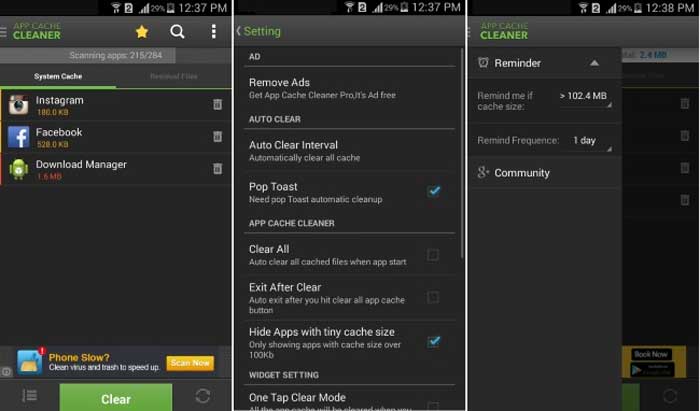
Если приложения вы скачали и установили, то дальше все — дело техники. Открываем программку, и она автоматически начинает сканировать память устройства на предмет изучения состояния кэша установленных ранее приложений.
По факту завершения данной процедуры вам будет предоставлена возможность очистить кэш каждого из приложений путем поочередного нажатия иконок с изображением корзинки, расположенных рядом с названиями программок, либо удалить весь кэш оптом — нажатием на одну большую кнопку внизу экрана.
ШАГ 4 — работаем дальше
После этого вы снова получаете доступ к свободной памяти на своем Андроид-смартфоне или планшете и можете снова качать и устанавливать нужное вам приложение или обновление.
Ошибка «Недостаточно места в памяти устройства» (insufficient storage available) устранена!

Download Article
Download Article
If you’re seeing an «Insufficient storage available» message on your Android, chances are that you’ve used up most of your device’s available memory. To fix this, you’ll need to make some space by deleting apps and/or media; you can also add external storage, such as a Micro SD card, to your phone. In some cases, however, this error shows up even when you have plenty of space. This wikiHow article teaches you how to fix the insufficient storage available error on your Android.
Things You Should Know
- Free up space in multiple ways.
- Your free space might actually be occupied by your operating system, so you may need to uninstall more apps to make more room.
- Use a cleaner app to free up space on your Android after you’ve done what you can but are still unable to make room.
-

1
Open the Settings app. Open this by tapping the gear app icon in the App Drawer or from the Quick Panel (swipe down from the top of your screen).
-

2
Tap Apps. It’s next to an icon of a 2×2 grid near the middle of the menu.
Advertisement
-

3
Tap the icon of three lines with an arrow pointing down. It’s to the right of the «Your apps» header.
-

4
Tap Size. It’s under the «Sort by» header and will list the apps by size so you can easily see the apps that are using the most space.
-

5
Tap an app. You’ll see more details about that app, like their notification settings, permissions, and if it’s the default for anything.
-

6
Tap Storage. It’s usually the third item under the header «Usage.»
-

7
Tap Clear cache. Doing so will reset that app’s cached data, which will clear up some space. You may need to repeat this process for multiple apps.
- Some Androids allow you to clear all apps’ caches at once from the Storage section of the Settings app. If this option is available, you’ll see a Cached option here; tapping it will give you the option of clearing all cached data.
Advertisement
-

Delete the apps you don’t use to free up space on your Android. To delete an app, tap and hold it, then drag it into the «Remove» field (usually the top of your screen) and drop it there.
- Repeat this process to delete all the apps that you don’t want or don’t use.
- If the app in question is a system app, you may not be able to uninstall it. You can, instead, disable it and reclaim your data space. To disable the app, tap and hold it’s app icon in the App Drawer, then tap Disable.[1]
-

1
Open Settings. Tap the app icon that looks like a gear or tap the gear icon in the Quick Panel.
-

2
Tap Apps. It’s next to an icon of a 2×2 grid near the middle of the menu.
-

3
Tap Google Play Store. The list defaults to displaying alphabetically, so you’ll need to scroll down to find this option.
-

4
Tap Storage. You’ll see this under the «Usage» header.
-

5
Tap Clear cache and Clear data. You’ll need to confirm that you want to delete the data before continuing. Tap OK to continue.
- Open the Google Play Store and see if you can download the app you want. If you can, you’re done and can skip the rest of this section. If, however, you are still getting the «Insufficient storage» error, try the next step.
-

6
Navigate to the Google Play Store app section in settings. From Settings, go to Apps > Google Play Store.
-

7
Tap ⋮. This three-dot menu icon is in the top right corner of your screen.
-

8
Tap Uninstall updates. Doing this will reset your Google Play Store to factory settings, which will force it to update and re-evaluate your phone and its storage.
- You shouldn’t get the message in error again; if you do get the error message, you don’t have enough space (your OS may be using all the free space) on your phone and need to free up space.[2]
- You shouldn’t get the message in error again; if you do get the error message, you don’t have enough space (your OS may be using all the free space) on your phone and need to free up space.[2]
Advertisement
-

1
Connect your Android to your computer. There are multiple ways you can do this, using USB, connecting wirelessly, or using a cloud service, like Google Drive.
-

2
Move your photos and videos from your Android to your computer. You can either drag and drop files from your phone to your computer, or you can install the appropriate apps on your Android (like the Google Drive mobile app) and upload your photos/videos.
Advertisement
-

Since pictures and videos take up a lot of space, saving them somewhere other than your internal storage is a good idea. To change the default where your camera saves these, open your camera, then tap the gear icon, and tap Storage Location. You may not see this menu item if you don’t have an external SD card installed on your Android.[3]
- If you don’t have Google Photos set up, that’s a pretty nice cloud service that you could be using if you don’t have the ability to install an external SD card. Once you have it set up and all your photos and videos are backed up, your photos and videos will save in both your phone’s local storage and in the cloud. You can delete them from your phone’s local storage to free up space.[4]
- If you don’t have Google Photos set up, that’s a pretty nice cloud service that you could be using if you don’t have the ability to install an external SD card. Once you have it set up and all your photos and videos are backed up, your photos and videos will save in both your phone’s local storage and in the cloud. You can delete them from your phone’s local storage to free up space.[4]
-

1
Check your phone’s available storage. On older Android models, the «Insufficient storage available» error was often a result of a system malfunction—not necessarily an actual report of insufficient storage. Before continuing, verify the status of your phone’s storage.
- You can check your Android’s storage from within the «Storage» section of the Settings app.
- If your phone has more than 15 megabytes of storage, you may be encountering an error not related to your storage.
- Most of your storage may be part of your operating system, so it’s not actually available for you to use.
-

2
Restart your phone. To do this, hold down your phone’s power button, then tap Power Off. Once your phone has powered down completely, press and hold the power button again until your phone’s screen lights up.
- Restarting your phone will reset your system’s RAM. Doing so will both speed up your phone and potentially solve the «insufficient storage available» error if the error is unrelated to your phone’s memory.
- Some Androids (like the Samsung s22) have a feature that lets you reclaim memory while your phone is powered on. Go to Settings > Battery and device care > Memory > Clean now.[5]
-

3
Delete unnecessary media. This can include downloads, pictures (like screenshots), videos, and so on. Since these files can take up a fair amount of space, clearing out just a few can improve your phone’s memory substantially.
- If you don’t want to delete certain photos or videos, you can back them up to Google Drive instead.
- To see how much storage you have as each media type, like videos or audio files, go to Settings > Battery and device care > Storage. Tap each section to see suggestions on how to free up space.
-

4
Invest in external storage. If your Android has an unused SD card slot, you can purchase and install a Micro SD online (or from a retail electronics store).
- If you do have an SD card but you’re not using it, consider transferring your apps and data over to it. You can do this by tapping an app in the Application Manager and then tapping Move to SD Card.
Advertisement
Add New Question
-
Question
My SD card shows 30GB with 29GB free. I get an error message of insufficient space when I try to add a new album to my gallery on the SD card. What do I do?

Tim Newman
Community Answer
Try clearing the cache or unwanted images through apps like CCleaner. This is data that doesn’t have to be stored but will affect the «insufficient space» errors.
-
Question
What do I do if my Android is saying I have no space when I’ve deleted most of my apps already?

Reset the Google Play Store app by uninstalling Google Play Store updates. The directions are in Method 3 above.
Ask a Question
200 characters left
Include your email address to get a message when this question is answered.
Submit
Advertisement
-
If you free up enough space to download an app or two, consider downloading a cache cleaner to speed up the cache clearing process. «CCleaner» and «Clean Master» are both reputable options.
Thanks for submitting a tip for review!
Advertisement
About This Article
Thanks to all authors for creating a page that has been read 778,448 times.
Is this article up to date?
Download Article
Download Article
If you’re seeing an «Insufficient storage available» message on your Android, chances are that you’ve used up most of your device’s available memory. To fix this, you’ll need to make some space by deleting apps and/or media; you can also add external storage, such as a Micro SD card, to your phone. In some cases, however, this error shows up even when you have plenty of space. This wikiHow article teaches you how to fix the insufficient storage available error on your Android.
Things You Should Know
- Free up space in multiple ways.
- Your free space might actually be occupied by your operating system, so you may need to uninstall more apps to make more room.
- Use a cleaner app to free up space on your Android after you’ve done what you can but are still unable to make room.
-
1
Open the Settings app. Open this by tapping the gear app icon in the App Drawer or from the Quick Panel (swipe down from the top of your screen).
-
2
Tap Apps. It’s next to an icon of a 2×2 grid near the middle of the menu.
Advertisement
-
3
Tap the icon of three lines with an arrow pointing down. It’s to the right of the «Your apps» header.
-
4
Tap Size. It’s under the «Sort by» header and will list the apps by size so you can easily see the apps that are using the most space.
-
5
Tap an app. You’ll see more details about that app, like their notification settings, permissions, and if it’s the default for anything.
-
6
Tap Storage. It’s usually the third item under the header «Usage.»
-
7
Tap Clear cache. Doing so will reset that app’s cached data, which will clear up some space. You may need to repeat this process for multiple apps.
- Some Androids allow you to clear all apps’ caches at once from the Storage section of the Settings app. If this option is available, you’ll see a Cached option here; tapping it will give you the option of clearing all cached data.
Advertisement
-
Delete the apps you don’t use to free up space on your Android. To delete an app, tap and hold it, then drag it into the «Remove» field (usually the top of your screen) and drop it there.
- Repeat this process to delete all the apps that you don’t want or don’t use.
- If the app in question is a system app, you may not be able to uninstall it. You can, instead, disable it and reclaim your data space. To disable the app, tap and hold it’s app icon in the App Drawer, then tap Disable.[1]
-
1
Open Settings. Tap the app icon that looks like a gear or tap the gear icon in the Quick Panel.
-
2
Tap Apps. It’s next to an icon of a 2×2 grid near the middle of the menu.
-
3
Tap Google Play Store. The list defaults to displaying alphabetically, so you’ll need to scroll down to find this option.
-
4
Tap Storage. You’ll see this under the «Usage» header.
-
5
Tap Clear cache and Clear data. You’ll need to confirm that you want to delete the data before continuing. Tap OK to continue.
- Open the Google Play Store and see if you can download the app you want. If you can, you’re done and can skip the rest of this section. If, however, you are still getting the «Insufficient storage» error, try the next step.
-
6
Navigate to the Google Play Store app section in settings. From Settings, go to Apps > Google Play Store.
-
7
Tap ⋮. This three-dot menu icon is in the top right corner of your screen.
-
8
Tap Uninstall updates. Doing this will reset your Google Play Store to factory settings, which will force it to update and re-evaluate your phone and its storage.
- You shouldn’t get the message in error again; if you do get the error message, you don’t have enough space (your OS may be using all the free space) on your phone and need to free up space.[2]
- You shouldn’t get the message in error again; if you do get the error message, you don’t have enough space (your OS may be using all the free space) on your phone and need to free up space.[2]
Advertisement
-
1
Connect your Android to your computer. There are multiple ways you can do this, using USB, connecting wirelessly, or using a cloud service, like Google Drive.
-
2
Move your photos and videos from your Android to your computer. You can either drag and drop files from your phone to your computer, or you can install the appropriate apps on your Android (like the Google Drive mobile app) and upload your photos/videos.
Advertisement
-
Since pictures and videos take up a lot of space, saving them somewhere other than your internal storage is a good idea. To change the default where your camera saves these, open your camera, then tap the gear icon, and tap Storage Location. You may not see this menu item if you don’t have an external SD card installed on your Android.[3]
- If you don’t have Google Photos set up, that’s a pretty nice cloud service that you could be using if you don’t have the ability to install an external SD card. Once you have it set up and all your photos and videos are backed up, your photos and videos will save in both your phone’s local storage and in the cloud. You can delete them from your phone’s local storage to free up space.[4]
- If you don’t have Google Photos set up, that’s a pretty nice cloud service that you could be using if you don’t have the ability to install an external SD card. Once you have it set up and all your photos and videos are backed up, your photos and videos will save in both your phone’s local storage and in the cloud. You can delete them from your phone’s local storage to free up space.[4]
-
1
Check your phone’s available storage. On older Android models, the «Insufficient storage available» error was often a result of a system malfunction—not necessarily an actual report of insufficient storage. Before continuing, verify the status of your phone’s storage.
- You can check your Android’s storage from within the «Storage» section of the Settings app.
- If your phone has more than 15 megabytes of storage, you may be encountering an error not related to your storage.
- Most of your storage may be part of your operating system, so it’s not actually available for you to use.
-
2
Restart your phone. To do this, hold down your phone’s power button, then tap Power Off. Once your phone has powered down completely, press and hold the power button again until your phone’s screen lights up.
- Restarting your phone will reset your system’s RAM. Doing so will both speed up your phone and potentially solve the «insufficient storage available» error if the error is unrelated to your phone’s memory.
- Some Androids (like the Samsung s22) have a feature that lets you reclaim memory while your phone is powered on. Go to Settings > Battery and device care > Memory > Clean now.[5]
-
3
Delete unnecessary media. This can include downloads, pictures (like screenshots), videos, and so on. Since these files can take up a fair amount of space, clearing out just a few can improve your phone’s memory substantially.
- If you don’t want to delete certain photos or videos, you can back them up to Google Drive instead.
- To see how much storage you have as each media type, like videos or audio files, go to Settings > Battery and device care > Storage. Tap each section to see suggestions on how to free up space.
-
4
Invest in external storage. If your Android has an unused SD card slot, you can purchase and install a Micro SD online (or from a retail electronics store).
- If you do have an SD card but you’re not using it, consider transferring your apps and data over to it. You can do this by tapping an app in the Application Manager and then tapping Move to SD Card.
Advertisement
Add New Question
-
Question
My SD card shows 30GB with 29GB free. I get an error message of insufficient space when I try to add a new album to my gallery on the SD card. What do I do?
Tim Newman
Community Answer
Try clearing the cache or unwanted images through apps like CCleaner. This is data that doesn’t have to be stored but will affect the «insufficient space» errors.
-
Question
What do I do if my Android is saying I have no space when I’ve deleted most of my apps already?
Reset the Google Play Store app by uninstalling Google Play Store updates. The directions are in Method 3 above.
Ask a Question
200 characters left
Include your email address to get a message when this question is answered.
Submit
Advertisement
-
If you free up enough space to download an app or two, consider downloading a cache cleaner to speed up the cache clearing process. «CCleaner» and «Clean Master» are both reputable options.
Thanks for submitting a tip for review!
Advertisement
About This Article
Thanks to all authors for creating a page that has been read 778,448 times.
Is this article up to date?
Содержание
- Ошибка «Объем встроенной памяти недостаточен» на Android
- Способ 1: Настройка синхронизации
- Способ 2: Установка карты памяти
- Способ 3: Перенос приложений и файлов
- Способ 4: Очистка внутренней памяти
- Способ 5: Поиск и удаление удаленных файлов
- Способ 6: Удаление приложений и данных
- Способ 7: Сброс настроек
- Вопросы и ответы
Проблемы с памятью на Android-устройствах возникают нередко и по многим причинам, вместе с тем демонстрируя уведомление об ошибках. Одной из них является сообщение «Объем встроенной памяти недостаточен», появляющееся, обычно, при нехватке внутреннего пространства, например, во время установки нового приложения или загрузки файлов. В ходе сегодняшней инструкции мы расскажем о методах устранения и некоторых других причинах появления данной ошибки.
Все возможные решения рассматриваемой проблемы можно поделить на несколько основных способов, по большей части относящихся к очистке внутреннего пространства и прочим вариантам увеличения свободного места.
Способ 1: Настройка синхронизации
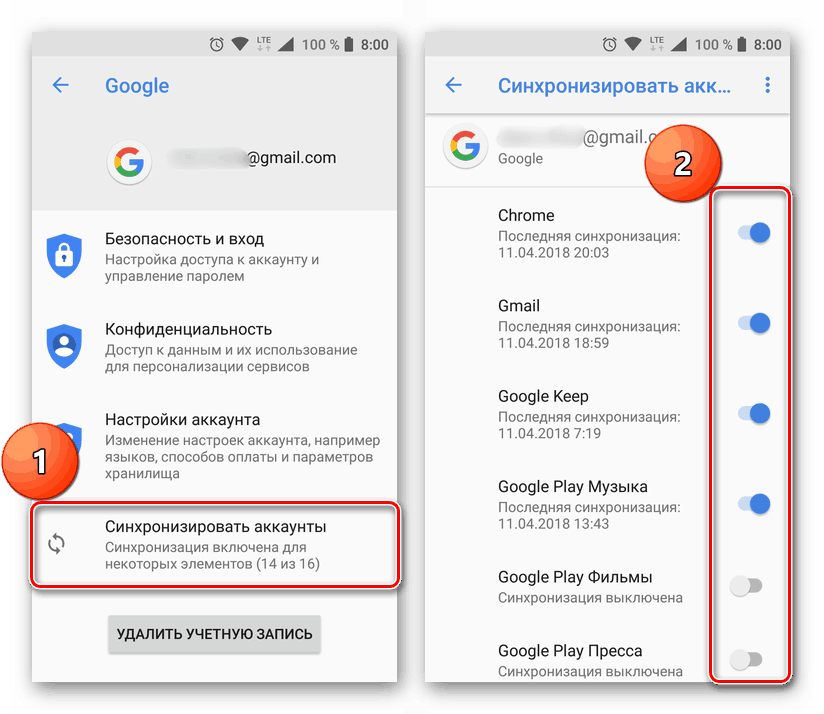
Практически все стандартные приложения на Android занимают место во внутренней памяти устройства, из-за чего иногда может появляться подобная ошибка. В первую очередь стоит попробовать решить проблему, включив синхронизацию Google и других используемых облачных сервисов. Кроме того, можете вручную переместить некоторые файлы в облако, очистив свободное место.
Подробнее:
Настройка синхронизации на Android
Синхронизация нескольких устройств на платформе Android
Способ 2: Установка карты памяти
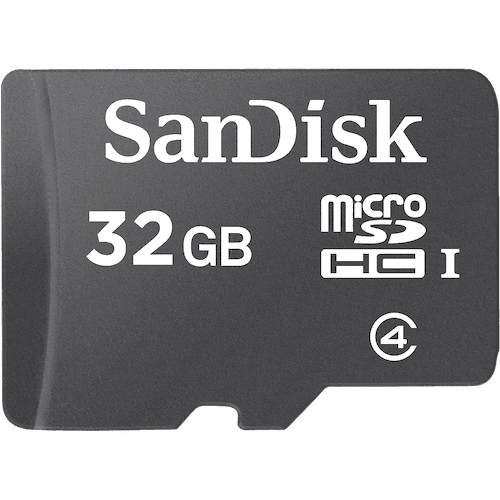
В связи с тем, что ошибка «Объем встроенной памяти недостаточен» возникает преимущественно по причине нехватки свободного места на устройстве, максимально простым решением будет установка дополнительного накопителя. Для этих целей существуют карты microSD, вставляющиеся в соответствующий слот. Такая процедура не должна вызывать проблем и затруднений.
Подробнее: Установка приложений на карту памяти на Android
Завершив вышеописанную процедуру, необходимо произвести переключение внутренней памяти на внешнюю, чтобы скачиваемые приложения и файлы в будущем автоматически сохранялись на ней. При этом учтите, не все приложения могут правильно работать с карты памяти. Более того, большинство файлов изначально скачивается во внутреннее хранилище и только после этого перемещается на внешний накопитель.
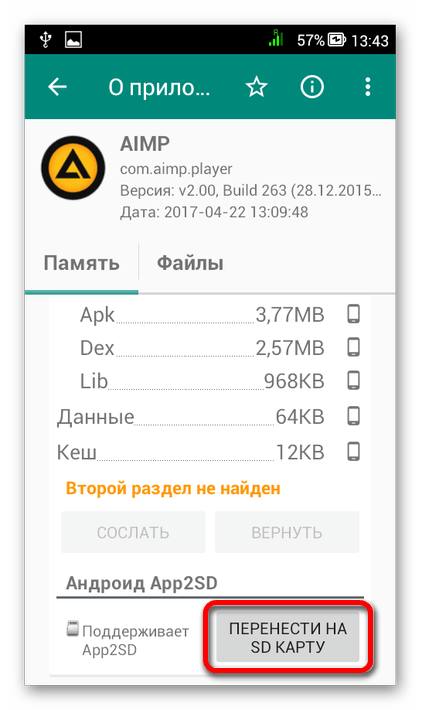
Подробнее: Переключение внутренней памяти на внешнюю на Android
Способ 3: Перенос приложений и файлов
Данный метод дополняет предыдущий и заключается в переносе уже существующих файлов и приложений из внутренней памяти на внешнюю. Это является необходимой мерой, если во внутреннем хранилище устройства осталось слишком мало свободного пространства. Подробнее изучить вопрос переноса вы можете в отдельной инструкции на нашем сайте.
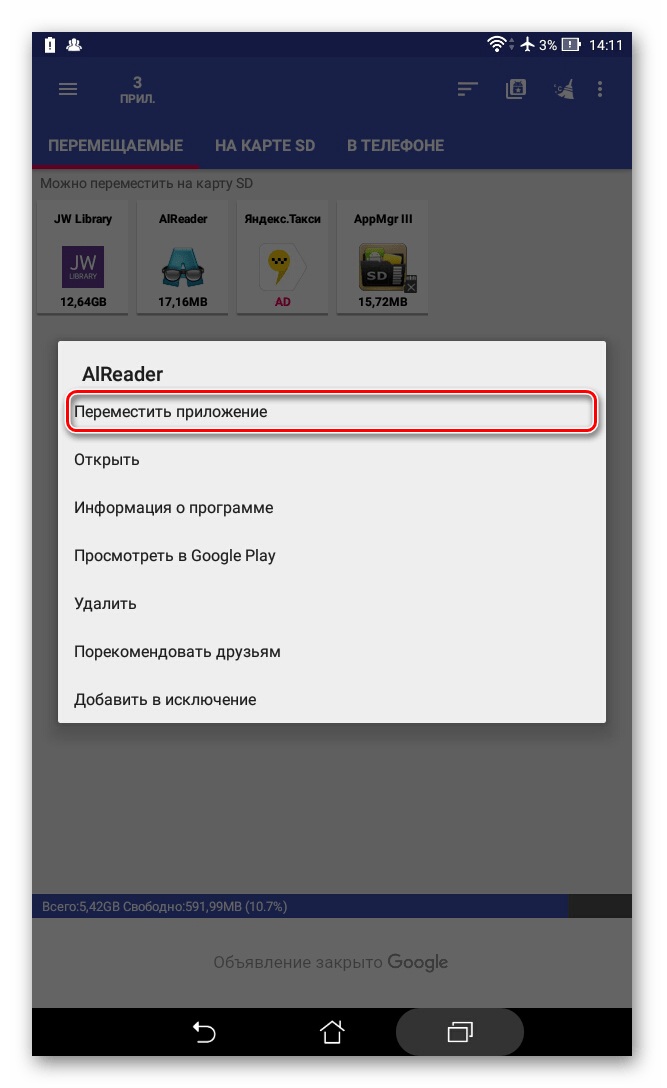

Подробнее: Правильный перенос приложений на карту памяти на Android
Способ 4: Очистка внутренней памяти
При активном использовании смартфона во внутренней памяти скапливается большое количество файлов, представляющих собой кэш приложений и прочих медиафайлов, занимающий значительное количество свободного места и напрямую влияющий на появление неполадки. Чтобы решить проблему, достаточно произвести поиск и удаление мусора с использованием одного из специальных приложений.
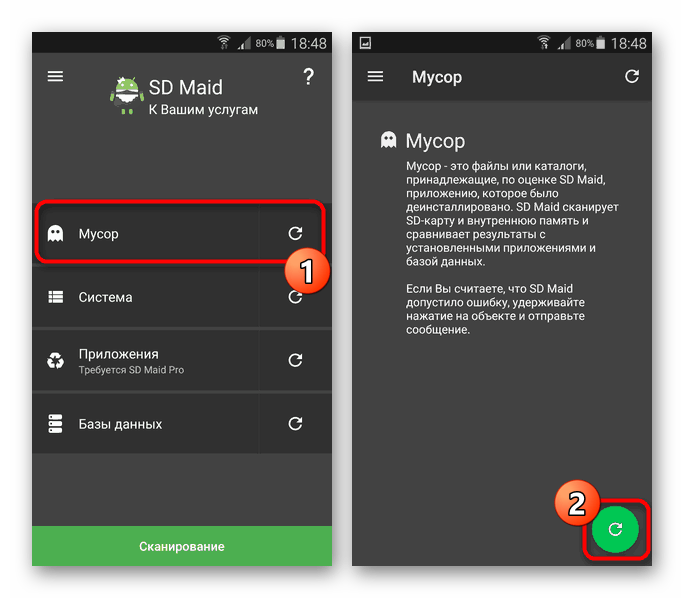
Подробнее: Очистка Android-устройства от мусора
Дополнительно можете отключить автоматическое скачивание и установку обновлений для приложений. Это так или иначе позволит сэкономить некоторое количество свободного пространства, особенно при отсутствии внешней памяти. Вдобавок к этому, то же самое можно сделать с автозагрузкой приложений.
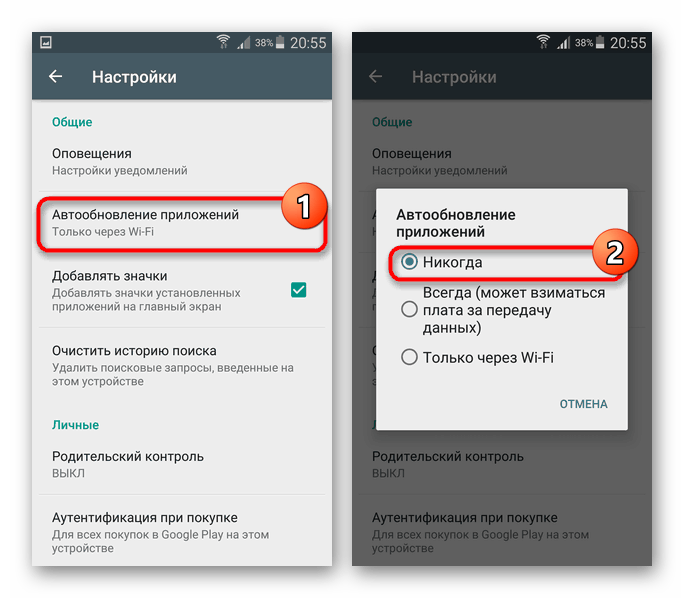
Подробнее:
Отключение автоматического обновления приложений в Плей Маркете
Отключение автозагрузки на Android
Способ 5: Поиск и удаление удаленных файлов
Многие файловые менеджеры, используемые при работе с файлами на телефоне, предоставляют функцию временного удаления. Это также может стать причиной возникновения ошибки, так как напрямую связано с процедурой удаления информации. Про подобные случаи нами было рассказано отдельно.
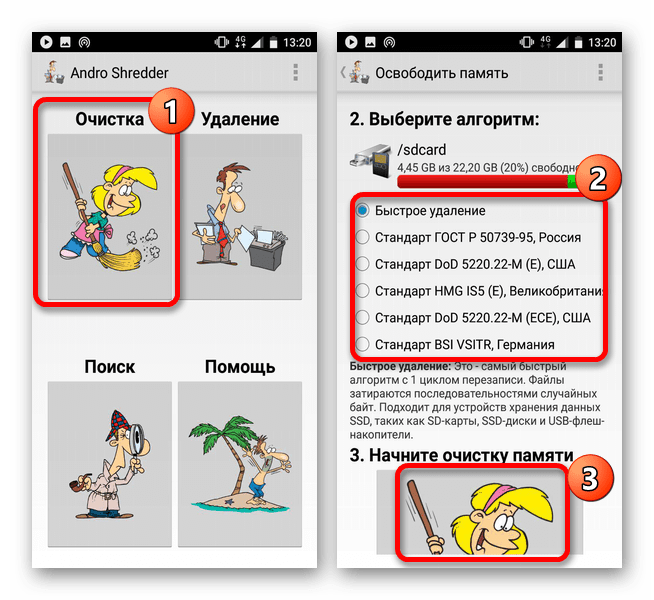
Подробнее:
Удаление удаленных файлов на Android
Как очистить корзину на Android
Способ 6: Удаление приложений и данных
Если предыдущие методы не позволили избавиться от ошибки, вполне может помочь полное удаление приложений или очистка данных о работе. Связано это с тем, что программы для очистки свободного места часто игнорируют информацию о работе некоторого ПО, практически не оказывая влияния на свободное место в хранилище. В рамках этого способа большее внимание стоит уделить Google Play Маркету и Сервисам Google Play.
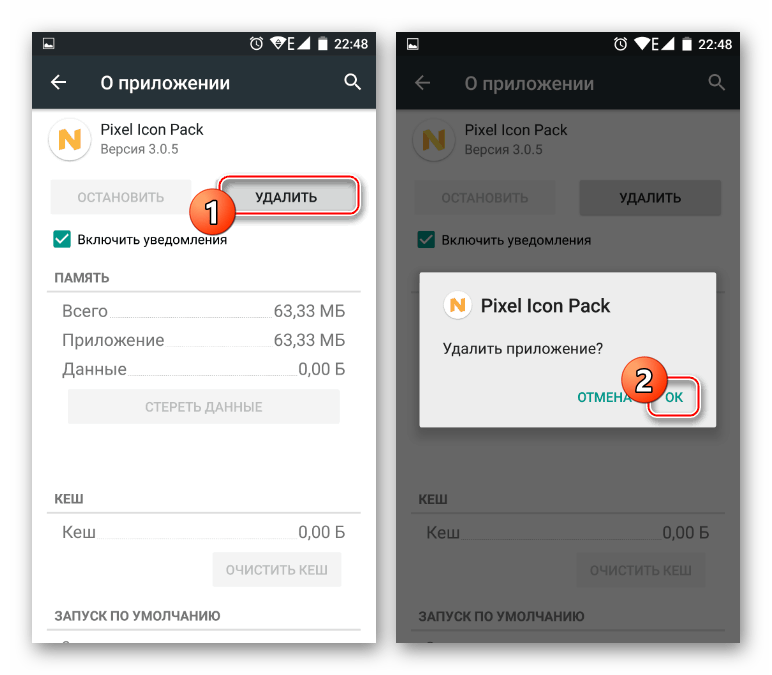
Подробнее:
Очищаем кэш на Android
Как очистить обновления ПО на Android
Правильное удаление приложений на Android
Удаление неудаляемых приложений на Android
Способ 7: Сброс настроек
В отличие от любого другого решения сброс настроек на Android является универсальным, но вместе с тем экстренным вариантом. Рекомендуется подобный подход только после предварительного создания резервной копии внутренней памяти и при возникновении ошибки на этапе включения смартфона. При этом во многих случаях сброс позволит лишь очистить хранилище, в то время как сама неполадка может вернуться в процессе использования смартфона.
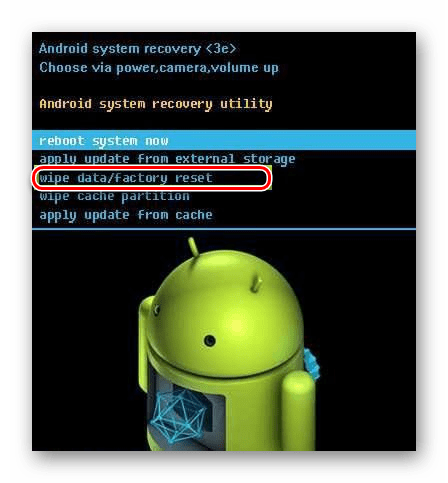
Подробнее: Сброс Android-устройства до заводского состояния
Рассмотренные в статье методы позволяют исправить ошибку «Объем встроенной памяти недостаточен», но, к сожалению, не во всех ситуациях. Из-за этого отдельно стоит помнить о возможном выходе устройства из строя, чтобы своевременно обратиться в сервисный центр для проверки и восстановления смартфона.
За телефоном Xiaomi (Redmi), как за другой техникой, нужно следить. Если пустить работу смартфона на самотёк, самозабвенно фотографируя каждую минуту своей жизни и скачивая фильмы, музыку и гифки без раздумывания о том сколько памяти на Сяоми осталось в запасе, она закончится, что сулит плохой работой Android.
Системное сообщение о недостатке памяти связано с собственной памятью, оно не реагирует на количество места на съёмной карте.
Для стабильной работы телефона на ОС Android должно быть свободно не менее 1-1,5 Гб от объёма собственной постоянной памяти Xiaomi (Redmi). Это количество необходимо для кеширования данных во время работы приложений и для временных файлов, создаваемых системой.
Если количество свободного места упадёт ниже 1 Гб, начнут появляться предупреждения о том, что память на телефоне заканчивается, при этом не гарантируется стабильная работа.
Узнать сколько места осталось, можно зайдя в общих настройках телефона в меню «Хранилище». Первым пунктом в списке отображено количество оставшейся свободной памяти и общий её объём. Первое значение никогда не должно быть менее 1 Гб, иначе могут начаться глюки и зависания приложений. Ниже в списке можно посмотреть какой тип данных занимает большую часть памяти Xiaomi и исходя из этого подумать, как её освободить.


Каждое приложение при работе создаёт временные файлы, где хранятся служебные данные или пользовательские материалы, которые один раз загрузившись, в следующий раз считаются из кеша, а не загрузятся из сети снова. Этих файлов может быть очень много при использовании интернет приложений. Их можно свободно удалить, это не повлияет на стабильность работы Xiaomi.
К счастью, в оболочке MIUI есть специальная программа, которая найдёт мусорные файлы, удаление которых безопасно и спросит вас о необходимости очистки. Чтобы запустить программу очистки найдите иконку на рабочем столе с названием «Очистка».

Подождите несколько секунд, пока приложение проведёт анализ памяти и высветит размер файлов, доступных для безопасного удаления. В моём случае приложение обнаружило «мусор» объёмом 1,16 Гб. Нажав на кнопку в нижней части экрана «Очистить» файлы будут удалены.

Если удаление данных не помогло, удалите старые или дублированные фото или видео. Мы снимаем видео на Xiaomi, о которых забываем, они занимают много места, и мы ими не пользуемся. Удалите несколько видеороликов, и вы заметите, как много освободится памяти.
Изучите список приложений, возможно, некоторые из них для вас не актуальны, удалите их. Они не только занимают память, но и хранят кешированные данные, а также могут расходовать заряд аккумулятора при фоновой работе.

Об авторе: MiMaster
Привет, меня зовут Тимур. Я с детства увлекался компьютерами и IT-Индустрией, мне это нравится, это моя страсть. Последние несколько лет глубоко увлёкся компанией Xiaomi: идеологией, техникой и уникальным подходом к взрывному росту бизнеса. Владею многими гаджетами Xiaomi и делюсь опытом их использования, но главное — решением проблем и казусов, возникающих при неожиданных обстоятельствах, на страницах сайта mi-check.ru