
-
#1
I have a system with onboard Intel Wireless-AC 7265 in a MSI Z97I Gaming-AC board running Windows 10 Pro Build 1803 with Kaspersky Internet Security 2019 (Tried leaving this on and disabled it still the same thing) it refuses to connect to wireless that iphone, ipad, and other Windows 10 machines connect to just fine.
Getting the error message:
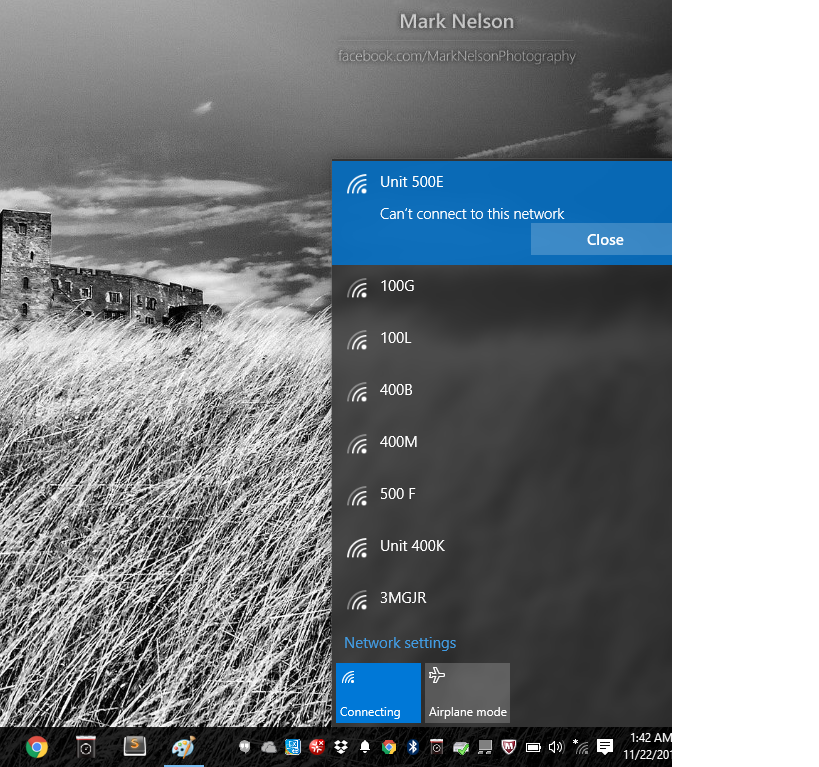
Have tried different Intel drivers and software but the moment the Intel driver is installed Windows 10 cannot discover any wireless networks at all not even hotspot made from any smartphone.
Tried drivers:
WiFi_20.80.0_PROSet64_Win10.exe (Driver and Software)
WiFi_20.80.0_Driver64_Win10.zip (Driver only)
together with version 18 and 17 does the same thing any the wireless doesn’t have an error code in Windows 10 it all looks normal undet Device Manager —> Network Adapters.
Clean and uninstalled all Intel Bluetooth, Proset/wireless even though Device manager, deleted Device driver packages but no driver want to work only the Intel Wireless-AC 7265 that Microsoft has built into Windows 10 works so it can discover wireless networks.
Last tried to reset network in Windows 10 under Windows Settings —> Network and Internet —> Network reset —> Reset now it doesn’t help, also tried disabling Microsoft Network Adapter Multiplexor Protocol and Microsoft LLDP Protocol Driver no change.
So a little help would be really nice if it’s not just Microsoft’s elf’s who is a play here.

-
#2
???So have you gone to device manager and uninstalled the NIC. Then do immediate reboot and let Windows reinstall «new hardware». Then re-enter SSID and password.
EDIT: OR (long road) remove card from system and reboot. Then reinstall and reboot.
Last edited: Oct 23, 2018
-
#3
Tried that too no luck.
The card is installed in the default case from MSI:
-
#4
In Properties for adapter… 1) Allow Windows to turn off to save power? 2) Turn off other adapters (wired ports) when this one in use?
Advanced tab settings for adapter: roaming strength, preferred band, etc…
Anything in BIOS /UEFI?
Was this stock or upgrade? (inside MSI case)
but no driver want to work only the Intel Wireless-AC 7265 that Microsoft has built into Windows 10 works so it can discover wireless networks.
Are you saying it works with default Windows 1803 drivers? What are you trying to accomplish if it was working?
-
#5
It can see Wi-Fi with default Windows 10 drivers but cannot connect and installing Intel’s driver then it didn’t discover any Wi-Fi networks at all.
Gonna try safe mode tomorrow and see if it can then connect to a Wi-Fi and if not trying to update the driver and look in safe mode to see if it works.
If none of this work gonna try with disabled driver signature.

-
#6
I had that card on my laptop… I had to use the drivers from dell’s website to get it working but it was broken for a good 2 months. There was a fight between Intel and MS on who broke the wifi like 2 years ago. I think MS updated something and it worked again.
https://www.dell.com/support/home/us/en/04/drivers/driversdetails?driverid=pg4ym
Try this driver. This one worked for me.
It can see Wi-Fi with default Windows 10 drivers but cannot connect and installing Intel’s driver then it didn’t discover any Wi-Fi networks at all.
Gonna try safe mode tomorrow and see if it can then connect to a Wi-Fi and if not trying to update the driver and look in safe mode to see if it works.
If none of this work gonna try with disabled driver signature.
100% driver issue. Try different installers from various manufacturers.
-
#7
Thank you @BadFrog gonna try it tomorrow doesn’t have access to the pc tomorrow.
-
#9
Try resetting the winsock it might be corrupt. Open command prompt with admin privileges. type «netsh winsock reset» then enter without qoutes. reboot, if that fails reset router. Even if other devices are working. Just speaking from experience. let me know if it works
-
#11
Another option is upgrade Windows to 1809 and do the additional patch from here: https://www.techpowerup.com/forums/threads/download-windows-10-th-rs.216164/
EDIT: Move all documents out of the «download folder» to a different location and backup all documents and anything you want to keep.
My mom had troubles this summer on 1803 and the wireless card not connecting. So a strong welcome to the advice by @BadFrog .
How can I did this when bit even with iPhone I can get the pc online only with cable¿
-
#12
How can I did this when bit even with iPhone I can get the pc online only with cable¿
Hardwired Ethernet cable? : So your saying you get internet service thru iphone as a hot spot? Have you reset the iphone network to factory in settings (where you reset the entire iphone as a subsetting for network only reset?) Then reenter your router settings from scratch.
-
#13
Hardwired Ethernet cable? : So your saying you get internet service thru iphone as a hot spot? Have you reset the iphone network to factory in settings (where you reset the entire iphone as a subsetting for network only reset?) Then reenter your router settings from scratch.
It’s talktalk router so nuth to reset sadly.
But I will try some more things later today
-
#14
How can I did this when bit even with iPhone I can get the pc online only with cable¿
Download the update from a more reliable and faster internet connection and put it on a USB and bring it to your PC.
Was wondering if the driver worked? Have you tried yet?
I see more information about a talktalk router now. I quickly googled talktalk router and iphone problem and you’re not alone. Can you give more information about the router? Model #? Have you tried resetting the router? Additionally, try changing the 2.4ghz and 5ghz ssid. when speed reading I thought I saw someone say that they are both on the same ssid but the 2.4 and 5. LMK how it goes!

-
#15
change the channel width to 20 Mhz on the 2.4 and 40 on the 5Ghz bands to test firstly… Also make sure «antenna diversity» is enabled and all «magic packet» options are enabled as well. If these work and then put back to 80Mhz or auto.

-
#16
have you tried changing the WEP/WPA,WPA2 encryption protocol from AES-CCMP to TKIP on you router I used to have a phone that didn’t like my routers implementation AES but worked perfectly fine when using TKIP
Phone was old AES implementation vs newer on the router and the router didn’t like the older version so would not allow the phone to connect
Last edited: Oct 25, 2018

-
#17
Ive had this problem with multiple intel adapters or issues with a reliable connection with my old HTPC systems. On both systems, intel 3165 and 7265, after disabling the Bluetooth no longer had the issues.
-
#1
I have a system with onboard Intel Wireless-AC 7265 in a MSI Z97I Gaming-AC board running Windows 10 Pro Build 1803 with Kaspersky Internet Security 2019 (Tried leaving this on and disabled it still the same thing) it refuses to connect to wireless that iphone, ipad, and other Windows 10 machines connect to just fine.
Getting the error message:
Have tried different Intel drivers and software but the moment the Intel driver is installed Windows 10 cannot discover any wireless networks at all not even hotspot made from any smartphone.
Tried drivers:
WiFi_20.80.0_PROSet64_Win10.exe (Driver and Software)
WiFi_20.80.0_Driver64_Win10.zip (Driver only)
together with version 18 and 17 does the same thing any the wireless doesn’t have an error code in Windows 10 it all looks normal undet Device Manager —> Network Adapters.
Clean and uninstalled all Intel Bluetooth, Proset/wireless even though Device manager, deleted Device driver packages but no driver want to work only the Intel Wireless-AC 7265 that Microsoft has built into Windows 10 works so it can discover wireless networks.
Last tried to reset network in Windows 10 under Windows Settings —> Network and Internet —> Network reset —> Reset now it doesn’t help, also tried disabling Microsoft Network Adapter Multiplexor Protocol and Microsoft LLDP Protocol Driver no change.
So a little help would be really nice if it’s not just Microsoft’s elf’s who is a play here.
-
#2
???So have you gone to device manager and uninstalled the NIC. Then do immediate reboot and let Windows reinstall «new hardware». Then re-enter SSID and password.
EDIT: OR (long road) remove card from system and reboot. Then reinstall and reboot.
Last edited: Oct 23, 2018
-
#3
Tried that too no luck.
The card is installed in the default case from MSI:
-
#4
In Properties for adapter… 1) Allow Windows to turn off to save power? 2) Turn off other adapters (wired ports) when this one in use?
Advanced tab settings for adapter: roaming strength, preferred band, etc…
Anything in BIOS /UEFI?
Was this stock or upgrade? (inside MSI case)
but no driver want to work only the Intel Wireless-AC 7265 that Microsoft has built into Windows 10 works so it can discover wireless networks.
Are you saying it works with default Windows 1803 drivers? What are you trying to accomplish if it was working?
-
#5
It can see Wi-Fi with default Windows 10 drivers but cannot connect and installing Intel’s driver then it didn’t discover any Wi-Fi networks at all.
Gonna try safe mode tomorrow and see if it can then connect to a Wi-Fi and if not trying to update the driver and look in safe mode to see if it works.
If none of this work gonna try with disabled driver signature.
-
#6
I had that card on my laptop… I had to use the drivers from dell’s website to get it working but it was broken for a good 2 months. There was a fight between Intel and MS on who broke the wifi like 2 years ago. I think MS updated something and it worked again.
https://www.dell.com/support/home/us/en/04/drivers/driversdetails?driverid=pg4ym
Try this driver. This one worked for me.
It can see Wi-Fi with default Windows 10 drivers but cannot connect and installing Intel’s driver then it didn’t discover any Wi-Fi networks at all.
Gonna try safe mode tomorrow and see if it can then connect to a Wi-Fi and if not trying to update the driver and look in safe mode to see if it works.
If none of this work gonna try with disabled driver signature.
100% driver issue. Try different installers from various manufacturers.
-
#7
Thank you @BadFrog gonna try it tomorrow doesn’t have access to the pc tomorrow.
-
#9
Try resetting the winsock it might be corrupt. Open command prompt with admin privileges. type «netsh winsock reset» then enter without qoutes. reboot, if that fails reset router. Even if other devices are working. Just speaking from experience. let me know if it works
-
#11
Another option is upgrade Windows to 1809 and do the additional patch from here: https://www.techpowerup.com/forums/threads/download-windows-10-th-rs.216164/
EDIT: Move all documents out of the «download folder» to a different location and backup all documents and anything you want to keep.
My mom had troubles this summer on 1803 and the wireless card not connecting. So a strong welcome to the advice by @BadFrog .
How can I did this when bit even with iPhone I can get the pc online only with cable¿
-
#12
How can I did this when bit even with iPhone I can get the pc online only with cable¿
Hardwired Ethernet cable? : So your saying you get internet service thru iphone as a hot spot? Have you reset the iphone network to factory in settings (where you reset the entire iphone as a subsetting for network only reset?) Then reenter your router settings from scratch.
-
#13
Hardwired Ethernet cable? : So your saying you get internet service thru iphone as a hot spot? Have you reset the iphone network to factory in settings (where you reset the entire iphone as a subsetting for network only reset?) Then reenter your router settings from scratch.
It’s talktalk router so nuth to reset sadly.
But I will try some more things later today
-
#14
How can I did this when bit even with iPhone I can get the pc online only with cable¿
Download the update from a more reliable and faster internet connection and put it on a USB and bring it to your PC.
Was wondering if the driver worked? Have you tried yet?
I see more information about a talktalk router now. I quickly googled talktalk router and iphone problem and you’re not alone. Can you give more information about the router? Model #? Have you tried resetting the router? Additionally, try changing the 2.4ghz and 5ghz ssid. when speed reading I thought I saw someone say that they are both on the same ssid but the 2.4 and 5. LMK how it goes!
-
#15
change the channel width to 20 Mhz on the 2.4 and 40 on the 5Ghz bands to test firstly… Also make sure «antenna diversity» is enabled and all «magic packet» options are enabled as well. If these work and then put back to 80Mhz or auto.
-
#16
have you tried changing the WEP/WPA,WPA2 encryption protocol from AES-CCMP to TKIP on you router I used to have a phone that didn’t like my routers implementation AES but worked perfectly fine when using TKIP
Phone was old AES implementation vs newer on the router and the router didn’t like the older version so would not allow the phone to connect
Last edited: Oct 25, 2018
-
#17
Ive had this problem with multiple intel adapters or issues with a reliable connection with my old HTPC systems. On both systems, intel 3165 and 7265, after disabling the Bluetooth no longer had the issues.

На мой рабочий ноутбук мастера при ремонте установили мне Windows 10, и всё вроде бы работало нормально, пока мне вчера не понадобилось подключить по Bluetooth гарнитуру.
Как подключить беспроводные наушники (по Bluetooth) к компьютеру и телефону — пошаговая инструкция
Содержание
- Что делать, если на компьютере не работает Bluetooth
- Intel Wireless Bluetooth не работает в Windows 10 [EXPERT FIX]
- Как я могу исправить Intel Wireless Bluetooth, не работающий в Windows 10?
- 1. Откройте средство устранения неполадок Bluetooth
- 2. Обновите драйвер Intel Bluetooth
- 3. Запустите Intel Driver & Support Assistant
- 4. Отмените выбор параметра «Включить быстрый запуск» и переустановите драйвер Bluetooth.
- Intel® Bluetooth не обнаруживается в Диспетчере устройств
- Окружающая среда
- Вам нужна дополнительная помощь?
- Оставьте отзыв
- Отказ от ответственности
- Intel ax200 не работает bluetooth на windows 10
- Не работает Bluetooth в Windows 10
- 1. Запуск средства устранения неполадок Bluetooth
- 2. Обновить драйвер Bluetooth
- 3. Проверка службы
- 4. Изменить параметр энергосбережения
- 5. Видимость системы
- 6. Удаление устройств Bluetooth
- 7. Другой USB порт
- 8. Включение Bluetooth на ноутбуках
Что делать, если на компьютере не работает Bluetooth
👉 ШАГ 1
Если драйвер на адаптер установлен — то напротив устройства не должно гореть никаких восклицательных знаков. (см. мой пример ниже)
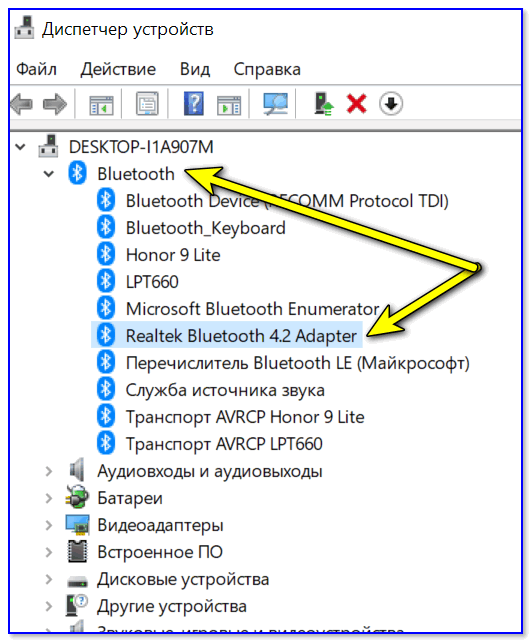
Bluetooth Adapter установлен! Диспетчер устройств в Windows 10
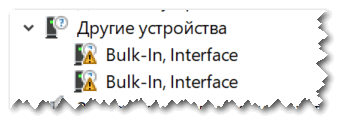
А вот так выглядят устройства, для которых драйверов в системе нет!
Вообще, тема обновления драйверов достаточно обширная, и, если у вас с ними проблема — приведу ниже пару ссылок (дабы не «засорять» эту статью).
👉 ШАГ 2
Если речь идет именно о ноутбуке — обязательно посмотрите, нет ли на клавиатуре или его корпусе спец. кнопок и индикаторов, отвечающих за работу Bluetooth.
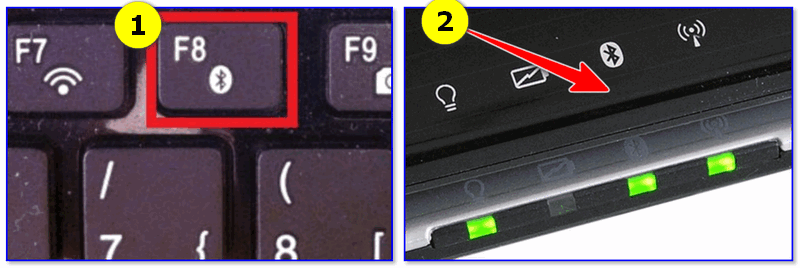
Кнопки и индикаторы на корпусе ноутбука
👉 ШАГ 3
Далее необходимо открыть все сетевые адаптеры и удостовериться, что Bluetooth включен. Для этого:
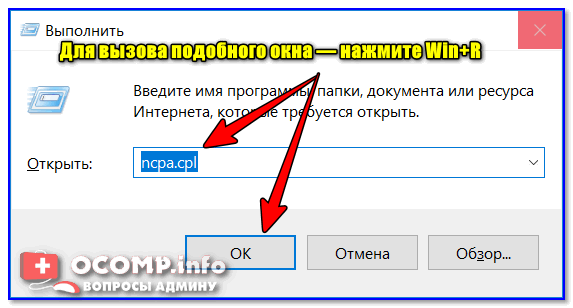
ncpa.cpl — просмотр всех сетевых подключений
Среди списка адаптеров проверьте, чтобы Bluetooth был включен (его значок «с мониторами» при этом будет цветным, а не черно-белым, как в моем примере ниже).
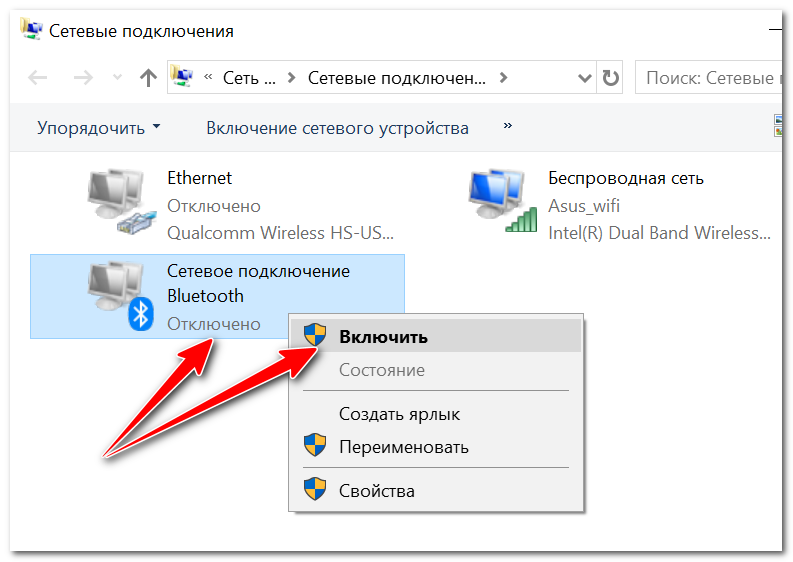
Включаем Bluetooth адаптер
👉 ШАГ 4
Теперь нажимаем сочетание Win+i (можно через ПУСК), и открываем параметры ОС Windows 10. После, переходим в раздел «Устройства / Bluetooth и другие устройства» : переключаем ползунок в режим «вкл.».
Затем, в этом же разделе, жмем по кнопке добавления новых устройств (она над переключателем вкл. Bluetooth) и пытаемся установить связь. В большинстве случаев — всё «заводится» с 5-10 сек. 👌
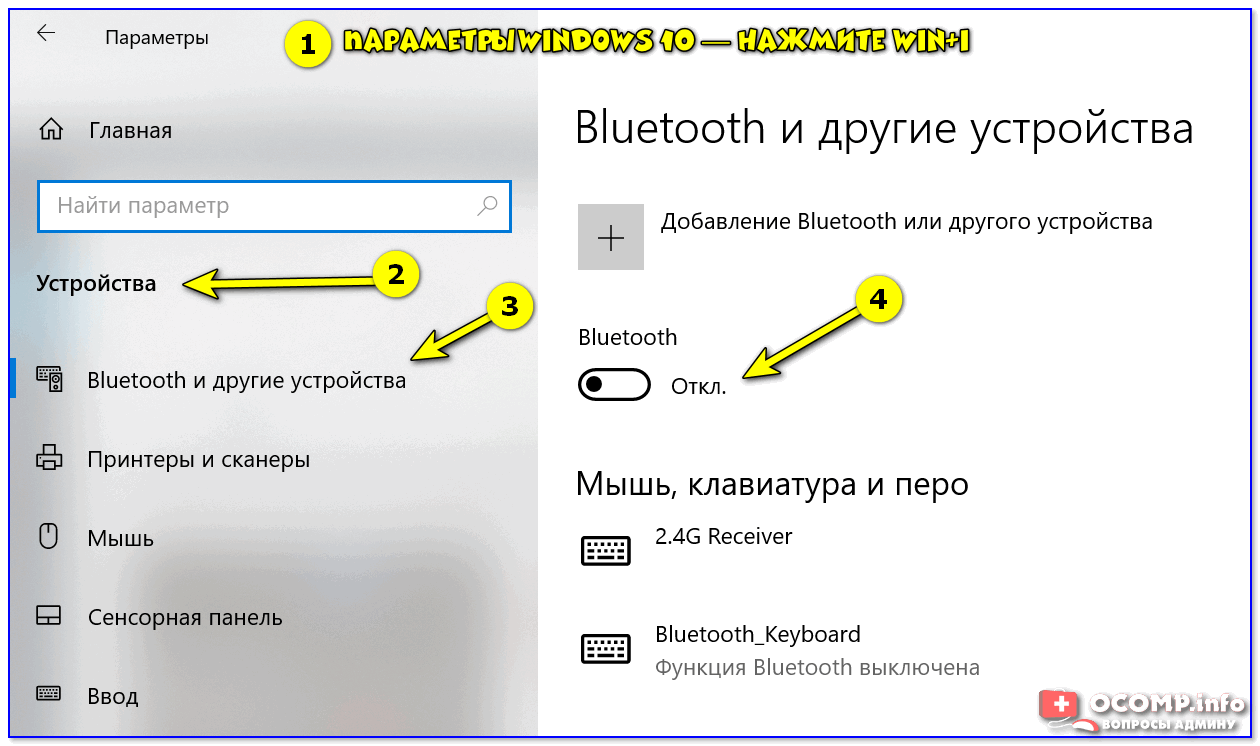
Как включить Bluetooth в Windows 10
👉 ШАГ 5
В редких случаях на этапе сопряжения Windows может попросить ввести пароль (даже при подключении гарнитуры или мышки).
В этом случае посмотрите внимательно на коробочку (упаковку) от подключаемого устройства — там наверняка указаны эти цифры.
Если ее нет, попробуйте ввести универсальные цифры-пароли: 0000, 1234, 9999, 0001, 1111.
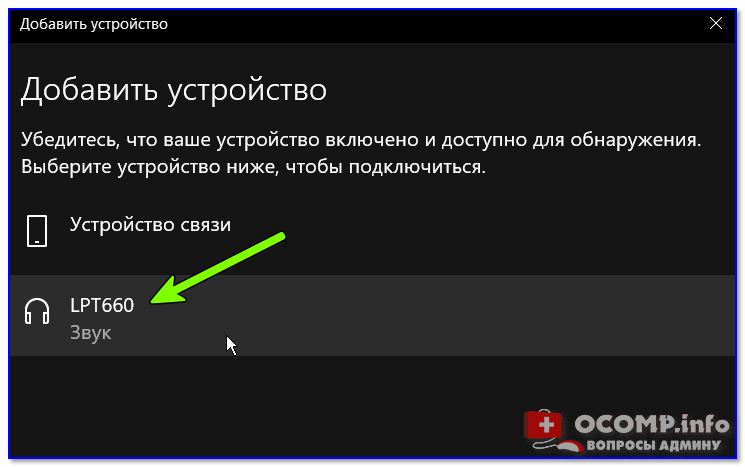
Выбираем наушники / Эта подключения гарнитуры к ноутбуку
Примечание : если на подключаемой гарнитуре указана ее модель — пароль можно найти, воспользовавшись Google/Яндекс.
👉 ШАГ 6

Далее мастер ОС автоматически перепроверит ряд необходимых параметров и (возможно) устранит проблему. После его работы, желательно, перезагрузить ПК.
Если вы не смогли решить проблему — то в комментариях указывайте шаг, на котором возникла «загвоздка». Это существенно поможет в решении и поиске причин.
Дополнения по теме приветствуются.


Здравствуйте, кнопка блютуз отсутствует вообще, и в устройствах нет. Драйверы установлены, адаптер intel 7260.
Добрый день.
У меня такая проблема: блютуз включается, работает, но буквально через пару минут отваливается с наушников звук. Соответственно отваливается блютуз на ноуте, пропадая при этом отовсюду (имею ввиду значки и т.д.). Помогает только перезагрузка ноута (нужна помощь Help).
Добрый.
Наушники проверяли на другом устройстве? (например, телефоне)
Как вариант: купить на AliExpress внешний адаптер.
В моем случае установка наушников висела на месте около минуты, но наушники уже работали, потому нажал отмену и спокойно пользуюсь.
Отмечу, что до этого много раз пытался подключить через стандартное меню «+ добавление Bluetooth или другого устройства» (шаг №4) но подключить не мог, хотя проверял БТ-колонку и она спокойно сопряглась.
Источник
Intel Wireless Bluetooth не работает в Windows 10 [EXPERT FIX]
Intel Bluetooth обычно позволяет пользователям подключать беспроводные устройства к настольным компьютерам и ноутбукам, но некоторые пользователи говорят, что их Intel Bluetooth не работает для них.
Один пользователь сообщил о проблеме с Intel Wireless Bluetooth на специальном форуме Microsoft.
Когда я зашел в Диспетчер устройств, я заметил, что моя Intel Wireless Bluetooth не работает должным образом. ‘Это устройство не может запуститься. (Код 10) STATUS_DEVICE_POWER_FAILURE ’отображается в настройках.
Узнайте о способах решения этой проблемы ниже.
Как я могу исправить Intel Wireless Bluetooth, не работающий в Windows 10?
1. Откройте средство устранения неполадок Bluetooth
2. Обновите драйвер Intel Bluetooth
Некоторым пользователям может потребоваться обновить свои драйверы Intel Bluetooth, чтобы устранить неисправность Bluetooth. Пользователи могут загрузить последнюю версию драйвера со страницы Intel Wireless Bluetooth. Нажмите здесь кнопку BT_21.10.1_64 (для 64-разрядной версии Windows) или кнопку BT_21.10.1_32 (для 32-разрядной версии Windows), чтобы загрузить установщик драйвера. Затем откройте загруженный установщик, чтобы установить последнюю версию драйвера Intel Bluetooth.

3. Запустите Intel Driver & Support Assistant
Некоторые пользователи подтвердили, что Intel Driver & Support Assistant пригодится для исправления Intel Wireless Bluetooth. Это программное обеспечение сообщает пользователям, какие драйверы нужно обновить для Intel Wireless Bluetooth. Пользователи могут нажать кнопку Загрузить сейчас на странице Intel Driver & Assistant, чтобы загрузить программу.
4. Отмените выбор параметра «Включить быстрый запуск» и переустановите драйвер Bluetooth.
Вышеуказанные разрешения могут исправить Intel Wireless Bluetooth для восстановления подключения устройства. Пользователи также могут проверить этот пост для более общих исправлений Bluetooth.
Источник
Intel® Bluetooth не обнаруживается в Диспетчере устройств
Окружающая среда
Как обнаружить Bluetooth в Диспетчере устройств Intel
Bluetooth присутствует в Диспетчере устройств или на панели управления.
Вам нужна дополнительная помощь?
Оставьте отзыв
Отказ от ответственности
Все публикации и контент на этом веб-сайте регулируются Условиями использования Intel.com.
Содержание данной страницы представляет собой сочетание выполненного человеком и компьютерного перевода оригинального содержания на английском языке. Данная информация предоставляется для вашего удобства и в ознакомительных целях и не должна расцениваться как исключительная, либо безошибочная. При обнаружении каких-либо противоречий между версией данной страницы на английском языке и переводом, версия на английском языке будет иметь приоритет и контроль. Посмотреть английскую версию этой страницы.
Для работы технологий Intel может потребоваться специальное оборудование, ПО или активация услуг. // Ни один продукт или компонент не может обеспечить абсолютную защиту. // Ваши расходы и результаты могут отличаться. // Производительность зависит от вида использования, конфигурации и других факторов. // См. наши юридические уведомления и отказ от ответственности. // Корпорация Intel выступает за соблюдение прав человека и избегает причастности к их нарушению. См. Глобальные принципы защиты прав человека в корпорации Intel. Продукция и программное обеспечение Intel предназначены только для использования в приложениях, которые не приводят или не способствуют нарушению всемирно признанных прав человека.
Источник
Intel ax200 не работает bluetooth на windows 10
I have an MSI B360M based motherboard running Windows 10 in my desktop that got two M.2 slots. I used one of them to install Intel Wi-Fi 6 AX200 (AX200NGW) card hoping to add wi-fi and bluetooth functionalities. I had to use an adapter card as well because this motherboard only supports M.2 Key M. After installation of the hardware and drivers, Wi-Fi is working just fine but Bluetooth functionality is not added. It’s not even listed in the device manager. BT driver installation went fine; does it mean it was able to see the BT hardware installed? Any help to fix this issue would be greatly appreciated.
Cards like the AX200 are designed to be used in M.2 Type E connectors; they are not designed to be used in M.2 Type M connectors. Using an adapter to convert between the two is not complete; the M.2 Type M connector does not provide the USB 2.0 lane required to support Bluetooth.
Cards like the AX200 are designed to be used in M.2 Type E connectors; they are not designed to be used in M.2 Type M connectors. Using an adapter to convert between the two is not complete; the M.2 Type M connector does not provide the USB 2.0 lane required to support Bluetooth.
Scott, Thanks so much for your reply! In fact there are pins on the adapter board I bought to connect to USB; it’s just that I didn’t realize that I needed to connect them to make BT work. I did that now and BT has started working
You have an adapter that lets you plug a M.2 Type E device into a M.2 Type M connector and this device also has the needed USB output? Please send me a link to information regarding this device.
Warning: It is necessary to install both the Intel Wireless driver package and the Intel Bluetooth driver package. You will have problems if you attempt to run with the default Microsoft Bluetooth driver. The two services share the transmitters and the 2.4GHz band and their operation must be coordinated. Both driver packages are necessary for this.
Here is a link to the adapter:
I did install both the drivers. I actually don’t need the wifi functionality at the moment so not using it; just using BT for now. I am currently using small dual antennas that came with the AX200 board. BT’s range seems to very small using them. Having trouble connecting to a BT sound system that’s 6ft away. Need to replace them in near future
Is there a way to use the old AC8265 bluetooth functionality, because it’s still in my laptop, but removed its antennas and connected it to my new AX200 wifi card (installed with PCI E to M connector)
Why can’t you use the new AX200’s bluetooth functionality? You will need antennas to use the old card
It is possible to utilise and M.2 M key adaptor with a USB connector for bluetooth
But, in order to use its Bluetooth or WiFi functionality, it is necessary to connect antennas to the card that you insert into this adapter.
Thank you for posting on the Intel® communities.
Since this thread has been marked as «solved», in case you need any additional information, please submit a new question as this thread will no longer being monitored.
@Freddious, regarding your questions, we kindly recommend checking this further with your computer manufacturer. Installation or use of Intel® Wireless Adapters is subject to country-specific legal regulations. Some countries require the Intel® Wireless Adapters to be certified with the antenna that is intended to be used together in the system, while some countries require the Intel® Wireless Adapter to be certified at the full system level.
For more information please refer to this link: Regulatory Information Regarding Wireless Hardware Installation or Upgrade
Источник
Не работает Bluetooth в Windows 10
1. Запуск средства устранения неполадок Bluetooth
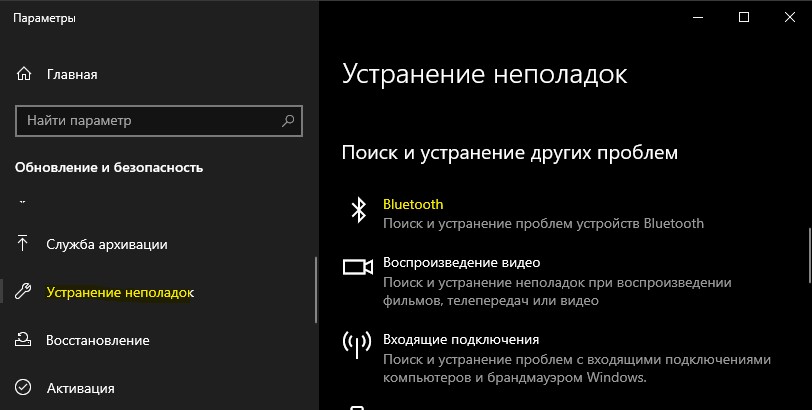
Откройте «Параметры» > «Обновления и безопасность» > «Устранение неполадок» > справа найдите Bluetooth и запустите.
2. Обновить драйвер Bluetooth
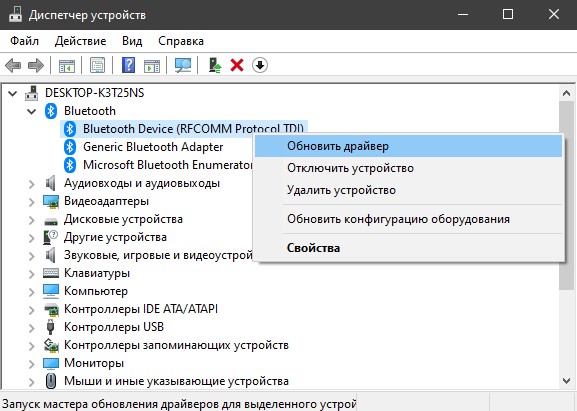
Нажмите сочетание кнопок Win+X и выберите «Диспетчер устройств«. В списке найдите и разверните графу Bluetooth, далее нажмите правой кнопки мыши по устройству и выберите «Обновить драйвер«. Проделайте это с каждым пунктом Bluetooth. Если не помогло, то удалите все Bluetooth устройства и перезагрузите ПК. После перезагрузки система автоматически переустановит драйверы. Если этого не произойдет, то зайдите обратно в диспетчер устройств и обновите.
3. Проверка службы
Нажмите сочетание кнопок Win+R и введите services.msc, чтобы открыть службы Windows. Найдите в писке «Служба поддержки Bluetooth» и убедитесь, что она работает (выполняется). Если она не работает, то нажмите по ней правой кнопкой мыши и выберите «Запустить«, если же служба работает, то выберите «перезапустить«. Перезагрузите компьютер, если служба была отключена и вы её запустили.

4. Изменить параметр энергосбережения
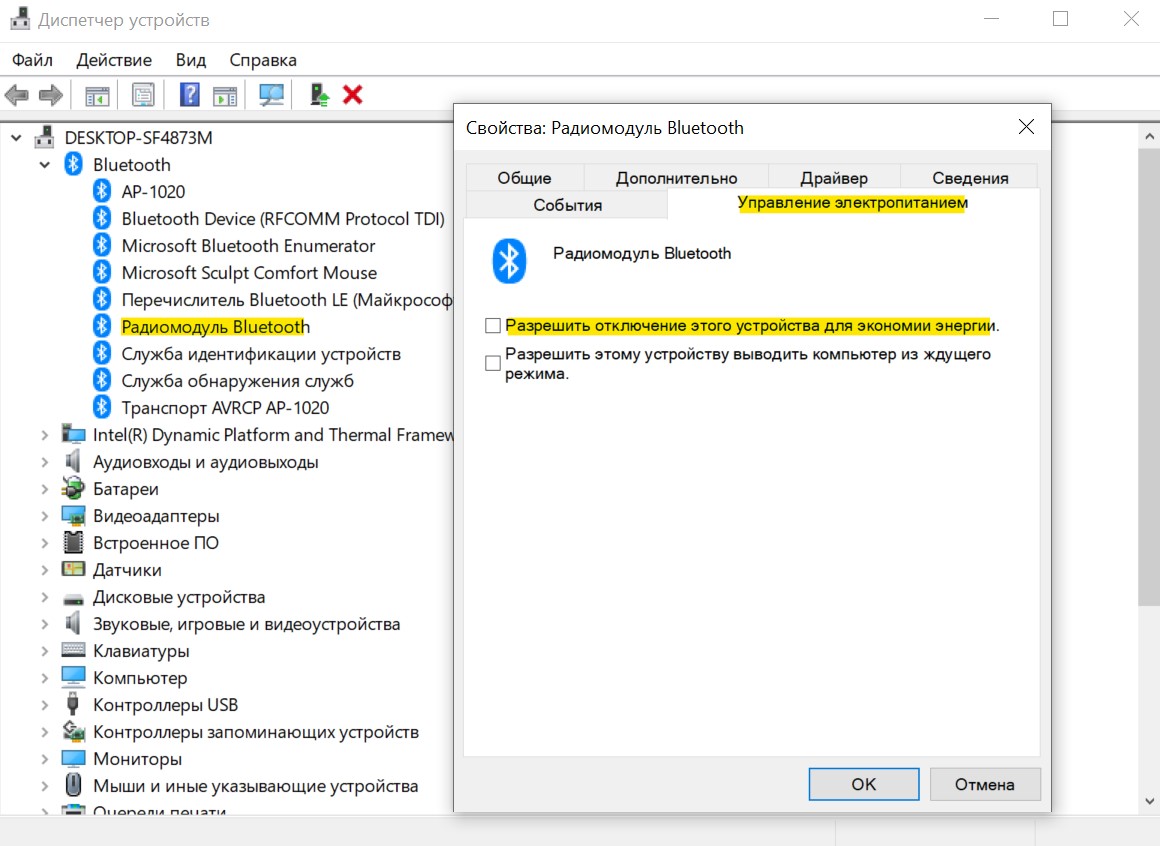
Если ваша беспроводная мышь или клавиатура Bluetooth все время отключается и подключается заново, то дело в режиме энергосбережения. Нажмите Win+X и выберите «Диспетчер устройств«, далее найдите и разверните графу Bluetooth. В развернутом списке найдите радиомодуль Bluetooth (Generic Bluetooth adapter) и нажмите по нему правой кнопкой мыши, после чего выберите «Свойства«. В новом окне перейдите во вкладку «Управление электропитанием» и снимите галочку «Разрешить отключение этого устройства для экономии энергии«.
5. Видимость системы
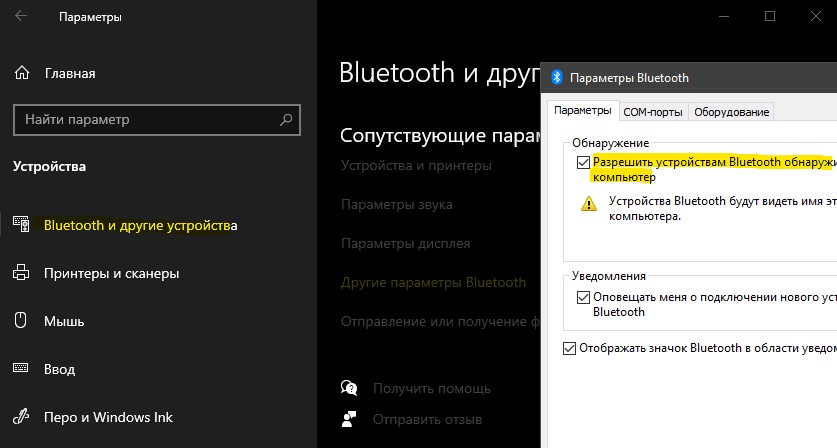
Откройте «Параметры» > «Устройства» > «Bluetooth и другие устройства» > справа найдите «Другие параметры Bluetooth«. В новом окне установите галочку «Разрешить устройствам Bluetooth обнаруживать этот ПК«.
6. Удаление устройств Bluetooth
Если вы подключаете Bluetooth-устройство, которое не использовали долгое время, то его нужно удалить и добавить заново. Также, старые не используемые Bluetooth-устройства могут мешать сопрягать текущее. Откройте «Параметры» > «Устройства» > «Bluetooth и другие устройства» > справа удалите все существующие подключения, после чего создайте новое.
Не удаляйте «USB Device», так как это устройства, которые подключены по USB порту по проводу.
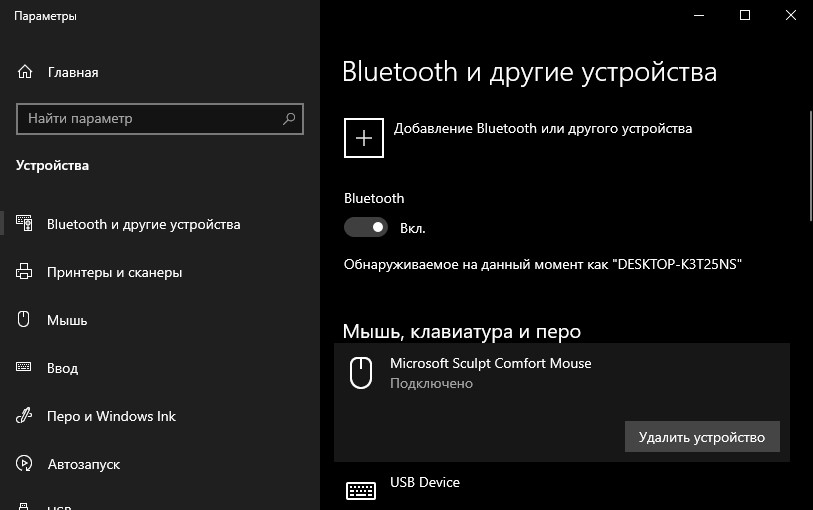
7. Другой USB порт
Если вы используете Bluetooth адаптер, который подключается через USB к компьютеру, то может быть так, что сам USB порт не работает. Попробуйте подключить USB-Bluetooth в другой порт компьютера.
8. Включение Bluetooth на ноутбуках
Наверняка многие не знают, что на некоторых ноутбуках есть физические комбинации кнопок для включения Bluetooth. Ниже на картинке, чтобы задействовать сам адаптер Bluetooth нужно нажать сочетание кнопок Fn+F3. На разных ноутбуках разные комбинации, но кнопка Fn есть всегда. Вы просто смотрите на иконки, какая кнопка обозначает связь. Также, это может быть отдельная кнопка на ноутбуке с боку или около тачпада.
Источник