С выходом революционной игры PUBG, она сразу набрала большое количество поклонников. Побила все рейтинги по продажам в игровых магазинах и, видимо, разработчики не собираются сбрасывать обороты. К сожалению, игра не лишена и проблем, которые возникают в операционной системе Windows. В этой статье вы сможете ознакомиться со всеми способами устранить ошибку «Starting BattlEye Service Launching Game Failed to Launch Game».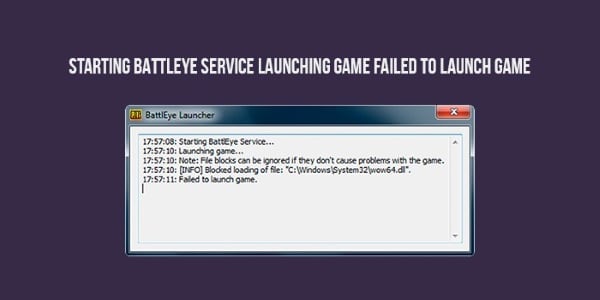
Содержание
- Из-за чего появляется ошибка
- Устранение ошибки в Steam
- Удаление файлов активатора Windows
- Другие способы устранить ошибку при запуске PUBG
Из-за чего появляется ошибка
Игроки со многих стран, которые столкнулись с ошибкой утверждают, что появляется она только на операционной системе Windows 7. Почему-то компания Microsoft стала серьезно бороться с пиратством именно в этой версии. При этом, в лицензионной ОС Windows 7 ошибки не возникает. Поэтому если пользователь не видит проблем в смене версии Windows (на другую, более позднюю, пусть даже пиратскую), то это также поможет в решении этой ошибки.
Сбой может появляться в результате повреждения файлов игры. Это часто случается, когда компьютер внезапно отключается от электропитания, не завершив сессию должным образом. В этом случае пользователю необходимо будет переустанавливать игру заново. В СТИМ быть ошибка Blocked loading of file C:WindowsSystem32.dll: https://easywebscripts.net/oshibki/blocked-loading-of-file-cwindowssystem32-dll.php.
Устранение ошибки в Steam
Попробуем проверить файлы игры на целостность в игровой платформе Steam. Для этого в системе есть специальная утилита, которая позволяет сканировать локальные файлы игры.
- Запустите Steam;
- Нажмите на ссылку «Игры» или «Games»;
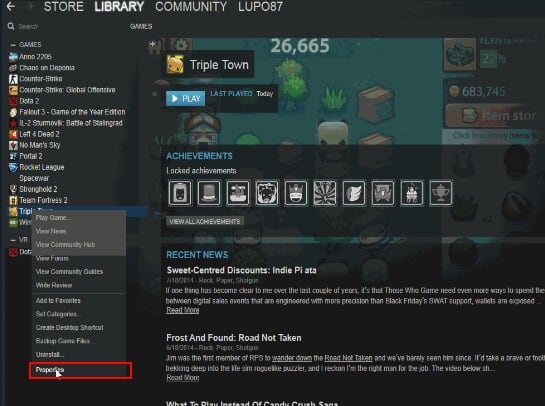
- Выберите игру ПКМ;
- Нажмите в контекстном меню «Свойства» или «Properties»;
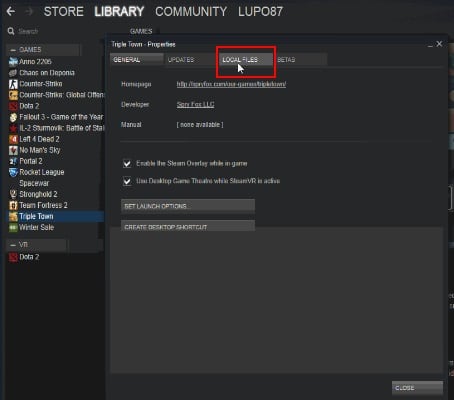
- В окне справа нажмите «Локальные файлы»;
- Выберите ниже из списка функций «Проверить локальные файлы игры».
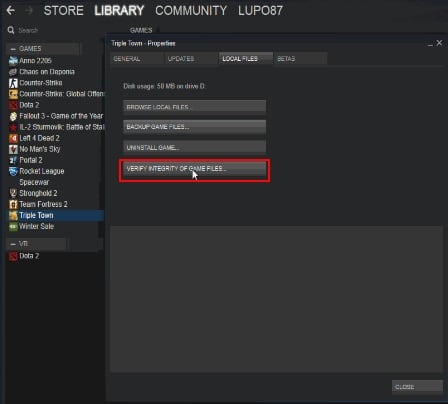
Нажмите на кнопку проверки файлов игры на компьютере пользователя
Через некоторое время вы увидите результат на экране. Если файлы игры повреждены, необходимо переустановить игру. Выполнить это просто.
- Откройте строку ввода (WIN+R);
- Напишите команду «control»;
- Выберите в следующем окне пункт «Удаление программ»;
- Найдите в списке игру и выберите её;
- Вверху окна нажмите кнопку «Удалить». Подтвердите свой выбор.
Затем снова переходим в библиотеку для скачивания игры. Как это делать, вы, скорее всего уже знаете. Если эта инструкция не помогла — переходим к следующему способу устранения Starting BattlEye Service Launching Games Failed to Launch Game.
Удаление файлов активатора Windows
Следующий способ также достаточно эффективен. Вам понадобиться создать текстовый файл с командами для Windows. В результате этого удаляются файлы активатора, которым вы обманули операционную систему. После этого метода многие игроки утверждают, что игра запускается без перебоев.
- Создайте прямо на рабочем столе текстовый файл. Чтобы это сделать, нажмите ПКМ в любом пустом месте экрана и выберите «Создать»;
- Выберите «Текстовый файл». Имя можно присвоить любое;
- Откройте блокнот и введите следующие команды, как на скриншоте;
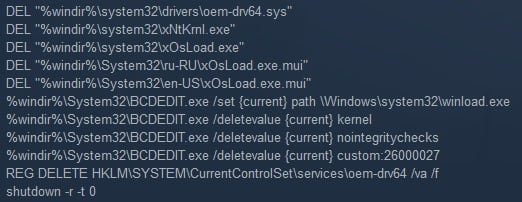
- Если нет желания набирать их вручную, перейдите по следующей ссылке и скопируйте — https://steamcommunity.com/app/346110/discussions/0/1694922980034264778/?ctp=28. Чтобы отыскать их, пролистайте несколько комментариев вниз;
- Сохраните наш текстовый файл таким образом, чтобы его имя заканчивалось на .cmd. То есть файл с командами;
- Компьютер перезагрузится;
- Попытайтесь запустить игру.
Если файлы активатора не получилось удалить этим способом (вы увидите процесс их удаления), попробуйте загрузить свой компьютер в безопасном режиме.
- Для этого вам нужно нажать кнопку RESET на корпусе или перезагрузить ПК программно;
- Затем при заставке материнской платы нужно нажать F8 и удерживать её до тех пор, пока не отобразится темный монитор с несколькими вариантами загрузки;
- Выберите «Безопасный режим с поддержкой командной строки»;
- Выполните снова предоставленную выше инструкцию.
Для попадания обратно в обычный режим, вам нужно просто снова перезагрузить компьютер любым способом.
Другие способы устранить ошибку при запуске PUBG
В том случае, если не удалось решить ошибку, значит проблема заключается в вашем компьютере. Попробуйте переустановить драйвера видеокарты. Можно попытаться предоставить поиск самой системе Windows.
- Одновременно нажмите WIN+PAUSE и выберите слева пункт «Диспетчер устройств»;
- Отыщите в перечне устройств вашего компьютера «Видеоадаптеры» и выберите его левой кнопкой мыши;
- Нажмите ПКМ по имени вашей видеокарты. Выберите «Свойства»;
- Выберите первый пункт «Обновить драйверы»;
- Далее выберите вариант с автоматическим поиском и установкой ПО.
Можно найти драйвера самостоятельно. Официальный сайт для продуктов от nVidia находится по адресу — https://www.nvidia.com/ru-ru/. Для тех, у кого видеокарта от AMD — https://www.amd.com/ru/support. После переустановки драйверов попробуйте снова запустить игру, чтобы убедиться, что вы исправили ошибку Starting BattlEye Service Launching Game Failed to Launch Game.
Опубликовано 26.03.2019 Обновлено 03.12.2020
Обновлено: 27.01.2023


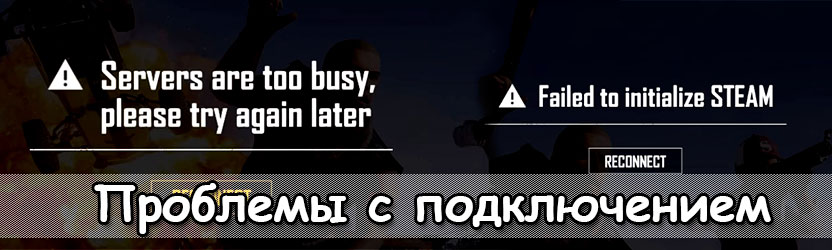
Серверы перегружены в PUBG, Not authorized, Failed to initialize Steam
Данные ошибки вылезают чисто из-за проблем с подключением. Решать их придется волшебными методами и манипуляциями со штуками, трогать которые обычно никто и не думает…
Connection/Matchmaking failed
Еще одна проблема с подключением. Вы заходите в игру, а герой стоит голый, вместо количества заработанных чужой кровью очков написано NA/BP. Нужно срочно принимать меры! Читайте, что делать в PUBG при ошибках Matching и Connection failed try again.
Если ничего не помогло, то вам нужно писать разработчикам на форум. Не волнуйтесь, мы проведем вас через это испытание.
Бесконечная загрузка PUBG
Чтобы справится с болячкой, делайте так:
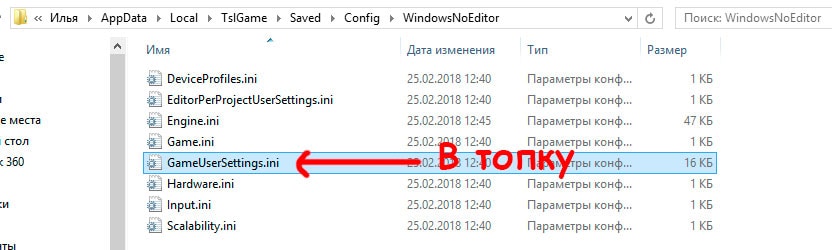
Вполне вероятно, что проблема вернется. Но теперь вы знаете, что делать, если PUBG зависает на экране загрузки, так что всегда сможете вернуться в сражение.
Закрываем процесс Battleeye
Рабочий метод коммьюнити
Третий метод самый затратный по усилиям, но рабочий на 100%.
PUBG: BATTLEGROUNDS
7 июн. 2018 в 21:54
Windows Kernel modification detected. Please repair or reinstall your system.
При запуске PUBG:
14:56:05: Starting BattlEye Service.
14:56:11: Launching game.
14:56:11: Windows Kernel modification detected. Please repair or reinstall your system.
14:56:11: Failed to launch game.
8 июн. 2018 в 1:30
Ага, нашёл фикс.
1) Создаёшь текстовый файл; присваиваешь расширение .cmd
2) Копируешь и вставляешь это туда:
DEL «%windir%system32driversoem-drv64.sys»
DEL «%windir%system32xNtKrnl.exe»
DEL «%windir%system32xOsLoad.exe»
DEL «%windir%System32ru-RUxOsLoad.exe.mui»
DEL «%windir%System32en-USxOsLoad.exe.mui»
%windir%System32BCDEDIT.exe /set path Windowssystem32winload.exe
%windir%System32BCDEDIT.exe /deletevalue kernel
%windir%System32BCDEDIT.exe /deletevalue nointegritychecks
%windir%System32BCDEDIT.exe /deletevalue custom:26000027
REG DELETE HKLMSYSTEMCurrentControlSetservicesoem-drv64 /va /f
3) Запускаешь файл.
Даже перезагружать не надо.
8 июн. 2018 в 1:54
8 июн. 2018 в 1:54
Ага, нашёл фикс.
1) Создаёшь текстовый файл; присваиваешь расширение .cmd
2) Копируешь и вставляешь это туда:
DEL «%windir%system32driversoem-drv64.sys»
DEL «%windir%system32xNtKrnl.exe»
DEL «%windir%system32xOsLoad.exe»
DEL «%windir%System32ru-RUxOsLoad.exe.mui»
DEL «%windir%System32en-USxOsLoad.exe.mui»
%windir%System32BCDEDIT.exe /set path Windowssystem32winload.exe
%windir%System32BCDEDIT.exe /deletevalue kernel
%windir%System32BCDEDIT.exe /deletevalue nointegritychecks
%windir%System32BCDEDIT.exe /deletevalue custom:26000027
REG DELETE HKLMSYSTEMCurrentControlSetservicesoem-drv64 /va /f
3) Запускаешь файл.
Даже перезагружать не надо.
8 июн. 2018 в 1:57
Ага, нашёл фикс.
1) Создаёшь текстовый файл; присваиваешь расширение .cmd
2) Копируешь и вставляешь это туда:
DEL «%windir%system32driversoem-drv64.sys»
DEL «%windir%system32xNtKrnl.exe»
DEL «%windir%system32xOsLoad.exe»
DEL «%windir%System32ru-RUxOsLoad.exe.mui»
DEL «%windir%System32en-USxOsLoad.exe.mui»
%windir%System32BCDEDIT.exe /set path Windowssystem32winload.exe
%windir%System32BCDEDIT.exe /deletevalue kernel
%windir%System32BCDEDIT.exe /deletevalue nointegritychecks
%windir%System32BCDEDIT.exe /deletevalue custom:26000027
REG DELETE HKLMSYSTEMCurrentControlSetservicesoem-drv64 /va /f
3) Запускаешь файл.
Даже перезагружать не надо.
8 июн. 2018 в 1:58
Ага, нашёл фикс.
1) Создаёшь текстовый файл; присваиваешь расширение .cmd
2) Копируешь и вставляешь это туда:
PUBG: BATTLEGROUNDS
10 июн. 2017 в 7:54
Blocked loading of file: «K:Program Files (x86)SteamsteamappscommonPUBGTslGameBinariesWin64TslGame_BE.exe».
22:39:44: Failed to launch game.
10 июн. 2017 в 7:56
10 июн. 2017 в 8:00
10 июн. 2017 в 8:03
10 июн. 2017 в 8:05
10 июн. 2017 в 8:08
=== Test this Solution ===
Goto >
C:Program Files(x86)SteamsteamappscommonPUBGTslGameBinariesWin64BattlEye
Run «Uninstall_BattlEye.bat» and wait for it to finish uninstalling and then run «Install_BattlEye.bat» and wait for it to reinstall it.
Then try launching, If it doesn’t work try restarting Steam and then launching the game.
THIS IS NOT GUARANTEED TO WORK BUT IT’S A VIABLE SOLUTION.
10 июн. 2017 в 8:09
=== Test this Solution ===
Goto >
C:Program Files(x86)SteamsteamappscommonPUBGTslGameBinariesWin64BattlEye
Run «Uninstall_BattlEye.bat» and wait for it to finish uninstalling and then run «Install_BattlEye.bat» and wait for it to reinstall it.
Then try launching, If it doesn’t work try restarting Steam and then launching the game.
THIS IS NOT GUARANTEED TO WORK BUT IT’S A VIABLE SOLUTION.
i try this.
and dont work
10 июн. 2017 в 8:11
10 июн. 2017 в 8:11
=== Test this Solution ===
Goto >
C:Program Files(x86)SteamsteamappscommonPUBGTslGameBinariesWin64BattlEye
Run «Uninstall_BattlEye.bat» and wait for it to finish uninstalling and then run «Install_BattlEye.bat» and wait for it to reinstall it.
Then try launching, If it doesn’t work try restarting Steam and then launching the game.
THIS IS NOT GUARANTEED TO WORK BUT IT’S A VIABLE SOLUTION.
i try this.
and dont work
Sorry man. I tried it and it did worked. It was only a possible solution

Каждое новое обновление Pubg доставляет игрокам не только массу радости, но и колоссальные проблемы.
p, blockquote 1,0,0,0,0 —>
После выхода одного из патчей некоторые участники королевской битвы столкнулись с большими проблемами при входе.
p, blockquote 2,0,0,0,0 —>
Звучать ошибки могут двумя способами: «Ошибка службы BE», либо «failed to launch».
И в первом, и во втором случае виноват античит «BattleEye», вот только проблема в том, что злится он на вашу операционную систему.
p, blockquote 4,0,0,0,0 —>
Для ПК существует несколько вариантов решения. Для игроков мобильных платформ все гораздо проще.
p, blockquote 5,0,0,0,0 —>
Причины возникновения на ПК:
- Использование сторонних программ, в том числе читов. Это может быть конкретное предупреждение о том, что вашу «нечестную» игру заметили и если вы не остановитесь, то получите бан;
- У вас установлена взломанная OC (Windows 7 или 8).
Предусмотрено несколько способов решения данной проблемы.
p, blockquote 7,0,1,0,0 —>
Активатор:
- Для пользователей Windows 7 наиболее популярен «Windows 7 Loader». Он совместим со всеми версиями семерки;
- Будьте внимательны: в сети огромное количество зараженных файлов. Только вы несете ответственность за установку взломанных и неофициальных продуктов.
Переход на Windows 10:
- В данном случае переход будет обусловлен только невозможностью решить проблему иными способами. Десятка не требует активации и, соответственно, ошибка появляться не будет;
- Для многих данный вариант будет неприемлем. Мы все хорошо проинформированы о Windows 10 и ее проблемах.
Поиск поврежденных файлов:
- Перейдите в папку «C:WindowsSystem32»;
- Вам необходим файл «cmd.exe». Запустите его от имени администратора и введите команду «sfc /scannow».
После завершения процесса поиска поврежденных файлов и их восстановления необходимо перезагрузить компьютер.
p, blockquote 11,0,0,0,0 —>
Данный способ помогает далеко не каждому.
p, blockquote 12,0,0,0,0 —>
Battleye launcher ошибка при запуске Pubg
Если зайти в игру вам так и не удалось, тогда пробуем следующие методы.
p, blockquote 13,0,0,0,0 —>
Восстановление:
Обратите внимание, что если ранее не были созданы точки восстановления, то осуществление отката невозможно.
p, blockquote 15,0,0,0,0 —>
Замена Battleye:
- Если проблема в вашем античите сохраняется и ошибка не дает вам провести время за любимой игрой, то придется удалить его и установить свежую версию;
- Перед проведением операции отключите антивирус, а после установки обязательно проверьте файлы в черном списке (вполне возможно, что ошибка кроется как раз в этом);
- Скачайте установщик с официального сайта в разделе «DOWNLOADS».
Сброс активации:
- На какие жертвы вы готовы пойти ради Pubg? Сброс активации позволит исключить ошибку, но сделает необходимым проведение такой «вакханалии» периодический;
- Откройте любую папку, на пустом месте кликните правой кнопкой и создайте текстовый документ;
- Вставьте в блокнот строки ниже;
- Сохраните документ в формате .cmd и запустите от имени администратора.
Найти данные строки вы можете в общем доступе.
p, blockquote 18,0,0,0,0 —>
После проведения этого «ритуала» взлом системы слетит и ошибка будет устранена. Мы крайне не советуем вам использовать данный вариант.
p, blockquote 19,0,0,0,0 —>
p, blockquote 20,0,0,0,0 —>
Проблема абсолютно аналогична предыдущему варианту и напрямую зависит от вашей операционной системы.
p, blockquote 21,0,0,1,0 —>
Именно игроки с неофициальным Windows сталкиваются с ней.
В данном случае вам подойдет вариант со сбросом активации. Не хотите рисковать?
p, blockquote 23,0,0,0,0 —>
Переустановка Battleye:
- Зайдите в папку с игрой: «SteamSteamAppscommonPUBGTslGameBinariesWinBattlEye»;
- Найдите файл для удаления античита «Uninstall_BattlEye.bat» и запустите его;
- Откройте приложение Steam и запустите целостность проверки файлов игры;
- Удалите конечную папку «C:Program FilesCommon FilesBattlEye».
Данные действия должны удалить античит и по большому счету открыть вам доступ к Pubg.
p, blockquote 25,0,0,0,0 —>
Изучение этого метода показало, что далеко не всем игрокам на Windows 7 данный способ может помочь. С Windows 8 таких проблем практически нет.
Если устранить причину ошибки античита вам не удается, значит пора переходить на Windows 10 или отказаться от использования пиратской версии OC другим способом.
Читайте также:
- Овервотч ошибка hf 1
- Unable to verify the first certificate atom ошибка
- Как установить мистический майнкрафт
- Ace combat assault horizon как включить мышь
- Northgard вылетает при запуске карты
Содержание
- Служба be работает неправильно Pubg
- Battleye launcher ошибка при запуске Pubg
- Pubg failed to launch game как исправить
Служба be работает неправильно Pubg
Каждое новое обновление Pubg доставляет игрокам не только массу радости, но и колоссальные проблемы.
После выхода одного из патчей некоторые участники королевской битвы столкнулись с большими проблемами при входе.
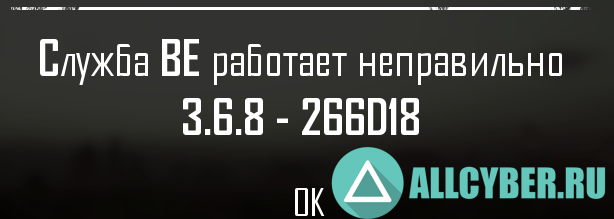
Звучать ошибки могут двумя способами: «Ошибка службы BE», либо «failed to launch».
И в первом, и во втором случае виноват античит «BattleEye», вот только проблема в том, что злится он на вашу операционную систему.
Для ПК существует несколько вариантов решения. Для игроков мобильных платформ все гораздо проще.
Причины возникновения на ПК:
- Использование сторонних программ, в том числе читов. Это может быть конкретное предупреждение о том, что вашу «нечестную» игру заметили и если вы не остановитесь, то получите бан;
- У вас установлена взломанная OC (Windows 7 или 8).
Предусмотрено несколько способов решения данной проблемы.
Активатор:
- Для пользователей Windows 7 наиболее популярен «Windows 7 Loader». Он совместим со всеми версиями семерки;
- Будьте внимательны: в сети огромное количество зараженных файлов. Только вы несете ответственность за установку взломанных и неофициальных продуктов.
Переход на Windows 10:
- В данном случае переход будет обусловлен только невозможностью решить проблему иными способами. Десятка не требует активации и, соответственно, ошибка появляться не будет;
- Для многих данный вариант будет неприемлем. Мы все хорошо проинформированы о Windows 10 и ее проблемах.
Поиск поврежденных файлов:
- Перейдите в папку «C:WindowsSystem32»;
- Вам необходим файл «cmd.exe». Запустите его от имени администратора и введите команду «sfc /scannow».
После завершения процесса поиска поврежденных файлов и их восстановления необходимо перезагрузить компьютер.
Данный способ помогает далеко не каждому.
Battleye launcher ошибка при запуске Pubg
Если зайти в игру вам так и не удалось, тогда пробуем следующие методы.
Восстановление:
- Если на вашем ПК Pubg запускался без проблем ранее, то можно попробовать откатить изменения;
- Перейдите в панель управления — «система и восстановление» — «архивация и восстановление»;
- Вам необходим пункт «Восстановить мои файлы».
Обратите внимание, что если ранее не были созданы точки восстановления, то осуществление отката невозможно.
Замена Battleye:
- Если проблема в вашем античите сохраняется и ошибка не дает вам провести время за любимой игрой, то придется удалить его и установить свежую версию;
- Перед проведением операции отключите антивирус, а после установки обязательно проверьте файлы в черном списке (вполне возможно, что ошибка кроется как раз в этом);
- Скачайте установщик с официального сайта в разделе «DOWNLOADS».
Сброс активации:
- На какие жертвы вы готовы пойти ради Pubg? Сброс активации позволит исключить ошибку, но сделает необходимым проведение такой «вакханалии» периодический;
- Откройте любую папку, на пустом месте кликните правой кнопкой и создайте текстовый документ;
- Вставьте в блокнот строки ниже;
- Сохраните документ в формате .cmd и запустите от имени администратора.
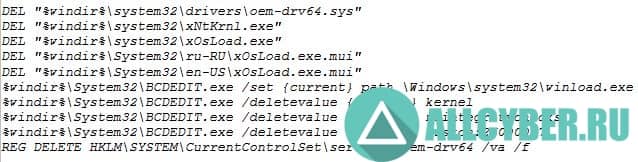
Найти данные строки вы можете в общем доступе.
После проведения этого «ритуала» взлом системы слетит и ошибка будет устранена. Мы крайне не советуем вам использовать данный вариант.
Проверьте иные способы решения различных ошибок в Pubg.
Pubg failed to launch game как исправить
Проблема абсолютно аналогична предыдущему варианту и напрямую зависит от вашей операционной системы.
Именно игроки с неофициальным Windows сталкиваются с ней.
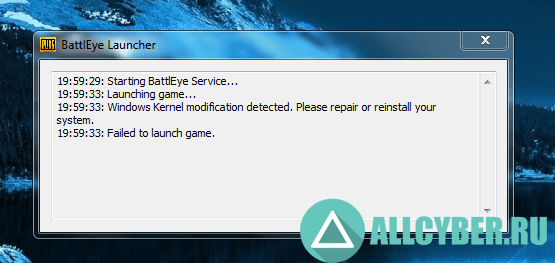
В данном случае вам подойдет вариант со сбросом активации. Не хотите рисковать?
Переустановка Battleye:
- Зайдите в папку с игрой: «SteamSteamAppscommonPUBGTslGameBinariesWinBattlEye»;
- Найдите файл для удаления античита «Uninstall_BattlEye.bat» и запустите его;
- Откройте приложение Steam и запустите целостность проверки файлов игры;
- Удалите конечную папку «C:Program FilesCommon FilesBattlEye».
Данные действия должны удалить античит и по большому счету открыть вам доступ к Pubg.
Изучение этого метода показало, что далеко не всем игрокам на Windows 7 данный способ может помочь. С Windows 8 таких проблем практически нет.
Если устранить причину ошибки античита вам не удается, значит пора переходить на Windows 10 или отказаться от использования пиратской версии OC другим способом.
Исправляем ошибку службы BE в Pubg видео
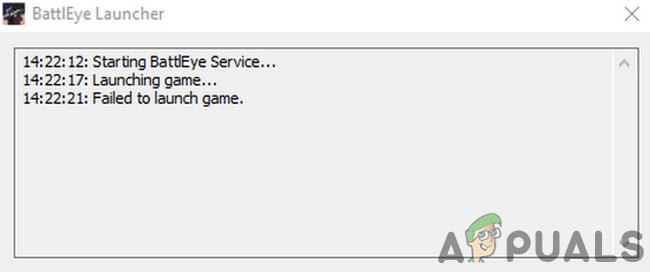
Escape from Tarkov may fail to launch due to conflicting applications or outdated system drivers. Lack of administrative privileges or corrupt Windows installation can also cause the issue.
When an affected user launches the game, the game pops up but nothing happens. Sometimes, either a black screen or blue spinning wheel (after clicking the play button) is shown. In some cases, the PC freezes, and users have to forcefully restart the system to get rid of the black screen or blue spinning wheel.
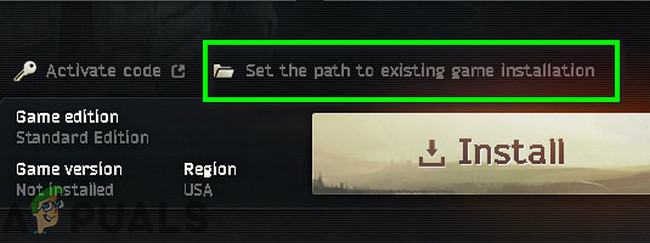
Before moving on with the solutions to fix Escape from Tarkov, make sure that your antivirus/firewall applications are updated. If you are a participant of Windows Insider, then leave the program and try to launch the game. Moreover, try to use another in-game server to rule out the overloading of regional servers. Furthermore, if an install button is shown (even when the game is installed), then click on the option of “set the path to existing game installation” (usually located just above the install button) and point it to the installation directory of the game. It may take 10 to 15 minutes to verify the game files and then the game may launch without any issue.
Solution 1: Open the Game and Launcher as Administrator
To safeguard its users, Microsoft implemented different methods and techniques in the latest versions of the Windows OS. One such thing is the implementation of user rights to access essential system resources. If the launcher/game does not have the required privileges to access essential system/network resources, then the game may fail to launch. In this case, opening the launcher/game with administrative privileges may solve the problem.
- Right-click on the shortcut of the launcher and in the menu shown, click on Run as Administrator.
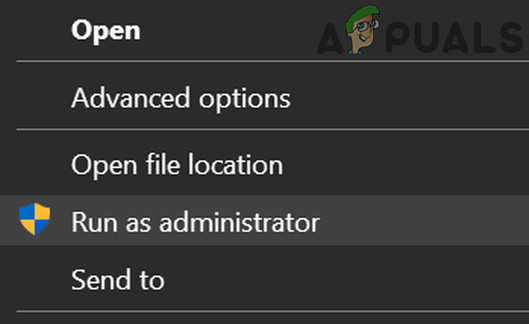
Run the Launcher as Administrator - Now open the game and check if it is operating fine.
- If not, exit the game and launcher. Again, open the launcher with administrative privileges.
- Then minimize the launcher and navigate to the location of the exe file (escapefromtarkov.exe). Usually, the location is the following:
C:Program FilesEscape_From_Tarkov
- Now, right-click on escapefromtarkov.exe and then click on Run as Administrator.
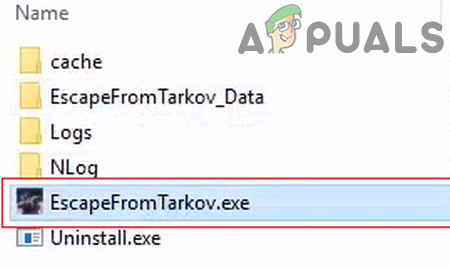
Run Escape From Tarkov as Administrator - Then check if the game is working fine.
- If not, exit the game, launch the game through the launcher (after switching to it) and see if this does the trick.
Solution 2: Open the Game in Window Borderless
Escape from Tarkov can be configured to use different display modes. If the display mode of the game is not optimal for your system, then the game may fail to launch. Given the conditions, launching the game in Windows borderless mode may solve the problem.
- Open the launcher with administrative privileges and navigate to the Settings tab.
- Now, click on the dropdown box of Display and select Borderless.
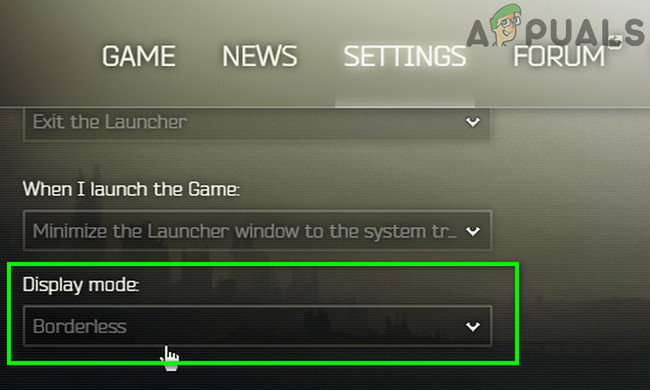
Run Escape From Tarkov as Administrator - Then open the game and check if it has started to operate fine.
Solution 3: Clearing Cache and Temp Files
The issue you are encountering could be caused by a communication glitch caused by cache/temp files. To rule out any such issue, it will be a good idea to log out of the game, clear the cache/temp folder, and then log back in.
- Open the launcher and click on the arrow just below the user name.
- Then in the menu shown, click on Logout.
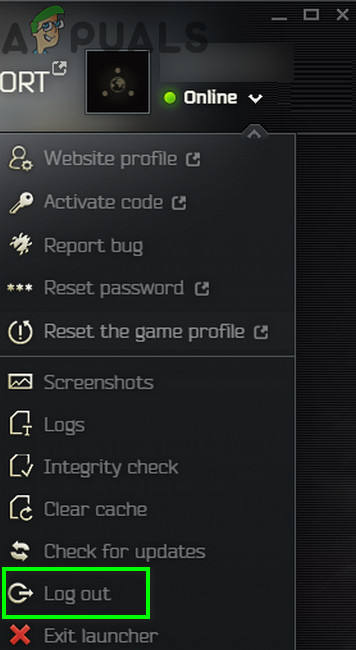
Log of the Launcher - Now exit the launcher. Then right-click on the Taskbar and in the menu shown, click on the Task Manager.
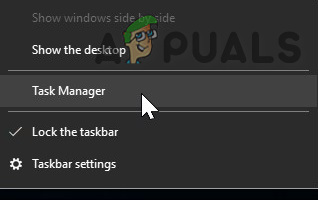
Open Task Manager - Now, End Process all the processes belonging to the launcher and game.
- Then sign out of the Windows user account.
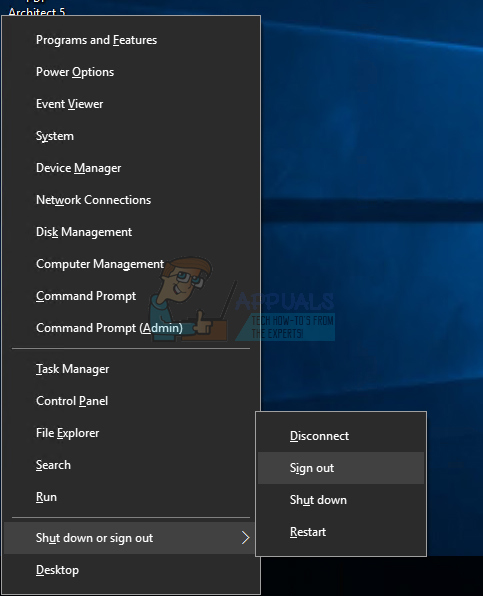
Sign Out Windows Account - Now sign back into the Windows user account.
- Then delete temp files of your system.
- Now open the following location in your file explorer:
C:Program Files (x86)Common FilesBattleye
- Then delete all the files of the Battleye folder.
- Now open the launcher with administrative privileges and log in the launcher. Expand the arrow button under the user name and in the menu shown, click on Clear Cache.
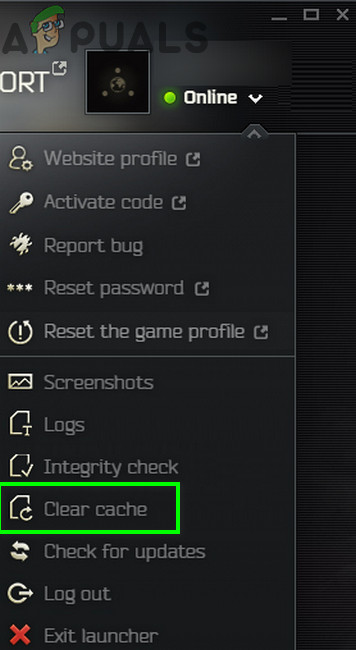
Clear Cache of Escape From Tarkov - Now navigate to the Settings tab of the launcher and under the option of When I Launch the Game, open the dropdown box and select Keep the Launcher Window Open.
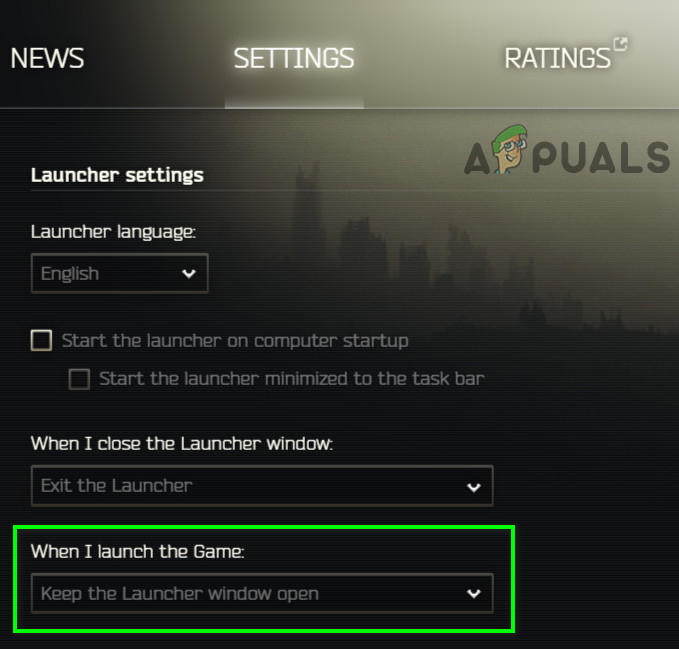
Keep the Launcher Window Open - Now launch the game and check if it is clear of the error.
Solution 4: Update System Drivers and Windows to the Latest Build
Windows and system drivers are continuously updated to cater to new technological developments and patch known bugs. If you are using outdated system drivers or Windows version, then the game may fail to launch. In this scenario, updating Windows and system drivers may solve the issue.
- Update your system drivers.
- Update your Windows to the latest build as well.
- Then open the launcher/game with administrative privileges and check if it is operating fine.
Solution 5: Clean Boot Your System to Check for Software Conflict
Applications share system/network resources in the Windows OS and coexist. If a resource essential for the operation of Escape from Tarkov is not available due to a 3rd party application, then the game may fail to launch. To rule out any such software conflict, clean boot your system.
- Clean boot your system.
- Then launch the game and check if it is working fine. If so, then try to find out the problematic application. Nvidia GeForce Experience has created this type of issue in the past for the game.
Solution 6: Temporarily Disable Your Antivirus/Firewall Applications
There is no deniability in the importance of your Antivirus/Firewall applications in the security of your device and data. But these applications have a history of creating issues for games, especially online games. To rule out any issues by these applications, it will be a good idea to temporarily disable your antivirus/firewall.
Warning: Proceed at your own risk as disabling your antivirus/firewall applications may expose your system to threats like viruses and trojans etc.
- Temporarily disable antivirus of your system and turn off the firewall of your system. Keep an eye on the Windows Defender if it takes over antivirus/firewall operation.
- If Windows Defender has taken over antivirus/firewall operation, then either add an exception for the launcher exe and EscapeFromTarkov.exe in the settings of Windows Defender or turn off Windows Defender as well.
- Then open the launcher and game to check if the game is clear of the error.
Solution 7: Check Integrity of the Game Files
Bad sectors on the hard disk of your system or sudden power failure are common causes of the corruption of the game files. If the game files are corrupt, then the game may fail to launch. To rule out any such thing, it will be a good idea to check the integrity of the game files.
- Open the launcher and expand the arrow just below your name.
- Then click on the “Integrity Check” in the menu displayed.
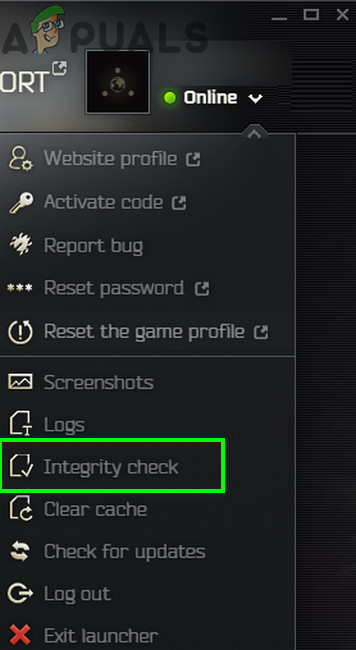
Perform Integrity Check of Escape From Tarkov - Then wait for a few minutes for the process to finish (usually it takes 10 to 15 minutes).
- Then open the game and check if the game is clear of the error.
Solution 8: Reset the Game/Launcher Settings to Default
Every gamer customizes different game settings as per his requirements. If you misconfigured an essential setting of Escape from Tarkov, then the game may fail to launch. In this case, resetting the game settings to their default may solve the problem.
- Exit the game/launcher and kill all related processes through the Task Manager.
- Now press Windows + R keys to bring out the Run command box.
- Then type “Documents” and press the Enter key.
- Now, open the Folder “Escape from Tarkov” (This is the default location if you have placed the folder on a different location, then open that location).
- Then delete Local.ini and Shared.ini files.
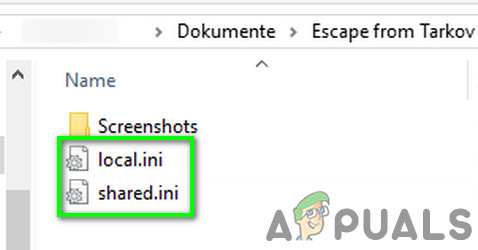
Delete Local.ini And Shared.ini - Now open the launcher and game to check if it is clear of the error.
Solution 9: Delete the Game Logs
Nearly every software application uses logs to store different types of information. If any of the previous logs of the game/launcher have corrupted, then the game may encounter the error under discussion. In this case, deleting the logs may solve the problem.
- Exit the game and launcher.
- Press Windows + R keys to bring out the Run command box. Then type the following path in it:
%USERPROFILE%AppDataLocalBattlestate GamesBsgBsgLauncherLogs
- Now delete all the files in the Logs folder.
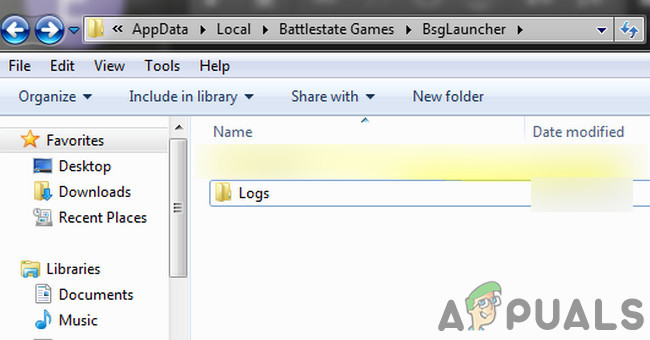
Delete Logs Folder of Escape From Tarkov - Then open the launcher/game with administrative privileges and check if it is clear of the error.
Solution 10: Create a New Windows User Profile
Corrupted entries associated with the current user profile of Windows could be the root cause of the issue under discussion. In this scenario, creating a new user profile and opening the game/launcher through the new user profile may solve the issue.
- Create a new Windows user profile.
- Then open the launcher/game with administrative privileges to check if it is clear of the error.
Solution 11: Disable Overclocking of CPU/GPU
Overclocking your CPU/GPU is a common norm in the gaming world. But it is known to be the root cause of many gaming issues. To check if the issues are caused by overclocking, it will be a good idea to revert to the stock speeds of your system. You can get guidelines from how to Overclock Your GPU to set the clock speeds of your system back to stock.
Solution 12: Uninstall the Game/Launcher and then Reinstall
If nothing has helped you so far, then a corrupt installation of the launcher/game is the root cause of the issue. In this case, uninstalling the game/launcher and then reinstalling the game/launcher may solve the problem.
- Logout and exit of the game/launcher.
- Open your file explorer and navigate to the installation directory of the launcher. Usually, it is:
C:Battlestate GamesBsgLauncher
- Now launch the uninstall file (uninstall.exe or unins000.exe).
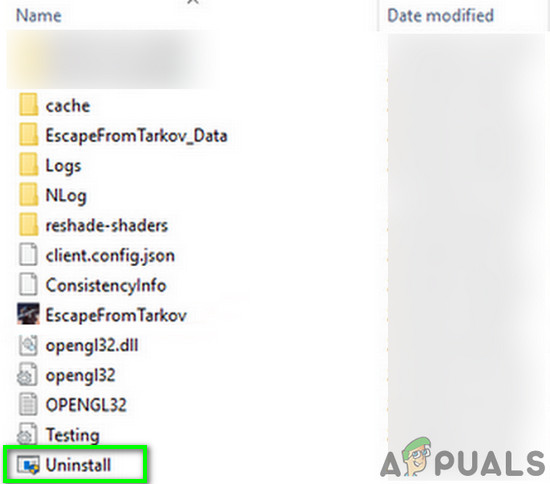
Uninstall Escape From Tarkov - Then follow the prompts on your screen to complete the uninstallation process.
- Upon completion of uninstallation, open your file explorer and navigate to the Documents folder of Your system.
- Now find and delete the “Escape from Tarkov” folder.
- Again, open the installation drive of the launcher. Usually C drive.
- Now find and delete the Battlestate Games folder. This will remove things in those directories like backup saves or configuration files.
- Then restart your system.
- Upon restart, install the game/launcher and hopefully, the game is clear of the error.
If you are still having issues, then either try to reset your system or perform a clean installation of Windows.
Практически все недавно созданные игры, работающие в жанре MMORPG, имеют в наличии специализированный защитный софт. Например, в таких популярных играх, как H1Z1, Fortnite, PUBG и других есть программное обеспечение BattlEye.
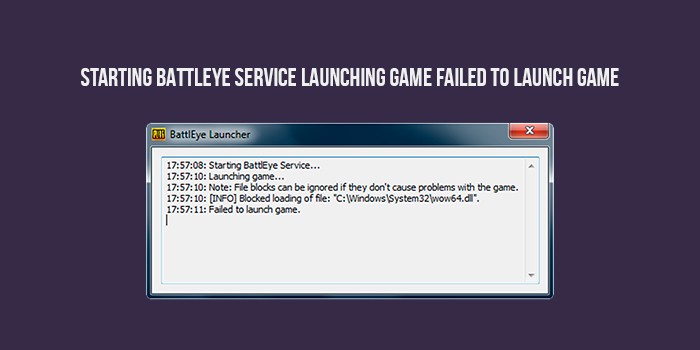
Ошибка вида «Starting BattlEye Service Launching Game Failed to Launch Game». возникает из-за конфликтности между операционной системой Windows и античитерской программой. Все, что нужно сделать в такой ситуации – найти причину такой ошибки и попробовать разрешить проблему.
Содержание
- Причины
- Администрирование и перезапуск
- Исправление ошибки через Steam
- Пониже UAC
Причины
Суть ошибки проста – античитерское программное обеспечение не в состоянии запуститься и запустить саму игру. Причин такой проблемы достаточно много, однако самая распространенная – это кривая установка Battleye. Также пользователи отмечают блокирование запуска сервиса предустановленным антивирусом, брандмауэром или другими защищающими программами.
Интересный факт: В редких случаях проблема кроется в отсутствии одного или нескольких Visual C++ пакетов, хотя при этом игра, которой С++ тоже нужен, может запускаться без каких-либо ошибок и проблем.
Администрирование и перезапуск
Первое, что нужно сделать – убедиться в том, что проблема не в отсутствии важных библиотек и файлов, отвечающих за функционирование Battleye. Сделать нужно следующее:
- Отключить все экрана своего антивируса и проверить карантинную зону (есть такие игровые файлы, которые из-за карантинной зоны просто не запустятся).
- Удалить предыдущую версию Battleye. Найти ее можно в каталоге Common Files.
- Запустить командную строку от имени от Администратора и ввести команду sc delete BEService.
- Открыть файлы игры и найти папку, в которой есть установочные файлы дополнительного программного обеспечения.
- Запустить файл Install_ Battleye.
Если все эти действия не помогут, можно удалить Батлайн с помощью специальных утилит. Это может быть CCleaner или IOBIT. В некоторых случаях такая очистка будет намного эффективнее, чем удаление вручную.
В том случае, если эти способы не помогли, стоит проверить права Администратора. Для того, чтобы сделать это, необходимо зайти в папку с игрой, вызвать свойства исполняемого игрового файла, а после этого сделать так, чтобы файл запускался о имени администратора. Такие же действия нужно сделать для файла запуска Батлайн.
Исправление ошибки через Steam
Всегда есть вероятность того, чтобы файлы игры и программы были повреждены или криво поставлены на ПК. Для проверки актуальности и правильности игровых данных следует зайти в Steam (в том случае, если игра были приобретена в нем) и выполнить следующие действия:
- Запустить клиент Steam.
- Нажать на игру ПКМ и нажать на «Просмотреть файлы» в свойствах.
- Выбрать папку с античитом.
- Выполнить uninstall и install.
- Вернуться в файлы игры и проверить их целостность.
После всех этих действий Steam-клиент автоматически проверит все файлы и займется скачиваем всех игровых элементов.
Важный момент: если действия ни к чему не привели, также стоит проверить состояние операционной системы, в особенности если на ПК стоит пиратская сборка. Самое важное действие – скачивание и установка Microsoft Visual C++. Если на ПК стоит Windows x64, необходимо установить обе версии С++.
Пониже UAC
Помимо тех вариантов, что были описаны выше, также можно порекомендовать произвести настройку так, чтобы UAC (контроль учетных записей) не создавал препятствий для запуска сторонних программ и приложений на ПК. Сделать это просто – достаточно зайти в «учетные записи пользователей» и выбрать «изменение параметров контроля». В новом окне нужно перетащить в определенное положение ползунок и сохранить произведенные действия.
-
Partition Wizard
-
Partition Manager
- Top 5 Solutions to Escape from Tarkov Failed to Launch Game
By Sherry | Follow |
Last Updated December 02, 2020
It’s annoying to encounter «Escape from Tarkov failed to launch game» for a game lover. If you receive the same error over and over, you should try these solutions offered by MiniTool Partition Wizard to solve it.
Escape from Tarkov is a massively multiplayer shooter video game developed by Russian studio Battlestate Games. It was released on Windows PC and has become popular around the world.
However, some players report that they encountered the problem “Escape from Tarkov failed to launch game” while trying to open the game. Don’t worry if you’re bothered by the same issue. Here are some solutions and you can try them one by one to remove the error.
Solution 1: Run the Game as Administrator
When the Escape from Tarkov or its launcher lacks the required privileges to access necessary system or network resources, you might encounter Escape from Tarkov not launching issue. To solve the problem, you should run the game as administrator. Here are the detailed steps.
Tip: You can also try opening the game in window Borderless mode.
Step 1: Right-click the shortcut of your game launcher and select Run as administrator.
Step 2: Minimize the launcher and press Win + E to open File Explorer. Then navigate to the installation folder of your game. By default, it’s in C:Program FilesEscape_From_Tarkov.
Step 3: Right-click the executable of the game and select Run as administrator.
After that you can check whether the game work properly. If you still get “Escape from Tarkov failed to launch game” error, please move on to the next solution.
Solution 2: Clear Cache and Temp Files
The problem that Escape from Tarkov won’t launch could also has something to do with cache/temp files. To fix it, you should clear them. Let’s see how to do it.
Step 1: Open the launcher and re-login into the account. Then end all the processes related to Escape from Tarkov in Task Manager and resign into the Windows user account.
Step 2: Navigate to the installation folder on the launcher and delete all the files of Battleye folder.
Step 3: Run the launcher as administrator and login. Click the arrow button from the upper right corner. Then select Clear cache from the pop-up menu.
Step 4: Go to Settings of the launcher. Under When I launch the Game section, select Keep the Launcher Window Open.
After clearing cache and temp files, you can launch the game again to check whether the problem has been solved.
Solution 3: Check Integrity of the Game Files
Another reason for the issue that Escape from Tarkov won’t open is the corrupted or missing game files. Fortunately, the launcher of Escape from Tarkov is able to help you solve the problem.
You just need to run the game launcher. Then click the arrow button below your account name and select Integrity Check. Then the launcher will check for problematic game files and repair them automatically. Wait until the process is finished. After that, you can restart the launcher and run Escape from Tarkov to see if it works without any problems.
Solution 4: Disable Your Antivirus Software Temporarily
Antivirus programs could also lead to Escape from Tarkov not launching, although they do protect your computer from being attacked by virus and malware. If the solutions above fail to solve the problem, you should try disabling your antivirus applications as well as firewall programs temporarily. Then check if Escape from Tarkov not launching issue has been removed.
After solving the problem, you should enable your antivirus again or change to another antivirus software.
Solution 5: Perform a Clean Boot
Other applications could also interfere with the game Escape from Tarkov or its launcher. To figure out the problematic one, you can perform a clean boot.
Step 1: Open System Configuration.
Step 2: Go to Services tab, check Hide all Microsoft services and click Disable all.
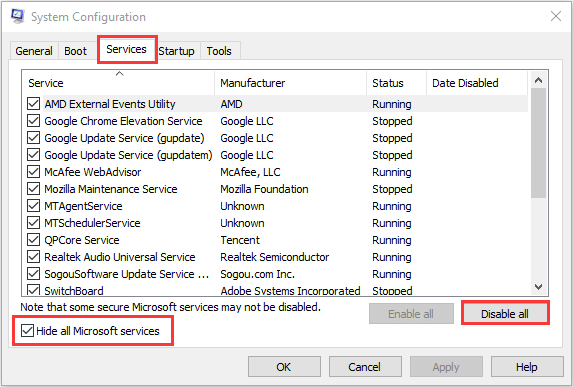
Step 3: Switch to Startup tab and click Open Task Manager. Select each item under Startup tab and click Disable.
Step 4: Go back to System Configuration and click OK. Then restart the computer to perform the clean boot.
When the PC starts, run Escape from Tarkov. If it works properly, you should go to System Configuration again and enable the disabled services one by one to figure out the problematic one. Then uninstall it.
About The Author

Position: Columnist
Sherry has been a staff editor of MiniTool for a year. She has received rigorous training about computer and digital data in company. Her articles focus on solutions to various problems that many Windows users might encounter and she is excellent at disk partitioning.
She has a wide range of hobbies, including listening to music, playing video games, roller skating, reading, and so on. By the way, she is patient and serious.
-
Partition Wizard
-
Partition Manager
- Top 5 Solutions to Escape from Tarkov Failed to Launch Game
By Sherry | Follow |
Last Updated December 02, 2020
It’s annoying to encounter «Escape from Tarkov failed to launch game» for a game lover. If you receive the same error over and over, you should try these solutions offered by MiniTool Partition Wizard to solve it.
Escape from Tarkov is a massively multiplayer shooter video game developed by Russian studio Battlestate Games. It was released on Windows PC and has become popular around the world.
However, some players report that they encountered the problem “Escape from Tarkov failed to launch game” while trying to open the game. Don’t worry if you’re bothered by the same issue. Here are some solutions and you can try them one by one to remove the error.
Solution 1: Run the Game as Administrator
When the Escape from Tarkov or its launcher lacks the required privileges to access necessary system or network resources, you might encounter Escape from Tarkov not launching issue. To solve the problem, you should run the game as administrator. Here are the detailed steps.
Tip: You can also try opening the game in window Borderless mode.
Step 1: Right-click the shortcut of your game launcher and select Run as administrator.
Step 2: Minimize the launcher and press Win + E to open File Explorer. Then navigate to the installation folder of your game. By default, it’s in C:Program FilesEscape_From_Tarkov.
Step 3: Right-click the executable of the game and select Run as administrator.
After that you can check whether the game work properly. If you still get “Escape from Tarkov failed to launch game” error, please move on to the next solution.
Solution 2: Clear Cache and Temp Files
The problem that Escape from Tarkov won’t launch could also has something to do with cache/temp files. To fix it, you should clear them. Let’s see how to do it.
Step 1: Open the launcher and re-login into the account. Then end all the processes related to Escape from Tarkov in Task Manager and resign into the Windows user account.
Step 2: Navigate to the installation folder on the launcher and delete all the files of Battleye folder.
Step 3: Run the launcher as administrator and login. Click the arrow button from the upper right corner. Then select Clear cache from the pop-up menu.
Step 4: Go to Settings of the launcher. Under When I launch the Game section, select Keep the Launcher Window Open.
After clearing cache and temp files, you can launch the game again to check whether the problem has been solved.
Solution 3: Check Integrity of the Game Files
Another reason for the issue that Escape from Tarkov won’t open is the corrupted or missing game files. Fortunately, the launcher of Escape from Tarkov is able to help you solve the problem.
You just need to run the game launcher. Then click the arrow button below your account name and select Integrity Check. Then the launcher will check for problematic game files and repair them automatically. Wait until the process is finished. After that, you can restart the launcher and run Escape from Tarkov to see if it works without any problems.
Solution 4: Disable Your Antivirus Software Temporarily
Antivirus programs could also lead to Escape from Tarkov not launching, although they do protect your computer from being attacked by virus and malware. If the solutions above fail to solve the problem, you should try disabling your antivirus applications as well as firewall programs temporarily. Then check if Escape from Tarkov not launching issue has been removed.
After solving the problem, you should enable your antivirus again or change to another antivirus software.
Solution 5: Perform a Clean Boot
Other applications could also interfere with the game Escape from Tarkov or its launcher. To figure out the problematic one, you can perform a clean boot.
Step 1: Open System Configuration.
Step 2: Go to Services tab, check Hide all Microsoft services and click Disable all.
Step 3: Switch to Startup tab and click Open Task Manager. Select each item under Startup tab and click Disable.
Step 4: Go back to System Configuration and click OK. Then restart the computer to perform the clean boot.
When the PC starts, run Escape from Tarkov. If it works properly, you should go to System Configuration again and enable the disabled services one by one to figure out the problematic one. Then uninstall it.
About The Author
Position: Columnist
Sherry has been a staff editor of MiniTool for a year. She has received rigorous training about computer and digital data in company. Her articles focus on solutions to various problems that many Windows users might encounter and she is excellent at disk partitioning.
She has a wide range of hobbies, including listening to music, playing video games, roller skating, reading, and so on. By the way, she is patient and serious.