Меню миссии кампании или Редактор миссий не работает
- Некоторые причины и решение
- Ошибка Генератора Миссий
Некоторые причины и решение
Некоторые проблемы:
Всякий раз, когда Вы пытаетесь войти в меню миссии из главного меню, оно зависает при загрузке.
Вы не можете использовать экран PAYLOAD для настройки выгрузки оружия из самолета, а также, находясь в самолете, Вы не можете использовать наземную команду для настройки полезной нагрузки.
Другая проблема: при загрузке DCS он всегда застревает на 55% или 57% и не завершает загрузку. Замораживание на 55% при запуске DCS.
Вероятно, Вы можете столкнуться и с другими проблемами в меню «Миссия Кампания» или «Редактор миссий», например, после обновления DCS World.
Для решения этих проблем Вам нужно переименовать папку MissionEditor на любое временное имя здесь:
C: Users Ваше имя_пользователя Сохраненные игры DCS. [Ver: openbeta] MissionEditor
папку MissionEditor также можно найти в меню RUN
Нажмите одновременно Win + R и скопируйте и вставьте это:
% USERPROFILE% Сохраненные игры DCS MissionEditor
Подтвердите — «ОК», и Вы найдете запрошенную папку.
Начните загрузку DCS снова …
Новая папка MissionEditor автоматически создается вместо переименованной папки.
Вы можете сохранить переименованную папку на всякий случай и скопировать эти файлы из старой в новую папку:
unitPayloads.lua, logbook.lua . Убедитесь перед копированием, что Ваша проблема исчезла.
Ошибка Генератора Миссий
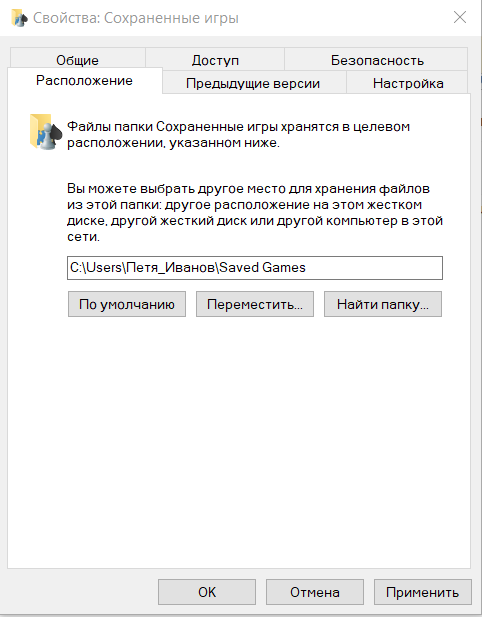
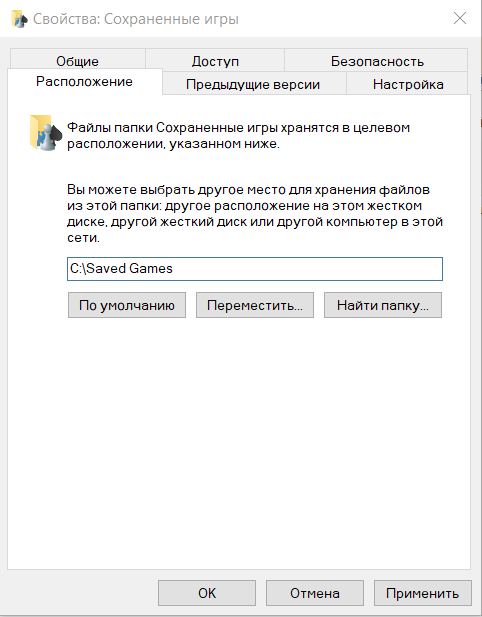
Если при создании миссии Вы получаете ошибку, а Ваше имя пользователя Windows набрано кириллицей, то Вам придётся перенести папку Saved Games. Сделать это надо так, чтобы между буквой диска и папкой Saved Games не было кириллических знаков. Для этого кликните правой мышкой на папку Saved Games и выбрав Свойства папки — вкладка Расположение, пропишите нужный путь. После этого кликните «Переместить»
Например, было С:UsersПетя_ИвановSaved Games — стало C:Saved Games
Introduction
Using Tacview with DCS World is straightforward. In most of the cases, this is a smooth and fully automated process. When you install Tacview, all the necessary scripts and settings are automatically installed so you are ready to record your first flight right away!
However, they are some rare cases where Tacview exporter cannot do its job properly. Please, read carefully the following guide to know how to get the most of DCS World and Tacview and to know how to prevent or fix potential issues.
If you can’t record any flight in multiplayer, make sure first that you can record single player flights. It is possible that your problem is coming from the multiplayer host. But it may be coming as well from your local setup!
Single Player
I can’t record any flight, even single player missions are not recorded! What is happening?
By default, Tacview records all DCS World flight in %USERPROFILE%DocumentsTacview folder. Search for any *.zip.acmi files on your hard drive to make sure that your flights are not stored in an unexpected place. This may happen when the export folder is not properly configured. If your flights are recorded in the wrong folder, please check below to learn how to change the recording folder.
If you can’t find any file, then the exporter is either not installed, wrongly installed, or there is another script from another add-on which prevents Tacview scripts proper execution.
How can I know if Tacview exporter is properly installed?
Tacview exporter is a module of DCS World. You should see its icon at the bottom of DCS World main menu screen. A dedicated control panel is also available under the SPECIAL tab in DCS World OPTIONS page. See below for more details about the available options.
How can I ask Tacview to (re)install the exporter automatically?
If you have uninstalled older versions of Tacview after having installed a new version, the exporter has probably been removed at the same time. In that case, just re-install the latest version of Tacview. The exporter will be automatically re-installed in the appropriate folder. This is a quick and safe operation: All your settings will be preserved.
How can I manually install the DCS World exporter for Tacview?
If the automatic installation has failed, you can manually install the exporter yourself by copying the content of C:Program Files (x86)TacviewDCS (Mods and Scripts folder) in your %USERPROFILE%Saved GamesDCS folder.
If you have multiple versions of DCS World installed on your system, you may want to copy the exporter in all of your %USERPROFILE%Saved GamesDCS.* folders. If you are using third party scripts with DCS World, *DO NOT* copy C:Program Files (x86)TacviewDCSScriptsExport.lua in your DCS World script folder. Just add the following line in your current %USERPROFILE%Saved GamesDCSScriptsExport.lua script:
local Tacviewlfs=require('lfs');dofile(Tacviewlfs.writedir()..'Scripts/TacviewGameExport.lua')
How does Tacview handle dcs_variant.txt files in the DCS World folders?
Tacview ignores any dcs_variant.txt file. Instead, it simply installs the exporter in all %USERPROFILE%Saved GamesDCS.* folders found on your system.
This is still not working! How can I find if a faulty script from another add-on is preventing flight recording?
Installing and uninstalling add-ons usually messes-up DCS World configuration. It is usual to find an old script, not fully uninstalled, still active, which is triggering an error and preventing the execution of Tacview script. In that case you can find and remove the faulty script or Lua code easily:
After a flight, open DCS World log file %USERPROFILE%Saved GamesDCSLogsdcs.log. Then look for any error message related to a .lua file. Do not focus exclusively on Export.lua, the faulty script can be in another Lua file. When you find the faulty script, you will have to either fix it, or completely remove the reference to it manually. Explaining how to edit a Lua script is beyond the scope of this guide, feel free to ask on the forums on how to do this. As soon as you’ll get a clean log without any Lua error, DCS World should be able to record your flights as expected.
00044.711 ALERT EDCORE: Can't execute Lua file C:UsersVyrtuozSaved GamesDCSScriptsExport.lua - can't open './AriesWings/AriesRadio.luac'
My aircraft disappeared from Tacview before the end of my flight / Weapons appeared out of nowhere and impacted targets
When an aircraft exceeds a certain amount of damage, DCS World stops exporting its data, which can cause the above-mentioned issues.
Multiplayer
I can record single player flights, but when I’m flying in multiplayer, I can see nothing, or only my aircraft. What is happening?
To prevent cheating, some hosts are disabling data export. You can check the server options in the DCS World multiplayer lobby window. You can either record your flight afterward by playing back the track file automatically generated by DCS World for each multiplayer flight in the %USERPROFILE%Saved GamesDCSTracks folder. Or you can ask the host to enable data export (see below).
Since it may have taken some time for your computer to join a multiplayer session, be patient while playing back the .trk file of a network flight: You will eventually see the objects appearing on the map after some time (that can take a minute).
How to enable flight data recording in multiplayer?
When you are creating a multiplayer session in DCS World, you can specify which data can be exported (recorded) by the clients connected to your session. Simply click on Advanced and make sure that all the export options are allowed. Please read below to learn more about additional options which are specific to Tacview exporter.
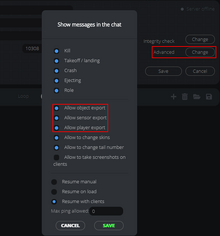
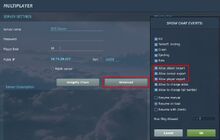
As a host, should I prevent flight recording so other players can’t steal my mission file?
No. Mission files have nothing to do with data export! Your mission file will be shared with all other players regardless of your server settings. For example, anyone can extract your mission file from the .trk file automatically recorded by DCS World!
FPS Loss While Recording Your Flight in DCS World
Some of you may have noticed that, in some circumstances, you can lose precious fps while recording your flight within DCS World. This could be particularly annoying on low end computers as well as on VR setups where each frame per second matter. See our dedicated page for a detailed explanation of the causes and ideas for workarounds.
Exporter Options
The Tacview exporter is a module of DCS World. You can tweak its options from within DCS World in the OPTIONS -> SPECIAL -> Tacview menu.
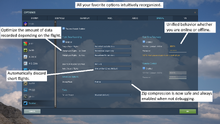
Tacview Module Enabled
Tick this box to enable the Tacview module.
Flight Data Recording: Enabled
Unless you do not plan to review your flights or you need maximum frame-rate while playing in DCS World, this option should always be enabled. Disabling this option will not prevent clients connected to your server to record flight data on their side. See Real-Time Telemetry options for that.
Flight Data Recording: Single-Player Flights, Multiplayer Flights — As Client, Multiplayer Flights — As Host
Choose recording options based on different types of flights.
When you choose Record one flight per client under Multiplayer Flights — As Host, instead of recording the whole mission in a single file, Tacview exporter will create one separate file for each client connected to your session. One file is created in a folder named after the corresponding pilot as soon as the client joins the session. The same file is closed as soon as the client leaves the session.
This option can be very handy for permanent servers. For example, the generated files can be directly saved in an cloud folder like Dropbox so each pilot can download his flight data right after his mission. You can also use this option to save CPU on your client side. By not recording the data themselves, your clients will enjoy a smoother experience, especially while flying in VR.
Flight Data Recording: Bookmark Injection Shortcut
By default, while flying, you can press RAlt + B to inject a bookmark in the recorded data. Bookmarks will be displayed in Tacview time line and events log. Use bookmarks to put the emphasis on a specific phase of your flight and to make your debriefings more comfortable.
Flight Data Recording: Auto Discard Flights
Automatically do not save very short flights.
Advanced Options: Debug Mode
If you think that you have found a data recording bug, it is a good idea to use this option before reproducing the issue. The resulting acmi file will contain more detailed information about events and objects which will help a lot to debug Tacview. This option does not affect performance, but it produces slightly bigger files.
Launch Tacview with the command line parameter /debug:on to display any available debug information.
Tools: Terrain Export
Tacview natively includes terrain elevation data files for all DCS maps. However if Tacview’s entire team gets hit by a bus one day, you may use this tool to export terrain for new maps. If you use this option be sure to disable it immediately after, because it is extremely slow.
Real-Time Telemetry
Enable Real-Time telemetry and choose the associated port and password here.
Remote Control
Enable Remote Control and choose the associated port and password here.
How to enable / disable playback delay (10-minute anti-cheat delay)
With Tacview 1.8.5, playback delay options have been simplified.
- To have no 10-minute delay on your server and to allow anyone to connect through real-time telemetry, simply enable real-time telemetry and leave the password blank.
- To enforce a 10-minute delay for everyone and to not allow real-time telemetry for anyone, simply disable real-time telemetry. Because this option does not completely prevent clients from analyzing their flight, it is a much more elegant way to prevent cheating than completely disabling data export using DCS World options.
- To allow real-time telemetry for whoever has a password while still enforcing a 10-minute anti-cheat delay for everyone, enable real-time telemetry and add a password.
Tacview data recorder always use the server option. If Tacview is not detected on the server, a delay of 10 minutes will be applied. In that case, as a client, you may want to stay connected 10 more minutes after the end of your flight to make sure all the data you want to review has been recorded.
Remember that file recorded by your server are not protected. Playback Delay option only affects data recorded on client computers, not on the host.
Using Tacview with DCS World Dedicated Server
Installation
After creating a new DCS World Dedicated server, re-run the Tacview installer (version 1.8.0 or above) in order to install Tacview on the dedicated server.
Alternatively, copy the contents of C:Program Files (x86)TacviewDCS (Mods and Scripts folder) in your %USERPROFILE%Saved GamesDCS_DEDICATED_SERVER folder.
If you have other add-ons using the %USERPROFILE%Saved GamesDCS_DEDICATED_SERVERScriptsExport.lua file, be careful not to overwrite it — just make sure the Tacview line is in there:
local Tacviewlfs=require('lfs');dofile(Tacviewlfs.writedir()..'Scripts/TacviewGameExport.lua')
Configuration
To edit Tacview options on the dedicated server, open %USERPROFILE%Saved GamesDCS_DEDICATED_SERVERConfigOptions.lua and edit the options manually:
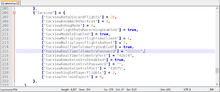
These options correspond to the options found in the DCS World GUI -> Options -> Special -> Tacview:
Here is a mapping between the two: (for more explanation of the options please see Exporter Options section further down this page)
| Dedicated Server options.lua | GUI |
|---|---|
| tacviewAutoDiscardFlights
0 10 60 300 |
Flight Data Recording: Auto Discard Flights
never shorter than 10 sec (default) shorter than 1 min shorter than 5 min |
| tacviewBookmarkShortcut
** Does not apply to dedicated server ** 0 1 2 |
Flight Data Recording: Bookmark Injection Shortcut
** Does not apply to dedicated server ** RAlt + B ` ² |
| tacviewDebugMode
0 1 2 |
Advanced Options: Debug Mode
Disabled (default) Minimal Full |
| tacviewFlightDataRecordingEnabled
false true |
Flight Data Recording: Enabled Checkbox
Disabled Enabled |
| tacviewModuleEnabled
false true |
Tacview Module Enabled Checkbox
Disabled Enabled |
| tacviewMultiplayerFlightsAsClient
0 1 2 |
Flight Data Recording: Multiplayer Flights — As Client
Do not record any data Record local player only Record all available data |
| tacviewMultiplayerFlightsAsHost
0 1 2 3 |
Flight Data Recording: Multiplayer Flights — As Host
Do not record any data Record local player only Record all available data Record one file per client |
| tacviewRealTimeTelemetryEnabled
false true |
Real-Time Telemetry: Enabled Checkbox
Disabled Enabled |
| tacviewRealTimeTelemetryPassword
«password» «» |
Real-Time Telemetry: Password
Enter password as string if a password is desired Leave blank if no password is desired |
| tacviewRealTimeTelemetryPort=»42674″
«12345» |
Real-Time Telemetry: TCP Port (default 42674)
Change default port number here if desired |
| tacviewRemoteControlEnabled
false true |
Remote Control: Enabled Checkbox
Disabled Enabled |
| tacviewRemoteControlPassword
«password» «» |
Remote Control TCP Password
Enter password as string if a password is desired Leave blank if no password is desired |
| tacviewRemoteControlPort=»42675″
«12345» |
Remote Control TCP Port (default 42675)
Change default port number here if desired |
| tacviewSinglePlayerFlights
0 1 2 |
Flight Data Recording: Single Player Flights
Do not record any data Record local player only Record all available data |
| tacviewTerrainExport
0 1 2 |
Tools: Terrain Export
Disabled Predefined Unknown |
Real-Time Telemetry & the 10-minute «anti-cheat» delay
To enforce a 10-minute delay for everyone and to not allow real-time telemetry for anyone, simply disable real-time telemetry. Because this option does not completely prevent clients from analyzing their flight, it is a much more elegant way to prevent cheating than completely disabling data export using DCS World options.
["tacviewRealTimeTelemetryEnabled"] = false,
To allow real-time telemetry for whoever has a password while still enforcing a 10-minute anti-cheat delay for everyone, enable real-time telemetry and add a password.
            ["tacviewRealTimeTelemetryEnabled"] = true,

            ["tacviewRealTimeTelemetryPassword"] = "password",
To have no 10-minute delay on your server and to allow anyone to connect through real-time telemetry, simply enable real-time telemetry and leave the password blank.
            ["tacviewRealTimeTelemetryEnabled"] = true,

            ["tacviewRealTimeTelemetryPassword"] = "",
I have configured the options.lua as described above to allow no 10-minute delay for everyone but a delay is still being enforced by my server!
This may be because Tacview is not installed on the dedicated server. Follow these steps to install Tacview on your server.
General Questions
Do I have to keep Tacview running in background to record my flights?
No, you don’t. Your flights are recorded by a module which is part of DCS World. Tacview main application is mainly used for debriefing and analysis, not for data recording.
Where can I find the recorded flights?
By default, Tacview records all DCS World flights in %USERPROFILE%DocumentsTacview folder. If you can’t find any flight data in this folder, then search for any *.zip.acmi files on your hard drive. If you find your flight recordings in an unexpected folder or you can’t find them at all, then your script is either not properly working or not properly configured.
How can I choose where my flights are recorded?
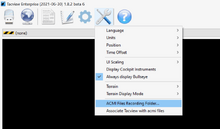
You can choose where flight data is stored by navigating to Options -> ACMI Files Recording Folder in Tacview. Do not forget to re-launch DCS World (or, even Steam, depending on your version) afterward so this new setting is properly propagated to the exporter.
How can I specify a separate recording folder for each instance of DCS World?
For each instance of DCS go to Saved GamesDCS.INSTANCEConfigoptions.lua and add to the Tacview options the following, using your own desired file path:
[«tacviewExportPath»] = «C:\SomeFilePath\»
Which versions of DCS World are supported?
Tacview officially supports the Eagle Dynamic store, Steam edition, as well as the Open Beta versions of DCS World. Older versions like Black Shark or the vanilla Flaming Cliffs are no longer supported.
Is there any way to use Tacview with Black Shark or Flaming Cliffs?
You can download and install Tacview 1.2.8 which is the last version to support legacy versions of DCS World. Tacview 1.2.8 script will export any available flight data. It is strongly suggested to also install the latest version of Tacview in addition of Tacview 1.2.8. That way, you can analyze the exported data with the latest tools available.
Do I have to run Tacview as administrator?
No, never! Tacview only modifies a few files saved in the %USERPROFILE%Saved GamesDCS folder. At no moment you need to run it in administrator mode or in some kind of compatibility mode to make this work.
Introduction
Using Tacview with DCS World is straightforward. In most of the cases, this is a smooth and fully automated process. When you install Tacview, all the necessary scripts and settings are automatically installed so you are ready to record your first flight right away!
However, they are some rare cases where Tacview exporter cannot do its job properly. Please, read carefully the following guide to know how to get the most of DCS World and Tacview and to know how to prevent or fix potential issues.
If you can’t record any flight in multiplayer, make sure first that you can record single player flights. It is possible that your problem is coming from the multiplayer host. But it may be coming as well from your local setup!
Single Player
I can’t record any flight, even single player missions are not recorded! What is happening?
By default, Tacview records all DCS World flight in %USERPROFILE%DocumentsTacview folder. Search for any *.zip.acmi files on your hard drive to make sure that your flights are not stored in an unexpected place. This may happen when the export folder is not properly configured. If your flights are recorded in the wrong folder, please check below to learn how to change the recording folder.
If you can’t find any file, then the exporter is either not installed, wrongly installed, or there is another script from another add-on which prevents Tacview scripts proper execution.
How can I know if Tacview exporter is properly installed?
Tacview exporter is a module of DCS World. You should see its icon at the bottom of DCS World main menu screen. A dedicated control panel is also available under the SPECIAL tab in DCS World OPTIONS page. See below for more details about the available options.
How can I ask Tacview to (re)install the exporter automatically?
If you have uninstalled older versions of Tacview after having installed a new version, the exporter has probably been removed at the same time. In that case, just re-install the latest version of Tacview. The exporter will be automatically re-installed in the appropriate folder. This is a quick and safe operation: All your settings will be preserved.
How can I manually install the DCS World exporter for Tacview?
If the automatic installation has failed, you can manually install the exporter yourself by copying the content of C:Program Files (x86)TacviewDCS (Mods and Scripts folder) in your %USERPROFILE%Saved GamesDCS folder.
If you have multiple versions of DCS World installed on your system, you may want to copy the exporter in all of your %USERPROFILE%Saved GamesDCS.* folders. If you are using third party scripts with DCS World, *DO NOT* copy C:Program Files (x86)TacviewDCSScriptsExport.lua in your DCS World script folder. Just add the following line in your current %USERPROFILE%Saved GamesDCSScriptsExport.lua script:
local Tacviewlfs=require('lfs');dofile(Tacviewlfs.writedir()..'Scripts/TacviewGameExport.lua')
How does Tacview handle dcs_variant.txt files in the DCS World folders?
Tacview ignores any dcs_variant.txt file. Instead, it simply installs the exporter in all %USERPROFILE%Saved GamesDCS.* folders found on your system.
This is still not working! How can I find if a faulty script from another add-on is preventing flight recording?
Installing and uninstalling add-ons usually messes-up DCS World configuration. It is usual to find an old script, not fully uninstalled, still active, which is triggering an error and preventing the execution of Tacview script. In that case you can find and remove the faulty script or Lua code easily:
After a flight, open DCS World log file %USERPROFILE%Saved GamesDCSLogsdcs.log. Then look for any error message related to a .lua file. Do not focus exclusively on Export.lua, the faulty script can be in another Lua file. When you find the faulty script, you will have to either fix it, or completely remove the reference to it manually. Explaining how to edit a Lua script is beyond the scope of this guide, feel free to ask on the forums on how to do this. As soon as you’ll get a clean log without any Lua error, DCS World should be able to record your flights as expected.
00044.711 ALERT EDCORE: Can't execute Lua file C:UsersVyrtuozSaved GamesDCSScriptsExport.lua - can't open './AriesWings/AriesRadio.luac'
My aircraft disappeared from Tacview before the end of my flight / Weapons appeared out of nowhere and impacted targets
When an aircraft exceeds a certain amount of damage, DCS World stops exporting its data, which can cause the above-mentioned issues.
Multiplayer
I can record single player flights, but when I’m flying in multiplayer, I can see nothing, or only my aircraft. What is happening?
To prevent cheating, some hosts are disabling data export. You can check the server options in the DCS World multiplayer lobby window. You can either record your flight afterward by playing back the track file automatically generated by DCS World for each multiplayer flight in the %USERPROFILE%Saved GamesDCSTracks folder. Or you can ask the host to enable data export (see below).
Since it may have taken some time for your computer to join a multiplayer session, be patient while playing back the .trk file of a network flight: You will eventually see the objects appearing on the map after some time (that can take a minute).
How to enable flight data recording in multiplayer?
When you are creating a multiplayer session in DCS World, you can specify which data can be exported (recorded) by the clients connected to your session. Simply click on Advanced and make sure that all the export options are allowed. Please read below to learn more about additional options which are specific to Tacview exporter.
As a host, should I prevent flight recording so other players can’t steal my mission file?
No. Mission files have nothing to do with data export! Your mission file will be shared with all other players regardless of your server settings. For example, anyone can extract your mission file from the .trk file automatically recorded by DCS World!
FPS Loss While Recording Your Flight in DCS World
Some of you may have noticed that, in some circumstances, you can lose precious fps while recording your flight within DCS World. This could be particularly annoying on low end computers as well as on VR setups where each frame per second matter. See our dedicated page for a detailed explanation of the causes and ideas for workarounds.
Exporter Options
The Tacview exporter is a module of DCS World. You can tweak its options from within DCS World in the OPTIONS -> SPECIAL -> Tacview menu.
Tacview Module Enabled
Tick this box to enable the Tacview module.
Flight Data Recording: Enabled
Unless you do not plan to review your flights or you need maximum frame-rate while playing in DCS World, this option should always be enabled. Disabling this option will not prevent clients connected to your server to record flight data on their side. See Real-Time Telemetry options for that.
Flight Data Recording: Single-Player Flights, Multiplayer Flights — As Client, Multiplayer Flights — As Host
Choose recording options based on different types of flights.
When you choose Record one flight per client under Multiplayer Flights — As Host, instead of recording the whole mission in a single file, Tacview exporter will create one separate file for each client connected to your session. One file is created in a folder named after the corresponding pilot as soon as the client joins the session. The same file is closed as soon as the client leaves the session.
This option can be very handy for permanent servers. For example, the generated files can be directly saved in an cloud folder like Dropbox so each pilot can download his flight data right after his mission. You can also use this option to save CPU on your client side. By not recording the data themselves, your clients will enjoy a smoother experience, especially while flying in VR.
Flight Data Recording: Bookmark Injection Shortcut
By default, while flying, you can press RAlt + B to inject a bookmark in the recorded data. Bookmarks will be displayed in Tacview time line and events log. Use bookmarks to put the emphasis on a specific phase of your flight and to make your debriefings more comfortable.
Flight Data Recording: Auto Discard Flights
Automatically do not save very short flights.
Advanced Options: Debug Mode
If you think that you have found a data recording bug, it is a good idea to use this option before reproducing the issue. The resulting acmi file will contain more detailed information about events and objects which will help a lot to debug Tacview. This option does not affect performance, but it produces slightly bigger files.
Launch Tacview with the command line parameter /debug:on to display any available debug information.
Tools: Terrain Export
Tacview natively includes terrain elevation data files for all DCS maps. However if Tacview’s entire team gets hit by a bus one day, you may use this tool to export terrain for new maps. If you use this option be sure to disable it immediately after, because it is extremely slow.
Real-Time Telemetry
Enable Real-Time telemetry and choose the associated port and password here.
Remote Control
Enable Remote Control and choose the associated port and password here.
How to enable / disable playback delay (10-minute anti-cheat delay)
With Tacview 1.8.5, playback delay options have been simplified.
- To have no 10-minute delay on your server and to allow anyone to connect through real-time telemetry, simply enable real-time telemetry and leave the password blank.
- To enforce a 10-minute delay for everyone and to not allow real-time telemetry for anyone, simply disable real-time telemetry. Because this option does not completely prevent clients from analyzing their flight, it is a much more elegant way to prevent cheating than completely disabling data export using DCS World options.
- To allow real-time telemetry for whoever has a password while still enforcing a 10-minute anti-cheat delay for everyone, enable real-time telemetry and add a password.
Tacview data recorder always use the server option. If Tacview is not detected on the server, a delay of 10 minutes will be applied. In that case, as a client, you may want to stay connected 10 more minutes after the end of your flight to make sure all the data you want to review has been recorded.
Remember that file recorded by your server are not protected. Playback Delay option only affects data recorded on client computers, not on the host.
Using Tacview with DCS World Dedicated Server
Installation
After creating a new DCS World Dedicated server, re-run the Tacview installer (version 1.8.0 or above) in order to install Tacview on the dedicated server.
Alternatively, copy the contents of C:Program Files (x86)TacviewDCS (Mods and Scripts folder) in your %USERPROFILE%Saved GamesDCS_DEDICATED_SERVER folder.
If you have other add-ons using the %USERPROFILE%Saved GamesDCS_DEDICATED_SERVERScriptsExport.lua file, be careful not to overwrite it — just make sure the Tacview line is in there:
local Tacviewlfs=require('lfs');dofile(Tacviewlfs.writedir()..'Scripts/TacviewGameExport.lua')
Configuration
To edit Tacview options on the dedicated server, open %USERPROFILE%Saved GamesDCS_DEDICATED_SERVERConfigOptions.lua and edit the options manually:
These options correspond to the options found in the DCS World GUI -> Options -> Special -> Tacview:
Here is a mapping between the two: (for more explanation of the options please see Exporter Options section further down this page)
| Dedicated Server options.lua | GUI |
|---|---|
| tacviewAutoDiscardFlights
0 10 60 300 |
Flight Data Recording: Auto Discard Flights
never shorter than 10 sec (default) shorter than 1 min shorter than 5 min |
| tacviewBookmarkShortcut
** Does not apply to dedicated server ** 0 1 2 |
Flight Data Recording: Bookmark Injection Shortcut
** Does not apply to dedicated server ** RAlt + B ` ² |
| tacviewDebugMode
0 1 2 |
Advanced Options: Debug Mode
Disabled (default) Minimal Full |
| tacviewFlightDataRecordingEnabled
false true |
Flight Data Recording: Enabled Checkbox
Disabled Enabled |
| tacviewModuleEnabled
false true |
Tacview Module Enabled Checkbox
Disabled Enabled |
| tacviewMultiplayerFlightsAsClient
0 1 2 |
Flight Data Recording: Multiplayer Flights — As Client
Do not record any data Record local player only Record all available data |
| tacviewMultiplayerFlightsAsHost
0 1 2 3 |
Flight Data Recording: Multiplayer Flights — As Host
Do not record any data Record local player only Record all available data Record one file per client |
| tacviewRealTimeTelemetryEnabled
false true |
Real-Time Telemetry: Enabled Checkbox
Disabled Enabled |
| tacviewRealTimeTelemetryPassword
«password» «» |
Real-Time Telemetry: Password
Enter password as string if a password is desired Leave blank if no password is desired |
| tacviewRealTimeTelemetryPort=»42674″
«12345» |
Real-Time Telemetry: TCP Port (default 42674)
Change default port number here if desired |
| tacviewRemoteControlEnabled
false true |
Remote Control: Enabled Checkbox
Disabled Enabled |
| tacviewRemoteControlPassword
«password» «» |
Remote Control TCP Password
Enter password as string if a password is desired Leave blank if no password is desired |
| tacviewRemoteControlPort=»42675″
«12345» |
Remote Control TCP Port (default 42675)
Change default port number here if desired |
| tacviewSinglePlayerFlights
0 1 2 |
Flight Data Recording: Single Player Flights
Do not record any data Record local player only Record all available data |
| tacviewTerrainExport
0 1 2 |
Tools: Terrain Export
Disabled Predefined Unknown |
Real-Time Telemetry & the 10-minute «anti-cheat» delay
To enforce a 10-minute delay for everyone and to not allow real-time telemetry for anyone, simply disable real-time telemetry. Because this option does not completely prevent clients from analyzing their flight, it is a much more elegant way to prevent cheating than completely disabling data export using DCS World options.
["tacviewRealTimeTelemetryEnabled"] = false,
To allow real-time telemetry for whoever has a password while still enforcing a 10-minute anti-cheat delay for everyone, enable real-time telemetry and add a password.
            ["tacviewRealTimeTelemetryEnabled"] = true,

            ["tacviewRealTimeTelemetryPassword"] = "password",
To have no 10-minute delay on your server and to allow anyone to connect through real-time telemetry, simply enable real-time telemetry and leave the password blank.
            ["tacviewRealTimeTelemetryEnabled"] = true,

            ["tacviewRealTimeTelemetryPassword"] = "",
I have configured the options.lua as described above to allow no 10-minute delay for everyone but a delay is still being enforced by my server!
This may be because Tacview is not installed on the dedicated server. Follow these steps to install Tacview on your server.
General Questions
Do I have to keep Tacview running in background to record my flights?
No, you don’t. Your flights are recorded by a module which is part of DCS World. Tacview main application is mainly used for debriefing and analysis, not for data recording.
Where can I find the recorded flights?
By default, Tacview records all DCS World flights in %USERPROFILE%DocumentsTacview folder. If you can’t find any flight data in this folder, then search for any *.zip.acmi files on your hard drive. If you find your flight recordings in an unexpected folder or you can’t find them at all, then your script is either not properly working or not properly configured.
How can I choose where my flights are recorded?
You can choose where flight data is stored by navigating to Options -> ACMI Files Recording Folder in Tacview. Do not forget to re-launch DCS World (or, even Steam, depending on your version) afterward so this new setting is properly propagated to the exporter.
How can I specify a separate recording folder for each instance of DCS World?
For each instance of DCS go to Saved GamesDCS.INSTANCEConfigoptions.lua and add to the Tacview options the following, using your own desired file path:
[«tacviewExportPath»] = «C:\SomeFilePath\»
Which versions of DCS World are supported?
Tacview officially supports the Eagle Dynamic store, Steam edition, as well as the Open Beta versions of DCS World. Older versions like Black Shark or the vanilla Flaming Cliffs are no longer supported.
Is there any way to use Tacview with Black Shark or Flaming Cliffs?
You can download and install Tacview 1.2.8 which is the last version to support legacy versions of DCS World. Tacview 1.2.8 script will export any available flight data. It is strongly suggested to also install the latest version of Tacview in addition of Tacview 1.2.8. That way, you can analyze the exported data with the latest tools available.
Do I have to run Tacview as administrator?
No, never! Tacview only modifies a few files saved in the %USERPROFILE%Saved GamesDCS folder. At no moment you need to run it in administrator mode or in some kind of compatibility mode to make this work.