Некоторые геймеры могут столкнуться с кодом ошибки 0x8007045D при попытке загрузить свой профиль Xbox Live, обновление или запустить игру или приложение на консоли Xbox или на игровой платформе Windows 11 или Windows 10. Этот пост предназначен, чтобы помочь затронутым игрокам найти наиболее подходящие решения для устранения кода ошибки Xbox на их игровом устройстве.
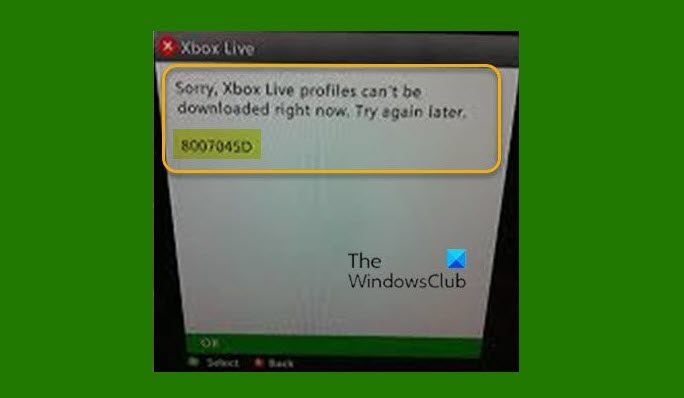
Когда вы столкнетесь с этой проблемой, вы получите следующее полное сообщение об ошибке;
Извините, профили Xbox Live не могут быть загружены прямо сейчас. Попробуйте позже.
Код состояния 8007045D
Эта ошибка указывает на то, что во время загрузки произошла ошибка. В некоторых случаях вы можете получить эту ошибку во время обновления системы консоли или настройки консоли, и в этом случае вы можете попробовать решения в сообщении о том, как исправить коды ошибок обновления Xbox.
Если вы столкнулись с этой проблемой, в зависимости от вашего игрового устройства, вы можете попробовать наши рекомендуемые решения ниже в произвольном порядке и посмотреть, поможет ли это исправить Код ошибки Xbox 0x8007045D произошедшее на вашей консоли Xbox или игровой установке Windows 11/10.
- Перезагрузите Интернет и игровое устройство
- Проверьте подключение к сети и Интернету
- Проверить тип NAT
- Очистить DNS
- Очистить кэш
- Проверьте используемый диск
- Проверить аккаунт и подписку
- Удалите и переустановите игру / приложение
- Сбросить игровое устройство
- Обратитесь в службу поддержки Xbox
Давайте посмотрим на описание процесса, связанного с каждым из перечисленных решений.
Прежде чем вы попробуете приведенные ниже решения, эта ошибка может быть связана с временной проблемой на стороне Xbox, поэтому вы можете немного подождать и проверить статус Xbox Live затем попробуйте еще раз, если все службы работают.
1]Перезагрузите Интернет и игровое устройство.
Быстрая перезагрузка ПК или консоли Xbox, а также вашего интернет-устройства (модема / маршрутизатора) может исправить Код ошибки Xbox 0x8007045D произошедшее на вашем игровом устройстве.
Игроки на консолях также могут выключить и снова включить свое устройство и посмотреть, поможет ли это. Чтобы вручную выключить и снова включить консоль Xbox, сделайте следующее:
- Нажмите и удерживайте кнопку Xbox на передней панели консоли примерно 10 секунд, чтобы выключить консоль.
- Отключите Xbox от электросети.
- Подождите не менее 30-60 секунд.
- По истечении времени снова подключите Xbox к розетке.
- Теперь нажмите кнопку Xbox на консоли или кнопку Xbox на контроллере, чтобы снова включить консоль.
Кроме того, убедитесь, что прошивка вашего маршрутизатора или модема обновлена (см. Руководство по продукту). Точно так же убедитесь, что ваш ПК с Windows обновлен или ваша консоль, в зависимости от обстоятельств.
2]Проверьте подключение к сети и Интернету.
Если у вас возникли проблемы с сетью Xbox Live, вы, вероятно, столкнетесь с этой проблемой. Итак, если статус Xbox Live для всех служб зеленый, но ошибка не исчезла, скорее всего, проблема на вашей стороне. В этом случае вы можете исправить проблемы с сетью и подключением к Интернету на своем игровом устройстве, чтобы решить любые проблемы с подключением. Вы также можете попробовать функцию сброса настроек сети, если ваш компьютер вообще не может подключиться к Интернету.
3]Проверить тип NAT
Это относится только к игрокам на консоли Xbox.
Тип вашего NAT определяется настройками или функциями маршрутизатора в сети, которую вы используете для подключения к Интернету. Консоль Xbox имеет следующие типы NAT:
Если ваш тип NAT — Открытый, ваша консоль подключена правильно — в этом режиме быстрая перезагрузка решит любые проблемы из-за временного сбоя в вашем подключении. С другой стороны, если ваш тип NAT — умеренный или строгий, это обычно указывает на то, что существует какое-то ограничение или блокировка, которые мешают вашей консоли правильно обмениваться данными.
Это решение требует, чтобы вы проверили свой тип NAT и убедитесь, что он установлен на Открытым — для этого следуйте инструкциям в руководстве о том, как исправить настройки вашей сети, блокирующие Party Chat [0x89231806] ошибка.
4]Очистить DNS
Если настройки DNS повреждены, это может помешать определенным приложениям подключаться к Интернету. В этом случае вы можете очистить DNS.
5]Очистить кеш
Вы можете столкнуться с этой проблемой, если кешированные данные на вашем игровом устройстве будут повреждены. Временные файлы и данные часто хранятся на вашем игровом устройстве, чтобы улучшить игровой процесс. Со временем эти кэшированные данные могут быть повреждены, что может привести к проблемам с подключением, зависанию игры или медленной или неудачной загрузке игры.
Игроки на ПК могут очистить кеш, запустить очистку диска и очистить папку Temp в своей системе Windows 11/10. Кроме того, очистите кеш Microsoft Store и посмотрите, поможет ли это.
Игроки на консолях могут очистить кеш на Xbox, следуя этим инструкциям:
- Нажмите кнопку Xbox на геймпаде.
- Зайдите в меню настроек.
- Выберите «Устройства и подключения».
- Выберите вариант Blu-Ray.
- Выберите вариант постоянного хранилища.
- Выберите Очистить.
Если очистка кеша на вашем игровом устройстве не сработала для вас, перейдите к следующему решению.
6]Проверьте используемый диск.
Это касается как консоли, так и ПК.
Проверьте используемый диск, если вы загружаете на игровое устройство обновление игры или приложения. Это означает, что вам нужно убедиться, что игра или приложение, которые обновляются, установлены на внутренний или внешний диск.
- Игроки на ПК могут выбрать диск для загрузки содержимого на свое устройство, следуя инструкциям в руководстве по исправлению кода ошибки 0x80242022.
- Игроки с консолями могут настроить эту опцию на своем устройстве через «Настройки»> «Система»> «Управление хранилищем» — там вы можете выбрать, на какое устройство хранения (внутреннее или внешнее) вы хотите установить свой контент.
7]Проверить аккаунт и подписку
Это решение требует от вас проверки и устранения любых проблем с учетной записью Xbox и проблем с подпиской Xbox Game Pass, которые могут у вас возникнуть. Убедитесь, что ваш план Game Pass активен. Войдите в приложение Xbox или в Microsoft Store, в зависимости от того, что вы используете. Также убедитесь, что устройство подключено к сети во время установки / обновления игры или при запуске игры.
8]Удалите и переустановите игру / приложение.
Вы можете удалить соответствующую игру / приложение (желательно использовать программу удаления стороннего программного обеспечения), а затем переустановить элемент и посмотреть, поможет ли это. Вы можете сначала отремонтировать или сбросить приложение, и если это не помогло, вы можете продолжить удаление / переустановку.
9]Сбросить игровое устройство
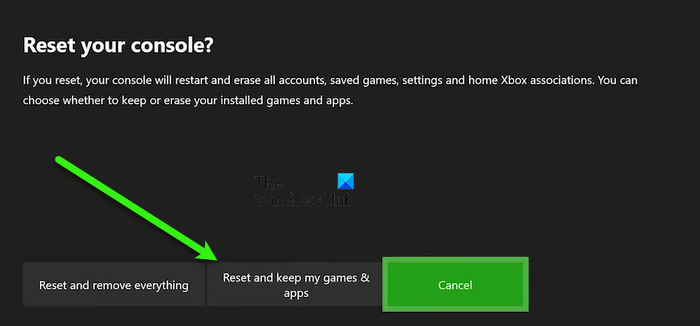
Это решение требует, чтобы вы перезагрузили игровое устройство и посмотрите, решена ли проблема.
Вы можете сбросить настройки консоли Xbox, но не забудьте выбрать параметр «Сбросить и сохранить мои игры и приложения». Игроки на ПК могут перезагрузить ПК с Windows, но выберите вариант, чтобы сохранить свои личные файлы.
10]Обратитесь в службу поддержки Xbox
Если до сих пор ничего не помогло, вы можете обратиться в службу поддержки Xbox и узнать, могут ли они оказать какую-либо полезную помощь.
Надеюсь это поможет!
Как исправить код ошибки Xbox 0x800704cf?
Чтобы исправить код ошибки Xbox 0x800704cf на консоли Xbox One или Xbox Series X | S, вы можете попробовать любое из следующих предложений:
- Выполните полный сброс консоли Xbox.
- Проверьте состояние сети.
- Подключите Xbox к Wi-Fi.
- Проверьте статус службы Xbox в вашей стране / регионе.
- Измените Mac-адрес.
- Измените IP-адрес.
- Войдите в свою учетную запись Xbox с другого устройства.
- Сбросьте ваш маршрутизатор.
Как исправить код ошибки 0x803f900a?
Если вы столкнулись с кодом ошибки Xbox 0x803f900a на своей консоли, среди других исправлений, вы можете попробовать следующее предложение, чтобы решить проблему: Нажмите кнопку Xbox на вашем контроллере, чтобы открыть руководство. Перейдите в Профиль и систему. Выберите «Настройки»> «Учетная запись»> «Подписки». Если срок действия подписки истек, выберите «Продлить» и следуйте инструкциям по продлению.
.
Some gamers may encounter the error code 0x8007045D when attempting to download your Xbox Live profile or an update or launch a game or app on your Xbox console or Windows 11 or Windows 10 gaming rig. This post is intended to help affected gamers with the most suitable solutions to resolve the Xbox error code on their gaming device.

When you encounter this issue, you’ll receive the following full error message;
Sorry, Xbox Live profiles can’t be downloaded right now. Try again later.
Status code 8007045D
This error indicates that an error occurred during the download. In some cases, you may receive this error during a console system update or console setup, in which case, you can try the solutions in the post on how to fix Xbox update error codes.
If you’re faced with this issue, depending on your gaming device, you can try our recommended solutions below in no particular order and see if that helps to fix the Xbox Error Code 0x8007045D that occurred on your Xbox console or Windows 11/10 gaming rig.
- Restart Internet and Gaming device
- Check Network and Internet connection
- Check NAT type
- Flush DNS
- Clear Cache
- Check the drive in use
- Check account and subscription
- Uninstall and reinstall game/app
- Reset Gaming device
- Contact Xbox Support
Let’s take a look at the description of the process involved concerning each of the listed solutions.
Before you try the solutions below, this error could be due to a transient issue at Xbox end – so, you can wait a while and check the Xbox Live status then try again if all services are up and running.
1] Restart Internet and Gaming device
A quick PC restart or your Xbox console, as well as your internet device (modem/router) can fix the Xbox Error Code 0x8007045D that occurred on your gaming device.
Console gamers can also power cycle their device and see if that helps. To manually power cycle your Xbox console, do the following:
- Press and hold the Xbox button on the front of the console for approximately 10 seconds to turn off your console.
- Unplug your Xbox from the mains.
- Wait at least 30-60 seconds.
- Once the time elapses, plug your Xbox back into the power outlet.
- Now, press the Xbox button on the console or the Xbox button on your controller to turn your console back on.
In addition, make sure your router or modem firmware is updated (refer to the product manual). Likewise, make sure your Windows PC is updated or your console as the case may be.
2] Check Network and Internet connection
If you’re having Xbox Live networking issues, you’re likely to encounter this issue. So, if the Xbox Live status is all green for all services, but the error in view persists, it’s likely the problem is at your own end. In this case, you can fix Network and Internet connection problems on your gaming device to resolve any connectivity issues. You can also try the Network Reset feature if your computer cannot connect to the Internet at all.
3] Check NAT type
This applies to Xbox console gamers only.
Your NAT type is determined by the settings or features of the router on the network you are using to connect to the Internet. The Xbox console has the following NAT types:
- Open
- Moderate
- Strict
If your NAT type is Open, your console is connected properly – in this mode, a quick reboot will resolve any issues due to a temporary glitch with your connection. On the other hand, if your NAT Type is Moderate or Strict, this generally indicates that there is some sort of restriction or blockage that is preventing your console from communicating properly.
This solution requires you to check your NAT type and make sure it’s set to Open – to do this, follow the instructions in the guide on how to fix Your network settings are blocking Party Chat [0x89231806] error.
4] Flush DNS
If the DNS settings are corrupted, it can prevent certain applications from making contact with the internet. In this case, you can flush the DNS.
5] Clear Cache
You may encounter this issue if the cached data on your gaming device gets corrupted. Temporary files and data are often stored on your gaming device to help improve gameplay. In the course of time, this cached data might become corrupted, which can lead to issues with connectivity, game freezes, or slow or unsuccessful game loads.
PC gamers can clear cache, run Disk Cleanup and clear Temp folder on their Windows 11/10 system. Also, clear the Microsoft Store cache and see if that helps.
Console gamers can clear the cache on Xbox by following these instructions:
- Press the Xbox button on your controller.
- Go to your Settings menu.
- Select Devices and Connections.
- Select the Blu-Ray option.
- Choose the Persistent Storage option.
- Select Clear.
If clearing the cache on your gaming device didn’t work for you, proceed with the next solution.
6] Check the drive in use
This applies to both the console and PC.
Check the drive in use if you’re downloading a game or app update on the gaming device. This means you need to make sure if it’s the internal drive or external that the game or app being updated is installed.
- PC gamers can choose the drive to download content to on your device by following the instructions in the guide on how to fix Error Code 0x80242022.
- Console gamers can configure the option on their device via Settings > System > Manage storage – there you can select which storage device (internal or external) you want to install your content on.
7] Check account and subscription
This solution requires you to check for and fix any Xbox account issues and Xbox Game Pass subscription issues you might be having. Make sure that your Game Pass Plan is active. Sign in to the Xbox app or the Microsoft Store, whichever one you’re using. Also, ensure that the device is online during the game installation/update or when you launch the game.
8] Uninstall and reinstall game/app
You can uninstall the game/app in question (preferably, use a third-party software uninstaller), and then reinstall the item and see if that helps. You can repair or reset the app first and if that didn’t help, you can proceed with uninstall/reinstall.
9] Reset Gaming device
This solution requires you to reset your gaming device and see if the issue is resolved.
You can reset your Xbox console – but make sure to select the Reset and keep my games & apps option. PC gamers can reset your Windows PC – but choose the option to keep your personal files.
10] Contact Xbox Support
If nothing has worked so far, you can contact Xbox Support and see if they can be of any useful assistance.
Hope this helps!
How do you fix Xbox error code 0x800704cf?
To fix the Xbox error code 0x800704cf on your Xbox One or Xbox Series X|S console, you can try any of the following suggestions:
- Hard Reset your Xbox console.
- Check Network Status.
- Connect Xbox to WiFi.
- Check Xbox Service Status in your country/region.
- Alternate the Mac Address.
- Change IP Address.
- Login in to your Xbox Account from different device.
- Reset your Router.
How do I fix error code 0x803f900a?
If you have encountered the Xbox error code 0x803f900a on your console, amongst other fixes, you can try the following suggestion to resolve the issue: Press the Xbox button on your controller to open the guide. Go to Profile & system. Select Settings > Account > Subscriptions. If the subscription has lapsed, select Renew and follow the steps to renew.
Some gamers may encounter the error code 0x8007045D when attempting to download your Xbox Live profile or an update or launch a game or app on your Xbox console or Windows 11 or Windows 10 gaming rig. This post is intended to help affected gamers with the most suitable solutions to resolve the Xbox error code on their gaming device.
When you encounter this issue, you’ll receive the following full error message;
Sorry, Xbox Live profiles can’t be downloaded right now. Try again later.
Status code 8007045D
This error indicates that an error occurred during the download. In some cases, you may receive this error during a console system update or console setup, in which case, you can try the solutions in the post on how to fix Xbox update error codes.
If you’re faced with this issue, depending on your gaming device, you can try our recommended solutions below in no particular order and see if that helps to fix the Xbox Error Code 0x8007045D that occurred on your Xbox console or Windows 11/10 gaming rig.
- Restart Internet and Gaming device
- Check Network and Internet connection
- Check NAT type
- Flush DNS
- Clear Cache
- Check the drive in use
- Check account and subscription
- Uninstall and reinstall game/app
- Reset Gaming device
- Contact Xbox Support
Let’s take a look at the description of the process involved concerning each of the listed solutions.
Before you try the solutions below, this error could be due to a transient issue at Xbox end – so, you can wait a while and check the Xbox Live status then try again if all services are up and running.
1] Restart Internet and Gaming device
A quick PC restart or your Xbox console, as well as your internet device (modem/router) can fix the Xbox Error Code 0x8007045D that occurred on your gaming device.
Console gamers can also power cycle their device and see if that helps. To manually power cycle your Xbox console, do the following:
- Press and hold the Xbox button on the front of the console for approximately 10 seconds to turn off your console.
- Unplug your Xbox from the mains.
- Wait at least 30-60 seconds.
- Once the time elapses, plug your Xbox back into the power outlet.
- Now, press the Xbox button on the console or the Xbox button on your controller to turn your console back on.
In addition, make sure your router or modem firmware is updated (refer to the product manual). Likewise, make sure your Windows PC is updated or your console as the case may be.
2] Check Network and Internet connection
If you’re having Xbox Live networking issues, you’re likely to encounter this issue. So, if the Xbox Live status is all green for all services, but the error in view persists, it’s likely the problem is at your own end. In this case, you can fix Network and Internet connection problems on your gaming device to resolve any connectivity issues. You can also try the Network Reset feature if your computer cannot connect to the Internet at all.
3] Check NAT type
This applies to Xbox console gamers only.
Your NAT type is determined by the settings or features of the router on the network you are using to connect to the Internet. The Xbox console has the following NAT types:
- Open
- Moderate
- Strict
If your NAT type is Open, your console is connected properly – in this mode, a quick reboot will resolve any issues due to a temporary glitch with your connection. On the other hand, if your NAT Type is Moderate or Strict, this generally indicates that there is some sort of restriction or blockage that is preventing your console from communicating properly.
This solution requires you to check your NAT type and make sure it’s set to Open – to do this, follow the instructions in the guide on how to fix Your network settings are blocking Party Chat [0x89231806] error.
4] Flush DNS
If the DNS settings are corrupted, it can prevent certain applications from making contact with the internet. In this case, you can flush the DNS.
5] Clear Cache
You may encounter this issue if the cached data on your gaming device gets corrupted. Temporary files and data are often stored on your gaming device to help improve gameplay. In the course of time, this cached data might become corrupted, which can lead to issues with connectivity, game freezes, or slow or unsuccessful game loads.
PC gamers can clear cache, run Disk Cleanup and clear Temp folder on their Windows 11/10 system. Also, clear the Microsoft Store cache and see if that helps.
Console gamers can clear the cache on Xbox by following these instructions:
- Press the Xbox button on your controller.
- Go to your Settings menu.
- Select Devices and Connections.
- Select the Blu-Ray option.
- Choose the Persistent Storage option.
- Select Clear.
If clearing the cache on your gaming device didn’t work for you, proceed with the next solution.
6] Check the drive in use
This applies to both the console and PC.
Check the drive in use if you’re downloading a game or app update on the gaming device. This means you need to make sure if it’s the internal drive or external that the game or app being updated is installed.
- PC gamers can choose the drive to download content to on your device by following the instructions in the guide on how to fix Error Code 0x80242022.
- Console gamers can configure the option on their device via Settings > System > Manage storage – there you can select which storage device (internal or external) you want to install your content on.
7] Check account and subscription
This solution requires you to check for and fix any Xbox account issues and Xbox Game Pass subscription issues you might be having. Make sure that your Game Pass Plan is active. Sign in to the Xbox app or the Microsoft Store, whichever one you’re using. Also, ensure that the device is online during the game installation/update or when you launch the game.
8] Uninstall and reinstall game/app
You can uninstall the game/app in question (preferably, use a third-party software uninstaller), and then reinstall the item and see if that helps. You can repair or reset the app first and if that didn’t help, you can proceed with uninstall/reinstall.
9] Reset Gaming device
This solution requires you to reset your gaming device and see if the issue is resolved.
You can reset your Xbox console – but make sure to select the Reset and keep my games & apps option. PC gamers can reset your Windows PC – but choose the option to keep your personal files.
10] Contact Xbox Support
If nothing has worked so far, you can contact Xbox Support and see if they can be of any useful assistance.
Hope this helps!
How do you fix Xbox error code 0x800704cf?
To fix the Xbox error code 0x800704cf on your Xbox One or Xbox Series X|S console, you can try any of the following suggestions:
- Hard Reset your Xbox console.
- Check Network Status.
- Connect Xbox to WiFi.
- Check Xbox Service Status in your country/region.
- Alternate the Mac Address.
- Change IP Address.
- Login in to your Xbox Account from different device.
- Reset your Router.
How do I fix error code 0x803f900a?
If you have encountered the Xbox error code 0x803f900a on your console, amongst other fixes, you can try the following suggestion to resolve the issue: Press the Xbox button on your controller to open the guide. Go to Profile & system. Select Settings > Account > Subscriptions. If the subscription has lapsed, select Renew and follow the steps to renew.
Decided to post this to bring some attention to the issue as I am unable to pull anything relevant to it on here.
Long story short, the Xbox One X -regardless of Scorpio Edition or not- seems to be having a fatal error. :»E105 00000000 8007045D error» to be exact. Symptoms include errors: «There is a problem with your saved games», Freezing, and the famous «E105 00000000 8007045D error». After hours on the phone with MS Support attempting the following troubleshooting steps: Hard reset (hold Xbox button down for 10 seconds), Disconnecting power completely for an extended amount of time, Eliminating power strips, Eliminating external HD, Clearing local Xbox 360 Games, Clearing all local saved games, Soft and Hard factory reset. Some of these can help remedy the issues temporarily however will ultimately resurface with a vengeance. Unfortunately my Xbox is bricked at this point. Apps freeze, games freeze, home freezes. After said issues with freezing, naturally one will reboot and find «something went wrong E105 00000000 8007045D error» on startup and unfortunately there is no remedy at this point -at least that MS Support knows of.
Again, just trying to help bring attention to this issue as I know there are others out there suffering from this as well.
Here is a thread I found on Reddit that can hopefully clear up any questions and provide the current status of this.
Благодарим за отзыв.
Hi,
Based on “I need help with system updates on my Xbox One” steps need be restore to factory defaults have your try ?
Regards!
Источник: https://answers.microsoft.com/ru-ru/xbox/forum/all/xbox-one-x-e105-00000000-8007045d-error/ad85d0e1-2605-48c3-9a82-d110702e76de
Чтобы помочь в устранении неполадок, которые могут возникнуть при запуске консоли Xbox One, Корпорация Майкрософт составила список кодов ошибок, которые могут возникнуть после обновления программного обеспечения консоли. Подобно PlayStation 4, эти коды ошибок представляют собой случайную строку цифр и букв, которые не имеют большого значения для среднего пользователя. Однако, зная, что означают эти коды ошибок, можно найти неполадки и устранить проблему.
ПОСЛЕ ОБНОВЛЕНИЯ ПРОГРАММНОГО ОБЕСПЕЧЕНИЯ КОНСОЛИ МОЖЕТ ПОЯВИТЬСЯ КОД ОШИБКИ. НАЙДИТЕ ОШИБКУ НИЖЕ И ПОПРОБУЙТЕ ВЫПОЛНИТЬ ПРЕДЛОЖЕННЫЕ ДЕЙСТВИЯ ПО УСТРАНЕНИЮ НЕПОЛАДОК.
ИЗ-ЗА ПРОБЛЕМЫ С ЭКРАНОМ ОБНОВЛЕНИЯ, УДЕРЖИВАЙТЕ ОБА ТРИГГЕРА И ОБА БАМПЕРА ОДНОВРЕМЕННО. ПОЯВИТСЯ НОВЫЙ ЭКРАН, ВНИЗУ КОТОРОГО, НА КОТОРОМ БУДЕТ ОТОБРАЖАТЬСЯ ОШИБКА ОБНОВЛЕНИЯ.
ПРИМЕЧАНИЕ: ЦИФРЫ » X » РАЗЛИЧАЮТСЯ В ЗАВИСИМОСТИ ОТ НЕСКОЛЬКИХ ФАКТОРОВ, ТАКИХ КАК РЕГИОН ИЛИ СТРАНА. ИСКЛЮЧИТЕ ПЕРВЫЕ 2 СИМВОЛА (OX), L, СЛЕДУЮЩИЕ 8 СИМВОЛОВ УКАЖУТ НА КОДЫ ОШИБОК, ПЕРЕЧИСЛЕННЫЕ НИЖЕ.
ЕСЛИ У ВАС НОМЕР EXXX XXXXXXXXXX XXXXXX, ОТОБРАЖАЕМЫЙ В НИЖНЕЙ ЧАСТИ ЭКРАНА ПОСЛЕ ОБНОВЛЕНИЯ СИСТЕМЫ, ВАМ НЕ ПОНАДОБИТСЯ ОПИСАННЫЙ ВЫШЕ ШАГ, НАЙДИТЕ СООБЩЕНИЕ ОБ ОШИБКЕ EXXX ИЗ СПИСКА НИЖЕ
Ниже приведены некоторые из кодов ошибок Xbox One и что следует делать при их возникновении:
Ошибка 80072xxx
Ошибка 87ddxxxx
Ошибка 8007019x
Ошибка 8019019x
Это ошибки сети. Для устранения неполадок необходимо устранить неполадки сетевого подключения.
- Выберите Проверить сетевое подключение. Этот тест должен определить, есть ли у вас работающее подключение к интернету от Xbox One к сетевому устройству.
- Попробовать исправить все ошибки, которые появляются. Чтобы устранить любые ошибки сетевого подключения, см. Решение проблемы сетевого подключения Xbox One.
- Если вы не видите никаких сетевых ошибок или не можете устранить ошибки, которые выдала система, у вас могут быть другие проблемы с сетью, которые вызывают отключение Xbox One или Сбой обновления системы. Эти проблемы могут включать следующее:
- Радиопомехи
- Высокая потеря пакетов
- Время ожидания.
- Если какая-либо из этих проблем вызывает проблему, попробуйте использовать проводное подключение.
- Выберите Начать обновление снова.
- Если вы видите такое сообщение об ошибке, выключите консоль, удерживая нажатой кнопку Xbox на передней панели консоли в течение 5 секунд. После выключения консоли, отсоедините шнур питания на 30 секунд.
- Снова подключите консоль и включите ее с помощью кнопки Xbox на консоли. Перезагрузка сбросит сетевую карту и очистит кэш.
- Выберите Начать обновление снова.
- Если применимо любое из следующих условий, может потребоваться ремонт:
- Не удается исправить сетевое подключение.
- Вы не можете попробовать проводное соединение.
- Эта ошибка продолжает возникать при попытке обновления с помощью проводного подключения и после выключения консоли.
Чтобы провести ремонт, посетите Центр обслуживания Xbox в Интернете.
Примечание. после успешной установки обновления системы у вас будет больше средств для устранения неполадок в сети. Смотри настройки сети на Xbox для дальнейшего устранения неполадок.
Ошибка 8b050033
Эта ошибка означает, что Xbox One требует обновления системы, но в настоящее время это обновление недоступно.
Эта ошибка может возникнуть, если возникла проблема с серверами Xbox. Повторите попытку позже.
Если вы получили консоль до запуска Xbox One 22 ноября 2013 г. и пытаетесь выполнить первоначальную настройку, вы увидите эту ошибку. Наберитесь терпения и дождитесь дня запуска. Консоли нельзя настраивать заранее.
Ошибка Е100 хххххххх хххххххх
Это означает, что при обновлении оборудования возникла проблема и необходимо отправить консоль на восстановление.
Чтобы провести ремонт, посетите Центр обслуживания Xbox в Интернете.
Ошибка Е101 хххххххх хххххххх
Это означает, что произошла ошибка при попытке выполнить аварийное автономное обновление (EOU).
Если появляется эта ошибка, обратитесь в Службу поддержки Xbox.
Ошибка E203 xxxxxxxx xxxxxxxx
Если появляется эта ошибка, обратитесь в Службу поддержки Xbox.
Ошибка 0x8007045d (ERROR_IO_DEVICE) готовит о невозможности переноса информации на диск из-за повреждённых секторов со стороны носителя. Если говорить просто, то есть проблемы с жестким или флешкой, которые нужно исправить.
В каких случаях можно встретить 0x8007045d:
Если предупреждение связано с переносом информации или резервным копированием, то наиболее простым вариантом её исправления будет выполнение проверки носителя информации. Для этого откройте Свойства диска и во вкладке Сервис нужно выбрать Проверку на наличие ошибок. После выполнения проверки и исправления, данная ситуация может быть решена. Если же нет, то переходим к следующему этапу.

Проверка кода ошибки 0x8007045d через командную строку
Данный метод поможет решить вопрос с проблемой на этапе установки, только окно Командной строки нужно будет запускать через установочную флешку (или DVD).
Для начала, откройте окно командной стоки от имени Администратора и введите следующую команду:
Chkdsk X: /f /r
где X – буква носителя, который мы хотим проверить.
После перезагрузки и проверки, если проблема была «поверхностной», она должна быть исправлена. Если же, после проделанных действий она никуда не делась, нужно полноценно проверять Ваш жесткий диск на наличие Bad-секторов. Для этого есть специализированное ПО, которое позволит детально продиагностировать Ваш «хард» на наличие поврежденных секторов.
Victoria – «старая-добрая» утилита для диагностики HDD(не SDD). Обладает достаточным функционалом для проверки Вашего HDD, но так как довольно долгое время не обновляется разработчиком, новых функций там не найти – ссылка на загрузку.
Скачать Victoria

HDD Scan – бесплатное программное обеспечение для диагностики жестких дисков (также поддерживаются RAID-массивы, флэш-накопители USB и SSD). Программа может протестировать диск на наличие неисправностей (Bad-blocks и bad sector), показать атрибуты SMART и т.д.
Скачать HDD Scan

HDSentinel — это программное обеспечение для мониторинга и анализа SSD и HDD. Выполняет мониторинг S.M.A.R.T., температуры, износа и производительности.
Скачать HDSentinel

Эти приложения должны помочь Вам в диагностике Ваших HDD и предупредить о возможном повреждении и вероятной потере данных.
Отличного Вам дня!