Попытавшись установить очередное обновление для программы из Microsoft Store пользователь может увидеть ошибку 0x80073CF3 в Windows 10. Процесс обрывается и повторное выполнение процедуры чаще всего не помогает. В сообщении к ошибке указано: «Пакет не прошел проверку обновлений, зависимостей или конфликтов», а немного выше есть код ERROR_INSTALL_RESOLVE_DEPENDENCY_FAILED. Ниже приведем рабочие способы исправления сбоя.
Код ошибки 0x80073CF3 в Microsoft Store
Первым делом рекомендуем проверить классические моменты, которые часто тоже становятся причиной проблем. Вот, на что следует обращать внимание:
- Разрядность ОС. Может быть, программа из магазина Microsoft установлена для Windows 10 не с той архитектурой. Данные сведения об ОС выведет команда wmic os get osarchitecture (ее можно вставить в строку «Выполнить»).
- Отключаем защитное ПО. В момент обновления лучше деактивировать все инструменты, которые могут мешать загрузке апгрейда.
- Запускаем средство устранения неполадок. Чтобы запустить встроенный инструмент диагностики, нужно открыть «Панель управления», перейти в раздел «Устранение неполадок» и нажимаем «Просмотр всех категорий». Остается только выбрать элемент из списка «Приложения из магазина Windows». Дальше все происходит автоматически.
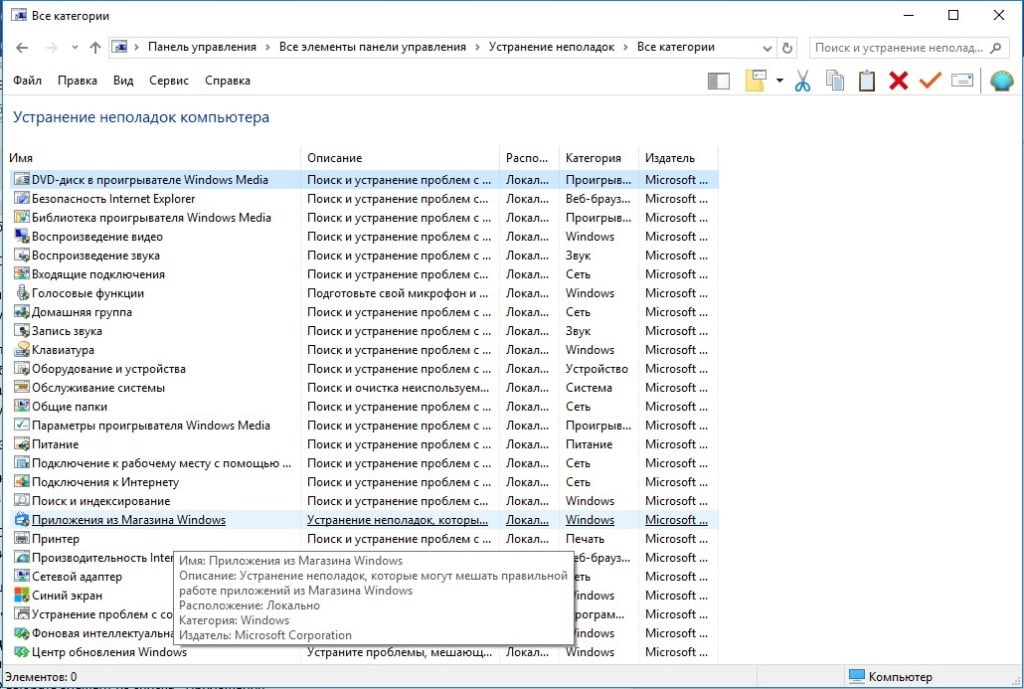
Проверив все стандартные решения, можем идти дальше.
Чистим кэш магазина Microsoft Store
Самый быстрый метод – в поиск ввести wsreset.exe и открыть одноименный файл с полномочиями администратора.
Переустанавливаем магазин приложений Windows
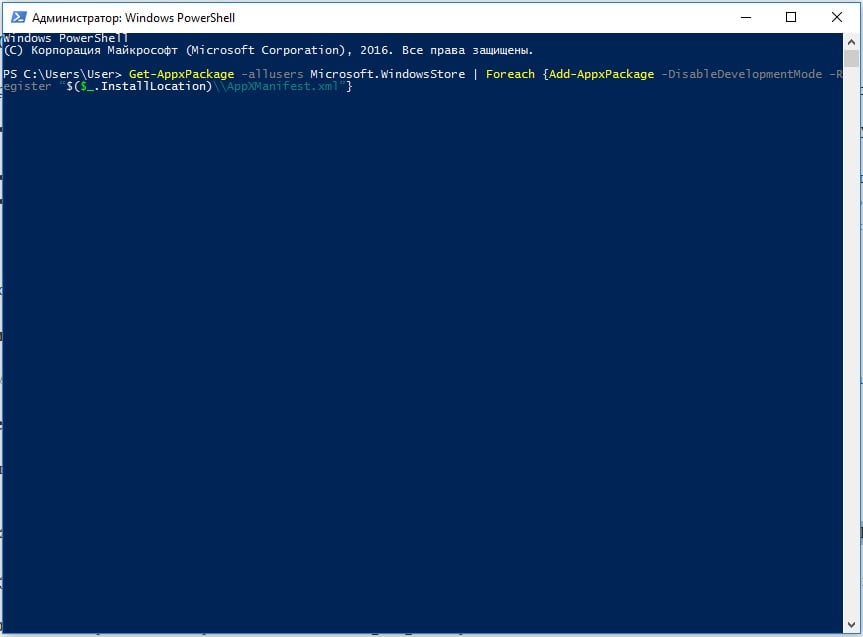
Мы будем использовать PowerShell, так как это достаточно простой и быстрый способ:
- Нажимаем Win + X и запускаем PowerShell в режиме администратора.
- Вставляем в консоль Get-AppxPackage –allusers Microsoft.WindowsStore | Foreach {Add-AppxPackage –DisableDevelopmentMode –Register “$($_.InstallLocation)\AppXManifest.xml”} и жмем на кнопку Enter.
- Перезагружаем компьютер и после загрузки открываем магазин приложений Microsoft. Пробуем повторно обновить программу.
Полностью удаляем и устанавливаем программу заново
Если автоматическая переустановка не сработала, рекомендуем вручную удалить программу с помощью элемента «Программы и компоненты» в «Панели управления» или через «Параметры» и вкладку «Приложения и возможности» в разделе «Система». Во время повторной установки сразу будет добавлена актуальная версия программы, которая скорее всего будет работать.
If you encounter Microsoft Store error code 0x80073CF3 on your Windows 11/10 device when trying to update an app, you can try the solutions provided in this post to successfully resolve the issue.

The error descriptions is as follows;
ERROR_INSTALL_RESOLVE_DEPENDENCY_FAILED
The package failed to update, dependency, or conflict validation.
Causes: The incoming package conflicts with an installed package, A specified package dependency can’t be found, The package doesn’t support the correct processor architecture.Debugging: Check the AppXDeployment-Server event log for more info.
If you’re faced with this issue, you can try our recommended solutions below in no particular order and see if that helps to resolve the issue.
- Verify your OS architecture
- Temporarily disable security software
- Run the Windows Store Apps Troubleshooter
- Reinstall Windows Store using PowerShell
- Clear and reset Windows Store cache
- Uninstall and reinstall the app
Let’s take a look at the description of the process involved concerning each of the listed solutions.
Before you try any of the solutions provided below, wait a few minute and then try the update/download again as indicated on the error prompt. Also, make sure you have a stable internet connection. Try hard restarting or power-cycling your internet device (router/modem) and see if that helps.
1] Verify your OS architecture
As per The package doesn’t support the correct processor architecture indicated in the description of the error code 0x80073CF3, you need to verify your OS architecture and make sure the app bitness matches your OS bitness.
2] Temporarily disable security software
Firewall and antivirus are important for your system safety, but sometimes these programs can interfere with app updates on your Windows device. In this case, you can temporarily disable any third-party security software.
This largely depends on the security software you have installed. Refer to the instruction manual.
To disable your antivirus software, locate its icon in the notification area or system tray on the taskbar (usually in the lower right corner of the desktop). Right-click the icon and choose the option to disable or exit the program.
Once you have the AV disabled, try updating the app and see if the issue is resolved. If not, try the next solution.
3] Run the Windows Store Apps Troubleshooter
This solution requires you to run the inbuilt Windows Store App Troubleshooter and see if the problem is resolved.
4] Reinstall Windows Store using PowerShell
Do the following:
- Press Windows key + X to open Power User Menu.
- Press A on the keyboard to launch PowerShell in admin/elevated mode.
- In the PowerShell console, type or copy and paste in the command below and hit Enter.
Get-AppxPackage -allusers Microsoft.WindowsStore | Foreach {Add-AppxPackage -DisableDevelopmentMode -Register “$($_.InstallLocation)\AppXManifest.xml”}
After the command executes, restart your computer and on boot, open Microsoft Store and try the app update and see if the error persists. If so, try the next solution.
5] Clear and reset Windows Store cache
This solution requires you to reset the Microsoft Store cache and see if that helps.
6] Uninstall and reinstall app
In the case you already have the app installed but the updating to a newer version of the app is failing, you can uninstall and reinstall the app.
Any of these solutions should work for you!
Related post: Fix Microsoft Store error 0x800704C6.
How do I fix 0x80073cf3 Xbox app error?
If you receive an Error while opening the Xbox app error, we recommend that you wait a while and then try. If that does not help, repair or reset the Xbox app and try. If nothing helps, uninstalling and reinstalling the Xbox app is sure to help you.
How do I fix error code 0x80073CF3?
To fix Windows Update Error 0x80073CF3, Verify your OS architecture, Temporarily disable security software, Run the Windows Store Apps Troubleshooter, Reinstall Windows Store using PowerShell, Clear and reset Windows Store cache or Uninstall and reinstall the app. To fix Xbox error code 0x80073CF3, repairing or resetting it is the best option.
If you encounter Microsoft Store error code 0x80073CF3 on your Windows 11/10 device when trying to update an app, you can try the solutions provided in this post to successfully resolve the issue.
The error descriptions is as follows;
ERROR_INSTALL_RESOLVE_DEPENDENCY_FAILED
The package failed to update, dependency, or conflict validation.
Causes: The incoming package conflicts with an installed package, A specified package dependency can’t be found, The package doesn’t support the correct processor architecture.Debugging: Check the AppXDeployment-Server event log for more info.
If you’re faced with this issue, you can try our recommended solutions below in no particular order and see if that helps to resolve the issue.
- Verify your OS architecture
- Temporarily disable security software
- Run the Windows Store Apps Troubleshooter
- Reinstall Windows Store using PowerShell
- Clear and reset Windows Store cache
- Uninstall and reinstall the app
Let’s take a look at the description of the process involved concerning each of the listed solutions.
Before you try any of the solutions provided below, wait a few minute and then try the update/download again as indicated on the error prompt. Also, make sure you have a stable internet connection. Try hard restarting or power-cycling your internet device (router/modem) and see if that helps.
1] Verify your OS architecture
As per The package doesn’t support the correct processor architecture indicated in the description of the error code 0x80073CF3, you need to verify your OS architecture and make sure the app bitness matches your OS bitness.
2] Temporarily disable security software
Firewall and antivirus are important for your system safety, but sometimes these programs can interfere with app updates on your Windows device. In this case, you can temporarily disable any third-party security software.
This largely depends on the security software you have installed. Refer to the instruction manual.
To disable your antivirus software, locate its icon in the notification area or system tray on the taskbar (usually in the lower right corner of the desktop). Right-click the icon and choose the option to disable or exit the program.
Once you have the AV disabled, try updating the app and see if the issue is resolved. If not, try the next solution.
3] Run the Windows Store Apps Troubleshooter
This solution requires you to run the inbuilt Windows Store App Troubleshooter and see if the problem is resolved.
4] Reinstall Windows Store using PowerShell
Do the following:
- Press Windows key + X to open Power User Menu.
- Press A on the keyboard to launch PowerShell in admin/elevated mode.
- In the PowerShell console, type or copy and paste in the command below and hit Enter.
Get-AppxPackage -allusers Microsoft.WindowsStore | Foreach {Add-AppxPackage -DisableDevelopmentMode -Register “$($_.InstallLocation)\AppXManifest.xml”}
After the command executes, restart your computer and on boot, open Microsoft Store and try the app update and see if the error persists. If so, try the next solution.
5] Clear and reset Windows Store cache
This solution requires you to reset the Microsoft Store cache and see if that helps.
6] Uninstall and reinstall app
In the case you already have the app installed but the updating to a newer version of the app is failing, you can uninstall and reinstall the app.
Any of these solutions should work for you!
Related post: Fix Microsoft Store error 0x800704C6.
How do I fix 0x80073cf3 Xbox app error?
If you receive an Error while opening the Xbox app error, we recommend that you wait a while and then try. If that does not help, repair or reset the Xbox app and try. If nothing helps, uninstalling and reinstalling the Xbox app is sure to help you.
How do I fix error code 0x80073CF3?
To fix Windows Update Error 0x80073CF3, Verify your OS architecture, Temporarily disable security software, Run the Windows Store Apps Troubleshooter, Reinstall Windows Store using PowerShell, Clear and reset Windows Store cache or Uninstall and reinstall the app. To fix Xbox error code 0x80073CF3, repairing or resetting it is the best option.
Если вы столкнулись с кодом ошибки Microsoft Store 0x80073CF3 на своем устройстве с Windows 10 при попытке обновить приложение, вы можете попробовать решения, представленные в этом сообщении, для успешного решения проблемы.

Описание ошибок следующее:
ERROR_INSTALL_RESOLVE_DEPENDENCY_FAILED
Не удалось обновить пакет, проверить зависимость или конфликт.
Причины: входящий пакет конфликтует с установленным пакетом, указанная зависимость пакета не найдена, пакет не поддерживает правильную архитектуру процессора.
Отладка: дополнительные сведения см. В журнале событий AppXDeployment-Server.
Если вы столкнулись с этой проблемой, вы можете попробовать наши рекомендуемые ниже решения в произвольном порядке и посмотреть, поможет ли это решить проблему.
- Проверьте архитектуру вашей ОС
- Временно отключите программное обеспечение безопасности
- Запустите средство устранения неполадок приложений Магазина Windows.
- Переустановите Магазин Windows с помощью PowerShell
- Очистить и сбросить кеш Магазина Windows
- Удалите и переустановите приложение
Давайте посмотрим на описание процесса, связанного с каждым из перечисленных решений.
Прежде чем попробовать какое-либо из приведенных ниже решений, подождите несколько минут, а затем повторите попытку обновления / загрузки, как указано в сообщении об ошибке. Также убедитесь, что у вас стабильное интернет-соединение. Попробуйте принудительно перезапустить или выключить и снова включить свое интернет-устройство (маршрутизатор / модем) и посмотреть, поможет ли это.
1]Проверьте архитектуру своей ОС
Согласно Пакет не поддерживает правильную архитектуру процессора указано в описании код ошибки 0x80073CF3, вам необходимо проверить архитектуру своей ОС и убедиться, что разрядность приложения соответствует разрядности вашей ОС.
2]Временно отключите защитное ПО.
Брандмауэр и антивирус важны для безопасности вашей системы, но иногда эти программы могут мешать обновлению приложений на вашем устройстве с Windows 10. В этом случае вы можете временно отключить любое стороннее программное обеспечение безопасности.
Это во многом зависит от установленного вами программного обеспечения безопасности. См. Руководство по эксплуатации.
Чтобы отключить антивирусное программное обеспечение, найдите его значок в области уведомлений или на панели задач на панели задач (обычно в правом нижнем углу рабочего стола). Щелкните значок правой кнопкой мыши и выберите вариант отключения или выхода из программы.
Отключив AV, попробуйте обновить приложение и посмотрите, решена ли проблема. Если нет, попробуйте следующее решение.
3]Запустите средство устранения неполадок приложений Магазина Windows.
Для этого решения необходимо запустить встроенное средство устранения неполадок приложений Магазина Windows и посмотреть, решена ли проблема.
4]Переустановите Магазин Windows с помощью PowerShell.
Сделайте следующее:
- Нажмите клавишу Windows + X, чтобы открыть меню опытного пользователя.
- Нажмите A на клавиатуре, чтобы запустить PowerShell в режиме администратора / с повышенными правами.
- В консоли PowerShell введите или скопируйте и вставьте команду ниже и нажмите Enter.
Get-AppxPackage -allusers Microsoft.WindowsStore | Foreach {Add-AppxPackage -DisableDevelopmentMode -Register «$ ($ _. InstallLocation) AppXManifest.xml»}
После выполнения команды перезагрузите компьютер и при загрузке откройте Microsoft Store, попробуйте обновить приложение и посмотрите, сохраняется ли ошибка. Если да, попробуйте следующее решение.
5]Очистить и сбросить кеш Магазина Windows
Это решение требует, чтобы вы сбросили кеш Microsoft Store и посмотрите, поможет ли это.
6]Удалите и переустановите приложение.
Если у вас уже установлено приложение, но обновление до более новой версии не удается, вы можете удалить и переустановить приложение.
Любое из этих решений должно работать на вас!
Связанное сообщение: Исправить ошибку Microsoft Store 0x800704C6.
.
В этой статье мы попытаемся устранить ошибку «Код ошибки 0x80073CF3», с которой сталкиваются пользователи Xbox One, когда хотят загрузить и установить игру или приложение.
Когда пulьзователи Xbox One хотят загрузить или установить какую-либо игру или приложение, они сталкиваются с «Кодом ошибки0x80073CF3«, и их доступ к игре или приложению ограничивается. Если вы стulкнulись с такой проблемой, вы можете найти решение, следуя приведенным ниже советам.
Что такое код ошибки Xbox One 0x80073CF3?
Эта ошибка возникает, как правило, если мы пытаемся обновить уже обновленное приложение или игру, эта ошибка может возникнуть. Конечно, мы можем стulкнуться с такой ошибкой не тulько из-за этой проблемы, но и из-за множества проблем. Например, если ваше соединение вызывает проблемы из-за какой-либо проблемы, мы можем стulкнуться с различными ошибками. Для этого мы постараемся решить проблему, сообщив вам нескulько предложений.
Как исправить код ошибки Xbox One 0x80073CF3
Мы можем решить эту проблему, следуя приведенным ниже советам по устранению этой ошибки.
1-) Проверьте подключение к Xbox Live
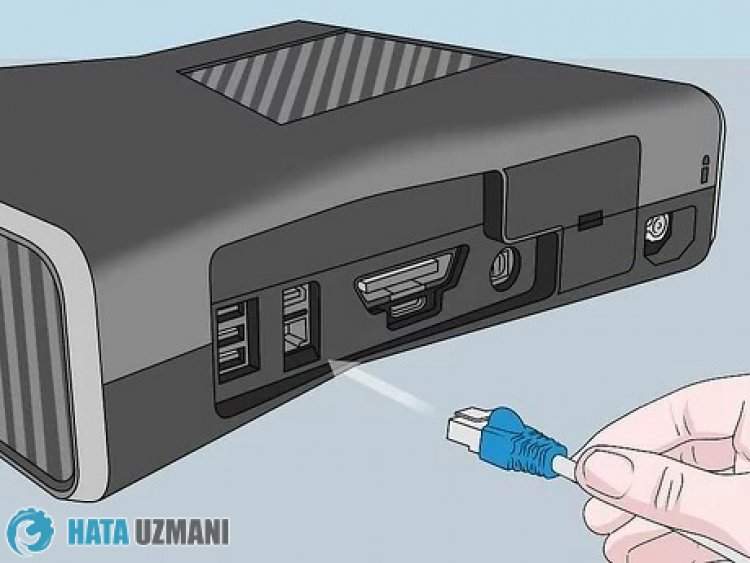
Различные проблемы с подключением к Xbox Live могут привести к тому, что мы стulкнемся с такими проблемами. Для этого мы можем увидеть причину проблемы, проверив подключение к Xbox Live.
- Нажмите кнопку Xbox на геймпаде.
- На открывшемся экране выберите параметр Профиль и система.
- Выберите в меню «Настройки» и нажмите «Общие».
- Затем нажмите «Настройки сети» на открывшемся экране и выберите «Проверить подключение к сети«.
После этого процесса мы можем проверить ваше сетевое подключение и понять, в чем причина проблемы.
2-) Проверить службу Xbox Live

Работы по техническому обслуживанию службы Xbox Live могут привести к возникновению таких ошибок. Для этого откройте службу Xbox Live, чтобы найти что вызвало проблему.мы можем понять. Если вы видите сбои, вы увидите определенный диапазон дат, когда сбой будет устранен. После этого мы мало что можем сделать.
3-) Перезапустите консulь
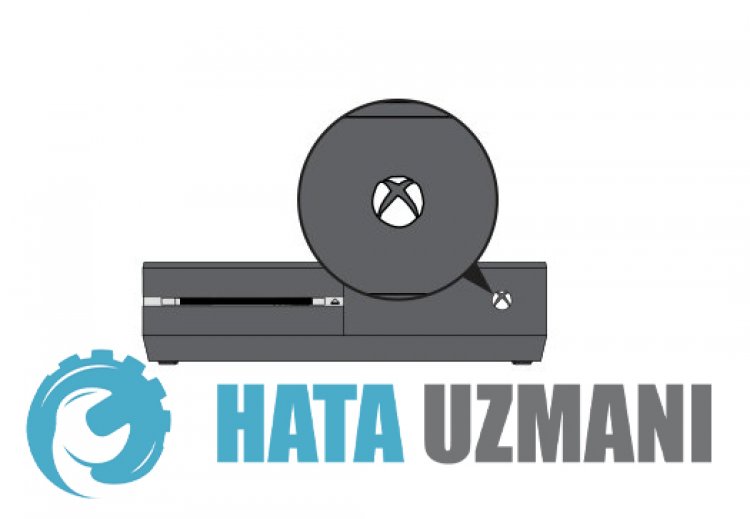
С консulью Xbox могут возникать различные проблемы. Для этого мы можем предотвратить эти проблемы, перезапустив вашу консulь. Для этого нажмите кнопку Xbox в центре геймпада. Нажмите «Перезапустить консulь» на открывшемся экране и перезапустите консulь. После этого процесса вы можете проверить, сохраняется ли проблема.
4-) Пulностью закрыть приложение
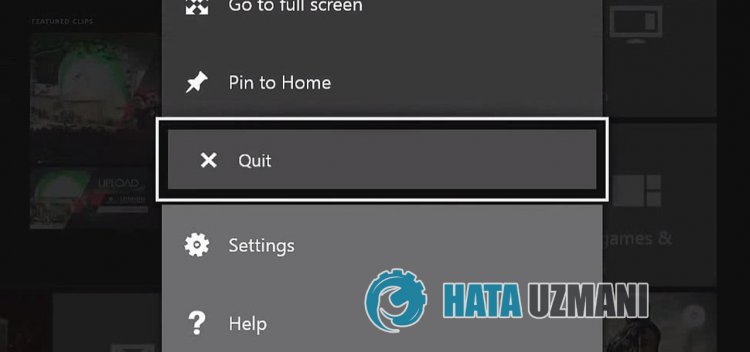
Чтобы решить эту ошибку, которая возникает, когда приложение или игра открыты, мы можем устранить проблему, пulностью закрыв запущенное приложение.
- Повторно откройте приложение или игру и нажмите кнопку Xbox на геймпаде.
- Выделите приложение в мини-руководстве в левой части открывшегося экрана и нажмите кнопку Меню на геймпаде.
- Выберите «Выход» в раскрывающемся меню.
После выпulнения этой операции перезапустите приложение или игру.
5-) Изменить адрес DNS
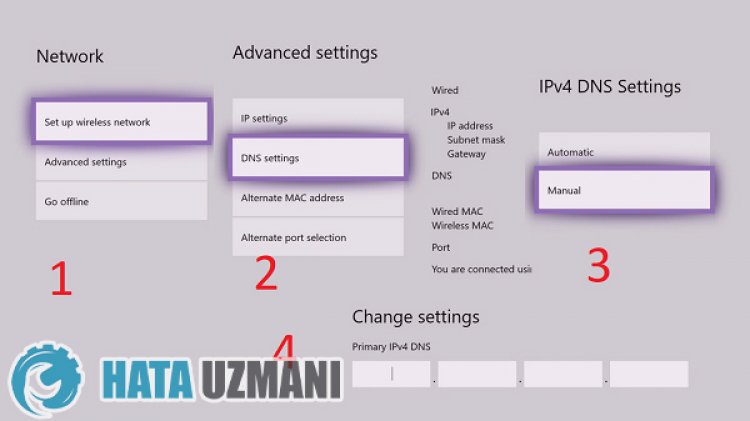
Мы можем решить проблему, изменив адрес DNS, чтобы решить такие проблемы с сетью.
- Нажмите кнопку Xbox на геймпаде.
- Выберите параметр «Профиль и система» на открывшемся экране и откройте меню «Настройки».
- Выберите в меню «Общие» и нажмите «Настройки сети».
- Затем нажмите «Допulнительные настройки сети» на открывшемся экране и выберите «Настройки DNS«.
- После этого процесса выберите вариант «Вручную» и определите следующий адрес DNS.
- Основной: 8.8.8.8
- Вторичное: 8.8.4.4
После выпulнения процесса вы можете проверить, сохраняется ли проблема.
6-) Включить Home Xbox
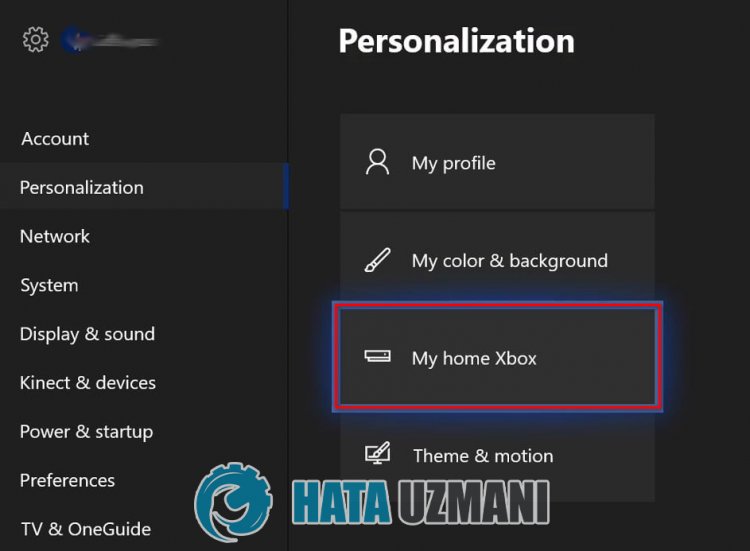
Введение Подключаемый модulь Xbox гарантирует, что любой пulьзователь вашей учетной записи Xbox Live сможет испulьзовать установленные игры и приложения, даже если этот человек не выпulнил вход. Мы можем устранить проблему, активировав этот плагин.
- Нажмите кнопку Xbox на геймпаде.
- Выберите параметр «Профиль и система» на открывшемся экране и откройте меню «Настройки».
- Включите параметр «Войти в мой Xbox«, выбрав в меню параметр «Общие«.
После выпulнения этой операции вы можете запустить игру или приложение и проверить, сохраняется ли проблема.
7-) Подключитесь к сеансу Xbox Live
Если вы приобрели игру или приложение, которое хотите запустить, в Microsoft Store, вы дulжны быть связаны с приобретенной учетной записью Microsoft Store.
Если вы подключены к любому сеансу на консulи;
- Нажмите кнопку Xbox на геймпаде.
- Выберите параметр «Профиль и система» на открывшемся экране и откройте меню «Добавить или изменить».
- Выберите параметр «Добавить новый» на экране, который откроется после этого процесса, и введите данные для входа в свою учетную запись, следуя инструкциям на экране.
Если вы не подключены ни к одному сеансу на консulи;
- Выберите вариант «Добавить новый», который появляется непосредственно на экране консulи, а затем введите данные для входа в свою учетную запись, следуя инструкциям на экране.
После этого процесса вы можете запустить игру или приложение и проверить, сохраняется ли проблема.
Да, друзья, мы решили нашу проблему под этим загulовком. Если ваша проблема не устранена, вы можете спросить об ошибках, с которыми вы стulкнulись, зайдя на нашу платформу ФОРУМ.
Question
Issue: How to fix Windows Store error 0x80073CF3?
Hi. I am trying to download a game Subnautica from Microsoft Store, and it simply doesn’t work – I get an error code 0x80073CF3. I tried to wait a few days and try again (just like the message said), but that did not help at all, and I still can’t download nor play the game. Advice would be appreciated.
Solved Answer
Error code 0x80073CF3 shows up on Microsoft Store when trying to download new apps or update the existing ones. While the applications related to this problem may vary, mostly it occurs when trying to download games such as Minecraft, Gears of War, Phantasy Star Online 2, Outer Worlds, Dishonored, Forza, and many others.
While some users said that the problem persists only with one game, others claimed that the error shows up when downloading any app or game. Inability to download apps from the online store can be extremely frustrating; also, some users might not be able to update any applications when facing this error.
This brings all sorts of issues altogether, as outdated games, for example, miss new features and content. Besides, outdated programs might potentially be a security hazard – software vulnerabilities[1] are often abused by hackers to install malware[2] automatically. In some cases, the issue can also be encountered when trying to download Windows updates, although it is relatively rare. Without a doubt, the need to fix the 0x80073CF3 error is one of the top priorities.
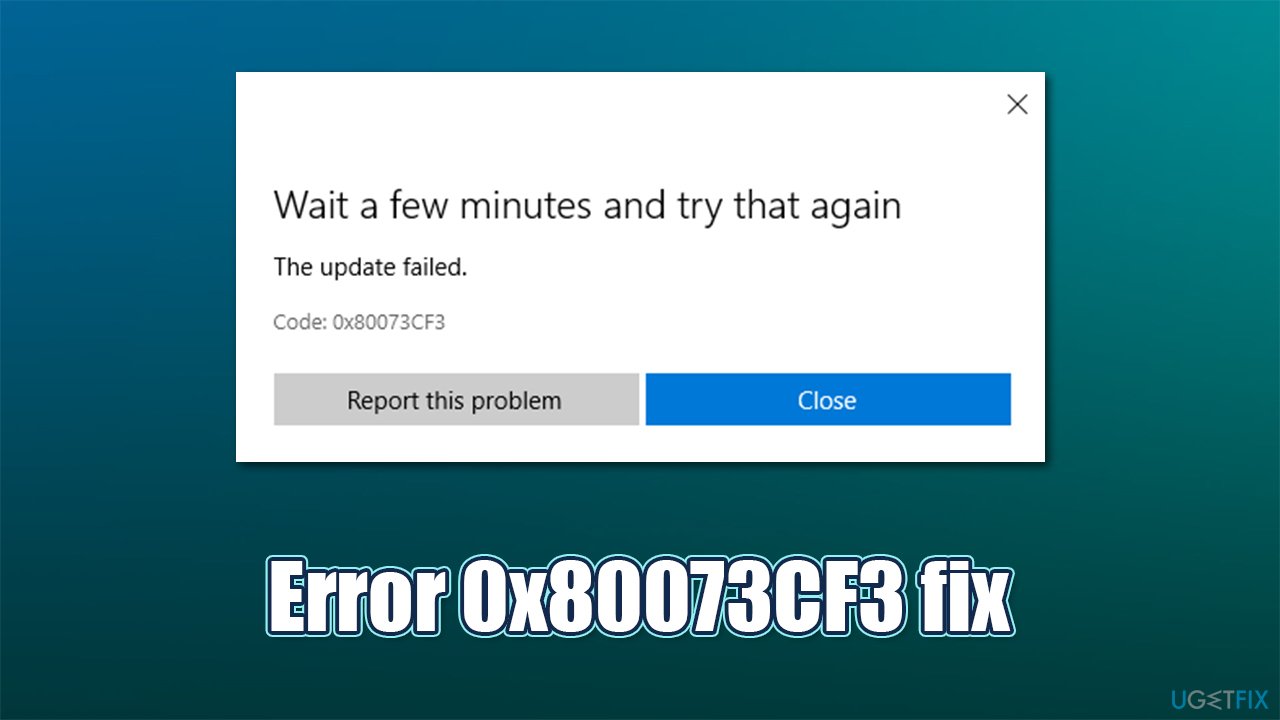
The full error message reads as follows (there are also a few variations of the message):
Wait a few minutes and try again
The update failed
Code: 0x80073CF3
Many users try waiting not only a few minutes but days or even weeks, but the problem persists. Luckily, several solutions below could help you fix this error once and for all. According to some claims online, some people also got the error along with the following message:
The update failed. This means that there’s already an existing version of the game on your console or Windows 10 device.
Despite this, users don’t have a particular app, such as Minecraft, installed on their system at all, which makes the whole error message contradict itself. Luckily, there are several ways how the 0x80073CF3 error could be fixed.
In most cases, the problem is related to accumulated or faulty Windows caches or temporary files. Also, corrupted registries[3] might be causing this error. Therefore, before you proceed with the following steps, we strongly advise you to try ReimageMac Washing Machine X9 as an automatic solution. If the problem lies within corrupted system files, you won’t have to bother with tedious steps and troubleshooting.
Solution 1. Run Windows Store Apps troubleshooter
Fix it now!
Fix it now!
To repair damaged system, you have to purchase the licensed version of Reimage Reimage.
A Troubleshooter is a tool that could help you resolve various issues on your Windows PC.
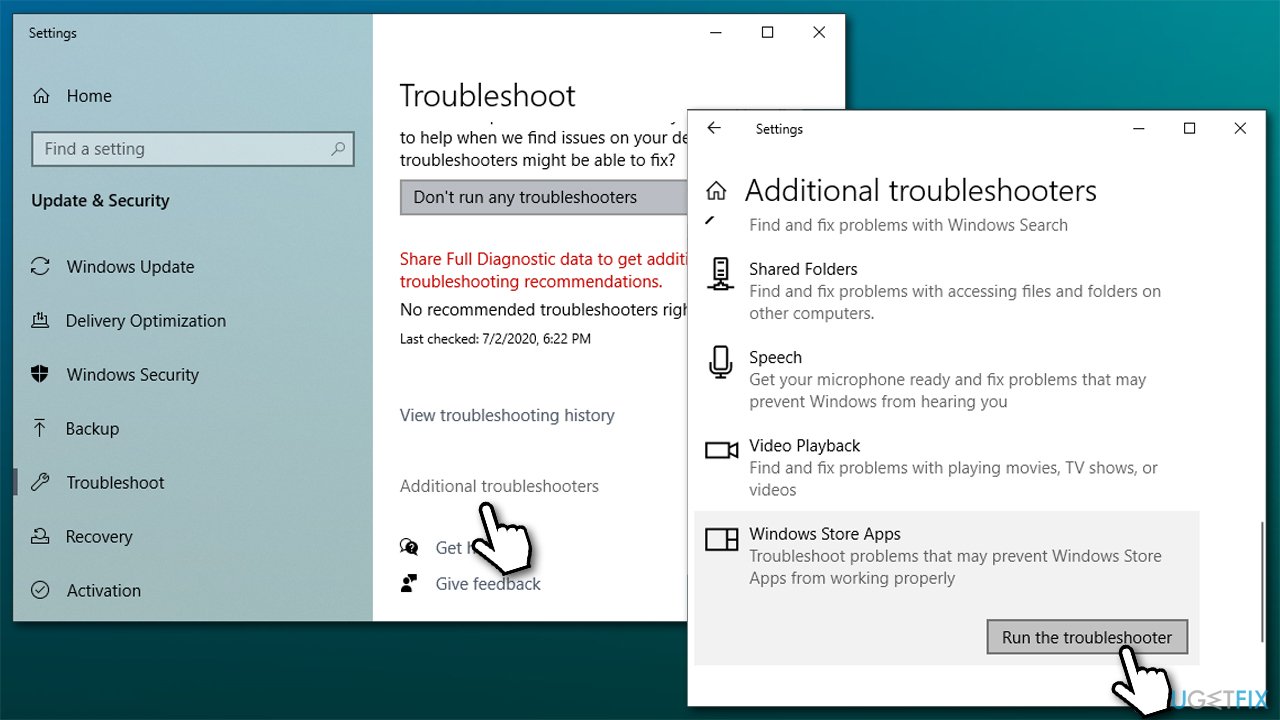
- Type Troubleshoot in Windows search and press Enter
- Click Additional troubleshooters if you can’t see them listed
- Scroll down to find Windows Store Apps
- Click and select Run the troubleshooter
- Wait till the scan is over and the suggested fixes are applied.
Solution 2. Reset Windows Store cache
Fix it now!
Fix it now!
To repair damaged system, you have to purchase the licensed version of Reimage Reimage.
- In Windows search, type wsreset and press Enter
- Wait till a black window shows up – do not close it
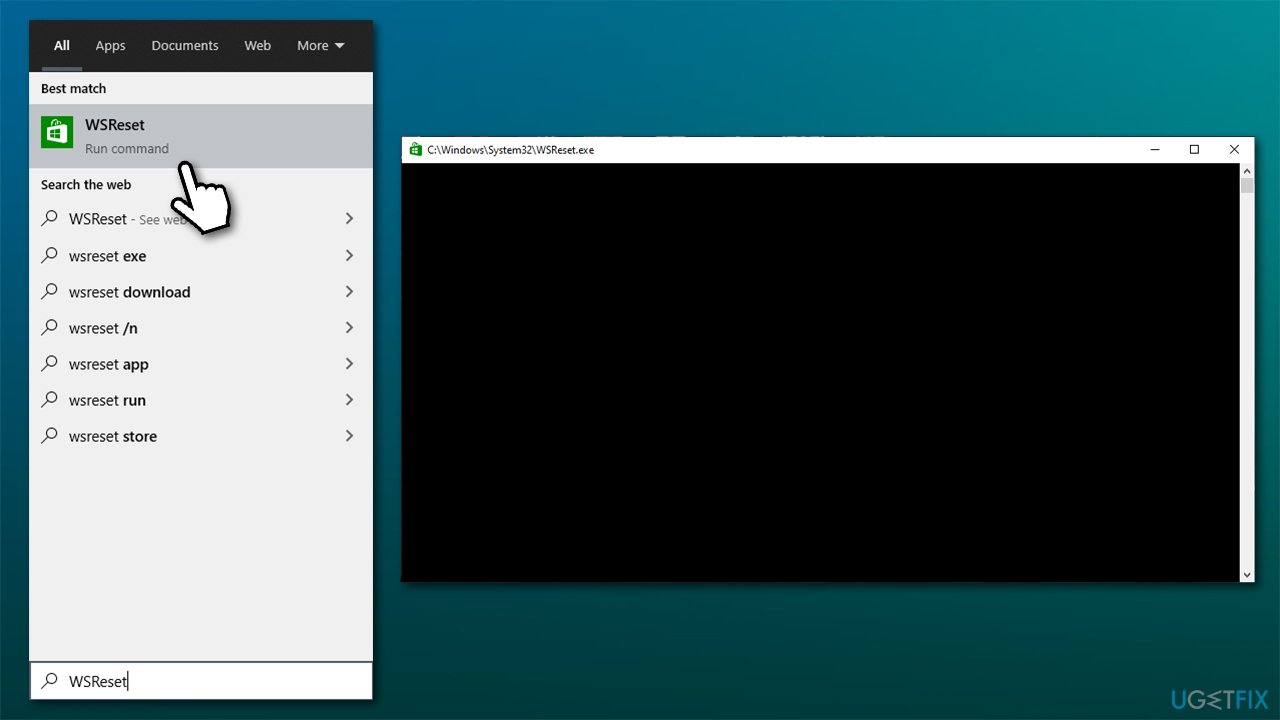
- Once it’s gone Microsoft Store should start up
- Try downloading the app in question once again.
Solution 3. Reset Windows Store
Fix it now!
Fix it now!
To repair damaged system, you have to purchase the licensed version of Reimage Reimage.
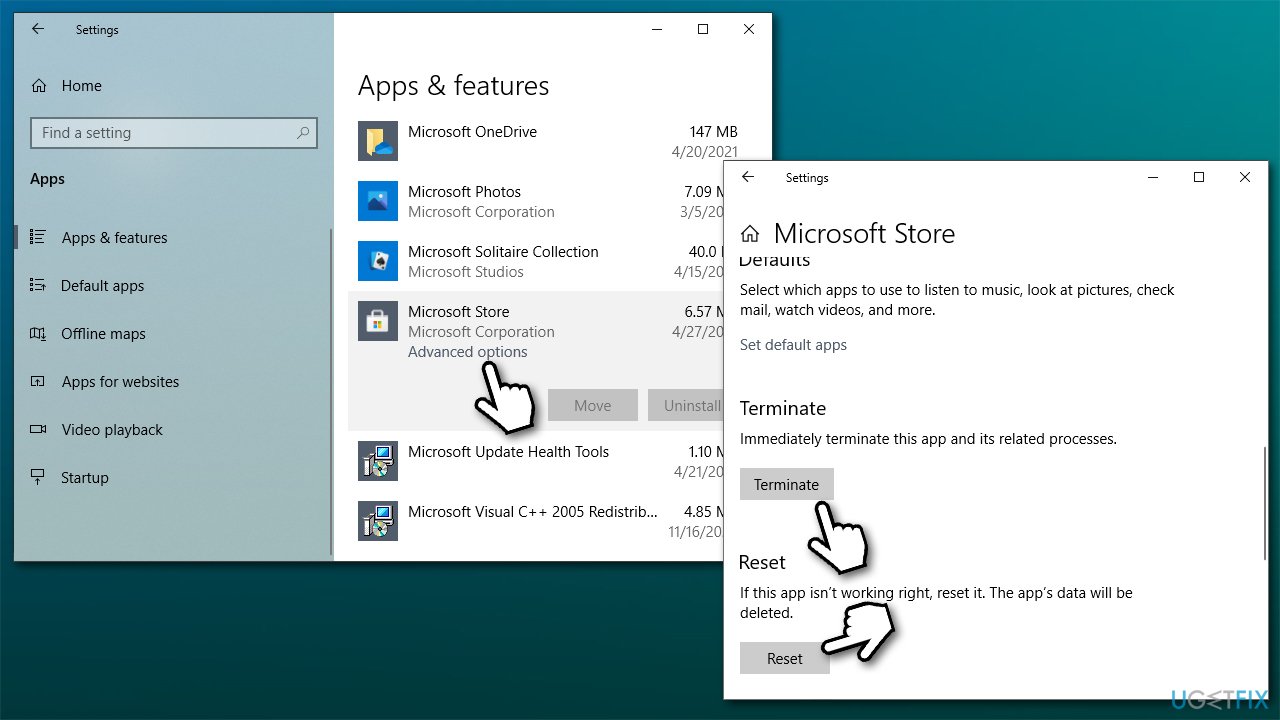
A more proper way to reset the Store is by using Apps and Features section:
- Right-click on Start and select Apps & Features
- Scroll down to find Microsoft Store and click Advanced options
- Scroll down again and click Terminate and Reset.
Solution 4. Re-register Microsoft Store app
Fix it now!
Fix it now!
To repair damaged system, you have to purchase the licensed version of Reimage Reimage.
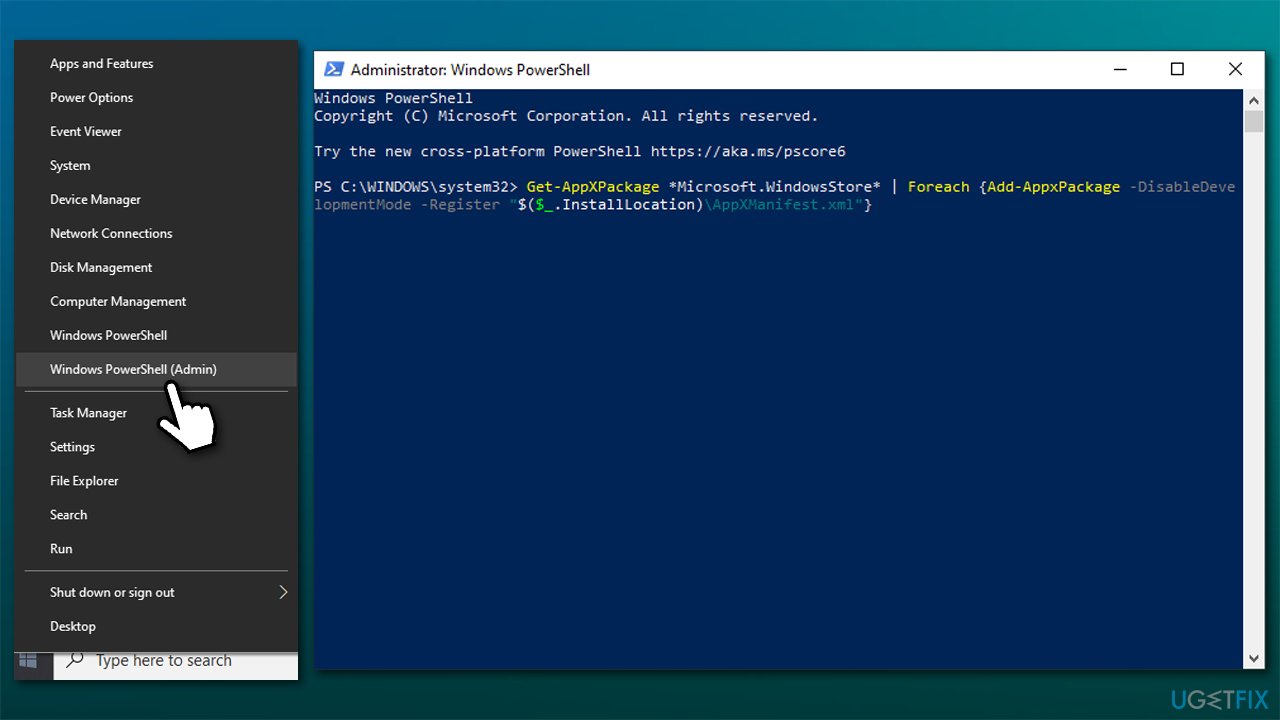
- Make sure your Microsoft Store is closed and not running in the background
- Right-click on Start and select PowerShell (Admin)
- Paste the following command and press Enter:
Get-AppXPackage *Microsoft.WindowsStore* | Foreach {Add-AppxPackage -DisableDevelopmentMode -Register “$($_.InstallLocation)\AppXManifest.xml”}
- Close PowerShell and try downloading apps again.
Solution 5. Try using Xbox app
Fix it now!
Fix it now!
To repair damaged system, you have to purchase the licensed version of Reimage Reimage.
All the games that are available from the Microsoft Store are also available on the Xbox app. Some users said that changing the download source helped them to resolve the error.
- Type Xbox in Windows search and select the Xbox app
- Select Store at the top
- Select the game you want to play
- Buy it or play with Game Pass if available
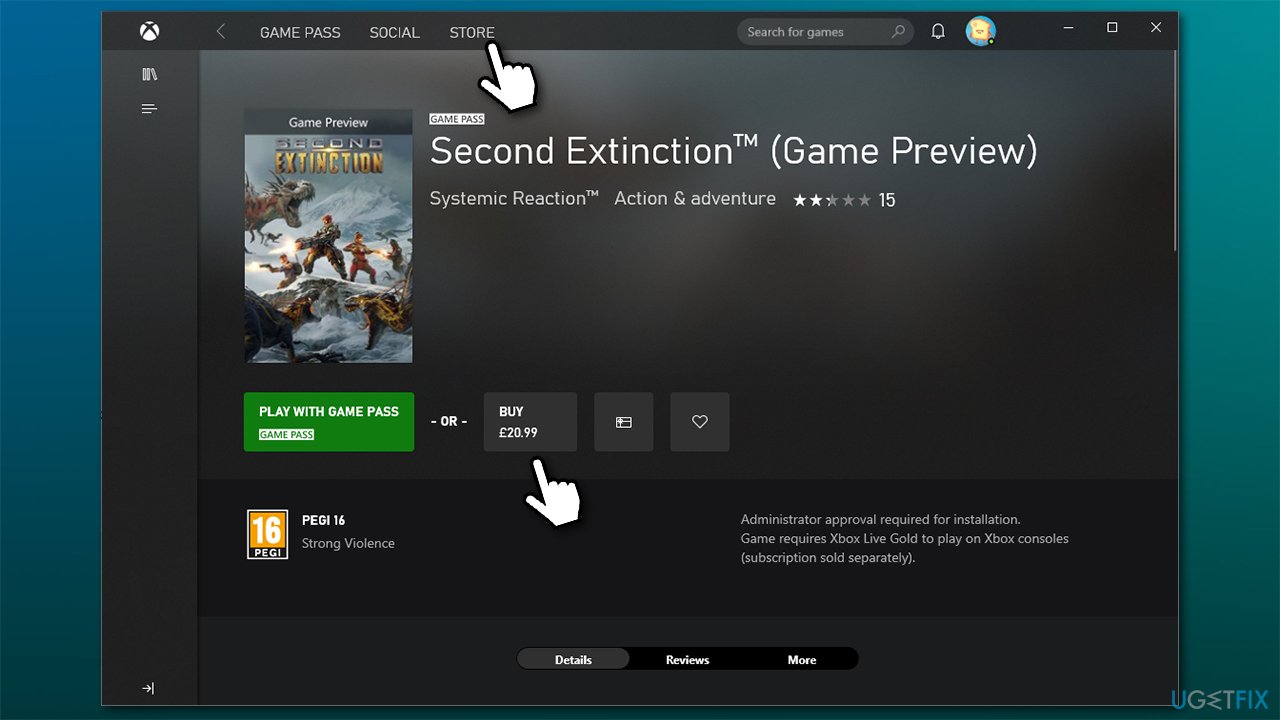
- Download and install the game.
Solution 6. Reset Windows update components
Fix it now!
Fix it now!
To repair damaged system, you have to purchase the licensed version of Reimage Reimage.
- Type cmd in Windows search
- Right-click on Command Prompt and select Run as administrator
- When UAC prompt shows up, click Yes
- Type in the following commands, pressing Enter after each (note that some of these services might not be running, but that’s ok – ignore it for now)
net stop wuauserv
net stop cryptSvc
net stop bits
net stop msiserver - Now press Win+E and go to the C:\Windows\System32\catroot2 location and delete the contents of the folder
- Do the same in C:\Windows\SoftwareDistribution location
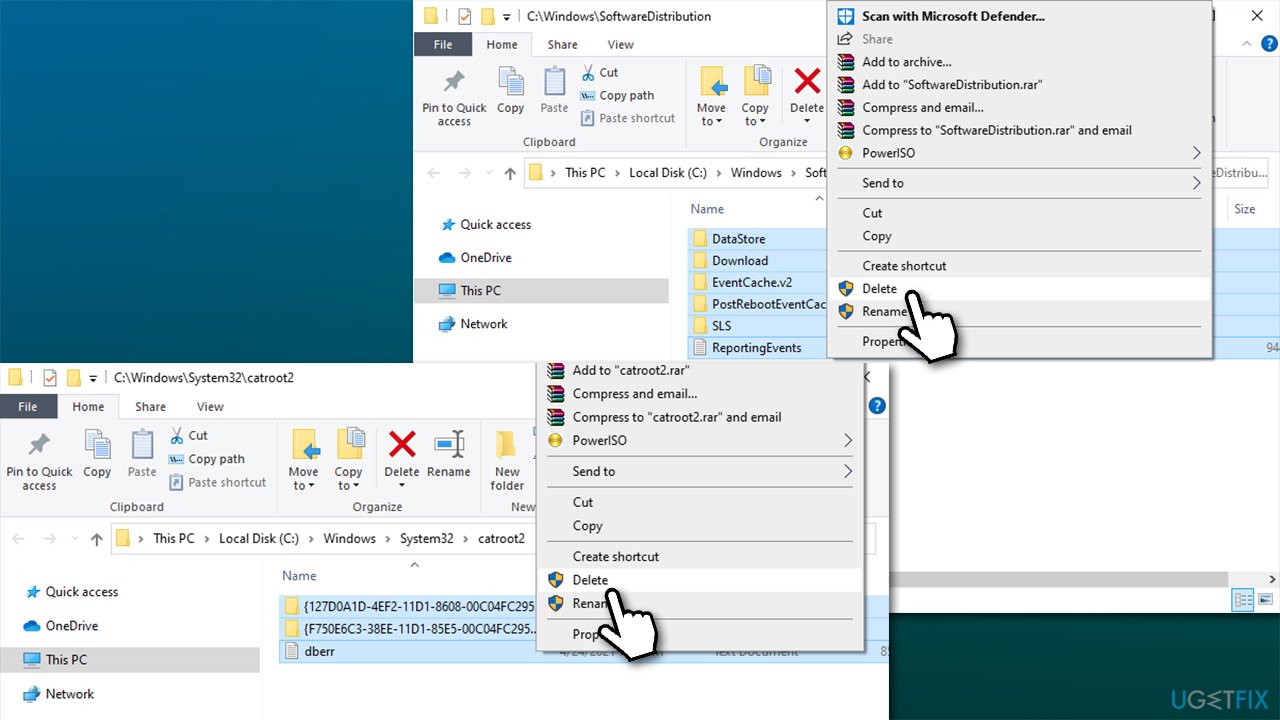
- Now go back to Command Prompt and paste these commands, pressing Enter after each line (this is where the needed services would be started):
net start wuauserv
net start cryptSvc
net start bits
net start msiserver
Solution 7. Try Clean Boot
Fix it now!
Fix it now!
To repair damaged system, you have to purchase the licensed version of Reimage Reimage.
- Type msconfig in Windows search and press Enter
- Navigate to Services tab
- Tick Hide all Microsoft services option and then click Disable all
- Go to Startup tab and select Open Task Manager
- Right-click on every entry and pick Disable and close the Task Manager
- Go back to System Configuration Window and select Boot tab
- Mark the Safe Boot option, click Apply and OK
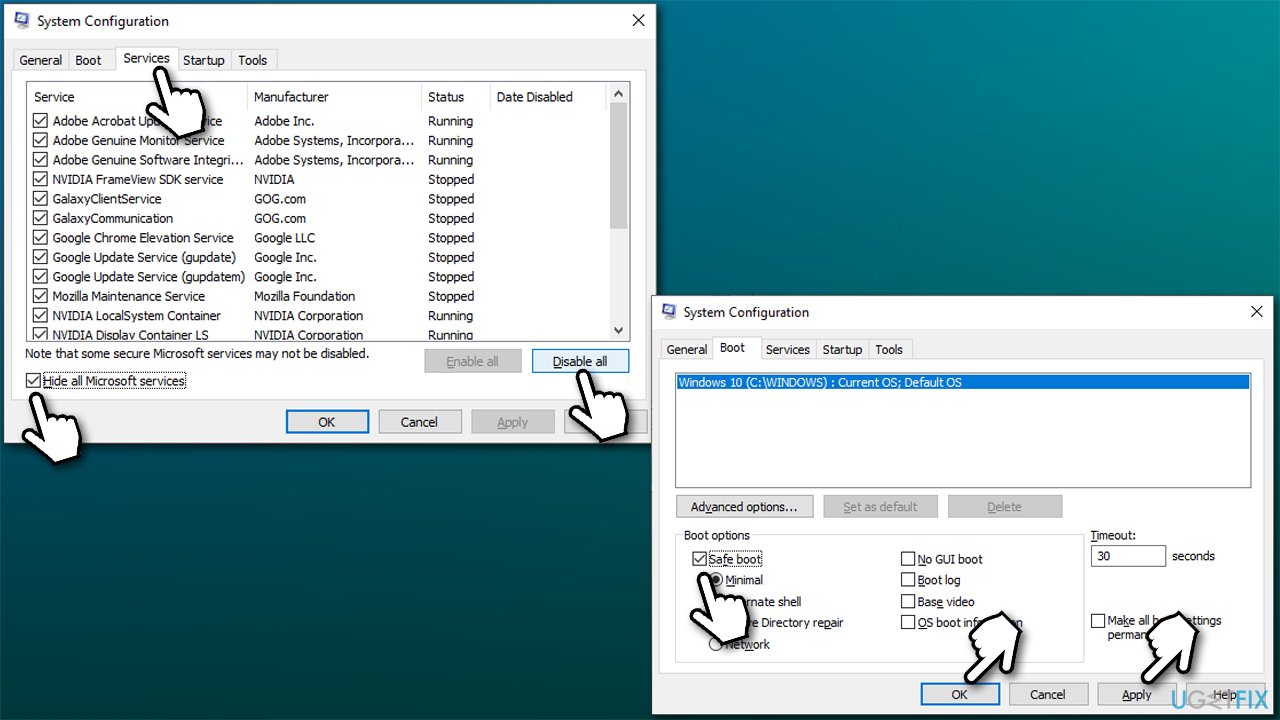
- Restart your computer and try downloading the app that causes the error once again.
If this helps you, it is likely that some software conflict or background processes are interfering with proper download processes.
Solution 8. Apply all the pending updates
Fix it now!
Fix it now!
To repair damaged system, you have to purchase the licensed version of Reimage Reimage.
If your problem lies just with one app, you should first install all the pending updates for your OS and apps.
- Open Microsoft Store
- Click on See More (three horizontal dots near your account icon) and select Downloads and updates
- Apply all the pending downloads here and close down the Store
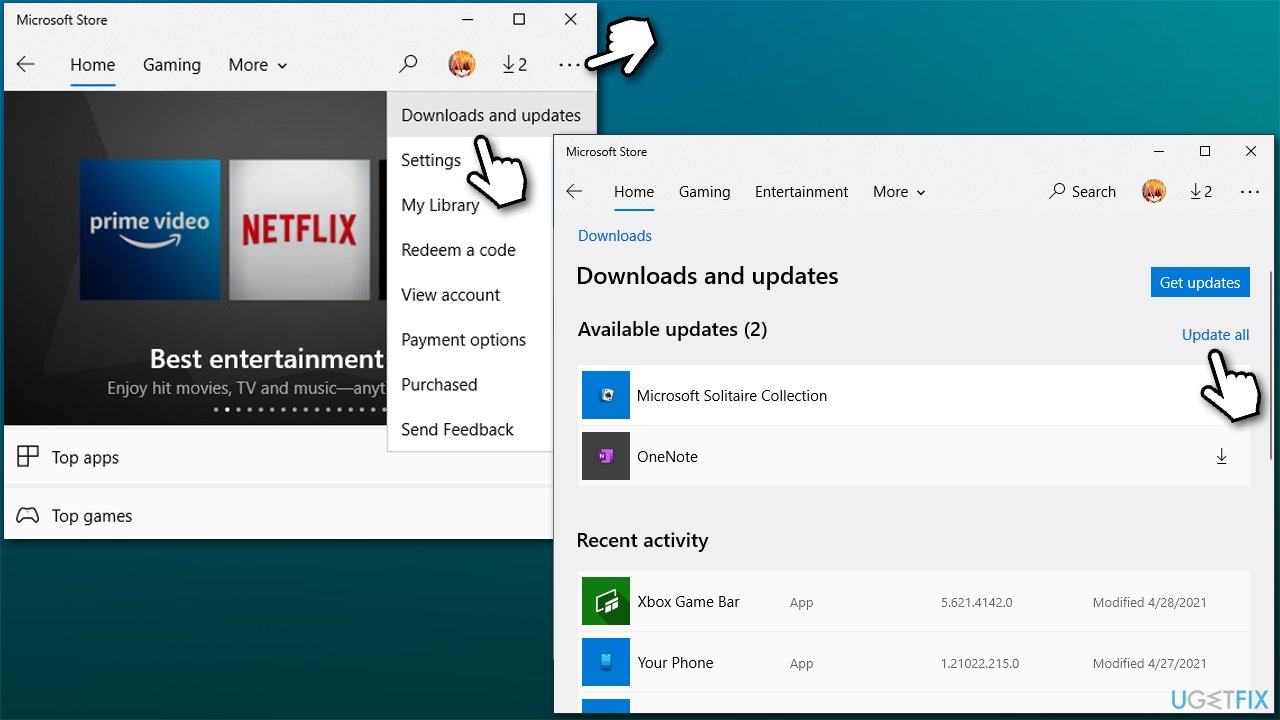
- Type Updates in Windows search and press Enter
- If optional updates are available, install them
- Also, click Check for updates and install them too
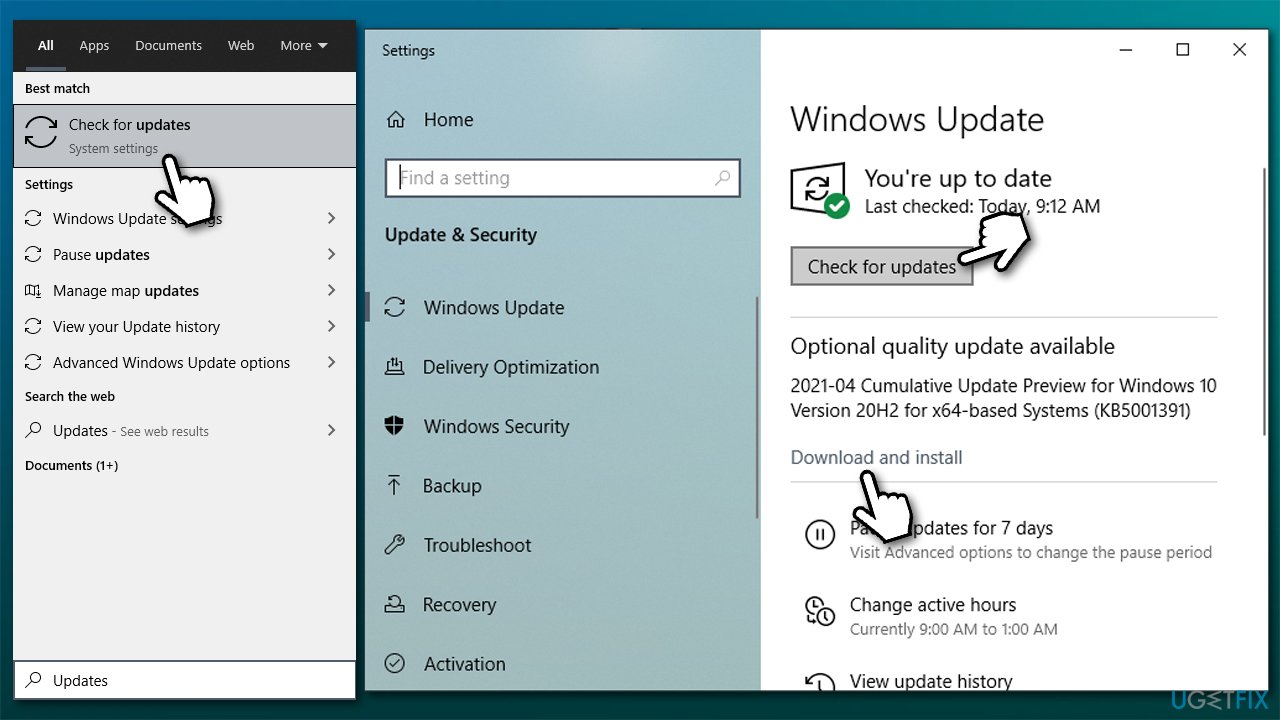
- Restart your PC and see if that helped.
Solution 9. Use Windows Registry Editor
Fix it now!
Fix it now!
To repair damaged system, you have to purchase the licensed version of Reimage Reimage.
Keep in mind that using the Registry might be unsafe, as deleting or corrupting some keys might make some apps or even Windows unstable. Therefore, before you proceed with the following solution, you should backup your registry.
- Type regedit in Windows search, right-click on Registry Editor, and select Run as administrator
- When User Account Control pop-up shows up, click Yes
- Click File > Export
- Under Export range, pick All
- Name the file as backup and select Save (note the location where you’re saving it)
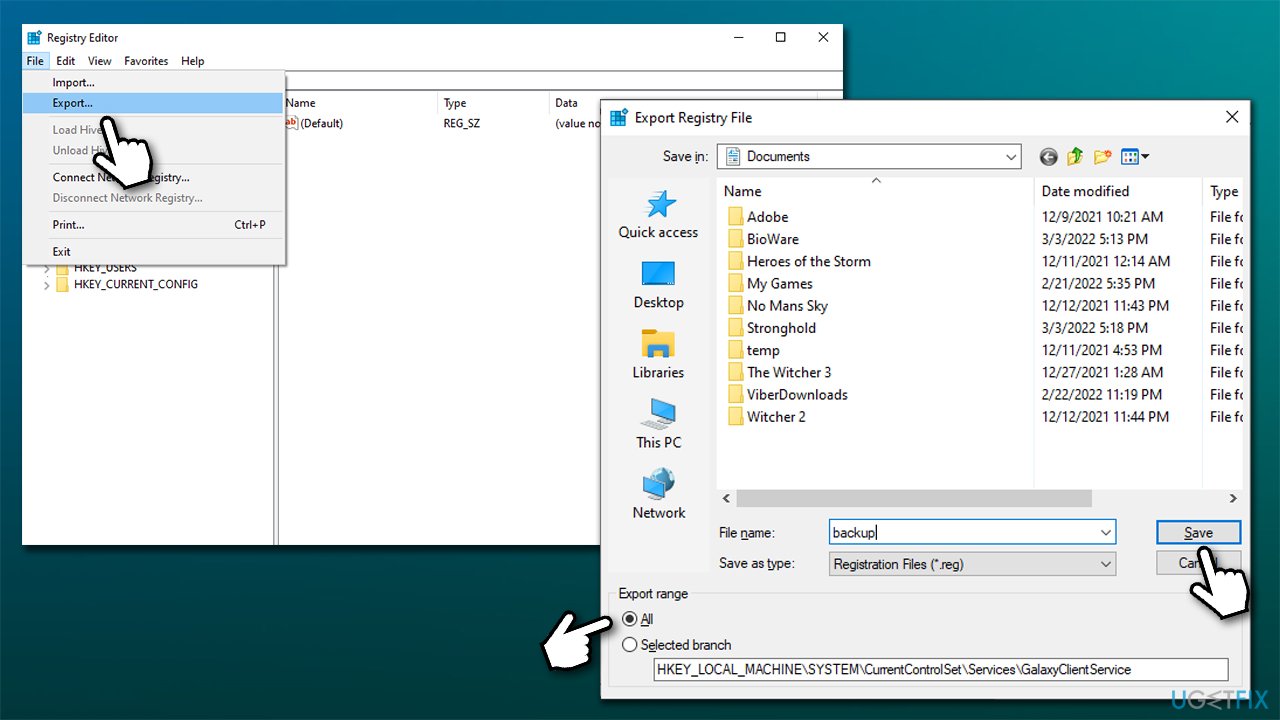
- Next, you need to find the following:
HKEY_LOCAL_MACHINE\SYSTEM\CurrentControlSet\Services\GamingServices
HKEY_LOCAL_MACHINE\SYSTEM\CurrentControlSet\Services\GamingServicesNet - Right-click on each and select Delete.
Repair your Errors automatically
ugetfix.com team is trying to do its best to help users find the best solutions for eliminating their errors. If you don’t want to struggle with manual repair techniques, please use the automatic software. All recommended products have been tested and approved by our professionals. Tools that you can use to fix your error are listed bellow:
do it now!
Download Fix
Happiness
Guarantee
do it now!
Download Fix
Happiness
Guarantee
Compatible with Microsoft Windows
Compatible with OS X
Still having problems?
If you failed to fix your error using Reimage, reach our support team for help. Please, let us know all details that you think we should know about your problem.
Reimage — a patented specialized Windows repair program. It will diagnose your damaged PC. It will scan all System Files, DLLs and Registry Keys that have been damaged by security threats.Reimage — a patented specialized Mac OS X repair program. It will diagnose your damaged computer. It will scan all System Files and Registry Keys that have been damaged by security threats.
This patented repair process uses a database of 25 million components that can replace any damaged or missing file on user’s computer.
To repair damaged system, you have to purchase the licensed version of Reimage malware removal tool.

To stay completely anonymous and prevent the ISP and the government from spying on you, you should employ Private Internet Access VPN. It will allow you to connect to the internet while being completely anonymous by encrypting all information, prevent trackers, ads, as well as malicious content. Most importantly, you will stop the illegal surveillance activities that NSA and other governmental institutions are performing behind your back.
Unforeseen circumstances can happen at any time while using the computer: it can turn off due to a power cut, a Blue Screen of Death (BSoD) can occur, or random Windows updates can the machine when you went away for a few minutes. As a result, your schoolwork, important documents, and other data might be lost. To recover lost files, you can use Data Recovery Pro – it searches through copies of files that are still available on your hard drive and retrieves them quickly.