На чтение 4 мин. Просмотров 2.4k. Опубликовано 03.09.2019
Если вы пытаетесь открыть Xbox Insider Hub на своем компьютере с Windows 10 и получить сообщение об ошибке, вы не единственный, кто столкнулся с этой проблемой. Наиболее распространенная ошибка, связанная с Xbox Insider – . Пожалуйста, попробуйте еще раз. В вашей сети возникла проблема.
Получение этого сообщения об ошибке каждый раз, когда вы хотите войти в Xbox Insider Hub, может быть очень напряженным. Вы не можете получить доступ к играм для бета-тестирования, поэтому вы не можете дать надлежащий обзор. В этой статье мы рассмотрим некоторые из лучших методов решения этой проблемы.
Как исправить проблемы Xbox Insider Hub в Windows 10? Проблемы с Xbox Insider Hub могут возникать, если на вашем компьютере не указаны правильные дата и время, поэтому обязательно проверьте их в первую очередь. Кроме того, убедитесь, что ваш антивирус или брандмауэр не мешают работе приложения Xbox. Если это не сработает, попробуйте перезагрузить Xbox Insider Hub.
Содержание
- Что делать, если Xbox Insider Hub не работает на моем ПК?
- 1. Проверьте настройки даты и времени в Windows
- 2. Проверьте стороннее антивирусное программное обеспечение
- 3. Проверьте, не блокирует ли брандмауэр Windows подключение к Xbox Insider Hub
- 4. Очистить и сбросить кэш Магазина Microsoft
- 5. Сбросьте Xbox Insider Hub
Что делать, если Xbox Insider Hub не работает на моем ПК?
- Проверьте настройки даты и времени в Windows
- Проверьте стороннее антивирусное программное обеспечение
- Проверьте, не блокирует ли брандмауэр Windows подключение к Xbox Insider Hub
- Очистить и сбросить кэш Магазина Microsoft
- Сброс Xbox Insider Hub
1. Проверьте настройки даты и времени в Windows
Если часы и дата вашего компьютера не настроены на правильный часовой пояс, это повлияет на способность вашей системы подключаться к Xbox Insider Hub. Самый эффективный способ сделать это – автоматически установить время и дату в . Вот как это сделать:
- Щелкните правой кнопкой мыши на часах Windows, которые находятся в правой части экрана.
-
Выберите параметр Настроить дату/время .

- В открывшемся новом окне убедитесь, что у вас есть Автоматически установить время и включены параметры часового пояса автоматически. .
2. Проверьте стороннее антивирусное программное обеспечение

Некоторые версии антивирусного программного обеспечения могут устанавливать пользовательские привилегии для других приложений и блокировать запуск других. В этом случае возможно, что брандмауэр вашего антивируса блокирует доступ приложения Xbox Insider к Интернету.
Обязательно проверьте настройки брандмауэра в соответствующем антивирусном программном обеспечении и разрешите все подключения для Xbox Insider Hub.
В некоторых случаях вам может потребоваться отключить или даже удалить антивирус. Если дело доходит до этого, вы можете рассмотреть возможность перехода на другой антивирус. Если вы ищете надежный антивирус, который не будет мешать вашей системе или приложениям, мы рекомендуем вам попробовать Bitdefender .
3. Проверьте, не блокирует ли брандмауэр Windows подключение к Xbox Insider Hub
-
Нажмите клавиши Windows Key + X на клавиатуре и выберите Windows PowerShell (Admin).

- Скопируйте эту команду в буфер обмена: netsh advfirewall firewall show rule 4jxr4b3r3du76ina39a98x8k2
-
В окне PowerShell нажмите правой кнопкой мыши на верхней панели и выберите Правка> Вставить.

-
Если команда выглядит как на картинке ниже, вы можете нажать Enter.

- Это запустит процесс проверки, установлены ли какие-либо пользовательские правила для вашего брандмауэра Windows 10.
-
Если результат сканирования – Нет правил, соответствующих указанным критериям. ’, , значит, у вас нет правил, блокирующих подключение к Xbox Insider Hub.

4. Очистить и сбросить кэш Магазина Microsoft
Иногда Xbox Insider Hub не работает из-за поврежденного кэша. Чтобы это исправить, выполните следующие действия:
-
Нажмите клавиши Windows Key + R на клавиатуре.

- Введите WSReset.exe и нажмите клавишу ВВОД.
- Окно командной строки будет открываться до завершения процесса.
- После завершения процесса попробуйте снова подключиться к Xbox Insider Hub.
5. Сбросьте Xbox Insider Hub
- Нажмите кнопку Пуск> и выберите Настройки.
-
Нажмите кнопку “Приложения” в окне настроек.

- Найдите Инсайдера Xbox в списке, щелкните его правой кнопкой мыши и выберите Дополнительные параметры.
- Это откроет новое окно.
- Прокрутите вниз до нижней части экрана > нажмите Сброс.
- Перезагрузите компьютер.
- Проверьте, сохраняется ли проблема.
- Если это произойдет, вы можете удалить и переустановить приложение , а затем снова попытаться подключиться к Xbox Insider.
В этой статье мы рассмотрели некоторые из лучших методов решения проблемы невозможности подключения к вашему Xbox Insider Hub из Windows 10. Пожалуйста, внимательно следуйте инструкциям, представленным в этой статье, для достижения наилучших результатов.
Пожалуйста, не стесняйтесь сообщить нам, если это руководство решило вашу проблему с подключением, используя раздел комментариев ниже.
The Xbox Insider Hub is an application for Windows 11 or Windows 10 computers that allows PC gamers on the Xbox Insider Program to test games and features before they are released. Essentially, users will be beta testing games and updates for Windows and Xbox console applications that have not hit general availability yet. If your Xbox Insider Hub is not working on your Windows PC, then this post may be able to help you.
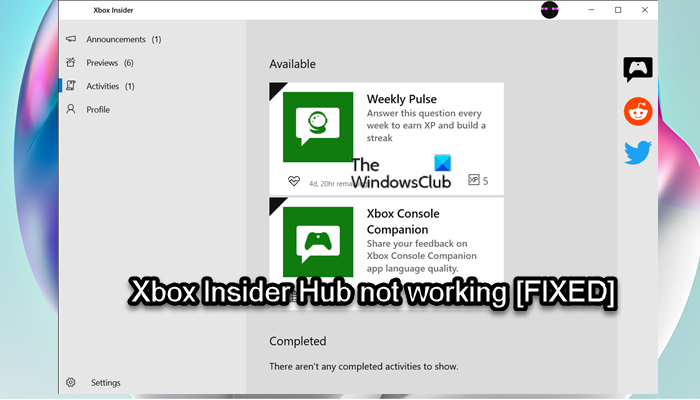
If you are not able to sign in to your Xbox Insider Hub on your system, you’ll probably see the following error message with code:
- Access is denied. (Exception from HRESULT: 0x80070005) (0x80070005)
- Unspecified error (Excep_FromHResult 0x800004005) (0x800004005)
This app can be downloaded from the Microsoft Store and is not to be confused with, but is closely associated with Xbox app or Xbox Live. In order to install or use the Xbox Insider Hub on Windows 11/10, your PC must be on Windows OS Build 14393.0 or greater. You can check the current Windows Build installed on your PC and update Windows if need be.
If the Xbox Insider Hub is not working on your Windows 11/10 PC, you can try our recommended solutions below in no particular order and see if that helps to resolve the issue on your gaming device.
- Run Windows Store Apps Troubleshooter
- Check Network and Internet connection
- Disable/Uninstall 3rd-party security software (if applicable)
- Clear Microsoft Store cache
- Reset Xbox Insider Hub
Let’s take a look at the description of the process involved concerning each of the listed solutions.
Before you proceed with the solutions below, try the following tasks and be sure to attempt signing into the Xbox Insider Hub after you carry out each task, as completion of all tasks may not be required.
- If you have the Minecraft Windows 10 Edition and the beta version for the RTX feature, it may affect the Xbox Insider Hub. You have to uninstall the RTX beta.
- Close the Xbox Insider Hub app by right-clicking the icon on the Taskbar Corner Overflow and selecting Close window or using Task Manager. If you’re on a Surface or tablet, you will need to follow a different set of steps.
- Sign out of your PC or device and sign back in.
- Restart your device.
In addition, make sure to change the Date and Time on your PC if the Windows Clock Time is wrong, then see if the issue persists.
1] Run Windows Store Apps Troubleshooter
As the app in question is a Windows Store App, you can begin troubleshooting to fix the Xbox Insider Hub is not working on your Windows 11/10 PC by running the Windows Store Apps Troubleshooter and see if that helps.
To run Windows Store Apps Troubleshooter on your Windows 11 device, do the following:
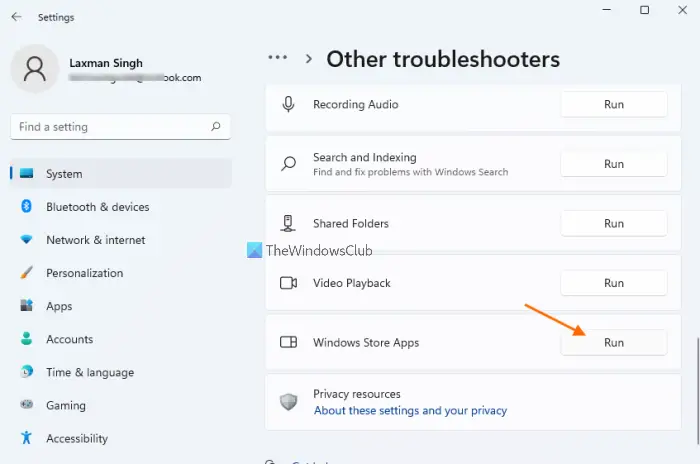
- Press Windows key + I to open Settings app.
- Navigate to System > Troubleshoot > Other troubleshooters.
- Under the Other section, find Windows Store Apps.
- Click Run button.
- Follow on-screen instructions and apply any recommended fixes.
To run the Windows Store Apps Troubleshooter on your Windows 10 PC, do the following:
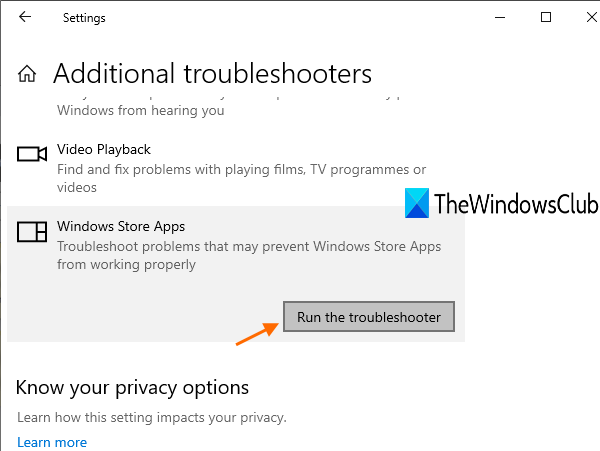
- Press Windows key + I to open Settings app.
- Go to Update and Security.
- Click the Troubleshooter tab.
- Scroll down and click on Windows Store Apps.
- Click the Run the troubleshooter button.
- Follow on-screen instructions and apply any recommended fixes.
2] Check Network and Internet connection
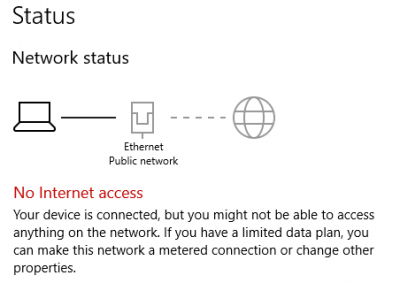
If you need to log into an online service or a feature, an internet connection is essential. So check the network icon on the system tray and It should show an ethernet or a Wi-Fi icon and not a globe icon. If you aren’t connected to a network, make sure you are connected to a Wi-Fi or ethernet network (if you’re connected but no internet access, see the guide Network icon says No internet access, but I am connected), before you try to login to the Xbox Insider Hub.
You can fix Network and Internet connection problems on your device to resolve any connectivity issues that might be the culprit here. In the event your computer cannot connect to the Internet at all, you can use the Network Reset feature and you can also run the inbuilt Internet Connections Troubleshooter for Windows 11/10.
3] Disable/Uninstall 3rd-party security software (if applicable)
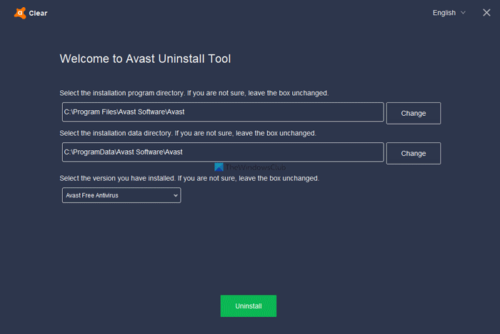
Firewall and antivirus are important for your system safety, but sometimes these programs (especially from third-party vendors) can interfere with Windows.
This solution requires you to first temporarily disable any third-party security software on your system. This largely depends on the security software you have installed. Refer to the instruction manual. Generally, to disable your antivirus software, locate its icon in the notification area or system tray or the Taskbar Corner Overflow, right-click the icon and choose the option to disable or exit the program.
If after disabling the AV, the issue in view persists, you can remove all third-party antivirus programs from your PC using the dedicated AV removal tool to remove all files associated with your antivirus program. If removing the antivirus resolves the issue in hand, you can now install the same antivirus again, or you can switch to an alternative AV software or better still stick to Windows native AV program – Windows Defender.
If the issue is still unresolved after uninstalling your AV, then it’s likely the computer firewall could be stopping the Xbox Insider Hub from accessing the internet on your Windows 11/10 system. To rule out this possibility, make sure the app is allowed through Windows Firewall and you can whitelist the app for good measure. If you have a dedicated third-party firewall installed on your system, check the manual for instructions.
4] Clear Microsoft Store cache
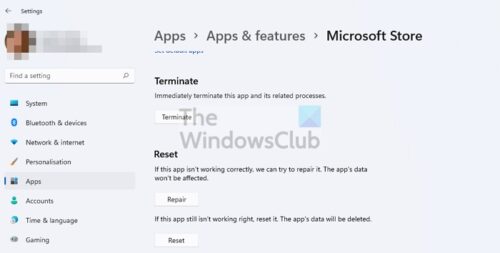
This solution requires you to reset the Microsoft Store cache and see if that helps. Otherwise, try the next solution. To reset the cache for Microsoft Store you can use Windows Settings or use the built-in command-line tool known as WSReset.exe.
5] Reset Xbox Insider Hub
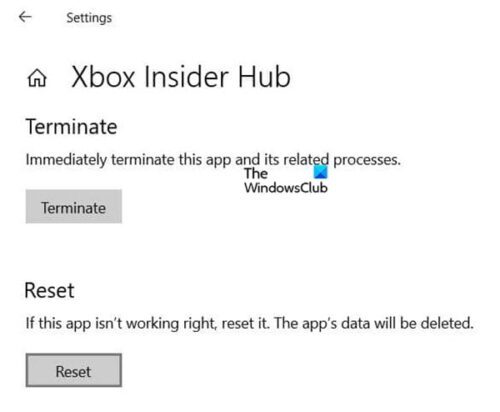
A viable solution you can apply if nothing seems to have resolved the issue in hand is to reset the Xbox Insider Hub app. Keep in mind that resetting Xbox Insider Hub will get rid of all the progress and activities that you have completed. After resetting the app, restart your computer.
Hope this helps!
How do I start my Xbox Insider Hub?
To start or open the Xbox Insider Hub on console, do the following:
- Press the Xbox button to open the guide.
- Select My games & apps > See all.
- From Apps, select Xbox Insider Hub.
How do I update my Xbox Insider Hub?
You can reinstall the Xbox Insider Hub from Apps in My games & apps – if you can’t find the app at that location on your Xbox console, you can look for the app in the Microsoft Store. If you previously participated in the Xbox Insider Program on PC and have since uninstalled the app, simply search for Xbox Insider Hub in the Microsoft Store.
How do you join the Xbox Alpha ring?
If you receive an invitation to join the Xbox Alpha ring, follow these easy steps on your console to register:
- Launch the Xbox Insider Hub on your Xbox console.
- Select Previews.
- Select Xbox Update Preview.
- Select Manage.
- Choose the Alpha or Alpha Skip-Ahead ring.
- Select Done.
- Take the required console update.
Is Xbox Insider Hub safe?
Xbox Insiders get the opportunity to experience new features and services early, albeit with the risk of bugs and other issues that might hinder their console experience. Nonetheless, Xbox Insider builds even on the buggiest Skip Ahead ring are generally safe to use.
The Xbox Insider Hub is an application for Windows 11 or Windows 10 computers that allows PC gamers on the Xbox Insider Program to test games and features before they are released. Essentially, users will be beta testing games and updates for Windows and Xbox console applications that have not hit general availability yet. If your Xbox Insider Hub is not working on your Windows PC, then this post may be able to help you.
If you are not able to sign in to your Xbox Insider Hub on your system, you’ll probably see the following error message with code:
- Access is denied. (Exception from HRESULT: 0x80070005) (0x80070005)
- Unspecified error (Excep_FromHResult 0x800004005) (0x800004005)
This app can be downloaded from the Microsoft Store and is not to be confused with, but is closely associated with Xbox app or Xbox Live. In order to install or use the Xbox Insider Hub on Windows 11/10, your PC must be on Windows OS Build 14393.0 or greater. You can check the current Windows Build installed on your PC and update Windows if need be.
If the Xbox Insider Hub is not working on your Windows 11/10 PC, you can try our recommended solutions below in no particular order and see if that helps to resolve the issue on your gaming device.
- Run Windows Store Apps Troubleshooter
- Check Network and Internet connection
- Disable/Uninstall 3rd-party security software (if applicable)
- Clear Microsoft Store cache
- Reset Xbox Insider Hub
Let’s take a look at the description of the process involved concerning each of the listed solutions.
Before you proceed with the solutions below, try the following tasks and be sure to attempt signing into the Xbox Insider Hub after you carry out each task, as completion of all tasks may not be required.
- If you have the Minecraft Windows 10 Edition and the beta version for the RTX feature, it may affect the Xbox Insider Hub. You have to uninstall the RTX beta.
- Close the Xbox Insider Hub app by right-clicking the icon on the Taskbar Corner Overflow and selecting Close window or using Task Manager. If you’re on a Surface or tablet, you will need to follow a different set of steps.
- Sign out of your PC or device and sign back in.
- Restart your device.
In addition, make sure to change the Date and Time on your PC if the Windows Clock Time is wrong, then see if the issue persists.
1] Run Windows Store Apps Troubleshooter
As the app in question is a Windows Store App, you can begin troubleshooting to fix the Xbox Insider Hub is not working on your Windows 11/10 PC by running the Windows Store Apps Troubleshooter and see if that helps.
To run Windows Store Apps Troubleshooter on your Windows 11 device, do the following:
- Press Windows key + I to open Settings app.
- Navigate to System > Troubleshoot > Other troubleshooters.
- Under the Other section, find Windows Store Apps.
- Click Run button.
- Follow on-screen instructions and apply any recommended fixes.
To run the Windows Store Apps Troubleshooter on your Windows 10 PC, do the following:
- Press Windows key + I to open Settings app.
- Go to Update and Security.
- Click the Troubleshooter tab.
- Scroll down and click on Windows Store Apps.
- Click the Run the troubleshooter button.
- Follow on-screen instructions and apply any recommended fixes.
2] Check Network and Internet connection
If you need to log into an online service or a feature, an internet connection is essential. So check the network icon on the system tray and It should show an ethernet or a Wi-Fi icon and not a globe icon. If you aren’t connected to a network, make sure you are connected to a Wi-Fi or ethernet network (if you’re connected but no internet access, see the guide Network icon says No internet access, but I am connected), before you try to login to the Xbox Insider Hub.
You can fix Network and Internet connection problems on your device to resolve any connectivity issues that might be the culprit here. In the event your computer cannot connect to the Internet at all, you can use the Network Reset feature and you can also run the inbuilt Internet Connections Troubleshooter for Windows 11/10.
3] Disable/Uninstall 3rd-party security software (if applicable)
Firewall and antivirus are important for your system safety, but sometimes these programs (especially from third-party vendors) can interfere with Windows.
This solution requires you to first temporarily disable any third-party security software on your system. This largely depends on the security software you have installed. Refer to the instruction manual. Generally, to disable your antivirus software, locate its icon in the notification area or system tray or the Taskbar Corner Overflow, right-click the icon and choose the option to disable or exit the program.
If after disabling the AV, the issue in view persists, you can remove all third-party antivirus programs from your PC using the dedicated AV removal tool to remove all files associated with your antivirus program. If removing the antivirus resolves the issue in hand, you can now install the same antivirus again, or you can switch to an alternative AV software or better still stick to Windows native AV program – Windows Defender.
If the issue is still unresolved after uninstalling your AV, then it’s likely the computer firewall could be stopping the Xbox Insider Hub from accessing the internet on your Windows 11/10 system. To rule out this possibility, make sure the app is allowed through Windows Firewall and you can whitelist the app for good measure. If you have a dedicated third-party firewall installed on your system, check the manual for instructions.
4] Clear Microsoft Store cache
This solution requires you to reset the Microsoft Store cache and see if that helps. Otherwise, try the next solution. To reset the cache for Microsoft Store you can use Windows Settings or use the built-in command-line tool known as WSReset.exe.
5] Reset Xbox Insider Hub
A viable solution you can apply if nothing seems to have resolved the issue in hand is to reset the Xbox Insider Hub app. Keep in mind that resetting Xbox Insider Hub will get rid of all the progress and activities that you have completed. After resetting the app, restart your computer.
Hope this helps!
How do I start my Xbox Insider Hub?
To start or open the Xbox Insider Hub on console, do the following:
- Press the Xbox button to open the guide.
- Select My games & apps > See all.
- From Apps, select Xbox Insider Hub.
How do I update my Xbox Insider Hub?
You can reinstall the Xbox Insider Hub from Apps in My games & apps – if you can’t find the app at that location on your Xbox console, you can look for the app in the Microsoft Store. If you previously participated in the Xbox Insider Program on PC and have since uninstalled the app, simply search for Xbox Insider Hub in the Microsoft Store.
How do you join the Xbox Alpha ring?
If you receive an invitation to join the Xbox Alpha ring, follow these easy steps on your console to register:
- Launch the Xbox Insider Hub on your Xbox console.
- Select Previews.
- Select Xbox Update Preview.
- Select Manage.
- Choose the Alpha or Alpha Skip-Ahead ring.
- Select Done.
- Take the required console update.
Is Xbox Insider Hub safe?
Xbox Insiders get the opportunity to experience new features and services early, albeit with the risk of bugs and other issues that might hinder their console experience. Nonetheless, Xbox Insider builds even on the buggiest Skip Ahead ring are generally safe to use.
Некоторые геймеры на ПК с Windows 11 или Windows 10 и консольные геймеры на Xbox One или Xbox Series X|S сообщают о проблеме, из-за которой после нажатия кнопки «Отчет» в Центре предварительной оценки Xbox приложение зависает на экране «Сбор диагностических данных». Если вы столкнулись с подобной проблемой, вы можете попробовать решения в этом посте.
Если Приложение Xbox Insider Hub зависает на экране «Сбор диагностических данных» на консоли Xbox или ПК с Windows 11/10 вы можете попробовать наши рекомендуемые ниже решения в произвольном порядке, чтобы решить проблему на вашем игровом устройстве.
- Перезагрузите игровое устройство
- Сброс/переустановка приложения Xbox Insider Hub
- Выполните восстановление системы (применимо к ПК)
- Сбросить игровое устройство
Давайте взглянем на описание процесса, связанного с каждым из перечисленных решений.
Прежде чем приступить к приведенным ниже решениям, убедитесь, что ваша консоль Xbox обновлена, а затем попробуйте снова использовать приложение Xbox Insider Hub, чтобы сообщить о проблеме и посмотреть, сможете ли вы успешно выполнить задачу. Чтобы обновить консоль, откройте руководство и выберите «Профиль и система» > «Настройки» > «Система» > «Обновления». В разделе «Обновления» выберите «Доступно обновление консоли», чтобы начать обновление. Аналогичным образом, если у вас возникла проблема на игровом ПК, вы можете проверить наличие обновлений и установить все доступные биты на своем устройстве с Windows 11/10 и посмотреть, решена ли рассматриваемая проблема.
1]Перезагрузите игровое устройство.
Вы можете приступить к устранению неполадок, чтобы исправить Приложение Xbox Insider Hub зависло на экране «Сбор диагностических данных» на консоли Xbox или ПК с Windows 11/10, предварительно перезагрузив ПК или консоль, в зависимости от обстоятельств. Кроме того, для затронутых геймеров консоли Xbox вы можете выключить и снова включить свое устройство.
Чтобы перезапустить Xbox, сделайте следующее:
- Нажмите и удерживайте кнопку Xbox на контроллере, чтобы запустить центр питания.
- Когда отобразятся параметры, выберите «Перезапустить консоль».
- Выберите «Перезагрузить» и подождите, пока ваша консоль завершит перезагрузку.
Чтобы вручную выключить и снова включить консоль Xbox, сделайте следующее:
- Нажмите и удерживайте кнопку Xbox на передней панели консоли примерно 10 секунд, чтобы выключить консоль.
- Отключите Xbox от сети.
- Подождите не менее 30-60 секунд.
- По истечении времени снова подключите Xbox к розетке.
- Теперь нажмите кнопку Xbox на консоли или кнопку Xbox на геймпаде, чтобы снова включить консоль.
В случае, если вы не видите зеленую анимацию загрузки при перезапуске консоли, вы можете повторить эти шаги и убедиться, что вы удерживаете кнопку питания, пока консоль полностью не выключится.
2]Сбросить/переустановить приложение Xbox Insider Hub.
Геймеры на ПК могут сбросить приложение Xbox Insider Hub, но имейте в виду, что сброс Xbox Insider Hub удалит весь прогресс и действия, которые вы выполнили. После сброса приложения перезагрузите компьютер. Вы также можете запустить средство устранения неполадок приложений Магазина Windows и посмотреть, поможет ли это.
Игроки на консолях могут переустановить Xbox Insider Hub из Приложения в разделе Мои игры и приложения. Если вы не можете найти приложение в этом месте на консоли Xbox, вы можете найти его в Microsoft Store. Если вы ранее участвовали в программе предварительной оценки Xbox на ПК и с тех пор удалили приложение, просто найдите Центр предварительной оценки Xbox в магазине Майкрософт.
3]Выполните восстановление системы (относится к ПК)
Для геймеров ПК жизнеспособным решением проблемы является восстановление вашей системы до более раннего момента времени, предшествующего началу проблемы, с которой вы сейчас сталкиваетесь.
Чтобы выполнить восстановление системы на устройстве с Windows 11/10, выполните следующие действия:
- Нажмите клавишу Windows + R., чтобы вызвать диалоговое окно «Выполнить».
- В диалоговом окне «Выполнить» введите рструи и нажмите Enter, чтобы запустить мастер восстановления системы.
- На начальном экране восстановления системы нажмите «Далее».
- На следующем экране установите флажок, связанный с Показать больше точек восстановления.
- Теперь выберите точку восстановления до того, как вы заметили проблему на своем устройстве.
Примечание. Любые изменения, такие как установка приложений, пользовательские настройки и все остальное, сделанное после точки восстановления, будут потеряны.
- Щелкните Далее, чтобы перейти к следующему меню.
- Нажмите «Готово» и подтвердите в последнем запросе.
При следующем запуске системы будет применено старое состояние вашего компьютера. Существующая проблема должна быть решена сейчас. Если нет, попробуйте следующее решение.
4]Сброс игрового устройства
В зависимости от игрового устройства, на котором у вас возникла проблема, это решение требует, чтобы вы перезагрузили консоль Xbox, но не забудьте выбрать Сбросить и сохранить мои игры и приложения вариант. Точно так же вы можете перезагрузить игровой ПК с Windows 11/10, и при выполнении сброса выберите вариант храните свои личные файлы.
Надеюсь это поможет!
Как сообщить о проблеме на Xbox One?
Чтобы сообщить о проблеме на консоли Xbox, выполните следующие действия:
- На Xbox отправьте сообщение об ошибке с консоли (удерживая кнопку Xbox, выберите «Сообщить о проблеме» в меню питания).
- В Windows 11/10 или на мобильных устройствах сообщите об ошибке, используя функцию обратной связи, встроенную в игру или приложение, иногда отмеченную смайликом.
Почему мой Xbox Insider Hub не работает?
Может быть несколько причин, по которым Xbox Insider Hub может не работать на вашем ПК с Windows 11/10. Как правило, лучшие методы решения проблемы на вашем игровом устройстве включают проверку вашей сети и подключения к Интернету, предотвращение блокировки сети сторонним антивирусом или брандмауэром Windows для инсайдерского контента, проверку даты и времени, очистку кэш-памяти магазина. , среди других решений.
Xbox Insider Hub – это приложение для компьютеров с Windows 11 или Windows 10, которое позволяет геймерам на ПК, участвующим в программе предварительной оценки Xbox, тестировать игры и функции, прежде чем они выпущены. По сути, пользователи будут проводить бета-тестирование игр и обновлений для приложений для консолей Windows и Xbox, которые еще не стали общедоступными. Если ваш Центр предварительной оценки Xbox не работает на вашем ПК с Windows, этот пост может вам помочь.
Если вы не можете войти в свой Центр предварительной оценки Xbox в вашей системе вы, вероятно, увидите следующее сообщение об ошибке с кодом:
Отказано в доступе. (Исключение из HRESULT: 0x80070005) (0x80070005) Неизвестная ошибка (Excep_FromHResult 0x800004005) (0x800004005)
Это приложение можно загрузить с Microsoft Storee, и его не следует путать, но он тесно связан с Xbox. приложение или Xbox Live. Чтобы установить или использовать Xbox Insider Hub в Windows 11/10, на вашем ПК должна быть ОС Windows Build 14393.0 или выше. Вы можете проверить текущую сборку Windows, установленную на вашем ПК, и при необходимости обновить Windows.
Если Xbox Insider Hub не работает на вашем ПК с Windows 11/10, вы можете попробовать наши рекомендуемые ниже решения в течение суток. в конкретном порядке и посмотрите, поможет ли это решить проблему на вашем игровом устройстве.
Запустите средство устранения неполадок приложений Магазина WindowsПроверьте сеть и подключение к ИнтернетуОтключите/удалите стороннее программное обеспечение безопасности (если применимо)Очистите кеш Магазина MicrosoftReset Xbox Insider Hub
Давайте взглянем на описание процесса, связанного с каждым из перечисленных решений.
Прежде чем приступить к приведенным ниже решениям, попробуйте выполнить следующие задачи и обязательно попробуйте войти в Xbox Insider Hub после того, как вы выполнять каждую задачу, так как выполнение всех задач может не потребоваться.
Если у вас есть Minecraft Windows 10 Edition и бета-версия для функции RTX, это может повлиять на Xbox Insider Hub. Вам необходимо удалить бета-версию RTX. Закройте приложение Xbox Insider Hub, щелкнув правой кнопкой мыши значок на переполнении угла панели задач и выбрав Закрыть окно или используя диспетчер задач. Если вы используете устройство Surface или планшет, вам потребуется выполнить другой набор шагов. Выйдите из своего ПК или устройства и войдите снова. Перезагрузите устройство.
Кроме того, обязательно измените дату и Время на вашем ПК, если время Часов Windows неправильное, проверьте, сохраняется ли проблема.
1] Запустите средство устранения неполадок приложений Магазина Windows
Поскольку рассматриваемое приложение является приложением Магазина Windows , вы можете начать устранение неполадок, чтобы исправить Xbox Insider Hub, который не работает на вашем ПК с Windows 11/10 , запустив средство устранения неполадок приложений Магазина Windows и посмотреть, поможет ли это.
Чтобы запустить средство устранения неполадок приложений Магазина Windows на устройстве с Windows 11 выполните следующие действия:
Нажмите клавишу Windows + I , чтобы открыть приложение”Настройки”. Перейдите к Система > Устранение неполадок > Другие средства устранения неполадок. В разделе Другое найдите Приложения Магазина Windows. Нажмите кнопку Выполнить . Следуйте инструкциям на экране и примените все рекомендуемые исправления.
Чтобы запустите средство устранения неполадок приложений Магазина Windows на ПК с Windows 10, выполните следующие действия:
Нажмите клавиша Windows + I, чтобы открыть приложение”Настройки”. Перейдите в раздел Обновление и безопасность.Перейдите на вкладку Устранение неполадок . Прокрутите вниз и нажмите Магазин Windows. Приложения.Нажмите кнопку Запустить средство устранения неполадок . Следуйте инструкциям на экране и примените все рекомендуемые исправления.
2] Проверьте подключение к сети и Интернету
Если вам нужно войти в для онлайн-сервиса или функции необходимо подключение к Интернету. Поэтому проверьте значок сети на панели задач, и он должен отображать значок Ethernet или Wi-Fi, а не значок земного шара. Если вы не подключены к сети, убедитесь, что вы подключены к сети Wi-Fi или Ethernet (если вы подключены, но нет доступа к Интернету, см. руководство Значок сети говорит Нет доступа к Интернету, но я подключен), перед попыткой войти в Центр предварительной оценки Xbox.
Вы можете исправить проблемы с сетью и подключением к Интернету на своем устройстве, чтобы решить любые проблемы с подключением, которые могут быть причиной. Если ваш компьютер вообще не может подключиться к Интернету, вы можете использовать функцию сброса сети, а также запустить встроенное средство устранения неполадок с подключением к Интернету для Windows 11/10.
3] Отключить/удалить 3rd-программное обеспечение для обеспечения безопасности сторон (если применимо)
Брандмауэр и антивирус важны для безопасности вашей системы, но иногда эти программы (особенно от сторонних поставщиков) могут мешать работе Windows.
Это решение требует, чтобы вы сначала временно отключили любое стороннее программное обеспечение для обеспечения безопасности в вашей системе. Это во многом зависит от установленного вами программного обеспечения безопасности. См. руководство по эксплуатации. Как правило, чтобы отключить антивирусное программное обеспечение, найдите его значок в области уведомлений или на панели задач или в переполненном углу панели задач, щелкните значок правой кнопкой мыши и выберите вариант отключения или выхода из программы.
Если после отключения AV, проблема сохраняется, вы можете удалить все сторонние антивирусные программы с вашего ПК, используя специальный инструмент для удаления AV, чтобы удалить все файлы, связанные с вашей антивирусной программой. Если удаление антивируса решает проблему, теперь вы можете снова установить тот же антивирус, или вы можете переключиться на альтернативное антивирусное программное обеспечение или, что еще лучше, использовать родную антивирусную программу Windows — Защитник Windows.
Если проблема все еще не решена после удаления антивируса, тогда, вероятно, брандмауэр компьютера может блокировать доступ Xbox Insider Hub к Интернету в вашей системе Windows 11/10. Чтобы исключить эту возможность, убедитесь, что приложение разрешено через брандмауэр Windows, и вы можете добавить приложение в белый список для хорошей меры. Если в вашей системе установлен выделенный сторонний брандмауэр, ознакомьтесь с инструкциями в руководстве.
4] Очистите кеш Microsoft Store
Для этого решения необходимо сбросить кеш Microsoft Store и посмотреть, поможет ли это. В противном случае попробуйте следующее решение. Чтобы сбросить кеш для Microsoft Store, вы можете использовать настройки Windows или встроенный инструмент командной строки, известный как WSReset.exe.
5] Сбросить Центр предварительной оценки Xbox
Достойное решение, которое вы можете применить, если кажется, что проблема не устранена, — это сброс приложения Xbox Insider Hub. Имейте в виду, что при сбросе Xbox Insider Hub весь прогресс и выполненные действия будут удалены. После сброса приложения перезагрузите компьютер.
Надеюсь, это поможет!
Как запустить центр предварительной оценки Xbox?
Чтобы запустить или открыть программу предварительной оценки Xbox Hub на консоли, выполните следующие действия:
Нажмите кнопку Xbox, чтобы открыть руководство. Выберите Мои игры и приложения > Просмотреть все. В разделе «Приложения» выберите Xbox Insider Hub.
Как мне обновить мой Xbox Insider Hub?
Вы можете переустановить Xbox Insider Hub из Приложения в Моих играх и приложениях — если вы не можете найти приложение в этом месте на вашей консоли Xbox, вы можете найти приложение в Microsoft Store. Если вы ранее участвовали в программе предварительной оценки Xbox на ПК и с тех пор удалили приложение, просто найдите Xbox Insider Hub в Microsoft Store.
Как присоединиться к кольцу Xbox Alpha?
Если вы получили приглашение присоединиться к кольцу Xbox Alpha, выполните следующие простые действия для регистрации на консоли:
Запустите Центр предварительной оценки Xbox на консоли Xbox. Выберите Предварительные просмотры. Выберите Предварительный просмотр обновлений Xbox. Выберите Управление. Выберите круг Альфа или Альфа-пропуск. Выберите Готово.Установите необходимое обновление консоли.
Надежно ли приложение Xbox Insider Hub?
Участники программы предварительной оценки Xbox получают возможность раньше познакомиться с новыми функциями и службами, хотя и с риском появления ошибок и других проблем, которые могут возникнуть. мешают их работе с консолью. Тем не менее, сборки Xbox Insider даже на самых ошибочных кольцах Skip Ahead, как правило, безопасны в использовании.

The Xbox Insider Hub on PC has a few unique issues that don’t occur on Xbox One, and we’ve put together these FAQs to help! We’ll continue to provide updates if the Xbox Insider Hub app on PC changes or new issues surface.
I’m unable to install or use the Xbox Insider Hub on PC—how do I fix this?
In order to install or use the Xbox Insider Hub on Windows 10, your PC must be on Windows 10 OS Build 14393.0 or greater. You can check the current Windows 10 OS Build on your PC by navigating to Settings > System > About and look for the OS Build field.
I’m unable to sign in to the Xbox Insider Hub—what should I do?
If you encounter general sign-in issues or receive an error message (such as “Unspecified error”) after launching the Xbox Insider Hub, please attempt the steps below and try signing in to the Xbox Insider Hub after completing each step.
• Close the Xbox Insider Hub (be sure to quit the app completely by right clicking the toolbar icon and selecting “Close window”). If you’re on a Surface or tablet, you’ll need to follow a different set of steps.
• Sign out of your PC and sign back in.
• Restart your PC.
I know I’m eligible to participate in a game playtest, but I don’t see it in the Xbox Insider Hub?
Please double check that you’re signed in with the correct Microsoft account/Gamertag on your PC. The signed in Gamertag appears below your profile pic on the Xbox Insider Hub’s main landing page. Content in the Xbox Insider Hub appears based on the signed in Microsoft account/Gamertag.

I left a game beta and uninstalled/reinstalled the game, but I still have the beta version?
When leaving a game beta for a live game (ie. Minecraft), note that it can take several minutes to unregister your Microsoft account from the game beta. Before reinstalling, please wait 15-20 minutes to ensure your Microsoft account is removed from the game beta, then reinstall the game.
I joined a game playtest, but the Windows 10 Store page is blank or I don’t see an Install button?
Please double check that you’re signed in to the Windows 10 Store using the same Microsoft account you joined with in the Xbox Insider Hub. You can check this by selecting the Profile icon to the right of the Search bar in the Store.

When joining a game playtest, I encounter an error, a blank screen, etc.—what should I do?
Here are a few general troubleshooting steps that may resolve your issue. Please attempt the steps below and try to rejoin the game playtest after completing each step.
• If the Manage button is visible on the game playtest’s Info page, try selecting Manage > Unenroll, and leave the game playtest.
• Close the Xbox Insider Hub (be sure to quit the app completely by right clicking the toolbar icon and selecting “Close window”). If you’re on a Surface or tablet, you’ll need to follow a different set of steps.
• Sign out of your PC and sign back in.
• Restart your PC.
I joined a game playtest but the game didn’t start installing—how do I get the game?
If after joining a game playtest you aren’t redirected to the Store, try selecting the “Show in store” link (located below Manage) on the game’s Info page in the Xbox Insider Hub. If shortly after joining a game playtest the Show in store link redirects to a blank Store page, wait 15-20 minutes and try again.
The Xbox Insider Hub is an application available for Windows that allows you to participate in the Xbox Insider Program and give your feedback on the latest Xbox updates. It gives you the chance to preview new Xbox games and apps before anyone else.
However, sometimes you may find the Xbox Insider Hub not working on your computer. This issue can happen due to a corrupt Microsoft Store cache and third-party antivirus programs. Here we show you all the working ways to fix Xbox Insider Hub in Windows 11.
1. Run the Windows Store Apps Troubleshooter
Windows comes with many built-in troubleshooters that can help in solving Windows-related issues. One of them is the Windows Store Apps troubleshooter, which is the go-to option to troubleshoot all kinds of Windows Store app problems.
The Windows Store Apps troubleshooter will scan your computer and detect any problems preventing Xbox Insider Hub from working properly. Then, if possible, it automatically eliminates these without your intervention.
Here’s how to use the Windows Store Apps troubleshooter:
- Open the Settings menu, and navigate to System > Troubleshoot.
- Click Other troubleshooters.
- Scroll down and click the Run button next to the Windows Store Apps.
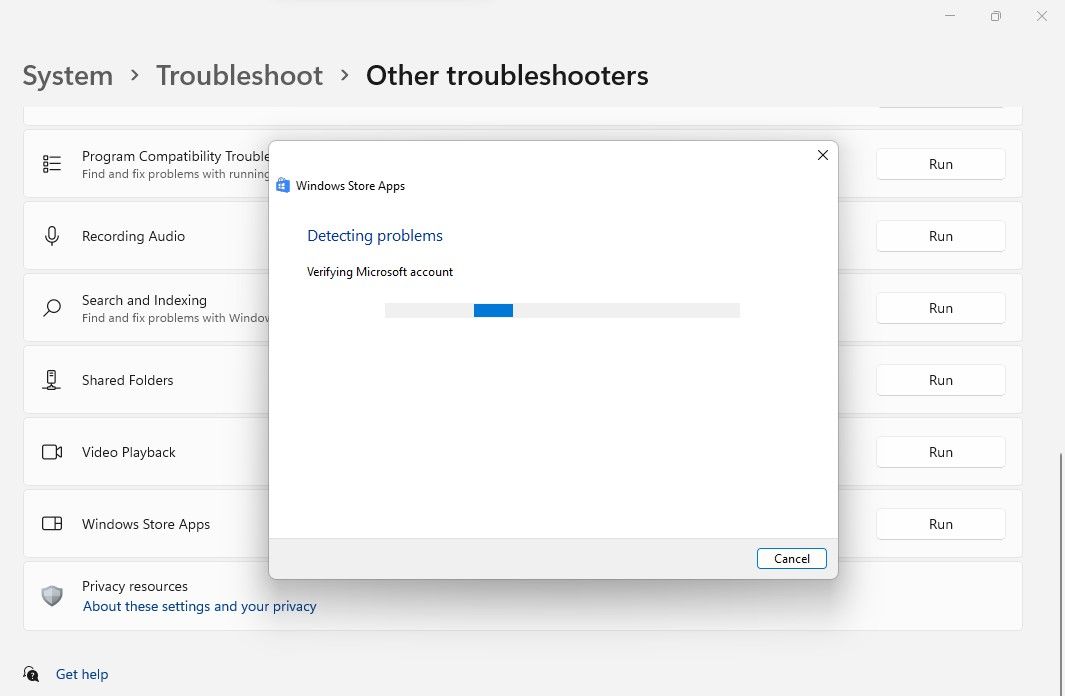
- The troubleshooter window will open and begin scanning your system for problems.
If the troubleshooter detects any problem, it will try to fix it independently. Alternatively, it might instruct you on how to resolve it yourself.
Once you’ve applied all the fixes, close the troubleshooter and reboot your system.
2. Sync Your Computer Time and Date
Despite how weird it sounds, the Xbox Insider Hub might not work if your system shows an incorrect date and time. This is because Xbox Insider Hub is downloaded from a secure server, which double-checks the time it tracks is in sync with the client’s computer.
Follow the below steps to configure the date and time in Windows 11:
- Open Settings and choose Time & language from the left panel.
- Choose Date & time.
- In the Date & time window, disable the toggle next to Set time automatically.
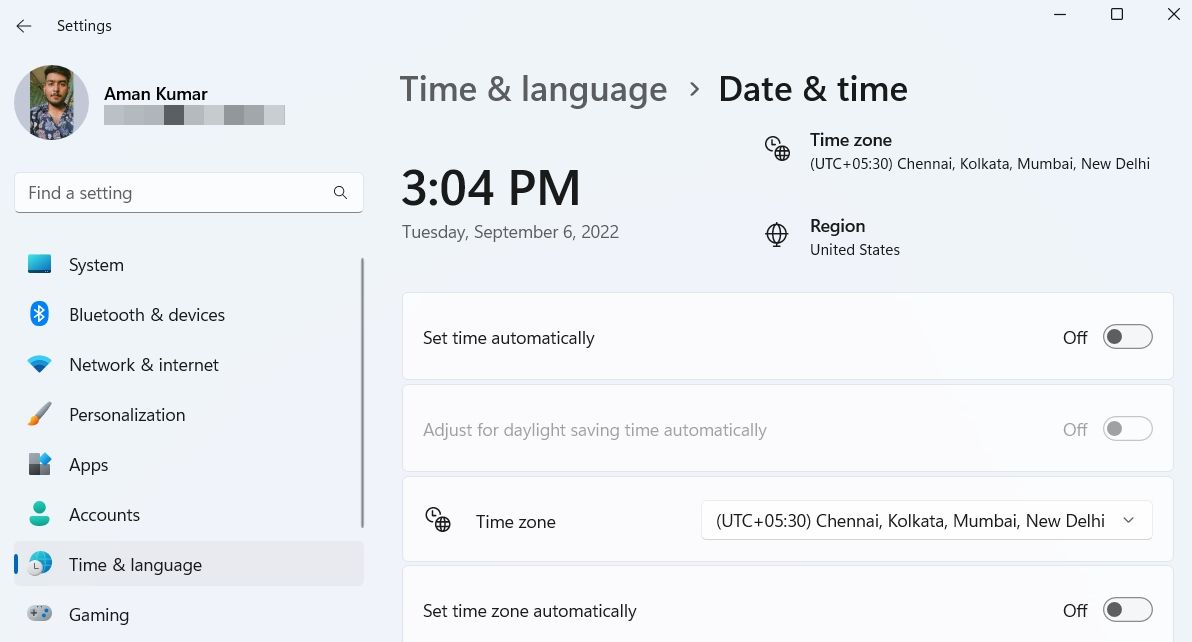
- Click the Change button next to Set the date and time manually.
- Enter the correct date and time in the dialog box that crops up, and then click Change.
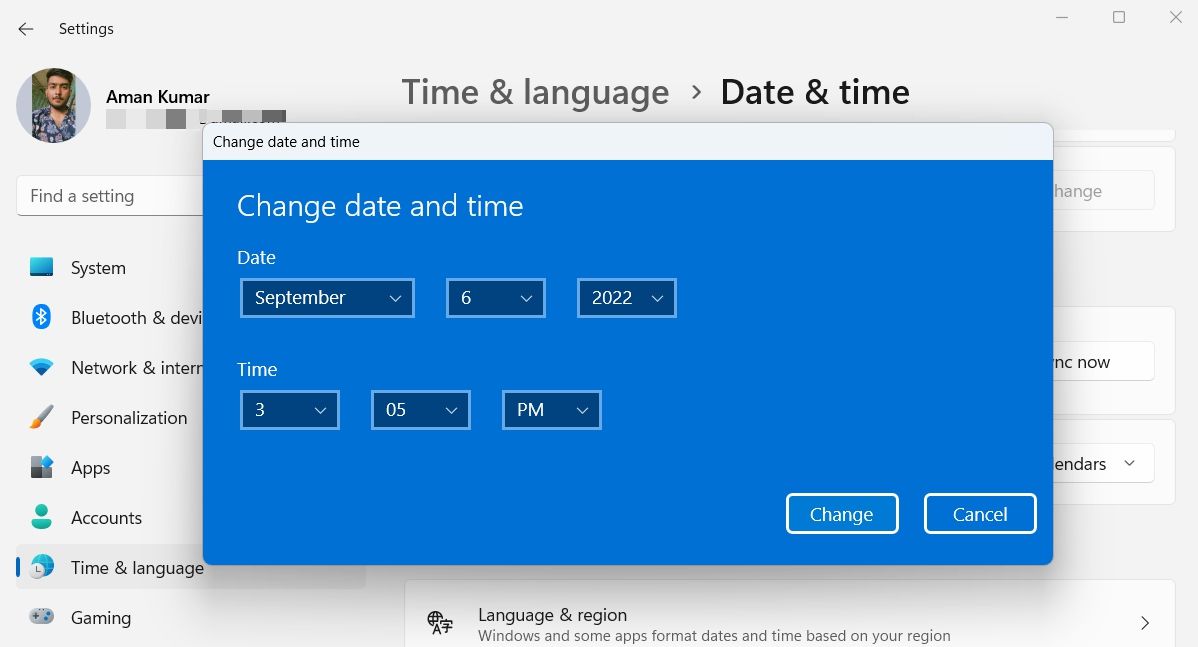
That’s it. Give a quick restart to your computer, and check if you’re still facing the problem. If yes, try the next solution on the list.
3. Check for Any Available Windows Updates
Having completed the syncing date and time step, you may find that Xbox Insider Hub is not working due to a bug you don’t understand or don’t know how to remove. In situations like this, you must consider downloading the latest Windows update.
If the Windows updates are paused on your system, you should allow it to download the latest update, which might bring Xbox Insider Hub back to normal.
To check for any available Windows updates, follow the below instructions:
- Open Settings, and choose Windows Update from the left panel.
- Click the Check for updates button.
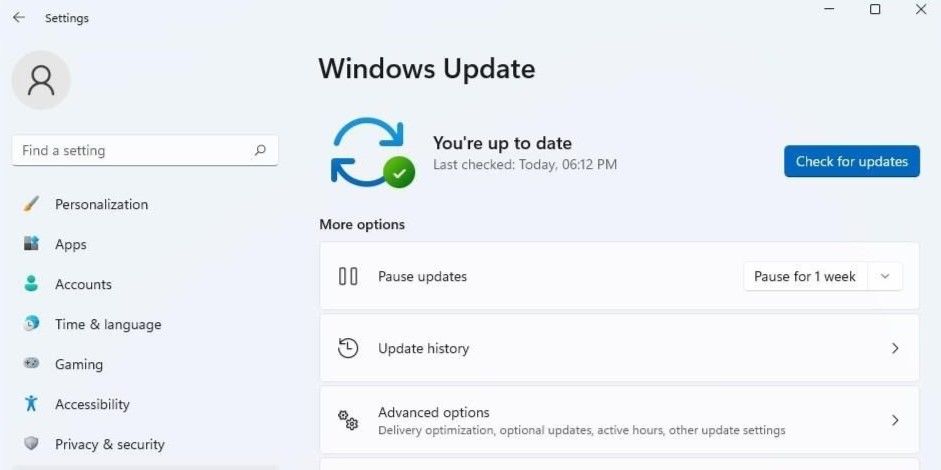
Windows will now look for and download any available update. Then, you may need to reboot your computer to install the downloaded updates.
After the whole process is complete, check whether Xbox Insider Hub is working or not.
4. Clear the Microsoft Store Cache
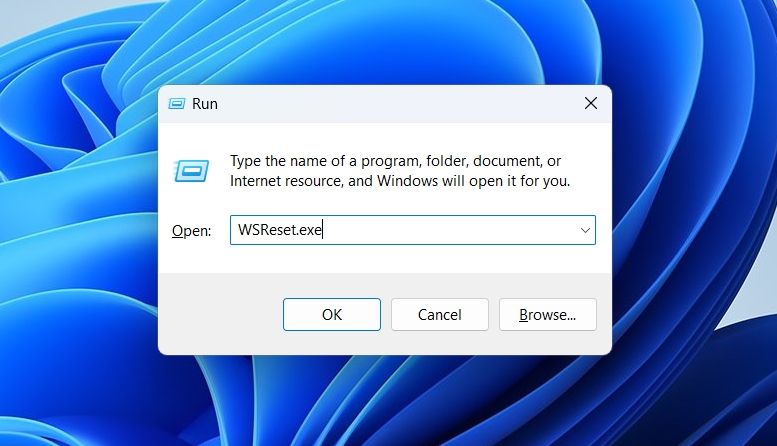
Cache files are temporary files stored by all the applications, including Microsoft Store, that help to offer a faster and smoother service next time you visit the platform. But for various reasons, these cache files can get cluttered and buggy over time and cause different issues, including one at the end.
The solution, in this case, is to reset the Microsoft Store cache using a built-in utility called WSReset.exe. This utility closes the Microsoft Store and resets the application and account settings.
To reset the Microsoft Store cache, open the Run dialog box, type WSReset.exe, and press Enter. You will see a black Command Prompt window, which will disappear within a few seconds, and then the Microsoft Store will open automatically, indicating a successful reset.
5. Disable Any Third-party Antivirus Programs
Antivirus is important for your computer safety. But some third-party antivirus programs can sometimes interfere with the installed applications’ functioning and cause many issues.
To confirm that a third-party antivirus program is the main reason behind your problem, consider using Xbox Insider Hub after disabling the antivirus program. You can right-click on the antivirus icon in this system tray and choose to disable it from the context menu.
If Xbox Insider Hub launches without any issue after disabling the antivirus, you now know the culprit behind your problem. Now, you can either uninstall the third-party antivirus program or remember to always disable it before using the Xbox Insider Hub.
6. Check Your Proxy Settings
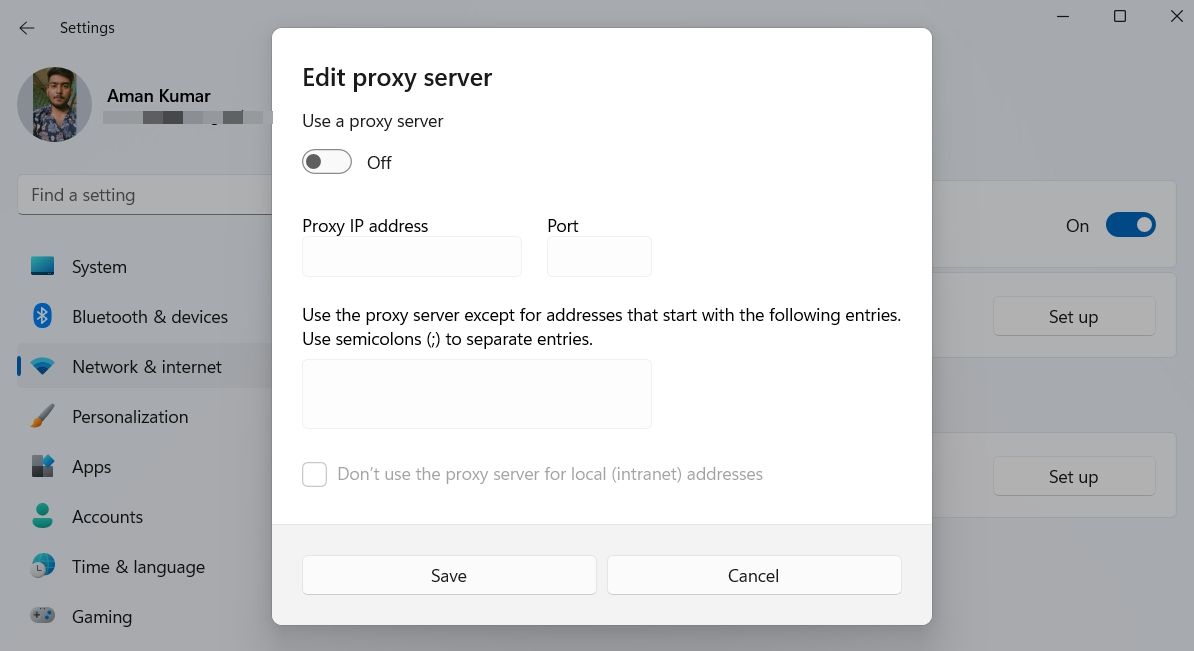
Xbox Insider Hub will not work on your system if you’re using irregular network settings. First, temporarily turn off any VPN you have installed. You can check your VPN documentation page if you don’t know how to disable it.
Alternatively, uninstall the VPN from your system if you don’t use it often. After that, disable your proxy settings. You can do it by following the below steps.
- Open Settings, and navigate to Network & internet > Proxy.
- Disable the Use a proxy server toggle.
7. Reset the Xbox Insider Hub
Reverting Xbox Insider Hub to its default settings might fix your problem.
Here’s how you can reset the Xbox Insider Hub in Windows 11:
- Open Settings and head towards Apps > Installed apps.
- Click the three dots next to Xbox Insider Hub and choose Advanced options.
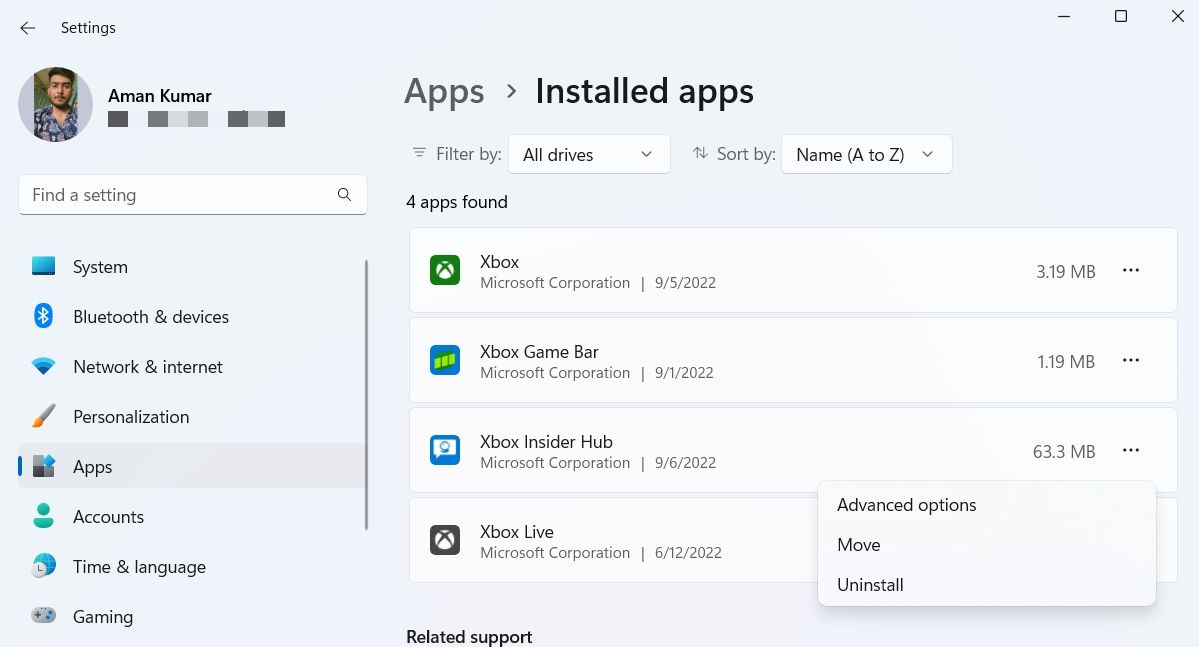
- Select the Reset button.
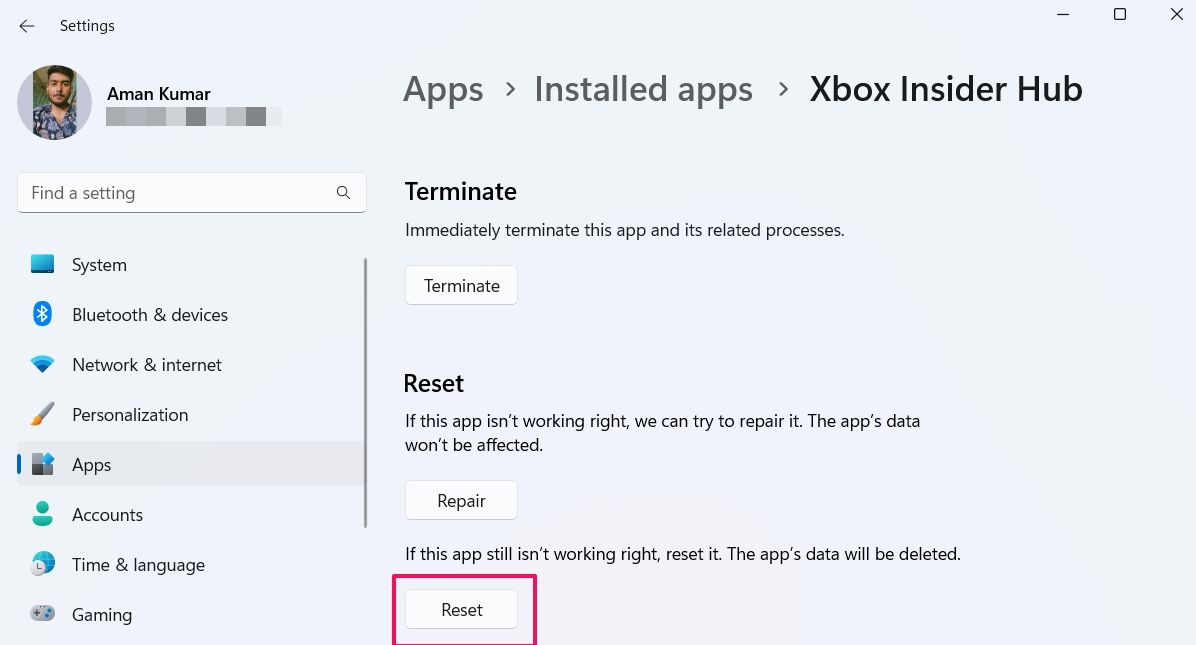
- Windows will take a few seconds to reset the app and bring it to its default settings.
Fixing the Xbox Insider Hub
The Xbox Insider Hub brings you the chance to test upcoming features before anyone else and give your valuable feedback to make improvements. But sometimes, corrupt files on your computer hamper its performance or even stop it from working. When this occurs, you can use the above fixes to resolve the problem.
In the worst-case scenario, if none of the solutions were helpful, try to repair and install Windows 11.