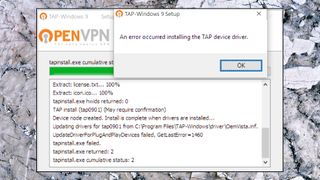
If you’ve ever used a VPN service on desktop then you’ve probably come across the term TAP Adapter. Unfortunately, you’re most likely to have seen it in some unhelpful error message.
Whether it’s ‘All Windows TAP adapters in use’, ‘No TAP adapter available’, or ‘An error occurred installing the TAP device driver’, there’s often a TAP problem somewhere with your name on it!
And the messages usually give you little or no advice on how to figure out the problem, either, so the best you can do is pop them into a search engine and see what comes up.
But this isn’t quite as bad as it seems. In this article, we’ll explain what TAP adapters are, what they’re for and why they matter when you’re running a Windows 10 VPN on PC. And once you understand just some of the background, you’ll find you can fix most TAP issues very quickly.
Do I have a TAP adapter?
A TAP adapter is a software-based network device which allows a VPN to securely communicate with its servers. It’s such a fundamental component that if the TAP adapter isn’t installed or working then some VPNs won’t work at all, resulting in all those pesky error messages you know so well.
TAP adapters come in many different flavors, which can make life confusing. Some VPNs install a plain, ordinary, generic TAP adapter, but others have specially patched ones which only work with their own service. You might even have two or more versions installed at the same time.
To check your setup, click start, type DEVMGMT.MSC and press Enter to launch Device Manager.
Click the arrowhead to the left of Network Adapters to expand the tree, and look down the list of adapters. If you see ‘TAP-Windows Adapter V9’ then you have the generic TAP adapter installed.
But custom versions often have the VPN name included, too, like ‘TAP-NordVPN Windows Adapter V9.’ if you’re a NordVPN user. If you’re unsure, double-click a driver, click the Driver tab, then Driver Details: if the Provider or Copyright mentions OpenVPN then it’s probably a TAP adapter.
Multiple TAP adapters
Having two or more TAP adapters installed can sometimes cause problems, especially if you’ve also installed more than one VPN. One VPN app might try to use an adapter belonging to another VPN, for instance, leaving the second app to complain that there are no adapters available.
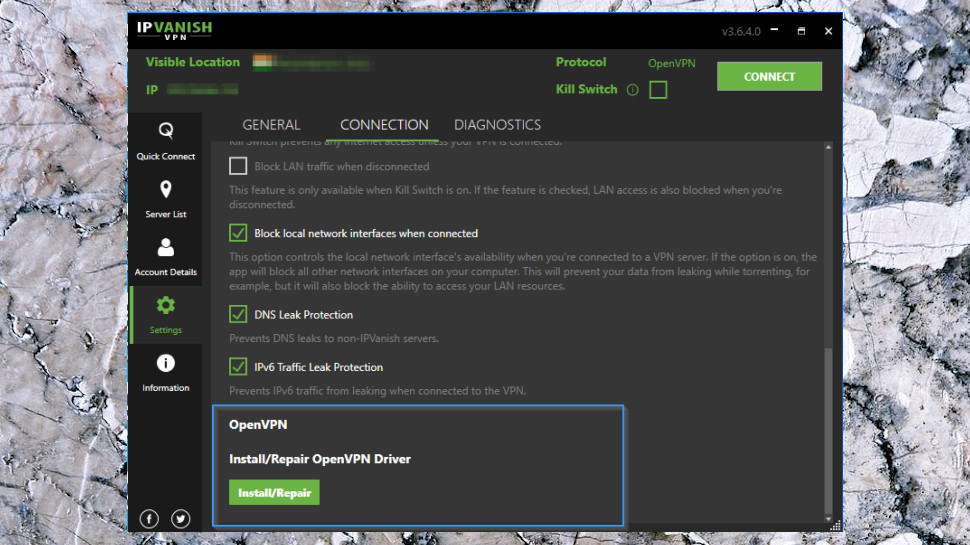
VPN providers recognize that this is a problem, and some apps include an option to ‘repair’ the TAP adapter, restoring its regular settings to help the app find it again. In the IPVanish Windows app, for instance, click Settings, Connection, and you’ll find an Install/ Repair OpenVPN Driver option which could solve the problem.
You can also try resetting a TAP adapter by disabling and enabling it, the software equivalent of turning it off and on again. Right-click your VPN’s TAP adapter in Device Manager that you found earlier, choose Disable Device, and click Yes when you’re asked to confirm that. Wait a few seconds, right-click Enable Device, reboot your PC and try connecting to the VPN again.
Uninstall and reinstall a TAP adapter
Most VPN apps automatically install a TAP adapter with their own files, so reinstalling the app often fixes any TAP issues.
Click Start, type and launch Control Panel, then click Programs, Uninstall a Program. Find the entry for your Windows VPN app, click it and select Uninstall.
Sometimes there’s a second item representing the TAP adapter, something like ‘MyVPNName network TAP’. If it’s still there, uninstall that, too.
Reboot, then download and install the latest app. Reboot again, launch the app, and see if you have any more connection success.
If you have two or more VPNs installed, we’d recommend uninstalling any that you don’t really need, to reduce the chance of conflicts. Even if you absolutely must run a couple of VPNs side-by-side, for some reason, uninstall one of them temporarily to see if that fixes the problem.
(opens in new tab)
More TAP tricks
Stubborn TAP adapter problems can be due to leftovers from a previous installation. We’ve previously been unable to install a new TAP adapter because it was blocked by a previous, damaged version, for instance.
If you really know what you’re doing, follow our guide on how to completely uninstall a VPN (particularly the Network Adaptors and System Drivers sections) to clean up any old VPN files and settings. But be careful: messing up here can damage your PC, so don’t even think of it unless you’re confident in your disaster recovery abilities.
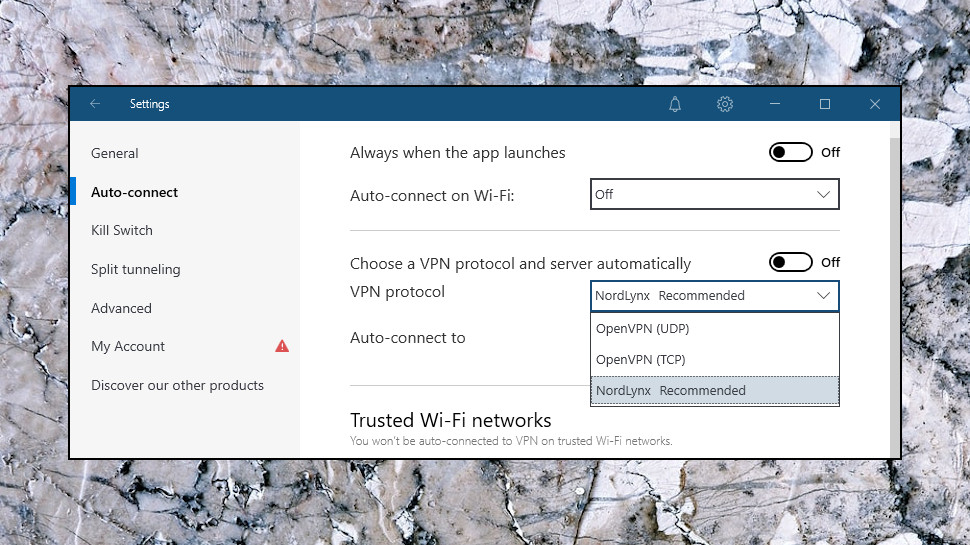
If you still can’t solve your problem, it’s possible you can bypass it. Disable the NordVPN TAP adapter, for instance, and its app can’t connect via OpenVPN. But switch to the NordLynx protocol (click Settings, Auto-connect, choose NordLynx from the VPN Protocol list) and it should work again.
That kind of quick fix isn’t a great choice, because if a VPN app is displaying errors and you don’t know exactly why, then it may be reliably protecting you any more (there might also be encryption issues, say.) But it should keep you running for a while, if that’s the priority.
After all your hard troubleshooting work, though, the best idea is to contact your VPN support team and ask for help. Tell them everything you’ve tried so far, and they should be able to point you in the right direction.
Read more:
- Get protected online for less with a great cheap VPN…
- …and with market-leading antivirus software
- Stop logging of your PC activities with our Windows 10 privacy guide
Sign up to theTechRadar Pro newsletter to get all the top news, opinion, features and guidance your business needs to succeed!
Mike is a lead security reviewer at Future, where he stress-tests VPNs, antivirus and more to find out which services are sure to keep you safe, and which are best avoided. Mike began his career as a lead software developer in the engineering world, where his creations were used by big-name companies from Rolls Royce to British Nuclear Fuels and British Aerospace. The early PC viruses caught Mike’s attention, and he developed an interest in analyzing malware, and learning the low-level technical details of how Windows and network security work under the hood.
If you’ve ever used a VPN service on desktop then you’ve probably come across the term TAP Adapter. Unfortunately, you’re most likely to have seen it in some unhelpful error message.
Whether it’s ‘All Windows TAP adapters in use’, ‘No TAP adapter available’, or ‘An error occurred installing the TAP device driver’, there’s often a TAP problem somewhere with your name on it!
And the messages usually give you little or no advice on how to figure out the problem, either, so the best you can do is pop them into a search engine and see what comes up.
But this isn’t quite as bad as it seems. In this article, we’ll explain what TAP adapters are, what they’re for and why they matter when you’re running a Windows 10 VPN on PC. And once you understand just some of the background, you’ll find you can fix most TAP issues very quickly.
Do I have a TAP adapter?
A TAP adapter is a software-based network device which allows a VPN to securely communicate with its servers. It’s such a fundamental component that if the TAP adapter isn’t installed or working then some VPNs won’t work at all, resulting in all those pesky error messages you know so well.
TAP adapters come in many different flavors, which can make life confusing. Some VPNs install a plain, ordinary, generic TAP adapter, but others have specially patched ones which only work with their own service. You might even have two or more versions installed at the same time.
To check your setup, click start, type DEVMGMT.MSC and press Enter to launch Device Manager.
Click the arrowhead to the left of Network Adapters to expand the tree, and look down the list of adapters. If you see ‘TAP-Windows Adapter V9’ then you have the generic TAP adapter installed.
But custom versions often have the VPN name included, too, like ‘TAP-NordVPN Windows Adapter V9.’ if you’re a NordVPN user. If you’re unsure, double-click a driver, click the Driver tab, then Driver Details: if the Provider or Copyright mentions OpenVPN then it’s probably a TAP adapter.
Multiple TAP adapters
Having two or more TAP adapters installed can sometimes cause problems, especially if you’ve also installed more than one VPN. One VPN app might try to use an adapter belonging to another VPN, for instance, leaving the second app to complain that there are no adapters available.
VPN providers recognize that this is a problem, and some apps include an option to ‘repair’ the TAP adapter, restoring its regular settings to help the app find it again. In the IPVanish Windows app, for instance, click Settings, Connection, and you’ll find an Install/ Repair OpenVPN Driver option which could solve the problem.
You can also try resetting a TAP adapter by disabling and enabling it, the software equivalent of turning it off and on again. Right-click your VPN’s TAP adapter in Device Manager that you found earlier, choose Disable Device, and click Yes when you’re asked to confirm that. Wait a few seconds, right-click Enable Device, reboot your PC and try connecting to the VPN again.
Uninstall and reinstall a TAP adapter
Most VPN apps automatically install a TAP adapter with their own files, so reinstalling the app often fixes any TAP issues.
Click Start, type and launch Control Panel, then click Programs, Uninstall a Program. Find the entry for your Windows VPN app, click it and select Uninstall.
Sometimes there’s a second item representing the TAP adapter, something like ‘MyVPNName network TAP’. If it’s still there, uninstall that, too.
Reboot, then download and install the latest app. Reboot again, launch the app, and see if you have any more connection success.
If you have two or more VPNs installed, we’d recommend uninstalling any that you don’t really need, to reduce the chance of conflicts. Even if you absolutely must run a couple of VPNs side-by-side, for some reason, uninstall one of them temporarily to see if that fixes the problem.
(opens in new tab)
More TAP tricks
Stubborn TAP adapter problems can be due to leftovers from a previous installation. We’ve previously been unable to install a new TAP adapter because it was blocked by a previous, damaged version, for instance.
If you really know what you’re doing, follow our guide on how to completely uninstall a VPN (particularly the Network Adaptors and System Drivers sections) to clean up any old VPN files and settings. But be careful: messing up here can damage your PC, so don’t even think of it unless you’re confident in your disaster recovery abilities.
If you still can’t solve your problem, it’s possible you can bypass it. Disable the NordVPN TAP adapter, for instance, and its app can’t connect via OpenVPN. But switch to the NordLynx protocol (click Settings, Auto-connect, choose NordLynx from the VPN Protocol list) and it should work again.
That kind of quick fix isn’t a great choice, because if a VPN app is displaying errors and you don’t know exactly why, then it may be reliably protecting you any more (there might also be encryption issues, say.) But it should keep you running for a while, if that’s the priority.
After all your hard troubleshooting work, though, the best idea is to contact your VPN support team and ask for help. Tell them everything you’ve tried so far, and they should be able to point you in the right direction.
Read more:
- Get protected online for less with a great cheap VPN…
- …and with market-leading antivirus software
- Stop logging of your PC activities with our Windows 10 privacy guide
Sign up to theTechRadar Pro newsletter to get all the top news, opinion, features and guidance your business needs to succeed!
Mike is a lead security reviewer at Future, where he stress-tests VPNs, antivirus and more to find out which services are sure to keep you safe, and which are best avoided. Mike began his career as a lead software developer in the engineering world, where his creations were used by big-name companies from Rolls Royce to British Nuclear Fuels and British Aerospace. The early PC viruses caught Mike’s attention, and he developed an interest in analyzing malware, and learning the low-level technical details of how Windows and network security work under the hood.
В этом посте рассказывается о адаптерах TAP-Windows , о том, что они собой представляют, зачем они нужны для VPN и где можно скачать драйверы TAP. Мы также покажем вам, как установить, обновить или удалить драйвер TAP.
Если вы откроете Настройки в Windows 10, вы увидите программу под названием TAP-Windows.

Пользователи Windows 10/8/7/Vista увидят его на панели управления .

Если вы откроете Диспетчер устройств и развернете Адаптеры, вы также увидите его там.
Читать . Где скачать драйверы для Windows 10.
Содержание
- Что такое адаптеры TAP-Windows
- Адаптеры TAP-Windows в этой системе в настоящее время используются
- В этой системе нет адаптеров TAP-Windows
- Скачать драйвер адаптера TAP-Windows
Что такое адаптеры TAP-Windows
TAP-Windows обеспечивает функциональность виртуального устройства TAP в ОС Windows. Он устанавливается в папку C: Program Files TAP-Windows и требуется для работы программного обеспечения VPN.
Устройства TAP – это устройства ядра виртуальной сети, полностью поддерживаемые программным обеспечением и не поддерживаемые аппаратными сетевыми адаптерами. Драйверы TAP используются для работы устройств TAP и имеют низкоуровневую поддержку ядра для туннелирования Ethernet.
Вам не нужно устанавливать TAP-окна отдельно, так как ваши установщики VPN включают их и устанавливают автоматически вместе с программным обеспечением VPN.
Драйвер TAP-Windows бывает двух типов:
- NDIS 6 (TAP-windows6, версия 9.21.x) для Windows 10/8/7/Vista.
- Драйвер NDIS 5 (TAP-windows, версия 9.9.x) для Windows XP.
Иногда вы можете столкнуться с проблемами , вызванными этим драйвером. Давайте посмотрим на некоторые из них.
Адаптеры TAP-Windows в этой системе в настоящее время используются
Если вы видите это сообщение или у вашего программного обеспечения VPN возникают проблемы с запуском, вы можете перезапустить адаптер TAP и посмотреть, поможет ли это. Для этого откройте Панель управления> Центр управления сетями и общим доступом> Нажмите «Изменить параметры адаптера», чтобы открыть «Сетевые подключения».

Вы увидите, что одно из локальных подключений будет иметь имя TAP-Windows Adapter . Щелкните правой кнопкой мыши по нему и выберите Отключить . Через несколько секунд снова щелкните его правой кнопкой мыши и выберите Включить . Теперь попробуйте подключиться снова и посмотреть, работает ли он.
Если у вас возникают другие проблемы с запуском вашего программного обеспечения VPN, я предлагаю вам открыть панель управления и оттуда либо восстановить , либо удалить и переустановить программное обеспечение VPN и посмотреть. Во время ремонта/установки будут установлены драйверы TAP.
Если вы хотите удалить, отключить или обновить TAP-Windows, из меню WinX Windows 10, откройте Диспетчер устройств и разверните Адаптеры, вы увидите Адаптер TAP-Windows v9.

Щелкните правой кнопкой мыши на нем, и вам предложат варианты обновить, отключить или удалить драйвер.
В этой системе нет адаптеров TAP-Windows
Если ваше программное обеспечение VPN не находит этот драйвер установленным на вашем компьютере, вы можете получить сообщение «В этом системном сообщении об ошибке отсутствуют адаптеры TAP-Windows». Затем вам нужно будет загрузить его настройки и установить драйвер.
Скачать драйвер адаптера TAP-Windows
Чтобы загрузить файл драйвера TAP-Windows, посетите openvpn.net. Прокрутите вниз, и вы увидите их ссылки для скачивания.

Запустите его установщик. После завершения установки драйвера перезагрузите компьютер и проверьте.
Если ваше Интернет-соединение перестает работать, вы можете удалить этот адаптер и посмотреть, поможет ли это вам. Если это не так, возможно, вам нужно удалить и переустановить последнюю версию этого драйвера заново .
Читать дальше : VPN не работает в Windows 10.
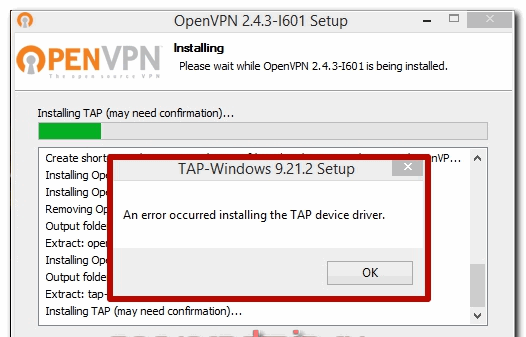
Столкнулся с неожиданной проблемой при установке клиента популярной реализации vpn. Не устанавливался openvpn клиент на Windows 10, выдавая ошибку установки TAP интерфейса: «An error occurred installing the TAP device driver«.
Ошибка установки openvpn на Windows 10 выглядела следующим образом. Инсталятор после выбора дефолтных настроек задумывается на несколько минут и в итоге выдает ошибку:
При этом сам клиент openvpn успешно устанавливается. Можно запустить GIU, но ясное дело, подключиться к серверу openvpn не получится, так как в системе не появляется TAP адаптера. В интернете нашел много советов по данной проблеме, но мне ни один не помог. Перечислю их, может вам поможет что-то из этого:
- Запустить скрипт на добавление TAP интерфейса — C:Program FilesTAP-Windowsbinaddtap.bat. У меня он так же не отрабатывал. Висел несколько минут, потом выдавал ошибку.
- Зайти в Пуск -> TAP Windows -> Add a new TAP virtual ethernet adapter. Это тоже не помогло.
- Повторить установку openvpn с выключенным антивирусом или защитником windows.
Два первых действия нужно выполнять от администратора. С помощью них можно добавить несколько tap адаптеров в систему, чтобы одновременно поднимать несколько openvpn туннелей.
После того, как ничего из предложенного не подошло, я крепко призадумался. Openvpn я использую постоянно. Ставил его на разные системы десятки раз и всегда все проходило успешно, либо проблема быстро решалась. Тут быстрого и простого решения не получалось.
Помогло в итоге вот что. Я открыл диспетчер устройств и посмотрел на сетевые адаптеры. В списке был TAP-Windows Adapter V9, что намекало на то, что все должно работать. Но не работало. В панели управления в списке адаптеров TAP адаптера не было.
Я включил отображение скрытых устройств и увидел там же в сетевых адаптерах неизвестное устройство (unknown device). Открыл у него вкладку Сведения. Путь к экземпляру устройства был следующий — ROOTNET000. Я нажал обновить драйвер для этого устройства и указал, что он должен быть найден автоматически. После этого устройство получило название TAP-Windows Adapter V9 #2 и в панели управления появился TAP адаптер.
После этого Openvpn заработал. Я смог подключиться к серверу и организовать туннель. После того, как я удалил openvpn на этой же системе и установил заново, все прошло без ошибок с первого раза. Появился только один TAP-Windows Adapter V9. Проверил еще на парочке тестовых виртуальных машин. Тоже все прошло без ошибок, так что не смог собрать актуальные скрины по проблеме, а сразу их не сделал.
Если решение не поможет, то обратите внимание на следующее, берите бубен и танцуйте:
Драйвер для TAP адаптера должен быть в директории C:WindowsSystem32DriverStoreFileRepositoryoemvista.inf_amd64_*. В конце могут быть разные символы. На той системе, где был глюк, были созданы 2 подобных директории с разными символами на конце. Когда проблем нет — только одна.
https://github.com/midnight47/
Содержание
- Что такое адаптеры TAP-Windows
- Как исправить проблемы с TAP-Windows
- Перезагрузите адаптер TAP-Windows
- Переустановите адаптер
- Создайте новый адаптер TAP-Windows
Прежде всего, мы собираемся объяснить, что такое адаптеры TAP-Windows. Когда мы идем в диспетчер устройств и вводим сетевые адаптеры, мы видим нашу карту Wi-Fi или карту Ethernet, а также другие, которые у нас есть. Это физические карты, которые установлены в нашем оборудовании. Но мы также можем установить виртуальные адаптеры. То есть TAP-Окна .

Поэтому можно сказать, что TAP-Windows адаптер — это виртуальный сетевой адаптер который существует в системе Windows. Его можно использовать для различных задач, в зависимости от конкретных характеристик программного обеспечения.
Обычно они связаны с установкой и использованием VPN инструменты , а также установка программ для изменения сетевых настроек. Поэтому они тесно связаны с правильным функционированием виртуальной частной сети. В случае возникновения проблем, если он не включен правильно, у нас могут возникнуть сбои с нашим VPN.
Многие пользователи замечают, что при использовании VPN в Windows устанавливается что-то под названием TAP-Windows V9. Это может вызвать проблемы при использовании VPN или при обычном подключении.
Этот виртуальный адаптер позволяет VPN подключаться к вашим серверам. По крайней мере, на бумаге пользователям не нужно прикасаться ни к одному из этих компонентов. Им просто нужно оставить все как есть, и все. Но иногда возникают проблемы.
Как исправить проблемы с TAP-Windows
Как мы говорим, иногда возникают проблемы и TAP-Windows плохо работает , это не позволяет нам использовать VPN в обычном режиме или даже нарушать наше сетевое соединение. К счастью, у нас есть ряд простых действий, которые мы можем выполнить.
Перезагрузите адаптер TAP-Windows
Один из первых шагов, которые мы можем сделать, — это перезапустить TAP-Окна адаптер . Иногда с помощью этого небольшого шага мы можем решить ошибки, которые влияют на наше соединение.
Для этого мы должны щелкнуть правой кнопкой мыши значок подключения в правом нижнем углу и выбрать «Открыть настройки сети и Интернета».
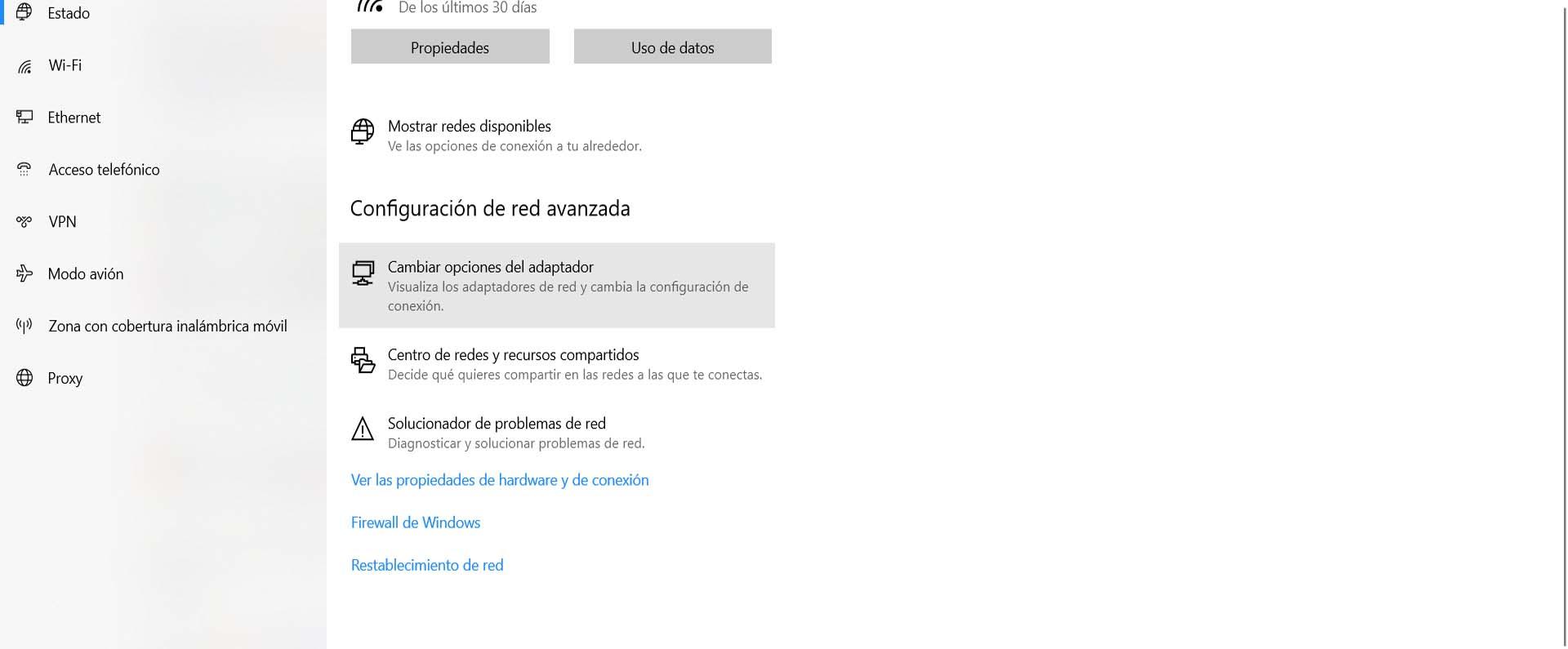
Здесь мы должны ввести параметры изменения адаптера. Там мы увидим значок адаптера TAP-Windows, и мы должны щелкнуть второй кнопкой над ним, мы нажимаем «Деактивировать», и мы повторно активируем его позже. Таким образом он перезапускается.
Переустановите адаптер
Другой вариант, который мы также можем принять во внимание, если предыдущий шаг не решил проблему, — это переустановите адаптер . Первым шагом будет удаление программного обеспечения VPN, которое мы используем, и его повторная установка. Как только мы сделаем этот процесс, мы должны перезагрузить компьютер.
Если это по-прежнему не дает решения, мы переустановим адаптер TAP-Windows. Для этого щелкаем правой кнопкой мыши по кнопке Пуск и открываем Диспетчер устройств. Мы идем в Cеть адаптеры, и когда мы покажем это, он появится. Мы должны щелкнуть правой кнопкой мыши по адаптеру и нажать «Удалить».
Позже мы запускаем VPN, и он может попросить нас снова установить адаптер TAP-Windows. Мы также можем скачать и установить его вручную.
Создайте новый адаптер TAP-Windows
Последним решением было бы создать новый TAP-Окна адаптер . Это происходит, когда мы подключаемся к новой VPN.
В конечном счете, это шаги, которые мы должны предпринять в случае, если у нас возникнут проблемы с использованием VPN в Windows, и ошибка связана с адаптером TAP-Windows. Мы можем повторно включить его, переустановить или создать новый, чтобы увидеть, можно ли легко решить эту проблему.