This is driving the whole team crazy. There must be some simple mis-configured part of IIS or our Web Server, but every time we try to run out ASP.NET Web Application on IIS 7.5 we get the following error…
Here’s the error in full:
HTTP Error 500.19 - Internal Server Error

The requested page cannot be accessed because the related configuration
data for the page is invalid.

`Detailed Error Information`
Module              IIS Web Core
Notification        Unknown
Handler             Not yet determined
Error Code          0x8007000d
Config Error
Config File         \?E:wwwrootweb.config
Requested URL       http://localhost:80/Default.aspx
Physical Path
Logon Method        Not yet determined
Logon User          Not yet determined
Config Source
   -1:
    0:
The machine is running Windows Server 2008 R2. We’re developing our Web Application using Visual Studio 2008.
According to Microsoft the code 8007000d means there’s a syntax error in our web.config — except the project builds and runs fine locally. Looking at the web.config in XML Notepad doesn’t bring up any syntax errors, either. I’m assuming it must be some sort of poor configuration on my part…?
Does anyone know where I might find further information about the error? Nothing is showing in EventViewer, either 🙁
Not sure what else would be helpful to mention…
Assistance is greatly appreciated. Thanks!
UPDATES! — POSTED WEB.CONFIG BELOW
Ok, since I posted the original question above, I’ve tracked down the precise lines in the web.config that were causing the error.
Here are the lines (they appear between <System.webServer> tags)…
    <httpHandlers>
        <remove verb="*" path="*.asmx"/>
        <add verb="*" path="*.asmx" validate="false" type="System.Web.Script.Services.ScriptHandlerFactory, System.Web.Extensions, Version=1.0.61025.0, Culture=neutral, PublicKeyToken=f2cb5667dc123a56"/>
    </httpHandlers>
Note: If I delete the lines between the <httpHandlers> I STILL get the error. I literally have to delete <httpHandlers> (and the lines inbetween) to stop getting the above error.
Once I’ve done this I get a new 500.19 error, however. Thankfully, this time IIS actually tells me which bit of the web.config is causing a problem…
    <handlers>
        <remove name="WebServiceHandlerFactory-Integrated"/>
        <add verb="*" path="*.asmx" validate="false" type="System.Web.Script.Services.ScriptHandlerFactory,System.Web.Extensions, Version=1.0.61025.0, Culture=neutral, PublicKeyToken=f2cb5667dc123a56"/>
        <add name="ScriptHandlerFactoryAppServices" verb="*" path="*_AppService.axd" preCondition="integratedMode" type="System.Web.Script.Services.ScriptHandlerFactory, System.Web.Extensions, Version=1.0.61025.0, Culture=neutral, PublicKeyToken=f2cb5667dc123a56"/>
        <add name="ScriptResource" preCondition="integratedMode" verb="GET,HEAD" path="ScriptResource.axd" type="System.Web.Handlers.ScriptResourceHandler, System.Web.Extensions, Version=1.0.61025.0, Culture=neutral, PublicKeyToken=f2cb5667dc123a56"/>
    </handlers>
Looking at these lines it’s clear the problem has migrated further within the same <system.webServer> tag to the <handlers> tag.
The new error is also more explicit and specifically complains that it doesn’t recognize the attribute «validate» (as seen on the third line above). Removing this attribute then makes it complain that the same line doesn’t have the required «name» attribute. Adding this attribute then brings up ASP.NET error…
Could not load file or assembly
‘System.web.Extensions,
Version=1.0.61025.0, Culture=neutral,
PublicKeyToken=f2cb5667dc123a56’ or
one of its dependencies. The system
cannot find the file specified.
Obviously I think these new errors have just arisen from me deleting the <httpHandlers> tags in the first place — they’re obviously needed by the application — so the question remains: Why would these tags kick up an error in IIS in the first place???
Do I need to install something to IIS to make it work with them?
Thanks again for any help.
WEB.CONFIG
Here’s the troublesome bits of our web.Config…
<system.Web>

<!-- stuff cut out -->

    <httpHandlers>
        <remove verb="*" path="*.asmx"/>
        <add verb="*" path="*.asmx" validate="false" type="System.Web.Script.Services.ScriptHandlerFactory, System.Web.Extensions, Version=1.0.61025.0, Culture=neutral, PublicKeyToken=f2cb5667dc123a56"/>
        <add verb="*" path="*_AppService.axd" validate="false" type="System.Web.Script.Services.ScriptHandlerFactory, System.Web.Extensions, Version=1.0.61025.0, Culture=neutral, PublicKeyToken=f2cb5667dc123a56"/>
        <add verb="GET,HEAD" path="ScriptResource.axd" type="System.Web.Handlers.ScriptResourceHandler, System.Web.Extensions, Version=1.0.61025.0, Culture=neutral, PublicKeyToken=f2cb5667dc123a56" validate="false"/>
    </httpHandlers>
    <httpModules>
        <add name="ScriptModule" type="System.Web.Handlers.ScriptModule, System.Web.Extensions, Version=1.0.61025.0, Culture=neutral, PublicKeyToken=f2cb5667dc123a56"/>
    </httpModules>
</system.web>

<system.webServer>
    <validation validateIntegratedModeConfiguration="false"/>
    <modules>
        <add name="ScriptModule" preCondition="integratedMode" type="System.Web.Handlers.ScriptModule, System.Web.Extensions, Version=1.0.61025.0, Culture=neutral, PublicKeyToken=f2cb5667dc123a56"/>
    </modules>
    <remove verb="*" path="*.asmx"/>
    <add verb="*" path="*.asmx" validate="false" type="System.Web.Script.Services.ScriptHandlerFactory, System.Web.Extensions, Version=1.0.61025.0, Culture=neutral, PublicKeyToken=f2cb5667dc123a56"/>
    <handlers>
        <remove name="WebServiceHandlerFactory-Integrated"/>
        <add verb="*" path="*.asmx" validate="false" type="System.Web.Script.Services.ScriptHandlerFactory,System.Web.Extensions, Version=1.0.61025.0, Culture=neutral, PublicKeyToken=f2cb5667dc123a56"/>
        <add name="ScriptHandlerFactoryAppServices" verb="*" path="*_AppService.axd" preCondition="integratedMode" type="System.Web.Script.Services.ScriptHandlerFactory, System.Web.Extensions, Version=1.0.61025.0, Culture=neutral, PublicKeyToken=f2cb5667dc123a56"/>
        <add name="ScriptResource" preCondition="integratedMode" verb="GET,HEAD" path="ScriptResource.axd" type="System.Web.Handlers.ScriptResourceHandler, System.Web.Extensions, Version=1.0.61025.0, Culture=neutral, PublicKeyToken=f2cb5667dc123a56"/>
    </handlers>
</system.webServer>
Содержание
- Ошибка HTTP 500.19 — внутренняя ошибка сервера при открытии веб-страницы IIS
- Код HRESULT 0x8007000d
- Код HRESULT 0x80070021
- Код HRESULT 0x80070005
- Код HRESULT 0x800700b7
- Код HRESULT 0x8007007e
- Код HRESULT 0x800700c1
- Код HRESULT 0x8007010b
- Код HRESULT 0x8007052e
- Код HRESULT 0x80070003
- Устраните проблему с поврежденным файлом конфигурации IIS при обновлении Windows
- HTTP Error 500.19 — internal server error when you open an IIS Webpage
- HRESULT code 0x8007000d
- HRESULT code 0x80070021
- HRESULT code 0x80070005
- HRESULT code 0x800700b7
- HRESULT code 0x8007007e
- HRESULT code 0x800700c1
- HRESULT code 0x8007010b
- HRESULT code 0x8007052e
- HRESULT code 0x80070003
- Fix break IIS configuration file issue when you update windows
Ошибка HTTP 500.19 — внутренняя ошибка сервера при открытии веб-страницы IIS
В этой статье описывается решение проблемы, при которой отображается сообщение об ошибке HTTP 500.19 в веб-приложении в IIS 7.0 и более поздних версиях.
Оригинальная версия продукта: службы IIS 7.0 и более поздних версий
Оригинальный номер КБ: 942055
Чтобы устранить эту ошибку, ознакомьтесь со следующими разделами для получения соответствующих сведений о коде ошибки.
Код HRESULT 0x8007000d
Сообщение об ошибке:
Ошибка сервера в приложении «имя приложения»
Ошибка HTTP 500.19 — внутренняя ошибка сервера
HRESULT: 0x8007000d
Описание HRESULT:
Запрашиваемая страница недоступна из-за неверной конфигурации данных для этой страницы.
Эта проблема возникает из-за того, что файл ApplicationHost.config или Web.config содержит поврежденный или неопознанный XML-элемент. IIS не может определить XML-элементы модулей, которые не были установлены. Например, модуль переопределения URL-адресов для IIS.
Используйте один из следующих способов:
- Удалите поврежденный XML-элемент из файла ApplicationHost.config или Web.config.
- Проверьте неопознанные XML-элементы и установите соответствующие модули IIS.
Код HRESULT 0x80070021
Сообщение об ошибке:
Ошибка сервера в приложении «имя приложения»
Ошибка HTTP 500.19 — внутренняя ошибка сервера
HRESULT: 0x80070021
Описание HRESULT:
Запрашиваемая страница недоступна из-за неверной конфигурации данных для этой страницы.
Эта проблема может возникать, когда указанная часть файла конфигурации IIS блокируется на более высоком уровне конфигурации.
Разблокируйте указанный раздел или не используйте его на более высоком уровне. Дополнительные сведения о блокировке конфигурации см. в разделе Использование блокировки в конфигурации IIS 7.0.
Код HRESULT 0x80070005
Сообщение об ошибке:
Ошибка сервера в приложении «имя приложения»
Ошибка HTTP 500.19 — внутренняя ошибка сервера
HRESULT: 0x80070005
Описание HRESULT:
Запрашиваемая страница недоступна из-за неверной конфигурации данных для этой страницы.
Эта проблема может возникать по одной из следующих причин:
- IIS используется на компьютере под управлением Windows. Кроме того, настройте веб-сайт для использования сквозной проверки подлинности UNC для доступа к удаленному серверу общего доступа UNC.
- У группы IIS_IUSRS нет необходимых разрешений для файла ApplicationHost.config, Web.config или виртуальных каталогов/каталогов приложений IIS.
Используйте один из следующих способов:
Не задавайте в настройках веб-сайта использование сквозной проверки подлинности UNC для доступа к удаленному серверу общего доступа UNC. Вместо этого укажите учетную запись пользователя с надлежащими разрешениями для доступа к удаленному ресурсу UNC.
Предоставьте группе IIS_IUSRS разрешение на чтение файла ApplicationHost.config или Web.config. Для этого выполните следующие действия:
В проводнике Windows найдите папку, содержащую файл ApplicationHost.config, связанный с веб-сайтом, либо виртуальные каталоги или каталоги приложений, содержащие связанный с веб-сайтом файл Web.config.
Файл Web.config может не находиться в виртуальных каталогах или каталогах приложений в IIS. Даже в такой ситуации необходимо выполнить следующие действия.
Щелкните правой кнопкой мыши папку, содержащую файл ApplicationHost.config, либо виртуальные каталоги или каталоги приложений, которые могут содержать файл Web.config.
Выберите пункт Свойства.
Перейдите на вкладку Безопасность и нажмите Редактировать.
Нажмите Добавить.
В поле «Введите имена объектов IIS_IUSRS, выберите «Проверить имена» и нажмите кнопку «ОК«.
— это заполнитель для имени компьютера.
Установите флажок Чтение и нажмите кнопку ОК.
В диалоговом окне Свойства для папки нажмите кнопку OK.
Удостоверьтесь, что свойства папки наследуются файлами ApplicationHost.config и Web.config, чтобы у IIS_IUSRS было разрешение на чтение таких файлов.
Код HRESULT 0x800700b7
Сообщение об ошибке:
Ошибка сервера в приложении «имя приложения»
Ошибка HTTP 500.19 — внутренняя ошибка сервера
HRESULT: 0x800700b7
Описание HResult
Запрашиваемая страница недоступна из-за неверной конфигурации данных для этой страницы.
Эта проблема может возникать при наличии повторяющейся записи для указанного раздела конфигурации, заданного на более высоком уровне в иерархии конфигурации (например, файл ApplicationHost.config или Web.config на родительском веб-сайте или в папке). В сообщении об ошибке указано расположение повторяющихся записей.
Изучите указанный файл конфигурации и сравните его с родительским файлом ApplicationHost.config или Web.config, чтобы проверить наличие повторяющихся записей, предполагаемых в сообщении об ошибке. Удалите дублирующую запись или сделайте ее уникальной. Например, эта проблема может возникать из-за того, что в файле ApplicationHost.config содержится повторяющаяся запись для следующего кода:
Чтобы решить эту проблему, удалите в файле ApplicationHost.config повторяющуюся запись для правила авторизации. Для этого выполните следующие действия:
Нажмите кнопку Пуск, введите Блокнот в поле Начать поиск, затем щелкните правой кнопкой мыши Блокнот и выберите Запуск от имени администратора.
Если система запросит пароль администратора или подтверждение, введите пароль или нажмите кнопку Продолжить.
В меню Файл нажмите Открыть, введите %windir%System32inetsrvconfigapplicationHost.config в поле Имя файла и нажмите кнопку Открыть.
В файле ApplicationHost.config удалите дублирующую запись, похожую на следующий код:
Код HRESULT 0x8007007e
Сообщение об ошибке:
Ошибка сервера в приложении «имя приложения»
Ошибка HTTP 500.19 — внутренняя ошибка сервера
HRESULT: 0x8007007e
Описание HResult
Запрашиваемая страница недоступна из-за неверной конфигурации данных для этой страницы.
Эта проблема возникает в том случае, если файл ApplicationHost.config или Web.config ссылается на модуль или библиотеку DLL, которые являются недопустимыми или не существуют.
В файле ApplicationHost.config или Web.config найдите недопустимую ссылку на модуль или библиотеку DLL и исправьте ее. Чтобы определить, какая ссылка на модуль неверная, включите функцию «Трассировка невыполненных запросов» и воспроизведите проблему.
Код HRESULT 0x800700c1
Сообщение об ошибке:
Ошибка сервера в приложении «имя приложения»
Ошибка HTTP 500.19 — внутренняя ошибка сервера
HRESULT: 0x800700c1
Описание HRESULT:
Запрашиваемая страница недоступна из-за неверной конфигурации данных для этой страницы.
Эта проблема может возникать, если разрядность указанного модуля отличается от разрядности пула приложений, где он размещен. Например, если вы пытаетесь загрузить 32-разрядный компонент в 64-разрядный пул приложений. Подобная проблема может также наблюдаться при повреждении указанного модуля.
Убедитесь, что разрядность указанного модуля такая же, как и у пула размещенных приложений. Кроме того, убедитесь, что модуль не поврежден.
Код HRESULT 0x8007010b
Сообщение об ошибке:
Ошибка сервера в приложении «имя приложения»
Ошибка HTTP 500.19 — внутренняя ошибка сервера
HRESULT: 0x8007010b
Описание HRESULT:
Запрашиваемая страница недоступна из-за неверной конфигурации данных для этой страницы.
Эта проблема может возникать, если указанный каталог содержимого недоступен.
- Убедитесь, что путь к файлу существует.
- Убедитесь, что путь к файлу указан правильно.
- Убедитесь, что путь к файлу имеет правильный набор разрешений на уровне файлов.
- Убедитесь, что путь к файлу указывает на допустимый тип файловой системы.
Если вам точно не известен путь к файлу, определите его с помощью монитора процессов или трассировки невыполненных запросов.
Код HRESULT 0x8007052e
Сообщение об ошибке:
Ошибка сервера в приложении «имя приложения»
Ошибка HTTP 500.19 — внутренняя ошибка сервера
HRESULT: 0x8007052e
Описание HRESULT:
Запрашиваемая страница недоступна из-за неверной конфигурации данных для этой страницы.
У удостоверения процесса по умолчанию в IIS недостаточно разрешений для открытия файла Web.config на удаленном общем ресурсе.
Убедитесь, что учетная запись удостоверения пула приложений этого веб-приложения имеет достаточно разрешений для открытия файла Web.config.
Код HRESULT 0x80070003
Сообщение об ошибке:
Ошибка сервера в приложении «имя приложения»
Ошибка HTTP 500.19 — внутренняя ошибка сервера
HRESULT: 0x80070003
Описание HRESULT:
Не удается прочитать файл конфигурации.
Эта ошибка вызвана отсутствием разрешения или физическим путем, который не соответствует пути для виртуального каталога. Например, в физическом корневом пути веб-приложения нет Web.config.
- Убедитесь, что путь Web.config существует и имеет правильный набор разрешений.
- Выполните сбор журналов монитора процессов, чтобы получить дополнительные сведения об ошибке.
Устраните проблему с поврежденным файлом конфигурации IIS при обновлении Windows
В соответствии с общим правилом безопасности для всех файлов конфигурации (не ограниченные IIS) должны быть созданы резервные копии перед установкой какого-либо обновления. Если вы используете виртуальные машины, сделайте снимок виртуальной машины перед ее обновлением. Этот совет применим не только к обновлениям Windows.
Источник
HTTP Error 500.19 — internal server error when you open an IIS Webpage
This article resolves a problem in which you receive an «HTTP 500.19» error message on a web application in Internet Information Services (IIS) 7.0 and later versions.
Original product version: В Internet Information Services 7.0 and later versions
Original KB number: В 942055
To resolve this error, check the following sections for the appropriate error code information.
HRESULT code 0x8007000d
Server Error in Application «application name»
HTTP Error 500.19 – Internal Server Error
HRESULT: 0x8007000d
Description of HRESULT
The requested page cannot be accessed because the related configuration data for the page is invalid.
This problem occurs because the ApplicationHost.config or Web.config file contains a malformed or unidentified XML element. IIS can’t identify the XML elements of the modules that are not installed. For example, IIS URL Rewrite module.
Use one of the following methods:
- Delete the malformed XML element from the ApplicationHost.config or Web.config file.
- Check the unidentified XML elements, and then install the relevant IIS modules.
HRESULT code 0x80070021
Server Error in Application «application name»
HTTP Error 500.19 – Internal Server Error
HRESULT: 0x80070021
Description of HRESULT
The requested page cannot be accessed because the related configuration data for the page is invalid.
This problem can occur if the specified portion of the IIS configuration file is locked at a higher configuration level.
Unlock the specified section, or don’t use it at the higher level. For more information about configuration locking, see How to Use Locking in IIS 7.0 Configuration.
HRESULT code 0x80070005
Server Error in Application «application name»
HTTP Error 500.19 – Internal Server Error
HRESULT: 0x80070005
Description of HRESULT
The requested page cannot be accessed because the related configuration data for the page is invalid.
This problem occurs for one of the following reasons:
- You’re using IIS on a computer that is running Windows. Additionally, you configure the website to use Universal Naming Convention (UNC) pass-through authentication to access a remote UNC share.
- The IIS_IUSRS group doesn’t have the appropriate permissions for the ApplicationHost.config file, the Web.config file, or the virtual or application directories of IIS.
Use one of the following methods:
Don’t configure the website to use UNC pass-through authentication to access the remote UNC share. Instead, specify a user account that has the appropriate permissions to access the remote UNC share.
Grant the Read permission to the IIS_IUSRS group for the ApplicationHost.config or Web.config file. To do it, follow these steps:
In Windows Explorer, locate the folder that contains the ApplicationHost.config file that is associated with the website, or locate the virtual directories or the application directories that contain the Web.config file that is associated with the website.
The Web.config file may not be in the virtual directories or the application directories in IIS. Even in this situation, you have to follow these steps.
Right-click the folder that contains the ApplicationHost.config file, or right-click the virtual or application directories that may contain the Web.config file.
Select Properties.
Select the Security tab, and then Select Edit.
Select Add.
In the Enter the object names to select box, type IIS_IUSRS, select Check Names, and then select OK.
is a placeholder for the computer name.
Select the Read check box, and then select OK.
In the Properties dialog box for the folder, select OK.
Make sure that the folder properties are inherited by the ApplicationHost.config and Web.config files so that IIS_IUSRS has the Read permission for those files.
HRESULT code 0x800700b7
Server Error in Application «application name»
HTTP Error 500.19 – Internal Server Error
HRESULT: 0x800700b7
Description of HResult
The requested page cannot be accessed because the related configuration data for the page is invalid.
This problem may occur if there’s a duplicate entry for the specified configuration section setting at a higher level in the configuration hierarchy (for example, ApplicationHost.config or Web.config file in a parent site or folder). The error message itself points out the location of the duplicate entries.
Examine the specified configuration file, and compare it with its parent ApplicationHost.config or Web.config file to check for duplicate entries, as suggested by the error message. Either remove the duplicate entry, or make the entry unique. For example, this problem may occur because the ApplicationHost.config file has a duplicate entry for the following code:
To resolve this problem, delete the duplicate entry in the ApplicationHost.config file for the authorization rule. To do it, follow these steps:
Select Start, type Notepad in the Start Search box, right-click Notepad, and then select Run as administrator.
If you’re prompted for an administrator password or for a confirmation, type the password, or select Continue.
On the File menu, select Open, type %windir%System32inetsrvconfigapplicationHost.config in the File name box, and then select Open.
In the ApplicationHost.config file, delete the duplicate entry that resembles the following code:
HRESULT code 0x8007007e
Server Error in Application «application name»
HTTP Error 500.19 – Internal Server Error
HRESULT: 0x8007007e
Description of HResult
The requested page cannot be accessed because the related configuration data for the page is invalid.
This problem occurs because the ApplicationHost.config or Web.config file references a module or a DLL that is invalid or doesn’t exist.
In the ApplicationHost.config or Web.config file, locate the module reference or the DLL reference that is invalid, and then fix the reference. To determine which module reference is incorrect, enable Failed Request Tracing, and then reproduce the problem.
HRESULT code 0x800700c1
Server Error in Application «application name»
HTTP Error 500.19 – Internal Server Error
HRESULT: 0x800700c1
Description of HRESULT
The requested page cannot be accessed because the related configuration data for the page is invalid.
This problem can occur if the bitness of the specified module is different than that of the application pool hosting the application. For example, you’re trying to load a 32-bit component into a 64-bit application pool. This problem may also occur if the specified module is corrupted.
Make sure that the specified module’s bitness is the same as that of the hosting application pool. Also, make sure that the module is not corrupted.
HRESULT code 0x8007010b
Server Error in Application «application name»
HTTP Error 500.19 – Internal Server Error
HRESULT: 0x8007010b
Description of HRESULT
The requested page cannot be accessed because the related configuration data for the page is invalid.
This problem can occur if the specified content directory cannot be accessed.
- Verify that the file path exists.
- Verify that the file path is correctly named.
- Verify that the file path has the correct file-level permissions set.
- Verify that the file path is pointing to a valid file system type.
If you aren’t sure what the file path is, use the Process Monitor or Failed Request Tracing tool to identify it.
HRESULT code 0x8007052e
Server Error in Application «application name»
HTTP Error 500.19 – Internal Server Error
HRESULT: 0x8007052e
Description of HRESULT
The requested page cannot be accessed because the related configuration data for the page is invalid.
The default process identity in IIS doesn’t have sufficient permissions to open the Web.config file on a remote share.
Verify that the application pool identity account of this web application has sufficient permissions to open the Web.config file.
HRESULT code 0x80070003
Server Error in Application «application name»
HTTP Error 500.19 – Internal Server Error
HRESULT: 0x80070003
Description of HRESULT
Cannot read configuration file.
This error is caused by a lack of permission or by a physical path that doesn’t match the path for the virtual directory. For example, no Web.config exists under the web app physical root path.
- Verify that the Web.config path exists and has correct permissions set.
- Collect Process Monitor logs to get more information about the error.
Fix break IIS configuration file issue when you update windows
As a general safety rule, all configuration files (not limited to IIS) should be backup before installing any update. If you use Virtual Machines, take a snapshot of the Virtual Machine before you update it. This advice isn’t limited to Windows updates.
Источник
Мы описывали как настраивать веб-публикацию на IIS в инструкции.
Но после настройки веб-публикации при подключении к базе может возникать ошибка “Ошибка HTTP 500.0 — Internal Server Error”.
Если модуль был установлен с 32-битного клиента, то требуется это указать в пуле приложений. Для этого мы делаем следующую настройку:
- Заходим в Панель управления → Администрирование → Диспетчер служб IIS.
- Выбираем Пулы приложения которые задействованы в веб-публикации, в нашем случае DefaultAppPool.
- Нажимаем ПКМ Дополнительные параметры.
- В строке Разрешены 32-разрядные приложения мы указываем True как на Рисунке 1.
- Нажимаем ОК.

Рисунок 1 — Дополнительные параметры пула приложений
Если не сработало, есть следующие возможные решения:
- Убедитесь, что разрешения NTFS для файла web.config верны и обеспечивают доступ к учетной записи компьютера веб-сервера. Заходим в директорию, где размещена публикация (по умолчанию — C:inetpubwwwrootИМЯ_БАЗЫ). Нажимаем ПКМ на web.config → Свойства → Безопасность. Убедитесь в том, что у группы IIS_USERS есть права на чтение, выполнение, запись и изменение файла. Если нет — нажмите кнопку Изменить, в появившемся окне Добавить → Дополнительно и найдите в списке IIS_USERS. Добавьте эту группу и назначьте соответствующие права.
- Проверьте журналы событий, чтобы посмотреть, была ли зафиксирована какая-либо дополнительная информация. Открываем Выполнить (ПКМ на кнопку меню пуск или сочетанием клавиш Win+R), вводим “eventvwr.msc”, нажимаем Enter. Возможно, журнал даст подсказку какой компонент может сбоить.
- Переустановите компонент IIS на сервере. В диспетчере серверов удалите роль Веб-сервера IIS, перезагрузите сервер, а затем установите заново через оснастку Добавить роли и компоненты.
- Установите компонент расширения .NET, если запрос сопоставлен управляемому обработчику.
В Windows Server 2012 и младше: заходим в Диспетчер серверов → Добавить роли и компоненты → Роли сервера → Веб-сервер (IIS) → Веб-сервер → Разработка приложений → Расширяемость .NET. Далее идём далее по указаниям системы.
После применения настроек, мы можем подключаться к настроенной веб-публикации без ошибок.
Нужна готовая настройка веб-доступа к 1С? Попробуйте наш сервер 1С в аренду, в услугу включены все настройки и обслуживание.
- Remove From My Forums
-
Question
-
User1510859543 posted
We are trying to move a web app from a Windows 2008 server to a Windows 2016 server and we are getting the following error when
trying to run the app. The error appears to be happening on the web.config file in the root of the app. What do I need to do to fix this?This configuration section cannot be used at this path. This happens when the section is locked at a parent level. Locking is either
by default (overrideModeDefault=»Deny»), or set explicitly by a location tag with overrideMode=»Deny» or the legacy allowOverride=»false».<sub></sub><sup></sup>
Answers
-
User-460007017 posted
Hi dlChase,
If the error is caused by the dependency feature, then you should go to server manager->add role and feature to install all the application development feature. If your web.config have a unrecognized section then it could report this error.
Secondly, please check all the sections near the <module> in web.config are not locked and are able to be override in web.config level while the detailed error may not point to the real error section.
In addition, have you tried to copy the applicationhost as well?
Best Regards,
Yuk Ding
-
Marked as answer by
Tuesday, September 28, 2021 12:00 AM
-
Marked as answer by
If your Internet Information Services (IIS) produces a 500 – Internal server error, your website is in serious trouble. Debugging an IIS 500 – Internal server error can take some time, so you’d better be prepared for the worst-case scenario. You don’t want to research how to deal with this error under time pressure.
Contents
- Cause of 500 – Internal server error
- Debugging an IIS 500 – Internal server error
- Resolving an IIS 500 – Internal server error
- Common 500.x substatus codes
- Author
- Recent Posts

Surender Kumar has more than twelve years of experience in server and network administration. His fields of interest are Windows Servers, Active Directory, PowerShell, web servers, networking, Linux, virtualization, and penetration testing. He loves writing for his blog.
Latest posts by Surender Kumar (see all)
- Backup in Proxmox VE — Thu, Jan 26 2023
- Snapshots in Proxmox VE — Wed, Jan 25 2023
- Create a Windows VM in Proxmox VE — Fri, Jan 13 2023
In my previous posts, you learned about detailed errors and failed request tracing in IIS (Internet Information Server). I recommend reading those articles first before you proceed with this one.
Cause of 500 – Internal server error
This is the most common error you will encounter with any website hosted with IIS. In most cases, a developer messed up. Thus, the fastest way is often to simply reverse the last action taken, such as restoring an earlier version of your web application. Once your system is running again, you can investigate the cause of the error on your test side in peace.

500 Internal server error
The HTTP 500 error is a server-side error. While we understand that the problem is on the server end, the error is usually ambiguous. It doesn’t exactly tell the administrator what is wrong with the server. Thus, debugging a 500 – Internal server error often takes some time.
Debugging an IIS 500 – Internal server error
Since the above error doesn’t really tell what’s actually wrong with the server, we need to enable detailed errors, as discussed in my previous post. Once detailed errors are enabled, you will see more detailed error information, including an HTTP substatus code. Sometimes even the detailed errors don’t show any useful information right away. For example, see the following screenshot:

The page cannot be displayed because an internal server error has occurred
Here I am getting: The page cannot be displayed because an internal server error has occurred. There is no HTTP status code or substatus code listed on the error page. If you get such an error even when detailed errors are enabled, right-click anywhere in the browser window and select Inspect (or press F12).
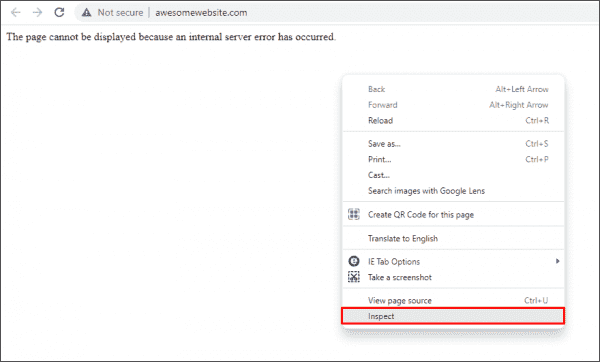
Opening developer tools in web browser to reveal server errors
This opens the developer tools in your browser window. Now, click the Console tab. The actual error thrown by the web server is displayed.
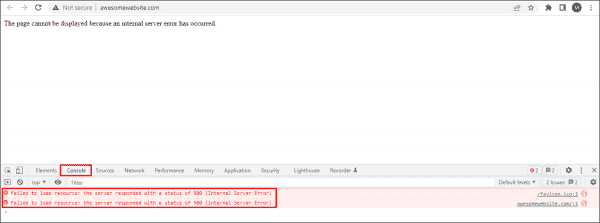
Viewing server errors using the Console tab of the web browser’s developer tools
To further understand the exact cause of 500 errors, enable Failed Request Tracing, as discussed in my previous post. Now, try to replicate the problem. If you can replicate it, open the newly generated XML log file in a web browser. The following screenshot shows the actual cause of a 500 – internal server error with a substatus code of 19 (HTTP 500.19 error):
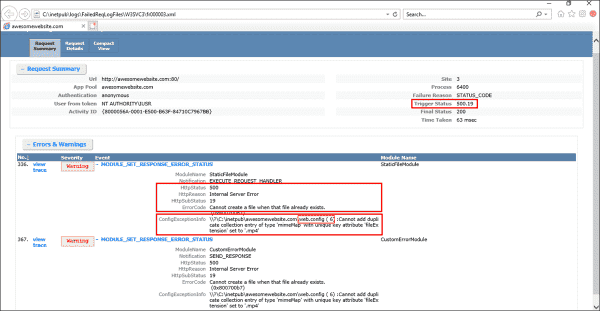
Determining the cause of a 500 error using the Failed Request Tracing log file
Usually, substatus code 19 indicates that the configuration data is invalid. This could be due to some malformed or unidentified element in a server-level config file (ApplicationHost.config) or website-level config file (web.config). If you take a closer look at the ConfigExceptionInfo field of the log file, you will find the exact line number (6 in our case) in the web.config file that caused the exception. Now let’s take a look at the web.config file itself.
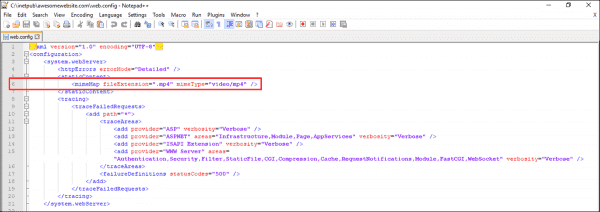
Viewing the problematic element in the web.config file
Here, you can see that the developer tried to add a mime type in the config file, but it was already defined in the server-level configuration file (i.e., ApplicationHost.config). Therefore, the Cannot add duplicate collection entry of type ‘mimeMap’ with unique key attribute ‘fileExtension’ set to ‘.mp4’ exception was returned. Furthermore, if there is some unidentified element, a syntax error, or even a typo in the web.config file, you will most likely get a similar error.
Resolving an IIS 500 – Internal server error
To resolve an IIS 500 – Internal server error, you could simply remove the line that is causing the exception. Alternatively, if you don’t want to remove this line for some reason, add the following code right above line 6 in web.config:
<remove fileExtension=".mp4" />
By doing this, you are essentially overriding the server-level element. In the end, your web.config file should look as shown below:
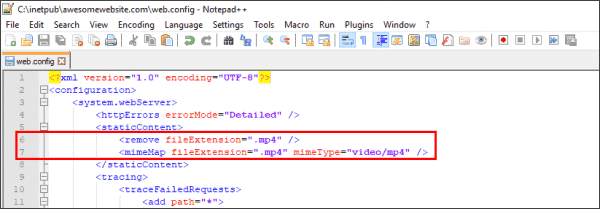
Overriding the server level mime element with web.config file
Now refresh the page, and the error should go away. This was just one example of resolving a 500.19 error. If you get a 500 error with a different substatus code, use the same approach to troubleshoot the problem.
Common 500.x substatus codes
The following table covers some of the most common HTTP 500 substatus codes, along with their probable causes and troubleshooting advice:
Subscribe to 4sysops newsletter!
| Status Code | Probable Cause | Troubleshooting Advice |
| 500.11 | The application is shutting down on the web server | The application pool is shutting down. You can wait for the worker process to finish the shutdown and then try again. |
| 500.12 | The application is busy restarting on the web server | This is a temporary error and should go away automatically when you refresh the page. If the error persists, something is wrong with the web application itself. |
| 500.13 | The web server is too busy | This error indicates that the number of incoming concurrent requests exceeded the number that your IIS application can process. This could be caused when the performance settings are not right. To troubleshoot such issues, a memory dump needs to be captured and analyzed using tools such as Debug Diagnostic. |
| 500.15 | Direct requests for Global.asax file are not allowed | A direct request was made for the Global.asa or Global.asax file, which is not allowed by the web server |
| 500.19 | The configuration data is invalid | We already covered how to fix this error above |
| 500.21 | The module not recognized | This status code is caused by a partial installation of the IIS server, such as missing ISAPI modules. To fix this error, identify the missing IIS components and install them. |
Once you troubleshoot the problem, don’t forget to disable Failed Request Tracing and revert the detailed errors to custom errors on your web server.
I am replicating web application deployment and found several issues related to HTTP Error 500.19. My machine is running Windows 7 while the working development is using Windows 8. We’re developing our Web Application using Visual Studio 2010.
First, I got error code 0x80070021, similar as posted here.
I update my web.config according to the accepted answer and then I got following error code (which is similar as posted here).
HTTP Error 500.19 - Internal Server Error
Error Code 0x8007000d
Config Source -1: 0:
I have read the symptoms definition in Microsoft support page and cause of the error is:
This problem occurs because the ApplicationHost.config file or the Web.config file contains a malformed XML element.
and the solution is
Delete the malformed XML element from the ApplicationHost.config file or from the Web.config file.
However, the web.config that I used is working perfectly in the original development environment.
Here is what I have checked and tried so far:
- Install ASP.NET by calling aspnet_regiis -i
- Set my application to use different application pool (ASP.NET v4.0, .NET v4, etc)
- ApplicationHost.config file is still using default from Windows 7.
This is part of my Web.Config
<system.webServer>
    <section name="handlers" overrideModeDefault="Allow" />
    <section name="modules" allowDefinition="MachineToApplication" overrideModeDefault="Allow" />
    <validation validateIntegratedModeConfiguration="false" />
    <modules runAllManagedModulesForAllRequests="true">
    </modules>
    <handlers>
        <remove name="UrlRoutingHandler" />
        <add name="ReportViewerWebControlHandler" preCondition="integratedMode" verb="*" path="Reserved.ReportViewerWebControl.axd" type="Microsoft.Reporting.WebForms.HttpHandler, Microsoft.ReportViewer.WebForms, Version=10.0.0.0, Culture=neutral, PublicKeyToken=b03f5f7f11d50a3a" />
    </handlers>
    <urlCompression doStaticCompression="true" doDynamicCompression="false"></urlCompression>
    <directoryBrowse enabled="true" />
    <defaultDocument>
        <files>
            <add value="Logon.aspx" />
        </files>
    </defaultDocument>
</system.webServer>
I have read similar/duplicates/closed posts (around 13) posts in stackoverflow, tried all except the answer related to Ajax (is it related) and still have no clue on what the error is.
Does anyone one how to fix this error? (And if possible, a comprehensive lists of things need to be checked so we can reduce similar posts like this.) I am ready to provide more details.
I am replicating web application deployment and found several issues related to HTTP Error 500.19. My machine is running Windows 7 while the working development is using Windows 8. We’re developing our Web Application using Visual Studio 2010.
First, I got error code 0x80070021, similar as posted here.
I update my web.config according to the accepted answer and then I got following error code (which is similar as posted here).
HTTP Error 500.19 - Internal Server Error
Error Code 0x8007000d
Config Source -1: 0:
I have read the symptoms definition in Microsoft support page and cause of the error is:
This problem occurs because the ApplicationHost.config file or the Web.config file contains a malformed XML element.
and the solution is
Delete the malformed XML element from the ApplicationHost.config file or from the Web.config file.
However, the web.config that I used is working perfectly in the original development environment.
Here is what I have checked and tried so far:
- Install ASP.NET by calling aspnet_regiis -i
- Set my application to use different application pool (ASP.NET v4.0, .NET v4, etc)
- ApplicationHost.config file is still using default from Windows 7.
This is part of my Web.Config
<system.webServer>
    <section name="handlers" overrideModeDefault="Allow" />
    <section name="modules" allowDefinition="MachineToApplication" overrideModeDefault="Allow" />
    <validation validateIntegratedModeConfiguration="false" />
    <modules runAllManagedModulesForAllRequests="true">
    </modules>
    <handlers>
        <remove name="UrlRoutingHandler" />
        <add name="ReportViewerWebControlHandler" preCondition="integratedMode" verb="*" path="Reserved.ReportViewerWebControl.axd" type="Microsoft.Reporting.WebForms.HttpHandler, Microsoft.ReportViewer.WebForms, Version=10.0.0.0, Culture=neutral, PublicKeyToken=b03f5f7f11d50a3a" />
    </handlers>
    <urlCompression doStaticCompression="true" doDynamicCompression="false"></urlCompression>
    <directoryBrowse enabled="true" />
    <defaultDocument>
        <files>
            <add value="Logon.aspx" />
        </files>
    </defaultDocument>
</system.webServer>
I have read similar/duplicates/closed posts (around 13) posts in stackoverflow, tried all except the answer related to Ajax (is it related) and still have no clue on what the error is.
Does anyone one how to fix this error? (And if possible, a comprehensive lists of things need to be checked so we can reduce similar posts like this.) I am ready to provide more details.
I am trying to deploy SharePoint web parts I developed in Visual Studio 2010 onto a SharePoint 2010 server. The problem is that when I go to the .svc file in IIS and browse it, I receive the error:
HTTP Error 500.19 — Internal Server Error
The requested page cannot be accessed because the related configuration data for the page is invalid.
and the details:
| Module | IIS Web Core |
|---|---|
| Notification | BeginRequest |
| Handler | Not yet determined |
| Error Code | 0x80070005 |
| Config Error | Cannot read configuration file due to insufficient permissions |
| Config File | C:Users*******DesktopFinal SolutionAnalyze.WebPartsListweb.config |
| Requested URL | http://localhost:80/List/List.svc |
|---|---|
| Physical Path | C:Users*******DesktopFinal SolutionAnalyze.WebPartsListList.svc |
| Logon Method | Not yet determined |
| Logon User | Not yet determined |
There’s a link on the page that tells me that there’s a malformed XML element in my web.config. But I don’t see any:
asd
<?xml version=»1.0″?>
<configuration>
<system.web>
<compilation debug=»true» targetFramework=»4.0″ />
<identity impersonate=»true» userName=»*************» password=*******>
</system.web>
<system.serviceModel>
<behaviors>
<serviceBehaviors>
<behavior>
<!— To avoid disclosing metadata information, set the value below to false and remove the metadata endpoint above before deployment —>
<serviceMetadata httpGetEnabled=»true»/>
<!— To receive exception details in faults for debugging purposes, set the value below to true. Set to false before deployment to avoid disclosing exception information —>
<serviceDebug includeExceptionDetailInFaults=»false»/>
</behavior>
</serviceBehaviors>
</behaviors>
<serviceHostingEnvironment multipleSiteBindingsEnabled=»true» aspNetCompatibilityEnabled=»true»/>
</system.serviceModel>
<system.webServer>
<modules runAllManagedModulesForAllRequests=»true»/>
</system.webServer>
</configuration>
I am unsure what is causing this. I set up an application pool in IIS for a similar project that has the exact same web.config (with a few minor name changes) and that works. Both are under Default Web Site (and need to). What should I do? where should
I look?
Сегодня обсудим, как на asp.net mvc можно настроить обработку ошибок 404, 500, ну и любых других. Рассмотрим на примере 404 и 500, как наиболее популярных и важных. Как вместо стандартного не очень красивого желтого окна ошибки показывать свои собственные красивые интересные страницы, и при этом как правильно отдавать код ошибки в браузер пользователя.
Казалось бы, задача довольно тривиальная и может быть решена написанием буквально пары строк кода. Действительно, так и есть, если вы используете любую популярную серверную технологию. Но только не ASP.NET. Если ваше приложение написано на ASP.NET MVC, и вы первый раз сталкиваетесь с проблемой обработки ошибок, очень легко запутаться и сделать неправильные настройки. Что впоследствии негативно отразится на продвижении сайта в поисковых системах, удобстве работы для пользователя, SEO-оптимизации.
Рассмотрим два подхода, как настроить страницы ошибок. Они в целом похожи, какой выбрать – решать вам.
Для начала вспомним, что означают наиболее популярные коды ошибок, которые отдает сервер.
Код ответа 200. Это значит что все ОК. Запрос клиента обработан успешно, и сервер отдал затребованные клиентом данные в полном объеме. Например, пользователь кликнул по гиперссылке, и в ответ на это в браузере отобразилась нужная ему информация.
Код ответа 404. Это означает, что запрошенный клиентом ресурс не найден на сервере. Например, указанная в адресе гиперссылки статья не найдена, или *.pdf файл был удален и теперь недоступен для скачивания.
Код ответа 500. Внутренняя ошибка на сайте. Что-то сломалось. Это может быть все что угодно, от неправильно написанного кода программистом, до отказа оборудования на сервере.
Допустим, мы только что создали новое веб-приложение типа MVC. На текущий момент, если никаких дополнительных действий для обработки ошибок не принимать, то стандартный сценарий обработки ошибок будет работать как нужно. В браузер пользователя будет отдаваться правильный код ошибки, пользователю будет показана стандартная страница с ошибкой и ее описанием.
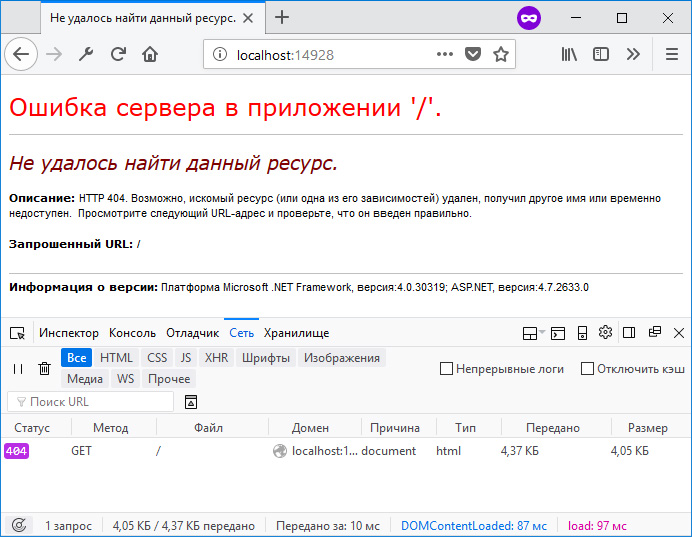
Стандартная страница ошибки
Теперь займемся настройкой собственных страниц ошибок. При этом для нас важно не только показать пользователю красивую страницу ошибки, но также сохранить правильный код ответа сервера.
Вариант 1. Ссылка на статичные заранее подготовленные html-страницы.
Первым делом в файле web.config в разделе system.web добавляем новую секцию customErrors со следующими настройками:
web.config
<system.web>
  <customErrors mode="On" redirectMode="ResponseRewrite" defaultRedirect="~/404.aspx">
    <error statusCode="404" redirect="~/404.aspx"/>
    <error statusCode="500" redirect="~/500.aspx"/>
  </customErrors>
  ...
</system.web>
Эта секция служит для обработки ошибок на уровне платформы ASP.NET.
Атрибут mode=»On» определяет, что пользовательские страницы ошибок включены. Также допустимы значения Off / RemoteOnly.
Атрибут redirectMode=»ResponseRewrite» определяет, следует ли изменять URL-адрес запроса при перенаправлении на пользовательскую страницу ошибки. Естественно, нам этого не нужно.
Атрибут defaultRedirect=»~/404.aspx» указывает на то, какая страница ошибки будет показана в случае возникновения кода ответа сервера, который мы не описали в настройках. Пусть при любых других ошибках пользователь будет думать, что страница не найдена.
И уже внутри этой секции мы определяем два кода, для которых у нас будут кастомные страницы ошибок.
Далее, как видно из настроек выше, нам понадобятся *.aspx файлы, на которые будет делаться редирект. Обратите внимание, что мы ссылаемся именно на *.aspx файлы, а не на *.html. Эти файлы являются проходными, служебными, в них содержатся настройки для ответа сервера. Содержимое файла 404.aspx:
404.aspx
<%@ Page Language="C#" %>

<%
    var filePath = MapPath("~/404.html");
    Response.StatusCode = 404;
    Response.ContentType = "text/html; charset=utf-8";
    Response.WriteFile(filePath);
%>
В коде выше мы указываем путь непосредственно до конечного *.html файла, а также дополняем настройки ответа сервера. Указываем код ответа, тип отдаваемого контента и кодировку. Если не указать кодировку, то браузер пользователя может интерпретировать ответ от сервера как не отформатированную строку, и, соответственно, не преобразует ее в html-разметку. А если не указать StatusCode = 404 , то получится следующая интересная ситуация:
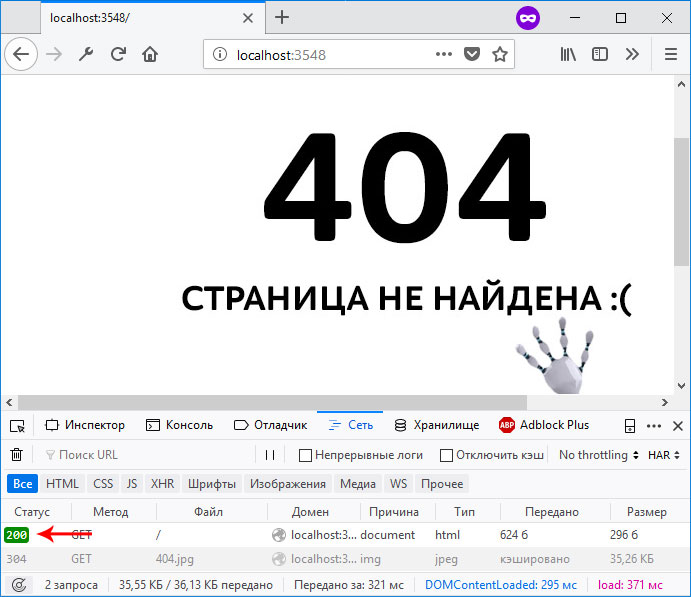
Код ответа сервера отдается неверно
И хотя на рисунке выше нам показывается пользовательская страница с ошибкой, при этом код ответа 200 — это конечно же неверно. Когда-то давно на форумах Microsoft такое поведение зарепортили как баг. Однако Microsoft возразила, что это не баг, а фича и не стала ничего менять в будущих релизах ASP.NET. Поэтому приходится это исправлять вручную, и вручную в *.aspx файле в ответе сервера указывать код ответа 404.
Попробуйте собственноручно намеренно убрать какую-нибудь из объявленных на данный момент настроек из секции customErrors и понаблюдайте за результатом.
Также по аналогии создаем подобный *.aspx файл для ошибки 500.
И уже после этого нам нужно создать статичные html-файлы, соответственно для ошибок 404 и 500. Пусть они лежат в корне нашего проекта.
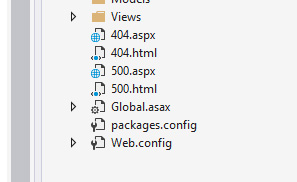
Статичные файлы расположены в корне проекта
Здесь же в файле web.config определяем раздел system.WebServer, если он еще не определен, и в нем объявляем секцию httpErrors:
web.config
  <system.webServer>
    <httpErrors errorMode="Custom" defaultResponseMode="File" defaultPath="c:projectsmysite404.html">
      <remove statusCode="404" />
      <remove statusCode="500" />
      <error statusCode="404" path="404.html" responseMode="File" />
      <error statusCode="500" path="500.html" responseMode="File" />
    </httpErrors>
  </system.webServer>
Эта секция служит для обработки ошибок на уровне сервера IIS. Суть в том, что иногда обработка запроса происходит непосредственно на уровне ASP.NET. А иногда ASP.NET просто определяет нужный код ответа и пропускает запрос выше, на уровень сервера. Такой сценарий может случиться, если, например, мы в действии контроллера возвращаем экземпляр класса HttpNotFound:
Или же когда система маршрутизации в MVC-приложении не может определить, к какому маршруту отнести запрошенный пользователем URL-адрес:
https://site.com/long/long/long/long/path
Для секции httpErrors важно отметить следующее. Так как мы ссылаемся на статичные *.html файлы, то и в качестве значений для нужных атрибутов здесь также указываем File . Для атрибута defaultPath необходимо указать абсолютный путь до файла ошибки. Относительный путь именно в этом месте работать не будет. Сам атрибут defaultPath определяет файл, который будет выбран для всех других ошибок, которые мы явно не указали. Но здесь есть одна небольшая проблема. Дело в том, что этот атрибут по умолчанию заблокирован на сервере IIS Express. Если вы разрабатываете свое приложение именно на локальном сервере, то это ограничение нужно снять. Для этого в директории своего проекта нужно найти файл конфигурации сервера и удалить этот атрибут из заблокированных, как это показано на рисунке:

Расположение файла applicationhost.config
Также проверьте папку App_Start. Если вы создали не пустое приложение, а работаете над реальным проектом, там может находиться класс FilterConfig, в котором регистрируются все глобальные фильтры в приложении. В методе регистрации удалите строчку кода, где регистрируется HandleErrorAttribute, в нашем случае он не понадобится.
Вот такой комплекс мер нужно предпринять, чтобы настроить обработку ошибок 404, 500, и любых других. Это настройки в файле web.config, и добавление в наш проект статичных файлов.
Вариант 2. Обработка ошибок с использованием специального контроллера.
Второй подход немного отличается от первого. Здесь нам не понадобится секция customErrors, так как обработку всех ошибок мы будем передавать сразу из приложения на уровень сервера, и он уже будет решать что делать. Можно удалить или закомментировать эту секцию в файле web.config.
Далее создадим специальный контроллер, который будет принимать все ошибки, которые мы хотим обрабатывать:
public class ErrorController : Controller
{
    public ActionResult NotFound()
    {
        Response.StatusCode = 404;
        return View();
    }

    public ActionResult Internal()
    {
        Response.StatusCode = 500;
        return View();
    }
}
Также создадим соответствующие представления с нужной нам красивой разметкой.
Также в файле web.config нам нужно изменить настройки в секции httpErrors. Если раньше мы ссылались на статичные html-файлы, то теперь мы будем обращаться по указанным URL, которые мы определили в ErrorController’е, чтобы именно там обрабатывать ошибки:
web.config
<httpErrors errorMode="Custom" existingResponse="Replace" defaultResponseMode="ExecuteURL" defaultPath="/Error/NotFound">
  <remove statusCode="404"/>
  <remove statusCode="500"/>
  <error statusCode="404" path="/Error/NotFound" responseMode="ExecuteURL"/>
  <error statusCode="500" path="/Error/Internal" responseMode="ExecuteURL"/>
</httpErrors>
Вариант 3. Фильтр HandleErrorAttribute
Замечу, что есть еще один способ взять под свой контроль обработку ошибок в приложении – это наследоваться от стандартного класса HandleErrorAttribute и написать свой фильтр. Но это уже более частный случай, когда нужно реализовать какую-то особенную логику при возникновении той или иной ошибки. В большинстве же более менее стандартных приложений наша проблема решается двумя выше описанными способами и в этом фильтре нет необходимости. Более подробную информацию, как работать с классом HandleErrorAttribute можно найти в официальной документации в интернете по этой ссылке.
Итого
Мы посмотрели на два разных подхода, которые можно применить при обработке ошибок на платформе ASP.NET. Опять же повторюсь, что если для вас не принципиально настраивать собственные страницы ошибок, то лучше не изменять эти настройки, так как даже одна упущенная деталь или неверно сконфигурированный параметр может очень сильно навредить репутации вашего сайта для конечного пользователя и в поисковых системах.