Office 2021 Office 2019 Office 2016 Microsoft 365 for home Office for business Office 365 Small Business Microsoft 365 admin Office 365 operated by 21Vianet Office 365 operated by 21Vianet — Small Business Admin Office 365 operated by 21Vianet — Admin Click2Run Office 365 Germany — Enterprise Office 365 Germany — Enterprise admin Office.com More…Less
If you see this error when you install Office, restarting your device and reinstalling Office might fix the problem. If that doesn’t work, use the easy fix tool to completely remove Office from your device, and then restart the install.
Note: This error may also occur if you’re using the Office Deployment Tool to install Microsoft 365 Apps for enterprise. For more information, go to «Use a newer version of the Office Deployment Tool».
Restart your computer and reinstall Office
-
Restart your computer.
-
Reinstall Office.
To reinstall Office select the version you want to install and follow those steps.
Microsoft 365
Office 2021
Office 2019
Office 2016
Office 2013
Uninstall and reinstall Office
-
Select the button below to download and install the Office uninstall support tool.
Download
-
Follow the steps below to download the uninstall support tool according to your browser.
Tip: The tool may take a few minutes to download and install. After completing the installation, the Uninstall Office products window will open.
Edge or Chrome
-
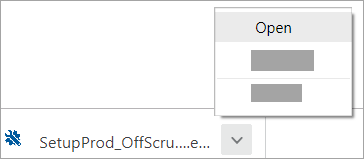
In the lower-lower left corner right-click SetupProd_OffScrub.exe > Open.
Edge (older) or Internet Explorer
-
At the bottom of the browser window, select Run to launch the SetupProd_OffScrub.exe.

Firefox
-
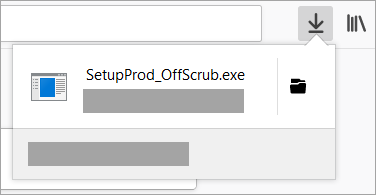
In the pop-up window, select Save Fileand then from the upper-right browser window, select the downloads arrow > SetupProd_OffScrub.exe.
-
-
Select the version you want to uninstall, and then select Next.
-
Follow through the remaining screens and when prompted, restart your computer.
After you restart your computer, the uninstall tool automatically re-opens to complete the final step of the uninstall process. Follow the remaining prompts.
-
Select the steps for the version of Office you want to install or reinstall. Close the uninstall tool.
Microsoft 365 | Office 2021 | Office 2019 | Office 2016 | Office 2013 | Office 2010 | Office 2007
Use a newer version of the Office Deployment Tool (only for Microsoft 365 Apps for enterprise installations)
You may see this error if you’re using version 16.0.7118.5775 of the Office Deployment Tool to download and install Microsoft 365 Apps for enterprise. The download works, but when you run the /configure command to install Office programs, you receive the following error message, «We’re sorry, we had a problem installing your Office program(s).»
To fix this error, download a newer version of the Office Deployment Tool
Need more help?
Story Highlights
- Free space on hard drive
- Install Office using the Offline Installer
- Install using a Wired Connection
- Turn off proxy settings temporarily
- Temporarily Disable Antivirus
- Temporarily disable the Firewall
- Office Suite Installation in Clean Boot
- Install from different location
- Remove Other Office Versions
How to fix Error «Couldn’t Install Office»
Applies on Microsoft Office 365, Office 2021, Office 2019, Office 2016 and Office 2013
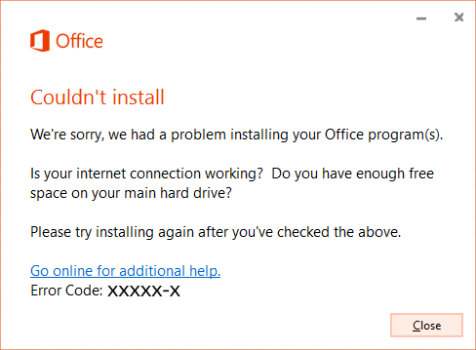
Error “Couldn’t Install Office” occurs when your hard drive is running out of space or you have an internet connection problem.
Error “Couldn’t Install Office” also occurs when your security software, firewall, proxy settings, connection, or third-party software prevents you from installing Office.
Causes of Error «Couldn’t Install Office»
Error “Couldn’t Install Office” also occurs when other Office installation is conflicting, secuity software, firewall, proxy settings, connection or third party software prevent us from installing Office. We might see this error prompt with error “Couldn’t Install Office” during office installation process.
- Not enough space on the hard drive
- Antivirus software and firewall might be blocking the Office installation
- Internet connections and proxy settings are preventing the office installation
- Click 2 Run Installation
- Previous version of an Office suite is blocking the installation
- Incomplete, partial, failed repair, installation, change, or removal of a previous Office suite can prevent from installing a newer version.
Resolution of Error «Couldn’t Install Office»
We have made a list of resolutions that can fix the Error “Couldn’t Install Office”. We have listed the solutions in order to fix the error.
Performing the below-mentioned solutions and workarounds helps us to resolve the error “Couldn’t Install Office” in Microsoft Office.
- Free space on your hard drive
- Install Office using the Offline Installer
- Install Office using a Wired Connection
- Temporarily turn off proxy settings
- Temporarily disable antivirus
- Temporarily disable the firewall
- Install Office using a different Internet Connection or from different location
- Office Installation in Clean Boot
- Remove Other Office Versions
Solution
1
Free space on your hard drive
You might not be able to install programs and important Windows updates if your system is running low on free space. This might affect the performance of your system and in Office installation causing Error “Couldn’t Install Office”.
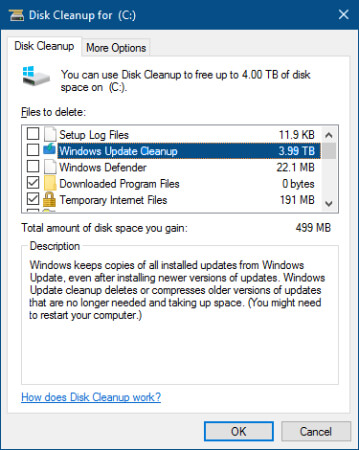
- Press the Windows + R and type cleanmgr and hit Ok. OR Click on Start and type Disk Cleanup.
- If prompted, select the disk that needs to be cleaned up.
- Wait for analyzation what files can be removed.
- Select the files that you want to be removed from your computer.
- Click on Ok and Confirm the file deletion by clicking on Delete Files on the prompt.
Now it should free space on your drive for Office installtion and avoid Error “Couldn’t Install Office”.
Solution
2
Install Office using the Office Offline Installer
The Office offline installer may help in bypassing the potential firewall, proxy, antivirus, or Internet connection issues that might occur during an Office installation as we will be downloading the Offline installer ISO file to install office to avoid error “Couldn’t Install Office”.
Steps to Download Office Offline Installer File
Please visit www.office.com/myaccount to download the office offline installer. We need to make sure that we are using the same account which is associated with our copy of office.
If we are not signed in with the Microsoft account associated with our copy of Office, we need to sign in now. If we are signed in with a different account, we need to sign out from that account and sign in again with the correct Microsoft account.
Once we logged in, we will find My Office Account Homepage with your subscription account information and the place we normally go to download the standard online Office installer.
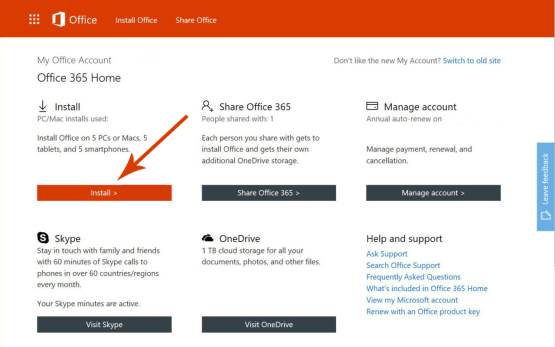
- From the My Office Account Home page, click the Install button.
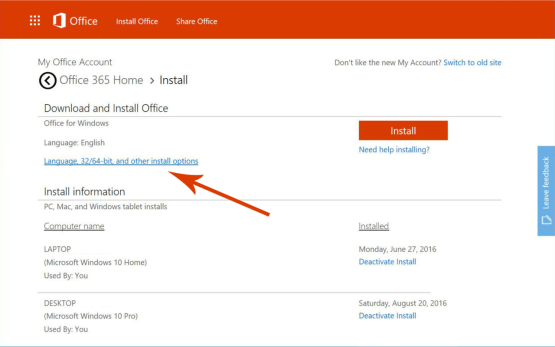
- From the Install page, click “Language, 32/64-bit, and other install options.”
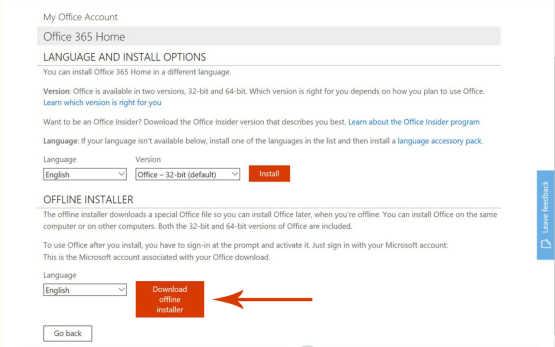
- Language and Install Options: This is the section from where we can manually select to download Office in Language other than Operating System Configured language. We can also opt for the 64-bit version of office instead of normal 32 bit.
- Offline Installer: From the Office Installer section, select desired language and click on Download offline installer.
Solution
3
Install Office using a Wired Connection
Error “Couldn’t Install Office” can occur during the office installation if you are downloading and installing it over a slow connection. If you have a wireless connection, consider using a wired connection to access the internet.
The wired connection is stable, faster, and doesn’t lose connectivity. It helps in boosting the office downloading and installation. Plug in the Ethernet cable into your device and try installing Office again.
Solution
4
Turn off proxy settings temporarily
Proxy Settings enabled on your computer may affect the Microsoft Office installation and may throw Error “Couldn’t Install Office”.
If you use your device at home, school, or at work, consider turning off the proxy settings in Microsoft Edge, Internet Explorer, Google Chrome, Mozilla Firefox, or Safari before you install Office.
Please follow the below-mentioned steps to turn off proxy settings in different browsers:
Disable Proxy Settings in Google Chrome
- Open the Customize and Control Google Chrome menu by clicking on the three-dots icon at the top right of Google Chrome, select Settings on the menu. Click on Advanced Option from the Bottom if listed or find System and finally click on Open proxy settings.
- Click on Connections from the top menu and then click on LAN Settings.
- Deselect the checkbox for Use a proxy server for your LAN.
- Click Ok.
Disable Proxy Settings in Internet Explorer
- Open the Internet Options by clicking on the Gear Icon icon at the top right of Internet Explorer or Click on Tools and then select Internet Options.
- Click on Connections from the top menu and then click on LAN Settings.
- Deselect the checkbox for Use a proxy server for your LAN.
- Click Ok.
Solution
5
Temporarily Disable Antivirus or Security Software
To workaround, this problem, try temporarily disabling your antivirus software and installing Office to avoid error “Couldn’t Install Office”. If that doesn’t work, try uninstalling the antivirus software temporarily instead.
- Open Antivirus application installed on the computer and then click on settings and navigate to real-time protection.
- Turn Off real-time protection. Then Navigate to Antivirus firewall.
- Turn off Antivirus firewall. Then Click on YES or OK confirmation prompt if prompted.
Don’t forget to reinstall the antivirus software after Office is finished installing and if you turned it off, be sure to turn it on again.
Solution
6
Temporarily disable the Firewall
Windows Firewall or Third-Party Firewall installed on the computer can cause a problem with the Office installation and it may throw Error “Couldn’t Install Office”. A firewall is used to allow or deny internet access to the applications. As an exception, it may deny providing access to Office installation which can cause Error “Couldn’t Install Office”.
Consider disabling the firewall on the computer before and during office installation.
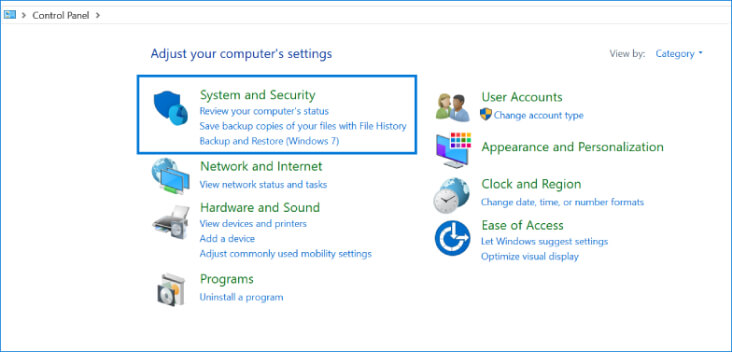
- Open the control panel and select the “System and Security” and then to “Windows Firewall”
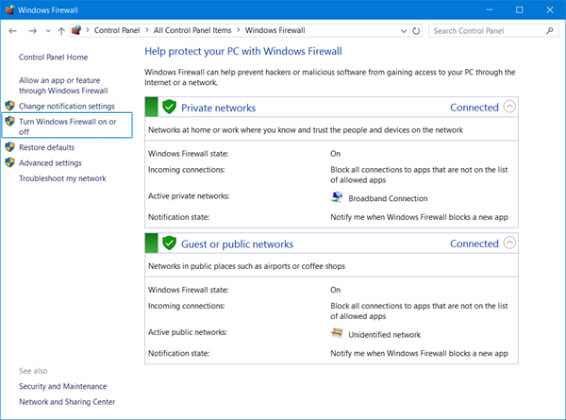
- Then Click on “Turn Windows Firewall On or Off”
- Select Turn Off Firewall for both public and private networks.
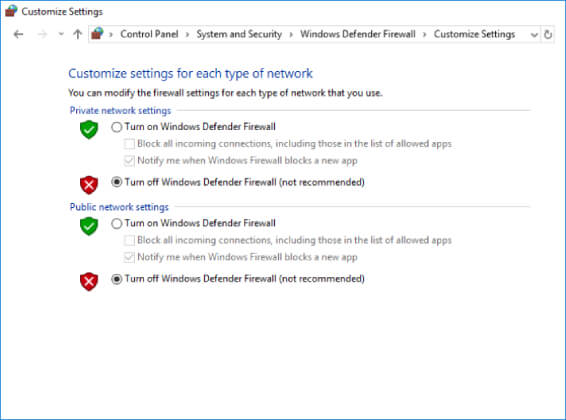
Turn On the firewall once you finish installing the Office.
Solution
7
Office Suite Installation in Clean Boot
Office installation can also be interrupted if third-party services are conflicting with the office program which can result in Error “Couldn’t Install Office”.
Consider performing Clean Boot to disable all startup programs and services on the computer. Also, consider disabling unwanted software’s which can conflict with the office suite. Try installing the office after starting the computer with minimal set of services, drivers, and startup programs to avoid other programs interfering with office installation.
Perform Clean Boot in Windows10, 8.1 and 8
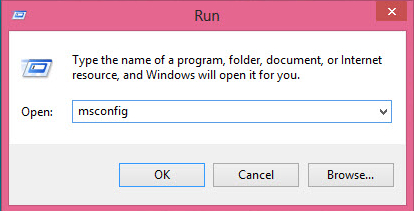
- Press Windows Key + R to open Run command, type msconfig.msc and click Ok. Or Open Control Panel –>Administrative Tools–>System Configuration
- On the Services tab of the System Configuration dialog box, tap or click to select the Hide all Microsoft services check box, and then tap or click Disable all.
- On the Startup tab of the System Configuration dialog box, tap or click Open Task Manager
- On the Startup tab in Task Manager, for each startup item, select the item and then click Disable
- Close Task Manager.
On the Startup tab of the System Configuration dialog box, tap or click OK, and then restart the computer.
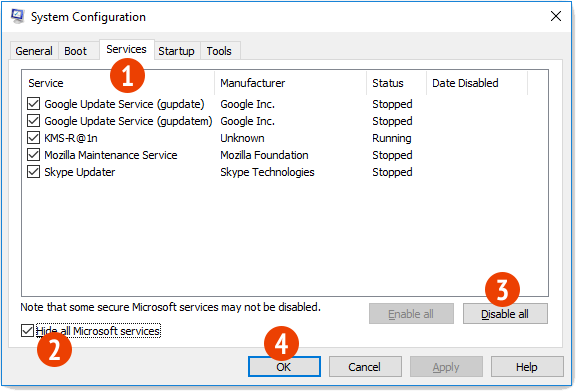
Consider installing office after restarting the device.
Perform Clean Boot in Windows 7
- Press Windows Key + R to open Run command, type msconfig.msc and click Ok. Or Open Control Panel –>Administrative Tools–>System Configuration
- On the General tab, click the Selective startup option, and then click to clear the Load startup items check box
- On the Services tab, click to select the Hide all Microsoft services check box, and then click Disable all.
- Close Task Manager.
On the Startup tab of the System Configuration dialog box, tap or click OK, and then restart the computer.
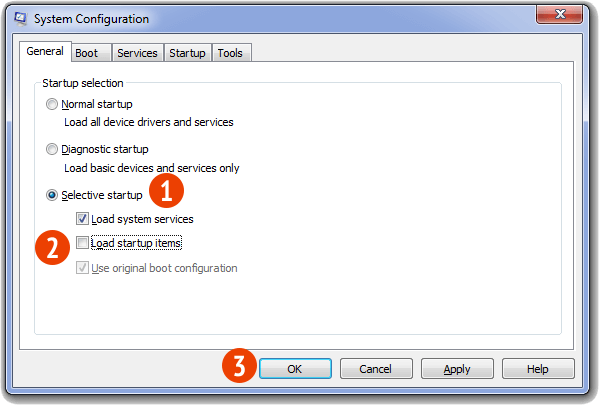
Consider installing office after restarting the device.
Solution
8
Install Office using a different Internet Connection or from different location
Consider connecting with a different internet connection as the network may be limited in a way that it won’t allow Office to install and cause error “Couldn’t Install Office”. If you are trying to install Office at School or Work, consider connecting your device with a different Internet connection at your Home, Public Place, Friend’s place or to a Wireless hotspot and then try to install Office again.
Note: If you need to install Office from work, university or school, then your IT department might be able to help you with any network limitations.
Solution
9
Remove Other Office Versions
Office installation can also be interrupted due to erroneous residual files during the installation or un-installation of previous versions of Microsoft office which can cause error “Couldn’t Install Office”.
Consider removing Microsoft Office versions installed in the device and try to reinstall the Office program. You can reinstall the other office versions once the office installation is finished.
Uninstall Office from the Control Panel
- Press Windows Key + R to open Run command, type appwiz.cpl and click Ok. Or Open Control Panel –>Programs
- Right-click on the Microsoft Office product, and choose Uninstall.
- Follow the instructions on the screen.
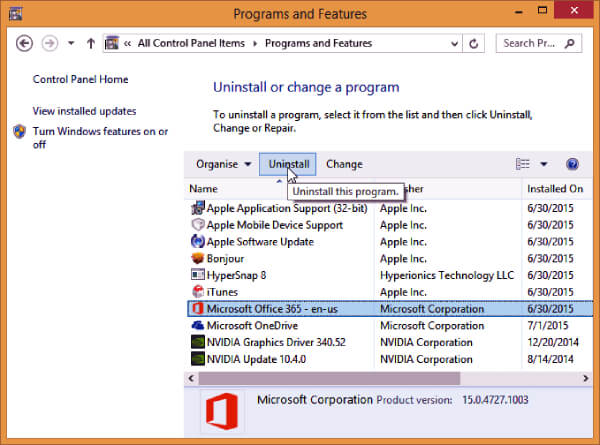
Uninstall Office using Microsoft Easy Fix Tool
Try running Microsoft Easy Fix tool to completely remove Office from the device.
We’ve compiled all the resolutions and workarounds verified by the experts to fix the mentioned error. These resolutions and workarounds helped the users to fix the error on their system. Try implementing these resolutions on your computer and if the preceding suggestions fail to solve the error, please feel free to Ask an Expert.
Frequently Asked Questions
-
What is Error ‘Couldn’t Install Office: Is your Internet Connection Working? Do you have enough Free Space on your main Hard Drive?’
Microsoft Office Error «Couldn’t Install Office: Is your Internet Connection Working? Do you have enough Free Space on your main Hard Drive?» appears when your hard drive is running out of space or you have an internet connection problem.
-
What is Error ‘We’re sorry, we can’t continue because we weren’t able to download a required file. Please make sure you’re connected to the Internet or connect to a different network, then try again.?’
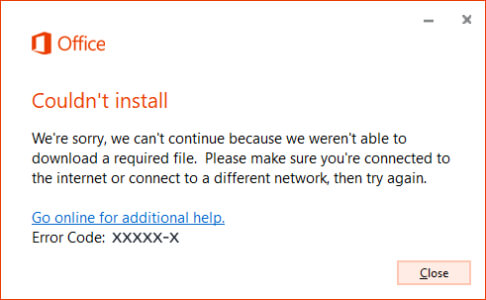
Microsoft Office Error «We’re sorry, we can’t continue because we weren’t able to download a required file. Please make sure you’re connected to the Internet or connect to a different network, then try again.» appears when your hard drive is running out of space or you have an internet connection problem.
-
How do I download Office offline installer?
Visit www.office.com/myaccount and log in to your account. From the Office home page select Install Office. Run the downloaded office installation file and folow the instructions.
-
Why I am getting couldn’t install Office error?
Couldn’t install Office error occurs when you try to install Office and your hard drive is running out of space or you have an internet connection problem.
we’re sorry we had a problem installing your office program(s)
It is mainly occurs when you tried to install office or while installing office 365 and it gets failed. Error we’re sorry we had a problem installing your office program(s) may occur due to following reasons:
- Due to Microsoft Office system file get corrupt.
- Previous installation had not removed properly.
- Windows Firewall not allows to network access.
- You may download partial setup.
To solve Office 365 Error we’re sorry we had a problem installing your office program(s) you may follow below step to fix. If you follow the below steps or troubleshooting steps or process then may be resolve this Error we’re sorry we had a problem installing your office program(s).
Steps to fix Microsoft Office 365 Error we’re sorry we had a problem installing your office program(s):
Whenever if you trying to install office 365 updated version and you keep getting error we’re sorry we had a problem installing your office program(s) it means you haven’t install previous office 365 properly or your previous office file got corrupt. and you might be seen below image as an error.

Some Common factor that cause Office Error we’re sorry we had a problem installing your office program(s):
- Pre existing office installation files.
- Tamp and logs files.
- Office file got corrupt.
- Office didn’t update fully it updated partially.
- Windows Update not installed properly.
- Antivirus or windows Firewall might be blocking the office installation.
Steps to Fix/Resolve/troubleshoot the error we’re sorry we had a problem installing your office program(s):
1 – Repair your Office app
Error we’re sorry we had a problem installing your office program(s) will be fixed when Office repair tool replaces all the corrupted system files. Follow the steps below to run repair tool to fix the error.
- Open Control Panel using Start.
- Click on Programs and select Programs and Features.
- Click on the Office product that you want to repair.
- Click Change.
- Select Quick Repair and click on Repair. If Quick Repair didn’t fix the Error we’re sorry we had a problem installing your office program(s), select Online Repair and click on Repair.
Note: If Office Repair did not fix this office error , then remove and reinstall the Office installation to fix this Error we’re sorry we had a problem installing your office program(s).
2 – Steps to remove Office
In case if the error persists even after running Office repair tool, uninstall Office from your computer.
- Open Control Panel using Start
- Click on Programs and select Programs and Features.
- Select Office Suite and click on Remove.
Note: If Office installation failed or it didn’t fix the error, a manual installation is required to completely remove the Office Suite.
3 – Steps to remove Office manually to fix the Error we’re sorry we had a problem installing your office program(s)
If the error code we’re sorry we had a problem installing your office program(s) is re-occurring, proceed with the following steps to manually remove Office program from your computer.
Step 1: Remove the Windows Installer packages
- Find the Office 16 installation folder, typically located in C:Program Files.
- Right-click the Microsoft Office 16 folder and select Delete.
Step 2: Remove the Office scheduled tasks
- Open a Command Prompt window as an administrator.
- At the command prompt, type the following commands and press Enter after each one:
schtasks.exe /delete /tn “MicrosoftOfficeOffice Automatic Updates”
schtasks.exe /delete /tn “MicrosoftOfficeOffice Subscription Maintenance”
schtasks.exe /delete /tn “MicrosoftOfficeOffice Click To Run Service Monitor”
Step 3: Use Task Manager to end the Click-to-Run tasks
- Open Task Manager.
- Click the Process tab
- If the following processes are running, right-click each one, and then click End task after you select each process.
- .exe
- setup*.exe
Step 4: Delete the Office files
- Press Windows logo key + R to open the Run dialog box.
- In the Open box, type %ProgramFiles%, and then click OK.
- Delete the “Microsoft Office 16” folder.
- Delete the “Microsoft Office” folder.
- Open the Run dialog box, type %ProgramFiles(x86)%, and then click OK.
- Delete the “Microsoft Office” folder.
Step 5: Delete the Office registry sub keys
- Open Registry Editor.
- Delete the following registry sub keys:
- HKEY_LOCAL_MACHINESOFTWAREMicrosoftOfficeClickToRun
- HKEY_LOCAL_MACHINESOFTWAREMicrosoftAppVISV
- HKEY_CURRENT_USERSoftwareMicrosoftOffice
- Then Delete the Office key.
Step 6: Delete the Start menu shortcuts
- Open a Command Prompt window as an administrator.
- Type %ALLUSERSPROFILE%MicrosoftWindowsStart MenuPrograms, and then press Enter.
- Delete the “Microsoft Office 2016 Tools” folder.
4 – Download and install Office
2. Choose Install.
3. Click Run or the equivalent depending on the browser you’re using.
4. When you see “You’re good to go”, click All done.
Still getting Microsoft Office Error we’re sorry we had a problem installing your office program(s) then you may contact with technical expert that will solve your issues.
- Remove From My Forums
-
Вопрос
-
I purchased 40 licenses of Office 2013 Pro from a vendor in the US and received 40 product keys along with the URL to download the software — 1 for each pc activation codes. I have done a few and were all successful. I am now trying
install on 2 other pcs and I am having real difficulty and getting error message each time I try to install. I am able to download the installer and copied to my desktop and when I double click to execute it, it gives me the option to run on the next
screen. I click on run then it gives me the message » do you want to allow the program to make changes to this computer». When I press YES, nothing happens and minutes later, I get the flwg message everytime, «Couldn’t
install» «We’re sorry, we had a problem installing your office programs. Is your internet connection working? Do you have enough free space on your main hard drive? Please try installing again after you’ve checked the above.
Go online for additional help.I have lots of space and my pc is Win 7 64 bit new machine. I have connection to internet and I was able to get the others done. What is the problem here and I have been trying to work late night hours to try to install the program and I am unable
to successfully get it to work. I receive the same message every time and I followed all the recommended troubleshoot steps I found on the internet. Someone please help. I have to install all for all the PCs we have for our organization.
Please respond because I am really stuck.Gabe
Ответы
-
Hi Gabe,
First, please check the suggestion above is helpful. I also suggest you removing all version of Office and re-install Office 2013.
We can try to run the application as an administrator and check if it works.
1. Right click the shortcut of the application or the main application.
2. Select properties.
3. Select compatibility tab and select «Run this program as an administrator.»
If there is anything I can do for you about this issue, don’t hesitate to tell me.
Best regards,
Greta Ge
TechNet Community Support
It’s recommended to download and install
Configuration Analyzer Tool (OffCAT), which is developed by Microsoft Support teams. Once the tool is installed, you can run it at any time to scan for hundreds of known issues in Office
programs.-
Помечено в качестве ответа
1 сентября 2014 г. 3:24
-
Помечено в качестве ответа
-
#1
Ничто не предвещало беды — зашел в Microsoft volume licensing service center, скачал образ MS Office Prof 2019. Запустил на десятке, но вместо инсталла получил ошибку
Не удалось продолжить установку из-за следующих ошибок:
Для установки этого продукта требуются службы IIS 7.0 или более поздней версии с компонентом ASP.NET 4.0 в списке расширений веб-сервера IIS.
Исправьте перечисленные выше ошибки и снова запустите программу установки.
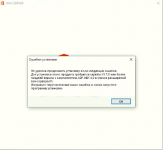
Хм. Ок. Доустановил компоненты но у меня вместо этого установился Microsoft Office Online Server.
Кто знает что за хрень ? Может я не тот дистрибутив скачал ? Office 365 у нас нет, сразу скажу.
Последнее редактирование: 02.11.2021
-
#4
Вам нужно создать файл конфигурации, это удобнее делать через специальный сервис Microsoft
После этого нажать — Экспорт
Затем скопируете этот файл в каталог с Office Deployment Tool и запустите установку через powershell
./setup.exe /download config.xml
Recently a friend of mine got Error Code: 0-2034 when running the Office Deployment Toolkit. Working in a medium-sized company, he wanted to deploy Office 2019 (volume license-based) to a handful of devices. He downloaded the executable, extracted the files to a folder, and then double-clicked setup.exe.
The exact error was:
Couldn’t install
We’re sorry, we had a problem installing your Office program(s).
Is your internet connection working? Do you have enough free
space on your main hard drive?
Please try installing again after you’ve checked the above.
Go online for additional help.
Error Code: 0-2034 (0)

After verifying the internet connection and making sure free disk space was not the issue, I applied the following fix.
How to fix error 0-2034 Couldn’t install in ODT
A few seconds after you double-clicked Setup.exe, you will get error 0-2034. The setup.exe is extracted to a folder and is accompanied with the the following files:
setup.exe
configuration-Office365-x64.xml
configuration-Office365-x86.xml
configuration-Office2019Enterprise.xml
The trick to avoiding error 0-2034 is to apply parameters.
In ODT’s setup.exe you’ll need to use /download <xml file> or /configure <xml file>. The included XML-files are samples, but you can try the /download switch to verify the working.
- Hold SHIFT while right-clicking in the ODT folder
- Click Open Powershell window here

- Type .setup.exe /download .configuration-Office2019Enterprise.xml
- Notice that an Office folder will appear. All Office binaries, as configured in the XML file, are now being downloaded to the Office folder.
- Using /configure, setup.exe will download AND install Office.

These steps will most likely answer your question about the Office Deployment Tool and error 0-2034.
Alternative fixes for error 0-2034 in Office Deployment Tool
In case you are facing the error while using the /download or /configure switch, these actions may help you out
Delete the Office folder
The downloaded Office data in the ODT folder may be corrupted. Simply delete the folder, and run the setup.exe command again.
Remove all Office products from your device
A conflict may arise when you try to run setup.exe on a computer that already has a version of Office installed. Make sure you’ve backed up all data and make sure you know how to reconfigure (like your Outlook email). Uninstall the Office products and try again.
Try another way to call the XML-file
In my example, I suggested using .setup.exe /configure .configuration-Office2019Enterprise.xml. However, some system administrators were helped by using the full path to the XML. Like:
C:ODTsetup.exe /configure C:ODTconfiguration-Office2019Enterprise.xml
Talking about the XML-file, make sure you don’t make a typo. And sometimes, there’s a duplicate extension, like config.xml.xml. 🙁
To prevent any dubious problem, Powershell allows you to hit <TAB> to auto-fill or auto-complete the XML filename:
- In Powershell, navigate to the ODT folder (or use the SHIFT-Rightclick trick to directly open Powershell in the ODT folder
- Type setup.exe /configure . -> HIT TAB – see auto-complete in action -> HIT ENTER
Links to resources
To create or customize the installation, you may edit the XML file manually. But it is recommended to use the online Office Customization Tool to generate an XML-file: https://config.office.com/
To download the Office Deployment Tool: https://www.microsoft.com/en-us/download/details.aspx?id=49117
If this article did not help you solve your problem, please leave a comment! This website is visited thousands of times a day. There is a good chance that I or someone else has an answer to your question.
In addition, if you have a better solution for this problem, please leave a comment too! It may help me improve this article, as well as you may help other users facing this issue.
Uninstall the previous version or disable the Firewall
by Sagar Naresh
Sagar is a web developer and technology journalist. Currently associated with WindowsReport and SamMobile. When not writing, he is either at the gym sweating it out or playing… read more
Published on January 19, 2023
Reviewed by
Alex Serban

After moving away from the corporate work-style, Alex has found rewards in a lifestyle of constant analysis, team coordination and pestering his colleagues. Holding an MCSA Windows Server… read more
- We had a problem installing your Office program issue could be because of genuine reasons for insufficient storage or could be a false alarm.
- You can try disabling the proxy setting or tweaking the registry editor to fix the problem in no time.
XINSTALL BY CLICKING THE DOWNLOAD FILE
This software will repair common computer errors, protect you from file loss, malware, hardware failure and optimize your PC for maximum performance. Fix PC issues and remove viruses now in 3 easy steps:
- Download Restoro PC Repair Tool that comes with Patented Technologies (patent available here).
- Click Start Scan to find Windows issues that could be causing PC problems.
- Click Repair All to fix issues affecting your computer’s security and performance
- Restoro has been downloaded by 0 readers this month.
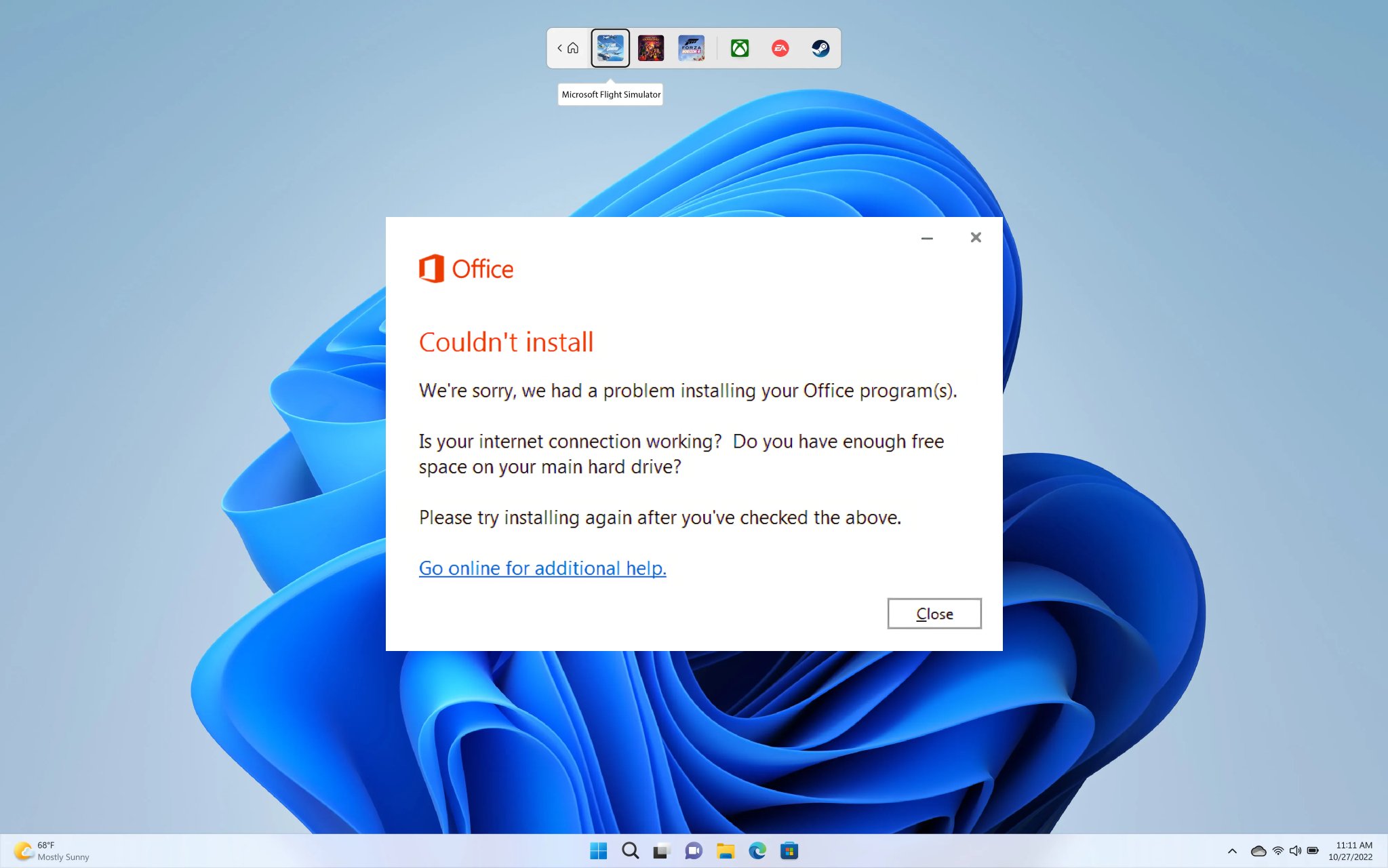
Multiple user reports confirm a new Office error, i.e., We had a problem installing your office program error. Here is what the entire error message reads;
We are sorry, we had problems installing your Office program(s)
Is your internet connection working? Do you have enough free space on your main HDD?
Please try installing again after you have checked the above
If you are also getting this error, then you are in the right place. Because in this guide, we will share with you a few effective solutions that have worked well for other and resolved the We had a problem installing your office program error. Let us check them out.
Why am I getting We had a problem installing your Office program error?
Here are a few reasons which we have deduced after some careful research because of which you are coming across We had a problem installing your office program error:
- The previous version of Office is causing issues: If you already have an older version of MS Office installed on your PC, then it could conflict with the installation.
- Proxy settings: One of the most common reasons that triggered this error is due to misconfigured proxy settings.
- Antivirus is blocking the installation: Often aggressive antivirus settings can come in the way of installing important applications.
- There isn’t sufficient space available: Chances are there isn’t much space left for the installation to complete on your PC.
How can I fix We had a problem installing your office program error?
- Why am I getting We had a problem installing your Office program error?
- How can I fix We had a problem installing your office program error?
- 1. Use the registry editor
- 2. Clear space on your PC
- 3. Uninstall the previous version of Office
- 3.1 The usual way
- 3.2 Use the Microsoft Office uninstaller tool
- 4. Disable proxy settings
- 5. Disable Firewall
Before you jump to the advanced troubleshooting solutions, we would suggest you apply the below quick fixes:
- Try restarting your PC and see if this fixes the issue and lets you install the program. Here’s what to do if the computer fails to restart.
- Make sure that you have installed the correct and complete installation file for MS Office.
Let us check out the advanced solutions.
1. Use the registry editor

NOTE
Make sure to back up the registry before tweaking as it could crash your PC and cause other problems. We have a guide that will help you restore the registry without having a backup.
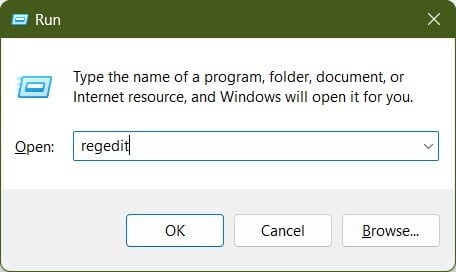
- Press the Win + R keys to open the Run dialogue.
- Type regedit and press Enter.
- Navigate to the below path.
HKEY_LOCAL_MACHINESOFTWAREMicrosoftOffice15.0Click-To-Run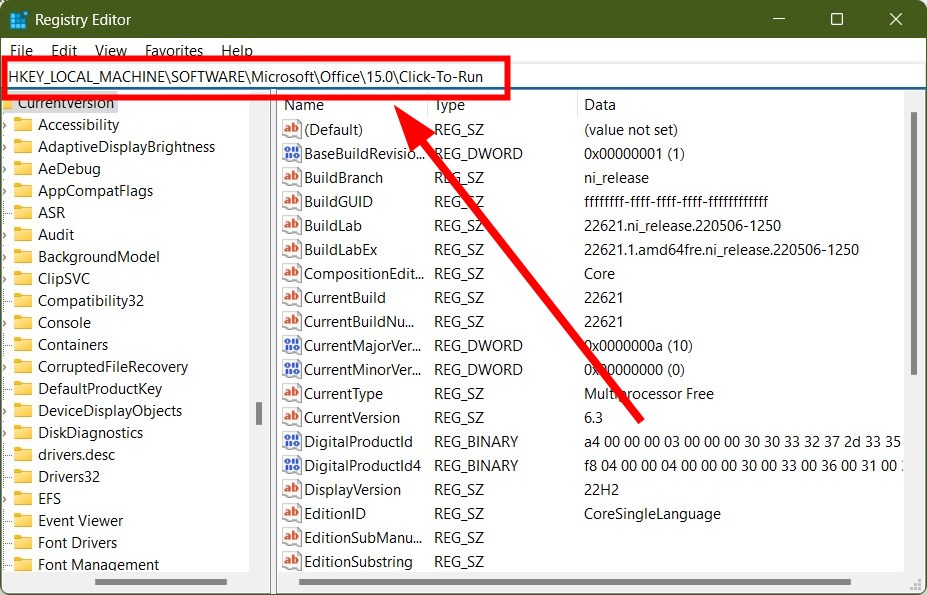
- Delete the Click-to-Run key.
- Restart your PC.
- Run the installation and see if this fixes the We had a problem installing your office program error.
2. Clear space on your PC
- Open the Start menu by pressing the Win key.
- Type Disk Cleanup and open it.

- Select the drive.
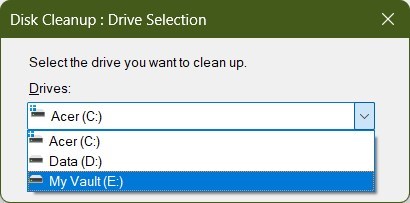
- Click OK.
- Check the boxes for the folders that you wish to clear out.
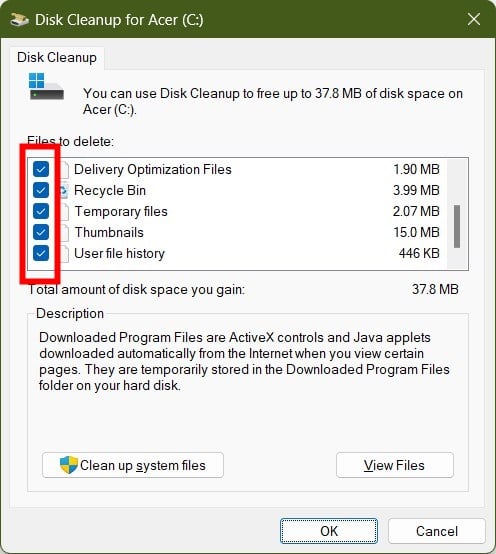
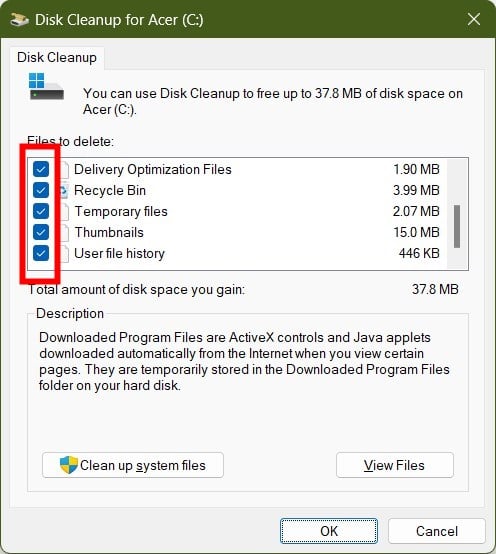
- Click OK.
- Select Delete files in the prompt that appears.
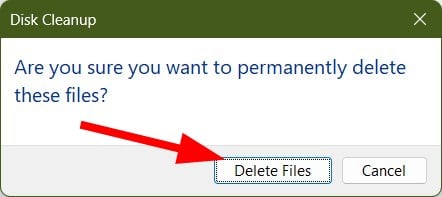
- After the process completes, restart your PC.
- Try installing MS Office again.
You should make sure that you are installing the MS Office suite in the drive where there is sufficient space available.
- Chassis Intruded Fatal Error System Halted: How to Fix
- How to Fix Continuous Beeping When Computer is Turned On
- Werfault.exe Error on Windows 10: How to Fix & Main Causes
- Fix: Character Map is Not Working in Windows 11
- USB Device Descriptor Failure on Windows: How to Fix & Cause
3. Uninstall the previous version of Office
3.1 The usual way
- Open the Start menu by pressing the Win key.
- Open Control Panel.
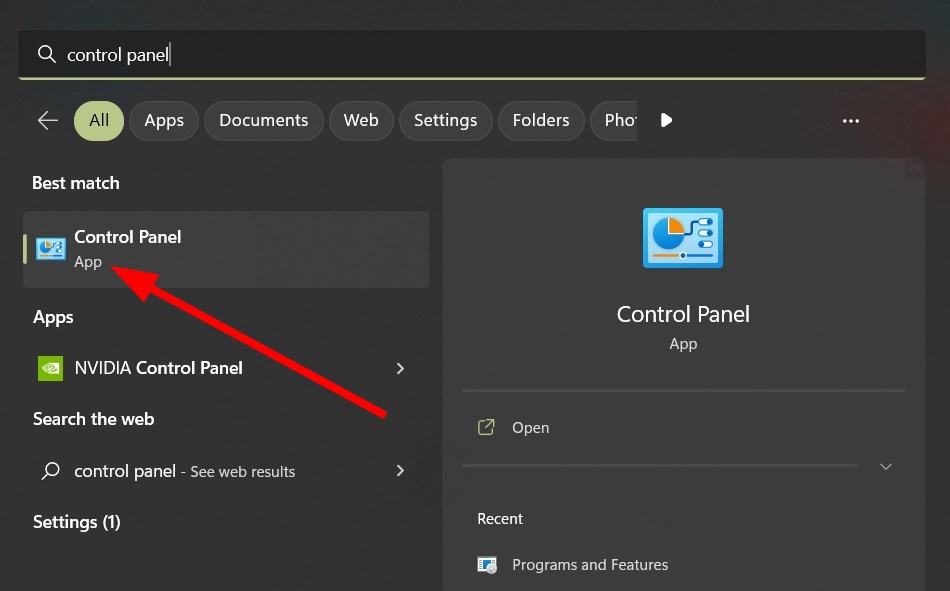
- Click on Programs and Features.

- Select MS Office and hit the Uninstall button at the top.
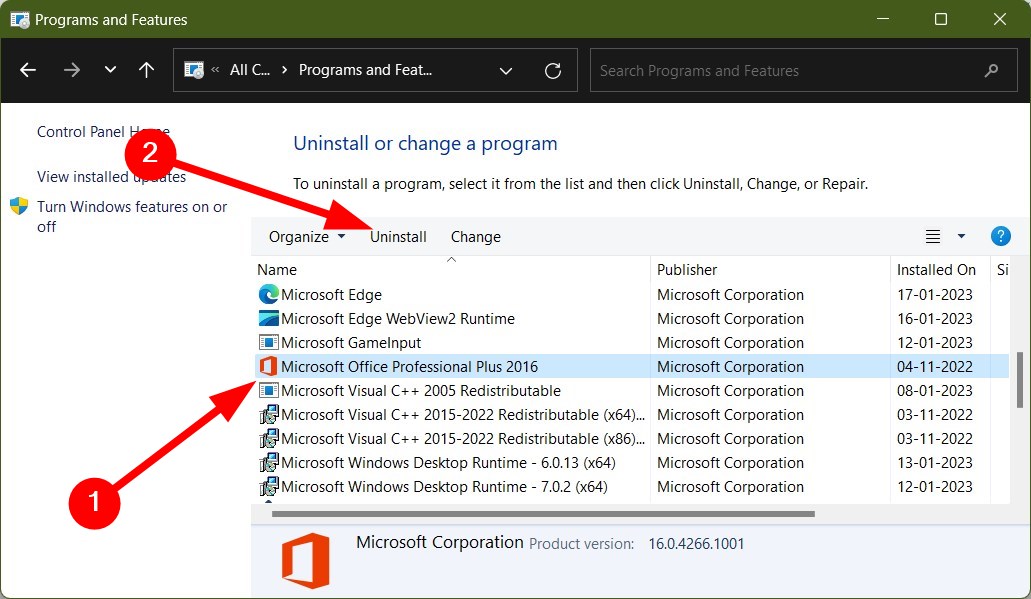
- Follow the on-screen prompts to uninstall the program from your PC.
- Restart your PC.
- Try installing the program back again.
This is the usual way of uninstalling programs from your PC. However, we have a guide that will help you uninstall programs that are sticky and leave residue even after uninstalling. This guide contains a list of the best tested uninstallers to help you.
3.2 Use the Microsoft Office uninstaller tool
- Download the MS Office uninstaller tool.
- Launch the program.
- Follow the on-screen prompts to install Microsoft Support and Recovery Assistant.
- Agree to the terms and conditions.
- The Microsoft Support and Recovery tool will begin scanning your PC.
- Select MS Office and click on Next.
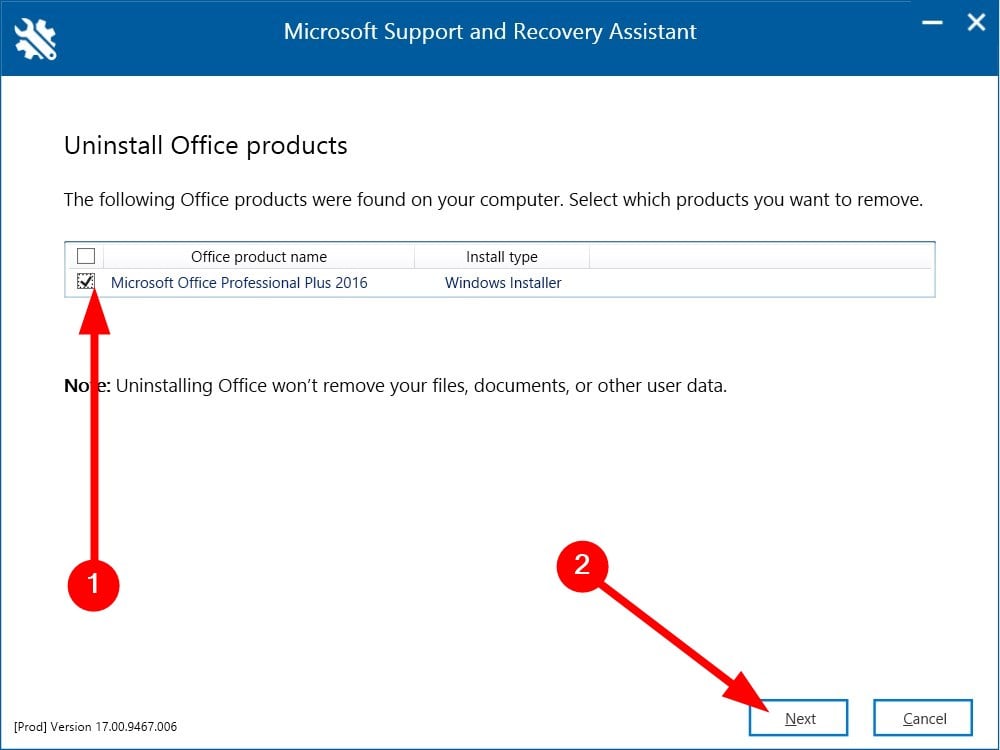
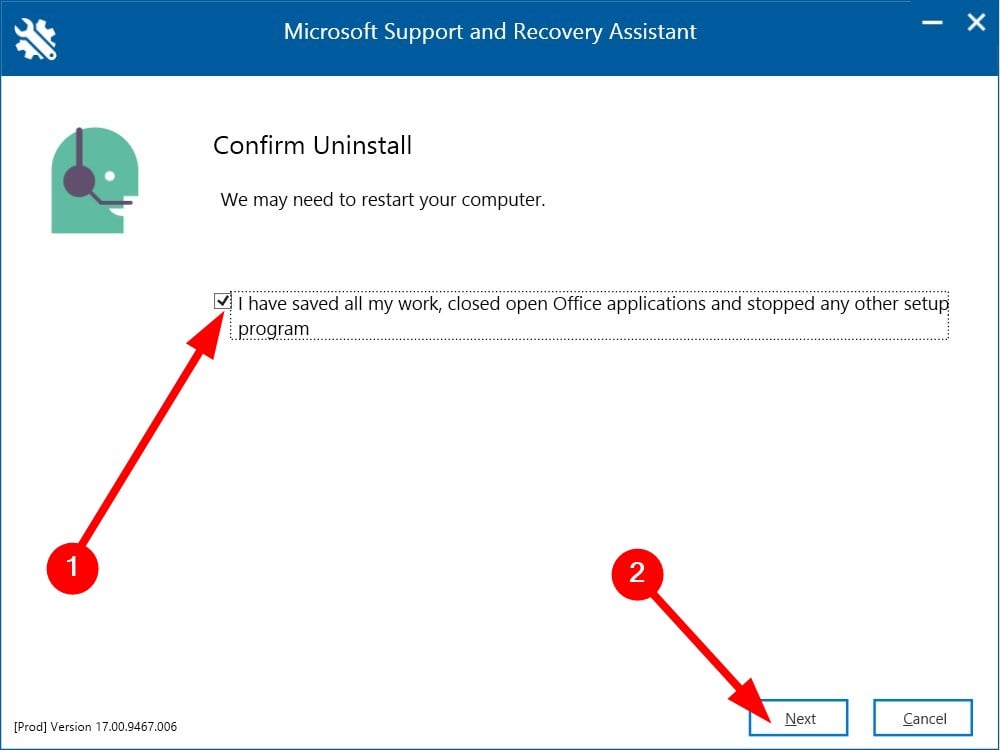
- Check the box that you have saved all your work and hit the Next button.
Some PC issues are hard to tackle, especially when it comes to corrupted repositories or missing Windows files. If you are having troubles fixing an error, your system may be partially broken.
We recommend installing Restoro, a tool that will scan your machine and identify what the fault is.
Click here to download and start repairing.
This will remove the MS Office from your PC so that you have a clean slate to install Office programs without any issues.
4. Disable proxy settings
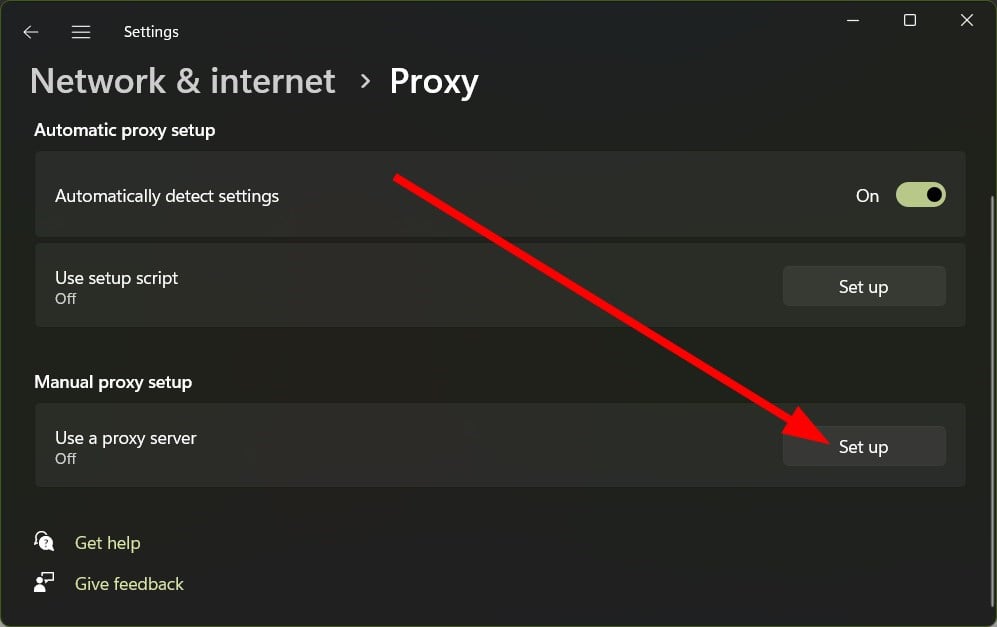
- Press the Win + I keys to open the Settings menu.
- Click on Network & Internet from the left pane.
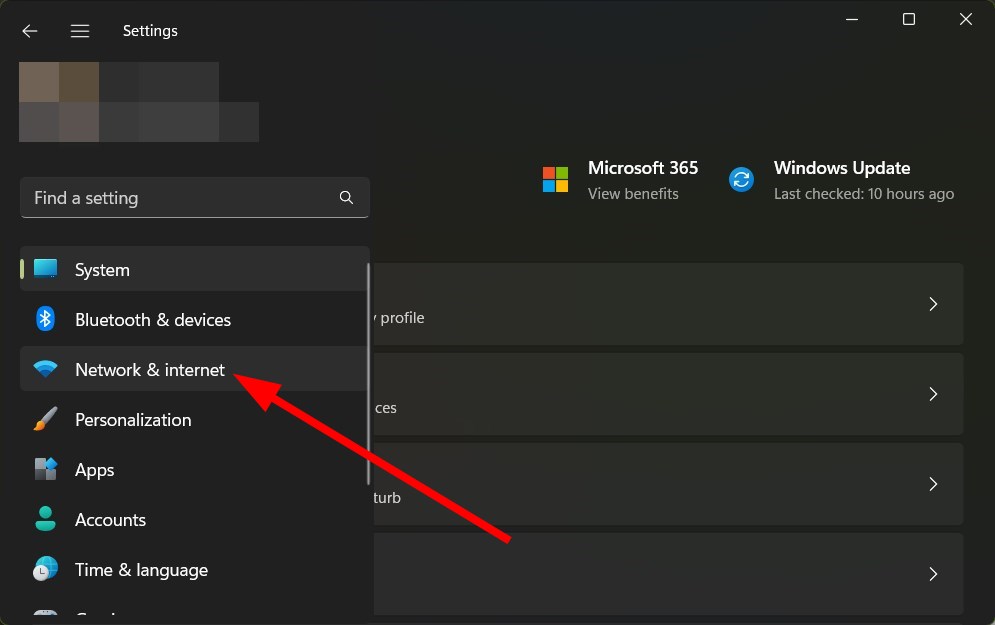
- Select Proxy.

- Under Manual proxy setup hit the Set up button.
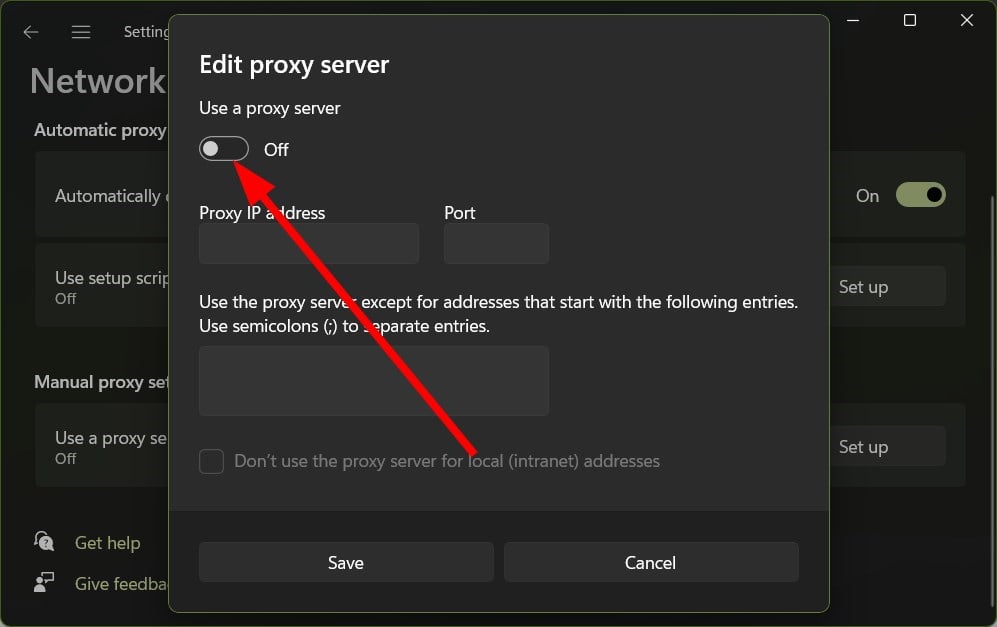
- Toggle OFF Use a proxy server option.
5. Disable Firewall
- Open the Start menu by pressing the Win button.
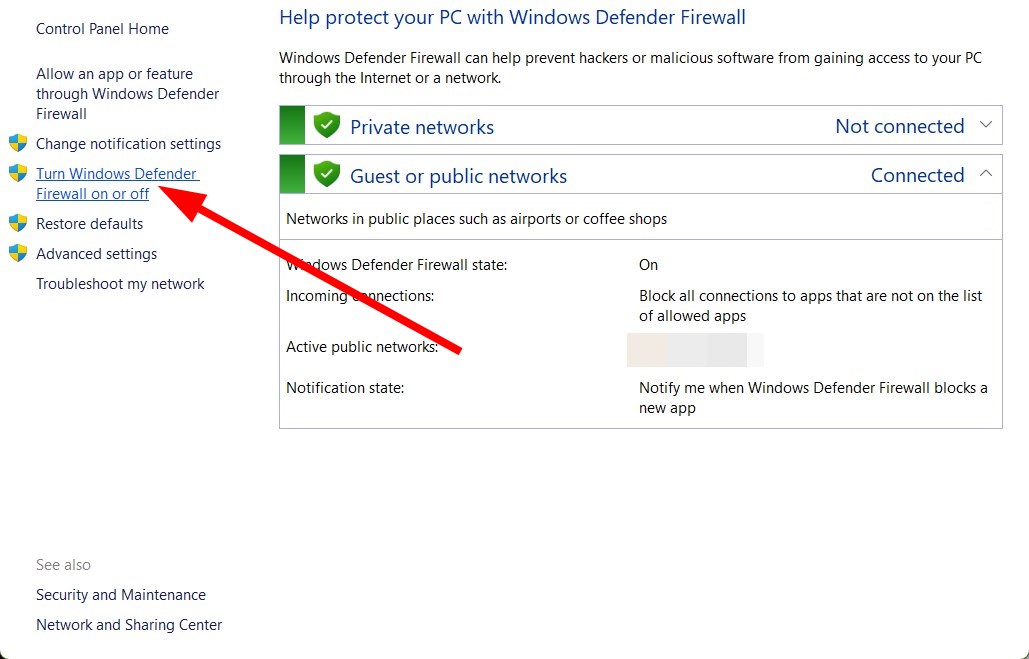
- Type Windows Defender Firewall and open it.
- Click Turn Windows Defender Firewall on or off.
- Select the Turn off Windows Defender Firewall radio buttons for both Public and Private networks.
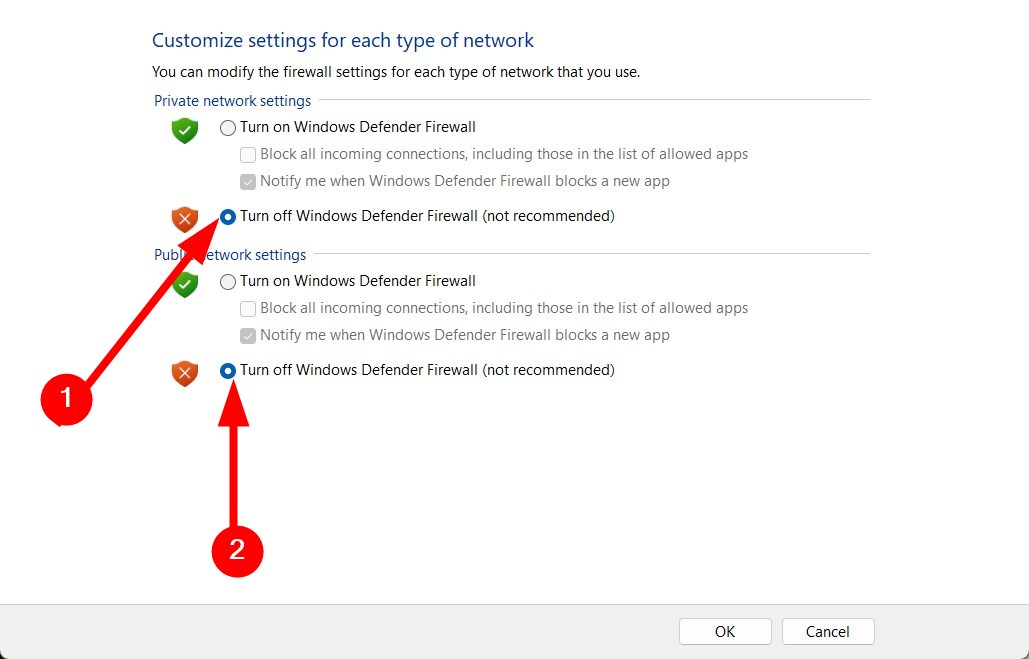
- Click OK.
We have shown the above steps for the Windows Defender Firewall. But you do the same with the third-party antivirus software and check if this resolves the problem.
That is it from us in this guide. Several users have reported that they cannot open MS Word, Excel, or PowerPoint. For them, we have a guide that will help them fix the problem.
If you are not able to zoom in MS Word, then you can refer to our guide. For users, who are confused about which version of MS Office will work on their Windows 11 PC, then they can check out our guide and get their confusion out of the way.
If MS Office disappeared from your PC, then our guide will help you resolve the issue. We also have a guide that will help you fix one of the most burning issues of Olicenseheartbeat.exe stopped working.
For users facing product activation failed error, we have a list of solutions that will help you resolve the error in no time.
Feel free to let us know in the comments below, which one of the above tips resolved the We had a problem installing your Office program error.
Still having issues? Fix them with this tool:
SPONSORED
If the advices above haven’t solved your issue, your PC may experience deeper Windows problems. We recommend downloading this PC Repair tool (rated Great on TrustPilot.com) to easily address them. After installation, simply click the Start Scan button and then press on Repair All.
