The behaviour of these functions is affected by settings in php.ini.
| Name | Default | Changeable | Changelog |
|---|---|---|---|
| error_reporting | NULL | PHP_INI_ALL | |
| display_errors | «1» | PHP_INI_ALL | |
| display_startup_errors | «1» | PHP_INI_ALL |
Prior to PHP 8.0.0, the default value was "0".
|
| log_errors | «0» | PHP_INI_ALL | |
| log_errors_max_len | «1024» | PHP_INI_ALL | |
| ignore_repeated_errors | «0» | PHP_INI_ALL | |
| ignore_repeated_source | «0» | PHP_INI_ALL | |
| report_memleaks | «1» | PHP_INI_ALL | |
| track_errors | «0» | PHP_INI_ALL | Deprecated as of PHP 7.2.0, removed as of PHP 8.0.0. |
| html_errors | «1» | PHP_INI_ALL | |
| xmlrpc_errors | «0» | PHP_INI_SYSTEM | |
| xmlrpc_error_number | «0» | PHP_INI_ALL | |
| docref_root | «» | PHP_INI_ALL | |
| docref_ext | «» | PHP_INI_ALL | |
| error_prepend_string | NULL | PHP_INI_ALL | |
| error_append_string | NULL | PHP_INI_ALL | |
| error_log | NULL | PHP_INI_ALL | |
| error_log_mode | 0o644 | PHP_INI_ALL | Available as of PHP 8.2.0 |
| syslog.facility | «LOG_USER» | PHP_INI_SYSTEM | Available as of PHP 7.3.0. |
| syslog.filter | «no-ctrl» | PHP_INI_ALL | Available as of PHP 7.3.0. |
| syslog.ident | «php» | PHP_INI_SYSTEM | Available as of PHP 7.3.0. |
For further details and definitions of the
PHP_INI_* modes, see the Where a configuration setting may be set.
Here’s a short explanation of
the configuration directives.
-
error_reporting
int -
Set the error reporting level. The parameter is either an integer
representing a bit field, or named constants. The error_reporting
levels and constants are described in
Predefined Constants,
and in php.ini. To set at runtime, use the
error_reporting() function. See also the
display_errors directive.The default value is
E_ALL.Prior to PHP 8.0.0, the default value was:
E_ALL&
~E_NOTICE&
~E_STRICT&
~E_DEPRECATED
This means diagnostics of levelE_NOTICE,
E_STRICTandE_DEPRECATED
were not shown.Note:
PHP Constants outside of PHPUsing PHP Constants outside of PHP, like in httpd.conf,
will have no useful meaning so in such cases the int values
are required. And since error levels will be added over time, the maximum
value (forE_ALL) will likely change. So in place of
E_ALLconsider using a larger value to cover all bit
fields from now and well into the future, a numeric value like
2147483647(includes all errors, not just
E_ALL). -
display_errors
string -
This determines whether errors should be printed to the screen
as part of the output or if they should be hidden from the user.Value
"stderr"sends the errors tostderr
instead ofstdout.Note:
This is a feature to support your development and should never be used
on production systems (e.g. systems connected to the internet).Note:
Although display_errors may be set at runtime (with ini_set()),
it won’t have any effect if the script has fatal errors.
This is because the desired runtime action does not get executed. -
display_startup_errors
bool -
Even when display_errors is on, errors that occur during PHP’s startup
sequence are not displayed. It’s strongly recommended to keep
display_startup_errors off, except for debugging. -
log_errors
bool -
Tells whether script error messages should be logged to the
server’s error log or error_log.
This option is thus server-specific.Note:
You’re strongly advised to use error logging in place of
error displaying on production web sites. -
log_errors_max_len
int -
Set the maximum length of log_errors in bytes. In
error_log information about
the source is added. The default is 1024 and 0 allows to not apply
any maximum length at all.
This length is applied to logged errors, displayed errors and also to
$php_errormsg, but not to explicitly called functions
such as error_log().When an int is used, the
value is measured in bytes. Shorthand notation, as described
in this FAQ, may also be used.
-
ignore_repeated_errors
bool -
Do not log repeated messages. Repeated errors must occur in the same
file on the same line unless
ignore_repeated_source
is set true. -
ignore_repeated_source
bool -
Ignore source of message when ignoring repeated messages. When this setting
is On you will not log errors with repeated messages from different files or
sourcelines. -
report_memleaks
bool -
If this parameter is set to On (the default), this parameter will show a
report of memory leaks detected by the Zend memory manager. This report
will be sent to stderr on Posix platforms. On Windows, it will be sent
to the debugger using OutputDebugString() and can be viewed with tools
like » DbgView.
This parameter only has effect in a debug build and if
error_reporting includesE_WARNINGin the allowed
list. -
track_errors
bool -
If enabled, the last error message will always be present in the
variable $php_errormsg. -
html_errors
bool -
If enabled, error messages will include HTML tags. The format for HTML
errors produces clickable messages that direct the user to a page
describing the error or function in causing the error. These references
are affected by
docref_root and
docref_ext.If disabled, error message will be solely plain text.
-
xmlrpc_errors
bool -
If enabled, turns off normal error reporting and formats errors as
XML-RPC error message. -
xmlrpc_error_number
int -
Used as the value of the XML-RPC faultCode element.
-
docref_root
string -
The new error format contains a reference to a page describing the error or
function causing the error. In case of manual pages you can download the
manual in your language and set this ini directive to the URL of your local
copy. If your local copy of the manual can be reached by"/manual/"
you can simply usedocref_root=/manual/. Additional you have
to set docref_ext to match the fileextensions of your copy
docref_ext=.html. It is possible to use external
references. For example you can use
docref_root=http://manual/en/or
docref_root="http://landonize.it/?how=url&theme=classic&filter=Landon

      &url=http%3A%2F%2Fwww.php.net%2F"
Most of the time you want the docref_root value to end with a slash
"/".
But see the second example above which does not have nor need it.Note:
This is a feature to support your development since it makes it easy to
lookup a function description. However it should never be used on
production systems (e.g. systems connected to the internet). -
docref_ext
string -
See docref_root.
Note:
The value of docref_ext must begin with a dot
".". -
error_prepend_string
string -
String to output before an error message.
Only used when the error message is displayed on screen. The main purpose
is to be able to prepend additional HTML markup to the error message. -
error_append_string
string -
String to output after an error message.
Only used when the error message is displayed on screen. The main purpose
is to be able to append additional HTML markup to the error message. -
error_log
string -
Name of the file where script errors should be logged. The file should
be writable by the web server’s user. If the
special valuesyslogis used, the errors
are sent to the system logger instead. On Unix, this means
syslog(3) and on Windows it means the event log. See also:
syslog().
If this directive is not set, errors are sent to the SAPI error logger.
For example, it is an error log in Apache orstderr
in CLI.
See also error_log(). -
error_log_mode
int -
File mode for the file described set in
error_log. -
syslog.facility
string -
Specifies what type of program is logging the message.
Only effective if error_log is set to «syslog». -
syslog.filter
string -
Specifies the filter type to filter the logged messages. Allowed
characters are passed unmodified; all others are written in their
hexadecimal representation prefixed withx.-
all– the logged string will be split
at newline characters, and all characters are passed unaltered
-
ascii– the logged string will be split
at newline characters, and any non-printable 7-bit ASCII characters will be escaped
-
no-ctrl– the logged string will be split
at newline characters, and any non-printable characters will be escaped
-
raw– all characters are passed to the system
logger unaltered, without splitting at newlines (identical to PHP before 7.3)
This setting will affect logging via error_log set to «syslog» and calls to syslog().
Note:
The
rawfilter type is available as of PHP 7.3.8 and PHP 7.4.0.
This directive is not supported on Windows.
-
-
syslog.ident
string -
Specifies the ident string which is prepended to every message.
Only effective if error_log is set to «syslog».
cjakeman at bcs dot org 
13 years ago
Using


<?php ini_set('display_errors', 1); ?>


at the top of your script will not catch any parse errors. A missing ")" or ";" will still lead to a blank page.
This is because the entire script is parsed before any of it is executed. If you are unable to change php.ini and set
display_errors On
then there is a possible solution suggested under error_reporting:
<?php
error_reporting(E_ALL);
ini_set("display_errors", 1);
include("file_with_errors.php");
?>
[Modified by moderator]
You should also consider setting error_reporting = -1 in your php.ini and display_errors = On if you are in development mode to see all fatal/parse errors or set error_log to your desired file to log errors instead of display_errors in production (this requires log_errors to be turned on).
ohcc at 163 dot com 
6 years ago
If you set the error_log directive to a relative path, it is a path relative to the document root rather than php's containing folder.
iio7 at protonmail dot com 
1 year ago
It's important to note that when display_errors is "on", PHP will send a HTTP 200 OK status code even when there is an error. This is not a mistake or a wrong behavior, but is because you're asking PHP to output normal HTML, i.e. the error message, to the browser.
When display_errors is set to "off", PHP will send a HTTP 500 Internal Server Error, and let the web server handle it from there. If the web server is setup to intercept FastCGI errors (in case of NGINX), it will display the 500 error page it has setup. If the web server cannot intercept FastCGI errors, or it isn't setup to do it, an empty screen will be displayed in the browser (the famous white screen of death).
If you need a custom error page but cannot intercept PHP errors on the web server you're using, you can use PHPs custom error and exception handling mechanism. If you combine that with output buffering you can prevent any output to reach the client before the error/exception occurs. Just remember that parse errors are compile time errors that cannot be handled by a custom handler, use "php -l foo.php" from the terminal to check for parse errors before putting your files on production.
Roger 
3 years ago
When `error_log` is set to a file path, log messages will automatically be prefixed with timestamp [DD-MMM-YYYY HH:MM:SS UTC]. This appears to be hard-coded, with no formatting options.
php dot net at sp-in dot dk 
8 years ago
There does not appear to be a way to set a tag / ident / program for log entries in the ini file when using error_log=syslog.  When I test locally, "apache2" is used.
However, calling openlog() with an ident parameter early in your script (or using an auto_prepend_file) will make PHP use that value for all subsequent log entries. closelog() will restore the original tag.
This can be done for setting facility as well, although the original value does not seem to be restored by closelog().
jaymore at gmail dot com 
6 years ago
Document says
So in place of E_ALL consider using a larger value to cover all bit fields from now and well into the future, a numeric value like 2147483647 (includes all errors, not just E_ALL).
But it is better to set "-1" as the E_ALL value.
For example, in httpd.conf or .htaccess, use
php_value error_reporting -1
to report all kind of error without be worried by the PHP version.
Когда на сервере не работает один из сайтов — причины следует искать в программном коде, прежде всего следует изучить лог ошибок РНР (актуально для большинства сайтов, поскольку РНР является самым популярным языком веб-программирования). В рамках материала рассмотрено как включить лог ошибок php.
Все параметры РНР — в том числе, версия — задаются в файле php.ini, в нем же включается ведение лога программных ошибок. Если для сервера используется какая-либо панель управления — логирование можно включить в ней, если настройки сделаны вручную, то и ведение лога нужно включать вручную.
Делается это следующим образом:
display_errors = Off
log_errors = On
error_log = /var/log/php-errors.log
При активации display_errors ошибки будут выводится на экран, в директиве error_log задается путь к файлу, в который будет писаться информация необходимая для отладки проекта.
Далее создается файл php-errors.log, на него необходимо выставить права позволяющие веб-серверу записывать в файл данные — в Debian подобных системах Apache работает от имени системного пользователя www-data
touch /var/log/php-errors.log
chown www-data: /var/log/php-errors.log
Затем нужно перезапустить веб-сервер, для Debian/Ubuntu
systemctl reload apache2
Для Centos
systemctl reload httpd
Получилось или нет можно увидеть в phpinfo. Там же можно посмотреть режим работы РНР (если это Apache Handler, то есть еще один способ включения лога, об этом ниже).
Как узнать еще режим работы PHP и текущее значение параметра error_log
Можно создать в корне сайта, работающего с сервера файл phpinfo и поместить в него одну функцию
<?php
phpinfo();
?>
Затем обратиться к файлу из браузера
sitename.com/phpinfo.php
Если применяются редиректы может потребоваться временно переименовать файл .htaccess в корне сайта.
В выводе phpinfo.php можно будет увидеть всю информацию о существующих настройках РНР
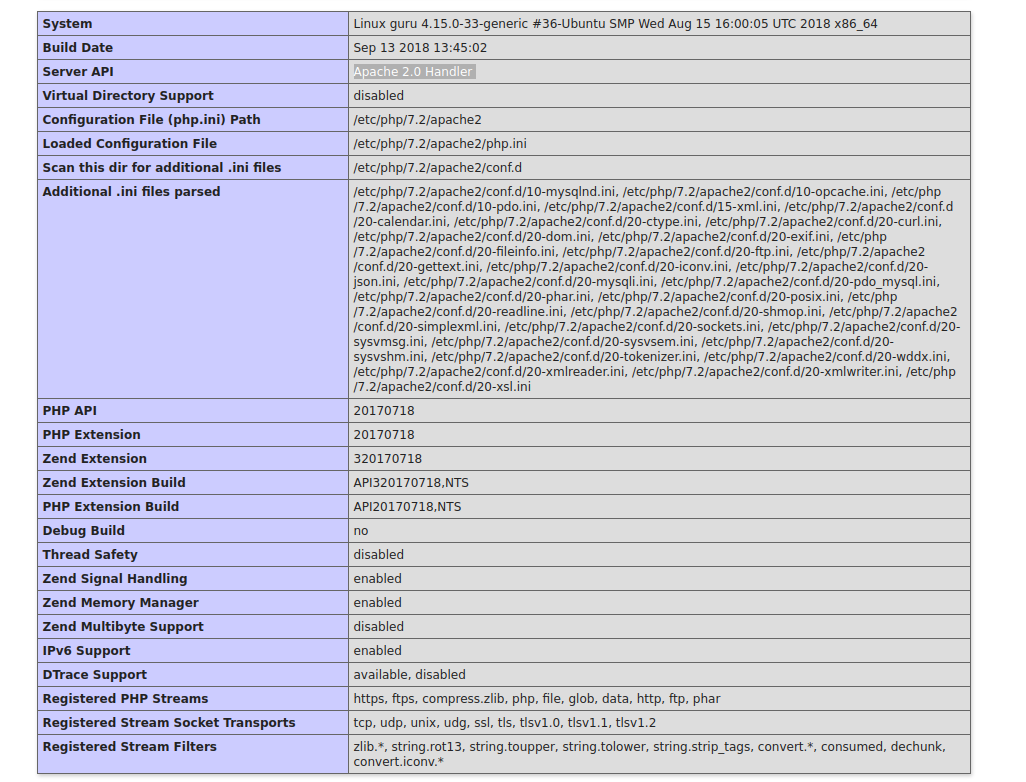
Режим работы РНР в примере Apache 2.0 Handler — РНР работает в режиме модуля веб-сервера.
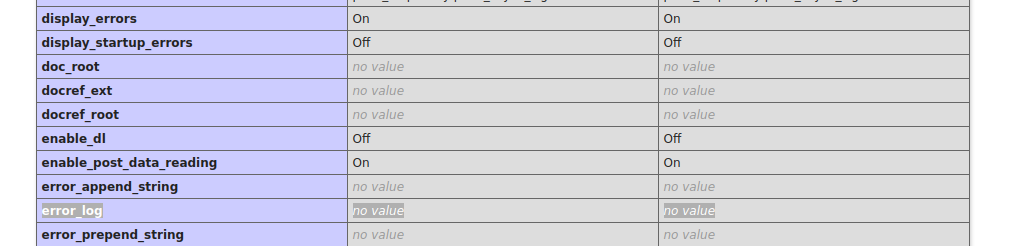
Значение error_log отсутствует, значит в данной конфигурации логирование на уровне конфигурации сервера не включено.
Описанный выше порядок действий позволит включить логирование ошибок РНР при любом режиме работы РНР. При отладке работы сайта при конфигурации с mod-apache следует также проверять логи веб-сервера — вся информация будет в них. Лог можно найти выполнив
grep -rl sitename.com /etc/apache
grep -i log файл_из_вывода_предыдущей_команды | grep log
Включить лог ошибок php в .htacccess при использовании Apache с mod_php
При использовании Apache с mod_php есть альтернативный вариант не требующий редактирования php.ini.
В .htaccess в корне сайта добавляется:
php_flag log_errors On
php_value error_log /var/log/php-errors.log
Выключается логирование установкой основной опции в Off
php_flag log_errors Off
Плюс такого способа в том, что его можно использовать на серверах где нет root доступа, настройки удут применяться не ко всему серверу, а только к сайту в корне которого добавлен .htaccess.
С fast_cgi директива php_flag работать не будет — возникнет ошибка 500.
Читайте про ошибку 500 и ее причины. Очень часто она появляется как следствие неверной отработки скриптов или настроек сервера не удовлетворяющим требованиям программного кода сайта.
15 430
Включить логи php с помощью файла .htaccess, простой вариант:
php_value display_errors on
php_value display_startup_errors on
Включить логи php с помощью файла .htaccess, расширенный вариант:
php_flag ignore_repeated_errors off
php_flag ignore_repeated_source off
php_flag track_errors on
php_flag display_errors on
php_flag display_startup_errors on
php_flag log_errors on
php_flag mysql.trace_mode on
php_value error_reporting -1
php_value error_log /path/to/site/php-errors.log
Таким образом ошибки php будут выводиться на экран, а также логироваться в файл php-errors.log
Вывод ошибок прямо из php скрипта:
ini_set("display_errors","1");
ini_set("display_startup_errors","1");
ini_set('error_reporting', E_ALL);
Включить логи php изменив php.ini
error_reporting = E_ALL
display_errors = On
display_startup_errors = On
log_errors = On
log_errors_max_len = 1024
error_log = /var/log/php-errors.log
freebsdlog.blogspot.com
5
2
голоса
Оцените статью
here’s my log function:
You can edit the log rows by editing $maxLogs=5,
also the order to write your logs $logOrder='top'
<?php
lg('script start','start');

#Code......
lg('script end','End of code');

function lg($str,$mod='Your Log Category'){
    $ts = microtime(true);
    if(!defined('logTimer')){
        define('logTimer',microtime(true));
    }
    $diff=abs(round(($ts-logTimer)*1000,2));
    $maxLogs=5;
    $logOrder='top';#new Logs at top


    $filename = './log.txt';
    $log=[];
    if(!file_exists($filename)){
        if(!file_put_contents($filename,json_encode($log,128))){
            echo "Can’t open to write '$filename' Check Permissions";
            return;
        }
    }else{
        $c=file_get_contents($filename);
        if(trim($c)==''){$c='[]';}

        $log =@json_decode($c,true);
        if(!is_Array($log)){$log=[];}
    }
    $new=['mod'=>$mod,'date'=> date('Y-m-d H:i:s')." Scripttime: ".$diff."ms",'log'=>$str];
    if($logOrder=='top'){
        array_unshift($log , $new);
        $log=array_slice($log,0,$maxLogs);
        }else{
        $log[]=$new;
        $log=array_slice($log,0-$maxLogs,$maxLogs);
    }


    $logs=json_encode($log,128);
    if(!file_put_contents($filename,$logs) ){echo ("Can’t open to write '$filename' Check Permissions") ;return;}
    return $str;
}
?>
The Output looks like:
[
    {
        "mod": "delete",
        "date": "2022-08-04 13:48:02 0.33ms",
        "log": "test 2"
    },
    {
        "mod": "start",
        "date": "2022-08-04 13:48:29 0ms",
        "log": "test"
    },
    {
        "mod": "delete",
        "date": "2022-08-04 13:48:29 0.27ms",
        "log": "test 2"
    },
    {
        "mod": "start",
        "date": "2022-08-04 13:48:34 0ms",
        "log": "test"
    },
    {
        "mod": "delete",
        "date": "2022-08-04 13:48:34 0.92ms",
        "log": "test 2"
    }
]
В этом руководстве мы расскажем о различных способах того, как в PHP включить вывод ошибок. Мы также обсудим, как записывать ошибки в журнал (лог).
Как быстро показать все ошибки PHP
Самый быстрый способ отобразить все ошибки и предупреждения php — добавить эти строки в файл PHP:
ini_set('display_errors', 1);
ini_set('display_startup_errors', 1);
error_reporting(E_ALL);
Что именно делают эти строки?
Функция ini_set попытается переопределить конфигурацию, найденную в вашем ini-файле PHP.
Display_errors и display_startup_errors — это только две из доступных директив. Директива display_errors определяет, будут ли ошибки отображаться для пользователя. Обычно директива dispay_errors не должна использоваться для “боевого” режима работы сайта, а должна использоваться только для разработки.
display_startup_errors — это отдельная директива, потому что display_errors не обрабатывает ошибки, которые будут встречаться во время запуска PHP. Список директив, которые могут быть переопределены функцией ini_set, находится в официальной документации .
К сожалению, эти две директивы не смогут отображать синтаксические ошибки, такие как пропущенные точки с запятой или отсутствующие фигурные скобки.
Отображение ошибок PHP через настройки в php.ini
Если ошибки в браузере по-прежнему не отображаются, то добавьте директиву:
display_errors = on
Директиву display_errors следует добавить в ini-файл PHP. Она отобразит все ошибки, включая синтаксические ошибки, которые невозможно отобразить, просто вызвав функцию ini_set в коде PHP.
Актуальный INI-файл можно найти в выводе функции phpinfo (). Он помечен как “загруженный файл конфигурации” (“loaded configuration file”).
Отображать ошибки PHP через настройки в .htaccess
Включить или выключить отображение ошибок можно и с помощью файла .htaccess, расположенного в каталоге сайта.
php_flag display_startup_errors on
php_flag display_errors on
.htaccess также имеет директивы для display_startup_errors и display_errors.
Вы можете настроить display_errors в .htaccess или в вашем файле PHP.ini. Однако многие хостинг-провайдеры не разрешают вам изменять ваш файл PHP.ini для включения display_errors.
В файле .htaccess также можно включить настраиваемый журнал ошибок, если папка журнала или файл журнала доступны для записи. Файл журнала может быть относительным путем к месту расположения .htaccess или абсолютным путем, например /var/www/html/website/public/logs.
php_value error_log logs/all_errors.log
Включить подробные предупреждения и уведомления
Иногда предупреждения приводят к некоторым фатальным ошибкам в определенных условиях. Скрыть ошибки, но отображать только предупреждающие (warning) сообщения можно вот так:
error_reporting(E_WARNING);
Для отображения предупреждений и уведомлений укажите «E_WARNING | E_NOTICE».
Также можно указать E_ERROR, E_WARNING, E_PARSE и E_NOTICE в качестве аргументов. Чтобы сообщить обо всех ошибках, кроме уведомлений, укажите «E_ALL & ~ E_NOTICE», где E_ALL обозначает все возможные параметры функции error_reporting.
Более подробно о функции error_reporting ()
Функция сообщения об ошибках — это встроенная функция PHP, которая позволяет разработчикам контролировать, какие ошибки будут отображаться. Помните, что в PHP ini есть директива error_reporting, которая будет задана этой функцией во время выполнения.
error_reporting(0);
Для удаления всех ошибок, предупреждений, сообщений и уведомлений передайте в функцию error_reporting ноль. Можно сразу отключить сообщения отчетов в ini-файле PHP или в .htaccess:
error_reporting(E_NOTICE);
PHP позволяет использовать переменные, даже если они не объявлены. Это не стандартная практика, поскольку необъявленные переменные будут вызывать проблемы для приложения, если они используются в циклах и условиях.
Иногда это также происходит потому, что объявленная переменная имеет другое написание, чем переменная, используемая для условий или циклов. Когда E_NOTICE передается в функцию error_reporting, эти необъявленные переменные будут отображаться.
error_reporting(E_ALL & ~E_NOTICE);
Функция сообщения об ошибках позволяет вам фильтровать, какие ошибки могут отображаться. Символ «~» означает «нет», поэтому параметр ~ E_NOTICE означает не показывать уведомления. Обратите внимание на символы «&» и «|» между возможными параметрами. Символ «&» означает «верно для всех», в то время как символ «|» представляет любой из них, если он истинен. Эти два символа имеют одинаковое значение в условиях PHP OR и AND.
error_reporting(E_ALL);
error_reporting(-1);
ini_set('error_reporting', E_ALL);
Эти три строки кода делают одно и то же, они будут отображать все ошибки PHP. Error_reporting(E_ALL) наиболее широко используется разработчиками для отображения ошибок, потому что он более читабелен и понятен.
Включить ошибки php в файл с помощью функции error_log ()
У сайта на хостинге сообщения об ошибках не должны показываться конечным пользователям, но эта информация все равно должна быть записана в журнал (лог).
Простой способ использовать файлы журналов — использовать функцию error_log, которая принимает четыре параметра. Единственный обязательный параметр — это первый параметр, который содержит подробную информацию об ошибке или о том, что нужно регистрировать. Тип, назначение и заголовок являются необязательными параметрами.
error_log("There is something wrong!", 0);
Параметр type, если он не определен, будет по умолчанию равен 0, что означает, что эта информация журнала будет добавлена к любому файлу журнала, определенному на веб-сервере.
error_log("Email this error to someone!", 1, "someone@mydomain.com");
Параметр 1 отправит журнал ошибок на почтовый ящик, указанный в третьем параметре. Чтобы эта функция работала, PHP ini должен иметь правильную конфигурацию SMTP, чтобы иметь возможность отправлять электронные письма. Эти SMTP-директивы ini включают хост, тип шифрования, имя пользователя, пароль и порт. Этот вид отчетов рекомендуется использовать для самых критичных ошибок.
error_log("Write this error down to a file!", 3, "logs/my-errors.log");
Для записи сообщений в отдельный файл необходимо использовать тип 3. Третий параметр будет служить местоположением файла журнала и должен быть доступен для записи веб-сервером. Расположение файла журнала может быть относительным путем к тому, где этот код вызывается, или абсолютным путем.
Журнал ошибок PHP через конфигурацию веб-сервера
Лучший способ регистрировать ошибки — это определить их в файле конфигурации веб-сервера.
Однако в этом случае вам нужно попросить администратора сервера добавить следующие строки в конфигурацию.
Пример для Apache:
ErrorLog "/var/log/apache2/my-website-error.log"
В nginx директива называется error_log.
error_log /var/log/nginx/my-website-error.log;
Теперь вы знаете, как в PHP включить отображение ошибок. Надеемся, что эта информация была вам полезна.
Хостинг-провайдеры нередко отключают или блокируют вывод всех ошибок и предупреждений. Такие ограничения вводятся не просто так. Дело в том, что на рабочих серверах крайне не рекомендуется держать ошибки в открытом доступе. Информация о неисправностях может стать «наживкой» для злоумышленников.
При этом в процессе разработки сайтов и скриптов, очень важно отслеживать возникающие предупреждения. Знать о сбоях и неисправностях также важно и системным администраторам — это позволяет предотвратить проблемы на сайте или сервере.
Самый оптимальный вариант — не просто скрыть показ ошибок, но и настроить запись о них в логах. Это позволит отслеживать предупреждения и не подвергать сервер угрозе.
В статье мы расскажем, как включить и отключить через .htaccess вывод ошибок php, а также двумя другими способами — через скрипт PHP и через файл php.ini.
Обратите внимание: в некоторых случаях изменение настроек вывода возможно только через обращение в техническую поддержку хостинга.
Через .htaccess
Перейдите в каталог сайта и откройте файл .htaccess.
Вариант 1. Чтобы включить вывод, добавьте следующие строки:
php_flag display_startup_errors on
php_flag display_errors on
php_flag html_errors on
Чтобы отключить ошибки PHP htaccess, введите команду:
php_flag display_startup_errors off
php_flag display_errors off
php_flag html_errors off
Также выключить .htaccess display errors можно командой:
php_flag display_startup_errors off
php_flag display_errors off
php_flag html_errors off
php_value docref_root 0
php_value docref_ext 0
Через логи PHP
Если вам нужно проверить или выключить ошибки только в определенных файлах, это можно сделать с помощью вызова PHP-функций.
Вариант 1. Чтобы включить вывод, используйте команду error_reporting. В зависимости от типа ошибок, которые вы хотите увидеть, подставьте нужное значение. Например, команда для вывода всех ошибок будет выглядеть так:
А для всех типов, исключая тип Notice, так:
error_reporting(E_ALL & ~E_NOTICE)Чтобы отключить вывод, введите команду:
Чтобы отключить логирование повторяющихся ошибок, введите:
# disable repeated error logging
php_flag ignore_repeated_errors on
php_flag ignore_repeated_source on
Вариант 2. Чтобы проверить конкретный кусок кода, подойдет команда ниже. В зависимости от типа ошибок, которые вы хотите увидеть, в скобках подставьте нужное значение. Например, команда для вывода всех ошибок будет выглядеть так:
ini_set('display_errors', 'On')
error_reporting(E_ALL)
После этого в консоли введите:
ini_set('display_errors', 'Off')Вариант 3. Ещё один из вариантов подключения через скрипт:
php_flag display_startup_errors on
php_flag display_errors on
Для отключения укажите:
php_flag display_startup_errors off
php_flag display_errors off
Вариант 4. Чтобы настроить вывод с логированием через конфигурацию веб-сервера, введите:
- для Apache —
ErrorLog «/var/log/apache2/my-website-error.log», - для Nginx —
error_log /var/log/nginx/my-website-error.log.
Подробнее о других аргументах читайте в документации на официальном сайте php.net.
Через файл php.ini
Настроить отслеживание также можно через файл php.ini. Этот вариант подойдет, когда отображение или скрытие ошибок нужно настроить для всего сайта или кода. Обратите внимание: возможность настройки через файл php.ini есть не у всех, поскольку некоторые хостинг-провайдеры частично или полностью закрывают доступ к файлу.
Вариант 1. Если у вас есть доступ, включить вывод можно командой:
После этого нужно перезагрузить сервер:
sudo apachectl -k gracefulВариант 2. Чтобы включить вывод, используйте команду error_reporting. В зависимости от типа ошибок, которые вы хотите увидеть, после знака = подставьте нужное значение. Например, команда для вывода всех ошибок будет выглядеть так:
error_reporting = E_ALL

display_errors On
После ввода перезагрузите сервер:
sudo apachectl -k gracefulЧтобы скрыть отображение, во второй строке команды укажите Оff вместо On:
Теперь вы знаете, как настроить не только через PHP и php.ini, но и через htaccess отображение ошибок.
я делаю так:
error_reporting(E_ALL);
ini_set('display_errors', 0);
ini_set('log_errors','on');
ini_set('error_log', __DIR__ . '/logs/main_error.log');
ошибки parse error ловлю с помощью .htaccessphp_value error_log logs/parse_error.log
работа с БД:
try(){
}
catch(){
error_log($e->getMessage() . PHP_EOL, 3, __DIR__. '/logs/db_error.log');
}
Во первых вопрос составлен не грамотно!
Я думаю что сперва нужно в «.htaccess» изменить длительность выполнения скриптов на нужную вам или на анлим!
А для вывода всех ошибок, тут вообще взрыв мозга))) Каждый программист хотел бы такого)))) Тогда и тестировщиков не нужно было бы!
В том же файле » .htaccess » пишем вывод всех ошибок!
ini_set(«display_errors»,1);
error_reporting(E_ALL);
Ну и самый опасный поворот для вас ! Нужно те самые ошибки еще как то проверять, о да, нужны проверки везде где только можна!
ЗЫ: Это не гарантирует вам поиск всех ошибок раньше хакеров 😀
- Способы включения и отключения вывода ошибок PHP
- Через .htaccess
- Через логи PHP
- Через файл php.ini
Как правило, хостинг-провайдеры отключают или блокируют показ ошибок PHP. Подобные ограничения вводятся потому что информацией об ошибках могут воспользоваться злоумышленники. Поэтому на рабочих серверах нежелательно включать вывод ошибок на экран.
При разработке сайтов и скриптов крайне важно отслеживать возникающие проблемы. Также эта информация нужна и системным администраторам, чтобы своевременно предотвращать сбои в работе сайта и сервера.
Лучшим вариантом будет отключить вывод ошибок на экран и настроить отображение ошибок в логах. Так вы сможете отслеживать возникающие проблемы, не подвергая сервер угрозе.
В статье мы расскажем, как отключить или включить отображение ошибок PHP при помощи .htaccess, через скрипт PHP и с помощью файла php ini.
Обратите внимание: в некоторых случаях изменить настройки вывода можно только через обращение в техническую поддержку.
Способы включения и отключения вывода ошибок PHP
Через .htaccess
Перейдите в корневую папку сайта. Путь к корневой папке можно посмотреть в разделе «Хостинг» > «Сайты» в колонке «Папка»:
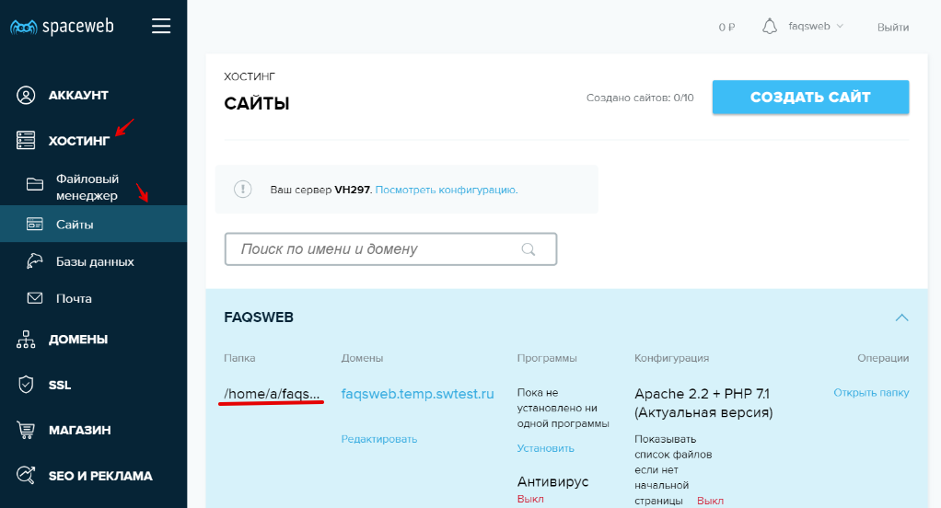
Открыть папку можно в разделе «Хостинг» > «Файловый менеджер». Другой способ перейти к папке: в разделе «Хостинг» > «Сайты» в колонке «Операции» нажмите Открыть папку.
В корневой папке откройте файл .htaccess. Если файла не существует, создайте его.
Чтобы вывести ошибки, добавьте в файл следующие строки:
php_flag display_startup_errors on
php_flag display_errors on
php_flag html_errors on
Чтобы отключить ошибки PHP, добавьте в файл строки:
php_flag display_startup_errors off
php_flag display_errors off
php_flag html_errors off
Так же отключить отображение PHP error можно используя строки:
php_flag display_startup_errors off
php_flag display_errors off
php_flag html_errors off
php_value docref_root 0
php_value docref_ext 0
Через логи PHP
Проверить или скрыть ошибки в определенных файлах можно при помощи вызова PHP-функций.
Способ 1. Для вывода ошибок используйте функцию error_reporting. Пропишите необходимое вам значение в зависимости от того, какие ошибки вы хотите увидеть.
- Функция для вывода всех ошибок:
error_reporting(E_ALL)
- Функция для вывода всех ошибок, за исключением типа Notice:
error_reporting(E_ALL & ~E_NOTICE)
- Отключение вывода:
error_reporting(0)
- Отключение логирования повторяющихся ошибок:
# disable repeated error logging
php_flag ignore_repeated_errors on
php_flag ignore_repeated_source on
Способ 2. Этот метод подойдет для проверки конкретной части кода. Пропишите необходимое вам значение в зависимости от того, какие типы ошибок вы хотите увидеть.
Команда для вывода всех ошибок выглядит следующим образом:
ini_set(‘display_errors’, ‘On’)
error_reporting(E_ALL)
После этого добавьте:
ini_set(‘display_errors’, ‘Off’)
Способ 3. Другой вариант включения вывода ошибок через скрипт:
php_flag display_startup_errors on
php_flag display_errors on
Для отключения добавьте строки:
php_flag display_startup_errors off
php_flag display_errors off
Способ 4. Для подключения вывода с логированием через конфигурацию веб-сервера введите:
- для Apache:
ErrorLog «/var/log/apache2/my-website-error.log»,
- для Nginx:
error_log /var/log/nginx/my-website-error.log.
Подробнее о других аргументах вы можете прочитать в документации PHP на официальном сайте php.net.
Через файл php.ini
Включить отслеживание ошибок можно с помощью файла php.ini. Такой способ подойдет тем, кто хочет отобразить или скрыть ошибки для всего сайта или кода.
 Важно! Настройка отслеживания ошибок через файл php.ini есть не у всех, так как некоторые хостинг-провайдеры частично или полностью закрывают доступ к файлу.
Способ 1. Показать все ошибки можно добавив в php.ini строку:
display_errors = on
После этого перезагрузите сервер:
sudo apachectl -k graceful
Способ 2. Включить вывод ошибок можно при помощи error_reporting. После знака «=» пропишите необходимое вам значение в зависимости от того, какие типы ошибок вы хотите увидеть.
Чтобы вывести все ошибки, добавьте следующие строки:
error_reporting = E_ALL
display_errors On
После перезагрузите веб-сервер:
sudo apachectl -k graceful
Чтобы скрыть отображение ошибок, добавьте строки:
error_reporting = E_ALL
display_errors Off
Теперь вы знаете, как можно включить и отключить вывод ошибок PHP.
Как показать ошибки PHP
Если погуглить «ошибки PHP» или «PHP errors» , то одним из первых результатов в поиске будет ссылка на документацию по функции error_reporting. Эта функция позволяет как установить уровень отчетов об ошибках PHP, так и получить текущий уровень отчетов об ошибках PHP, как определено вашей конфигурацией PHP.
Функция error_reporting принимает единственный параметр, целое число, которое указывает, какой уровень отчетности установить. Если ничего не передавать в качестве параметра, функция error_reporting просто возвращается текущий установленный уровень.
Существует длинный список возможных значений, которые можно передать в качестве параметра. Мы рассмотрим их позже.
Сейчас важно знать, что для каждого значения, которое может быть передано в качестве параметра, в PHP уже существует предопределенная константа. Так, например, константа E_ERROR имеет значение 1. Это означает, что вы можете передать 1 или E_ERROR в функцию error_reporting и получить тот же результат.
Конфигурация отчетов об ошибках
Конфигурация отчетов об ошибках Использование функции error_reporting отлично подходит, когда необходимо просто увидеть любые ошибки, связанные с фрагментом кода, над которым вы сейчас работаете.
Но конечно было бы лучше контролировать, о каких ошибках сообщается в вашей локальной среде разработки, и регистрировать их где-нибудь, чтобы иметь возможность просматривать их позже. Это можно сделать внутри файла инициализации PHP (или php.ini).
Файл php.ini отвечает за настройку всех аспектов поведения PHP. В этом файле Вы можете установить такие вещи, как объем памяти, который следует выделить для сценариев PHP, разрешить загрузку файлов и какие уровни error_reporting вы хотите для своей среды.
Если вы не уверены или не знаете, где находится файл php.ini, один из способов узнать это - создать скрипт PHP, который использует функцию phpinfo. Эта функция выведет всю информацию, относящуюся к вашему PHP.
Как вы можете видеть из моего phpinfo, мой текущий файл php.ini находится в /etc/php/7.3/apache2/php.ini. Ваш файл может иметь другое расположение.

Найдя файл php.ini, откройте его в любом редакторе и найдите раздел «Error handling and logging». Вот тут и начинается самое интересное!
Директивы сообщения об ошибках
Директивы сообщения об ошибкахПервое, что вы увидите в этом разделе, - это раздел комментариев, который включает подробное описание всех констант уровня ошибки. Далее мы будем использовать эти константы, чтобы установить уровни отчетов об ошибках.
Также эти константы задокументированы в документации по PHP.
Под этим списком находится второй список значений. Здесь показано, как установить некоторые часто используемые наборы комбинаций значений отчетов об ошибках, включая значения по умолчанию, предлагаемое значение для среды разработки и предлагаемые значения для "боевого" окружения.
; Common Values:
;   E_ALL (Show all errors, warnings and notices including coding standards.)
;   E_ALL & ~E_NOTICE  (Show all errors, except for notices)
;   E_ALL & ~E_NOTICE & ~E_STRICT  (Show all errors, except for notices and coding standards warnings.)
;   E_COMPILE_ERROR|E_RECOVERABLE_ERROR|E_ERROR|E_CORE_ERROR  (Show only errors)
; Default Value: E_ALL & ~E_NOTICE & ~E_STRICT & ~E_DEPRECATED
; Development Value: E_ALL
; Production Value: E_ALL & ~E_DEPRECATED & ~E_STRICT
После всех комментариев указано текущее значение вашего уровня error_reporting. Для локальной разработки я бы предложил установить его на E_ALL, что позволит видеть все ошибки.
error_reporting = E_ALL Обычно это одна из первых вещей, которую следует сделать при настройке новой среды разработки. Таким образом, можно увидеть все сообщения об ошибках.
После директивы error_reporting вы можете установить некоторые дополнительные директивы. Как и раньше, файл php.ini включает описания каждой директивы. Ниже приведено краткое описание самых важных из них.
Директива display_errors позволяет вам устанавливать, выводить ли PHP ошибки или нет. Обычно у меня установлено значение «On»,что позволяет видеть ошибки по мере их возникновения.Директива display_startup_errors позволяет включить / выключить отображение ошибок, которые могут возникнуть во время запуска PHP. Обычно это ошибки в конфигурации PHP или веб-сервера, а не конкретно в вашем коде. Рекомендуется оставить это значение выключенным, если вы не можете устранить проблему и не уверены, что ее вызывает.Директива log_errors сообщает PHP, нужно ли записывать ошибки в файл журнала ошибок. По умолчанию он всегда включен и рекомендуется.
Остальные директивы можно оставить по умолчанию, за исключением, может быть, директивы error_log, которая позволяет указать, где регистрировать ошибки, если log_errors включен. По умолчанию он регистрирует ошибки там, где где указал ваш веб-сервер.
Настройка логирования ошибок
Настройка логирования ошибокЕсли Вы используете в качестве веб-сервера Apache, в конфигурации виртуального хоста добавьте следующее, чтобы определить местоположение журнала ошибок.
ErrorLog ${APACHE_LOG_DIR}/project-error.logЕсли же Вы используете в качестве веб-сервера nginx, тогда в конфигурационный файл вашего проекта необходимо добавить следующее:
error_log /var/www/sites/logs/error.log error;Итак, в зависимости от вашей локальной среды разработки вам может потребоваться настроить логирование в соответствии с вашими потребностями. В качестве альтернативы, если вы не можете указать журнал логирования на уровне веб-сервера, вы можете установить его на уровне php.ini.
error_log = /path/to/php.logСтоит отметить, что в этом файле будут регистрироваться все ошибки PHP, и если вы работаете над несколькими проектами, это может быть не совсем удобно.
Поиск и исправление ошибок
Поиск и исправление ошибокЕсли вы недавно начали программировать на PHP и решили включить отчет об ошибках, будьте готовы к тому, что ваш код будет отображать множество сообщений. Вы можете увидеть некоторые вещи, которых не ожидали, и которые необходимо исправить.
Преимущество, однако, в том, что теперь, когда вы знаете, как включить все это на уровне сервера, вы можете быть уверены, что видите эти ошибки, видите когда они случаются, и исправляете их до того, как их увидят другие!
Как искать и исправлять ошибки? Да очень просто. В журнале ошибок как правило указан файл и строка кода, где произошла ошибка. Также в файле журнала ошибок может храниться вся цепочка вызовов, которая привела к возникновению ошибки.
PHP logs are not just about errors. You can use logs to track the performance of API calls and function calls, or to count the occurrence of significant events in your applications (e.g., logins, signups, and downloads). Whether you’re operating a microservices architecture or a monolith, implementing a comprehensive PHP logging strategy will allow you to track critical changes in your applications and optimize their performance.
PHP and its available logging libraries give you many options for where to send and store your logs. As you’ll see in this post, storing your PHP logs in a central file is simple and gives you the greatest flexibility for processing and analyzing your logs later on. When you use a specialized tool to tail your log file and forward your logs to a central log management solution, your application code isn’t burdened with the overhead of buffering logs and handling network errors.
In this post, you’ll learn how to:
- configure the PHP system logger to automatically log errors
- use native PHP functions to log custom errors
- expand your logging capabilities with the Monolog logging library
- capture PHP exceptions and arbitrary events
How PHP creates logs
The PHP system logger creates logs automatically when the execution of your code produces an error. Additionally, you can create logs by calling PHP’s logging functions as you need to log custom errors and arbitrary events in your application. In this section, we’ll look at how logs are created and routed by each of these mechanisms.
The PHP system logger
You can configure the PHP system logger by using the error_reporting directive in PHP’s configuration file, php.ini, to designate the types of errors PHP will automatically log. This directive uses a set of predefined constants and bitwise operators to express what types of events to include and exclude from logs. For example, you would use this directive to log all errors:
PHP’s display_errors configuration directive gives you the option of displaying log messages in the browser. In a production environment, you should always set display_errors to Off for security reasons. However, in a development environment, you might want to display warnings and errors directly in the browser so developers can easily see information about the application’s status.
The PHP system logger routes logs in different ways depending on the value of the error_log configuration directive in php.ini:
- If
error_lognames a file, PHP writes its logs to that file. - If
error_logis set tosyslog, PHP sends logs to the OS logger. This is usuallysyslogor the newerrsyslog(which implements the syslog protocol) on Linux, orEvent Logon Windows. - If
error_logis unset, PHP creates logs using the Server API (SAPI). The SAPI used depends on your platform. As an example, a LAMP setup usesapacheas a SAPI, and logs are written to Apache’s error log.
To maximize the logging data available and to give yourself options for centralizing, processing, and analyzing your logs later, add the following configuration to your php.ini. (In PHP .ini files, a semicolon indicates the start of a comment.)
; Log all errors
error_reporting = E_ALL
; Don't display any errors in the browser
display_errors = Off
; Write all logs to this file:
error_log = my_file.log
Now your PHP logs are written to the my_file.log file we specified in the error_log directive above.
PHP’s logging functions
You can log any event you choose by explicitly calling PHP’s error_log() or syslog() function within your code. These functions create logs containing the message string you provide. The syslog() function will use the configuration in your rsyslog.conf file to write log messages. The error_log() function routes it to the file specified by the error_log configuration directive. The following example sends a message to the PHP system logger:
<?php
error_log("An error has occurred.");
The PHP system logger automatically adds a timestamp to each log, so each time this code runs, a line like the one below will be appended to our my_file.log file:
[15-Apr-2019 20:25:11 UTC] An error has occurred.
If no value is provided for the error_log configuration item in php.ini, logs are generated by the SAPI, and their format depends on the SAPI in use. For example, on a LAMP server with Apache’s default logging configuration, the example code shown above adds the following line to Apache’s error log (e.g., /var/log/apache2/error.log):
[Mon Apr 15 20:25:11.950260 2019] [php7:notice] [pid 26154] [client 123.123.123.123:57728] An error has occurred.
PHP’s error_log() and syslog() functions provide more options for configuring where your logs are sent. For example, when you call error_log(), you can provide a path to the file where the message should be logged that is different from the one defined by the error_log directive. For information about the advanced routing capabilities of PHP’s error_log() and syslog() functions, see the PHP documentation. In this article, we will focus on logging to a file, since this gives you the ability to forward and process your logs, as we described above.
Centralizing and storing your logs
So far, we’ve looked at PHP’s system logger and native logging functions. These mechanisms don’t provide much flexibility when you want to customize how your logs are formatted or routed, but they make it easy to get started writing logs to a local file. You can also process your logs with an external service. Consider a strategy that combines writing logs to a local file and forwarding them to an external service to aggregate, analyze, and monitor your logs. This way, you can offload log processing and long-term storage and aggregate logs from all your hosts in a single platform. You can troubleshoot an incident much more efficiently if you don’t have to manually log into each of your servers to view logs.
When you use a log management and analytics platform like Datadog, we recommend using JSON-formatted logs. This makes it easy to process, search, filter, and monitor your logs. To make it easy to create JSON logs and route them to a file, we recommend that you use the Monolog logging library. In the next section we will cover how to use the Monolog library to format your logs as JSON and automatically add metadata to all your logs.
The Monolog logging library
Monolog is one of the most widely used PHP logging libraries. It provides all the functionality of PHP’s native logging functions, and makes it easy to create PHP logs in different formats. You can easily differentiate logs within a single application by categorizing them in channels, and you can send your logs to databases, message queues, and external collaboration tools.
Monolog is available in the Packagist repository, and the examples in this section assume you’ve installed Monolog using Composer. If you already have Composer installed, all you need to do is issue this command to add Monolog to your project:
composer require monolog/monolog
In this section, we’ll look at some of the Monolog features that you can use to enhance your PHP logging. We’ll show you how to:
- create and organize logs using loggers and channels
- route logs using Monolog handlers
- use formatters to create JSON-formatted logs
- use processors to log uniform data
- assign appropriate log levels to events of different types
Loggers and channels
To start using Monolog, you need to create a logger—an instance of Monolog’s Logger class:
<?php
// Load dependencies required by Composer (including Monolog):
require_once "vendor/autoload.php";
// Use Monolog's `Logger` namespace:
use MonologLogger;
$logger = new Logger('transactions');
This code creates a logger object named $logger and gives it a channel name of transactions.
Monolog uses channels to differentiate logs that have been routed to the same destination but that contain data about different categories of events. Each time you create a logger, you need to provide a channel name. You can create multiple loggers within your application and use each one to log events related to a category of activity, such as purchases or user accounts. Because each logger’s channel value is associated with the logs it creates (as an object within a JSON-formatted log, for example), channels give you more latitude to use metadata to differentiate your logs.
Handlers
Monolog’s handlers determine how PHP will act on the log messages sent to each logger. The StreamHandler is Monolog’s basic means of writing logs to a file. Numerous other handlers are available so you can easily send logs to the service of your choice.
Once you’ve created a logger, you use it by defining one or more handlers and pushing them onto the Logger object. For each handler you create, you provide information about how it should route the log (e.g., a filename), and a minimum log level at which the handler should be triggered. By pushing multiple handlers onto a logger, you can use it to log different types of events to different destinations.
The following code illustrates pushing a handler on to the logger ($logger) we created above. It then calls Monolog’s info method to trigger the handler and log a message to the file /var/log/monolog/php.log:
<?php
require_once "vendor/autoload.php";
use MonologLogger;
use MonologHandlerStreamHandler;

$logger = new Logger('transactions');

// Declare a new handler and store it in the $logstream variable
// This handler will be triggered by events of log level INFO and above
$logstream = new StreamHandler('/var/log/monolog/php.log', Logger::INFO);

// Push the $logstream handler onto the Logger object
$logger->pushHandler($logstream);

$logger->info('A notable event has occurred.');
This logger creates logs in Monolog’s default format, but it’s easy to make Monolog structure your logs in a useful format. In the next sections of this post, we’ll look at the benefits you gain when you use the JsonFormatter to create your logs.
Formatters
Monolog allows you to define a custom log format, or you can choose an existing formatter to determine how your log messages appear. Monolog formatters are available to meet different logging requirements, and you can choose the one that best suits your needs.
Monolog’s JSONFormatter helps you structure your log data and lets you include any arbitrary data you require. This can make it easy to store multi-line errors in a single log line. You can also store information unique to each session by logging the PHP session array. JSON-formatted logs are easy for log management solutions to parse, so you can search, filter, and analyze your application’s data to track errors, usage, and performance trends.
The sample code below creates JSON logs with a channel value of transactions.
<?php
require_once "vendor/autoload.php";
use MonologLogger;
use MonologHandlerStreamHandler;
use MonologFormatterJsonFormatter;

$logger = new Logger('transactions');

$logstream = new StreamHandler('/var/log/monolog/php.log', Logger::INFO);

// Apply Monolog's built-in JsonFormatter
$logstream->setFormatter(new JsonFormatter());

$logger->pushHandler($logstream);

$logger->info('Transaction complete');
When PHP executes this code, a log is added to the specified file—/var/log/monolog/php.log—that looks like this:
{
	"message": "Transaction complete",
	"context": [],
	"level": 200,
	"level_name": "INFO",
	"channel": "transactions",
	"datetime": {
		"date": "2019-02-14 17:19:11.332526",
		"timezone_type": 3,
		"timezone": "UTC"
	},
	"extra": []

}
To isolate these logs from those created by other loggers in your application, you can use a log management solution to filter your data and view only logs from the transactions channel.
Notice that Monolog automatically adds two arrays to this log—context and extra. You can use these arrays to enrich your logs and provide more information about the activity you’re logging. In the next section, we’ll look at how to create and populate these arrays.
Processors
The context and extra arrays give you options for easily adding metadata to each log. You can use them to store any data that’s useful to you. We recommend using context to log the high-cardinality data that varies between sessions, and extra to log global metadata that’s common to all requests. In this section we’ll illustrate how you can use the two arrays to store different kinds of data.
You can use a Monolog processor to define metadata to be added to each log’s context and extra arrays. Processors make it easy to include the same information consistently across all the logs created by a single logger. The following example defines a Monolog processor to include context and extra data:
<?php
require_once "vendor/autoload.php";
use MonologLogger;
use MonologHandlerStreamHandler;
use MonologFormatterJsonFormatter;

$logger = new Logger('transactions');

$logstream = new StreamHandler('/var/log/monolog/php.log', Logger::INFO);
$logstream->setFormatter(new JsonFormatter());

$logger->pushHandler($logstream);

$logger->pushProcessor(function ($record) {
        $record['extra']['env'] = 'staging';
        $record['extra']['version'] = '1.1';
        $record['context'] = array('user' => $_SESSION["user"], 'customerID' => $_SESSION["customerID"], 'checkoutValue' => $_SESSION["checkoutValue"], 'sku_array' => $_SESSION["sku"]);
        return $record;
});

$logger->info('Transaction complete');
In the resulting log, both the context and extra arrays are populated.
{
	"message": "Transaction complete",
	"context": {
		"user": "user@example.com",
		"customerID": 12102,
		"checkoutValue": "17.39",
		"sku_array": [468, 116]
	},
	"level": 200,
	"level_name": "INFO",
	"channel": "transactions",
	"datetime": {
		"date": "2019-04-16 15:46:16.531986",
		"timezone_type": 3,
		"timezone": "UTC"
	},
	"extra": {
		"env": "staging",
		"version": "1.1"
	}
}
You can also pass context array data as an argument to the method you use to create the log. The example below illustrates passing the log message and context data in a single call:
$logger->info('Transaction complete', array('user' => $_SESSION["user"], 'customerID' => $_SESSION["customerID"], 'checkoutValue' => $_SESSION["checkoutValue"], 'sku_array' => $_SESSION["sku"]));
Log levels
PHP’s error_log() function assumes all messages describe errors within your application, but Monolog allows you to log other types of PHP events as well. Monolog supports eight different log levels—the same ones defined in the syslog protocol—so that each log carries metadata that conveys the severity of the event being logged.
When you call the Monolog function to create a log, you specify the log’s level. This way, you
can log the types of events (e.g., debug, error, or alert) you need to know about. For example, to log an event whose log level is error, you would call the logger’s error method as shown below:
$logger->error('Transaction failed');
Of course, you don’t want to have to revise your code during an outage to log debug messages. Instead you can configure your application to log events of all levels, and use a log management solution to filter logs downstream to isolate certain kinds of events.
Expanding your logging coverage
Because PHP logging is flexible, you have options in how much to log and how to handle your logs. In this section, we’ll look at how PHP exceptions work and how to capture them. We’ll also show you how to expand your logging to capture useful information about different types of events—not just errors.
Centralize and organize your PHP logging for easier analysis with Datadog.
Catch and log exceptions
Like many other languages, PHP uses exceptions to accommodate unintended behavior by your application. An exception is an object PHP creates (or throws) when the execution of your PHP script reaches an unintended state.
Exceptions should be caught when they occur—governed by code that addresses the exceptional case. The exception handler—the code that catches the exception—defines PHP’s behavior and output when faced with an exception. PHP does not automatically log exceptions when they are thrown, so you should create exception handlers that log useful information about the exception.
The code below shows an example of a basic exception handling strategy. The checkUsername function validates the length of the string passed to it, then throws exceptions under certain conditions. The function is called from within a try block, and a catch block handles any exceptions and logs the details.
<?php
require_once "vendor/autoload.php";
use MonologLogger;
use MonologHandlerStreamHandler;
use MonologFormatterJsonFormatter;

$logger = new Logger('signups');

$logstream = new StreamHandler('/var/log/monolog/php.log', Logger::INFO);
$logstream->setFormatter(new JsonFormatter());

$logger->pushHandler($logstream);

function checkUsername($username) {
    if (strlen($username) < 4) {
        throw new Exception("Username $username is not long enough.");
    } else if (strlen($username) > 12) {
        throw new Exception("Username $username is too long.");
    }
    // $username is OK
}

try {
    checkUsername('me');
} catch (exception $e) {
    $message_string = "{$e->getMessage()} (file: {$e->getFile()}, line: {$e->getLine()})";
    $logger->error($message_string);
}
When PHP throws an exception, it creates an exception object (named $e in the example above) that is available for the exception handler to use. The exception object contains properties, such as the file and lines of code that have caused the unintended state, that describe the state of the application. It also provides methods you can use to access those properties (such as getMessage() in the example above). You can use an exception handler to access the data contained in the exception object and log details of the exception.
The code above will append a line like this one to the file /var/log/monolog/php.log:
{
	"message": "Username me is not long enough. (file: /var/www/html/checkUsername.php, line: 17)",
	"context": [],
	"level": 400,
	"level_name": "ERROR",
	"channel": "signups",
	"datetime": {
		"date": "2019-04-11 20:33:45.500634",
		"timezone_type": 3,
		"timezone": "UTC"
	},
	"extra": []
}
Better than logging only the message returned by the exception’s getMessage() method, you should log the exception object itself. The PHP logging standard that Monolog implements, PSR-3, states that a logged exception must be in the exception element of the context array. To log the whole exception object, change the $logger->error() call in the previous example to look like this instead:
$logger->error("checkUsername failed", array('exception' => $e));
When you log the exception object, all the information it contains is recorded in the log as JSON, as shown in this example log:
{
	"message": "checkUsername failed",
	"context": {
		"exception": {
			"class": "Exception",
			"message": "Username me is not long enough.",
			"code": 0,
			"file": "/var/www/html/checkUsername.php:16"
		}
	},
	"level": 400,
	"level_name": "ERROR",
	"channel": "signups",
	"datetime": {
		"date": "2019-04-24 15:01:17.656613",
		"timezone_type": 3,
		"timezone": "UTC"
	},
	"extra": []
}
If you use a log management service, you can use the exception object’s data to view, filter, and analyze your logs.
Catch unhandled exceptions
If your code doesn’t include a handler for a particular exception, PHP will generate a fatal error and halt execution. To prevent this, you can use PHP’s set_exception_handler() function to define your own default exception handler. This way you can avoid the fatal error caused by an unhandled exception, and you can capture the exception in your logs. The example below uses set_exception_handler() to catch and log any unhandled exceptions.
<?php
require_once "vendor/autoload.php";
use MonologLogger;
use MonologHandlerStreamHandler;
use MonologFormatterJsonFormatter;

$logger = new Logger('signups');

$logstream = new StreamHandler('/var/log/monolog/php.log', Logger::INFO);
$logstream->setFormatter(new JsonFormatter());

$logger->pushHandler($logstream);
// Define default behavior if an exception isn't caught:
set_exception_handler( function($e) {
    $uncaught_log = new Logger('uncaught');
    $uncaught_logstream = new StreamHandler('/var/log/monolog/php.log', Logger::ERROR);
    $uncaught_logstream->setFormatter(new JsonFormatter());
    $uncaught_log->pushHandler($uncaught_logstream);
    $uncaught_log->error("Uncaught exception", array('exception' => $e));
});

// Declare an empty class
class myClass {
	// empty
}

// Try to call a non-existent function
try {
    myClass::myFunction();
} catch (Exception $e) {
    $logger->error("Call to myFunction failed", array('exception' => $e));
}
In this code, set_exception_handler() processes the exception thrown when the nonexistent myFunction() is called. It serves as the default exception handler, and will process any uncaught exceptions throughout the script (any of which would otherwise have caused a PHP fatal error).
When this code is executed, it logs an exception like the one below:
{
	"message": "Uncaught exception",
	"context": {
		"exception": {
			"class": "Error",
			"message": "Call to undefined method myClass::myFunction()",
			"Code": 0,
			"file": "/var/www/html/test_exception_handler.php:30"
		}
	},
	"level": 400,
	"level_name": "ERROR",
	"channel": "uncaught",
	"datetime": {
		"date": "2019-04-11 19:20:20.241717",
		"timezone_type": 3,
		"timezone": "UTC"
	},
	"extra": []
}
Note that it does not log the Call to myFunction failed error from the catch block. The code in the catch block would execute if myFunction() threw an exception, but in this case PHP throws an exception when we try to call the nonexistent myFunction(). Since that exception is uncaught, it gets processed by the function defined in set_exception_handler().
Log events (not just errors)
In addition to the errors the PHP system logger records automatically, you can log custom events such as API calls to and from your application. Logging these events allows you to monitor your application’s performance and usage trends. In an application made up of microservices, pretty much everything will be an API call, and you can add custom logging code around any calls worthy of attention. The example below calculates the response time of an API call, then uses Monolog to log the result.
<?php
require_once "vendor/autoload.php";
use MonologLogger;
use MonologHandlerStreamHandler;
use MonologFormatterJsonFormatter;

$logger = new Logger('APIperformance');
$logstream = new StreamHandler('/var/log/monolog/php.log', Logger::INFO);
$logstream->setFormatter(new JsonFormatter());
$logger->pushHandler($logstream);

function myAPIcall() {
    $curl = curl_init();
    $url = 'http://dummy.restapiexample.com/api/v1/employees';
    curl_setopt($curl, CURLOPT_URL, $url);
    curl_setopt($curl, CURLOPT_RETURNTRANSFER, 1);
    $result = curl_exec($curl);
    curl_close($curl);
    return $result;
}

$logger->pushProcessor(function ($record) {
    $record['extra']['env'] = 'staging';
    $record['extra']['version'] = '1.1';
    return $record;
});

$start = microtime(TRUE); // A timestamp before the call
$result = myAPIcall();
$end = microtime(TRUE); // Another timestamp after the call

// Log the call duration as a readable string
// and include the context array
$logger->info("myAPIcall took " . ($end - $start) . " seconds.", array('duration' => ($end - $start)), array('user' => $_SESSION["user"], 'customerID' => $_SESSION["customerID"], 'checkoutValue' => $_SESSION["checkoutValue"], 'sku_array' => $_SESSION["sku"]));
Each time this function runs, your logs collect data on the performance of the API call, which you can visualize in a service like Datadog:
In addition to logging API calls, you can expand your logging coverage to capture logins and logouts, as well as other user activity such as signups and transactions.
With all your logs aggregated in one place, Datadog’s Log Analytics makes it easy for you to visualize log data. For example, you can see your aggregated log volume, grouped by channel to understand the amount of activity across the different areas of your application.
From this view, you can export the graph to a dashboard or click to see individual logs. You can even create a monitor to alert on your log data, so you can automatically be notified of any unusual activity captured in your application logs.
For further information about using Monolog and Datadog, see our documentation.
Do more with your PHP logs
PHP logging offers a lot of flexibility that enables you to capture the right information and make it available for troubleshooting and monitoring. Once you’ve configured your applications to log all the information that might be useful to you, you can send your logs to a monitoring platform for in-depth analysis and collaborative troubleshooting. If you’re not already using Datadog to collect and analyze your logs, you can start with a free, full-featured 14-day trial.