|
0 / 0 / 0 Регистрация: 30.05.2015 Сообщений: 15 |
|
|
1 |
|
|
05.06.2015, 16:55. Показов 7764. Ответов 14
Почему Visual Studio показывает ошибку в том месте, где ее нет?
__________________
0 |

|
45 / 42 / 48 Регистрация: 13.05.2015 Сообщений: 222 |
|
|
05.06.2015, 16:57 |
2 |
|
Можно немножко побольше подробностей и конкретики?
0 |

|
Don’t worry, be happy 17777 / 10542 / 2034 Регистрация: 27.09.2012 Сообщений: 26,510 Записей в блоге: 1 |
|
|
05.06.2015, 16:57 |
3 |
|
В большинстве случаев по той причине, что ошибка есть
0 |
|
Gangsta 0 / 0 / 0 Регистрация: 30.05.2015 Сообщений: 15 |
||||
|
05.06.2015, 16:59 [ТС] |
4 |
|||
|
Например
Здесь ошибка. Max(i, l) подчеркивает красной линией. А программа компилируется без ошибок
0 |
|
45 / 42 / 48 Регистрация: 13.05.2015 Сообщений: 222 |
|
|
05.06.2015, 16:59 |
5 |
|
Скорее всего это не баг, а фича
1 |

|
25 / 11 / 5 Регистрация: 11.01.2014 Сообщений: 85 |
|
|
05.06.2015, 17:00 |
6 |
|
Потому что твой Max уже существует в STL.
0 |
|
45 / 42 / 48 Регистрация: 13.05.2015 Сообщений: 222 |
|
|
05.06.2015, 17:03 |
7 |
|
Не компилится в VS 2008: Построение
1>Компиляция…
0 |
|
0 / 0 / 0 Регистрация: 30.05.2015 Сообщений: 15 |
|
|
05.06.2015, 17:06 [ТС] |
8 |
|
Скорее всего это не баг, а фича ну да В STL вроде бы нет Max. using namespace std; я не пишу Добавлено через 1 минуту
Не компилится в VS 2008: А у меня VS 2010
0 |


|
0 / 0 / 0 Регистрация: 30.05.2015 Сообщений: 15 |
|
|
05.06.2015, 17:12 [ТС] |
9 |
|
скрин Миниатюры
0 |
|
0 / 0 / 0 Регистрация: 30.05.2015 Сообщений: 15 |
|
|
05.06.2015, 17:12 [ТС] |
10 |
|
никто не знает?
0 |
|
Don’t worry, be happy 17777 / 10542 / 2034 Регистрация: 27.09.2012 Сообщений: 26,510 Записей в блоге: 1 |
|
|
05.06.2015, 17:16 |
11 |
|
РешениеВозможно из-за того, что в десятой студии фиговая поддержка 11-ого стандарта. Проверьте на VS2013
1 |
 Сообщение было отмечено Gangsta как решение
|
Dimension 591 / 459 / 223 Регистрация: 08.04.2014 Сообщений: 1,710 |
|
|
05.06.2015, 17:20 |
12 |
|
Проверьте на VS2013 запустил у себя ,норм все
1 |
|
0 / 0 / 0 Регистрация: 30.05.2015 Сообщений: 15 |
|
|
05.06.2015, 17:24 [ТС] |
13 |
|
Понятно. Надо Visual Studio менять
0 |

|
45 / 42 / 48 Регистрация: 13.05.2015 Сообщений: 222 |
|
|
05.06.2015, 17:25 |
14 |
|
Gangsta, можете попробовать совершенно другую IDE
1 |
|
43 / 43 / 12 Регистрация: 06.10.2014 Сообщений: 135 |
|
|
05.06.2015, 17:26 |
15 |
|
…подчеркивает красной линией. Замечал подобное и в VS2013 когда проект большой и/или открыто много файлов в редакторе. Иногда проходило само собой. Иногда после закрытия/открытия.
1 |
I’m having strange issues with Visual Studios 2015 Enterprise Edition and I couldn’t find solution online. I need to build a solution file that contains multiple sub-projects and solutions. I had created my own project and a solution within the main solution. When I build the main solution, build fails without Visual Studio showing any errors unless I changed the setting in one of the dropdown boxes from «Build+Intellisense» to «Build Only» (It’s one of those dropdown boxes in Error List window ). With «Build Only» setting, I can see several errors and they are all from my project. But majority of them don’t seem to apply anymore since I have fixed them. For instance, one error is invalid namespace and I received this error from not adding the reference assembly the namespace is declared. Since the reference is already added, I’m not sure why Visual Studio is still listing this error. Do I need to clear cache or something? I’ve tried cleaning the solution.
asked Aug 17, 2016 at 12:31

Ok, So I decided to go through all warnings and found out that some assemblies are built with higher .Net framework version (4.6.1) than my project (4.5.1). So I changed the Target framework of my project to 4.6.1. Voila, no more errors! For reference purpose, Target framework option is under project property.
answered Aug 17, 2016 at 13:24
KMCKMC
1,6413 gold badges24 silver badges53 bronze badges
I’m having strange issues with Visual Studios 2015 Enterprise Edition and I couldn’t find solution online. I need to build a solution file that contains multiple sub-projects and solutions. I had created my own project and a solution within the main solution. When I build the main solution, build fails without Visual Studio showing any errors unless I changed the setting in one of the dropdown boxes from «Build+Intellisense» to «Build Only» (It’s one of those dropdown boxes in Error List window ). With «Build Only» setting, I can see several errors and they are all from my project. But majority of them don’t seem to apply anymore since I have fixed them. For instance, one error is invalid namespace and I received this error from not adding the reference assembly the namespace is declared. Since the reference is already added, I’m not sure why Visual Studio is still listing this error. Do I need to clear cache or something? I’ve tried cleaning the solution.
asked Aug 17, 2016 at 12:31
Ok, So I decided to go through all warnings and found out that some assemblies are built with higher .Net framework version (4.6.1) than my project (4.5.1). So I changed the Target framework of my project to 4.6.1. Voila, no more errors! For reference purpose, Target framework option is under project property.
answered Aug 17, 2016 at 13:24
KMCKMC
1,6413 gold badges24 silver badges53 bronze badges
Здесь коллекция популярных ответов. Upvote ОП ответа, если он помог вам:
Вариант 1. Очистка, сборка и обновление (опция @Mike Fuchs)
Как упомянул @Mike Fuchs, попробуйте следующие операции:
В меню «Построение»> «Чистое решение».
А также
В меню Build> Build Solution
и выберите проект, о котором идет речь, и нажмите кнопку обновления:

Вариант 2: очистить, закрыть, перезапустить и построить (опция @Pixel)
Как упоминалось @Pixel, попробуйте следующую последовательность операций:
- Чистый раствор
- Закрыть Visual Studio
- Откройте Visual Studio
- Построить решение
Вариант 3: очистить кеш ReSharper (опция @CydrickT)
Если у вас есть ReSharper, попробуйте очистить кеш ReSharper:
В меню ReSharper> Параметры> Среда> Общие> Очистить кэш
и отключение и повторное включение ReSharper:
В меню Инструменты> Параметры> ReSharper> Общие> Приостановить/Восстановить
Вариант 4. Удалите файл .suo (опция @Neolisk).
Как уже упоминалось @Neolisk, удаление файла .suo может решить вашу проблему. Для Visual Studio 2015 файл находится в:
[Путь решения]/. Vs/[Имя решения]/v14/.suo
И для Visual Studio 2017:
[Путь решения]/. Vs/[Имя решения]/v15/.suo
Обратите внимание, что каталог .vs скрыт.
Вариант 5: выгрузить и перезагрузить проект (опция @TTT)
Как упоминалось в @TTT, попробуйте выгрузить проект, который вызывает проблемы:
В обозревателе решений щелкните правой кнопкой мыши проект «Выгрузить проект».
И перезагрузить его
В обозревателе решений щелкните правой кнопкой мыши проект «Перезагрузить проект».
Вариант 6: удалить и добавить ссылку на Microsoft.CSharp (опция @Guilherme)
Как упомянул @Guilherme, попробуйте удалить и добавить ссылку на «Microsoft.CSharp» из проектов, в которых есть проблемы.
В обозревателе решений разверните проект, разверните «Ссылки», щелкните правой кнопкой мыши «Microsoft.CSharp» и выберите «Удалить».
Затем щелкните правой кнопкой мыши References> Add Reference, выберите «Microsoft.CSharp» из списка и нажмите «OK».
It’s always fun when Visual Studio (ie @drunkvs) can’t recite the alphabet backwards: The code below builds just fine when running through the compiler, but Visual Studio displays Intellisense errors in the Error Window and in the code with underlined squiggles:
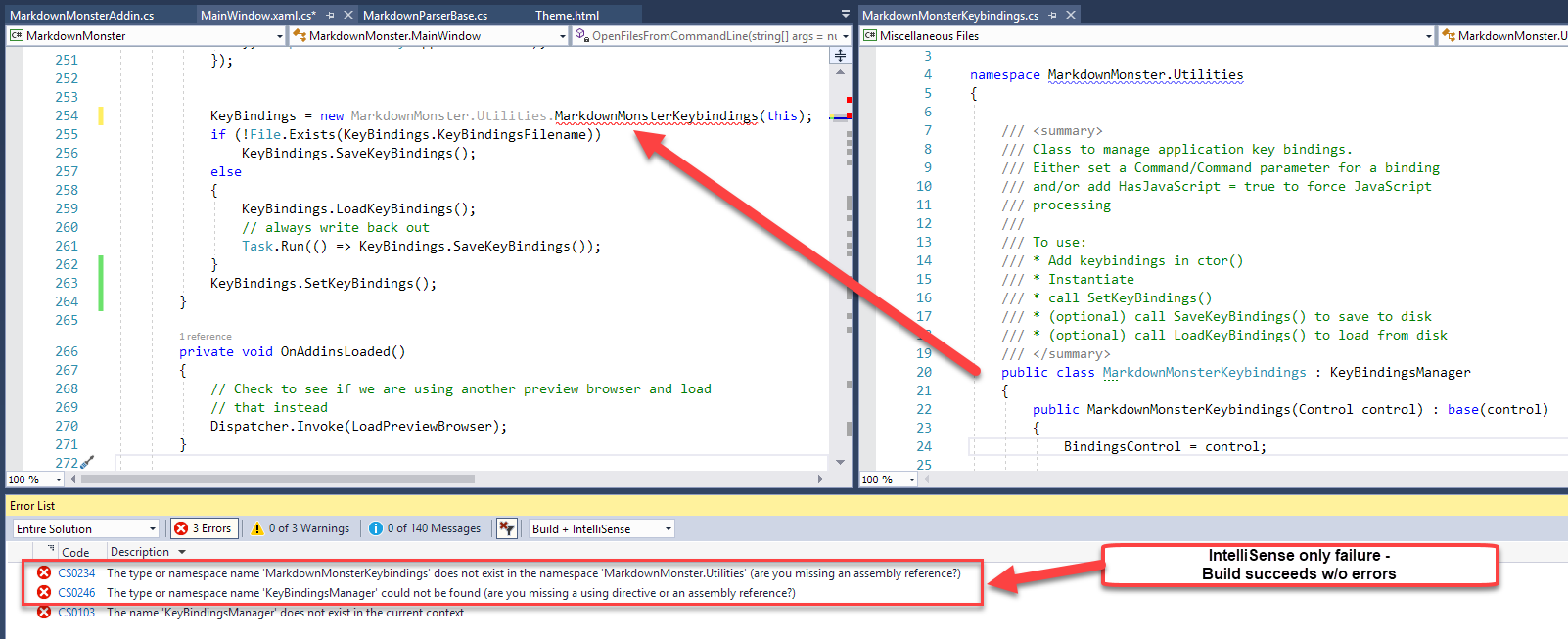
The actual build of the code succeeds, but Intellisense is flagging several classes as missing even though they clearly exist and clearly compile properly.
IntelliSense is High!
So IntelliSense sometimes goes off the rails and if you see errors in your project that don’t make sense, first check to see if the errors are related to Intellisense.
Notice the drop down in the error list that lets you see Build + Intellisense which, in the case above produces 3 errors, but no errors if I just show Build Only:
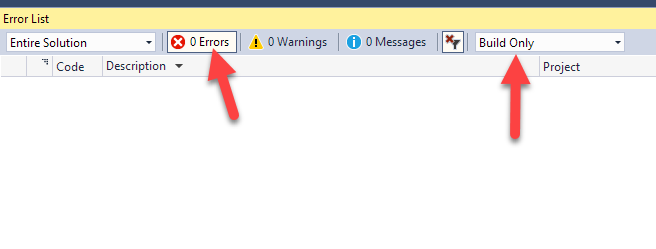
Note the Intellisense error drop down is a new feature so you may not see it in older versions of Visual Studio. Not sure when it arrived but it was in one of the late VS 2015.x updates.
Clearing up Intellisense
There’s usually a simple solution when IntelliSense decides to sleep one off:
Delete the .vs folder
The .vs folder holds solution related temp data including the .suo file that caches intellisense and some debug data. That folder also holds Web site configuration data for Web projects and a few other things. It’s safe to delete this folder — Visual Studio recreates it when it’s missing.
Older versions of Visual Studio (prior to VS 2015) didn’t have a separate folder and dumped that same information into files in the solution’s root folder.
In these older versions you can fix Intellisense issues by deleting the Solution’s .suo file. Deleting the .vs folder in newer version nukes the .suo file which is responsible for cached IntelliSense and also some cached Debug data. When VS acts up and reports whacky errors that seem wrong, the burning down the .suo file is a nice quick thing to try first.
To do this:
- Shut down VS
- Nuke the
.vsfolder or the.suofile - Restart VS
The .suo file contains cached IntelliSense data and once that file is off, no amount of recompilation or clearing the project is going to help. Nuke the .suo file. or in VS 2015 or later the .vs folder and get back to sanity.
Compiler Errors?
I haven’t run into this problem very frequently but when it does happen it’s usually quite vexing resulting (for me at least) in a flurry of deleting output folders.
I have a standard set of steps I tend to go through when I get compiler errors that are wrong. Well, usually it’s me who’s wrong, not the compiler but on occasion I get to be right and the compiler is really wrong.
If you have errors that show under the Build Only dropdown, then the issue isn’t Intellisense.
This has gotten a lot better, but for a while invalid compiler errors were a big problem with the .NET SDK projects (.NET Core / .NET Standard) and in those cases the solution for me usually is (and still occasionally is):
- Delete the
objfolder completely - Delete the
binfolder completely
While Visual Studio’s Clean project feature is supposed to address this, Clean will only clean up files the project knows about. If you’ve removed or renamed assemblies there may still be left over files in project output folders and deleting them cleans out the project completely.
This often fixes odd left over file issues that can cause strange compilation behavior. I never really considered Intellisense failure previously because Visual Studio didn’t differentiate compiler and IntelliSense Errors (or more accruately I didn’t notice the dropdown). I’d see errors in the Error list, yet my project would compile successfully, which was even more confusing.
Back to the Straight And Narrow
It’s nice that Visual Studio now explicitly shows these errors separately as Build and Intellisense errors, so you can take the sepearate actions to clean up this mess. In the past when the errors weren’t separated it was even more confusing with compiles succeeding, but the error list showing errors.
Now as to the cause of any of these errors? @drunkvs has some cleaning up to do after the barf fest of the previous night…