В Debian 9 установлены сразу 2 версии Python (из разных веток).
На момент написания заметки они были представлены пакетами python, который соответствует версии 2.7.13 из ветки 2.*; и python3 — версия 3.5.3 из ветки 3.*.
Само собой, по умолчанию используется только какая-то одна из версий, и для Debian это более старая версия 2.7.
Чтобы определить, какие версии Python установлены в вашей системе, выполните команды:
python --versionили
python -Vдля определения точного номера версии из ветки 2.* (также эта команда показывает, какая версия Python используется в системе по умолчанию) и
python3 --versionили
python3 -Vкоторая покажет версию третьего Python.
Итак, предположим вы определии, что у вас установлена версия 2.7.13 второго Python, и она же используется как дефолтная.
Изменение версии Python, используемой по умолчанию
Для настройки переключения версий Python воспользуемся подсистемой альтернатив. Выполняем команду
update-alternatives --list python
update-alternatives: ошибка: нет альтернатив для python
Описание ошибки свидетельствует, что в системе нет настроеных для Python альтернатив.
Далее нужно определиться, нужна ли вам возможность переключения между версиями или вы просто хотите изменить используемую по умолчанию версию.
В первом случае мы сначала добавим в качестве альтернативы версию 2. Для этого определим местонахождение её бинарников
ls /usr/bin/python2*
/usr/bin/python2 /usr/bin/python2.7 /usr/bin/python2.7-config /usr/bin/python2-config
А затем установим версию 2.7 в качестве первой альтернативы (внимание, для этой операции требуются root привелегии)
update-alternatives --install /usr/bin/python python /usr/bin/python2.7 1
update-alternatives: используется /usr/bin/python2.7 для предоставления /usr/bin/python (python) в автоматическом режиме
Последний параметр в этом примере (единица) указывает на приоритет — чем больше цифра, тем он выше.
Далее делаем тоже самое с третьей версией. Определяем местоположение бинарников.
ls /usr/bin/python3*
/usr/bin/python3 /usr/bin/python3.5 /usr/bin/python3.5m /usr/bin/python3m
И добавляем версию в список альтернатив.
update-alternatives --install /usr/bin/python python /usr/bin/python3.5 2
update-alternatives: используется /usr/bin/python3.5 для предоставления /usr/bin/python (python) в автоматическом режиме
Если вы не планируете использовать вторую версию Python, то этап её добавления в таблицу альтернатив можно пропустить.
После этого команда python -V должна вернуть версию 3.5.3, что означает, что по умолчанию в системе используется третья версия Python.
Выполним повторно
update-alternatives --list python
/usr/bin/python2.7
/usr/bin/python3.5
и убедимся, что теперь у нас в системе в качестве альтернатив установлены две версии Python.
С этого момента мы в любое время можем переключиться на нужную версию с помощью команды
update-alternatives --config python
Есть 2 варианта для альтернативы python (предоставляет /usr/bin/python).

  Выбор   Путь            Приор Состояние
------------------------------------------------------------
* 0            /usr/bin/python3.5   2         автоматический режим
  1            /usr/bin/python2.7   1         ручной режим
  2            /usr/bin/python3.5   2         ручной режим

Press <enter> to keep the current choice[*], or type selection number:
© 2023 Scorpion’s Lair Sitemap
The other day I decided that I wanted the command python to default to firing up python3 instead of python2.
So I did this:
$ sudo update-alternatives --install /usr/bin/python python /usr/bin/python2.7 2

$ sudo update-alternatives --install /usr/bin/python python /usr/bin/python3.5 3

$ sudo update-alternatives --config python

$ sudo update-alternatives --config python
There are 2 choices for the alternative python (providing /usr/bin/python).

  Selection    Path                Priority   Status
------------------------------------------------------------
* 0            /usr/bin/python3.5   3         auto mode
  1            /usr/bin/python2.7   2         manual mode
  2            /usr/bin/python3.5   3         manual mode

Press <enter> to keep the current choice[*], or type selection number: 0
And that all worked. Great! 🙂
$ python -V
Python 3.5.2
But it wasn’t long before I realised I had broken apt/aptitude when it comes to installing and removing python packages because apt was expecting python2 it transpired.
This is what happened.
$ sudo apt remove  python-samba
Reading package lists... Done
Building dependency tree
Reading state information... Done
The following package was automatically installed and is no longer required:
  samba-libs
Use 'sudo apt autoremove' to remove it.
The following packages will be REMOVED:
  python-samba
0 upgraded, 0 newly installed, 1 to remove and 0 not upgraded.
After this operation, 5,790 kB disk space will be freed.
Do you want to continue? [Y/n]
(Reading database ... 187285 files and directories currently installed.)
Removing python-samba (2:4.3.11+dfsg-0ubuntu0.16.04.5) ...
  File "/usr/bin/pyclean", line 63
    except (IOError, OSError), e:
                             ^
SyntaxError: invalid syntax
dpkg: error processing package python-samba (--remove):
 subprocess installed pre-removal script returned error exit status 1
Traceback (most recent call last):
  File "/usr/bin/pycompile", line 35, in <module>
    from debpython.version import SUPPORTED, debsorted, vrepr,
  File "/usr/share/python/debpython/version.py", line 24, in <module>
    from ConfigParser import SafeConfigParser
ImportError: No module named 'ConfigParser'
dpkg: error while cleaning up:
 subprocess installed post-installation script returned error exit status 1
Errors were encountered while processing:
 python-samba
E: Sub-process /usr/bin/dpkg returned an error code (1)
Eventually I guessed it wanted python2 as the default, so I undid my changes as follows:
$ sudo update-alternatives --config python
There are 2 choices for the alternative python (providing /usr/bin/python).

  Selection    Path                Priority   Status
------------------------------------------------------------
* 0            /usr/bin/python3.5   3         auto mode
  1            /usr/bin/python2.7   2         manual mode
  2            /usr/bin/python3.5   3         manual mode

Press <enter> to keep the current choice[*], or type selection number: 1

$ python -V
Python 2.7.12
And then apt worked again
$ sudo apt remove  python-samba
Reading package lists... Done
Building dependency tree
Reading state information... Done
The following package was automatically installed and is no longer required:
  samba-libs
Use 'sudo apt autoremove' to remove it.
The following packages will be REMOVED:
  python-samba
0 upgraded, 0 newly installed, 1 to remove and 0 not upgraded.
1 not fully installed or removed.
After this operation, 5,790 kB disk space will be freed.
Do you want to continue? [Y/n]
(Reading database ... 187285 files and directories currently installed.)
Removing python-samba (2:4.3.11+dfsg-0ubuntu0.16.04.5) ...
So I have had to leave it as defaulting to python 2 but I develop in python 3 and so would like my system to default to python 3 for when I run python and idle.
Can anyone tell me how I can achieve this without breaking apt?
My system is a Raspberry Pi 3B running Ubuntu:
Linux mymachine 4.4.38-v7+ #938 SMP Thu Dec 15 15:22:21 GMT 2016 armv7l armv7l armv7l GNU/Linux
(It’s actually an arm v8)
$ cat /etc/lsb-release
DISTRIB_ID=Ubuntu
DISTRIB_RELEASE=16.04
DISTRIB_CODENAME=xenial
DISTRIB_DESCRIPTION="Ubuntu 16.04.2 LTS"
On our Kali Linux (or any other Linux distribution) we might have installed different versions of Python. For using Python version 2.x we generally use python2 command, same as for using Python 3.x versions we use python3 command.

Here assume that we have installed multiple versions of Python3 installed on our system, like we have installed Python3.7 and Python 3.9 both on our Linux system for any reason. So whenever we want to use Python 3.9 we need to type command python3.9 because python3 command using Python 3.7 version as default.
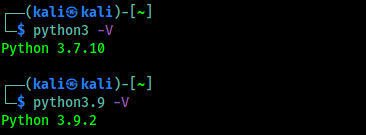
Our advanced Linux users may know this problem and the solution, but this is for beginners.
How to check installed Python versions on Linux?
This can be easily done with a simple command on our Terminal window. The command is following:
ls /usr/bin/python*In the following screenshot we can see that we have Python2.7, Python3.7 and Python3.9 installed on our system.
Problem
But we can see that python3 command is choosing Python3.7 version as default. But some updated tools needs Python3.9 to run. We can run python3.9 command, but it is annoying we should run python3 to run Python3 latest version, we may modify our .bashrc/.zshrc file but that will not be the correct solution.
We need to set our update-alternatives for python3.
We can check for the alternatives of python3 by running following command:
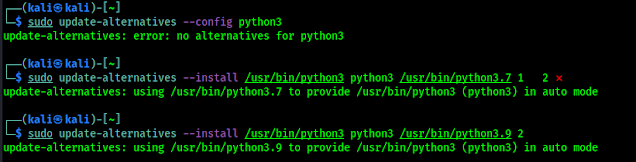
sudo update-alternatives --config python3But here we might get an error «update-alternatives: error: no alternatives for python3«.

It means, first we need to set alternatives for python3.
Solved
To set the alternatives for python3 we need to run some commands on our terminal.
First of all we need to run the following command:
sudo update-alternatives --install /usr/bin/python3 python3 /usr/bin/python3.7 1This command will add Python 3.7 on option 1.
Then we need to run following command:
sudo update-alternatives --install /usr/bin/python3 python3 /usr/bin/python3.9 2This command will add Python 3.9 on option 2
We can see this on the following screenshot:
Now we can again run the configure command to check and set the alternatives:
sudo update-alternatives --config python3In the following screenshot we can see that now we can save the configurations now.
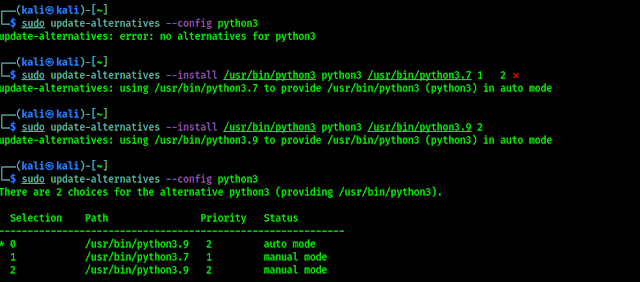
Here we can set the default version for the python3. Here automatically 0 is chosen for Python 3.9 version, we can go for it, otherwise instead of choosing by numbers we can run following command to choose the default python3 version:
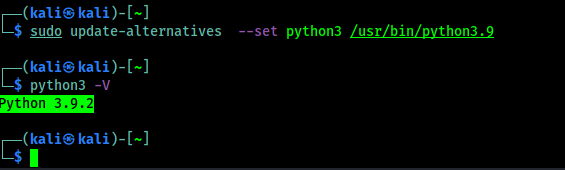
sudo update-alternatives --set python3 /usr/bin/python3.9Now we can check python3 default version by using following command:
python3 -VWe can see that now our Python 3.9 version is set as default for python3 command:
«update-alternatives: error: no alternatives for python3» is a very common problem for beginners so we thought to write an entire article for it we got too much request to solve this on our Telegram DM. When Python 4 will release some versions of Python 4, we can use the same as we did for Python 3.
Love our articles? Make sure to follow us to
get all our articles directly on inbox. We are also available on Twitter and GitHub, we post article updates there. To join our family, join our Telegram Group. We are trying to build a community for Linux and Cybersecurity. For anything we always happy to help everyone on the comment section. As we know our comment section is always open to everyone. We read each and every comment and we always reply.
I want to update python3 to version 3.9, I ran
sudo apt update
sudo apt install software-properties-common
sudo -E add-apt-repository ppa:deadsnakes/ppa
sudo apt install python3.9
sudo update-alternatives --config python3
. All of which were successful apart from the last command. It gives update-alternatives: error: no alternatives for python3.
Can somebody tell me what I am missing?
Thanks!
asked Apr 22, 2022 at 13:36

3
DON’T upgrade the default python version of your system. You will break it. Instead, set up virtual environments to run specific Python versions.
answered Apr 22, 2022 at 16:13

vanadiumvanadium
76.5k6 gold badges106 silver badges165 bronze badges
To solve the error: no alternatives for python3 error message open the terminal and run the following command:
sudo update-alternatives --install /usr/bin/python3 python3 /usr/bin/python3.9 2
sudo update-alternatives --config python3
answered Apr 23, 2022 at 0:17

karelkarel
106k93 gold badges263 silver badges290 bronze badges
I am using Ubuntu 16.04 LTS . I have python3 installed. There are two versions installed, python 3.4.3 and python 3.6 . Whenever I use python3 command, it takes python 3.4.3 by default. I want to use python 3.6 with python3.
python3 --version shows version 3.4.3
I am installing ansible which supports version > 3.5 . So, whenever, I type ansible in the terminal, it throws error because of python 3.4
sudo update-alternatives --config python3
update-alternatives: error: no alternatives for python3

GAD3R
60.8k30 gold badges126 silver badges189 bronze badges
asked Dec 13, 2017 at 9:13

8
From the comment:
sudo update-alternatives --config python
Will show you an error:
update-alternatives: error: no alternatives for python3
You need to update your update-alternatives , then you will be able to set your default python version.
sudo update-alternatives --install /usr/bin/python python /usr/bin/python3.4 1
sudo update-alternatives --install /usr/bin/python python /usr/bin/python3.6 2
Then run :
sudo update-alternatives --config python
Set python3.6 as default.
Or use the following command to set python3.6 as default:
sudo update-alternatives --set python /usr/bin/python3.6
answered Dec 14, 2017 at 12:11
GAD3RGAD3R
60.8k30 gold badges126 silver badges189 bronze badges
14
You can achieve this by applying below simple steps —
-
Check python version on terminal:
python --version -
Execute this command to switch to python 3.6:
sudo update-alternatives --install /usr/bin/python python /usr/bin/python3 1 -
Check python version:
python --version -
Done.

Kusalananda♦
306k35 gold badges598 silver badges894 bronze badges
answered Feb 2, 2019 at 9:37

Vineet JainVineet Jain
7935 silver badges2 bronze badges
2
if you have multiple version of python in your system. You just need to update the symbolic link of python inside /usr/bin/
root@irshad:/usr/bin# ls -lrth python*
lrwxrwxrwx 1 root root    9 Apr 16  2018 python -> python2.7
-rwxr-xr-x 1 root root 3.6M Nov 12  2018 python2.7
-rwxr-xr-x 2 root root 4.4M May  7 14:58 python3.6
In above example if you see the output of python --version you will get python2.7
Now update the python symlink using below command-
root@irshad:/usr/bin# unlink python
root@irshad:/usr/bin# ln -s /usr/bin/python3.6 python
root@irshad:/usr/bin# python --version
Python 3.6.8
answered May 25, 2019 at 18:03

IRSHADIRSHAD
5275 silver badges3 bronze badges
3
Using these commands can help you:
- check the version of python:
ls /usr/bin/python* - alias:
alias python='/usr/bin/pythonxx'(add this to. ~/.bashrc) - re-login or source
. ~/.bashrc - check the python version again:
python --version

answered Nov 8, 2018 at 11:44

NewtNewt
3692 silver badges4 bronze badges
3
First check that you have a python3.6 folder?
ls /usr/bin/python3.6
If you have «python3.6» folder, you are good to go. Now update-alternatives
sudo update-alternatives --install /usr/bin/python3 python3 /usr/bin/python3.6 1
then update new config for python3
sudo update-alternatives --config python3
Finally, check default python3 version:
python3 --version

Stewart
11k1 gold badge36 silver badges66 bronze badges
answered May 21, 2019 at 10:29

mmblackmmblack
1471 silver badge4 bronze badges
3
Create symlink for /usr/bin/python3.
In my LinuxMint:
# ls -lh /usr/bin/python3 /usr/bin/python
lrwxrwxrwx 1 root root 9 ноя 24  2017 /usr/bin/python -> python2.7
lrwxrwxrwx 1 root root 9 сен  6  2017 /usr/bin/python3 -> python3.5

# mv /usr/bin/python /usr/bin/python.bak
# cp /usr/bin/python3 /usr/bin/python
# python --version
Python 3.5.2

answered Dec 4, 2018 at 11:13

1
An easy answer would be to add an alias for python3.6.
Just add this line in the file ~/.bashrc : alias python3="python3.6", then close your terminal and open a new one. Now when you type python3 xxx it gets translated to python3.6 xxx.
This solution fixes your problem without needing to tweak your system too heavily.
EDIT :
As Mikael Kjær pointed out, this is a misconfiguration of ansible with your system.
As seen here :
Set the
ansible_python_interpreterconfiguration option to
/usr/bin/python3. The ansible_python_interpreter configuration option
is usually set per-host as an inventory variable associated with a
host or group of hosts:# Example inventory that makes an alias for localhost that uses python3 [py3-hosts] localhost-py3 ansible_host=localhost ansible_connection=local [py3-hosts:vars] ansible_python_interpreter=/usr/bin/python3
As seen here about the config file :
Changes can be made and used in a configuration file which will be processed in the following order:
* ANSIBLE_CONFIG (an environment variable)
* ansible.cfg (in the current directory)
* .ansible.cfg (in the home directory)
* /etc/ansible/ansible.cfg
answered Dec 13, 2017 at 9:27
3
update-alternatives is to change system symlinks to user-defined/admin-defined symlinks.
If you have multiple versions of python3 installed in your system and want to control which python3 version to invoke when python3 is called. Do the following
sudo update-alternatives --install /usr/bin/python3 python3 /usr/bin/python3.4 1
sudo update-alternatives --install /usr/bin/python3 python3 /usr/bin/python3.5 2
Run below command if you want to change priority in the future.
update-alternatives --config python3
Explanation:-
sudo update-alternatives --install <symlink_origin> <name_of_config> <symlink_destination> <priority>
You can go on change name_of_config to python4, but then you have to invoke update-alternatives —config with python4 to reconfigure.
Using this approach you are able to control system python version and python3 version separately.
answered Mar 13, 2019 at 20:02

1
You can change the simbolic link by ln -sf python3.6 python3 inside /usr/bin. With this when you call python3 it will execute python3.6
answered May 21, 2019 at 10:42

Ubuntu 16 default python is almost python 3
Loads of solutions exist, but for changing the system default, alias is not the way to go.
$ update-alternatives —list python
update-alternatives: error: no alternatives for python
ls -larth `which python`*
-rwxr-xr-x 2 root root 4.3M Nov 17 19:23 /usr/bin/python3.5
-rwxr-xr-x 1 root root 3.4M Nov 19 09:35 /usr/bin/python2.7
lrwxrwxrwx 1 root root   24 Feb  5 09:36 /usr/bin/python -> /etc/alternatives/python
So we have 2 — use these in update-alernatives
sudo update-alternatives --install /usr/bin/python python /usr/bin/python2.7 1
sudo update-alternatives --install /usr/bin/python python /usr/bin/python3.5 2


$ sudo update-alternatives --config python
There are 2 choices for the alternative python (providing /usr/bin/python).

  Selection    Path                Priority   Status
------------------------------------------------------------
* 0            /usr/bin/python3.5   2         auto mode
  1            /usr/bin/python2.7   1         manual mode
  2            /usr/bin/python3.5   2         manual mode

Press <enter> to keep the current choice[*], or type selection number:
Done
$ python --version
Python 3.5.2
$ python2 --version
Python 2.7.12
$ python3 --version
Python 3.5.2
В операционной системе Linux, основанной на Debian (Debian, Ubuntu, Mint, Kali и т.д.), может быть установлено несколько версий python. Вы можете запустить команду ls чтобы посмотреть версии, установленные на вашей системе:
$ ls /usr/bin/python*
/usr/bin/python  /usr/bin/python2  /usr/bin/python2.7  /usr/bin/python3  /usr/bin/python3.8  /usr/bin/python3.8m  /usr/bin/python3m
Чтобы проверить, какая версия python используется по умолчанию, выполните:
$ python --version
Python 2.7.8
Чтобы изменить версию python для отдельного пользователя, просто создайте alias для домашней директории пользователя. Откройте файл ~/.bashrc и добавьте новый alias чтобы изменить путь к исполняемому файлу python по умолчанию:
alias python='/usr/bin/python3.8'
После внесения изменений перелогиньтесь или перечитайте файл .bashrc:
$ . ~/.bashrc
Проверьте версию python по умолчанию:
$ python --version
Python 3.8.5
Если вы используете не bash, а другую оболочку, внесите алиас в соответствующий .rc-файл.
Изменение версии python для всей системы
Чтобы изменить версию python для всей системы, можно использовать команду update-alternatives. Залогиньтесь как пользователь root (или используйте sudo c далее описанными командами) и выведите список доступных альтернатив python на вашей системе:
# update-alternatives --list python
update-alternatives: error: no alternatives for python
Сообщение выше означает, что команда update-alternatives не распознает альтернативы python. Нужно обновить таблицу альтернатив для команды python, включая все имеющиеся в системе версии, например, python2.7 и python3.8:
# update-alternatives --install /usr/bin/python python /usr/bin/python2.7 1
update-alternatives: using /usr/bin/python2.7 to provide /usr/bin/python (python) in auto mode
# update-alternatives --install /usr/bin/python python /usr/bin/python3.8 2
update-alternatives: using /usr/bin/python3.8 to provide /usr/bin/python (python) in auto mode
Ключ --install принимает несколько аргументов, из которых может сделать символическую ссылку. Последний аргумент обозначает приоритет и, если вручную не указано, альтернатива с большим числом будет использована по умолчанию. В данном случае, мы указали приоритет 2 для /usr/bin/python3.8 и, как результат, /usr/bin/python3.8 был автоматически установлен командой update-alternatives как основной python.
# python --version
Python 3.8.5
Далее, можно вывести список всех альтернатив python:
# update-alternatives --list python
/usr/bin/python2.7
/usr/bin/python3.8
Теперь, в любое время, можно переключаться между альтернативами введя ниже указанную команду и вводя номер строки с альтернативой:
# update-alternatives --config python
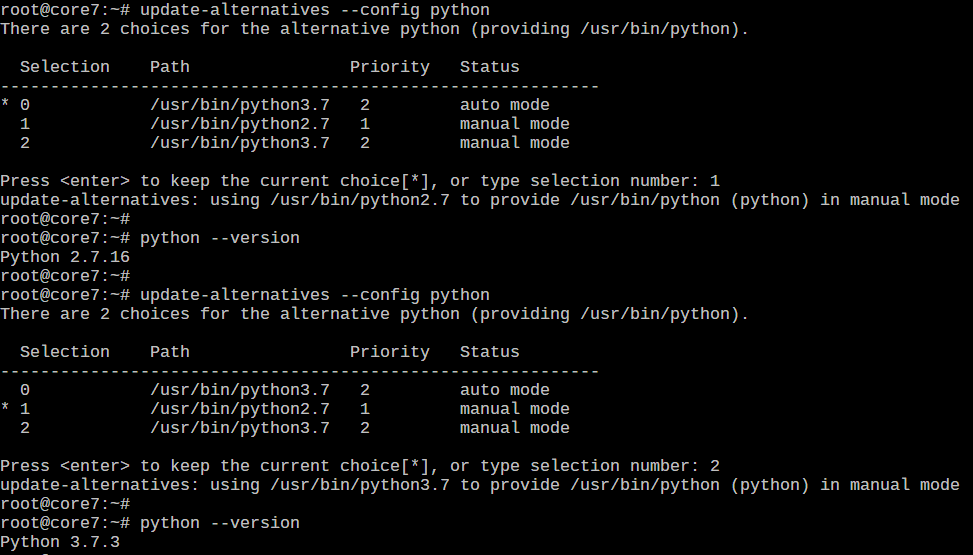
# python --version
Python 2.7.8
В случае, если из системы будет удалена одна из версий python, её можно будет удалить из листинга update-alternatives. Например, удалим версию python2.7:
# update-alternatives --remove python /usr/bin/python2.7
update-alternatives: removing manually selected alternative - switching python to auto mode
update-alternatives: using /usr/bin/python3.8 to provide /usr/bin/python (python) in auto mode
По мотивам этой статьи.
Сообщение об ошибке
- Deprecated function: Function create_function() is deprecated в функции _geshifilter_prepare() (строка 126 в файле /var/www/lsoft/sites/all/modules/geshifilter/geshifilter.pages.inc).
- Deprecated function: Function create_function() is deprecated в функции _geshifilter_prepare() (строка 131 в файле /var/www/lsoft/sites/all/modules/geshifilter/geshifilter.pages.inc).
- Deprecated function: Function create_function() is deprecated в функции _geshifilter_process() (строка 231 в файле /var/www/lsoft/sites/all/modules/geshifilter/geshifilter.pages.inc).

В Debian-based системах бывают по несколько версий приложений одного и того же типа. К примеру может быть установлено несколько текстовых редакторов. Если вы хотите выбрать приложение по умолчанию то команда update-alternatives вам пригодиться. Запустите команду и получите список альтернатив для выбора. Я покажу пару команд для выбора приложения по умолчанию.
Выбираем редактор по умолчанию:
sudo update-alternatives --config editor
Выбираем по умолчанию используемую версию Python:
sudo update-alternatives --config python
Иногда можно получить сообщение вида: No alternatives for python(update-alternatives: ошибка: нет альтернатив для python), например при выполнении команды update-alternatives —config python.
В таком случае вам нужно вручную добавить версии в систему альтернатив. Например если у вас установлены две версии Python 2.4 и Python 2.5 вы можете выполнить команды:
sudo update-alternatives --install /usr/bin/python python /usr/bin/python2.4 10
sudo update-alternatives --install /usr/bin/python python /usr/bin/python2.5 20
Теперь запустив команду update-alternatives —config python вам станет доступен выбор используемой по умолчанию версии. Число 10(после 2.4) и 20(после 2.5) это приоритет версии среди других. Наверное используется в случае если по умолчанию версия будет удалена из системы, будет использована следующая по приоритету.
- Блог пользователя — Nelex
Делитесь с друзьями в социальных сетях! Оставляйте комментарии!
Это Вам так же может быть интересно!
Я использую Ubuntu 16.04 LTS. Я python3установил. Установлены две версии, python 3.4.3и python 3.6. Всякий раз, когда я использую python3команду, она принимает python 3.4.3по умолчанию. Я хочу использовать python 3.6с python3.
python3 --version шоу version 3.4.3
Я устанавливаю, ansibleкоторый поддерживает version > 3.5. Поэтому, когда я набираю ansible в терминале, он выдает ошибку из-заpython 3.4
Ответы:
Из комментария:
sudo update-alternatives --config pythonПокажет вам ошибку:
update-alternatives: error: no alternatives for python3 Вам нужно обновить свою версию update-alternatives, тогда вы сможете установить версию Python по умолчанию.
sudo update-alternatives --install /usr/bin/python python /usr/bin/python3.4 1
sudo update-alternatives --install /usr/bin/python python /usr/bin/python3.6 2
Затем запустите:
sudo update-alternatives --config pythonУстановите python3.6 по умолчанию.
Или используйте следующую команду, чтобы установить python3.6 по умолчанию:
sudo update-alternatives --set python /usr/bin/python3.6Вы можете добиться этого, применяя следующие простые шаги —
- Проверьте версию Python на терминале —
python --version - Получите права пользователя root. По типу терминала —
sudo su - Запишите пароль пользователя root
- Выполните эту команду, чтобы перейти на Python 3.6 —
update-alternatives --install /usr/bin/python python /usr/bin/python3 1 - Проверьте версию Python —
python --version - Готово.
Создайте символическую ссылку для / usr / bin / python3. В моем LinuxMint:
# ls -lh /usr/bin/python3 /usr/bin/python
lrwxrwxrwx 1 root root 9 ноя 24  2017 /usr/bin/python -> python2.7
lrwxrwxrwx 1 root root 9 сен  6  2017 /usr/bin/python3 -> python3.5

# mv /usr/bin/python
# cp /usr/bin/python3 /usr/bin/python
# python --version
Python 3.5.2
Использование этих команд может помочь вам:
- проверьте версию python:
ls /usr/bin/python* - псевдоним:
alias python='/usr/bin/pythonxx' - повторного входа в систему:
. ~/.bashrc - проверьте версию Python еще раз:
python --version
Простой ответ — добавить псевдоним для python3.6.
Просто добавьте эту строку в файл ~ / .bashrc:, alias python3="python3.6"затем закройте свой терминал и откройте новый. Теперь, когда вы печатаете, python3 xxxон переводится в python3.6 xxx.
Это решение решает вашу проблему без необходимости слишком сильно настраивать вашу систему.
РЕДАКТИРОВАТЬ :
Как отметил Микаэль Кьер , это неверная конфигурация ANSIBLE в вашей системе.
Как видно здесь:
Установите параметр
ansible_python_interpreterконфигурации в / usr / bin / python3. Параметр конфигурации ansible_python_interpreter обычно устанавливается для каждого хоста в качестве переменной инвентаризации, связанной с хостом или группой хостов:# Example inventory that makes an alias for localhost that uses python3 [py3-hosts] localhost-py3 ansible_host=localhost ansible_connection=local [py3-hosts:vars] ansible_python_interpreter=/usr/bin/python3
Как видно здесь о файле конфигурации:
Изменения могут быть внесены и использованы в файле конфигурации, который будет обрабатываться в следующем порядке:
* ANSIBLE_CONFIG (an environment variable)
* ansible.cfg (in the current directory)
* .ansible.cfg (in the home directory)
* /etc/ansible/ansible.cfg
если у вас есть несколько версий Python в вашей системе. Вам просто нужно обновить символическую ссылку Python внутри/usr/bin/
root@irshad:/usr/bin# ls -lrth python*
lrwxrwxrwx 1 root root    9 Apr 16  2018 python -> python2.7
-rwxr-xr-x 1 root root 3.6M Nov 12  2018 python2.7
-rwxr-xr-x 2 root root 4.4M May  7 14:58 python3.6
В приведенном выше примере, если вы видите вывод, python --versionвы получите python2.7
Теперь обновите символическую ссылку на Python, используя следующую команду:
root@irshad:/usr/bin# unlink python
root@irshad:/usr/bin# ln -s /usr/bin/python3.6 python
root@irshad:/usr/bin# python --version
Python 3.6.8
update-alternatives — это изменение системных символических ссылок на пользовательские / определяемые администратором символические ссылки. Если в вашей системе установлено несколько версий python3, и вы хотите контролировать, какую версию python3 вызывать при вызове python3. Сделайте следующее
sudo update-alternatives --install /usr/bin/python3 python3 /usr/bin/python3.4 1
sudo update-alternatives --install /usr/bin/python3 python3 /usr/bin/python3.5 2
Запустите команду ниже, если вы хотите изменить приоритет в будущем.
update-alternatives --config python3Объяснение: —
sudo update-alternatives --install <symlink_origin> <name_of_config> <symlink_destination> <priority>Вы можете изменить name_of_config на python4, но затем вы должны вызвать альтернативы обновления —config с python4 для перенастройки.
Используя этот подход, вы можете управлять системной версией Python и версией Python3 по отдельности.
первая проверка у вас папка python3.6
ls /usr/bin/python3.6
если у вас есть папка, как python3.6 хорошо идти
тогда обновление-альтернативы
sudo update-alternatives --install /usr/bin/python3 python3 /usr/bin/python3.6 1
теперь обновите новый конфиг для python3
sudo update-alternatives --config python3
проверить версию Python
python3 --version
Вы можете изменить симболическую ссылку ln -sf python3.6 python3внутри /usr/bin. При этом при вызове python3будет выполнятьсяpython3.6