| Информация о файле | Описание |
|---|---|
| Размер файла: | 36 kB |
| Дата и время изменения файла: | 2009:07:14 01:39:52+00:00 |
| Дата и время изменения индексного дескриптора файлов: | 2017:11:05 07:07:16+00:00 |
| Тип файла: | Win64 EXE |
| Тип MIME: | application/octet-stream |
| Тип компьютера: | AMD AMD64 |
| Метка времени: | 2009:07:14 00:35:29+00:00 |
| Тип PE: | PE32+ |
| Версия компоновщика: | 9.0 |
| Размер кода: | 31232 |
| Размер инициализированных данных: | 5632 |
| Размер неинициализированных данных: | 0 |
| Точка входа: | 0x6fe0 |
| Версия ОС: | 6.1 |
| Версия образа: | 6.1 |
| Версия подсистемы: | 6.1 |
| Подсистема: | Windows GUI |
| Номер версии файла: | 6.1.7600.16385 |
| Номер версии продукта: | 6.1.7600.16385 |
| Маска флагов файлов: | 0x003f |
| Флаги файлов: | (none) |
| Файловая ОС: | Windows NT 32-bit |
| Тип объектного файла: | Executable application |
| Подтип файла: | 0 |
| Код языка: | English (U.S.) |
| Набор символов: | Unicode |
| Наименование компании: | Microsoft Corporation |
| Описание файла: | Thunking WIA APIS from 32 to 64 Process |
| Версия файла: | 6.1.7600.16385 (win7_rtm.090713-1255) |
| Внутреннее имя: | wiawow64.exe |
| Авторское право: | © Microsoft Corporation. All rights reserved. |
| Оригинальное имя файла: | wiawow64.exe |
| Название продукта: | Microsoft® Windows® Operating System |
| Версия продукта: | 6.1.7600.16385 |
✻ Фрагменты данных файлов предоставлены участником Exiftool (Phil Harvey) и распространяются под лицензией Perl Artistic.
Сканер CanoScan LIDE 60 — после года безупречной работы на компьютере под управлением Windows 7-64, в июне 2012 года (после очередного обновления системы) при попытке сканирования после загрузки окна драйвера появилось сообщение «Thunking WIA APIS program error from 32 to 64 Процесс »и закрытие драйвера. На вкладке Windows, Устройства и принтеры, когда вы нажимаете на значок сканера, он говорит, что вам необходимо установить драйвер WIA для этого устройства. При проверке в «Диспетчере устройств» система сообщает, что все драйверы установлены, обновление не требуется и устройство работает нормально. Откат обновления не помогает. Сам сканер полностью функциональный и безупречно работает на компьютере с Windows XP. Ответить Привет.
Запустить:
1. Чистая загрузка Windows.
2. Проверьте диск на наличие ошибок (применимо для Windows Vista).
3. Инструмент для проверки, не повреждены ли системные файлы.
3. Убедитесь, что служба загрузки образов Windows (WIA) работает)».
а). Перейдите в меню «Пуск», щелкните правой кнопкой мыши «Компьютер», выберите «Управление», откроется окно «Управление компьютером», в левой части окна «Управление компьютером» разверните «Службы и приложения», откройте «Службы».
б) Найдите в списке службу загрузки образов Windows (WIA), щелкните ее правой кнопкой мыши, выберите «Пуск», снова щелкните службу правой кнопкой мыши, выберите «Свойства», проверьте состояние службы, она должна быть «Работает», установите для типа запуска выберите «Автоматический», нажмите «Применить», «ОК».
в) Закройте окно «Управление компьютером», перезагрузите компьютер.
г) Проверьте, решена ли проблема.
4. Установите драйвер Canon WIA.
5. Переустановите программное обеспечение сканера.
Если описанные выше действия не решают проблему, в таких случаях запустите программу установки Windows в режиме обновления с установочного диска.
-
Включите компьютер, чтобы запустить Windows в обычном режиме. (Во время обновления компьютер не может загрузиться с установочного носителя Windows 7.)
-
Если пакет обновления 1 (SP1) не включен в установочный диск Windows 7, но установлен в Windows, удалите пакет обновления 1 (SP1) с помощью Центра обновления Windows, установленных обновлений, проверьте наличие установленных обновлений, введите: KB976932 и удалите. Необходимо перезагрузить компьютер.
-
После запуска Windows выполните одно из следующих действий.
- Если установочные файлы Windows 7 загружены на USB-накопитель, вставьте его в свой компьютер. Установка должна начаться автоматически. Если нет, нажмите кнопку Пуск

, выберите Компьютер, дважды щелкните нужный диск, затем дважды щелкните файл setup.exe.
- Если вы используете установочный диск Windows 7, вставьте его в соответствующий привод на вашем компьютере. Установка должна начаться автоматически. Если нет, нажмите кнопку «Пуск

, выберите Компьютер, дважды щелкните значок DVD-привода, чтобы открыть установочный диск Windows 7, а затем дважды щелкните файл setup.exe.
-
Если вы загружаете Windows 7 с веб-сайта, перейдите к загруженному установочному файлу и дважды щелкните его.
- Если установочные файлы Windows 7 загружены на USB-накопитель, вставьте его в свой компьютер. Установка должна начаться автоматически. Если нет, нажмите кнопку Пуск
-
На странице «Установить Windows» нажмите «Установить сейчас.
-
На странице «Получить критические обновления для установки» рекомендуется получить последние обновления, чтобы обеспечить успешную установку и защитить компьютер от угроз безопасности. Для получения обновлений установки требуется подключение к Интернету.
-
Если вы согласны с условиями лицензионного соглашения на странице «Прочитать условия лицензии», нажмите «Я принимаю условия лицензии», а затем нажмите «Далее.
-
Чтобы инициировать обновление, на странице «Выбор типа установки» нажмите «Обновить». Вы можете просмотреть отчет о совместимости.

Выберите страницу типа установки
-
Следуйте инструкциям, чтобы завершить установку Windows 7.
Источник: https://answers.microsoft.com/ru-ru/windows/forum/all/passed/d7b07cc1-f704-471e-a245-2974b8e98fe4
Иногда система Windows отображает сообщения об ошибках поврежденных или отсутствующих файлов wiawow64.exe. Подобные ситуации могут возникнуть, например, во время процесса установки программного обеспечения. Каждая программа требует определенных ресурсов, библиотек и исходных данных для правильной работы. Поэтому поврежденный или несуществующий файл wiawow64.exe может повлиять на неудачное выполнение запущенного процесса.
Файл был разработан для использования с программным обеспечением . Здесь вы найдете подробную информацию о файле и инструкции, как действовать в случае ошибок, связанных с wiawow64.exe на вашем устройстве. Вы также можете скачать файл wiawow64.exe, совместимый с устройствами Windows 7, Windows Vista, которые (скорее всего) позволят решить проблему.

Совместим с: Windows 7, Windows Vista
Популярность пользователя
Исправьте ошибки wiawow64.exe
- 1 Информация о файле wiawow64.exe
- 2 Ошибки, связанные с файлом wiawow64.exe
- 3 Как исправить ошибки, связанные с wiawow64.exe?
- 3.1 Сканирование на наличие вредоносных программ
- 3.2 Обновление системы и драйверов
- 3.3 Инструмент проверки системных файлов
- 3.4 Восстановление системы
- 4 Скачать wiawow64.exe
- 4.1 Список версий файла wiawow64.exe
Информация о файле
| Основная информация | |
|---|---|
| Имя файла | wiawow64.exe |
| Расширение файла | EXE |
| Описание | Thunking WIA APIS from 32 to 64 Process |
| Программного обеспечения | |
|---|---|
| программа | Microsoft® Windows® Operating System |
| автор | Microsoft Corporation |
| подробности | |
|---|---|
| MIME тип | application/octet-stream |
| Тип файла | Executable application |
| система | Windows NT 32-bit |
| Авторские права | © Microsoft Corporation. All rights reserved. |
| Набор символов | Unicode |
| Языковая треска | English (U.S.) |
Наиболее распространенные проблемы с файлом wiawow64.exe
Существует несколько типов ошибок, связанных с файлом wiawow64.exe. Файл wiawow64.exe может находиться в неправильном каталоге файлов на вашем устройстве, может отсутствовать в системе или может быть заражен вредоносным программным обеспечением и, следовательно, работать неправильно. Ниже приведен список наиболее распространенных сообщений об ошибках, связанных с файлом wiawow64.exe. Если вы найдете один из перечисленных ниже (или похожих), рассмотрите следующие предложения.
- wiawow64.exe поврежден
- wiawow64.exe не может быть расположен
- Ошибка выполнения — wiawow64.exe
- Ошибка файла wiawow64.exe
- Файл wiawow64.exe не может быть загружен. Модуль не найден
- невозможно зарегистрировать файл wiawow64.exe
- Файл wiawow64.exe не может быть загружен
- Файл wiawow64.exe не существует
wiawow64.exe

Не удалось запустить приложение, так как отсутствует файл wiawow64.exe. Переустановите приложение, чтобы решить проблему.
OK
Проблемы, связанные с wiawow64.exe, могут решаться различными способами. Некоторые методы предназначены только для опытных пользователей. Если вы не уверены в своих силах, мы советуем обратиться к специалисту. К исправлению ошибок в файле wiawow64.exe следует подходить с особой осторожностью, поскольку любые ошибки могут привести к нестабильной или некорректно работающей системе. Если у вас есть необходимые навыки, пожалуйста, продолжайте.
Как исправить ошибки wiawow64.exe всего за несколько шагов?
Ошибки файла wiawow64.exe могут быть вызваны различными причинами, поэтому полезно попытаться исправить их различными способами.
Шаг 1.. Сканирование компьютера на наличие вредоносных программ.
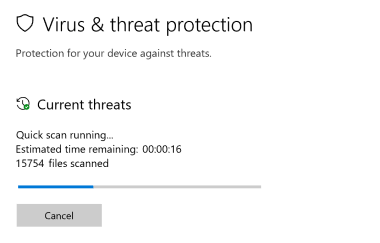
Файлы Windows обычно подвергаются атаке со стороны вредоносного программного обеспечения, которое не позволяет им работать должным образом. Первым шагом в решении проблем с файлом wiawow64.exe или любыми другими системными файлами Windows должно быть сканирование системы на наличие вредоносных программ с использованием антивирусного инструмента.
Если по какой-либо причине в вашей системе еще не установлено антивирусное программное обеспечение, вы должны сделать это немедленно. Незащищенная система не только является источником ошибок в файлах, но, что более важно, делает вашу систему уязвимой для многих опасностей. Если вы не знаете, какой антивирусный инструмент выбрать, обратитесь к этой статье Википедии — сравнение антивирусного программного обеспечения.
Шаг 2.. Обновите систему и драйверы.
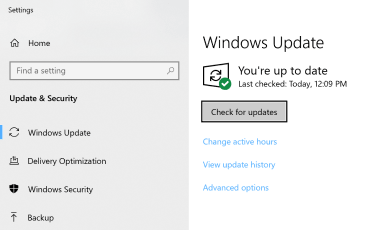
Установка соответствующих исправлений и обновлений Microsoft Windows может решить ваши проблемы, связанные с файлом wiawow64.exe. Используйте специальный инструмент Windows для выполнения обновления.
- Откройте меню «Пуск» в Windows.
- Введите «Центр обновления Windows» в поле поиска.
- Выберите подходящую программу (название может отличаться в зависимости от версии вашей системы)
- Проверьте, обновлена ли ваша система. Если в списке есть непримененные обновления, немедленно установите их.
- После завершения обновления перезагрузите компьютер, чтобы завершить процесс.
Помимо обновления системы рекомендуется установить последние версии драйверов устройств, так как драйверы могут влиять на правильную работу wiawow64.exe или других системных файлов. Для этого перейдите на веб-сайт производителя вашего компьютера или устройства, где вы найдете информацию о последних обновлениях драйверов.
Шаг 3.. Используйте средство проверки системных файлов (SFC).
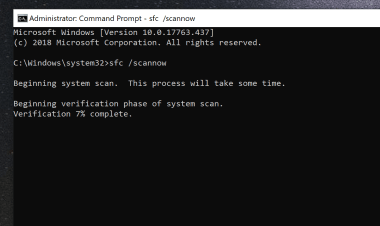
Проверка системных файлов — это инструмент Microsoft Windows. Как следует из названия, инструмент используется для идентификации и адресации ошибок, связанных с системным файлом, в том числе связанных с файлом wiawow64.exe. После обнаружения ошибки, связанной с файлом %fileextension%, программа пытается автоматически заменить файл wiawow64.exe на исправно работающую версию. Чтобы использовать инструмент:
- Откройте меню «Пуск» в Windows.
- Введите «cmd» в поле поиска
- Найдите результат «Командная строка» — пока не запускайте его:
- Нажмите правую кнопку мыши и выберите «Запуск от имени администратора»
- Введите «sfc / scannow» в командной строке, чтобы запустить программу, и следуйте инструкциям.
Шаг 4. Восстановление системы Windows.
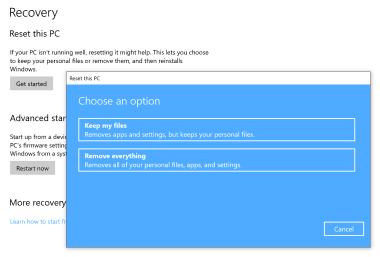
Другой подход заключается в восстановлении системы до предыдущего состояния до того, как произошла ошибка файла wiawow64.exe. Чтобы восстановить вашу систему, следуйте инструкциям ниже
- Откройте меню «Пуск» в Windows.
- Введите «Восстановление системы» в поле поиска.
- Запустите средство восстановления системы — его имя может отличаться в зависимости от версии системы.
- Приложение проведет вас через весь процесс — внимательно прочитайте сообщения
- После завершения процесса перезагрузите компьютер.
Если все вышеупомянутые методы завершились неудачно и проблема с файлом wiawow64.exe не была решена, перейдите к следующему шагу. Помните, что следующие шаги предназначены только для опытных пользователей
Загрузите и замените файл wiawow64.exe
Последнее решение — вручную загрузить и заменить файл wiawow64.exe в соответствующей папке на диске. Выберите версию файла, совместимую с вашей операционной системой, и нажмите кнопку «Скачать». Затем перейдите в папку «Загруженные» вашего веб-браузера и скопируйте загруженный файл wiawow64.exe.
Перейдите в папку, в которой должен находиться файл, и вставьте загруженный файл. Ниже приведен список путей к каталогу файлов wiawow64.exe.
- Windows 7: C:WindowsSystem32
- Windows Vista: C:WindowsSystem32
Если действия не помогли решить проблему с файлом wiawow64.exe, обратитесь к профессионалу. Существует вероятность того, что ошибка (и) может быть связана с устройством и, следовательно, должна быть устранена на аппаратном уровне. Может потребоваться новая установка операционной системы — неправильный процесс установки системы может привести к потере данных.
Список версий файлов

Имя файла
wiawow64.exe
система
Windows 7
Размер файла
36352 bytes
Дата
2009-07-14
| Подробности файла | ||
|---|---|---|
| MD5 | 3147d4c14bb47e75369772b68acf3079 | |
| SHA1 | 2dd284ed5ba37535a864701e44e1bc461e528f5a | |
| SHA256 | 198f1cc4c62396668ba156f6c3ae35af8926c1cc4b0d5b4e34a69795304c74de | |
| CRC32 | 59c019f3 | |
| Пример расположения файла | C:WindowsSystem32 |

Имя файла
wiawow64.exe
система
Windows Vista
Размер файла
35840 bytes
Дата
2006-11-02
| Подробности файла | ||
|---|---|---|
| MD5 | d874e8d692cfe51134648f77e6da348b | |
| SHA1 | a3ea1e3e47858de1fd4b7493a5a347589f8b5361 | |
| SHA256 | f46b74a44b9bea24431d64aa0842beb9419527e1e844695d95c145de2e2acaad | |
| CRC32 | 729f9597 | |
| Пример расположения файла | C:WindowsSystem32 |
-
Question
-
after building (64-bit) theXPSDrv sample driver and printing a document in MS Word 2007,
I get the following error:«Thunking Spooler APIS from 32 to 64 Process has stopped working»
is this a problem with the driver or some other Vista issue?
All replies
-
same problem here with XP professional 64bit.
-
Proposed as answer by
Saturday, October 17, 2009 11:26 AM
-
Proposed as answer by
-
Is that RTM — 6000 build of Vista / WDK you are seeing the problem?
Otherwise i dont see any such issue with my XPSDrv (NOT WDK Sample XPSDrv).
-Vijay
-
yup, this is Vista RTM/ WDK 6000
Any guesses on could have went wrong?

-
Can you attach a debugger to the crashing process (presumably splwow64.exe) and post a stack trace? This would give a quick clue what might be wrong.
Typically when there is a crash in splwow64 thunking process, it’s the driver that’s causing the crash (the splwow64 is a bare-bone GDI thunk dispatcher; there is very little room for the OS to fault here).
-
I get this error message now with two programs: Quicken Premier 2007 and Random House Unabridged Dictionary for Windows. The latter program worked perfectly until three days ago under Windows Vista Ultimate. I suspect some recent automatic updates have had undesirable side effects.
-
I got this error when I wanted to Save my hotel reservation details as PDF file. I was trying to print using ScanCreate PDF when he error popped up. And yes, I am using Vista — a brand new vista user. This is the second problem in a day for me with Vista. God knows how many more I’m going to encounter.
Any solution to the «thunking» issue?
Regards,
Somu
-
Ok I am not sure if this will help anyone else or not. I was getting this error after working on getting my printer to work through my Vista x64 host OS onto a Virtual XP computer on the same computer. Was having a problem with the driver «not matching» and said forget it. I would get the error whenever I tried to open Word 07 and when I tried to print from other office 07 applications but I could print test pages with no problem. I deleted the printer and reinstalled it with the universal driver for my printer. My printer is a Konica Minolta 2300DL. Since reinstalling the driver I can now open and print from any application. Hope this helps someone…looks like I am far from the only one having this problem.
-
I havent been able to solve it for 6 weeks. It seems to be more common with ultimate. Quicken 8 wont print checks and scans wont print. Where is microsoft on this? Are the asleep?
-
i traced the problem to a possible bug with our print ticket provider.
what’s your specific problem? are you developing your own printer driver?
-
Are you seeing this with your driver or are you using a 3rd party driver? Thanks!
— Ashwin
-
this is with the driver we are making.
-
possible hotfix available for this: http://support.microsoft.com/kb/941962/en-us
-
Update: see my solution in a later post below.
Thanks for posting the link to the hotfix, however unfortunately this hotfix still has no effect on the problem. Vista 64 continues to freeze up the applications whenever I try to print. The printing eventually gets through the spooler after several minutes. It is super slow and a major bug so I hope there will be a fix soon.
-
I have an HP Pavilion with 64 bit Vista Ultimate. Forget direct printing — it never works. If I uninsall and then reinstall Quicken to a folder other than Program Files (x86) I can creat PDF reports a couple of times, before it fails with some i/o message. If I try to «print» to Paperport I get the Thunking error, then it hangs totally. Have to power off and restart. Quicken has been unable/unwilling to fix this. I think there are not enough 64 bit computers out there to make it worth their while. Microsoft says it is a Quicken problem and will not look at it. Does anyone have any ideas!!!
-
Update: see my solution in a later mesage below.
Evidence is increasing that Microsoft has a MAJOR bug in the splwow64.exe process.
Is anyone from Microsoft out there? When is this going to be fixed? This is driving me crazy. Now I can understand why a lot of people are just keeping Windows XP.
-
I’m having major hangup issues with this same error when trying to print a PDF from Adobe Illustrator CS3 and Photoshop CS3. This error is only about a week old for me, but then, I installed Vista 64 about 3 weeks ago.
-
I have just started having the same issue, after running Quicken and Paperport on Vista64 Business for the past year. I thought my problems started when Q2008 installed its 6th revision. Now I a having the same issues as you report, and my uninstalling and reinstalling programs and drivers does no good. It seems this is a common problem, per web site reports. I’d be interested if you found a solution. I had tried to contact MS for their HotFix that you must ask for by email, but they have not answered me back yet. Good luck.
-
This is definitely a Microsoft problem. Error happenning when printing from Word 07 on Vista 64 Ultimate. Just started this morning.
-
This extremely slow printing in Vista x64 droze me crazy for a year and I found a fix.
The Epson R800 creates an audit file called EPAUDF01.AUD in C:ProgramDataEpsonPrinter.
Delete this file.
After deleting this file, printing is fast. It makes an incredible difference.
I used the Vista resource monitor to find out what was causing the heavy disk activity when splwow64.exe showed it was thunking the spooler.
In my case this Epson audit file grew to 36MB. Now, after deleting, it recreated itself as just 1KB.
So who’s bug is this?
It seems like both an Epson and Microsoft bug. It is Epson for creating a large audit file, and Microsoft for having a slow disk write in Vista for whatever mechanism Epson is using to write this file.
Nice to be able to actually use the printer!
-
Recently, I installed Vista Business x64 edition on a second hard drive. I received the good old Thunking Spooler error. I finally got the hotfix that’s suppose to address this issue and tried to install it, but I received another error stating that the hotfix did not apply to my system. I tried calling Microsoft’s support for an hour or so and that was a big joke. I came in this morning and I was determined to fix the problem for good. I already had a x64 version of XP on my other hard drive. Basically, I changed the permissions on the splwow64.exe on the vista install in the windows directory and gave administrators full rights. Renamed the splwow64.exe to splwow64.exe-old and copied the file from the windows xp x64 edition windows directory to the vista x64 windows directory. Opened word, no error message. I can print from all x32 applications with no errors.
-
I recently purchased a new desktop… HP, AMD processor, Windows Vista Home Premium 64 bit, HP Deskjet F4280 printer. I’ve never been able to print from any program. I’ve had the machine about a week and have looked everywhere for a solution, updated all drivers and software. I’m not extremely technical, so I chatted with HP support and there suggestions did not help me. On a whim, I changed the printer processor from hpzpp5mu to hpcpp081. It worked. I’m not sure why. But I figured I’d post this to give someone else help.
-
i have the same issue here on a vista 64 bit ultimate edition. Although mine is a build 6001 with sp1. so maybe they carried the same issue on the newer version?! I am shocked….
 not! anyway, anyone have a solution to this…or should i just take a picture of the document i want to print ? lol
 -
I am also getting this error message when trying to print to the Microsoft XPS Document Writer
and then trying to paste text from the clipboard into Save As dialog for the filename.
For example, I copy a news headline to the clipboard, print to XPS, and try to use that headline as the filename in the Save As dialog.
The Save As dialog first locks up with a (Not Responding). and then
«Thunking Spooler APIS from 32 to 64 Process has stopped working»
-
Hi
Eventhou this is an old post, I will giv my reply anyway.
I had the same problem, using a Xerox copier as the printer.
So I opend the properties for the printer with «Run as Administrator» a Java applet startet, and Vista came with a block/unblock warning. So I Unblocked this Java thing, and tried to print again, this time I had no problems.
Hope this might help someone.
-
I just want to chime in — I have the problem of splwow64 crashing constantly on me, without even trying to print. I have a Canon MX-5500N PS, Fax, and XPS printers installed. I just click the «Send information to Microsoft» button maybe 10 times per day and go on with my business. Of course, printing from any program doesn’t work.
-
yes , yes, yes, I found it for Windows XP 64 bit.
It was HP Laserjet driver which was causing conflict.
That had hpzui4wm.dll and hpz6r4wm.dll (Version 61.63.461.42) which was causing splwow64.exe failing.
Update with the latest printer driver.
It should resolve it.
-
Hi. I’m experiencing this problem, when I try to print to Adobe PDF virtual printer, I get error message about splwow64.exe process. Is there any solution for it, or do you all wait for something?
-
It’s not a solution, but I’m having an identical problem. It’s frustrating as I bought first quality gear and software and nobody seems to care.
-
It has to be a driver issue.
We had same issue too. We had an bad version of driver, so go on the printer company website and download the latest driver.
Good luck.
-
Hi,
I have had a HP Pavillion for a couple of months now and for some reason when I try to open any file created on my old 34bit system i get this error and my computer hangs up for 5 minutes then finally opens the file.
I noticed most people are saying this is happening when printing, I don’t have a printer even plugged in or installed right now and I still get it upon trying to open any older file.
Help?
Thanks!
-
I have the EXACT same circumstance (HP AMD, Vista Home Premium 64, Deskjet F4280). I’m at my wits end between the HP people and Vista, and need this ASAPWhere did you find the hpcpp081.dll? I did a full search and can’t find it on my drive or the software CD. Can you email it to me (kabole@msn.com)?
-Bulldog
-
What do you mean, changing the «Printer Processor»?
Thanks
-
When starting Word 2007 I get the same message :-
«Thunking Spooler APIS from 32 to 64 Process has stopped working»
Word will start but the message will popup every few seconds.
The OS is Vista64.
-
Here are the steps that you can try to resolve the issue.
At first restart the spooler service from the services Window then follow these steps
Open printers folder
Right click on the printer icon and select properties.
Click on Advanced tab.
Select «print directly to printer» Click on OkThen try printin!!!!!!!!!!!!!!!!!!!!!!!!!!!!!!!
-
Proposed as answer by
MR—RICK
Wednesday, April 22, 2009 1:44 AM
-
Proposed as answer by
-
«At first restart the spooler service from the services Window then follow these steps
Open printers folder
Right click on the printer icon and select properties.
Click on Advanced tab.
Select «print directly to printer» Click on Ok «Uhm…how does one accomplish this? I am computer-challenged, and haven’t a CLUE how to «restart the spooler service».
I tried the other steps, but I keep getting yet ANOTHER stinking error message about not being able to save my choices…»Error 0x0000070c»!!! 🙁
HEEEEELLLLP!!!!
-
The Rocker’s solution worked for me for a PDF Thunking Spooler error from Excel.
Thanks!
-
Solution if using print servers:
If your printer is on a server change it and print to the printer directly.
Remove the printer, Add a new printer, select local printer, use the ip address for the printer, reinstall the driver when it asks for the printer.
This worked for me, good luck.
rickd -
Here are the steps that you can try to resolve the issue.
At first restart the spooler service from the services Window then follow these steps
Open printers folder
Right click on the printer icon and select properties.
Click on Advanced tab.
Select «print directly to printer» Click on OkThen try printin!!!!!!!!!!!!!!!!!!!!!!!!!!!!!!!
First I had to get the appropriate printer driver for my XP 64 system, then Rocker’s advice worked like a charm!
-
Try this:
Before starting, backup your registry (and system). Don’t bother trying to use the File —> Server Properties —> Driver —> Remove function; it won’t work. Instead, reboot the machine into SAFE mode.
1) Go to C:WindowsSystem32spooldriversx64 —> Delete All the files
2) Go to C:WindowsSystem32spooldriversW32X86 —> Delete All the files
3) Optional (really for x86 systems), Go to C:WindowsSystem32spoolPRINTERS —> Delete All the files
4) This step involves the Registry —> Back up the registry and/or the keys you delete should you need them!!
5) Open Regedit
6) Go to ComputerHKEY_LOCAL_MACHINESYSTEMCurrentControlSetControlPrintPrinters
7) Delete ALL the sub keys
8) Go to ComputerHKEY_LOCAL_MACHINESYSTEMCurrentControlSetControlPrintEnvironmentsWindows x64Drivers
9) Delete ALL the sub keys
10) Go to ComputerHKEY_LOCAL_MACHINESYSTEMCurrentControlSetControlPrintEnvironmentsWindows x64Print Processors —> Delete ALL the sub keys
11) Close Registry Reboot
12) Go to «Turn Windows features on or off» in the control panel
13) Uncheck «Windows Fax and Scan»
14) Reboot
15) Go to «Turn Windows features on or off» in the control panel
16) Recheck «Windows Fax and Scan»
17) Reboot
At this point you should have a stable print spooler.
-
Hi
I have just bought a Dell laptop running vista 64, I got the thunking spooler error with 2 hours of using my printers.
Installed an HP 1010 with 64 bit driver and an Espon 915 with what Ii understood was a 64 bit driver.
Unable to remove fault, tried following your steps but did not have an option to turn off and then on the fax and scan, it was not in windows features. How do i get this started?
When i restarted the machine, the spooler had an error and failed to restart, got an error 1053 i think
As the machine is so new I have now completed a factory restore, will this have removed the fault?
Only way i can se to test this is to try printing again, which will mean installing printer agsin, if i get the fault again i will not know whether it is a new error or the unremoved original.
Can anyone help me, dell did not have a clue?
-
try this….
open regedit
Start->run->type»regedit»>hit enter
take a backup
follow the path
hkey_local_machine>system>currentControlSet>services>highlight «spooler»
on the right hand pane, have the following values ONLY delete every other entry.
Name Data
(Default) (value not set)
Depend on Service RPCSS
Description Loads file into memory for later printing
Display Name Print Spooler
Error Control 0x00000001 (1)
FailureActions leave it the way it is (too long to explain :P)
Group SpoolerGroup
Image Path %SystemRoot%system32spoolsv.exe
ObjectName LocalSystem
Start 0x00000002 (2)
Type 0x00000110 (272)
change the values to these settings if they are different.
and remeber THESE settings ONLY.
Hope this Helps, because i would hardly come to this forum. 😛
-
I see here that seems that everyone is having print issues. I am having Excel issues. My computer is a Dell Corei7 with 8GB Ram running Vista64
I can open up some excel files and when I try to edit them every little simple mode like changing the font size will cause my computer to run very slow. I see in the task manager that splWOW64.exe jups up to the top in terms of cpu processes. After the change
is finally made or updated the splWOW64 jumps down. Until I make my next edit. It is unbelieveable how discouraged I get knowing that my computer is a beast but acts like as slow a a 386!I can’t imagine that my issue is printer related since I’m not printing anything. What is the purpose of this darn .exe
SE
-
Proposed as answer by
Syberchick
Saturday, May 14, 2011 3:09 AM -
Unproposed as answer by
Syberchick
Saturday, May 14, 2011 3:09 AM
-
Proposed as answer by
-
Solved issue for Windows 7 64bit.
Go to ‘Devices and Printers’
Right-click PDF printer, select ‘Printer Properties’
Go to ‘Ports’ tab, select the port ‘FILE: Print to File’
Apply, then print.
I did get an error after this, but on closing the error, saw a ‘file save’ dialog for a pdf. I saved the file and voila — it worked.
-
Question
-
after building (64-bit) theXPSDrv sample driver and printing a document in MS Word 2007,
I get the following error:«Thunking Spooler APIS from 32 to 64 Process has stopped working»
is this a problem with the driver or some other Vista issue?
All replies
-
same problem here with XP professional 64bit.
-
Proposed as answer by
Saturday, October 17, 2009 11:26 AM
-
Proposed as answer by
-
Is that RTM — 6000 build of Vista / WDK you are seeing the problem?
Otherwise i dont see any such issue with my XPSDrv (NOT WDK Sample XPSDrv).
-Vijay
-
yup, this is Vista RTM/ WDK 6000
Any guesses on could have went wrong?
-
Can you attach a debugger to the crashing process (presumably splwow64.exe) and post a stack trace? This would give a quick clue what might be wrong.
Typically when there is a crash in splwow64 thunking process, it’s the driver that’s causing the crash (the splwow64 is a bare-bone GDI thunk dispatcher; there is very little room for the OS to fault here).
-
I get this error message now with two programs: Quicken Premier 2007 and Random House Unabridged Dictionary for Windows. The latter program worked perfectly until three days ago under Windows Vista Ultimate. I suspect some recent automatic updates have had undesirable side effects.
-
I got this error when I wanted to Save my hotel reservation details as PDF file. I was trying to print using ScanCreate PDF when he error popped up. And yes, I am using Vista — a brand new vista user. This is the second problem in a day for me with Vista. God knows how many more I’m going to encounter.
Any solution to the «thunking» issue?
Regards,
Somu
-
Ok I am not sure if this will help anyone else or not. I was getting this error after working on getting my printer to work through my Vista x64 host OS onto a Virtual XP computer on the same computer. Was having a problem with the driver «not matching» and said forget it. I would get the error whenever I tried to open Word 07 and when I tried to print from other office 07 applications but I could print test pages with no problem. I deleted the printer and reinstalled it with the universal driver for my printer. My printer is a Konica Minolta 2300DL. Since reinstalling the driver I can now open and print from any application. Hope this helps someone…looks like I am far from the only one having this problem.
-
I havent been able to solve it for 6 weeks. It seems to be more common with ultimate. Quicken 8 wont print checks and scans wont print. Where is microsoft on this? Are the asleep?
-
i traced the problem to a possible bug with our print ticket provider.
what’s your specific problem? are you developing your own printer driver?
-
Are you seeing this with your driver or are you using a 3rd party driver? Thanks!
— Ashwin
-
this is with the driver we are making.
-
possible hotfix available for this: http://support.microsoft.com/kb/941962/en-us
-
Update: see my solution in a later post below.
Thanks for posting the link to the hotfix, however unfortunately this hotfix still has no effect on the problem. Vista 64 continues to freeze up the applications whenever I try to print. The printing eventually gets through the spooler after several minutes. It is super slow and a major bug so I hope there will be a fix soon.
-
I have an HP Pavilion with 64 bit Vista Ultimate. Forget direct printing — it never works. If I uninsall and then reinstall Quicken to a folder other than Program Files (x86) I can creat PDF reports a couple of times, before it fails with some i/o message. If I try to «print» to Paperport I get the Thunking error, then it hangs totally. Have to power off and restart. Quicken has been unable/unwilling to fix this. I think there are not enough 64 bit computers out there to make it worth their while. Microsoft says it is a Quicken problem and will not look at it. Does anyone have any ideas!!!
-
Update: see my solution in a later mesage below.
Evidence is increasing that Microsoft has a MAJOR bug in the splwow64.exe process.
Is anyone from Microsoft out there? When is this going to be fixed? This is driving me crazy. Now I can understand why a lot of people are just keeping Windows XP.
-
I’m having major hangup issues with this same error when trying to print a PDF from Adobe Illustrator CS3 and Photoshop CS3. This error is only about a week old for me, but then, I installed Vista 64 about 3 weeks ago.
-
I have just started having the same issue, after running Quicken and Paperport on Vista64 Business for the past year. I thought my problems started when Q2008 installed its 6th revision. Now I a having the same issues as you report, and my uninstalling and reinstalling programs and drivers does no good. It seems this is a common problem, per web site reports. I’d be interested if you found a solution. I had tried to contact MS for their HotFix that you must ask for by email, but they have not answered me back yet. Good luck.
-
This is definitely a Microsoft problem. Error happenning when printing from Word 07 on Vista 64 Ultimate. Just started this morning.
-
This extremely slow printing in Vista x64 droze me crazy for a year and I found a fix.
The Epson R800 creates an audit file called EPAUDF01.AUD in C:ProgramDataEpsonPrinter.
Delete this file.
After deleting this file, printing is fast. It makes an incredible difference.
I used the Vista resource monitor to find out what was causing the heavy disk activity when splwow64.exe showed it was thunking the spooler.
In my case this Epson audit file grew to 36MB. Now, after deleting, it recreated itself as just 1KB.
So who’s bug is this?
It seems like both an Epson and Microsoft bug. It is Epson for creating a large audit file, and Microsoft for having a slow disk write in Vista for whatever mechanism Epson is using to write this file.
Nice to be able to actually use the printer!
-
Recently, I installed Vista Business x64 edition on a second hard drive. I received the good old Thunking Spooler error. I finally got the hotfix that’s suppose to address this issue and tried to install it, but I received another error stating that the hotfix did not apply to my system. I tried calling Microsoft’s support for an hour or so and that was a big joke. I came in this morning and I was determined to fix the problem for good. I already had a x64 version of XP on my other hard drive. Basically, I changed the permissions on the splwow64.exe on the vista install in the windows directory and gave administrators full rights. Renamed the splwow64.exe to splwow64.exe-old and copied the file from the windows xp x64 edition windows directory to the vista x64 windows directory. Opened word, no error message. I can print from all x32 applications with no errors.
-
I recently purchased a new desktop… HP, AMD processor, Windows Vista Home Premium 64 bit, HP Deskjet F4280 printer. I’ve never been able to print from any program. I’ve had the machine about a week and have looked everywhere for a solution, updated all drivers and software. I’m not extremely technical, so I chatted with HP support and there suggestions did not help me. On a whim, I changed the printer processor from hpzpp5mu to hpcpp081. It worked. I’m not sure why. But I figured I’d post this to give someone else help.
-
i have the same issue here on a vista 64 bit ultimate edition. Although mine is a build 6001 with sp1. so maybe they carried the same issue on the newer version?! I am shocked….
not! anyway, anyone have a solution to this…or should i just take a picture of the document i want to print ? lol -
I am also getting this error message when trying to print to the Microsoft XPS Document Writer
and then trying to paste text from the clipboard into Save As dialog for the filename.
For example, I copy a news headline to the clipboard, print to XPS, and try to use that headline as the filename in the Save As dialog.
The Save As dialog first locks up with a (Not Responding). and then
«Thunking Spooler APIS from 32 to 64 Process has stopped working»
-
Hi
Eventhou this is an old post, I will giv my reply anyway.
I had the same problem, using a Xerox copier as the printer.
So I opend the properties for the printer with «Run as Administrator» a Java applet startet, and Vista came with a block/unblock warning. So I Unblocked this Java thing, and tried to print again, this time I had no problems.
Hope this might help someone.
-
I just want to chime in — I have the problem of splwow64 crashing constantly on me, without even trying to print. I have a Canon MX-5500N PS, Fax, and XPS printers installed. I just click the «Send information to Microsoft» button maybe 10 times per day and go on with my business. Of course, printing from any program doesn’t work.
-
yes , yes, yes, I found it for Windows XP 64 bit.
It was HP Laserjet driver which was causing conflict.
That had hpzui4wm.dll and hpz6r4wm.dll (Version 61.63.461.42) which was causing splwow64.exe failing.
Update with the latest printer driver.
It should resolve it.
-
Hi. I’m experiencing this problem, when I try to print to Adobe PDF virtual printer, I get error message about splwow64.exe process. Is there any solution for it, or do you all wait for something?
-
It’s not a solution, but I’m having an identical problem. It’s frustrating as I bought first quality gear and software and nobody seems to care.
-
It has to be a driver issue.
We had same issue too. We had an bad version of driver, so go on the printer company website and download the latest driver.
Good luck.
-
Hi,
I have had a HP Pavillion for a couple of months now and for some reason when I try to open any file created on my old 34bit system i get this error and my computer hangs up for 5 minutes then finally opens the file.
I noticed most people are saying this is happening when printing, I don’t have a printer even plugged in or installed right now and I still get it upon trying to open any older file.
Help?
Thanks!
-
I have the EXACT same circumstance (HP AMD, Vista Home Premium 64, Deskjet F4280). I’m at my wits end between the HP people and Vista, and need this ASAPWhere did you find the hpcpp081.dll? I did a full search and can’t find it on my drive or the software CD. Can you email it to me (kabole@msn.com)?
-Bulldog
-
What do you mean, changing the «Printer Processor»?
Thanks
-
When starting Word 2007 I get the same message :-
«Thunking Spooler APIS from 32 to 64 Process has stopped working»
Word will start but the message will popup every few seconds.
The OS is Vista64.
-
Here are the steps that you can try to resolve the issue.
At first restart the spooler service from the services Window then follow these steps
Open printers folder
Right click on the printer icon and select properties.
Click on Advanced tab.
Select «print directly to printer» Click on OkThen try printin!!!!!!!!!!!!!!!!!!!!!!!!!!!!!!!
-
Proposed as answer by
MR—RICK
Wednesday, April 22, 2009 1:44 AM
-
Proposed as answer by
-
«At first restart the spooler service from the services Window then follow these steps
Open printers folder
Right click on the printer icon and select properties.
Click on Advanced tab.
Select «print directly to printer» Click on Ok «Uhm…how does one accomplish this? I am computer-challenged, and haven’t a CLUE how to «restart the spooler service».
I tried the other steps, but I keep getting yet ANOTHER stinking error message about not being able to save my choices…»Error 0x0000070c»!!! 🙁
HEEEEELLLLP!!!!
-
The Rocker’s solution worked for me for a PDF Thunking Spooler error from Excel.
Thanks!
-
Solution if using print servers:
If your printer is on a server change it and print to the printer directly.
Remove the printer, Add a new printer, select local printer, use the ip address for the printer, reinstall the driver when it asks for the printer.
This worked for me, good luck.
rickd -
Here are the steps that you can try to resolve the issue.
At first restart the spooler service from the services Window then follow these steps
Open printers folder
Right click on the printer icon and select properties.
Click on Advanced tab.
Select «print directly to printer» Click on OkThen try printin!!!!!!!!!!!!!!!!!!!!!!!!!!!!!!!
First I had to get the appropriate printer driver for my XP 64 system, then Rocker’s advice worked like a charm!
-
Try this:
Before starting, backup your registry (and system). Don’t bother trying to use the File —> Server Properties —> Driver —> Remove function; it won’t work. Instead, reboot the machine into SAFE mode.
1) Go to C:WindowsSystem32spooldriversx64 —> Delete All the files
2) Go to C:WindowsSystem32spooldriversW32X86 —> Delete All the files
3) Optional (really for x86 systems), Go to C:WindowsSystem32spoolPRINTERS —> Delete All the files
4) This step involves the Registry —> Back up the registry and/or the keys you delete should you need them!!
5) Open Regedit
6) Go to ComputerHKEY_LOCAL_MACHINESYSTEMCurrentControlSetControlPrintPrinters
7) Delete ALL the sub keys
8) Go to ComputerHKEY_LOCAL_MACHINESYSTEMCurrentControlSetControlPrintEnvironmentsWindows x64Drivers
9) Delete ALL the sub keys
10) Go to ComputerHKEY_LOCAL_MACHINESYSTEMCurrentControlSetControlPrintEnvironmentsWindows x64Print Processors —> Delete ALL the sub keys
11) Close Registry Reboot
12) Go to «Turn Windows features on or off» in the control panel
13) Uncheck «Windows Fax and Scan»
14) Reboot
15) Go to «Turn Windows features on or off» in the control panel
16) Recheck «Windows Fax and Scan»
17) Reboot
At this point you should have a stable print spooler.
-
Hi
I have just bought a Dell laptop running vista 64, I got the thunking spooler error with 2 hours of using my printers.
Installed an HP 1010 with 64 bit driver and an Espon 915 with what Ii understood was a 64 bit driver.
Unable to remove fault, tried following your steps but did not have an option to turn off and then on the fax and scan, it was not in windows features. How do i get this started?
When i restarted the machine, the spooler had an error and failed to restart, got an error 1053 i think
As the machine is so new I have now completed a factory restore, will this have removed the fault?
Only way i can se to test this is to try printing again, which will mean installing printer agsin, if i get the fault again i will not know whether it is a new error or the unremoved original.
Can anyone help me, dell did not have a clue?
-
try this….
open regedit
Start->run->type»regedit»>hit enter
take a backup
follow the path
hkey_local_machine>system>currentControlSet>services>highlight «spooler»
on the right hand pane, have the following values ONLY delete every other entry.
Name Data
(Default) (value not set)
Depend on Service RPCSS
Description Loads file into memory for later printing
Display Name Print Spooler
Error Control 0x00000001 (1)
FailureActions leave it the way it is (too long to explain :P)
Group SpoolerGroup
Image Path %SystemRoot%system32spoolsv.exe
ObjectName LocalSystem
Start 0x00000002 (2)
Type 0x00000110 (272)
change the values to these settings if they are different.
and remeber THESE settings ONLY.
Hope this Helps, because i would hardly come to this forum. 😛
-
I see here that seems that everyone is having print issues. I am having Excel issues. My computer is a Dell Corei7 with 8GB Ram running Vista64
I can open up some excel files and when I try to edit them every little simple mode like changing the font size will cause my computer to run very slow. I see in the task manager that splWOW64.exe jups up to the top in terms of cpu processes. After the change
is finally made or updated the splWOW64 jumps down. Until I make my next edit. It is unbelieveable how discouraged I get knowing that my computer is a beast but acts like as slow a a 386!I can’t imagine that my issue is printer related since I’m not printing anything. What is the purpose of this darn .exe
SE
-
Proposed as answer by
Syberchick
Saturday, May 14, 2011 3:09 AM -
Unproposed as answer by
Syberchick
Saturday, May 14, 2011 3:09 AM
-
Proposed as answer by
-
Solved issue for Windows 7 64bit.
Go to ‘Devices and Printers’
Right-click PDF printer, select ‘Printer Properties’
Go to ‘Ports’ tab, select the port ‘FILE: Print to File’
Apply, then print.
I did get an error after this, but on closing the error, saw a ‘file save’ dialog for a pdf. I saved the file and voila — it worked.
wiawow64.exe
Thunking WIA APIS from 32 to 64 Process by Microsoft

| Version: | 6.1.7600.16385 (win7_rtm.090713-1255) |
| MD5: | 3147d4c14bb47e75369772b68acf3079 |
| SHA1: | 2dd284ed5ba37535a864701e44e1bc461e528f5a |
| SHA256: | 198f1cc4c62396668ba156f6c3ae35af8926c1cc4b0d5b4e34a69795304c74de |
This is a Windows system installed file with Windows File Protection (WFP) enabled.
Overview
wiawow64.exe executes as a process with the local user’s privileges typically within the context of its parent svchost.exe (Host Process for Windows Services by Microsoft Corporation). The assembly utilizes the .NET run-time framework (which is required to be installed on the PC). This version is designed to run on Windows 7 and is compiled as a 64 bit program.
 Details
| File name: | wiawow64.exe |
| Publisher: | Microsoft Corporation |
| Product name: | Thunking WIA APIS from 32 to 64 Process |
| Description: | Microsoft® Windows® Operating System |
| Typical file path: | C:WindowsSystem32wiawow64.exe |
| File version: | 6.1.7600.16385 (win7_rtm.090713-1255) |
| Product version: | 6.1.7600.16385 |
| Size: | 35.5 KB (36,352 bytes) |
| Digital DNA | |
| File packed: | No |
| Code language: | Microsoft Visual C# / Basic .NET |
| .NET CLR: | Yes |
| .NET NGENed: | No |
More details
 Resource utilization
(Note: statistics below are averages based on a minimum sample size of 200 unique participants)
Averages
| CPU | ||
| Total CPU: | 0.00471041% |
0.028634% |
| Kernel CPU: | 0.00305544% |
0.013761% |
| User CPU: | 0.00165497% |
0.014873% |
| Kernel CPU time: | 335 ms/min |
100,923,805ms/min |
| Memory | ||
| Private memory: | 2.16 MB |
21.59 MB |
| Private (maximum): | 7.84 MB | |
| Private (minimum): | 3.9 MB | |
| Non-paged memory: | 2.16 MB |
21.59 MB |
| Virtual memory: | 84.41 MB |
140.96 MB |
| Virtual memory (peak): | 85.41 MB |
169.69 MB |
| Working set: | 7.4 MB |
18.61 MB |
| Working set (peak): | 7.4 MB |
37.95 MB |
| Resource allocations | ||
| Threads: | 4 |
12 |
| Handles: | 109 |
600 |
| GUI GDI count: | 9 |
103 |
| GUI GDI peak: | 9 |
142 |
| GUI USER count: | 4 |
49 |
| GUI USER peak: | 5 |
71 |
 Process properties
 Threads
Averages
| wiawow64.exe (main module) | ||
| Total CPU: | 0.01257607% |
0.272967% |
| Kernel CPU: | 0.00786004% |
0.107585% |
| User CPU: | 0.00471602% |
0.165382% |
| CPU cycles: | 4,535,714/sec |
5,741,424/sec |
| Memory: | 52 KB |
1.16 MB |
| ntdll.dll | ||
| Total CPU: | 0.00460904% | |
| Kernel CPU: | 0.00000000% | |
| User CPU: | 0.00460904% | |
| CPU cycles: | 783,113/sec | |
| Memory: | 1.66 MB |
 Distribution by Windows OS
| OS version | distribution | |
| Windows 7 Home Premium | 100.00% |
 Distribution by country
United States installs about 100.00% of Thunking WIA APIS from 32 to 64 Process.
 Distribution by PC manufacturer
| PC Manufacturer | distribution | |
| Dell | 66.67% | |
| Hewlett-Packard | 33.33% |
WiaExtensionHost64.dll Загрузить
- Разработчик:
- Microsoft
- Описание:
- WIA Extension Host for thunking APIs from 32-bit to 64-bit process
- Рейтинг:
Вы запускаете:
Windows 7

Файл DLL найден в нашей базе данных DLL.
Дата обновления базы данных dll:
28 Jan 2023
специальное предложение
См. дополнительную информацию о Outbyte и удалении :инструкции. Пожалуйста, просмотрите Outbyte EULA и Политика конфиденциальности
Нажмите «Загрузить Сейчас», чтобы получить утилиту для ПК, которая идет с WiaExtensionHost64.dll. Утилита автоматически определит отсутствующие dll и предложит установить их автоматически. Будучи простой в использовании утилитой, она является отличной альтернативой ручной установке, что было признано многими компьютерными экспертами и компьютерными журналами. Ограничения: пробная версия предлагает неограниченное количество сканирований, резервное копирование, бесплатное восстановление реестра Windows. Полную версию необходимо приобрести. Она поддерживает такие операционные системы, как Windows 10, Windows 8 / 8.1, Windows 7 и Windows Vista (64/32 bit).
Размер файла: 3,04 Мб, Время загрузки: < 1 мин. на DSL/ADSL/кабеле
Так как вы решили посетить эту страницу, есть шанс, что вы ищете либо файл wiaextensionhost64.dll, либо способ исправить ошибку “wiaextensionhost64.dll отсутствует”. Просмотрите информацию ниже, которая объясняет, как решить вашу проблему. На этой странице вы также можете скачать файл wiaextensionhost64.dll
Что такое WiaExtensionHost64.dll?
WiaExtensionHost64.dll — файл DLL (Dynamic Link Library): разработанный_, который относится к основным системным файлам ОС Windows. Обычно он содержит набор процедур и функций драйвера, которые могут применяться Windows.
Для чего используется WiaExtensionHost64.dll?
WiaExtensionHost64.dll file, также известен как WIA Extension Host for thunking APIs from 32-bit to 64-bit process, обычно ассоциируется с Microsoft® Windows® Operating System. Это важный компонент, обеспечивающий правильную работу программ Windows. Таким образом, отсутствие файла wiaextensionhost64.dll может отрицательно сказаться на работе связанного программного обеспечения.
Что такое WiaExtensionHost64.dll пропущена ошибка означает?
Есть несколько причин, которые могут привести к ошибкам wiaextensionhost64.dll. К ним относятся проблемы с реестром Windows, вредоносное программное обеспечение, неисправные приложения и т.д.
Сообщения об ошибках, связанные с файлом wiaextensionhost64.dll, также могут указывать на то, что файл был неправильно установлен, поврежден или удален.
Другие распространенные ошибки wiaextensionhost64.dll включают:
- “wiaextensionhost64.dll отсутствует”
- “wiaextensionhost64.dll ошибка загрузки”
- “wiaextensionhost64.dll сбой”
- “wiaextensionhost64.dll не найден”
- “wiaextensionhost64.dll не может быть обнаружен”
- “wiaextensionhost64.dll Нарушение Доступа”
- “Ошибка процедуры входа wiaextensionhost64.dll”
- “Невозможно найти wiaextensionhost64.dll”
- “Невозможно зарегистрировать wiaextensionhost64.dll”
wiaextensionhost64.dll — Системная Ошибка
Программа не может работать, потому что wiaextensionhost64.dll отсутствует на вашем компьютере. Попробуйте переустановить программу, чтобы исправить проблему.
Как исправить ошибку WiaExtensionHost64.dll отсутствует?
Если появляется оштбка “wiaextensionhost64.dll отсутствует”, решить проблемы можно используя один из приведенных ниже методов — ручной или автоматический. Ручной метод предполагает, что вы загружаете файл wiaextensionhost64.dll и помещаете его в папку установки игры/приложения, в то время как второй метод гораздо проще, так как позволяет автоматически исправить ошибку с минимальными усилиями.
- Метод 1: Загрузить WiaExtensionHost64.dll
- Метод 2: Исправить ошибку отсутствующего WiaExtensionHost64.dll автоматически
- Метод 3: Обновите драйверы для восстановления отсутствующих .dll-файлов
- Метод 4: Просканируйте свой ПК на вирусы, чтобы исправить ошибку wiaextensionhost64.dll
- Метод 5: Исправить ошибку отсутствующего WiaExtensionHost64.dll с System File Checker (SFC)
- Метод 6: Исправить испорченный файл WiaExtensionHost64.dll за счет выполнения System Restore
Метод 1: Загрузить WiaExtensionHost64.dll
Выполните поиск по доступным версиям wiaextensionhost64.dll из списка ниже, выберите нужный файл и нажмите на ссылку «Загрузить». Если вы не можете решить, какую версию выбрать, прочитайте статью ниже или используйте автоматический метод для решения проблемы
WiaExtensionHost64.dll, 5 доступные версии
| Биты и Версии | размер файлы | Язык | Описание | контрольные суммы | |
|---|---|---|---|---|---|
|
64bit 6.3.9600.16384 |
10.0 KB | U.S. English | WIA Extension Host for thunking APIs from 32-bit to 64-bit process |
MD5 MD5 SHA1 SHA1 |
|
|
32bit 6.1.7600.16385 |
8.0 KB | U.S. English | WIA Extension Host for thunking APIs from 32-bit to 64-bit process |
MD5 MD5 SHA1 SHA1 |
|
|
64bit 6.0.6000.16386 |
9.5 KB | U.S. English | WIA Extension Host for thunking APIs from 32-bit to 64-bit process |
MD5 MD5 SHA1 SHA1 |
|
|
64bit 10.0.14393.0 |
11.0 KB | U.S. English | WIA Extension Host for thunking APIs from 32-bit to 64-bit process |
MD5 MD5 SHA1 SHA1 |
|
|
64bit 10.0.10586.0 |
11.0 KB | U.S. English | WIA Extension Host for thunking APIs from 32-bit to 64-bit process |
MD5 MD5 SHA1 SHA1 |
Как выбрать правильную версию WiaExtensionHost64.dll?
Сначала просмотрите описания в таблице выше и выберите подходящий файл для вашей программы. Обратите внимание на то, 64- или 32-битный ли это файл, а также на используемый в нем язык. Для 64-битных программ используйте 64-битные файлы, если они перечислены выше.
Лучше всего по возможности выбирать те dll-файлы, язык которых соответствует языку вашей программы. Мы также рекомендуем загрузить последние версии dll-файлов, чтобы иметь актуальный функционал.
Где разместить файл WiaExtensionHost64.dll?
Исправить ошибку “wiaextensionhost64.dll отсутствует” можно, поместив файл в папку установки приложения/игры. Или же вы можете поместить файл wiaextensionhost64.dll в системный каталог Windows.
Как зарегистрировать WiaExtensionHost64.dll?
Если размещение отсутствующего wiaextensionhost64.dll файла в нужном каталоге не решает проблему, вам придется его зарегистрировать. Для этого скопируйте файл DLL в папку C:WindowsSystem32 и откройте командную строку с правами администратора. Там введите «regsvr32wiaextensionhost64.dll» и нажмите Enter.
Метод 2: Исправить ошибку отсутствующего WiaExtensionHost64.dll автоматически
С помощью WikiDll Fixer вы можете автоматически исправлять ошибки под псевдонимом. Утилита не только бесплатно скачает корректную версию wiaextensionhost64.dll и предложит нужный каталог для его установки, но и решит другие проблемы, связанные с wiaextensionhost64.dll файлом.
-
Шаг 1:
Нажмите на кнопку “Загрузить App.”, чтобы получить автоматический инструмент, предоставляемый WikiDll.
-
Шаг 2:
Установите утилиту, следуя простым инструкциям по установке. -
Шаг 3:
Запустите программу для исправления ошибок wiaextensionhost64.dll и других проблем.
специальное предложение
4.365.534
Загрузки
См. дополнительную информацию о Outbyte и удалении :инструкции. Пожалуйста, просмотрите Outbyte EULA и Политика конфиденциальности
Размер Файлы: 3.04 MB, время загрузки: < 1 min. on DSL/ADSL/Cable
Этот инструмент совместим с:

Ограничения: пробная версия предлагает неограниченное количество проверок, резервное копирование, бесплатное восстановление реестра Windows. Полную версию необходимо приобрести.
Метод 3: Обновите драйверы для восстановления отсутствующих .dll-файлов
Обновления драйверов для операционной системы Windows, а также для сетевых адаптеров, мониторов, принтеров и т.д. можно самостоятельно загрузить и установить из Центра обновлений Windows или с помощью специализированных утилит.
ОПЦИЯ 1 — Автоматическое Обновление Драйверов Устройств
Outbyte Driver Updater автоматически обновляет драйверы на Windows. Рутинные обновления драйверов теперь в прошлом!
-
Шаг 1:
Загрузить обновление драйвера Outbyte» -
Шаг 2:
Установите приложение -
Шаг 3:
Запустите приложение -
Шаг 4:
Driver Updater будет сканировать систему на наличие устаревших и отсутствующих драйверов -
Шаг 5:
Нажмите Обновить, чтобы автоматически обновить все драйверы
ОПЦИЯ 2 — Ручное Обновление Драйверов Устройств
-
Шаг 1:
Перейти в окно поиска на панели задач — написать Диспетчер устройств — выбрать Диспетчер устройств -
Шаг 2:
Выберите категорию для просмотра имен устройств — щелкните правой кнопкой мыши то устройство, которое необходимо -
Шаг 3:
Выберите Автоматический поиск обновленных драйверов -
Шаг 4:
Посмотрите на драйвер обновления и выберите его -
Шаг 5:
Windows, возможно, не сможет найти новый драйвер. В этом случае пользователь может увидеть драйвер на сайте производителя, где доступны все необходимые инструкции
Метод 4: Просканируйте свой ПК на вирусы, чтобы исправить ошибку wiaextensionhost64.dll
Иногда ошибка wiaextensionhost64.dll может произойти из-за вредоносного ПО на вашем компьютере. Вредоносная программа может намеренно повреждать DLL-файлы, чтобы заменить их своими собственными вредоносными файлами. Поэтому вашим приоритетом номер один должно быть сканирование компьютера на наличие вредоносных программ и их скорейшее устранение.
ОПЦИЯ 1 — Windows Defender
Новая версия Windows 10 имеет встроенное приложение под названием «Windows Defender», которое позволяет проверять компьютер на наличие вирусов и удалять вредоносные программы, которые трудно удалить в работающей операционной системе. Для того, чтобы использовать Windows Defender Offline сканирование, перейдите в настройки (Пуск — значок Gear или клавиша Win + I), выберите «Обновить и безопасность» и перейдите в раздел «Windows Defender».
Как использовать автономное сканирование Windows Defender
-
Шаг 1:
Нажмите клавишу Win или Start и нажмите на иконку Gear. В качестве альтернативы нажмите комбинацию клавиш Win + I. -
Шаг 2:
Выберите опцию Обновить и безопасность и перейдите в раздел Windows Defender. -
Шаг 3:
В нижней части настроек защитника установлен флажок «Windows Defender Offline scan». Чтобы ее запустить, нажмите кнопку «Сканировать сейчас». Обратите внимание, что перед перезагрузкой компьютера необходимо сохранить все несохраненные данные».
После нажатия кнопки «Сканировать сейчас» компьютер перезагрузится и автоматически начнет поиск вирусов и вредоносных программ. После завершения сканирования компьютер перезагрузится, и в уведомлениях Вы увидите отчет о выполненной проверке.
ОПЦИЯ 2 — Outbyte Antivirus
Продукты Outbyte — одни из самых популярных и эффективных для борьбы с вредоносным и нежелательным ПО, и они принесут пользу даже тогда, когда у вас установлен качественный сторонний антивирус. Сканирование в новой версии Malwarebyte можно выполнять в режиме реального времени и вручную. Чтобы инициировать ручное сканирование, пожалуйста, выполните следующие шаги:
-
Шаг 1:
Запустите программу Outbyte и нажмите кнопку Scan Now. Также в левой части окна программы можно выбрать опцию «Сканировать» и нажать кнопку Полное сканирование. Система начнет сканирование, и Вы сможете увидеть результаты сканирования». -
Шаг 2:
Выберите элементы, которые вы хотите поместить в карантин и нажмите кнопку «Карантин выбран». При помещении в карантин может появиться запрос на перезагрузку компьютера. -
Шаг 3:
«После перезапуска программы вы можете удалить все карантинные объекты, перейдя в соответствующий раздел программы или восстановить некоторые из них, если выяснилось, что после карантина что-то из вашей программы начало работать некорректно.
Метод 5: Исправить ошибку отсутствующего WiaExtensionHost64.dll с System File Checker (SFC)
Многие пользователи знакомы с командой проверки целостности системных файлов sfc/scannow, которая автоматически проверяет и исправляет защищенные системные файлы Windows. Чтобы выполнить эту команду, вам нужно запустить командную строку от имени администратора.
-
Шаг 1:
Запустите командную строку от имени администратора в Windows, нажав клавишу Win на клавиатуре и введя «Командную строку» в поле поиска, затем — щелкните правой кнопкой мыши по результату и выберите Запустить от имени администратора. В качестве альтернативы можно нажать комбинацию клавиш Win + X, в результате чего откроется меню, в котором можно выбрать Command Prompt (Admin). -
Шаг 2:
Введите sfc / scannow в командной строке и нажмите Enter.
После ввода команды начнется проверка системы. Это займет некоторое время, так что, пожалуйста, будьте терпеливы. После завершения операции вы получите сообщение “Windows Resource Protection нашла поврежденные файлы и успешно их восстановила” или “Windows Resource Protection нашла поврежденные файлы, но не смогла исправить некоторые из них”.
Помните, что System File Checker (SFC) не может исправить ошибки целостности тех системных файлов, которые в настоящее время используются операционной системой. Чтобы исправить эти файлы, нужно выполнить команду SFC через командную строку в среде восстановления Windows. Вы можете попасть в Windows Recovery Environment с экрана входа в систему, нажав Shutdown, затем удерживая клавишу Shift при выборе Restart.
В Windows 10 можно нажать клавишу Win, выбрать «Настройки» > «Обновление и безопасность» > «Восстановление», а в разделе «Дополнительный запуск» — «Перезагрузка». Вы также можете загрузиться с установочного диска или загрузочного USB-накопителя с дистрибутивом Windows 10. На экране установки выберите предпочтительный язык, а затем выберите «Восстановление системы». После этого перейдите в «Устранение неисправностей» > «Дополнительные настройки» > «Командная строка». В командной строке введите следующую команду: sfc/scannow /offbootdir=C: /offwindir=C:Windows, где C — раздел с установленной операционной системой, и C: Windows — это путь к папке Windows 10.
Эта операция займет некоторое время, и важно дождаться ее завершения. По завершении закройте командную строку и перезагрузите компьютер, как обычно.
Метод 6: Исправить испорченный файл WiaExtensionHost64.dll за счет выполнения System Restore
Восстановление системы очень полезно, когда вы хотите исправить ошибку wiaextensionhost64.dll. С помощью функции «Восстановление системы» вы можете выбрать восстановление Windows до даты, когда файл wiaextensionhost64.dll не был поврежден. Таким образом, восстановление Windows до более ранней даты отменяет изменения, внесенные в системные файлы. Чтобы откатить Windows с помощью функции «Восстановление системы» и избавиться от ошибки wiaextensionhost64.dll, выполните следующие действия.
-
Шаг 1:
Нажмите комбинацию клавиш Win + R, чтобы запустить диалог «Запуск». -
Шаг 2:
Введите rstrui в текстовом поле Run и нажмите OK или нажмите Enter. Откроется утилита восстановления системы. -
Шаг 3:
В окне «Восстановление системы» можно выбрать опцию «Выбрать другую точку восстановления». Если да, то выберите эту опцию и нажмите «Далее». Установите флажок «Показывать больше точек восстановления», чтобы увидеть полный список. -
Шаг 4:
Выберите дату для восстановления Windows 10. Помните, что нужно выбрать точку восстановления, которая восстановит Windows до даты, когда не появилось сообщение об ошибке wiaextensionhost64.dll. -
Шаг 5:
Нажмите кнопку «Далее» и затем нажмите «Готово» для подтверждения точки восстановления.
В этот момент компьютер перезагрузится нормально и загрузится с восстановленной версией Windows, и ошибка wiaextensionhost64.dll должна быть устранена.
Эта страница доступна на других языках:
English |
Deutsch |
Español |
Français |
Italiano |
Português |
Bahasa Indonesia |
Nederlands |
Nynorsk |
Svenska |
Tiếng Việt |
Suomi
Hi,
Thank you for using
Microsoft Office for IT Professionals Forums.
From your description,
try the following method:
Important This article contains information about how to modify the registry. Make sure
that you back up the registry before you modify it. Make sure that you know how to restore the registry if a problem occurs. For more information about how to back up, restore, and modify the registry, click the following article number to view the article
in the Microsoft Knowledge Base:
256986 Description of the Microsoft
Windows registry
- If you have Acrobat, uninstall it.
- Reboot into SAFE mode.
- Delete all of the files in these folders:
C:WindowsSystem32spooldriversx64
C:WindowsSystem32spooldriversW32X86
C:WindowsSystem32spoolPRINTERS - Open Regedit, and make a backup of the registry
- Delete all subkeys (folders) in these locations:
ComputerHKEY_LOCAL_MACHINESYSTEMCurrentControlSetControlPrintPrinters
ComputerHKEY_LOCAL_MACHINESYSTEMCurrentControlSetControlPrintEnvironmentsWindows x6Drivers
ComputerHKEY_LOCAL_MACHINESYSTEMCurrentControlSetControlPrintEnvironmentsWindows x64Print Processors
- Close registry & reboot
To add your printers back in,
get the absolute latest printer driver from your manufacturer’s website. Add each printer one at a time (rebooting and printing a test page in-between).
Please take your time to try the suggestions and let me know the results at your earliest convenience. If anything is unclear or if there is anything
I can do for you, please feel free to let me know.
Sincerely
Rex Zhang
———————————————————————————
Please remember to mark the replies as answers if they help and unmark them if they provide no help.
advertisement
Скачайте файл wiaextensionhost64.dll, чтобы решить вашу проблему с dll.
Сейчас у нас доступно 5 разных версий этого файла.
Делайте выбор с умом. В большинстве случаев просто выбирайте самую последнюю версию.
wiaextensionhost64.dll, Описание файла: WIA Extension Host for thunking APIs from 32-bit to 64-bit process
Ошибки, связанные с wiaextensionhost64.dll могут возникнуть по нескольким причинам. Например, ошибочная заявка: wiaextensionhost64.dll было удалено или потеряно, искажено вредоносными программами, присутствующими в вашем компьютере; или поврежденная система Windows.
Наиболее часто встречающиеся сообщения об ошибках:
- Невозможен запуск программы, так как wiaextensionhost64.dll не найдено в вашем компьютере. Попытайтесь повторно установить программу для устранения этой проблемы.
- Проблема запуска wiaextensionhost64.dll. Указанный модуль не был найден
- Ошибка загрузки wiaextensionhost64.dll. Указанный модуль не был найден.
- wiaextensionhost64.dll либо не предназначен для работы в Windows, либо содержит ошибку.
В большинстве случаев решить проблему можно путем грамотной переустановки в системной папке Windows wiaextensionhost64.dll в вашем компьютере. С другой стороны, для некоторых программ, в частности компьютерных игр, требуется, чтобы DLL файл был помещен в папку установки игры/приложения.
Для подробной инструкции по установке смотрите наши ЧАВО.
advertisement
Version
Architecture
Размер файла
Язык
Company
Описание
10.0.14393.0
64
11 kb
U.S. English
Microsoft Corporation
WIA Extension Host for thunking APIs from 32-bit to 64-bit process
MD5: 0fd84577ba137813108dd9116ce37b2b
SHA-1: 675299e98bea25dad6ea207c45e998b63e3163f4
Размер Zip файла: 5.7 kb
Version
Architecture
Размер файла
Язык
Company
Описание
10.0.10586.0
64
11 kb
U.S. English
Microsoft Corporation
WIA Extension Host for thunking APIs from 32-bit to 64-bit process
MD5: d30e8b3535b3e5d15bf2131eda2c5fa3
SHA-1: 96a074c782c92f823d4d82d668d2a0c856513dff
Размер Zip файла: 5.7 kb
Version
Architecture
Размер файла
Язык
Company
Описание
6.3.9600.16384
64
10 kb
U.S. English
Microsoft Corporation
WIA Extension Host for thunking APIs from 32-bit to 64-bit process
MD5: fe1df1413d7a0cc157a153102a21073c
SHA-1: 4242f666e95a49a950b03496547d50c42a2b234b
Размер Zip файла: 5.3 kb
Version
Architecture
Размер файла
Язык
Company
Описание
6.1.7600.16385
32
8 kb
U.S. English
Microsoft Corporation
WIA Extension Host for thunking APIs from 32-bit to 64-bit process
MD5: c38e4563579b1709f42573457702fb4e
SHA-1: 7bf8a9ff39d2c772581fb4f3601cafb9155742f7
Размер Zip файла: 4.9 kb
Version
Architecture
Размер файла
Язык
Company
Описание
6.0.6000.16386
64
9.5 kb
U.S. English
Microsoft Corporation
WIA Extension Host for thunking APIs from 32-bit to 64-bit process
MD5: 1041755a90310874d561f2103839c2c3
SHA-1: 5a625e3b1bfc11ec8958d7dc5285bb8e39c8230d
Размер Zip файла: 5.3 kb
Вам нужна помощь в решении проблемы с файлом wiaextensionhost64.dll?
У вас есть информация, которой нет у нас?
Помог ли наш совет, или же мы что-то упустили?
На нашем форуме вы можете получить помощь как от квалифицированных специалистов, так и от нашего сообщества. Регистрируйтесь, задавайте вопросы и получайте уведомления прямо на почту.
forum.dll-files.com
advertisement