Today in this article, we will see resolution steps for errors like the docker daemon is not running.
Issue Description
Docker daemon fails to start up on Windows or stops for some reason and when you try to run any commands:
error during connect: Get http://%2F%2F.%2Fpipe%2Fdocker_engine/v1.30/info: open //./pipe/docker_engine: The system cannot find the file specified. In the default daemon configuration on Windows,
the docker client must be run elevated to connect. This error may also indicate that the docker daemon is not running.
OR
if you see any of the below errors while running,

Today we will cover the below resolution as a possible fix to the issue,
- Resolution 1: Restart Docker service
- Other options for Restart -Docker services
- Resolution 2: DockerCli.exe -SwitchDaemon configuration
- Resolution 3 – Restart the docker service using GUI
- Resolution 4 – Firewall settings
- Resolution 5 – Restart
Resolution 1: Restart Docker service
This error meant the docker daemon is unreachable. Docker daemon fails to start up on Windows or stops for some reason and especially when you try to run any commands.
To fix such types of issues restarting the service will resolve the error. If not please check the resolution steps 2 as explained below.
Steps:
From Start ->Search ->Please type in below,
services.msc
This will open the Services Windows GUI. Please restart the Docker Desktop Service” by right click ->restart option. Please make sure the services are in the “Running” state.

Other options for Restart -Docker services
Alternatively one can use the below command to stop and restart the service from any CLI.
net stop com.docker.service
net start com.docker.service
The service name can be retrieved from the service GUI.

Please check and validate if the docker is working fine. If not please use a few other options as mentioned below.
Resolution 2: DockerCli.exe -SwitchDaemon configuration
It could be possible that your Docker CLI is not properly configured for Windows or Linux.
Please use the below commands to point the Docker CLI to either Linux containers or Windows containers.
From Power Shell:
PS C:Program FilesDockerDocker> ./DockerCli.exe -SwitchDaemon

Please check and validate if the docker is working fine. If not please use a few other options as mentioned below.
Resolution 3 – Restart the docker service using GUI
Using Docker Desktop GUI from Settings -> Reset – Restart Docker Desktop.
Once started successfully you shall see a green running icon as below,
Please check and validate if the docker is working fine. If not please use a few other options as mentioned below.
Resolution 4 – Firewall settings
Please check your security software if it is blocking the docker to create a network interface. You should also check firewall software to not block any installation or configuration.
Resolution 5 – Restart
RESTART machine – Universal solution and if it doesn’t work out please raise a help ticket with Docker.
That’s all! Happy coding!
Does this help you fix your issue?
Do you have any better solutions or suggestions? Please sound off your comments below.
References:
- Dockerize an Angular App with NGNIX
- Containerize .NET Core application
Please bookmark this page and share it with your friends. Please Subscribe to the blog to get a notification on freshly published best practices and guidelines for software design and development.

Windows 10 Pro
PS C:WINDOWSsystem32> docker —version
Docker version 18.06.1-ce, build e68fc7a
PS C:WINDOWSsystem32> docker ps
error during connect: Get http://%2F%2F.%2Fpipe%2Fdocker_engine/v1.38/containers/json: open //./pipe/docker_engine: The system cannot find the file specified. In the default daemon configuration on Windows, the docker client must be run elevated to connect. This error may also indicate that the docker daemon is not running.


Run this as Administrator
I tried that option too. You mean docker/ PowerShell
Yes, but try also cmd. Like dockerd in powershell and docker in cmd. And stop the service when you start with that.

Same issue happening to me. Tried different options and doesn’t solve it :
- Option 1 : Run through PowerShell with and without admin elevation
- Option 2 : Run it through cmd
Ok what says dockerd? When your runn it in powershell (Do you have the nat interface, do you stop the service….)??


Hi, I solved this running the docker for windows (dekstop app), as administrator (not the docker command)
like this:

hope it helps!
(was working fine, don’t what caused this, update?)
mtanco reacted with hooray emoji

Issues go stale after 90d of inactivity.
Mark the issue as fresh with /remove-lifecycle stale comment.
Stale issues will be closed after an additional 30d of inactivity.
Prevent issues from auto-closing with an /lifecycle frozen comment.
If this issue is safe to close now please do so.
Send feedback to Docker Community Slack channels #docker-for-mac or #docker-for-windows.
/lifecycle stale

I had to go through this problem.
I was able to resolve this by switching the docket daemon.
cd «C:Program FilesDockerDocker»
./DockerCli.exe -SwitchDaemon
The solution was posted in (#1825).

Hi, I solved this running the docker for windows (dekstop app), as administrator (not the docker command)
like this:
hope it helps!
(was working fine, don’t what caused this, update?)
Worked for me (after restarting, logging in, and generally jumping through several hoops 🙂
Tx!

mofcomp.exe C:WindowsSystem32wbemNetNat.mof
worked for me!

@Ankit3794 getting the below error while running the above command
Microsoft (R) MOF Compiler Version 10.0.18362.1
Copyright (c) Microsoft Corp. 1997-2006. All rights reserved.
Parsing MOF file: C:WindowsSystem32wbemNetNat.mof
MOF file has been successfully parsed
Storing data in the repository...
An error occurred while processing item 1 defined on lines 5 - 12 in file C:WindowsSystem32wbemNetNat.mof:
Error Number: 0x80041003, Facility: WMI
Description: Access denied
Compiler returned error 0x80041003
Closed issues are locked after 30 days of inactivity.
This helps our team focus on active issues.
If you have found a problem that seems similar to this, please open a new issue.
Send feedback to Docker Community Slack channels #docker-for-mac or #docker-for-windows.
/lifecycle locked
docker

locked and limited conversation to collaborators
Jul 2, 2020

Hi !
Time to share a weird experience on Windows 10 and Docker. Sometimes, usually after some Windows 10 update or even after a software installation, docker stop responding.
An typical error may look like this.
error during connect: This error may indicate that the docker daemon is not running.: Post http://%2F%2F.%2Fpipe%2Fdocker_engine/v1.24/build?buildargs=%7B%7D&cachefrom=%5B%5D&cgroupparent=&cpuperiod=0&cpuquota=0&cpusetcpus=&cpusetmems=&cpushares=0&dockerfile=Dockerfile.amd64&labels=%7B%7D&memory=0&memswap=0&networkmode=default&rm=1&shmsize=0&t=noToday.azurecr.io%2FU%3A0.0.88-amd64&target=&ulimits=null&version=1: open //./pipe/docker_engine: The system cannot find the file specified.
From Visual Studio Code we get:

And it’s very weird. When I check the Docker desktop app, it’s stuck in the the STARTING state.

I can restart the docker desktop app, and I will still have the issue. As I said, weird.
I’m a handy man, so I decided to restart the docker service. Just 2 commands:
Net stop com.docker.service
Net start com.docker.service
However, this does not solve the problem. And sometimes, even restarting Windows won’t fix the problem.
After some time, I found the root cause:
Somehow WSL was set to version 1 instead of version 2.
I’m not sure why, however the solution is super easy. Just run a command to set WSL to version 2 and then restart docker service.
wsl --set-default-version 2
Net stop com.docker.service
Net start com.docker.service
If you are a visual person, this may look like this:

Important: you need to run these commands with Administrator privileges. So in a Windows Terminal world, this may also look like this. Right click on the Windows Terminal App, and click on “Run as administrator”.

Happy coding!
Greetings
El Bruno
More posts in my blog ElBruno.com.

¿Con ganas de ponerte al día?
En Lemoncode te ofrecemos formación online impartida por profesionales que se baten el cobre en consultoría:
- Si tienes ganas de ponerte al día con Front End (ES6, Typescript, React, Angular, Vuejs…) te recomendamos nuestros Máster Front End: https://lemoncode.net/master-frontend#inicio-banner
- Si te quieres poner al día en Backend (stacks .net y nodejs), te aconsejamos nuestro Bootcamp Backend: https://lemoncode.net/bootcamp-backend#bootcamp-backend/banner
- Y si tienes ganas de meterte con Docker, Kubernetes, CI/CD…, tenemos nuestro Bootcamp Devops: https://lemoncode.net/bootcamp-devops#bootcamp-devops/inicio
If you have installed Docker Desktop on Windows you may come across the following error:
error during connect: Get http://%2F%2F.%2Fpipe%2Fdocker_engine/v1.40/images/json: open //./pipe/docker_engine: The system cannot find the file specified. In the default daemon configuration on Windows, the docker client must be run elevated to connect. This error may also indicate that the docker daemon is not running.If you try to start or restart the service, you may see an error window appear, similar to this:

You may wish to Reset to factory defaults but this will likely not resolve the problem for you.
What you may find the fix to be is to switch the daemon between Linux and Windows Containers.
Firstly, change the working directory to: c:Program FilesDockerDocker.
Next, in order to switch the daemon, run .DockerCli.exe -SwitchDaemon. Note that you will likely need to run this command twice in order to switch back to the installed(preferred) daemon:

As soon as the command successfully runs, a notification will appear to confirm that Docker Desktop is up and running.
cd "C:Program FilesDockerDocker" ; ./DockerCli.exe -SwitchDaemon

Подскажите пожалуйста как побороть данную болезнь и запустить докер на windows 10?
У меня windows 10, home версия
Установил с офф сайта docker desctop для windows
Предварительно включил виртуализацию через биос.
Запускаю docker desctop
Он выдает Docker Desktop stopped… при этом кит анимирует в треи бесконечно, если кликнуть в настройки то там лоадер тоже бесконечный.
Если в консоли попытаться вызвать команду докера вываливается ошибка error during connect: This error may indicate that the docker daemon is not running.: Get «http://%2F%2F.%2Fpipe%2Fdocker_engine/v1.24/version»: open //./pipe/docker_engine: The system cannot find the file specified.
Если попытаться скачать образ удаленный пишет error during connect: This error may indicate that the docker daemon is not running.: Post «http://%2F%2F.%2Fpipe%2Fdocker_engine/v1.24/images…»: open //./pipe/docker_engine: The system cannot find the file specified.


-
Вопрос задан17 февр. 2022
-
6584 просмотра
Пригласить эксперта
Было уже.
Ставьте линукс или виртуалку с линуксом и будет вам счастье.
1 Для кросплатформеных систем желательно винда PRO.
2 Вижуал стайшн от микрософта много чего включает в себя.
3 посмотрите как через повершел в винде, линух параллельно поставить. Нужен пароль администратора)))
За долгие годы все попытки использование подобных проектов на винде ни к чему не приводили, только желание изучать пропадало.
Виртуалку ставьте с линухой.
Зачем docker desktop, когда можно докер прям в wsl2 поставить?
Если хочется GUI, то есть portainer
UPD: сейчас переехал на podman + podman Desktop в качестве GUI — полёт вцелом нормальный, настраивается всё легко. В целом совместим со всеми инструментами для докера. Проблема пока только с docker-compose, который не хочет на подмане подниматься.
Ненадо ставить докер в винду
Виртуалка с линукс и на неё докер…
Попробуйте еще установить Rancher Desktop — переключитесь там на докер. Работает вполне стабильно!
-
Показать ещё
Загружается…
29 янв. 2023, в 03:07
300000 руб./за проект
29 янв. 2023, в 02:16
700000 руб./за проект
29 янв. 2023, в 01:54
5000 руб./за проект
Минуточку внимания
|
beginer
314
87 |
I’m trying to build docker image and even any docker command, getting following error:
Views: |


Answers
|
Priya Member
224
52 |
We can do this in order to switch Docker daemon:
Posted On: |
|
beginer
314
87 |
Thanks. Issue resolved by switching daemon:
Posted On: |
|
Garron
12
1 |
This worked for me as well once I realized I didn’t have a Linux distribution installed! Posted On: |
|
amalda …
2
1 |
Is there any other solution?please Posted On: |
|
Chang
2
1 |
this is awesome suggestion which work for me 😉 Posted On: |
|
rishabh…
2
1 |
Didn’t work for me, do we have any other solution Posted On: |
|
Anas Be…
2
1 |
Hello, i have the same issue,i tried both on cmd and window powershell, if someone can give me some help please. Posted On: |
|
Raj Member
72
21 |
Posted On: |


I recently installed Docker Toolbox on Windows machine (Windows 10 Home version). We all know Docker is awesome and serverless microservice architecture is hot. Docker has a better tool, called Docker for Windows. Unfortunately, this does not work with Windows 10 Home version (it works with Windows 10 Professional versions and Windows server 2016). But, once you get it working, Docker Toolbox is good for container development.
After installation, you can use Docker Quickstart Terminal, which is a MINGW64 shell, to use docker. This is all good. When I wanted to use Docker from Command Prompt, I had the docker daemon is not running error. It took me a long time to figure out how to fix this error. Hopefully, this blog helps you to resolve it quickly.
Error
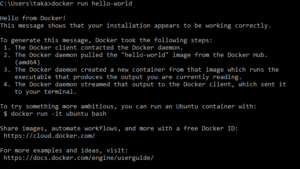
When I tried to run docker run hello-world after starting the docker service, I got this error. When I went back to the docker shell to run the same command, it ran fine. Docker was run on Oracle Virtual Machine.
error during connect: Get http://%2F%2F.%2Fpipe%2Fdocker_engine/v1.36/info: open //./pipe/docker_engine: The system cannot find the file specified. In the default daemon configuration on Windows, the docker client must be run elevated to connect. This error may also indicate that the docker daemon is not running.

Resolution
First run the command below to get default environment information.
Docker-machine env default
Now you will see a bunch of variables. You need to set these variables by running them. This enables Command Prompt to connect to the default Docker engine.
SET DOCKER_TLS_VERIFY=1
SET DOCKER_HOST=tcp://192.168.99.100:2376
SET DOCKER_CERT_PATH=<your home path>.dockermachinemachinesdefault
SET DOCKER_MACHINE_NAME=default
SET COMPOSE_CONVERT_WINDOWS_PATHS=true
Now, Docker runs!
This is all thanks to this post from IBM (Installing Docker Toolbox On Windows).
Yay!