Let’s check how to fix SCCM Failed To Run Task Sequence. The task sequence prompt There are no task sequences available for this computer when you start the operating system deployment with Configuration Manager during pxe boot.
This usually happens when the target machines had a task sequence deployed and had duplicate MAC addresses exist in SCCM DB. The known machine added to the deployed sccm collection is not updated.
However, you could easily see the error message from the task sequence prompt. It’s always recommended to examine the SMSTS log for task sequence failure issues to help you get the inside about the failure prompt.
Issue Summary
The task sequence deployed to All Unknown Computers for PXE boot, and the task sequence is not listed after deployment. This error appears at the initial stage when you have started the deployment. Task Sequence fails with the following error message –

Failed to Run Task Sequence: There are no task sequences available for this computer.
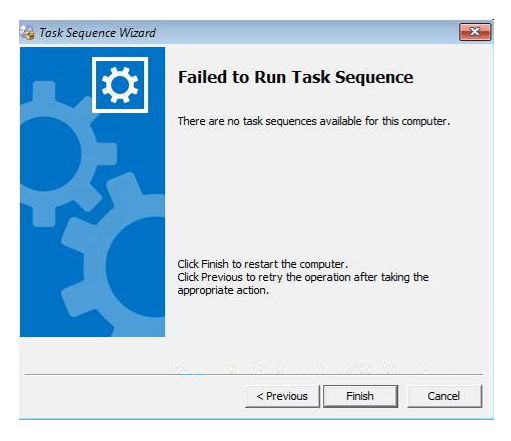
In this scenario, Task Sequence terminated at the beginning. You will collect the logs at WinPE X:Windowstempsmstslogsmsts.log. To get the command prompt window, you have to press the F8 key and locate the location to Open the log. Reviewing the SMSTS.log on the site server, you will get the highlight –
There are no task sequences available to this computer.Please Ensure you have at least one task sequence advertised to this computer. Unspecified error (error: 80004005; Source: Windows)Example for Duplicate MAC having different hostname, shared by Deepak –
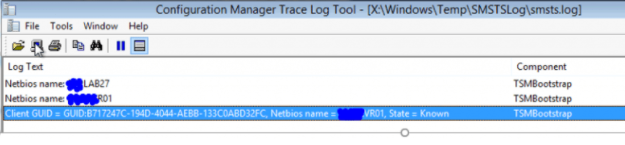
Let’s check the possible solution to fix if there are no task sequences available for this computer –

#Possible Solution 1 –
If you have imported the computer to the known collection using MAC ID, Ensure the device is populated to sccm device collections. You can manually update the collection membership as follows –
In the Configuration Manager console, go to the Assets and Compliance workspace. Select Device Collections, select the collection to manage and then select an Update membership.
Evaluates the membership for the selected collection. For collections with many members, this update might take some time to finish. Use the Refresh action to update the display with the new collections members after the update is completed.
#Possible Solution 2 –
Duplicate MAC Exists in SCCM DB – Removing duplicate MAC from SCCM helps you to perform the clean PXE booting. More Learn How to ConfigMgr SCCM Merge Obsolete Duplicate Records.
#Possible Solution 3 –
If you found there’s no duplicate MAC exists, the next step is to remove the device information from SCCM. Import the computer Information using MAC, GUID.
- Launch SCCM Console, Navigate to Assets and Compliance > Devices.
- Look for the device, Before removing the device entry from the SCCM Console. Collect SMBIOS GUID for the device.
Note – Collect the SMBIOS GUID for a device under the Summary tab in SCCM Console. To get SMBIOS GUID in a machine, Open the command prompt, run the command: wmic csproduct get uuid
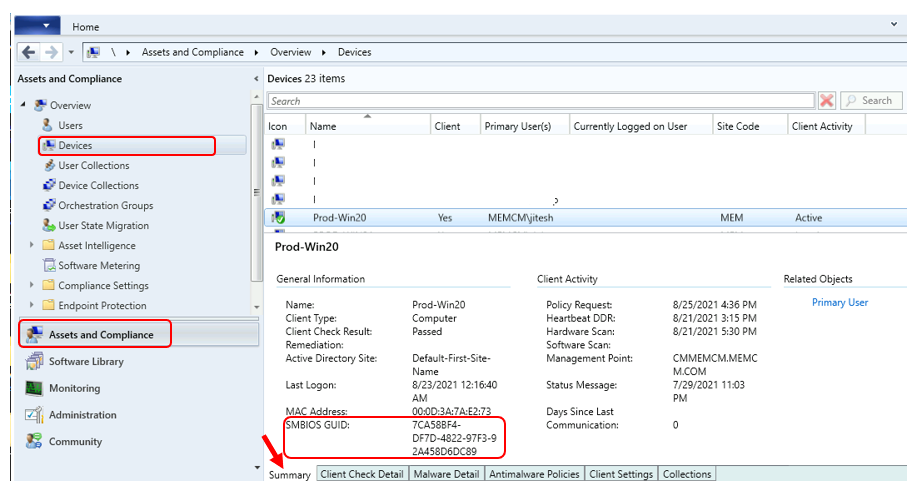
You should add a newly imported computer to a collection. This allows you to create advertisements for deploying operating systems to the computer immediately.
Once you are done with the above steps, Please wait to advertise the computer information. Restart the target machine and reinitiate the task sequence deployment. It should continue without any errors. You may not encounter messages “There are no task sequences available for this computer.”
#Possible Solution 4 –
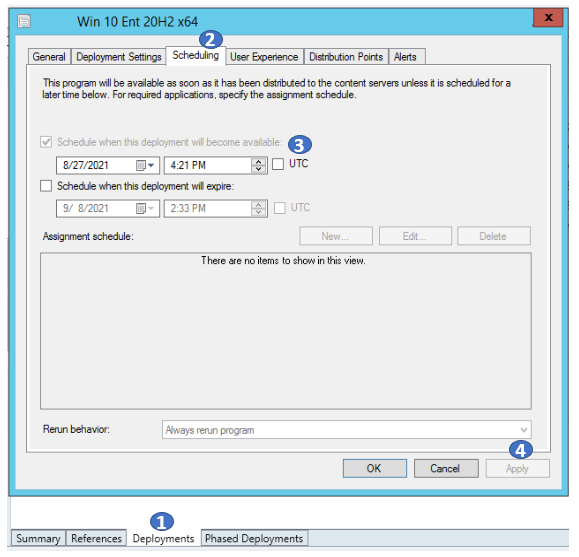
If you’re deploying an OSD Task Sequence, In the scheduling tab, If you are leaving the option default. The deployment will be active at the current time. You might encounter an issue while performing the deployment as SCCM will skip the Task sequence that is not active yet. To resolve this issue, It’s best to have the deployment schedule configured at least a few hours before.
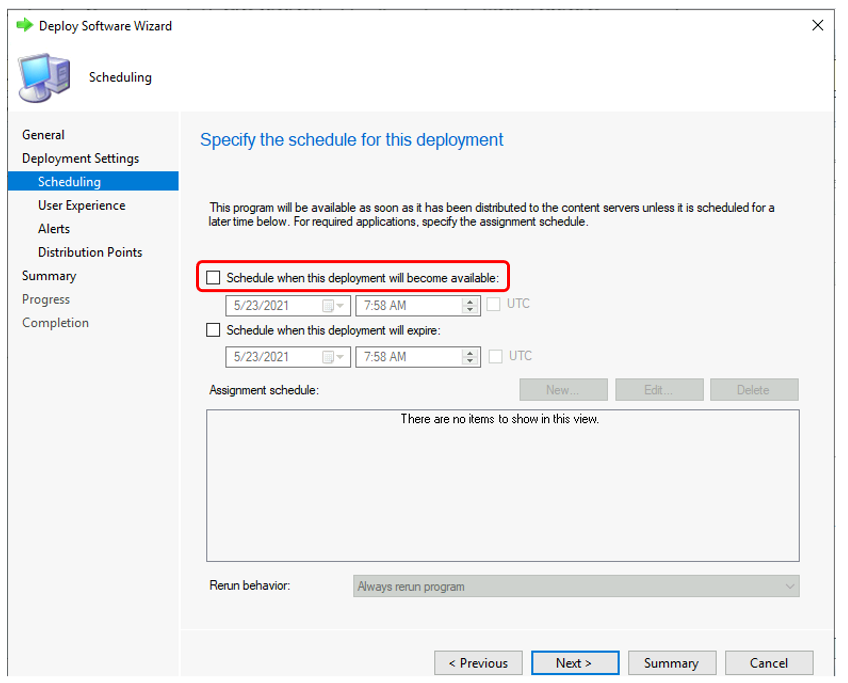
To change the schedule of deployed task sequence –
- In the Configuration Manager console, go to the Software Library workspace, expand Operating Systems, and select Task Sequences.
- Select Deployment tab. Right-click on the existing deployment and select Properties. Switch to the Scheduling tab. Under Schedule when this deployment will become available, chnage the time—Click Apply, and OK.
Let us know your experience with the issue and steps taken to resolve it in Comment Section.
About Author -> Jitesh has over 5 years of working experience in the IT Industry. He writes and shares his experiences related to Microsoft device management technologies and IT Infrastructure management. His primary focus area is Windows 10 Deployment solution with Configuration Manager, Microsoft Deployment Toolkit (MDT), and Microsoft Intune.
Resources
- SCCM OSD Task Sequence Troubleshooting Steps by Step Ultimate Guide SMSTS.log.
- SCCM OSD SMSTS Log File Reading Tips | ConfigMgr | MEMCM
- SCCM Logs Files | 5 Log File Reading Tips | ConfigMgr
- HTMD Blog #2 SCCM Archieve
- Remove From My Forums
-
Question
-
Hello everybody,
Our current environment details as following:
SCCM Version 1702
Console Version: 5.00.8498.1711
Site Version: 5.0.8498.1000
Configuration Manager 1702 Hotfix Rollup (KB4019926)
ADK Version 10.1.14393.0
am getting the above error when trying to OSD any computer.
snapshot from smsts.log
before getting this error a new device will be created. the device name is Unknown.
Tried to search if there is any duplicate mac or GUID with no luck.
I appreciate if any one can help me to fix this issue.
Best Regards
SCCM Updates
-
Edited by
Thursday, June 8, 2017 10:54 AM
-
Edited by
Answers
-
I have solved the problem by following
NeilRawlinson answer.Quote
«To recreate them, change the registry value of CreatedUnknownDDR under SOFTWAREMicrosoftSMSCOMPONENTSSMS_DISCOVERY_DATA_MANAGER on your primary site server. Set the value to 0.
Then, re-start the SMS_EXECUTIVE service. When the Discovery Data Manager (DDM) component starts, it will think that the Unknown System records have not been created, and will recreate them.
Once they had been recreated, all I had to do was disable PXE on the DP, wait a while (I waited until I got no response from TFTP (PXE-E32 error), and then re-enable PXE with unknown computer support.»
End of Quote.
snapshot from smspxe before following the above:
snapshot from smspxe after following the above:
Regards
SCCM Updates
-
Marked as answer by
OsamaAlaydi
Sunday, June 11, 2017 9:06 AM -
Edited by
OsamaAlaydi
Sunday, June 11, 2017 9:08 AM
-
Marked as answer by
- Status
- Not open for further replies.

-
#1
Before last week, I was able to deploy operating systems without any problems. Now, it’s not possible to deploy operating systems anymore…
Error in smstslog:
There are no task sequences available to this computer.. Please Ensure you have at least one task sequence advertised to this computer. Unspecified error (error: 80004005; Source: Windows)

-
#2
Check if the TS is seen in SCCM and distribute the TS to DP once.
-
Thread Starter
-
#3
The TS is seen in SCCM and I’ve distributed the TS to DP…
-
Thread Starter
-
#4
-
#5
Glad to know that your issue is resolved. I am marking this thread as Solved.
- Status
- Not open for further replies.
- Remove From My Forums

Failed to run task sequence — There are no task sequences available for this computer
-
Question
-
I have several tasks that work, however if I create a new task or copy a working task then i get Failed to run task sequence — There are no task sequences for this computer.
Using the same laptop with the same USB media I disable the new or copied task and then enable the original task and the computer images.
This is not a BIOS time issue. This is not a USB media issue. This is not a duplicate GUID / computer device name issue.
SCCM does not like the new or copied task sequence. I have read countless articles and I have found no one with the same issue.
Thank you,
Kent Smith
- Remove From My Forums
Failed to run task sequence — There are no task sequences available for this computer
-
Question
-
I have several tasks that work, however if I create a new task or copy a working task then i get Failed to run task sequence — There are no task sequences for this computer.
Using the same laptop with the same USB media I disable the new or copied task and then enable the original task and the computer images.
This is not a BIOS time issue. This is not a USB media issue. This is not a duplicate GUID / computer device name issue.
SCCM does not like the new or copied task sequence. I have read countless articles and I have found no one with the same issue.
Thank you,
Kent Smith
Unfortunately, changing the time of deployment available back to yesterday did not help.
I did find that when I attempt to «Update Distribution Points» for the two older Boot Images that I used to create the Capture Media for Windows 10 (vs 10.0.10240.16384) completed with errors when running Update Distribution Points. Do you suggest that I remove these Boot Images? Here are the errors it reported (happened with both x86 and x64):
Error: Boot image to update:
· Microsoft Windows PE (x86)
Error: Actions to perform:
· Add ConfigMgr binaries
· Set scratch space
· Enable Windows PE command line support
Error: Failed to import the following drivers:
Optional components:
· Scripting (WinPE-Scripting)
· Startup (WinPE-SecureStartup)
· Network (WinPE-WDS-Tools)
· Scripting (WinPE-WMI)
Error: The wizard detected the following problems when updating the boot image.
· Failed to install required components into the boot image
The SMS Provider reported an error.: ConfigMgr Error Object:
instance of SMS_ExtendedStatus
{
· Description = «Failed to inject OSD binaries into mounted WIM file (often happens if unsigned drivers are inserted into x64 boot image)»;
· ErrorCode = 2152205056;
· File = «e:\nts_sccm_release\sms\siteserver\sdk_provider\smsprov\sspbootimagepackage.cpp»;
· Line = 4970;
· ObjectInfo = «CSspBootImagePackage::PreRefreshPkgSrcHook»;
· Operation = «ExecMethod»;
· ParameterInfo = «SMS_BootImagePackage.PackageID=»GIS0010F»»;
· ProviderName = «WinMgmt»;
· StatusCode = 2147749889;
};
I don’t believe I have any drivers in my Boot Images. I don’t believe I ever have. Should I?
SCCM
May 7, 2011May 26, 2011
1 Minute
I was trying OS deployment on a server multiple times, it refused find assigned task sequences. I double checked target server’s SMBIOS id and MAC address in assigned server. It keep failing with this error:
There are no task sequences available for this computer.
If you look in the SMSTS.log you may also see the following error:
No assigned task sequence.
Setting wizard error: There are no task sequences available for this computer.
It turned out to be there is a duplicate SMBIOS id exists in SCCM database. Of course I am trying to rebuilding a existing server…..God Dammit!!! Don’t they tell in plain English there is a duplicate BIOS id exists in the error messages. Another Microsoft error wasted my time.
I have deleted the previous server name from SCCM computer collection and retried with great success.
Reference information: OSD Task Sequence fails with «There are no task sequences available for this computer» if multiple machines have the same SMBIOS GUID

Published by —Anand—
Being in Silicon Valley for years, I became a IT Infrastructure Geek by experience and surrounded by other Geeks everywhere. I try to help others by the solutions I found on odd occasions.
View all posts by —Anand—
Published
May 7, 2011May 26, 2011
Another SCCM detective story 🙂
Usually when you see a message [There are no task sequences available for this computer] after you set the IP addresses in the OSD deployment wizard, it means that Computer association was not completed correctly and SCCM is not able to find a server record in its database to map OSD Task Sequence to it.
In my case association was correct [to make sure that it was I’ve recreated association several times].
Variables [IP address, MAC address] are in place.
Server was able to communicate with SCCM.
Site Boundaries are in place [IP ranges are configured].
So, it’s time to read the log 🙂 Boot SCCM agent and press F8. Go to X:WindowsTempSMSTSLog and run “notepad smsts.log”. Log was showing that SCCM is able to find the computer, but nothing is advertised to it.
Hm, OK. I double checked collection and computer properties. SCCM was clearly showing that there is a Task Sequence assigned to my new computer.
Lets try again. Reboot, Wizard, same error, reading the log again. And suddenly one strange record caught my eye: “Netbios Name = ServerName”, where ServerName was not the name of my server, but one of the existing servers’. WTF, I thought silently 🙂 Why SCCM thinks that this brand new server is tied to an existing old record? Association must be done based on the MAC address, which is unique.
At this point I had enough material to google it 🙂 SCCM identifies new computers by BIOS GUID and MAC, and there is a chance that two servers can have the same BIOS GUID. Well, our environment is configured to use MAC address based associations, not GUID, but that was an interesting hint.
I’ve extracted servers’ GUID:

Then made a Report in SCCM that showed me all the servers with this GUID:
select v_R_System.Name0,v_R_System.SMBIOS_GUID0
from v_R_System
where v_R_System.SMBIOS_GUID0 = '4C4C4544-0000-2010-8020-80C04F202020'
Query found even 2 servers with the same GUID. All that pointed to a hardware side, DELL in this case. Obvious question – can I change the GUID? I googled it and when I saw a post with the same GUID in it I was completely convinced that this is a hardware issue. DELL server generates ‘4C4C4544-0000-2010-8020-80C04F202020’ GUID when the Service Tag/Asset Tag are not configured.
My server had Service Tag, but empty Asset Tag. Data Centre guy contacted DELL support and it appeared that there is a special utility to fix that – svctag.exe
Unique GUID was generated as soon as the Asset Tag was set:

Advertised OSD was detected and I was able to continue the build 🙂

Today we were unable to image one of our machines due to a Task Sequence error. Imaging was working fine since we upgraded to 2103 but then this error threw me off. I thought initially it was related to the new Task Sequence I created for 21H1 so I went ahead and double checked the deployment settings. All of the deployment settings looked fine. We have been having issues with our media drives lately so I thought I would try another flash drive but still got the same error.

So then I decided to check the smsts.log file to see if anything was yelling at me. At first I couldn’t find any rhyme or reason on why this was failing but after some reading, I realized that the wrong machine name was in the log file.
If you search for Netbios name, it will show you the name of the machine in question. What was showing was the previous machine that we imaged. I should mention we were imaging Microsoft Surface machines using a universal dock for ethernet. This somehow must have been cached. I’m sure moving to another port may have fixed the issue as well but I actually just updated the membership in SCCM for the device collection and that fixed the issue.
Navigate to Assets and Compliance>Overview>Device Collections and find the collection in question. Right click and select Update Membership. I did this for our Windows 10 device collection and All Unknown Computers collection as well. I waited about 10 minutes and the Task Sequence went through like normal.

I’ll need to do more research on why and how this happened but for now, this is a quick fix.