This tutorial contains instructions to fix the following error in VirtualBox: «Failed to open a session for the virtual machine. The VM session session was closed before any attempt to power it on» with Result Code: E_FAIL (0x80004005).
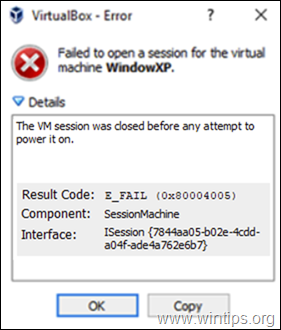
The VirtualBox error «VM Session was closed before any attempt to power it on» usually occurs when the user shuts down the host machine without shutting down the VM guest machine first.
How to FIX VirtualBox Error: «The VM Session was closed before any attempt to power it on».
Method 1. Discard VM’s Saved State.
Method 2. Uninstall and Re-Install VirtualBox.
Method 1. Discard VM’s Saved State.
The usually method to fix the «VM session session was closed before any attempt to power it on», is to discard the saved state of the Virtual machine. To do that:
1. Right click on the Virtual Machine and select Discard Saved State.
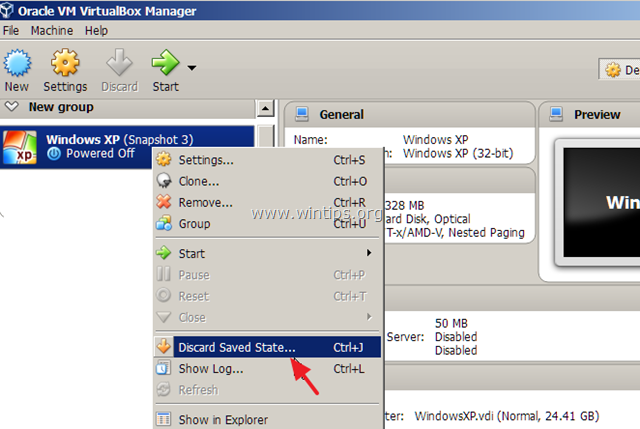
2. Then try to start the virtual machine. If the problem persists, continue to the next method below.
Method 2. Uninstall and Re-Install VirtualBox.
The next method to solve the «VM session session was closed before any attempt to power it on» problem in VirtualBox, is to uninstall and then to reinstall the VirtualBox application, especially if the problem appeared after a Windows Update.
1. Go to Control Panel & Uninstall VirtualBox. (Don’t worry, the VMs will stay untouched).
2. Reboot your computer.
3. Download latest version of VirtualBox.
4. Right click on the downloaded file and click «Run As Administrator».
5. Follow the on screen prompts to install VirtualBox.
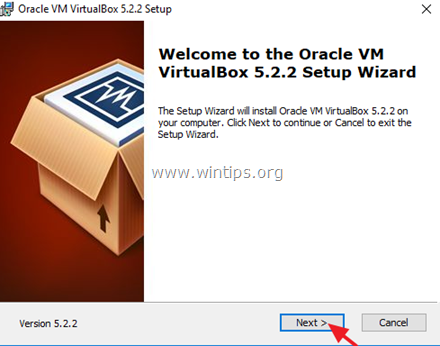
6. After installation, reboot your computer.
7. Open VirtualBox manager and start your Virtual Machine.
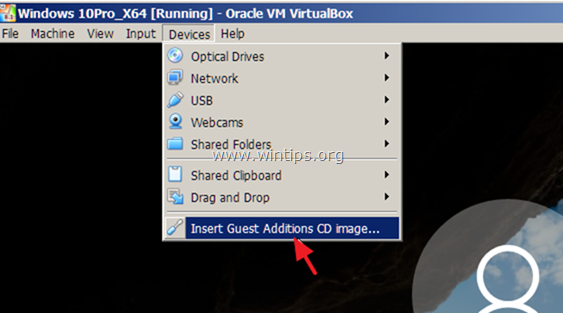
8. If the Virtual Machine opens fine, then proceed to install the Guest Additions and the Extension Pack (if needed).
That’s it! Let me know if this guide has helped you by leaving your comment about your experience. Please like and share this guide to help others.
If this article was useful for you, please consider supporting us by making a donation. Even $1 can a make a huge difference for us in our effort to continue to help others while keeping this site free:

If you want to stay constantly protected from malware threats, existing and future ones, we recommend that you install Malwarebytes Anti-Malware PRO by clicking below (we
do earn a commision from sales generated from this link, but at no additional cost to you. We have experience with this software and we recommend it because it is helpful and useful):
Full household PC Protection — Protect up to 3 PCs with NEW Malwarebytes Anti-Malware Premium!
For some reason, if the Oracle VirtualBox is giving the below error while powering on a virtual machine, this simple trick will be useful. You may get an error saying “The VM session was closed before any attempt to power it on“, and closes by itself while switching on a particular VM.
Here is the solution that worked for me to overcome this issue.
I tried the following methods but did not work.
1) Tried several snapshots to restore back the VM to an earlier state. But it gave me the same error.
2) Restarted the host computer.
3) Stopped all VirtualBox services and restarted. It is almost identical to restarting the physical computer, but I tried that too.
So, here is the working solution.
If you get the ‘the VM session was closed before any attempt to power it on’ message and the Virtual Machine doesn’t start, don’t panic. Just take a snapshot of the virtual machine to protect the current state. Then, follow the steps.
The Working Method for VirtualBox Error
Go to the Storage option of VM; remove hard disks and CD drives.
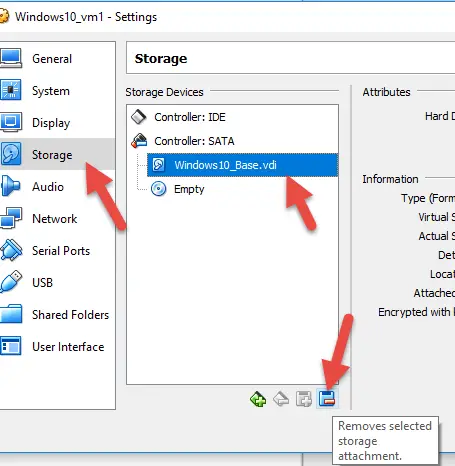
- Once all storage is removed, it will have no attached storage. Start the Virtual machine now. You will see the Oracle VirtualBox screen with boot medium error because there is no bootable CD or hard disk attached.
- Shut down VM now and add the correct storage disks as it was earlier.
- Now switch on the virtual machine, which will start normally.
Other Possible Cause
Also, the possible corruption or broken saved state of the VM could cause this issue. You might have closed the VirtualBox software while the VM is working without properly shutting down it or you saved the VM while the guest OS was doing some busy tasks. After that, when you try to start the same VM, you may get a similar error.
In this case, discard the ‘Saved State” and start the Virtual Machine.
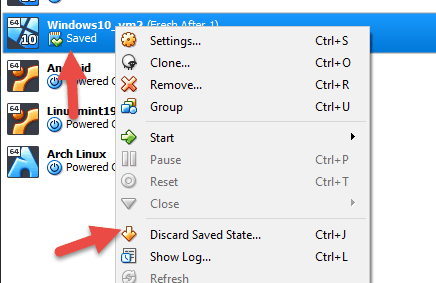
VirtualBox may come up with some fixes for this issue. But, I can confirm this method worked for me.
If any of the above solutions did not fix the Windows PC issues, we recommend downloading the below PC repair tool to identify and solve any PC Issues.


Dinesh is the founder of Sysprobs and written more than 400 articles. Enthusiast in Microsoft and cloud technologies with more than 15 years of IT experience.
Oracle Corporation developed VM VirtualBox. Oracle VM VirtualBox is a type-2 hypervisor for x86 virtualization. We are talking about in this article how you can fix VirtualBox VM Session that was closed before any attempt to power it on. If you are facing an error in VirtualBox that Fails to open a session for the virtual machine with the Result-Code: E_FAIL (0x80004005), we will help you to fix this.
Generally, this error will be held when the user shuts down the host machine without the VM guest machine. If you want to fix this error, follow our given steps and solve VirtualBox VM Session that was closed before any attempt to power it.
- Remove the hard disk and CD drivers from the VM Storage option.
- Discard the saved state of the Virtual machine.
- Uninstall and re-Install Virtual Box.

Method 1: Remove the hard disk and CD drivers from the VM Storage option.
You can try to first remove hard disk and CD drivers from the VM Storage option.
- Go to the VM storage option, then click Windows10_Base.vdi
- Now click the remove option on the right of the bottom corner.
When you remove all storage, then you can start the Virtual machine. No bootable CD or hard disk is attached; the boot medium error will appear. After that, shut down VM and add a hard drive or CD. Now open your Virtual machine, and you can see the error will be solved.
Method 2: Discard the saved state of the Virtual machine
If our first step did not help you fix VirtualBox VM Session was closed before any attempt to power it on, you could now try these steps. You can discard the saved state of the Virtual machine to fix the VirtualBox error problem. Follow these steps
- Go to the Virtual Machine and right-click on that.
- Select the Discard Saved State option.
- Now start the Virtual Machine and check the Error problem.
Method 3: Uninstall and re-Install Virtual Box
If the above methods do not work, follow the last process. Here we try to Uninstall and re-install the VirtualBox. Follow our instructions step by step:
- Open your Control Panel and click on VirtualBox.
- Then Uninstall the VirtualBox.
- After that, reboot your computer.
- Now you can down the latest version of VirtualBox from Google.
- Double click on the download file and install it.
- When the installation is completed then, restart your computer.
- After that, open your VirtualBox manager and start the Virtual Machine.
- Proceed to install the Guest Additions if the Virtual Machine is open.
We hope your “The VM Session was closed before any attempt to power it on” problem will be fixed. If you have anything to say about your experience, leave a comment.
Sun, Apr 5, 2020
For a random reason today when I tried to launch an Ubuntu or Manjaro VM using VirtualBox I was getting the following error
The VM Session was Closed Before Any Attempt to Power it on, VirtualBox Error. Checking the Error details further gave this
The VM Session was aborted, Result Code E_FAIL (0x80004005), Component SessionManage
I tried the following solutions that came up on Google to no avail :
- Tried to discard save state for the VM — couldnt because the option was grayed out
- Deleting the storage devices and then forcing a restart — didnt work, couldnt delete the storage devices
I was about to remove VirtualBox and reinstall when it struck me as to what could be the issue. I dual boot windows 10 and Ubuntu 19.04 and my virutal machines are stored on another internal platter drive. When you are using Windows and then shut down, there are certain times if something goes wrong and it doesnt shut down properly, Windows leaves the internal drive as read only. In that state, under Ubuntu (or any other distro) the drive will mount, but you cant do anything on it — no new files, no new folders, access files etc.
The simplest solution is to boot back in to windows and simply restart. When it shuts down properly, the drive is no longer read-only and Ubuntu along with VirtualBox can then access the VMs again and should now start successfully.