Обновлено 29.03.2019
Добрый день уважаемые читатели и подписчики канала, вы наверняка знаете, что работа всего интернета, по мимо маршрутизации трафика, зависит от DNS имен в ip адреса и обратно, и за это отвечают DNS сервера, работа которых должна быть беспрерывна. Бывают случаи, что случаются аварии, в результате которых у вас начинаются проблемы с доступом в интернет и причиной всему ДНС сервера, сегодня я вам расскажу про ошибку: DNS request timed out.
Симптомы ошибки
Ситуация такова, у пользователей перестал работать интернет, при попытке сделать ping google.com, в ответ выдалось сообщение, что данное имя не удается разрешить, если попытаться пропинговать 8.8.8.8, это публичные ДНС сервера Google, то пинг нормально шел, из чего можно сделать вывод, что есть проблемы с рекурсией DNS серверов. Для диагностики ДНС служб используется утилита nslookup, позволяющая выполнить запрос. Для примера я попытался разрешить имя mail.ru
В итоге я получил ошибку DNS request timed out. Превышено время ожидания запроса.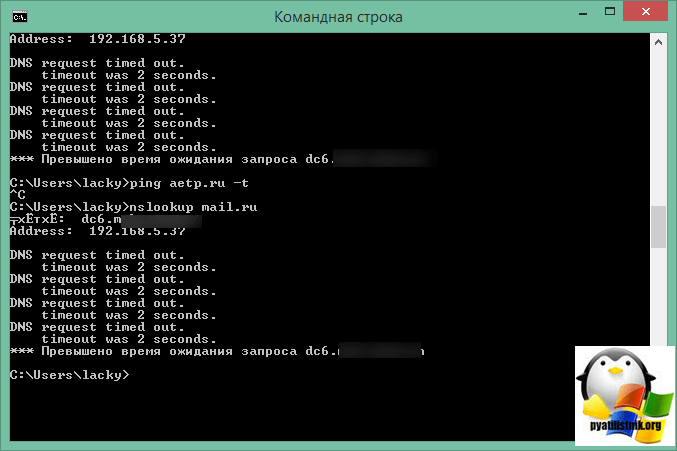
Исправляем ошибку: Превышено время ожидания запроса
Как я и писал выше существует три причины ошибки DNS request timed out:
- Не доступны рекурсивные сервера провайдера или публичные ДНС
- Не доступен основной шлюз на ДНС сервере
- Закрыты порты или требуется авторизация на прокси сервере.
Проверяем рекурсивные сервера
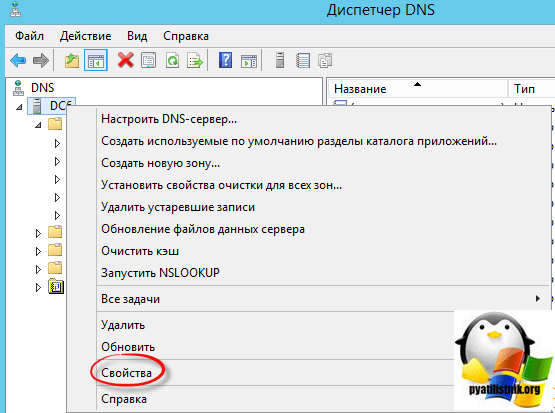
Первое с чего нужно начать это проверить работоспособность рекурсивных серверов, на WIndows Server 2012 R2 это делается в оснастке «Диспетчер DNS», выбираете имя сервера и щелкаете правым кликом, из контекстного меню выбираем свойства.
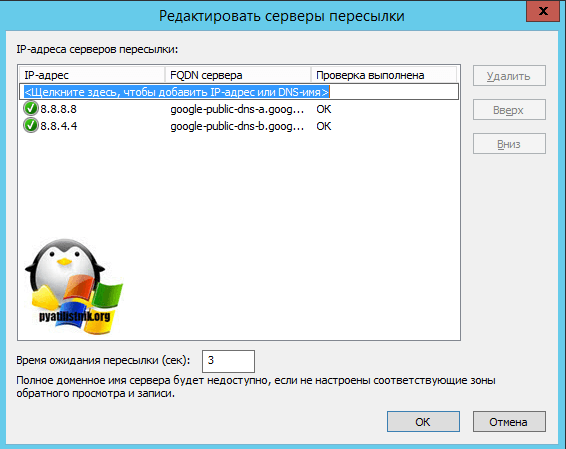
Переходим на вкладку «Сервер пересылки» и проверяем, чтобы добавленные адреса, нормально разрешались и не было предупреждений.
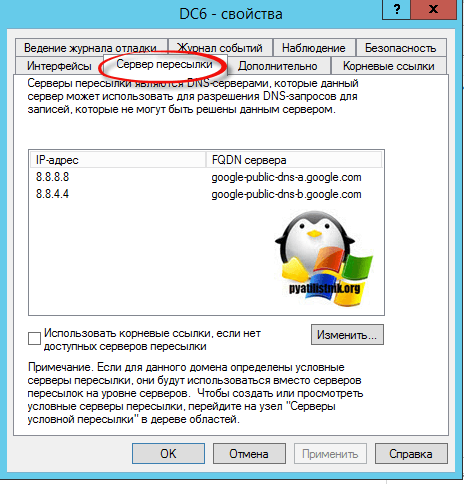
Для пущей уверенности нажмите кнопку изменить и удостоверьтесь, что в окне «Редактировать серверы пересылки» все зеленое. Если там не удается разрешить имена, то переходим к другим пунктам.
Проверка шлюза
После проверки рекурсии у вас может остаться ошибка DNS request timed out и связанна с неправильным шлюзом или ваш шлюз просто не доступен. Во первых откройте окно свойств TCP/IP через оснастку ncpa.cpl либо можно через командную строку и команду ipconfig /all.
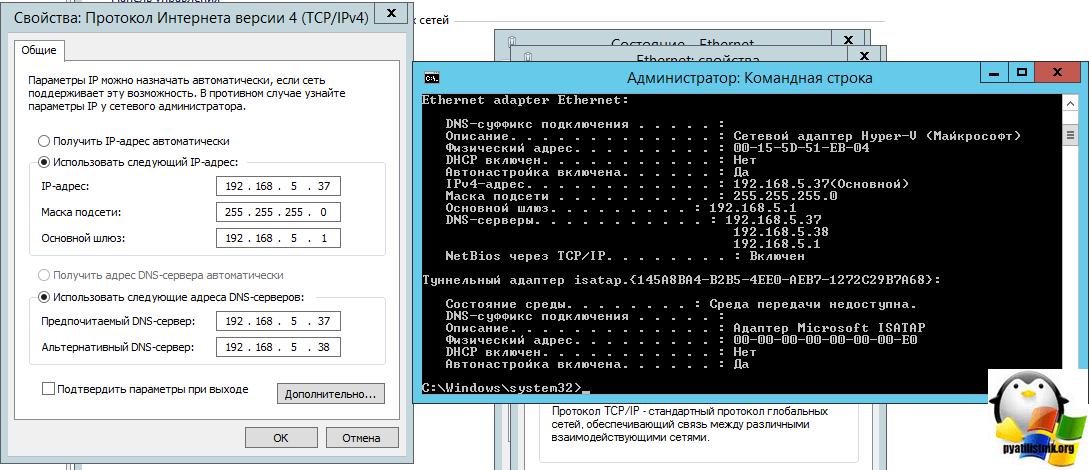
Удостоверьтесь, что данный шлюз правильный и если да, то чтобы он был доступен с данного сервера. Далее обязательно посмотрите трассировку трафика и убедитесь, что идет через нужный шлюз, если нет, то убедитесь, что нет статических маршрутов, которые перекрывают метрикой ваш основной шлюз. Если ошибка DNS request timed out сохраняется, то у вас сто процентов закрыты порты на вашем прокси сервере или брандмауэре, убедитесь, что доступен порт 53.
Авторизация на прокси сервере
В моем случае оказалось, что был не доступен шлюз и еще сбросилась сессия на прокси сервере, после того как я на своем фаерволе Kerio Control авторизовал свои ДНС сервера у меня пропала ошибка DNS request timed out, при разрешении имен.
На чтение 3 мин. Просмотров 998 Опубликовано 25.06.2019
Содержание
- Методы исправления ошибки тайм-аута запроса 408
- Как исправить ошибку времени ожидания запроса 408
- Ошибки, как 408 Время ожидания запроса
Методы исправления ошибки тайм-аута запроса 408
Ошибка 408 Request Timeout – это код состояния HTTP, который означает, что запрос, отправленный вами на сервер веб-сайта (например, запрос на загрузку веб-страницы), занял больше времени, чем сервер веб-сайта был готов ждать. Другими словами, ваше соединение с сайтом “истекло”.
Сообщения об ошибках 408 Request Timeout часто настраиваются каждым веб-сайтом, особенно очень большими, поэтому имейте в виду, что эта ошибка может проявляться в большем количестве случаев, чем перечисленные ниже:
408: время ожидания запроса
Ошибка HTTP 408 - время ожидания запроса
Ошибка 408 Request Timeout отображается в окне интернет-браузера, как и веб-страницы.
Как исправить ошибку времени ожидания запроса 408
-
Повторите попытку веб-страницы, нажав кнопку «Обновить/перезагрузить» или еще раз попробовав URL из адресной строки. Во многих случаях медленное соединение вызывает задержку, которая вызывает ошибку 408 Request Timeout, и это часто является только временным. Попытка повторить страницу часто будет успешной.
- Примечание . Если в процессе оформления заказа у интернет-продавца появляется сообщение об ошибке 408 «Время ожидания запроса», имейте в виду, что повторные попытки оформления заказа могут привести к созданию нескольких заказов – и нескольких сборов! У большинства продавцов есть автоматическая защита от подобных действий, но об этом еще нужно помнить.
-
Возможно, у вас возникла проблема с подключением к Интернету, которая вызывает длительные задержки при доступе к страницам. Чтобы исключить это, посетите другой веб-сайт, например, Google или Yahoo.
- Если страницы загружаются так быстро, как вы привыкли их видеть, проблема, вызывающая ошибку 408 Request Timeout, вероятно, связана с веб-сайтом.
- Однако, если все веб-сайты работают медленно, возможно, у вас проблемы с интернет-соединением. Запустите тест скорости Интернета, чтобы проверить текущую пропускную способность, или обратитесь к поставщику услуг Интернета за технической поддержкой.
-
Вернуться позже. Ошибка 408 Request Timeout является распространенным сообщением об ошибке на очень популярных веб-сайтах, когда огромное увеличение трафика посетителями (это вы!) Перегружает серверы.
- По мере того, как все больше и больше посетителей покидают сайт, шансы на успешную загрузку страницы для вас возрастают.
-
Если ничего не помогает, вы можете попытаться связаться с веб-мастером или другим контактом сайта и сообщить им об ошибке 408 Request Timeout.
- С веб-мастером большинства веб-сайтов можно связаться по электронной почте по адресу: веб-мастер @ website.com , заменив website.com фактическим именем сайта.
Ошибки, как 408 Время ожидания запроса
Следующие сообщения также являются ошибками на стороне клиента и поэтому в некоторой степени связаны с ошибкой тайм-аута запроса 408: неверный запрос 400, несанкционированный 401, запрещенный 403 и не найденный 404.
Также существует несколько кодов HTTP-статуса на стороне сервера , например, часто встречающаяся внутренняя ошибка сервера (500 Internal Server Error). Просмотрите их все в нашем списке ошибок кода состояния HTTP.
 |
Номер ошибки: | Ошибка HTTP 408 |
| Название ошибки: | Request Timed Out | |
| Описание ошибки: | The web server took longer than its time allowed to process the request. This is often caused by heavy web traffic to the server. | |
| Разработчик: | Microsoft Corporation | |
| Программное обеспечение: | Windows Operating System | |
| Относится к: | Windows XP, Vista, 7, 8, 10, 11 |
Большинство ошибок Request Timed Out являются результатом отсутствия или повреждения версии файла, установленного Edge. Как правило, самый лучший и простой способ устранения ошибок, связанных с файлами Windows 10, является замена файлов. В некоторых случаях реестр Windows пытается загрузить файл Request Timed Out, который больше не существует; в таких ситуациях рекомендуется запустить сканирование реестра, чтобы исправить любые недопустимые ссылки на пути к файлам.
Типичные ошибки Request Timed Out
Частичный список ошибок Request Timed Out Edge:
- «Ошибка: Request Timed Out. «
- «Отсутствует файл Request Timed Out.»
- «Не найдено: Request Timed Out. «
- «Сбой загрузки: Request Timed Out. «
- «Не удалось зарегистрироваться: Request Timed Out. «
- «Ошибка Request Timed Out во время выполнения. «
- «Request Timed Out не может загрузиться. «
Ошибки Request Timed Out возникают во время установки программы, когда программа, связанная с Request Timed Out (например, Edge) работает во время запуска или завершения работы Windows или редко во время процесса установки Windows. Важно отметить ошибки с Request Timed Out по мере их возникновения, так как это помогает устранять проблемы, связанные с Edges, и сообщать о них в Microsoft Corporation.
Истоки проблем Request Timed Out
Проблемы Request Timed Out вызваны поврежденным или отсутствующим Request Timed Out, недопустимыми ключами реестра, связанными с Edge, или вредоносным ПО.
Точнее, ошибка Request Timed Out, вызванная:
- Недопустимый раздел реестра Request Timed Out (или поврежденный).
- Вирус или вредоносное ПО, повреждающее Request Timed Out.
- Вредоносное удаление (или ошибка) Request Timed Out другим приложением (не Edge).
- Другое программное приложение, конфликтующее с Request Timed Out.
- Поврежденная загрузка или неполная установка программного обеспечения Edge.
Продукт Solvusoft
Загрузка
WinThruster 2022 — Проверьте свой компьютер на наличие ошибок.
Совместима с Windows 2000, XP, Vista, 7, 8, 10 и 11
Установить необязательные продукты — WinThruster (Solvusoft) | Лицензия | Политика защиты личных сведений | Условия | Удаление
Коды состояний браузера в базе знаний
Идентификатор статьи:
120626
Автор статьи:
Последнее обновление:
Популярность:
star rating here
Загрузка (Исправление ошибки)

Конечно, были времена, когда вы хотели получить доступ к веб-сайту из выбранного браузера, эта страница не загружается, но вместо этого вы получаете Erreur 408 на этой странице. Если вы не знаете, что это за ошибка, что ее вызывает и как ее исправить, может быть очень неприятно.
Но отныне вы больше не беспокойтесь, если вы столкнетесь с этой досадной ошибкой, потому что сегодня мы собираемся вам объяснить что это означает и как исправить ошибку 408 Request Timeout?
Чтобы понять, что это за ошибка, вам нужно немного понять, как работают браузеры, взаимоотношения клиент-сервер и ответы, которые исходят от этих отношений. Когда мы находимся на веб-сайте, этот веб-сайт по умолчанию должен быть загружен в браузере.
Для возникновения такого типа реакции Протокол передачи гипертекста ou Используется HTTP, который работает особым образом и очень полезен. . Это не что иное, как взаимодействие клиент-сервер. Если предпочтительный браузер отвечает клиенту через HTTP-запрос, а затем следует его, сервер отправляет ответ, который включает код состояния.
Обычно эти типы ответов остаются незамеченными для пользователя, но вместо этого существует множество кодов ошибок HTTP, например, чтобы упомянуть еще одну ошибку этого класса, есть Ошибка HTTP 404 Not Found, которая обычно затрагивает WordPress. . Эти ошибки работают по-разному, если есть проблема, браузер отразит ее, показывая серийные коды. 4ХХ или 5ХХ , которые выявляют проблему со стороны сервера или клиента.
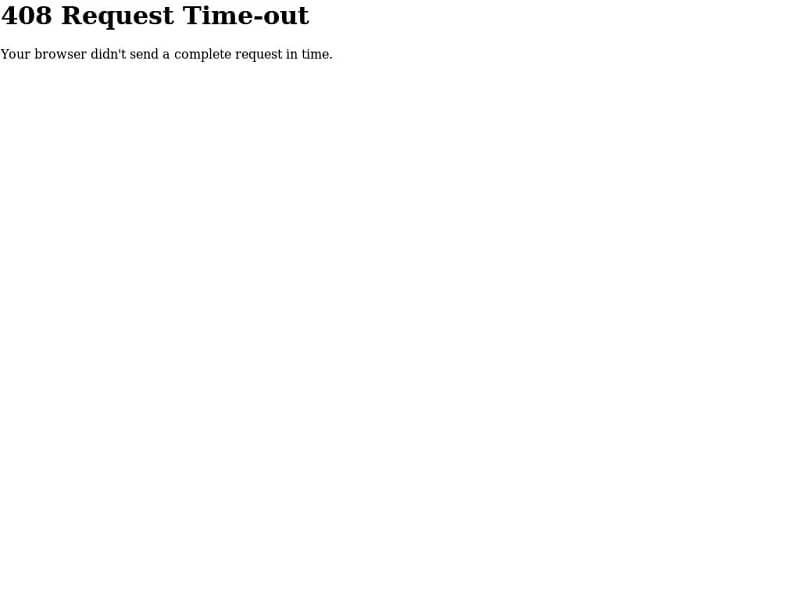
Этот тип реакции на ошибку — это то, что вызывает ошибку 408 , что означает, что запрос, сделанный клиентом, истек на сервере.
Как правило, этот тип ошибки вызван проблемами, связанными с пользователем или клиентом, хотя существует минимальная вероятность того, что проблема связана с ошибками конфигурации, связанными с браузером, поэтому вы всегда должны пытаться использовать лучшие веб-браузеры .
Как исправить ошибку 408 Request Timeout?
Есть несколько действий, которые вы можете предпринять при попытке устранить проблему с ошибкой 408, некоторые из которых мы упомянем:
- Проверьте ваше соединение: как мы объясняли ранее, ошибка 408 Request Timeout обычно вызвана проблемами, исходящими от клиента. Одна из этих проблем обычно ваша интернет-соединение , что, очевидно, приводит к неправильной загрузке страниц, и именно это может вызвать ошибку 408.
- Лучшее, что вы можете с этим сделать, — это проверьте ваше интернет-соединение , перезапустите маршрутизатор и посетите другие веб-сайты, чтобы узнать, загружаются они или нет.
- Подождите немного: это кажется немного нетипичным решением, но, как мы упоминали ранее, если эта ошибка вызвана проблемами с Интернетом, их можно решить в короткие сроки. Это может занять несколько минут, вы можете подождать несколько секунд, а затем попробуйте загрузить страницу еще раз.
- Проверить URL: еще один вариант, который вы должны попытаться найти окончательное решение проблемы с ошибкой 408 Request Timeout, — это перейти проверьте, обновлен ли URL-адрес, по которому вы хотите перейти и правильно.
- Иногда ошибка 408 возникает, когда вы пытаетесь получить доступ к веб-сайту, который больше не доступен, или если страница, на которую вы хотите перейти, изменила свой адрес на HTTPS, который отличается от HTTP . Таким образом, URL-адрес, который вы используете, не приведет вас на нужную страницу, но произойдет ошибка 408.

Вы заметили? Шаг за шагом научиться решить раз и навсегда 408 Ошибка тайм-аута запроса, поэтому, когда эта ошибка появляется в вашем браузере, вы можете предпринять соответствующие действия, чтобы эта ошибка не появлялась повторно при просмотре Интернета. Хотя это совсем не сложные решения, добавив эти небольшие усилия, вы больше не узнаете об ошибке 404 Request Timeout.

HTTP status code starting with 4XX is the client-side error code and 408 request timeout error is one of the client-side errors. In this, we will learn how to fix a 408 request timeout error. Before we dive into the solution let’s understand what does this error actually mean and how does it differ from the 504 bad gateway timeout error.
+
What does 408 Request Timeout mean?
A 408 Request Timeout error is an HTTP status code that is returned at the client-side when a server takes a longer time to process any particular request than the allocated timeout. So when this happens, the server terminates the connection and thus returns 408 Request Timeout error.
It is also possible that the server could be misconfigured and result in improper request handling which may also return a 408 Request Timeout error.
408 Request Timeout Indication
- 408 Request Timeout is displayed
- It crashes the active browser window
- Browser may respond to the request slowly
Different Ways to See a 408 Request Timeout Error
There are several different ways that you might see a 408 Request Timeout error. These errors may appear differently on different web servers or hosting. Although they show different error message, each one means the same.
- “408 Request Time-out”
- “408: Request Timeout”
- “Request Timeout”
- “The Request Has Timed Out”
- “HTTP Error 408 – Request Timeout”
How is a 408 Request Timeout error different from a 504 Gateway Timeout error?
You may have come across a similar error i.e. 504 Gateway Timeout error. Since these two errors are quite similar, you might be wondering that how it is different from one another.
The 504 Gateway Timeout error occurs while acting as a gateway or proxy. On the other hand, a 408 error is returned when a request to load the web page takes longer than the server was prepared to wait.
Learn how to fix 504 Gateway Timeout error.
According to RFC 2068, the 504 Gateway Timeout and 408 Request Timeout error are defined as follows:
504 Gateway Timeout
The server, while acting as a gateway or proxy, did not receive a timely response from the upstream server it accessed in attempting to complete the request.
408 Request Timeout:
The client did not produce a request within the time that the server was prepared to wait. The client MAY repeat the request without modifications at any later time.
In certain cases, it can be difficult to immediately determine the source of an HTTP error. Although 4xx errors are known to be client-side errors, this doesn’t mean that the server should be completely ruled out as the culprit. Below are a few things you can check, both on the client and server-side in order to try and resolve a 408 error.
+
Fix a 408 Request Timeout error at client-side
Reload the Web Page
There are instances when this error occurs temporarily at the client-side because of the browser. You can try to reload the web page or even reopen the browser to see if the error gets resolved.
Double check URL
Depending upon the configuration of your web server, the requested URL might throw a 408 request timeout error. Suppose, if you are requesting a URL that requires certain permissions or credentials to get the access, this might trigger a 408 error.
Check your internet connection
If there is any issue with your internet connection or it is running slow then the request made can take too long to complete. As a result, the server’s timeout exceeds and becomes idle that results in 408 request timeout error.
Fix a 408 Request Timeout error at server-side
Check your web server’s timeout settings
Most of the web servers like Apache and Nginx allow website developers to set certain timeout values in the configuration file which enables you to control the time required to certain requests.
So if you are receiving the 408 timeout error, the configured timeout value might be too low. You increase the timeout value and restart the server to see if the issue is resolved.
+
Apache
If you’re using the Apache web server, you need to check both the .htaccess file and the Apache server config file. Inside these files look for the KeepAliveTimeout or RequestReadTimeout directives. If either of these directives is defined, increase it’s value and reload the webserver.
If you don’t find these directives inside the configuration file, you can add them along with their values and test a few requests by reloading the web server.
NGINX
If you’re using Nginx as a web server, open the nginx.conf file and check for directives like client_body_timeout, client_header_timeoutand keepalive_timeout and then increase their values.
If you don’t find these directives, add them inside the http or server block aongwith their values.
You can test a few requests by increasing their values and reloading the web server.
Check the logs
While investigating any kind of a server error, it’s a good idea to check the error logs. It provides you with a whole lot of information about the error.
Other Fixes
- How to Fix 403 Forbidden Error in NGINX Ubuntu
- Fix 413 Request Entity Too Large Error on Nginx & Apache
- Fix 502 Bad Gateway Nginx Error in Ubuntu – 4 Simple Steps
- PHP5-FPM 502 Bad Gateway Error (connect() to unix:/var/run/php5-fpm.sock failed (2: No such file or directory)
- Fix 504 Gateway Timeout Nginx Error – 5 Simple Steps
Conclusion
A 408 Request Timeout error is fairly common and can be fixed quite easily most of the time. It simply passes the message on the client-side that the request timed out for the website and that the server has terminated the connection.
I hope you will find the solution on how to fix a 408 Request Timeout Error useful. Do put your views in the comment section below.

The HTTP Status Code starting with series digit 4xx are the client side error codes. The 408 Request Timeout Error code is one of the client-side code that occurs when the request time to load a webpage exceeds.
It is also possible that the server could be the cause of a 408 Request Timeout Error. In some cases, there is a chance that the server may be misconfigured and results in improper requests handling which in return may lead to 408 response code.
What Does 408 Request Timeout Mean?
The 408 Request Timeout Error code occurs when a connection with the website is timed out. It means the request you made to the web server is taking too much time as compared to the waiting time of the website’s server.
Client requests load time is much higher than the server’s waiting time for a particular request. In short, Request Time > Server Waiting Time.

In this case, the server will terminate the connection and thus return in 408 Request Timeout Error.
Symptoms of HTTP Error 408
1. It crashes the active window.
2. Request Timeout is displayed.
3. Windows runs sluggishly and responds slowly to input devices.
Different ways to See a 408 Request Timeout Error
You can see the 408 Request Timeout error in many different ways. Although the textual presentation is slightly different otherwise, each one has the same meaning.
1. “408 Request Time-out”
2. “Request Timeout”
3. “The Request Has Timed Out”
4. “408: Request Timeout”
5. “HTTP Error 408 – Request Timeout”
How Is a 408 Error Different From a 504 Error?
If you are a website owner, then there are 99% of the possibilities that you have encountered during the 504 Gateway Timeout error. You may also be wondering that how a 408 Request Timeout Error is different from the 504 Gateway Timeout error.
The HTTP status code 504 Gateway Timeout error is returned when a server is acting as a gateway or proxy and has timed out. While the 408 Error, returned as a direct message from the active server.
The 408 Request Timeout:
This error occurs when the server request wait time is lower than the server
request time.
While the 504 Gateway Timeout:
This error occurs when one server is not able to receive a timely response from
another server that may be acting as gateway or proxy.
Start With a Backup
Prevention is better than cure. It is better to walk on the safer side than not regret later.
It is recommended to take a full backup of your website, database and all other components before attempting any fixes. You can use Backup Bank to take a complete backup of your website and database. You can find it easily on wordpress.org plugins directory.
Different Methods to Fix a 408 Request Timeout Error
It is very difficult to detect the source of the HTTP error. Although the 4xx series error is known to be the client-side errors. But it doesn’t mean that the server is completely ruled out as the culprit.
Method 1) Client Side fixes
Below are a few things you can check on the client side in order to fix the 408 Request Timeout Error.
1. Double Check the URL
Sometimes, the cause behind the error is the URL you are requesting.
Now, suppose that you are requesting a URL that requires certain credentials to access and depending on how the server is configured, this could trigger a 408 response from the server. Or you are requesting a website URL from the saved bookmark that not exists.
2. Check your Internet Connection
Try to check your internet connection. If it is slow, then this could take too long to complete the request. As a result, the server timeout value exceeded and it becomes idle. This will returns 408 HTTP Status Code.
3. Try Reloading the Page
This is the easiest way to get rid of the error. Sometimes, there is a temporary problem on the client side or even the server side. Try to refresh the page that you are trying to access to see if the error has been resolved or not.
4. Rollback Recent Upgrades
If you have recently updated the WordPress just before the 408 Request Timeout appeared, you may need to rollback to the previous version.
Similarly, any extension, any modules or even any plugin or theme that you may have recently upgraded can also cause server-side issues, so retrieving to the previous version of those may also help.
Method 2) Server Side Fixes
Below are a few things you can check, on the server side in order to fix the 408 Request Timeout Error.
1. Check your Web Server’s Timeout Settings
It is possible that your web server’s timeout value is less than that of the client request time. Apache, Nginx is the web servers that allows web developers to set some timeout values so that the request is not open for a long time.
Moreover, if you are receiving a continuous 408 request timeout error then, this might be the small timeout value.
If we talk about the Apache Server, check for the .htaccess file as well as the Apache server config file. Look for: KeepAliveTimeout or RequestReadTimeout directives
In the case of the Nginx Server, Open the nginx.conf file and check for directives such as client_body_timeout, client_header_timeout or keepalive_timeout
If either of these directives is defined, try increasing their values, reload the web server and try again.
2. Check the Logs
It is always good to check the server’s error logs. This may provide you with information in order to help you resolve the issue ( like what is the nature of the error? or from where it is originated ).
Conclusion
WordPress Plugins
-
Backup Bank -
Captcha Bank -
Captcha Booster -
Clean Up Booster -
Clean Up Optimizer -
Coming Soon Booster -
Contact Bank -
Facebook Like Box -
Gallery Bank -
Gallery Master -
Google Maps Bank -
Limit Attempts Booster -
WP Mail Bank -
WP Mail Booster

How to fix the Runtime Code 0x80072EE2 ERROR_INTERNET_TIMEOUT
This article features error number Code 0x80072EE2, commonly known as ERROR_INTERNET_TIMEOUT described as ERROR_INTERNET_TIMEOUT. The request has timed out.
About Runtime Code 0x80072EE2
Runtime Code 0x80072EE2 happens when Comodo Firewall fails or crashes whilst it’s running, hence its name. It doesn’t necessarily mean that the code was corrupt in some way, but just that it did not work during its run-time. This kind of error will appear as an annoying notification on your screen unless handled and corrected. Here are symptoms, causes and ways to troubleshoot the problem.
Definitions (Beta)
Here we list some definitions for the words contained in your error, in an attempt to help you understand your problem. This is a work in progress, so sometimes we might define the word incorrectly, so feel free to skip this section!
- Request — A request is a message sent by a source to another object.
Symptoms of Code 0x80072EE2 — ERROR_INTERNET_TIMEOUT
Runtime errors happen without warning. The error message can come up the screen anytime Comodo Firewall is run. In fact, the error message or some other dialogue box can come up again and again if not addressed early on.
There may be instances of files deletion or new files appearing. Though this symptom is largely due to virus infection, it can be attributed as a symptom for runtime error, as virus infection is one of the causes for runtime error. User may also experience a sudden drop in internet connection speed, yet again, this is not always the case.
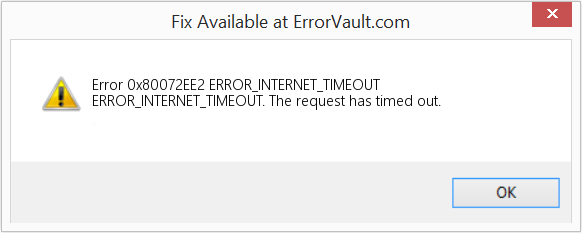
(For illustrative purposes only)
Causes of ERROR_INTERNET_TIMEOUT — Code 0x80072EE2
During software design, programmers code anticipating the occurrence of errors. However, there are no perfect designs, as errors can be expected even with the best program design. Glitches can happen during runtime if a certain error is not experienced and addressed during design and testing.
Runtime errors are generally caused by incompatible programs running at the same time. It may also occur because of memory problem, a bad graphics driver or virus infection. Whatever the case may be, the problem must be resolved immediately to avoid further problems. Here are ways to remedy the error.
Repair Methods
Runtime errors may be annoying and persistent, but it is not totally hopeless, repairs are available. Here are ways to do it.
If a repair method works for you, please click the upvote button to the left of the answer, this will let other users know which repair method is currently working the best.
Please note: Neither ErrorVault.com nor it’s writers claim responsibility for the results of the actions taken from employing any of the repair methods listed on this page — you complete these steps at your own risk.
Method 1 — Close Conflicting Programs
When you get a runtime error, keep in mind that it is happening due to programs that are conflicting with each other. The first thing you can do to resolve the problem is to stop these conflicting programs.
- Open Task Manager by clicking Ctrl-Alt-Del at the same time. This will let you see the list of programs currently running.
- Go to the Processes tab and stop the programs one by one by highlighting each program and clicking the End Process buttom.
- You will need to observe if the error message will reoccur each time you stop a process.
- Once you get to identify which program is causing the error, you may go ahead with the next troubleshooting step, reinstalling the application.
Method 2 — Update / Reinstall Conflicting Programs
Using Control Panel
- For Windows 7, click the Start Button, then click Control panel, then Uninstall a program
- For Windows 8, click the Start Button, then scroll down and click More Settings, then click Control panel > Uninstall a program.
- For Windows 10, just type Control Panel on the search box and click the result, then click Uninstall a program
- Once inside Programs and Features, click the problem program and click Update or Uninstall.
- If you chose to update, then you will just need to follow the prompt to complete the process, however if you chose to Uninstall, you will follow the prompt to uninstall and then re-download or use the application’s installation disk to reinstall the program.
Using Other Methods
- For Windows 7, you may find the list of all installed programs when you click Start and scroll your mouse over the list that appear on the tab. You may see on that list utility for uninstalling the program. You may go ahead and uninstall using utilities available in this tab.
- For Windows 10, you may click Start, then Settings, then choose Apps.
- Scroll down to see the list of Apps and features installed in your computer.
- Click the Program which is causing the runtime error, then you may choose to uninstall or click Advanced options to reset the application.
Method 3 — Update your Virus protection program or download and install the latest Windows Update
Virus infection causing runtime error on your computer must immediately be prevented, quarantined or deleted. Make sure you update your virus program and run a thorough scan of the computer or, run Windows update so you can get the latest virus definition and fix.
Method 4 — Re-install Runtime Libraries
You might be getting the error because of an update, like the MS Visual C++ package which might not be installed properly or completely. What you can do then is to uninstall the current package and install a fresh copy.
- Uninstall the package by going to Programs and Features, find and highlight the Microsoft Visual C++ Redistributable Package.
- Click Uninstall on top of the list, and when it is done, reboot your computer.
- Download the latest redistributable package from Microsoft then install it.
Method 5 — Run Disk Cleanup
You might also be experiencing runtime error because of a very low free space on your computer.
- You should consider backing up your files and freeing up space on your hard drive
- You can also clear your cache and reboot your computer
- You can also run Disk Cleanup, open your explorer window and right click your main directory (this is usually C: )
- Click Properties and then click Disk Cleanup
Method 6 — Reinstall Your Graphics Driver
If the error is related to a bad graphics driver, then you may do the following:
- Open your Device Manager, locate the graphics driver
- Right click the video card driver then click uninstall, then restart your computer
Method 7 — IE related Runtime Error
If the error you are getting is related to the Internet Explorer, you may do the following:
- Reset your browser.
- For Windows 7, you may click Start, go to Control Panel, then click Internet Options on the left side. Then you can click Advanced tab then click the Reset button.
- For Windows 8 and 10, you may click search and type Internet Options, then go to Advanced tab and click Reset.
- Disable script debugging and error notifications.
- On the same Internet Options window, you may go to Advanced tab and look for Disable script debugging
- Put a check mark on the radio button
- At the same time, uncheck the «Display a Notification about every Script Error» item and then click Apply and OK, then reboot your computer.
If these quick fixes do not work, you can always backup files and run repair reinstall on your computer. However, you can do that later when the solutions listed here did not do the job.
Other languages:
Wie beheben Fehler 0x80072EE2 (ERROR_INTERNET_TIMEOUT) — ERROR_INTERNET_TIMEOUT. Die Anfrage ist abgelaufen.
Come fissare Errore 0x80072EE2 (ERROR_INTERNET_TIMEOUT) — ERROR_INTERNET_TIMEOUT. La richiesta è scaduta.
Hoe maak je Fout 0x80072EE2 (ERROR_INTERNET_TIMEOUT) — ERROR_INTERNET_TIMEOUT. Het verzoek is verlopen.
Comment réparer Erreur 0x80072EE2 (ERROR_INTERNET_TIMEOUT) — ERROR_INTERNET_TIMEOUT. La demande a expiré.
어떻게 고치는 지 오류 0x80072EE2 (ERROR_INTERNET_TIMEOUT) — ERROR_INTERNET_TIMEOUT. 요청 시간이 초과되었습니다.
Como corrigir o Erro 0x80072EE2 (ERROR_INTERNET_TIMEOUT) — ERROR_INTERNET_TIMEOUT. A solicitação expirou.
Hur man åtgärdar Fel 0x80072EE2 (ERROR_INTERNET_TIMEOUT) — ERROR_INTERNET_TIMEOUT. Begäran har tagits ut.
Как исправить Ошибка 0x80072EE2 (ERROR_INTERNET_TIMEOUT) — ERROR_INTERNET_TIMEOUT. Время запроса истекло.
Jak naprawić Błąd 0x80072EE2 (ERROR_INTERNET_TIMEOUT) — ERROR_INTERNET_TIMEOUT. Upłynął limit czasu żądania.
Cómo arreglar Error 0x80072EE2 (ERROR_INTERNET_TIMEOUT) — ERROR_INTERNET_TIMEOUT. Se agotó el tiempo de espera de la solicitud.
 About The Author: Phil Hart has been a Microsoft Community Contributor since 2010. With a current point score over 100,000, they’ve contributed more than 3000 answers in the Microsoft Support forums and have created almost 200 new help articles in the Technet Wiki.
Follow Us: 


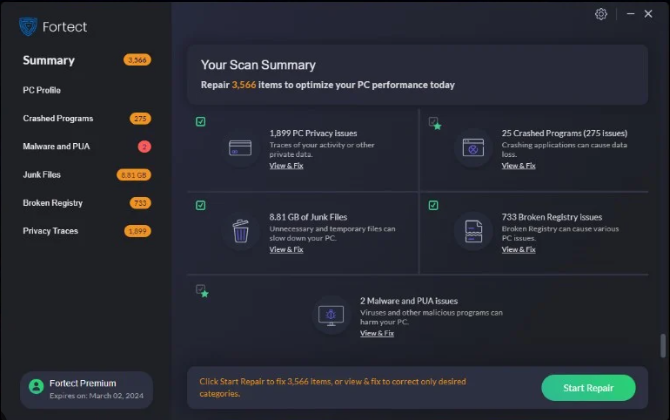
This repair tool can fix common computer problems such as blue screens, crashes and freezes, missing DLL files, as well as repair malware/virus damage and more by replacing damaged and missing system files.
STEP 1:
Click Here to Download and install the Windows repair tool.
STEP 2:
Click on Start Scan and let it analyze your device.
STEP 3:
Click on Repair All to fix all of the issues it detected.
DOWNLOAD NOW
Compatibility
Requirements
1 Ghz CPU, 512 MB RAM, 40 GB HDD
This download offers unlimited scans of your Windows PC for free. Full system repairs start at $19.95.
Article ID: ACX04141EN
Applies To: Windows 10, Windows 8.1, Windows 7, Windows Vista, Windows XP, Windows 2000
Speed Up Tip #72
Disabling Under Utilized Hardware:
Hardware devices on your computer such as DVD Drive, USB ports, IR ports and Firewire port can be easily disabled in the BIOS if not used. These devices can use up power resources and slow down boot up time.
Click Here for another way to speed up your Windows PC