На чтение 5 мин. Просмотров 184 Опубликовано 28.04.2021
Elder Scrolls Online (ESO) – это MMORPG, действие которой происходит во вселенной Elder Scrolls, которую все любят из таких шедевров, как Morrowind, Oblivion и Skyrim. В игру играют онлайн, но пользователи сообщают об ошибке 200, которая просто не позволяет им войти в игру. 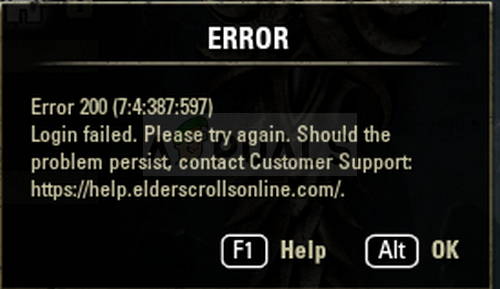
Ошибка часто связана с запланированным выпуском нового обновления, но есть и множество других причин. Следуйте подготовленным нами методам, чтобы понять, в чем проблема и как ее решить.
Содержание
- Что вызывает ошибку ESO 200?
- Переименуйте папку с игрой и откройте ее снова
- Пропустите игру через ваш брандмауэр
- Измените некоторые настройки NVIDIA
Что вызывает ошибку ESO 200?
Ошибка часто возникает из-за поврежденных данных программы запуска, которые необходимо сбросить, чтобы программа запуска могла нормально проверять наличие обновлений. Кроме того, ваш брандмауэр также может блокировать один из исполняемых файлов игры.
Наконец, это может быть из-за некоторых настроек NVIDIA, поэтому убедитесь, что вы настроили их в Панели управления NVIDIA.
Переименование папки ProgramData в корневом каталоге игры может помочь вам решить проблему после ее перезапуска. Это приведет к сбросу всех данных, связанных с обновлениями, и программа запуска теперь проверит наличие обновлений, установит их и запустит игру должным образом.
- Обязательно запустите Steam двойным щелчком его значок на рабочем столе или выполнив поиск в меню «Пуск». Кроме того, перейдите на вкладку «Библиотека» в клиенте Steam, нажав кнопку вкладки «Библиотека» в верхней части окна, и найдите Overwatch в списке игр, которыми вы владеете в своей библиотеке.
- Вправо- щелкните в списке Elder Scrolls Online и выберите «Свойства». Перейдите на вкладку “Локальные файлы” и выберите “Обзор локальных файлов”.

- Если у вас есть другая версия игры, вы все равно можете найти папку с установкой игры вручную. Самый простой способ – щелкнуть правой кнопкой мыши ярлык ESO на рабочем столе или в любом другом месте и выбрать в меню «Открыть расположение файла».
- В любом случае, оказавшись внутри папки, дважды щелкните, чтобы открыть папку Launcher. . Щелкните правой кнопкой мыши папку ProgramData, которую вы найдете внутри, и выберите параметр «Переименовать» в контекстном меню. Измените его имя на ProgramData.old и нажмите клавишу Enter для подтверждения.

- Снова откройте игру из Steam или из его автономного клиента и проверьте, появляется ли ошибка ESO 200!
Пропустите игру через ваш брандмауэр
Независимо от того, используете ли вы брандмауэр Защитника Windows по умолчанию или стороннее приложение для той же цели, брандмауэры, как правило, блокируют подключение исполняемых файлов к Интернету. Это особенно заметно, поскольку средство запуска игры не может проверять наличие обновлений, даже если у вас хорошее интернет-соединение.. Разблокируйте игру и проверьте, появляется ли по-прежнему ошибка 200!
Примечание . Если вы используете сторонний брандмауэр, способы разрешения Программа через него отличается от одной программы брандмауэра к другой, и вам следует выполнить поиск в Google, который поможет вам решить проблему. Если вы используете брандмауэр Защитника Windows, вы можете выполнить следующие простые шаги:
- Откройте панель управления, выполнив поиск этого инструмента в кнопке «Пуск» или щелкнув увеличительное стекло «Поиск» или круглую кнопку Cortana в левой части панели задач.
- После управления Откроется окно панели, измените вид на большие или маленькие значки в верхней правой части окна и перейдите к его нижней части, чтобы найти параметр брандмауэра Защитника Windows.
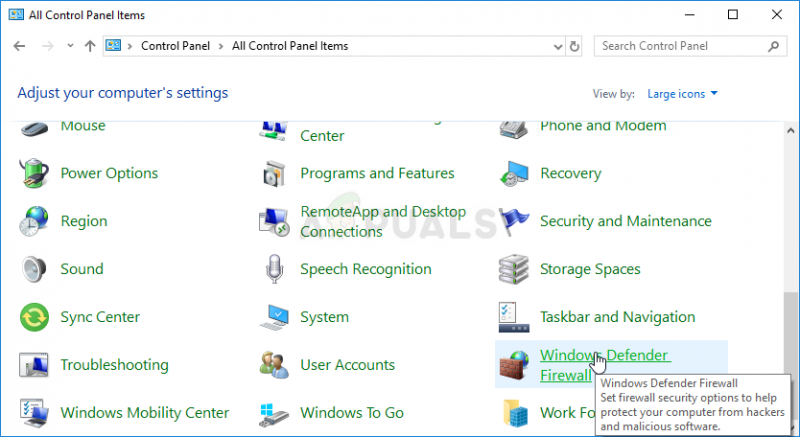
- Щелкните этот параметр и выберите параметр Разрешить и приложение или функцию через брандмауэр Windows в списке параметров слева. . Должен открыться список установленных приложений на вашем компьютере. Найдите в списке элементы запуска ESO и ESO и установите флажки рядом с частными и общедоступными сетями.
- Нажмите OK и перезагрузите компьютер перед повторным запуском проблемной игры через Steam или его клиент и проверка, будет ли он теперь работать без отображения ошибки ESO 200!
Измените некоторые настройки NVIDIA
Этот метод будет особенно полезен пользователям с видеокартами NVIDIA в своих настройках. Иногда игра ошибочно выбирает использование встроенной видеокарты, которая часто вообще не подходит для запуска игры. Кроме того, есть некоторые другие параметры, которые вы, возможно, захотите настроить, чтобы запускать без отображения ошибки 200!
- Щелкните правой кнопкой мыши в любом месте рабочего стола и выберите параметр Панели управления NVIDIA. из контекстного меню или дважды щелкните значок NVIDIA на панели задач, если он запущен.

- В разделе настроек 3D на левой панели навигации нажмите Управление настройками 3D в левой части навигации и перейдите на вкладку Настройки программы.
- Нажмите Добавить и убедитесь, что вы просматриваете свой компьютер в поисках исполняемого файла, который используется для запуска ESO. Его имя – eso64.exe или eso32.exe (в зависимости от архитектуры вашего компьютера. Вы можете найти его папку, выполнив шаги 1-3 из Решения 1.

- В раскрывающемся меню под опцией «Выбрать предпочтительный графический процессор для этой программы», выберите «Высокопроизводительный процессор NVIDIA» и нажмите «Применить».

- В разделе «Настройки» найдите запись «Режим управления питанием» и щелкните стрелку вправо. Установите для нее значение «Предпочитать максимальную производительность» и подтвердите свои изменения..
- Вам также следует попробовать использовать следующие общие настройки программы:
Вертикальная синхронизация – Выкл.
Потоковая оптимизация – выкл.
Тройная буферизация – выкл.
- Проверьте, не появилась ли ошибка ESO 200 после перезапуска клиента.
Содержание
- 1 Что вызывает ошибку ESO 200?
- 1.1 Переименуйте папку с игрой и снова откройте ее
- 1.2 Пускай игру через брандмауэр
- 1.3 Настроить некоторые настройки NVIDIA
Elder Scrolls Online (ESO) — это MMORPG во вселенной Elder Scrolls, которую все любят в играх с шедеврами, таких как Morrowind, Oblivion и Skyrim. В игру играют онлайн, но пользователи сообщают об ошибке 200, которая просто не позволяет им войти в игру.
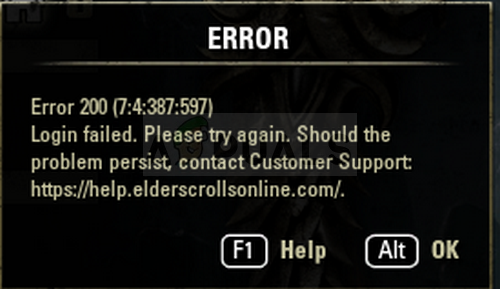 Ошибка ESO 200
Ошибка часто связана с запланированным выпуском нового обновления, но есть и множество других причин. Следуйте методам, которые мы подготовили, чтобы увидеть, в чем заключается проблема и как ее решить.
Что вызывает ошибку ESO 200?
Ошибка часто появляется из-за сломанных данных Launcher, которые необходимо сбросить, чтобы программа запуска могла нормально проверять наличие обновлений. Кроме того, ваш брандмауэр может блокировать также один из исполняемых файлов игры.
Наконец, это может быть связано с некоторыми настройками NVIDIA, поэтому убедитесь, что вы настроили их в Панели управления NVIDIA.
Переименуйте папку с игрой и снова откройте ее
Переименование папки ProgramData в корневом каталоге игры может помочь вам решить проблему после ее перезапуска. Это сбросит все данные, связанные с обновлениями, и теперь Launcher проверит наличие обновлений, установит их и правильно запустит игру.
- Обязательно запустите Steam, дважды щелкнув его значок на рабочем столе или выполнив поиск в меню «Пуск». Кроме того, перейдите на вкладку «Библиотека» в клиенте Steam, нажав кнопку вкладки «Библиотека» в верхней части окна, и найдите Overwatch в списке игр, которыми вы владеете в своей библиотеке.
- Щелкните правой кнопкой мыши Elder Scrolls Online из списка и выберите «Свойства». Перейдите на вкладку «Локальные файлы» и выберите «Просмотр локальных файлов».
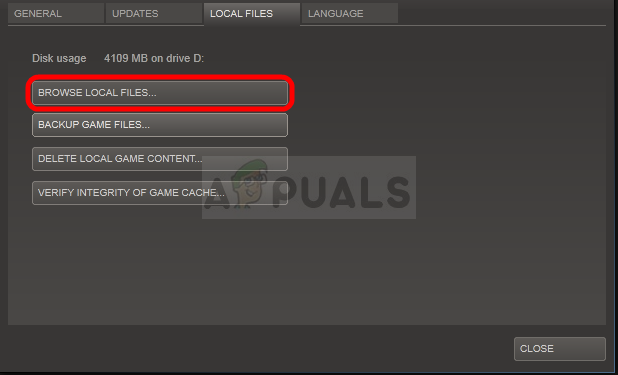 Steam Просмотр локальных файлов
- Если у вас есть другая версия игры, вы все равно можете найти папку установки игры вручную. Самый простой способ — щелкнуть правой кнопкой мыши по ярлыку ESO на рабочем столе или в любом другом месте и выбрать в меню «Открыть местоположение файла».
- В любом случае, попав в папку, дважды щелкните, чтобы открыть папку Launcher. Щелкните правой кнопкой мыши папку ProgramData, которую вы найдете внутри, и выберите опцию Rename из контекстного меню. Измените его имя на ProgramData.old и нажмите клавишу Enter для подтверждения.
Пускай игру через брандмауэр
Независимо от того, используется ли по умолчанию брандмауэр Защитника Windows или приложение стороннего производителя, которое вы используете для той же цели, брандмауэры, как правило, блокируют подключение исполняемых файлов к Интернету. Это особенно заметно, поскольку игровая программа не может проверять наличие обновлений, даже если у вас хорошее интернет-соединение. Разблокируйте игру и проверьте, появляется ли ошибка 200!
Заметка: Если вы используете стороннее программное обеспечение брандмауэра, методы разрешения программы через него отличаются от одной программы брандмауэра к другой, и вам следует выполнить поиск в Google, который должен помочь вам решить проблему. Если вы используете брандмауэр Защитника Windows, вы можете выполнить следующие простые действия:
- Откройте панель управления, выполнив поиск этого инструмента в кнопке «Пуск» или щелкнув увеличительное стекло «Поиск» или круглую кнопку «Кортана» в левой части панели задач.
- После того, как откроется окно панели управления, измените представление на Большие или Маленькие значки в верхней правой части окна и перейдите к его нижней части, чтобы найти параметр Брандмауэр Защитника Windows.
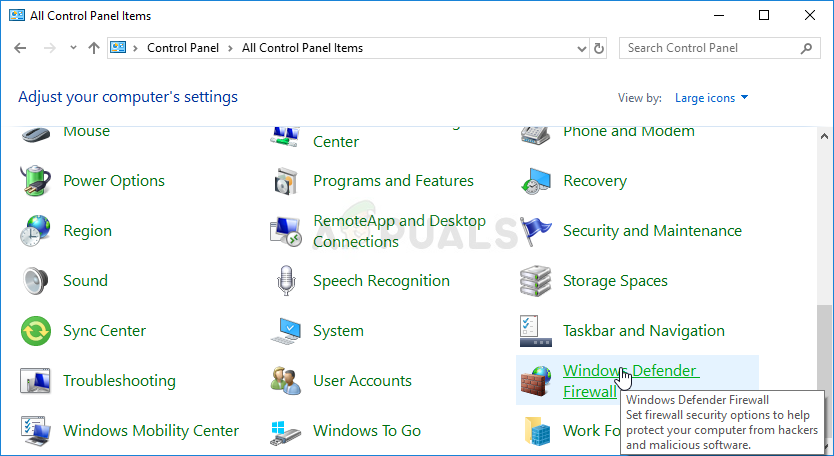 Брандмауэр Защитника Windows в Панели управления
- Нажмите на эту опцию и выберите опцию Разрешить и приложение или функцию через брандмауэр Windows в списке параметров слева. Должен открыться список установленных приложений на вашем компьютере. Найдите в списке записи запуска ESO и ESO и установите флажки рядом с частными и общедоступными сетями.
- Нажмите OK и перезагрузите компьютер, прежде чем перезапускать проблемную игру через Steam или ее клиент и проверить, будет ли она теперь работать, не показывая ошибку ESO 200!
Настроить некоторые настройки NVIDIA
Этот метод будет особенно полезен для пользователей с видеокартами NVIDIA в их настройках. Иногда игра ошибочно выбирает использование встроенной видеокарты, которая часто вообще не подходит для запуска игры. Кроме того, есть некоторые другие настройки, которые вы можете настроить для запуска без отображения ошибки 200!
- Щелкните правой кнопкой мыши в любом месте на рабочем столе и выберите параметр панели управления NVIDIA в контекстном меню или дважды щелкните значок NVIDIA на панели задач, если он запущен.
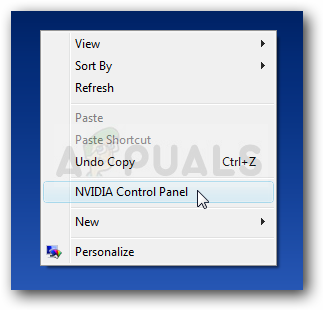 Панель управления NVIDIA в контекстном меню рабочего стола правой кнопкой мыши
- В разделе «Параметры 3D» на левой панели навигации нажмите «Управление настройками 3D» на левой стороне навигации и перейдите на вкладку «Настройки программы».
- Нажмите «Добавить» и убедитесь, что вы просматриваете свой ПК на наличие исполняемого файла, который используется для запуска ESO. Это имя либо eso64.exe, либо eso32.exe (в зависимости от архитектуры вашего компьютера. Вы можете найти его папку, используя шаги 1-3 из Решения 1.
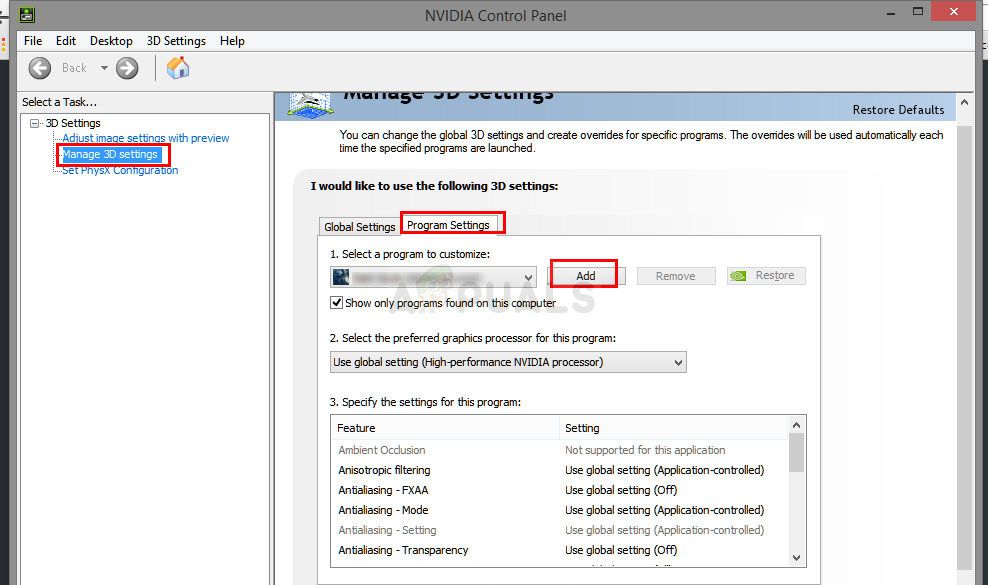
- В раскрывающемся меню в разделе «Выберите предпочтительный графический процессор для этой программы» выберите «Высокопроизводительный процессор NVIDIA» и нажмите «Применить».
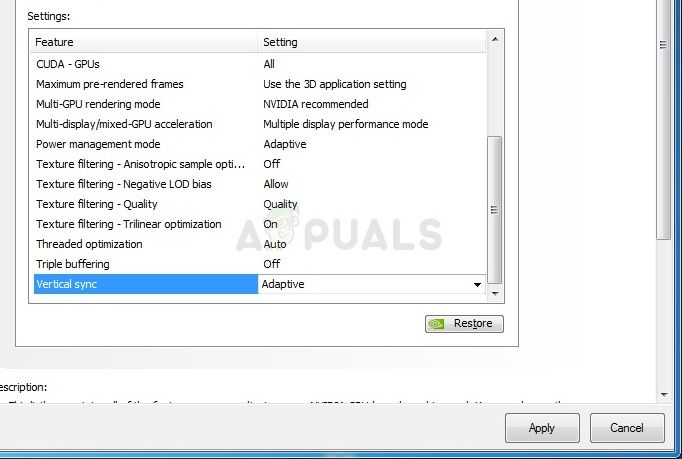
- В разделе «Настройки» найдите запись «Режим управления питанием» и нажмите стрелку справа. Установите значение «Предпочитать максимальную производительность» и подтвердите изменения.
- Вам также следует попробовать использовать следующие глобальные настройки программы:
Вертикальная синхронизация
Потоковая оптимизация — выкл.
Тройная буферизация — выкл
- Проверьте, не обнаружилась ли ошибка ESO 200 после перезапуска клиента.
-
Partition Wizard
-
Partition Manager
- Here Are 4 Fixes to ESO Error 200 [Try Them Now]
Here Are 4 Fixes to ESO Error 200 [Try Them Now] [Partition Manager]
By Vicky | Follow |
Last Updated January 05, 2023
ESO (as known as Elder Scrolls Online) is a massively multiplayer online role-playing game. Although 6 years flies since the game was released in 2014, some players ran into some Elder Online errors on Windows PC. Here MiniTool would like to talk about ESO error 200.
Why Does ESO Error 200 Arise?
ESO error 200 shows up when players log into the game. It prevents them from logging into this game.
The error 200 might be caused by the following reasons.
Possible reasons for ESO error 200 on Windows PC:
- ESO executables might be blocked by your computer’s firewall.
- Ports and stable cached DNS data of your router might be responsible for the error 200.
- The launcher data gets broken.
- A bad connection of the ISP to Akamai might also cause ESO error 200.
- NVIDIA settings might be one of the causes.
After knowing the possible reasons for ESO error 200, please try the following fixes one by one to get rid of the Elder Scrolls Online error
Fix 1: Restart Your PC and Launch ESO Again
Look at the error popup and see if the error 200 comes along with “Cannot Load Announcements”. If yes, please fully close the game, restart your Windows PC, and launch the game again.
If you still receive the message, please retry the process. However, if you receive the announcements, there should be no problem.
Fix 2: Rename the ESO’s Folder
Renaming the ESO’s folder will reset all update-related data and then Launcher will check for updates, install them, and run the game properly. The ESO’s folder refers to the ProgramData folder in the game’s root directory.
How to change the name of the ESO’s folder? Refer to the following tutorial.
Step 1: Launch Steam and then click the Library tab.
Step 2: In the Library window, find Elder Scrolls Online in the list and then right-click it and select Properties.
Step 3: On the Properties window, click LOCAL FILES tab and choose BROWSE LOCAL FILES.
Step 4: Once inside the folder, double-click the Launcher folder. Right-click the ProgramData folder in the former folder and then choose the Rename option to rename it as ProgramData.old and hit the Enter key to confirm.
Step 5: Launch ESO and check whether the error 200 persists.
Fix 3: Allow ESO Through Windows Firewall
When ESO error 200 arises, you should go to Windows Firewall to check if the game is blocked by Windows Firewall.
Step 1: Type Windows Firewall in the Cortana’s search bar and then select the result.
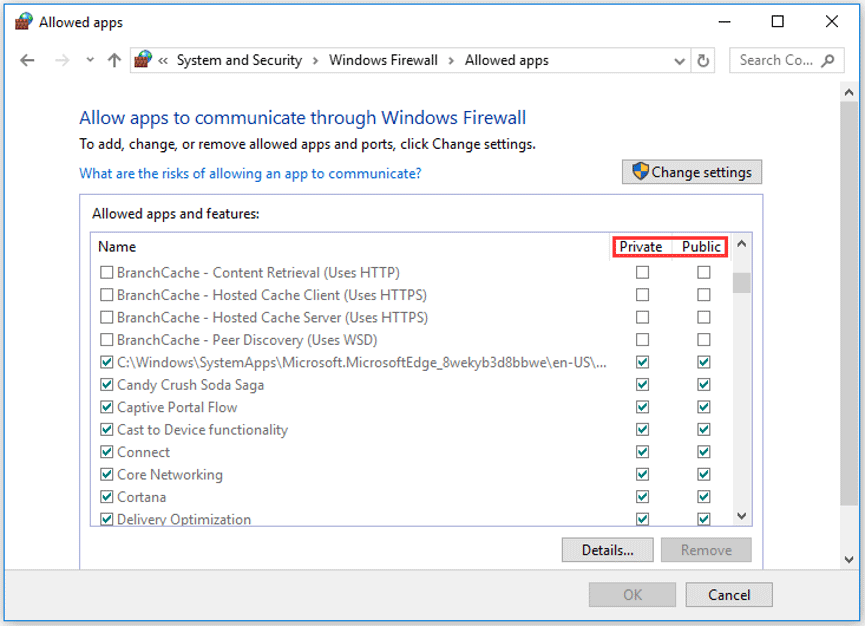
Step 2: On the Windows Firewall window, click the Allow an app or feature through Windows Firewall option. Look at the Allowed apps and features section to see if the ESO and ESO launcher entries have been blocked. To unblock the game, just check both Public and Private network boxes.
Fix 4: Adjust NVIDIA Settings
This method is quite helpful for the players with NVIDIA graphics cards in their setups to fix ESO error 200.
Here is the detailed tutorial.
Step 1: Call out the context menu and select the NVIDIA Control Panel option.
Step 2: Click Manage 3D settings under the 3D Setting section and then navigate to the Program Settings tab.
Step 3: Click the Add button in the Select a program to customize section and browse to the ESO executables (eso64.exe or eso32.exe).
Step 4: Go to the Select the preferred graphics processor for this program section and select High-performance NVIDIA processor.
Step 5: Go to the Specify the settings for this program section and find Power Management Mode from the list. Set the mode to Prefer Maximum Performance and confirm these changes by clicking the Apply button.
Tip: Are you playing PUBG? This step can also make this game run faster. If you want to learn more about that, please read Make PUBG Run Better to Have Chicken Dinner.
About The Author

Position: Columnist
Vicky is a website editor who has been writing tech articles since she was graduated from university. Most of her articles talk about Windows PC and hard disk issues. Some of her articles also touch on YouTube usage and issues.
During her spare time, she likes to spend time reading, watching videos, and sitting on her Yoga mat to relax.
-
Partition Wizard
-
Partition Manager
- Here Are 4 Fixes to ESO Error 200 [Try Them Now]
Here Are 4 Fixes to ESO Error 200 [Try Them Now] [Partition Manager]
By Vicky | Follow |
Last Updated January 05, 2023
ESO (as known as Elder Scrolls Online) is a massively multiplayer online role-playing game. Although 6 years flies since the game was released in 2014, some players ran into some Elder Online errors on Windows PC. Here MiniTool would like to talk about ESO error 200.
Why Does ESO Error 200 Arise?
ESO error 200 shows up when players log into the game. It prevents them from logging into this game.
The error 200 might be caused by the following reasons.
Possible reasons for ESO error 200 on Windows PC:
- ESO executables might be blocked by your computer’s firewall.
- Ports and stable cached DNS data of your router might be responsible for the error 200.
- The launcher data gets broken.
- A bad connection of the ISP to Akamai might also cause ESO error 200.
- NVIDIA settings might be one of the causes.
After knowing the possible reasons for ESO error 200, please try the following fixes one by one to get rid of the Elder Scrolls Online error
Fix 1: Restart Your PC and Launch ESO Again
Look at the error popup and see if the error 200 comes along with “Cannot Load Announcements”. If yes, please fully close the game, restart your Windows PC, and launch the game again.
If you still receive the message, please retry the process. However, if you receive the announcements, there should be no problem.
Fix 2: Rename the ESO’s Folder
Renaming the ESO’s folder will reset all update-related data and then Launcher will check for updates, install them, and run the game properly. The ESO’s folder refers to the ProgramData folder in the game’s root directory.
How to change the name of the ESO’s folder? Refer to the following tutorial.
Step 1: Launch Steam and then click the Library tab.
Step 2: In the Library window, find Elder Scrolls Online in the list and then right-click it and select Properties.
Step 3: On the Properties window, click LOCAL FILES tab and choose BROWSE LOCAL FILES.
Step 4: Once inside the folder, double-click the Launcher folder. Right-click the ProgramData folder in the former folder and then choose the Rename option to rename it as ProgramData.old and hit the Enter key to confirm.
Step 5: Launch ESO and check whether the error 200 persists.
Fix 3: Allow ESO Through Windows Firewall
When ESO error 200 arises, you should go to Windows Firewall to check if the game is blocked by Windows Firewall.
Step 1: Type Windows Firewall in the Cortana’s search bar and then select the result.
Step 2: On the Windows Firewall window, click the Allow an app or feature through Windows Firewall option. Look at the Allowed apps and features section to see if the ESO and ESO launcher entries have been blocked. To unblock the game, just check both Public and Private network boxes.
Fix 4: Adjust NVIDIA Settings
This method is quite helpful for the players with NVIDIA graphics cards in their setups to fix ESO error 200.
Here is the detailed tutorial.
Step 1: Call out the context menu and select the NVIDIA Control Panel option.
Step 2: Click Manage 3D settings under the 3D Setting section and then navigate to the Program Settings tab.
Step 3: Click the Add button in the Select a program to customize section and browse to the ESO executables (eso64.exe or eso32.exe).
Step 4: Go to the Select the preferred graphics processor for this program section and select High-performance NVIDIA processor.
Step 5: Go to the Specify the settings for this program section and find Power Management Mode from the list. Set the mode to Prefer Maximum Performance and confirm these changes by clicking the Apply button.
Tip: Are you playing PUBG? This step can also make this game run faster. If you want to learn more about that, please read Make PUBG Run Better to Have Chicken Dinner.
About The Author
Position: Columnist
Vicky is a website editor who has been writing tech articles since she was graduated from university. Most of her articles talk about Windows PC and hard disk issues. Some of her articles also touch on YouTube usage and issues.
During her spare time, she likes to spend time reading, watching videos, and sitting on her Yoga mat to relax.
Elder Scrolls Online (ESO) is an MMORPG set in the Elder Scrolls universe everyone loves from the masterpiece games such as Morrowind, Oblivion, and Skyrim. The game is played online but users have reported seeing the error 200 which simply prevents them from logging into the game.
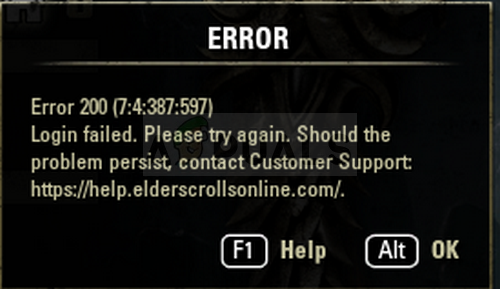
The error is often tied with a new update being scheduled to be released but there are plenty of other causes as well. Follow the methods we have prepared to see what the problem is all about and how to solve it.
What Causes ESO Error 200?
The error often appears because of broken Launcher data which needs to be reset so that the launcher can check for updates normally. Also, you firewall might be blocking one of the game’s executables as well.
Finally, it might be because of some NVIDIA settings so make sure you tweak them in NVIDIA Control Panel.
Rename a Game’s Folder and Reopen it
Renaming the ProgramData folder in the game’s root directory might help you solve the problem after relaunching it. This will reset all update-related data and the Launcher will now check for updates, install them, and run the game properly.
- Make sure to start up Steam by double-clicking its icon on the Desktop or by searching for it in Start menu. Also, head over to the Library tab in the Steam client by pressing the Library tab button at the top of the window, and locate Overwatch in the list of games you own in your library.
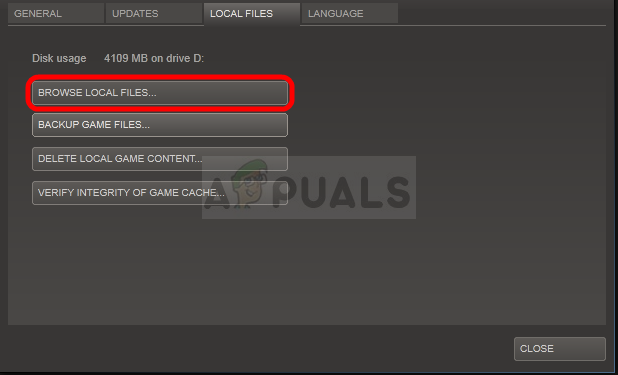
- Right-click on Elder Scrolls Online from the list and choose Properties. Navigate to the Local Files tab and choose Browse Local Files.
- If you have another version of the game, you can still locate the game’s installation folder manually. The easiest way would be to right-click the ESO shortcut on Desktop or anywhere else and choose Open file location from the menu.
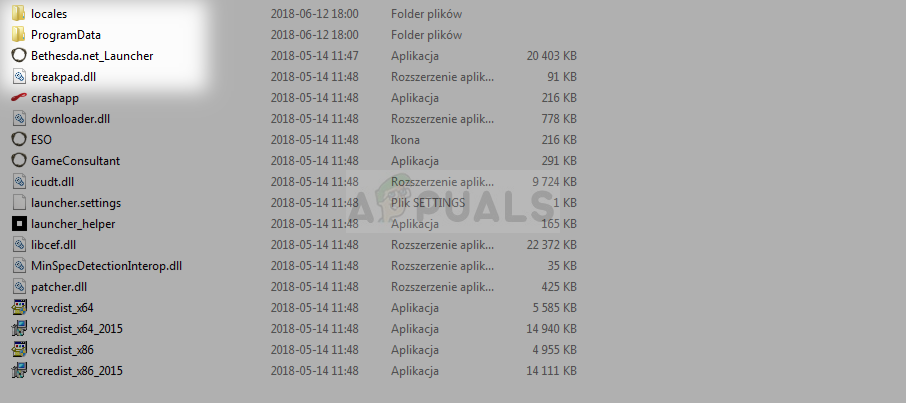
- Anyway, once inside the folder, double-click to open the Launcher folder. Right-click the ProgramData folder you find inside and choose the Rename option from the context menu. Change its name to ProgramData.old and tap the Enter key to confirm.
- Reopen the game from Steam or from its standalone client and check to see if the ESO Error 200 still appears!
Let the Game through Your Firewall
No matter if it’s the default Windows Defender Firewall or a third party app you use for the same purpose, firewalls tend to block executable files from connecting to the Internet. This can especially be observed since the game launcher is not able to check for updates even though your Internet connection is probably good. Unblock the game and check to see if the error 200 still appears!
Note: If you are using a third-party firewall software, methods on how to allow a program through it differ from one firewall program to another and you should perform a Google search which should help you take care of the problem. If you are using Windows Defender Firewall, you can follow the simple steps below:
- Open Control Panel by searching for this tool in the Start button or by clicking the Search magnifying glass or the circular Cortana button at the left part of your taskbar.
- After Control Panel window opens, change the view to Large or Small icons from the top right part of the window and navigate to the bottom of it in order to locate the Windows Defender Firewall option.
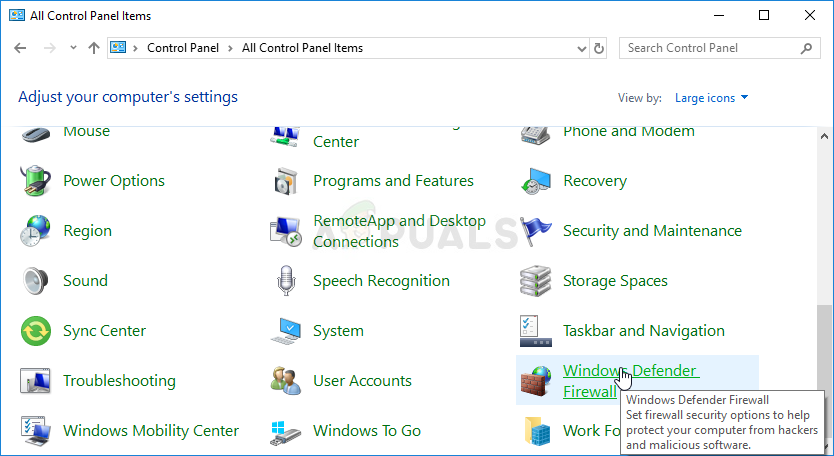
- Click on this option and click on the Allow and app or feature through Windows Firewall option from the left side list of options. A list of installed apps on your computer should open. Locate the ESO and ESO launcher entries on the list and check the boxes next to both Private and Public networks.
- Click OK and restart your computer before re-launching the problematic game via Steam or its client and checking if it will now run without showing the ESO error 200!
Tweak Some NVIDIA Settings
This method will be particularly useful to users with NVIDIA graphics cards in their setups. Sometimes the game wrongly chooses to use the integrated graphics card which is often not suitable to run the game at all. Also, there are some other settings you might want to tweak to make the run without displaying the error 200!
- Right-click anywhere on your desktop and select the NVIDIA Control Panel option from the context menu or double-click the NVIDIA icon in the system tray if it’s running.
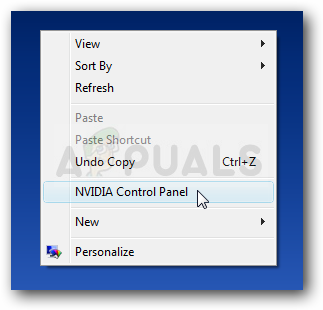
- Under the 3D settings section at the left navigation pane, click on Manage 3D settings at the left navigation side and navigate to the Program Settings tab.
- Click on Add and make sure you browse your PC for the executable which is used to launch ESO. It’s name is either eso64.exe or eso32.exe (depending on your computer’s architecture. You can find its folder by using the steps 1-3 from Solution 1.
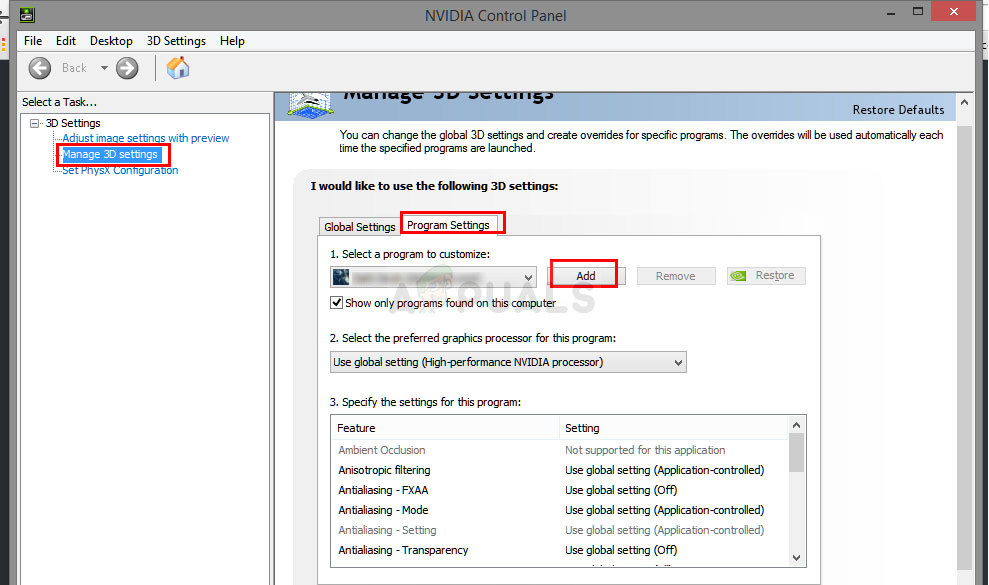
- From the dropdown menu under the “Select the preferred graphics processor for this program” option, select “High-performance NVIDIA processor” and click on Apply.
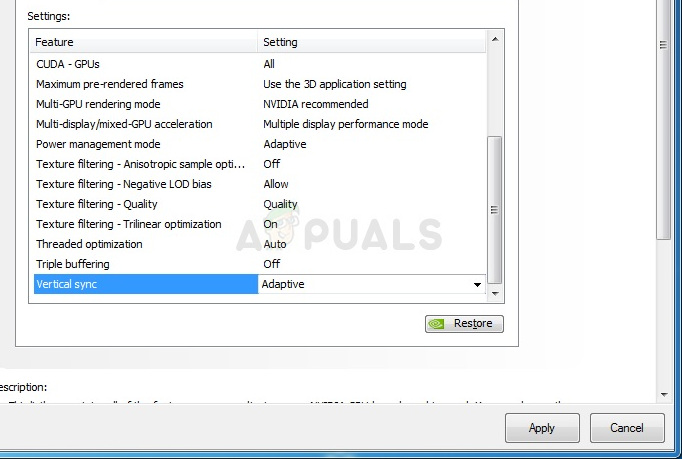
- Under the Settings section, look for the “’Power Management Mode” entry and click the arrow to the right. Set it to “Prefer Maximum Performance” and confirm your changes.
- You should also try using these Global of Program Settings:
Vertical sync- Off
Threaded optimization – off
Triple buffering – off
- Check to see if the ESO error 200 has seized to appear after relaunching its client.

Kevin Arrows
Kevin is a dynamic and self-motivated information technology professional, with a Thorough knowledge of all facets pertaining to network infrastructure design, implementation and administration. Superior record of delivering simultaneous large-scale mission critical projects on time and under budget.
The “ESO Error 200” is a very common connectivity type error. This error arises in an online game and prevents the user to log into the game. This error may arise due to several reasons and can be fixed. Follow the instructions below to fix the error and log into your game successfully again.

What Causes “ESO Error 200”?
The error 200 on Windows can be tied to several reasons from the PC itself to the router. Some reasons behind this are listed below
- One of the ESO executables might be blocked by the computer’s firewall.
- Ports and stable cached DNS data of the router might cause this error.
- Broken launcher data can be a reason behind the error 200. Reset the data so that it can check for updates.
- It may cause due to a bad connection of the ISP to Akamai.
- NVIDIA settings might cause this error.
How to Fix “ESO Error 200”?
1. Restart the Game
If Error 200 arises along with the “Cannot Load Announcements”, try to fully close the game along with closing the launcher window and restarting your PC. Now launch the game again. If the message “Cannot Load Announcements” appears again retry the process, if it loads the announcements then you are good to go.
2. Rename the Game’s folder
You can solve this problem by renaming the ProgramData folder in the game’s root directory. This will help the launcher to check for updates and install them to run the game properly. To do this, follow the steps below.
- Launch Steam by double-clicking on it.
- In the Steam client, click on the Library tab located on the top of the window.
- in the library, locate the game you’re having trouble in.
- Click on Elder Scrolls Online and then click on Properties.
- Click on the Local Files tab and choose Browse Local Files.
- Once inside, open the launcher folder.
- Right-click the ProgramData folder and rename it to ProgramData.old.
- Reopen the game.
3. Set the Firewall to let Elder Scrolls Online through
Firewall sometimes blocks the executable files from connecting to the internet, it doesn’t matter if you are using the Windows firewall or any other third party firewall. To fix Error 200, follow the steps below to unblock your game in the firewall to see if it works.
- Click on the search button in the taskbar and type “Control Panel” and open it.

Control Panel - In the view by dropdown menu, select Large icons.
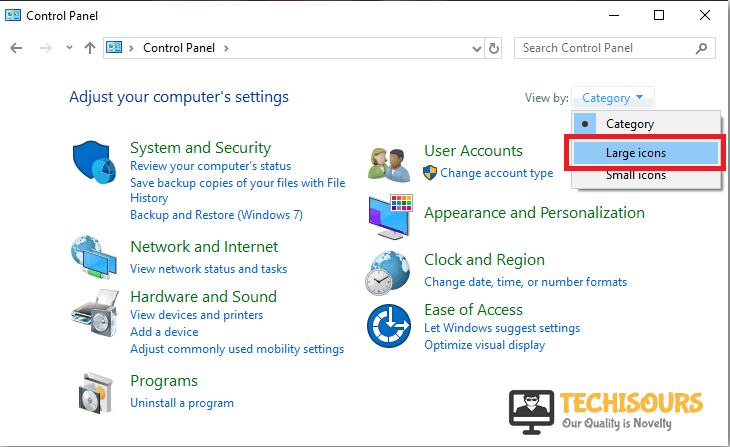
Large Icons - Now select Windows Defender Firewall.

Firewall - On the left side of the window, select Allow an App or Feature Through Windows Firewall Defender from the list of options.

Allow Apps through Firewall - Find the ESO and ESO launcher from the list that appeared on the screen.
- Check both public and private network boxes in front of ESO entries.
- Restart your computer and launch the game.
4. Try ZOS Platform Response
If all of the above solutions don’t help, follow the steps below
- Open the client through the launcher.
- Type your username and password and do not press any button.
- open the URL “https://live-services.elderscrollsonline.com/announcement/message?announcer_id=2” in a new tab.
- It times out sometimes, but keep trying until you see the following message of a similar message. As you see this message go to the client and hit the login button.
<?xml version="1.0" encoding="utf-8"?>
<zos_platform_response><response><message></message></response><result_code>2000</result_code><result_message>success</result_message></zos_platform_response>
5. Adjust the NVIDIA settings
Sometimes you need to tweak some settings of your graphics card to resolve the Error 200. To do this, follow the instructions below.
- Right-click on your desktop and select NVIDIA settings.

NVIDIA Settings - Click on Manage 3D settings under the 3D setting section.
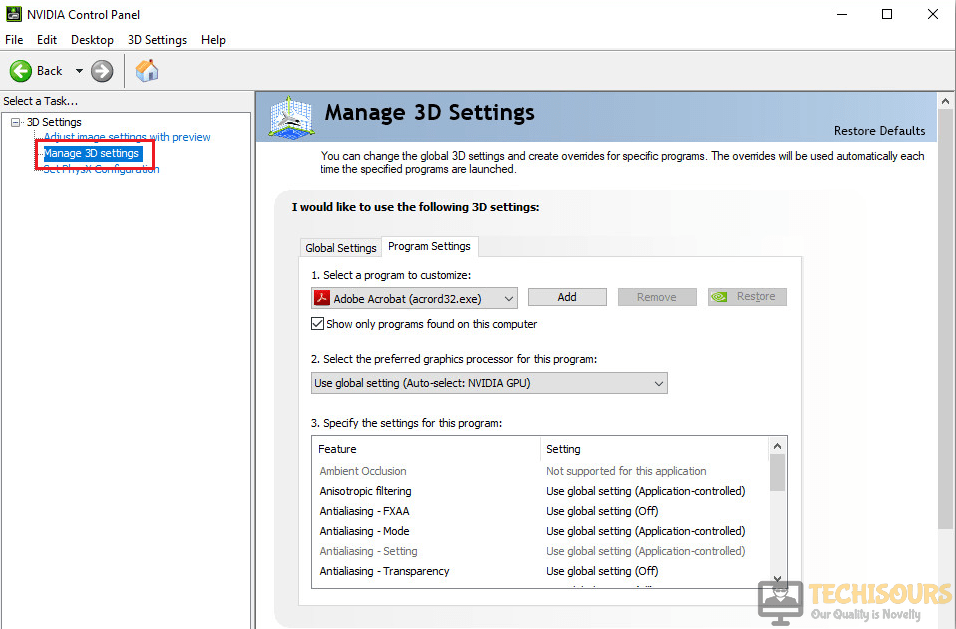
Manage 3D Settings - Click on the Add button and browse to the ESO executables.
- Goto Select the preferred graphics processor for this program and select a High-performance NVIDIA processor.

Maximum Performance - Now, go to Power Management Mode in the setting section and set it to Prefer Maximum Performance.
- Apply changes and restart your computer.
If you need further assistance, contact here.
If you can’t log in to Elder Scrolls Online, then most likely error 200 also appeared on the screen. This logging error affects all the platforms that the game is running on.
The good news is that you can fix it with a bit of patience. Since Elder Scrolls Online error 200 affects so many users, we decided to write this post and list all the workarounds and solutions that gamers confirmed helped them fix this problem.
What causes Elder Scrolls Online error 200? Error code 200 Login Failed occurs when the Elder Scrolls Online Launcher is broken or your antivirus is blocking the game. Some of your video card settings might also trigger error 2000 but that occurs rather rarely.
Hopefully, one of these solutions will work for you as well.
Fix 1 – Try again
Good things happen to those who don’t give up, right? Well, these words of wisdom are valid for error 200 as well.
Many gamers confirmed they eventually managed to log in after several attempts (usually 10). It is worth mentioning that you may sometimes encounter Elder Scrolls Online error 108 during these logging attempts.
Both Elder Scrolls Online errors 200 and 108 are network connectivity error codes and can be triggered by multiple elements.
You can also try restarting your modem/router to see if this makes any difference.
Fix 2 – Disable your firewall
Sometimes, your firewall may block your ESO connection. To rule out your firewall as a possible cause for this issue, simply disable it and then try to log in again. If it works, you’ve just found the culprit.
Fix 3 – Change DNS settings
For a stable internet connection, make sure that you’re using the following DNS settings: primary DNS 8.8.8.8 and secondary DNS 8.8.4.4.
Fix 4 – Open ports
Make sure that the following ports are open to ensure a stable connection to the game’s servers:
- TCP / UDP Ports 24100 through 24131
- TCP / UDP Ports 24300 through 24331
- TCP / UDP Ports 24500 through 24507
- TCP Port 80
- TCP Port 433
Fix 5 – Check your antivirus exceptions list
If you’re getting ESO error 200 on a computer, make sure that the following paths are whitelisted on your antivirus exceptions list:
- Bethesda.net_launcher: C:Program Files (x86)ZenimaxOnlineLauncher
- ESO.exe: C:Program Files (x86)ZenimaxOnlineThe Elder Scrolls Onlinegameclienteso.exe
- Steam.exe: C:Program Files (x86)Steamsteam.exe
Fix 6 – Rename the ProgramData file
Here are the steps to follow:
- Close the game as well as the launcher
- Go to the game installation directory
- Open the folder named ‘Launcher’ > locate the ‘ProgramData’ folder
- Rename the folder to ‘ProgramDataBackup’
- Open the launcher and hit the play button.
Fix 7 – Repair Elder Scrolls Online
If error 200 persists, try repairing your game. If some of your game files are missing, this tool will automatically download the respective files:
- Select ESO > go to Game Options
- Use the drop-down menu and select Repair
- Wait until the launcher finishes scanning all the game files and folders
- Launch the game to check if the error persists.
Fix 8 – Launch another game
Some gamers confirmed that playing another game for about 5 minutes helped them fix the problem. So, go ahead and launch a different game, play for a few minutes, and then launch ESO again.
Fix 9 – Check your NVIDIA settings
Use this method only if your computer is equipped with an NVIDIA graphics card. The problem is that the game selects the integrated graphics card which may sometimes block certain game features.
This is how you can tweak your NVIDIA settings to fix ESO error 200:
- Right-click on your desktop → select NVIDIA Control Panel
- Go to 3D settings
- Click on Manage 3D settings
- Select the Program Settings tab
- Click on Add → browse your PC to find the ESO executable file ( eso64.exe or eso32.exe)
- Go to the option Select the preferred graphics processor for this program
- Select High-performance NVIDIA processor
- Apply the changes
- Go back to Settings
- Locate the option Power Management Mode
- Enable Prefer Maximum Performance
- Save the changes
We hope something helps.