How To Correct The «Default Templates Are Not Valid» Error
SOLIDWORKS
In this article we are going to show how to correct this error message when creating new files in SOLIDWORKS as well as explaining the cause of the error and how to correct this, and potentially other errors, after updating SOLIDWORKS to a new version/year.
The Quick Fix
There are two settings we will need to inspect to correct this issue and both will be found in “System Options”:
Setting #1: Update File Locations settings for Templates:
1. Open “System Options” and select “File Locations” in the left side of the “System Options” window
2. Make sure that “Document Templates” is selected in the “Show folders for:” dropdown menu

3. Delete any older version default template folders that are listed, for example:
“C:ProgramDataSOLIDWORKSSOLIDWORKS 2019templates” is the default location for SOLIDWORKS 2019
4. If it is not listed, add the default folder for the current version of SOLIDWORKS, for 2022 it is: “C:ProgramDataSOLIDWORKSSOLIDWORKS 2022templates”
5. Click OK to close the “System Options” window and apply the new settings
Note: Depending on your computer and domain security settings, User Access Control typically prompts twice for Administrator permissions to save these settings. If you do not have local Administrator rights you can click “No” on both prompts and the settings should still be applied. If the settings are not applied due to IT security policies you will need to request your IT team to provide local Administrator credentials to complete these steps.
Setting #2: Update Default Templates and settings:
1. Open “System Options”
2. Select “Default Templates on the left side of the “System Options” window
3. Check the file locations listed for each type of template. Most commonly, one or more entry references a folder that no longer exists due to:
- The previous version of SOLIDWORKS default folder was deleted
- A custom template folder being moved/renamed/deleted
- A network share name being changed
- A mapped drive letter is being changed.
4. Click the ellipses button (…) next to each template path that needs to be updated and select the appropriate default template for each file type

5. Click OK to close the “System Options” windows and apply the new settings.
Pro Tip: Common Causes & Preventive Maintenance
This is most often caused by upgrading SOLIDWORKS to a newer version (year). The installation manager will not overwrite any customized template folder locations, so if they were located in a folder with the version/year included, your “File Locations” will still be pointing to the default locations for the older version of SOLIDWORKS.
In order to quickly update all of these old locations, you can use a Find/Replace function for File Locations to update all the old versions at once.
1. Open “System Options”
2. Select “File Locations” on the left side of the “System Options” window
3. Select the “Edit All” button to the right of the “Show folders for” dropdown menu


5. Enter previous version number in the “Find” box and the current version number in the “Replace” box and click “Replace All” (repeat this step if you find multiple older version numbers in the file locations list)

6. Once you have finished replacing the old folder paths, simply click “Save” and then “OK” to apply the new folder locations settings.
Technical Support
We hope you found this information valuable! If you have any follow up questions and are an MLC CAD Systems customer, please contact support at 800-364-1652 x 2 or by email at solidworkssupport@mlc-cad.com.
You can also click here to submit your Technical Support Case.
When you create a new document, import a file from another application, or create a derived part in SOLIDWORKS, the default template is used for the new document. However, sometimes if the file paths are not set up correctly, you may get the error message below:
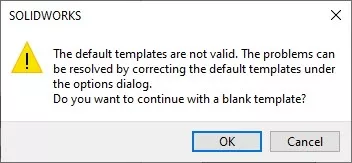
“The default templates are not valid. The problems can be resolved by correcting the default templates under the options dialog. Do you want to continue with a blank template?”
Defining the Default Templates
To correct your file path, follow the instructions below:
- Navigate to Options
- Under System Options, select Default Templates
- Browse to the specific template you want by selecting …
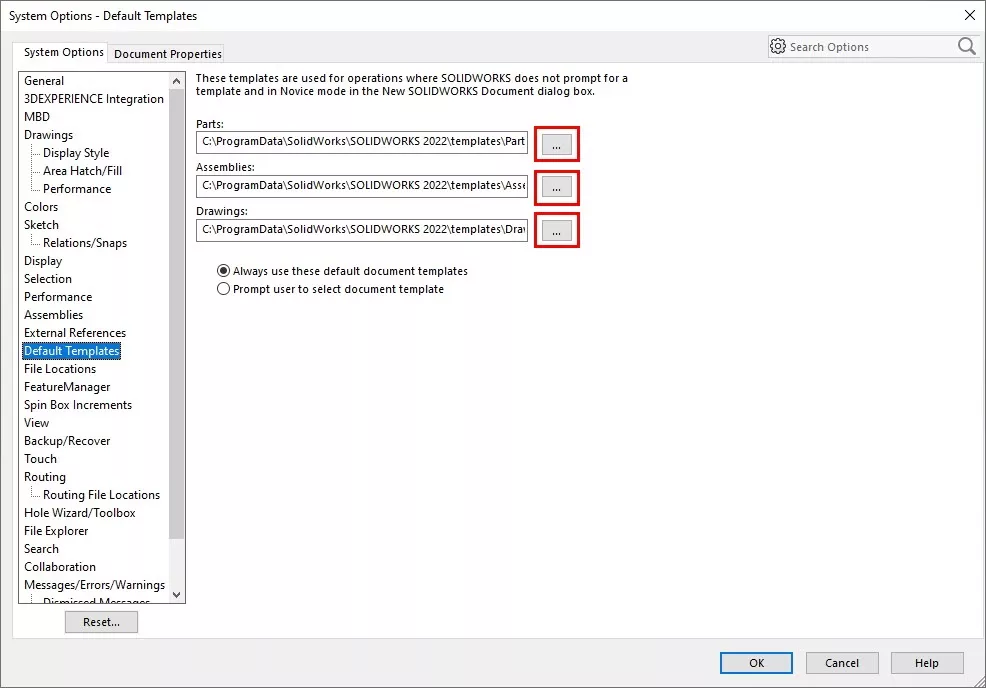
- Here, you can select the default template from the “New SOLIDWORKS Document” dialog box and click OK.
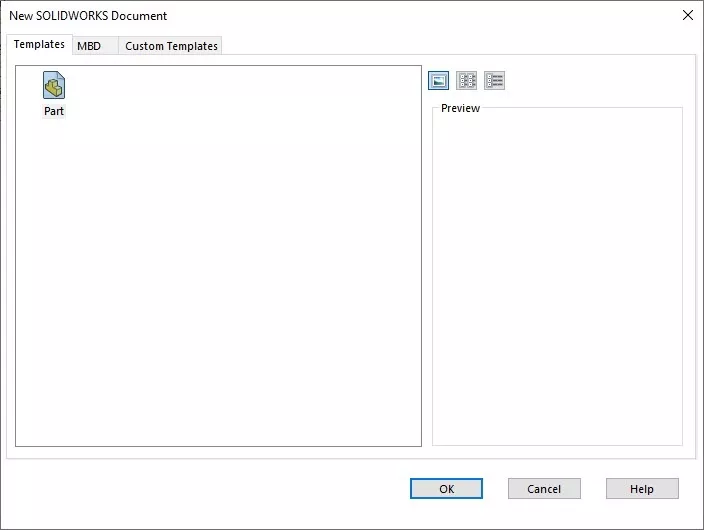
Note: These SOLIDWORKS templates in the above dialog box are defined by the templates found in the file location(s) listed under Tools > Options > File Locations > Document Templates.
Editor’s Note: This article was originally published in May 2017 and has been updated for accuracy and comprehensiveness.
I hope you found this quick tip helpful. Check out more SOLIDWORKS tips and tricks below.
More SOLIDWORKS Tutorials
SOLIDWORKS Warning: A Journal File Could Not Be Created
Fix SOLIDWORKS Resources Running Low
How to Update Templates in SOLIDWORKS
How to Adjust Template Settings in SOLIDWORKS
Using PDM Templates Inside SOLIDWORKS
So I upgraded from SW2014 last year and have been getting this template error ever since, but it’s never kept me from doing what I needed to do, until now:
The only thing it gets in the way of is importing files from other file formats. Which I now desperately need to do and cannot do.
Any help would be appreciated. Here’s what I’ve tried already.
I tried moving the location of the files, no luck. I tried deleting them outright hoping that SW would create new default files, but it actually throws an error and demands template files. Apparently if you lose these template files, your entire program will no longer work, you can’t even generate new ones. What a glaring oversight.
I have no idea what could possibly be wrong in the existing template files, they are the ones that came with 2016, and I’ve made no modifications to them.
Edit: I’ve found what I think is the root flaw. Under «default template locations» in the options I find references to the 2014 locations:
The problem is there appears to be no way to actually change this directory location. I’m going to try recreating that directory—which was deleted when 2016 was installed, and just drop my existing templates into there and see if that fixes it.
Edit 2: Wow, it’s weirder than I thought. In the image above it shows the default template location pointing to that old Solidworks 2014 directory. But, if I click the three-dots on the right of each entry it pulls up that box shown below, and if I then hit cancel, the directory shown flips to the new 2016 location of the default templates. Truly bizarre.
Wow, and after doing that and then doing it again and selecting each part-template shown in each category instead of canelling, I was successfully able to import the .STP file without the error recurring. Incredibly odd, but at least I now have my part model imported.
Are you trying to use the Solidworks application, but are you getting the error message ‘the default templates are not valid’?
Tech Support 24/7
Ask a Tech Specialist Online
Connect with the Expert via email, text or phone. Include photos, documents, and more. Get step-by-step instructions from verified Tech Support Specialists.

On this page, you will find more information about the most common causes and most relevant solutions for the Solidworks error ‘the default templates are not valid’. Do you need help straight away? Visit our support page.
Let’s get started
It has never been easier to solve error «the default templates are not valid».
View list of solutions
Contact an expert
Error information
How to solve Solidworks error the default templates are not valid
We’ve created a list of solutions which you can follow if you want to solve this Solidworks problem yourself. Do you need more help? Visit our support page if you need professional support with Solidworks right away.
Tech Support 24/7
Ask a Tech Specialist Online
Connect with the Expert via email, text or phone. Include photos, documents, and more. Get step-by-step instructions from verified Tech Support Specialists.
Have you found a solution yourself, but it is not in the list? Share your solution in the comments below.
Need more help?
Do you need more help?
Tech experts are ready to answer your questions.
Ask a question
 October 21, 2020
Usually, when SolidWorks has been updated and the old versions of SolidWorks has been uninstalled. This error message tends to appear. It is nothing to worry as it can be fixed easily.

To fix this issue, we should check the default templates locations in System options:
Go to Tools > Options > Systems Options > Default Templates

There are 3 default templates: Part, Assemblies and Drawings.
SolidWorks will make use of these templates during automated file creation. Some examples would be when importing files, use of mirror part/assembly or saving bodies as part file.
These default templates need to point to the location where the templates exists. If you find that the templates no longer exists, you will need to click on the “…” and browse to a template that exists.
After updating these locations, the error should no longer appear.
- To know more about our products, email us at marketing@seacadtech.com or contact us at +65 6372 1416
- For technical support, email us at support@seacadtech.com or contact us at +65 6226 3784
- Visit us at www.seacadtech.com