
Встроенный в Windows Планировщик заданий позволяет автоматизировать выполнение самых разных задач, начиная от запуска приложений и заканчивая выключением компьютера. Но иногда случается, что запланированное задание не выполняется, а в Журнале событий появляется запись «Планировщику заданий не удалось запустить задачу…» с кодом событий 101. В описании ошибки также указывается ее значение, которое может указывать на причины неполадки, но это уже частности.
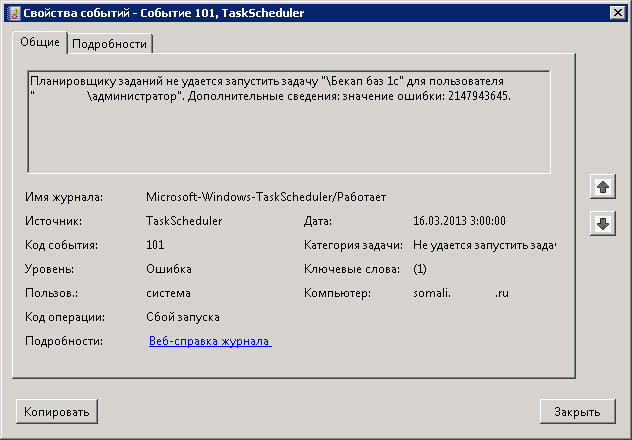
Если брать причины ошибки в целом, то чаще всего таковыми становятся отсутствие у пользователя необходимых прав, реже неполадка вызывается сбоем в работе службы планировщика.
Предоставьте пользователю права
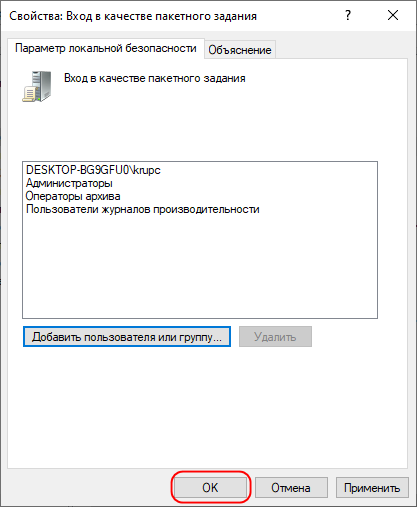
- Откройте командой secpol.msc оснастку управления локальными политиками безопасности, разверните узел Локальные политики Назначение прав пользователя и выберите в правой колонке политику «Вход в качестве пакетного задания».
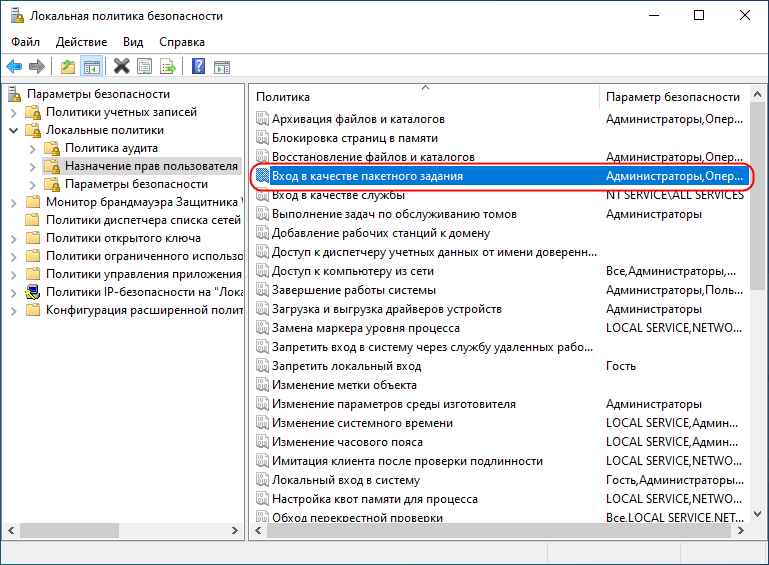
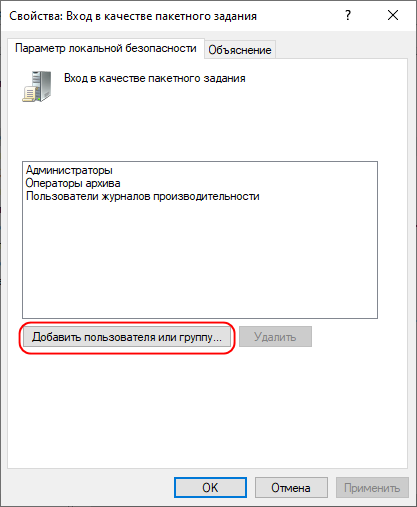
- Откройте ее свойства двойным по ней кликом, нажмите кнопку «Добавить пользователя или группу».
- В открывшемся диалоговом окошке введите ваше имя пользователя или администратора, после чего нажмите «Проверить имена» и «OK».
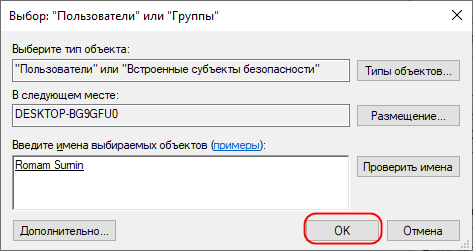
- Сохраните настройки.
Проверьте статус службы Планировщика
Не исключено, что Планировщик не смог запустить задачу, потому что отвечающая за его работу служба оказалась по какой-то причине отключена.
- Откройте командой services.msc оснастку управления службами и отыщите в списке службу «Планировщик заданий». Служба должна иметь статус «Выполняется» и тип запуска «Автоматически».
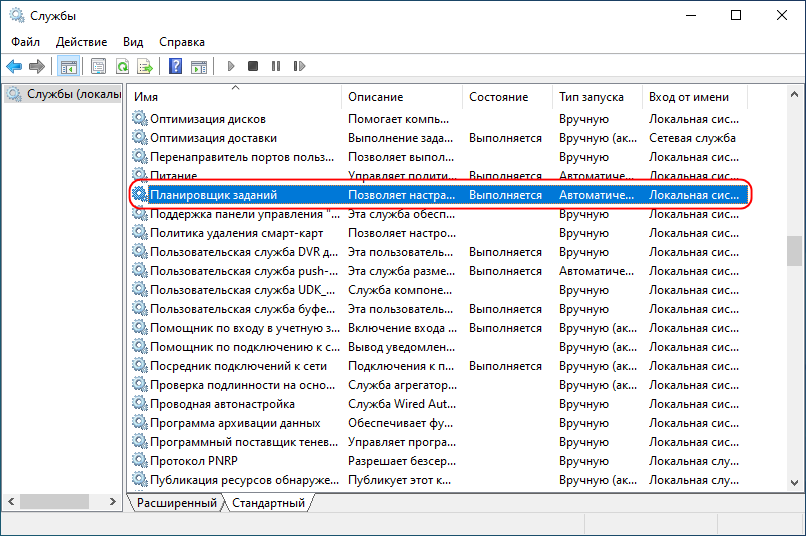
- Если служба остановлена, откройте ее свойства и попробуйте запустить.
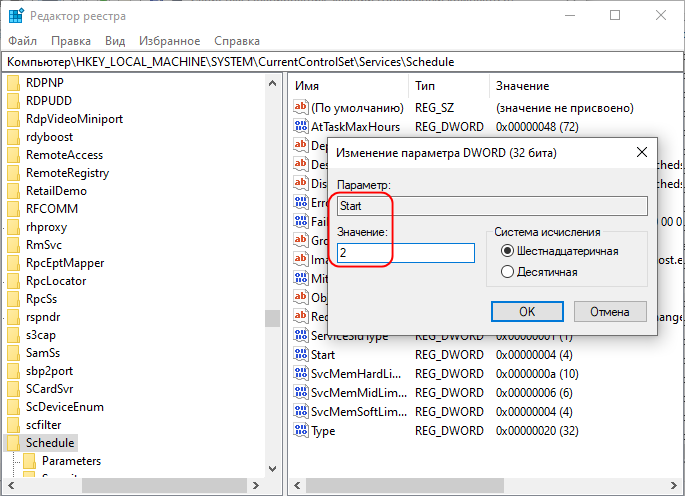
- Если опции запуска и изменения типа запуска неактивны, как в данном примере, откройте командой regedit редактор реестра, разверните ветку HKLMSYSTEMCurrentControlSetServicesSchedule, справа найдите параметр Start и измените его значение на 2 и перезагрузите компьютер.
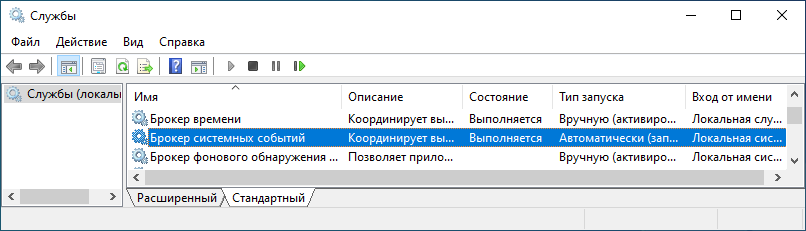
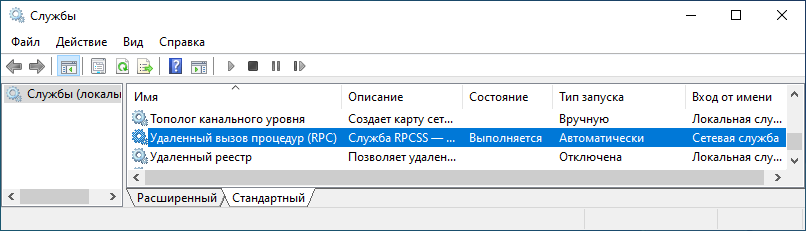
- Также проверьте состояние служб «Брокер системных событий» и «Удаленный вызов процедур». Они должны выполняться и иметь тип запуска «Автоматически».
Наконец, убедитесь в корректности настройки самого задания, возможно, вы где-то допустили ошибку, например, не назначили выполнение задачи с повышенными правами в то время, когда такие права требуются. Как вариант, можно удалить задание и создать его заново.
Оцените Статью:
 (1 оценок, среднее: 5,00 из 5)
 Загрузка…
Download PC Repair Tool to quickly find & fix Windows errors automatically
If you schedule a task using Task Scheduler and the task failed to start and is logged as Event ID 101, on your Windows 11/10 client PC or on Windows Server, then you are at the right place! In this post, we will identify the most likely culprit, as well as provide the suitable solutions you can apply to resolve the issue.
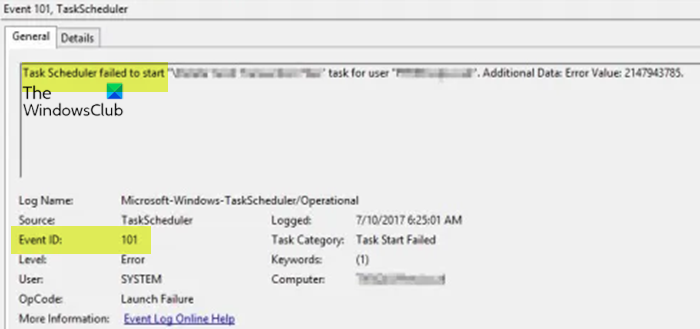
Task Scheduler failed to start “Task Name” task for user “Domainusername”. Additional Data: Error Value: 2147943785.
If your schedules task fails to run and you see the Task Scheduler failed to start with Event ID 101 in Event Viewer, you can try our recommended solutions below in the order presented below to have the issue promptly resolved on your machine.
- Add user to ‘Log on as a batch job’ group
- Make sure Task Scheduler service is set to Automatic and running
- Delete and recreate the Task
Let’s have a quick look at the description of the listed solutions.
1] Add user to ‘Log on as a batch job’ group
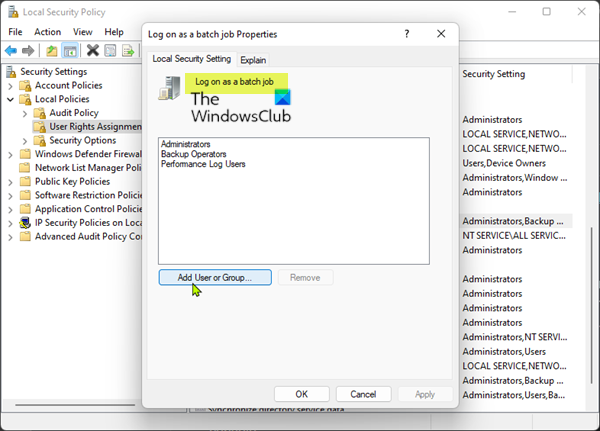
The main culprit to the Task Scheduler failed to start – Event ID 101 on Windows 11/10 client machine or Windows server was revealed to be permissions-related. The applicable fix here is to simply add the user to the “Log on as a batch job” property on the server or client machine as the case may be. To perform this task, do the following:
- Press Windows key + R to invoke the Run dialog.
- In the Run dialog box, type secpol.msc and hit Enter to oprn the Local Security Policy console.
- In the console, on the left navigation pane, click Local Policies to collapse the section.
- Now, click User Rights Assignment.
- On the right pane, double-click on Log on as a batch job policy to edit its properties.
- In the Properties window, click the Add User or Group button to add the appropriate username to the group.
- Finally, click Apply > OK to save changes.
- Exit Local Security Policy console.
Next time the job runs, it should run successfully without issues.
Read: Task Scheduler not running or starting programs
2] Make sure Task Scheduler service is set to Automatic and running
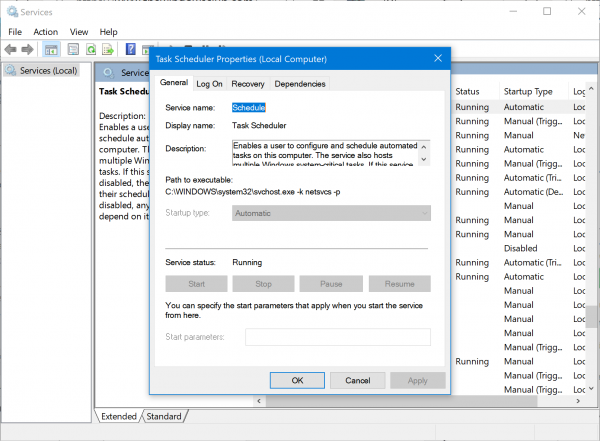
It’s possible the issue you are currently facing is due to the Task Scheduler service is disabled and not running or not set to automatic startup which is the default setting on your machine. To rule out this possibility, you need to make sure Task Scheduler service is set to Automatic and running. To perform this task, do the following:
- Press Windows key + R to invoke the Run dialog.
- In the Run dialog box, type services.msc and hit Enter to open Services.
- In the Services window, scroll and locate the Task Scheduler service.
- Double-click on the entry to edit its properties.
- In the properties window, click the drop-down on the Startup type and select Automatic.
- Next, make sure the service is started by clicking the Start button if not greyed out.
- Click Apply > OK to save changes.
- Restart PC.
If this service is set to automatic and running but the issue in hand persists, try the next solution.
Read: System error 1058 has occurred, The service cannot be started
3] Delete and recreate the Task
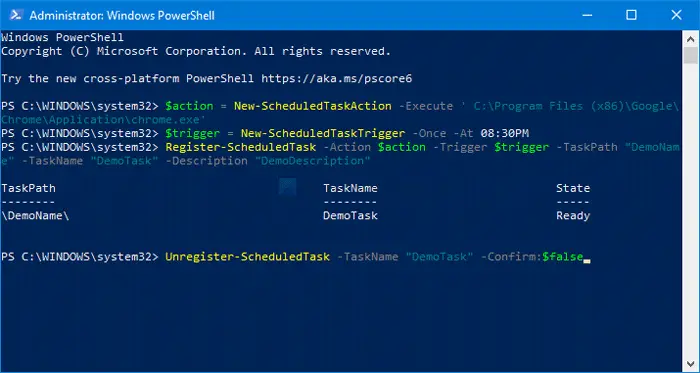
Before you do this, you can try running the task manually in Task Scheduler and see if the job runs successfully. You can refresh the history of the tasks by pressing F5 or clicking the refresh button. If it fails to run manually you can troubleshoot it from there until it does run manually. Otherwise this solution as a last-ditch effort requires you to delete the scheduled task if the task is not too complicated and then recreate the task from scratch.
Hope this post helps you!
Related post: Error 0xFFFD0000, PowerShell script does not run as Scheduled Task
How do I fix Task Scheduler not working?
If the Task Scheduler stops automatically or is not running on your Windows 11/10 system, you can try the following suggestions:
- Check and start Task Scheduler service
- Change the Service configuration
- Start Task Scheduler using Command Prompt
What is launch failure in Task Scheduler?
It’s an RDS server, so it reboots every morning. After it reboots, a warning message shows in history for the task “Task Scheduler did not launch task “Task” as it missed its schedule. Consider using the configuration option to start the task when available, if the schedule is missed.”
Fix: Task Scheduler service is not available error
How do you find out why a scheduled task failed?
To find out why a scheduled task failed on your Windows 11/10 PC, see below for a checklist you can use to figure out what have caused the task to fail:
- Check if the task has been enabled. Right-click the task, and then click Properties.
- Check the scheduled time.
- Check the task’s status.
- View the log file of scheduled tasks.
What is Event ID 110?
Event ID 110 is normally logged when a user manually launches a task. Event ID 129 indicates the process ID of a task that has run. Event ID 200 contains information about the action defined in the scheduled task.

Obinna Onwusobalu has studied Information & Communication Technology and is a keen follower of the Windows ecosystem. He has been a Windows Insider MVP (2020). He runs a computer software clinic.
Download PC Repair Tool to quickly find & fix Windows errors automatically
If you schedule a task using Task Scheduler and the task failed to start and is logged as Event ID 101, on your Windows 11/10 client PC or on Windows Server, then you are at the right place! In this post, we will identify the most likely culprit, as well as provide the suitable solutions you can apply to resolve the issue.
Task Scheduler failed to start “Task Name” task for user “Domainusername”. Additional Data: Error Value: 2147943785.
If your schedules task fails to run and you see the Task Scheduler failed to start with Event ID 101 in Event Viewer, you can try our recommended solutions below in the order presented below to have the issue promptly resolved on your machine.
- Add user to ‘Log on as a batch job’ group
- Make sure Task Scheduler service is set to Automatic and running
- Delete and recreate the Task
Let’s have a quick look at the description of the listed solutions.
1] Add user to ‘Log on as a batch job’ group
The main culprit to the Task Scheduler failed to start – Event ID 101 on Windows 11/10 client machine or Windows server was revealed to be permissions-related. The applicable fix here is to simply add the user to the “Log on as a batch job” property on the server or client machine as the case may be. To perform this task, do the following:
- Press Windows key + R to invoke the Run dialog.
- In the Run dialog box, type secpol.msc and hit Enter to oprn the Local Security Policy console.
- In the console, on the left navigation pane, click Local Policies to collapse the section.
- Now, click User Rights Assignment.
- On the right pane, double-click on Log on as a batch job policy to edit its properties.
- In the Properties window, click the Add User or Group button to add the appropriate username to the group.
- Finally, click Apply > OK to save changes.
- Exit Local Security Policy console.
Next time the job runs, it should run successfully without issues.
Read: Task Scheduler not running or starting programs
2] Make sure Task Scheduler service is set to Automatic and running
It’s possible the issue you are currently facing is due to the Task Scheduler service is disabled and not running or not set to automatic startup which is the default setting on your machine. To rule out this possibility, you need to make sure Task Scheduler service is set to Automatic and running. To perform this task, do the following:
- Press Windows key + R to invoke the Run dialog.
- In the Run dialog box, type services.msc and hit Enter to open Services.
- In the Services window, scroll and locate the Task Scheduler service.
- Double-click on the entry to edit its properties.
- In the properties window, click the drop-down on the Startup type and select Automatic.
- Next, make sure the service is started by clicking the Start button if not greyed out.
- Click Apply > OK to save changes.
- Restart PC.
If this service is set to automatic and running but the issue in hand persists, try the next solution.
Read: System error 1058 has occurred, The service cannot be started
3] Delete and recreate the Task
Before you do this, you can try running the task manually in Task Scheduler and see if the job runs successfully. You can refresh the history of the tasks by pressing F5 or clicking the refresh button. If it fails to run manually you can troubleshoot it from there until it does run manually. Otherwise this solution as a last-ditch effort requires you to delete the scheduled task if the task is not too complicated and then recreate the task from scratch.
Hope this post helps you!
Related post: Error 0xFFFD0000, PowerShell script does not run as Scheduled Task
How do I fix Task Scheduler not working?
If the Task Scheduler stops automatically or is not running on your Windows 11/10 system, you can try the following suggestions:
- Check and start Task Scheduler service
- Change the Service configuration
- Start Task Scheduler using Command Prompt
What is launch failure in Task Scheduler?
It’s an RDS server, so it reboots every morning. After it reboots, a warning message shows in history for the task “Task Scheduler did not launch task “Task” as it missed its schedule. Consider using the configuration option to start the task when available, if the schedule is missed.”
Fix: Task Scheduler service is not available error
How do you find out why a scheduled task failed?
To find out why a scheduled task failed on your Windows 11/10 PC, see below for a checklist you can use to figure out what have caused the task to fail:
- Check if the task has been enabled. Right-click the task, and then click Properties.
- Check the scheduled time.
- Check the task’s status.
- View the log file of scheduled tasks.
What is Event ID 110?
Event ID 110 is normally logged when a user manually launches a task. Event ID 129 indicates the process ID of a task that has run. Event ID 200 contains information about the action defined in the scheduled task.
Obinna Onwusobalu has studied Information & Communication Technology and is a keen follower of the Windows ecosystem. He has been a Windows Insider MVP (2020). He runs a computer software clinic.
- Remove From My Forums
-
Общие обсуждения
-
Снова проблемы с 2008м. Не запускаются задачи в планировщике задач:
[code]Планировщику заданий не удается запустить задачу «Paragon Archive name arc_171109081422596» для пользователя «KOLOSАдминистратор». Дополнительные сведения: значение ошибки: 2147943645.[/code]
Нашел http://technet.microsoft.com/en-us/library/cc774899(WS.10).aspx, но решения там нет, только комментарии в стиле «Планировщик теряет пароли для запуска», «У меня то же самое» и т.д.
Вручную задачи отлично запускаются, но вот с запуском по расписанию беда.-
Изменен тип
22 сентября 2010 г. 10:10
давность -
Перемещено
Mike Wang (MSCS)
22 апреля 2012 г. 18:10
(От:Windows Server 2008)
-
Изменен тип
Some common errors which any windows operator would face are the errors such as ” task scheduler 2147943785 ” and ” task scheduler error 101 launch failure “. The ” task scheduler 2147943785 ” is normally a permissions issue. The message task scheduler failed to start event id 101 will be displayed when the task scheduler error occurs. In a scenario where the user that is running the scheduled task does not have the Log on as batch job assignment then the system will throw event id 101 task scheduler failed to start as an error. Now let’s see how to resolve both these errors.
Task scheduler 2147943785 Solution
Windows will throw the error task scheduler 2147943785 when there is a mismatch with the permissions given. This can be resolved easily. For clearing it, the user will have to make the network administrator go to the Start Menu tab. In this, the administrative tools option should be chosen. There will be the option given stating ‘Local Security Policy’. Once you go into that choose the local policies option.
Under this the permission details will be found in User Rights Assignment. Here choose the Log On As Batch Job to clear the permission error.
Start Menu > Administrative Tools > Local Security Policy > Local Policies > User Rights Assignment > Log On As Batch Job – Add your user to this list
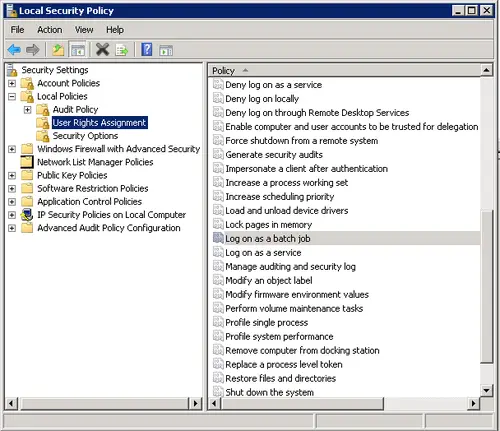
task scheduler 2147943785
The reasons behind the error event id 101
The properties of Task will elaborate on the settings as well as the conditions for performing a task. This task will run properly if all the mentioned conditions are satisfied. In case if one of the conditions is not met, then the user will witness windows task scheduler failed to start. These mentioned conditions can be anything regarding:
- Network conditions
- Power conditions
- Idle conditions.
The task settings will show the details regarding the status of the task. This setting can be seen by going to the Settings tab in Task Properties. It can also be checked by going to Create Task dialog box found in Task Scheduler.
Whereas, the conditions of the task can be checked, by, going to the Conditions tab in Task Properties. It can also be checked under create a task dialog box which is found in task scheduler.
Troubleshooting event 101 – task scheduler failed to start
The first step while witnessing the error ” event 101 task scheduler failed to start “ is to analyze the error code. To do this, make sure the permissions for which the task is scheduled to run is set properly. Next step is to check if the option of holding the task when the user is not logged in is set accordingly. For making these changes the system might sometimes require the user to be logged in or to have the proper permissions or even system rights like the ‘logon as a batch job’.
There might be several reasons for the error ” task scheduler failed to start “ which is why the error codes have to be checked properly. The extended error code can be analyzed in the Event Viewer where the list of System Error Codes can be checked. In case this does not work, then try using the system account for scheduling the job.
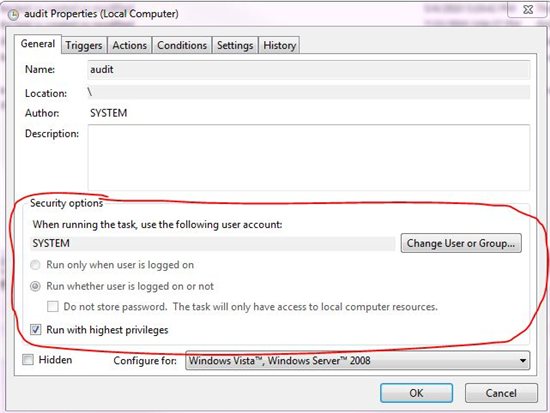
Проблема. В Windows Server 2008 R2 создали новое задание планировщика Windows. Задание должно запускаться из-под пользователя, не обладающего правами локального администратора.
При попытке вручную запустить задание из консоли Task Scheduler, в журнале задания появляется ошибка EventID 101 с текстом:
Task Scheduler failed to start "MicrosoftWindowsTaskSchedulerTaskName" task for user "CORPusername ". Additional Data: Error Value: 2147943785. 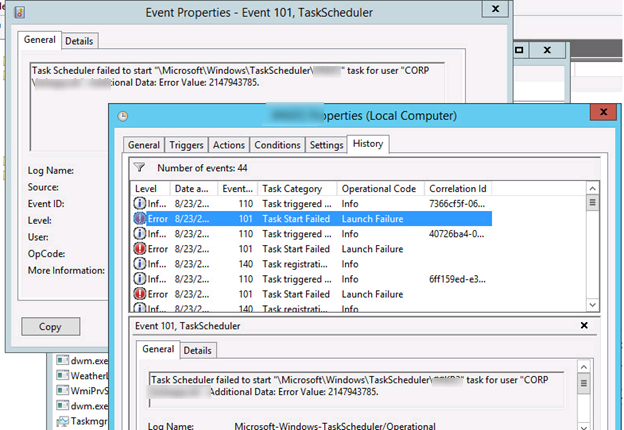
Решение. Проблема состоит, что у пользователя, из-под которого запускается задание, недостаточно прав для запуска задания планировщика. Чтобы предоставить необходимые права нужно открыть редактор локальной групповой политики (gpedit.msc), перейти в раздел Computer Configuration -> Windows Settings -> Security Policy -> Local Policies -> User Rights Assignment, отредактировать политику с именем Log On As Batch Job и добавить в нее учетную запись пользователя.
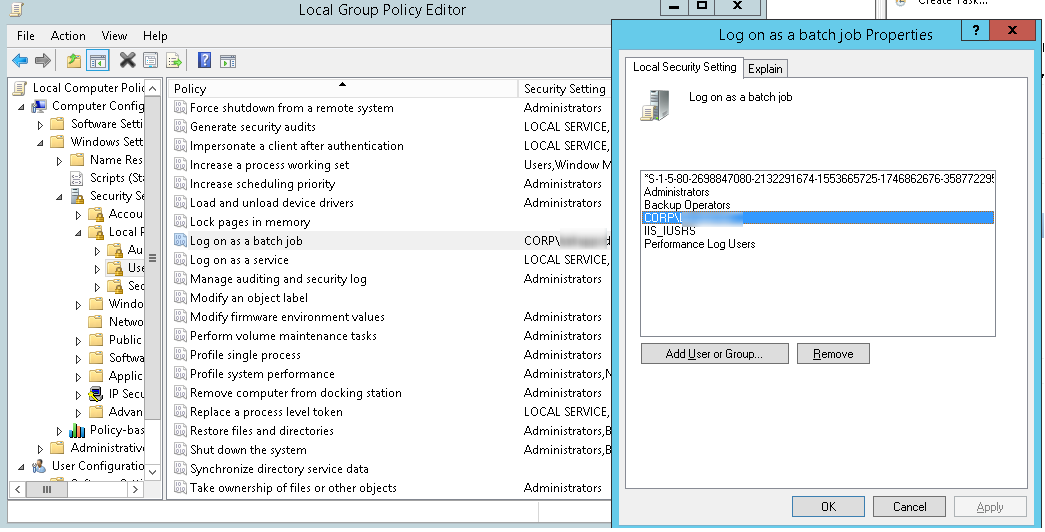
Осталось обновить политики (gpupdate /force) и попробовать запустить задание.