You can indent code using either spaces or tabs in a Python program. If you try to use a combination of both in the same block of code, you’ll encounter the “TabError: inconsistent use of tabs and spaces in indentation” error.
In this guide, we discuss what this error means and why it is raised. We’ll walk through an example of this error so you can figure out how to solve it in your code.

Find Your Bootcamp Match
- Career Karma matches you with top tech bootcamps
- Access exclusive scholarships and prep courses
Select your interest
First name
Last name
Phone number
By continuing you agree to our Terms of Service and Privacy Policy, and you consent to receive offers and opportunities from Career Karma by telephone, text message, and email.
TabError: inconsistent use of tabs and spaces in indentation
While the Python style guide does say spaces are the preferred method of indentation when coding in Python, you can use either spaces or tabs.
Indentation is important in Python because the language doesn’t depend on syntax like curly brackets to denote where a block of code starts and finishes. Indents tell Python what lines of code are part of what code blocks.
Consider the following program:
numbers = [8, 7, 9, 8, 7]

def calculate_average_age():
average = sum(numbers) / len(numbers)
print(average)
Without indentation, it is impossible to know what lines of code should be part of the calculate_average_age function and what lines of code are part of the main program.
You must stick with using either spaces or tabs. Do not mix tabs and spaces. Doing so will confuse the Python interpreter and cause the “TabError: inconsistent use of tabs and spaces in indentation” error.
An Example Scenario
We want to build a program that calculates the total value of the purchases made at a donut store. To start, let’s define a list of purchases:
purchases = [2.50, 4.90, 5.60, 2.40]
Next, we’re going to define a function that calculates the total of the “purchases” list:
def calculate_total_purchases(purchases):
	total = sum(purchases)
    return total
Our function accepts one parameter: the list of purchases which total value we want to calculate. The function returns the total value of the list we specify as a parameter.
We use the sum() method to calculate the total of the numbers in the “purchases” list.
If you copy this code snippet into your text editor, you may notice the “return total” line of code is indented using spaces whereas the “total = sum(purchases)” line of code uses tabs for indentation. This is an important distinction.
Next, call our function and print the value it returns to the console:
total_purchases = calculate_total_purchases(purchases)
print(total_purchases)
Our code calls the calculate_total_purchases() function to calculate the total value of all the purchases made at the donut store. We then print that value to the console. Let’s run our code and see what happens:
  File "test1.py", line 5
	return total
           	^
TabError: inconsistent use of tabs and spaces in indentation
Our code returns an error.
The Solution
We’ve used spaces and tabs to indent our code. In a Python program, you should stick to using either one of these two methods of indentation.
To fix our code, we’re going to change our function so that we only use spaces:
def calculate_total_purchases(purchases):
    total = sum(purchases)
    return total
Our code uses 4 spaces for indentation. Let’s run our program with our new indentation:
Our program successfully calculates the total value of the donut purchases.
In the IDLE editor, you can remove the indentation for a block of code by following these instructions:
- Select the code whose indentation you want to remove
- Click “Menu” -> “Format” -> “Untabify region”
- Insert the type of indentation you want to use
This is a convenient way of fixing the formatting in a document, assuming you are using the IDLE editor. Many other editors, like Sublime Text, have their own methods of changing the indentation in a file.
Conclusion
The Python “TabError: inconsistent use of tabs and spaces in indentation” error is raised when you try to indent code using both spaces and tabs.
You fix this error by sticking to either spaces or tabs in a program and replacing any tabs or spaces that do not use your preferred method of indentation. Now you have the knowledge you need to fix this error like a professional programmer!
In Python, TabError is sub class of IndentationError. Python allows code style by using indentation by space or tabs. If you are using both while writing code for indentation then Python encounter “TabError : inconsistent use of tabs and spaces in indentation”.
In Python, Indentation is important because the language doesn’t depend on syntax like curly brackets to denote where a block of code starts and finishes . Indents tell Python what lines of code are part of what code blocks.
- BaseException
- Exception
- SyntaxError
- IndentationError
- TabError
- IndentationError
- SyntaxError
- Exception
Note: Syntax error should not be handle through exception handling it should be fixed in your code.
You can see complete Python exception hierarchy through this link : Python: Built-in Exceptions Hierarchy.
Example
Consider a below scenario where indentation is use by implementing space and tab both on line 3 (used space for indentation) while in line 4 (used tabs for indentation). When you will run the below program it will throw exception as mentioned in output.
numbers = [3.50, 4.90, 6.60, 3.40]
def calculate_total(purchases):
	total = sum(numbers)
        return total
total_numbers = calculate_total(numbers)
print(total_numbers)
Output
File “C:/Users/saurabh.gupta/Desktop/Python Example/Exception Test.py”, line 10
return total
^
TabError: inconsistent use of tabs and spaces in indentation
Solution
To resolve this issue, you have done some minor change in your code for indentation by either space or tabs and run the program will work fine.
numbers = [3.50, 4.90, 6.60, 3.40]
def calculate_total(purchases):
    total = sum(numbers)
    return total
total_numbers = calculate_total(numbers)
print(total_numbers)
Output
18.4
Learn Python exception handling in more detain in topic Python: Exception Handling
Let me know your thought on it.
Happy Learning !!!
“Learn From Others Experience»
TabError inconsistent use of tabs and spaces in indentation
In Python, You can indent using tabs and spaces in Python. Both of these are considered to be whitespaces when you code. So, the whitespace or the indentation of the very first line of the program must be maintained all throughout the code. This can be 4 spaces, 1 tab or space. But you must use either a tab or a space to indent your code.
But if you mix the spaces and tabs in a program, Python gets confused. It then throws an error called “TabError inconsistent use of tabs and spaces in indentation”.
In this article, we delve into the details of this error and also look at its solution.
How to fix ‘TabError: inconsistent use of tabs and spaces in indentation’?
Example:
a = int(input("Please enter an integer A: "))
b = int(input("Please enter an integer B: "))
if b > a:
       print("B is greater than A")
elif a == b:
       print("A and B are equal")
   else:
       print("A is greater than B")
Output:
TabError: inconsistent use of tabs and spaces in indentationWhen the code is executed, the “TabError inconsistent use of tabs and spaces in indentation”. This occurs when the code has all the tabs and spaces mixed up.
To fix this, you have to ensure that the code has even indentation. Another way to fix this error is by selecting the entire code by pressing Ctrl + A. Then in the IDLE, go to the Format settings. Click on Untabify region.
Solution:
1. Add given below line at the beginning of code
#!/usr/bin/python -tt
2. Python IDLE
In case if you are using python IDLE, select all the code by pressing (Ctrl + A) and then go to Format >> Untabify Region
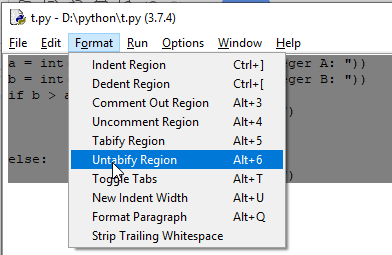
So, always check the placing of tabs and spaces in your code properly. If you are using a text editor such as Sublime Text, use the option Convert indentation to spaces to make your code free from the “TabError: inconsistent use of tabs and spaces in indentation” error.
Table of Contents
Hide
- What is inconsistent use of tabs and spaces in indentation error?
- How to fix inconsistent use of tabs and spaces in indentation error?
- Python and PEP 8 Guidelines
- Conclusion
The TabError: inconsistent use of tabs and spaces in indentation occurs if you indent the code using a combination of whitespaces and tabs in the same code block.
In Python, indentation is most important as it does not use curly braces syntax like other languages to denote where the code block starts and ends.
Without indentation Python will not know which code to execute next or which statement belongs to which block and this will lead to IndentationError.
We can indent the Python code either using spaces or tabs. The Python style guide recommends using spaces for indentation. Further, it states Python disallows mixing tabs and spaces for indentation and doing so will raise Indentation Error.
Let us look at an example to demonstrate the issue.
In the above example, we have a method convert_meter_to_cm(), and the first line of code is indented with a tab, and the second line is indented with four white spaces.
def convert_meter_to_cm(num):
    output = num * 1000
   return output

convert_meter_to_cm(10)
Output
 File "c:PersonalIJSCodeprgm.py", line 3
    return output
                 ^
TabError: inconsistent use of tabs and spaces in indentation
When we execute the program, it clearly shows what the error is and where it occurred with a line number.
How to fix inconsistent use of tabs and spaces in indentation error?
We have used both spaces and tabs in the same code block, and hence we got the error in the first place. We can resolve the error by using either space or a tab in the code block.
Let us indent the code according to the PEP-8 recommendation in our example, i.e., using four white spaces everywhere.
def convert_meter_to_cm(num):
    output = num * 1000
    return output

print(convert_meter_to_cm(10))
Output
10000If you are using the VS Code, the easy way to solve this error is by using the settings “Convert indentation to spaces” or “Convert indentation to tabs” commands.
- Press CTRL + Shift + P or (⌘ + Shift + P on Mac) to open the command palette.
- type “convert indentation to” in the search command palette
- select your preferred options, either tab or space

Python and PEP 8 Guidelines
- Generally, in Python, you follow the four-spaces rule according to PEP 8 standards.
- Spaces are the preferred indentation method. Tabs should be used solely to remain consistent with code that is already indented with tabs.
- Do not mix tabs and spaces. Python disallows the mixing of indentation.
- Avoid trailing whitespaces anywhere because it’s usually invisible and it causes confusion.
Conclusion
If you mix both tabs and spaces for indentation in the same code block Python will throw inconsistent use of tabs and spaces in indentation. Python is very strict on indentation and we can use either white spaces or tabs in the same code block to resolve the issue.
Srinivas Ramakrishna is a Solution Architect and has 14+ Years of Experience in the Software Industry. He has published many articles on Medium, Hackernoon, dev.to and solved many problems in StackOverflow. He has core expertise in various technologies such as Microsoft .NET Core, Python, Node.JS, JavaScript, Cloud (Azure), RDBMS (MSSQL), React, Powershell, etc.
Sign Up for Our Newsletters
Subscribe to get notified of the latest articles. We will never spam you. Be a part of our ever-growing community.
By checking this box, you confirm that you have read and are agreeing to our terms of use regarding the storage of the data submitted through this form.
| Введение | |
| Решенные проблемы |
Введение
Многие сложности возникают у новичков из-за того, что им никто не объяснил про
виртуальное окружение
.
Вы можете избавить себя от головной боли прочитав статью
virtualenv
или
venv
Установлено несколько версий Python
Итак, Вы установили python, pipe, pipenv, requests и ещё много чего, но
вдруг выяснили, что на компьютере уже не одна, а несколько версий python.
Например, у Вас установлены версии 2.7 и 3.5.
Когда Вы запускаете python, то хотите, чтобы работала последняя версия, но,
почему-то работает версия 2.7.
Выясним, как разобраться в этой ситуации.
Python -V и which python
Узнаем версию python которая вызывается командой python с флаго -V
python -V
Python 2.7.18rcl
Полезная команда, которую можно выполнить, чтобы узнать где расположен ваш Python — which
which python
/usr/bin/python
Как видите, в моей
Ubuntu
Python находится в /usr/bin/python и имеет версию 2.7.18rcl
Третий Python тоже установлен, посмотреть версию и директорию также просто
python3 -V
Python 3.9.5
which python3
/usr/bin/python3
Резюмируем: второй Python вызывается командой python а третий Python командой python3.
Обычно Python установлен в директорию /usr/bin
Ещё один способ получить эту информацию — использование команды type
type python3
python3 is hashed (/usr/bin/python3)
type python
python3 is hashed (/usr/bin/python)
Следующий способ — через sys.executable
здесь я для разнообразия настроил alias в .bashrc и теперь команда python эквивалентна python3
python
Python 3.8.5 (default, Jul 28 2020, 12:59:40)
[GCC 9.3.0] on linux
Type «help», «copyright», «credits» or «license» for more information.
>>> import sys
>>> sys.executable
‘/usr/bin/python3’
Если у вас уже был третий Python, например 3.8.5, а вы самостоятельно скачали и
установили более позднюю версию, например 3.9.1 как в
инструкции
то у вас будет два разных третьих Python.
Убедиться в этом можно изучив директорию
/usr/local/bin/
ls -la /usr/local/bin/
total 21648
drwxr-xr-x 2 root root 4096 Feb 4 11:08 .
drwxr-xr-x 10 root root 4096 Jul 31 2020 ..
lrwxrwxrwx 1 root root 8 Feb 4 11:08 2to3 -> 2to3-3.9
-rwxr-xr-x 1 root root 101 Feb 4 11:08 2to3-3.9
-rwxr-xr-x 1 root root 238 Feb 4 11:08 easy_install-3.9
lrwxrwxrwx 1 root root 7 Feb 4 11:08 idle3 -> idle3.9
-rwxr-xr-x 1 root root 99 Feb 4 11:08 idle3.9
-rwxr-xr-x 1 root root 229 Feb 4 11:08 pip3
-rwxr-xr-x 1 root root 229 Feb 4 11:08 pip3.9
lrwxrwxrwx 1 root root 8 Feb 4 11:08 pydoc3 -> pydoc3.9
-rwxr-xr-x 1 root root 84 Feb 4 11:08 pydoc3.9
lrwxrwxrwx 1 root root 9 Feb 4 11:08 python3 -> python3.9
-rwxr-xr-x 1 root root 22127472 Feb 4 11:05 python3.9
-rwxr-xr-x 1 root root 3087 Feb 4 11:08 python3.9-config
lrwxrwxrwx 1 root root 16 Feb 4 11:08 python3-config -> python3.9-config
which python3
/usr/local/bin/python3
which python3.9
/usr/local/bin/python3.9
В такой ситуации вам нужно специально указывать полную версию python3.9 для
запуска программ, либо настроить
alias
PATH
Если ни одна из команд pyhon и python3 не работает, бывает полезно проверить переменную PATH
echo $PATH
/home/andrei/.local/bin:/home/andrei/bin:/usr/local/sbin:/usr/local/bin:/usr/sbin:/usr/bin:/sbin:/bin:/usr/games:/usr/local/games:/snap/bin
Как вы можете убедиться моя директория /usr/bin прописана в PATH
Если вам нужно добавить директорию в PATH читайте статью
«PATH в Linux»
или статью
«PATH в Windows»
Важно понимать, что если в каждой из директорий, упомянутых в PATH, будет установлено по какому-то Python выполняться
будет тот, который в первой директории.
Если нужно использовать Python из какой-то определённой директории, нужно прописать её путь. В этом
случае не обязательно наличие этого пути в PATH
/usr/bin/python3
Python 3.8.5 (default, Jul 28 2020, 12:59:40)
[GCC 9.3.0] on linux
Type «help», «copyright», «credits» or «license» for more information.
>>>
>>> говорит о том, что Python в интерактивном режиме.
Pip
Выясним куда смотрит
pip
pip -V
/home/andrei/.local/lib/python2.7/site-packages (python 2.7)
Как видите, pip смотрит в директорию python2.7 поэтому всё, что мы до этого
устанавливали командой pip install попало к версии 2.7
а версия 3.5 не имеет ни pipenv ни requests и, например,
протестировать интерфейсы
с её помощью не получится
Если вы выполнили pip -V и получили в ответ
Command ‘pip’ not found, but there are 18 similar ones.
Посмотрите что выдаст
pip3 -V
В моей
Ubuntu
результат такой
pip 20.0.2 from /usr/lib/python3/dist-packages/pip (python 3.8)
Посмотреть куда pip установил пакет можно командой pip show
Проверим, куда установлен модуль requests, который пригодится нам для работы с
REST API
pip show requests
Name: requests
Version: 2.22.0
Summary: Python HTTP for Humans.
Home-page: http://python-requests.org
Author: Kenneth Reitz
Author-email: me@kennethreitz.org
License: Apache 2.0
Location: /usr/lib/python3/dist-packages
Requires:
Required-by: yandextank, netort, influxdb
alias
Если вы работаете в
Linux
можете прописать alias python=python3
Установить дополнительную версию Python
Если вы осознанно хотите установить определённую версию Python в добавок к уже существующей выполните
Куда устанавливаются различные версии Python
Просмотрите содержимое /usr/local/bin
ls -la /usr/local/bin
Результат на моём ПК показывает, что здесь находится версия 3.5
total 23620
drwxr-xr-x 0 root root 512 Mar 19 18:16 .
drwxr-xr-x 0 root root 512 Mar 30 2017 ..
lrwxrwxrwx 1 root root 8 Mar 19 18:16 2to3 -> 2to3-3.5
-rwxrwxrwx 1 root root 101 Mar 19 18:16 2to3-3.5
lrwxrwxrwx 1 root root 7 Mar 19 18:16 idle3 -> idle3.5
-rwxrwxrwx 1 root root 99 Mar 19 18:16 idle3.5
lrwxrwxrwx 1 root root 8 Mar 19 18:16 pydoc3 -> pydoc3.5
-rwxrwxrwx 1 root root 84 Mar 19 18:16 pydoc3.5
lrwxrwxrwx 1 root root 9 Mar 19 18:16 python3 -> python3.5
-rwxr-xr-x 2 root root 12090016 Mar 19 18:13 python3.5
lrwxrwxrwx 1 root root 17 Mar 19 18:16 python3.5-config -> python3.5m-config
-rwxr-xr-x 2 root root 12090016 Mar 19 18:13 python3.5m
-rwxr-xr-x 1 root root 3071 Mar 19 18:16 python3.5m-config
lrwxrwxrwx 1 root root 16 Mar 19 18:16 python3-config -> python3.5-config
lrwxrwxrwx 1 root root 10 Mar 19 18:16 pyvenv -> pyvenv-3.5
-rwxrwxrwx 1 root root 236 Mar 19 18:16 pyvenv-3.5
Версия 2.7 скорее всего здесь /home/andrei/.local/lib/
ls -la /home/andrei/.local/lib/python2.7/site-packages/
Результат на моём ПК
total 1304
drwx—— 0 andrei andrei 512 Mar 19 13:19 .
drwx—— 0 andrei andrei 512 Mar 19 13:19 ..
drwxrwxrwx 0 andrei andrei 512 Mar 19 13:19 asn1crypto
drwxrwxrwx 0 andrei andrei 512 Mar 19 13:19 asn1crypto-0.24.0.dist-info
drwxrwxrwx 0 andrei andrei 512 Mar 19 13:19 certifi
drwxrwxrwx 0 andrei andrei 512 Mar 19 13:19 certifi-2018.1.18.dist-info
drwxrwxrwx 0 andrei andrei 512 Mar 19 13:19 cffi
drwxrwxrwx 0 andrei andrei 512 Mar 19 13:19 cffi-1.11.5.dist-info
-rwxrwxrwx 1 andrei andrei 783672 Mar 19 13:19 _cffi_backend.so
drwxrwxrwx 0 andrei andrei 512 Mar 19 13:19 chardet
drwxrwxrwx 0 andrei andrei 512 Mar 19 13:19 chardet-3.0.4.dist-info
-rw-rw-rw- 1 andrei andrei 10826 Mar 19 13:19 clonevirtualenv.py
-rw-rw-rw- 1 andrei andrei 11094 Mar 19 13:19 clonevirtualenv.pyc
drwxrwxrwx 0 andrei andrei 512 Mar 19 13:19 cryptography
drwxrwxrwx 0 andrei andrei 512 Mar 19 13:19 cryptography-2.2.dist-info
-rw-rw-rw- 1 andrei andrei 126 Mar 19 13:19 easy_install.py
-rw-rw-rw- 1 andrei andrei 315 Mar 19 13:19 easy_install.pyc
drwxrwxrwx 0 andrei andrei 512 Mar 19 13:19 enum
drwxrwxrwx 0 andrei andrei 512 Mar 19 13:19 enum34-1.1.6.dist-info
drwxrwxrwx 0 andrei andrei 512 Mar 19 13:19 idna
drwxrwxrwx 0 andrei andrei 512 Mar 19 13:19 idna-2.6.dist-info
drwxrwxrwx 0 andrei andrei 512 Mar 19 13:19 ipaddress-1.0.19.dist-info
-rw-rw-rw- 1 andrei andrei 79852 Mar 19 13:19 ipaddress.py
-rw-rw-rw- 1 andrei andrei 75765 Mar 19 13:19 ipaddress.pyc
drwxrwxrwx 0 andrei andrei 512 Mar 19 13:19 .libs_cffi_backend
drwxrwxrwx 0 andrei andrei 512 Mar 19 13:19 OpenSSL
drwxrwxrwx 0 andrei andrei 512 Mar 19 13:19 ordereddict-1.1.dist-info
-rw-rw-rw- 1 andrei andrei 4221 Mar 19 13:19 ordereddict.py
-rw-rw-rw- 1 andrei andrei 4388 Mar 19 13:19 ordereddict.pyc
drwxrwxrwx 0 andrei andrei 512 Mar 19 13:19 pathlib-1.0.1.dist-info
-rw-rw-rw- 1 andrei andrei 41481 Mar 19 13:19 pathlib.py
-rw-rw-rw- 1 andrei andrei 43650 Mar 19 13:19 pathlib.pyc
drwxrwxrwx 0 andrei andrei 512 Mar 19 13:19 pip
drwxrwxrwx 0 andrei andrei 512 Mar 19 13:19 pip-9.0.2.dist-info
drwxrwxrwx 0 andrei andrei 512 Mar 19 13:19 pipenv
drwxrwxrwx 0 andrei andrei 512 Mar 19 13:19 pipenv-11.8.2.dist-info
drwxrwxrwx 0 andrei andrei 512 Mar 19 13:19 pkg_resources
drwxrwxrwx 0 andrei andrei 512 Mar 19 13:19 pycparser
drwxrwxrwx 0 andrei andrei 512 Mar 19 13:19 pycparser-2.18.dist-info
drwxrwxrwx 0 andrei andrei 512 Mar 19 13:19 pyOpenSSL-17.5.0.dist-info
drwxrwxrwx 0 andrei andrei 512 Mar 19 13:19 requests
drwxrwxrwx 0 andrei andrei 512 Mar 19 13:19 requests-2.18.4.dist-info
drwxrwxrwx 0 andrei andrei 512 Mar 19 13:19 setuptools
drwxrwxrwx 0 andrei andrei 512 Mar 19 13:19 setuptools-39.0.1.dist-info
drwxrwxrwx 0 andrei andrei 512 Mar 19 13:19 six-1.11.0.dist-info
-rw-rw-rw- 1 andrei andrei 30888 Mar 19 13:19 six.py
-rw-rw-rw- 1 andrei andrei 30210 Mar 19 13:19 six.pyc
drwxrwxrwx 0 andrei andrei 512 Mar 19 13:19 urllib3
drwxrwxrwx 0 andrei andrei 512 Mar 19 13:19 urllib3-1.22.dist-info
drwxrwxrwx 0 andrei andrei 512 Mar 19 13:19 virtualenv-15.1.0.dist-info
drwxrwxrwx 0 andrei andrei 512 Mar 19 13:19 virtualenv_clone-0.3.0.dist-info
-rw-rw-rw- 1 andrei andrei 99021 Mar 19 13:19 virtualenv.py
-rw-rw-rw- 1 andrei andrei 86676 Mar 19 13:19 virtualenv.pyc
drwxrwxrwx 0 andrei andrei 512 Mar 19 13:19 virtualenv_support
Существует несколько способов обойти эту проблему. Сперва рассмотрим использование
команды python3.
python3 -V
Python 3.5.0
Как мы только что смогли убедиться команда python3 использует новую версию Python.
Установим pip3
sudo apt install python3-pip
Проверим, что он установился в нужную директорию
pip3 -V
pip 8.1.1 from /usr/lib/python3/dist-packages (python 3.5)
Теперь установим pipenv
pip3 install pipenv
Советую также прочитать статьи
pip
,
sys.path
Установить пакет для определённой версии Python
Если у вас несколько версий Python и нужно установить какой-то пакет только
для определённой версии, назовём её X.X, воспользуйтесь командой
pythonX.X -m pip install название_пакета —user —ignore-installed
Инструкция по установке Python на хостинге
ModuleNotFoundError: No module named ‘urllib2’
Модуль urllib2 был разделён на urllib.request и urllib.error
Поэтому строку
import urllib2
Нужно заменить на
import urllib.request
import urllib.error
TabError: inconsistent use of tabs and spaces in indentation
Эта ошибка обычно вызвана тем, что нажатие TAB не эквивалентно трём пробелам.
Можно попробовать заменить все отступы на пробелы строго соблюдая равенство
количества пробелов везде где нужно.
ModuleNotFoundError: No module named ‘requests’
Эта ошибка обычно вызвана тем, что модуль requests
не установлен, либо установлен, но не для того python, который Вы запустили.
Например, для python2.6 установлен, а для python3 не установлен.
Можно попробовать установить модуль requests. Подробнее про это
я писал в статье Тестирование с помощью Python.
Потому что столкнулся с этой проблемой впервые именно при
тестировании
API
Если эта проблема возникла при использовании PyCharm
установите requests для Вашего проекта по следующей
инструкции
Перейдите в настройки проекта нажав
CTRL + ALT + S

Выберите раздел Project Interpreter

Нажмите на плюс в правой части экрана
Введите в стоку поиска название нужного модуля. В моём случае это requests

Должно открыться окно Available Packages
Нажмите кнопку Install Package

Дождитесь окончания установки

SyntaxError: Missing parentheses in call to ‘print’
Эта ошибка обычно появляется когда Вы пробуете в python 3 использовать print без скобок,
так как это работало в python 2
print data
В python 3 нужно использовать скобки
print (data)
TypeError: getsockaddrarg: AF_INET address must be tuple, not str
Эта ошибка обычно появляется когда Вы неправильно ставите кавычку,
указывая куда нужно подключиться.
Правильный вариант — указать кортеж (tuple), который выглядит следующим образом:
(ip, port), ip обычно в кавычках, порт без
Пример (‘10.6.0.100’, 10000)
sock.connect(('10.6.0.130' ,9090))
Ошибка возникает если взять в кавычки и ip и порт,
тогда вместо кортежа передаётся строка, на что и жалуется
интерпретатор.
sock.connect(('10.6.0.130 ,9090'))
Traceback (most recent call last):
File «send.py», line 4, in <module>
sock.connect((‘10.6.0.130,9090’))
TypeError: getsockaddrarg: AF_INET address must be tuple, not str
Не выполняется команда virtualenv
Если Вы только что установили
virtualenv
, но при попытке выполнить
virtualenv new_env
или
venv new_env
Вы получаете что-то в духе:
virtualenv : The term ‘virtualenv’ is not recognized as the name of a cmdlet, function, script file, or operable program. Check the spelling of the name,
or if a path was included, verify that the path is correct and try again.
At line:1 char:1
+ virtualenv juha_env
+ ~~~~~~~~~~
+ CategoryInfo : ObjectNotFound: (virtualenv:String) [], CommandNotFoundException
+ FullyQualifiedErrorId : CommandNotFoundException
Попробуйте
python -m virtualenv new_env
Не активируется виртуальное окружение
Сначала разберём случай в чистом virtualenv потом перейдём к virtualenvwrapper-win
1. virtualenv
Вы под
Windows
и пытаетесь активировать Ваше виртуальное окружение, которое называется, допустим, test_env командой
test_envScriptsactivate.bat
И ничего не происходит
Вы пробуете
test_envScriptsactivate.ps1
И получаете
.test_envScriptsactivate.ps1 : File C:UsersAndreivirtualenvstest_envScriptsactivate.ps1 cannot be loaded because running scripts is disabled on this system. For more information, see
about_Execution_Policies at https:/go.microsoft.com/fwlink/?LinkID=135170.
At line:1 char:1
+ .test_envScriptsactivate.ps1
+ ~~~~~~~~~~~~~~~~~~~~~~~~~~~~~~~
+ CategoryInfo : SecurityError: (:) [], PSSecurityException
+ FullyQualifiedErrorId : UnauthorizedAccess
Нужно зайти в PowerShell в режиме администратора и выполнить
Set-ExecutionPolicy Unrestricted -Force
И выполните ещё раз
test_envScriptsactivate.ps1
Set-ExecutionPolicy -Scope CurrentUser Unrestricted -Force
2. virtualenvwrapper-win
Вы установили
virtualenvwrapper-win
и создали новое окружение
mkvirtualenv testEnv
created virtual environment CPython3.8.2.final.0-32 in 955ms
creator CPython3Windows(dest=C:UsersAndreiEnvstestEnv, clear=False, global=False)
seeder FromAppData(download=False, pip=latest, setuptools=latest, wheel=latest, via=copy, app_data_dir=C:UsersAndreiAppDataLocalpypavirtualenvseed-app-datav1.0.1)
activators BashActivator,BatchActivator,FishActivator,PowerShellActivator,PythonActivator,XonshActivator
Его видно в списке окружений
lsvirtualenv
dir /b /ad «C:UsersAndreiEnvs»
==============================================================================
testEnv
И
workon
его видит
workon
Pass a name to activate one of the following virtualenvs:
==============================================================================
testEnv
Чтобы активировать его вводим
workon testEnv
NameError: name ‘psutil’ is not defined
NameError: name ‘psutil’ is not defined
Подобные ошибки возникают если ещё не установили какую-то
библиотеку, но уже попробовали ей воспользоваться
sudo apt install -y python-psutil
| Сложности при работе с Python | |
| Python | |
| Установлено несколько версий Python | |
| Установить дополнительную версию Python | |
| Проверка системного пути | |
| Куда устанавливаются различные версии Python | |
| Установить пакет для определённой версии Python | |
| AttributeError: partially initialized module ‘datetime’ has no attribute ‘date’ | |
| ModuleNotFoundError: No module named ‘requests‘ | |
| ModuleNotFoundError: No module named ‘urllib2‘ | |
| ModuleNotFoundError: No module named numpy | |
| SyntaxError: Missing parentheses in call to ‘print’ | |
| SyntaxError: Non-ASCII character | |
| TabError: inconsistent use of tabs and spaces in indentation | |
| TypeError: getsockaddrarg: AF_INET address must be tuple, not str | |
| TypeError: unsupported operand type(s) for +: | |
| TypeError: module object is not callable | |
| TypeError: ‘str’ object is not callable | |
| TypeError: __init__() got an unexpected keyword argument ‘capture_output’ | |
| TypeError: ‘generator’ object is not subscriptable | |
| virtualenv : The term ‘virtualenv’ is not recognized | |
| Не активируется виртуальное окружение | |
| SSL module is not available | |
| UnicodeDecodeError: ‘charmap’ codec can’t decode byte 0x90 in position |
- Indentation Rule in Python
- Causes of
TabErrorin Python - Fix
TabErrorin Python

Python is one of the most widely used programming languages. Unlike other programming languages like Java and C++, etc., which uses curly braces for a code block (like a loop block or an if condition block), it uses indentation to define a block of code.
Indentation Rule in Python
According to the conventions defined, Python uses four spaces or a tab for indentation. A code block starts with a tab indentation, and the next line of code after that block is unindented.
The leading whitespaces determine the indentation level at the beginning of the line. We need to increase the indent level to group the statements for a particular code block.
Similarly, we need to lower the indent level to close the grouping.
Causes of TabError in Python
Python uses four spaces or a tab for indentation, but if we use both while writing the code, it raises TabError: inconsistent use of tabs and spaces in indentation. In the following code, we have indented the second and third line using tab and the fourth line using spaces.
Example Code:
#Python 3.x
def check(marks):
    if(marks>60):
        print("Pass")
        print("Congratulations")
check(66)
Output:
#Python 3.x
File "<ipython-input-26-229cb908519e>", line 4
    print("Congratulations")
                            ^
TabError: inconsistent use of tabs and spaces in indentation
Fix TabError in Python
Unfortunately, there is no easy way to fix this error automatically. We have to check each line within a code block.
In our case, we can see the tabs symbol like this ----*. Whitespaces do not have this symbol. So we can fix the code by consistently using four spaces or tabs.
In our case, we will replace the spaces with tabs to fix the TabError. Following is the correct code.
Example Code:
#Python 3.x
def check(marks):
    if(marks>60):
        print("Pass")
        print("Congratulations")
check(66)
Output:
#Python 3.x
Pass
Congratulations
Watch Now This tutorial has a related video course created by the Real Python team. Watch it together with the written tutorial to deepen your understanding: Identify Invalid Python Syntax
Python is known for its simple syntax. However, when you’re learning Python for the first time or when you’ve come to Python with a solid background in another programming language, you may run into some things that Python doesn’t allow. If you’ve ever received a SyntaxError when trying to run your Python code, then this guide can help you. Throughout this tutorial, you’ll see common examples of invalid syntax in Python and learn how to resolve the issue.
By the end of this tutorial, you’ll be able to:
- Identify invalid syntax in Python
- Make sense of
SyntaxErrortracebacks - Resolve invalid syntax or prevent it altogether
Invalid Syntax in Python
When you run your Python code, the interpreter will first parse it to convert it into Python byte code, which it will then execute. The interpreter will find any invalid syntax in Python during this first stage of program execution, also known as the parsing stage. If the interpreter can’t parse your Python code successfully, then this means that you used invalid syntax somewhere in your code. The interpreter will attempt to show you where that error occurred.
When you’re learning Python for the first time, it can be frustrating to get a SyntaxError. Python will attempt to help you determine where the invalid syntax is in your code, but the traceback it provides can be a little confusing. Sometimes, the code it points to is perfectly fine.
You can’t handle invalid syntax in Python like other exceptions. Even if you tried to wrap a try and except block around code with invalid syntax, you’d still see the interpreter raise a SyntaxError.
SyntaxError Exception and Traceback
When the interpreter encounters invalid syntax in Python code, it will raise a SyntaxError exception and provide a traceback with some helpful information to help you debug the error. Here’s some code that contains invalid syntax in Python:
 1# theofficefacts.py
 2ages = {
 3    'pam': 24,
 4    'jim': 24
 5    'michael': 43
 6}
 7print(f'Michael is {ages["michael"]} years old.')
You can see the invalid syntax in the dictionary literal on line 4. The second entry, 'jim', is missing a comma. If you tried to run this code as-is, then you’d get the following traceback:
$ python theofficefacts.py
File "theofficefacts.py", line 5
    'michael': 43
            ^
SyntaxError: invalid syntax
Note that the traceback message locates the error in line 5, not line 4. The Python interpreter is attempting to point out where the invalid syntax is. However, it can only really point to where it first noticed a problem. When you get a SyntaxError traceback and the code that the traceback is pointing to looks fine, then you’ll want to start moving backward through the code until you can determine what’s wrong.
In the example above, there isn’t a problem with leaving out a comma, depending on what comes after it. For example, there’s no problem with a missing comma after 'michael' in line 5. But once the interpreter encounters something that doesn’t make sense, it can only point you to the first thing it found that it couldn’t understand.
There are a few elements of a SyntaxError traceback that can help you determine where the invalid syntax is in your code:
- The file name where the invalid syntax was encountered
- The line number and reproduced line of code where the issue was encountered
- A caret (
^) on the line below the reproduced code, which shows you the point in the code that has a problem - The error message that comes after the exception type
SyntaxError, which can provide information to help you determine the problem
In the example above, the file name given was theofficefacts.py, the line number was 5, and the caret pointed to the closing quote of the dictionary key michael. The SyntaxError traceback might not point to the real problem, but it will point to the first place where the interpreter couldn’t make sense of the syntax.
There are two other exceptions that you might see Python raise. These are equivalent to SyntaxError but have different names:
IndentationErrorTabError
These exceptions both inherit from the SyntaxError class, but they’re special cases where indentation is concerned. An IndentationError is raised when the indentation levels of your code don’t match up. A TabError is raised when your code uses both tabs and spaces in the same file. You’ll take a closer look at these exceptions in a later section.
Common Syntax Problems
When you encounter a SyntaxError for the first time, it’s helpful to know why there was a problem and what you might do to fix the invalid syntax in your Python code. In the sections below, you’ll see some of the more common reasons that a SyntaxError might be raised and how you can fix them.
Misusing the Assignment Operator (=)
There are several cases in Python where you’re not able to make assignments to objects. Some examples are assigning to literals and function calls. In the code block below, you can see a few examples that attempt to do this and the resulting SyntaxError tracebacks:
>>>
>>> len('hello') = 5
  File "<stdin>", line 1
SyntaxError: can't assign to function call

>>> 'foo' = 1
  File "<stdin>", line 1
SyntaxError: can't assign to literal

>>> 1 = 'foo'
  File "<stdin>", line 1
SyntaxError: can't assign to literal
The first example tries to assign the value 5 to the len() call. The SyntaxError message is very helpful in this case. It tells you that you can’t assign a value to a function call.
The second and third examples try to assign a string and an integer to literals. The same rule is true for other literal values. Once again, the traceback messages indicate that the problem occurs when you attempt to assign a value to a literal.
It’s likely that your intent isn’t to assign a value to a literal or a function call. For instance, this can occur if you accidentally leave off the extra equals sign (=), which would turn the assignment into a comparison. A comparison, as you can see below, would be valid:
>>>
>>> len('hello') == 5
True
Most of the time, when Python tells you that you’re making an assignment to something that can’t be assigned to, you first might want to check to make sure that the statement shouldn’t be a Boolean expression instead. You may also run into this issue when you’re trying to assign a value to a Python keyword, which you’ll cover in the next section.
Misspelling, Missing, or Misusing Python Keywords
Python keywords are a set of protected words that have special meaning in Python. These are words you can’t use as identifiers, variables, or function names in your code. They’re a part of the language and can only be used in the context that Python allows.
There are three common ways that you can mistakenly use keywords:
- Misspelling a keyword
- Missing a keyword
- Misusing a keyword
If you misspell a keyword in your Python code, then you’ll get a SyntaxError. For example, here’s what happens if you spell the keyword for incorrectly:
>>>
>>> fro i in range(10):
  File "<stdin>", line 1
    fro i in range(10):
        ^
SyntaxError: invalid syntax
The message reads SyntaxError: invalid syntax, but that’s not very helpful. The traceback points to the first place where Python could detect that something was wrong. To fix this sort of error, make sure that all of your Python keywords are spelled correctly.
Another common issue with keywords is when you miss them altogether:
>>>
>>> for i range(10):
  File "<stdin>", line 1
    for i range(10):
              ^
SyntaxError: invalid syntax
Once again, the exception message isn’t that helpful, but the traceback does attempt to point you in the right direction. If you move back from the caret, then you can see that the in keyword is missing from the for loop syntax.
You can also misuse a protected Python keyword. Remember, keywords are only allowed to be used in specific situations. If you use them incorrectly, then you’ll have invalid syntax in your Python code. A common example of this is the use of continue or break outside of a loop. This can easily happen during development when you’re implementing things and happen to move logic outside of a loop:
>>>
>>> names = ['pam', 'jim', 'michael']
>>> if 'jim' in names:
...     print('jim found')
...     break
...
  File "<stdin>", line 3
SyntaxError: 'break' outside loop

>>> if 'jim' in names:
...     print('jim found')
...     continue
...
  File "<stdin>", line 3
SyntaxError: 'continue' not properly in loop
Here, Python does a great job of telling you exactly what’s wrong. The messages "'break' outside loop" and "'continue' not properly in loop" help you figure out exactly what to do. If this code were in a file, then Python would also have the caret pointing right to the misused keyword.
Another example is if you attempt to assign a Python keyword to a variable or use a keyword to define a function:
>>>
>>> pass = True
  File "<stdin>", line 1
    pass = True
         ^
SyntaxError: invalid syntax

>>> def pass():
  File "<stdin>", line 1
    def pass():
           ^
SyntaxError: invalid syntax
When you attempt to assign a value to pass, or when you attempt to define a new function called pass, you’ll get a SyntaxError and see the "invalid syntax" message again.
It might be a little harder to solve this type of invalid syntax in Python code because the code looks fine from the outside. If your code looks good, but you’re still getting a SyntaxError, then you might consider checking the variable name or function name you want to use against the keyword list for the version of Python that you’re using.
The list of protected keywords has changed with each new version of Python. For example, in Python 3.6 you could use await as a variable name or function name, but as of Python 3.7, that word has been added to the keyword list. Now, if you try to use await as a variable or function name, this will cause a SyntaxError if your code is for Python 3.7 or later.
Another example of this is print, which differs in Python 2 vs Python 3:
| Version | print Type |
Takes A Value |
|---|---|---|
| Python 2 | keyword | no |
| Python 3 | built-in function | yes |
print is a keyword in Python 2, so you can’t assign a value to it. In Python 3, however, it’s a built-in function that can be assigned values.
You can run the following code to see the list of keywords in whatever version of Python you’re running:
import keyword
print(keyword.kwlist)
keyword also provides the useful keyword.iskeyword(). If you just need a quick way to check the pass variable, then you can use the following one-liner:
>>>
>>> import keyword; keyword.iskeyword('pass')
True
This code will tell you quickly if the identifier that you’re trying to use is a keyword or not.
Missing Parentheses, Brackets, and Quotes
Often, the cause of invalid syntax in Python code is a missed or mismatched closing parenthesis, bracket, or quote. These can be hard to spot in very long lines of nested parentheses or longer multi-line blocks. You can spot mismatched or missing quotes with the help of Python’s tracebacks:
>>>
>>> message = 'don't'
  File "<stdin>", line 1
    message = 'don't'
                   ^
SyntaxError: invalid syntax
Here, the traceback points to the invalid code where there’s a t' after a closing single quote. To fix this, you can make one of two changes:
- Escape the single quote with a backslash (
'don't') - Surround the entire string in double-quotes instead (
"don't")
Another common mistake is to forget to close string. With both double-quoted and single-quoted strings, the situation and traceback are the same:
>>>
>>> message = "This is an unclosed string
  File "<stdin>", line 1
    message = "This is an unclosed string
                                        ^
SyntaxError: EOL while scanning string literal
This time, the caret in the traceback points right to the problem code. The SyntaxError message, "EOL while scanning string literal", is a little more specific and helpful in determining the problem. This means that the Python interpreter got to the end of a line (EOL) before an open string was closed. To fix this, close the string with a quote that matches the one you used to start it. In this case, that would be a double quote (").
Quotes missing from statements inside an f-string can also lead to invalid syntax in Python:
 1# theofficefacts.py
 2ages = {
 3    'pam': 24,
 4    'jim': 24,
 5    'michael': 43
 6}
 7print(f'Michael is {ages["michael]} years old.')
Here, the reference to the ages dictionary inside the printed f-string is missing the closing double quote from the key reference. The resulting traceback is as follows:
$ python theofficefacts.py
  File "theofficefacts.py", line 7
    print(f'Michael is {ages["michael]} years old.')
         ^
SyntaxError: f-string: unterminated string
Python identifies the problem and tells you that it exists inside the f-string. The message "unterminated string" also indicates what the problem is. The caret in this case only points to the beginning of the f-string.
This might not be as helpful as when the caret points to the problem area of the f-string, but it does narrow down where you need to look. There’s an unterminated string somewhere inside that f-string. You just have to find out where. To fix this problem, make sure that all internal f-string quotes and brackets are present.
The situation is mostly the same for missing parentheses and brackets. If you leave out the closing square bracket from a list, for example, then Python will spot that and point it out. There are a few variations of this, however. The first is to leave the closing bracket off of the list:
# missing.py
def foo():
    return [1, 2, 3

print(foo())
When you run this code, you’ll be told that there’s a problem with the call to print():
$ python missing.py
  File "missing.py", line 5
    print(foo())
        ^
SyntaxError: invalid syntax
What’s happening here is that Python thinks the list contains three elements: 1, 2, and 3 print(foo()). Python uses whitespace to group things logically, and because there’s no comma or bracket separating 3 from print(foo()), Python lumps them together as the third element of the list.
Another variation is to add a trailing comma after the last element in the list while still leaving off the closing square bracket:
# missing.py
def foo():
    return [1, 2, 3,

print(foo())
Now you get a different traceback:
$ python missing.py
  File "missing.py", line 6

                ^
SyntaxError: unexpected EOF while parsing
In the previous example, 3 and print(foo()) were lumped together as one element, but here you see a comma separating the two. Now, the call to print(foo()) gets added as the fourth element of the list, and Python reaches the end of the file without the closing bracket. The traceback tells you that Python got to the end of the file (EOF), but it was expecting something else.
In this example, Python was expecting a closing bracket (]), but the repeated line and caret are not very helpful. Missing parentheses and brackets are tough for Python to identify. Sometimes the only thing you can do is start from the caret and move backward until you can identify what’s missing or wrong.
Mistaking Dictionary Syntax
You saw earlier that you could get a SyntaxError if you leave the comma off of a dictionary element. Another form of invalid syntax with Python dictionaries is the use of the equals sign (=) to separate keys and values, instead of the colon:
>>>
>>> ages = {'pam'=24}
  File "<stdin>", line 1
    ages = {'pam'=24}
                 ^
SyntaxError: invalid syntax
Once again, this error message is not very helpful. The repeated line and caret, however, are very helpful! They’re pointing right to the problem character.
This type of issue is common if you confuse Python syntax with that of other programming languages. You’ll also see this if you confuse the act of defining a dictionary with a dict() call. To fix this, you could replace the equals sign with a colon. You can also switch to using dict():
>>>
>>> ages = dict(pam=24)
>>> ages
{'pam': 24}
You can use dict() to define the dictionary if that syntax is more helpful.
Using the Wrong Indentation
There are two sub-classes of SyntaxError that deal with indentation issues specifically:
IndentationErrorTabError
While other programming languages use curly braces to denote blocks of code, Python uses whitespace. That means that Python expects the whitespace in your code to behave predictably. It will raise an IndentationError if there’s a line in a code block that has the wrong number of spaces:
 1# indentation.py
 2def foo():
 3    for i in range(10):
 4        print(i)
 5  print('done')
 6
 7foo()
This might be tough to see, but line 5 is only indented 2 spaces. It should be in line with the for loop statement, which is 4 spaces over. Thankfully, Python can spot this easily and will quickly tell you what the issue is.
There’s also a bit of ambiguity here, though. Is the print('done') line intended to be after the for loop or inside the for loop block? When you run the above code, you’ll see the following error:
$ python indentation.py
  File "indentation.py", line 5
    print('done')
                ^
IndentationError: unindent does not match any outer indentation level
Even though the traceback looks a lot like the SyntaxError traceback, it’s actually an IndentationError. The error message is also very helpful. It tells you that the indentation level of the line doesn’t match any other indentation level. In other words, print('done') is indented 2 spaces, but Python can’t find any other line of code that matches this level of indentation. You can fix this quickly by making sure the code lines up with the expected indentation level.
The other type of SyntaxError is the TabError, which you’ll see whenever there’s a line that contains either tabs or spaces for its indentation, while the rest of the file contains the other. This might go hidden until Python points it out to you!
If your tab size is the same width as the number of spaces in each indentation level, then it might look like all the lines are at the same level. However, if one line is indented using spaces and the other is indented with tabs, then Python will point this out as a problem:
 1# indentation.py
 2def foo():
 3    for i in range(10):
 4        print(i)
 5    print('done')
 6
 7foo()
Here, line 5 is indented with a tab instead of 4 spaces. This code block could look perfectly fine to you, or it could look completely wrong, depending on your system settings.
Python, however, will notice the issue immediately. But before you run the code to see what Python will tell you is wrong, it might be helpful for you to see an example of what the code looks like under different tab width settings:
$ tabs 4 # Sets the shell tab width to 4 spaces
$ cat -n indentation.py
     1   # indentation.py
     2   def foo():
     3       for i in range(10)
     4           print(i)
     5       print('done')
     6
     7   foo()

$ tabs 8 # Sets the shell tab width to 8 spaces (standard)
$ cat -n indentation.py
     1   # indentation.py
     2   def foo():
     3       for i in range(10)
     4           print(i)
     5           print('done')
     6
     7   foo()

$ tabs 3 # Sets the shell tab width to 3 spaces
$ cat -n indentation.py
     1   # indentation.py
     2   def foo():
     3       for i in range(10)
     4           print(i)
     5      print('done')
     6
     7   foo()
Notice the difference in display between the three examples above. Most of the code uses 4 spaces for each indentation level, but line 5 uses a single tab in all three examples. The width of the tab changes, based on the tab width setting:
- If the tab width is 4, then the
printstatement will look like it’s outside theforloop. The console will print'done'at the end of the loop. - If the tab width is 8, which is standard for a lot of systems, then the
printstatement will look like it’s inside theforloop. The console will print'done'after each number. - If the tab width is 3, then the
printstatement looks out of place. In this case, line 5 doesn’t match up with any indentation level.
When you run the code, you’ll get the following error and traceback:
$ python indentation.py
  File "indentation.py", line 5
    print('done')
                ^
TabError: inconsistent use of tabs and spaces in indentation
Notice the TabError instead of the usual SyntaxError. Python points out the problem line and gives you a helpful error message. It tells you clearly that there’s a mixture of tabs and spaces used for indentation in the same file.
The solution to this is to make all lines in the same Python code file use either tabs or spaces, but not both. For the code blocks above, the fix would be to remove the tab and replace it with 4 spaces, which will print 'done' after the for loop has finished.
Defining and Calling Functions
You might run into invalid syntax in Python when you’re defining or calling functions. For example, you’ll see a SyntaxError if you use a semicolon instead of a colon at the end of a function definition:
>>>
>>> def fun();
  File "<stdin>", line 1
    def fun();
             ^
SyntaxError: invalid syntax
The traceback here is very helpful, with the caret pointing right to the problem character. You can clear up this invalid syntax in Python by switching out the semicolon for a colon.
In addition, keyword arguments in both function definitions and function calls need to be in the right order. Keyword arguments always come after positional arguments. Failure to use this ordering will lead to a SyntaxError:
>>>
>>> def fun(a, b):
...     print(a, b)
...
>>> fun(a=1, 2)
  File "<stdin>", line 1
SyntaxError: positional argument follows keyword argument
Here, once again, the error message is very helpful in telling you exactly what is wrong with the line.
Changing Python Versions
Sometimes, code that works perfectly fine in one version of Python breaks in a newer version. This is due to official changes in language syntax. The most well-known example of this is the print statement, which went from a keyword in Python 2 to a built-in function in Python 3:
>>>
>>> # Valid Python 2 syntax that fails in Python 3
>>> print 'hello'
  File "<stdin>", line 1
    print 'hello'
                ^
SyntaxError: Missing parentheses in call to 'print'. Did you mean print('hello')?
This is one of the examples where the error message provided with the SyntaxError shines! Not only does it tell you that you’re missing parenthesis in the print call, but it also provides the correct code to help you fix the statement.
Another problem you might encounter is when you’re reading or learning about syntax that’s valid syntax in a newer version of Python, but isn’t valid in the version you’re writing in. An example of this is the f-string syntax, which doesn’t exist in Python versions before 3.6:
>>>
>>> # Any version of python before 3.6 including 2.7
>>> w ='world'
>>> print(f'hello, {w}')
  File "<stdin>", line 1
    print(f'hello, {w}')
                      ^
SyntaxError: invalid syntax
In versions of Python before 3.6, the interpreter doesn’t know anything about the f-string syntax and will just provide a generic "invalid syntax" message. The problem, in this case, is that the code looks perfectly fine, but it was run with an older version of Python. When in doubt, double-check which version of Python you’re running!
Python syntax is continuing to evolve, and there are some cool new features introduced in Python 3.8:
- Walrus operator (assignment expressions)
- F-string syntax for debugging
- Positional-only arguments
If you want to try out some of these new features, then you need to make sure you’re working in a Python 3.8 environment. Otherwise, you’ll get a SyntaxError.
Python 3.8 also provides the new SyntaxWarning. You’ll see this warning in situations where the syntax is valid but still looks suspicious. An example of this would be if you were missing a comma between two tuples in a list. This would be valid syntax in Python versions before 3.8, but the code would raise a TypeError because a tuple is not callable:
>>>
>>> [(1,2)(2,3)]
Traceback (most recent call last):
  File "<stdin>", line 1, in <module>
TypeError: 'tuple' object is not callable
This TypeError means that you can’t call a tuple like a function, which is what the Python interpreter thinks you’re doing.
In Python 3.8, this code still raises the TypeError, but now you’ll also see a SyntaxWarning that indicates how you can go about fixing the problem:
>>>
>>> [(1,2)(2,3)]
<stdin>:1: SyntaxWarning: 'tuple' object is not callable; perhaps you missed a comma?
Traceback (most recent call last):
  File "<stdin>", line 1, in <module>
TypeError: 'tuple' object is not callable
The helpful message accompanying the new SyntaxWarning even provides a hint ("perhaps you missed a comma?") to point you in the right direction!
Conclusion
In this tutorial, you’ve seen what information the SyntaxError traceback gives you. You’ve also seen many common examples of invalid syntax in Python and what the solutions are to those problems. Not only will this speed up your workflow, but it will also make you a more helpful code reviewer!
When you’re writing code, try to use an IDE that understands Python syntax and provides feedback. If you put many of the invalid Python code examples from this tutorial into a good IDE, then they should highlight the problem lines before you even get to execute your code.
Getting a SyntaxError while you’re learning Python can be frustrating, but now you know how to understand traceback messages and what forms of invalid syntax in Python you might come up against. The next time you get a SyntaxError, you’ll be better equipped to fix the problem quickly!
Watch Now This tutorial has a related video course created by the Real Python team. Watch it together with the written tutorial to deepen your understanding: Identify Invalid Python Syntax