Ошибка SU-42118-6 – одна из многих, которые трудно поддаются исправлению на PlayStation 4. Часто она вызвана серьезными неисправностями оборудования, которые без вскрытия и ремонта консоли не удается устранить. Код SU-42118-6 указывает на то, что система не может найти дисковод или жесткий диск по причине обрыва соединения BD-ROM. Порой проблему вызывает и программная неполадка. Однако, многим пользователям все же придется вскрывать консоль и менять кабель подключения, а порой и сам накопитель или дисковод.
Как исправить ошибку PS4 SU-42118-6?
Учитывая то, что ошибка SU-42118-6 может быть вызвана серьезными физическими поломками, будет везением, если ее удастся исправить системными решениями. В данном случае пользователь не беспомощен, и кое-что сделать может.
Что делать при ошибке SU-42118-6 на PS4:
- Перезагрузить консоль. Ошибка может появляться не при каждом запуске. Это все равно тревожный симптом, так как указывает на необходимость грядущего ремонта, но временно подобное действие может помочь.
- Обновить программное обеспечение. Если удалось войти в систему, стоит обновить ее. Важно поддерживать актуальное состояние программного обеспечения, это может помочь при программной поломке.
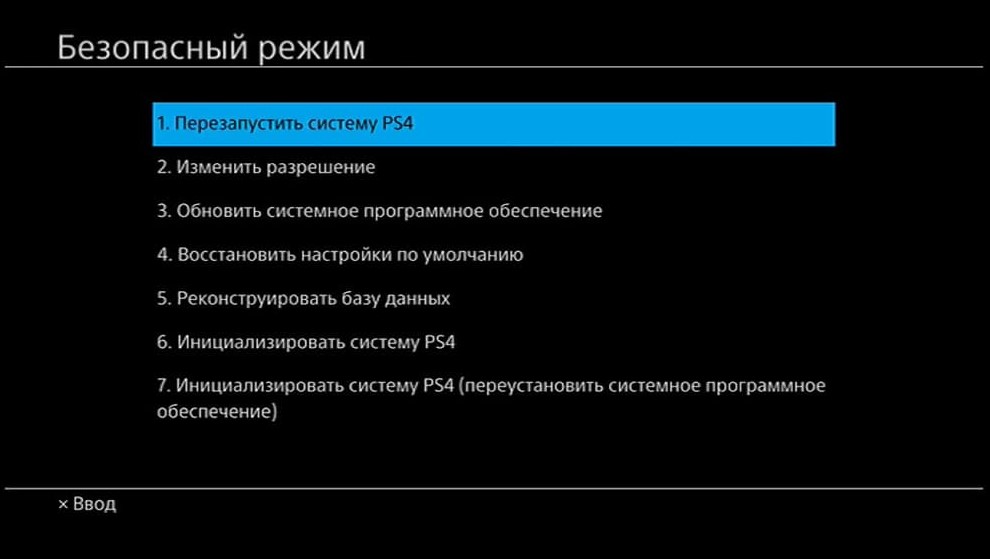
- Сбросить консоль к заводскому состоянию. Для этого нужно перезагрузить консоль и войти в безопасный режим (длительное удержание кнопки включения, до второго звукового сигнала). Среди меню нужно выбрать «Инициализировать PS4». Только заранее стоит попробовать сохранить важные данные, если такая возможность есть.
- Проверить качество подключения накопителя и дисковода. Особенно актуально в том случае, если недавно разбирали консоль для чистки или замены комплектующих. Стоит поправить кабели и все может заработать.
- Заменить кабель подключения. Это стоит делать каждые несколько лет, так как шнур пересыхает и может вызывать различные сбои в соединении с оборудованием. Стоимость кабелей невысокая, поэтому попробовать нужно.
Когда все перечисленное не дало положительных результатов, у вас есть 2 варианта: обратиться в сервисный центр или попробовать подключить другой (новый, взятый у друга и т. п.) жесткий диск, возможно, и дисковод. Это позволит понять, что именно вызвало проблему. По опыту, чаще всего дело в кабелях, они со временем портятся от высоких температур.
Доброго времени суток, геймеры! Случалось у вас такое, что вылетала ошибка su 42118 6? Вы не знаете, что она означает и как исправить? Не волнуйтесь, мы знаем, что делать.
Но приготовьтесь! Часто этот баг означает, что с PS4 серьёзные проблемы.
Правда, иногда его можно исправить простыми процедурами.
Содержание
- Код ошибки su 42118 6
- Как вылечить
- Перезагрузка PS4
- Обновление ПО
- Сброс до завода
- Поправка проводов
- Замена кабеля
- Что делать, если ничего не помогает
- Заработало
Итак, что же это за код такой?
SU 42118 6 означает, что на плейстейшен произошёл сбой соединения с blu-ray приводом. Система может написать, что дисковод не обнаружен. Или что нет связи с жёстким диском.
В любом случае решений проблемы существует несколько. Начнём с самых безобидных способов.
Как вылечить
Попробуйте починить баг при помощи простых манипуляций на ПС4. Для устранения неполадки могут помочь три вещи:
- Простая перезагрузка системы.
- Обновление ПО.
- Сброс плейстейшен 4 до заводских настроек.
Остальные способы решения технические. Где-то может понадобиться простая замена кабеля или даже поправка проводов.
А может даже придётся сдавать консоль в мастерскую.
Перезагрузка PS4
Иногда даже простая перезагрузка устройства помогает исправить большинство проблем. Поэтому просто выберете в окне быстрого доступа пункт «Перезапустить систему». Или найдите его в меню выключения. Кому как удобно.
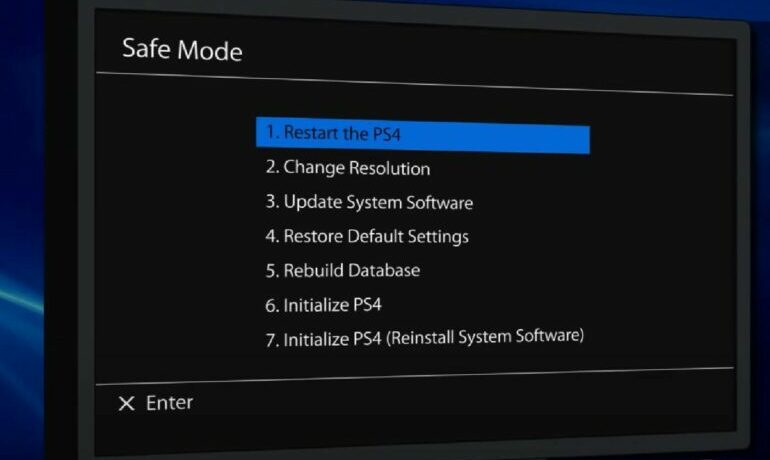
Также можно перезапустить приставку через безопасный режим. Это самый первый пункт.
Если ошибка продолжает появляться, тогда попробуйте следующее.
Обновление ПО
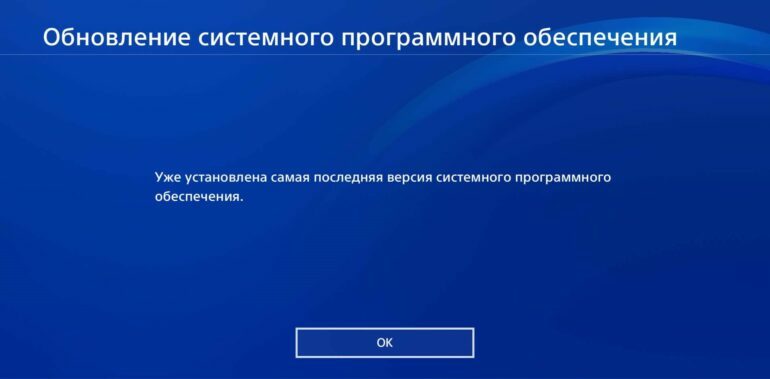
Часто баги, включая SU 42118 6, вылетают просто из-за того, что вы вовремя не обновили системное ПО. Обычно новая пошивка устанавливается автоматически. Достаточно, чтобы PS 4 работала и было стабильное соединение с интернетом.
Но, если вы отключили эту опцию, то стоит проверить на свежую версию и запустить установку обновлений.
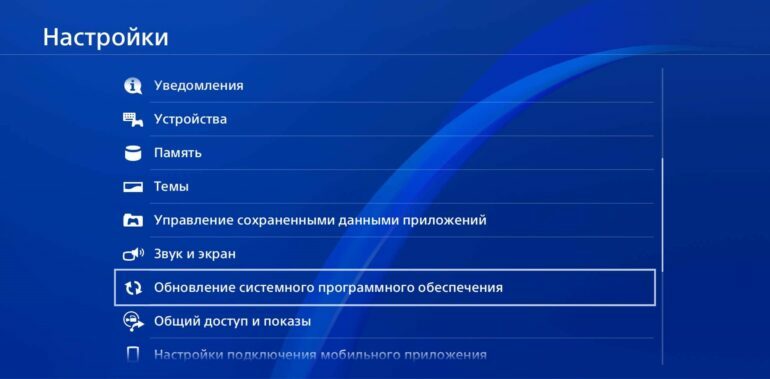
Проверить, стоит ли у вас последняя версия обнов, можно в разделе настроек. Пункт так и называется «Обновление системного ПО».
Если кликнуть по нему, приставка сообщит, текущая ли версия обнов у вас.
Если прошивка не обновляется автоматически, то сделать эту процедуру можно через тот же сейв мод. Это пункт номер три.
Сброс до завода
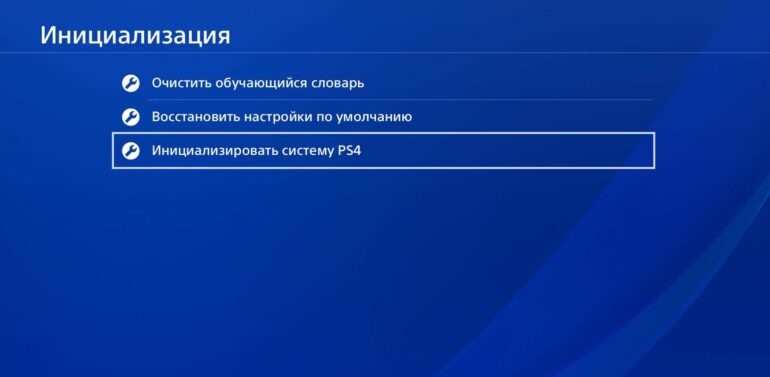
Проблема всё ещё не решена? Попробуйте запустить пункт номер шесть в безопасном режиме. Иными словами провести инициализацию настроек.
Имейте в виду, что перед запуском данного процесса лучше сохранить сейвы к играм и другие данные.
Так как они могут подтереться. Подробнее об инициализации мы писали тут.
Поправка проводов
Если ошибка технического плана, а не системного, то все предыдущие пункты вряд ли помогут.
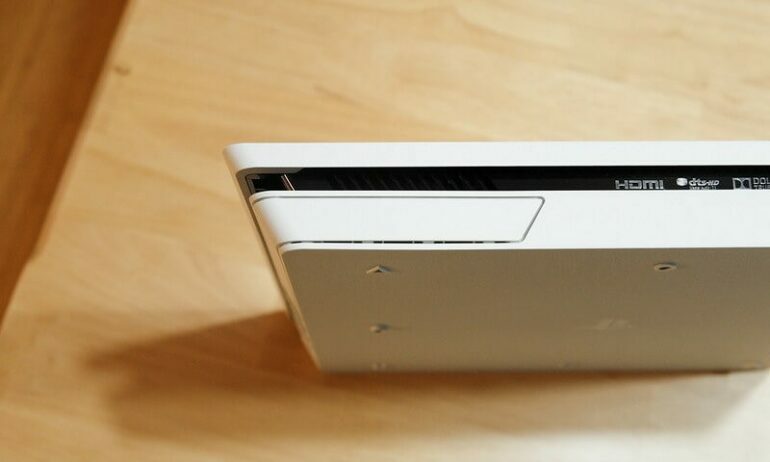
Вспомните, не разбирали ли вы консоль с целью почистить её? Может, до конца не установили привод? Или какой-то из кабелей плохо зафиксирован?
Попробуйте просто проверить, всё ли стоит на своих местах. Ещё раз переподключить, если потребуется. Может, отошёл контакт?

Замена кабеля
Последнее, из-за чего могла произойти неполадка su 42118 6, это то, что кабель от блюрея неисправен или сгорел.
При разборке это легко заметить. Контакты будут оплавлены.
В таком случае лучше отнести приставку хорошему мастеру. Пусть заменит на новые. А ещё лучше, если отдадите PS4 в официальный сервисный центр.

Что делать, если ничего не помогает
Корень зла так и не нашёлся? Все провода подключены как надо и работают? Не помог ни один из способов?
Тогда решение только одно. Ведите консоль на диагностику. Сотрудники Sony проведут специальную диагностику устройства.
Если у вас сохранилась гарантия, и вы не сорвали пломбу на приставке, то ремонт сделают бесплатно. Только за комплектующие заплатите.
Не пытайтесь чинить самостоятельно! Можете только навредить и переплатить за дополнительный ремонт.

Заработало
Мы надеемся, что всё у вас обошлось. Ошибка su 42118 6 больше не появляется, а вам помогла простая переустановка или даже инициализация.
Получайте удовольствия от игры на приставке. Пусть она у вас работает без перебоев и багов!
Пишите в комментариях вопросы по теме, если таковые остались. Постараемся помочь. Если материал оказался полезным, поставьте лайк и сделайте репост. До встречи на канале!
Добрый день такая проблема не могу обновить ps4 на 8,05 выбивает ошибку
пробовал через безопасный режим( обновить , полностью восстанавливал , через интернет) ошибка
так же не работает дисково (не кушает диски) говорят из за этого дисковод bdp-020
Как решить эту проблемы ?
- Termitbuy
- Сообщения: 8
⊕3
 Stich » 28 апр 2021, 14:01
Файл обновления помещен в папку UPDATE? Точно все делалось по инструкции?
1. С помощью PC или Mac создайте на USB-накопителе FAT32 папку с названием PS4. В этой папке создайте другую папку, с названием UPDATE.
2. На странице обновления системного программного обеспечения PS4 выберите раздел «Обновление системного программного обеспечения». Загрузите файл обновления и сохраните его в папке UPDATE. Сохраните файл под названием PS4UPDATE.PUP.
3. Подключите USB-накопитель с файлом для обновления системы к консоли PS4.
4. Если вы получили сообщение об ошибке SU-41350-3, значит, файл PUP был переименован вашим компьютером из-за многократных загрузок одного и того же файла. Проверьте место сохранения загруженных данных на PC или Mac, и удалите все предыдущие версии файла. Убедитесь, что нужный файл назван PS4UPDATE.PUP место сохранения загруженных данных на PC или Mac, и удалите все предыдущие версии файла. Убедитесь, что нужный файл назван PS4UPDATE.PUP
5. Запустите консоль PS4 в безопасном режиме: нажмите и удерживайте кнопку питания, и отпустите ее после второго звукового сигнала.
6. Выберите в безопасном режиме вариант 3 – Обновление системного программного обеспечения.
7. Выберите Обновить из USB-накопителя > OK.
-

Stich - Синий Стич
- Сообщения: 8173
- Откуда: я знаю!?
-
- iHoock
⊕5434
mank » 28 апр 2021, 14:26
Недавно заменил диск на консоли — поставил ssd , прошивка встала без проблем. Попробуй всё, что предложил стич, пробуй разные флешки. Лучше качай не обновление, файл переустановки ПО — шансов больше, но консоль обнулится (будет как из магазина)
Если привод не работает — прошивку скорее всего обновить не получится. Ищи проблему (по лёгкому — шлейф, по плохому — сам привод)
Тут почитай
viewtopic.php?f=8&t=1198
Цитатка:
«the SU-42118-6 error code is not a software problem.
This error comes from a broken ribbon connector between your motherboard and BD-ROM. You risk seeing the SU-42118-6 error code if you disassemble your console either while cleaning it or for another reason.»
-

mank - Сообщения: 1549
-
- Simakov_R
⊕2380
Termitbuy » 28 апр 2021, 15:06
Stich писал(а):Файл обновления помещен в папку UPDATE? Точно все делалось по инструкции?
все делал по инструкции
:PS4UPDATE название файла PS4UPDATE.PUP
Последний раз редактировалось Termitbuy 28 апр 2021, 15:14, всего редактировалось 1 раз.
- Termitbuy
- Сообщения: 8
⊕3
Termitbuy » 28 апр 2021, 15:08
xgorodx писал(а):Приставку разбирали?
да разбирал привод не работает искал пред f6202 (читал дело в нем ) так и не нашел его
- Termitbuy
- Сообщения: 8
⊕3
Termitbuy » 28 апр 2021, 15:12
mank писал(а):Недавно заменил диск на консоли — поставил ssd , прошивка встала без проблем. Попробуй всё, что предложил стич, пробуй разные флешки. Лучше качай не обновление, файл переустановки ПО — шансов больше, но консоль обнулится (будет как из магазина)
Если привод не работает — прошивку скорее всего обновить не получится. Ищи проблему (по лёгкому — шлейф, по плохому — сам привод)
Тут почитайviewtopic.php?f=8&t=1198
Цитатка:
«the SU-42118-6 error code is not a software problem.
This error comes from a broken ribbon connector between your motherboard and BD-ROM. You risk seeing the SU-42118-6 error code if you disassemble your console either while cleaning it or for another reason.»
да я как раз скачал «файл переустановки ПО»» приставка сама работает но не обновляется
- Termitbuy
- Сообщения: 8
⊕3
mank » 28 апр 2021, 15:40
Ищи шлейф привода и звони его
-
mank - Сообщения: 1549
-
- Simakov_R
⊕2380
xgorodx » 28 апр 2021, 15:41
Не знаю где вы читали, но mank вам правильно написал про шлейф, привод сам по себе ещё не видел чтоб сломался, возможно шлейф не до конца воткнут, вставьте диск и сами проверьте — если диск читает сам привод то звук будет слышно.
-

xgorodx - Сообщения: 1614
-
- xgorodx
⊕989
Termitbuy » 28 апр 2021, 18:01
xgorodx писал(а):Не знаю где вы читали, но mank вам правильно написал про шлейф, привод сам по себе ещё не видел чтоб сломался, возможно шлейф не до конца воткнут, вставьте диск и сами проверьте — если диск читает сам привод то звук будет слышно.
а как шлейф может сломаться ?
- Termitbuy
- Сообщения: 8
⊕3
Termitbuy » 28 апр 2021, 18:02
mank писал(а):Ищи шлейф привода и звони его
снять шлейф и прозвонить его на обрыв ?
- Termitbuy
- Сообщения: 8
⊕3
xgorodx » 28 апр 2021, 18:03
Легко, если его выставляли не правильно то возможно повредили контакты.
-
xgorodx - Сообщения: 1614
-
- xgorodx
⊕989
mank » 28 апр 2021, 18:53
Termitbuy писал(а):снять шлейф и прозвонить его на обрыв ?
Можно и так, можно отсоединить только с одной стороны. Смотри как удобнее будет.
-
mank - Сообщения: 1549
-
- Simakov_R
⊕2380
Termitbuy » 18 май 2021, 18:30
mank писал(а):
Termitbuy писал(а):снять шлейф и прозвонить его на обрыв ?
Можно и так, можно отсоединить только с одной стороны. Смотри как удобнее будет.
Добрый день ну Я купил новый шлей
- Termitbuy
- Сообщения: 8
⊕3
mank » 18 май 2021, 18:57
Кардинальное решение  мы предлагали прозвонить. Результат то какой?
-
mank - Сообщения: 1549
-
- Simakov_R
⊕2380
Termitbuy » 19 май 2021, 20:26
mank писал(а):Кардинальное решение
Все заработало большое спасибо за помощь
- Termitbuy
- Сообщения: 8
⊕3
Vetdoctor » 30 ноя 2021, 16:13
Ребят, подскажите пжлст точно такая же проблема, приставка не вскрывалась, читает dvd диски игровые не читает не обновляется с флешки выдает теже ошибки, приставка не падала и т.д.
- Vetdoctor
- Сообщения: 1
⊕0
mank » 30 ноя 2021, 19:39
Ну что тут посоветуешь? Тоже шлейф звони, ну или в приводе головка грязная/поцарапанная или подсела. Я с блюреями не работал и не знаю можно ли добавить мощность и сколько тут головок. Может спецы ответят. Но если код такой выдаёт и не обновляется — смотри в первую очередь шлейф.
-
mank - Сообщения: 1549
-
- Simakov_R
⊕2380
Вернуться в Общий форум и обсуждение PS4
Кто сейчас на форуме
Сейчас этот форум просматривают: нет зарегистрированных пользователей и гости: 1

Playstation не привыкать к кодам ошибок. Все устройства, как правило, время от времени сталкиваются с проблемами со своим программным или аппаратным обеспечением, и сообщение об ошибке — это то, как ваше устройство сообщает вам, что это необходимо исправить. Код ошибки, который вы видите, помогает определить причину и исправить ее.
Playstation показывает всевозможные коды ошибок, и обычно они связаны с программным обеспечением. Коды ошибок PS4 SU-30746-0 и SU-42118-6, однако, не являются проблемами программного обеспечения. В большинстве случаев это проблемы с оборудованием, с которыми сталкивается ваша PlayStation. Исправление может быть простым, или может потребоваться покупка нового оборудования для замены текущего оборудования на вашей PS4.
Перезагрузитесь из безопасного режима и обновите прошивку
Ошибки SU-30746-0, SU-42118-6 не предлагают ничего, кроме способа закрыть сообщение. После закрытия ваш PS4 не загружается. Чтобы загрузить его и обновить прошивку, вам необходимо пройти в безопасном режиме.
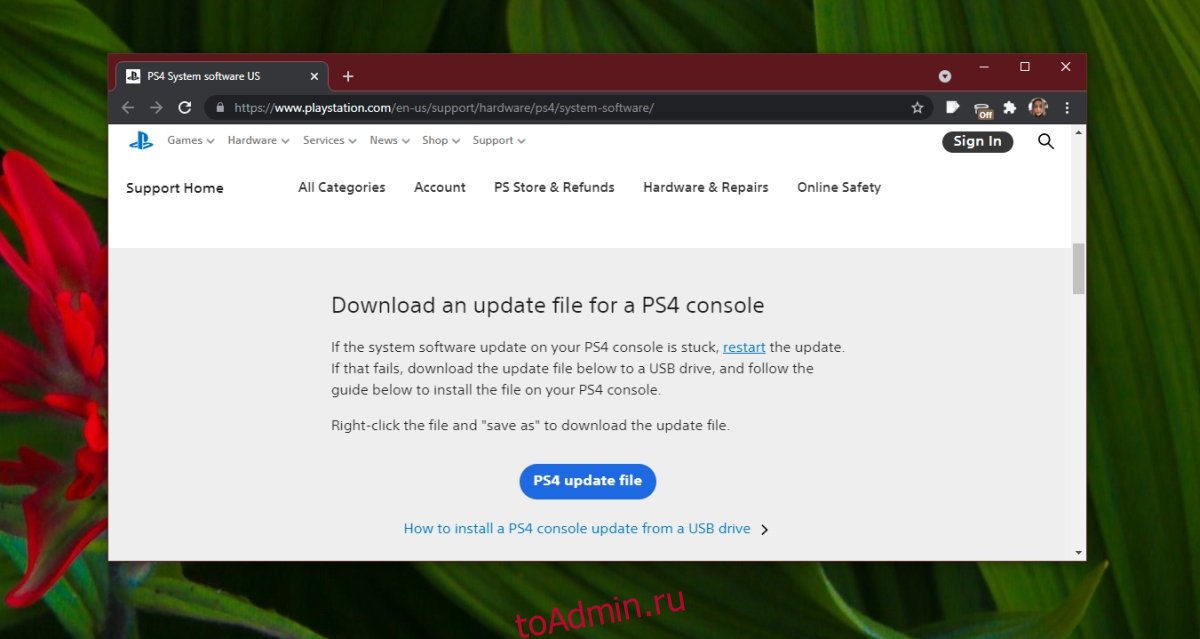
Скачать обновление прошивки
Вам необходимо загрузить обновление прошивки на USB. Обновления для PS4 можно скачать прямо с официальный сайт Playstation здесь.
Загрузите обновление прошивки.
Скопируйте его на USB-накопитель.
Выключите PS4 и подождите несколько минут.
Нажмите и удерживайте кнопку питания.
Отпустите кнопку питания, когда услышите второй звуковой сигнал.
Подключите контроллер через USB, когда будет предложено.
После подключения контроллера выберите «Обновить системное программное обеспечение».
Выберите «Обновить с USB-накопителя».
Подождите, пока обновление установится, и перезапустите консоль.
Инициализировать Playstation
Инициализация PlayStation приведет к удалению всего содержимого на ней. Вы в основном форматируете жесткий диск.
Выключите консоль.
Нажмите и удерживайте кнопку питания, пока не услышите два звуковых сигнала.
Подключите контроллер через USB, когда будет предложено.
Выберите Инициализировать PS4.
Перезагрузите PS4.
Аппаратные проблемы
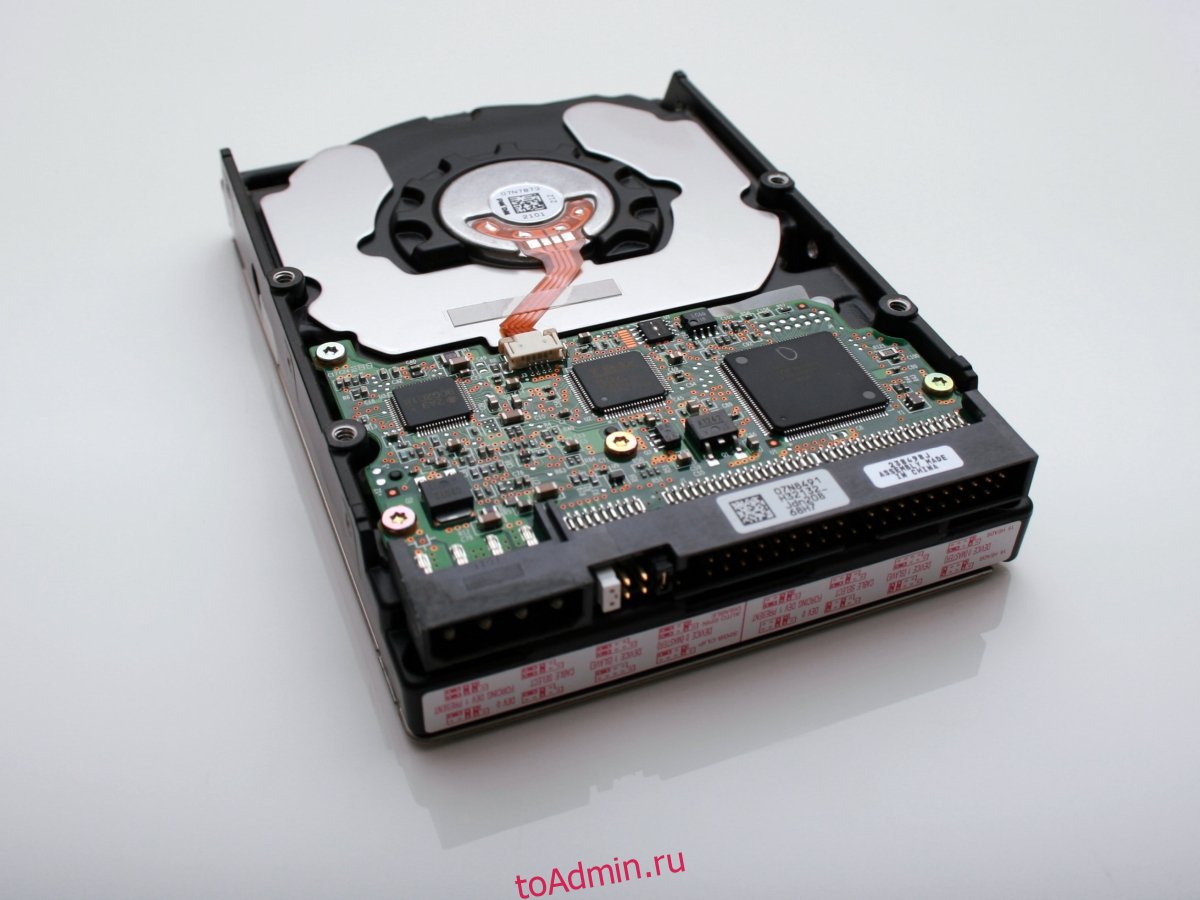
Если указанные выше два метода не устраняют ошибки SU-30746-0, SU-42118-6, возможно, у вас проблема с оборудованием. Принесите консоль для проверки.
Убедитесь, что жесткий диск подключен правильно и кабели / провода не отсоединены.
Запустите диагностику жесткого диска. Возможно, он неисправен и нуждается в замене.
Также проверьте остальное оборудование.
Заключение
Ошибки SU-30746-0, SU-42118-6 появляются либо при неправильной установке обновления, либо при сбое в процессе, например, при отключении питания консоли во время обновления. Это также может произойти, когда жесткий диск вышел из строя или вышел из строя. К сожалению, если ошибка вызвана аппаратными проблемами, у вас нет другого выбора, кроме как заменить ее. Вы можете подключить жесткий диск к компьютеру и попытаться создать резервную копию своих игр или попросить профессионала сделать это за вас, но спасать жесткий диск — не лучшая идея.
Что вы думаете об этой статье?
by Vlad Turiceanu
Passionate about technology, Windows, and everything that has a power button, he spent most of his time developing new skills and learning more about the tech world. Coming… read more
Published on July 16, 2020
- Encountering the SU-42118-6 and the SU-30746-0 error codes on your PS4 will surely cause some confusion.
- This guide explores the main difference between these two error codes, what each of them is, and how to fix them.
- Consider bookmarking our extensive Play Station Hub for more easy-to-follow guides that never disappoint.
- Ensure you’ll never be caught by surprise by checking out our detailed PS4 errors section.
- CPU, RAM and Network limiter with hot tab killer
- Integrated with Twitch, Discord, Instagram, Twitter and Messengers directly
- Built-in sound controls and custom music
- Custom color themes by Razer Chroma and force dark pages
- Free VPN and Ad blocker
- Download Opera GX
The PS4 error SU-30746-0 and SU-42118-6 error code are two issues that PS4 users have begun the experience recently.
A tricky thing about these errors is that the messages only display the error codes with no real clue to what causes the issue.
We’ll troubleshoot the PS4 error SU-30746-0 and SU-42118-6 error code, explain what causes them, and show you how to fix them as well.
How can I fix the PS4 SU-30746-0 and SU-42118-6 error codes?
Fix the PS4 error code SU-30746-0
What is the error SU-30746-0?
The PS4 error SU-30746-0 error message refers to the issue when your console cannot find an appropriate firmware update file.
You usually get this error when you’ve not updated your PS4 for a long time, and the firmware version it runs it no longer supported by Sony.
Whenever you boot your PS4 console, all you see is a black screen with the following error message:
An error has occurred.
(SU-30746-0)
There’s also only an OK button below the error code and no other way to exit the screen.
If you are facing this challenge on your console, continue to the troubleshooting section below.
1. Reboot the console with Safe Mode

- Turn off the system completely and leave it off for around one minute.
- Press and hold the Power button (release the button when it beeps twice).
- Connect your controller to the PS4 by USB cable and hit the PlayStation button to pair the controller.
- Once you successfully pair your controller to the system, restart the console again.
- Press X on the controller to reboot via Safe Mode.
When the console comes on, it will no longer show you the SU-30746-0 error code. If it does, try the next method below.
2. Update the PS4 via Safe Mode
- Power off the system completely.
- Download the most recent PS4 firmware version
- Save the file in an external USB drive, such as a hard drive or USB disk (if your console is connected to an ethernet network, you can skip this step).
- Press and hold the Power button until the console beeps twice.
- In Safe Mode, connect your controller to the PS4 via a USB cable and press the PlayStation button to pair them.
- Go to Update System Software and press the X button on the controller to select the option.
- If you’re using an ethernet network, select Update Using Internet (if not, insert the USB with the downloaded firmware and select the Update from USB Storage Device option).
- Restart the PS4 console and confirm that the SU-30746-0 error code is cleared.
3. Initialize the console via Safe Mode
- Power off the console and leave it off for around one minute.
- Press and hold the Power button, and stop pressing after the console beeps twice.
- Connect your PS4 controller to the system with the use of a USB cable and pair them by pressing the PlayStation button.
- Next, select Initialize PS4 (Reinstall System Software).
- Click on the Yes button and hit X.
- Finally, restart the PS4 console.
4. Restore the PS4 to default settings via Safe Mode
Some PC issues are hard to tackle, especially when it comes to corrupted repositories or missing Windows files. If you are having troubles fixing an error, your system may be partially broken.
We recommend installing Restoro, a tool that will scan your machine and identify what the fault is.
Click here to download and start repairing.

- Turn off your console completely.
- Next, press and hold down the Power button and wait until the system beeps twice.
- In the Safe Mode, attach your PS4 controller using a USB cable.
- Press the PlayStation button to pair it to the console.
- Scroll down and select the Restore Default Settings option.
- Click on Yes with the X button, and this will restore the console to default settings.
Fix the PS4 error SU-42118-6

What does this error mean SU-42118-6?
The SU-42118-6 error code shows up on the consoles of quite a number of users randomly. In most instances, it leaves you stuck in a restart loop.
Unlike the SU-30746-0 error code, the SU-42118-6 error code is not a software problem.
This error comes from a broken ribbon connector between your motherboard and BD-ROM. You risk seeing the SU-42118-6 error code if you disassemble your console either while cleaning it or for another reason.
Improper assembling of your PS4 hardware can also cause it to start turning off randomly.
When this happens, the system won’t be able to communicate with the BD-ROM.
To fix it, investigate the BD-ROM ribbon connection between the drive and motherboard. Check for broken tabs, and if any, replace the damaged component.
Will replacing the disk drive fix the SU-42118-6 error on the PS4 slim?
Replacing the hard disk drive of your PS4 console usually gets rid of the SU-42118-6 error code.
It is worth noting that some users reported that the issue arises again if you attempt to update the console on the replacement HDD.
As you have seen, the PS4 error SU-30746-0 is a software issue, while the SU-42118-6 error code is a result of faulty hardware.
Replacement of your HDD will solve the SU-42118-6 error code in most cases.
On the other hand, you have to follow the troubleshooting guide above to clear the S4 error SU-30746-0.
Don’t hesitate to let us know if you found this guide helpful by using the comment section below.
Still having issues? Fix them with this tool:
SPONSORED
If the advices above haven’t solved your issue, your PC may experience deeper Windows problems. We recommend downloading this PC Repair tool (rated Great on TrustPilot.com) to easily address them. After installation, simply click the Start Scan button and then press on Repair All.

Newsletter
by Vlad Turiceanu
Passionate about technology, Windows, and everything that has a power button, he spent most of his time developing new skills and learning more about the tech world. Coming… read more
Published on July 16, 2020
- Encountering the SU-42118-6 and the SU-30746-0 error codes on your PS4 will surely cause some confusion.
- This guide explores the main difference between these two error codes, what each of them is, and how to fix them.
- Consider bookmarking our extensive Play Station Hub for more easy-to-follow guides that never disappoint.
- Ensure you’ll never be caught by surprise by checking out our detailed PS4 errors section.
- CPU, RAM and Network limiter with hot tab killer
- Integrated with Twitch, Discord, Instagram, Twitter and Messengers directly
- Built-in sound controls and custom music
- Custom color themes by Razer Chroma and force dark pages
- Free VPN and Ad blocker
- Download Opera GX
The PS4 error SU-30746-0 and SU-42118-6 error code are two issues that PS4 users have begun the experience recently.
A tricky thing about these errors is that the messages only display the error codes with no real clue to what causes the issue.
We’ll troubleshoot the PS4 error SU-30746-0 and SU-42118-6 error code, explain what causes them, and show you how to fix them as well.
How can I fix the PS4 SU-30746-0 and SU-42118-6 error codes?
Fix the PS4 error code SU-30746-0
What is the error SU-30746-0?
The PS4 error SU-30746-0 error message refers to the issue when your console cannot find an appropriate firmware update file.
You usually get this error when you’ve not updated your PS4 for a long time, and the firmware version it runs it no longer supported by Sony.
Whenever you boot your PS4 console, all you see is a black screen with the following error message:
An error has occurred.
(SU-30746-0)
There’s also only an OK button below the error code and no other way to exit the screen.
If you are facing this challenge on your console, continue to the troubleshooting section below.
1. Reboot the console with Safe Mode
- Turn off the system completely and leave it off for around one minute.
- Press and hold the Power button (release the button when it beeps twice).
- Connect your controller to the PS4 by USB cable and hit the PlayStation button to pair the controller.
- Once you successfully pair your controller to the system, restart the console again.
- Press X on the controller to reboot via Safe Mode.
When the console comes on, it will no longer show you the SU-30746-0 error code. If it does, try the next method below.
2. Update the PS4 via Safe Mode
- Power off the system completely.
- Download the most recent PS4 firmware version
- Save the file in an external USB drive, such as a hard drive or USB disk (if your console is connected to an ethernet network, you can skip this step).
- Press and hold the Power button until the console beeps twice.
- In Safe Mode, connect your controller to the PS4 via a USB cable and press the PlayStation button to pair them.
- Go to Update System Software and press the X button on the controller to select the option.
- If you’re using an ethernet network, select Update Using Internet (if not, insert the USB with the downloaded firmware and select the Update from USB Storage Device option).
- Restart the PS4 console and confirm that the SU-30746-0 error code is cleared.
3. Initialize the console via Safe Mode
- Power off the console and leave it off for around one minute.
- Press and hold the Power button, and stop pressing after the console beeps twice.
- Connect your PS4 controller to the system with the use of a USB cable and pair them by pressing the PlayStation button.
- Next, select Initialize PS4 (Reinstall System Software).
- Click on the Yes button and hit X.
- Finally, restart the PS4 console.
4. Restore the PS4 to default settings via Safe Mode
Some PC issues are hard to tackle, especially when it comes to corrupted repositories or missing Windows files. If you are having troubles fixing an error, your system may be partially broken.
We recommend installing Restoro, a tool that will scan your machine and identify what the fault is.
Click here to download and start repairing.
- Turn off your console completely.
- Next, press and hold down the Power button and wait until the system beeps twice.
- In the Safe Mode, attach your PS4 controller using a USB cable.
- Press the PlayStation button to pair it to the console.
- Scroll down and select the Restore Default Settings option.
- Click on Yes with the X button, and this will restore the console to default settings.
Fix the PS4 error SU-42118-6
What does this error mean SU-42118-6?
The SU-42118-6 error code shows up on the consoles of quite a number of users randomly. In most instances, it leaves you stuck in a restart loop.
Unlike the SU-30746-0 error code, the SU-42118-6 error code is not a software problem.
This error comes from a broken ribbon connector between your motherboard and BD-ROM. You risk seeing the SU-42118-6 error code if you disassemble your console either while cleaning it or for another reason.
Improper assembling of your PS4 hardware can also cause it to start turning off randomly.
When this happens, the system won’t be able to communicate with the BD-ROM.
To fix it, investigate the BD-ROM ribbon connection between the drive and motherboard. Check for broken tabs, and if any, replace the damaged component.
Will replacing the disk drive fix the SU-42118-6 error on the PS4 slim?
Replacing the hard disk drive of your PS4 console usually gets rid of the SU-42118-6 error code.
It is worth noting that some users reported that the issue arises again if you attempt to update the console on the replacement HDD.
As you have seen, the PS4 error SU-30746-0 is a software issue, while the SU-42118-6 error code is a result of faulty hardware.
Replacement of your HDD will solve the SU-42118-6 error code in most cases.
On the other hand, you have to follow the troubleshooting guide above to clear the S4 error SU-30746-0.
Don’t hesitate to let us know if you found this guide helpful by using the comment section below.
Still having issues? Fix them with this tool:
SPONSORED
If the advices above haven’t solved your issue, your PC may experience deeper Windows problems. We recommend downloading this PC Repair tool (rated Great on TrustPilot.com) to easily address them. After installation, simply click the Start Scan button and then press on Repair All.
Newsletter
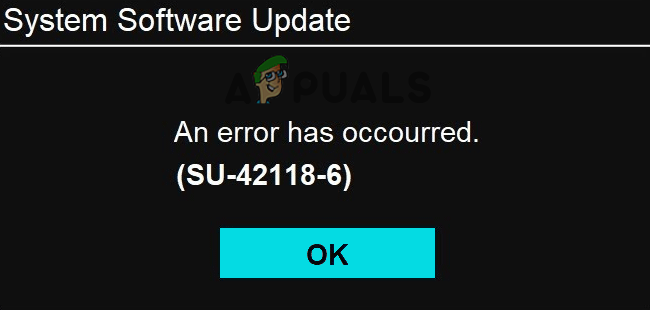
PS4 SU-42118-6 is a random update error that occurs at the time of a software update. It stuck the PS4 at the restart loop thereby restricting the PS4 to update to the latest version. The error flashes with a PS4 black screen thereby reflecting a short message referring to “An error has occurred. (SU-42118-6)”. Moreover, it happens randomly and rarely when your PS4 fails to detect the Blu-ray drive. However, this indicates that there is some issue with the main unit and therefore stopping the software update from installing.
The error is quite frustrating and serious at the same time. Therefore, demand for an instant resolution. So, our experts have made our research and come up with this article that covers some effective solutions that will get you out of this annoying error in no time.
But for a better choice of solution, you must know the error causes first. So, below are some major culprits that cause this error to occur on PS4.
What Causes “PS4 Error SU-42118-6”?
- Hardware malfunction- Firstly, if there is any hardware issue or somehow your hardware got corrupted or malfunctioned then you may encounter this problem. Therefore, try dealing with the situation by replacing the hardware or repairing it.
- Software issue- Sometimes a software issue or glitch might trigger such an error on PS4. So, on finding the software to be the culprit of the error, you need to restart your PS4. Restarting most probably fixes the issue by giving it a fresh start.
- Broken Ribbon connector- Broken ribbon connector is one of the major causes behind this error on PS4. If the ribbon is broken, damaged or not connected properly then the console fails to detect the Blu-ray drive. Hereby, make sure that your BD-ROM ribbon should be tightly attached or must be in good condition.
- Outdated system software- If the software you are operating on is not updated for a long time then you may face SU-42118-6 error on PS4. Therefore, it is advised to update your system software timely to avoid facing such error problems.
- Corrupted or damaged hard drive- Also a corrupted or damaged hard drive can be the reason behind such error problems. So, if found such is the case behind the error, deal with the problem either by repairing the problematic hardware or replacing it with a new set.
So, these are some reasons that trigger this error on PS4. Now as you are aware of the causes, you can easily be able to tackle the error in no time with the most effective solutions listed below that work for several affected users.
1. Restart Your PS4
As it has already been mentioned above a software glitch can be the reason for such error occurrence on your PS4. Hereby, you can restart your PS4 to get rid of the error. The restart will give your PS4 a fresh boot thereby solving minor issues on the software. So, to restart your PS4, follow the guides below instructions:
- Firstly, turn off PS4 by long-pressing the Power button until you hear the beep sound.
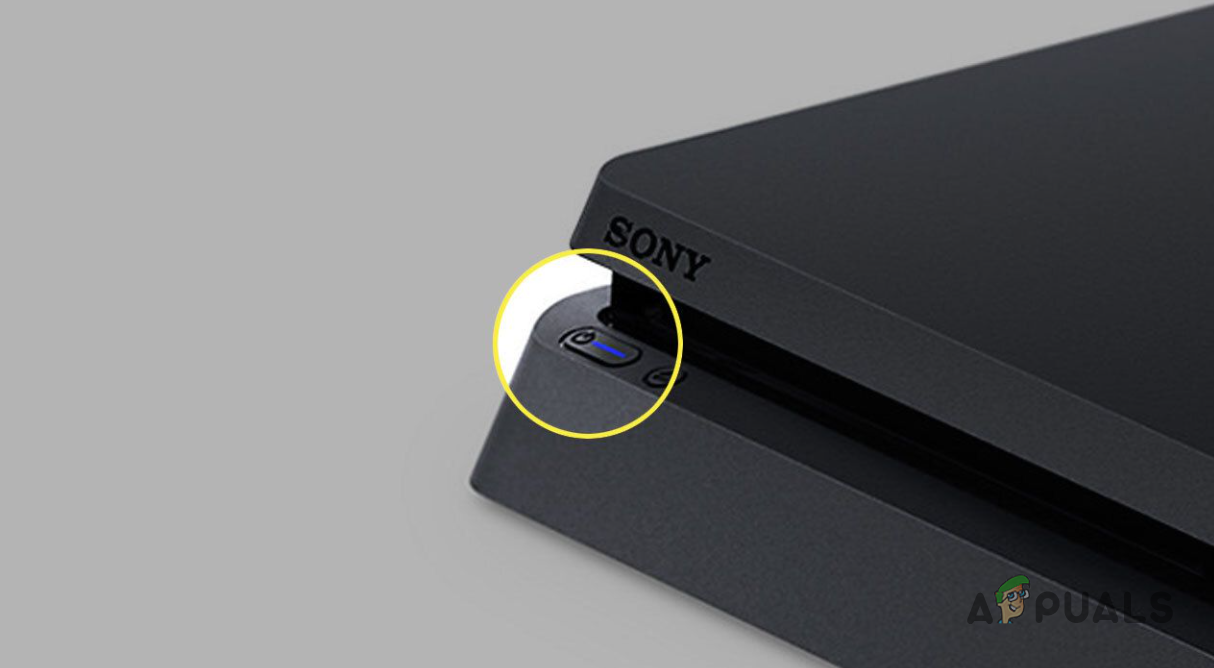
PS4 Power Button - Then, it will start booting in Safe mode.
- Next, connect the DUALSHOCK 4 using a USB cable & pair it by tapping the PS key on the controller.
- Click Restart PS4 and tap the X key to start the reboot in Safe Mode.
2. Check the Ribbon Connection
Another reason causing this error occurrence is damaged, broken or loose ribbon connection. If the ribbon that connects the Blu-ray drive and your console is broken or not connected properly then it might cause this error to arise on your PS4. Therefore, you can simply fix the error issue by replacing the damaged ribbon with a new one.
Or if found disconnected or not properly connected, try connecting it properly and tightly to avoid getting such errors.
3. Verify the Connected HDMI Cables
Sometimes, connected HDMI cables can also trouble you with this error. So even after following the above fixes, the error problem won’t disappear then it may be because of a damaged or broken HDMI cable. So, checking HDMI cables is worth giving a chance. So, have a quick overlook at your HDMI cables and perform the below instructions:
- Disconnect the HDMI cables both from PS4 & TV.
- Next, wait for 5 at least minutes and then reattach the cables back to PS4 & TV.
- Lastly, boot your gaming console in by clicking the Restart PS4 option.
4. Perform Power Cycle on Your PS4
If your ribbon is connected properly and is in a good condition then you can go for another solution that is power cycling your PS4. At the time of the power cycle, make sure that all your power should be drained. So for this, follow the below-guided steps:
- Long press the PS4 Power button until it shuts down completely.
Press the PS4 Power Button - Disconnect the power cable from the socket & console.
- Next, drain all the remaining power by pressing or tapping the Power button a few times. Doing this will clear out the accumulated cache data.
- Now, wait for 5 minutes at least and reconnect everything back and then try running PS4
5. Restore Your PS4 Default Settings
Another method you can try to resolve PS4 SU-42118-6 is by restoring your PS4 default settings. This worked for several users as this set PS4 to its default state and remove all the modifications that might be conflicting with PS4 latest software update and causing the error. For this, you need to follow the guidelines below as mentioned:
- At first, turn off the PS4 console.
- Next, press the Power button until the console beeps twice.
PS4 Power Button - Connect your controller using a USB cable via safe mode.
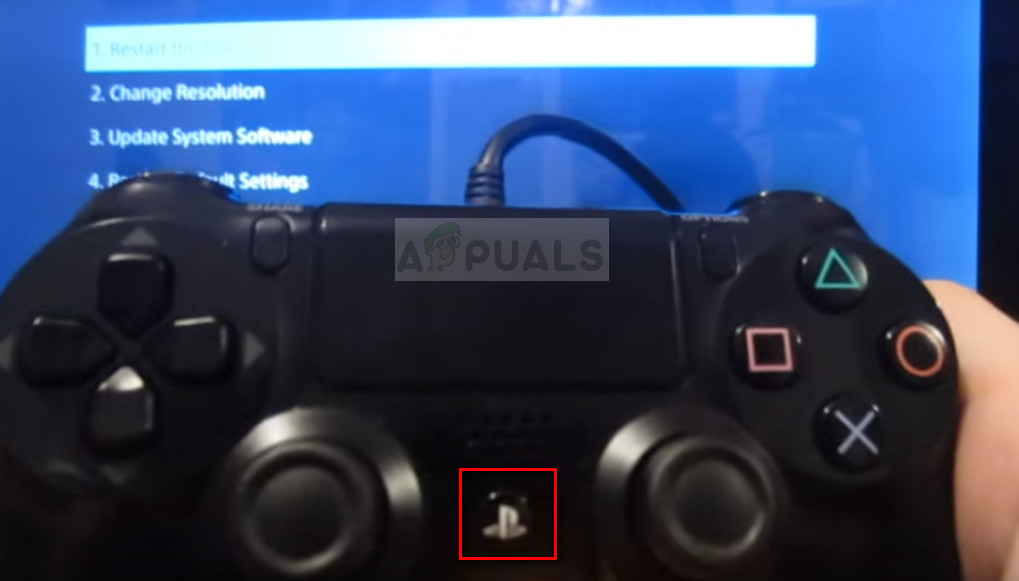
Connect controller to Ps4 via USB cable and press PS button - Pair your PS4 with the console by pressing the PlayStation button.
- Choose the option Restore Default Settings option.
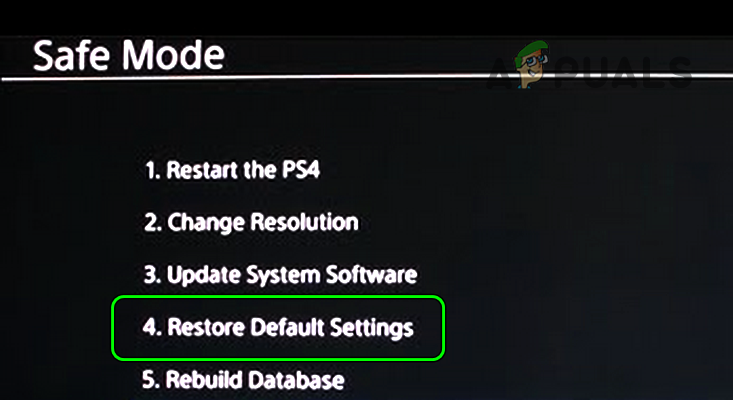
Restore Default Settings of PS4 - At last, tap the Yes and the X button together, and the default settings of your console will be restored back.
6. Replace the Hard Drive
The corrupted or damaged hard drive is one of the reasons triggering such an error on your PS4. So if none of the fixes above solves your error problem then check for any issues on a hard drive. Make sure your hard drive is connected properly and there are no such loose cables or wires.
However, if found faulty, try repairing the hard drive or replacing it with a new one to get rid of the error issue.
7. Update Your System Software
At most times, such error occurs due to outdated system software. Hereby, it is always suggested to have fully updated system software. For this, you need to connect PS4 to the internet and check if there is any update available for system software. To check for system software updates, follow the instructions below:
- Visit PS4 Settings.
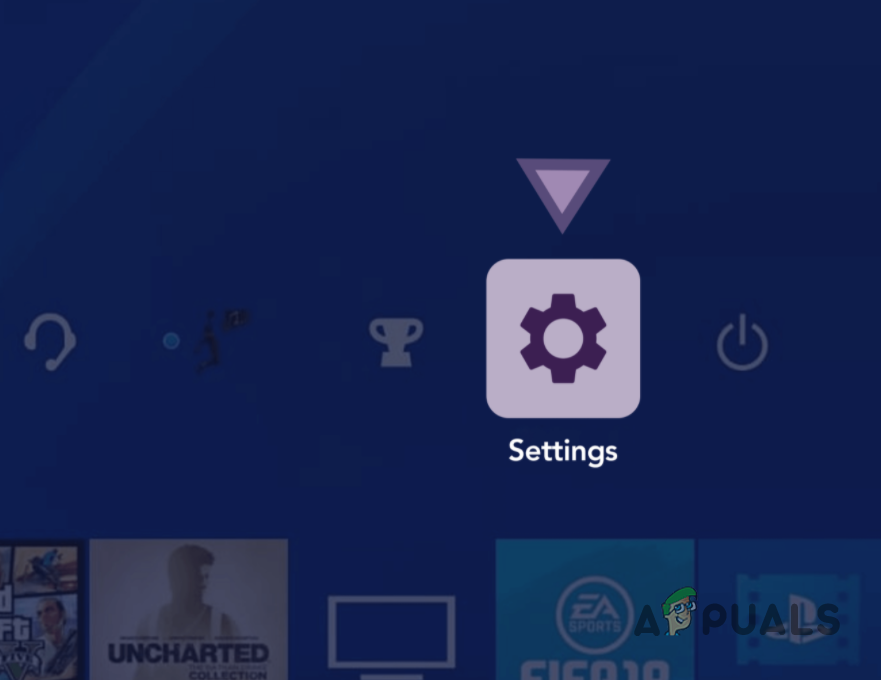
Opening up Settings Menu - Then, choose the option System.
- Now, click on the Software Update option.
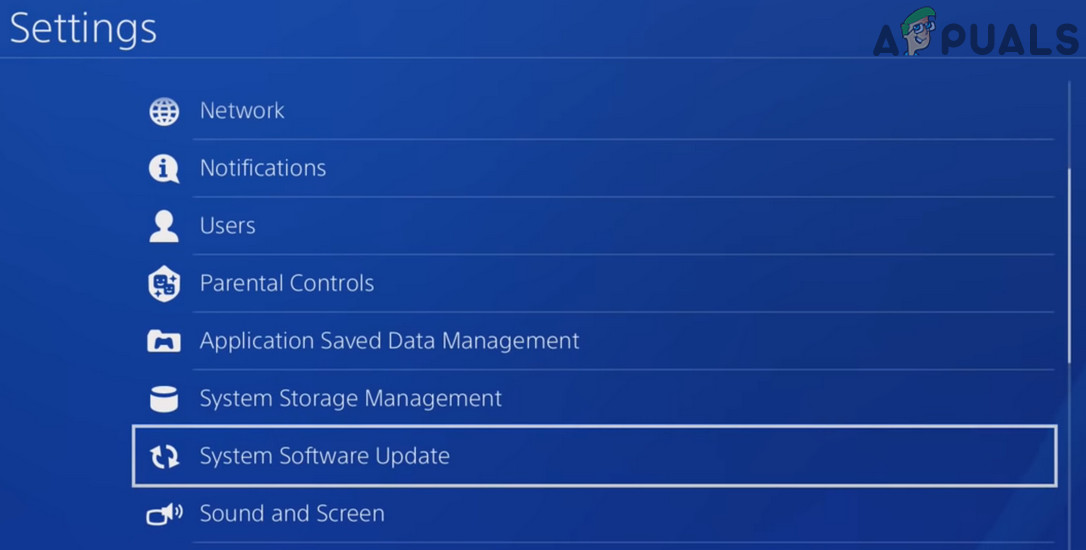
Open System Software Update in the PS4 Settings - And wait until the software gets downloaded and installed.
8. Initialize the PS4 system in Safe Mode
If none of the above-listed fixes works for you then here it is suggested to initialise the PS4 console’s entire system settings. This is just like the factory resetting the console and initialising the entire system settings to their default state. To do so you need an external USB drive and have enough space for storing the PS4 data and also formatted to FAT.
Now follow the steps to back up the PS4 and then initialize PS4 to Safe mode.
- Attach the USB drive to your PS4 console.
- Go to PS4 Settings and select System.
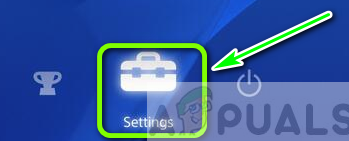
Accessing the settings menu on Ps4 - Next, click on Backup and Restore and then click on Back Up PS4 options.
- Then, choose the data to keep backup and click Next
- Provide a name to the backup folder and select the option Back Up
- Next, on the controller, press the X button and your backup will initialise.
- Once your backup is completed, disconnect the USB drive from the PS4
- Then, go to PS4 Settings and choose Initialization.
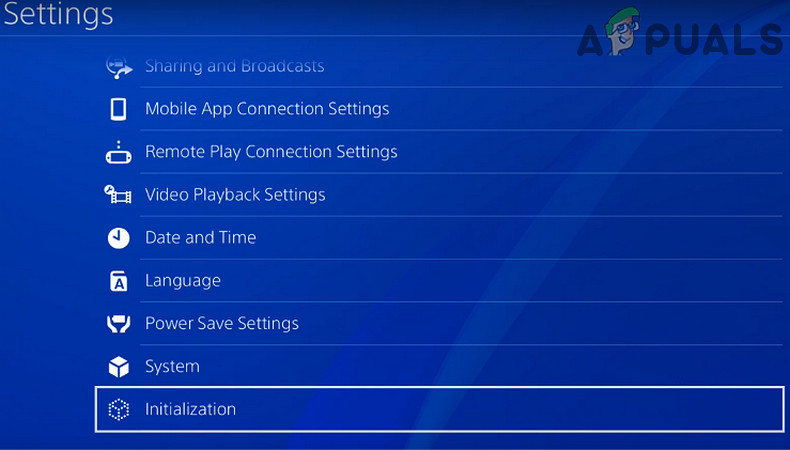
Open Initialization in the Settings of PS4 - Select the option Initialize PS4 and choose Full initialization
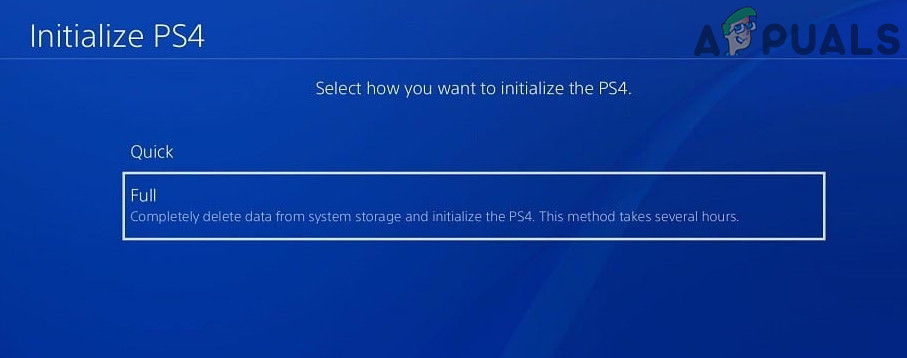
Select Full for PS4 Initialization - Lastly, follow the onscreen guide to finish the process.
Now check if the PS4 error SU-42118-6 is fixed or not.
9. Connect with PS4 Support Centre
If none of the above-listed fixes works for you and still unable to install the PS4 update, then here it is suggested to contact the customer support centre of PS4.
There are chances that the problem might be related to the console and the PS4 support will surely help you to fix the problem. So, describe the error properly and create a ticket and wait for their response.
Well, the error is rare yet serious. However, this blog will help you to get past the SU-42118-6 error in PS4 in no time with mentioned effective fixes. I hope the blog comes out to be helpful thereby letting you fix this error issue with the least effort.