
Information obtained from Steam, it can be found here
Stranded Deep Troubleshooting
By Ben | Beam Team Games
A brief troubleshooting guide for any issues you are having with Stranded Deep and how you might be able to resolve them.
System Requirements
Before you purchase Stranded Deep please make sure your computer meets the minimum system requirements for the game. Stranded Deep’s System requirements can be found at the bottom of Stranded Deep’s Steam Store page.
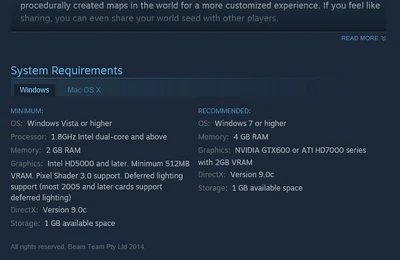
Minimum / Recommended System Requirements:
- CPU: 1.8Ghz Dual Core or Higher
- RAM: 2GB / 4GB
- OS: Windows Vista or Higher / Windows 7 or Higher
- Video: Intel HD 5000 512MB / GTX 600 or Radeon HD 7000 2GB
- Disk Space: 1GB
Note: These requirements are NOT final, and may be updated in the future.
- To view your System Specs
- WINDOWS: Control Panel > System and Security > System.
- To view your GPU: System Information > Components > Display.
MAC OSX: Open System Profiler by choosing About this Mac.
To view your GPU: Open System Profiler by choosing About this Mac from the Apple (top left corner) menu, then click More Info. Select the Graphics/Displays item in the Hardware section.
For more info visit Apples support website: https://support.apple.com/en-au/HT202053
Video Card Drivers
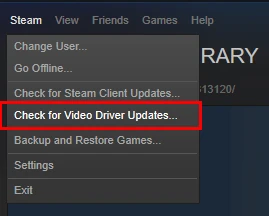
Please make sure your video card drivers are all up to date. Steam can do this via Steam > Check for Video Driver Updates. It’s recommended you update your drivers through the appropriate driver control panels.
Installation
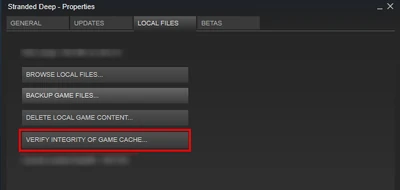
It’s possible for Steam to fail Stranded Deep’s Installation or update patches incorrectly. We recommend navigating to Stranded Deep Properties via Steam Library > Right clicking Stranded Deep > Properties > Local Files and clicking Verify Integrity of Game Cache.
If issues persist you can try uninstalling and re-installing Stranded Deep. Verifying game cache is very important after every update.
Updates
Please make sure Stranded Deep is always Up-to-date. Through your Steam Library, right click Stranded Deep > Properties > Updates. Automatic updates should ‘always keep this game up to date’.
If you are having an issue downloading the latest update please restart Steam with the above settings enabled. If further issues persist check Stranded Deep’s Beta branch (Instructions Below).
Note: Your current games version number can be found on the in-game main menu bottom left hand corner.
Opting into Experimental Branch
Please make sure you have the correct branch selected in Stranded Deep’s Properties.
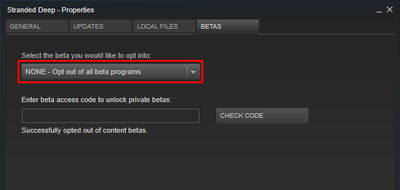
By right clicking Stranded Deep in your Steam Library navigate to Properties > Betas > Select the beta branch you would like to opt into from the drop down menu.
Stranded Deep’s most recommended stable branch is ‘None’.
This is where players can opt into the experimental development branch and other branches we may make available in the future. Please note that save files may revert or cause issues switching between branches.
Performance
Please make sure you computer meets Stranded Deep’s minimum system requirements.
If you are having performance issues or the game doesn’t look as good as you think it can please navigate to the in-game Options > Graphics menu. Here you can tweak graphical settings which can improve performance or improve visual quality where your computer can support it.
To improve performance try reducing the heavier graphical settings such as Shadows, Volumetric Clouds, Draw Distances, Ambient Occlusion, and Antialiasing. All these effects can be quite demanding on lower end systems and may require some tweaking.
Game Crashing
Stranded Deep is an Early Access game and as result can often experience unexpected crashes. We take these crashes very seriously so please send in your games output log immediately after experiencing a crash.
Please send us your output logs;
Steam Library > Right click Stranded Deep > Properties > Local Files > Browse local files..
Navigate to Stranded_Deep_Data and send the output_log as an attachment to bugs@beamteamgames.com with the subject «Game Crash».
Alt Tabbing Crashes
If you wish to Alt-Tab Stranded Deep from full screen please select the DX9 Startup option. DX11 will crash when Alt-Tabbing from fullscreen as a result of our current Game Engine.
Note: Please only send us output log files which were a result of a game breaking bug such as the game crashing.
Launcher Has Stopped Working
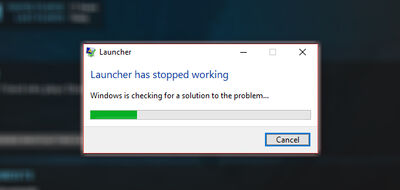
If there is an issue with the games launcher crashing please right click Stranded Deep in your Steam Library > Properties > Local Files > Browse Local Files.
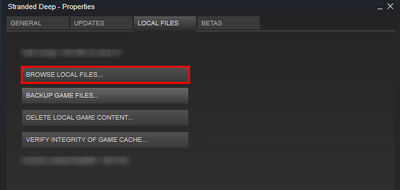
From here you can run Stranded_Deep.exe manually and bypass the Launcher. Stranded_Deep_x64 will be the launcher.
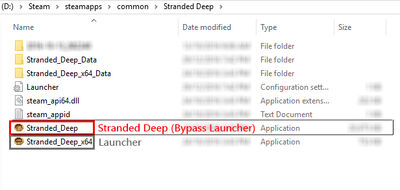
If you do have this issue please email us (below) with your system specs or post in the discussion forum so we can fix this issue faster!
Achievements
Achievements are currently disabled. Achievements will be released once the game has left Early Access.
Motion Sickness
Stranded Deep has some very immersive gameplay; Sailing Rafts, Swimming, and climbing can often cause motion sickness to some. To reduce these effects navigate to the in-game Options menu.
Navigate to General > reduce the Ocean Rotation slider to minimise or disable sailing motion sickness.
Mouse smoothness can be reduced through the Input Option menu.
Motion Blur, Field of View and Lens Effects can be adjusted through the Graphics menu.
Black Screen
Try changing Anti-Aliasing in the games settings from TcacA to SMAA, or disable Anti-Aliasing.
Error Validating World / Missing Trees, Rocks
This issue is due to an authorisation error when attempting to access the Stranded Deep documents folder. Please try these suggestions first and if they don’t work, then feel free to post a bug report.
- Confirm individual file permissions
There is an article link below that goes through a more detailed privileges check looking at the individual file permissions.
How to manually reset folder and file permissions in Windows Explorer
- Confirm documents folder user permissions
- Documents > Stranded Deep folder > Properties > Security > User Permissions
- Make sure that all permission are ‘allowed’ for each user using Stranded Deep.
- Delete all local files and Reinstall
- Manually delete all files in the Stranded Deep documents folder and reinstall.
- Verify Game
Still Broken
If the above steps don’t help please try the following:
- Permissions
- There may be an issue with folder permissions. Confirm that your stranded deep documents folder has all writing privileges allowed.
Documents > Stranded Deep folder > Properties > Security > User Permissions.
- Verify
- Verify your game cache through Steam. Library > Right click Stranded Deep > Local files > Verify.
Ask for help / Reporting bugs
If this page was not able to help you please get in touch through our Community Discussion. You can use the search function to find other posts from players who may have had similar issues and ways to resolve them.
Alternatively, Please post any bug reports under the ‘Bug Reports’ on the Steam forums.
Please be very specific when posting bug reports so we can resolve them faster.
Information obtained from Steam, it can be found here
Stranded Deep Troubleshooting
By Ben | Beam Team Games
A brief troubleshooting guide for any issues you are having with Stranded Deep and how you might be able to resolve them.
System Requirements
Before you purchase Stranded Deep please make sure your computer meets the minimum system requirements for the game. Stranded Deep’s System requirements can be found at the bottom of Stranded Deep’s Steam Store page.
Minimum / Recommended System Requirements:
- CPU: 1.8Ghz Dual Core or Higher
- RAM: 2GB / 4GB
- OS: Windows Vista or Higher / Windows 7 or Higher
- Video: Intel HD 5000 512MB / GTX 600 or Radeon HD 7000 2GB
- Disk Space: 1GB
Note: These requirements are NOT final, and may be updated in the future.
- To view your System Specs
- WINDOWS: Control Panel > System and Security > System.
- To view your GPU: System Information > Components > Display.
MAC OSX: Open System Profiler by choosing About this Mac.
To view your GPU: Open System Profiler by choosing About this Mac from the Apple (top left corner) menu, then click More Info. Select the Graphics/Displays item in the Hardware section.
For more info visit Apples support website: https://support.apple.com/en-au/HT202053
Video Card Drivers
Please make sure your video card drivers are all up to date. Steam can do this via Steam > Check for Video Driver Updates. It’s recommended you update your drivers through the appropriate driver control panels.
Installation
It’s possible for Steam to fail Stranded Deep’s Installation or update patches incorrectly. We recommend navigating to Stranded Deep Properties via Steam Library > Right clicking Stranded Deep > Properties > Local Files and clicking Verify Integrity of Game Cache.
If issues persist you can try uninstalling and re-installing Stranded Deep. Verifying game cache is very important after every update.
Updates
Please make sure Stranded Deep is always Up-to-date. Through your Steam Library, right click Stranded Deep > Properties > Updates. Automatic updates should ‘always keep this game up to date’.
If you are having an issue downloading the latest update please restart Steam with the above settings enabled. If further issues persist check Stranded Deep’s Beta branch (Instructions Below).
Note: Your current games version number can be found on the in-game main menu bottom left hand corner.
Opting into Experimental Branch
Please make sure you have the correct branch selected in Stranded Deep’s Properties.
By right clicking Stranded Deep in your Steam Library navigate to Properties > Betas > Select the beta branch you would like to opt into from the drop down menu.
Stranded Deep’s most recommended stable branch is ‘None’.
This is where players can opt into the experimental development branch and other branches we may make available in the future. Please note that save files may revert or cause issues switching between branches.
Performance
Please make sure you computer meets Stranded Deep’s minimum system requirements.
If you are having performance issues or the game doesn’t look as good as you think it can please navigate to the in-game Options > Graphics menu. Here you can tweak graphical settings which can improve performance or improve visual quality where your computer can support it.
To improve performance try reducing the heavier graphical settings such as Shadows, Volumetric Clouds, Draw Distances, Ambient Occlusion, and Antialiasing. All these effects can be quite demanding on lower end systems and may require some tweaking.
Game Crashing
Stranded Deep is an Early Access game and as result can often experience unexpected crashes. We take these crashes very seriously so please send in your games output log immediately after experiencing a crash.
Please send us your output logs;
Steam Library > Right click Stranded Deep > Properties > Local Files > Browse local files..
Navigate to Stranded_Deep_Data and send the output_log as an attachment to bugs@beamteamgames.com with the subject «Game Crash».
Alt Tabbing Crashes
If you wish to Alt-Tab Stranded Deep from full screen please select the DX9 Startup option. DX11 will crash when Alt-Tabbing from fullscreen as a result of our current Game Engine.
Note: Please only send us output log files which were a result of a game breaking bug such as the game crashing.
Launcher Has Stopped Working
If there is an issue with the games launcher crashing please right click Stranded Deep in your Steam Library > Properties > Local Files > Browse Local Files.
From here you can run Stranded_Deep.exe manually and bypass the Launcher. Stranded_Deep_x64 will be the launcher.
If you do have this issue please email us (below) with your system specs or post in the discussion forum so we can fix this issue faster!
Achievements
Achievements are currently disabled. Achievements will be released once the game has left Early Access.
Motion Sickness
Stranded Deep has some very immersive gameplay; Sailing Rafts, Swimming, and climbing can often cause motion sickness to some. To reduce these effects navigate to the in-game Options menu.
Navigate to General > reduce the Ocean Rotation slider to minimise or disable sailing motion sickness.
Mouse smoothness can be reduced through the Input Option menu.
Motion Blur, Field of View and Lens Effects can be adjusted through the Graphics menu.
Black Screen
Try changing Anti-Aliasing in the games settings from TcacA to SMAA, or disable Anti-Aliasing.
Error Validating World / Missing Trees, Rocks
This issue is due to an authorisation error when attempting to access the Stranded Deep documents folder. Please try these suggestions first and if they don’t work, then feel free to post a bug report.
- Confirm individual file permissions
There is an article link below that goes through a more detailed privileges check looking at the individual file permissions.
How to manually reset folder and file permissions in Windows Explorer
- Confirm documents folder user permissions
- Documents > Stranded Deep folder > Properties > Security > User Permissions
- Make sure that all permission are ‘allowed’ for each user using Stranded Deep.
- Delete all local files and Reinstall
- Manually delete all files in the Stranded Deep documents folder and reinstall.
- Verify Game
Still Broken
If the above steps don’t help please try the following:
- Permissions
- There may be an issue with folder permissions. Confirm that your stranded deep documents folder has all writing privileges allowed.
Documents > Stranded Deep folder > Properties > Security > User Permissions.
- Verify
- Verify your game cache through Steam. Library > Right click Stranded Deep > Local files > Verify.
Ask for help / Reporting bugs
If this page was not able to help you please get in touch through our Community Discussion. You can use the search function to find other posts from players who may have had similar issues and ways to resolve them.
Alternatively, Please post any bug reports under the ‘Bug Reports’ on the Steam forums.
Please be very specific when posting bug reports so we can resolve them faster.
Сурвайвл игра Stranded Deep находится в альфа-тесте и совсем не удивительно, что можно найти баги или ошибки с запуском игры на своем ПК. Мы попытаемся решить различного рода проблемы.
Системные требования
Перед запуском нужно убедится, что игра соответствует вашей конфигурации ПК. Будем отталкивается от минимальных требований:
- Процессор: Intel Dual-Core 1.8 ГГц или аналогичный от AMD.
- Видеокарта: С наличием оперативной памяти от 512 Мбайт.
- ОЗУ: от 2 Гбайт.
- Занимаемое место: 1 Гбайт.
- ОС: Windows Vista, 7, 8, 8.1 32 или 64 бит.
Как видим, требования не слишком высокие и игра запустится на любом современном компьютере или системе двухгодичной давности.
Дополнительно ПО и драйвера
Если вышеуказанный шаг не помог, то необходимо убедится в наличии свежего софта и драйверов.
Видеокарта — AMD и для Nvidia. Заходим на нужный сайт и выбираем нужную видеокарту, а если незнаем точного названия, тогда скачиваем утилиту, которая автоматически определяет и устанавливает нужный драйвер.
Скачиваем бесплатные библиотеки DirectX – ссылка.
Обновляем нужные для запуска программы — NET Framework 4 и библиотеки Microsoft Visual C++ 2013.
На этом пока у нас всё. Если появятся другие решения ошибок, вылетов, фризов, лагов, тормзов или низкого FPS, мы выложим их здесь.
Пока предлагаем посмотреть другие статьи по игре:
- Гайд по выживанию. Для новичков
- Обзор Stranded Deep
- Прохождение игры
- Рецепты и крафт
- Русификатор
Комментарии временно закрыты.

A brief troubleshooting guide for any issues you are having with Stranded Deep and how you might be able to resolve them. Credit to Ben from Beam Team for making the original guide in here (some information may be outdated).
System Requirements
Before you purchase Stranded Deep please make sure your computer meets the minimum system requirements for the game. Stranded Deep’s System requirements can be found at the bottom of Stranded Deep’s Steam Store page.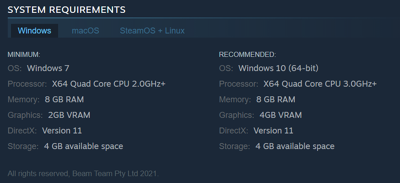
Minimum / Recommended System Requirements:
- CPU: X64 Quad Core CPU 2.0GHz+ / X64 Quad Core CPU 3.0GHz+
- RAM: 8GB
- OS: Windows 7 / Windows 10 (64-bit)
- Video: 2GB VRAM / 4GB VRAM
- Disk Space: 4GB
To view your System Specs:
- WINDOWS: Control Panel > System and Security > System.
- To view your GPU: System Information > Components > Display.
MAC OSX: Open System Profiler by choosing About this Mac. To view your GPU: Open System Profiler by choosing About this Mac from the Apple (top left corner) menu, then click More Info. Select the Graphics/Displays item in the Hardware section.
For more info visit Apples support website: https://support.apple.com/en-au/HT202053
Video Card Drivers
Please make sure your video card drivers are all up to date. It’s recommended you update your drivers through the appropriate driver control panels.
Installation
It’s possible for Steam to fail Stranded Deep’s Installation or update patches incorrectly. We recommend navigating to Stranded Deep Properties via Steam Library > Right clicking Stranded Deep > Properties > Local Files and clicking Verify Integrity of Game Cache.
If issues persist you can try uninstalling and re-installing Stranded Deep. Verifying game cache is very important after every update.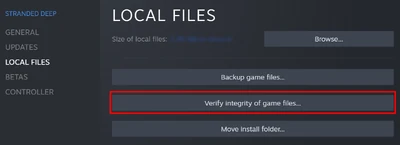
Updates
Please make sure Stranded Deep is always Up-to-date. Through your Steam Library, right click Stranded Deep > Properties > Updates. Automatic updates should ‘always keep this game up to date’.
If you are having an issue downloading the latest update please restart Steam with the above settings enabled. If further issues persist check Stranded Deep’s Beta branch (Instructions Below).
Note: Your current games version number can be found on the in-game main menu bottom left hand corner.
Opting into Experimental Branch
Please make sure you have the correct branch selected in Stranded Deep’s Properties. By right clicking Stranded Deep in your Steam Library navigate to Properties > Betas > Select the beta branch you would like to opt into from the drop down menu.
Stranded Deep’s most recommended stable branch is ‘None’.
This is where players can opt into the experimental development branch and other branches we may make available in the future. Please note that save files may revert or cause issues switching between branches.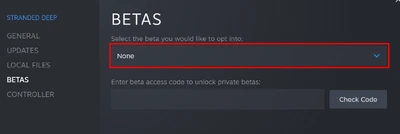
Performance
Please make sure you computer meets Stranded Deep’s minimum system requirements.
If you are having performance issues or the game doesn’t look as good as you think it can please navigate to the in-game Options > Graphics menu. Here you can tweak graphical settings which can improve performance or improve visual quality where your computer can support it.
To improve performance try reducing the heavier graphical settings such as Shadows, Volumetric Clouds, Draw Distances, Ambient Occlusion, and Antialiasing. All these effects can be quite demanding on lower end systems and may require some tweaking.
Game Crashing
Stranded Deep is an Early Access game and as result can often experience unexpected crashes. Beam Team takes these crashes very seriously so please send in your games output log immediately after experiencing a crash.
Please send us your output logs; Steam Library > Right click Stranded Deep > Properties > Local Files > Browse local files.. Navigate to Stranded_Deep_Data and send the output_log as an attachment to bugs@beamteamgames.com with the subject «Game Crash».
Alt Tabbing Crashes
If you wish to Alt-Tab Stranded Deep from full screen please select the DX9 Startup option. DX11 will crash when Alt-Tabbing from fullscreen as a result of our current Game Engine.
Note: Please only send us output log files which were a result of a game breaking bug such as the game crashing.
Launcher Has Stopped Working
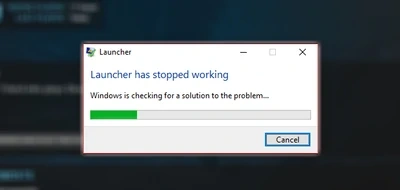
If there is an issue with the games launcher crashing please right click Stranded Deep in your Steam Library > Properties > Local Files > Browse Local Files.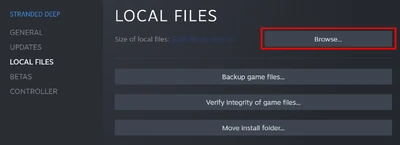
From here you can run Stranded_Deep.exe manually and bypass the Launcher. Stranded_Deep_x64 will be the launcher.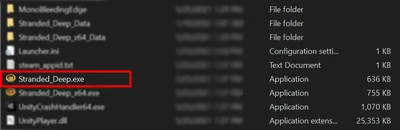
If you do have this issue please post it in the official forums.
Motion Sickness
Stranded Deep has some very immersive gameplay; Sailing Rafts, Swimming, and climbing can often cause motion sickness to some. To reduce these effects navigate to the in-game Options menu.
Navigate to General > reduce the Ocean Rotation slider to minimise or disable sailing motion sickness.
Mouse smoothness can be reduced through the Input Option menu.
Motion Blur, Field of View and Lens Effects can be adjusted through the Graphics menu.
Black Screen
Try changing Anti-Aliasing in the games settings from TcacA to SMAA, or disable Anti-Aliasing.
Error Validating World / Missing Trees, Rocks
This issue is due to an authorisation error when attempting to access the Stranded Deep documents folder. Please try these suggestions first and if they don’t work, then feel free to post a bug report.
- Confirm individual file permissions
There is an article link below that goes through a more detailed privileges check looking at the individual file permissions. How to manually reset folder and file permissions in Windows Explorer
- Confirm documents folder user permissions
- Documents > Stranded Deep folder > Properties > Security > User Permissions
- Make sure that all permission are ‘allowed’ for each user using Stranded Deep.
- Delete all local files and Reinstall
- Manually delete all files in the Stranded Deep documents folder and reinstall.
- Verify Game
Still Broken
If the above steps don’t help please try the following:
- Permissions
- There may be an issue with folder permissions. Confirm that your stranded deep documents folder has all writing privileges allowed.
Documents > Stranded Deep folder > Properties > Security > User Permissions.
- Verify
- Verify your game cache through Steam. Library > Right click Stranded Deep > Local files > Verify.
Ask for help / Reporting bugs
If this page was not able to help you please get in touch through the official forums.
Please be very specific when posting bug reports so Beam Team can resolve them faster.
A brief troubleshooting guide for any issues you are having with Stranded Deep and how you might be able to resolve them. Credit to Ben from Beam Team for making the original guide in here (some information may be outdated).
System Requirements
Before you purchase Stranded Deep please make sure your computer meets the minimum system requirements for the game. Stranded Deep’s System requirements can be found at the bottom of Stranded Deep’s Steam Store page.
Minimum / Recommended System Requirements:
- CPU: X64 Quad Core CPU 2.0GHz+ / X64 Quad Core CPU 3.0GHz+
- RAM: 8GB
- OS: Windows 7 / Windows 10 (64-bit)
- Video: 2GB VRAM / 4GB VRAM
- Disk Space: 4GB
To view your System Specs:
- WINDOWS: Control Panel > System and Security > System.
- To view your GPU: System Information > Components > Display.
MAC OSX: Open System Profiler by choosing About this Mac. To view your GPU: Open System Profiler by choosing About this Mac from the Apple (top left corner) menu, then click More Info. Select the Graphics/Displays item in the Hardware section.
For more info visit Apples support website: https://support.apple.com/en-au/HT202053
Video Card Drivers
Please make sure your video card drivers are all up to date. It’s recommended you update your drivers through the appropriate driver control panels.
Installation
It’s possible for Steam to fail Stranded Deep’s Installation or update patches incorrectly. We recommend navigating to Stranded Deep Properties via Steam Library > Right clicking Stranded Deep > Properties > Local Files and clicking Verify Integrity of Game Cache.
If issues persist you can try uninstalling and re-installing Stranded Deep. Verifying game cache is very important after every update.
Updates
Please make sure Stranded Deep is always Up-to-date. Through your Steam Library, right click Stranded Deep > Properties > Updates. Automatic updates should ‘always keep this game up to date’.
If you are having an issue downloading the latest update please restart Steam with the above settings enabled. If further issues persist check Stranded Deep’s Beta branch (Instructions Below).
Note: Your current games version number can be found on the in-game main menu bottom left hand corner.
Opting into Experimental Branch
Please make sure you have the correct branch selected in Stranded Deep’s Properties. By right clicking Stranded Deep in your Steam Library navigate to Properties > Betas > Select the beta branch you would like to opt into from the drop down menu.
Stranded Deep’s most recommended stable branch is ‘None’.
This is where players can opt into the experimental development branch and other branches we may make available in the future. Please note that save files may revert or cause issues switching between branches.
Performance
Please make sure you computer meets Stranded Deep’s minimum system requirements.
If you are having performance issues or the game doesn’t look as good as you think it can please navigate to the in-game Options > Graphics menu. Here you can tweak graphical settings which can improve performance or improve visual quality where your computer can support it.
To improve performance try reducing the heavier graphical settings such as Shadows, Volumetric Clouds, Draw Distances, Ambient Occlusion, and Antialiasing. All these effects can be quite demanding on lower end systems and may require some tweaking.
Game Crashing
Stranded Deep is an Early Access game and as result can often experience unexpected crashes. Beam Team takes these crashes very seriously so please send in your games output log immediately after experiencing a crash.
Please send us your output logs; Steam Library > Right click Stranded Deep > Properties > Local Files > Browse local files.. Navigate to Stranded_Deep_Data and send the output_log as an attachment to bugs@beamteamgames.com with the subject «Game Crash».
Alt Tabbing Crashes
If you wish to Alt-Tab Stranded Deep from full screen please select the DX9 Startup option. DX11 will crash when Alt-Tabbing from fullscreen as a result of our current Game Engine.
Note: Please only send us output log files which were a result of a game breaking bug such as the game crashing.
Launcher Has Stopped Working
If there is an issue with the games launcher crashing please right click Stranded Deep in your Steam Library > Properties > Local Files > Browse Local Files.
From here you can run Stranded_Deep.exe manually and bypass the Launcher. Stranded_Deep_x64 will be the launcher.
If you do have this issue please post it in the official forums.
Motion Sickness
Stranded Deep has some very immersive gameplay; Sailing Rafts, Swimming, and climbing can often cause motion sickness to some. To reduce these effects navigate to the in-game Options menu.
Navigate to General > reduce the Ocean Rotation slider to minimise or disable sailing motion sickness.
Mouse smoothness can be reduced through the Input Option menu.
Motion Blur, Field of View and Lens Effects can be adjusted through the Graphics menu.
Black Screen
Try changing Anti-Aliasing in the games settings from TcacA to SMAA, or disable Anti-Aliasing.
Error Validating World / Missing Trees, Rocks
This issue is due to an authorisation error when attempting to access the Stranded Deep documents folder. Please try these suggestions first and if they don’t work, then feel free to post a bug report.
- Confirm individual file permissions
There is an article link below that goes through a more detailed privileges check looking at the individual file permissions. How to manually reset folder and file permissions in Windows Explorer
- Confirm documents folder user permissions
- Documents > Stranded Deep folder > Properties > Security > User Permissions
- Make sure that all permission are ‘allowed’ for each user using Stranded Deep.
- Delete all local files and Reinstall
- Manually delete all files in the Stranded Deep documents folder and reinstall.
- Verify Game
Still Broken
If the above steps don’t help please try the following:
- Permissions
- There may be an issue with folder permissions. Confirm that your stranded deep documents folder has all writing privileges allowed.
Documents > Stranded Deep folder > Properties > Security > User Permissions.
- Verify
- Verify your game cache through Steam. Library > Right click Stranded Deep > Local files > Verify.
Ask for help / Reporting bugs
If this page was not able to help you please get in touch through the official forums.
Please be very specific when posting bug reports so Beam Team can resolve them faster.
-
Stranded Deep
-
Новости55
-
Мнения35
-
Юмор2
-
Файлы12
-
Читы19
-
Гайды7
-
Cкриншоты6
-
Галерея129
-
Форум25
-
Игроки
Ошибка при запуске игры.

Всем доброго времени суток, у меня при запуске игры выбивает ошибку, скачал с другого сайта, при установке выскакивает тоже ошибка… Что делать???

При запуске игры…

При установке…
P.S. — дайте ссылку на норм игру.

http://store.steampowered.com/app/313120/

Купи не пожалеешь. там и ко-оп и мультик будет!
А так, держи http://torrent-games.net/news/stranded_deep_2015_pc_eng_by_tg/2015-01-24-46200 сам по этой ссылке пробовал, потом купил.
ermaksss
я там же качал, и тоже ошибка… когда с проблемой разберусь, игру не много опробую, и тогда куплю, люблю такие игры.
Tytanyumm
Это значит в компе проблема .
ermaksss
на счёт компа не уверен, здесь походу отсутствует данный файл, если ( то есть ‘STRAND~1_Data’ ), если можешь скинь его пожалуйста, или выложи на сайт… файл… буду очень благодарен….
Tytanyumm
Сорян, нету такого файла вообще((
Купи лицуху и не парься)

Такая же проблема,помогите пожалуйста

деревев побольше зделать надо и истров огромный

Tytanyumm
У меня раньше так было, это значит папку не может найти, попробуйте переименовать папку в STRAND~1_Data и игра пойдет, то есть она сама корявится и надо приспособить)
Авторизуйтесь, чтобы принять участие в обсуждении.
