Ошибка при загрузки аватарки
Hida112
Пользователь
Регистрация:
06.09.2015
Сообщения: 17
Рейтинг: 5

Регистрация:
06.09.2015
Сообщения: 17
Рейтинг: 5
Не могу загрузить Аватарку в стим/доту выдает ошибку, с параметрами всё нормально 184х184 и тд , даже ранее аватарки что были не загружаются. хелп плз.
TopQoP
Пользователь
Регистрация:
12.07.2014
Сообщения: 41864
Рейтинг: 25730

Регистрация:
12.07.2014
Сообщения: 41864
Рейтинг: 25730
Hida112 сказал(а):↑
Не могу загрузить Аватарку в стим/доту выдает ошибку
Нажмите, чтобы раскрыть…
У всех так.
Охреневшая лина
Пользователь
Регистрация:
29.04.2015
Сообщения: 10441
Рейтинг: 6736

Регистрация:
29.04.2015
Сообщения: 10441
Рейтинг: 6736
TopQoP сказал(а):↑
У всех так.
Нажмите, чтобы раскрыть…
Хз не знаю,изи загрузил 400х400 пол часа назад.)
Hida112
Пользователь
Регистрация:
06.09.2015
Сообщения: 17
Рейтинг: 5
Регистрация:
06.09.2015
Сообщения: 17
Рейтинг: 5
ясн … тему можно закрывать
Hida112
Пользователь
Регистрация:
06.09.2015
Сообщения: 17
Рейтинг: 5
Регистрация:
06.09.2015
Сообщения: 17
Рейтинг: 5
Охреневшая лина сказал(а):↑
Хз не знаю,изи загрузил 400х400 пол часа назад.)
Нажмите, чтобы раскрыть…
только что загрузил твою аватарку , не грузится.
TopQoP
Пользователь
Регистрация:
12.07.2014
Сообщения: 41864
Рейтинг: 25730
Регистрация:
12.07.2014
Сообщения: 41864
Рейтинг: 25730
Охреневшая лина сказал(а):↑
Хз не знаю,изи загрузил 400х400 пол часа назад.)
Нажмите, чтобы раскрыть…
У меня пишет No file received.
Охреневшая лина
Пользователь
Регистрация:
29.04.2015
Сообщения: 10441
Рейтинг: 6736
Регистрация:
29.04.2015
Сообщения: 10441
Рейтинг: 6736
Hida112 сказал(а):↑
только что загрузил твою аватарку , не грузится.
Нажмите, чтобы раскрыть…
я не это грузил.
p/s попробуй сжать фото,мб получиться
Stupid_Squirel
Пользователь
Регистрация:
11.03.2013
Сообщения: 5148
Рейтинг: 5392
Регистрация:
11.03.2013
Сообщения: 5148
Рейтинг: 5392
мб размер большой т.е весит много, была такая фигня с моей поменял формат
Охреневшая лина
Пользователь
Регистрация:
29.04.2015
Сообщения: 10441
Рейтинг: 6736
Регистрация:
29.04.2015
Сообщения: 10441
Рейтинг: 6736
TopQoP сказал(а):↑
У меня пишет No file received.
Нажмите, чтобы раскрыть…
Вчера так писало,ты ответил мне про 400х400 вот сегодня в таком же формате загрузил, вроде получилось.
LittleArthas
Пользователь
Регистрация:
05.06.2015
Сообщения: 1120
Рейтинг: 569

Регистрация:
05.06.2015
Сообщения: 1120
Рейтинг: 569
TopQoP
Пользователь
Регистрация:
12.07.2014
Сообщения: 41864
Рейтинг: 25730
Регистрация:
12.07.2014
Сообщения: 41864
Рейтинг: 25730
Охреневшая лина сказал(а):↑
Вчера так писало,ты ответил мне про 400х400 вот сегодня в таком же формате загрузил, вроде получилось.
Нажмите, чтобы раскрыть…
Щас попробовал загрузить аватарку 400х400, которую загрузил несколько дней назад -выдает ошибку.
Hida112
Пользователь
Регистрация:
06.09.2015
Сообщения: 17
Рейтинг: 5
Регистрация:
06.09.2015
Сообщения: 17
Рейтинг: 5
Natrii
Пользователь
Регистрация:
21.03.2014
Сообщения: 237
Рейтинг: 100
Регистрация:
21.03.2014
Сообщения: 237
Рейтинг: 100
Hida112 сказал(а):↑
сжал аву, не помогло.
Нажмите, чтобы раскрыть…
Вчера вечером тоже не мог поменять, сегодня так же, сервера валв лагают.
Hida112
Пользователь
Регистрация:
06.09.2015
Сообщения: 17
Рейтинг: 5
Регистрация:
06.09.2015
Сообщения: 17
Рейтинг: 5
еще стоит чекнуть баг в доте , выбрав обычную игру потом выбрать магазин и обратно поставить на панель «Игра» игра просто вылетит .
Тема закрыта
-
Заголовок
Ответов Просмотров
Последнее сообщение
-

Сообщений: 3
29 Jan 2023 в 03:00Сообщений:3
Просмотров:24

-
Сообщений: 1
29 Jan 2023 в 02:13Сообщений:1
Просмотров:12
-
Сообщений: 2
29 Jan 2023 в 02:12
-

Trizy
29 Jan 2023 в 01:42Сообщений: 2
29 Jan 2023 в 01:42Сообщений:2
Просмотров:15

-
Сообщений: 5
29 Jan 2023 в 01:28Сообщений:5
Просмотров:25
by Tashreef Shareef
Tashreef Shareef is a software developer turned tech writer. He discovered his interest in technology after reading a tech magazine accidentally. Now he writes about everything tech from… read more
Published on May 31, 2022
- To fix Image failed to upload in Steam, you need to disable certain features that might be interfering with it.
- Check if your cybersecurity solution is blocking the connection to the server, and adjust its settings.
- You should also run Steam as administrator, to make sure that it has all the necessary privileges to access your files.
XINSTALL BY CLICKING THE DOWNLOAD FILE
This software will keep your drivers up and running, thus keeping you safe from common computer errors and hardware failure. Check all your drivers now in 3 easy steps:
- Download DriverFix (verified download file).
- Click Start Scan to find all problematic drivers.
- Click Update Drivers to get new versions and avoid system malfunctionings.
- DriverFix has been downloaded by 0 readers this month.
Steam Chat is a free voice and text chat system with rich properties to enhance your gaming experience. However, at times Steam chat may encounter an Image failed to upload error.
This error occurs when the user tries to send an image through Steam Chat. Many users reported that Steam failed to send message, so today we’re going to fix that.
The full error reads Steam failed to upload image data to cloud server. If you are facing a similar error, here are a couple of troubleshooting tips to fix it.
Can I also upload videos on Steam?
Yes, you can. As a great tool to express yourself or share content with your gaming buddies, using video opens up an entirely new realm of possibilities.
As Steam is extremely strict when it comes to the type of content they allow on their platform, it is a very good idea to ensure that no issues occur in the upload process.
Here’s how you can do this without too much hassle:
- Open your browser, then navigate to the YouTube official page.
- Create a YouTube account if you don’t already have one. In case you do, use it.
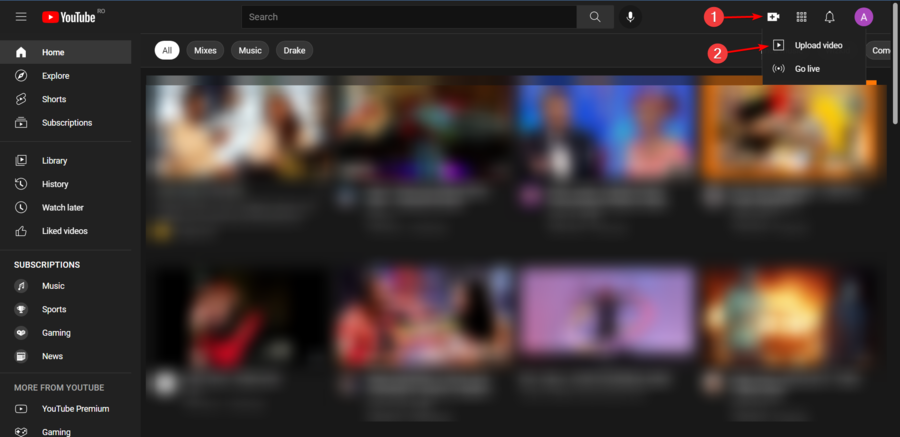
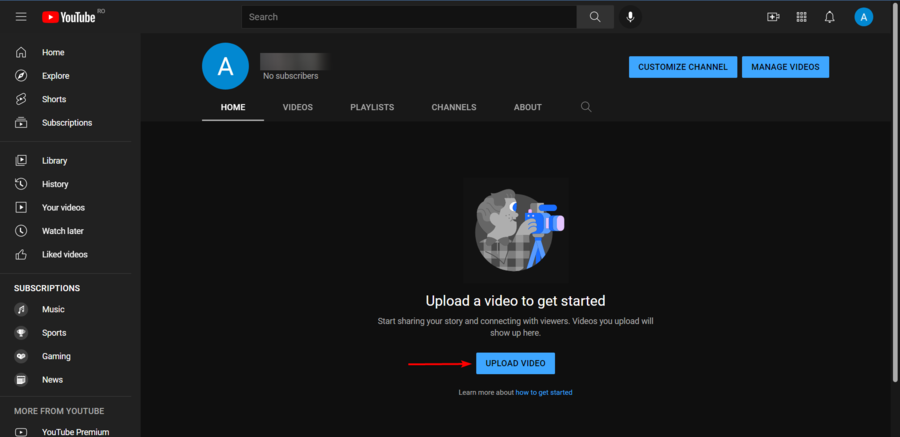
- After you logged into YouTube, in the top-right corner of the main page, click on the recording camera icon, then choose to Upload video.
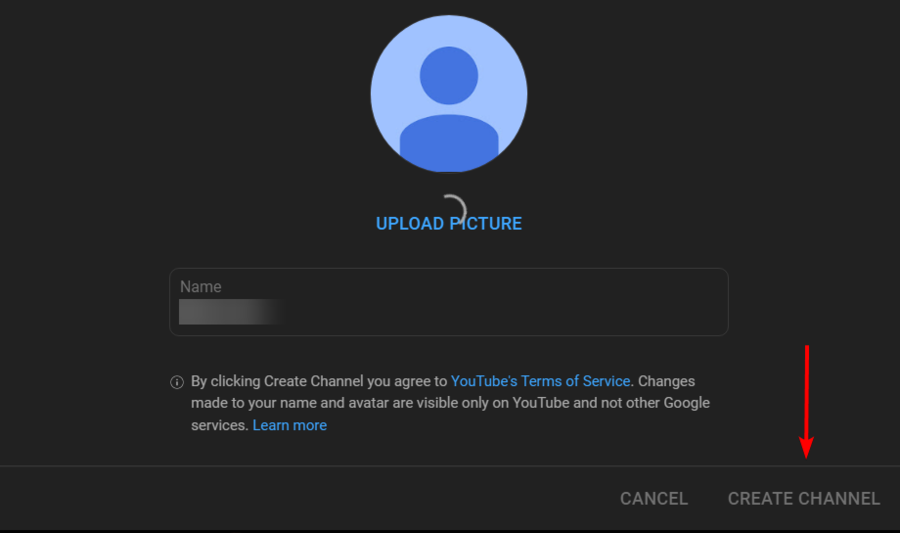
- Now, click on the Create channel button.
- Choose to Upload video.
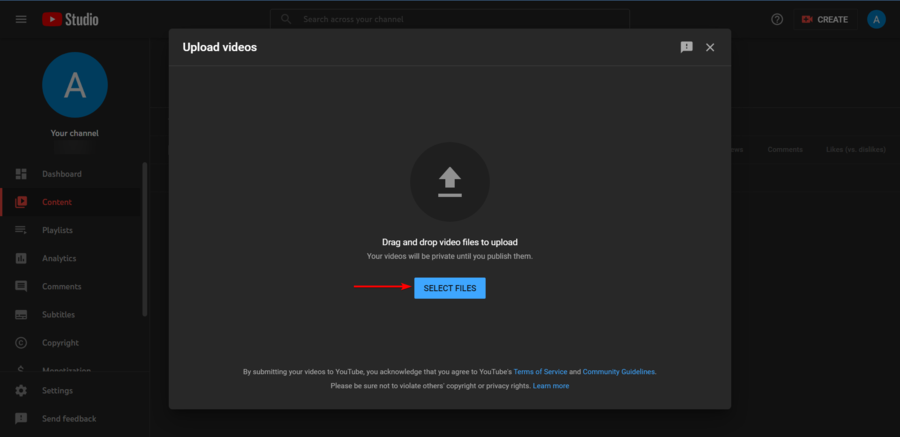
- Click on Select Files, then upload the video you need.
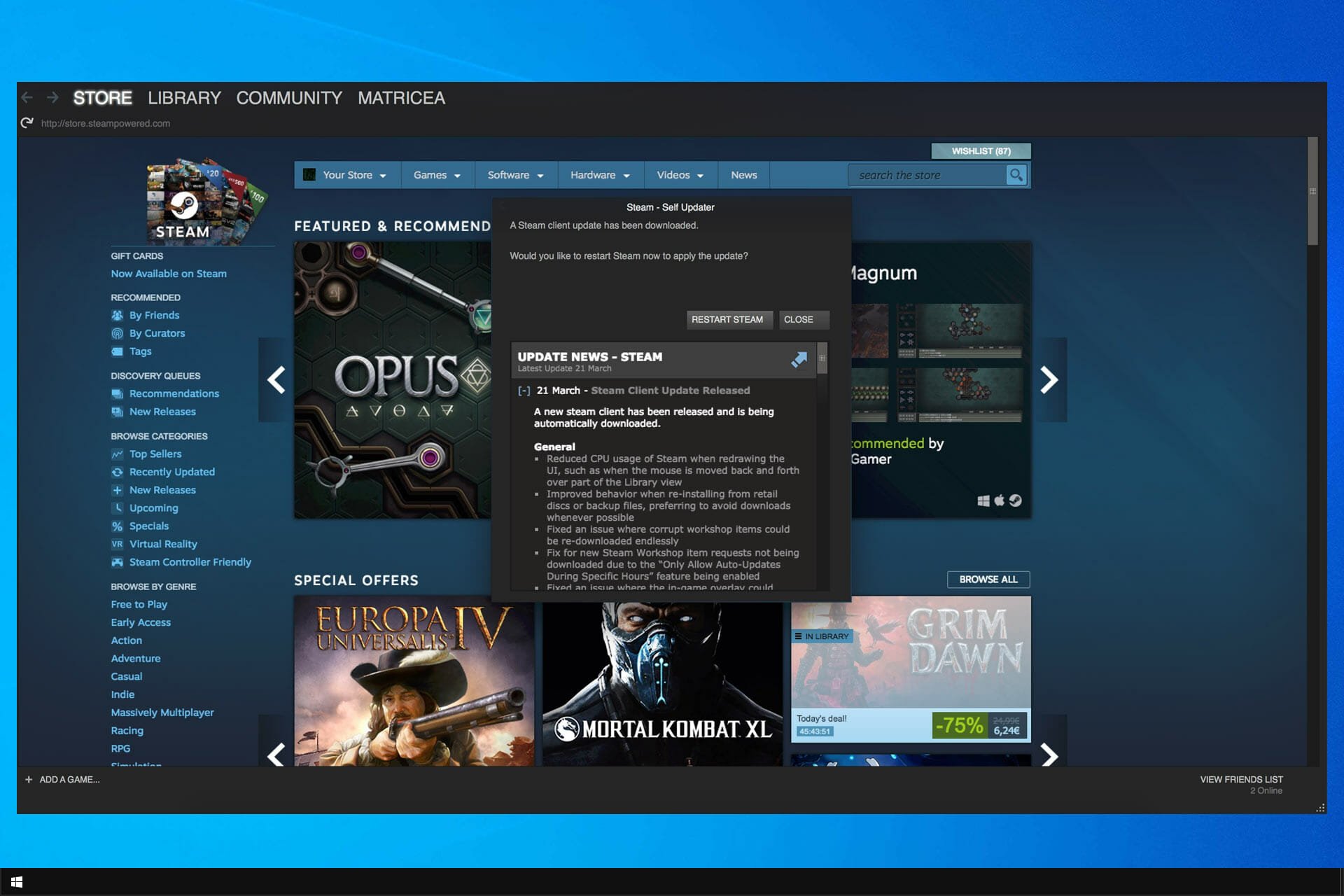
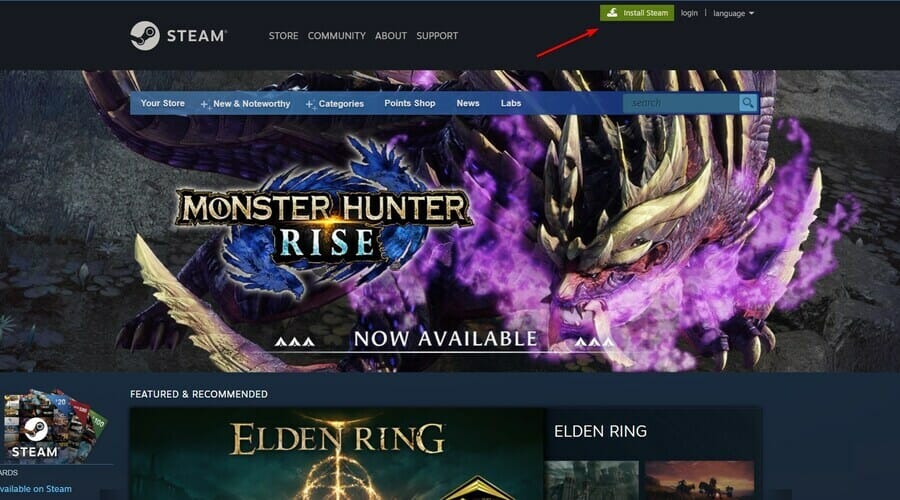
- Navigate to Steam, and click on the Install Steam button. If you’ve already installed it, move to the next step.
- Log into your Steam account.
- Now, you’ll need to connect your YouTube account to your Steam one. To do this, open Steam, then navigate to the Video tab.
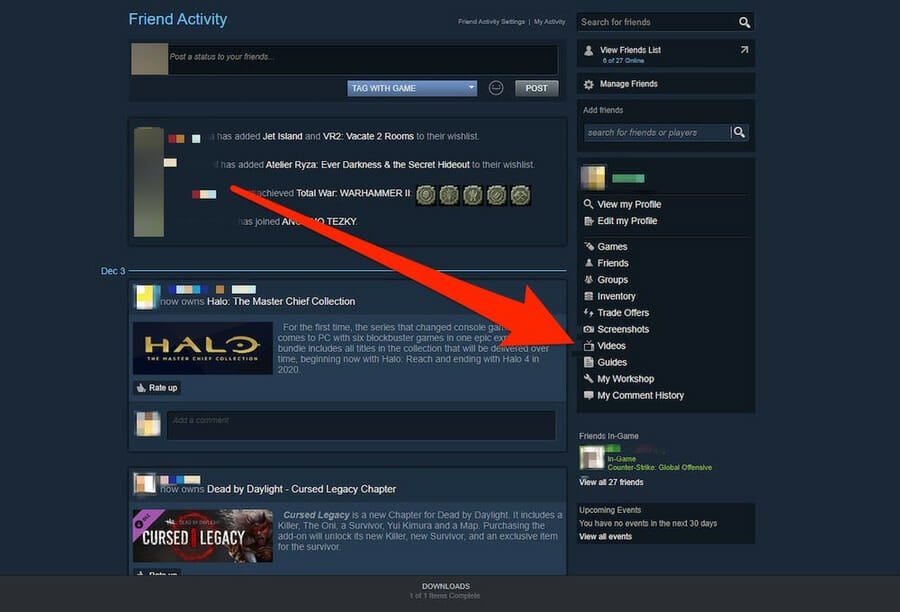
- Click on Link YouTube account.

- In the new appeared window, click Allow access to YouTube videos. You will then be asked to log in to your YouTube channel.
- Once you’ve linked your YouTube account to your Steam account, you can find the videos you’ve uploaded to YouTube in the Videos tab of your Steam app.
What can I do if Steam Chat failed to upload image?
- Logout of Steam
- Use Steam online
- Disable Compact friends list and Chat view
- Disable Firewall
- Run Steam as admin
- Update Steam and disable the antivirus
- Send images via a third-party host
- Use an alternative voice chat app
1. Logout of Steam
- Launch Steam and on the top right, click on your Profile name.
- Select Log out of account.
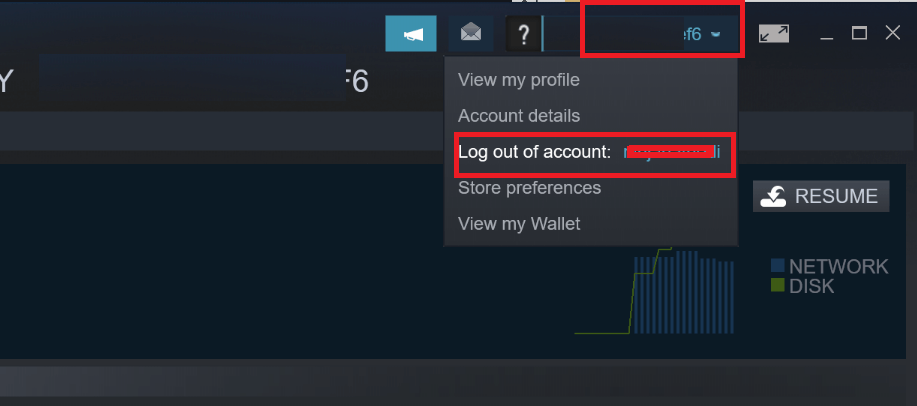
- After that, exit Steam and relaunch it.
- Login with your Steam credential and see if you can send images via Steam chat.
One way to fix this error is to log out of your Steam account on the Steam client and log back in. It seems to have worked for a lot of users that have encountered Steam failed to start upload a server error occurred issue.
2. Use Steam Online
- Log in to Steam web client.
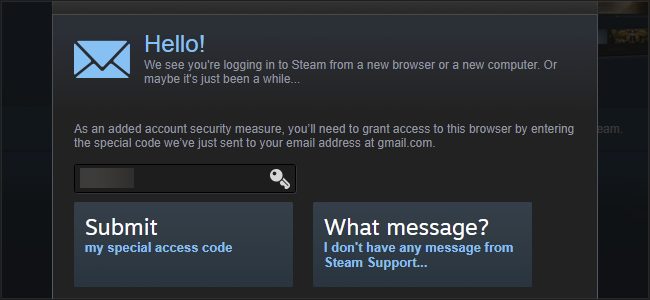
- Enter the special security code if asked.
- Click on Chat to open the Chat window.
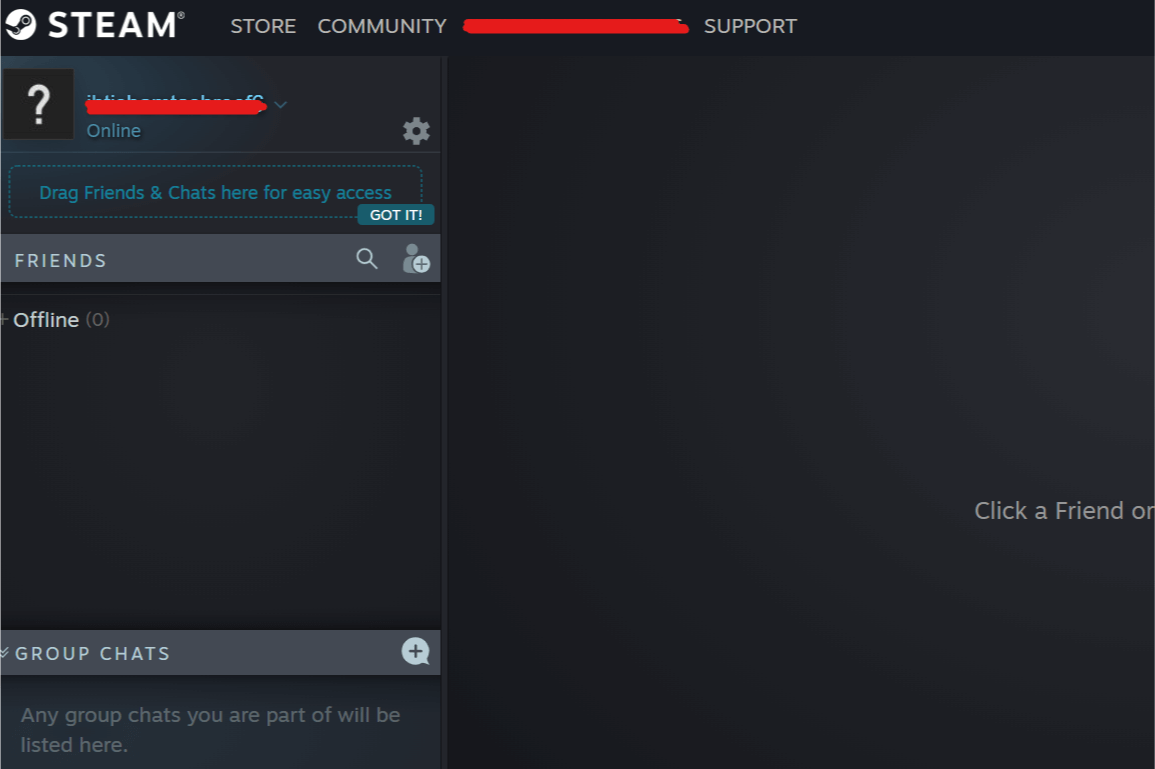
- Select your friend and upload the image you want to send.
- That’s it! You should be able to send the images through Steam web chat client as long as the Steam desktop client is not fixed.
You can access your Steam account online using the web browser. Do keep in mind that this method won’t work if you’re getting Steam Limited users cannot upload images error.
3. Disable Compact friends list and Chat view
- Launch Steam.
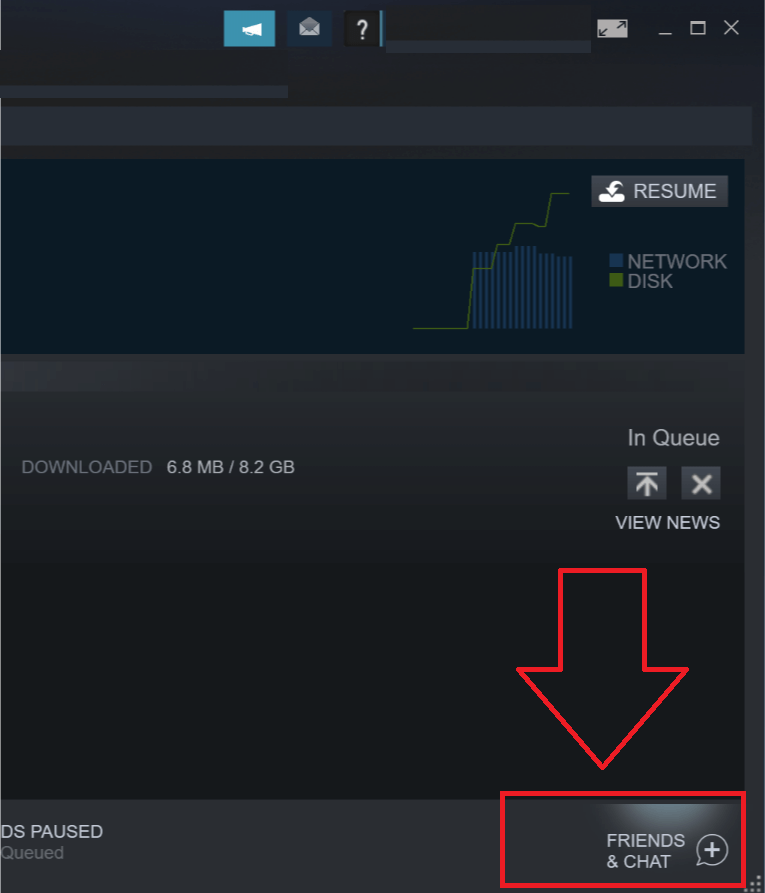
- Click on Friends and Chat at the bottom right screen.

- In the Friends and Chat window, click on the Settings (Cog icon).
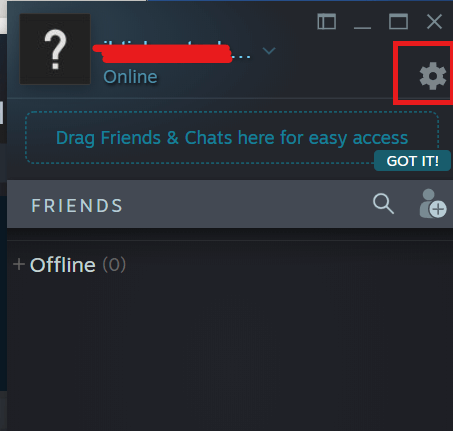
- In the Settings window, click on the Size and Scaling tab.
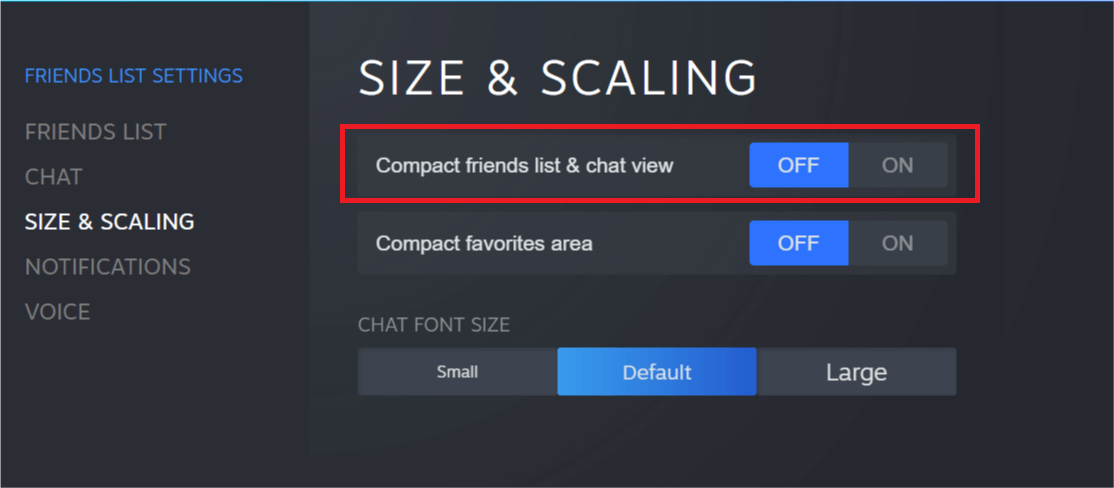
- Make sure that the Compact friends list and Chat view option is Off.
- Close the Settings window. Exit Steam and Relaunch it.
- Try to upload the image again and see if that resolves the error.
To offer a better gaming experience while chatting, Steam added a Compact friends list and chat view option to the Chat settings.
However, this feature is also known to cause Failed to commit upload A server error occurred commit 16 error on Steam. This feature is disabled by default. If you have turned it on accidentally or intentionally, try disabling it.
4. Disable the Firewall
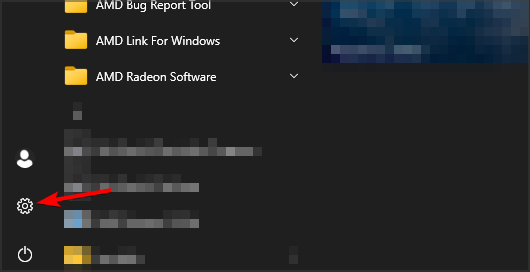
- Click on Start, and go to Settings.
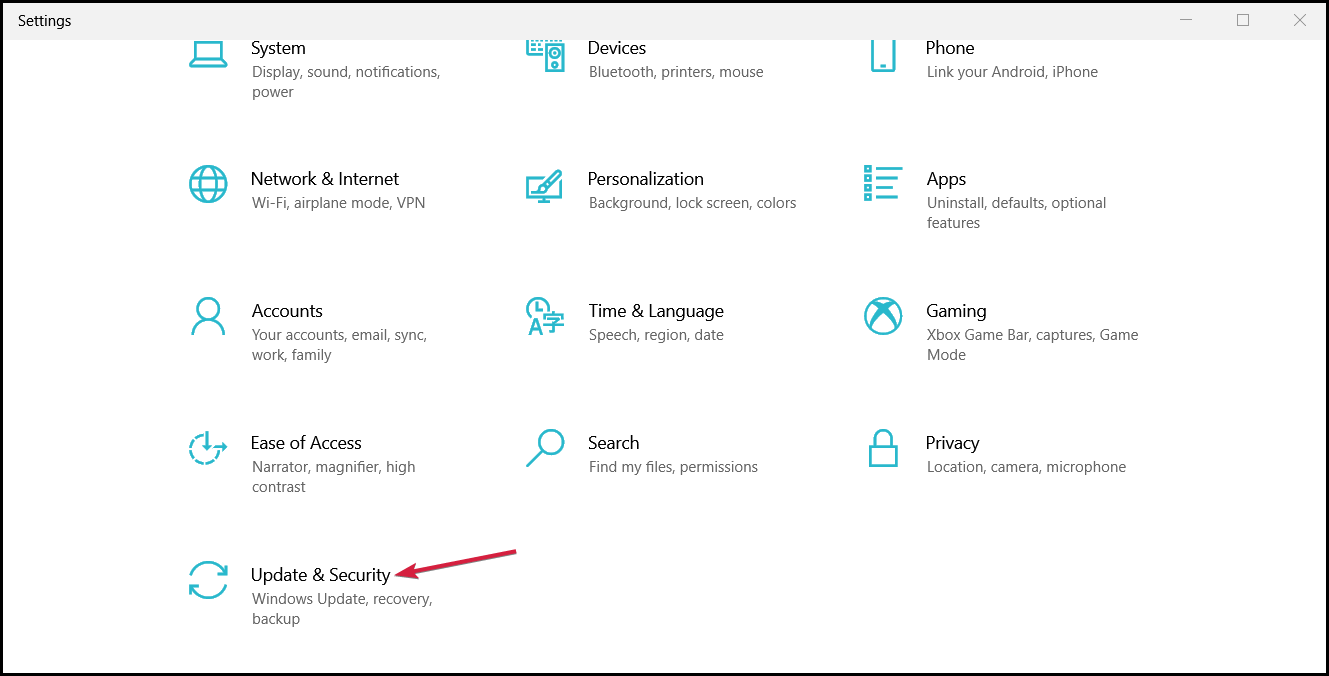
- Select Update and Security.
- Click on Windows Security, and select Firewall & network protection.
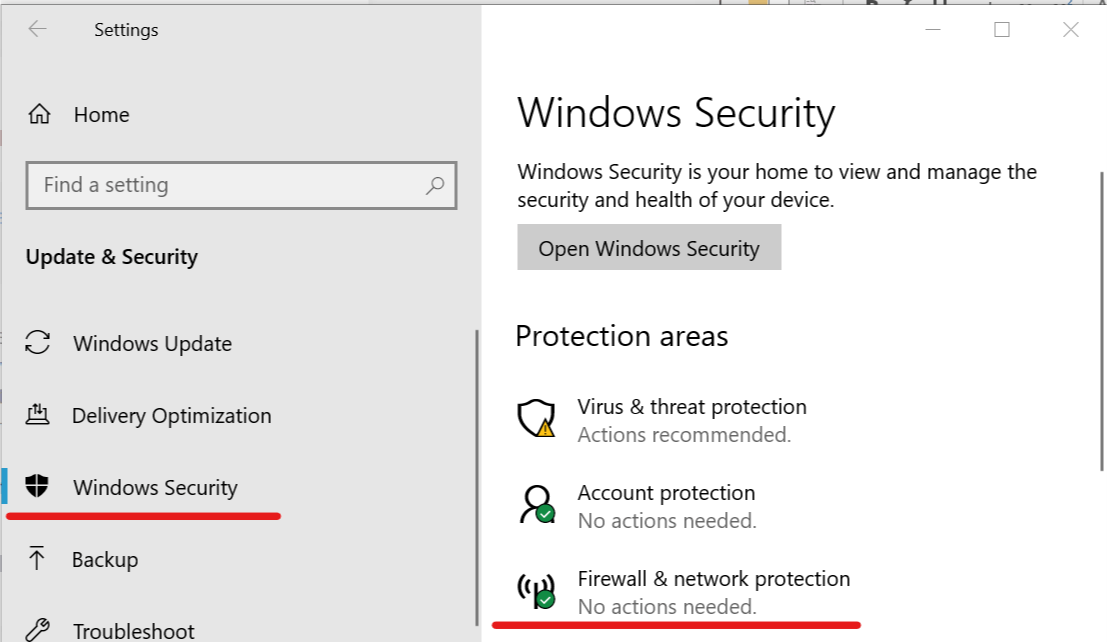
- Select your Network and turn off Firewall.
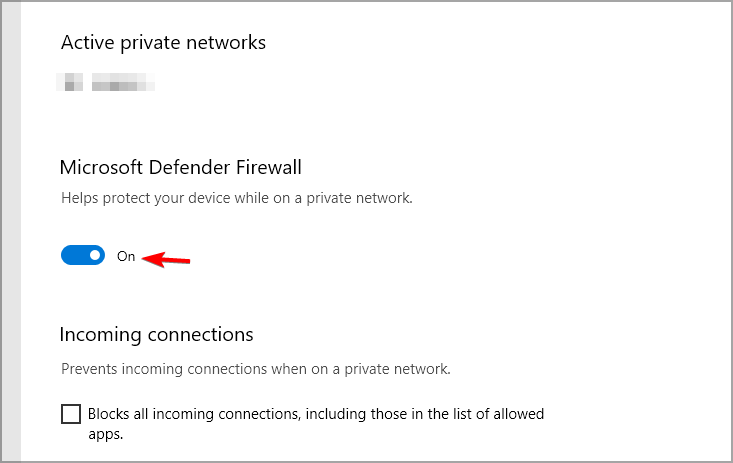
Also, check your Firewall protection. The firewall may wrongly flag a connection and block the access. Try to turn off the Firewall momentarily to see if Failed to start upload a server error occurred 25 error is gone.
- Can’t Connect to Steam Friends List? 5 Ways to Keep Connection On
- Steam won’t go online / stuck in offline mode [Fixed]
- Chassis Intruded Fatal Error System Halted: How to Fix
- How to Fix Continuous Beeping When Computer is Turned On
- Werfault.exe Error on Windows 10: How to Fix & Main Causes
- Fix: Character Map is Not Working in Windows 11
5. Run Steam as Admin
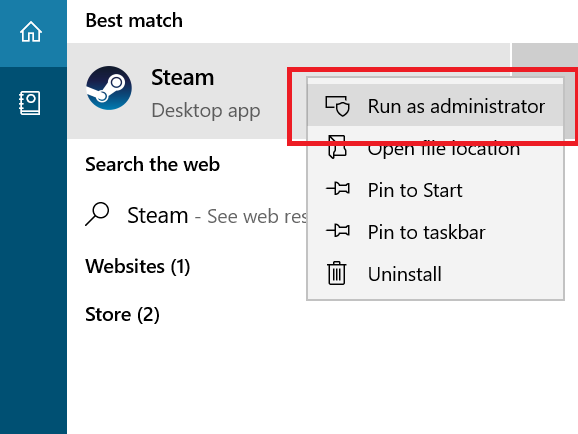
- Type Steam in the Cortana/search bar.
- Right-click on Steam and select Run as administrator.
- Open Steam Chat and upload an image.
- Check for any improvements.
Some PC issues are hard to tackle, especially when it comes to corrupted repositories or missing Windows files. If you are having troubles fixing an error, your system may be partially broken.
We recommend installing Restoro, a tool that will scan your machine and identify what the fault is.
Click here to download and start repairing.
Exit steam and try to launch the Steam client with administrative privilege, by following the above steps.
6. Update Steam and disable the antivirus
- Launch Steam and click on Steam.
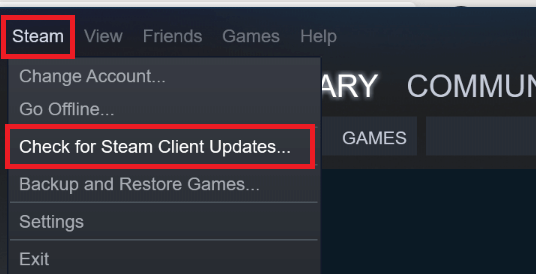
- Select Check for Steam Client Updates.
- Wait while the updates are being downloaded.
If your Antivirus software is blocking the connection to the Steam server for any reason, it may result in Steam a server error occurred error. Disable your antivirus temporarily and check for any improvements.
7. Send images via a third-party host
Now, this is not a fix but a workaround till Steam fixes the issue. You can try to upload images to any public image hosting sites like Imgur or Tinypic etc.
Upload the images to the sites and share the Image link in your Chat. This is handy if you want to share an image with your friend urgently.
8. Use an alternative voice chat app
You probably don’t want to hear this, but if you are experiencing this error for a long time now, you may want to give other popular game chat apps a try.
Apps like Discord are among the most popular voice and text chat apps for gamers and gaming communities with exceptional quality servers.
You can read our complete guide on the best VoIP software for gaming to find the best VoIP clients to step up your game.
Can I send videos in Steam Chat?
Any Steam user enjoys sharing gaming experiences with his/her friends or family through the Steam chat.
If you’re in the same situation, keep in mind that this app allows you to send not only images but also videos via this amazing feature and this is how you can do it in specific cases:
- Video related to a game that is available on Steam – You’re allowed to upload it to the community page of the game, then send the URL to your friends.
- Video doesn’t violate its terms of service – You can also upload it to YouTube, then send your friend the related link.
- If you just want your friends to see your videos (and nobody else) – We recommend setting the video in a password-protected .ZIP file, then upload it to any of the hosting sites you want.
We hope that these recommendations from our list were helpful and that you managed to fix the Steam failed to upload image error.
This isn’t the only problem that you can encounter, and many reported that Steam voice chat isn’t working for them, but we tackled this issue in a separate guide.
Did you manage to fix this issue on your PC? Let us know in the comments section below.
Still having issues? Fix them with this tool:
SPONSORED
If the advices above haven’t solved your issue, your PC may experience deeper Windows problems. We recommend downloading this PC Repair tool (rated Great on TrustPilot.com) to easily address them. After installation, simply click the Start Scan button and then press on Repair All.

Newsletter
by Tashreef Shareef
Tashreef Shareef is a software developer turned tech writer. He discovered his interest in technology after reading a tech magazine accidentally. Now he writes about everything tech from… read more
Published on May 31, 2022
- To fix Image failed to upload in Steam, you need to disable certain features that might be interfering with it.
- Check if your cybersecurity solution is blocking the connection to the server, and adjust its settings.
- You should also run Steam as administrator, to make sure that it has all the necessary privileges to access your files.
XINSTALL BY CLICKING THE DOWNLOAD FILE
This software will keep your drivers up and running, thus keeping you safe from common computer errors and hardware failure. Check all your drivers now in 3 easy steps:
- Download DriverFix (verified download file).
- Click Start Scan to find all problematic drivers.
- Click Update Drivers to get new versions and avoid system malfunctionings.
- DriverFix has been downloaded by 0 readers this month.
Steam Chat is a free voice and text chat system with rich properties to enhance your gaming experience. However, at times Steam chat may encounter an Image failed to upload error.
This error occurs when the user tries to send an image through Steam Chat. Many users reported that Steam failed to send message, so today we’re going to fix that.
The full error reads Steam failed to upload image data to cloud server. If you are facing a similar error, here are a couple of troubleshooting tips to fix it.
Can I also upload videos on Steam?
Yes, you can. As a great tool to express yourself or share content with your gaming buddies, using video opens up an entirely new realm of possibilities.
As Steam is extremely strict when it comes to the type of content they allow on their platform, it is a very good idea to ensure that no issues occur in the upload process.
Here’s how you can do this without too much hassle:
- Open your browser, then navigate to the YouTube official page.
- Create a YouTube account if you don’t already have one. In case you do, use it.
- After you logged into YouTube, in the top-right corner of the main page, click on the recording camera icon, then choose to Upload video.
- Now, click on the Create channel button.
- Choose to Upload video.
- Click on Select Files, then upload the video you need.
- Navigate to Steam, and click on the Install Steam button. If you’ve already installed it, move to the next step.
- Log into your Steam account.
- Now, you’ll need to connect your YouTube account to your Steam one. To do this, open Steam, then navigate to the Video tab.
- Click on Link YouTube account.
- In the new appeared window, click Allow access to YouTube videos. You will then be asked to log in to your YouTube channel.
- Once you’ve linked your YouTube account to your Steam account, you can find the videos you’ve uploaded to YouTube in the Videos tab of your Steam app.
What can I do if Steam Chat failed to upload image?
- Logout of Steam
- Use Steam online
- Disable Compact friends list and Chat view
- Disable Firewall
- Run Steam as admin
- Update Steam and disable the antivirus
- Send images via a third-party host
- Use an alternative voice chat app
1. Logout of Steam
- Launch Steam and on the top right, click on your Profile name.
- Select Log out of account.
- After that, exit Steam and relaunch it.
- Login with your Steam credential and see if you can send images via Steam chat.
One way to fix this error is to log out of your Steam account on the Steam client and log back in. It seems to have worked for a lot of users that have encountered Steam failed to start upload a server error occurred issue.
2. Use Steam Online
- Log in to Steam web client.
- Enter the special security code if asked.
- Click on Chat to open the Chat window.
- Select your friend and upload the image you want to send.
- That’s it! You should be able to send the images through Steam web chat client as long as the Steam desktop client is not fixed.
You can access your Steam account online using the web browser. Do keep in mind that this method won’t work if you’re getting Steam Limited users cannot upload images error.
3. Disable Compact friends list and Chat view
- Launch Steam.
- Click on Friends and Chat at the bottom right screen.
- In the Friends and Chat window, click on the Settings (Cog icon).
- In the Settings window, click on the Size and Scaling tab.
- Make sure that the Compact friends list and Chat view option is Off.
- Close the Settings window. Exit Steam and Relaunch it.
- Try to upload the image again and see if that resolves the error.
To offer a better gaming experience while chatting, Steam added a Compact friends list and chat view option to the Chat settings.
However, this feature is also known to cause Failed to commit upload A server error occurred commit 16 error on Steam. This feature is disabled by default. If you have turned it on accidentally or intentionally, try disabling it.
4. Disable the Firewall
- Click on Start, and go to Settings.
- Select Update and Security.
- Click on Windows Security, and select Firewall & network protection.
- Select your Network and turn off Firewall.
Also, check your Firewall protection. The firewall may wrongly flag a connection and block the access. Try to turn off the Firewall momentarily to see if Failed to start upload a server error occurred 25 error is gone.
- Can’t Connect to Steam Friends List? 5 Ways to Keep Connection On
- Steam won’t go online / stuck in offline mode [Fixed]
- Chassis Intruded Fatal Error System Halted: How to Fix
- How to Fix Continuous Beeping When Computer is Turned On
- Werfault.exe Error on Windows 10: How to Fix & Main Causes
- Fix: Character Map is Not Working in Windows 11
5. Run Steam as Admin
- Type Steam in the Cortana/search bar.
- Right-click on Steam and select Run as administrator.
- Open Steam Chat and upload an image.
- Check for any improvements.
Some PC issues are hard to tackle, especially when it comes to corrupted repositories or missing Windows files. If you are having troubles fixing an error, your system may be partially broken.
We recommend installing Restoro, a tool that will scan your machine and identify what the fault is.
Click here to download and start repairing.
Exit steam and try to launch the Steam client with administrative privilege, by following the above steps.
6. Update Steam and disable the antivirus
- Launch Steam and click on Steam.
- Select Check for Steam Client Updates.
- Wait while the updates are being downloaded.
If your Antivirus software is blocking the connection to the Steam server for any reason, it may result in Steam a server error occurred error. Disable your antivirus temporarily and check for any improvements.
7. Send images via a third-party host
Now, this is not a fix but a workaround till Steam fixes the issue. You can try to upload images to any public image hosting sites like Imgur or Tinypic etc.
Upload the images to the sites and share the Image link in your Chat. This is handy if you want to share an image with your friend urgently.
8. Use an alternative voice chat app
You probably don’t want to hear this, but if you are experiencing this error for a long time now, you may want to give other popular game chat apps a try.
Apps like Discord are among the most popular voice and text chat apps for gamers and gaming communities with exceptional quality servers.
You can read our complete guide on the best VoIP software for gaming to find the best VoIP clients to step up your game.
Can I send videos in Steam Chat?
Any Steam user enjoys sharing gaming experiences with his/her friends or family through the Steam chat.
If you’re in the same situation, keep in mind that this app allows you to send not only images but also videos via this amazing feature and this is how you can do it in specific cases:
- Video related to a game that is available on Steam – You’re allowed to upload it to the community page of the game, then send the URL to your friends.
- Video doesn’t violate its terms of service – You can also upload it to YouTube, then send your friend the related link.
- If you just want your friends to see your videos (and nobody else) – We recommend setting the video in a password-protected .ZIP file, then upload it to any of the hosting sites you want.
We hope that these recommendations from our list were helpful and that you managed to fix the Steam failed to upload image error.
This isn’t the only problem that you can encounter, and many reported that Steam voice chat isn’t working for them, but we tackled this issue in a separate guide.
Did you manage to fix this issue on your PC? Let us know in the comments section below.
Still having issues? Fix them with this tool:
SPONSORED
If the advices above haven’t solved your issue, your PC may experience deeper Windows problems. We recommend downloading this PC Repair tool (rated Great on TrustPilot.com) to easily address them. After installation, simply click the Start Scan button and then press on Repair All.
Newsletter
Ошибка При обработке вашего запроса произошла ошибка появляется в Steam при попытке продать какой-либо товар на торговой площадке, изменить изображение профиля или при получении подарка от друга.
В большинстве случаев виной, когда происходит ошибка в обработке запроса, является, когда серверы Steam работают медленно или вовсе не работают. Разберем, что делать и как исправить.
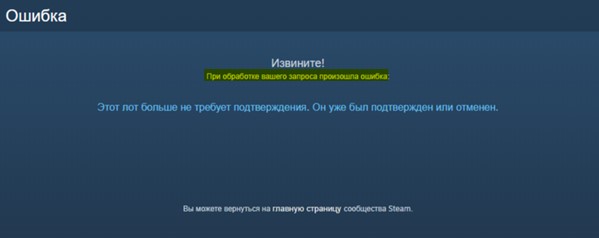
Исправить ошибку обработки запроса в Steam
1. Проверка работы серверов Steam
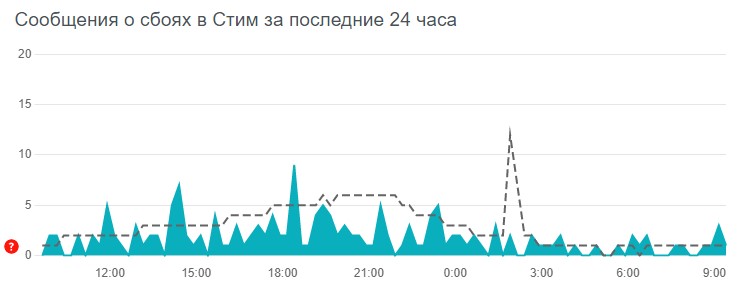
В первую очередь нужно проверить работу самих серверов Steam. Если они не работают, то придется подождать пока их запустят. Чтобы узнать, работают ли сервера Steam, посетите онлайн детектор и убедитесь, что сообщений о сбоях минимально или максимально. Ниже на графике в среднем около 4 сообщений, что не является сбоем и сервера Steam работают.
- downdetector
2. Завершит процесс Steam
Для начало попробуйте перезагрузить ПК, и проверить, устранена ли ошибка с обработкой вашего запроса. Если нет, то закройте Steam в трее на панели задач и запустите Диспетчер задач нажав сочетание кнопок Ctrl+Shift+Esc. Найдите все процессы связанные со Steam и нажимайте по ним правой кнопкой мыши, после чего Снять задачу. Запустите обратно Steam клиент и убедитесь, устранена ли проблема.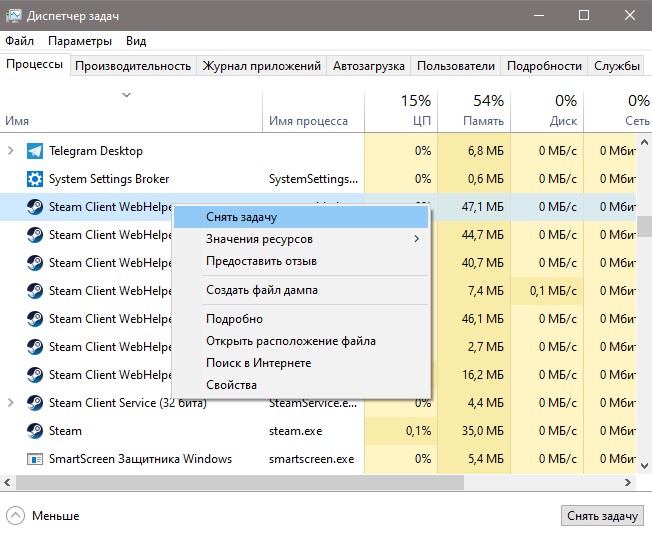
3. Формат изображения
Если пытаетесь загрузить аватар или какое-либо изображение, то убедитесь, что формат фото JPG, GIF или PNG, так как сервера Steam другие форматы не обрабатывают. Если у вас другой формат, то в Windows 11/10 есть встроенный редактор Paint, который поможет пересохранить. Рекомендую еще уменьшить размер, если он огромный.
4. Обновить файлы Steam
Ошибка при обработке запроса в Steam может быть из-за поврежденного файла. По этому, закройте Steam клиент, откройте корень папки Steam и удалите все файлы и папки кроме Steam.exe, steamapps и userdata. Далее запустите Steam-клиент и он автоматически обновит файлы по умолчанию.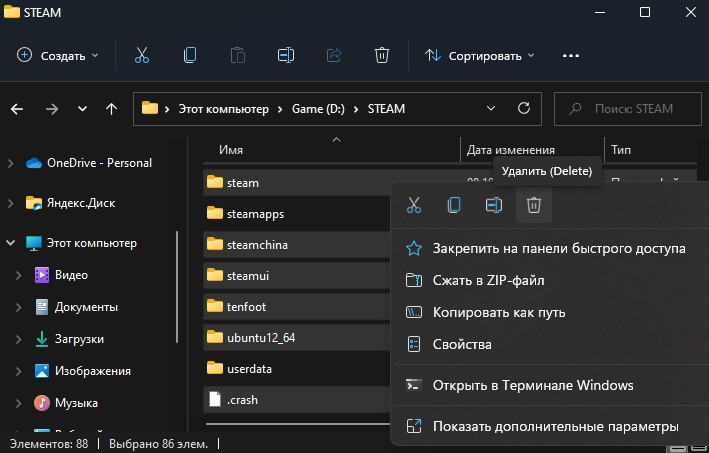
5. Сбой сети
Выключите компьютер и модем. Отсоедините модем от источника питания 220 Вольт и подождите минуту, после чего включите всё обратно. Это перезапустит сеть, если в ней был сбой, который случается иногда время от времени практически у всех.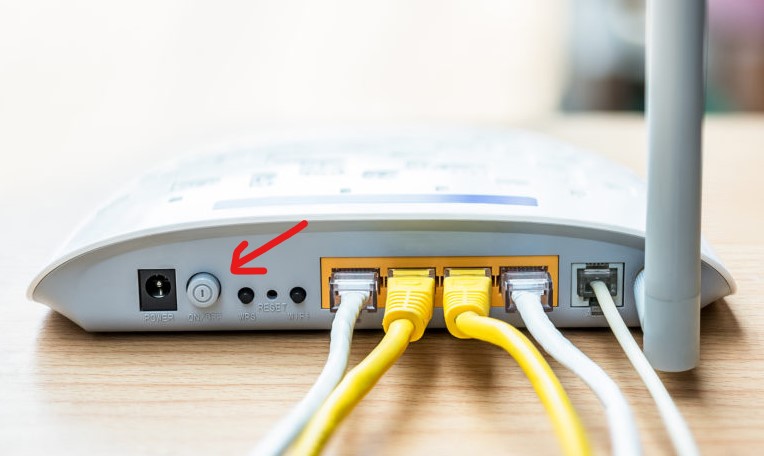
6. Очистить DNS, сбросить Winsock и обновить IP
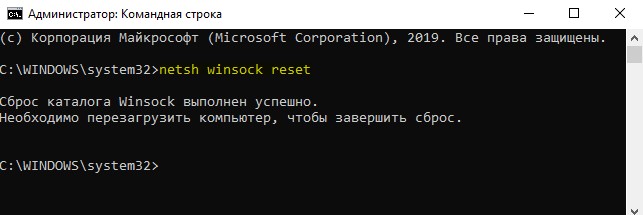
Нажмите сочетание кнопок Win+X и выберите Терминал Windows (администратор). Введите или скопируйте команды ниже:
netsh winsock resetipconfig /flushdnsipconfig /releaseipconfig /renew
7. VPN, Прокси и Антивирус
Если вы используете OpenVPN или Прокси, то отключите их на время. Они могут создавать медленное интернет соединение, что приведет к ошибке обработке запроса на сервера Steam.

Кроме того, если вы используете сторонний антивирус, то его нужно тоже отключить на время и проверить, устранена ли проблема.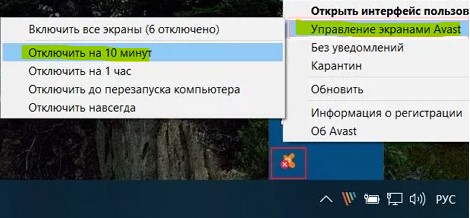
8. Использовать Steam в браузере
Данный обходной путь помог многим решить проблему с обработкой запроса в клиенте Steam. Авторизуйтесь через браузер в Steam и проделайте манипуляцию, которая вызывают проблему.
Если ошибка появляется в браузере, то отключите в браузере все расширения, перезапустите браузер и проверьте, устранена ли ошибка.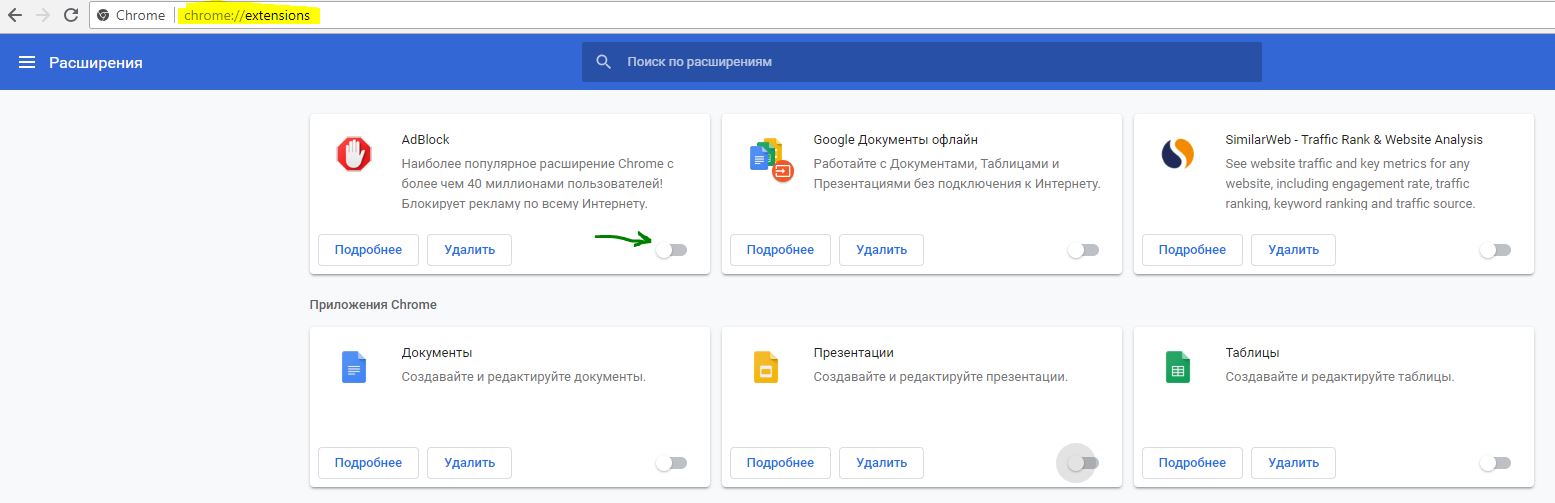
Смотрите еще:
- Как изменить изображение (Аватар) в профиле Steam
- Как поделиться играми в Steam
- Произошла ошибка при обновлении игры в Steam
- Minecraft: io.netty.channel.AbstractChannel — Что делать?
- Как понизить высокий Пинг в играх
[ Telegram | Поддержать ]
Почему не меняется аватарка в стиме
На чтение 4 мин Просмотров 1.1к.
Содержание
- Смена аватарки в Steam
- Способ 1: Напрямую через профиль
- Способ 2: Настройки
- Способ 3: Мобильное приложение
Пытался загрузить аватарку в Steam ничего пишет будто все ок но картинка остается прежней картинка в PNG 500*500 пикселей 103кб (до этого 134 кб была) пытался изменить ее формат в JPG и размер менял название на полностью латинское пытался и через браузер и через steam клиент
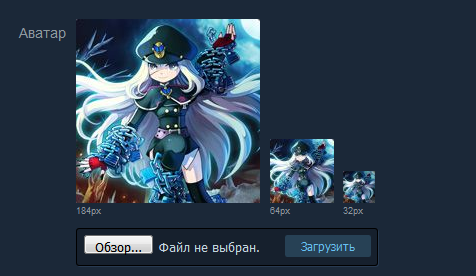
выбираю новую но остается старая хотя пишет новую
Аватарка в вашем профиле Steam поможет друзьям узнать аккаунт среди тысячи похожих. В Стиме много пользователей с одинаковыми никнеймами и именно картинка в профиле чаще всего отличает один аккаунт от другого. В этой статье будет рассказано и показано, как изменить аватарку в Steam.
Смена аватарки в Steam
Аватаркой может быть любая картинка приемлемого содержания. В Стиме лучше ставить картинки с соотношением сторон 1:1 и разрешением 184×184 пикселей, так как это самое большое разрешение, в котором Steam отображает ваше изображение.
Перед изменением аватара в Стиме убедитесь, что изображение уже находится у вас на устройстве, но если выбор падёт на официальный игровой аватар, то нужды в этом нет.
Способ 1: Напрямую через профиль
Это классический способ изменения аватара в Steam. Для изменения профиля необходимо сначала войти в аккаунт Стима и далее совершать необходимые изменения. Сменить аватарку можно в клиенте на компьютере или в официальном мобильном приложении, эти способы будут описаны далее.
- Для начала переходим в личный профиль Steam: в верхней панели на сайте или в клиенте наводим мышью на свой никнейм и в всплывающем окне нажимаем на пункт «Профиль».

- На своей странице нажимаем кнопку «Редактировать профиль».

- Если вы хотите загрузить изображение с устройства, то нужно выбрать файл (нажать белую кнопку с таким же названием) и кликнуть «Загрузить». Ещё есть возможность выбрать один из готовых аватаров Steam, для этого нужно нажать на ссылку «выберите из официальных игровых аватаров».

- Если вы выбирали официальный игровой аватар, то подтвердите выбор кнопкой «Сохранить» или «Отмена», если картинка не превзошла ваши ожидания.

- Если вы загружали аватар с внутренней памяти, то кликните либо кнопку «Сохранить» изменения для применения действий, либо «Отмена», опять же, в зависимости от ситуации.

Способ 2: Настройки
Способ, аналогичный первому, только нет необходимости заходить на страницу профиля, вы сразу переходите к изменению аватара через меню настроек.
- В клиенте Steam переходим в настройки, для этого в верхнем меню нажимаем на пункт меню «Steam»и в всплывающем окне выбираем пункт «Настройки«.

- В настройках Стима переходим в раздел «Друзья», где находятся настройки отображения вашего профиля, под аватаром нажимаем на ссылку «Сменить».

- И вот вы переходите уже на знакомую страницу изменения профиля, далее следует выполнить действия начиная с третьего пункта в первом способе.
Способ 3: Мобильное приложение
Изменение аватара в мобильном приложении Steam будет удобно тем людям, у которых нет постоянного доступа к компьютеру.
- Переходим в меню приложения нажатием на значок с тремя полосками в верхнем левом углу окна.

- В открывшемся меню нажимаем на свой профиль.

- В профиле, как и в клиенте Стим, нажимаем на кнопку «Редактировать профиль».

- В следующем меню вас встречает уже знакомая страничка, точно так же выбираем аватар: либо загружаем свой, либо выбираем официальный игровой аватар. Если вы вдруг забыли что-то, то смотрите первый способ с третьего шага.

Это все способы с помощью которых можно изменить аватар в Стиме, надеемся, что статья помогла вам в решении данной задачи.
Я короче меняю аватарку в Steam, на сайте видно то что я поменял свою аватарку, а в играх аватарка не меняется, я переустанавливал стим, не помогает
Её съел мент людоед
В самом стиме авка стоит та которую ты хочешь?
Если ты играешь на серве то это на серве может не обновится