Below you can find the solution of the following SQL Server error message:
Msg 3201, Level 16 Cannot open backup device. Operating system error 5(Access is denied.)
Probably you face this error when you try to make SQL Server database backup. It has to be admitted that this error message belongs to the permissions issue on the local disk and user account which is running SQL Server.
Here we are going to cover two ways how you can resolve SQL Server error – Msg 3201, Level 16 Cannot open backup device. Operating system error 5(Access is denied.)
Solution 1
To solve this issue, first of all, you need to check under which user accounts your SQL Server services are running.
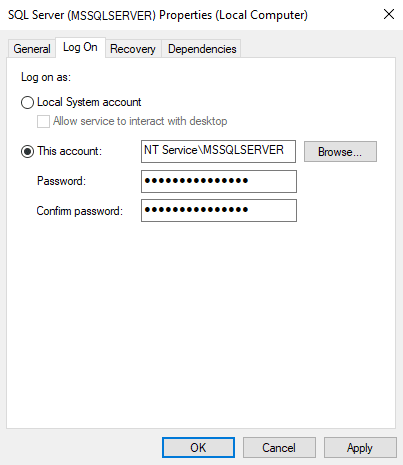
Now it is necessary to give this account full permission

If it doesn’t help or all settings are set correctly check the following solution.
Solution 2
Msg 3201, Level 16 Cannot open backup device. Operating system error 5(Access is denied.)
This issue also can happen if the file is read-only. To fix it open the folder where all SQL Server database backup is stored, and select the one that you need, right-click on it and select “Properties”, uncheck “Read-Only”. Press “OK” to save all new settings.

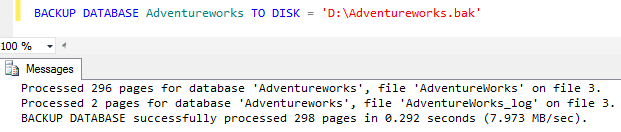
After you have made all necessary settings configuration, you will be able to make SQL Server database backup.
Hi,
I am trying to configure log shipping on
1. Master DB
2. Client DB
3. sharing server
All those 3 server are in windows 10 and LAN connected.
Note :
Both database can be access from the LAN connection.
Sharing folder also tested from both server.
And then my configure failed and cant running with the error massages below :
«Microsoft SQL Server Management Studio»
SQL Server Management Studio restore database ‘logShippingMaster»
Additional Information
An exception occurred while executing a Transact-SQL statement or bath.(SqlManagerUI)
Cannot open backup device «\172.16.60.183sharingmasterlogShippingMaster.bak’. Operating system error 5(Access is denied.).
RESTORE FILEIST is terminating abnormally. (Microsoft SQL Server, Error:3201)
———————————————————————————————————————————————————
:: On Master Configuration still as per Install.
———————————————————————————————————————————————————
Sharing folder can be accessed and user can write / list folder in the sharing folder. But why in the SQL Agent cannot access the folder ?( Error Permission Denied )
Eventhough I already set the sharing folder with read / write access for Everyone.
———————————————————————————————————————————————————
im sorry cant attach file image my account not verified, if u want for image i can send via email or other media
thanks before, i hope you are can help me
You may encounter the following error when creating a compressed database by restoring from an encrypted SQL Backup Pro backup:
Msg 3201, Level 16, State 2, Line 1
Cannot open backup device '<backup_path>'
Resolving this error
Before restoring an encrypted SQL Backup Pro backup, you should run the extended stored procedurexp_validate_sqb_backup to associate the encrypted backup with a password:
EXEC master..xp_validate_sqb_backup
@filename=N'<backup_path>',
@password=N'<password>'
If the extended stored procedure is not available, you will need to add it to the master database for the local SQL Server instance. To do this:
- Copy the xpHyperBac.dll file from %ProgramFiles%Red GateHyperBacbin on 32-bit machines or%ProgramFiles(x86)%Red GateHyperBacbin on 64-bit machines to the installation directory of your SQL Server instance (for example %ProgramFiles%Microsoft SQL ServerMSSQL10MSSQLBinn, for SQL Server 2008).
-
Run the following command to install the stored procedure:
EXEC dbo.sp_addextendedproc N'xp_validate_sqb_backup', 'xpHyperBac.dll';
To avoid this problem, use the wizard to restore a SQL Backup Pro backup to a compressed database.
Data recovery is a time consuming and expensive process. Taking regular backups can save a lot of time as well as make sure that the data can be restored in the case of disaster. There could be many situation where backup of the database taken in SQL Server might fail with 3201 error. The text of error id as below (you can use sys.messages catalog view to get it)
Cannot open backup device ‘%ls’. Operating system error %ls.
Same message is applicable for restore as well, it’s all about unable to open device. If we notice %ls is placeholder which would be inserted when message is raised. Some sample errors are as below.
Message # 1
Msg 3201, Level 16, State 1, Line 1
Cannot open backup device ‘E:BackupSQLServerHelp.bak’. Operating system error 3(The system cannot find the path specified.).
Cause: Backup folder not created on E Drive.
Message # 2
Msg 3201, Level 16, State 1, Line 1
Cannot open backup device ‘C:SQLServerHelp.bak’. Operating system error 5(Access is denied.).
Cause: SQL Server Service account is not having permission on root of C Drive.
Message # 3
Msg 3201, Level 16, State 2, Line 1
Cannot open backup device ‘\NetworkShareBackupSQLServerHelp.BAK’. Operating system error 53(error not found).
This one is interesting because it doesn’t tell the exact message for OS error 53. Sometime this could happen with any other OS error as well. Refer my earlier post here where I showed how to get text for an operating system error number. 53 = The network path was not found.
Cause: Network Path: \NetworkShareBackup was incorrect.
OK. Let me stop here.. I didn’t plan to discuss all the possible errors but this blog is to present one interesting scenario which helped me uncovering an operating system concept.
Let’s create a database using below script.
Create Database [SQL Server Help ]
Once database is created I have created maintenance plan to take full backup of the database.

When I executed above maintenance plan, it failed with error:

TITLE: Execute Maintenance Plan
——————————
Execution failed. See the maintenance plan and SQL Server Agent job history logs for details.
——————————
ADDITIONAL INFORMATION:
Job ‘SQLServerHelp.Subplan_1’ failed. (SqlManagerUI)
——————————
BUTTONS:
OK
——————————
If we look at the folder, the folder got created but backup failed. Looked into ERRORLOG and found below
2014-03-13 06:20:31.66 spid65 Error: 18204, Severity: 16, State: 1.
2014-03-13 06:20:31.66 spid65 BackupDiskFile::CreateMedia: Backup device ‘E:Program FilesMicrosoft SQL ServerMSSQL11.MSSQLSERVERMSSQLBackupSQL Server Help SQL Server Help _backup_2014_03_13_062031_6415729.bak’ failed to create. Operating system error 3(The system cannot find the path specified.).
2014-03-13 06:20:31.66 Backup Error: 3041, Severity: 16, State: 1.
2014-03-13 06:20:31.66 Backup BACKUP failed to complete the command BACKUP DATABASE SQL Server Help . Check the backup application log for detailed messages.
when I looked at folder structure, I found that there is a folder “SQL Server Help” got created under “E:Program FilesMicrosoft SQL ServerMSSQL11.MSSQLSERVERMSSQLBackup” but still backup was failing. I ran profiler to see the command being fired.
BACKUP DATABASE [SQL Server Help ]
TO  DISK = N'E:Program FilesMicrosoft SQL ServerMSSQL11.MSSQLSERVERMSSQLBackupSQL Server Help SQL Server Help _backup_2014_03_13_062920_6305771.bak'
WITH NOFORMAT, NOINIT,  NAME = N'SQL Server Help _backup_2014_03_13_062920_6305771',
SKIP, REWIND, NOUNLOAD,  STATS = 10
When I executed the command, it failed with below error.
Msg 3201, Level 16, State 1, Line 1
Cannot open backup device ‘E:Program FilesMicrosoft SQL ServerMSSQL11.MSSQLSERVERMSSQLBackupSQL Server Help SQL Server Help _backup_2014_03_13_062920_6305771.bak’. Operating system error 3(The system cannot find the path specified.).
Msg 3013, Level 16, State 1, Line 1
BACKUP DATABASE is terminating abnormally.
Again, something wrong with the path where I am taking backup. Do you see any problem in above message. Look closer.. there is a space at the end in the folder name where backup is attempted. “SQL Server Help “. If you try to create a folder with the whitespace at the end, operating system would trim the space at the end. This is documented here
The root cause of my problem was name of the database where I have added an space at the end intentionally. Go back and have a look at create database statement which I have used. I also participated in this discussion where same problem was posted long back.
Hope you have learned something new!
Содержание
- Sql error 3201 cannot open backup device
- Answered by:
- Question
- Answers
- All replies
Sql error 3201 cannot open backup device
This forum has migrated to Microsoft Q&A. Visit Microsoft Q&A to post new questions.
Answered by:

Question
SQL 2005 Enterprise
Even if I logon as Administrator and try to backup any of my databases to local partitions, I get this error below. I have been operating fine up until this point and doing backups all the time. As far as I know, and after checking, no permissions have changed and of course Administrator has ntfs permissions to my local C and other partitions on this server:
TITLE: Microsoft SQL Server Management Studio
——————————
Backup failed for Server ‘servername’. (Microsoft.SqlServer.Smo)
System.Data.SqlClient.SqlError: Cannot open backup device ‘F:foldername’. Operating system error 5(Access is denied.). (Microsoft.SqlServer.Smo)
In the Event log for Windows Server 2003 I see this:
Event Type: Error
Event Source: DCOM
Event Category: None
Event ID: 10016
Date: 3/6/2006
Time: 3:35:06 PM
User: NT AUTHORITYNETWORK SERVICE
Computer: servername
Description:
The application-specific permission settings do not grant Local Activation permission for the COM Server application with CLSID
to the user NT AUTHORITYNETWORK SERVICE SID (S-1-5-20). This security permission can be modified using the Component Services administrative tool.
For more information, see Help and Support Center at http://go.microsoft.com/fwlink/events.asp.
Answers
You need to check the security permissions on the folder you are trying to backup to. Make sure the service account (Network Service) has write permissions. It may well not do.
SQL on changing the service account changes the permissions on the critical drives it knows about but won’t to it for all the drives in a server.
Tnks God I found this post. It really save me.
I have the same problem. I have changed the SQLAGENT service to run as domainadministrator but are you suggesting the sql server instance service also?
SQL Service account is DOMAINSQLAdmin
Have given the SQLAdmin AD account access to the Backup shares on the file servers (2 file servers, FILE1, FILE2)
and I still get the error
Operating system error 5(Access is denied.).
FROM DISK = N ‘\SERVERAPPSbackupsUADBDB.BAK’
I trid to attach it as device, which runs
sp_addumpdevice ‘disk’ , ‘Network_Share’ , ‘\SERVERbackupAPPSUADBDB.BAK’
BUT when restoring, same error occurred (Access denied)
Only case I can backup/restore to/from network shares, is from the machines where SQL Server runs (SQL1, SQL2)
e.g. I copy the BAK file from FILE1 to SQL2, share the folder (add SQLAdmin account with access), then restore on SQL1 with file from SQL2 Share
FROM DISK = N ‘\SQL2backupsUADBDB.BAK’
When you try to backup, SQL Server 2005 shows the default backup path i.e. c:Program FilesMicrosoft SQL ServerMSSQL.1MSSQLBackup . This directory default has SQL user rights. Go to Backup directory and check the user name. Its very big name and I have not checked how SQL server adds it in allowed users list. You can do 2 things:
1. Let the Server take backup on default directory and copy the file in your desired folder. I did that.
2. Give same kind of permissions to your desired folder as Backup directory has.
Hope it solves the issue.
This problem occurs when you are attempting to backup to a UNC patch and the SQL server does not have «modify» rights to the backup path. With the backup path sharepoint, and on the backup directory itself, grant the SQL server «modify» rights — when doing this be sure that «computers» is selected under «object types»
Hopes this helps
Thanks alot MoonGuy,
also i found that the installation path & Backup Directory of SqlServer Express can be found at HKEY_LOCAL_MACHINESOFTWAREMicrosoftMicrosoft SQL ServerMSSQL.1MSSQLServer in BackupDirectory key.
I ran into a similar scenario where I wanted to backup my Testing databases on to the E: of my Dev database server for storage.
I just added the service account (LOCALsql05svc) for Sql Server into the local admin group on the Dev machine where I am writing the backups to and it worked out fine too. The account did have the same password on both machines though.
I am guessing you could do the same with a Domain account that you use to run Sql Server service with.
great help..i had the same problem and i have resolve it doing the follow
my operating system is winXP pro.
Control panel->administrative tools->services-> SQL Server
at the properties i choose ‘log on as: local system account and also choosed to allo service to interact with desktop’
thanks for the help i have spent more than four hours googling for it
«Control panel->administrative tools->services-> SQL Server
at the properties i choose ‘log on as: local system account and also choosed to allo service to interact with desktop’»
If I believed in a God I’d ask him/her/it to bless you. I love it when people explain things
This happened to me when I attempted to create a new database from a .bak file using RESTORE. I just right-clicked on the .bak file, selected Properties and then clicked the Security tab. Then, I did a Check Name for «SQL» and added the following two SQL accounts from the list:
1) SQLServer2005MSSQLUser$ $MSSQLSERVER
The reason this happened to me is because I was attempting to create a database from a .bak file which was not created on my machine. Whenever you backup an existing database, the above SQL accounts are already added to the security profile of the backup file. Because I was using a .bak file created on another machine, the necessary SQL accounts on my machine hadn’t been granted permissions. Adding them manually helped.
If you run into a similar problem at the folder-level, try right-clicking to see if the above two accounts exist within the Security tab.
Thanks, that helped a lot.
| AvenueStuart wrote: |
|
This happened to me when I attempted to create a new database from a .bak file using RESTORE. I just right-clicked on the .bak file, selected Properties and then clicked the Security tab. Then, I did a Check Name for «SQL» and added the following two SQL accounts from the list: 1) SQLServer2005MSSQLUser$ $MSSQLSERVER The reason this happened to me is because I was attempting to create a database from a .bak file which was not created on my machine. Whenever you backup an existing database, the above SQL accounts are already added to the security profile of the backup file. Because I was using a .bak file created on another machine, the necessary SQL accounts on my machine hadn’t been granted permissions. Adding them manually helped. If you run into a similar problem at the folder-level, try right-clicking to see if the above two accounts exist within the Security tab. |
«Control panel->administrative tools->services-> SQL Server
at the properties i choose ‘log on as: local system account and also choosed to allo service to interact with desktop’»
Make sure you dhould be having enough access on the drive. from SQL level and OS level too.
great help..i had the same problem and i have resolve it doing the follow
my operating system is winXP pro.
Control panel->administrative tools->services-> SQL Server
at the properties i choose ‘log on as: local system account and also choosed to allo service to interact with desktop’
thanks for the help i have spent more than four hours googling for it
Thank you for explaining, i was lost, and i didnt know wut else to do thanks
I was having the same problem trying to restore a backup file sent to me. Heres how I fixed it:
Copied the backup file into SQL’s default backup directory (Program filesSQLMSSQL.1Backup)
Right clicked the file, properties
Under Security clicked Advanced
Check «Inherit from parent. » apply and ok
Should do the trick. in my case the directory had the right permissions so if I did a backup the file would get the right permissions but on a file sent to me it did NOT have the right permissions. Doing this assigns the same permissions and the backup folder and also then you don’t have to make any other system changes since you just changed the file. Hope this helps someone.
great help..i had the same problem and i have resolve it doing the follow
my operating system is winXP pro.
Control panel->administrative tools->services-> SQL Server
at the properties i choose ‘log on as: local system account and also choosed to allo service to interact with desktop’
thanks for the help i have spent more than four hours googling for it
I had a similar issue with this problem while restoring a database backup file.
We were able to solve the problem by giving Read permissions to the SQLBrowserUser.
İt worked for me . Thank you very much Simon.
I added NETWORK and NETWORK SERVICE accounts to the copy folder permisssions and security tabs.
You need to check the security permissions on the folder you are trying to backup to. Make sure the service account (Network Service) has write permissions. It may well not do.
SQL on changing the service account changes the permissions on the critical drives it knows about but won’t to it for all the drives in a server.
Just a google searcher who found your post and wanted to say thanks! Your directions solved my issue. Appreciate you taking the time to write it down!
Hi I seem to be running into a similar issue. Trying to use the DBCopyTool from codeplex, my issue is that I receive the error when the application is trying to copy the .bak file from my local machine to the backup folder on the remote machine. so I new to SQL any detailed response would be helpful seems like most users are receving a .bak file to restore. I’m sending a file to a remote machine to have it restored, thanks.
Error restoring the database. Cannot open backup device ‘E:Program FilesMicrosoft SQL ServerMSSQL.1MSSQLBackupQCTL_new_CopyTool.bak’.
Operating system error 2(The system cannot find the file specified.).
RESTORE FILELIST is terminating abnormally.
Thanks to Arxigos,
Was also googling several hours to find an answer.
Thanks again for the solution.
Thanks for your help. It saved me too.
I have written an article on SQL Server backups and the solution for this issue,
Venkatesan Prabu .J
Venkatesan Prabu .J http://venkattechnicalblog.blogspot.com/
This errors has been an ongoing issue:
1. System.Data.SqlClient.SqlError: Cannot open backup device ‘F:foldername’. Operating system error 5(Access is denied.). (Microsoft.SqlServer.Smo)
2. Msg 3201, Level 16, State 1, Line 1
Cannot open backup device ‘C:Program FilesMicrosoft SQL ServerMSSQL.1MSSQLBackup//ves10/New/filenam.bak’. Operating system error 3(The system cannot find the path specified.)
The easy way to solve this is by:
1. going to the properies of : C:Program Files (x86)Microsoft SQL ServerMSSQL.1MSSQL , on the security tab give full access to the user SQLSerevr2005MSSQLUser$ the full access
2. Create a new user login account in the SQL server and give it all the privilages present which include sysadmin, setupadmin, dbcreator etc.
>> Control panel->administrative tools->services-> SQL Server
>> at the properties i choose ‘log on as: local system account and also choosed to allo service to interact with desktop’
Thanks a lot, it is still saving people lives years after posting this solution. But I wonder what made it behave like this in the first place!
Arxigos . Thanks a lot buddy.
— Vijay Kumar Jayabal
I am to getting this same error and I solved this by
>> Control panel->administrative tools->services-> SQL Server
>> at the properties i choose ‘log on as: local system account and also choosed to allo service to interact with desktop’
Is it possible by someother way to overcome this error possibly a sql query? or should we need to add the command line to enable ‘local system account’ at the time of SQL Express installation itself?
Thanks in advance
SQL 2005:I am running into this same issue, but in my case, backing it up to a share in a different domain.
SQL ServerSQL Server agent started with Pductdomain account and backing databases to a share in a non-pduct domain share.
It works fine if I backup for the same non-pduct domain sql server, but not from pduct domain. Getting ‘Access is denied’. I tried all the above options mentioned.
Any idea what else can I do to solve this. Having the network eng to look into permissions on the share, waiting for a reply, meantime I found this.
You may need to check the domain connectivity. I have seen where connect from one domain to other they used to use bridge domain. It means from domain A your AD group belogs to and you want to connect to domain B, then you have to connect to the domain C_B and from C_B domain you can connect to the domain B.
Definatly it is lengthy process to copy your files on the different domain.
As you mentioned «Access denied» that means your domain B account is not trusted with the server.
Manu Please click the Mark as Answer if my post solves your issue.
I had the same problem. checked the folder, removed the «READ ONLY» and «Service» to the list of accounts who have permission and it WORKED. THANKS to all of you
I have the same problem.
Trying to backup an external database, and save the backup to my local computer!
First of all the folder «C:Program FilesMicrosoft SQL ServerMSSQL.1MSSQLBackup» did not exist.
So I tried create it manually, and do backup. No file is created, but the program says, that the backup is successfull. Do not understand why.
Ok. I found another way to do it.
Downloaded this program to do a backup:
Maybe this could help someone. Helped me 🙂
I agree . everything worked fine one day and then I’m guessing after installing some patch I now have to explicitly go to the «C:Program FilesMicrosoft SQL ServerMSSQL.1MSSQL» directory, right click and select Properties then go to the Security tab and add «NETWORK SERVICE» as having full access. What the heck is that all about? Why does it matter all of a sudden? I’ve done this restore from database many times in the past and it never wrote any files to that directory before, it always wrote to the «C:Program FilesMicrosoft SQL ServerMSSQL.1MSSQLData» directory.
Also I DID NOT change the «login as» for the SQL Server service because I WANT it to use the NETWORK SERVICE account not a local system account.
let me simplify it, go to control panel>services and see the «Logon As» for MSSQLSERVER. Remember this user.
Now go to ur desired backup folder(anywhere in ur Network).
Now the same user with full access control. Apply
u r done!! Go agead and make ur back up.
Solution posted by Moonguy close to the top worked for me.
Every database I worked with restored fine ecept the one I needed to work with, until I gave the MSSQL user account permissions to my folder, or copied the backup file to the MSSQL.2008backup folder.
Why other databases worked fine, or this problem only croppe dup for this DB, I don’t know, but it works now.
I had the same issue but fixed it like this:
1. Create and share the folder (in my case c:backup). Then give everyone read/write permissions for the folder (\SERVERNAMEbackup). Alternative you could give the NETWORK SERVICE full control in the share
2. Use the UNC patch as export location \SERVERNAMEbackup
And then rock on 🙂
Thanks for the solution it works «Go to Backup directory and check the user name. Its very big name and I have not checked how SQL server adds it in allowed users list»
I added the SQLusername to my folder and it works!
Adding the service account and giving write permissions to it solved the problem for me.
Had the same problem running Virtual Server 2008 with SQL 2008. Added the MSSQL account to the permission list for the folder I wanted to save backups in and it worked. Thanks
i am facing the same prblm i am wrking on asp.net & trying to backupa file on network folder
i have given all permission to everyone to the shared network folder still i get the above error msg
You are great. Thanks for explaining step by step.
This problem occurs when you are attempting to backup to a UNC patch and the SQL server does not have «modify» rights to the backup path. With the backup path sharepoint, and on the backup directory itself, grant the SQL server «modify» rights — when doing this be sure that «computers» is selected under «object types»
This fixed my issue. Thank you!!
When you try to backup, SQL Server 2005 shows the default backup path i.e. c:Program FilesMicrosoft SQL ServerMSSQL.1MSSQLBackup . This directory default has SQL user rights. Go to Backup directory and check the user name. Its very big name and I have not checked how SQL server adds it in allowed users list.
Thank you, I hadn’t even considered file permissions 🙂
Not sure I’m understanding this. So. to test backups I tried to run a farm backup to c:backups on my sharepoint app server — failed.
I gave the SQL svc, SQL agent, network and network service accounts full control on this directory.
Do I also need to give rights on the SQL server default backup directory actually on the SQL box?
Control panel->administrative tools->services-> SQL Server
at the properties i choose ‘log on as: local system account and also choosed to allo service to interact with desktop’
THIS WORKED FOR ME — THANKS!
Here is a bit detail of the Answer that worked for me.
1. find out the sql server agent`s account. Eg. Abebe (Services>right click on sql server agent> ppy> login. )
2. Go to the drive that you want to do backup to. Eg. M
3. right click on the M drive and select properties -> Security-> Edit-> Add-> the sql agent account( Abebe) and grant a MODIFY, READ and WRITE rights(permissions)
4. Go to Services->Sql Server Agent (right click it and restart)
5. Now the SQL server Agent has enough permission on that drive to open and get access to it.
6.If you try to take a backup after the above steps it should work.
P.S. If further help or clarification is needed let me know.
Also do the same for the account that runs the SQL Server as well.
Some of my clients report me the same error the problem was that he was using the folder name «d:data» but he has forgotten to add the file name of the backup, so, we add the file name «d:dataBKDB01.bk» and works.
I had this same issue. new disk that I was backing up to. I had to create a directory in the disk and then was able to back up to that directory. wasnt able to backup to the root of the disk.
I’ve been burned by this before, but didn’t think to check it until I had spent an hour trying to back up a SCVMM SQL 2012 database: The SQL Agent service wasn’t running because it was set to manual start (the default). I started the service and had no trouble with the backup. Of course, I then set the service to automatic startup, since this shouldn’t cause any harm.
This is a very old thread and I didn’t read the whole thing, but someone early on simply mentioned the SQL Agent service and that was enough to remind me, so thanks for that!
This problem also exists for SQL 2012 — it usually occurs if using the «non-default» directory to backup files to.
You have one of two options —
1) Give the MSSQLService service instance a named local/domain account to run under and then give that account permissions to the directory.
2) Or if you wish to continue to allow the MSSQLService account to run under Network Service — navigate to the backup directory and give modify rights to NT ServiceMSSQLService (not sure if this is correct if using named instances — could well be NT ServiceMSSQLServer$WhateverNamedInstance)
Giving the SQL Agent service a named user account and giving it the appropriate folder rights didn’t seem to make any difference.
Ele consegue fazer backup, manual, mais quando voce tenta fazer via manitenance plan da error
» failed with the following error: «Cannot open backup device ‘
Verifique o nome do database
(o nome do database estava com espaço em branco no final)
Erland Sommarskog, SQL Server MVP, esquel@sommarskog.se
Sometimes the folder exists, and then you get this error. Sometimes the there is no folder with this name, and it is possible to create the file.
Although Windows does not really like when you try to create files on the top level of a disk, and tends to have restrictive permissions.
Erland Sommarskog, SQL Server MVP, esquel@sommarskog.se
Hey wat is the solution?? Can u plz share with me, I dint get wat exactlly u guys are talking about. I am getting the same problem, I have a user_account and i dont know what permisions it has, I took a backup from the system connected in LAN, and when i tried to restore the database after taking backup, I got this error. Its troubling a lot yaar, plz get me a solution and take me out of this.
1. The solution is listed above. Read and work with your system administrators to get the permissions set.
2. There is no good reason to use «txt speek» here — you’re not limited on space and don’t have to worry about exceeding a character limit. I’d like to be able to take you seriously.
Thank You for actually supplying a simple and workable answer!
Followed your instructions and fixed my issue immediately!!
I had a similar problem with this configuration and eventual solution. Hope this helps anyone else out there!
TFS installation with SQL Server Express 2012 on server 1, trying to back up to a lettered storage partition on server 2.
The service «SQL Server (SQLEXPRESS)» was initially logged in as «Network Service».
I could see that I had the network path correct since a «BackupSettings.xml» file was being created at the desired backup path.
Solution:
I changed the user logged in to run the «SQL Server (SQLEXPRESS)» service to a domain account we use to run SQL Server services on both servers. I did this on server 1, the one with TFS, using Server Manager > Configuration > Services.
This might have been redundant or unnecessary, but I also changed the Service Account for the TFS Application Tier to that same domain account. I did this using the Team Foundation Server Express Administration Console > server 1 > Application Tier.
I added that domain account to the Administrators Group of server 2, the backup destination server. I did this using Server Manager > Configuration > Local Users and Groups > Groups > Administrators.
After that I was able to configure and run the TFS backups.
Источник