SteamVR is a Virtual Reality Platform developed by Valve as an extension of Steam. SteamVR offers 360 degrees, full room VR experience. It was officially announced on March 1, 2015, during the Mobile World Congress. As a platform, SteamVR not only supports its own HMDs such as the Vive but also other HMDs like the Rift.
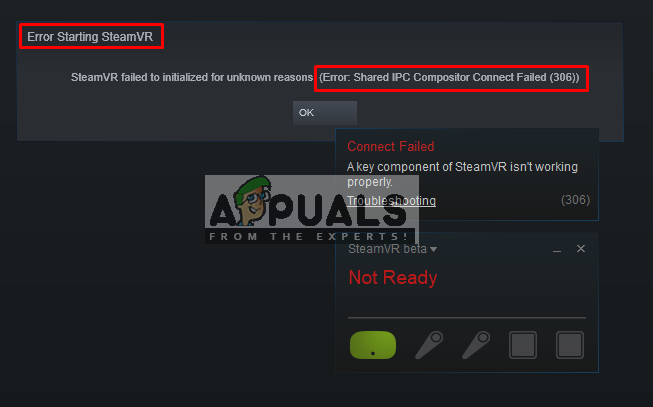
However, users are experiencing the error message “Error Starting SteamVR” when they try opening the SteamVR application. The full error message is “Error: Shared IPC Compositor Connect Failed (306)”. In this article, we will discuss the numerous reasons due to which this error can be triggered.
What Causes SteamVR Error 306?
Since SteamVR makes use of a lot of components on your computer as compared to the normal Steam, there are various reasons which can trigger this particular error message. Here are some of the reasons why this might happen:
- HDMI Cable: The most basic and common reason will be your HDMI cable that connects the box with your system. When your HDMI cable is not in primary slot of Graphics card HDMI port, it will show this error and won’t be able to start the SteamVR.
- SteamVR Updates: In some case, the updates of the SteamVR can be responsible for this particular error. Several users finding themselves in a similar situation have reported that they managed to resolve the issue after changing SteamVR to beta.
- Graphics Drivers: Another potential case in which this error occurs is when you’re using updated or outdated Graphics drivers. This can make the SteamVR not compatible with your specification.
Now that you have a basic understanding of the nature of the problem, we will move on towards the methods. Down below, you’ll discover a collection of methods that other users in a similar situation have successfully used to resolve the issue.
Method 1: Using Primary HDMI Port
Sometimes this error can be related to your HDMI cable, it means that your HDMI cable of VR might not be in the primary HDMI port of your system. We need to use a primary port always for the VR to work correctly. Also sometimes the adapter or the in-between device; connecting the box HDMI cable to your Graphics card HDMI port, should be not used. So, connected the VR HDMI cable coming from the box directly to your HDMI port on your Graphics card will be better.
- Take out the Monitor HDMI cable from your Graphics card main port
- Now, put the VR cable in “Main Port/Primary Port”, which is coming from the VR box
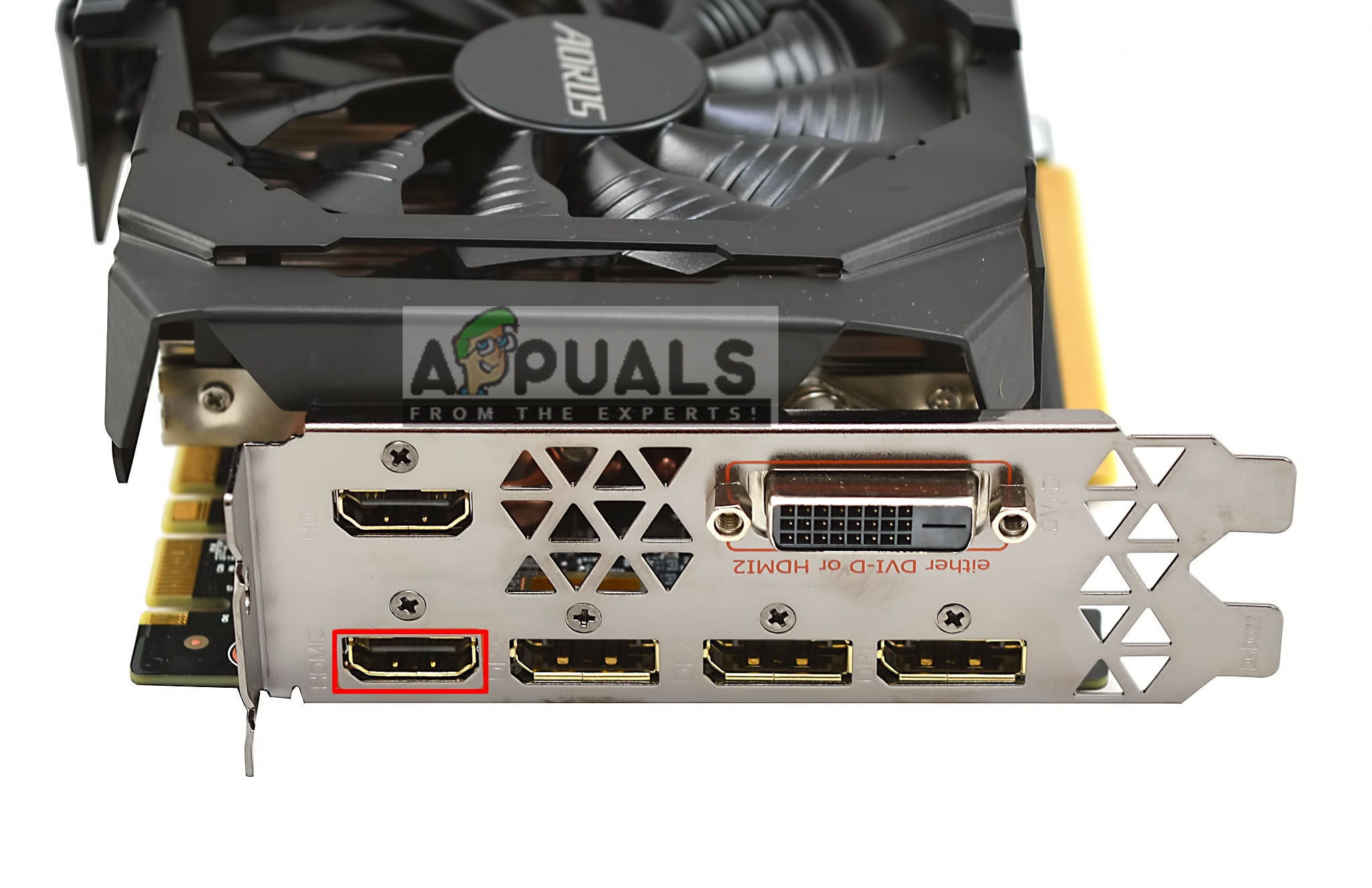
Use Primary port for the VR HDMI cable - The monitor cable can be in the secondary port because it will still work while the VR won’t
- Now quit the SteamVR window, and restart it again.
For those who have single port only, you can only use your main HDMI port for the VR, or you can get an adapter if it works with your system.
Method 2: Trying the SteamVR Beta
Several users fixed error 306 by changing the SteamVR properties settings. In the properties settings, you have BETAS tab, and there you can select the beta for VR to opt into. By default, it will be selected to none, but you can change it to beta and wait for the SteamVR to update it. To change the SteamVR to beta follow the steps below:
- On your computer, open the Steam App
- Under Library, you will find the “SteamVR”
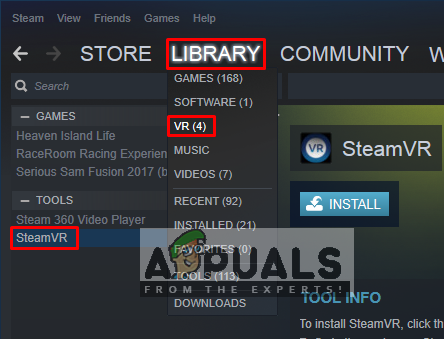
SteamVR in Steam Library - Now, right-click SteamVR, and then click Properties
- After that select the “BETAS” tab
- Here in “Select the beta you would like to opt into” drop-down, you need to select “beta – SteamVR Beta Update”
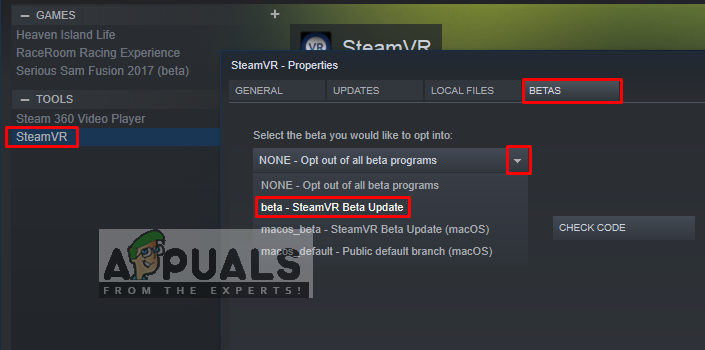
Selecting SteamVR beta update - Close the window, and wait for SteamVR to finish updating.
- If you want to turn it off in the future, you can select “None – Opt out of all beta programs” back again.
Method 3: Installing Graphics Drivers Manually
As it turns out, one reason that might trigger Error 306 is the outdated Graphics driver. Several affected users have reported that the issue has not longer occurring after they update the Nvidia Graphics drivers to the latest ones or by uninstalling and then reinstalling it. Also, the Nvidia Vulkan can mess up things for the drivers by having the wrong library path in their files.
In this method, we will be uninstalling the Graphics Drivers and then manually installing them from the manufacturer’s website. Make sure you download Display Driver Uninstaller from here and save it on desktop or external drive before you boot into safe mode.
- Follow the instruction in our article on how to boot your computer into safe mode
- Once you start in safe mode, you can copy DDU file to desktop if you saved it onto USB and extract it on desktop
- Now open the Display Driver Uninstaller by clicking on the DDU icon
Note: It might show “Windows 8.1” for system detection, even you are using Windows 10, that is normal - You can choose the option for Card Type that you are using
- Then selection first option “Clean and Restart”, it will take some time to process the clean uninstall and then the system will Reboot
- After the system reboots in normal mode, you can go to the manufacturer’s site of your Graphics Card and Install the latest drivers
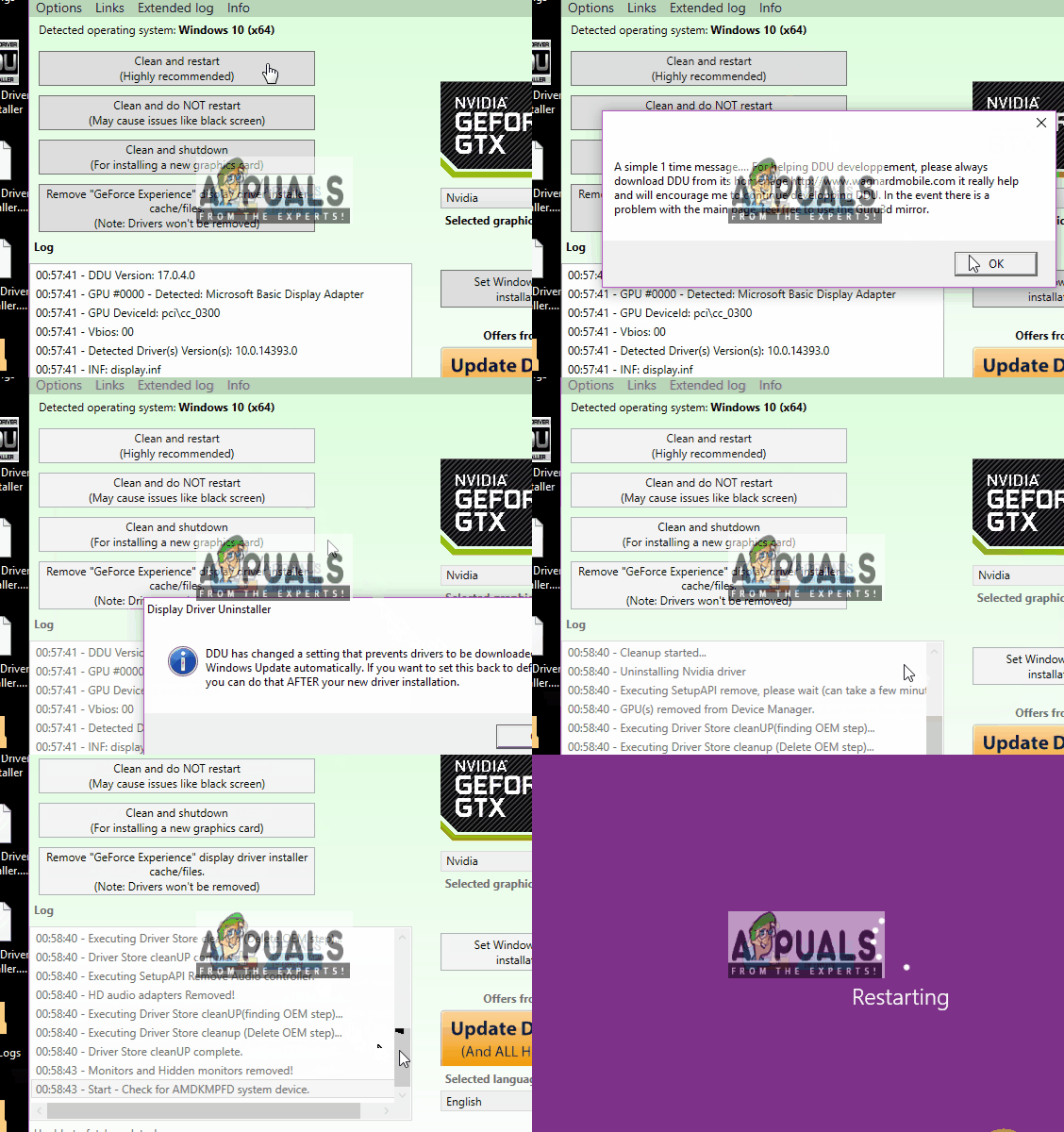
Uninstalling the Graphics driver using DDU
Method 4: Uninstalling Natural Locomotion
Natural Locomotion or NaLo is a paid app that translates arm swing into trackpad input for locomotion. It is very helpful for playing on VR, also helps with sickness a bit. But this can be causing the error 306 because the driver they use is not compatible yet with SteamVR beta. You need to uninstall this and try running the SteamVR with Motion Smoothing. Follow the steps below to uninstall it:
- Go to Control Panel from the start menu or by searching
- Now, open Program and Features
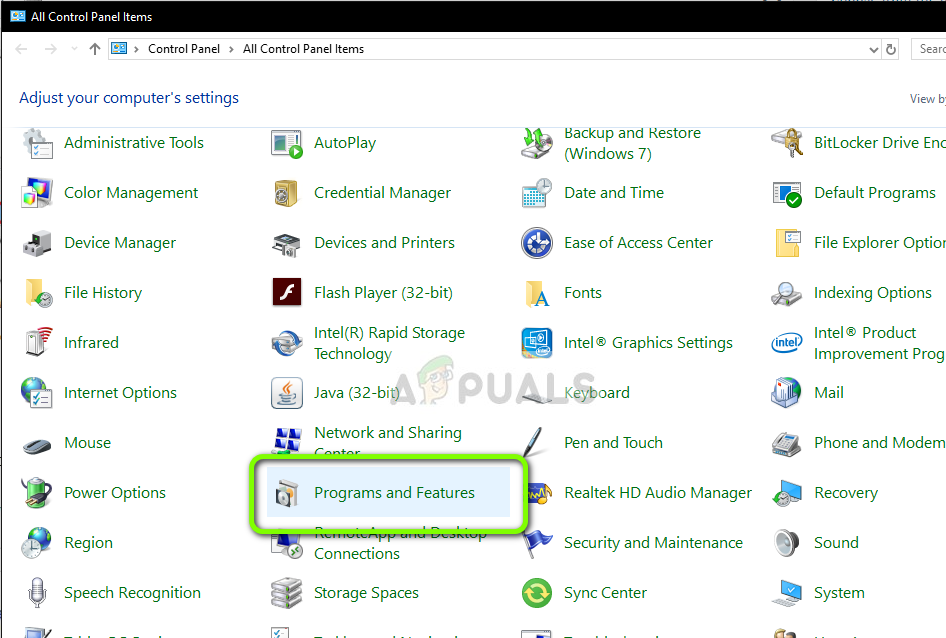
Going into program and features in control panel - Find the Natural Locomotion, and Uninstall it
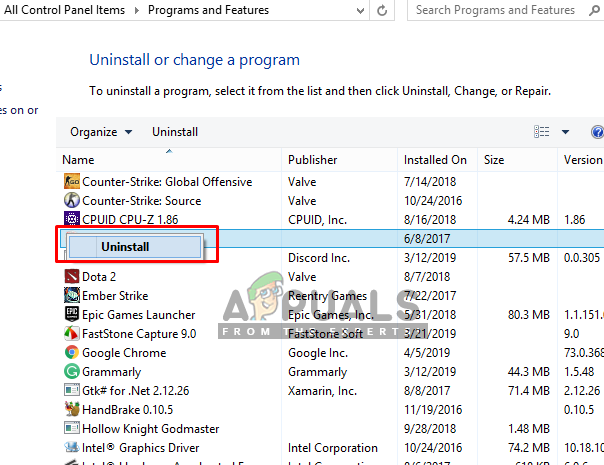
Uninstalling Natural locomotion - Also, go to your steam directory and open config folder:
D:Program Files (x86)Steamconfig
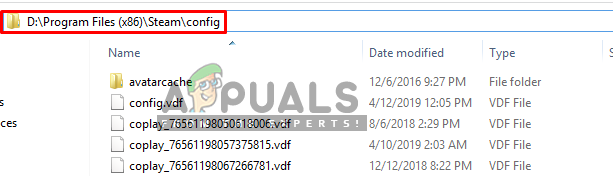
Steam config folder - Then remove the two folders of locomotion from the config
- Now open the SteamVR and test it in Motion Smoothing

Kevin Arrows
Kevin is a dynamic and self-motivated information technology professional, with a Thorough knowledge of all facets pertaining to network infrastructure design, implementation and administration. Superior record of delivering simultaneous large-scale mission critical projects on time and under budget.
First of all, I wanted to thank you all @spencerh-b, @Balderick, and @johnv-valve for your help thus far.
Second, on to more findings. @Balderick I don’t actually seem to have a steamvr.vrsettings config file anywhere that I can find. I have looked both in ~/.steam/steam/config and ~/.local/share/Steam/config, in addition to doing a full search on all directories on my system just to make sure. Where does this file typically live, and what are the default settings? Also, I removed the libvulkan1 package from my system, rebooted, and still got the 306 error.
Lastly, @johnv-valve, I installed the vulkan-utils package (which brings along libvulkan1 as a dependency) and ran vulkaninfo as requested.
===========
VULKAN INFO
===========

Vulkan API Version: 1.0.61

INFO: [loader] Code 0 : Found manifest file /home/<username>/.local/share/vulkan/implicit_layer.d/steamoverlay_i386.json, version "1.0.0"
INFO: [loader] Code 0 : Found manifest file /home/<username>/.local/share/vulkan/implicit_layer.d/steamoverlay_x86_64.json, version "1.0.0"
INFO: [loader] Code 0 : Meta-layer VK_LAYER_LUNARG_standard_validation all 0 component layers appear to be valid.
INFO: [loader] Code 0 : Found ICD manifest file /usr/share//vulkan/icd.d/nvidia_icd.json, version "1.0.0"
ERROR: [loader] Code 0 : loader_scanned_icd_add: Attempt to retrieve either 'vkGetInstanceProcAddr' or 'vk_icdGetInstanceProcAddr' from ICD libGL.so.1 failed.
Cannot create Vulkan instance.
/build/vulkan-d8F03h/vulkan-1.0.61.1+dfsg1/demos/vulkaninfo.c:698: failed with VK_ERROR_INCOMPATIBLE_DRIVER
If I am interpreting this correctly, it looks like for whatever reason something’s up with my libGL.so.1? (If it is using the file located in /usr/lib/nvidia-384, it’s a symbolic link to libGL.so.1.0.0.)
In this post, we’ll talk about how to fix Shared IPC Compositor Connect Failed 306 on SteamVR. Developed by Valve, SteamVR is a Virtual Reality Platform that offers a 360-degree view. The best thing about SteamVR is that it is compatible with Rift. But like anything else in the world, it also isn’t free from problems. Many users have reported facing the Error Starting SteamVR while using the application.
Error Starting SteamVR
SteamVR failed to initialize for unknown reasons, Error Shared IPC Compositor Connect Failed (306)
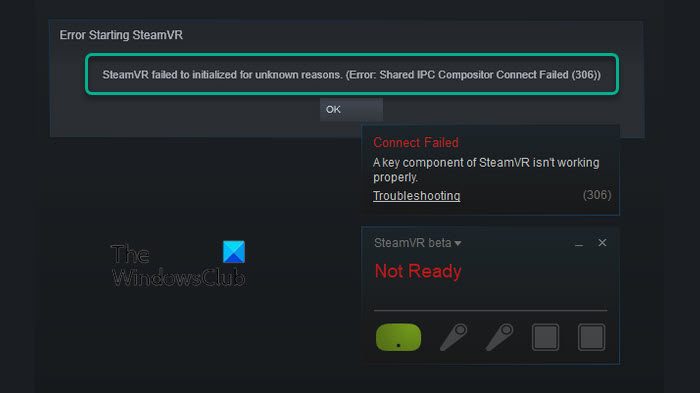
If you face the same error message, continue with the guide to fix the problem.
What causes Shared IPC Compositor Connect Failed 306 on SteamVR?
There can be multiple reasons behind Shared IPC Compositor Connect Failed 306 on SteamVR. But among all, the most common culprits are mentioned below.
- The main reason behind the problem can be a weak connection between the VR headset and the computer.
- If you haven’t downloaded the latest VR headset driver update, you will face the mentioned problem.
- If your system features a GPU driver that isn’t compatible with the SteamVR, you will most likely face the problem.
- The Steam Beta is another common culprit the Shared IPC Compositor Connect Failed 360 on SteamVR.
- The Natural Locomotion, designed for better usability, can also trigger the issue.
Now that you have a prior piece of knowledge about different reasons causing the issue let’s check out how to eliminate the problem.
Below is a list of all the effective solutions you can try to get rid of Shared IPC Compositor Connect Failed 306 on SteamVR.
- Perform basic troubleshooting steps
- Choose the SteamVR Beta
- Manually install the VR drivers
- Uninstall the Natural Locomotion software
Now, let’s take a look at all these solutions in detail.
1] Perform basic troubleshooting steps
Before getting into the technical workarounds, follow the below-mentioned basic troubleshooting steps. They will exclude the possibility of any silly mistake causing the problem.
- First off, restart Steam as well as the PC. It will eliminate any bug which might be causing the issue.
- Make sure to connect the SteamVR HDMI cable to the main HDMI port of the CPU. Additionally, remove any other unnecessary adaptor attached to the system.
- Remove any kind of camera attached to your Windows PC. Sometimes, the camera installed on your system can be the major reason causing the mentioned problem.
- Lastly, uninstall the RiftCat and ALVR drivers from your system. They both can conflict with each other wish you automatically cause the problem.
2] Choose the SteamVR Beta
The next thing you can try is to choose the SteamVR Beta. Many users have reported that the Shared IPC Compositor Connect Failed 306 on SteamVR problem was fixed by changing the SteamVR settings. You can go with the option as well and check if it makes any difference. The Beta for VR is set to none by default, but you can change it to solve the problem. Here are the steps you need to follow.
- To begin with, launch the Steam app on your Windows PC.
- Click on the Library option present at the top left corner.
- Choose the SteamVR option.
- Right-click on SteamVR, and from the context menu, choose the Properties option.
- Click on the BETAS tab.
- Click on the drop-down icon present under, Select the beta you would like to opt into, and from the available option, choose beta-SteamVR Beta Update.
- Now, close the Steam application.
SteamVR will now begin the update process. Once done, check if the problem is fixed or not. If not, try the next solution. Plus, change the settings back to None – Opt-out of all beta programs if you still face the problem.
See: SteamVR keeps telling us to update Graphics driver
3] Manually install the VR drivers
Manually downloading and installing the VR driver update is another effective solution you can try in this situation. As it turns out, an outdated or corrupted driver can be the major reason causing the mentioned problem. In this condition, the best thing you can do is download the latest driver update. Here is how it’s done.
- To begin with, remove the VR headset from your Windows PC.
- Right-click on the Windows icon present on the Taskbar, and from the popup control center, select the Device Manager option.
- Here you’ll find a list of all the installed drivers on your system.
- Locate and right-click on the VR are headset driver.
- From the context menu, choose the Update driver option.
- Now, follow the onscreen instruction to complete the update process.
Once done, check if the problem persists. If yes, continue with the guide.
Read: Fix SteamVR not working on Windows PC
4] Uninstall the Natural Locomotion software
Natural Locomotion is software that emulates input sent by the controller. It basically makes walking, running, and jumping a natural process. It comes along with the driver to do all these, especially for the SteamVR. But at the same time, if the driver isn’t compatible with the SteamVR Beta, you will face the mentioned problem. In this case, the best thing you can do is uninstall Natural Locomotion and run SteamVR with Motion Smoothing. Here are the steps you need to follow.
- Open the Run dialogue box by pressing Windows + R shortcut key.
- Type appwiz.cpl and press the enter key.
- Locate and right-click on the Natural Locomotion from the list of installed applications.
- From the context menu, choose the Uninstall option.
- Now, navigate to the location where you have installed Steam.
- Open the Config folder.
- Locate and delete the locomotion folders.
That’s it.
How do I fix SteamVR not working?
Depending on the cause, it’s very easy to fix SteamVR not working problem. You can try these methods to solve the problem: Run Steam in administrator mode, change the Power Plan of your PC, download the latest Graphics Driver update, turn off the SteamVR add-ons. Additionally, you try the SteamVR Beta and disable the in-game overlay to solve the problem.
Related: Fix SteamVR Error Codes 113, 200, 206, 207, 208, 301, 306, 308, 302
How do I reinstall SteamVR?
It’s a cakewalk to reinstall SteamVR. Just right-click on SteamVR and select the Manage option. From the context menu, choose Uninstall. Now, click on SteamVR twice to begin reinstalling.
Read Next: How to fix SteamVR Error Code 436.
by Matthew Adams
Matthew is a freelancer who has produced a variety of articles on various topics related to technology. His main focus is the Windows OS and all the things… read more
Updated on March 18, 2022
- SteamVR error 306 can arise due to certain SteamVR updates, outdated or incorrectly installed GPU drivers, or certain conflicting software.
- Driver updater software can sometimes fix VR headset and software issues like error starting SteamVR 306.
- Uninstalling certain conflicting software might resolve the SteamVR failed to initialize for unknown reasons 306 error.
- Some users might need to check how their VR devices are connected with PCs to fix the shared IPC compositor connect failed 306 error.
XINSTALL BY CLICKING THE DOWNLOAD FILE
This software will keep your drivers up and running, thus keeping you safe from common computer errors and hardware failure. Check all your drivers now in 3 easy steps:
- Download DriverFix (verified download file).
- Click Start Scan to find all problematic drivers.
- Click Update Drivers to get new versions and avoid system malfunctionings.
- DriverFix has been downloaded by 0 readers this month.
SteamVR is a virtual reality platform that’s compatible with Vive, Windows Mixed Reality, and Oculus Rift headsets.
However, error 306 can arise for some users when they try to launch SteamVR. The full error 306 message says this:
Error Starting SteamVR – SteamVR failed to initialized for unknown reasons (Error: Shared IPC Compositor Connect Failed (306))
SteamVR doesn’t start when that issue arises. Speaking of problems, users also reported other possible variations. Check them out below!
Where does this error occur and what can I expect?
- SteamVR failed initialization with error code vriniterror_init_hmdnotfound (VR init error HMD not found is one of the most frequent error codes, but there can be others as well)
- SteamVR error 436, 435, 301, 475, 309, 119, 307, 303, 0 or SteamVR fail -203
- Frequently associated with Oculus Quest 2: SteamVR Compositor had an error on present (108)
- SteamVR error during OpenVR (Also found under this form: OpenVR runtime is not installed)
If you need to fix the SteamVR 306 error, check out these potential resolutions for that issue.
How can I fix SteamVR error code 306?
1. Update your drivers
There are a few ways you can update your graphics card’s driver, but the most straightforward method is to utilize driver updater software.
A quick DriverFix scan will display a detailed report that shows driver versions for your PC’s devices and which ones need new drivers.
Thereafter, you can select to update your graphics card’s driver if required. DriverFix will then download your GPU’s latest driver for you.
If you’re utilizing DriverFix Pro, you can then select an Automatically Install option to quickly install the driver without needing to extract and open its setup wizard.
Various errors are the result of a malfunctioning driver. When this is the case, you may need to update or reinstall completely this specific component. As the process is not straight-forward to complete, we recommend using an automated tool for the job. Here’s how to do it:
- Download and install DriverFix.
- Launch the app.
- Wait for the software to detect all your faulty drivers.
- You will now be presented with a list of all the drivers that have issues, and you just need to select the ones you’d liked fixed.
- Wait for DriverFix to download and install the newest drivers.
- Restart your PC for the changes to take effect.
DriverFix
Keep your Windows safe from any type of errors caused by corrupted drivers, by installing and using DriverFix today!
Disclaimer: this program needs to be upgraded from the free version in order to perform some specific actions.
2. Connect your VR cable with your graphics card’s primary port
- First, disconnect the HDMI cable for your monitor from the main port on your desktop graphics card.
- Then plug the VR cable (from the VR box) into the graphics card’s Main Port/Primary Port.
- Reconnect your monitor via your graphics card’s secondary port.
- If your SteamVR app is running, close and restart it to see if the error 306 issue persists.
3. Opt into SteamVR Beta Update
- Open your Steam client software.
- Select the Library tab in Steam.
- Right-click SteamVR on the left of the Library tab to select its properties window.
- Select the Betas tab shown directly below.
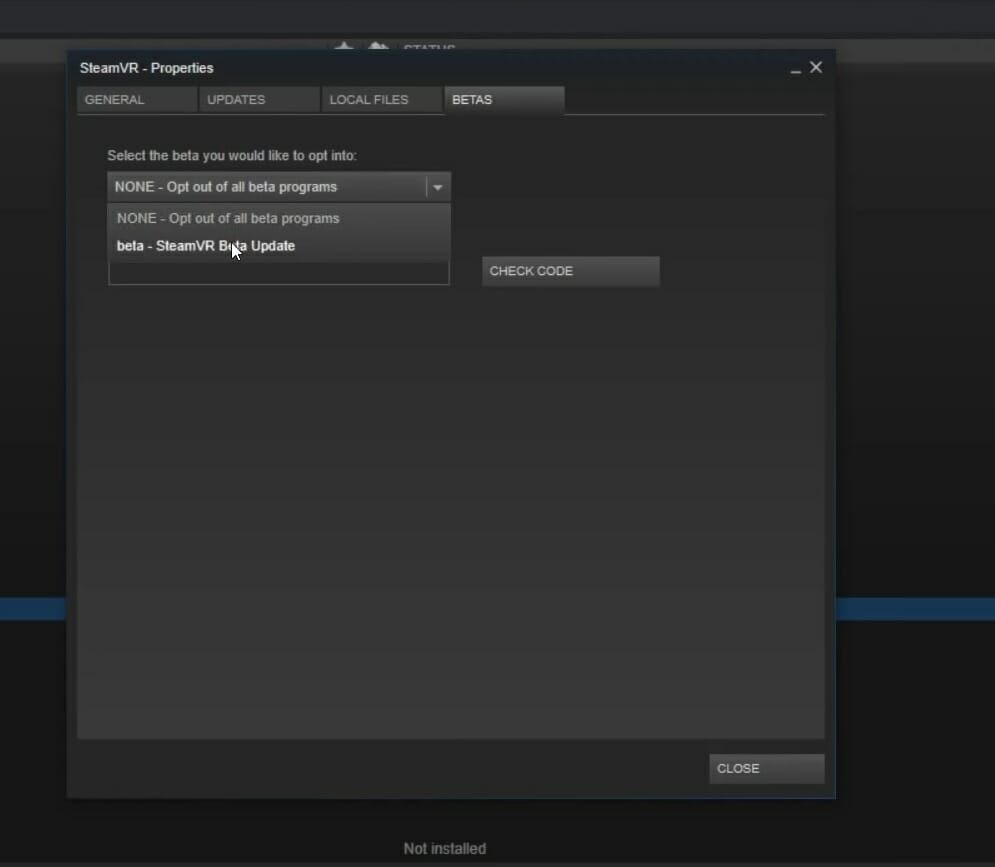
- Then choose the beta – SteamVR Beta Update option on the drop-down menu.
- Press the Close button.
- Fix: HTC Vive error 208 on Windows 10/11
- How to fix the SteamVR Home has stopped working error
- SteamVR settings not working
- Perform a SteamVR upgrade of the graphics driver in 3 steps
- Steam Overlay is not working in Windows 10 [Expert Guide]
4. Clean boot Windows
- Open the Run window.
- Input this run command in the Open box:
msconfig - Click the Selective Startup radio button.
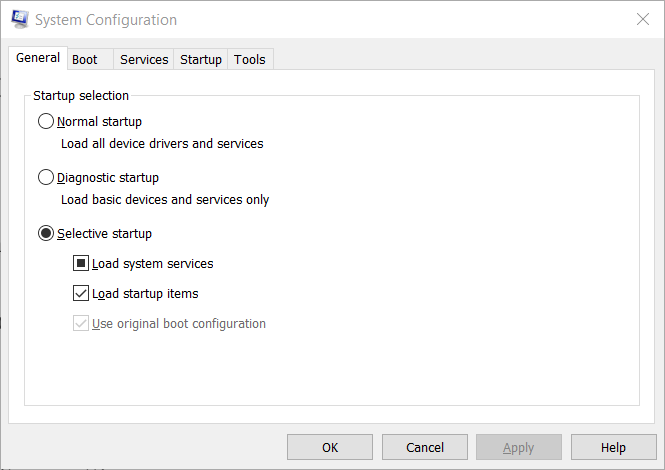
- Deselect the Load startup items setting.
- Make sure you’ve selected the Load system services and Use original boot configuration checkboxes.
- Deselect the checkbox for Hide all Microsoft services shown directly below.
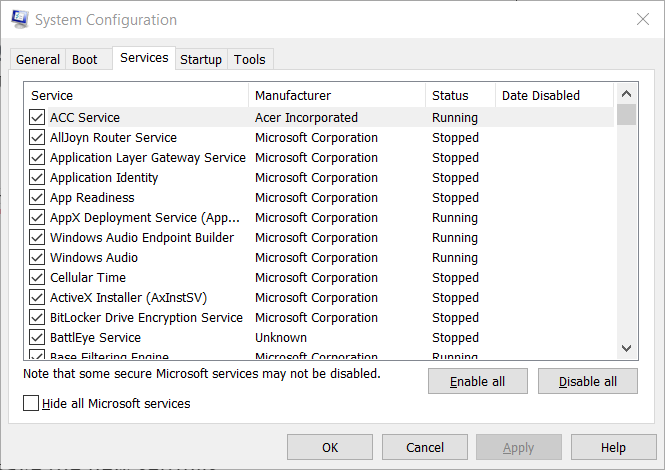
- Click Disable all to disable remaining third-party services.
- Select the Apply option to save the new settings.
- Select the OK option to close the MSConfig utility.
- Select the Restart option on the dialog box that opens.
- Then try launching SteamVR after clean-booting Windows.
Note: Steam confirms Razer Synapse, Avast Antivirus, and the Asus AI Suite conflict with SteamVR and its drivers. So, uninstalling those conflicting programs might also help resolve SteamVR error 306.
5. Uninstall Natural Locomotion
- To launch Run, press the Windows and R keys at the same time.
- Input this command for opening the Windows uninstaller in the Open text box:
appwiz.cpl - Select the Natural Locomotion software within the Programs and Features applet.
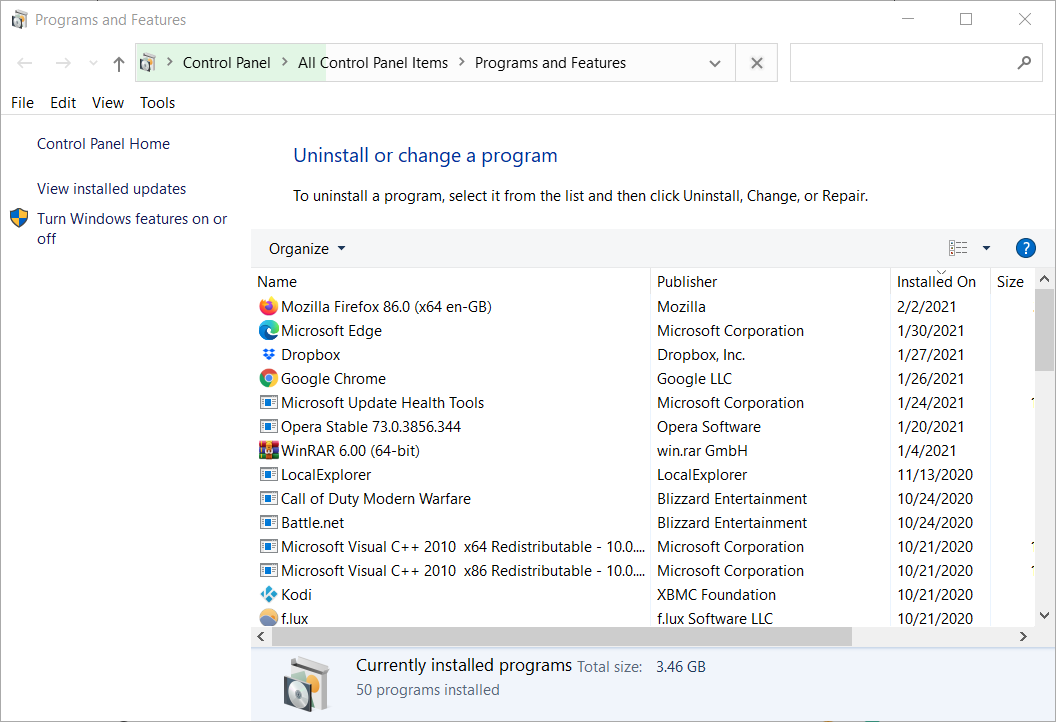
- Click the Uninstall option for Natural Locomotion to remove that software.
- Press the Windows + E hotkey to launch File Explorer.
- Open the config folder in File Explorer at this path:
D:Program Files (x86)Steamconfig - Right-click the locomotion subfolder and select Delete.
Those are some of the more probable fixes for resolving SteamVR error 306 that are worth a shot.
You can also contact Steam via the Steam support page if further potential resolutions for error 306 are required.

Newsletter
EDIT: Issue resolved. There’s a driver crash in the new SteamVR Beta with either the OpenVR Input Emulator or Natural Locomotion. Uninstalling them alone might still leave behind driver files in SteamVR — which will be left behind on uninstalling SteamVR, too. Deleting these manually can be required to repair the installation. They might be in the original install location of OpenVR Input Emulator / Natural Locomotion or in subfolders under the X:Program Files (x86)Steamconfig… folder.
This is my Vive as of today: «Error: Shared IPC Compositor Connect Failed (306)».
I don’t know if this is due to the beta update or not, but I was using my Vive just earlier today on the Beta branch and it was working normally.
Screenshot of error: https://media.discordapp.net/attachments/410607002729840642/502272852029079562/unknown.png
Steps tried: uninstalling/reinstalling SteamVR, using the «uninstall USB devices» tool under the Developer menu and rebooting. Also tried deleting my C:Program Files (x86)Steamconfigsteamvr.vrsettings file before the reinstall. Also did a clean install of NVIDIA GPU drivers and launched a game, GPU appears to be working normally. Of course, also tried reconnecting all of the cables to/from the link box.
Last time I played it successfully was earlier in the day today, not sure if it’s related to the new SteamVR Beta update or not but it doesn’t work on the regular branch either
Googling the error has a bunch of people saying they fixed it by setting their graphics adapter in NVIDIA settings or unplugging an extra monitor, I tried unplugging my extra monitor and I don’t have a different GPU under the NVIDIA Control Panel.
I’m also on the Windows 10 October Update but it was working fine until today
NVIDIA drivers are 416.34 dated 10/11
Halp? I’m getting worried 🙁 Grateful for any and all suggestions or ideas.