Повреждение системных файлов далеко не всегда означает крах Windows, всё зависит от того, какие именно компоненты были повреждены. Если они не являются для системы критичными, проблемы ограничатся сбоями в работе отдельных приложений и функций, к тому же такие неполадки часто удаётся устранить, запустив командой sfc /scannow встроенное средство восстановления системных файлов. Но и здесь пользователя может поджидать неприятность. Инструмент или не запускается, или запускается, но вскоре начатое сканирование завершается ошибкой «Защита ресурсов Windows не может выполнить запрошенную операцию».
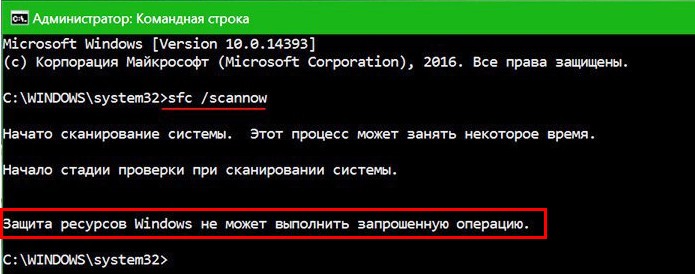
Означает ли это, что всё так плохо, что даже SFC не работает? Не всегда, просто во время проверки в системе происходит сбой или инструмент не может получить доступ к каталогу WinSxS, в коем расположены важные файлы. Вероятны и другие причины — повреждение файловой системы, наличие физически нечитаемых секторов на диске, отсутствие у пользователя соответствующих прав доступа. Что делать и с чего начинать поиск причин неполадки?
Для начала убедитесь, что командная строка запущена от имени администратора,
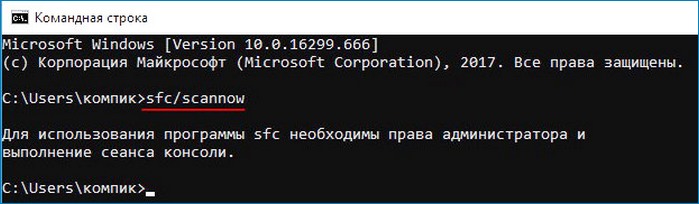
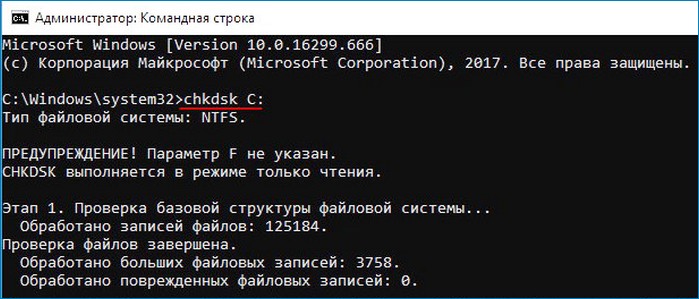
хотя вообще-то Windows должна сама об этом предупреждать. Если вы запускаете инструмент как положено с админскими привилегиями, а ошибка всё равно появляется, проверьте состояние файловой системы, выполнив тут же в консоли команду chkdsk C:
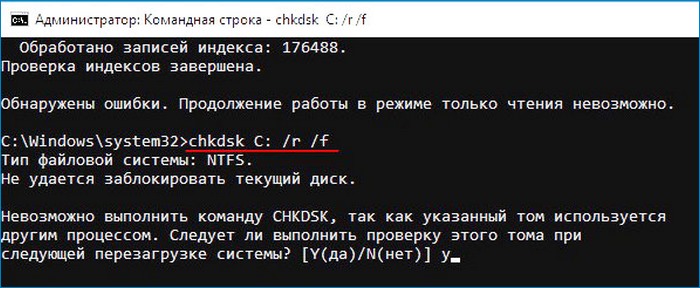
Если будут обнаружены ошибки, повторите команду, но уже с параметрами /r /f, как показано на скриншоте. Действие потребуется подтвердить вводом Y, при этом компьютер будет перезагружен, а сканирование и исправление выполнено до загрузки рабочего стола.
Причиной ошибки сканирования может быть ограничение доступа SFC к каталогу WinSxS. Попробуйте снять их, выполнив в консоли CMD команду
icacls c:windowswinsxs
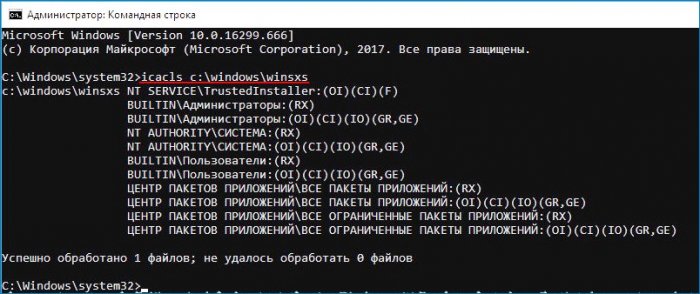
и перезагрузив компьютер.
Следующий шаг — запуск процедуры сканирования SFC в безопасном режиме. Загрузиться в него проще всего с помощью утилиты msconfig, переключившись на вкладку «Загрузка» и установив галочку в соответствующем чекбоксе.
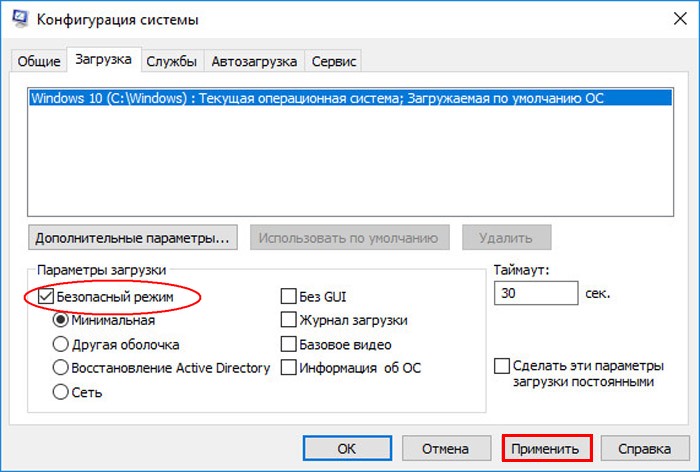
Далее всё как обычно, открываем командную строку с повышенными привилегиями и выполняем команду sfc/scannow.
Будет еще лучше, если запустить сканирование SFC оффлайн. Для этого нужно загрузиться с установочного диска Windows, при появлении окна мастера установки нажать Shift + F10,
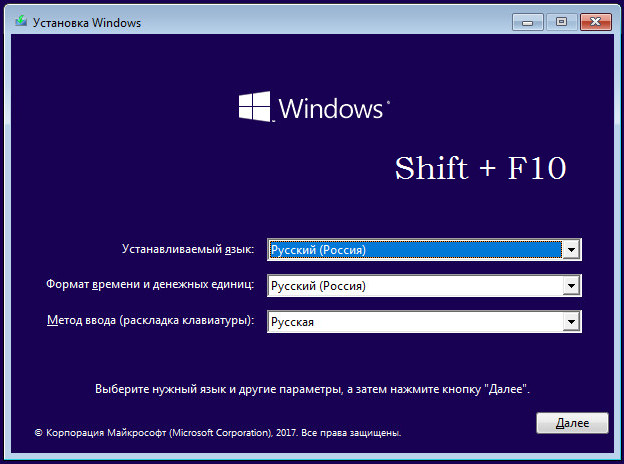
открыв тем самым командную строку, определить в ней буквы дисков, а затем выполнить такую команду:
sfc /scannow /offbootdir=D: /offwindir=C:Windows
Где:
offbootdir=D: раздел, содержащий папку WinSxS.
offwindir=C:Windows — раздел с установленной ОС.
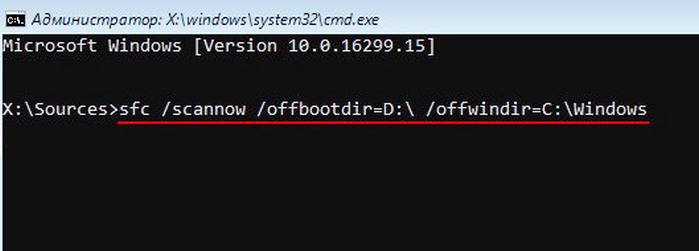
- Примечание: определить буквы томов в загрузочной среде проще всего с помощью Блокнота, запустив его командой notepad и выбрав Файл → Сохранить как.
Если приведенные выше способы не дали результатов, высока вероятность, что отказ защиты ресурсов Windows вызван повреждением самого хранилища системных компонентов, то есть содержимого папки WinSxS. Проверить его состояние можно командой
Dism /Online /Cleanup-Image /ScanHealth
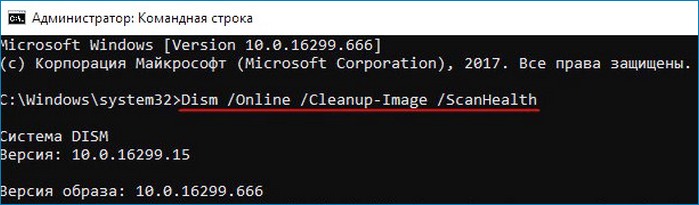
если она выдает сообщение о необходимости восстановление хранилища, выполняем в консоли такую команду:
Dism /Online /Cleanup-Image /RestoreHealth
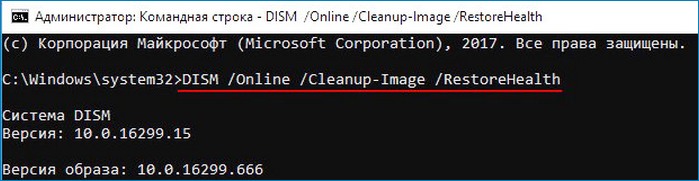
Компьютер при этом должен быть подключен к интернету, поскольку Windows может потребоваться подключиться к серверу Microsoft и скачать недостающие файлы. По завершении процедуры перезагружаемся. Теперь, когда хранилище восстановлено, sfc/scannow должна заработать как надо.
SFC SCANNOW Finds Corrupted Files But Unable to Fix [Solved]
We often run System File Check to scan for and restore corrupt Windows system files. What if at the end of the run you see this message: Windows Resource Protection found corrupt files but was unable to fix some of them. Details are included in the CBS.Log windirLogsCBSCBS.log. Don’t worry if you receive the SFC SCANNOW cannot repair the error message. You can find solutions here to repair SFC cannot fix corrupted file error and make SFC working again.
| Workable Solutions | Step-by-step Troubleshooting |
|---|---|
| 1. Run SFC Alternative | Open EaseUS Partition Master on your computer. Then locate the disk, right-click the partition…Full steps |
| 2. Use Installation Disc to Repair | Insert CD/DVD into DVD-ROM or connect external DVD drive to another bootable computer…Full steps |
| 3. Run DISM Command | Press Win + R to open Run dialog and type: cmd to open «Command Prompt»…Full steps |
| 4. Run SFC in Safe Mode | Press Windows key and R key together to launch Run box. Type msconfig…Full steps |
| 5. Check the Log Files | Take administrative ownership of the corrupted system file. To do this, at an elevated…Full steps |
| 6. Try Reset This PC or Fresh Start | Go to «Start» > «Settings» > «Update & Security» > «Recovery»…Full steps |
SFC /SCANNOW Finds Corrupted Files But Unable to Fix
SFC is short for System File Checker. This command scans all protected system files for corruption. It attempts to repair it by copying a cached copy of each corrupted file from the system32dllcache folder.
To run SFC/SCANNOW:
Step 1. Press Win + X to bring up the Power User menu and select «Command Prompt».
Step 2. Type: sfc /scannow and hit «Enter».
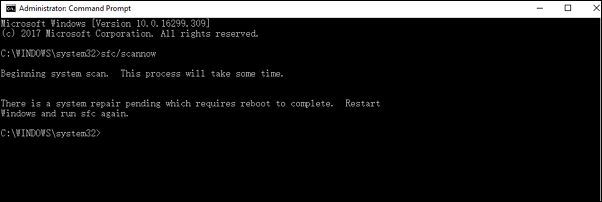
However, some people are complaining that SFC finds corrupted files but unable to fix it. They receive the error — Windows Resource Protection found corrupt files but was unable to fix some of them. Details are included in the CBS.Log windirLogsCBSCBS.log.
«I received this message in Windows 10. When I ran sfc /scannow to find and repair corrupted files on my PC, this error popped up. ‘Windows Resource Protection found corrupt files but was unable to fix some of them. Details are included in the CBS.Log windirLogsCBSCBS.log. For example, C:WindowsLogsCBSCBS.log. Note that logging is currently not supported in offline servicing scenarios.’ How can I solve this issue and repair corrupted files on my PC?«
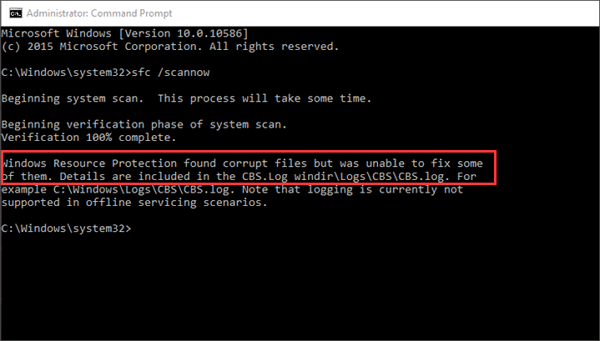
If you want to fix SFC SCANNOW not working error, follow these solutions below.
Fix 1. Run SFC Alternative to Check and Repair Hard Disk
When you encounter the error, the very first thing to do is check your computer condition. If your computer is unable to boot, you should repair the error with a WinPE bootable disk to boot from it. Then, run SFC/SCANNOW alternative — EaseUS partition tool.
This software can check and fix the hard drive errors if SFC/SCANNOW fails to work. What’s more, it can partition a hard drive and merge partitions with easy steps. Boot from EaseUS Partition Master WinPE bootable disk. Then, follow these steps below:
Step 1. Right-click the target partition that has a problem.
Step 2. Choose «Advanced» > «Check File System».
Step 3. Confirm if you want to hide the partition or not.
Step 4. In the Check File System window, check the «Try to fix errors if found» option.
Step 5. Click «Start» to check errors on your partition.
Fix 2. Repair SFC/SCANNOW Cannot Fix error with an Installation Disc
If your computer fails to boot when you receive the error, you should create a Windows 10/8/7 repair disc. Windows 10 allows you to create a recovery drive (USB) or system repair disc (CD or DVD) that can be used to troubleshoot and restore your computer. Each type of recovery media gives you access to Windows’ advanced startup options. The system repair disc has existed since Windows 7. The system repair disc brings your computer back to the same condition in which you created the repair disc. When your PC is unbootable and get the SFC/SCANNOW cannot repair the error, follow this method immediately.
Step 1. Insert CD/DVD into DVD-ROM or connect external DVD drive to another bootable computer.
Step 2. Click «Control Panel» on the computer screen, then click «Backup and Restore (Windows 7)».
Step 3. Click «Create a system repair disc» from the left column to open the repair disc creation window. Follow the on-screen instructions to create a system repair disc.
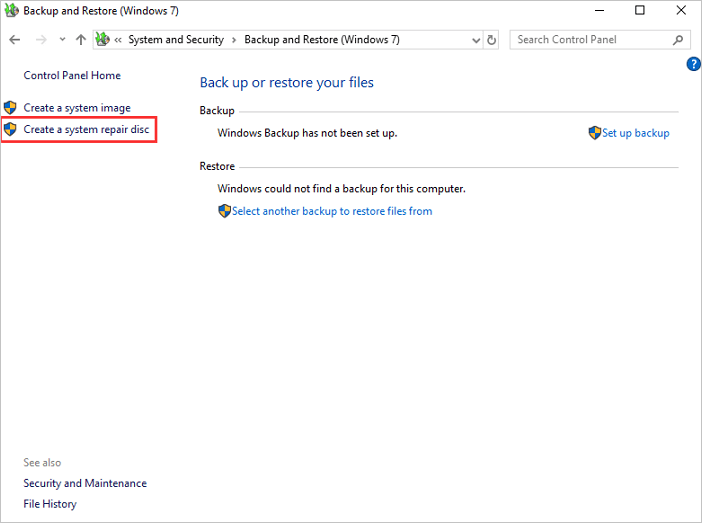
Step 4. Put the disc in your optical drive and restart to boot from the DVD. You may have to change the boot settings in your BIOS if booting from a CD/DVD is not enabled.
Step 5. On the «Install Windows» screen, make the appropriate selections for language, time, and keyboard, and then click «Next».
Step 6. On the next screen, click «Repair Your Computer». Do not click «Install now». Then, click «Next», and select «Command Prompt» or whichever option you wish to apply.
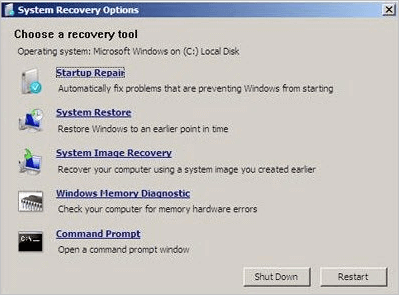
Step 7. Type the following command and hit «Enter».
sfc /scannow /offbootdir=d: /offwindir=d:windows
D: is the Windows drive. You can change your drive according to your needs.
After the steps, you can boot to your computer as usual. Then, you can try SFC/SCANNOW again to see whether it works or not.
Fix 3. Run DISM Command If SFC Cannot Repair Corrupted Files
System File Checker is a utility built into the Operating System that will check for system file corruption The sfc /scannow command scans the integrity of all protected operating system files and replaces incorrect, corrupted, changed, or damaged versions with the correct versions where possible. When this command cannot repair the damage DISM should be run to fix as many errors as possible.
Step 1. Press Win + R to open Run dialog and type: cmd to open «Command Prompt».
Step 2. Type the following command and hit «Enter».
- To check the health:
Dism /Online /Cleanup-Image /CheckHealth
- To scan the health:
Dism /Online /Cleanup-Image /ScanHealth
- To restore the health:
Dism /Online /Cleanup-Image /RestoreHealth
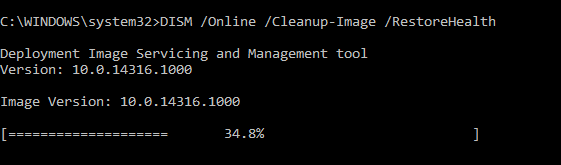
Step 3. Reboot PC to keep all changes and make SFC into working again.
After running DISM, you can re-run SFC just to check.
Fix 4. Run SFC in Safe Mode If SFC Cannot Repair
If Windows resource protection found corrupt files but was unable to fix some of them, you can run SFC in Safe Mode to fix the error.
Step 1. Press Windows key and R key together to launch Run box.
Step 2. Type msconfig in the box and hit «Enter» to continue.
Step 3. Go to the «Boot» tab, tick on «Safe boot» and click «OK» to continue.
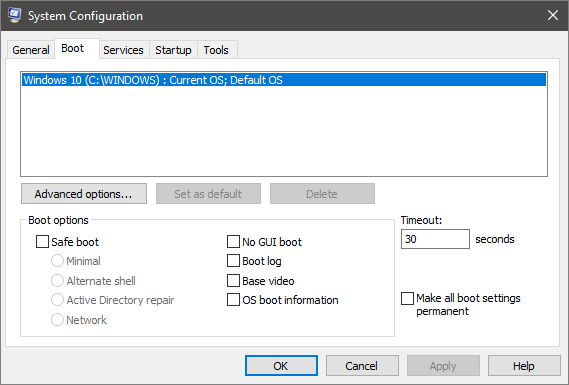
Step 4. Restart your computer to apply this change. Click «Restart» to continue.
Step 5. The computer will boot in safe mode and you can input SFC scannow command again to check whether the issue Windows resource protection could not perform the requested operation is solved.
Fix 5. Check the Log Files to Fix SFC/SCANNOW Not Working
Microsoft Windows Resource Checker (SFC.exe) program generates the log file in Windows. Open the CBS.log file and view details of the corrupted files and replace the corrupted file with a known good copy manually. Navigate to C:WindowsLogsCBS you will be able to see and open the SBS.log file. Check if it shows some errors or a message. Then, manually replace a corrupted system file with a known good copy of the file.
You may be able to get a known good copy of the system file from another computer that is running the same version of Windows as your computer. You may perform a System File Checker process on that computer to make sure the system file that you intend to copy is a good copy.
Step 1. Take administrative ownership of the corrupted system file. To do this, at an elevated command prompt, copy and then paste (or type) the following command, and then press «Enter»:
takeown /f Path_And_File_Name

Step 2. Copy and paste the following command to access the corrupted system file, and then press «Enter».
Path_And_File_Name /GRANT ADMINISTRATORS: F
Note: The Path_And_File_Name placeholder represents the path and the file name of the corrupted file. For example, type icacls C:windowssystem32jscript.dll /grant administrators:F.
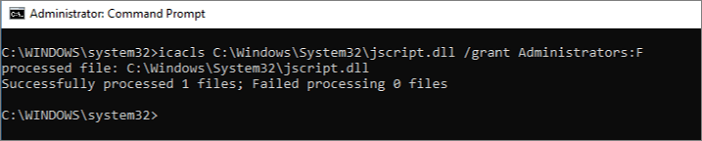
Step 3. Replace the corrupted system file with a known good copy of the file. To do this, copy and paste (or type) the following command:
Copy Source_File Destination
If the steps above don’t work, you may need to reset or reinstall Windows.
Fix 6. Try Reset This PC or Fresh Start on Windows 10
This method is available when your PC can still boot properly. Being capable of solving most system problems, it won’t be different from a clean install of Windows 10 via an installation CD.
Step 1. Go to «Start» > «Settings» > «Update & Security» > «Recovery».
Step 2. Under «Reset this PC option», tap «Get Started».
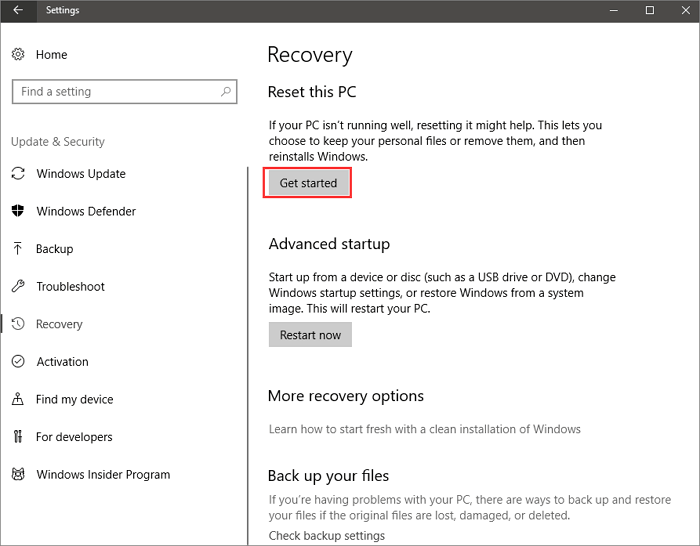
Step 3. Click either «Keep my files» or «Remove everything», depending on whether you want to keep your data files intact. Either way, all of your settings will return to their defaults, and apps will be uninstalled.
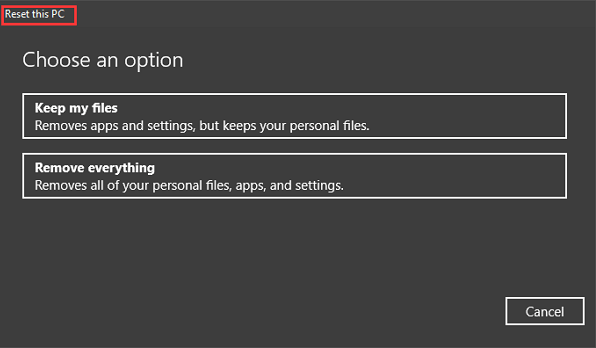
Step 4. After the process, a window will pop up, saying that your apps will be removed. Click Next to go on.
Step 5. In Ready to reset this PC interface, click the Reset button to reinstall Windows 10 without CD or personal file loss.
You can also install Windows 10 to get a fresh start.
Conclusion
The System File Checker is a convenient tool to check whether there is a corruption for system files. However, if it is not working, you may receive an error message Windows resource protection could not perform the requested operation. But you can fix the error with these solutions above.
SFC Scannow Related Questions
If you still have a question, refer to this part. You can get your answers here.
How do I fix SFC Scannow?
It depends on your computer situation. If it cannot boot, the only way to fix the error is to use an installation disc. If your PC can boot, as usual, the SFC/SCANNOW errors can be ignored. You are advised to run the CHKDSK command to avoid further problems.
How do I fix corrupt SFC Scannow files in Windows 10?
The files are log files. You don’t need to fix them. You can directly delete them or ignore the corruption.
What is SFC Scannow?
SFC is short for System File Checker. This command scans all protected system files for corruption. It attempts to repair it by copying a cached copy of each corrupted file from the system32dllcache folder.
What should I do to run after SFC Scannow?
To run SFC/SCANNOW:
Step 1. Press Win + X to bring up the Power User menu and select Command Prompt.
Step 2. Type: sfc /scannow and hit Enter.
SFC SCANNOW Finds Corrupted Files But Unable to Fix [Solved]
We often run System File Check to scan for and restore corrupt Windows system files. What if at the end of the run you see this message: Windows Resource Protection found corrupt files but was unable to fix some of them. Details are included in the CBS.Log windirLogsCBSCBS.log. Don’t worry if you receive the SFC SCANNOW cannot repair the error message. You can find solutions here to repair SFC cannot fix corrupted file error and make SFC working again.
| Workable Solutions | Step-by-step Troubleshooting |
|---|---|
| 1. Run SFC Alternative | Open EaseUS Partition Master on your computer. Then locate the disk, right-click the partition…Full steps |
| 2. Use Installation Disc to Repair | Insert CD/DVD into DVD-ROM or connect external DVD drive to another bootable computer…Full steps |
| 3. Run DISM Command | Press Win + R to open Run dialog and type: cmd to open «Command Prompt»…Full steps |
| 4. Run SFC in Safe Mode | Press Windows key and R key together to launch Run box. Type msconfig…Full steps |
| 5. Check the Log Files | Take administrative ownership of the corrupted system file. To do this, at an elevated…Full steps |
| 6. Try Reset This PC or Fresh Start | Go to «Start» > «Settings» > «Update & Security» > «Recovery»…Full steps |
SFC /SCANNOW Finds Corrupted Files But Unable to Fix
SFC is short for System File Checker. This command scans all protected system files for corruption. It attempts to repair it by copying a cached copy of each corrupted file from the system32dllcache folder.
To run SFC/SCANNOW:
Step 1. Press Win + X to bring up the Power User menu and select «Command Prompt».
Step 2. Type: sfc /scannow and hit «Enter».
However, some people are complaining that SFC finds corrupted files but unable to fix it. They receive the error — Windows Resource Protection found corrupt files but was unable to fix some of them. Details are included in the CBS.Log windirLogsCBSCBS.log.
«I received this message in Windows 10. When I ran sfc /scannow to find and repair corrupted files on my PC, this error popped up. ‘Windows Resource Protection found corrupt files but was unable to fix some of them. Details are included in the CBS.Log windirLogsCBSCBS.log. For example, C:WindowsLogsCBSCBS.log. Note that logging is currently not supported in offline servicing scenarios.’ How can I solve this issue and repair corrupted files on my PC?«
If you want to fix SFC SCANNOW not working error, follow these solutions below.
Fix 1. Run SFC Alternative to Check and Repair Hard Disk
When you encounter the error, the very first thing to do is check your computer condition. If your computer is unable to boot, you should repair the error with a WinPE bootable disk to boot from it. Then, run SFC/SCANNOW alternative — EaseUS partition tool.
This software can check and fix the hard drive errors if SFC/SCANNOW fails to work. What’s more, it can partition a hard drive and merge partitions with easy steps. Boot from EaseUS Partition Master WinPE bootable disk. Then, follow these steps below:
Step 1. Right-click the target partition that has a problem.
Step 2. Choose «Advanced» > «Check File System».
Step 3. Confirm if you want to hide the partition or not.
Step 4. In the Check File System window, check the «Try to fix errors if found» option.
Step 5. Click «Start» to check errors on your partition.
Fix 2. Repair SFC/SCANNOW Cannot Fix error with an Installation Disc
If your computer fails to boot when you receive the error, you should create a Windows 10/8/7 repair disc. Windows 10 allows you to create a recovery drive (USB) or system repair disc (CD or DVD) that can be used to troubleshoot and restore your computer. Each type of recovery media gives you access to Windows’ advanced startup options. The system repair disc has existed since Windows 7. The system repair disc brings your computer back to the same condition in which you created the repair disc. When your PC is unbootable and get the SFC/SCANNOW cannot repair the error, follow this method immediately.
Step 1. Insert CD/DVD into DVD-ROM or connect external DVD drive to another bootable computer.
Step 2. Click «Control Panel» on the computer screen, then click «Backup and Restore (Windows 7)».
Step 3. Click «Create a system repair disc» from the left column to open the repair disc creation window. Follow the on-screen instructions to create a system repair disc.
Step 4. Put the disc in your optical drive and restart to boot from the DVD. You may have to change the boot settings in your BIOS if booting from a CD/DVD is not enabled.
Step 5. On the «Install Windows» screen, make the appropriate selections for language, time, and keyboard, and then click «Next».
Step 6. On the next screen, click «Repair Your Computer». Do not click «Install now». Then, click «Next», and select «Command Prompt» or whichever option you wish to apply.
Step 7. Type the following command and hit «Enter».
sfc /scannow /offbootdir=d: /offwindir=d:windows
D: is the Windows drive. You can change your drive according to your needs.
After the steps, you can boot to your computer as usual. Then, you can try SFC/SCANNOW again to see whether it works or not.
Fix 3. Run DISM Command If SFC Cannot Repair Corrupted Files
System File Checker is a utility built into the Operating System that will check for system file corruption The sfc /scannow command scans the integrity of all protected operating system files and replaces incorrect, corrupted, changed, or damaged versions with the correct versions where possible. When this command cannot repair the damage DISM should be run to fix as many errors as possible.
Step 1. Press Win + R to open Run dialog and type: cmd to open «Command Prompt».
Step 2. Type the following command and hit «Enter».
- To check the health:
Dism /Online /Cleanup-Image /CheckHealth
- To scan the health:
Dism /Online /Cleanup-Image /ScanHealth
- To restore the health:
Dism /Online /Cleanup-Image /RestoreHealth
Step 3. Reboot PC to keep all changes and make SFC into working again.
After running DISM, you can re-run SFC just to check.
Fix 4. Run SFC in Safe Mode If SFC Cannot Repair
If Windows resource protection found corrupt files but was unable to fix some of them, you can run SFC in Safe Mode to fix the error.
Step 1. Press Windows key and R key together to launch Run box.
Step 2. Type msconfig in the box and hit «Enter» to continue.
Step 3. Go to the «Boot» tab, tick on «Safe boot» and click «OK» to continue.
Step 4. Restart your computer to apply this change. Click «Restart» to continue.
Step 5. The computer will boot in safe mode and you can input SFC scannow command again to check whether the issue Windows resource protection could not perform the requested operation is solved.
Fix 5. Check the Log Files to Fix SFC/SCANNOW Not Working
Microsoft Windows Resource Checker (SFC.exe) program generates the log file in Windows. Open the CBS.log file and view details of the corrupted files and replace the corrupted file with a known good copy manually. Navigate to C:WindowsLogsCBS you will be able to see and open the SBS.log file. Check if it shows some errors or a message. Then, manually replace a corrupted system file with a known good copy of the file.
You may be able to get a known good copy of the system file from another computer that is running the same version of Windows as your computer. You may perform a System File Checker process on that computer to make sure the system file that you intend to copy is a good copy.
Step 1. Take administrative ownership of the corrupted system file. To do this, at an elevated command prompt, copy and then paste (or type) the following command, and then press «Enter»:
takeown /f Path_And_File_Name
Step 2. Copy and paste the following command to access the corrupted system file, and then press «Enter».
Path_And_File_Name /GRANT ADMINISTRATORS: F
Note: The Path_And_File_Name placeholder represents the path and the file name of the corrupted file. For example, type icacls C:windowssystem32jscript.dll /grant administrators:F.
Step 3. Replace the corrupted system file with a known good copy of the file. To do this, copy and paste (or type) the following command:
Copy Source_File Destination
If the steps above don’t work, you may need to reset or reinstall Windows.
Fix 6. Try Reset This PC or Fresh Start on Windows 10
This method is available when your PC can still boot properly. Being capable of solving most system problems, it won’t be different from a clean install of Windows 10 via an installation CD.
Step 1. Go to «Start» > «Settings» > «Update & Security» > «Recovery».
Step 2. Under «Reset this PC option», tap «Get Started».
Step 3. Click either «Keep my files» or «Remove everything», depending on whether you want to keep your data files intact. Either way, all of your settings will return to their defaults, and apps will be uninstalled.
Step 4. After the process, a window will pop up, saying that your apps will be removed. Click Next to go on.
Step 5. In Ready to reset this PC interface, click the Reset button to reinstall Windows 10 without CD or personal file loss.
You can also install Windows 10 to get a fresh start.
Conclusion
The System File Checker is a convenient tool to check whether there is a corruption for system files. However, if it is not working, you may receive an error message Windows resource protection could not perform the requested operation. But you can fix the error with these solutions above.
SFC Scannow Related Questions
If you still have a question, refer to this part. You can get your answers here.
How do I fix SFC Scannow?
It depends on your computer situation. If it cannot boot, the only way to fix the error is to use an installation disc. If your PC can boot, as usual, the SFC/SCANNOW errors can be ignored. You are advised to run the CHKDSK command to avoid further problems.
How do I fix corrupt SFC Scannow files in Windows 10?
The files are log files. You don’t need to fix them. You can directly delete them or ignore the corruption.
What is SFC Scannow?
SFC is short for System File Checker. This command scans all protected system files for corruption. It attempts to repair it by copying a cached copy of each corrupted file from the system32dllcache folder.
What should I do to run after SFC Scannow?
To run SFC/SCANNOW:
Step 1. Press Win + X to bring up the Power User menu and select Command Prompt.
Step 2. Type: sfc /scannow and hit Enter.
 Среди распространенных ошибок при запуске проверки и восстановления целостности системных файлов с помощью SFC /scannow сообщение «Защите ресурсов Windows не удается запустить службу восстановления».
В этой пошаговой инструкции подробно о способах исправить ошибку «Защите ресурсов Windows не удается запустить службу восстановления» при выполнении команды sfc /scannow в Windows 11, Windows 10 и предыдущих версиях системы.
Прямое указание пути к sfc.exe в команде
Первый метод решить проблему, не гарантированно работающий, но очень быстрый: указать прямой путь к файлу sfc.exe в команде для запуска проверки и восстановления системных файлов.
Шаги будут следующими:
- Запустите командную строку от имени Администратора, Терминал Windows или Windows PowerShell от администратора также подойдут. Как запустить командную строку Windows 11 от администратора, Как запустить командную строку Windows 10 от администратора.
- Введите команду
C:WindowssysNativesfc.exe /scannow
и нажмите Enter.

С большой вероятностью вы увидите стандартное сообщение «Начато сканирование системы. Этот процесс может занять некоторое время».
Командная строка x86 и x64
В 64-разрядных системах Windows присутствует 32-битные (x86) и 64-битные (x64) версии приложений командной строки и Windows PowerShell. При этом, если в 64-битной системе попробовать выполнить команду sfc /scannow в x86 варианте консоли, вы получите сообщение об ошибке «Защите ресурсов Windows не удается запустить службу восстановления».

При использовании стандартных средств Windows для запуска командной строки от имени администратора, почти всегда запускается «нужная», x64 версия. Однако, при использовании запуска из сторонних средств: какого-либо виджета, стороннего файлового менеджера, может быть запущена 32-битная x86 версия, что и будет являться причиной ошибки.
Если есть предположения о том, что это ваш случай, вы можете:
- Запустить командную строку от имени Администратора средствами Windows (ссылки на способы приведены в первой части этой инструкции).
- Зайти в папку C:WindowsSystem32 (независимо от разрядности Windows), найти файл cmd.exe, нажать по нему правой кнопкой мыши и выбрать «Запуск от имени администратора», выполнить команду sfc /scannow
Запуск служб Установщик модулей Windows и Установщик Windows
В случае, если в системе отключены необходимые службы, sfc /scannow также может сообщать о рассматриваемой ошибке. Проверить службы и включить их можно следующим образом:
- Откройте «Службы». Для этого нажмите клавиши Win+R на клавиатуре, введите services.msc и нажмите Enter.
- В списке служб найдите «Установщик Windows» и «Установщик модулей Windows».

- Дважды нажмите по имени службы, чтобы открыть её свойства. По умолчанию для этих служб в «Тип запуска» должен быть установлен в значение «Вручную». Если это не так — измените тип запуска и примените настройки. В этом же окне можно вручную запустить службы с помощью соответствующей кнопки (кнопка не активна, если тип запуска — «Отключена»).

- После применения всех настроек снова запустите командную строку от имени администратора и попробуйте выполнить команду sfc /scannow
Исправление букв дисков при выполнении команды
Если ошибка «Защите ресурсов Windows не удается запустить службу восстановления» возникает при выполнении команд вида:
sfc /scannow /offbootdir=C: /offwindir=C:Windows
с загрузочного накопителя, причиной этого может быть то, что буквы разделов диска при загрузке с флешки отличаются и в результате папка Windows находится не на привычном диске C. Способ определить актуальную букву системного диска:
- В командной строке по порядку вводим команды
diskpart
list volume
- Отобразится список разделов с текущими буквами, где мы и можем посмотреть букву системного раздела, чтобы в дальнейшем использовать в командах sfc
- В некоторых случаях системный раздел может не иметь буквы. В этом случае её можно назначить командами (здесь N — номер системного тома, а Z — назначаемая буква):
select volume N
assign letter=Z
- По завершении работы с diskpart введите команду exit
Запуск проверки целостности системных файлов в среде восстановления
Если ни один из способов выше не сработал, попробуйте выполнить команду в командной строке среды восстановления Windows 11 или Windows 10:
- Зайдите в среду восстановления — Как зайти в среду восстановления Windows 11, Как зайти в среду восстановления Windows 10.
- Перейдите в раздел Поиск и устранение неисправностей — Дополнительные параметры — Командная строка.
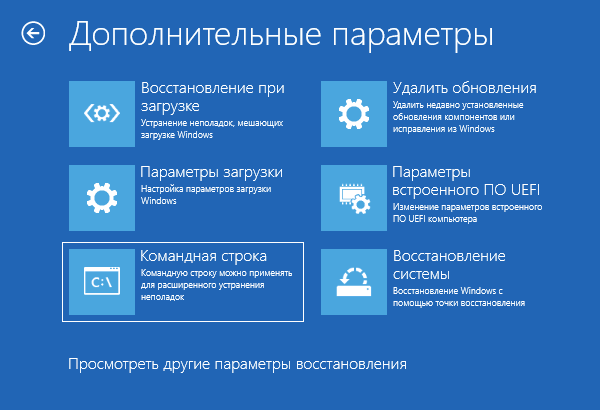
- Запустите сканирование sfc /scannow
Запуск sfc /scannow с загрузочной флешки
Если у вас есть загрузочная флешка с вашей версией Windows или возможность создать её, можно использовать команду sfc /scannow с неё. Для этого:
- После загрузки компьютера с флешки, нажмите клавиши Shift+F10 (на некоторых ноутбуках — Shift+Fn+F10) откроется командная строка.
- В командной строке используйте команду
sfc /scannow /offbootdir=C: /offwindir=C:Windows
Внимание: при загрузке с флешки буква системного диска может отличаться от C и в этом случае приведенная выше команда также сообщит о том, что защите ресурсов Windows не удается запустить службу восстановления. Чтобы исправить ситуации, прочтите раздел «Исправление букв дисков при выполнении команды» выше в статье.
Безопасный режим
И ещё один вариант, который иногда может сработать, если причина ошибки — какие-либо сторонние службы и процессы, мешающие выполнению команды: попробуйте запуск проверки в безопасном режиме. Здесь могут быть полезными материалы: Как зайти в безопасный режим Windows 11, Как зайти в безопасный режим Windows 10.
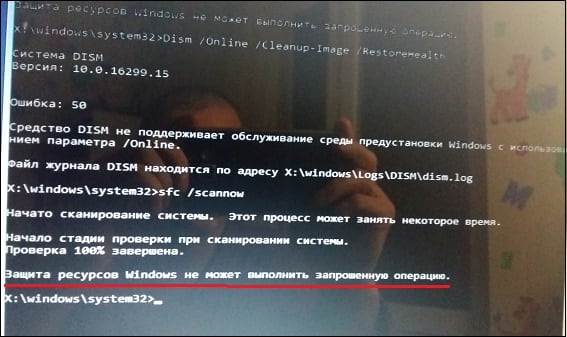
Утилита SFC – невероятно полезный инструмент для восстановления работоспособности ОС Виндовс. Функционал утилиты позволяет анализировать все системные файлы на предмет их повреждения, и при необходимости заменять повреждённые файлы на их полноценные аналоги. SFC встроена в сборки всех современных ОС Виндовс, и пользователи довольно часто пользуются возможностями утилиты для решения возникающих проблем с системными файлами. Но что делать, когда при SFC зависает посреди процедуры проверки, а затем выдаёт «Защита ресурсов Windows не может выполнить запрошенную операцию»? Рассмотрим в данном материале.
Содержание
- Sfc/scannow не может выполнить запрошенную операцию – суть и причины проблемы
- Операция не может быть выполнена защитой ресурсов Windows – как исправить
- Запустите SFC в безопасном режиме
- Используйте CHKDSK
- Модифицируйте дескрипторы безопасности папки winsxs
- Используйте команды DISM
- Выполните восстанавливающую инсталляцию Виндовс
- Заключение
Sfc/scannow не может выполнить запрошенную операцию – суть и причины проблемы
Упомянутое выше сообщение об ошибке может появиться как в самом конце сканирования с помощью SFC, так и в любой момент выполнения данной процедуры. Обычно SFC зависает на каком-то делении (например 11%), висит так длительное время, после чего выдаёт сообщение об ошибке.
Данной проблеме подвержены все версии ОС Виндовс, а главной причиной дисфункции «Защита ресурсов Windows не может выполнить запрошенную операцию» обычно является повреждение (удаление) каких-либо важных системных файлов.
В некоторых случаях причиной проблемы может стать невозможность SFC получить доступ к системной директории winsxs.
Ниже разберём, как решить проблему с защитой ресурсов Виндовс.
Операция не может быть выполнена защитой ресурсов Windows – как исправить
Давайте рассмотрим способы, позволяющие избавиться от ошибки «Защита ресурсов Windows не может выполнить запрошенную операцию» на вашем ПК.
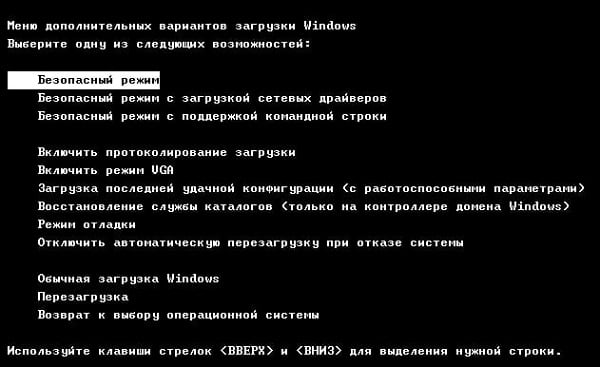
Запустите SFC в безопасном режиме
Первым делом попробуйте загрузиться в безопасном режиме, и оттуда проверить систему с помощью SFC. В начале загрузки системы быстро нажимайте на F8 для доступа к меню безопасного режима, загрузитесь в данном режиме, после чего запустите вашу SFC.
Используйте CHKDSK
Как известно, CHKDSK – это встроенная в Виндовс утилита, предназначенная для сканирования разделов, тестов интеграции файловой системы, восстановления её функционала. Использования CHKDSK в некоторых случаях позволяет устранить причины, вызывающие сбой в работе SFC.
Выполните следующее:
Запустите командную строку от админа, и в ней наберите:

Дождитесь окончания процесса проверки. В некоторых случаях для запуска проверки понадобится перезагрузка ПК.
Модифицируйте дескрипторы безопасности папки winsxs
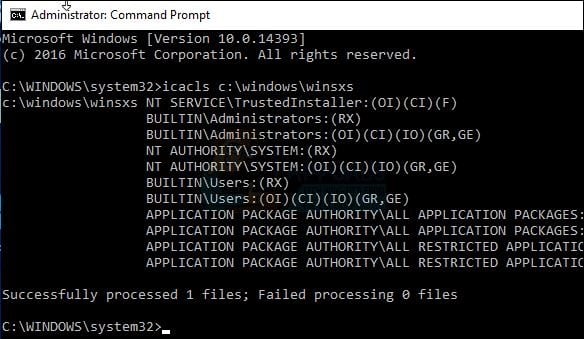
Как мы уже упоминали выше, система может заблокировать SFC доступ к системной папке winsxs, находящейся по пути C:Windowswinsxs. Для её разблокирования запустите командную строку от админа, и там наберите:

Перезагрузите ПК и вновь запустите SFC.
Используйте команды DISM
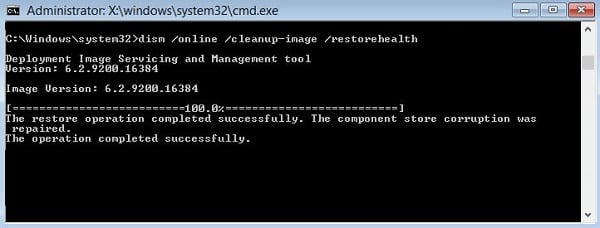
В некоторых случаях использования средства для работы DISM поможет избавить нас от появления рассматриваемой в статье дисфункции. Запустите командную строку от админа, и в ней последовательно наберите следующие команды:

Дождитесь окончания процесса, а затем перезапустите ваш PC.
Выполните восстанавливающую инсталляцию Виндовс
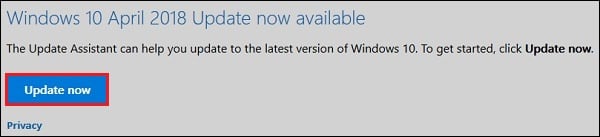
Использование инструментария восстановления Виндовс – это простой и удобный шаг, позволяющий решить ошибку защиты ресурсов Виндовс. Перейдите на ресурс microsoft.com, нажмите на кнопку «Update now», скачайте и запустите скачанный файл.
Также можно воспользоваться загрузочной флешкой (диском), с имеющимися на них инсталляционными версиями ОС Виндовс.
- Необходимо загрузиться с такой флешкой, определиться с языком, после чего нажать на «Далее».
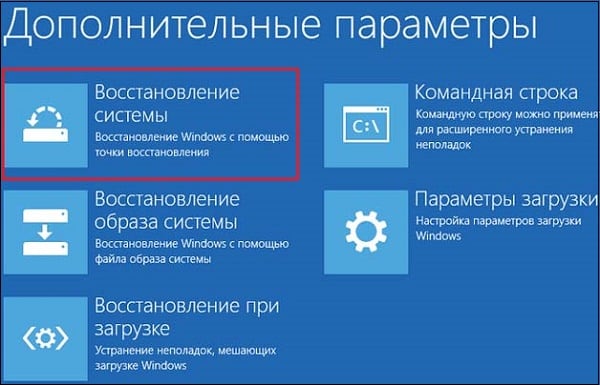
- На следующем экране снизу слева выбрать «Восстановление системы», далее «Поиск и устранение неисправностей», затем «Дополнительные параметры» и «Автоматическое восстановление» (Восстановление системы).
- После завершения процедуры восстановления ошибка «Защита ресурсов Виндовс не может выполнить операцию» может быть решена.
Заключение
Появление сообщения «Защита ресурсов Windows не может выполнить запрошенную операцию» обычно связано с нарушением целостности системных файлов ОС Виндовс. Рекомендую последовательно выполнить все перечисленные выше советы (особо эффективен запуск SFC в безопасном режиме), что позволит устранить ошибку защиты ресурсов Виндовс на вашем ПК.

Если в процессе проверки целостности системы посредством команды sfc/scannow в консоли CMD у Вас возникает ошибка «защита ресурсов Windows не может выполнить запрошенную операцию» — что делать, как поступать в данной ситуации? Сегодняшний пост как раз и будет посвящен решению проблемы.

SFC не работает
На компьютерных форумах можно встретить немало сообщений подобного рода, когда пользователи пытаются запустить сканирование, но вместо этого отображается указанное выше сообщение. Неприятный случай, который заводит людей в тупик. Но не стоит паниковать, сейчас узнаете способы исправления.
О том, что за команда «sfc /scannow» подробно рассказано в статье по ссылке. Утилита реально полезная и нередко спасает от множества дефектов.
Почему же возникает ошибка? Кстати, она может проявиться как в сразу же после запуска проверки, так и в процессе. Обычно это сопровождается продолжительным зависанием процедуры, а затем отображается надпись «защита ресурсов не может выполнить запрошенную операцию» Windows 10. Подобное может произойти не только с «десяткой», но и в более ранних версиях ОС.
А причина банальна – в системе происходит критический сбой, препятствующий осуществлению требуемых действий. Вероятнее всего, были удалены или повреждены важные файлы. Из этого следует несколько методов решения, которые рассмотрим далее.
Что делать?
Базовое решение, с которого я бы советовал начинать, заключается в попытке запуска ПК в безопасном режиме, а затем в командной строке снова пробуем произвести сканирование с помощью SFC. Уверен, что Вы в курсе, как загрузить компьютер в режиме Safe Mode. Если нет, то вот детальная инструкция.

Проверяем системный раздел
Есть в Виндовс стандартная программа CHKDSK. Она проверяет диски на наличие файловых ошибок, иногда даже получается их исправить. Попытка – не пытка. По крайней мере, «форумчане» иногда положительно отзываются о данном способе.
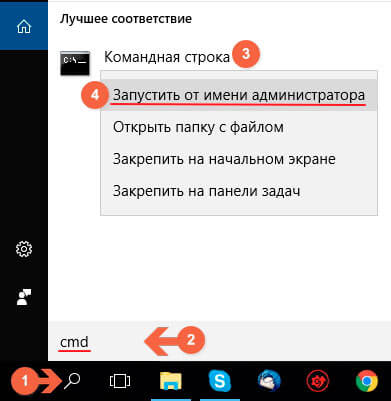
- Открываем консоль с правами админа (лучше всего через поиск, ниже привожу скрин для Windows 7 / 8 / 8.1 / 10:
- Вводим в окне запрос:
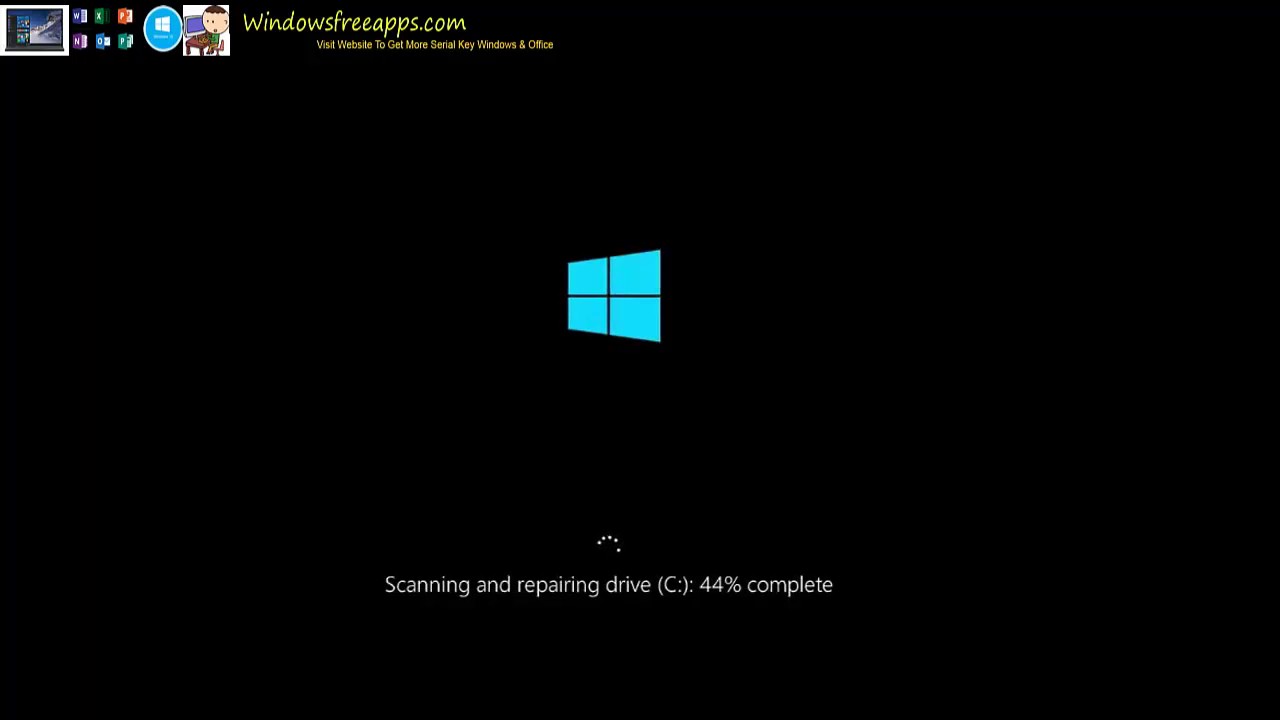
chkdsk c: /r

Вводите внимательно, не перепутайте буквы. На изображении у меня символ «v» вместо «r», но Вам нужно прописать именно «r». Обратите внимание, что в примере указан диск C, но если у Вас система установлена в другом разделе, то следует указать в команде нужный.
По окончанию желательно перезапустить ОС. Если что неясно – смотрите видео:
Еще одна причина ошибки – утилита восстановления целостности просто не может получить доступ к каталогу WinSxS, где расположены важные объекты сканирования. Попробуем снять блокировку следующими командами (как запустить консоль было показано выше):
icacls c:windowswinsxs

Перезагружаем устройство, пробуем выполнить проверку повторно.
Избавляемся от сбоя с помощью DISM
Это еще один крутой инструмент, которым может похвастаться Windows 10 (и версии помладше). Его реализация осуществляется посредством ввода трёх команд в строгом порядке:

Когда всё закончится (а это может длиться около получаса), непременно стоит выполнить перезагрузку.
Переустановка/восстановление Виндовс
Это самые кардинальные действия на тот случай, когда ничего из вышеперечисленного не сработало. В первую очередь, нам понадобится загрузочный накопитель (диск/флешка), созданный с помощью UltraISO или Rufus. Вот несколько инструкций:


Загружаемся с внешнего носителя, только выбираем не полную установку, а восстановление, которая скрывается в дополнительных параметрах:
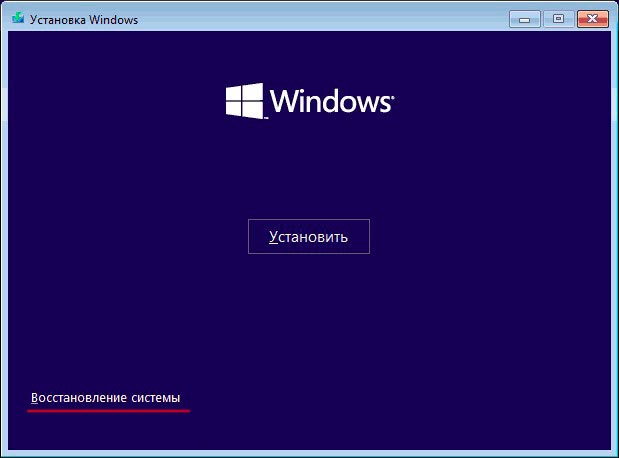

Метод сработает в том случае, если у Вас была активирована функция автоматического создания точек отката. В иной ситуации стоит задуматься о чистой инсталляции.
Я очень надеюсь, что Вам не придется прибегать к столь кардинальным операциям, чтобы устранить error «защита ресурсов Windows не может выполнить операцию» SFC.
В данной инструкции о том, как исправить ошибку Защита ресурсов Windows не может выполнить запрошенную операцию при выполнении команды sfc /scannow в командной строке или PowerShell.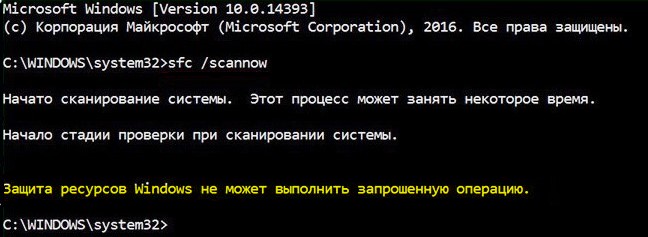
1. Проверить установщик модулей
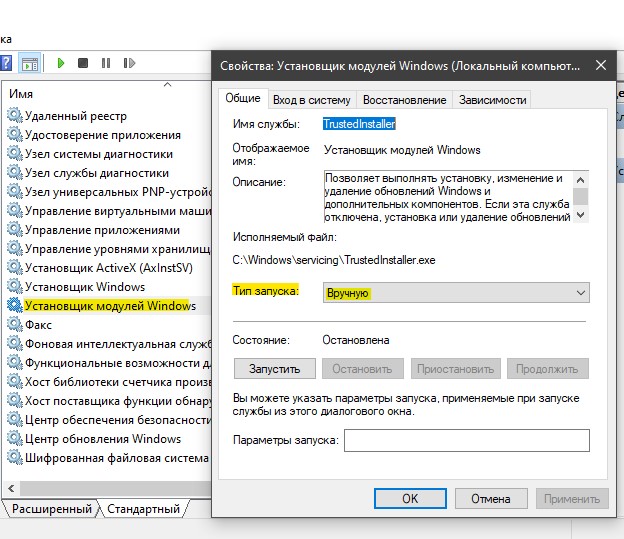
Ошибка может возникнуть, если служба установщика модулей Windows отключена, проверим её. Для этого:
- Нажмите Win+R и введите services.msc, чтобы открыть службы
- Найдите Установщик модулей Windows и дважды нажмите
- Запустите её, если отключена и тип запуска Вручную
2. Проверка диска на ошибки
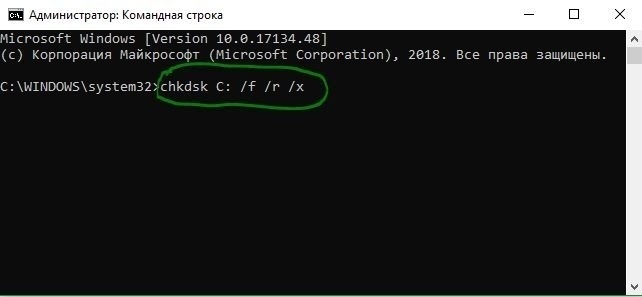
Если на диске имеются плохие сектора, то инструмент SFC не сможет выполнить свою операцию и выдаст ошибку, что защите ресурсов Windows не удалось выполнить запрошенную операцию. Автоматически проверим и исправим плохие сектора, если они имеются. Для этого запустите командную строку от имени администратора и введите:
chkdsk C: /f /r /x
Если будет написано, что проверка будет произведена при следующей загрузке, то перезагрузите ПК.
3. SFC в безопасном режиме
Загрузитесь в безопасном режиме и попробуйте выполнить команду sfc /scannow.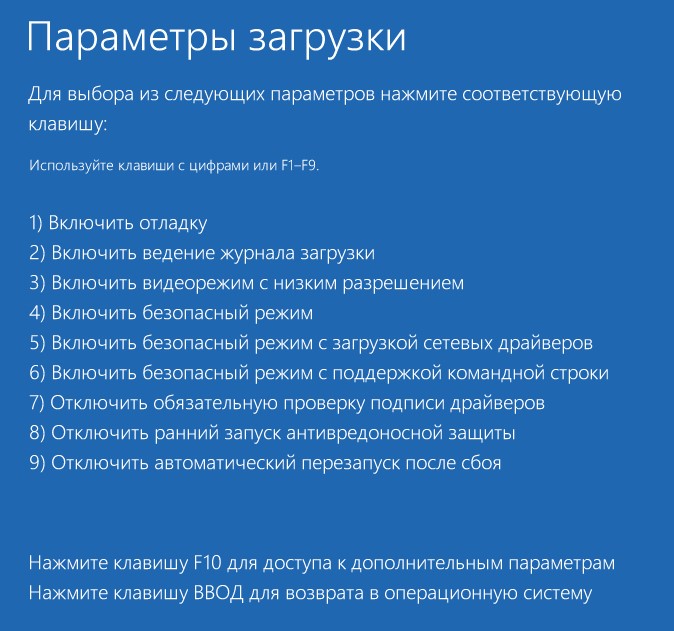
4. SFC из среды восстановления
Если ошибка всё еще появляется, то имеет смысл запустить командную строку из среды восстановления и попробовать выполнить команду sfc /scannow.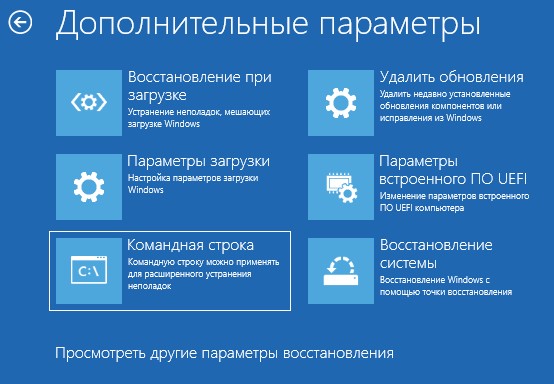
5. Выполнить DISM
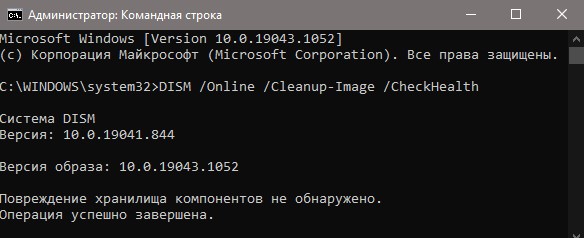
Если защита ресурсов Windows не может выполнить запрошенную операцию при использовании sfc, то можно попробовать воспользоваться инструментом DISM. Для этого запустите командную строку от имени администратора и введите:
DISM /Online /Cleanup-Image /RestoreHealth
Смотрите еще:
- Восстановление Windows 10 с флешки
- Системная ошибка 6118 при вводе net view в CMD
- CMD: Недостаточно ресурсов памяти для обработки этой команды
- Отказано в доступе: Системная ошибка 5 в командной строке
- SFC и DISM: Проверка и Восстановление системных файлов в Windows
[ Telegram | Поддержать ]
The System File Checker is a user-friendly tool to check whether there is a corruption for system files. However, if it is not working, you may receive an error message Windows resource protection could not perform the requested operation. But this post will show how to solve the problem SFC scannow not working issue.
The Issue SFC Scannow Not Working
SFC is a very useful tool to check whether there is a corruption for system files. However, some uses complain that sometimes the System File Checker may fail to work. And they usually receive the following two error messages when SFC Scannow is not working.
- Windows resource protection could not perform the requested operation.
- Windows resource protection could not start the repair service.
Thus, do you know how to solve the issue SFC scannow? Just go on your reading, this post will show you how to solve the SFC error respectively.
Windows Resource Protection Could Not Perform the Requested Operation
One of the SFC error is the Windows resource protection could not perform the requested operation. You can see the error message in the following picture.
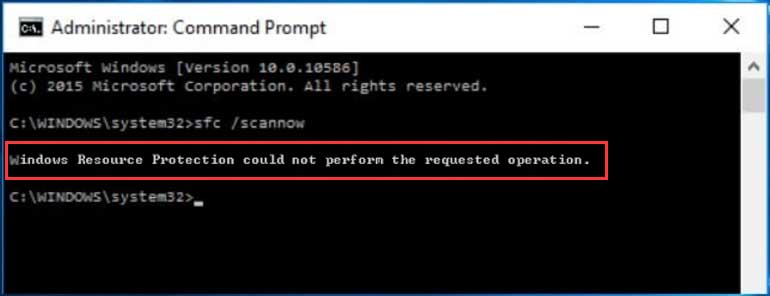
Thus, how can you solve the issue Windows resource protection could not perform the requested operations? You can read the following four methods.
Quick Video Guide:
Solution 1. Run SFC Scannow Command in Safe Mode
If you have encountered the issue Windows resource protection could not perform the requested operation, you can try to run SFC scannow command in safe mode to solve the problem. Here, we will show you how to solve the problem step by step.
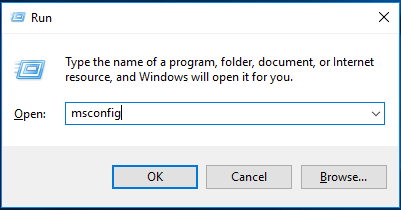
Step 1: Press Windows key and R key together to launch Run box.
Step 2: Type msconfig in the box and hit Enter to continue.
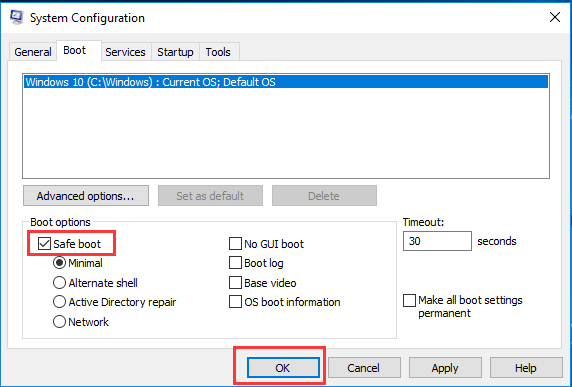
Step 3: Then go to Boot tab, tick on Safe boot and click OK to continue.
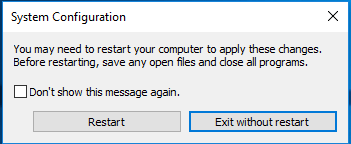
Step 4: Then restart your computer to apply this change. Click Restart to continue.
Then your computer will boot in safe mode and you can input SFC scannow command again to check whether the issue Windows resource protection could not perform the requested operation is solved.
Solution 2. Run Check Disk
If there are some errors on your hard disk, the SFC scannow not working issue can also occur. So in this situation, you can try to check the disk and try to solve the problem Windows resource protection could not perform the requested operation. And we will introduce how to check disk step by step.
Step 1: Type cmd in the search box of Windows 10 and right-click the Command Prompt to choose Run as administrator.
Step 2: Type chkdsk /r command in the popup command window and hit Enter to continue.
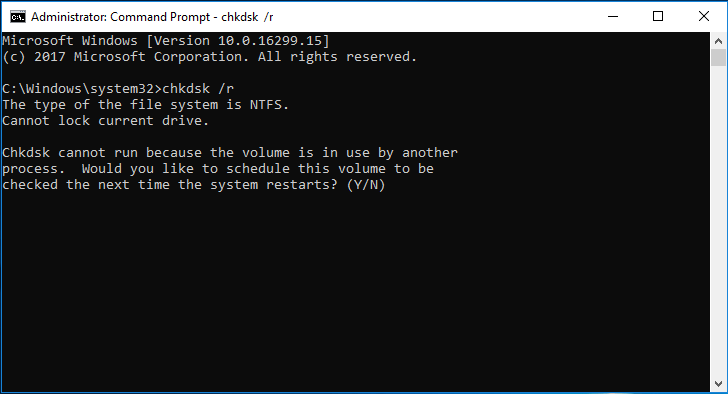
Step 3: Then you will receive a message that shows ‘Chkdsk cannot run because the volume is in use by another process. Would you like to schedule this volume to be checked the next time the system restarts?’. Thus, you need to type Y to continue.
Step 4: After that, close the command window and restart your computer. Then it will start to check the disk and fix the detected error automatically.
When the process of checking disk is finished, you can run SFC scannow again to check whether the issue Windows resource protection could not perform the requested operation is solved.
Solution3. Change Security Descriptors
A security descriptor contains the security information associated with a securable object. If SFC scan fails to access winsxs folder, the issue SFC scannow not working issue may also occur.
So in order to solve the issue SFC Windows resource protection could not perform the requested operation, you can try to change the security descriptors to solve SFC error. Here, we will show how to change security descriptors in detail.
Step 1: Type cmd in the search box of Windows 10 and right-click Command Prompt to choose Run as administrator.
Step 2: In the command window, type the ICACLS C:Windowswinsxs command and hit Enter to continue.
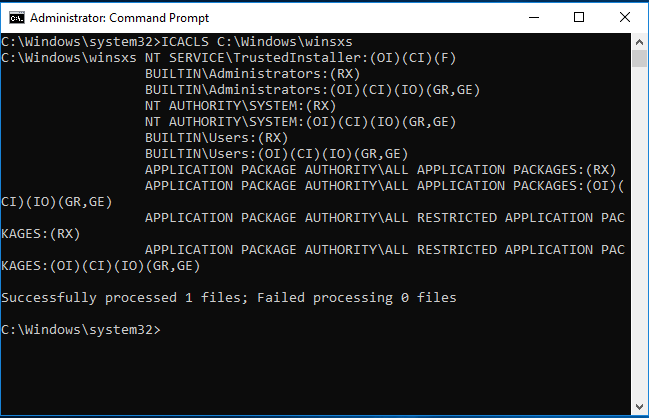
After that, you need to close the command window and restart your computer to check whether the issue SFC Windows resource protection could not perform the requested operations is solved.
Solution 4. Run Automatic Repair
If the above solutions are not working, you can try to go on this method to solve the issue Windows resource protection could not perform the requested operation. You can run Automatic Repair to solve SFC scannow not working problem. And we will show you how to run Automatic Repair step by step.
Step 1: Insert the Windows 10 bootable installation to your computer and boot your computer from it. If you don’t have the Windows 10 installation disc, you can click here to download the Microsoft Media Creation Tool and launch it to create an installation disc.
Step 2: Then you will enter the welcome interface and click Next to continue.
Step 3: Then click Repair your computer in the bottom-left corner to continue.
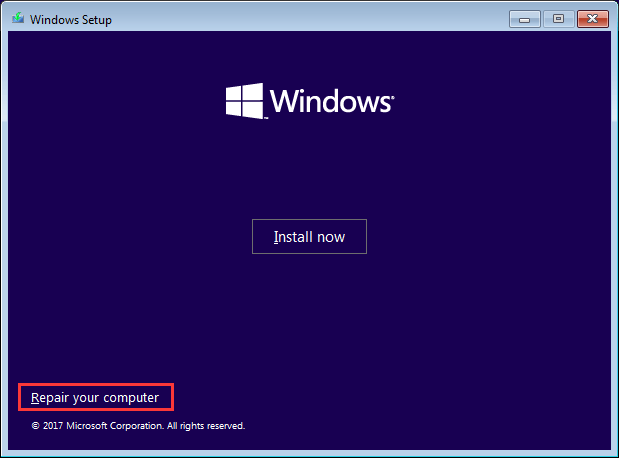
Step 3: You need to choose Troubleshoot in the popup window to continue.
Step 4: Click Advanced options to go to the next page.
Step 5: Choose the Startup Repair in the Advanced options screen and wait for the process to be completed.
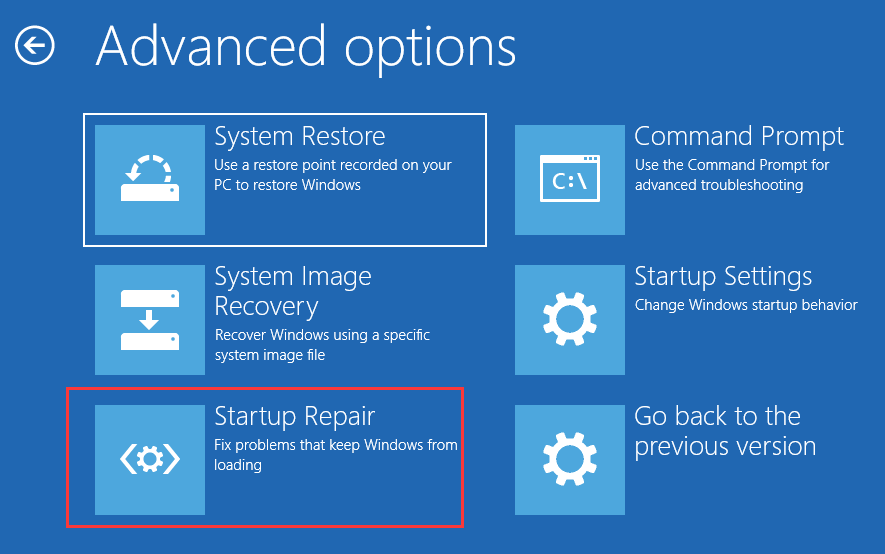
Now, when the process is finished, you can restart your computer to check whether the Windows resource protection could not perform the requested operation is solved.
I have successfully solved the issue Windows resource protection could not perform the requested operation. Have a try now!Click to Tweet
Windows Resource Protection Could Not Start the Repair Service
As we have mentioned in the above part, this post focuses on two cases of SFC scannow not working issue. And the issue Windows resource protection could not perform the requested operation has been talked in the above paragraphs.
Now, we will talk about another issue Windows Resource Protection could not start the repair service.
When you are running SFC scannow command, you may receive the following error message which shows that Windows resource protection could not start the repair service.
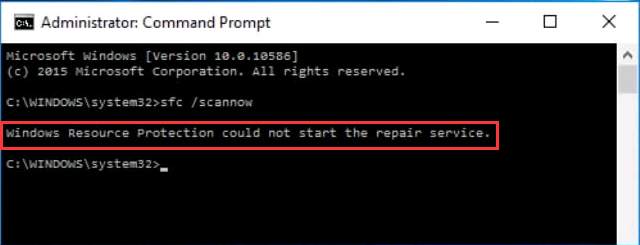
This SFC error may occur when Windows Modules Installer services are disabled. Windows Modules Installer services have full access to Windows Resource Protection files and registry keys. If you want to use SFC scannow command to restore missing or corrupted WRP resources, Windows Modules Installer services need to be running.
Thus, if you receive the SFC error message Windows resource protection could not start the service, we can enable Windows Modules Installer to fix the problem. Now, we will show how to enable Windows Modules Installer step by step.
Step 1: Press Windows and R keys together to launch Run dialog, and input services.msc in the box, then click OK to continue.
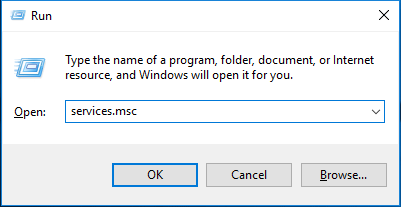
Step 2: In the popup window, select the Windows Modules Installer and double-click it.
Step 3: You will see Windows Modules Installer Properties window, set Startup type as Manual, then click Apply and OK to confirm this change.
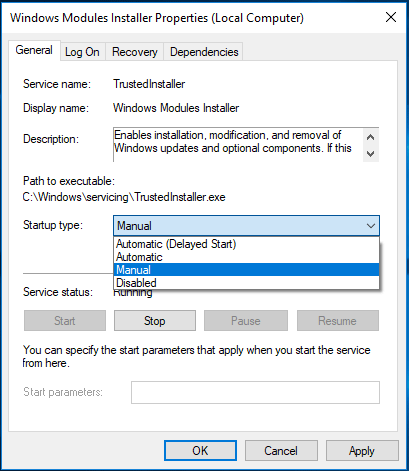
Step 4: Close the services window. Then type cmd in the search box of Windows 10 and right-click Command Prompt to choose Run as administrator.
Step 5: Type the following commands in the command window and hit Enter to continue after each command.
sc config trustedinstaller start= demand
net start trustedinstaller
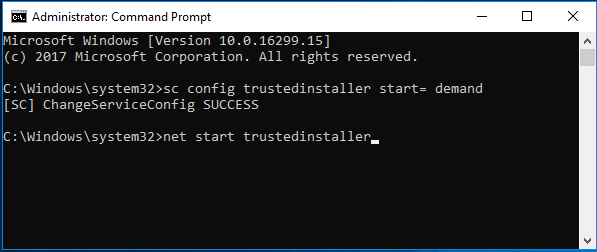
When you have finished the above process, you can restart your computer and input the SFC scannow command to check whether the issue Windows resource protection could not start the repair services is solved.
Top Recommendation
Although SFC scannow command can scan for corruptions in Windows system files and restore corrupted files, things will become worse when SFC scannow is not working, in particular when the computer is corrupted and SFC scannow not working.
Therefore, we strongly suggest that you create a Windows image when your computer can work normally since not only you can use the backup image to perform some recovery actions especially when some accidents occur, but also can protect your data.
For instance, when your Windows 10 is corrupted or you don’t like the current Windows version, you can use the backup image to restore to an earlier date.
Thus, to create a backup image, many computer users choose the professional Window 10 backup software – MiniTool ShadowMaker. This free software can handle lots of backup matters with its various powerful features, such as system backup, files and folders backup, disk backup and so on.
The automatic backup software – MiniTool ShadowMaker can protect your computer well and can provide disaster recovery solutions when some accidents happen.
Therefore, in order to create a system image, you can get the MiniTool ShadowMaker from the following button which can be freely used within 30 days.
Free Download
After installing the free backup software, we will show you how to create a system image step by step with pictures.
Step 1: Launch the software and click Keep Trial to continue. Then click Connect in This Computer to enter its main interface.
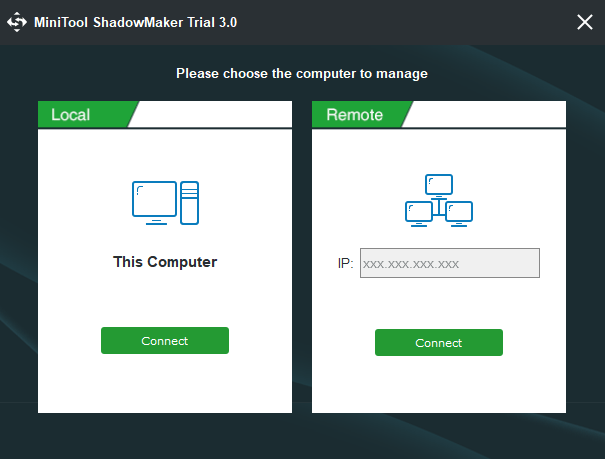
Step 2: Then, MiniTool ShadowMaker will remind you to back up if you haven’t performed any backup action with this backup tool. You just need to click SET UP BACKUP to continue. MiniTool ShadowMaker is set to back up the operating system by default.
Of course, you can also go to the Backup tab to select the Source tab and Destination tab to choose what you want to back up and where you want to save the backup image. In addition, it is recommended to choose an external hard drive as the destination path.
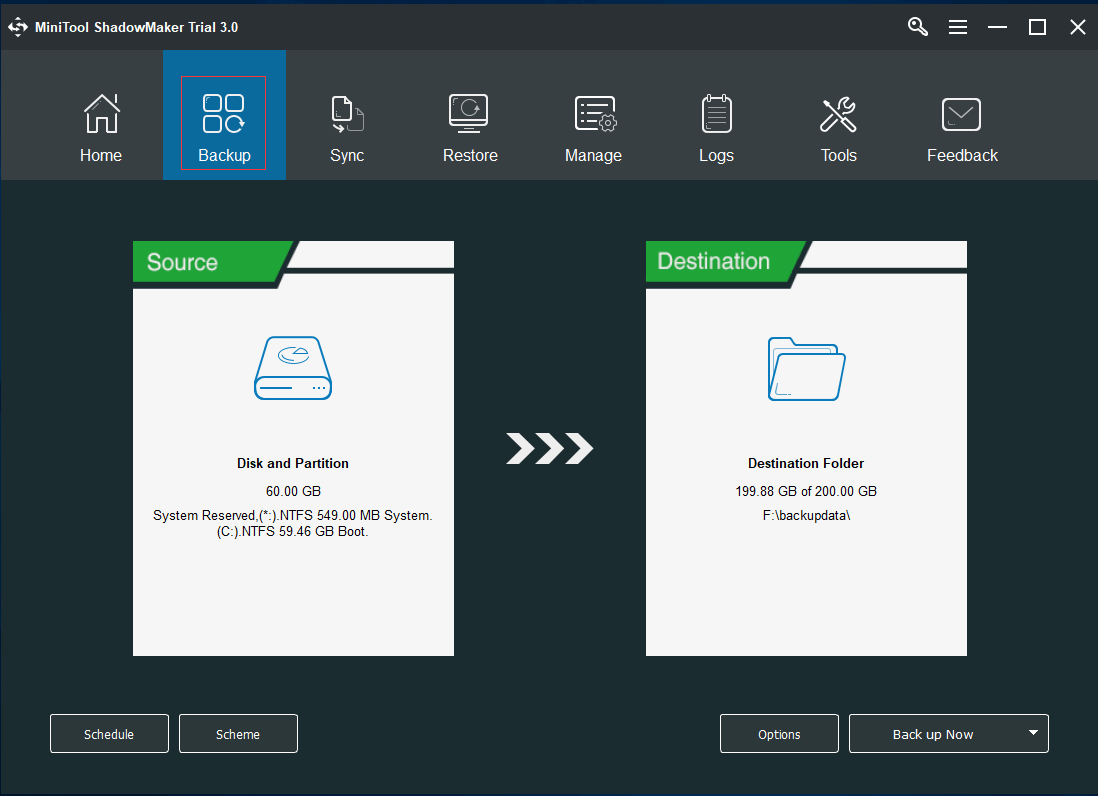
Step 3: Now, you can click Back up Now to perform backup action immediately. Of course, you can also click Back up Later to delay the backup process.
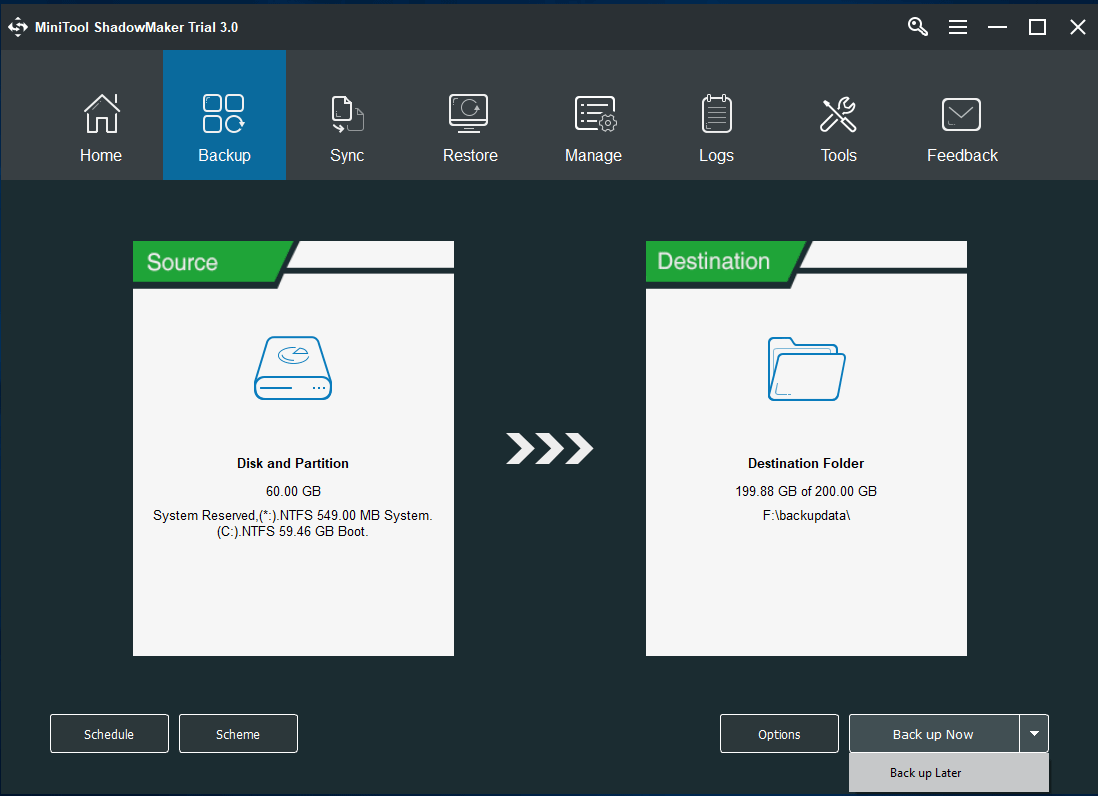
Note: In the bottom, you can see three options. The Schedule Setting helps you to set the backup matters on a regular basis such as daily/weekly/monthly so as to protect your PC and data well. Scheme which includes Full Scheme, Incremental Scheme, and Differential Scheme can help you to delete former backup versions so as to manage disk space. The Options can assist you in setting some advanced backup parameters.
Step 4: After successfully creating the backup image, you had better go to the Tools tab to create a bootable media which can be used to help you to restore to an earlier date or do some other recovery actions with the backup image at any time you want.
MiniTool ShadowMaker is a fantastic tool that can easily create a backup image within a few steps. With this backup software, you can protect your PC and important data and files well.Click to Tweet
Bottom Line
In conclusion, this article focuses on two cases of SFC scannow not working issue, which respectively are Windows resource protection could not perform the requested operation and Windows resource protection could not start the repair service.
Aiming at those two different situations, we also list different solutions to solve the SFC error. Now, it is your turn to have a try.
In addition, if you have any better solution to the SFC scannow not working issue, you can share it on the comment zone. Or if you have any problem with MiniTool ShadowMaker, you can feel free to contact us via the email [email protected].
Windows Resource Protection Could Not Perform the Requested Operation FAQ
How do I fix Windows Resource Protection could not perform the requested operation?
- Run SFC Scannow command in Safe Mode.
- Run check disk command.
- Change security descriptor.
- Run automatic repair.
How do I fix SFC Scannow?
- Scan the hard drive for errors.
- Enable the hidden Administrator Account.
- Set the computer to reboot in safe mode.
- Login as the Administrator User.
- Open an Administrative Command Prompt.
- Ensure that PendingDeletes and PendingRenames Folders exist.
- Run the SFC Scannow command in safe mode.
How do I start Windows Resource Protection?
- Open Command Prompt as administrator.
- Type the command sfc /scannow and hit Enter to continue.
- Then wait for the process to be finished.
How do I repair a file?
- Check hard drive.
- Run chkdsk command.
- Run sfc /scannow command.
- Change the file format.
- Use file repair software.