17.11.2016
Ремонт принтеров и МФУ Canon
56
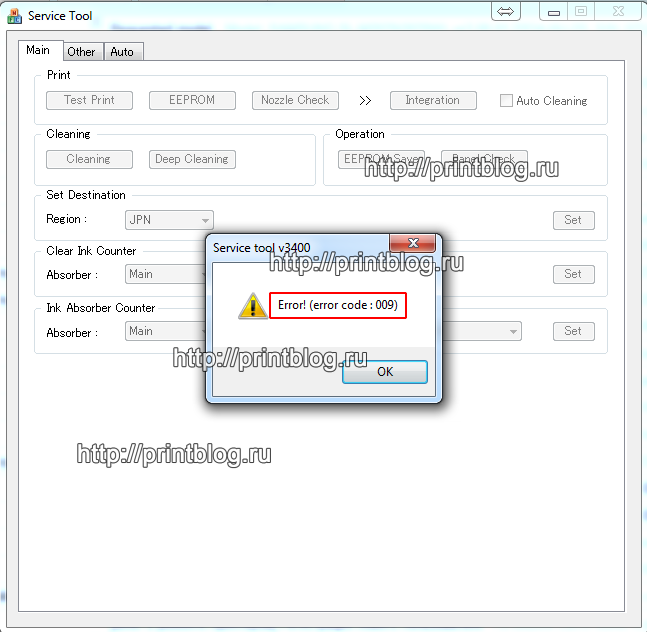 Если вы пробуете сбросить счетчик памперса (абсорбер, отработка) у принтера Canon, чаще всего это происходит с помощью программы Service tool. Но не всегда эта процедура гладко проходит, даже если четко следовать инструкции, часто складывается так, что программа выдает ошибку, что это за ошибки рассмотрим далее…
error code 009
– сообщает о том, что присутствует дополнительная ошибка, которая мешает работе Service tool. Прежде, чем работать с программой, необходимо устранить эту ошибку. Что бы понять, в чем причина, необходимо посчитать количество миганий индикатора “молния”, количество миганий сообщает код дополнительной ошибки, в других случаях она основная. Например, если индикатор “молния” мигает 16 раз, это означает, что ошибка у принтера E16, которая устраняется простым нажатием и удержанием кнопки СТОП более 10 сек.
error code 006
– чаще всего, причиной этой ошибки в программе Service tool, есть банальное – не правильно вошел в сервисный режим или не отменил “Мастер установки нового оборудования”. В некоторых случаях необходимо перезагрузить компьютер, подключить принтер в другой USB порт.
error code 005
– программа не видит ваш принтер, смените USB кабель или подключите в другой USB разъем компьютера, часто помогает перезагрузка компьютера.
error code 002
– эта ошибка говорит о том, что программа не поддерживает функцию для текущей модели принтера. Зачастую это ошибка появляется при попытке сбросить счетчик памперса, при этом другие сервисные функции программа вполне может выполнять.
И самое главное, в любом из этих случаев не забывайте программу извлекать из архива, т.к. работать нормально она не будет.
Осуществить ремонт или прошивку вашего принтера в г. Симферополь вы можете в сервисном центре по ул. Старозенитная, д.9 (вход со стороны забора). Обращайтесь пожалуйста в рабочее время с 9.00-18.00 по номеру +7 (978) 797-66-90
Не забывайте оценить запись и поделится ей с друзьями в социальных сетях, нажав специальные кнопки ниже.
Не забудь оставить комментарий и подписаться на наш канал Youtube 
Рекомендуемые товары:
-
4 в наличии
Код: 50019
Микросхема MX29LV160AT для Canon i-SENSYS MF5940dn
599.00 руб.
Купить -

10 в наличии
Код: 41012
Перезаправляемые картриджи (ПЗК, ДЗК) для Epson XP-510, XP-520, XP-600, XP-605, XP-610, XP-615, XP-620, XP-625, XP-700, XP-710, XP-720, XP-800, XP-820
1,120.00 руб.
Купить -
В наличии
Код: 00018
Adjustment program Epson PX660
343.20 руб.
Купить -
В наличии
Код: 00016
Adjustment program для Epson L100
136.80 руб.
Купить
Комментарии для сайта Cackle
Думаю, тем, кто читает эту статью, не нужно объяснять, для чего используются различные версии программы Service Tool. Самая распространенная версия на момент написания статьи — Service Tool v3400
Очень часто, при попытке сброса,»памперса», меня спрашивают, почему программа выдает ошибку.
При чем основных ошибок две. Появляется окно с сообщением «Error! (error code 006)» или 009.
Error code 006, чаще всего, означает, что Вы не вошли в сервисный режим. Напомню, что при входе в сервисный режим устройство должно определяться как CanonDevice. Иногда такая ошибка появляется даже тогда, когда Вы правильно вошли в сервисный режим. Тогда может помочь перезагрузка компьютера или подсоединение принтера к другому USB порту.
Error code 009 означает, что у принтера существует какая-то дополнительная ошибка, кроме переполнения счетчика отработанных чернил. И перед сбросом «памперса» ее необходимо будет устранить. Узнать, какая ошибка можно по количеству миганий индикатора «молния». Подробнее об этом можете прочесть тут. Например, при отсутствующем или неисправном картридже Вы не сможете воспользоваться программой и она будет выдавать Вам Error code 009.
И не забывайте извлекать программу из архива. Запущенная в архиве корректно работать она не будет.
Как устранить ошибку 006 при запуске Serive Tool на принтерах Canon: данная ошибка свидетельствует о полной блокировке принтера. Что делать, если она появилась: какую программу использовать и как правильно выбрать ее для вашей модели принтера
Программы
Serive Tool имеют функцию восстановления
счетчика отпечатанных страниц на
памперсах, когда отпечатано максимальное
количество страниц. Эти принтеры оснащены
губкой под блоком продувки принтера
(чистящий инструмент печатающей головки).
На уровне системы — это всего лишь
настройка. Но когда было отпечатано
максимальное количество страниц, принтер
заблокируется и запросит отнести
устройство в ремонт.
Все
современные принтеры Canon нуждаются в
такой программе для обнуления счетчика
страниц, чтобы можно было продолжить
печать без проблем. Так как существует
много моделей принтеров, поэтому есть
множество программ Service Tool.
Если
в один прекрасный день при запуске
программы появляется ошибка » 006 «,
не стоит беспокоиться.
Ошибка
» 006 » может произойти по многим
причинам, которые мы объясняем ниже,
начиная с наиболее вероятной до наименее
вероятных причин. Рекомендуем задавать
любые вопросы или решать проблемы с
процедурой, оставив комментарий к этой
статье. Мы всегда постараемся ответить
и помочь решить другие проблемы.
Несоответствие
программы и принтера
Вполне
возможно, что вы скачали программу,
которая не совместима свашим принтером.
В большинстве случаев эта ошибка
возникает в результате скачивания
неправильной программы.
Рекомендуется
проверить совместимость программы с
моделью принтера. Убедитесь, что в окне
программе отображается то же название
принтера, что и модель на корпусе вашего
принтера. Если у вас есть трудности с
данной процедурой, оставьте комментарий
к этому посту.
Вы
неправильно выполнили процедуру по
входу в сервисный режим
Вход
в сервисный режим является важным этапом
в процессе восстановления памперсов
принтера. Если неправильно войти в режим
обслуживания, то програма не сработает
при попытке запустить ее. Опции будут
отображаться как недоступные.
Тщательно
очистите схемы принтера и картриджей
Разъемы
картриджей (медные контакты в передней
части картриджей) и разъемы на принтере,
который также находится в передней
части ПГ, должны быть полностью чистыми,
то есть на них не должно быть пятен или
мусора, что может снизить производительность.
Проверьте
драйверы принтера
В
некоторых случаях, когда вышеописанные
случаи не работают правильно, рекомендуется
переустановить драйверы для принтера.
Отключите принтер, пока устанавливаете
драйверы. Подключите его только в том
случае, если программное обеспечение
не попросит вас подключить.
Наконец,
если у вас возникли дополнительные
вопросы, оставьте комментарий ниже. Мы
с удовольствием ответим вам как можно
быстрее .
Содержание
- Fix your printer !
- Search This Blog
- How to solve error code 006 with Canon Service Tool V3400
- Labels
- Comments
- Форум по СНПЧ: Canon Service Tool — сервисные программы для принтеров Canon — ST4720 — Форум по СНПЧ
- Canon Service Tool — сервисные программы для принтеров Canon — ST4720 Сброс памперса программами Service Tool V700, V1050, V2000, V4720
- | Сообщение #1 Отправлено 29 июля 2009 — 07:57 КАТ
- | Сообщение #2 Отправлено 02 августа 2009 — 08:39
- | Сообщение #3 Отправлено 02 августа 2009 — 19:07 КАТ
- Форум по СНПЧ: Canon Service Tool — сервисные программы для принтеров Canon — ST4720 — Форум по СНПЧ
- Canon Service Tool — сервисные программы для принтеров Canon — ST4720 Сброс памперса программами Service Tool V700, V1050, V2000, V4720
- | Сообщение #1 Отправлено 29 июля 2009 — 07:57 КАТ
- | Сообщение #2 Отправлено 02 августа 2009 — 08:39
- | Сообщение #3 Отправлено 02 августа 2009 — 19:07 КАТ
Fix your printer !
Reset printers and cartridge. Printers problem solving,tips, tricks and tutorial.
Search This Blog
How to solve error code 006 with Canon Service Tool V3400

The Service Tool V3400 allow to reset the counter of some Canon printers.
For the error code 006, try this:
Solution 1:
- Check your cartridges: an empty cartridge can lead to error 006
Solution 2:
- After you avec clicked on «Main», wait a few minutes.
- If the error still here, restarts the Service Tool
Solution 3:
- Close the service tool
- Disconnect the USB cable from the printer
- After 10 seconds, plug back the cable to the printer
- On Windows, click next when appears «New device»
- Open the service tool
- Get link
- Other Apps
Labels
- Get link
- Other Apps
Check your cartrdiges: an empty cartridge can lead to error 006

This was how I solved the error 006 issue when I tried to reset the absorber counter. My printer is Canon MX882. I first had to set the printer in maintenance mode by doing the following:
— Press and hold resume/cancel button (one with triangle in the circle).
— Press ON button while holding resume/cancel button (now you are holding both).
— While holding the ON button press resume/cancel button 5 times.
Wait for a few seconds then set the ink absorber counter from the service tool. I got confirmation that action was finished from service tool right away. I turned off the printer then turned it back on. Everything was good!
After a bit of trial and error I have managed to sort out the 006 error and successfully reset the 5B00 code on my MG6250.
Basically I found that if the printer is not set properly in service mode then the 006 code appears on everything in the v3400 software. Also I was trying when the printer was connected to a network and when changing to a direct USB connection, the buttons in the V3400 software were not greyed out.
It was a little more tricky with the MG6250 as it doesn’t actually have a mechanical button but a finger sensitive one similar to a smart phone so with the power off I had to guess where it was.
So just to reiterate the sequence above
— Press and hold resume/cancel button (one with triangle in the circle).
— Press ON button while holding resume/cancel button (now you are holding both).
— Release the resume/cancel and press it 5 times.
— Release the ON button
I’m not sure what I did wrong so many time before but this time the printer did some internal movements for about 15 seconds then everything went blank apart from the power button and then the PC pinged a message to say it was connecting a new device.
Note that when you look at the printer properties on the PC, it should say the printer was offline which is where I was making my mistake.
Before I finished, I used the “EEPROM save” then turned the printer off and on and we are good to go.
Источник
- 17 Страниц

- 1
- 2
- 3
- →
- Последняя »
- Вы не можете создать новую тему
- Вы не можете ответить в тему
| Сообщение #1 Отправлено 29 июля 2009 — 07:57 КАТ
Для тех, кто занимается ремонтом струйников Canon, и просто владельцев этих аппаратов, которые самостоятельно занимаются их обслуживанием.
Сервисные программы для обслуживания струйных принтеров и МФУ Canon называется Service Tool.
Эти программы ТОЛЬКО для сброса «памперса» для принтеров iP1900, iP2600, iP3600, iP4600 и МФУ MP190, MP240, MP260, MP480, MP540, MP620, MP630, MP980
Canon Service Tool V700.zip — 19 244 кБ
Canon Service Tool V1050.zip — 381 кБ
Canon Service Tool V2000 — 188 kB —  ip3600_v2000.zip (188,56К)
Количество загрузок:: 75694
Canon Service Tool V3400 — 200 kB
Canon Service Tool V3600 — 966 kB ST_V3600_resetters.zip (199К)
Количество загрузок:: 170021
Canon Service Tool V4720 — для новых моделей Canon G1400, G2400, G3400 ST_V4720.zip (2МБ)
Количество загрузок:: 71169
| Сообщение #2 Отправлено 02 августа 2009 — 08:39
| Сообщение #3 Отправлено 02 августа 2009 — 19:07 КАТ
Как пользоваться программами.
. в любом случае — сначала надо войти в сервисный режим:
Для аппаратов группы а — iP3600, iP4600, MP190, MP240, MP250, MP260, MP480, MP540, MP620, MP630, MP980
1 Выключить аппарат ( . аппарат должен быть подключен к компу по USB. )
2 Нажать и удерживать нажатой кнопку Resume обозначенную треугольником в круге
3 Не отпуская кнопку Resume нажать кнопку ВКЛ ( держать обе кнопки нажатыми )
4 Когда загорится индикатор включения — отпустить Resume ( ВКЛ держать нажатой ) и два раза её нажать, после чего отпустить обе кнопки
5 Запустить программу ServiceTool_V1020 ( или 1050 )
Для аппаратов группы b — iP1200, iP1300, iP1600, iP1700, iP1800, iP1900, iP2200, iP2500, iP2600
1 Выключить принтер и отключить сетевой шнур от принтера
2 Нажать кнопку включения и удерживать её
3 Не отпуская кнопку включения, подключить сетевой шнур
4 Продолжать держать кнопку включения нажатой. После того, как загорится индикатор включения, два раза нажать кнопку Resume ( на каждое нажатие принтер должен реагировать переключением индикации — при первом нажатии с зелёного на желтый, при втором — с желтого на зелёный ), после чего отпустить обе кнопки. Если шнур USB отключали — перед запуском ServiceTool его не помешает подключить.
5 Запустить программу ServiceTool_aV300 ( или 700 )
. теоретически для работы прог, драйвер принтера или МФУ — не обязателен ( я не устанавливал — проги работали и так. ), но моё мнение — лучше его установить. . если нет желания возиться с установкой драйвера — комп запустит установку нового оборудования — просто нажмите «отмена».
— Для проги v1020 ( 1050 — ещё не юзал, но должно быть так же. ) — если аппарат подключен к компу и находится в сервисном режиме — в правом верхнем углу окна проги, в окне «USB port» должен быть номер активного порта, т.е. вашего аппарата ( порт определяется автоматически при запуске проги ) — если к компу подключен только один аппарат -> просто в секции «Clear ink Counter» кликните «Main» и «Platen» — оба счётчика сбросятся.
Если вы сомневаетесь, тот ли аппарат прога определила — в верхней секции «Print» кликните «Test print» или «EEPROM» — если аппарат тот — он распечатает ( предварительно спросив, из какого лотка печатать ) либо тестовую страницу, либо данные из EEPROM — в зависимости от вашего выбора.
— Прогу v300 — не юзал — принтеры iP1900 и iP2600 отлично сбрасываются прогой GeneralTool для iP1800 — 2500. . экспериментировать с новой прогой пока некогда. . но судя по окну проги — всё то же самое, как и у GeneralTool.
. пока на данный момент, прогу v1020 проверил на аппаратах MP190, MP240, MP260, MP540 и iP4600 (. на 4600 «памперс» не сбрасывал — не было необходимости — просто проверил, как прога с ним работает. ).
. был один глюк — попробовал один из MP190 сбросить на другом компе — после входа в сервисный режим и запуска проги — в окне USB port было «none» — т.е. на одном компе этот аппарат без проблем определился, а на другом — нет. Я закрыл прогу и не выключая МФУ перезагрузил комп, после перезагрузки прога МФУ увидела и нормально с ним работала. . это пока единственный глюк, с которым столкнулся у этой проги.
С помощью проги STV1050 сбрасывал МФУ MP250 и MP270, хоть в доке к проге явно не сказано, что эти модели поддерживаются, да и МФУ эти стали выпускаться уже после выхода данной проги, тем не менее всё отлично работает, также, как и на MP240, MP260. . так, к сведению.
. STV1050 так же работает с аппаратами MP550 и iP4700.
. на всякий случай, если при работе с прогой в окне проги, в строке состояния появляется код ошибки и прога не работает — что означает код ошибки и как с этим можно бороться — можно посмотреть на ISMPC.
Источник
- 17 Страниц
- 1
- 2
- 3
- →
- Последняя »
- Вы не можете создать новую тему
- Вы не можете ответить в тему
| Сообщение #1 Отправлено 29 июля 2009 — 07:57 КАТ
Для тех, кто занимается ремонтом струйников Canon, и просто владельцев этих аппаратов, которые самостоятельно занимаются их обслуживанием.
Сервисные программы для обслуживания струйных принтеров и МФУ Canon называется Service Tool.
Эти программы ТОЛЬКО для сброса «памперса» для принтеров iP1900, iP2600, iP3600, iP4600 и МФУ MP190, MP240, MP260, MP480, MP540, MP620, MP630, MP980
Canon Service Tool V700.zip — 19 244 кБ
Canon Service Tool V1050.zip — 381 кБ
Canon Service Tool V2000 — 188 kB — ip3600_v2000.zip (188,56К)
Количество загрузок:: 75694
Canon Service Tool V3400 — 200 kB
Canon Service Tool V3600 — 966 kB ST_V3600_resetters.zip (199К)
Количество загрузок:: 170021
Canon Service Tool V4720 — для новых моделей Canon G1400, G2400, G3400 ST_V4720.zip (2МБ)
Количество загрузок:: 71169
| Сообщение #2 Отправлено 02 августа 2009 — 08:39
| Сообщение #3 Отправлено 02 августа 2009 — 19:07 КАТ
Как пользоваться программами.
. в любом случае — сначала надо войти в сервисный режим:
Для аппаратов группы а — iP3600, iP4600, MP190, MP240, MP250, MP260, MP480, MP540, MP620, MP630, MP980
1 Выключить аппарат ( . аппарат должен быть подключен к компу по USB. )
2 Нажать и удерживать нажатой кнопку Resume обозначенную треугольником в круге
3 Не отпуская кнопку Resume нажать кнопку ВКЛ ( держать обе кнопки нажатыми )
4 Когда загорится индикатор включения — отпустить Resume ( ВКЛ держать нажатой ) и два раза её нажать, после чего отпустить обе кнопки
5 Запустить программу ServiceTool_V1020 ( или 1050 )
Для аппаратов группы b — iP1200, iP1300, iP1600, iP1700, iP1800, iP1900, iP2200, iP2500, iP2600
1 Выключить принтер и отключить сетевой шнур от принтера
2 Нажать кнопку включения и удерживать её
3 Не отпуская кнопку включения, подключить сетевой шнур
4 Продолжать держать кнопку включения нажатой. После того, как загорится индикатор включения, два раза нажать кнопку Resume ( на каждое нажатие принтер должен реагировать переключением индикации — при первом нажатии с зелёного на желтый, при втором — с желтого на зелёный ), после чего отпустить обе кнопки. Если шнур USB отключали — перед запуском ServiceTool его не помешает подключить.
5 Запустить программу ServiceTool_aV300 ( или 700 )
. теоретически для работы прог, драйвер принтера или МФУ — не обязателен ( я не устанавливал — проги работали и так. ), но моё мнение — лучше его установить. . если нет желания возиться с установкой драйвера — комп запустит установку нового оборудования — просто нажмите «отмена».
— Для проги v1020 ( 1050 — ещё не юзал, но должно быть так же. ) — если аппарат подключен к компу и находится в сервисном режиме — в правом верхнем углу окна проги, в окне «USB port» должен быть номер активного порта, т.е. вашего аппарата ( порт определяется автоматически при запуске проги ) — если к компу подключен только один аппарат -> просто в секции «Clear ink Counter» кликните «Main» и «Platen» — оба счётчика сбросятся.
Если вы сомневаетесь, тот ли аппарат прога определила — в верхней секции «Print» кликните «Test print» или «EEPROM» — если аппарат тот — он распечатает ( предварительно спросив, из какого лотка печатать ) либо тестовую страницу, либо данные из EEPROM — в зависимости от вашего выбора.
— Прогу v300 — не юзал — принтеры iP1900 и iP2600 отлично сбрасываются прогой GeneralTool для iP1800 — 2500. . экспериментировать с новой прогой пока некогда. . но судя по окну проги — всё то же самое, как и у GeneralTool.
. пока на данный момент, прогу v1020 проверил на аппаратах MP190, MP240, MP260, MP540 и iP4600 (. на 4600 «памперс» не сбрасывал — не было необходимости — просто проверил, как прога с ним работает. ).
. был один глюк — попробовал один из MP190 сбросить на другом компе — после входа в сервисный режим и запуска проги — в окне USB port было «none» — т.е. на одном компе этот аппарат без проблем определился, а на другом — нет. Я закрыл прогу и не выключая МФУ перезагрузил комп, после перезагрузки прога МФУ увидела и нормально с ним работала. . это пока единственный глюк, с которым столкнулся у этой проги.
С помощью проги STV1050 сбрасывал МФУ MP250 и MP270, хоть в доке к проге явно не сказано, что эти модели поддерживаются, да и МФУ эти стали выпускаться уже после выхода данной проги, тем не менее всё отлично работает, также, как и на MP240, MP260. . так, к сведению.
. STV1050 так же работает с аппаратами MP550 и iP4700.
. на всякий случай, если при работе с прогой в окне проги, в строке состояния появляется код ошибки и прога не работает — что означает код ошибки и как с этим можно бороться — можно посмотреть на ISMPC.
Источник
Содержание
- How to Fix Error Code 006 in Canon Printers?
- Ans by :
- Fix Error Code 006 in Canon Printers:
- Quick Steps to Fix Error Code 006 in Canon Printers using the Service Tool:
- Step 1:- Check Ink Cartridges and Their Connections
- Step 2:- Restart the Canon Service Tool
- Step 3:- Check the Functionality of Printer Drivers
- Step 4:- Re-Open the Service Tool
- Step 5:- Troubleshoot the Service Tool Problem
- Canon Service Tool Error Code Mean (Error code: 002, 005, 006, 007, 009, etc)
- 4 comments for «Canon Service Tool Error Code Mean (Error code: 002, 005, 006, 007, 009, etc)»
- Форум по СНПЧ: Canon Service Tool — сервисные программы для принтеров Canon — ST4720 — Форум по СНПЧ
- Canon Service Tool — сервисные программы для принтеров Canon — ST4720 Сброс памперса программами Service Tool V700, V1050, V2000, V4720
- | Сообщение #1 Отправлено 29 июля 2009 — 07:57 КАТ
- | Сообщение #2 Отправлено 02 августа 2009 — 08:39
- | Сообщение #3 Отправлено 02 августа 2009 — 19:07 КАТ
How to Fix Error Code 006 in Canon Printers?
Hello, Please let me know that how to fix error code 006 in canon printers. When i am trying to print with Canon printer they show me this error code 006 while printing. Help me.
Ans by :
Fix Error Code 006 in Canon Printers:
It is quite common that the person using printers or any such kind of hardware machine has to face different error codes in its day-to-day application. Such error codes also occur with Canon printers and one of those is service tool Error Code 006.
This blog helps and guides you through a series of simple steps to Fix Error Code 006 in Canon Printer by running the Service Tool. Quickly, follow the given steps discussed below:
Quick Steps to Fix Error Code 006 in Canon Printers using the Service Tool:
Step 1:- Check Ink Cartridges and Their Connections
Ensure that the ink cartridge is filled properly as an empty cartridge might cause a Canon service tool error code 006. Check whether the cartridge connections are properly done or not.
Also, check that the cartridge connectors are copper contacts on the front of the cartridge and the printer connectors are positioned at the head front of the printer. You must check the internal parts of connectors whether they are cleaned or not. They shouldn’t have any ink stains that prevents printer operations.
Step 2:- Restart the Canon Service Tool
As per suggestions, whenever you get this service tool with your Canon printer, check and verify that your printer is compatible with the same name as the tool can search compatibility.
Still, if the problem occurs after compatibility verification also then simply restart the Canon Service Tool. You can refer to the user manual if you require guidance to reset the tool.
Step 3:- Check the Functionality of Printer Drivers
In cases when everything is working well and proper, it is hard to find where the problem still persists. You should immediately uninstall and reinstall the Canon printer drivers and turn off the printer as well. Then turn on your printer and the software installer will ask you to connect it again.
Step 4:- Re-Open the Service Tool
- Close down the service tool.
- Disconnect all the USB cable connected to the printer.
- Plugback all the cable to the printer after 10 seconds.
- For users working on Windows, click next when you see the “New device” option.
- Finally, open the service tool.
Step 5:- Troubleshoot the Service Tool Problem
- The first step is to download and install the Service Tool Canon.
- Turn on the maintenance mode of the printer following the given steps:
- Turn off the printer.
- Connect the printer to the central unit using a USB cable.
- Press and hold down the “Resume” button (triangle in a circle) and then press the “Power” button.
- Keep pressing these two buttons until the LED light glows.
- Release only one button, “Resume” button, but not the “Power” button. And then you have to press “Resume” buttons 6-7 times.
- Finally, release the two buttons. The LED light will flash and then stop after some time. This means that your printer is in the Maintenance Mode.
- You can now run the Service Tool for your Canon printer.
- Choose an appropriate USB port under the “USB PORT” section of service tool.
- You have to select the “Main” option under the “Ink Absorber Counter” section.
- Now in the “Counter Value” section, you have to select the number the closest of the counter number and hit on the “SET” button. (The counter number is in the section “EEPROM”).
This Canon service tool error 006 occurs when the user runs the service tool on their machine which may be due to various reasons like machine incompatibility, the incorrect process of entering the service mode when the printer is unable to work in service mode, any printer driver issue, an issue with printer cartridges, and others.
Generally, these «Service Tool” programs of Canon printers serve some useful purpose. Like they are used to reset the print count on the pads when they reach their limit amount. This means that these programs allow you to reset the waste ink pad counter in Canon printers. Physically, they are a kind of cleaner that is positioned under the purge printer ( or print head cleaner) at the system level.
These programs are useful when you perform printing for bulk number of pages. In such a case, the printer automatically locks the Print mode and request these service programs for support. Though the error code 006 canon service tool cannot be easily resolved, so you might require some expertise from a technical professional.
Hope this solution helps to fix Canon service tool error 006 error.
Источник
- Unplug the printer USB cable that goes to the computer then reconnect it to the computer on a different USB port.
- After the Service Mode entry procedure is complete, the Power LED will flash. When the Power LED is still blinking and the button in the Service Tool is pressed (the Service Tool sends a command to the printer), an error code: 005 will appear. The solution is after the Service mode entry procedure is complete, wait for the Power LED to stop blinking, then run the Service Tool.


Questions and Answers
Q: Where can I get other Canon Service Tools?
A: For complete information regarding Canon Service Tool collection, please open Canon Service Tool Version
Q: I don’t know which Service Tool supports my printer, where can I get information about it?
A: For complete information regarding Canon printers and the Service Tools used, please open the Canon Service Tools and Supported Printers
Entro na g6010 em modo serviço e após entrar no modo serviço a luz laranja pisca 5 vezes tem um deles desligada e pisca denovo 5 vezes e fica nesse loop o que pode ser ?
Does anyone know how to boot a G7050 into service mode?

Canon g2010 blinking 5 times orange after enter service mode
To enter service mode, press the Stop button 5 times** then release the Power button.
**: If the printer fails to enter Service Mode, turn off the printer, repeat the procedure to enter Service Mode, then press the Stop button 6 times (enter Service Mode without scanner) and then release the Power button.
— If the printer successfully enters Service Mode, the Power LED will light green and not blink.
— If the printer fails to enter Service Mode, the Alarm LED flashes orange.
— If the procedure for entering Service Mode was performed correctly (press the Stop button 5/6 times) and the printer failed to enter Service Mode, it is possible:
1. There was a double error on the printer. In addition to error 5B00, another error occurred in the printer.
2. The EEPROM IC is locked so the printer cannot enter Service Mode.
Notes:
Alarm LED flashing orange 5 times means
Error: ASF cam sensor
Error code: 5700
Check points & Solution: The error is reproduced after powering off the printer and powering it on again. Replace the auto sheet feeder unit or the main PCB ass’y or the sheet feeder sensor PCB ass’y.
Источник
- 17 Страниц
- 1
- 2
- 3
- →
- Последняя »
- Вы не можете создать новую тему
- Вы не можете ответить в тему
| Сообщение #1 Отправлено 29 июля 2009 — 07:57 КАТ
Для тех, кто занимается ремонтом струйников Canon, и просто владельцев этих аппаратов, которые самостоятельно занимаются их обслуживанием.
Сервисные программы для обслуживания струйных принтеров и МФУ Canon называется Service Tool.
Эти программы ТОЛЬКО для сброса «памперса» для принтеров iP1900, iP2600, iP3600, iP4600 и МФУ MP190, MP240, MP260, MP480, MP540, MP620, MP630, MP980
Canon Service Tool V700.zip — 19 244 кБ
Canon Service Tool V1050.zip — 381 кБ
Canon Service Tool V2000 — 188 kB — ip3600_v2000.zip (188,56К)
Количество загрузок:: 77127
Canon Service Tool V3400 — 200 kB
Canon Service Tool V3600 — 966 kB ST_V3600_resetters.zip (199К)
Количество загрузок:: 171775
Canon Service Tool V4720 — для новых моделей Canon G1400, G2400, G3400 ST_V4720.zip (2МБ)
Количество загрузок:: 71169
| Сообщение #2 Отправлено 02 августа 2009 — 08:39
| Сообщение #3 Отправлено 02 августа 2009 — 19:07 КАТ
Как пользоваться программами.
. в любом случае — сначала надо войти в сервисный режим:
Для аппаратов группы а — iP3600, iP4600, MP190, MP240, MP250, MP260, MP480, MP540, MP620, MP630, MP980
1 Выключить аппарат ( . аппарат должен быть подключен к компу по USB. )
2 Нажать и удерживать нажатой кнопку Resume обозначенную треугольником в круге
3 Не отпуская кнопку Resume нажать кнопку ВКЛ ( держать обе кнопки нажатыми )
4 Когда загорится индикатор включения — отпустить Resume ( ВКЛ держать нажатой ) и два раза её нажать, после чего отпустить обе кнопки
5 Запустить программу ServiceTool_V1020 ( или 1050 )
Для аппаратов группы b — iP1200, iP1300, iP1600, iP1700, iP1800, iP1900, iP2200, iP2500, iP2600
1 Выключить принтер и отключить сетевой шнур от принтера
2 Нажать кнопку включения и удерживать её
3 Не отпуская кнопку включения, подключить сетевой шнур
4 Продолжать держать кнопку включения нажатой. После того, как загорится индикатор включения, два раза нажать кнопку Resume ( на каждое нажатие принтер должен реагировать переключением индикации — при первом нажатии с зелёного на желтый, при втором — с желтого на зелёный ), после чего отпустить обе кнопки. Если шнур USB отключали — перед запуском ServiceTool его не помешает подключить.
5 Запустить программу ServiceTool_aV300 ( или 700 )
. теоретически для работы прог, драйвер принтера или МФУ — не обязателен ( я не устанавливал — проги работали и так. ), но моё мнение — лучше его установить. . если нет желания возиться с установкой драйвера — комп запустит установку нового оборудования — просто нажмите «отмена».
— Для проги v1020 ( 1050 — ещё не юзал, но должно быть так же. ) — если аппарат подключен к компу и находится в сервисном режиме — в правом верхнем углу окна проги, в окне «USB port» должен быть номер активного порта, т.е. вашего аппарата ( порт определяется автоматически при запуске проги ) — если к компу подключен только один аппарат -> просто в секции «Clear ink Counter» кликните «Main» и «Platen» — оба счётчика сбросятся.
Если вы сомневаетесь, тот ли аппарат прога определила — в верхней секции «Print» кликните «Test print» или «EEPROM» — если аппарат тот — он распечатает ( предварительно спросив, из какого лотка печатать ) либо тестовую страницу, либо данные из EEPROM — в зависимости от вашего выбора.
— Прогу v300 — не юзал — принтеры iP1900 и iP2600 отлично сбрасываются прогой GeneralTool для iP1800 — 2500. . экспериментировать с новой прогой пока некогда. . но судя по окну проги — всё то же самое, как и у GeneralTool.
. пока на данный момент, прогу v1020 проверил на аппаратах MP190, MP240, MP260, MP540 и iP4600 (. на 4600 «памперс» не сбрасывал — не было необходимости — просто проверил, как прога с ним работает. ).
. был один глюк — попробовал один из MP190 сбросить на другом компе — после входа в сервисный режим и запуска проги — в окне USB port было «none» — т.е. на одном компе этот аппарат без проблем определился, а на другом — нет. Я закрыл прогу и не выключая МФУ перезагрузил комп, после перезагрузки прога МФУ увидела и нормально с ним работала. . это пока единственный глюк, с которым столкнулся у этой проги.
С помощью проги STV1050 сбрасывал МФУ MP250 и MP270, хоть в доке к проге явно не сказано, что эти модели поддерживаются, да и МФУ эти стали выпускаться уже после выхода данной проги, тем не менее всё отлично работает, также, как и на MP240, MP260. . так, к сведению.
. STV1050 так же работает с аппаратами MP550 и iP4700.
. на всякий случай, если при работе с прогой в окне проги, в строке состояния появляется код ошибки и прога не работает — что означает код ошибки и как с этим можно бороться — можно посмотреть на ISMPC.
Источник
17.11.2016
Ремонт принтеров и МФУ Canon
56
Если вы пробуете сбросить счетчик памперса (абсорбер, отработка) у принтера Canon, чаще всего это происходит с помощью программы Service tool. Но не всегда эта процедура гладко проходит, даже если четко следовать инструкции, часто складывается так, что программа выдает ошибку, что это за ошибки рассмотрим далее…
error code 009
– сообщает о том, что присутствует дополнительная ошибка, которая мешает работе Service tool. Прежде, чем работать с программой, необходимо устранить эту ошибку. Что бы понять, в чем причина, необходимо посчитать количество миганий индикатора “молния”, количество миганий сообщает код дополнительной ошибки, в других случаях она основная. Например, если индикатор “молния” мигает 16 раз, это означает, что ошибка у принтера E16, которая устраняется простым нажатием и удержанием кнопки СТОП более 10 сек.
error code 006
– чаще всего, причиной этой ошибки в программе Service tool, есть банальное – не правильно вошел в сервисный режим или не отменил “Мастер установки нового оборудования”. В некоторых случаях необходимо перезагрузить компьютер, подключить принтер в другой USB порт.
error code 005
– программа не видит ваш принтер, смените USB кабель или подключите в другой USB разъем компьютера, часто помогает перезагрузка компьютера.
error code 002
– эта ошибка говорит о том, что программа не поддерживает функцию для текущей модели принтера. Зачастую это ошибка появляется при попытке сбросить счетчик памперса, при этом другие сервисные функции программа вполне может выполнять.
И самое главное, в любом из этих случаев не забывайте программу извлекать из архива, т.к. работать нормально она не будет.
Осуществить ремонт или прошивку вашего принтера в г. Симферополь вы можете в сервисном центре по ул. Старозенитная, д.9 (вход со стороны забора). Обращайтесь пожалуйста в рабочее время с 9.00-18.00 по номеру +7 (978) 797-66-90
Не забывайте оценить запись и поделится ей с друзьями в социальных сетях, нажав специальные кнопки ниже.
Не забудь оставить комментарий и подписаться на наш канал Youtube
Рекомендуемые товары:
-
8 в наличии
Код: 10225
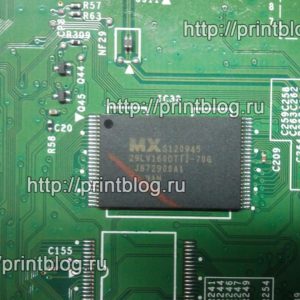
Микросхема MX29LV160AT для Canon imageRUNNER 1133а
599.00 руб.
Купить -
11 в наличии
Код: 50022
Микросхема EEPROM 95080 (508RP, WP, L080) для Canon MG2440 с сброшенным счетчиком памперса
349.00 руб.
Купить -
В наличии
Код: 00018
Adjustment program Epson PX660
343.20 руб.
Купить -
В наличии
Код: 00034
Дамп микросхемы MX29LV160DT MX29LV160AT для Canon i-SENSYS MF5940dn
402.00 руб.
Купить
Комментарии для сайта Cackle
Думаю, тем, кто читает эту статью, не нужно объяснять, для чего используются различные версии программы Service Tool. Самая распространенная версия на момент написания статьи — Service Tool v3400
Очень часто, при попытке сброса,»памперса», меня спрашивают, почему программа выдает ошибку.
При чем основных ошибок две. Появляется окно с сообщением «Error! (error code 006)» или 009.
Error code 006, чаще всего, означает, что Вы не вошли в сервисный режим. Напомню, что при входе в сервисный режим устройство должно определяться как CanonDevice. Иногда такая ошибка появляется даже тогда, когда Вы правильно вошли в сервисный режим. Тогда может помочь перезагрузка компьютера или подсоединение принтера к другому USB порту.
Error code 009 означает, что у принтера существует какая-то дополнительная ошибка, кроме переполнения счетчика отработанных чернил. И перед сбросом «памперса» ее необходимо будет устранить. Узнать, какая ошибка можно по количеству миганий индикатора «молния». Подробнее об этом можете прочесть тут. Например, при отсутствующем или неисправном картридже Вы не сможете воспользоваться программой и она будет выдавать Вам Error code 009.
И не забывайте извлекать программу из архива. Запущенная в архиве корректно работать она не будет.
Как устранить ошибку 006 при запуске Serive Tool на принтерах Canon: данная ошибка свидетельствует о полной блокировке принтера. Что делать, если она появилась: какую программу использовать и как правильно выбрать ее для вашей модели принтера
Программы
Serive Tool имеют функцию восстановления
счетчика отпечатанных страниц на
памперсах, когда отпечатано максимальное
количество страниц. Эти принтеры оснащены
губкой под блоком продувки принтера
(чистящий инструмент печатающей головки).
На уровне системы — это всего лишь
настройка. Но когда было отпечатано
максимальное количество страниц, принтер
заблокируется и запросит отнести
устройство в ремонт.
Все
современные принтеры Canon нуждаются в
такой программе для обнуления счетчика
страниц, чтобы можно было продолжить
печать без проблем. Так как существует
много моделей принтеров, поэтому есть
множество программ Service Tool.
Если
в один прекрасный день при запуске
программы появляется ошибка » 006 «,
не стоит беспокоиться.
Ошибка
» 006 » может произойти по многим
причинам, которые мы объясняем ниже,
начиная с наиболее вероятной до наименее
вероятных причин. Рекомендуем задавать
любые вопросы или решать проблемы с
процедурой, оставив комментарий к этой
статье. Мы всегда постараемся ответить
и помочь решить другие проблемы.
Несоответствие
программы и принтера
Вполне
возможно, что вы скачали программу,
которая не совместима свашим принтером.
В большинстве случаев эта ошибка
возникает в результате скачивания
неправильной программы.
Рекомендуется
проверить совместимость программы с
моделью принтера. Убедитесь, что в окне
программе отображается то же название
принтера, что и модель на корпусе вашего
принтера. Если у вас есть трудности с
данной процедурой, оставьте комментарий
к этому посту.
Вы
неправильно выполнили процедуру по
входу в сервисный режим
Вход
в сервисный режим является важным этапом
в процессе восстановления памперсов
принтера. Если неправильно войти в режим
обслуживания, то програма не сработает
при попытке запустить ее. Опции будут
отображаться как недоступные.
Тщательно
очистите схемы принтера и картриджей
Разъемы
картриджей (медные контакты в передней
части картриджей) и разъемы на принтере,
который также находится в передней
части ПГ, должны быть полностью чистыми,
то есть на них не должно быть пятен или
мусора, что может снизить производительность.
Проверьте
драйверы принтера
В
некоторых случаях, когда вышеописанные
случаи не работают правильно, рекомендуется
переустановить драйверы для принтера.
Отключите принтер, пока устанавливаете
драйверы. Подключите его только в том
случае, если программное обеспечение
не попросит вас подключить.
Наконец,
если у вас возникли дополнительные
вопросы, оставьте комментарий ниже. Мы
с удовольствием ответим вам как можно
быстрее .
Содержание
- Fix your printer !
- Search This Blog
- How to solve error code 006 with Canon Service Tool V3400
- Labels
- Comments
- Форум по СНПЧ: Canon Service Tool — сервисные программы для принтеров Canon — ST4720 — Форум по СНПЧ
- Canon Service Tool — сервисные программы для принтеров Canon — ST4720 Сброс памперса программами Service Tool V700, V1050, V2000, V4720
- | Сообщение #1 Отправлено 29 июля 2009 — 07:57 КАТ
- | Сообщение #2 Отправлено 02 августа 2009 — 08:39
- | Сообщение #3 Отправлено 02 августа 2009 — 19:07 КАТ
- Форум по СНПЧ: Canon Service Tool — сервисные программы для принтеров Canon — ST4720 — Форум по СНПЧ
- Canon Service Tool — сервисные программы для принтеров Canon — ST4720 Сброс памперса программами Service Tool V700, V1050, V2000, V4720
- | Сообщение #1 Отправлено 29 июля 2009 — 07:57 КАТ
- | Сообщение #2 Отправлено 02 августа 2009 — 08:39
- | Сообщение #3 Отправлено 02 августа 2009 — 19:07 КАТ
Fix your printer !
Reset printers and cartridge. Printers problem solving,tips, tricks and tutorial.
Search This Blog
How to solve error code 006 with Canon Service Tool V3400
The Service Tool V3400 allow to reset the counter of some Canon printers.
For the error code 006, try this:
Solution 1:
- Check your cartridges: an empty cartridge can lead to error 006
Solution 2:
- After you avec clicked on «Main», wait a few minutes.
- If the error still here, restarts the Service Tool
Solution 3:
- Close the service tool
- Disconnect the USB cable from the printer
- After 10 seconds, plug back the cable to the printer
- On Windows, click next when appears «New device»
- Open the service tool
- Get link
- Other Apps
Labels
- Get link
- Other Apps
Check your cartrdiges: an empty cartridge can lead to error 006
This was how I solved the error 006 issue when I tried to reset the absorber counter. My printer is Canon MX882. I first had to set the printer in maintenance mode by doing the following:
— Press and hold resume/cancel button (one with triangle in the circle).
— Press ON button while holding resume/cancel button (now you are holding both).
— While holding the ON button press resume/cancel button 5 times.
Wait for a few seconds then set the ink absorber counter from the service tool. I got confirmation that action was finished from service tool right away. I turned off the printer then turned it back on. Everything was good!
After a bit of trial and error I have managed to sort out the 006 error and successfully reset the 5B00 code on my MG6250.
Basically I found that if the printer is not set properly in service mode then the 006 code appears on everything in the v3400 software. Also I was trying when the printer was connected to a network and when changing to a direct USB connection, the buttons in the V3400 software were not greyed out.
It was a little more tricky with the MG6250 as it doesn’t actually have a mechanical button but a finger sensitive one similar to a smart phone so with the power off I had to guess where it was.
So just to reiterate the sequence above
— Press and hold resume/cancel button (one with triangle in the circle).
— Press ON button while holding resume/cancel button (now you are holding both).
— Release the resume/cancel and press it 5 times.
— Release the ON button
I’m not sure what I did wrong so many time before but this time the printer did some internal movements for about 15 seconds then everything went blank apart from the power button and then the PC pinged a message to say it was connecting a new device.
Note that when you look at the printer properties on the PC, it should say the printer was offline which is where I was making my mistake.
Before I finished, I used the “EEPROM save” then turned the printer off and on and we are good to go.
Источник
- 17 Страниц
- 1
- 2
- 3
- →
- Последняя »
- Вы не можете создать новую тему
- Вы не можете ответить в тему
| Сообщение #1 Отправлено 29 июля 2009 — 07:57 КАТ
Для тех, кто занимается ремонтом струйников Canon, и просто владельцев этих аппаратов, которые самостоятельно занимаются их обслуживанием.
Сервисные программы для обслуживания струйных принтеров и МФУ Canon называется Service Tool.
Эти программы ТОЛЬКО для сброса «памперса» для принтеров iP1900, iP2600, iP3600, iP4600 и МФУ MP190, MP240, MP260, MP480, MP540, MP620, MP630, MP980
Canon Service Tool V700.zip — 19 244 кБ
Canon Service Tool V1050.zip — 381 кБ
Canon Service Tool V2000 — 188 kB — ip3600_v2000.zip (188,56К)
Количество загрузок:: 75694
Canon Service Tool V3400 — 200 kB
Canon Service Tool V3600 — 966 kB ST_V3600_resetters.zip (199К)
Количество загрузок:: 170021
Canon Service Tool V4720 — для новых моделей Canon G1400, G2400, G3400 ST_V4720.zip (2МБ)
Количество загрузок:: 71169
| Сообщение #2 Отправлено 02 августа 2009 — 08:39
| Сообщение #3 Отправлено 02 августа 2009 — 19:07 КАТ
Как пользоваться программами.
. в любом случае — сначала надо войти в сервисный режим:
Для аппаратов группы а — iP3600, iP4600, MP190, MP240, MP250, MP260, MP480, MP540, MP620, MP630, MP980
1 Выключить аппарат ( . аппарат должен быть подключен к компу по USB. )
2 Нажать и удерживать нажатой кнопку Resume обозначенную треугольником в круге
3 Не отпуская кнопку Resume нажать кнопку ВКЛ ( держать обе кнопки нажатыми )
4 Когда загорится индикатор включения — отпустить Resume ( ВКЛ держать нажатой ) и два раза её нажать, после чего отпустить обе кнопки
5 Запустить программу ServiceTool_V1020 ( или 1050 )
Для аппаратов группы b — iP1200, iP1300, iP1600, iP1700, iP1800, iP1900, iP2200, iP2500, iP2600
1 Выключить принтер и отключить сетевой шнур от принтера
2 Нажать кнопку включения и удерживать её
3 Не отпуская кнопку включения, подключить сетевой шнур
4 Продолжать держать кнопку включения нажатой. После того, как загорится индикатор включения, два раза нажать кнопку Resume ( на каждое нажатие принтер должен реагировать переключением индикации — при первом нажатии с зелёного на желтый, при втором — с желтого на зелёный ), после чего отпустить обе кнопки. Если шнур USB отключали — перед запуском ServiceTool его не помешает подключить.
5 Запустить программу ServiceTool_aV300 ( или 700 )
. теоретически для работы прог, драйвер принтера или МФУ — не обязателен ( я не устанавливал — проги работали и так. ), но моё мнение — лучше его установить. . если нет желания возиться с установкой драйвера — комп запустит установку нового оборудования — просто нажмите «отмена».
— Для проги v1020 ( 1050 — ещё не юзал, но должно быть так же. ) — если аппарат подключен к компу и находится в сервисном режиме — в правом верхнем углу окна проги, в окне «USB port» должен быть номер активного порта, т.е. вашего аппарата ( порт определяется автоматически при запуске проги ) — если к компу подключен только один аппарат -> просто в секции «Clear ink Counter» кликните «Main» и «Platen» — оба счётчика сбросятся.
Если вы сомневаетесь, тот ли аппарат прога определила — в верхней секции «Print» кликните «Test print» или «EEPROM» — если аппарат тот — он распечатает ( предварительно спросив, из какого лотка печатать ) либо тестовую страницу, либо данные из EEPROM — в зависимости от вашего выбора.
— Прогу v300 — не юзал — принтеры iP1900 и iP2600 отлично сбрасываются прогой GeneralTool для iP1800 — 2500. . экспериментировать с новой прогой пока некогда. . но судя по окну проги — всё то же самое, как и у GeneralTool.
. пока на данный момент, прогу v1020 проверил на аппаратах MP190, MP240, MP260, MP540 и iP4600 (. на 4600 «памперс» не сбрасывал — не было необходимости — просто проверил, как прога с ним работает. ).
. был один глюк — попробовал один из MP190 сбросить на другом компе — после входа в сервисный режим и запуска проги — в окне USB port было «none» — т.е. на одном компе этот аппарат без проблем определился, а на другом — нет. Я закрыл прогу и не выключая МФУ перезагрузил комп, после перезагрузки прога МФУ увидела и нормально с ним работала. . это пока единственный глюк, с которым столкнулся у этой проги.
С помощью проги STV1050 сбрасывал МФУ MP250 и MP270, хоть в доке к проге явно не сказано, что эти модели поддерживаются, да и МФУ эти стали выпускаться уже после выхода данной проги, тем не менее всё отлично работает, также, как и на MP240, MP260. . так, к сведению.
. STV1050 так же работает с аппаратами MP550 и iP4700.
. на всякий случай, если при работе с прогой в окне проги, в строке состояния появляется код ошибки и прога не работает — что означает код ошибки и как с этим можно бороться — можно посмотреть на ISMPC.
Источник
- 17 Страниц
- 1
- 2
- 3
- →
- Последняя »
- Вы не можете создать новую тему
- Вы не можете ответить в тему
| Сообщение #1 Отправлено 29 июля 2009 — 07:57 КАТ
Для тех, кто занимается ремонтом струйников Canon, и просто владельцев этих аппаратов, которые самостоятельно занимаются их обслуживанием.
Сервисные программы для обслуживания струйных принтеров и МФУ Canon называется Service Tool.
Эти программы ТОЛЬКО для сброса «памперса» для принтеров iP1900, iP2600, iP3600, iP4600 и МФУ MP190, MP240, MP260, MP480, MP540, MP620, MP630, MP980
Canon Service Tool V700.zip — 19 244 кБ
Canon Service Tool V1050.zip — 381 кБ
Canon Service Tool V2000 — 188 kB — ip3600_v2000.zip (188,56К)
Количество загрузок:: 75694
Canon Service Tool V3400 — 200 kB
Canon Service Tool V3600 — 966 kB ST_V3600_resetters.zip (199К)
Количество загрузок:: 170021
Canon Service Tool V4720 — для новых моделей Canon G1400, G2400, G3400 ST_V4720.zip (2МБ)
Количество загрузок:: 71169
| Сообщение #2 Отправлено 02 августа 2009 — 08:39
| Сообщение #3 Отправлено 02 августа 2009 — 19:07 КАТ
Как пользоваться программами.
. в любом случае — сначала надо войти в сервисный режим:
Для аппаратов группы а — iP3600, iP4600, MP190, MP240, MP250, MP260, MP480, MP540, MP620, MP630, MP980
1 Выключить аппарат ( . аппарат должен быть подключен к компу по USB. )
2 Нажать и удерживать нажатой кнопку Resume обозначенную треугольником в круге
3 Не отпуская кнопку Resume нажать кнопку ВКЛ ( держать обе кнопки нажатыми )
4 Когда загорится индикатор включения — отпустить Resume ( ВКЛ держать нажатой ) и два раза её нажать, после чего отпустить обе кнопки
5 Запустить программу ServiceTool_V1020 ( или 1050 )
Для аппаратов группы b — iP1200, iP1300, iP1600, iP1700, iP1800, iP1900, iP2200, iP2500, iP2600
1 Выключить принтер и отключить сетевой шнур от принтера
2 Нажать кнопку включения и удерживать её
3 Не отпуская кнопку включения, подключить сетевой шнур
4 Продолжать держать кнопку включения нажатой. После того, как загорится индикатор включения, два раза нажать кнопку Resume ( на каждое нажатие принтер должен реагировать переключением индикации — при первом нажатии с зелёного на желтый, при втором — с желтого на зелёный ), после чего отпустить обе кнопки. Если шнур USB отключали — перед запуском ServiceTool его не помешает подключить.
5 Запустить программу ServiceTool_aV300 ( или 700 )
. теоретически для работы прог, драйвер принтера или МФУ — не обязателен ( я не устанавливал — проги работали и так. ), но моё мнение — лучше его установить. . если нет желания возиться с установкой драйвера — комп запустит установку нового оборудования — просто нажмите «отмена».
— Для проги v1020 ( 1050 — ещё не юзал, но должно быть так же. ) — если аппарат подключен к компу и находится в сервисном режиме — в правом верхнем углу окна проги, в окне «USB port» должен быть номер активного порта, т.е. вашего аппарата ( порт определяется автоматически при запуске проги ) — если к компу подключен только один аппарат -> просто в секции «Clear ink Counter» кликните «Main» и «Platen» — оба счётчика сбросятся.
Если вы сомневаетесь, тот ли аппарат прога определила — в верхней секции «Print» кликните «Test print» или «EEPROM» — если аппарат тот — он распечатает ( предварительно спросив, из какого лотка печатать ) либо тестовую страницу, либо данные из EEPROM — в зависимости от вашего выбора.
— Прогу v300 — не юзал — принтеры iP1900 и iP2600 отлично сбрасываются прогой GeneralTool для iP1800 — 2500. . экспериментировать с новой прогой пока некогда. . но судя по окну проги — всё то же самое, как и у GeneralTool.
. пока на данный момент, прогу v1020 проверил на аппаратах MP190, MP240, MP260, MP540 и iP4600 (. на 4600 «памперс» не сбрасывал — не было необходимости — просто проверил, как прога с ним работает. ).
. был один глюк — попробовал один из MP190 сбросить на другом компе — после входа в сервисный режим и запуска проги — в окне USB port было «none» — т.е. на одном компе этот аппарат без проблем определился, а на другом — нет. Я закрыл прогу и не выключая МФУ перезагрузил комп, после перезагрузки прога МФУ увидела и нормально с ним работала. . это пока единственный глюк, с которым столкнулся у этой проги.
С помощью проги STV1050 сбрасывал МФУ MP250 и MP270, хоть в доке к проге явно не сказано, что эти модели поддерживаются, да и МФУ эти стали выпускаться уже после выхода данной проги, тем не менее всё отлично работает, также, как и на MP240, MP260. . так, к сведению.
. STV1050 так же работает с аппаратами MP550 и iP4700.
. на всякий случай, если при работе с прогой в окне проги, в строке состояния появляется код ошибки и прога не работает — что означает код ошибки и как с этим можно бороться — можно посмотреть на ISMPC.
Источник
Содержание
- How to Fix Error Code 006 in Canon Printers?
- Ans by :
- Fix Error Code 006 in Canon Printers:
- Quick Steps to Fix Error Code 006 in Canon Printers using the Service Tool:
- Step 1:- Check Ink Cartridges and Their Connections
- Step 2:- Restart the Canon Service Tool
- Step 3:- Check the Functionality of Printer Drivers
- Step 4:- Re-Open the Service Tool
- Step 5:- Troubleshoot the Service Tool Problem
- Canon Service Tool Error Code Mean (Error code: 002, 005, 006, 007, 009, etc)
- 4 comments for «Canon Service Tool Error Code Mean (Error code: 002, 005, 006, 007, 009, etc)»
- Форум по СНПЧ: Canon Service Tool — сервисные программы для принтеров Canon — ST4720 — Форум по СНПЧ
- Canon Service Tool — сервисные программы для принтеров Canon — ST4720 Сброс памперса программами Service Tool V700, V1050, V2000, V4720
- | Сообщение #1 Отправлено 29 июля 2009 — 07:57 КАТ
- | Сообщение #2 Отправлено 02 августа 2009 — 08:39
- | Сообщение #3 Отправлено 02 августа 2009 — 19:07 КАТ
How to Fix Error Code 006 in Canon Printers?
Hello, Please let me know that how to fix error code 006 in canon printers. When i am trying to print with Canon printer they show me this error code 006 while printing. Help me.
Ans by :
Fix Error Code 006 in Canon Printers:
It is quite common that the person using printers or any such kind of hardware machine has to face different error codes in its day-to-day application. Such error codes also occur with Canon printers and one of those is service tool Error Code 006.
This blog helps and guides you through a series of simple steps to Fix Error Code 006 in Canon Printer by running the Service Tool. Quickly, follow the given steps discussed below:
Quick Steps to Fix Error Code 006 in Canon Printers using the Service Tool:
Step 1:- Check Ink Cartridges and Their Connections
Ensure that the ink cartridge is filled properly as an empty cartridge might cause a Canon service tool error code 006. Check whether the cartridge connections are properly done or not.
Also, check that the cartridge connectors are copper contacts on the front of the cartridge and the printer connectors are positioned at the head front of the printer. You must check the internal parts of connectors whether they are cleaned or not. They shouldn’t have any ink stains that prevents printer operations.
Step 2:- Restart the Canon Service Tool
As per suggestions, whenever you get this service tool with your Canon printer, check and verify that your printer is compatible with the same name as the tool can search compatibility.
Still, if the problem occurs after compatibility verification also then simply restart the Canon Service Tool. You can refer to the user manual if you require guidance to reset the tool.
Step 3:- Check the Functionality of Printer Drivers
In cases when everything is working well and proper, it is hard to find where the problem still persists. You should immediately uninstall and reinstall the Canon printer drivers and turn off the printer as well. Then turn on your printer and the software installer will ask you to connect it again.
Step 4:- Re-Open the Service Tool
- Close down the service tool.
- Disconnect all the USB cable connected to the printer.
- Plugback all the cable to the printer after 10 seconds.
- For users working on Windows, click next when you see the “New device” option.
- Finally, open the service tool.
Step 5:- Troubleshoot the Service Tool Problem
- The first step is to download and install the Service Tool Canon.
- Turn on the maintenance mode of the printer following the given steps:
- Turn off the printer.
- Connect the printer to the central unit using a USB cable.
- Press and hold down the “Resume” button (triangle in a circle) and then press the “Power” button.
- Keep pressing these two buttons until the LED light glows.
- Release only one button, “Resume” button, but not the “Power” button. And then you have to press “Resume” buttons 6-7 times.
- Finally, release the two buttons. The LED light will flash and then stop after some time. This means that your printer is in the Maintenance Mode.
- You can now run the Service Tool for your Canon printer.
- Choose an appropriate USB port under the “USB PORT” section of service tool.
- You have to select the “Main” option under the “Ink Absorber Counter” section.
- Now in the “Counter Value” section, you have to select the number the closest of the counter number and hit on the “SET” button. (The counter number is in the section “EEPROM”).
This Canon service tool error 006 occurs when the user runs the service tool on their machine which may be due to various reasons like machine incompatibility, the incorrect process of entering the service mode when the printer is unable to work in service mode, any printer driver issue, an issue with printer cartridges, and others.
Generally, these «Service Tool” programs of Canon printers serve some useful purpose. Like they are used to reset the print count on the pads when they reach their limit amount. This means that these programs allow you to reset the waste ink pad counter in Canon printers. Physically, they are a kind of cleaner that is positioned under the purge printer ( or print head cleaner) at the system level.
These programs are useful when you perform printing for bulk number of pages. In such a case, the printer automatically locks the Print mode and request these service programs for support. Though the error code 006 canon service tool cannot be easily resolved, so you might require some expertise from a technical professional.
Hope this solution helps to fix Canon service tool error 006 error.
Источник
- Unplug the printer USB cable that goes to the computer then reconnect it to the computer on a different USB port.
- After the Service Mode entry procedure is complete, the Power LED will flash. When the Power LED is still blinking and the button in the Service Tool is pressed (the Service Tool sends a command to the printer), an error code: 005 will appear. The solution is after the Service mode entry procedure is complete, wait for the Power LED to stop blinking, then run the Service Tool.
Questions and Answers
Q: Where can I get other Canon Service Tools?
A: For complete information regarding Canon Service Tool collection, please open Canon Service Tool Version
Q: I don’t know which Service Tool supports my printer, where can I get information about it?
A: For complete information regarding Canon printers and the Service Tools used, please open the Canon Service Tools and Supported Printers
Entro na g6010 em modo serviço e após entrar no modo serviço a luz laranja pisca 5 vezes tem um deles desligada e pisca denovo 5 vezes e fica nesse loop o que pode ser ?
Does anyone know how to boot a G7050 into service mode?
Canon g2010 blinking 5 times orange after enter service mode
To enter service mode, press the Stop button 5 times** then release the Power button.
**: If the printer fails to enter Service Mode, turn off the printer, repeat the procedure to enter Service Mode, then press the Stop button 6 times (enter Service Mode without scanner) and then release the Power button.
— If the printer successfully enters Service Mode, the Power LED will light green and not blink.
— If the printer fails to enter Service Mode, the Alarm LED flashes orange.
— If the procedure for entering Service Mode was performed correctly (press the Stop button 5/6 times) and the printer failed to enter Service Mode, it is possible:
1. There was a double error on the printer. In addition to error 5B00, another error occurred in the printer.
2. The EEPROM IC is locked so the printer cannot enter Service Mode.
Notes:
Alarm LED flashing orange 5 times means
Error: ASF cam sensor
Error code: 5700
Check points & Solution: The error is reproduced after powering off the printer and powering it on again. Replace the auto sheet feeder unit or the main PCB ass’y or the sheet feeder sensor PCB ass’y.
Источник
- 17 Страниц
- 1
- 2
- 3
- →
- Последняя »
- Вы не можете создать новую тему
- Вы не можете ответить в тему
| Сообщение #1 Отправлено 29 июля 2009 — 07:57 КАТ
Для тех, кто занимается ремонтом струйников Canon, и просто владельцев этих аппаратов, которые самостоятельно занимаются их обслуживанием.
Сервисные программы для обслуживания струйных принтеров и МФУ Canon называется Service Tool.
Эти программы ТОЛЬКО для сброса «памперса» для принтеров iP1900, iP2600, iP3600, iP4600 и МФУ MP190, MP240, MP260, MP480, MP540, MP620, MP630, MP980
Canon Service Tool V700.zip — 19 244 кБ
Canon Service Tool V1050.zip — 381 кБ
Canon Service Tool V2000 — 188 kB — ip3600_v2000.zip (188,56К)
Количество загрузок:: 77127
Canon Service Tool V3400 — 200 kB
Canon Service Tool V3600 — 966 kB ST_V3600_resetters.zip (199К)
Количество загрузок:: 171775
Canon Service Tool V4720 — для новых моделей Canon G1400, G2400, G3400 ST_V4720.zip (2МБ)
Количество загрузок:: 71169
| Сообщение #2 Отправлено 02 августа 2009 — 08:39
| Сообщение #3 Отправлено 02 августа 2009 — 19:07 КАТ
Как пользоваться программами.
. в любом случае — сначала надо войти в сервисный режим:
Для аппаратов группы а — iP3600, iP4600, MP190, MP240, MP250, MP260, MP480, MP540, MP620, MP630, MP980
1 Выключить аппарат ( . аппарат должен быть подключен к компу по USB. )
2 Нажать и удерживать нажатой кнопку Resume обозначенную треугольником в круге
3 Не отпуская кнопку Resume нажать кнопку ВКЛ ( держать обе кнопки нажатыми )
4 Когда загорится индикатор включения — отпустить Resume ( ВКЛ держать нажатой ) и два раза её нажать, после чего отпустить обе кнопки
5 Запустить программу ServiceTool_V1020 ( или 1050 )
Для аппаратов группы b — iP1200, iP1300, iP1600, iP1700, iP1800, iP1900, iP2200, iP2500, iP2600
1 Выключить принтер и отключить сетевой шнур от принтера
2 Нажать кнопку включения и удерживать её
3 Не отпуская кнопку включения, подключить сетевой шнур
4 Продолжать держать кнопку включения нажатой. После того, как загорится индикатор включения, два раза нажать кнопку Resume ( на каждое нажатие принтер должен реагировать переключением индикации — при первом нажатии с зелёного на желтый, при втором — с желтого на зелёный ), после чего отпустить обе кнопки. Если шнур USB отключали — перед запуском ServiceTool его не помешает подключить.
5 Запустить программу ServiceTool_aV300 ( или 700 )
. теоретически для работы прог, драйвер принтера или МФУ — не обязателен ( я не устанавливал — проги работали и так. ), но моё мнение — лучше его установить. . если нет желания возиться с установкой драйвера — комп запустит установку нового оборудования — просто нажмите «отмена».
— Для проги v1020 ( 1050 — ещё не юзал, но должно быть так же. ) — если аппарат подключен к компу и находится в сервисном режиме — в правом верхнем углу окна проги, в окне «USB port» должен быть номер активного порта, т.е. вашего аппарата ( порт определяется автоматически при запуске проги ) — если к компу подключен только один аппарат -> просто в секции «Clear ink Counter» кликните «Main» и «Platen» — оба счётчика сбросятся.
Если вы сомневаетесь, тот ли аппарат прога определила — в верхней секции «Print» кликните «Test print» или «EEPROM» — если аппарат тот — он распечатает ( предварительно спросив, из какого лотка печатать ) либо тестовую страницу, либо данные из EEPROM — в зависимости от вашего выбора.
— Прогу v300 — не юзал — принтеры iP1900 и iP2600 отлично сбрасываются прогой GeneralTool для iP1800 — 2500. . экспериментировать с новой прогой пока некогда. . но судя по окну проги — всё то же самое, как и у GeneralTool.
. пока на данный момент, прогу v1020 проверил на аппаратах MP190, MP240, MP260, MP540 и iP4600 (. на 4600 «памперс» не сбрасывал — не было необходимости — просто проверил, как прога с ним работает. ).
. был один глюк — попробовал один из MP190 сбросить на другом компе — после входа в сервисный режим и запуска проги — в окне USB port было «none» — т.е. на одном компе этот аппарат без проблем определился, а на другом — нет. Я закрыл прогу и не выключая МФУ перезагрузил комп, после перезагрузки прога МФУ увидела и нормально с ним работала. . это пока единственный глюк, с которым столкнулся у этой проги.
С помощью проги STV1050 сбрасывал МФУ MP250 и MP270, хоть в доке к проге явно не сказано, что эти модели поддерживаются, да и МФУ эти стали выпускаться уже после выхода данной проги, тем не менее всё отлично работает, также, как и на MP240, MP260. . так, к сведению.
. STV1050 так же работает с аппаратами MP550 и iP4700.
. на всякий случай, если при работе с прогой в окне проги, в строке состояния появляется код ошибки и прога не работает — что означает код ошибки и как с этим можно бороться — можно посмотреть на ISMPC.
Источник
How to solve error code 006 with Canon Service Tool V3400
MAJ 25/08/17
The Service Tool V3400 allow to reset the counter of some Canon printers.
For the error code 006, try this:
Solution 1:
- Check your cartridges: an empty cartridge can lead to error 006
Solution 2:
- After you avec clicked on «Main», wait a few minutes.
- If the error still here, restarts the Service Tool
Solution 3:
- Close the service tool
- Disconnect the USB cable from the printer
- After 10 seconds, plug back the cable to the printer
- On Windows, click next when appears «New device»
- Open the service tool
Popular posts from this blog
The error B204 could happen after a cartridge replacement. First of all, when installing, remove the cartridges from the plastic package, but do not drill any plastic membranes, as this will cause this error when placing the cartridge. The error may also appear if you change a completely empty cartridge: when installing a full cartridge, the printer enters a cleaning cycle, but the printhead has not yet received ink from the newly inserted cartridge. Here are some tips to cancel this error B204:: Solution 1: Remove the cartridges Power the printer for 2 minutes Switch on the printer Install the cartrdiges Solution 2: Switch on the printer Unplug the power cable Open the cover Move the print head carriage manually to the usual place where it goes for the cartridge change (If the printhead carriage is not movable, reconnect and then turn on the printer, then unplug it again when the head carriage is in the moving position). Change the cartridges. Close the fr
MAJ11/06/17 Error B200 means the printhead voltage or temperature is not normal. The Printhead could be defective…. but first, try these solutions below: Solution 1 : Disconnect the power cable from the printer. Wait 1 hour. Connect the power cable Solution 2 : Check and Clean Head contact pin condition of the carriage unit Check Cable connection especially the carriage FFC Solution 3 : Turn off the power Open the panel Turn on the power Wait for print carriage to start moving to the left. Let it go past half way Before print carriage reaches left hand side shut the cover. Leave the Printer turned on Solution 4 : Unplug the power cable. Open the printer Push the whole print head mechanic to the center While the printer still open, plug the power and turn it ON. When the printhead still moving and is going to the very LEFT, close the cover. Wait until its boot up. Solution 4a: Take out all of the ink cartridges Lift up the gr
Fix Error Code 006 in Canon Printers:
It is quite common that the person using printers or any such kind of hardware machine has to face different error codes in its day-to-day application. Such error codes also occur with Canon printers and one of those is service tool Error Code 006.
This blog helps and guides you through a series of simple steps to Fix Error Code 006 in Canon Printer by running the Service Tool. Quickly, follow the given steps discussed below:
Quick Steps to Fix Error Code 006 in Canon Printers using the Service Tool:
Step 1:- Check Ink Cartridges and Their Connections
Ensure that the ink cartridge is filled properly as an empty cartridge might cause a Canon service tool error code 006. Check whether the cartridge connections are properly done or not.
Also, check that the cartridge connectors are copper contacts on the front of the cartridge and the printer connectors are positioned at the head front of the printer. You must check the internal parts of connectors whether they are cleaned or not. They shouldn’t have any ink stains that prevents printer operations.
Step 2:- Restart the Canon Service Tool
As per suggestions, whenever you get this service tool with your Canon printer, check and verify that your printer is compatible with the same name as the tool can search compatibility.
Still, if the problem occurs after compatibility verification also then simply restart the Canon Service Tool. You can refer to the user manual if you require guidance to reset the tool.
Step 3:- Check the Functionality of Printer Drivers
In cases when everything is working well and proper, it is hard to find where the problem still persists. You should immediately uninstall and reinstall the Canon printer drivers and turn off the printer as well. Then turn on your printer and the software installer will ask you to connect it again.
Step 4:- Re-Open the Service Tool
- Close down the service tool.
- Disconnect all the USB cable connected to the printer.
- Plug back all the cable to the printer after 10 seconds.
- For users working on Windows, click next when you see the “New device” option.
- Finally, open the service tool.
Step 5:- Troubleshoot the Service Tool Problem
- The first step is to download and install the Service Tool Canon.
- Turn on the maintenance mode of the printer following the given steps:
- Turn off the printer.
- Connect the printer to the central unit using a USB cable.
- Press and hold down the “Resume” button (triangle in a circle) and then press the “Power” button.
- Keep pressing these two buttons until the LED light glows.
- Release only one button, “Resume” button, but not the “Power” button. And then you have to press “Resume” buttons 6-7 times.
- Finally, release the two buttons. The LED light will flash and then stop after some time. This means that your printer is in the Maintenance Mode.
- You can now run the Service Tool for your Canon printer.
- Choose an appropriate USB port under the “USB PORT” section of service tool.
- You have to select the “Main” option under the “Ink Absorber Counter” section.
- Now in the “Counter Value” section, you have to select the number the closest of the counter number and hit on the “SET” button. (The counter number is in the section “EEPROM”).
This Canon service tool error 006 occurs when the user runs the service tool on their machine which may be due to various reasons like machine incompatibility, the incorrect process of entering the service mode when the printer is unable to work in service mode, any printer driver issue, an issue with printer cartridges, and others.
Generally, these «Service Tool” programs of Canon printers serve some useful purpose. Like they are used to reset the print count on the pads when they reach their limit amount. This means that these programs allow you to reset the waste ink pad counter in Canon printers. Physically, they are a kind of cleaner that is positioned under the purge printer ( or print head cleaner) at the system level.
These programs are useful when you perform printing for bulk number of pages. In such a case, the printer automatically locks the Print mode and request these service programs for support. Though the error code 006 canon service tool cannot be easily resolved, so you might require some expertise from a technical professional.
Hope this solution helps to fix Canon service tool error 006 error.
December 01, 2020
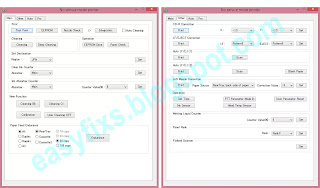
Canon Service Tool is a tool used to reset Canon printers after replacing parts such as: Logic Board Ass’y, Ink Absorber Kit, Print Head, etc. Canon Service Tool is a portable application so it does not require installation. In the Service Tool there are several functions such as; Test Print, Cleaning, Set Destination, Clear Ink Counter, Ink Absorber Counter, CD-R Correction, Auto LF/EJ, Left Margin Correction, Wetting Liquid Counter, Panel Rank, Flatbed Scanner, Data Save, etc.
In order for the Service Tool to be used to reset Canon printers, the printer must be in Service Mode. Service Mode is a condition where the Canon printer enters repair mode. After the printer enters Service Mode, open the Service Tool then select the desired function key.
.webp "Canon Service Tool Error Code Mean (Error code 002, 005, 006, 007, 009, etc)")
When a button is clicked in the Service Tools dialog box, that function is executed. While the selected function is in operation, all buttons on the Service Tool are dimmed or inactive. When the operation is finished, the message «A function was finished» will appear and other functions can be selected later.

Canon Service Tool Error Code Mean (Error code: 002, 005, 006, 007, 009, etc)
If an unsupported function button is selected, an error message will be displayed, click OK to close the error message. Regarding the error messages that appear when using the Service Tool, there are several kinds of error messages that have different meanings. The following is the error message that appears when using a Canon Service Tool.

Error code: 002
Meaning: The service tool doesn’t support the requested operation.
Solution: Unfortunately not all functions in the Service Tool can be used. When the function key in the Service Tool is pressed, and an error code: 002 appears, it means that the Service Tool does not support the requested command. The conclusion is that not all buttons in the Service Tool can be used, so just ignore this error message and then select a function key that is supported by the Service Tool.

Error code: 005
Meaning:
- The Service Tool doesn’t detect the printer.
- The printer is not ready to accept commands from the Service Tool.
Solution:
- Unplug the printer USB cable that goes to the computer then reconnect it to the computer on a different USB port.
- After the Service Mode entry procedure is complete, the Power LED will flash. When the Power LED is still blinking and the button in the Service Tool is pressed (the Service Tool sends a command to the printer), an error code: 005 will appear. The solution is after the Service mode entry procedure is complete, wait for the Power LED to stop blinking, then run the Service Tool.
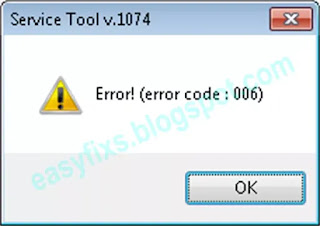
Error code: 006
Meaning: The printer is not in Service Mode, or the Service Tool does not support the printer.
Solution: Turn off the printer and then repeat the procedure to enter Service Mode correctly. If the procedure for entering Service Mode has been done correctly, but the error code: 006 still occurs, it means that the Service Tool doesn’t support your printer.

Error code: 007 and 009
Meaning: The printer cannot enter Service Mode due to another failure, or two different errors occurred. See the picture above.

Example: The printer has a double error. Error #1. Ink has run out, and Error #2. Waste ink absorber is full [5B00]. Both errors occur simultaneously.
Solution:
1. Turn on the printer, then press and hold the Resume/Cancel/Stop button for about 10-15 seconds, when you hear the sound of the print head starting to move, release the Resume/Cancel/Stop button.
2. After the cartridge reads normally, turn off the printer and repeat the procedure to enter Service Mode, then continue the reset process.

Error: Service Tool (Not Responding)
Meaning: the PC/Laptop can’t communicate with the printer.
Solution: disconnect the USB printer cable connected to the computer, close the service tool, then turn off the printer by pressing the power button or unplug the power cable. Repeat the Service Mode entry procedure, then open Service Tool. If this solution doesn’t work, check the printer’s USB port or change the printer’s USB cable.

Error: Service Tool Freezes
Meaning: The Service Tool does not detect a printer.
Solution:
1. Disconnect the printer USB cable that is connected to the computer. Plug it back into the computer in a different USB port. If it fails!
2. Turn off the printer, open Control Panel — Devices and Printers — Set as default printer that was repaired. Check the Printer Properties — the USB port of the printer. Make sure the USB port of the printer is checked. If all the settings have been done correctly, then repeat the procedure to enter Service Mode, then open the Service Tool. If it fails!
3. Replace the printer USB cable with a new one.

Error: The indicator light flashes orange when entering Service Mode
Meaning: there is damage to Service Mode (Service Mode is damaged).
Cause: the user uses more than one different Service Tool, when entering Service Mode.
Example: Printer user is Canon G3000. After the printer enters Service Mode, to reset the user using Service Tool v.3400, but it fails. Then the user uses Service Tool v.4718 to reset, but it fails. This is the beginning of trouble. When the printer enters Service Mode, the user uses two different Service Tools, namely ST.3400 and ST.4718. Using two different Service Tools in Service Mode will result in damage to Service Mode. When the printer enters Service Mode, the user uses ST.3400 but fails. If the user wants to try with ST.4718, turn off the printer first, then repeat the procedure to enter Service Mode, then reset it with ST.4718.

Solution: Replace the EEPROM IC with a new one, or reset the EEPROM IC manually.

Error: printer can’t enter Service Mode
Solution:
1. To enter the Service Mode, press the Resume/Cancel/Stop button 5 times. If the Resume/Cancel/Stop button is pressed 5 times but fails to enter Service Mode, repeat the procedure to enter Service Mode, then press the Resume/Cancel/Stop button 6 times (connected to the operation panel without a scanner).
2. To enter the Service Mode, press the Resume/Cancel/Stop button 2 times. If the Resume/Cancel/Stop button is pressed 2 times but fails to enter Service Mode, repeat the procedure to enter Service Mode, then press the Resume/Cancel/Stop button 3 times (connected to the operation panel without a scanner).
Conclusion:
— For printers where the Resume/Cancel/Stop button is pressed 5 times.
If the Resume/Cancel/Stop button is pressed 5 times and it fails to enter Service Mode, repeat the procedure then press the Resume/Cancel/Stop button 6 times.
— For printers where the Resume/Cancel/Stop button is pressed 2 times.
If the Resume/Cancel/Stop button is pressed 2 times and it fails to enter Service Mode, repeat the procedure then press the Resume/Cancel/Stop button 3 times.

Error: I can’t open the Service Tool on macOS X, Linux, etc. What should I do?
Cause
Service Tool is a portable software that only supports Windows Operating System. If your computer uses an operating system other than Windows, the Service Tool cannot be used.
Solution
1. If your home/office has a PC/Laptop that uses Windows OS, please install the printer driver, then do a reset with that computer.
2. If you don’t have a computer/laptop that uses Windows OS, please install Windows onto a USB Flash. Boot Windows from USB Flash, then install printer driver to USB Flash. After that, open the Service Tool and reset the printer. This method is applicable for Linux OS, MacOS, etc.

Error: I am using the Windows Operating System, but the Service Tool cannot be opened. What to do?
Cause
If Service Tool.exe is double-clicked but the program does not open automatically, right-click Service Tool — Properties, if under Attributes there is a message «Security: This file came from another computer and might be blocked to help protect this computer.»,
Solution
1. Check the «Unblock» — Apply — OK. If you are unsure about this solution, please follow the solution below.
2. Make sure your computer has the Winrar/Winzip/7zip application installed, etc.
Figure 1. Right click Service Tool (1), Add to archive (2), Set password (3), Enter password (4), OK (5)
Figure 2. Right-click the rar file (6), choose Cut (7) then paste it into a different folder.
Figure 3. Right click rar file (8), Extract rar file (9), Enter password (10), OK (11)
Figure 4. Right-click the folder (12), select Open (13) then open the Service Tool. Done.


Questions and Answers
Q: The printer printout is bad, is the print head clogged/damaged, should I replace the cartridge?
Q: Where can I get other Canon Service Tools?
A: For complete information regarding Canon Service Tool collection, please open Canon Service Tool Version
Q: I don’t know which Service Tool supports my printer, where can I get information about it?
A: For complete information regarding Canon printers and the Service Tools used, please open the Canon Service Tools and Supported Printers
If you are having trouble repairing a Canon printer yourself, it is highly recommended to ask the nearest Canon Service Center for help or the nearest printer repair professional.
How to Fix Error Code 006 in Canon Printers?
Hello, Please let me know that how to fix error code 006 in canon printers. When i am trying to print with Canon printer they show me this error code 006 while printing. Help me.
Ans by :
Fix Error Code 006 in Canon Printers:
It is quite common that the person using printers or any such kind of hardware machine has to face different error codes in its day-to-day application. Such error codes also occur with Canon printers and one of those is service tool Error Code 006.
This blog helps and guides you through a series of simple steps to Fix Error Code 006 in Canon Printer by running the Service Tool. Quickly, follow the given steps discussed below:
Quick Steps to Fix Error Code 006 in Canon Printers using the Service Tool:
Step 1:- Check Ink Cartridges and Their Connections
Ensure that the ink cartridge is filled properly as an empty cartridge might cause a Canon service tool error code 006. Check whether the cartridge connections are properly done or not.
Also, check that the cartridge connectors are copper contacts on the front of the cartridge and the printer connectors are positioned at the head front of the printer. You must check the internal parts of connectors whether they are cleaned or not. They shouldn’t have any ink stains that prevents printer operations.
Step 2:- Restart the Canon Service Tool
As per suggestions, whenever you get this service tool with your Canon printer, check and verify that your printer is compatible with the same name as the tool can search compatibility.
Still, if the problem occurs after compatibility verification also then simply restart the Canon Service Tool. You can refer to the user manual if you require guidance to reset the tool.
Step 3:- Check the Functionality of Printer Drivers
In cases when everything is working well and proper, it is hard to find where the problem still persists. You should immediately uninstall and reinstall the Canon printer drivers and turn off the printer as well. Then turn on your printer and the software installer will ask you to connect it again.
Step 4:- Re-Open the Service Tool
- Close down the service tool.
- Disconnect all the USB cable connected to the printer.
- Plugback all the cable to the printer after 10 seconds.
- For users working on Windows, click next when you see the “New device” option.
- Finally, open the service tool.
Step 5:- Troubleshoot the Service Tool Problem
- The first step is to download and install the Service Tool Canon.
- Turn on the maintenance mode of the printer following the given steps:
- Turn off the printer.
- Connect the printer to the central unit using a USB cable.
- Press and hold down the “Resume” button (triangle in a circle) and then press the “Power” button.
- Keep pressing these two buttons until the LED light glows.
- Release only one button, “Resume” button, but not the “Power” button. And then you have to press “Resume” buttons 6-7 times.
- Finally, release the two buttons. The LED light will flash and then stop after some time. This means that your printer is in the Maintenance Mode.
- You can now run the Service Tool for your Canon printer.
- Choose an appropriate USB port under the “USB PORT” section of service tool.
- You have to select the “Main” option under the “Ink Absorber Counter” section.
- Now in the “Counter Value” section, you have to select the number the closest of the counter number and hit on the “SET” button. (The counter number is in the section “EEPROM”).
This Canon service tool error 006 occurs when the user runs the service tool on their machine which may be due to various reasons like machine incompatibility, the incorrect process of entering the service mode when the printer is unable to work in service mode, any printer driver issue, an issue with printer cartridges, and others.
Generally, these «Service Tool” programs of Canon printers serve some useful purpose. Like they are used to reset the print count on the pads when they reach their limit amount. This means that these programs allow you to reset the waste ink pad counter in Canon printers. Physically, they are a kind of cleaner that is positioned under the purge printer ( or print head cleaner) at the system level.
These programs are useful when you perform printing for bulk number of pages. In such a case, the printer automatically locks the Print mode and request these service programs for support. Though the error code 006 canon service tool cannot be easily resolved, so you might require some expertise from a technical professional.
Hope this solution helps to fix Canon service tool error 006 error.
Источник
Fix your printer !
Reset printers and cartridge. Printers problem solving,tips, tricks and tutorial.
Search This Blog
How to solve error code 006 with Canon Service Tool V3400
The Service Tool V3400 allow to reset the counter of some Canon printers.
For the error code 006, try this:
Solution 1:
- Check your cartridges: an empty cartridge can lead to error 006
Solution 2:
- After you avec clicked on «Main», wait a few minutes.
- If the error still here, restarts the Service Tool
Solution 3:
- Close the service tool
- Disconnect the USB cable from the printer
- After 10 seconds, plug back the cable to the printer
- On Windows, click next when appears «New device»
- Open the service tool
- Get link
- Other Apps
Labels
- Get link
- Other Apps
Comments
Check your cartrdiges: an empty cartridge can lead to error 006
This was how I solved the error 006 issue when I tried to reset the absorber counter. My printer is Canon MX882. I first had to set the printer in maintenance mode by doing the following:
— Press and hold resume/cancel button (one with triangle in the circle).
— Press ON button while holding resume/cancel button (now you are holding both).
— While holding the ON button press resume/cancel button 5 times.
Wait for a few seconds then set the ink absorber counter from the service tool. I got confirmation that action was finished from service tool right away. I turned off the printer then turned it back on. Everything was good!
After a bit of trial and error I have managed to sort out the 006 error and successfully reset the 5B00 code on my MG6250.
Basically I found that if the printer is not set properly in service mode then the 006 code appears on everything in the v3400 software. Also I was trying when the printer was connected to a network and when changing to a direct USB connection, the buttons in the V3400 software were not greyed out.
It was a little more tricky with the MG6250 as it doesn’t actually have a mechanical button but a finger sensitive one similar to a smart phone so with the power off I had to guess where it was.
So just to reiterate the sequence above
— Press and hold resume/cancel button (one with triangle in the circle).
— Press ON button while holding resume/cancel button (now you are holding both).
— Release the resume/cancel and press it 5 times.
— Release the ON button
I’m not sure what I did wrong so many time before but this time the printer did some internal movements for about 15 seconds then everything went blank apart from the power button and then the PC pinged a message to say it was connecting a new device.
Note that when you look at the printer properties on the PC, it should say the printer was offline which is where I was making my mistake.
Before I finished, I used the “EEPROM save” then turned the printer off and on and we are good to go.
Источник
Canon Service Tool Error Code Mean (Error code: 002, 005, 006, 007, 009, etc)
- Unplug the printer USB cable that goes to the computer then reconnect it to the computer on a different USB port.
- After the Service Mode entry procedure is complete, the Power LED will flash. When the Power LED is still blinking and the button in the Service Tool is pressed (the Service Tool sends a command to the printer), an error code: 005 will appear. The solution is after the Service mode entry procedure is complete, wait for the Power LED to stop blinking, then run the Service Tool.
Questions and Answers
Q: Where can I get other Canon Service Tools?
A: For complete information regarding Canon Service Tool collection, please open Canon Service Tool Version
Q: I don’t know which Service Tool supports my printer, where can I get information about it?
A: For complete information regarding Canon printers and the Service Tools used, please open the Canon Service Tools and Supported Printers
4 comments for «Canon Service Tool Error Code Mean (Error code: 002, 005, 006, 007, 009, etc)»
Entro na g6010 em modo serviço e após entrar no modo serviço a luz laranja pisca 5 vezes tem um deles desligada e pisca denovo 5 vezes e fica nesse loop o que pode ser ?
Does anyone know how to boot a G7050 into service mode?
Canon g2010 blinking 5 times orange after enter service mode
To enter service mode, press the Stop button 5 times** then release the Power button.
**: If the printer fails to enter Service Mode, turn off the printer, repeat the procedure to enter Service Mode, then press the Stop button 6 times (enter Service Mode without scanner) and then release the Power button.
— If the printer successfully enters Service Mode, the Power LED will light green and not blink.
— If the printer fails to enter Service Mode, the Alarm LED flashes orange.
— If the procedure for entering Service Mode was performed correctly (press the Stop button 5/6 times) and the printer failed to enter Service Mode, it is possible:
1. There was a double error on the printer. In addition to error 5B00, another error occurred in the printer.
2. The EEPROM IC is locked so the printer cannot enter Service Mode.
Notes:
Alarm LED flashing orange 5 times means
Error: ASF cam sensor
Error code: 5700
Check points & Solution: The error is reproduced after powering off the printer and powering it on again. Replace the auto sheet feeder unit or the main PCB ass’y or the sheet feeder sensor PCB ass’y.
Источник
Форум по СНПЧ: Canon Service Tool — сервисные программы для принтеров Canon — ST4720 — Форум по СНПЧ
- 17 Страниц
- 1
- 2
- 3
- →
- Последняя »
- Вы не можете создать новую тему
- Вы не можете ответить в тему
Canon Service Tool — сервисные программы для принтеров Canon — ST4720 Сброс памперса программами Service Tool V700, V1050, V2000, V4720
| Сообщение #1 Отправлено 29 июля 2009 — 07:57 КАТ
Для тех, кто занимается ремонтом струйников Canon, и просто владельцев этих аппаратов, которые самостоятельно занимаются их обслуживанием.
Сервисные программы для обслуживания струйных принтеров и МФУ Canon называется Service Tool.
Эти программы ТОЛЬКО для сброса «памперса» для принтеров iP1900, iP2600, iP3600, iP4600 и МФУ MP190, MP240, MP260, MP480, MP540, MP620, MP630, MP980
Canon Service Tool V700.zip — 19 244 кБ
Canon Service Tool V1050.zip — 381 кБ
Canon Service Tool V2000 — 188 kB — ip3600_v2000.zip (188,56К)
Количество загрузок:: 77024
Canon Service Tool V3400 — 200 kB
Canon Service Tool V3600 — 966 kB ST_V3600_resetters.zip (199К)
Количество загрузок:: 171671
Canon Service Tool V4720 — для новых моделей Canon G1400, G2400, G3400 ST_V4720.zip (2МБ)
Количество загрузок:: 71169
| Сообщение #2 Отправлено 02 августа 2009 — 08:39
| Сообщение #3 Отправлено 02 августа 2009 — 19:07 КАТ
Как пользоваться программами.
. в любом случае — сначала надо войти в сервисный режим:
Для аппаратов группы а — iP3600, iP4600, MP190, MP240, MP250, MP260, MP480, MP540, MP620, MP630, MP980
1 Выключить аппарат ( . аппарат должен быть подключен к компу по USB. )
2 Нажать и удерживать нажатой кнопку Resume обозначенную треугольником в круге
3 Не отпуская кнопку Resume нажать кнопку ВКЛ ( держать обе кнопки нажатыми )
4 Когда загорится индикатор включения — отпустить Resume ( ВКЛ держать нажатой ) и два раза её нажать, после чего отпустить обе кнопки
5 Запустить программу ServiceTool_V1020 ( или 1050 )
Для аппаратов группы b — iP1200, iP1300, iP1600, iP1700, iP1800, iP1900, iP2200, iP2500, iP2600
1 Выключить принтер и отключить сетевой шнур от принтера
2 Нажать кнопку включения и удерживать её
3 Не отпуская кнопку включения, подключить сетевой шнур
4 Продолжать держать кнопку включения нажатой. После того, как загорится индикатор включения, два раза нажать кнопку Resume ( на каждое нажатие принтер должен реагировать переключением индикации — при первом нажатии с зелёного на желтый, при втором — с желтого на зелёный ), после чего отпустить обе кнопки. Если шнур USB отключали — перед запуском ServiceTool его не помешает подключить.
5 Запустить программу ServiceTool_aV300 ( или 700 )
. теоретически для работы прог, драйвер принтера или МФУ — не обязателен ( я не устанавливал — проги работали и так. ), но моё мнение — лучше его установить. . если нет желания возиться с установкой драйвера — комп запустит установку нового оборудования — просто нажмите «отмена».
— Для проги v1020 ( 1050 — ещё не юзал, но должно быть так же. ) — если аппарат подключен к компу и находится в сервисном режиме — в правом верхнем углу окна проги, в окне «USB port» должен быть номер активного порта, т.е. вашего аппарата ( порт определяется автоматически при запуске проги ) — если к компу подключен только один аппарат -> просто в секции «Clear ink Counter» кликните «Main» и «Platen» — оба счётчика сбросятся.
Если вы сомневаетесь, тот ли аппарат прога определила — в верхней секции «Print» кликните «Test print» или «EEPROM» — если аппарат тот — он распечатает ( предварительно спросив, из какого лотка печатать ) либо тестовую страницу, либо данные из EEPROM — в зависимости от вашего выбора.
— Прогу v300 — не юзал — принтеры iP1900 и iP2600 отлично сбрасываются прогой GeneralTool для iP1800 — 2500. . экспериментировать с новой прогой пока некогда. . но судя по окну проги — всё то же самое, как и у GeneralTool.
. пока на данный момент, прогу v1020 проверил на аппаратах MP190, MP240, MP260, MP540 и iP4600 (. на 4600 «памперс» не сбрасывал — не было необходимости — просто проверил, как прога с ним работает. ).
. был один глюк — попробовал один из MP190 сбросить на другом компе — после входа в сервисный режим и запуска проги — в окне USB port было «none» — т.е. на одном компе этот аппарат без проблем определился, а на другом — нет. Я закрыл прогу и не выключая МФУ перезагрузил комп, после перезагрузки прога МФУ увидела и нормально с ним работала. . это пока единственный глюк, с которым столкнулся у этой проги.
С помощью проги STV1050 сбрасывал МФУ MP250 и MP270, хоть в доке к проге явно не сказано, что эти модели поддерживаются, да и МФУ эти стали выпускаться уже после выхода данной проги, тем не менее всё отлично работает, также, как и на MP240, MP260. . так, к сведению.
. STV1050 так же работает с аппаратами MP550 и iP4700.
. на всякий случай, если при работе с прогой в окне проги, в строке состояния появляется код ошибки и прога не работает — что означает код ошибки и как с этим можно бороться — можно посмотреть на ISMPC.
Источник