Коллеги, добрый день.
Помогите решить проблему с запуском Server
Manager.
Поиски в интернете ни к чему не привели. Пробовал устанавливать обновления касательно фреймфорк.
При попытке запуска Server
Manager выдается ошибка:
Сигнатура проблемы:
Имя события проблемы:
CLR20r3
Сигнатура проблемы 01:
servermanager.exe
Сигнатура проблемы 02:
6.2.9200.16384
Сигнатура проблемы 03:
50107b22
Сигнатура проблемы 04:
PresentationCore
Сигнатура проблемы 05:
4.0.30319.18053
Сигнатура проблемы 06:
51907cf0
Сигнатура проблемы 07:
11b
Сигнатура проблемы 08:
3c
Сигнатура проблемы 09:
System.IO.FileLoadException
Версия ОС:
6.2.9200.2.0.0.272.7
Код языка:
1049
Дополнительные сведения 1:
dcd4
Дополнительные сведения 2:
dcd4802118774a4fbc03060d99f291d2
Дополнительные сведения 3:
967a
Дополнительные сведения 4:
967a6883d8f2fc3ba33bd4136795c8c5
И в журнале событий появляются события:
Имя журнала: Application
Источник: .NET Runtime
Дата: 31.07.2013 12:05:45
Код события: 1026
Категория задачи:Отсутствует
Уровень: Ошибка
Ключевые слова:Классический
Пользователь: Н/Д
Компьютер: srv.firma.ru
Описание:
Приложение: ServerManager.exe
Версия платформы: v4.0.30319
Описание. Процесс был завершен из-за необработанного исключения.
Сведения об исключении: System.IO.FileLoadException
Стек:
в MS.Internal.Threading.ExceptionFilterHelper.TryCatchWhen(System.Object, System.Delegate, System.Object, Int32, System.Delegate)
в System.Windows.Threading.DispatcherOperation.InvokeImpl()
в System.Threading.ExecutionContext.RunInternal(System.Threading.ExecutionContext, System.Threading.ContextCallback, System.Object, Boolean)
в System.Threading.ExecutionContext.Run(System.Threading.ExecutionContext, System.Threading.ContextCallback, System.Object, Boolean)
в System.Threading.ExecutionContext.Run(System.Threading.ExecutionContext, System.Threading.ContextCallback, System.Object)
в System.Windows.Threading.DispatcherOperation.Invoke()
в System.Windows.Threading.Dispatcher.ProcessQueue()
в System.Windows.Threading.Dispatcher.WndProcHook(IntPtr, Int32, IntPtr, IntPtr, Boolean ByRef)
в MS.Win32.HwndWrapper.WndProc(IntPtr, Int32, IntPtr, IntPtr, Boolean ByRef)
в MS.Win32.HwndSubclass.DispatcherCallbackOperation(System.Object)
в System.Windows.Threading.ExceptionWrapper.InternalRealCall(System.Delegate, System.Object, Int32)
в MS.Internal.Threading.ExceptionFilterHelper.TryCatchWhen(System.Object, System.Delegate, System.Object, Int32, System.Delegate)
в System.Windows.Threading.Dispatcher.LegacyInvokeImpl(System.Windows.Threading.DispatcherPriority, System.TimeSpan, System.Delegate, System.Object, Int32)
в MS.Win32.HwndSubclass.SubclassWndProc(IntPtr, Int32, IntPtr, IntPtr)
в MS.Win32.UnsafeNativeMethods.DispatchMessage(System.Windows.Interop.MSG ByRef)
в MS.Win32.UnsafeNativeMethods.DispatchMessage(System.Windows.Interop.MSG ByRef)
в System.Windows.Threading.Dispatcher.PushFrameImpl(System.Windows.Threading.DispatcherFrame)
в System.Windows.Application.RunInternal(System.Windows.Window)
в Microsoft.Windows.ServerManager.SingleInstanceAppLauncher.StartApplication(Microsoft.Windows.ServerManager.Common.ArgumentsProcessor)
в Microsoft.Windows.ServerManager.MainApplication.Main(System.String[])
Xml события:
<Event xmlns=»http://schemas.microsoft.com/win/2004/08/events/event»>
<System>
<Provider Name=».NET Runtime» />
<EventID Qualifiers=»0″>1026</EventID>
<Level>2</Level>
<Task>0</Task>
<Keywords>0x80000000000000</Keywords>
<TimeCreated SystemTime=»2013-07-31T08:05:45.000000000Z» />
<EventRecordID>682290</EventRecordID>
<Channel>Application</Channel>
<Computer> srv.firma.ru
</Computer>
<Security />
</System>
<EventData>
<Data>Приложение: ServerManager.exe
Версия платформы: v4.0.30319
Описание. Процесс был завершен из-за необработанного исключения.
Сведения об исключении: System.IO.FileLoadException
Стек:
в MS.Internal.Threading.ExceptionFilterHelper.TryCatchWhen(System.Object, System.Delegate, System.Object, Int32, System.Delegate)
в System.Windows.Threading.DispatcherOperation.InvokeImpl()
в System.Threading.ExecutionContext.RunInternal(System.Threading.ExecutionContext, System.Threading.ContextCallback, System.Object, Boolean)
в System.Threading.ExecutionContext.Run(System.Threading.ExecutionContext, System.Threading.ContextCallback, System.Object, Boolean)
в System.Threading.ExecutionContext.Run(System.Threading.ExecutionContext, System.Threading.ContextCallback, System.Object)
в System.Windows.Threading.DispatcherOperation.Invoke()
в System.Windows.Threading.Dispatcher.ProcessQueue()
в System.Windows.Threading.Dispatcher.WndProcHook(IntPtr, Int32, IntPtr, IntPtr, Boolean ByRef)
в MS.Win32.HwndWrapper.WndProc(IntPtr, Int32, IntPtr, IntPtr, Boolean ByRef)
в MS.Win32.HwndSubclass.DispatcherCallbackOperation(System.Object)
в System.Windows.Threading.ExceptionWrapper.InternalRealCall(System.Delegate, System.Object, Int32)
в MS.Internal.Threading.ExceptionFilterHelper.TryCatchWhen(System.Object, System.Delegate, System.Object, Int32, System.Delegate)
в System.Windows.Threading.Dispatcher.LegacyInvokeImpl(System.Windows.Threading.DispatcherPriority, System.TimeSpan, System.Delegate, System.Object, Int32)
в MS.Win32.HwndSubclass.SubclassWndProc(IntPtr, Int32, IntPtr, IntPtr)
в MS.Win32.UnsafeNativeMethods.DispatchMessage(System.Windows.Interop.MSG ByRef)
в MS.Win32.UnsafeNativeMethods.DispatchMessage(System.Windows.Interop.MSG ByRef)
в System.Windows.Threading.Dispatcher.PushFrameImpl(System.Windows.Threading.DispatcherFrame)
в System.Windows.Application.RunInternal(System.Windows.Window)
в Microsoft.Windows.ServerManager.SingleInstanceAppLauncher.StartApplication(Microsoft.Windows.ServerManager.Common.ArgumentsProcessor)
в Microsoft.Windows.ServerManager.MainApplication.Main(System.String[])
</Data>
</EventData>
</Event>
Имя журнала: Application
Источник: Application Error
Дата: 31.07.2013 12:05:46
Код события: 1000
Категория задачи:(100)
Уровень: Ошибка
Ключевые слова:Классический
Пользователь: Н/Д
Компьютер: srv.firma.ru
Описание:
Имя сбойного приложения: ServerManager.exe, версия: 6.2.9200.16384, метка времени: 0x50107b22
Имя сбойного модуля: KERNELBASE.dll, версия: 6.2.9200.16451, метка времени: 0x50988aa6
Код исключения: 0xe0434352
Смещение ошибки: 0x000000000003811c
Идентификатор сбойного процесса: 0x1ca0
Время запуска сбойного приложения: 0x01ce8dc4c21cc161
Путь сбойного приложения: C:Windowssystem32ServerManager.exe
Путь сбойного модуля: C:Windowssystem32KERNELBASE.dll
Идентификатор отчета: 006e019a-f9b8-11e2-93f1-6eae8b612e09
Полное имя сбойного пакета:
Код приложения, связанного со сбойным пакетом:
Xml события:
<Event xmlns=»http://schemas.microsoft.com/win/2004/08/events/event»>
<System>
<Provider Name=»Application Error» />
<EventID Qualifiers=»0″>1000</EventID>
<Level>2</Level>
<Task>100</Task>
<Keywords>0x80000000000000</Keywords>
<TimeCreated SystemTime=»2013-07-31T08:05:46.000000000Z» />
<EventRecordID>682291</EventRecordID>
<Channel>Application</Channel>
<Computer> srv.firma.ru
</Computer>
<Security />
</System>
<EventData>
<Data>ServerManager.exe</Data>
<Data>6.2.9200.16384</Data>
<Data>50107b22</Data>
<Data>KERNELBASE.dll</Data>
<Data>6.2.9200.16451</Data>
<Data>50988aa6</Data>
<Data>e0434352</Data>
<Data>000000000003811c</Data>
<Data>1ca0</Data>
<Data>01ce8dc4c21cc161</Data>
<Data>C:Windowssystem32ServerManager.exe</Data>
<Data>C:Windowssystem32KERNELBASE.dll</Data>
<Data>006e019a-f9b8-11e2-93f1-6eae8b612e09</Data>
<Data>
</Data>
<Data>
</Data>
</EventData>
</Event>
- Remove From My Forums

ServerManager.exe — This application could not be started. — Windows Server 2012 R2
-
Question
-
Hello All,
We have a Dell Precision M4800 installed with Windows Server 2012 R2, and we are unable to get the Server Manager working. When we click on ServerManager, the below error occurs,
Error Message: ServerManager.exe — This application could not be started.
Action Taken:
1. Windows Updates, and Windows Security Updates are up-to-date, rebooted
2. Display Drivers are updated, rebooted
3. .NET Framework 4.5.2 is updated, rebooted
Still the same error. Please assist.
Thank you, Anand
Anand Franklin
Answers
-
Hi,
Thanks for your post.
Usually, ServerManager.exe error may be caused by:
- The registry key of ServerManager.exe is invalid or damaged.
- Computer malware has injected malicious code and modified ServerManager.exe file.
- The ServerManager.exe file was uninstalled by other software.
- The ServerManager.exe file was intentionally or mistakenly deleted by other software.
- The required version of ServerManager.exe file is overwritten by other software.
- There is a hardware failure, such as a bad hard disk.
You can use the following solutions as the article mentioned to fix ServerManager.exe error:
http://www.fixerrorhelps.com/fix-pc-error/how-to-fix-ServerManager.exe-error.html
If all the suggestions did not work, i think we need to reinstall the Operating System.
Regards.
Please remember to mark the replies as answers if they help and unmark them if they provide no help. If you have feedback for TechNet Support, contact tnmff@microsoft.com
-
Proposed as answer by
Tuesday, March 31, 2015 2:22 AM
-
Marked as answer by
Vivian_Wang
Wednesday, April 1, 2015 10:05 AM
- Remove From My Forums
ServerManager.exe — This application could not be started. — Windows Server 2012 R2
-
Question
-
Hello All,
We have a Dell Precision M4800 installed with Windows Server 2012 R2, and we are unable to get the Server Manager working. When we click on ServerManager, the below error occurs,
Error Message: ServerManager.exe — This application could not be started.
Action Taken:
1. Windows Updates, and Windows Security Updates are up-to-date, rebooted
2. Display Drivers are updated, rebooted
3. .NET Framework 4.5.2 is updated, rebooted
Still the same error. Please assist.
Thank you, Anand
Anand Franklin
Answers
-
Hi,
Thanks for your post.
Usually, ServerManager.exe error may be caused by:
- The registry key of ServerManager.exe is invalid or damaged.
- Computer malware has injected malicious code and modified ServerManager.exe file.
- The ServerManager.exe file was uninstalled by other software.
- The ServerManager.exe file was intentionally or mistakenly deleted by other software.
- The required version of ServerManager.exe file is overwritten by other software.
- There is a hardware failure, such as a bad hard disk.
You can use the following solutions as the article mentioned to fix ServerManager.exe error:
http://www.fixerrorhelps.com/fix-pc-error/how-to-fix-ServerManager.exe-error.html
If all the suggestions did not work, i think we need to reinstall the Operating System.
Regards.
Please remember to mark the replies as answers if they help and unmark them if they provide no help. If you have feedback for TechNet Support, contact tnmff@microsoft.com
-
Proposed as answer by
Tuesday, March 31, 2015 2:22 AM
-
Marked as answer by
Vivian_Wang
Wednesday, April 1, 2015 10:05 AM
В Диспетчер Windows Server позволяет ИТ-персоналу следить за всеми серверами, размещенными в сети. Инструмент Server Manager дает ИТ-персоналу возможность управлять ролями серверов без физического доступа к серверам. Если вам не удается запустить диспетчер серверов, при нажатии на диспетчер серверов появляется сообщение об ошибке. ServerManager.exe — это приложение не может быть запущено, то решения, представленные в этом посте, призваны помочь вам решить проблему.
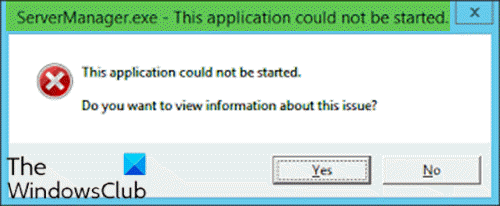
Когда вы столкнетесь с этой проблемой, вы получите следующее полное сообщение об ошибке;
ServerManager.exe — это приложение не может быть запущено. L ?.
Это приложение не может быть запущено.
Вы хотите просмотреть информацию об этой проблеме?
Вы можете столкнуться с этой ошибкой по одной или нескольким из следующих причин:
- Ключ реестра ServerManager.exe недействителен или поврежден.
- Компьютерная вредоносная программа внедрила вредоносный код и изменила файл ServerManager.exe.
- Файл ServerManager.exe был удален другим программным обеспечением.
- Файл ServerManager.exe был намеренно или по ошибке удален другим программным обеспечением.
- Требуемая версия файла ServerManager.exe заменена другим программным обеспечением.
- Аппаратный сбой, например, неисправный жесткий диск.
ServerManager.exe — это приложение не может быть запущено
Если вы столкнулись с этой проблемой, вы можете попробовать наши рекомендуемые решения ниже в произвольном порядке и посмотреть, поможет ли это решить проблему.
- Запустить команду DISM
- Удалить файл user.config вручную
- Отредактируйте ServerList.xml
- Выполните восстановление системы
- Выполните ремонт обновления на месте
- Форматирование и чистая установка ОС сервера
Давайте посмотрим на описание процесса, связанного с каждым из перечисленных решений.
1]Запустите команду DISM
Это решение требует от вас исправления / переустановки .NET Framework версий 3 и 4 с помощью команды DISM. Вот как:
DISM.exe /online /enable-feature /all /featurename:NetFx3

DISM.exe /online /enable-feature /all /featurename:NetFx4
После этого приложение диспетчера серверов должно открыться без ошибок.
2]Вручную удалить файл user.config
Сделайте следующее:
- Нажмите Клавиша Windows + E , чтобы открыть проводник.
- Перейдите к указанному ниже пути к файлу на вашем диске C или диске, на котором установлена установка сервера, который определен как корневая папка:
C:Users<YourUserName>AppDataLocalMicrosoft_CorporationServerManager.exe_StrongName_m3xk0k0ucj0oj3ai2hibnhnv4xobnimj10.0.0.0user.config
- На месте удалите user.config файл.
- Перезапустите диспетчер сервера — это воссоздает файл, а также устранит любые проблемы, связанные с повреждением файла и т. Д.
3]Отредактируйте ServerList.xml
Если у вас установлено несколько серверных операционных систем, вы можете обнаружить, что один из серверов ответственен за ошибку диспетчера серверов. Вы можете определить это, открыв Диспетчер серверов на других серверах и попробовав добавить серверы. Все идет хорошо, пока вы не попытаетесь сделать то же самое на определенном сервере, тогда диспетчер серверов выйдет из строя и снова перестанет работать. В этом случае вы можете отредактировать ServerList.xml и удалить проблемный сервер. Теперь диспетчер сервера должен работать нормально.
4]Выполните восстановление системы
Подобно клиентской операционной системе Windows 10, вы можете выполнить восстановление системы и посмотреть, поможет ли это. Это применимо, если вы не можете запустить диспетчер сервера только недавно, и до этого все работало нормально.
5]Выполните ремонт обновления на месте
Кроме того, как и в клиентской ОС Windows 10, вы можете выполнить восстановление с обновлением на месте и посмотреть, поможет ли это.
6]Форматирование и чистая установка ОС сервера
В крайнем случае, вы можете отформатировать и чисто установить серверную ОС.
Надеюсь, что-то здесь вам поможет.
| Софт | TurboCAD Deluxe 2D/3D 21 |
| Разработчик программного обеспечения | TurboCAD Design Group |
| Операционная система | Windows 8 |
| Архитектура | 64-разрядная (x64) |
| KB | 49536 |
| MD5 | 5290b65fe0c46214bd816291856c296e |
| ША1 | 77edb00132f49e38316a15a420e5d9be019ac2ec |
| CRC32: | b0ec1481 |
| Расположение файла | C:WindowsSystem32 |
| Софт | TurboCAD Deluxe 2D/3D 21 |
| Разработчик программного обеспечения | TurboCAD Design Group |
| Операционная система | Windows 8 |
| Архитектура | 64-разрядная (x64) |
| KB | 40320 |
| MD5 | e468398cf04748dc2d36a4474cb86317 |
| ША1 | 697f1c6fcf9328ac1a0ec6963ec94009326c42d6 |
| CRC32: | 47810b62 |
| Расположение файла | C:WindowsSystem32 |
| Софт | TurboCAD Deluxe 2D/3D 21 |
| Разработчик программного обеспечения | TurboCAD Design Group |
| Операционная система | Windows 7 |
| Архитектура | 64-разрядная (x64) |
| KB | 49536 |
| MD5 | 5290b65fe0c46214bd816291856c296e |
| ША1 | 77edb00132f49e38316a15a420e5d9be019ac2ec |
| CRC32: | b0ec1481 |
| Расположение файла | C:WindowsSystem32 |
| Софт | TurboCAD Deluxe 2D/3D 21 |
| Разработчик программного обеспечения | TurboCAD Design Group |
| Операционная система | Windows 7 |
| Архитектура | 64-разрядная (x64) |
| KB | 40320 |
| MD5 | e468398cf04748dc2d36a4474cb86317 |
| ША1 | 697f1c6fcf9328ac1a0ec6963ec94009326c42d6 |
| CRC32: | 47810b62 |
| Расположение файла | C:WindowsSystem32 |
| Софт | TurboCAD Deluxe 2D/3D 21 |
| Разработчик программного обеспечения | TurboCAD Design Group |
| Операционная система | Windows Vista |
| Архитектура | 64-разрядная (x64) |
| KB | 49536 |
| MD5 | 5290b65fe0c46214bd816291856c296e |
| ША1 | 77edb00132f49e38316a15a420e5d9be019ac2ec |
| CRC32: | b0ec1481 |
| Расположение файла | C:WindowsSystem32 |
| Софт | TurboCAD Deluxe 2D/3D 21 |
| Разработчик программного обеспечения | TurboCAD Design Group |
| Операционная система | Windows Vista |
| Архитектура | 64-разрядная (x64) |
| KB | 40320 |
| MD5 | e468398cf04748dc2d36a4474cb86317 |
| ША1 | 697f1c6fcf9328ac1a0ec6963ec94009326c42d6 |
| CRC32: | 47810b62 |
| Расположение файла | C:WindowsSystem32 |
| Софт | TurboCAD Deluxe 2D/3D 21 |
| Разработчик программного обеспечения | TurboCAD Design Group |
| Операционная система | Windows XP |
| Архитектура | 64-разрядная (x64) |
| KB | 49536 |
| MD5 | 5290b65fe0c46214bd816291856c296e |
| ША1 | 77edb00132f49e38316a15a420e5d9be019ac2ec |
| CRC32: | b0ec1481 |
| Расположение файла | C:WindowsSystem32 |
| Софт | TurboCAD Deluxe 2D/3D 21 |
| Разработчик программного обеспечения | TurboCAD Design Group |
| Операционная система | Windows XP |
| Архитектура | 64-разрядная (x64) |
| KB | 40320 |
| MD5 | e468398cf04748dc2d36a4474cb86317 |
| ША1 | 697f1c6fcf9328ac1a0ec6963ec94009326c42d6 |
| CRC32: | 47810b62 |
| Расположение файла | C:WindowsSystem32 |
| Софт | TurboCAD Deluxe 2D/3D 2016 |
| Разработчик программного обеспечения | TurboCAD Design Group |
| Операционная система | Windows 10 |
| Архитектура | 64-разрядная (x64) |
| KB | 40136 |
| MD5 | b172e728073435c71de114078b5f0dc0 |
| ША1 | c565c9279662ee38ea5d829f7616167dfd946176 |
| CRC32: | ed7deaf2 |
| Расположение файла | C:WindowsSystem32 |
| Софт | TurboCAD Deluxe 2D/3D 2016 |
| Разработчик программного обеспечения | TurboCAD Design Group |
| Операционная система | Windows 10 |
| Архитектура | 64-разрядная (x64) |
| KB | 49352 |
| MD5 | 98b80b98b792a621785d71b18ddabf66 |
| ША1 | 5ce728617c7a1dbe5310f69d04ea7630041ea1b4 |
| CRC32: | d7ba719f |
| Расположение файла | C:WindowsSystem32 |
| Софт | TurboCAD Deluxe 2D/3D 2016 |
| Разработчик программного обеспечения | TurboCAD Design Group |
| Операционная система | Windows 10 |
| Архитектура | 64-разрядная (x64) |
| KB | 49352 |
| MD5 | 3b0fbbd366719744f77fd55eb6df825a |
| ША1 | 0e25efdb27d8968dbaeb97406b1765395694f4f4 |
| CRC32: | 78e95ae3 |
| Расположение файла | C:WindowsSystem32 |
| Софт | TurboCAD Deluxe 2D/3D 2016 |
| Разработчик программного обеспечения | TurboCAD Design Group |
| Операционная система | Windows 10 |
| Архитектура | 64-разрядная (x64) |
| KB | 40136 |
| MD5 | c8d0c68987bd73b57064126f88a7a34f |
| ША1 | 06037ea91125e2adcba139e31a881ac168f08bad |
| CRC32: | 464c67bc |
| Расположение файла | C:WindowsSystem32 |
| Софт | TurboCAD Deluxe 2D/3D 2016 |
| Разработчик программного обеспечения | TurboCAD Design Group |
| Операционная система | Windows 8 |
| Архитектура | 64-разрядная (x64) |
| KB | 40136 |
| MD5 | b172e728073435c71de114078b5f0dc0 |
| ША1 | c565c9279662ee38ea5d829f7616167dfd946176 |
| CRC32: | ed7deaf2 |
| Расположение файла | C:WindowsSystem32 |
| Софт | TurboCAD Deluxe 2D/3D 2016 |
| Разработчик программного обеспечения | TurboCAD Design Group |
| Операционная система | Windows 8 |
| Архитектура | 64-разрядная (x64) |
| KB | 49352 |
| MD5 | 98b80b98b792a621785d71b18ddabf66 |
| ША1 | 5ce728617c7a1dbe5310f69d04ea7630041ea1b4 |
| CRC32: | d7ba719f |
| Расположение файла | C:WindowsSystem32 |
| Софт | TurboCAD Deluxe 2D/3D 2016 |
| Разработчик программного обеспечения | TurboCAD Design Group |
| Операционная система | Windows 8 |
| Архитектура | 64-разрядная (x64) |
| KB | 49352 |
| MD5 | 3b0fbbd366719744f77fd55eb6df825a |
| ША1 | 0e25efdb27d8968dbaeb97406b1765395694f4f4 |
| CRC32: | 78e95ae3 |
| Расположение файла | C:WindowsSystem32 |
| Софт | TurboCAD Deluxe 2D/3D 2016 |
| Разработчик программного обеспечения | TurboCAD Design Group |
| Операционная система | Windows 8 |
| Архитектура | 64-разрядная (x64) |
| KB | 40136 |
| MD5 | c8d0c68987bd73b57064126f88a7a34f |
| ША1 | 06037ea91125e2adcba139e31a881ac168f08bad |
| CRC32: | 464c67bc |
| Расположение файла | C:WindowsSystem32 |
| Софт | TurboCAD Deluxe 2D/3D 2016 |
| Разработчик программного обеспечения | TurboCAD Design Group |
| Операционная система | Windows 7 |
| Архитектура | 64-разрядная (x64) |
| KB | 40136 |
| MD5 | b172e728073435c71de114078b5f0dc0 |
| ША1 | c565c9279662ee38ea5d829f7616167dfd946176 |
| CRC32: | ed7deaf2 |
| Расположение файла | C:WindowsSystem32 |
| Софт | TurboCAD Deluxe 2D/3D 2016 |
| Разработчик программного обеспечения | TurboCAD Design Group |
| Операционная система | Windows 7 |
| Архитектура | 64-разрядная (x64) |
| KB | 49352 |
| MD5 | 98b80b98b792a621785d71b18ddabf66 |
| ША1 | 5ce728617c7a1dbe5310f69d04ea7630041ea1b4 |
| CRC32: | d7ba719f |
| Расположение файла | C:WindowsSystem32 |
| Софт | TurboCAD Deluxe 2D/3D 2016 |
| Разработчик программного обеспечения | TurboCAD Design Group |
| Операционная система | Windows 7 |
| Архитектура | 64-разрядная (x64) |
| KB | 49352 |
| MD5 | 3b0fbbd366719744f77fd55eb6df825a |
| ША1 | 0e25efdb27d8968dbaeb97406b1765395694f4f4 |
| CRC32: | 78e95ae3 |
| Расположение файла | C:WindowsSystem32 |
| Софт | TurboCAD Deluxe 2D/3D 2016 |
| Разработчик программного обеспечения | TurboCAD Design Group |
| Операционная система | Windows 7 |
| Архитектура | 64-разрядная (x64) |
| KB | 40136 |
| MD5 | c8d0c68987bd73b57064126f88a7a34f |
| ША1 | 06037ea91125e2adcba139e31a881ac168f08bad |
| CRC32: | 464c67bc |
| Расположение файла | C:WindowsSystem32 |
| Софт | TurboCAD Deluxe 2D/3D 2016 |
| Разработчик программного обеспечения | TurboCAD Design Group |
| Операционная система | Windows Vista |
| Архитектура | 64-разрядная (x64) |
| KB | 40136 |
| MD5 | b172e728073435c71de114078b5f0dc0 |
| ША1 | c565c9279662ee38ea5d829f7616167dfd946176 |
| CRC32: | ed7deaf2 |
| Расположение файла | C:WindowsSystem32 |
| Софт | TurboCAD Deluxe 2D/3D 2016 |
| Разработчик программного обеспечения | TurboCAD Design Group |
| Операционная система | Windows Vista |
| Архитектура | 64-разрядная (x64) |
| KB | 49352 |
| MD5 | 98b80b98b792a621785d71b18ddabf66 |
| ША1 | 5ce728617c7a1dbe5310f69d04ea7630041ea1b4 |
| CRC32: | d7ba719f |
| Расположение файла | C:WindowsSystem32 |
| Софт | TurboCAD Deluxe 2D/3D 2016 |
| Разработчик программного обеспечения | TurboCAD Design Group |
| Операционная система | Windows Vista |
| Архитектура | 64-разрядная (x64) |
| KB | 49352 |
| MD5 | 3b0fbbd366719744f77fd55eb6df825a |
| ША1 | 0e25efdb27d8968dbaeb97406b1765395694f4f4 |
| CRC32: | 78e95ae3 |
| Расположение файла | C:WindowsSystem32 |
| Софт | TurboCAD Deluxe 2D/3D 2016 |
| Разработчик программного обеспечения | TurboCAD Design Group |
| Операционная система | Windows Vista |
| Архитектура | 64-разрядная (x64) |
| KB | 40136 |
| MD5 | c8d0c68987bd73b57064126f88a7a34f |
| ША1 | 06037ea91125e2adcba139e31a881ac168f08bad |
| CRC32: | 464c67bc |
| Расположение файла | C:WindowsSystem32 |
| Софт | TurboCAD Deluxe 2D/3D 22 |
| Разработчик программного обеспечения | TurboCAD Design Group |
| Операционная система | Windows 10 |
| Архитектура | 64-разрядная (x64) |
| KB | 49536 |
| MD5 | 21010d4b40169e8c693cd1701af22f21 |
| ША1 | a76ede53663253b39d5500110bc2883250390abc |
| CRC32: | 728522bd |
| Расположение файла | C:WindowsSystem32 |
| Софт | TurboCAD Deluxe 2D/3D 22 |
| Разработчик программного обеспечения | TurboCAD Design Group |
| Операционная система | Windows 10 |
| Архитектура | 64-разрядная (x64) |
| KB | 40320 |
| MD5 | 8a4efdd85e1db45e48cae18651a89b8c |
| ША1 | 9bdc9f1e531652e4ed24600076f0fb46fc7ad56d |
| CRC32: | 19398a01 |
| Расположение файла | C:WindowsSystem32 |
| Софт | TurboCAD Deluxe 2D/3D 22 |
| Разработчик программного обеспечения | TurboCAD Design Group |
| Операционная система | Windows 8 |
| Архитектура | 64-разрядная (x64) |
| KB | 49536 |
| MD5 | 21010d4b40169e8c693cd1701af22f21 |
| ША1 | a76ede53663253b39d5500110bc2883250390abc |
| CRC32: | 728522bd |
| Расположение файла | C:WindowsSystem32 |
| Софт | TurboCAD Deluxe 2D/3D 22 |
| Разработчик программного обеспечения | TurboCAD Design Group |
| Операционная система | Windows 8 |
| Архитектура | 64-разрядная (x64) |
| KB | 40320 |
| MD5 | 8a4efdd85e1db45e48cae18651a89b8c |
| ША1 | 9bdc9f1e531652e4ed24600076f0fb46fc7ad56d |
| CRC32: | 19398a01 |
| Расположение файла | C:WindowsSystem32 |
| Софт | TurboCAD Deluxe 2D/3D 22 |
| Разработчик программного обеспечения | TurboCAD Design Group |
| Операционная система | Windows 7 |
| Архитектура | 64-разрядная (x64) |
| KB | 49536 |
| MD5 | 21010d4b40169e8c693cd1701af22f21 |
| ША1 | a76ede53663253b39d5500110bc2883250390abc |
| CRC32: | 728522bd |
| Расположение файла | C:WindowsSystem32 |
| Софт | TurboCAD Deluxe 2D/3D 22 |
| Разработчик программного обеспечения | TurboCAD Design Group |
| Операционная система | Windows 7 |
| Архитектура | 64-разрядная (x64) |
| KB | 40320 |
| MD5 | 8a4efdd85e1db45e48cae18651a89b8c |
| ША1 | 9bdc9f1e531652e4ed24600076f0fb46fc7ad56d |
| CRC32: | 19398a01 |
| Расположение файла | C:WindowsSystem32 |
| Софт | TurboCAD Deluxe 2D/3D 22 |
| Разработчик программного обеспечения | TurboCAD Design Group |
| Операционная система | Windows Vista |
| Архитектура | 64-разрядная (x64) |
| KB | 49536 |
| MD5 | 21010d4b40169e8c693cd1701af22f21 |
| ША1 | a76ede53663253b39d5500110bc2883250390abc |
| CRC32: | 728522bd |
| Расположение файла | C:WindowsSystem32 |
| Софт | TurboCAD Deluxe 2D/3D 22 |
| Разработчик программного обеспечения | TurboCAD Design Group |
| Операционная система | Windows Vista |
| Архитектура | 64-разрядная (x64) |
| KB | 40320 |
| MD5 | 8a4efdd85e1db45e48cae18651a89b8c |
| ША1 | 9bdc9f1e531652e4ed24600076f0fb46fc7ad56d |
| CRC32: | 19398a01 |
| Расположение файла | C:WindowsSystem32 |
| Софт | Windows Server 2012 Datacenter 2012 |
| Разработчик программного обеспечения | Microsoft |
| Операционная система | Windows Server 2012 |
| Архитектура | 64-разрядная (x64) |
| KB | 294912 |
| MD5 | 3cc614c355478f848977abe22aae68fe |
| ША1 | 4d95b657ffdfca423544dccb263e2244291d626a |
| CRC32: | ba1da289 |
| Расположение файла | C:WindowsSystem32 |
| Софт | Windows Server 2012 Datacenter 2012 |
| Разработчик программного обеспечения | Microsoft |
| Операционная система | Windows 64-bit |
| Архитектура | 64-разрядная (x64) |
| KB | 294912 |
| MD5 | 3cc614c355478f848977abe22aae68fe |
| ША1 | 4d95b657ffdfca423544dccb263e2244291d626a |
| CRC32: | ba1da289 |
| Расположение файла | C:WindowsSystem32 |
| Софт | Windows MultiPoint Server Premium 2012 2012 |
| Разработчик программного обеспечения | Microsoft |
| Операционная система | Windows 64-bit |
| Архитектура | 64-разрядная (x64) |
| KB | 294912 |
| MD5 | 3cc614c355478f848977abe22aae68fe |
| ША1 | 4d95b657ffdfca423544dccb263e2244291d626a |
| CRC32: | ba1da289 |
| Расположение файла | C:WindowsSystem32 |
| Софт | MSDN disc 4617.02 March 2013 |
| Разработчик программного обеспечения | Microsoft |
| Операционная система | Windows 10 |
| Архитектура | 64-разрядная (x64) |
| KB | 294912 |
| MD5 | 3cc614c355478f848977abe22aae68fe |
| ША1 | 4d95b657ffdfca423544dccb263e2244291d626a |
| CRC32: | ba1da289 |
| Расположение файла | C:WindowsSystem32 |
Contents
- What Is the Windows Server Manager?
- What Causes the ServerManager.exe Error in Windows 10?
- How to Fix the “ServerManager.exe – This Application Could Not Be Started” Error
- Solution 1: Run a DISM Scan
- Solution 2: Run an SFC Scan
- Solution 3: Manually Delete the User.config File
- Solution 4: Reconfigure ServerList.xml
- Solution 5: Roll Back the Changes
- Solution 6: Update Windows
- Solution 7: Clean Install the Server Operating System

IT staff in organizations uses the Windows Server Manager to keep tabs on all servers hosted on a network. The Server Manager basically gives administrators the ability to manage local and remote servers without the need for physical access to the servers.
However, despite the advanced technology used in the Windows Server Manager, things can go wrong. One such error is when you try to launch the Server Manager but it fails to run and instead displays the error notification below:
“ServerManager.exe – This application could not be started.
This application could not be started.
Do you want to view the information about this issue?”
What Is the Windows Server Manager?
The Windows Server Manager is a tool developed by Microsoft to view and manage network roles, such as Web Server, Domain Controller, File Server, and Print Server. IT professionals use the Server Manager to manage both local and Windows-based servers from their desktops without requiring physical access or the need to enable Remote Desktop Protocol (RDP) connections to each server.
The feature was first introduced in Windows Server 2008 to allow administrators to install, configure and manage server roles and features. Microsoft updated the Server Manager in Windows Server 2012, introducing new features, like the ability to change roles over the network and manage multiple servers simultaneously.
Windows Server 2012 can manage up to 100 servers, depending on the workloads run by the servers. The Windows Server Manager comes installed by default on all versions of Windows Server 2012 and Windows Server 2012 R2.
Now that you know what the Windows Server Manager is, you might be wondering what ServerManager.exe is in Windows 10.
ServerManager.exe is an executable file and part of the Windows operating system. It’s required by the system to run the Server Manager and gets installed when you install the Server Manager on your personal computer.
What Causes the ServerManager.exe Error in Windows 10?
You’re seeing the “ServerManager.exe – This application could not be started’ error message due to one of the following reasons:
- The ServerManager.exe file has been corrupted or altered by malware.
- The ServerManager.exe file’s registry entry has been damaged or corrupted.
- Third-party software uninstalled the ServerManager.exe file.
- A third-party program unintentionally deleted the ServerManager.exe file.
- A hardware failure, such as a hard disk drive crash or malfunction, occured.
How to Fix the “ServerManager.exe – This Application Could Not Be Started” Error
Solution 1: Run a DISM Scan
The first fix involves repairing .NET Framework versions 3 and 4 by performing a DISM scan. Here are the steps:
- Launch the Command Prompt with administrator rights. To do that, press the Windows logo on your keyboard and type cmd. From the results, select “Run as administrator” in the right sidebar.
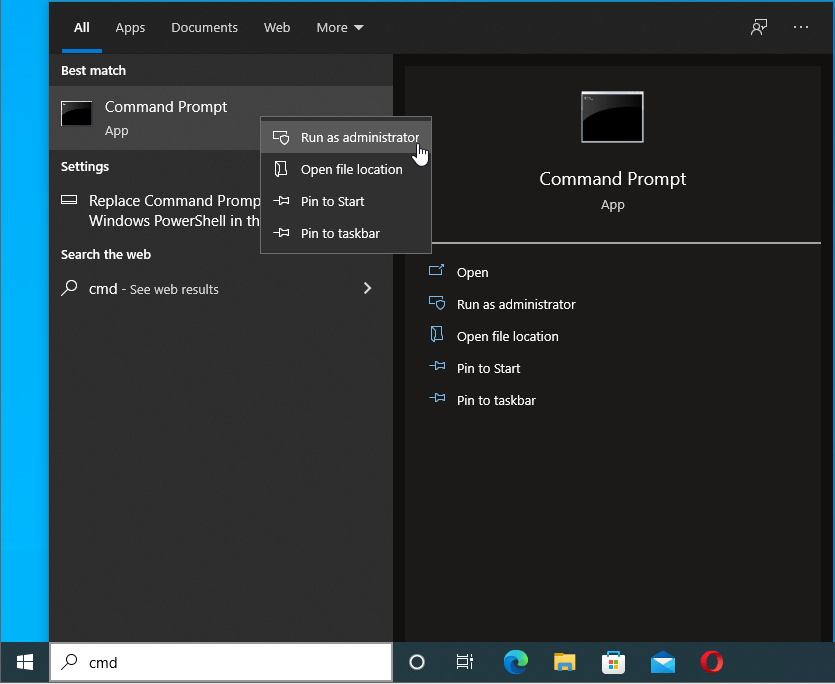
- In the Administrator Command Prompt window, type the commands below one by one and hit the “Enter” key after each command:
After the commands have been executed successfully, the Windows Server Manager should launch without any errors.
Solution 2: Run an SFC Scan
To repair system files, including the ServerManager.exe file, that may have been deleted or corrupted, you need to perform an SFC scan. The System File Checker tool comes built into Windows machines to help fix the corruption of system files.
To use the SFC tool, follow the steps below:
- Launch the Command Prompt with elevated rights as outlined above.
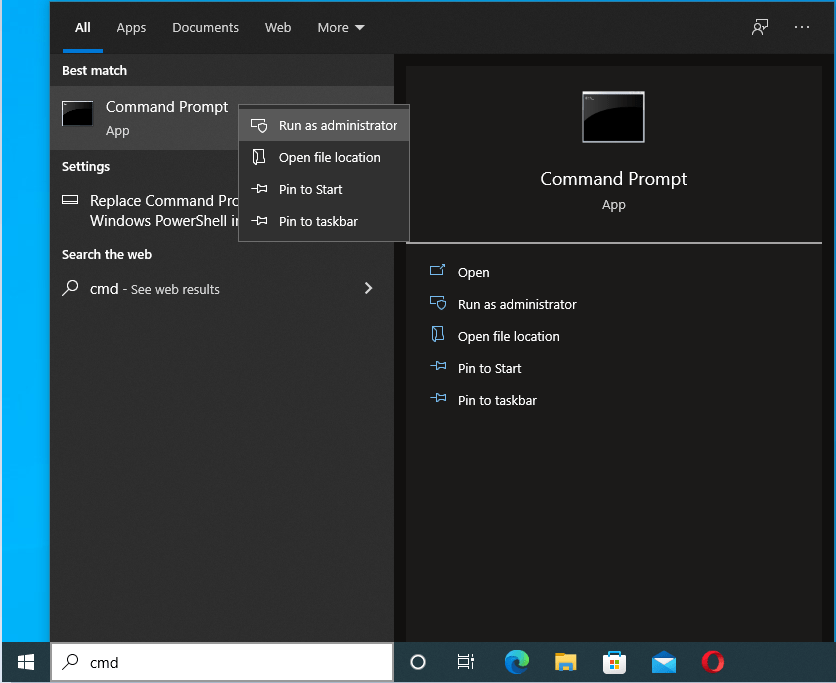
- Type the command sfc /scannow and press “Enter”.
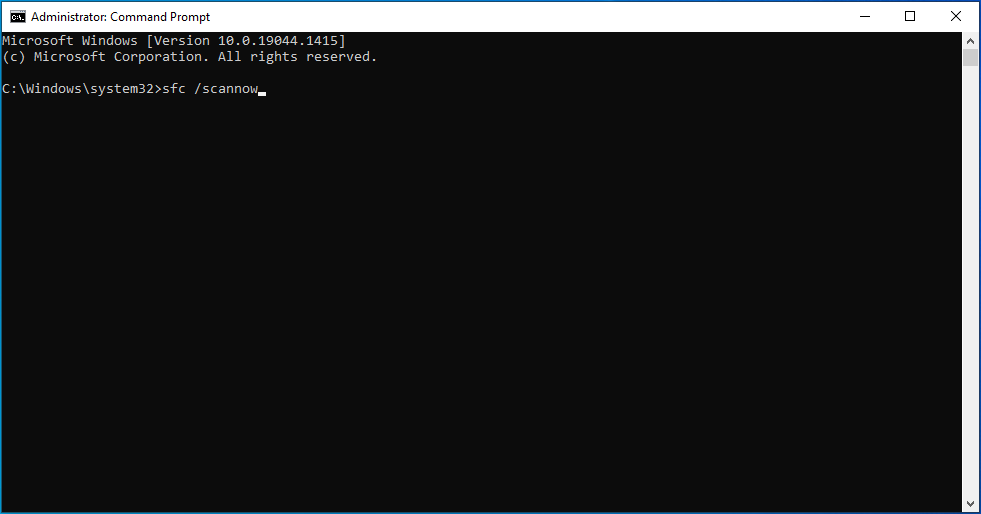
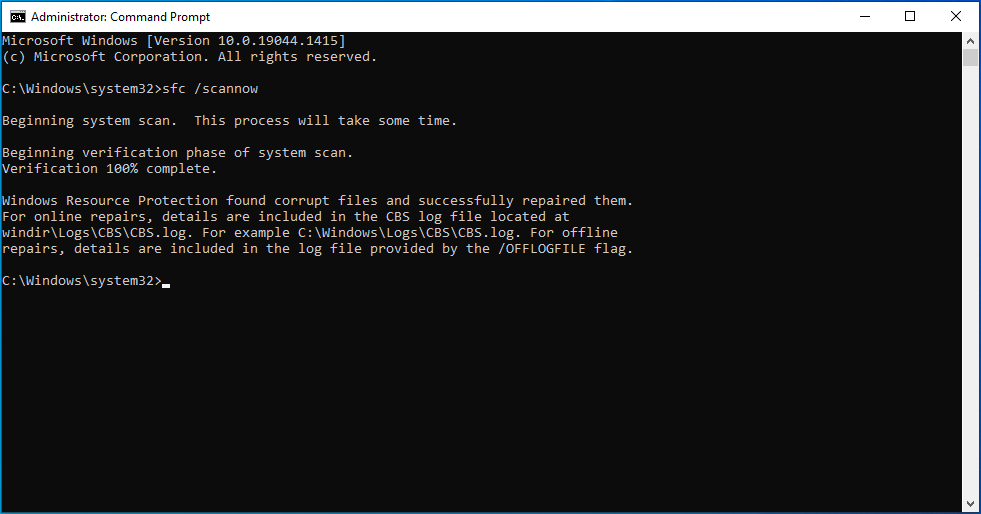
The scan will take several minutes to complete.
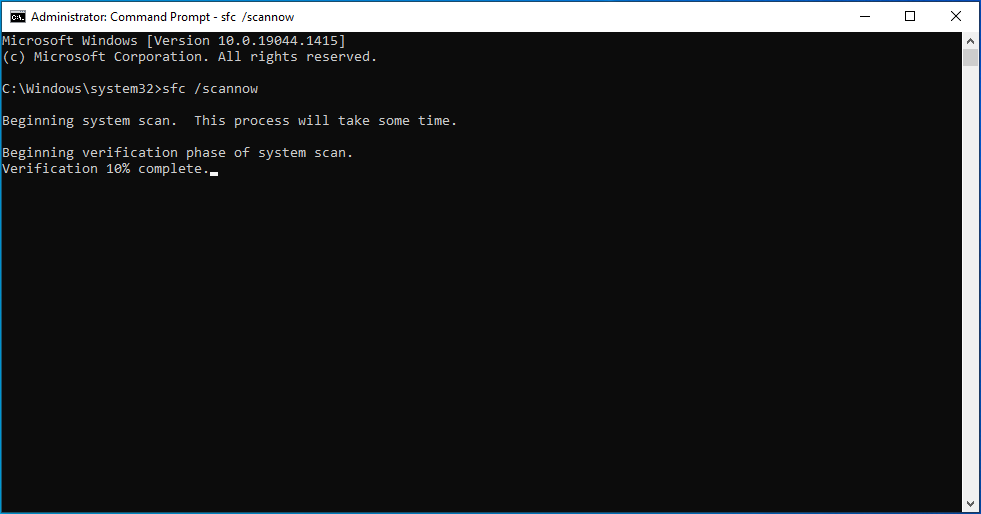
Once it does, any corrupt or missing system files should be repaired or replaced, thus getting rid of the ServerManager.exe error.
Solution 3: Manually Delete the User.config File
The user.config file, which holds all your unique settings, can become corrupted and cause the “ServerManager.exe. This application could not be started” error message. To resolve this problem, try manually deleting the file. It will then be recreated when you run the Server Manager.
Here’s how:
- Launch File Explorer using the Win + E shortcut.
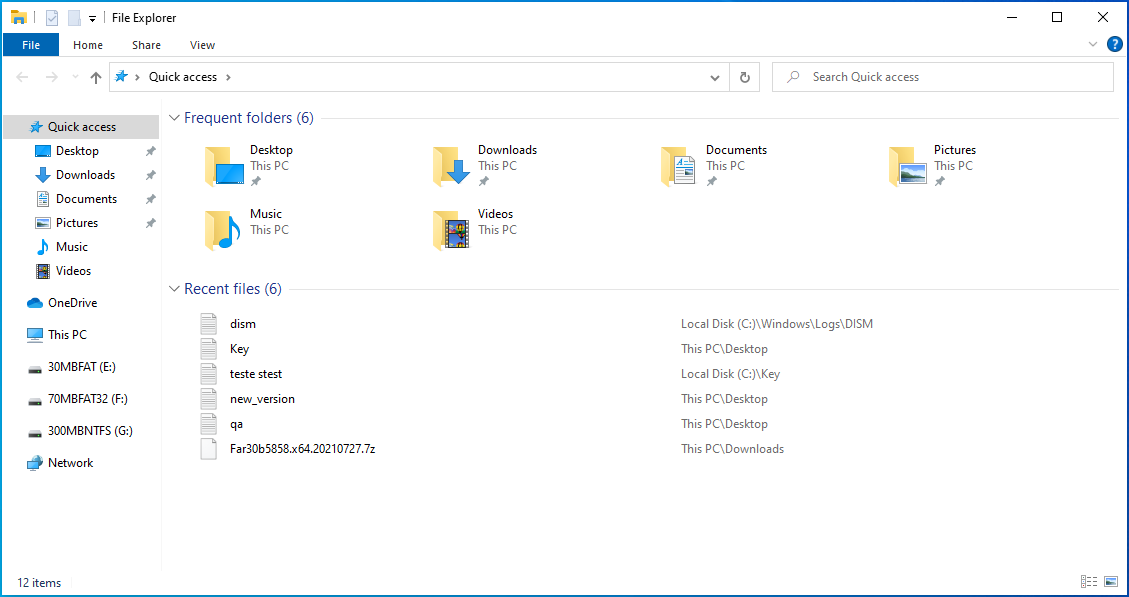
- Open the location containing the config file. Usually, the default location is on the C: drive. Here’s the full path:
- C:UsersYourUserNameAppDataLocalMicrosoft_CorporationServerManager.exe_StrongName_m3xk0k0ucj0oj3ai2hibnhnv4xobnimj10.0.0.0user.config
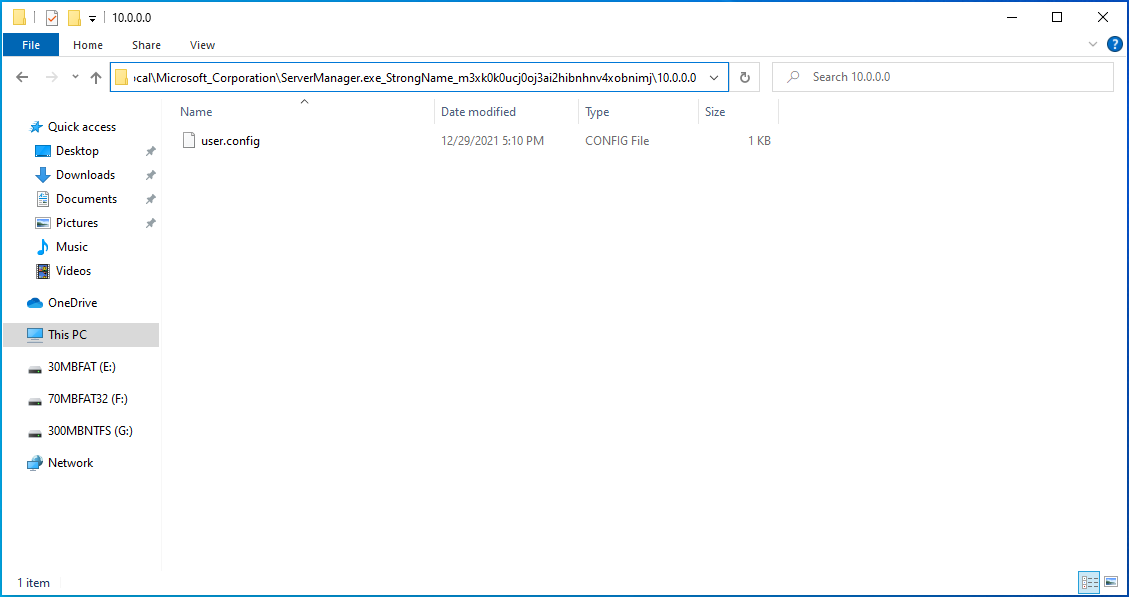
- C:UsersYourUserNameAppDataLocalMicrosoft_CorporationServerManager.exe_StrongName_m3xk0k0ucj0oj3ai2hibnhnv4xobnimj10.0.0.0user.config
- Delete the config file and restart the Server Manager. This recreates the user.config file, fixing other issues, like file corruption, in the process.
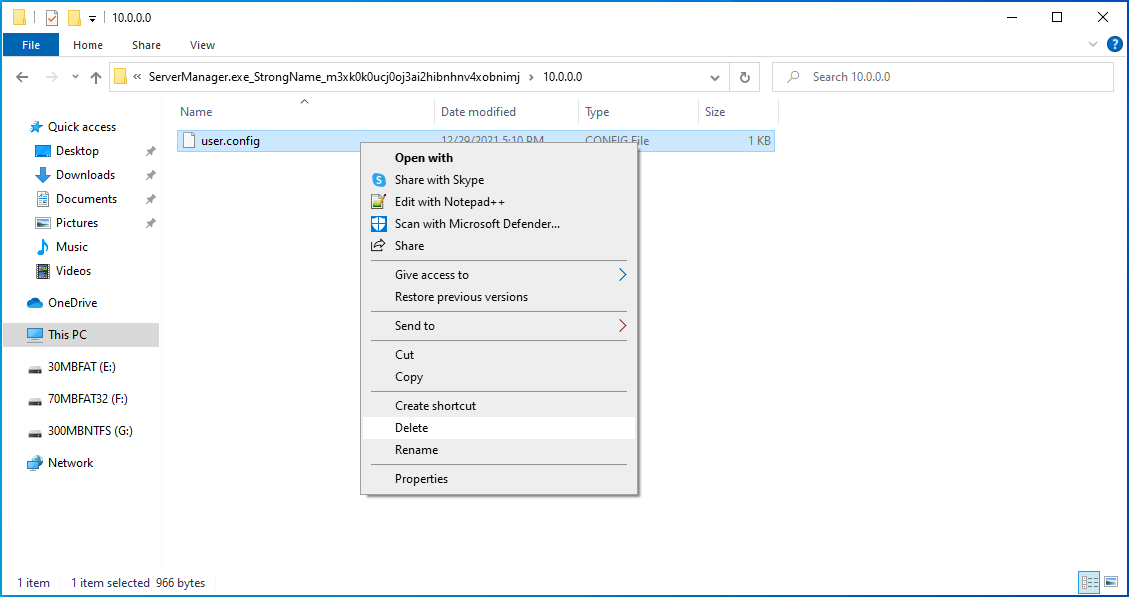
Hopefully, deleting the user.config file fixes the ServerManager.exe error.
Solution 4: Reconfigure ServerList.xml
If you’re running multiple server operating system installations, one of the servers might be causing the error. To identify the culprit, open the Server Manager on all the servers and try adding servers.
Servers that are functioning correctly will be added without problems. However, when you get to the problematic server, the Server Manager will crash and stop working. After you identify the server causing the error, try editing ServerList.xml and removing the server.
This should get rid of the Server Manager error.
Solution 5: Roll Back the Changes
If the Server Manager had been working fine and only started throwing up the error recently, you can try rolling back the changes to remove any conflicting software. System Restore is a Windows feature that will help you since it allows you to undo system changes.
Here are the steps you should take:
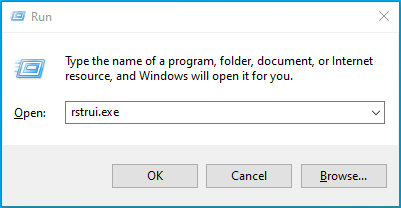
- Press the Win + R keyboard shortcut and type rstrui.exe into the “Run” dialog box. Press “Enter” to launch System Restore.
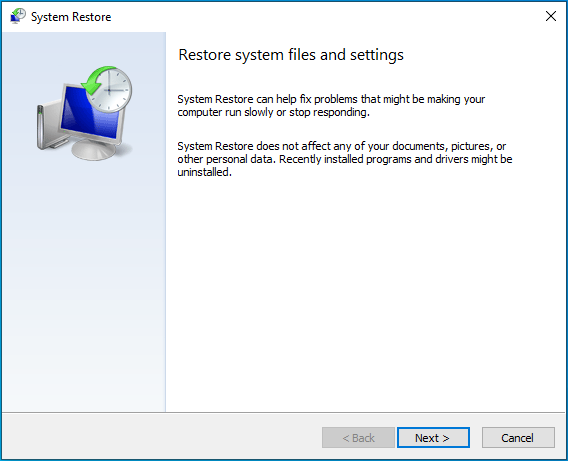
- In the “System Restore” window, click “Next”.
- Select a restore point.
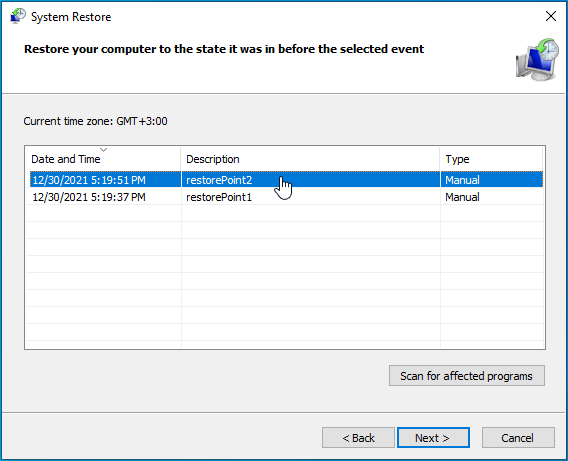
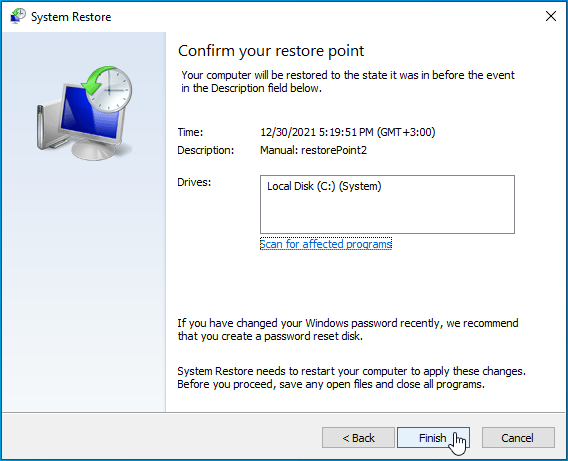
- Click on “Next” and review the details.
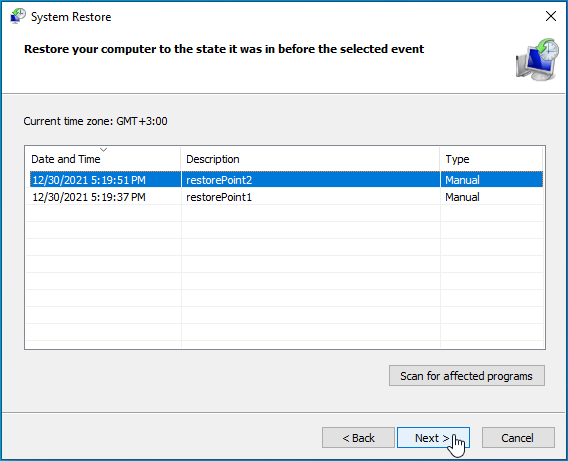
- If you’re satisfied, click on “Finish”.
- Click “Yes” to proceed.
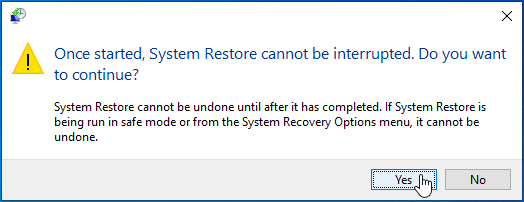
The system will be restored to the date you selected as the restore point. Hopefully, you can access the Server Manager without further issues.
Solution 6: Update Windows
Updating Windows installs the latest version of .NET components, which are crucial for the smooth running of the server. It also installs upgraded features and updates that may help to fix issues with the Server Manager. To proceed, follow the steps below:
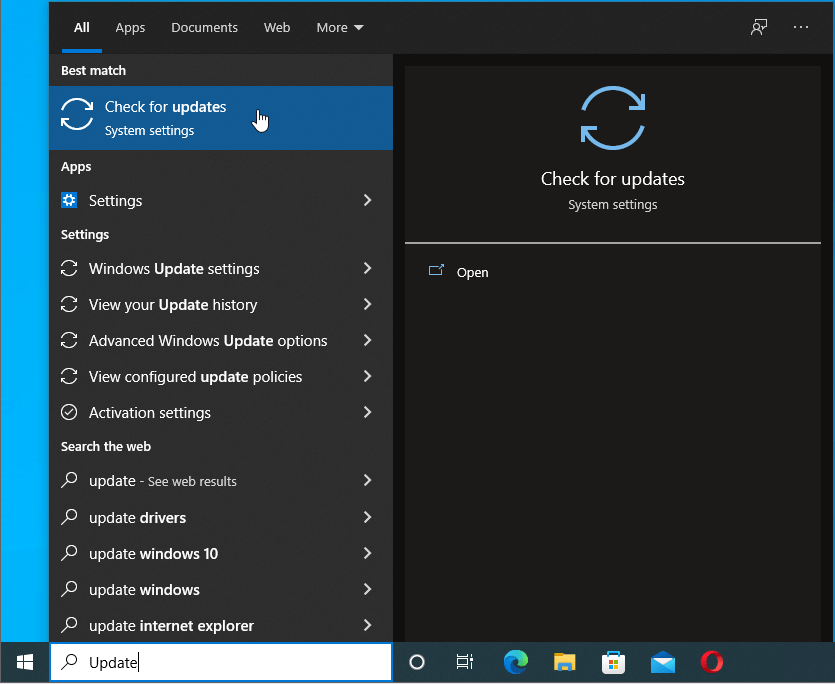
- Press the Windows logo on your keyboard and type “Update” (without quotes).
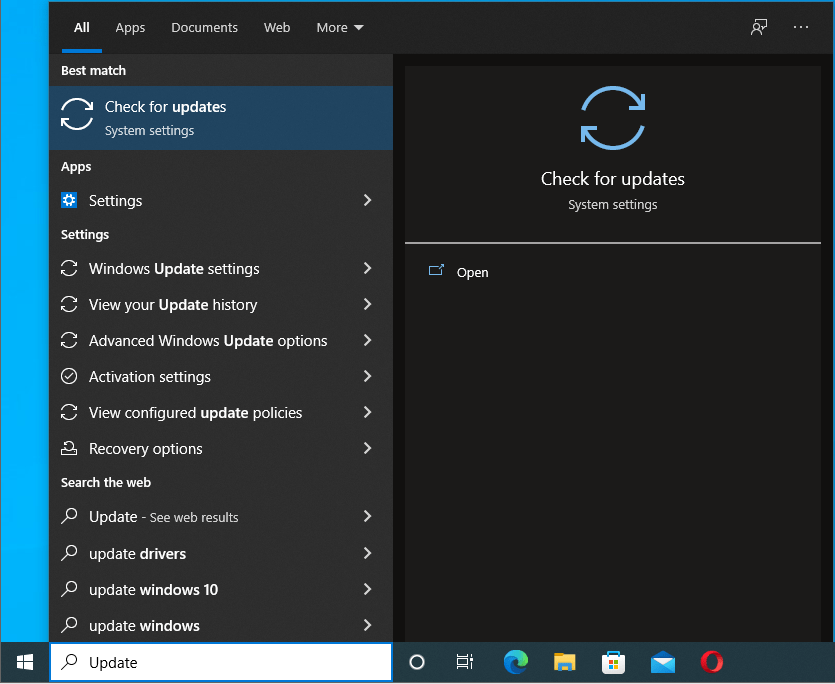
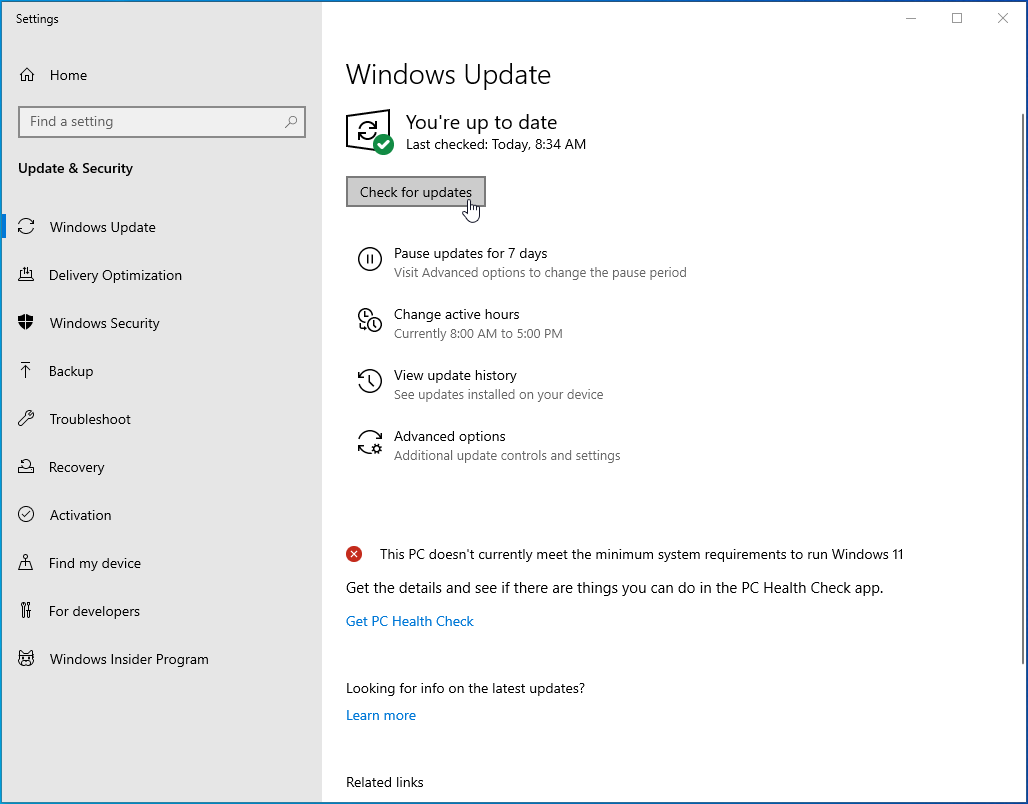
- Select “Check for updates” and you’ll be taken to the “Windows Update” screen in the “Settings” app.
- Click on the “Check for updates” button to see if there are any updates available. Install any that are pending.
- Also, be sure to install the latest version of Remote Server Administration Tools for Windows 10. The tool is included as a set of “Features on Demand” in Windows 10:
- Open the “Settings” app (Win + I).
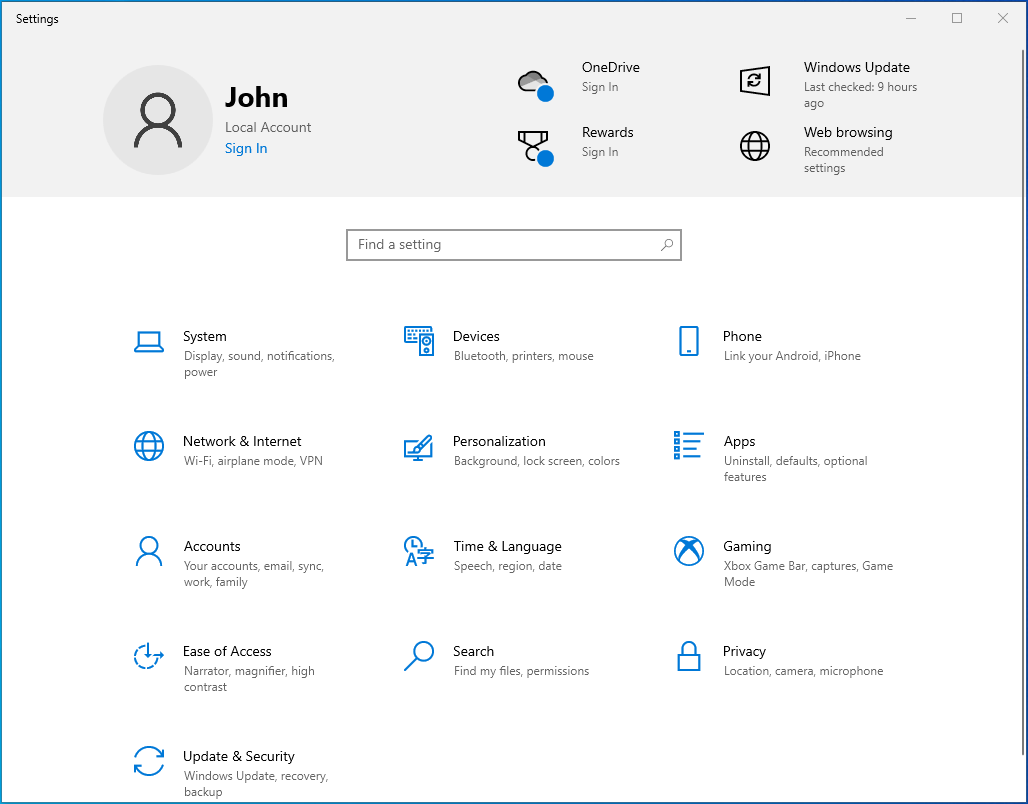
- Go to Apps.
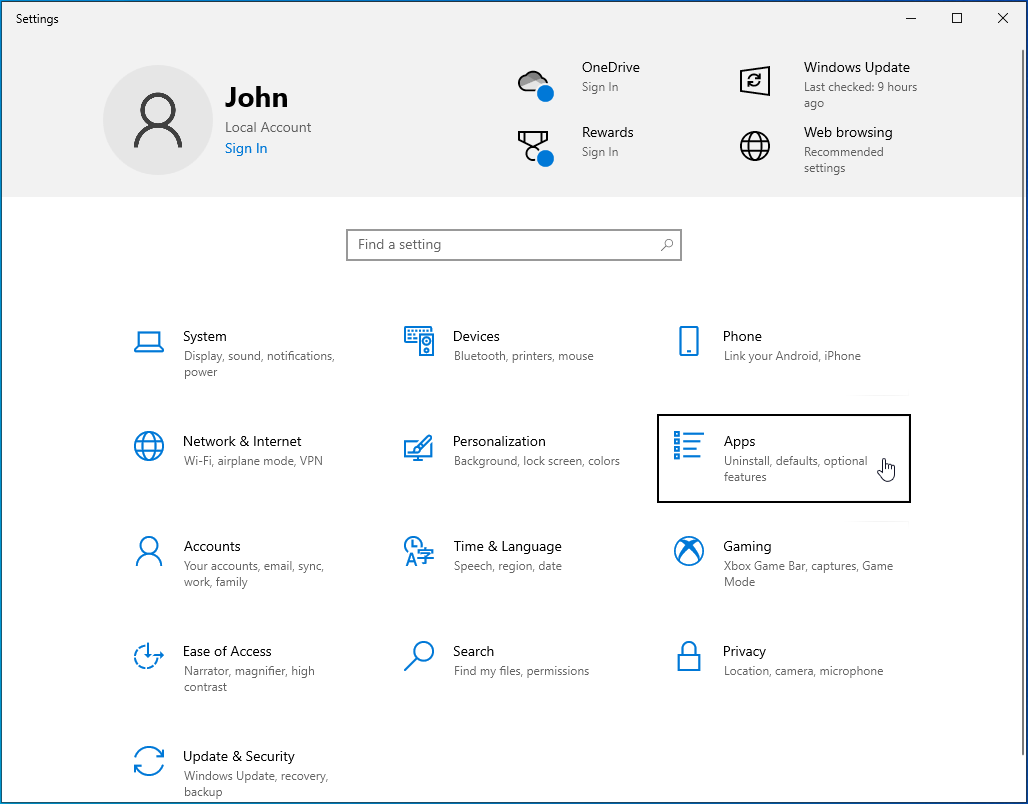
- Click the “Optional features” link.
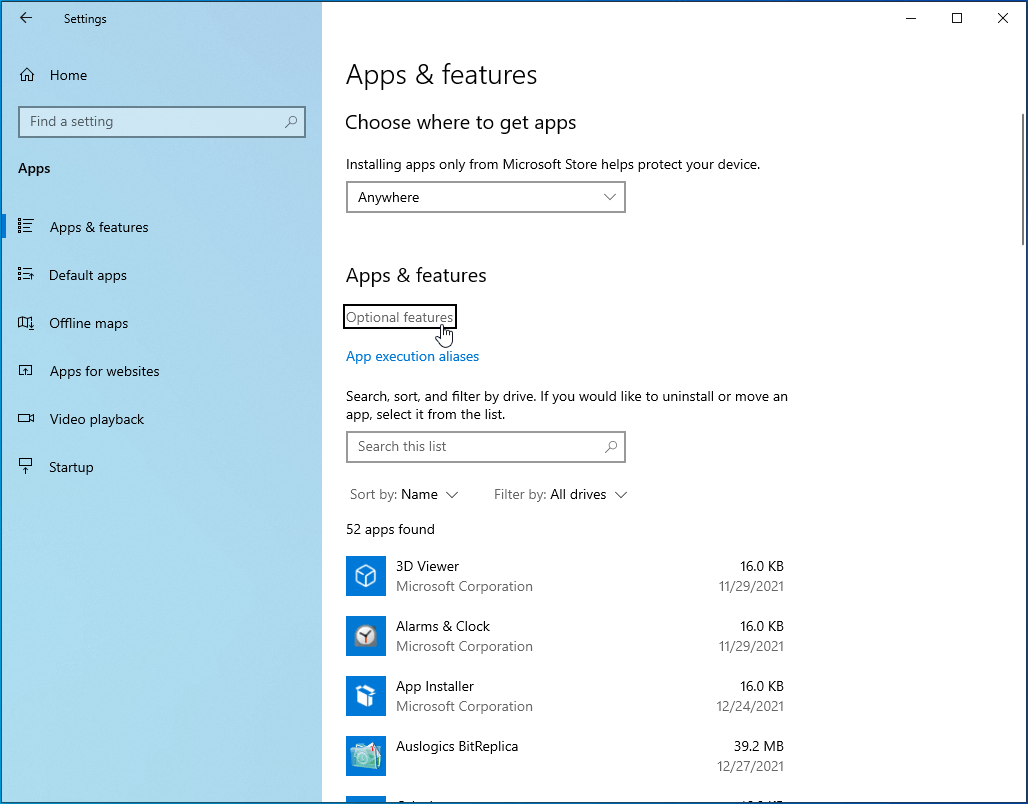
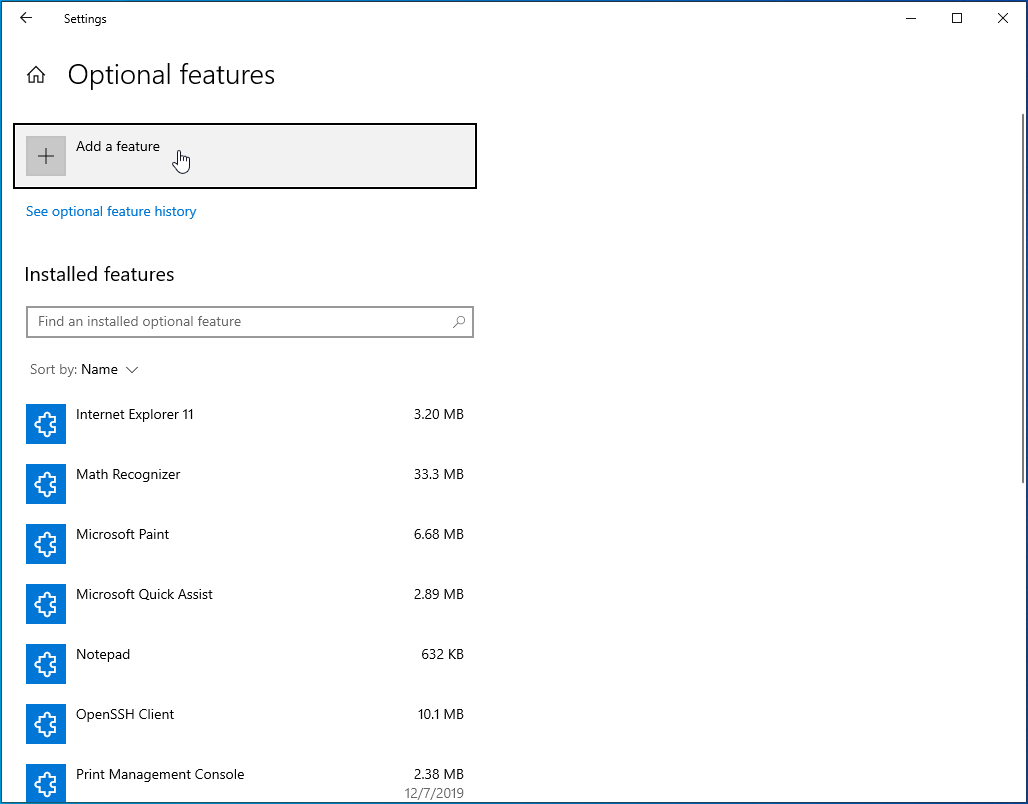
- On this screen, click on “Add a feature” and then select and install the specific RSAT version you need.
Solution 7: Clean Install the Server Operating System
Just like you’d clean install the Windows 10 OS if it throws up errors that you can’t resolve, you can do the same with the server OS. A clean install erases all existing programs and settings and installs a clean copy of the server. It’s a useful process, especially if other methods to get rid of a troublesome error fail to work.
But before you start, it’s advisable to back up your data to an external storage device so that you can access it later. A clean install is different from an in-place upgrade, where you go from an older OS to a newer one, keeping your settings, server roles, and data intact.
Use this method as a last resort since you have to start from scratch.
The “ServerManager.exe. This application could not start” error should no longer be a problem after performing a clean install.
Meanwhile, you need to ensure that your system is always running at peak levels. You see, over time, the constant use of your operating system causes problems here and there. From performance issues and slow boot times to applications loading slowly and the system crashing unexpectedly, these issues can interfere with the user experience.
Luckily, you can avoid all that using a PC optimization tool like Auslogics BoostSpeed. It’s an all-in-one utility program that gives you access to more than a dozen tools to tweak your system.
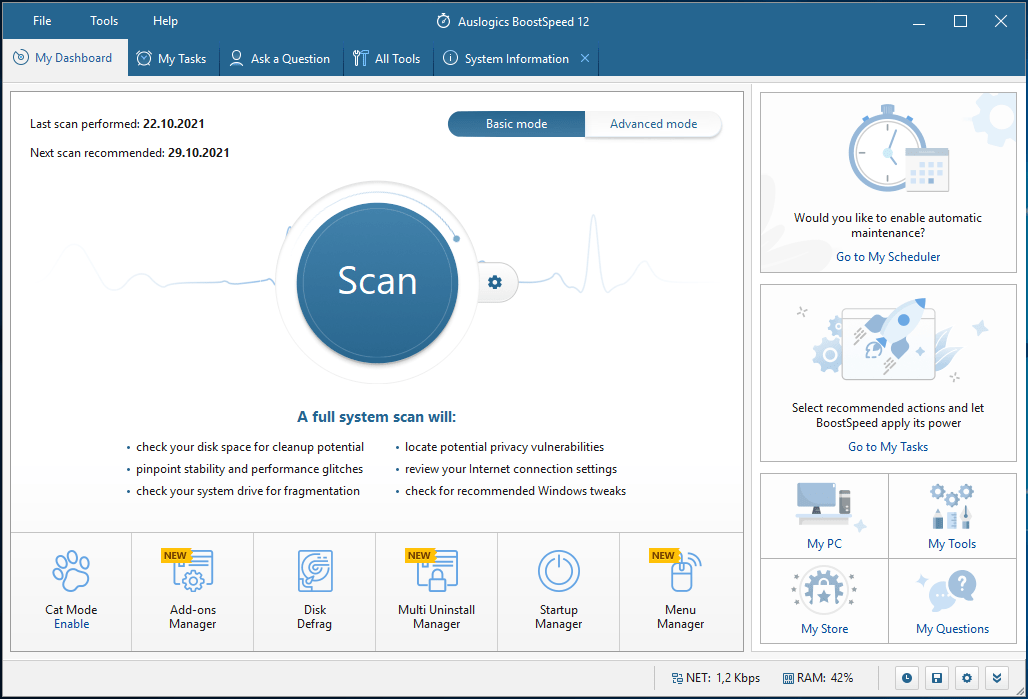
Whether it’s the registry, your hard disks, or even browsers, BoostSpeed will optimize them, leaving your system slim and fast. You don’t have to deal with computer lags every time you use your PC. Simply install Auslogics BoostSpeed and enjoy smooth and stable performance.
Уже втрой раз за несколько месяцев после установки ежемесячных обновлений Service Manager не может запуститься и подает в дамп.
Ситуация описана в https://social.technet.microsoft.com/Forums/en-US/d7e48460-bc23-4288-b976-98e7952d1517/server-manager-crashes-on-opening-on-windows-server-2016?forum=winservermanager
Код ошибки 1026. Смое важное в сообщении об ошибке:
Microsoft.Windows.ServerManager.Common.Data.RoleFeatureRoot..ctor(System.Collections.Generic.ICollection`1<Microsoft.Windows.ServerManager.Common.Data.IFeature>)
   at Microsoft.Windows.ServerManager.Common.Data.Server.UpdateFeatures(System.Collections.Generic.ICollection`1<Microsoft.Windows.ServerManager.Common.Data.IFeature>,
Статья на форуме Technet полезная, но не раскрывает всех секретов.
«UpdateFeatures» в сообщении об ошибке навивает на мысли. Фактически Server Manager не может получить список установленных компонентов.
Основная хитрость в том, что Server Manager использует PowerShell Remoting для подключения к серверам. Иначе говоря, если вы будете делать проверки локально, то не увидите проблему. Нужно проверять именно удаленное подключение.
Service Manager фактически использует для получения списка установленных компонент командлет Get-WindowsFeatures. Чтобы выполнить проверку правильно даже на локальном сервере, необходимо использовать параметер ComputerName:
Get-WindowsFeatures -ComputerName "server"Если этот командлет вернет ошибку «Данный ключ отсутствует в словаре.» / «The given key was not present in the dictionary.», значит вы нашли поврежденный сервер.
Для лечения выполняем на нём команду:
dism /online /enable-feature /featurename:IIS-ASPNET45 /allОстаётся только один вопрос: что если в Service Manager добавлено много серверов? Перебирать их вручную не очень интересное занятие. К тому же поврежденными могут оказаться серверы не подключенные в данный момент к Service Manager, но проблема может всплыть позднее в самое неподходящее время. Следовательно надо проверить все серверы и вылечить их.
# Получить список имен серверов, которые пингуются.
# Это значительно ускоряет процесс.
$servers = Get-ADComputer -SearchBase "OU=Servers,DC=firm,DC=ru" -Filter * | Select-Object -ExpandProperty Name | Where-Object { Test-Connection -ComputerName $_ -Count 1 -ErrorAction SilentlyContinue }

# Проверяем каждый сервер на конкретную этой ситуации ошибку.
$brokenServers = $servers | Where-Object { (Get-WindowsFeature -ComputerName $_ -ErrorVariable err -ErrorAction SilentlyContinue) -and ($err.Exception -is "System.Collections.Generic.KeyNotFoundException") }

$brokenServers

# Если найден поврежденный сервер, то выполняем на нем команду:
dism /online /enable-feature /featurename:IIS-ASPNET45 /all
Filed under: Active Directory, Powershell, Windows | Tagged: Powershell, Windows |