If you received an error message from Sea of Thieves that states “There is a missing or corrupt data file that is required for the game to run.” then this page may be able to help you resolve this.
There are a wide variety of reasons why the game install might get corrupted, or that the data loaded by the game might be corrupted.
Removing the corrupted file
Please try removing the corrupted file, if the file name in the error is always the same when you try to launch:
- Boot the game and take note of corrupt file from your screenshot (For example: Core_9ef849ee)
- Right click Sea of Thieves from your Games list in Steam.
- From the context menu select ‘Properties’.
- From the ‘Local Files’ tab click ‘Browse Local Files’.
- Once viewing the game files for Sea of Thieves navigate to Athena > Content > Paks.
- Using the search bar in the top right hand corner, search for the file which is corrupted (Core_9ef849ee) and then delete that file.
- Return to your properties window for Sea of Thieves, then again from the Local Files section select ‘Verify Integrity of Local Game Files…‘
- Once complete, restart and test the game.
Anti-Virus Issues
You could try whitelisting the game with your anti-virus product. There are known compatibility issues with some antivirus products that we are working with the anti-virus vendors to resolve. If you experience an issue with a specific product, please let us know.
Article: Trend Micro internet security conflict
To whitelist Sea of Thieves, navigate to the game’s installation folder from within the whitelist page of your antivirus product. To get the installation folder, press Win+R on your keyboard and type Powershell and press Enter. Then enter this command:
Get-AppxPackage *SeaOfThieves*
Or if you are having issues with the Pioneer version of the game:
Get-AppxPackage *Wasserburg*
It should print out several lines. You can copy the Installation Location value from the start of C: to the end of the line by highlighting it with your mouse and then right-clicking in the window to copy it. You can then paste this into the Open Dialog by pressing in the text field at the bottom and pressing Ctrl+V then pressing Enter. From here you should navigate by double-clicking the folders for Binaries then UWP64, then finally selecting SotGame.exe, which is the executable you need to whitelist.
Note: This process will need to be done each time the game is updated should your antivirus conflict with our game.
Store install issues
We are aware that in some extremely rare cases the Windows Store may itself corrupt a game install. We are working with the various teams within Microsoft to resolve these issues. If you experience this, please raise a support ticket by clicking on the «Raise a Support Request» button at the bottom of this page.
Unstable Overclock
We have confirmed that certain users may experience game crashes if they are overclocking their machines. This may have been automatic by your motherboard manufacturer or done manually by yourself. If you experience issues, we recommend you restore your CPU and memory to stock settings and perform a full reinstall of the game. Corruption can occur during the installation, as well as when the game is running.
If you manually overclocked your machine, as well as checking the usual settings, you could try increasing your “AVX Instruction Negative Offset” or the equivalent for your motherboard. As with all overclocking, you modify these settings at your own risk. If you are not sure what this is, this is not relevant to you.
Old version of Windows
You may be hitting a bug or issue with an older version of Windows. We recommend ensuring you are up to date in Windows update.
Buggy or faulty drivers
You may experience issues with game installs if you have drivers that are causing corruption. These issues may be difficult to detect, so we advise ensuring you have the latest drivers. If the problem only recently started, you could try rolling back to an earlier version of the driver.
Incompatible software
Some third-party software attempts to inject itself into every process on your machine and has been known to cause crashes.
If you have recently started experiencing the issue, we recommend uninstalling any recently installed software.
Faulty hardware
This is always the worst-case scenario, but the most likely candidates for faulty hardware are hard drives or SSDs that are nearing the end of their life.
Кажется, что много Море воров Игроки с ПК-версией получают сообщение об ошибке: «Для запуска игры требуется отсутствующий или поврежденный файл данных». Это конкретное сообщение об ошибке появляется при попытке установить или обновить игру в Windows. Следовательно, мы можем предположить, что что-то вызывает проблемы с процессом установки или файлами игры. Теперь, если вы тоже являетесь одной из жертв и хотите решить эту проблему, ознакомьтесь с приведенным ниже руководством по устранению неполадок.
Возможно, иногда антивирусная программа или программа брандмауэра Windows могут конфликтовать с файлами игры или блокировать установку файлов игры в системе. Между тем, могут быть некоторые проблемы с Microsoft Store, разгоном процессора и оперативной памяти или более ранней версии. версия Windows или устаревший графический драйвер или какие-либо мошеннические сторонние фоновые задачи и более.
Оглавление
-
1 Исправить Sea of Thieves: файл данных отсутствует или поврежден, необходимый для запуска игры
- 1.1 1. Добавить Sea of Thieves в белый список антивируса
- 1.2 2. Исправить проблему с Microsoft Store
- 1.3 3. Исправить проблему с разгоном
- 1.4 4. Обновите Windows
- 1.5 5. Обновите драйверы графического процессора
- 1.6 6. Исправить несовместимое программное обеспечение
- 1.7 7. Проблемы с оборудованием
Исправить Sea of Thieves: файл данных отсутствует или поврежден, необходимый для запуска игры
Мы уже упоминали, что существует несколько возможных и распространенных проблем или причин, вызывающих ошибку отсутствующего или поврежденного файла данных. Теперь, не теряя больше времени, давайте перейдем к руководству ниже.
1. Добавить Sea of Thieves в белый список антивируса
Внесение exe-файла игры в белый список антивирусной программы позволяет антивирусу обходить файлы игры, чтобы процесс обновления или установки мог работать без проблем.
- Нажмите Windows Key + I, чтобы открыть меню настроек.
- Нажмите «Обновление и безопасность»> «Выбрать безопасность Windows».
- Щелкните Защита от вирусов и угроз> Выберите Управление параметрами в разделе Параметры защиты от вирусов и угроз.
- В разделе «Исключения» выберите «Добавить или удалить исключения».
- Затем нажмите Добавить исключение> Обзор и выберите папку Sea of Thieves.
- Найдите файл SotGames.exe> Задайте его в Исключении.
- Сохраните изменения и перезагрузите компьютер.
- Теперь попробуйте запустить игру еще раз и проверьте, появляется ли ошибка Sea of Thieves Missing Corrupted Data или нет.
2. Исправить проблему с Microsoft Store
Большинство из нас может знать, что в некоторых случаях Microsoft Store может также конфликтовать с некоторыми играми при установке или обновлении.
По словам официальной службы поддержки Sea of Thieves, они работают над различными причинами проблемы с Microsoft Store. А до тех пор, если вы получите такое же сообщение об ошибке, обязательно полностью удалите игру и переустановите ее через Microsoft Store.
3. Исправить проблему с разгоном
Некоторые из пострадавших игроков Sea of Thieves сообщают, что у них появляется то же сообщение об ошибке «Отсутствуют поврежденные данные», если они разгоняют производительность своего оборудования. Это может быть что угодно, например, разгон процессора, графического процессора или оперативной памяти. Хотя аппаратный разгон улучшит производительность блока питания, некоторые игры могут легко вылетать из-за дисбаланса.
Поэтому мы рекомендуем всем игрокам сбросить или восстановить тактовую частоту процессора, графического процессора или памяти до уровня по умолчанию. В качестве альтернативы, пользователи Windows могут переустановить полную игру после восстановления тактовой частоты, что обеспечит идеальный баланс между совместимостью оборудования и игрой.
- Если в этом случае вы вручную разогнали свою машину, попробуйте увеличить «Отрицательное смещение инструкции AVX» для материнской платы.
Примечание:
Измените эти настройки на материнской плате на свой страх и риск. Мы можем только предложить возможные пути.
- В Интернете можно найти несколько инструментов, с помощью которых вы можете легко разогнать или разогнать тактовую частоту или восстановить настройки по умолчанию (рекомендуемые) для вашего процессора / графического процессора / оперативной памяти.
4. Обновите Windows
Всегда настоятельно рекомендуется проверять наличие обновлений Windows, так как вы можете обнаружить, что многие ошибки безопасности или проблемы со стабильностью в других играх или приложениях будут исправлены автоматически. Таким образом, обновление вашей системы и приложений очень важно по причинам совместимости.
- Идти к Начало меню> Щелкните Настройки
- Далее перейдите к Обновление и безопасность
- В разделе «Центр обновления Windows» нажмите Проверить обновления.
- Если доступно новое обновление, просто нажмите Загрузить и установить.
- Подождите, пока система загрузит обновление и установите его полностью. Убедитесь, что на вашем ПК / ноутбуке есть подключение к Интернету.
- После этого ваш компьютер автоматически перезагрузится. Не выключайте компьютер во время установки обновления или загрузки системы.
- Наконец, запустите игру Sea of Thieves и проверьте наличие ошибки «Отсутствуют поврежденные данные».
5. Обновите драйверы графического процессора
Точно так же всегда рекомендуется обновить графический драйвер до последней версии, поскольку он не только исправляет некоторые из проблем, связанных с графикой, но также решает графические сбои или ошибки в некоторых играх как хорошо.
- Идти к Начало меню> Тип Диспетчер устройств и щелкните по нему в результатах поиска.
- Щелкните значок стрелки рядом с графическими адаптерами.
- Теперь щелкните правой кнопкой мыши выделенную видеокарту, которую вы используете.
- Выбрать Обновить драйвер.
- Нажмите на Автоматический поиск обновленного программного обеспечения драйвера.
- Если доступно новое обновление драйвера, оно автоматически загрузит и установит обновление.
- После этого ваш компьютер автоматически перезагрузится.
- Затем попробуйте запустить игру SOT и снова проверьте сообщение об ошибке.
6. Исправить несовместимое программное обеспечение
Также возможно, что некоторые сторонние мошеннические приложения являются причиной этой конкретной проблемы с игрой SOT. Таким образом, если в случае, если стороннее программное обеспечение пытается внедрить внутриигровые процессы в Windows, эти файлы игры могут быть повреждены или вынудить также аварийно завершить работу.
Если вы совсем недавно столкнулись с проблемой Sea of Thieves, связанной с отсутствием поврежденных данных, мы рекомендуем вам удалить все недавно установленное или обновленное программное обеспечение на вашем компьютере.
7. Проблемы с оборудованием
Если ни один из вышеперечисленных методов не работает для вас, обязательно проверьте неисправное оборудование. Иногда отключение RAM / CPU / GPU и его установка обратно может очень легко исправить эти сообщения об ошибках или сбои в вашей Windows.
Между тем, могут быть проблемы с вашей батареей CMOS, жестким диском или SSD. Итак, проверьте все это одно за другим, а также не забудьте освободить место на диске, на котором установлена игра.
В качестве альтернативы вы можете полностью удалить и переустановить игру SOT на свой компьютер и обязательно изменить местоположение диска, чтобы снова проверить проблему. Хотя удаление — не самая лучшая идея, если у вас ничего не работает, рекомендуется попробовать хотя бы раз.
Вот и все, ребята. Мы предполагаем, что это руководство было для вас полезным. Не стесняйтесь спрашивать в комментарии ниже для дальнейших запросов.
Подробнее:
- Sea of Thieves: ошибка при поиске в море — как исправить?
- Как получить набор корабля Battletoads в Sea of Thieves
- Как исправить голосовой чат в Sea of Thieves?
- Расположение на карте Sea of Thieves: берега изобилия, дебри, древние острова и остров Дьявольского рев
- Как изменить язык игры в Sea Of Thieves
Субодх любит писать контент, будь то технический или иной. Проработав год в техническом блоге, он увлекается этим. Он любит играть в игры и слушать музыку. Помимо ведения блога, он увлекается сборками игровых ПК и утечками информации о смартфонах.
In this article, we will try to resolve the «There is a missing or corrupt data file required for the game to run. Error Code: P05» error that Sea of Thieves players encounter while opening the game.
Sea of Thievesplayersare restricted fromaccessing the gameby encountering the error «The game hasamissing or corrupted data file required to run. Error Code: P05» when opening the game. If youare facing suchaproblem, you can findasolutionby following the suggestionsbelow.
What is Sea of Thieves Error Code: P05 Problem?
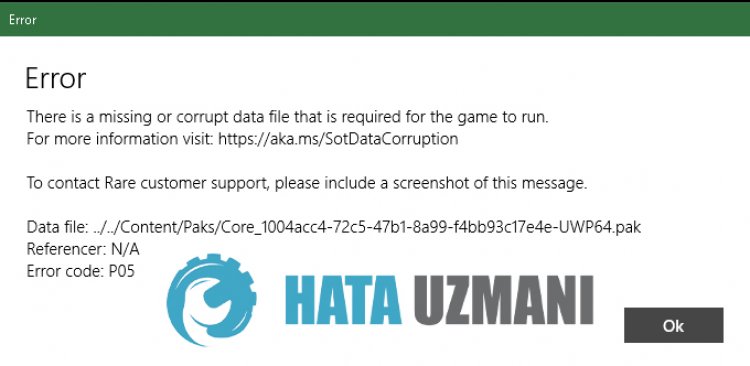
This error is usually causedby corrupted game files installation. Of course, we may encounter suchan error not onlybecause of thisproblem,butalsobecause of manyproblems. For this, we will try to eliminate theproblemby telling youafew suggestions.
How To Fix Sea of Thieves Error Code: P05 Problem
To fix this error, you can find the solution to theproblemby following the suggestionsbelow.
1-) Verify Game File Integrity
We will verify the game file integrity, scanand downloadany missing or incorrect files. For this;
- Open the Steamprogram.
- Open thelibrary menu.
- Right-click on the Sea of Thieves game on the leftand open the Properties tab
- Open the Local Files menu on the left side of the screen that opens.
- Click on thebutton Verify integrity of game files in the Local Files We’ve Encountered menu.
After thisprocess, the download willbeperformedby scanning the damaged game files. After theprocess is finished, try to open the gameagain.
2-) Turn off Antivirus Program
Disableanyantivirusprogram you use, or delete it completely from your computer. If youare using Windows Defender, disable it. For this;
- Type «virusand threatprotection» into the start search screenand open it.
- Then click on «Manage settings«.
- Turn Real-timeprotection to «Off«.
After this, let’s turn off other ransomwareprotection.
- Open the start search screen.
- Open the search screenby typing Windows security settings.
- Click on the Virusand Threat Protection option on the screen that opens.
- Click on the Ransomware Protection option in the menu.
- Turn off Controlled Folder Access on the screen that opens.
Afterperforming this operation, we will need toadd the Sea of Thieves game filesasan exception.
- Type «virusand threatprotection» into the start search screenand open it.
- Virusand threatprotection settings, select Manage settings,and then under Exclusions Exclude selectadd or remove.
- Select Addan exclusion,and then select the Sea of Thieves game folder saved on your disk.
Under
After thisprocess, close the Steamprogram completely with the help ofatask managerand try to run Sea of Thievesagain. If theproblempersists, let’s move on to our next suggestion.
3-) Use Windows Update Assistant Application
The Windows Update Assistantprogram developedby Windows can help solveanyproblem we encounter.
Click to Download Windows Update Assistant
- Afterperforming the download, click the «Update Now«buttonand wait for the updateprocess. Yourprocess may takealong time. For this, do not shut down or restart your computer until the update is complete.
4-) Repair XBOX Application
Variousproblems on the
Xbox Game Bar can cause suchaproblem. For this, we can fix suchproblemsby repairing the Xbox Game Bar.
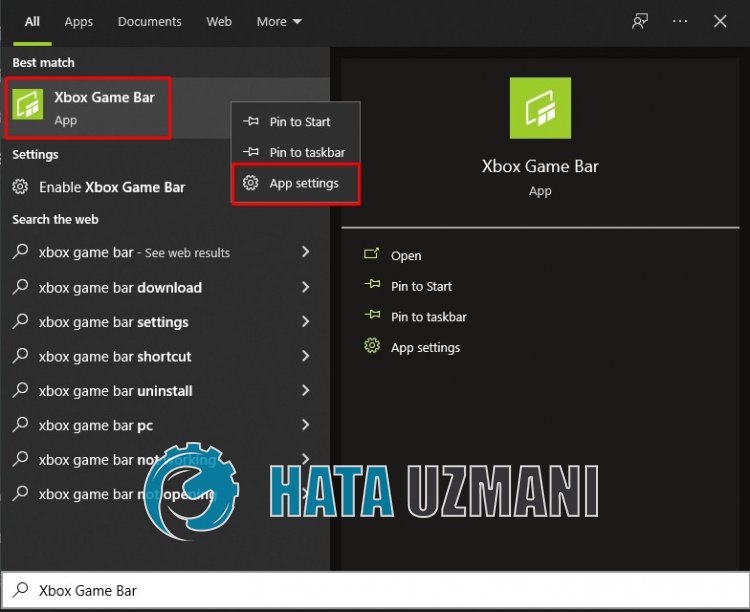
- Type «Xbox Game Bar» in the start search screenand right click on itand click «Application Settings«.
- Start the resetprocessby clicking the «Repair«button on the screen that opens.
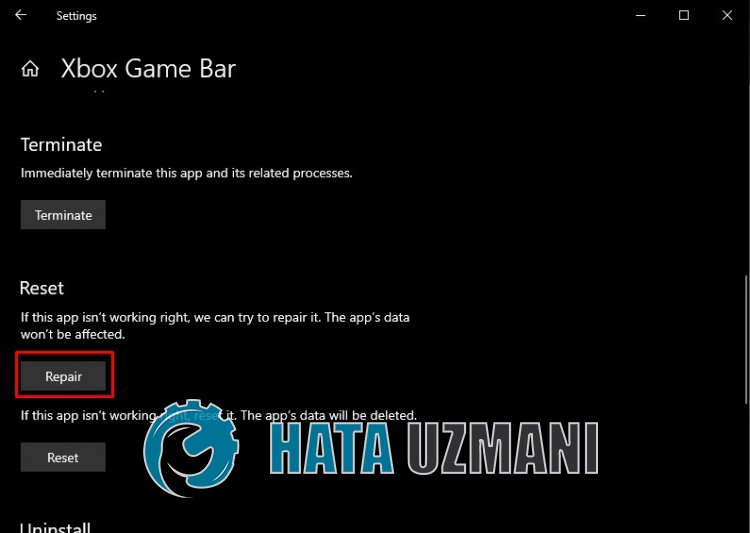
If thisprocess did not solve it for you,perform theaboveprocessagainandpress the «Reset«button to reset theprocesses. After thisprocess, run theapplicationagainand check if theproblempersists.
5-) Reset Microsoft Store
Variousproblems that occur on the
Microsoft Store can cause suchaproblem. For this, we can solve suchproblemsby resetting Microsoft Store.
- Type «Microsoft Store» in the start search screenand right click on itand click «Application Settings«.
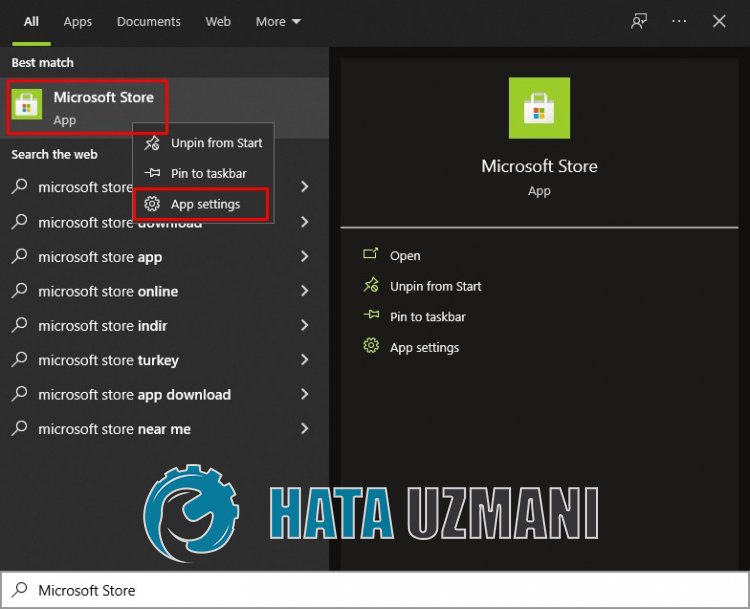
- Start the resetprocessbypressing the «Reset«button on the screen that opens.
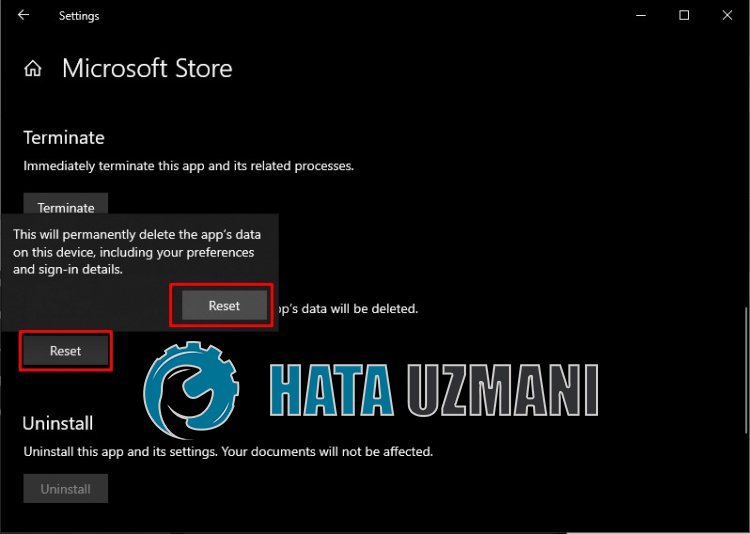
After thisprocess, check if theproblempersistsby logging into theapplication.
6-) Check XBOX Services
Disabling Xbox services may cause us to encounter suchproblems.
- In the start search screen, type «Services»and open it.
- In the screen that opens, open the services we will leavebelow in order,and set the startup type to «Automatic»and start the service status.
- Xbox Accessory Management Service
- Xbox Live Auth Manager
- Xbox Live Game Save
- Xbox Live Networking Service
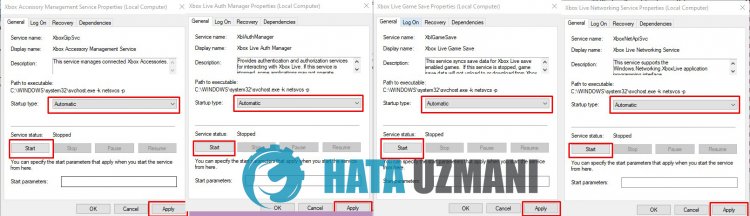
After thisprocess, you can open Sea of Thieves gameand check if theproblempersists.
Обновлено: 28.01.2023
Hey, I have resettet my computer a week ago, and before that, I had sea of thieves and it worked fine. But now I have downloaded and deleted the game 4 times and it doesn’t work. it doesn’t open, and when it does it says «There is a missing or corrupt data file that is required for the game to run».
I have done so many things to try and fix it, and the most recent one was to try and make an exception in my «Microsoft virus and threat protection» but I can’t find my sea of thieves file anywhere on the StiFinder? Can someone help?


Fix 7: Faulty Hardware

The cause of the error is what’s stated in the message – the game didn’t install property and one or more DLL files are either missing or have been corrupted during the installation process. A sure shot fix for the error is to reinstall the game. it works in resolving the error most of the time, but users may not want to spend time downloading and reinstalling the game again, especially those with slow internet connection. Hence, you can try some other fixes that can potentially resolve the missing or corrupt DLL files error. If noting works, you should reinstall the game.
Пожаловаться

I suggest that after each fix you try, run the game and check if the error still occurs. If it does, try the next fix.
Fix Sea of Thieves Missing or Corrupt DLL File
Fix 1: Run SFC Command
If you are encountering a problem with DLL files, running the SFC command in Commands Prompt is an effective solution. The command scans and repair any errors with the operating system and hence address the problem with the app. To perform this fix, you have to start the Admin mode of Command Prompt. Here are the steps.
- Press Windows Key + I and type cmd
- Press Shift + Ctrl + Enter simultaneously, select Yes when prompted
- Type sfc /scannow and hit Enter
- Wait for the process to complete and your system will restart. Follow the on-screen instructions.
Once the process is complete, launch the game and check if the missing or corrupt DLL files error still appears.
Fix 2: Set Exclusion on Windows Virus & Threat Protection
Whether you are using a third-party antivirus software or the Windows Virus & Threat Protection, it may be a cause of the problem. When the system detects some files or an app to be behaving abnormally, it blocks its function. This could be happening with Sea of Thieves. Hence, you should set an exclusion of the antivirus software for the game folders. You can also disable the antivirus software and run the game to check if the problem lies there. If the problem is with the security software, the long-term solution is setting an exclusion. Here is the process.
Windows Virus & Threat Protection
- Press Windows Key + I and select Update & Security
- Click on Windows Security, select Virus & Threat Protection
- Under Virus & threat protection settings, click on Manage settings
- Locate Exclusions by scrolling down, click on Add or remove exclusions
- Click on Add an exclusion and select Folder
- Browse the Sea of Thieves folderand set the exclusion.
Kaspersky Internet Security
- Home >> Settings >> Additional >> Threats and Exclusions >> Exclusions >> Specify Trusted Applications >> Add.
AVG
- Home >> Settings >> Components >> Web Shield >> Exceptions >> Set the exception.
Avast Antivirus
- Home >> Settings >> General >> Exclusions >> Set the exclusion.
Fix 3: Reset Sea of Thieves
Resetting the game fixes a lot of errors. It basically reinstalls the game and reverts to the default settings. Your files are not affected. Here are the steps to reset Sea of Thieves.
- Press Windows + I and select Apps
- Click on Sea of Thieves and select Advanced options
- Scroll-down and locate Reset, click on Reset under it.
Once the process completes, check if the Sea of Thieves Missing or Corrupt DLL File error still occurs.
Fix 4: Update the System and Graphics Card Drivers
It’s a gamer’s modus operandi to keep the OS and the graphics card drivers updated to have the best experience in games and to avoid errors. As most games and new patches are built for the latest version of the Windows and drivers, updating them can fix the problem. Windows recently released the 2004 update, if you have not installed it, do it now. Nvidia and AMD both constantly release new updates for their driver software, the new updates address the bugs in the previous patch, so you should update those as well.
Fix 5: Reinstall the Game
Finally, if nothing else has worked we recommend reinstalling the game from scratch. Uninstall the game from Windows Apps & features and reinstall it again after a reboot of the system.
That’s all we have in this guide, we hope your Sea of Thieves missing or corrupt DLL File error is resolved.
Sea of Thieves
21 сен в 1:06
There is a missing or corrupt data file that is required for the game to run.
i get this error message when i open the game, i have tried re-installing it once and i also went to the SoT site and looked there but the stuff i tried didnt work
0
1
1
0
Fix 1: Set Exclusion for SotGame.exe or Antivirus Software
Sometimes the Windows Virus and Threat Protection or the third-party antivirus software can mistake the Sea Of Thieves executable as malware and prevent its functions. You could disable the security software to fix the issue, but that can be dangerous and your system may be exposed to threats. Hence, whitelist the SotGame.exe on the software and it will bypass the rules of the antivirus software allowing you to play the game. Here are the steps you can follow for the respective software.
Windows Virus & Threat Protection
- Press Windows Key + I and select Update & Security
- Click on Windows Security, select Virus & Threat Protection
- Under Virus & threat protection settings, click on Manage settings
- Locate Exclusions by scrolling down, click on Add or remove exclusions
- Click on Add an exclusion and select File
- Browse the Sea Of Thieves folder and locate SotGames.exe and set the exclusion.
Kaspersky Internet Security
- Home >> Settings >> Additional >> Threats and Exclusions >> Exclusions >> Specify Trusted Applications >> Add.
AVG
- Home >> Settings >> Components >> Web Shield >> Exceptions >> Set the exception.
Avast Antivirus
- Home >> Settings >> General >> Exclusions >> Set the exclusion.
Fix 4: Instable Driver Software
The video driver software is one of the main culprits when you encounter problems with a game. It could be a launch failure, game stuttering, FPS drop and more. The best way to fix this issue is to update the driver software. If the error started recently, you could always revert back the settings from the Windows restore. It will allow you to choose a time when the system functioned desirably and revert all changes to that point.
Fix 3: Update the Windows
It’s a gamer’s modus operandi to keep the system up-to-date. So, check if you have blocked the automatic update of Windows.
Update the operating system to the latest Windows 10 build to fix any issue caused due to outdated OS.
Proven Fix for the Error
As reported by one of our readers, deleting the specific corrupted files and then trying to repair it through the launcher fixes the error. Works best when you are playing the game via Steam. When you get the error, note down the corrupted .Pak files shown in the error message for example Core_7225… Once you have noted the files, go to the game directory and delete the files one by one.
Fix 2: Revert Overclocking
Fix 6: Incompatible Third-party Software
These software inject themselves in every function of Windows and can cause launch problems. If you have recently started experiencing the problem after installing or updating a software, uninstall the software and try playing the game.
Fix 5: Reinstall the Game
Читайте также:
- Black desert системные требования
- Как установить фарминг симулятор 2019
- Bright memory infinite системные требования
- Star wars battlefront 2 вылетает
- Замена кроватки для новорожденных симс 4
Update: Semi Fixed. Installed the game to another HDD and now I’m able to play the game.
Im having problems with playing the game as every time i try to join the world, my game crashes and gives me error code L02. I have tried everything from the official help article, but nothing seems to work.
Here is what I have tried to do:
-
I have bought the game yesterday (27/12/2021) on steam.
-
I installed the game and launched.
-
I played through the Maidens Voyage tutorial.
-
When i was done with the Maidens Voyage tutorial my game crashed with the error code L02.
-
I tried relauching the game without using the games troubleshooting. The game launched without problems.
-
I tried joining free roam. Here my game crashed and I got the same error code.
-
I tried validating via steam and here it found a corrupt file. This downloaded and installed.
-
I then tried to launch the game again without using the games troubleshooting. The game launched without problems.
-
I tried joining free roam. Here my game crashed and I got the same error code.
-
I then validated via steam. Again it found a corrupt file and replaced it.
-
I then also used the games troubleshooting, and here it found nothing. The game launched without problems.
-
I tried joining free roam. Here my game crashed and I got the same error code.
-
I then reinstalled the game.
-
I tried to launch the game and it did without problems.
-
I then tried to join free roam and was successful!
-
I played for about 30-60 min, but then had to go, so I closed the game.
-
Today (28/12/21) when I tried to join free roam i got the error code PV02, and cant join freeroam.
-
I tried validating via steam and it found around 63 corrupt files. These were replaced and installed.
-
I then tried to open the game without using the games troubleshooting, and it launched without problems.
-
I then tried to join freeroam, and here my game crashed.
-
I then tried validating via steam, and then using the games troubleshooting. When using the games troubleshooting, it crashes with error code PV02.
-
I’m pretty sure i have allowed SoT through my antivirus (KasperSky).
-
I’m not overclocking.
-
Nvidia is up to date.
-
Windows is up to date.
I also read somewhere that a possible fix was to delete the files linked in the PV02 error. Every time I launch the game and validate via the games troubleshooter, I get an PV02 error code. I tried to dele all the files it linked to, but to no avail.
Right now I am validating via steam after I deleted the files linked in the PV02 error code.
Can anybody help me?
Edit: I have contactet customer support, but this is the second day of buying this game that i cant play, so if anyone knows what to do to fix this, I would be so grateful. I have also seen a lot of other post about this in the past, but none of them had a conclusive answer regarding what to do. I hope this can help other people in my situation.
Edit2: Finish validating via steam. [139 files] failed to validate.
Edit3: Steam gave me the «Corrupt disk» error while installing the files found to be corrupt under the validation step. This is probably not my HDD since all my other steam games are installed here. I will try to uninstall and install the game on another disk.
Edit4: Installing the game on another disk fixed the issue for me. I have no idea why it does not work on my primary disk, but I will run a CHKDSK command overnight to see if there is any issues with my HDD.
Last update: Monday, July 13, 2020
In this chapter of the guide to Sea of Thieves the player will find information about the most frequent errors in Beard Errors, and solutions to other problems that can be encountered while trying to start the game.
Bears Errors is a collective name of all error codes the players might encounter while trying to run Sea of Thieves or while playing it. Below is the list of most frequent errors that occur in SoT with advice what causes them and how to solve them.
- Error There is a missing or corrupt data file that is required for game to run
- Sea of Thieves KiviBeard Error — how to fix it
- Sea of Thieves CinamonBeard and BronzeBeard Error — how to fix them
- Sea of Thieves AvocadoBeard Error — how to fix it
- Sea of Thieves CyanBeard, AlmodBeard, AlabasterBeard Error- how to fix them
- Sea of Thieves DaffodilBeard, LapisBeard, FluffyBeard Error — how to fix them
- Sea of Thieves BeigeBeard Error — how to fix it
- Sea of Thieves LavenderBeard Error — how to fix it
- Sea of Thieves LazyBeard Error — how to fix it
Error There is a missing or corrupt data file that is required for game to run
If you received an error message «There is a missing or corrupt data file that is required for game to run» while trying to shut down Sea of Thieves, below information might help you with solving the problem.
- Check antivirus — the above error might be caused by the antivirus. You should add Sea of Thieves to your white list;
- Unstable overclocking — Some popular applications that are used for monitoring or overclocking the graphics card, for example MSI Afterburner, GIGABYTE Easy Tune, EVGA PrecisionX, AMD Overdrive, RivaTuner Statistic Server, might cause problems in Sea of Thieves. Turn off additional programs and see if the problem still exists;
- Windows — it is possible that updating the OS to newest version might solve your problems;
- Reinstallation of the game — it is possible that game files were corrupted. In that case, you must uninstall the game and install it again.
Sea of Thieves KiviBeard Error — how to fix it
KiviBeard is one of the most common bugs in Sea of Thieves. KiviBeard error can occur when Sea of Thieves servers are offline and player must wait until they are back online. Another source of the error might be a situation in which the player is playing on Xbox One with more than one account active. If that’s the case, log out from the other accounts and remain only the one account you intend to use in the game.
Sea of Thieves CinamonBeard and BronzeBeard Error — how to fix them
The CinamonBears and BronzeBeard errors are caused by the player not being able to connect to Sea of Thieves servers. Close the application on any platform and open it again — this should fix the problem.
Sea of Thieves AvocadoBeard Error — how to fix it
The AvocadoBeard bug appears when player is trying to play Sea of Thieves on Xbox One without having an active Xbox Live Gold subscription. Check your subscription settings and, if needed, pay the membership fee.
Sea of Thieves CyanBeard, AlmodBeard, AlabasterBeard Error- how to fix them
These errors occur when a player loses an internet connection. Close Sea of Thieves and check your internet connection. If needed, reset the server or the router or contact your ISP.
Sea of Thieves DaffodilBeard, LapisBeard, FluffyBeard Error — how to fix them
The above errors occur when the developers are trying to fix a problem and Sea of Thieves services are temporary unavailable. In these cases, you must be patient and wait for the problem to be solved.
Sea of Thieves BeigeBeard Error — how to fix it
The BeigeBeard Error appears when you don’t have the most recent version of Sea of Thieves installed. Check for updates and install the newest version of the game.
Sea of Thieves LavenderBeard Error — how to fix it
The above bug can be caused by an antivirus. You might need to add Sea of Thieves to the white list. Another possible cause might be Internet connection problem or servers being offline due to conservation.
Sea of Thieves LazyBeard Error — how to fix it
LazyBeard error appears when you logged into Sea of Thieves but weren’t active for long enough to be removed from the current session. Simply log back into the game and continue your adventure.
Windows 10: Sea of thieves corrupted or missing files
Discus and support Sea of thieves corrupted or missing files in Microsoft Windows 10 Store to solve the problem; Hey, I have resettet my computer a week ago, and before that, I had sea of thieves and it worked fine. But now I have downloaded and deleted the game 4…
Discussion in ‘Microsoft Windows 10 Store’ started by kaspercarlsen, Feb 11, 2021.
-
Sea of thieves corrupted or missing files
Hey, I have resettet my computer a week ago, and before that, I had sea of thieves and it worked fine. But now I have downloaded and deleted the game 4 times and it doesn’t work. it doesn’t open, and when it does it says «There is a missing or corrupt data file that is required for the game to run».
I have done so many things to try and fix it, and the most recent one was to try and make an exception in my «Microsoft virus and threat protection» but I can’t find my sea of thieves file anywhere on the StiFinder? Can someone help?
I can post a picture here:
🙂
-
sea of thieves
Today I downloaded sea of thieves on my windows 10. I opened sea of thieves and it suddenly closed the game after a split second, I tried multiple times but got nothing, any suggestions?
-
Unable to launch sea of thieves
Hi,
I understand that you are facing issues launching sea of thieves on the PC.
We appreciate your efforts in troubleshooting the issue and providing us the detailed information about the issue.- Do you receive any error message or code?
- Are you aware of any changes made to the computer recently?
Meanwhile, you may want to follow the troubleshooting steps mentioned in the article and check if it resolves the issue. Refer to the article
Sea of Thieves is not Launching.Let us know how it goes.
Regards,
Zaki
-
Sea of thieves corrupted or missing files
Sea of Thieves not available?
Hi HideTheHorizon,
Thank you for posting your question in the Microsoft Community Forums.
Appreciate your efforts to work on this issue.
I can understand the situation must be difficult for you when the Microsoft Store app doesn’t work as it should.
- Have you signed in to the same account that was used for purchase?
Suggest you to refer to the following information from this article
«To find out what regions you can purchase Sea of Thieves in, and what languages are currently supported refer to the useful articles on the Sea of Thieves».Sea of Thieves FAQ: Xbox Support
Troubleshoot problems with Xbox Play Anywhere games:
Xbox SupportHope this helps and let us know how it goes.
Regards,
Srimadhwa B
Microsoft Community-Moderator
Sea of thieves corrupted or missing files
-
Sea of thieves corrupted or missing files — Similar Threads — Sea thieves corrupted
-
Sea Of Thieves
in Windows 10 Software and Apps
Sea Of Thieves: So I was installing sea of thieves and my computer shut down…. I went back to continue the install nothing was there and all those files that were installed are still on my PC and I cant find them….. -
Sea of Thieves
in Windows 10 Gaming
Sea of Thieves: Hi,I am unable to install Sea od Thieves. Every time I try to install it the download errors with error code 0x80070005 and this message which isn’t useful whatsoever. I’ve have searched online for this error code and tried the few steps I have found but nothing has worked… -
Sea of Thieves
in Windows 10 Gaming
Sea of Thieves: Hi, I have buy Sea Of Thieves but the installation don’t starts, is necessary the Xbox Live Gold subscription to install it?Bye
https://answers.microsoft.com/en-us/windows/forum/all/sea-of-thieves/a9b75c11-3165-4a30-bcd0-ee6b51aa2b6b
-
Sea Of thieves
in Microsoft Windows 10 Store
Sea Of thieves: ı download the game on steam and when ı open the game ı get an error you must be signed on xbox live to play sea of thieveshttps://answers.microsoft.com/en-us/windows/forum/all/sea-of-thieves/22e8ac92-d84a-461d-9e1b-0026d6ce3485
-
Sea Of Thieves
in Windows 10 Drivers and Hardware
Sea Of Thieves: I downloaded Sea of Thieves 2 days ago and have played it for few hours since downloading..BUT now I try to play and my computer is telling me my «video driver needs updating»
How do I fix this? And why was it playable yesterday but not today?
I’ve checked…
-
sea of thieves
in Microsoft Windows 10 Store
sea of thieves: Error there is a missing or corrupt data file that is required for this game to run. can anyone help me plzhttps://answers.microsoft.com/en-us/windows/forum/all/sea-of-thieves/958f4423-0f9f-44d9-944f-02097dfe6d08″
-
Sea of thieves
in Windows 10 Gaming
Sea of thieves: I dont own a Xbox. I downloaded «Sea of thieves» but it takes me to xbox sign in and cant go anywhere. Please helphttps://answers.microsoft.com/en-us/windows/forum/all/sea-of-thieves/05e046b7-1e1c-4ecd-b37c-adab47c64d8c
-
Sea of thieves
in Microsoft Windows 10 Store
Sea of thieves: I bought sea of thieves for pc and xbox but I don’t know how to download it for pc, pls help.https://answers.microsoft.com/en-us/windows/forum/all/sea-of-thieves/a3ba58b5-5e5c-4c6e-b0dc-691bbfe74fdb»
-
sea of thieves
in Windows 10 Gaming
sea of thieves: how to get newest update to sea of thieveshttps://answers.microsoft.com/en-us/windows/forum/games_windows_10/sea-of-thieves/2908e7ef-347a-42b4-b543-99d502ee3bb2
Users found this page by searching for:
-
sea of thieves missing or corrupt data file
,
-
how to download missing files of sea of thieves
