Проблема
Во время установки программы Autodesk мастер установки прерывает работу и отображается следующее сообщение.
Установка не завершена. Не удалось установить некоторые программы.
- Ошибка установки 1603. Во время установки возникла неустранимая ошибка.
- Ошибка установки: <название программы>. Не удалось завершить установку. Ошибка 1603
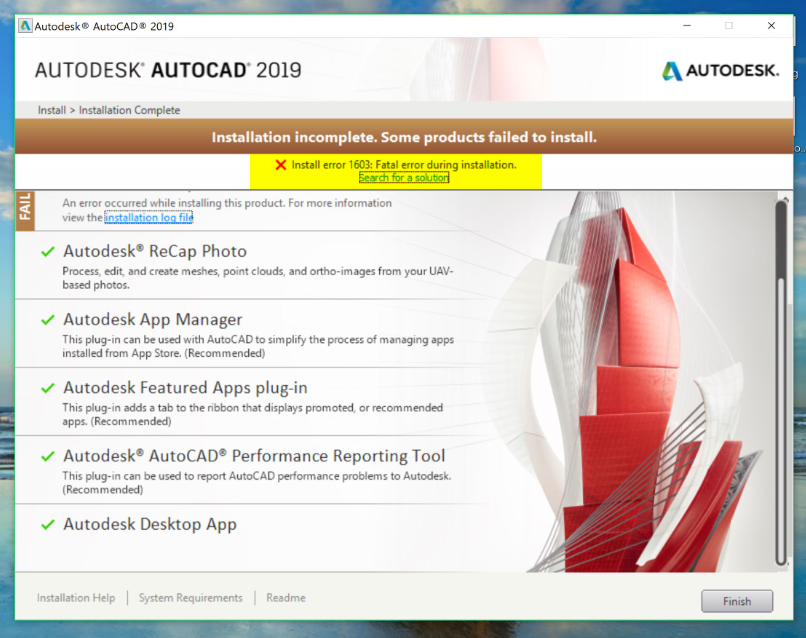
Ниже представлены распространенные примеры ошибки 1603.
-
Журналы установки:
-
Сбой установки <программа Autodesk> <версия> Установка прервана, результат = 1603.
-
-
Диалоговое окно во время установки:
-
Ошибка 1603: при установке произошла неустранимая ошибка.
-
-
Другие сообщения:
- Сбой установки .NET Framework Runtime 3.0 Ошибка игнорируется, результат = 1603.
- Сбой Microsoft SQL Server 2005 Express(AUTODESKVAULT) Установка прервана, результат = 1603.
- Сбой установки Microsoft Visual C++ 2008 Redistributable (x86) Установка прервана, результат = 1603.
Причины
Ошибка 1603 является типовой, она возникает из-за установщика Microsoft Windows (MSI). Обычно эта ошибка связана с работой системы, а не отдельного приложения.
Решение
Чтобы избежать этой ошибки, выполните указанные ниже действия. Если действие не приводит к устранению ошибки, переходите к следующему.
Полное удаление и переустановка Autodesk Desktop Licensing Service
- Перед удалением убедитесь в наличии копии установщика программного обеспечения (для шага 3).
- Удалите Autodesk Desktop Licensing Service. См. раздел Удаление Autodesk Desktop Licensing Service.
- Переустановите Autodesk Desktop Licensing Service. См. раздел Скачивание и установка Autodesk Desktop Licensing Service.
- Переустановите приложение.
Файлы, оставшиеся от предыдущих установок
- Выполните полное удаление программы, чтобы удалить все файлы и папки, оставшиеся от предыдущих установок. Если не удается удалить программное обеспечение, попробуйте использовать инструмент Microsoft Fixit.
- Попробуйте установить программное обеспечение еще раз с помощью функции Загрузить сейчас.
Удаление и повторная установка Microsoft Visual C++
См. раздел Переустановка библиотек среды выполнения Microsoft Visual C++ из пакета установки программного обеспечения Autodesk.
Файл заблокирован и не может быть перезаписан
Некоторые файлы на компьютере заблокированы, или программа установки пытается перезагрузить компьютер из-за такого заблокированного файла, что приводит к сбою. Чтобы убедиться, что заблокированный файл не вызывает ошибку, выполните следующие действия.
- Закройте все программы, работающие в фоновом режиме.
- Перезагрузите компьютер.
- Запустите программу установки еще раз.
Папки Windows Temp заполнены
Не очищена системная папка Temp. Это временная папка, куда при установке распаковываются файлы и откуда они запускаются. Если в папке Temp недостаточно свободного места или находится слишком много файлов, это может привести к конфликту с файлами установки.
Очистите папку Temp по умолчанию и освободите пространство на жестком диске, удалив ненужные файлы.
- В меню «Пуск» Windows введите %TEMP% и нажмите ENTER.
- В папке Temp нажмите сочетание клавиш CTRL + A, чтобы выбрать все находящиеся в ней файлы и папки, и удалите их.
Недостаточно места на диске
Убедитесь, что на корневом диске компьютера достаточно свободного места. Примечание. Несмотря на то что программу можно установить на другой диск, на корневом диске (где установлена операционная система Windows) должно быть в два раза больше места, чем занимают файлы установки.
Файлы установки повреждены при извлечении
Выйдите из конфликтующих программ или отключите их, включая антивирусные программы, текстовые редакторы, электронные таблицы, веб-браузеры. Затем запустите программу установки еще раз.
На целевом компьютере отключена функция создания короткого имени файла
- Включите поддержку создания имен 8.3 (например, коротких имен файлов) на целевом компьютере. Перейдите к следующей записи реестра:
HKEY_LOCAL_MACHINESYSTEMCurrentControlSetControlFileSystem
- Значение ноль (0) для NtfsDisable8dot3NameCreation позволяет использовать функцию создания коротких имен файлов. Значение один (1) отключает данную функцию.
- Чтобы внесенные в реестр изменения вступили в силу, перезагрузите целевой компьютер. Сделайте это перед повторным запуском установки.
- Примечание. На целевом компьютере функция создания коротких имен файлов обычно отключена. Ее можно отключить после завершения установки, вернув параметру NtfsDisable8dot3NameCreation исходное значение и перезагрузив компьютер еще раз.
Профиль пользователя поврежден
Создайте профиль пользователя Windows и попробуйте установить программное обеспечение.
Проверка установки
В крайнем случае проверьте журнал установки на предмет того, что установщику не удается установить несколько компонентов, например библиотеки C++, .NET, основную программу. Это может указывать на то, что установка блокируется параметрами безопасности. Отключите антивирусное программное обеспечение и выполните переустановку.
См. также:
- Сообщение «Установка не завершена. Не удалось установить некоторые программы.» из-за ошибки 1603 при установке программного обеспечения Autodesk 2020
- Ошибка 1603 при установке AutoCAD 2012: «Перед установкой AutoCAD установите DirectX»
Программы
Все классические программы
Issue:
During the installation of an Autodesk product, the install wizard stops, and reports:
Installation incomplete. Some products failed to install.
- Install error 1603: Fatal error during installation.
- Install error: <Product Name> The install couldn’t Finish. Error 1603
The following are common examples of the 1603 error:
-
Setup Logs:
-
Install <AutodeskProduct> <Version> Failed Installation aborted, Result=1603.
-
-
Dialog box during installation:
-
Error 1603: A fatal error occurred during installation.
-
-
Other Messages:
- Install .NET Framework Runtime 3.0 Failed Failure is ignored, Result=1603.
- Microsoft SQL Server 2005 Express(AUTODESKVAULT) Failed Installation aborted, Result=1603.
- Install Microsoft Visual C++ 2008 Redistributable (x86) Failed Installation aborted, Result=1603.
Causes:
Error 1603 is a generic error generated by the Microsoft Windows Installer (MSI). This error tends to be system-related, rather than linked to specific software.
Solution:
To avoid the behavior use the following steps. Keep moving to the next if one does not help:
Clean uninstall and reinstall the Autodesk Desktop Licensing Service
- Make sure you have a copy of the software installer (for step 3) before uninstalling.
- Uninstall the Autodesk Desktop Licensing Service. See: How to uninstall Autodesk Desktop Licensing Service.
- Reinstall the Autodesk Desktop Licensing Service. See: How to download and install Autodesk Desktop Licensing Service.
- Reinstall the application.
Remnants and residual files of previous installs
- Perform a Clean Uninstall to remove any residual files and folders from previous installations. If the software fails to uninstall try using the Microsoft Fixit tool.
- Attempt to install the software again with Download Now option.
Uninstall and Reinstall Microsoft Visual C++ Redistributables
See: How to reinstall Microsoft Visual C++ Runtime Libraries from an Autodesk software installation package.
A file is locked and cannot be overwritten
Certain files on the machine are locked, or setup attempts to reboot because of this locked file which leads to a failure. To make sure that a locked file is not causing the error, do the following:
- Close all software running in the background.
- Reboot.
- Run the setup again.
Windows TEMP folders are full
The system temp directory is not clean. This is the temp directory that setup extracts files to and runs from. Either the temp directory does not have enough available space, or it has too many files that may conflict with setup files.
Clean the default temp directory and free up hard-disk space by removing unneeded files.
- On the Windows Start menu, enter %TEMP% and press ENTER.
- In the Temp folder, press CTRL+A to select all the files and folders contained in the directory and delete them.
Not enough disk space
Check that there is enough space on the root drive of the machine. Note: Even though the setup can be installed on another drive, it is required that the root drive has twice the space of the setup files (the drive where the Windows operating system is installed on).
Setup files were corrupted during extraction
Exit or turn off conflicting programs, including virus scanners, word processors, spreadsheets, web browsers. Then start the installation again.
Short file name creation is disabled on the target machine
- Enable support for 8.3 name creation— for example, short file names—on the target machine. Navigate to the following registry entry:
HKEY_LOCAL_MACHINESYSTEMCurrentControlSetControlFileSystem
- An NtfsDisable8dot3NameCreation value of zero (0) enables the short file name creation functionality. A value of one (1) disables this functionality.
- Registry modifications require rebooting the target machine for the change to take effect—do this before attempting to start the setup again.
- Note: The target machine should have short file name creation disabled, it can also be disabled after the install completes by resetting NtfsDisable8dot3NameCreation to its original value and rebooting again.
User Profile is corrupt
Create new Windows user profile and try installing the software.
Review Setup
As last resort, review the setup log, check to see if the installer is failing on installing multiple components. Example, C++ libraries, .NET, core product This could be an indication a security setting is blocking the installation. Disable your antivirus software and reinstall.
See Also:
- «Installation incomplete. Some products failed to install.» due to error code 1603 when installing an Autodesk 2020 software
- AutoCAD 2012 Installation Error 1603: Please install DirectX before installing AutoCAD
Products:
All Desktop Products;
Issue:
During the installation of an Autodesk product, the install wizard stops, and reports:
Installation incomplete. Some products failed to install.
- Install error 1603: Fatal error during installation.
- Install error: <Product Name> The install couldn’t Finish. Error 1603
The following are common examples of the 1603 error:
-
Setup Logs:
-
Install <AutodeskProduct> <Version> Failed Installation aborted, Result=1603.
-
-
Dialog box during installation:
-
Error 1603: A fatal error occurred during installation.
-
-
Other Messages:
- Install .NET Framework Runtime 3.0 Failed Failure is ignored, Result=1603.
- Microsoft SQL Server 2005 Express(AUTODESKVAULT) Failed Installation aborted, Result=1603.
- Install Microsoft Visual C++ 2008 Redistributable (x86) Failed Installation aborted, Result=1603.
Causes:
Error 1603 is a generic error generated by the Microsoft Windows Installer (MSI). This error tends to be system-related, rather than linked to specific software.
Solution:
To avoid the behavior use the following steps. Keep moving to the next if one does not help:
Clean uninstall and reinstall the Autodesk Desktop Licensing Service
- Make sure you have a copy of the software installer (for step 3) before uninstalling.
- Uninstall the Autodesk Desktop Licensing Service. See: How to uninstall Autodesk Desktop Licensing Service.
- Reinstall the Autodesk Desktop Licensing Service. See: How to download and install Autodesk Desktop Licensing Service.
- Reinstall the application.
Remnants and residual files of previous installs
- Perform a Clean Uninstall to remove any residual files and folders from previous installations. If the software fails to uninstall try using the Microsoft Fixit tool.
- Attempt to install the software again with Download Now option.
Uninstall and Reinstall Microsoft Visual C++ Redistributables
See: How to reinstall Microsoft Visual C++ Runtime Libraries from an Autodesk software installation package.
A file is locked and cannot be overwritten
Certain files on the machine are locked, or setup attempts to reboot because of this locked file which leads to a failure. To make sure that a locked file is not causing the error, do the following:
- Close all software running in the background.
- Reboot.
- Run the setup again.
Windows TEMP folders are full
The system temp directory is not clean. This is the temp directory that setup extracts files to and runs from. Either the temp directory does not have enough available space, or it has too many files that may conflict with setup files.
Clean the default temp directory and free up hard-disk space by removing unneeded files.
- On the Windows Start menu, enter %TEMP% and press ENTER.
- In the Temp folder, press CTRL+A to select all the files and folders contained in the directory and delete them.
Not enough disk space
Check that there is enough space on the root drive of the machine. Note: Even though the setup can be installed on another drive, it is required that the root drive has twice the space of the setup files (the drive where the Windows operating system is installed on).
Setup files were corrupted during extraction
Exit or turn off conflicting programs, including virus scanners, word processors, spreadsheets, web browsers. Then start the installation again.
Short file name creation is disabled on the target machine
- Enable support for 8.3 name creation— for example, short file names—on the target machine. Navigate to the following registry entry:
HKEY_LOCAL_MACHINESYSTEMCurrentControlSetControlFileSystem
- An NtfsDisable8dot3NameCreation value of zero (0) enables the short file name creation functionality. A value of one (1) disables this functionality.
- Registry modifications require rebooting the target machine for the change to take effect—do this before attempting to start the setup again.
- Note: The target machine should have short file name creation disabled, it can also be disabled after the install completes by resetting NtfsDisable8dot3NameCreation to its original value and rebooting again.
User Profile is corrupt
Create new Windows user profile and try installing the software.
Review Setup
As last resort, review the setup log, check to see if the installer is failing on installing multiple components. Example, C++ libraries, .NET, core product This could be an indication a security setting is blocking the installation. Disable your antivirus software and reinstall.
See Also:
- «Installation incomplete. Some products failed to install.» due to error code 1603 when installing an Autodesk 2020 software
- AutoCAD 2012 Installation Error 1603: Please install DirectX before installing AutoCAD
Products:
All Desktop Products;
Эта ошибка, как правило, связана с системой, а не с конкретным программным обеспечением.
- Решение: …
- Чистое удаление и повторная установка службы лицензирования Autodesk Desktop. …
- Остатки и остаточные файлы предыдущих установок. …
- Удалите и переустановите распространяемые файлы Microsoft Visual C++. …
- Файл заблокирован и не может быть перезаписан.
Как исправить код ошибки 1603?
Как исправить код ошибки 1603?
- Закройте фоновое программное обеспечение.
- Проверьте, не установлено ли программное обеспечение.
- Убедитесь, что на жестком диске достаточно места для программы.
- Откройте средство устранения неполадок при установке и удалении программы.
- Удалите временные файлы из папки Temp Windows.
- Перезапустите службу установщика Windows.
Как исправить ошибку 1603 в AutoCAD 2020?
Все еще получаете ошибку 1603? Возможно, вам придется удалить все продукты Autodesk со своего компьютера, а затем снова попытаться установить F/X CAD 2020.
Как исправить ошибку 1603 для AutoCAD 2022?
Загрузите Microsoft Fix-it по ссылке Microsoft Program Install and Uninstall Troubleshooter .
…
Перейдите в «C: Autodesk ContentADSKMaterialsCM».
- Щелкните правой кнопкой мыши «MaterialLibrary2022. мси».
- В списке выберите «Удалить».
- Перезагрузите компьютер.
- Повторите попытку установки продуктов семейства AutoCAD 2022.
Что такое код ошибки 1603 при установке Java?
Код ошибки 1603. Обновление Java не завершено. ПРИЧИНА. Эта ошибка, обнаруженная в процессе установки, указывает на то, что установка не завершена. Основная причина этой ошибки исследуется.
Как удалить службу лицензирования Autodesk для настольных ПК?
Перейдите в папку: C:Program Files (x86)Common FilesAutodesk SharedAdskLicensing. Щелкните правой кнопкой мыши uninstall.exe и выберите «Запуск от имени администратора». Подождите, пока папка не станет пустой. Служба лицензирования Autodesk Desktop теперь удалена для компьютера.
Что означает код ошибки 1603?
Ошибка 1603 — это общая ошибка Windows, которая означает, что программа установки Sync не запустилась. Следующие шаги: Убедитесь, что вы запускаете установщик Sync от имени администратора в Windows: щелкните правой кнопкой мыши установщик Sync и выберите «Запуск от имени администратора».
Что означает код выхода 1603?
Вы можете получить это сообщение об ошибке, если выполняется одно из следующих условий: Установщик Windows пытается установить приложение, которое уже установлено на вашем компьютере. Папка, в которую вы пытаетесь установить пакет установщика Windows, зашифрована.
Код какой страны +1603?
Как составлен номер
| Число | Комментарии |
|---|---|
| 44 | 44 — это международный код, используемый для звонков в Великобританию. |
| 20 | 20 — это код района или города, по которому можно позвонить в Лондон. |
| 1603 20721309 | 01603%20721309 — это местный номер, который вы написали. Национальный префикс был удален из номера. Некоторые буквы/символы переведены или удалены. |
Как исправить ошибку установки AutoCAD 2021?
Решение. Чтобы устранить проблему, выполните полное удаление AutoCAD или вертикалей. Переустановите AutoCAD 2021, следуя рекомендуемому процессу установки программных продуктов Autodesk.
Как исправить ошибку установки AutoCAD?
Решение:
- Войдите в систему как администратор.
- Очистите папку TEMP. …
- Отключите антивирусное программное обеспечение. …
- Перейдите в «Панель управления» > «Учетные записи пользователей» > «Учетная запись пользователя» и нажмите «Изменить параметры управления учетными записями пользователей». Переместите ползунок в положение «Никогда не уведомлять» и нажмите «ОК», чтобы сохранить настройку.
Чтобы получить доступ к инструменту удаления Autodesk, просто перейдите в меню «Пуск» Windows и найдите папку Autodesk. Щелкните эту папку и перейдите к инструменту удаления Autodesk.
Как выполнить полное удаление продуктов Autodesk?
Чтобы удалить отдельные продукты, используйте кнопку «Удалить» в разделе «Программы и компоненты» в «Панели управления».
- Найдите «Инструмент удаления» на кнопке «Пуск» Windows.
- Откройте его и выберите все программы Autodesk, чтобы удалить их.
Как установить продукты Autodesk?
Войдите в учетную запись Autodesk. Выберите продукт для установки. Выберите метод установки («Установить сейчас», «Загрузить сейчас» или «Загрузка через браузер»). Если вы выбрали метод «Загрузить сейчас», запустите файл EXE (Windows), смонтируйте файл DMG (macOS) или извлеките файл TAR (Linux), связанный с вашим продуктом и версией.
Ошибка установки AutoCAD 2020 (код ошибки: 1603). Это решение действительно для продуктов Autodesk.

Решение найдено на официальном сайте:

решение:
Чтобы обработать это сообщение об ошибке, выполните следующие действия:
1. Найдите эту папку C Program Files (x86) Common Files Autodesk Shared adsklicense.
2. Запустите файл uninstall.exe от имени администратора (щелкните правой кнопкой мыши> Запуск от имени администратора), чтобы удалить программное обеспечение.
3. Затем перезапустите установку.
Если проблема не исчезнет, попробуйте следующее:
1. Откройте командную строку от имени администратора (то есть щелкните правой кнопкой мыши первый результат CMD и выберите Запуск от имени администратора).
2. Введите и выполните следующую команду, а затем нажмите Enter. Будет отображено сообщение о том, что служба запущена.
«C:Program Files (x86)Common FilesAutodesk SharedAdskLicensingCurrentAdskLicensingServiceAdskLicensingService.exe»
(найдите AdskLicensingService.exe и щелкните правой кнопкой мыши, чтобы запустить его от имени администратора, не закрывайте окно и переустановите САПР)
3. Попробуйте выполнить установку еще раз, установка прошла успешно.

Issue:
During the installation of an Autodesk product, the install wizard stops, and reports:
Installation incomplete. Some products failed to install.
- Install error 1603: Fatal error during installation.
- Install error: <Product Name> The install couldn’t Finish. Error 1603
The following are common examples of the 1603 error:
-
Setup Logs:
-
Install <AutodeskProduct> <Version> Failed Installation aborted, Result=1603.
-
-
Dialog box during installation:
-
Error 1603: A fatal error occurred during installation.
-
-
Other Messages:
- Install .NET Framework Runtime 3.0 Failed Failure is ignored, Result=1603.
- Microsoft SQL Server 2005 Express(AUTODESKVAULT) Failed Installation aborted, Result=1603.
- Install Microsoft Visual C++ 2008 Redistributable (x86) Failed Installation aborted, Result=1603.
Causes:
Error 1603 is a generic error generated by the Microsoft Windows Installer (MSI). This error tends to be system-related, rather than linked to specific software.
Solution:
To avoid the behavior use the following steps. Keep moving to the next if one does not help:
Clean uninstall and reinstall the Autodesk Desktop Licensing Service
- Make sure you have a copy of the software installer (for step 3) before uninstalling.
- Uninstall the Autodesk Desktop Licensing Service. See: How to uninstall Autodesk Desktop Licensing Service.
- Reinstall the Autodesk Desktop Licensing Service. See: How to download and install Autodesk Desktop Licensing Service.
- Reinstall the application.
Remnants and residual files of previous installs
- Perform a Clean Uninstall to remove any residual files and folders from previous installations. If the software fails to uninstall try using the Microsoft Fixit tool.
- Attempt to install the software again with Download Now option.
Uninstall and Reinstall Microsoft Visual C++ Redistributables
See: How to reinstall Microsoft Visual C++ Runtime Libraries from an Autodesk software installation package.
A file is locked and cannot be overwritten
Certain files on the machine are locked, or setup attempts to reboot because of this locked file which leads to a failure. To make sure that a locked file is not causing the error, do the following:
- Close all software running in the background.
- Reboot.
- Run the setup again.
Windows TEMP folders are full
The system temp directory is not clean. This is the temp directory that setup extracts files to and runs from. Either the temp directory does not have enough available space, or it has too many files that may conflict with setup files.
Clean the default temp directory and free up hard-disk space by removing unneeded files.
- On the Windows Start menu, enter %TEMP% and press ENTER.
- In the Temp folder, press CTRL+A to select all the files and folders contained in the directory and delete them.
Not enough disk space
Check that there is enough space on the root drive of the machine. Note: Even though the setup can be installed on another drive, it is required that the root drive has twice the space of the setup files (the drive where the Windows operating system is installed on).
Setup files were corrupted during extraction
Exit or turn off conflicting programs, including virus scanners, word processors, spreadsheets, web browsers. Then start the installation again.
Short file name creation is disabled on the target machine
- Enable support for 8.3 name creation— for example, short file names—on the target machine. Navigate to the following registry entry:
HKEY_LOCAL_MACHINESYSTEMCurrentControlSetControlFileSystem
- An NtfsDisable8dot3NameCreation value of zero (0) enables the short file name creation functionality. A value of one (1) disables this functionality.
- Registry modifications require rebooting the target machine for the change to take effect—do this before attempting to start the setup again.
- Note: The target machine should have short file name creation disabled, it can also be disabled after the install completes by resetting NtfsDisable8dot3NameCreation to its original value and rebooting again.
User Profile is corrupt
Create new Windows user profile and try installing the software.
Review Setup
As last resort, review the setup log, check to see if the installer is failing on installing multiple components. Example, C++ libraries, .NET, core product This could be an indication a security setting is blocking the installation. Disable your antivirus software and reinstall.
See Also:
- «Installation incomplete. Some products failed to install.» due to error code 1603 when installing an Autodesk 2020 software
- AutoCAD 2012 Installation Error 1603: Please install DirectX before installing AutoCAD
Products:
All Desktop Products;
Issue:
During the installation of an Autodesk product, the install wizard stops, and reports:
Installation incomplete. Some products failed to install.
- Install error 1603: Fatal error during installation.
- Install error: <Product Name> The install couldn’t Finish. Error 1603
The following are common examples of the 1603 error:
-
Setup Logs:
-
Install <AutodeskProduct> <Version> Failed Installation aborted, Result=1603.
-
-
Dialog box during installation:
-
Error 1603: A fatal error occurred during installation.
-
-
Other Messages:
- Install .NET Framework Runtime 3.0 Failed Failure is ignored, Result=1603.
- Microsoft SQL Server 2005 Express(AUTODESKVAULT) Failed Installation aborted, Result=1603.
- Install Microsoft Visual C++ 2008 Redistributable (x86) Failed Installation aborted, Result=1603.
Causes:
Error 1603 is a generic error generated by the Microsoft Windows Installer (MSI). This error tends to be system-related, rather than linked to specific software.
Solution:
To avoid the behavior use the following steps. Keep moving to the next if one does not help:
Clean uninstall and reinstall the Autodesk Desktop Licensing Service
- Make sure you have a copy of the software installer (for step 3) before uninstalling.
- Uninstall the Autodesk Desktop Licensing Service. See: How to uninstall Autodesk Desktop Licensing Service.
- Reinstall the Autodesk Desktop Licensing Service. See: How to download and install Autodesk Desktop Licensing Service.
- Reinstall the application.
Remnants and residual files of previous installs
- Perform a Clean Uninstall to remove any residual files and folders from previous installations. If the software fails to uninstall try using the Microsoft Fixit tool.
- Attempt to install the software again with Download Now option.
Uninstall and Reinstall Microsoft Visual C++ Redistributables
See: How to reinstall Microsoft Visual C++ Runtime Libraries from an Autodesk software installation package.
A file is locked and cannot be overwritten
Certain files on the machine are locked, or setup attempts to reboot because of this locked file which leads to a failure. To make sure that a locked file is not causing the error, do the following:
- Close all software running in the background.
- Reboot.
- Run the setup again.
Windows TEMP folders are full
The system temp directory is not clean. This is the temp directory that setup extracts files to and runs from. Either the temp directory does not have enough available space, or it has too many files that may conflict with setup files.
Clean the default temp directory and free up hard-disk space by removing unneeded files.
- On the Windows Start menu, enter %TEMP% and press ENTER.
- In the Temp folder, press CTRL+A to select all the files and folders contained in the directory and delete them.
Not enough disk space
Check that there is enough space on the root drive of the machine. Note: Even though the setup can be installed on another drive, it is required that the root drive has twice the space of the setup files (the drive where the Windows operating system is installed on).
Setup files were corrupted during extraction
Exit or turn off conflicting programs, including virus scanners, word processors, spreadsheets, web browsers. Then start the installation again.
Short file name creation is disabled on the target machine
- Enable support for 8.3 name creation— for example, short file names—on the target machine. Navigate to the following registry entry:
HKEY_LOCAL_MACHINESYSTEMCurrentControlSetControlFileSystem
- An NtfsDisable8dot3NameCreation value of zero (0) enables the short file name creation functionality. A value of one (1) disables this functionality.
- Registry modifications require rebooting the target machine for the change to take effect—do this before attempting to start the setup again.
- Note: The target machine should have short file name creation disabled, it can also be disabled after the install completes by resetting NtfsDisable8dot3NameCreation to its original value and rebooting again.
User Profile is corrupt
Create new Windows user profile and try installing the software.
Review Setup
As last resort, review the setup log, check to see if the installer is failing on installing multiple components. Example, C++ libraries, .NET, core product This could be an indication a security setting is blocking the installation. Disable your antivirus software and reinstall.
See Also:
- «Installation incomplete. Some products failed to install.» due to error code 1603 when installing an Autodesk 2020 software
- AutoCAD 2012 Installation Error 1603: Please install DirectX before installing AutoCAD
Products:
All Desktop Products;
Разбираемся почему не запускается Автокад, рассматриваем различные ошибки и решение проблем установки и запуска AutoCAD.
Автокад используется профессионалами для разработки чертежей различных инженерных документов.
Проблемы с установкой Autocad
Первое, с чем сталкивается новый пользователь этого программного пакета, – инсталляция. В большинстве случаев она проходит незаметно, но иногда установка «Автокада» не запускается или неожиданно обрывается. Часто этому событию сопутствует появление небольшого окошка с сообщением, содержащим код ошибки и другой информацией, необходимой для диагностики.
Ошибка 1603
Эта проблема связана с некорректной работой установщика MSI от корпорации «Майкрософт». Проявляется она по следующим причинам:
- В папке Temp, расположенной в системном разделе жесткого диска, находится слишком много файлов. Решение: удалить папку.
- Недостаток свободного места на разделе жесткого диска с системой. Туда извлекаются временные файлы, необходимые для установки «Автокада». Решение: удалить неиспользуемые программы, почистить папки, находящиеся в разделе «Библиотеки», «Загрузки» и рабочий стол в Windows 7,8,10. Также освободить место поможет очистка кэша браузера.
- Конфликт программ. Решение: отключить на время установки все приложения, работающие в фоновом режиме (находятся в панели уведомлений рядом с часами) и закрыть все активные программы.
Для ускорения поиска причины обрыва установки можно воспользоваться средством от Autodesk под названием AIDA.
Ошибка «Платформа .NET не установлена»
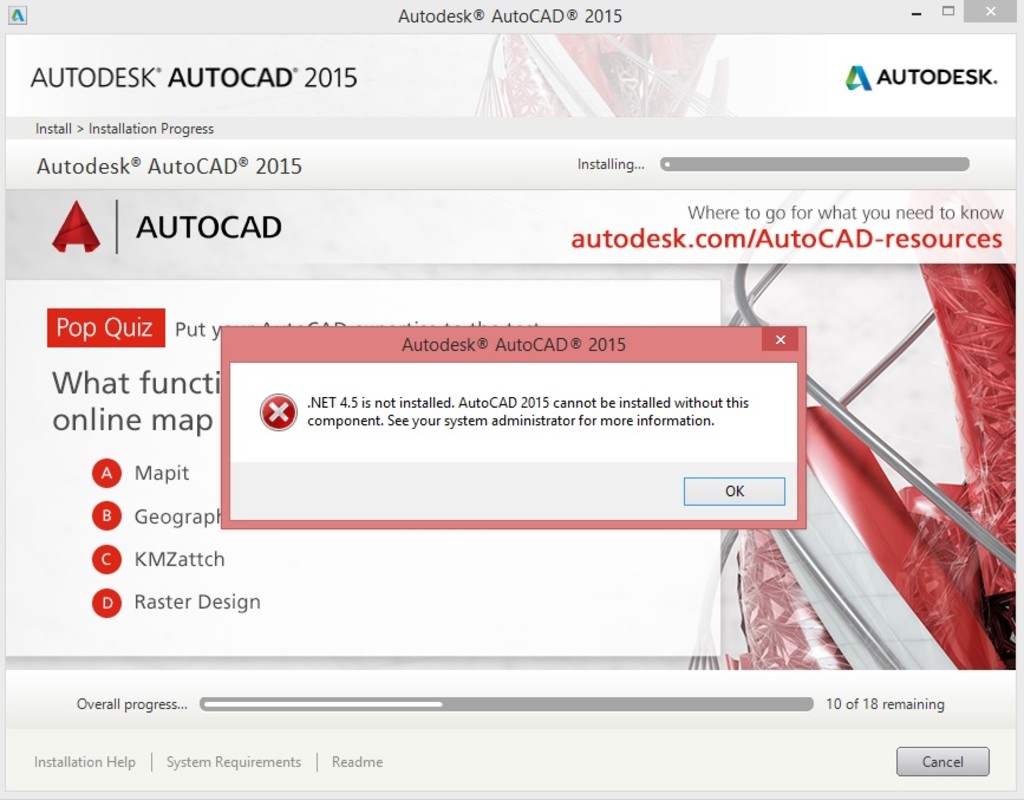
Еще одной причиной, почему не запускается «Автокад», является отсутствие или отключение пакета FrameWork .NET версии 4.5 и 4.6. Чаще всего она проявляется на версиях «Автокада» 2016 и 2017 после обновления компонентов Windows.
Решений у этой проблемы два:
- Проверить наличие обновлений KB3081452, KB3081448, KB3081449 в Windows 10. Если они отсутствуют, то при помощи «Центра обновлений» или вручную загрузить их и установить.
- Проверить присутствие в системе требуемого компонента. Для этого в «Панели управления» нужно зайти в раздел «Программы и компоненты». Если фреймворк установлен, то нужно перейти в подраздел «Включение и отключение компонентов Windows» и выбрать требуемый компонент. В противном случае загрузить его с сайта Microsoft и проделать выше описанные манипуляции.
Ошибка 1606 или 1317
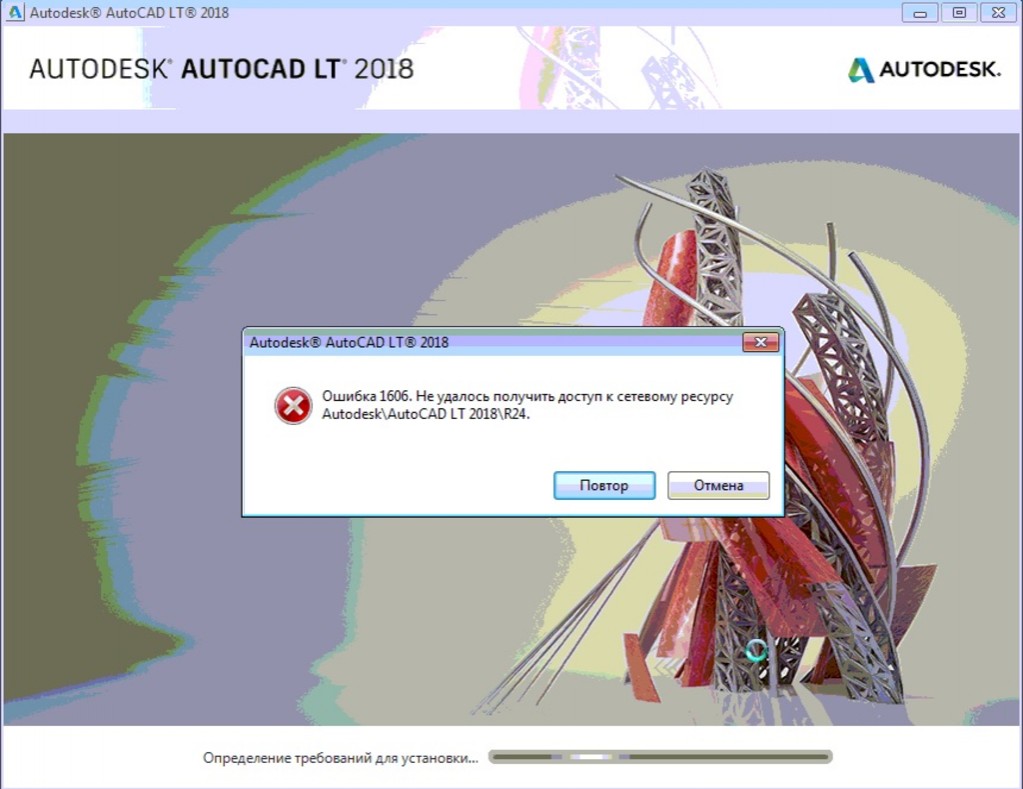
Она проявляется, если на жестком диске или в реестре остались следы от установки другой версии «Автокада». Решается проблема следующими способами.
Способ 1. Проверка реестра. Для этого нужно запустить его редактор, вызываемый командой regedit в окне «Выполнить» (вызывается из меню «Пуск» или при помощи комбинации клавиш Win (флажок на клавиатуре) и R). В древе ключей в левой части окна нужно найти ключ Common Documents, находящиеся по адресу HKEY_LOCAL_MACHINE >Software>Microsoft>Windows>CurrentVersion>Explorer>Shell Folders. Его тип должен быть REG_SZ, а данные – C:UsersPublicDocuments. Если ключ отсутствует, то его нужно добавить: «Правка»> «Создать»> «Строковый параметр». После создания нового ключа нужно проверить, существует ли указанная в ключе папка.
Способ 2. Удаление ненужных файлов при помощи утилиты Microsoft Fix It. Загрузить ее можно на официальном сайте.
Ошибка «Система не может открыть указанное устройство или файл»
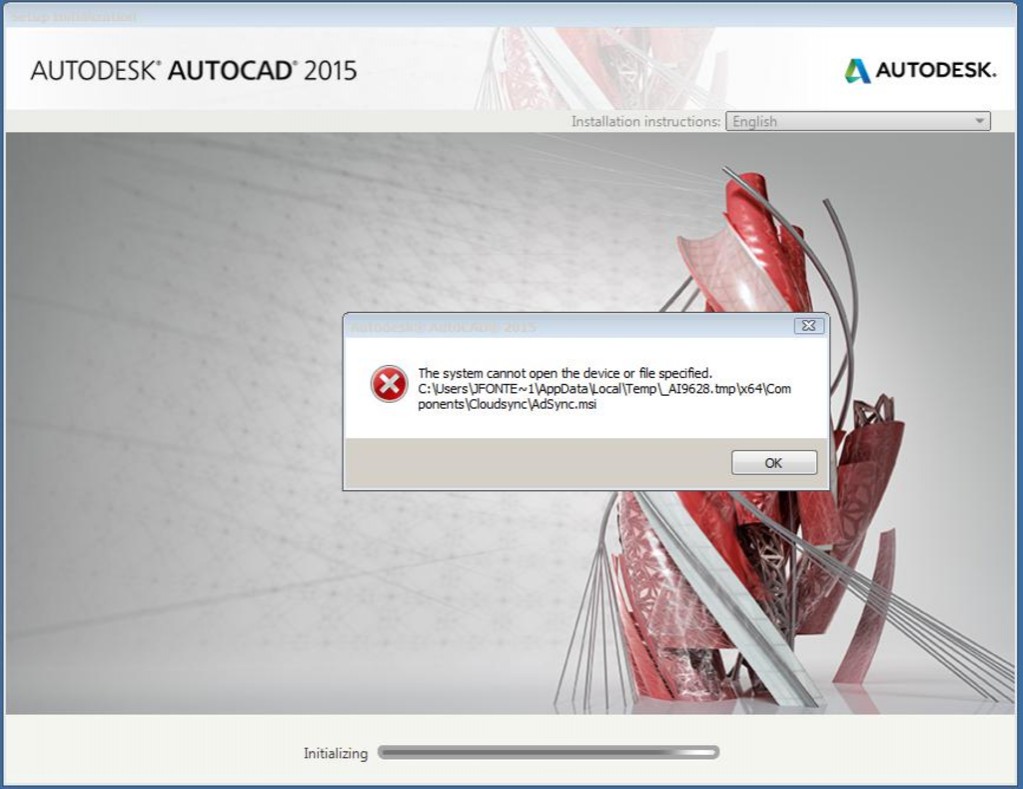
Следующая причина, из-за которой не запускается «Автокад», — отсутствие необходимого файла или его блокировка антивирусом. Поэтому для устранения неполадки нужно:
- Отключить антивирусное ПО.
- Запустить установщик с правами администратора или отключить контроль учетных записей в «Панели управления».
- Очистить папку TEMP и повторно запустить установщик.
Если эти меры оказались бесполезными, то нужно заново загрузить инсталлятор с официального сайта или торрент-трекера.
Проблемы при первом запуске и во время использования
Иногда после установки «Автокад» не запускается. Так же как и в процессе инсталляции, во время загрузки его компонентов и интерфейса может появиться окошко с указанием конкретной ошибки. Но так происходит не всегда. Например, когда появляется и исчезает окошко-индикатор загрузки, а после ничего не происходит.
Ошибка «Не удалось запустить приложение из-за неправильной параллельной конфигурации»
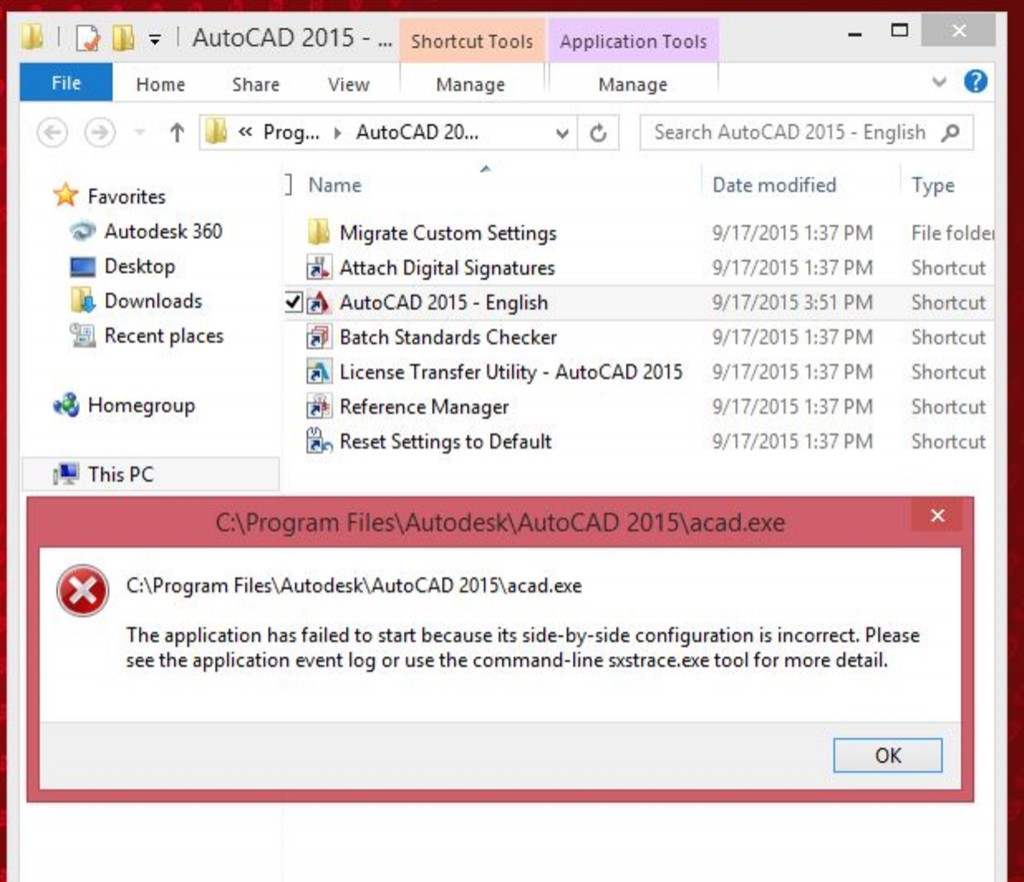
Эта неисправность возникает по двум причинам: некорректная установка самой программы и отсутствия, повреждения или конфликта между компонентами библиотек Microsoft Visual С++. В первом случае потребуется полное удаление «Автокада» с последующей переустановкой.
Для решения второй проблемы нужно:
- Переустановить библиотеки С++. Информацию о том, как это сделать и где скачать нужные материалы, можно найти в базе знаний Autodesk по запросу «How to remove and reinstall Microsoft Visual C++ Runtime Libraries».
- Перезапустить компьютер.
- В разделе «Программы и компоненты» найти установленную САПР, выделить и нажать кнопку «Изменить/ Удалить». В открывшемся окне нужно поставить отметку возле пункта «Восстановить» и запустить процесс.
- После завершения восстановления запустить «Автокад».
Ошибка «Невозможно запустить программу, так как на компьютере отсутствует файл MSVCR110.dll»
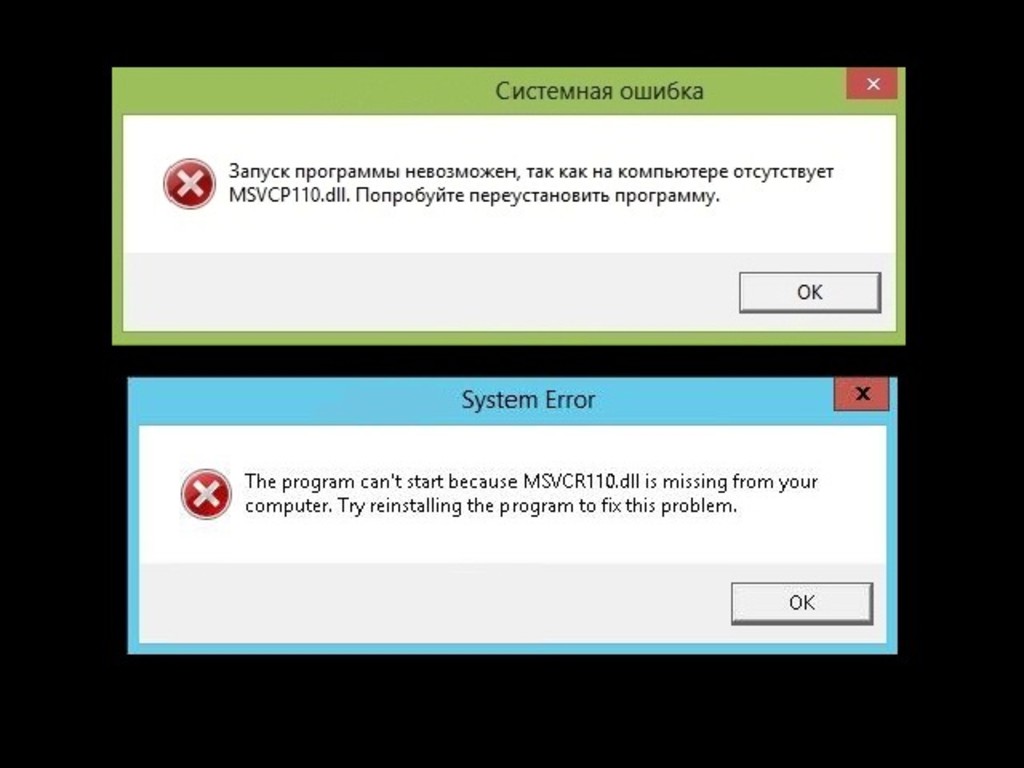
Появление проблемы связано с исчезновением указанного файла из библиотеки Visual С++. Название компонента в некоторых случаях может измениться на «MSVCP110.dll». Для устранения ошибки придумано 3 способа:
Способ 1. Если есть компьютер с идентичным ПО, то можно скопировать требуемый файл с него на проблемный ПК.
Способ 2. Воспользоваться инструментом восстановления, входящего в состав установщика библиотек С++ версии 2012 года для 32-х и 64-битных систем.
Способ 3. Переустановить все библиотеки Microsoft Visual C++.
Проблема «Автокад запускается и сразу закрывается»
Чаще всего эта ошибка появляется после «зависания» программы и принудительного ее закрытия через диспетчер задач. В этом случае иногда повреждается файл лицензии, из-за которого программа и не может запуститься. Для устранения проблемы нужно очистить папку Flexnet от всех файлов. Находится она на системном разделе жесткого диска в директории ProgramData. После этого программа должна заработать.
Второй причиной проявления этой проблемы является устаревший драйвер видеокарты. Загрузить их можно с сайтов производителей. Если обновление не принесло результатов, то нужно отключить аппаратное ускорение графики. Делается это следующим образом:
- Правой кнопкой мыши вызвать контекстное меню ярлыка, запускающего «Автокад», и выбрать пункт «Свойства».
- В конце строки «Объект» добавить «/nohardware».
- Запустить программу.
Если вышеперечисленные меры не оказали никакого эффекта, то нужно переустановить программный пакет. О том, как полностью его удалить, можно найти в базе знаний Autodesk по запросу «выполнение полного удаления».
Причин, из-за которых «Автокад» не запускается, много, но все они успешно решаются специалистами технической поддержки компании Autodesk.
Источники: fb.ru