В этой статье мы попытаемся устранить ошибку 4-0xFFF0BE25, с которой сталкиваются игроки Tom Clancy’s Rainbow Six Осада при подключении к игре.
Ошибка «0xFFF0BE25», с которой сталкиваются игроки Tom Clancy’s Rainbow Six Осада при подключении к игре, ограничивает удовольствие от игры, не позволяя игрокам получить доступ к игре. Если вы столкнулись с такой ошибкой, вы можете решить проблему, выполнив следующие шаги.
Что такое ошибка Rainbow Six Siege 4-0xFFF0BE25?
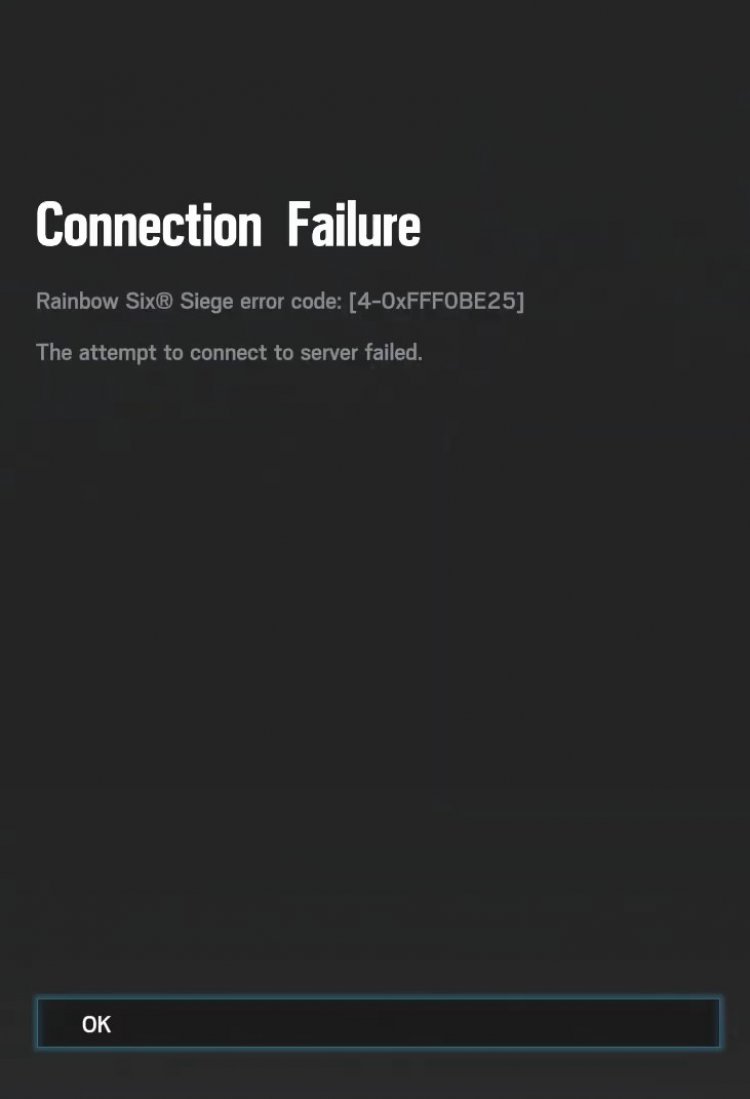
Эта ошибка, с которой мы сталкиваемся, появляется как ошибка подключения. Любая проблема в нашей интернет-сети может вызвать запуск игры и множество ошибок. Конечно, мы не можем столкнуться с такой ошибкой только из-за проблемы в нашей интернет-сети. Тот факт, что серверы находятся на обслуживании в стране, в которой мы находимся, может привести к различным кодам ошибок. В этой статье мы предоставим вам несколько предложений по решению проблемы.
Как исправить ошибку Rainbow Six Осада 4-0xFFF0BE25?
Чтобы решить эту ошибку, с которой мы столкнулись, мы попытаемся решить ее, упомянув несколько предложений.
1-) Отредактируйте файл сохранения игры
Мы можем решить проблему, отредактировав файл сохранения, созданный в настройках игры.
- Введите run на начальном экране поиска и откройте его.
- Откройте файл моих документов, введя «C:UsersyourusernameDocuments» на экране «Выполнить поиск». (Введите свое имя пользователя Windows там, где оно говорит ваше имя пользователя.)
- Откройте папку Rainbow Six — Siege в той папке, к которой мы добрались.
- В открывшейся папке вы увидите папку, состоящую из сложных букв и символов. Эти папки представляют собой отдельные файлы настроек для разных учетных записей пользователей, в которые вы вошли. Откройте папку, найдя учетную запись, которую вы используете.
- Откройте файл GameSettings в папке блокнотом.
- Измените значение «UseProxyAutoDiscovery» в открытом нами файле на «1».
После этого процесса войдите в игру Rainbow Six Siege и проверьте, сохраняется ли ошибка. Если ошибка не устранена, давайте перейдем к нашему следующему предложению.
2-) Очистить кеш DNS
Если ни одно из приведенных выше предложений не сработало, мы можем решить проблему, очистив кеш DNS. Для этого;
- Введите cmd на стартовом экране поиска и запустите его от имени администратора.
- Введите команду ipconfig /flushdns на экране командной строки и нажмите Enter.
- После этого процесса он покажет, что ваш кеш DNS был успешно очищен.
- Затем снова введите команду сброса netsh winsock на экране командной строки и нажмите клавишу ввода.
После этого процесса перезагрузите компьютер и запустите игру Rainbow Six Осада. Если проблема не устранена, давайте перейдем к другому предложению.
3-) Выключите модем
Выключите модем, подождите 20 секунд и снова включите его. Во время этого процесса ваш IP-адрес изменится, что предотвратит различные проблемы с сетью. Если проблема не устранена, давайте перейдем к другому предложению.
4-) Зарегистрируйте другой DNS-сервер
Если ни один из вышеперечисленных процессов не произошел, давайте сохраним еще один DNS-сервер на наш компьютер.
- Откройте панель управления.
- Выберите опцию Сеть и Интернет.
- На открывшемся экране откройте Центр управления сетями и общим доступом.
- Нажмите на опцию «Изменить настройки адаптера» слева.
- Откройте меню «Свойства», щелкнув правой кнопкой мыши тип подключения.
- Дважды щелкните Интернет-протокол версии 4 (TCP/IPv4).
- Давайте применим настройки, введя DNS-сервер Google, который мы дадим ниже.
- Предпочтительный DNS-сервер: 8.8.8.8
- Другой DNS-сервер: 8.8.4.4
- Затем нажмите «Проверить настройки при выходе», нажмите кнопку «ОК» и примените процедуры.
Если проблема не устранена, давайте перейдем к другому предложению.
5-) Используйте Cloudflare VPN
Вы можете решить эту проблему с помощью быстрой программы настройки vpn и dns, которую Cloudflare предлагает бесплатно.
- Полностью закройте игру Rainbow Six Осада с помощью диспетчера задач.
- Загрузите приложение Cloudflare Warp. Нажмите, чтобы загрузить приложение.
- После установки приложения выполните процесс подключения.
- После успешного подключения вы можете запустить игру Rainbow Six Осада.
После этого процесса загрузка будет выполняться путем сканирования поврежденных файлов игры. После завершения процесса попробуйте снова открыть игру.
Players are getting removed from the in-match and encounter Rainbow Six Siege Error code 4-0xfff0be25 due to some kind of connection issue or server error.
Rainbow Six Siege — How To Fix Serv…
Please enable JavaScript
One of the players shared their experience on the Steam Community!

If you are getting the same error, Don’t worry about it!
The CPU Guide brings you the best working solutions to solve Rainbow Six Siege Error code 4-0xfff0be25.

Solution 1: Restart the Game
Whenever you encounter Rainbow Six Siege Error code 4-0xfff0be25 PC Error and any game bug, you should restart the game before trying any further solutions.
Restarting the game will eliminate any temporary error from the old cookies and cache or the system’s other software clashing with your gaming software.
All of these errors will be eradicated after a simple restart of the game/PC or any other platform you use.
Read More: ERR_CONNECTION_TIMED_OUT Best Ways Explained [With Pictures]
Solution 2: Check the Server Status
Sometimes the Rainbow Six Siege Error code 4-0xfff0be25 PC or having technical issues leads to Rainbow Six Siege Error code 4-0xfff0be25 PC.
So, it is better to check the server status before applying any further solutions.
To check the server status of the Rainbow Six Siege game, follow the steps mentioned down below:
- Go to the Rainbow Six Siege Server status site
- Here you can check the server status if the server is down for maintenance they will let you know on this page.
- Similarly when the server is down from the technical issue here the server status will be updated.

For more detailed updates about the game, you can also follow Ubisoft Support’s Twitter handle
Greetings Operators,
🛠 We’ll be performing a maintenance on #R6Extraction today from 10AM EDT / 3PM UTC. No player facing changes.
🕑 Expected downtime: 1 Hr
🎮 Platforms: PC, PlayStation & Xbox https://t.co/dlVMiXx3uP

Follow the upcoming solutions to troubleshoot your PC to Fix the Error code 4-0xfff0be25 PC on Rainbow Six Siege.
Read More: How to Install WiFi Drivers on Windows 11?
Solution 3: Close Unwanted Programs on Windows 11/10
If there are too many programs running in the background, using too much internet/RAM/Disk can cause the Error code 4-0xfff0be25 PC Rainbow Six Siege” on Windows 11.
Closing unwanted programs will help you eliminate the Rainbow Six Siege Error code 4-0xfff0be25 PC.
So, let’s close unwanted programs:
- Press Ctrl + Shift + ESC keys to open Task Manager
- Now check which program is using more Network
- Right-click on that program and select End task

- And check if the “Rainbow Six Siege Error code 4-0xfff0be25 PC” is solved or not.
Solution 4: Power Cycle Your Router
If the above solution didn’t work then this solution will work and provide a better internet connection which will help you solve the Rainbow Six Error code 4-0xfff0be25 PC.
All you need to do is follow these steps:
- Turn off your router entirely by taking out the power cable from the power switch.
- Leave it for 5 to 10 minutes and then plug it back in.
- And check if the Wi-Fi is visible to you or not.
Make sure you restart those devices affected in the process for an accurate fix.
Best Routers To Buy
Budget Router
TP-Link WiFi 6 AX3000 Smart WiFi Router

Super Router
TP-Link Archer AX11000 Tri-Band Wi-Fi 6 Router

After power cycling your router it is better to Update your Wi-Fi drivers to avoid any error Error code 4-0xfff0be25 PC Rainbow Six Siege.
Solution 5: Update Wi-Fi Drivers through Device Manager
If you use the Wi-Fi Modem and you don’t update the Wi-Fi drivers in a long time then it’s time to update the Wi-FI drivers to have uninterrupted internet to avoid Rainbow Six Siege Error code 4-0xfff0be25 PC.
- Click on the Search icon
- Type Device Manager

- Click to open device manager
- Then select the Network adapter
- A further menu will open
- Find your Wi-Fi drivers
- Click right on the Wi-Fi card name
- Click on the updated driver
- Now a new window will open
- Select “Search automatically for drivers“

- If you want to install some other driver on your Wi-Fi then
- Select “Browse my computer for drivers“

- And then go to the path where you download the new drivers.
After updating the drivers sometimes the inappropriate DNS cache is causing errors while you gaming to fix this follow the next solution.
Solution 6: Clear DNS Cache and Data
Is it OK to clear the DNS cache?
Since clearing the DNS cache removes all the entries and forces your computer to repopulate those addresses the next time you try accessing those websites.
This won’t affect the performance of Rainbow Six Siege and eliminate Error code 4-0xfff0be25 PC.
Resetting DNS helps in clearing out issues you face while playing with your friends in Rainbow Six Seige’s multiplayer mode.
How do I reset my DNS settings? How do I clear my DNS cache?
- Click on the Windows start icon on the bottom left corner
- Then press the Windows key + R
- The Run box will appear
- Type cmd, and click on OK

- Then on the cmd window, enter the following commands: (Note: Type the following commands, and hit Enter after every command)
- “ipconfig/flushdns”
- “ipconfig/registerdns”
- “ipconfig/release”
- “ipconfig/renew”

Now after clearing the DNS Cache and Data it’s time to set your DNS settings automatic on your PC/laptop to fix Rainbow Six Siege Error code 4-0xfff0be25 PC.
Solution 7: Setting your DNS to Automatic on Windows
To fix the “Rainbow Six Siege Error code 4-0xfff0be25 PC”, we suggest setting your DNS automatically.
Here is you can set DNS on Automatic:
- Press Windows key + R.
- Then type ncpa.cpl and click OK.

- In the internet connection, right-click on Ethernet and choose properties.

- In the properties window, choose Internet Protocol Version 4 (TCP/IPv4) or Internet Protocol Version 6 (TCP/IPv6)

- Click the Properties button
- Now choose the options “Obtain IP address automatically” and “Obtain DNS server automatically”
- Click OK.
If you already using the automatic DNS settings then you should try the Google DNS manually.
Solution 8: Using DNS manually or Google’s DNS to Fix Rainbow Six Siege Error code 4-0xfff0be25 PC
Here is how you can set Google’s DNS in Windows 11:
- Press Windows key + R.
- Then type ncpa.cpl and click OK.
- In an internet connection, right-click on Ethernet and choose properties.
- In the properties, the window chooses Internet Protocol Version 4 (TCP/IPv4) or Internet Protocol Version 6 (TCP/IPv6)
- Click the Properties button.
- Now write 8.8.8.8 in the box next to ‘Preferred DNS server’
- And then write 8.8.4.4 next to the ‘Alternative DNS server

I hope this will help you to fix the Rainbow Six Siege Server Connection Error if not then move on to the next solution.
Solution 9: Switch to a More Reliable VPN
Free VPN did not allow you to stream at full speed they set a limit to the free version which is not a very useful speed for working or gaming.
The premium VPN helps the players to achieve an uninterrupted gaming experience and will not compromise the FPS and ping of the game.
For your convince, I am listing down some most reliable plus they are working with other users without having any Rainbow Six Siege Error code 4-0xfff0be25 PC.
DISCOUNTED VPNS FOR THE CPU GUIDE READERS
- Nord VPN

- VyprVPN

- Express VPN

- Avast Secure Line

- Zenmate

Hope the above Solutions help you to eradicate the Rainbow Six Siege Error code 4-0xfff0be25 PC.
If you have any queries or suggestions, feel free to share your experience with us in the comments section down below or you can reach us on our social handles.
Многие игроки Rainbow Six: Siege сообщают о проблемах с онлайн-функциями во время игры. В частности, игроки могут испытывать медленное соединение с сервером, неудачные попытки соединения или даже ошибки соединения.
В этой статье мы покажем, как исправить общие ошибки подключения в Tom Clancy’s Rainbow Six: Siege.
Как я могу исправить ошибки подключения к Rainbow Six: Siege?
1. Рассмотрите возможность использования VPN.

Несколько пользователей сообщили, что они решили проблему с Rainbow Six: Siege, просто используя VPN, например Speedify. По их словам, использование VPN решило их проблемы с подключением, так что вы можете попробовать и это.
Что касается игрового процесса, вам больше не придется беспокоиться о всплесках задержек, задержках или общих отключениях, поскольку SPeedify регулирует ваше интернет-соединение, чтобы обеспечить более стабильный поток.
Speedify использует различные методы для исправления потерянных и поврежденных пакетов, поэтому проблемы с совпадениями в Rainbow Six: Siege теперь уйдут в прошлое.
Фактически, все общие недостатки использования VPN, такие как снижение пропускной способности, также не будут ощущаться при использовании Speedify.

Ускорить
Ваш антивирус может блокировать подключение к Интернету. Ознакомьтесь с этим руководством, чтобы узнать больше.
2. Проверьте свой брандмауэр / антивирус.

Одной из частых причин проблем с подключением в Rainbow Six: Siege может быть ваше антивирусное программное обеспечение. Иногда ваш антивирус или брандмауэр могут блокировать доступ игры к Интернету и вызывать проблемы с сетью.
Чтобы решить эту проблему, вы должны быть уверены, что игре разрешен доступ в Интернет, поэтому добавьте игру в список исключений в вашем антивирусе и брандмауэре.
Если это не сработает, вы можете попробовать отключить определенные антивирусные функции или полностью отключить антивирус.
Некоторые пользователи сообщили, что отключение их антивируса не решает проблему, и в этом случае вам, возможно, придется удалить антивирус.
После удаления антивируса проверьте, сохраняется ли проблема. Если удаление антивируса решает проблему, следующим шагом будет рассмотрение нового антивирусного решения.
Более того, включение и отключение брандмауэра можно легко выполнить с панели управления одним нажатием кнопки.

Bitdefender антивирус
Хотите заменить текущий антивирус? Вот список наших лучших выборов.
3. Перенаправьте свои порты

Вам нужно будет перенаправить эти порты на IP-адрес вашего компьютера для наилучшего соединения:
Дополнительные сведения о настройке сетевых портов см. На официальных веб-сайтах производителей программного и аппаратного обеспечения. Существуют также специальные программы, которые можно использовать для переадресации портов.
4. Проверьте фоновые приложения.
В некоторых случаях фоновые приложения могут вызывать проблемы с подключением в Rainbow Six: Siege. Однако вы можете решить эту проблему, просто отключив запускаемые приложения. Для этого просто выполните следующие простые шаги:


После перезагрузки компьютера проверьте, сохраняется ли проблема. Если проблема решена, вы можете запускать службы и запускать приложения один за другим, пока не найдете проблемное приложение или службу.
Если вы хотите узнать, как добавлять или удалять запускаемые приложения в Windows 10, ознакомьтесь с этим простым руководством.
Не удается открыть диспетчер задач? Не волнуйтесь, у нас есть подходящее решение для вас.
5. Сбросьте файл hosts.

Иногда ваш файл hosts может быть изменен, и это может вызвать проблемы с подключением Rainbow Six: Siege. Чтобы решить эту проблему, вам просто нужно сбросить файлы хоста до значений по умолчанию.
Несколько пользователей сообщили об отказе в доступе при редактировании файла hosts, но мы уже объясняли, как решить эту проблему в одной из наших предыдущих статей.
После сброса файла hosts проблема должна быть решена, и вы сможете без проблем запускать игру.
Не знаете, как сбросить файл hosts? Взгляните на это простое руководство и узнайте, как это сделать!
5. Убедитесь, что нет заблокированных портов.

Ваш интернет-провайдер мог применить сетевые ограничения, которые могли блокировать ваше соединение с Rainbow Six: Siege. Вы можете связаться с вашим интернет-провайдером для получения дополнительной информации.
6. Измените свой сервер

Многие пользователи сообщали о высоком пинге во время игры в Rainbow Six: Siege. Это может быть вызвано тем, что вы подключаетесь к автоматически выбранному серверу.
Сервер обычно выбирается на основе вашего пинга, и иногда он может подключать вас к серверу, который находится далеко, вызывая ненужную задержку.
Это может быть большой проблемой, но вы можете решить эту проблему, просто внеся изменения в один файл. Для этого выполните следующие действия:
После смены сервера запустите игру снова и проверьте, решена ли проблема. Для обеспечения максимальной производительности обязательно выберите ближайший к вам сервер.
Стоит отметить, что вам, возможно, придется повторить это решение несколько раз, чтобы успешно изменить свой сервер.
Если вы испытываете высокую задержку / пинг в игре в Windows 10, ознакомьтесь с этим кратким руководством, которое поможет вам с легкостью их решить.
7. Проверьте целостность файлов игры.
Для этого просто выполните следующие действия:


Если у вас возникают проблемы с подключением в Rainbow Six: Siege, возможно, проблема в повреждении файла. Иногда файлы игры могут быть повреждены, что может привести к этой и многим другим проблемам.
Однако вы можете легко проверить, не повреждены ли ваши игровые файлы, и восстановить их прямо из Steam. После завершения процесса снова запустите игру и проверьте, сохраняется ли проблема.
Требуется больше альтернатив VPN? Посмотрите этот список с нашими лучшими вариантами, доступными прямо сейчас!
8. Отключите брандмауэр Windows.


Если у вас возникли проблемы с подключением к Rainbow Six: Siege, возможно, брандмауэр Windows мешает игре работать должным образом.
После выключения антивируса проверьте, решена ли проблема. Если отключение брандмауэра помогает, проверьте конфигурацию брандмауэра и убедитесь, что игре разрешен доступ в Интернет.
Это некоторые проблемы с Rainbow Six: Siege, которые могут возникнуть, но мы надеемся, что вам удалось исправить проблемы с подключением с помощью одного из наших решений.
Если у вас есть другие предложения или вопросы, не стесняйтесь оставлять их в разделе комментариев ниже.
Часто задаваемые вопросы: проблемы с подключением к Rainbow Six: Siege
Если у вас возникли проблемы с задержкой в Rainbow Six: Siege, попробуйте решения, представленные здесь. Кроме того, временно отключите любую VPN, убедитесь, что ваша игра обновлена, обновите графический драйвер и Windows 10 или уменьшите настройки графики, чтобы добиться более высокой частоты кадров в секунду.
Добавьте Uplay в список исключений брандмауэра, очистите DNS или закройте фоновые программы. Полное руководство о том, как исправить ошибки подключения Uplay, можно найти в нашем руководстве.
Примечание редактора : этот пост был первоначально опубликован в марте 2020 года и с тех пор был полностью переработан и обновлен в сентябре 2020 года для обеспечения свежести, точности и полноты.
Rainbow Six Siege: What Does the 4-0xfff0be20 Error Code Mean
Interestingly, this error has been occurring since five years ago, hence why many are surprised to why it isn’t listed on the official site. Players from every platform can experience this error, and it doesn’t seem to have any connections to why it is happening.
But what does this error mean? Is there an official statement from Ubisoft, or any methods of fixing it?
What Does the 4-0xfff0be20 Error Code Mean – Rainbow Six Siege
With numerous support reports that this error has been occurring, the Ubisoft’s support hasn’t been really helpful on the matter. Usually, Ubisoft urges players to go to their official troubleshooting site, and look for resources there.

Sadly, it seems as though that isn’t really helpful, since there is not much information on the matter. From what we’ve gathered, the 4-0xfff0be20 error code means some kind of a connection issue.
As of this moment, like I said, there aren’t some sure-proof methods of fixing this error. But since it is a connection issue, I can give you some pointers, or troubleshooting tips.
Troubleshooting
Firstly, I suggest that you go to the official Rainbow Six Siege Service Status. This will allow you to see whether the servers are up, and all of the services for that matter, as well. If it is a server issue, then there isn’t much left to do, except wait.
Next thing that players can try is checking whether their connection is stable by going to SpeedTest. net. Then, if you’re on Wi-Fi, make sure to connect using an ethernet cable.
The connection is much more stable, and in some cases faster for those that use ethernet cables. There are a lot of variables that go into Wi-Fi stability, so for that reason, make sure to have a wired connection.
While we’re on the topic of troubleshooting connections, if you’re on PC, make sure to allow Tom Clancy’s Rainbow Six Siege through your firewall. Simply open up the start menu, type in “Allow an app through firewall” and click enter.

Browse for this game, insert it into the list, and make sure that both public and private are checked off.
Reinstall
What most have found success with is reinstalling the game from scratch. It isn’t a sure-proof method, yet many players have fixed the 4-0xfff0be20 error in this way.
In some cases, players have reported that they’ve reinstalled the game up to three times.
Исправлено: ошибка подключения Rainbow Six Siege 2-0x0000c015
Ошибка Rainbow Six Siege 2-0x0000c015 возникает, когда ваше соединение прерывается сторонней службой или сетевая конфигурация к игровому дата-центру. В середине игры появляется сообщение об ошибке, во время которого игра обычно останавливается на несколько секунд. Впоследствии появляется сообщение об ошибке «Ошибка подключения», которое отключает пользователя от сервера.

Указанная проблема существует уже довольно давно, и она мучает игровой опыт различных пользователей. В некоторых регионах проблема возникла из-за ограничений правительства или интернет-провайдера, которые блокировали различные порты по неизвестным причинам. Тем не менее, мы будем перечислять ряд решений, которые вы можете использовать, чтобы помочь решить проблему. Но прежде чем мы углубимся в это, давайте рассмотрим причины проблемы более подробно.
Мы просмотрели несколько пользовательских отчетов и собрали список различных причин, которые были причиной проблемы для разных пользователей. Вот причины, которые обычно вызывают ошибку:
Теперь, когда мы рассмотрели причины указанного сообщения об ошибке, давайте рассмотрим решения, которые вы можете реализовать, чтобы навсегда избавиться от проблемы. О следующих решениях сообщили, что они работают другими пользователями, поэтому они, скорее всего, подойдут и вам.
1. Отключите сторонний антивирус
Как выясняется, некоторые из сторонних антивирусных пакетов имеют чрезмерную защиту и обычно прерывают соединения, которые устанавливаются с вашей системой, что часто вызывает определенные проблемы, такие как эта. Это происходит, когда ваш антивирусный пакет считает, что устанавливаемое соединение небезопасно, и поэтому часто прерывает его или вмешивается в него. Чтобы избежать такого поведения, вы должны будете создать исключения в своем антивирусном пакете для Rainbow Six Siege, чтобы он не сканировался в середине игры.
В качестве альтернативы хорошим и рекомендуемым методом полного исключения возможности использования антивирусного пакета является удаление его из системы и удаление всех оставшихся файлов. Это полностью удалит следы антивирусного программного обеспечения в вашей системе.
Вот как удалить антивирусное программное обеспечение:
После этого попробуйте снова присоединиться к игре и посмотреть, не исчезнет ли проблема. Если это так, перейдите к следующему решению.
2. Очистите свой DNS
Как мы уже упоминали, причиной проблемы может быть конфигурация вашей сети. Ваши настройки DNS обычно являются виновником этого сценария. Поэтому, чтобы решить эту проблему, вам нужно очистить свой DNS, а затем увидеть, что проблема сохраняется. Однако перед этим мы рекомендуем проверить целостность файлов игры, чтобы убедиться, что проблема не в отсутствующих или поврежденных файлах игры.
Как только вы это сделаете, вы можете перейти к очистке вашего DNS. Сделать это очень легко и можно сделать довольно быстро. Возможно, вам придется несколько раз очистить свой DNS, прежде чем проблема будет решена, как сообщил пользователь, столкнувшийся с проблемой. Чтобы очистить свой DNS, следуйте инструкциям ниже:
Отправляйтесь в свою игру и посмотрите, не исчезла ли проблема.
3. Измените свой DNS-сервер
Еще одна вещь, которую вы можете сделать, это изменить настройки сети, чтобы использовать другой DNS-сервер. Некоторые интернет-провайдеры блокируют различные подключения, из-за чего пользователи часто сталкиваются с проблемами подключения. Обходным путем здесь может быть настройка вашей сети на использование общедоступного, надежного и частного (с точки зрения конфиденциальности) DNS-сервера, отличного от сервера по умолчанию, который контролируется вашим интернет-провайдером.
Для этого вы можете использовать различные общедоступные DNS-серверы. Однако мы рекомендуем использовать DNS-сервер, предоставляемый Cloudflare, из-за его надежных функций и функций конфиденциальности. IP 1.1.1.1. Чтобы сменить DNS-сервер, обратитесь к статье «Как изменить DNS в Windows 10», опубликованной на нашем сайте, которая очень подробно объясняет сказанное.
4. Передовые порты, используемые Rainbow Six Siege
Если вышеуказанные решения не смогли решить проблему для вас, это может быть связано с тем, что игра не может установить соединение с игровым сервером, что приводит к ошибке подключения. Чтобы решить эту проблему, вам придется вручную перенаправить порты, предоставленные Ubisoft на эта страница,
Переадресация портов может отличаться в зависимости от используемого маршрутизатора / модема, а также от производителя. Однако для справки вы можете проверить, как переадресовывать порты для онлайн-игр. Вам просто нужно будет заменить порты на порты, предоставленные Ubisoft в вышеупомянутой ссылке.
Источники:
https://mos-signal. com/524-rainbow-six-siege-connection-errors
https://www. caffeinatedgamer. com/rainbow-six-siege-what-does-the-4-0xfff0be20-error-code-mean/
https://ddok. ru/ispravleno-oshibka-podkljucheniya-rainbow-six-siege-2-0x0000c015/

Recently with my luck, I have faced the issue with Rainbow 6 Siege Error Code 4-0xfff0be25 but I resolved it with ease.
Code 4 or Error Code 4-0xfff0be25 in Rainbow Six Seige is not as common as far I have seen so far on Reddit and other forms sites. And the fix to this is also not much complex or more technical unless someone is trying to mess with badly that much.
Verify your game files from steam or uninstall battleye when prompted and install it again when you run your game again. A second way to fix is just to update the value of UseProxyAutoDiscovery from 0 to 1 in the file GameSettings configuration file, which you can find under the Documents > My Games > Rainbow Six Siege > 1b*****(long file name) > GameSettings.
There are some other methods more which can help you to fix the issue Rainbow 6 Siege Error Code 4-0xfff0be25.
What caused the Error 4-0xfff0be25 in Rainbox Six Siege?
The Error 4-0xfff0be25 in the Rainbow Six siege is mainly caused due to uncleared or expired DNS cache and also because of a corrupted network file present in the game folder.
If your connection is slow or running with high packet loss like if you are using a VPN or other service like that then it’s most likely you gonna face the reconnection issue. so make sure you are not running any services like that or if you don’t have any other choice but to use VPN to play them then make sure you’re using Premium VPN not the free one.
In a few cases, I have seen heavy data consumption apps( like downloading and streaming with high priority ) running in the background when they playing the game.
I’ll suggest that you better close those apps or run the game with high priority.
There is 4 method to fix the Error 4-0xfff0be25 in Rainbow Six Siege that you’re facing now. Just follow along with these methods to solve the issue.
Just Follow method and steps in the sequence as mentions down.
Verifying the Game Files
To Verify and repair the game files of Rainbow Six Siege, follow these steps and you’re good to go:
- Close the game and launch the Steam.
- Next, you can either right-click the game in your Library or click the gear icon from the game’s Library page on the far right
- From the drop-down menu, select Properties…
- Select the Local Files tab and click the Verify integrity of game files… button
- Steam will verify the game’s files – this process may take several minutes

After verifying the game file, it’s time to relaunch the game and test it. If you still face the same problem then let’s move to the next method.
Updating the GameSettings File
To update the GameSettings configuration file just follow these steps:
- Open the File Explorer
- Go to the Documents folder like “C: >Users > YourPcName > Documents > My Games > Rainbow Six – Siege > 1*****[ A Long Folder Name Will appear ]*8 > GameSettings
- Right-click on that file and select “open with” to open with notepad
- Scroll Down and see for the UseProxyAutoDiscovery=0 at the end of the file
- Change its value from 0 to 1, then it will look like UseProxyAutoDiscovery=1
- Press the CTRL + S to save changes and close the file
- Now Re-Launch the game.

After updating the GameSettings file, it’s time to relaunch the game and test it. If you still face the same problem then let’s move to the next method.
Checking the Network Connection
To check if your network or wifi( which you connected to the PS5 ) is working, just perform a speed test using any speed test tool or you can visit the SpeedTest site by OOKLA to measure your wifi or network speed and Ping.

If you see the Ping higher than 10, means the packet loss and connection instability can be very high at your end. Better to Switch your ISP or Fix it by registering complaints to them.
Flushing the DNS Cache
To flush the DNS cache from your system just perform a reboot or follow the mentioned step:
- Navigate to the desktop. (From Home, tap or click the Desktop tile).
- Right-click the Start button (the Windows logo in the lower-left).
- Choose Command Prompt (Admin).
- When asked whether to allow Command Prompt to make changes to your computer, select Yes.
Note: If you are asked for an administrative login, you will need to contact your system administrator.
- Type “ipconfig /flushdns” and press Enter.
- Type “ipconfig /registerdns” and press Enter.
- Type “ipconfig /release” and press Enter.
- Type “ipconfig /renew” and press Enter.
- Type “netsh winsock reset” and press Enter.
- Restart the computer.
After this open the steam and check for any updates and also verify the game file once more and you are good to go.
Aside from these fixes which I have provided to you, in the end, if the problem still exists then make sure to register a complaint to the Rainbow Six Siege Site for in-depth help. I hope at the is point your problem would have been resolved so enjoy the game.
Vishal Kumar
Finding a solution related to tech has been his keen area of interest, He like tech and is also a noob gamer who gives his best when he’s in focus mode. Like other tech and apps, there are some bugs and he knows it and figuring out to solve them.
Recent Posts
Contrary to popular belief, Lorem Ipsum is not simply random text. It has roots in a piece of classical Latin literature from 45 BC, making it over 2000 years old. Richard McClintock, a Latin professor at Hampden-Sydney College in Virginia, looked up one of the more obscure Latin words, consectetur, from a Lorem Ipsum passage, and going through the cites of the word in classical literature, discovered the undoubtable source. Lorem Ipsum comes from sections 1.10.32 and 1.10.33 of «de Finibus Bonorum et Malorum» (The Extremes of Good and Evil) by Cicero, written in 45 BC. This book is a treatise on the theory of ethics, very popular during the Renaissance. The first line of Lorem Ipsum, «Lorem ipsum dolor sit amet..», comes from a line in section 1.10.32.
Contrary to popular belief, Lorem Ipsum is not simply random text. It has roots in a piece of classical Latin literature from 45 BC, making it over 2000 years old. Richard McClintock, a Latin professor at Hampden-Sydney College in Virginia, looked up one of the more obscure Latin words, consectetur, from a Lorem Ipsum passage, and going through the cites of the word in classical literature, discovered the undoubtable source. Lorem Ipsum comes from sections 1.10.32 and 1.10.33 of «de Finibus Bonorum et Malorum» (The Extremes of Good and Evil) by Cicero, written in 45 BC. This book is a treatise on the theory of ethics, very popular during the Renaissance. The first line of Lorem Ipsum, «Lorem ipsum dolor sit amet..», comes from a line in section 1.10.32.
Contrary to popular belief, Lorem Ipsum is not simply random text. It has roots in a piece of classical Latin literature from 45 BC, making it over 2000 years old. Richard McClintock, a Latin professor at Hampden-Sydney College in Virginia, looked up one of the more obscure Latin words, consectetur, from a Lorem Ipsum passage, and going through the cites of the word in classical literature, discovered the undoubtable source. Lorem Ipsum comes from sections 1.10.32 and 1.10.33 of «de Finibus Bonorum et Malorum» (The Extremes of Good and Evil) by Cicero, written in 45 BC. This book is a treatise on the theory of ethics, very popular during the Renaissance. The first line of Lorem Ipsum, «Lorem ipsum dolor sit amet..», comes from a line in section 1.10.32.
How To Fix rainbow six siege error code 4-0xfff0be25?
Rainbow Six Seige must be on your regular list of games if you are an avid gamer. The game is available on Xbox, Playstation, and also on PC.
The versatile nature of the game has made it a fan favorite. The gameplay is advanced and the players enjoy the life-like simulation.
Ubisoft has recently hit it out of the park with its selection of the games they are releasing in the market.
If you look up the game on Google, a simple search will tell you that ninety-four percent of the people who tried the game have loved it.
Some errors regularly crop up in the game though but that is nothing unique to the highly complex games.
All games have some errors but the online communities are so helpful in understanding the errors and what can be done to fix them.
In this article, we will discuss how to fix Rainbox Six Siege error code 4-0xfff0be25. We will discuss what exactly this error means in layman’s terms and also what can be the reasons that this error code is showing up on your gameplay.
What does rainbow six siege error code 4-0xfff0be25 mean?
Many other error codes show up more frequently on the Rainbow Six Siege and this one is a little rare but it does show up on occasion.
It is important to understand what this particular code signifies so that it becomes easier to identify the fixes and reasons.
Error code 4-0xfff0be25 on the game means that the game is having a connection issue. There can be many different markers for this error but the broad issue comes in as a connection issue.
reasons behind rainbow six siege error code 4-0xfff0be25?
Now let us make a list of the problems that can be behind the error code showing up. This list will help you identify the exact problem with your system.
Many different reasons can explain the issue in the different user gameplays and every issue should be solved as a unique one.
The different reasons behind the error code 4-0xfff0be25 are:
- Cookie and cache backup
- The rainbow six siege server is down
- Your internet connection is faulty.
- The DNS Cache is backed up
- Many programs are running in the background that is competing with the resources of the computer.
These are certain reasons that the users have identified while working on the problem in the gameplay concerning the error code 4-0xfff0be25.
How To Fix rainbow six siege error code 4-0xfff0be25?
Now let’s discuss the thing that you are here for in the first place. The fixes.
We have discussed what could be the list of reasons behind the error code 4-0xfff0be25.
By now, you might have figured out what is the issue with your situation and even if you have not yet figured it out, it will become clear as we discuss each issue in detail in this section with the fixes.
Fix 1: The internet connection you are using is faulty
The most common issue that causes the majority of errors in the programs that are dependent on a good connection to function is the internet being faulty.
There can be many reasons why your internet connection not working as efficiently as it should and this is the first thing that you should check when you see any error in the gameplay.
If you check and find out that the internet speed is low, you should take a look at the router that you are using, check the internet service provider servers are working fine, and also make sure that you are not in an area of low internet connectivity.
When you are sure that the internet connection is not your problem, then you should move on to the other issues on the list.
Fix 2: The Game server is down
The game server is made to hook up many users at a specific time but there can be errors with the best programs in the world. This thing is not very common with the Ubisoft server but sometimes when too many players are logged in at the same time it can cause the server to crash.
Sometimes, it also happens that the server is closed for maintenance.
The solution to this is extremely simple as you do not have to take any action. The tech team solves this issue on their own when they receive complaints.
All you need to do is, perform a quick Google search to check if the server is down, and if the answer is affirmative, just wait for the resolution.
Fix 3: Cookie and cache backup
The cookies and cache sometimes do not serve the function that they are supposed to and act as counter-productive when they just backup the memory space that is needed to launch a program.
If you notice that your game is glitching, you should try to clear the cookies and cache and then restart the game. In many cases, users have seen this to work and the error is eliminated.
Fix 4: The DNS cache is backed up
One unique issue that the users have reported for this specific error code is the DNS server cache backup.
The DNS details help the network to identify the address that you are connecting from. This information is typically stored in the form of a cache and sometimes, this can be a problem.
It is completely normal to clear the DNS cache. This will help the network to reidentify and reconnect to your device.
It might seem very complicated and therefore, we recommend some steps that you can follow to clear the DNS cache on your system.
- We need the Run dialogue box to start the process.
- Press the Windows key + the R key together.
- The Run dialogue box can be seen
- In the Open slot, type cmd
- Click on OK
- This will open the command prompt window
- There are some codes that you need to type in the sequence mentioned.
- Enter “ipconfig/flushdns”. Press the Enter key
- Enter “ipconfig/registerdns”. Press the Enter key
- Enter “ipconfig/release”. Press the Enter Key
- Enter “ipconfig/renew”. Press the Enter key.
- The DNS cache will be eliminated and you will be able to start fresh.
Fix 5: Many programs are running in the background
The game is a heavy piece of software and needs the maximum space on memory when it runs. If some inactive programs are running in the background, they will compete with the resources and hence you will face errors in the game.
Fix 6: Contact the support
If nothing from the above options works for you, you should contact the support on the gameplay and they will help you by creating a support ticket.
You can also raise your support questions on the user communities online where other users help you understand the problem and if they have faced the same issue. This can help you find the solutions without contacting the official support team.
Conclusion
It can be infuriating to get pauses in the game due to error codes when you are in the midst of an interesting game.
The error codes all have fixes though and you can also find them without contacting the official customer support team. We have made a list of the most viable fixes for the error code 4-0xfff0be25.
We hope that this article helped get the error code eliminated and get back into the gameplay. Keep following for more technical solutions.
Happy Gaming!!
Like This Post? Checkout More
- How To Fix Rainbow Six Siege Error Code 4-0xfff0be20?
- How To Fix Valorant Error Code Val 9?
- How To Fix Vudu Error Code 56?
- How To Fix Warzone Error Code 11328?
Was this article helpful?
YesNo
Are you trying to play Tom Clancy’s Rainbow Six Siege, but are you getting the error ‘4-0xfff0be25’?
Tom Clancy’s Rainbow Six Siege is a first-person shooter video game developed by Ubisoft Montreal and published by Ubisoft. It was released on November 26, 2015, for PlayStation 4, Xbox One, PlayStation 5, Xbox Series X and Series S, Google Stadia, Microsoft Windows. It is a tactical shooter that can be played online or offline.
Tom Clancy’s Rainbow Six Siege is the sequel to Tom Clancy’s Rainbow Six: Vegas and it takes place in the year of 2022. It features new characters, different gameplays and more intense gameplay compared to its predecessor. The game is also known for its realistic graphics that are based on real-life events.
Tech Support 24/7
Ask a Tech Specialist Online
Connect with the Expert via email, text or phone. Include photos, documents, and more. Get step-by-step instructions from verified Tech Support Specialists.

On this page, you will find more information about the most common causes and most relevant solutions for the Tom Clancy’s Rainbow Six Siege error ‘4-0xfff0be25’. Do you need help straight away? Visit our support page.
Error information
How to solve Tom Clancy’s Rainbow Six Siege error 4-0xfff0be25
We’ve created a list of solutions which you can follow if you want to solve this Tom Clancy’s Rainbow Six Siege problem yourself. Do you need more help? Visit our support page if you need professional support with Tom Clancy’s Rainbow Six Siege right away.
Tech Support 24/7
Ask a Tech Specialist Online
Connect with the Expert via email, text or phone. Include photos, documents, and more. Get step-by-step instructions from verified Tech Support Specialists.
Verified solution
If you are having issues with Tom Clancy’s Rainbow Six Siege, then you might encounter error code 4-0xfff0be25 when you try to play the game properly. This error occurs when you try to log into the game or when you try to access your account information. This error can be annoying and frustrating because you cannot access the game properly.
The problem can be caused by an issue with your computer or it can be caused by a network error or an issue with your internet connection. You might also encounter this error if other applications are interfering with the proper functioning of Tom Clancy’s Rainbow Six Siege on your computer or if you have malware installed on your computer. To fix this error, you need to try a few solutions.
First of all, try restarting your network connection and then try to play the game again. Use a wired connection to your router if you are experiencing issues with your wireless connection. Check for updates for your computer or check for software updates for your game. Then, make sure there are no conflicting applications on your computer such as antivirus, firewall, or any other security software.
If you are still having issues with Tom Clancy’s Rainbow Six Siege, then you might consider bugs and server error on Ubisoft’s end. Usually, these errors are fixed in a few days. But if you are still experiencing the error, then you need to contact Ubisoft’s customer support team.
You can also contact Ubisoft’s customer support through Twitter, Facebook, or by contacting them through the in-game menu of Tom Clancy’s Rainbow Six Siege. The customer support will usually ask you to send them the error code that is appearing on your screen.
Check the server status of Ubisoft
Before you restart everything, check the server status of Tom Clancy’s Rainbow Six Siege first. It may well be that Tom Clancy’s Rainbow Six Siege is struggling with a temporary outage.
Check the status of Tom Clancy’s Rainbow Six Siege
Have you found a solution yourself, but it is not in the list? Share your solution in the comments below.
Need more help?
Do you need more help?
Tech experts are ready to answer your questions.
Ask a question