Дмитрий Михирев
unread,
May 8, 2019, 7:08:39 PM5/8/19
to Psi-Users
Hi!
I used psi+ on Debian 9 and that worked fine, but I’ve recently updated to Debian 10 and now I’m unable to connect to one server (with both psi and psi+). The popup message «TLS handshake error» is shown, and in consile output I see multiple messages «Unknown signature value: 795 (unknown:0, unknown)». I suspect that the reason can be somewhere in new openssl or, maybe, qt, but I have no idea how to debug this issue. Can you suggest something?
BTW gajim and swift are also unable to connect to this server from my system, but pidgin and dino connects successfully.
Boris Pek
unread,
May 8, 2019, 7:33:12 PM5/8/19
to psi-…@googlegroups.com
Hi,
> I used psi+ on Debian 9 and that worked fine, but I’ve recently updated to Debian 10 and now I’m unable to connect to one server (with both psi and psi+). The popup message «TLS handshake error» is shown, and in consile output I see multiple messages «Unknown signature value: 795 (unknown:0, unknown)». I suspect that the reason can be somewhere in new openssl or, maybe, qt, but I have no idea how to debug this issue. Can you suggest something?
>
> BTW gajim and swift are also unable to connect to this server from my system, but pidgin and dino connects successfully.
Is this server «gmail.com»?
—
Boris
Dmitry Mikhirev
unread,
May 8, 2019, 7:51:26 PM5/8/19
to psi-…@googlegroups.com
В Wed, 08 May 2019 19:33:10 +0300
Boris Pek <tehn…@yandex.ru> пишет:
No. There is another problem with gmail.com caused by missing SNI, but
in that case psi complains self-signed certificate. (Yes, I’m also
waiting for this issue to be fixed.)
This is a private server, that was not updated for a long time, so I
guess, it can lack support of some modern protocols/cyphers, but how
can I know for sure?
—
Regards,
Dmitry Mikhirev
Boris Pek
unread,
May 8, 2019, 8:11:29 PM5/8/19
to psi-…@googlegroups.com
>> Is this server «gmail.com»?
>
> No. There is another problem with gmail.com caused by missing SNI, but
> in that case psi complains self-signed certificate. (Yes, I’m also
> waiting for this issue to be fixed.)
I see.
> This is a private server, that was not updated for a long time, so I
> guess, it can lack support of some modern protocols/cyphers, but how
> can I know for sure?
In this case check which TLS version is used in your private server.
TLS 1.0 and 1.1 were disabled in OpenSSL from Debian Buster:
https://lists.debian.org/debian-devel-announce/2017/08/msg00004.html
—
Boris
Dmitry Mikhirev
unread,
May 8, 2019, 8:47:32 PM5/8/19
to psi-…@googlegroups.com
В Wed, 08 May 2019 20:11:27 +0300
Boris Pek <tehn…@yandex.ru> пишет:
> > This is a private server, that was not updated for a long time, so I
> > guess, it can lack support of some modern protocols/cyphers, but how
> > can I know for sure?
>
> In this case check which TLS version is used in your private server.
>
How can I do this if I’m not an admin of this server?
—
Regards,
Dmitry Mikhirev
Boris Pek
unread,
May 13, 2019, 5:22:48 PM5/13/19
to Dmitry Mikhirev, psi-…@googlegroups.com
> Well, after setting MinProtocol = TLSv1.0 in /etc/ssl/openssl.cnf I’m
> able to connect. Is there any way to change this setting for Psi only,
> without affecting the entire system?
No, this is OpenSSL internal issue.
More other, Psi don’t use it directly: OpenSSL is used via OSSL plugin from QCA library.
—
Boris
tony peter
unread,
Jun 6, 2019, 10:51:11 PM6/6/19
to psi-…@googlegroups.com
Hello,
I Appreciate your swift response and apologies for replying late. Please see below-attached listing interested for your reference. Please advise when we can meet for better discussion. Thank you.
Regards,

—
Hello,
How are you doing? I have come across your profile and I am interested in your services as a Real Estate Agent kindly let me know when you will be available.
Thanks,
Controller
Tony Peter
Интернет сделал для нас удобным находить любую необходимую информацию. Вы можете посещать веб-сайты напрямую или использовать поисковую систему, например Google, для доступа к различным типам данных. Однако бывают случаи, когда мы не можем открывать веб-страницы, и этому может быть несколько причин. В некоторых случаях это может быть связано с вашим сетевым подключением. С другой стороны, еще одна распространенная проблема, которая вызывает эту проблему, — это сбой установления связи TLS.
Теперь вы можете спросить: «Что означает рукопожатие TLS?» TLS означает Transport Layer Security, протокол шифрования. Связь по этому протоколу остается конфиденциальной и безопасной. В этом посте мы собираемся объяснить, что происходит при рукопожатии TLS. Таким образом, вы лучше поймете концепцию. Более того, мы научим вас, как исправить ошибку сбоя установления связи TLS.
Как мы все знаем, когда есть форма переговоров или приветствия между двумя людьми, мы скрепляем это рукопожатием. Точно так же, когда два сервера обмениваются данными и подтверждают друг друга, они формируют рукопожатие TLS. Во время этого процесса серверы проходят проверку. Они устанавливают шифрование при обмене ключами. После подтверждения подлинности всех деталей начнется обмен данными. Вот четыре этапа рукопожатия TLS:
- Указывает версию TLS, которая будет использоваться для связи.
- Выбор алгоритма шифрования для связи.
- Открытый ключ и цифровая подпись эмитента сертификата SSL будут использоваться для проверки подлинности.
- Будут созданы сеансовые ключи, которые затем будут обмениваться между двумя серверами.
Чтобы упростить задачу, обе стороны сначала скажут «привет». Затем сервер предоставит сертификат, который клиент проверит. После того, как будет подтверждена подлинность сертификата, начнется сеанс. Перед этим будет создан ключ, который позволит обмениваться данными между серверами.
Как исправить проблемы с рукопожатием TLS
К сожалению, если проблема связана с сервером, вы ничего не можете сделать. Например, если сертификат с сервера не может быть аутентифицирован, тогда это уже не в ваших руках. Однако, если у вас возникли проблемы с браузером, который вы используете, вы все равно можете попробовать множество обходных путей. Кроме того, если вы имеете дело с несоответствием в протоколе TLS, вы можете исправить проблему в браузере.
Сбой рукопожатия TLS может быть по разным причинам. Прежде чем пытаться решить проблему, убедитесь, что вы действительно имеете дело с ошибкой рукопожатия TLS. В большинстве случаев можно соблюдать следующие правила:
- Попробуйте посетить другие сайты и посмотрите, сохраняется ли проблема.
- Если вы используете сеть Wi-Fi, попробуйте переключиться на проводную.
- Попробуйте другие сетевые подключения. Например, используйте другой маршрутизатор или переключитесь на общедоступную сеть.
После того, как вы установили причину проблемы, вы можете спросить: «Следует ли мне отключить квитирование TLS в моем браузере?» Мы понимаем ваше разочарование, но не рекомендуем этого делать. В конце концов, протокол TLS — один из лучших способов обеспечить безопасный просмотр. Действительно, вы можете продолжить просмотр веб-сайта даже с недействительным сертификатом. Однако вы никогда не должны совершать с ним какие-либо операции. Например, не отправляйте учетные данные пароля и не используйте свою кредитную карту.
С другой стороны, бывают случаи, когда сбой подтверждения TLS возникает из-за проблем с вашим браузером. В этом случае вы можете решить проблему, изменив некоторые настройки в вашем браузере. Ниже мы расскажем о некоторых из лучших обходных путей.
Решение 1. Обеспечение правильного системного времени
В большинстве случаев рукопожатие TLS не удается из-за неправильных настроек системного времени. Имейте в виду, что системное время является жизненно важным фактором при проверке того, действительно ли сертификат действителен или просрочен. Итак, если время на вашем ПК не совпадает со временем на сервере, то может показаться, что сертификаты больше не действительны. Поэтому мы рекомендуем вам установить системное время на «автоматическое». Вот шаги:
- На клавиатуре нажмите Windows Key + I. Откроется приложение «Настройки».
- В приложении «Настройки» выберите «Время и язык».
- Перейдите на правую панель и установите переключатель в разделе «Автоматически устанавливать время» в положение «Вкл.».
- Перезагрузите компьютер, затем попробуйте снова зайти на сайт, чтобы убедиться, что ошибка подтверждения TLS исчезла.
Решение 2. Изменение протокола TLS в Windows 10
Возможно, проблема связана с версией TLS, которую использует ваш браузер. Стоит отметить, что в Windows 10 и более ранних версиях операционной системы централизованы настройки протокола. Вы можете получить доступ к свойствам Интернета, чтобы переключиться на другую версию TLS. Для этого следуйте этим инструкциям:
- Запустите диалоговое окно «Выполнить», нажав клавиши Windows + R на клавиатуре.
- В диалоговом окне «Выполнить» введите «inetcpl.cpl» (без кавычек), затем нажмите «ОК».
- В окне свойств Интернета перейдите на вкладку «Дополнительно».
- Прокрутите вниз, пока не дойдете до раздела «Безопасность», где вы можете добавить или удалить протоколы TLS.
- Если веб-сайт, к которому вы пытаетесь получить доступ, требует TLS 1.2, вам необходимо его выбрать.
- Нажмите «Применить» и «ОК», чтобы сохранить внесенные изменения.
- После изменения версии TLS попробуйте снова получить доступ к тому же веб-сайту.
Когда дело доходит до протоколов TLS, IE, Chrome и Edge используют возможности Windows. Между тем Firefox управляет собственной базой данных сертификатов и протоколами TLS. Итак, если вы хотите изменить версию TLS в Firefox, выполните следующие действия:
- Запустите Firefox, затем введите «about: config» (без кавычек) в адресной строке.
- Нажмите Enter, затем щелкните поле поиска.
- Введите «TLS» (без кавычек), затем найдите security.tls.version.min.
- Вы можете изменить это на любое из следующего:
Установите TLS 1 и 1.1, введя 1 и 2.
Включите TLS 1.2, введя 3.
Установите максимальный протокол TLS 1.3, введя 4.
Решение 3. Удаление базы данных сертификатов или профиля браузера
Браузеры хранят базу данных сертификатов. Например, профили Firefox поддерживают файл cert8.db. Есть один способ узнать, что ошибка установления связи TLS связана с локальной базой данных сертификатов. Вы можете попробовать удалить файл cert8.db в Firefox. Если ошибка исчезает при перезагрузке компьютера и браузера, значит, вы определили причину.
Для Edge за обработку сертификатов отвечает диспетчер сертификатов. Вы можете удалить сертификаты, выполнив следующие действия:
- Откройте Edge, затем введите в адресной строке «edge: // settings / privacy» (без кавычек).
- Щелкните параметр «Управление сертификатами и настройками HTTPS / SSL», затем удалите сертификаты.
Если у вас возникли проблемы с поиском базы данных сертификатов, лучше всего удалить профиль браузера. Как только вы это сделаете, вы можете снова попытаться получить доступ к веб-сайту, чтобы узнать, исчезла ли ошибка TLS.
Решение 4. Сброс настроек браузера
Если ни одно из исправлений, которыми мы поделились, не может решить проблему TLS, то последнее средство — сбросить настройки браузера. Лучший способ сделать это — удалить и переустановить браузер. Как только вы это сделаете, вы можете снова попытаться получить доступ к веб-сайту, чтобы проверить, исчезла ли ошибка TLS.
В некоторых случаях время установления связи TLS истекает, и вы не можете посетить веб-сайт. Когда это происходит, вы, естественно, спросите: «Сколько времени занимает рукопожатие TLS?» Что ж, это займет несколько секунд. Если это занимает больше минуты или двух, возможно, у вас медленное сетевое соединение. С другой стороны, также возможно, что ваш браузер перегружен расширениями, надстройками и прочим мусором.
Когда это происходит, вы должны использовать надежный очиститель нежелательной почты с ПК, например Auslogics BoostSpeed. Вы можете использовать этот инструмент, чтобы легко избавиться от ненужных файлов браузера. Более того, BoostSpeed имеет функции, которые позволяют настраивать неоптимальные настройки браузера, обеспечивая плавную и быструю работу.
Какое из решений помогло вам решить проблему с подтверждением TLS?
Дайте нам знать в комментариях ниже!
If you’ve encountered an error messaging saying “TSL Handshake Failed,” and you’re confused about what to do, you’re not alone. TLS handshake failed is a common error. While it can be a frustrating experience, there are ways to troubleshoot TLS handshake issues and solve them.
In this post, you’ll learn what the TLS Handshake Failed error is and why it occurs. Then you’ll learn how to troubleshoot TLS handshake issues.
Let’s get started!
Understanding TLS/SSL
You need to make your website secure so as to establish secure connections between two servers. To do this, you’ll need to install a Secure Sockets Layer (SSL) certificate — SSL encryption and security protocol — on your site. This will enable your site to use HTTPS to ensure secure connections.
Unfortunately, sometimes things don’t go as planned, and you may encounter a problem when making a connection between your site’s server and a visitor’s browser. The problem can occur as a ‘TLS Handshake Failed’ error or any other issue.
Transport Layer Security (TLS) and Secure Sockets Layer (SSL) are security protocols that provide website encryption and identification. They are used to authenticate data transfers between servers, applications, systems such as browsers, and users.
Simply put, you need TLS/SSL certificates to secure your website using HTTPS.
Understanding TLS/SSL handshake
A TLS handshake is a form of communication and agreement between two servers — your sites’ host and the client’s server. It is the first step in the process of establishing a clear HTTPS connection.
To authenticate and establish a connection, your site’s server and the client’s browser must shake hands, i.e., go through a series of checks (the handshake). This establishes the HTTPS connection parameters.
What does this mean?
The client (usually a browser) typically sends a request to establish a secure connection to the site’s server. The server then sends a public key (protocol) to your device and ensures to check that key against a pre-prepared list of protocols/certificates. The device then generates a key and uses the server’s key to encrypt it.
If this back and forth communication doesn’t yield a positive result, i.e., if the SSL handshake fails between the server and the client, HTTPS won’t generate a secure connection, which will result in a TLS/SSL handshake failure. This error can show in two forms;
- HTTP/1.1 503 Service Unavailable
- Received fatal alert: handshake_failure (Error 525)
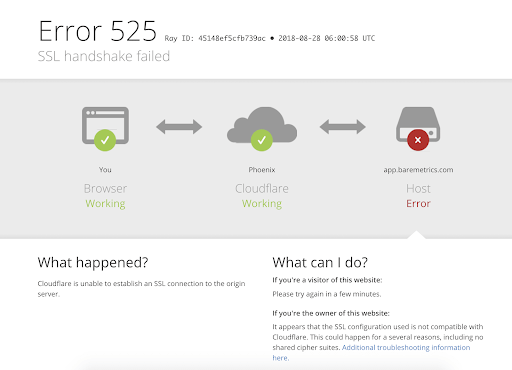
Note: You’ll see these error messages following an API call where a TLS handshake failure occurs.
What causes TLS handshake issues
Generally, Error 525 or Error 503 usually means that there’s been a failed TLS handshake. Some of the causes of the failure can include;
On the server-side, the error causes include;
- Protocol mismatch: The server doesn’t support the protocol that the client used.
- Incorrect certificate: The hostname of the client’s URL does not match the hostname in the certificate stored at the server end, or the certificate is incomplete or invalid, or the certificate is incorrect or expired
- Cipher suite mismatch: The server does not support the cipher suite that the client used.
- SNI enabled server: when the back end SNI (Server Name Identification) is enabled, but the client-server cannot communicate with the SNI servers.
On the client’s side, the causes can include;
- If the connection is being intercepted by a third party.
- If the client’s device has a wrong date or time.
- If the client is experiencing an error with the browser configuration.
How to troubleshoot TLS handshake issues
There are several potential causes of the “TLS Handshake issues.” You can use the following solutions to troubleshoot these issues;
Method #1: Update your system’s date and time
A wrong date or time setting is one of the key causes of TLS handshake issues. Because the system time helps to test whether the certificate is valid or expired, a mismatch between your device’s time or date and that of the server can make the certificates look expired.
Fix the time and date by setting it to automatic, then visit the site again and see if the TLS handshake issue has been fixed.
Method #2: Fix your Browser’s configuration to match the Latest TLS Protocol Support
Your browser is the ‘man in the middle’, and it can affect how your device communicates with the server. Any browser misconfiguration can cause TLS issues.
To check if your browser is the problem, try to use another browser to access the site and see if you are encountering the same problem. If the problem is occurring in all sites, then it’s a system problem.
Perhaps there is a browser extension or security software on your device that is intercepting the TLS connections and causing the problematic TLS handshake. In a number of cases, a virus or malware on the system was involved.
To fix this issue:
- You may need to disable the security software or browser extensions on your device, or,
- Reset your browser.
Method #3: Check and Change TLS Protocols [in Windows]
Browser related problems can also be caused by protocol mismatch.
For instance, if the browser is only configured for a specific TLS value, e.g., TLS 1.0 or TLS 1.1, but the server only supports TLS 1.2, then there’s the communication between the two will lack a mutually-supported protocol. This inevitably leads to a TLS handshake failure.
To check this issue in your browser (Google Chrome):
- Open Chrome browser
- Go to Settings > Advanced
- Scroll down open Systems > Open your computer’s proxy settings
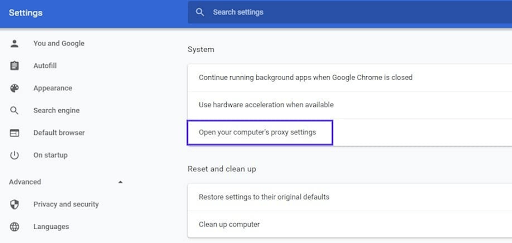
- On the new popup Windows select the Advanced tab.
- In the advanced tab, under the Security section, see if the box next to Use TLS 1.2 is selected > check it if its not checked.
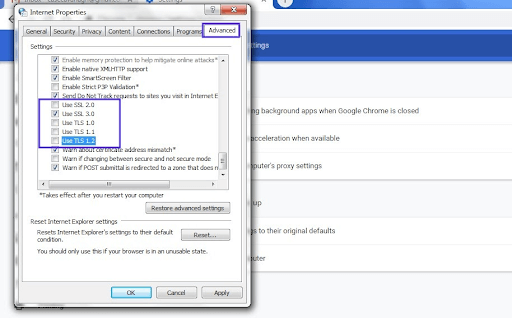
- See if the boxes for SSL 2.0 and SSL 3.0 are checked > then uncheck them if so. Do the same for TLS 1.0 and TLS 1.1.
- Click OK, then check to see if this process has resolved the handshake error.
Note: if you’re using Mac Os or Apple Safari, they don’t provide an option to disable or enable TLS/SSL protocols because TLS 1.2 is, by default, automatically enabled.
Method #4: Verify Your Server Configuration [to Support SNI]
Server name indication (SNI) configuration is one of the key causes of TLS issues. For the server to function properly, the SNI enables it to securely host several TLS certificates/protocols for one IP address.
On a server, each website has its own certificate. So, if the server isn’t SNI-enabled, there is a high likelihood of a TLS handshake failure because the server may fail to recognize the present certificate.
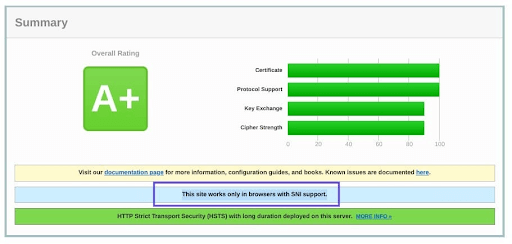
To check and see whether the site requires SNI, you can use the Qualys’ SSL Server Test. you’ll only need to input your site’s domain name, then click Submit and wait for the test to generate results.
On the results page, locate the message that reads “This site works only in browsers with SNI support”:
Method #5: Check and ensure that Cipher Suites Match
A Cipher Suites mismatch is also a key cause of TLS handshake issues, especially TLS handshake failure. Cipher suites are just a set of algorithms, including those for bulk encryption, key exchange, and message authentication code, which are used to secure TLS/SSL network connections.
If the server’s cipher suites don’t match with or support those of Cloudflare, there is a higher likelihood of a “TLD Handshake Failed” error.
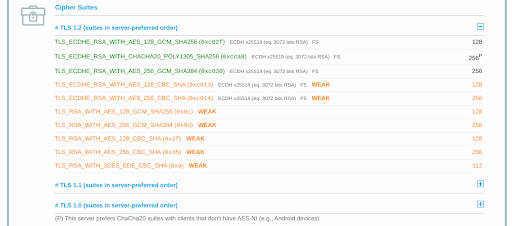
To check the Cipher Suites configuration, you’ll again use the Qualys’ TLS Server Test. Again, just input your domain, then click Submit and wait for the report.
On the results page, check under the Cipher Suites section to locate the Cipher information.
Be keen on the status such as those written ‘Weak.’ You can then correct them by comparing them with your browser support.
Finally
We believe these tips have been easy to follow and that you were able to resolve the TLS handshake issue you encountered. TLS is an extremely vast topic, and there may be other solutions available.
If you found this useful, you might like our email list. We share many new tips, tricks, troubleshooting, how-to guides, product comparisons, and many more help-centered articles every day. Short, elaborate, sweet, and practical!
Also, Read
> Fixed: potential Windows update database error detected
> What is Windows Service Host SuperFetch, and how do you fix it
> Fixed: Google Chrome is waiting for cache issue on Windows 10
> Solved: Ethernet Doesn’t Have A Valid IP Configuration in Windows 10
If you’ve encountered an error messaging saying “TSL Handshake Failed,” and you’re confused about what to do, you’re not alone. TLS handshake failed is a common error. While it can be a frustrating experience, there are ways to troubleshoot TLS handshake issues and solve them.
In this post, you’ll learn what the TLS Handshake Failed error is and why it occurs. Then you’ll learn how to troubleshoot TLS handshake issues.
Let’s get started!
Understanding TLS/SSL
You need to make your website secure so as to establish secure connections between two servers. To do this, you’ll need to install a Secure Sockets Layer (SSL) certificate — SSL encryption and security protocol — on your site. This will enable your site to use HTTPS to ensure secure connections.
Unfortunately, sometimes things don’t go as planned, and you may encounter a problem when making a connection between your site’s server and a visitor’s browser. The problem can occur as a ‘TLS Handshake Failed’ error or any other issue.
Transport Layer Security (TLS) and Secure Sockets Layer (SSL) are security protocols that provide website encryption and identification. They are used to authenticate data transfers between servers, applications, systems such as browsers, and users.
Simply put, you need TLS/SSL certificates to secure your website using HTTPS.
Understanding TLS/SSL handshake
A TLS handshake is a form of communication and agreement between two servers — your sites’ host and the client’s server. It is the first step in the process of establishing a clear HTTPS connection.
To authenticate and establish a connection, your site’s server and the client’s browser must shake hands, i.e., go through a series of checks (the handshake). This establishes the HTTPS connection parameters.
What does this mean?
The client (usually a browser) typically sends a request to establish a secure connection to the site’s server. The server then sends a public key (protocol) to your device and ensures to check that key against a pre-prepared list of protocols/certificates. The device then generates a key and uses the server’s key to encrypt it.
If this back and forth communication doesn’t yield a positive result, i.e., if the SSL handshake fails between the server and the client, HTTPS won’t generate a secure connection, which will result in a TLS/SSL handshake failure. This error can show in two forms;
- HTTP/1.1 503 Service Unavailable
- Received fatal alert: handshake_failure (Error 525)
Note: You’ll see these error messages following an API call where a TLS handshake failure occurs.
What causes TLS handshake issues
Generally, Error 525 or Error 503 usually means that there’s been a failed TLS handshake. Some of the causes of the failure can include;
On the server-side, the error causes include;
- Protocol mismatch: The server doesn’t support the protocol that the client used.
- Incorrect certificate: The hostname of the client’s URL does not match the hostname in the certificate stored at the server end, or the certificate is incomplete or invalid, or the certificate is incorrect or expired
- Cipher suite mismatch: The server does not support the cipher suite that the client used.
- SNI enabled server: when the back end SNI (Server Name Identification) is enabled, but the client-server cannot communicate with the SNI servers.
On the client’s side, the causes can include;
- If the connection is being intercepted by a third party.
- If the client’s device has a wrong date or time.
- If the client is experiencing an error with the browser configuration.
How to troubleshoot TLS handshake issues
There are several potential causes of the “TLS Handshake issues.” You can use the following solutions to troubleshoot these issues;
Method #1: Update your system’s date and time
A wrong date or time setting is one of the key causes of TLS handshake issues. Because the system time helps to test whether the certificate is valid or expired, a mismatch between your device’s time or date and that of the server can make the certificates look expired.
Fix the time and date by setting it to automatic, then visit the site again and see if the TLS handshake issue has been fixed.
Method #2: Fix your Browser’s configuration to match the Latest TLS Protocol Support
Your browser is the ‘man in the middle’, and it can affect how your device communicates with the server. Any browser misconfiguration can cause TLS issues.
To check if your browser is the problem, try to use another browser to access the site and see if you are encountering the same problem. If the problem is occurring in all sites, then it’s a system problem.
Perhaps there is a browser extension or security software on your device that is intercepting the TLS connections and causing the problematic TLS handshake. In a number of cases, a virus or malware on the system was involved.
To fix this issue:
- You may need to disable the security software or browser extensions on your device, or,
- Reset your browser.
Method #3: Check and Change TLS Protocols [in Windows]
Browser related problems can also be caused by protocol mismatch.
For instance, if the browser is only configured for a specific TLS value, e.g., TLS 1.0 or TLS 1.1, but the server only supports TLS 1.2, then there’s the communication between the two will lack a mutually-supported protocol. This inevitably leads to a TLS handshake failure.
To check this issue in your browser (Google Chrome):
- Open Chrome browser
- Go to Settings > Advanced
- Scroll down open Systems > Open your computer’s proxy settings
- On the new popup Windows select the Advanced tab.
- In the advanced tab, under the Security section, see if the box next to Use TLS 1.2 is selected > check it if its not checked.
- See if the boxes for SSL 2.0 and SSL 3.0 are checked > then uncheck them if so. Do the same for TLS 1.0 and TLS 1.1.
- Click OK, then check to see if this process has resolved the handshake error.
Note: if you’re using Mac Os or Apple Safari, they don’t provide an option to disable or enable TLS/SSL protocols because TLS 1.2 is, by default, automatically enabled.
Method #4: Verify Your Server Configuration [to Support SNI]
Server name indication (SNI) configuration is one of the key causes of TLS issues. For the server to function properly, the SNI enables it to securely host several TLS certificates/protocols for one IP address.
On a server, each website has its own certificate. So, if the server isn’t SNI-enabled, there is a high likelihood of a TLS handshake failure because the server may fail to recognize the present certificate.
To check and see whether the site requires SNI, you can use the Qualys’ SSL Server Test. you’ll only need to input your site’s domain name, then click Submit and wait for the test to generate results.
On the results page, locate the message that reads “This site works only in browsers with SNI support”:
Method #5: Check and ensure that Cipher Suites Match
A Cipher Suites mismatch is also a key cause of TLS handshake issues, especially TLS handshake failure. Cipher suites are just a set of algorithms, including those for bulk encryption, key exchange, and message authentication code, which are used to secure TLS/SSL network connections.
If the server’s cipher suites don’t match with or support those of Cloudflare, there is a higher likelihood of a “TLD Handshake Failed” error.
To check the Cipher Suites configuration, you’ll again use the Qualys’ TLS Server Test. Again, just input your domain, then click Submit and wait for the report.
On the results page, check under the Cipher Suites section to locate the Cipher information.
Be keen on the status such as those written ‘Weak.’ You can then correct them by comparing them with your browser support.
Finally
We believe these tips have been easy to follow and that you were able to resolve the TLS handshake issue you encountered. TLS is an extremely vast topic, and there may be other solutions available.
If you found this useful, you might like our email list. We share many new tips, tricks, troubleshooting, how-to guides, product comparisons, and many more help-centered articles every day. Short, elaborate, sweet, and practical!
Also, Read
> Fixed: potential Windows update database error detected
> What is Windows Service Host SuperFetch, and how do you fix it
> Fixed: Google Chrome is waiting for cache issue on Windows 10
> Solved: Ethernet Doesn’t Have A Valid IP Configuration in Windows 10