В Microsoft много людей, особенно из корпоративного сектора, которые используют Microsoft Outlook для управления своей электронной почтой и другими коммуникациями. Некоторые люди даже используют Outlook для своих личных писем. Но иногда при создании новой учетной записи электронной почты выдается ошибка с кодом 0x80070002. Эта основная проблема, связанная с этой ошибкой, заключается в том, что файловая структура повреждена или каталог, в котором этот почтовый клиент хотел создать файлы таблицы личных хранилищ или PST , недоступен , И иногда, когда у вас уже есть учетная запись, настроенная внутри клиента, вы сталкиваетесь с проблемами при отправке или получении электронной почты.
Этот пост поможет вам, если вы получите Произошла неизвестная ошибка, код ошибки 0x80070002 при создании новой учетной записи электронной почты или открытии или создании файла PST в Microsoft Outlook в Windows 10/8/7.
Исправить ошибку 0x80070002 в Outlook
Прежде всего, я бы порекомендовал создать точку восстановления системы на тот случай, если вам понадобится откат к текущему состоянию, если что-то пойдет не так.
Затем мы проверим, создаются ли файлы PST без проблем. Для этого вам нужно будет перейти к следующим путям:
- C: Users ИМЯ ПОЛЬЗОВАТЕЛЯ AppData Local Microsoft Outlook
- C: Users ВАШЕ ИМЯ ПОЛЬЗОВАТЕЛЯ Documents Файлы Outlook
Теперь, чтобы перейти к папке AppData, начните с нажатия комбинаций кнопок WINKEY + R, затем введите % localappdata% и нажмите Enter. Затем перейдите к указанному выше пути.
В случае, если вы не можете перейти по указанному выше пути, вам нужно будет создать этот путь вручную.
Итак, перейдите к C: Users \ Documents, а затем создайте новую папку и назовите ее как OutlookNew.
Затем нажмите комбинацию кнопок WINKEY + R, чтобы запустить утилиту Run, введите regedit и нажмите Enter. После открытия редактора реестра перейдите к следующему
HKEY_CURRENT_USER Software Microsoft Office
Теперь в папке Office откройте папку с именем версии программного обеспечения Office, установленного на вашем компьютере.

Обратитесь к этому списку для вашего номера версии
- Outlook 2007 = 12.0
- Outlook 2010 = 14.0
- Outlook 2013 = 15.0
- Outlook 2016 = 16.0
Теперь, когда вы находитесь в нужной папке, щелкните правой кнопкой мыши в любом месте правой панели, наведите указатель мыши на Новый и нажмите Значение строки.
Назовите новый ключ как ForcePSTPath , а затем нажмите ОК.

Затем щелкните его правой кнопкой мыши и выберите Изменить , а в поле Значения данных введите путь к папке OutlookNew , которую вы только что создали. и нажмите ОК.
Закройте редактор реестра и перезагрузите компьютер, чтобы изменения вступили в силу.
Это должно помочь!
У Microsoft много людей, особенно из сектора Enterprise, которые полагаются на Microsoft Outlook для управления электронной почтой и другими сообщениями. Некоторые люди даже используют Outlook для своих личных писем. Но иногда при создании новой учетной записи электронной почты она выдает ошибку с кодом 0x80070002. Эта основная проблема, связанная с этой ошибкой, заключается в том, что структура файла повреждена или каталог, в котором этот почтовый клиент хотел создать Стол персонального хранения файлов или Тихоокеанское стандартное время файлы недоступны. И иногда, когда у вас уже есть учетная запись, настроенная внутри клиента, вы сталкиваетесь с проблемами отправки или получения электронной почты.
Этот пост поможет вам, если вы получите Произошла неизвестная ошибка, код ошибки 0x80070002 при создании новой учетной записи электронной почты или открытии или создании файла PST в Microsoft Outlook в Windows 10/8/7.
Ошибка исправления 0x80070002 в Outlook
Прежде всего, я бы рекомендовал создать точку восстановления системы только в том случае, если вам нужно откат к текущему состоянию, если что-то пойдет не так.
Затем мы проверим, не создаются ли файлы PST без каких-либо проблем. Для этого вам нужно будет перейти к следующим путям:
- C: Users YOUR USERNAME AppData Local Microsoft Outlook
- C: Users YOUR USERNAME Documents Outlook Files
Теперь, чтобы перейти к папке AppData, начните с нажатия комбинаций кнопок WINKEY + R, а затем введите % LOCALAPPDATA% и нажмите Enter. Затем перейдите к указанному выше пути.
В случае, если вы не можете перейти к указанному выше пути, вам нужно будет создать этот путь вручную.
Итак, перейдите к C: Users Documents а затем создайте новую папку и назовите ее как OutlookNew.
Затем нажмите комбинацию кнопок WINKEY + R, чтобы запустить утилиту Run, введите regedit и нажмите Enter. Когда откроется редактор реестра, перейдите к следующему ключевому местоположению:
HKEY_CURRENT_USERSoftwareMicrosoftOffice
Теперь в папке «Офис» откройте папку, названную после версии программного обеспечения Office, установленной на вашем компьютере.

Обратитесь к этому списку для номера версии —
- Outlook 2007 = 12.0
- Outlook 2010 = 14.0
- Outlook 2013 = 15.0
- Outlook 2016 = 16.0
Теперь, когда вы находитесь в своей соответствующей папке, щелкните правой кнопкой мыши в любом месте правой панели, наведите указатель мыши на новый а затем нажмите Строковое значение.
Назовите новый ключ как ForcePSTPath и затем нажмите OK.

Затем щелкните по нему правой кнопкой мыши и выберите изменять, и в области Данные о ценности, введите путь OutlookNew которую вы только что создали, и нажмите «ОК».
Закройте редактор реестра и перезагрузите компьютер, чтобы изменения вступили в силу.
Это должно помочь!
Tweet
Share
Link
Plus
Send
Send
Pin
В Microsoft есть много людей, особенно из корпоративного сектора, которые полагаются на Microsoft Outlook для управления своей электронной почтой и другими видами связи. Некоторые люди даже используют Outlook для своей личной электронной почты. Но иногда при создании новой учетной записи электронной почты выдает ошибку с кодом 0x80070002. Эта основная проблема, стоящая за этой ошибкой, заключается в том, что структура файла повреждена или каталог, в котором этот почтовый клиент хотел создать Персональный стол для хранения файлы или Тихоокеанское стандартное время файлы недоступны. А иногда, когда у вас уже есть учетная запись в клиенте, вы сталкиваетесь с проблемами отправки или получения электронных писем.
Этот пост поможет вам, если вы получите Произошла неизвестная ошибка, код ошибки 0x80070002 при создании новой учетной записи электронной почты или открытии или создании файла PST в Microsoft Outlook в Windows 10/8/7.
Прежде всего, я бы рекомендовал создать точку восстановления системы на тот случай, если вам нужно вернуться к текущему состоянию, если что-то пойдет не так.
Затем мы проверим, создаются ли файлы PST без каких-либо проблем. Для этого вам нужно будет перейти по следующим путям:
- C: Users ВАШЕ ИМЯ ПОЛЬЗОВАТЕЛЯ AppData Local Microsoft Outlook
- C: Users ВАШЕ ИМЯ ПОЛЬЗОВАТЕЛЯ Documents Outlook Files
Теперь, чтобы перейти к папке AppData, начните с нажатия комбинаций кнопок WINKEY + R, затем введите% localappdata% и нажмите Enter. Затем перейдите по указанному выше пути.
В случае, если вы не можете перейти по указанному выше пути, вам нужно будет создать этот путь вручную.
Итак, перейдите к C: Users Documents, а затем создайте новую папку и назовите ее OutlookNew.
Затем нажмите комбинацию кнопок WINKEY + R, чтобы запустить утилиту Run, введите regedit и нажмите Enter. После открытия редактора реестра перейдите к следующему ключевому местоположению —
HKEY_CURRENT_USER Программное обеспечение Microsoft Office
Теперь в папке Office откройте папку, названную в честь версии программного обеспечения Office, установленной на вашем компьютере.
Обратитесь к этому списку, чтобы узнать номер вашей версии —
- Outlook 2007 = 12.0
- Outlook 2010 = 14.0
- Outlook 2013 = 15.0
- Outlook 2016 = 16.0
Теперь, когда вы находитесь в соответствующей папке, щелкните правой кнопкой мыши в любом месте правой панели, наведите указатель мыши на «Создать» и затем нажмите «Строковое значение».
Назовите новый ключ ForcePSTPath и нажмите OK.
Затем щелкните его правой кнопкой мыши и выберите Изменить, а затем в поле Данные значения, вступить на путь OutlookNew папку, которую вы только что создали, и нажмите ОК.
Закройте редактор реестра и перезагрузите компьютер, чтобы изменения вступили в силу.
Это должно помочь!
.
Download PC Repair Tool to quickly find & fix Windows errors automatically
Microsoft has a lot of people, especially from the Enterprise sector who rely on Microsoft Outlook for managing their emails and other communication. Some people even use Outlook for their personal emails. But sometimes while creating a new email account, it throws an error with a code 0x80070002. This main issue behind this error is that the file structure is corrupted or the directory where this mail client wanted to create Personal Storage Table files or PST files is inaccessible. And sometimes when you already have an account set up inside of the client, you face issues sending or receiving emails.
This post will help you if you receive An unknown error occurred, Error code 0x80070002 when creating a new email account, or opening or creating a PST file in Microsoft Outlook in Windows 11/10/8/7.
First of all, I would recommend creating a System Restore point just in case you need to rollback to the current state if something goes wrong.
Then, we will verify if the PST files are being created without any issues. For that, you will need to navigate to the following paths-
- C:UsersYOUR USERNAMEAppDataLocalMicrosoftOutlook
- C:UsersYOUR USERNAMEDocumentsOutlook Files
Now, in order to navigate to the AppData folder, start by hitting the WINKEY+R button combinations, and then type in %localappdata% and hit Enter. Then, navigate to the path mentioned above.
In case, that you are not able to navigate to the path stated above, you will need to create this path manually.
So, navigate to C:Users<USERNAME>Documents and then create a new folder and name it as OutlookNew.
Then, hit the WINKEY + R button combination to launch the Run utility, type in regedit and hit Enter. Once Registry Editor opens, navigate to the following key location-
HKEY_CURRENT_USERSoftwareMicrosoftOffice
Now, under the Office folder, open the folder named after the version of the Office software installed on your computer.
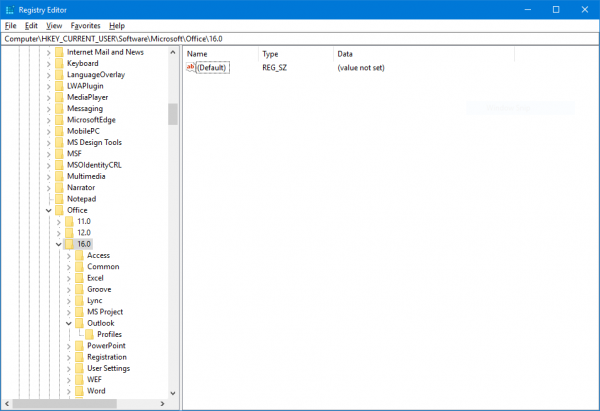
Refer to this list for your version number-
- Outlook 2007 = 12.0
- Outlook 2010 = 14.0
- Outlook 2013 = 15.0
- Outlook 2016 = 16.0
Now, when you are inside your appropriate folder, right-click anywhere on the right panel, hover over New and then click on String Value.
Name the new key as ForcePSTPath and then press OK.
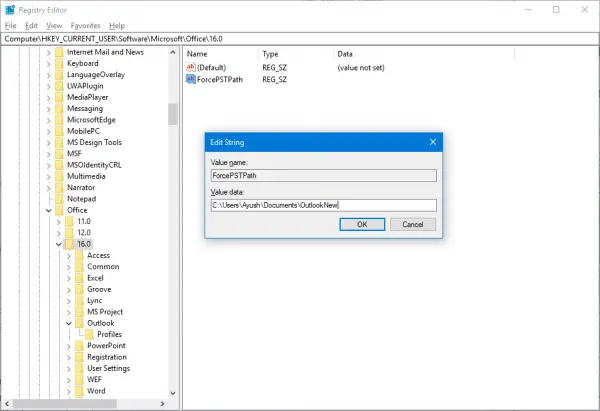
Next, right-click on it and select Modify, and under the field of Value Data, enter the path of the OutlookNew folder that you just created, and click on OK.
Close the Registry Editor and reboot your computer for the changes to take effect.
This should help!
Read: Fix System Restore error 0x80070002

Ayush has been a Windows enthusiast since the day he got his first PC with Windows 98SE. He is an active Windows Insider since Day 1 and has been a Windows Insider MVP.
Download PC Repair Tool to quickly find & fix Windows errors automatically
Microsoft has a lot of people, especially from the Enterprise sector who rely on Microsoft Outlook for managing their emails and other communication. Some people even use Outlook for their personal emails. But sometimes while creating a new email account, it throws an error with a code 0x80070002. This main issue behind this error is that the file structure is corrupted or the directory where this mail client wanted to create Personal Storage Table files or PST files is inaccessible. And sometimes when you already have an account set up inside of the client, you face issues sending or receiving emails.
This post will help you if you receive An unknown error occurred, Error code 0x80070002 when creating a new email account, or opening or creating a PST file in Microsoft Outlook in Windows 11/10/8/7.
First of all, I would recommend creating a System Restore point just in case you need to rollback to the current state if something goes wrong.
Then, we will verify if the PST files are being created without any issues. For that, you will need to navigate to the following paths-
- C:UsersYOUR USERNAMEAppDataLocalMicrosoftOutlook
- C:UsersYOUR USERNAMEDocumentsOutlook Files
Now, in order to navigate to the AppData folder, start by hitting the WINKEY+R button combinations, and then type in %localappdata% and hit Enter. Then, navigate to the path mentioned above.
In case, that you are not able to navigate to the path stated above, you will need to create this path manually.
So, navigate to C:Users<USERNAME>Documents and then create a new folder and name it as OutlookNew.
Then, hit the WINKEY + R button combination to launch the Run utility, type in regedit and hit Enter. Once Registry Editor opens, navigate to the following key location-
HKEY_CURRENT_USERSoftwareMicrosoftOffice
Now, under the Office folder, open the folder named after the version of the Office software installed on your computer.
Refer to this list for your version number-
- Outlook 2007 = 12.0
- Outlook 2010 = 14.0
- Outlook 2013 = 15.0
- Outlook 2016 = 16.0
Now, when you are inside your appropriate folder, right-click anywhere on the right panel, hover over New and then click on String Value.
Name the new key as ForcePSTPath and then press OK.
Next, right-click on it and select Modify, and under the field of Value Data, enter the path of the OutlookNew folder that you just created, and click on OK.
Close the Registry Editor and reboot your computer for the changes to take effect.
This should help!
Read: Fix System Restore error 0x80070002
Ayush has been a Windows enthusiast since the day he got his first PC with Windows 98SE. He is an active Windows Insider since Day 1 and has been a Windows Insider MVP.
Summary: In this post, we discuss some common reasons behind an unknown error occurred – error code 0x80070002 in Outlook. In addition, we mention the solutions to fix this Microsoft Outlook error. You can also find about a professional Outlook repair tool that can fix the error if the cause is PST file corruption.

Microsoft Outlook is a feature-rich and powerful email client that’s used by a wide range of organizations. However, like other software applications, it’s prone to errors. The error code 0x80070002 is one such error that can trouble Outlook users.
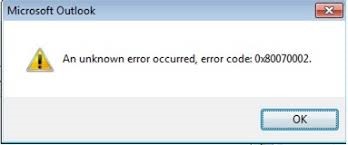
There are two main situations in which you can encounter unknown error code 0x80070002 in Outlook:
- The directory where Outlook needs to save the PST file is inaccessible.
- The Outlook PST file is corrupt.
Let’s consider both situations, along with the solutions:
Case #1: Inaccessible Directory
Outlook can create and save PST files successfully only when it can access the following paths:
- C:UsersYourUsernameAppDataLocalMicrosoftOutlook
- C:UsersYourUsernameDocumentsOutlook Files
You can locate and navigate to these paths to confirm if the folders Outlook and Outlook Files can be accessed. If these paths are broken, you can manually create the paths. For that, follow these steps:
- Go to C:UsersYourUsernameDocuments and create a new folder OutlookNew.
- Search Regedit utility i.e. Registry Editor by using Windows Search and launch the program.
- Go to HKEY_CURRENT_USERSoftwareMicrosoftOffice
- Click the folder that bears your Office Version [See Image 1]
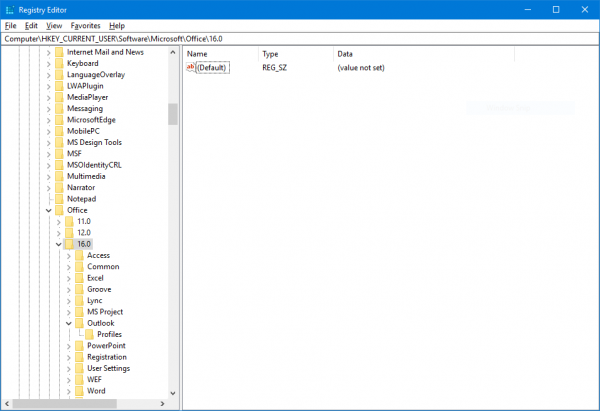
Image 1: Registry Editor Window
Refer this list to find your Office version number:
- Outlook 2007 = 12.0
- Outlook 2010 = 14.0
- Outlook 2013 = 15.0
- Outlook 2016 & Office 2019 = 16.0
- Right-click at the empty region in the right panel.
A small tab will appear.
- Select New and then select String Value.
A new window will open.
- In the Value name field, enter ForcePSTPath and click OK.
- Right-click ForcePSTPath and select Modify.
- In Value Data field, enter the path of the OutlookNew folder.
- Click OK and close Registry Editor.
- Restart computer.
Creating path for PST can help resolve the unknown error code 0x80070002 in most situations.
Case #2: Corrupt PST File
Sometimes, the reason behind unknown error code 0x80070002 in Outlook is a corrupt PST file. Repairing a corrupt PST file can fix the error. You can use Outlook’s in-built inbox repair tool – Scanpst.exeto repair the PST file. You can find the tool in the following locations:
In Outlook 2007:
- C:Program FilesMicrosoft OfficeOffice12
- C:Program Files(x86)Microsoft OfficeOffice12
In Outlook 2010
- C:Program FilesMicrosoft OfficeOffice14
- C:Program FilesMicrosoft Office(x86)Office14
In Outlook 2013:
- C:Program FilesMicrosoft OfficeOffice15
- C:Program Files(x86)Microsoft OfficeOffice15
In Outlook 2016:
- C:Program FilesMicrosoft OfficerootOffice16
- C:Program Files(x86)Microsoft OfficerootOffice16
In Outlook 2019:
- C:Program FilesMicrosoft OfficerootOffice16
To repair corrupt PST by using the Inbox Repair tool, follow these steps:
- Launch Scanpst.exe.
- Click Browse and go to the location of the PST file.
- Click Start to initiate the scanning process.
When the scanning process completes, a new window appears displaying the errors found.
- Click Repair to remove the errors.
Outlook Inbox Repair tool can easily repair a corrupt PST file in most cases. However, if the PST file is severely corrupted or oversized, then this tool may fail to repair the file. In that case, you can use a third-party application such as Stellar Repair for Outlook.
Why Stellar Repair for Outlook?
Stellar Repair for Outlook is an advanced PST repair tool that can repair even severely corrupt PST files of any size. You can use the tool to:
- Recover emails, contacts, attachments, and even deleted items
- Repair PST files of all Outlook versions viz. 2019, 2016, 2013, and older
- Perform selective repairing by previewing and selecting the desired items in a PST file
- Repair password-protected PST files
Follow these steps to repair corrupt PST file by using Stellar Repair for Outlook:
1. Install the software.

2. Launch the software and click Select Outlook PST in the Home tab.
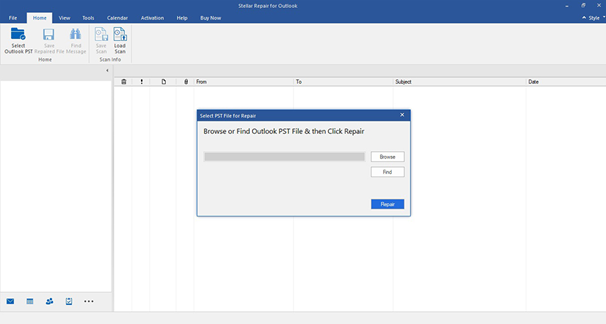
A new window will open.
3. Click Browse and enter the location of the PST file that you want to repair.
Note: If you don’t know the location of the PST, click Find.
4. Click Repair to initiate scanning.
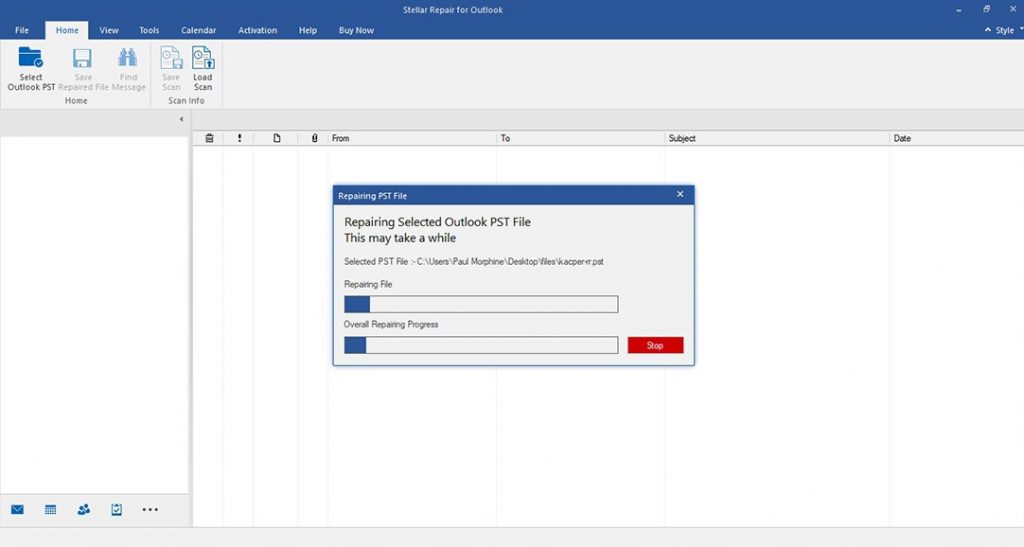
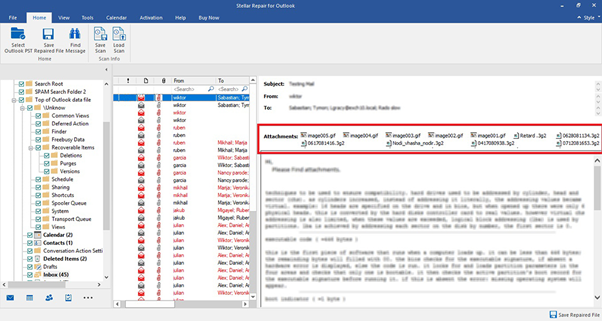
Once scanning is finished, a window will appear with the list of restored files and folders that are available in the PST file.
5. Select the files and folders you want to save and click Save Repaired File in the Home tab.
A window will appear with different file formats for saving the recovered mailbox data.
6. Pick a file format for saving the repaired data.
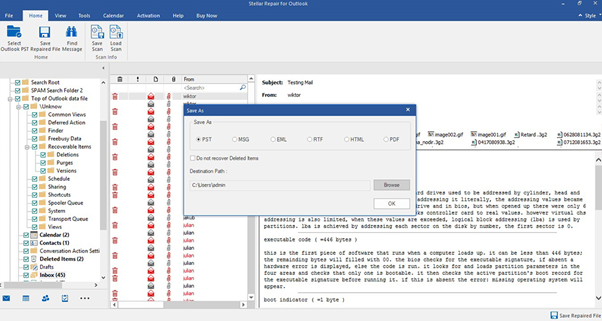
7. Click Browse and enter the location where you want to save the repaired files and click OK.
Repairing the PST file by using Stellar Repair for Outlook can help fix the unknown error code 0x80070002.
Conclusion
When using Microsoft Outlook, you may come across the error code 0x80070002. The error occurs if the path to save the PST is inaccessible/broken or the PST file is corrupt. You can try to resolve the error by creating a new path for the PST file. For fixing minor corruption in the PST file, you can use the Microsoft Outlook Inbox Repair tool. However, if the PST file is severely corrupted, use a specialized PST repair tool such as Stellar Repair for Outlook. This advanced software repairs and recovers all mailbox items such as email, attachments, notes, contacts, etc., in a few clicks.
About The Author

Abhinav Sethi
Abhinav Sethi is a Senior Writer at Stellar. He writes articles, blog posts, knowledge-bases, case studies, etc. for different technologies. He also has a keen interest in digital forensics and helps forward-thinking companies fight different threats with apt solutions.
Best Selling Products
Stellar Outlook PST Recovery Tool
Stellar Outlook PST recovery software is
Read More
Stellar Advanced Repair Tool for Outlook
Advanced software, trusted and recommend
Read More
Stellar Toolkit to Manage Outlook Data Files (OST/PST)
Advanced “8-in-1” software package f
Read More
Stellar Convert, Compact and Split OST File & Save as PST
Advanced tool, recommended by Microsoft
Read More