В этой статье мы расскажем о возможных причинах, по которым не запускается виртуальная машина VMware Workstation. Мы рассмотрим самые распространённые ошибки, а также разберём, почему они возникают и как их исправить.
Ошибка VMware Workstation and Device/Credential Guard are not compatible
При включении VMware Workstation на Windows 10 может возникнуть ошибка со следующим текстом:
VMware Workstation and Device/Credential Guard are not compatible. VMware Workstation can be run after disabling Device/Credential Guard. Please visit http://www.vmware.com/go/turnoff_CG_DG/ for more detailsЧаще всего эта ошибка возникает из-за того, что включено ПО Device Guard — оно помогает защитить систему от вредоносных файлов. Device Guard позволяет настроить список файлов, которые Windows будет считать безопасными. Если на компьютер попадут файлы, которые не входят в список, система автоматически удалит их. Работе VMware в таких случаях мешает компонент Hyper-V.
Как исправить
Обратите внимание
Чтобы отключить Hyper-V, необходимо внести изменения в реестр Windows. Перед отключением Hyper-V обязательно создайте резервную копию ОС.
Чтобы исправить ошибку, отключите Hyper-V с помощью функционала «Выполнить».
-
1.
Нажмите сочетание клавиш Win + R.
-
2.
В поисковую строку введите «gpedit.msc» и нажмите Ок.
-
3.
Перейдите в раздел «Политика Локальный компьютер» — «Конфигурация компьютера» — «Административные шаблоны» — «Система» — «Device Guard». Дважды кликните на строку «Включить средство обеспечения безопасности на основе виртуализации».
-
4.
В новом окне выберите пункт «Отключено» и нажмите Ok.
-
5.
Перейдите в раздел «Панель управления» — «Программы и компоненты» — «Включение или отключение компонентов Windows». Отключите Hyper-V и нажмите Ок. Если система предложит перезагрузить компьютер, откажитесь от перезагрузки.
-
6.
Откройте командную строку от имени администратора. Поочередно выполните команды:
bcdedit /create {0cb3b571-2f2e-4343-a879-d86a476d7215} /d "DebugTool" /application osloaderbcdedit /set {0cb3b571-2f2e-4343-a879-d86a476d7215} path "EFIMicrosoftBootSecConfig.efi"bcdedit /set {bootmgr} bootsequence {0cb3b571-2f2e-4343-a879-d86a476d7215}bcdedit /set {0cb3b571-2f2e-4343-a879-d86a476d7215} loadoptions DISABLE-LSA-ISO,DISABLE-VBSbcdedit /set hypervisorlaunchtype offЗатем перезагрузите компьютер.
Ошибка Cannot open the disk
Ещё одна распространенная ошибка при запуске виртуальной машины в VMware — Cannot open the disk. Её текст следующий:
An unexpected error was received from the ESX host while powering on VM.На следующей строке будет указана одна из причин этой ошибки. Разберём, что означает каждая:
1) Failed to lock the file. Это значит, что процесс, который вы используете, не может открыть файл. При этом файл используется другим процессом. Что может привести к ошибке:
- при работе с ВМ вы пытаетесь запустить вторую ВМ, используя тот же VMX-файл,
- вы запустили ВМ с подключенным диском при помощи утилиты vmware-mount,
- вы добавили виртуальный диск к ВМ, которая уже используется.
2) The parent virtual disk has been modified since the child was created. Эта ошибка возникает, если повреждён снимок ВМ.
3) The destination file system does not support large files означает, что на целевом хранилище невозможно открыть файл ВМ того же размера.
4) Could not open/create change tracking file. Эта проблема может возникнуть, если файл filename-ctk.vmdk создавался ранее и не очищался перед созданием новой ВМ. Здесь filename — это название вашего файла.
5) Cannot allocate memory. Тот случай, когда в модуле VMFS не хватает места.
6) The file specified is not a virtual disk возникает в случаях, если повреждён .VMDK-файл дескриптора.
7) Insufficient permission to access file. Такая проблема может возникнуть при использовании хранилищ типа NFS. Она сообщает о том, что экспорт NFS работает неправильно, так как права на чтение и запись файла не даны либо даны некорректно.
Как исправить
Единого решения для этого типа ошибки нет. Чаще всего причина связана с локальными настройками компьютера. Рекомендации по исправлению ошибки описаны в официальной документации.
- VMware Workstation and Device/Credential Guard are not compatible
В статье мы расскажем, почему не запускается виртуальная машина VMware WorkStation после обновления Windows, и дадим инструкцию по исправлению этой проблемы.
VMware Workstation and Device/Credential Guard are not compatible
Эта ошибка может возникнуть при запуске виртуальной машины VMware Workstation версии 12.5 и выше в Windows 10 версии 1909 и ниже. Причина ошибки в том, что Hyper-V несовместим с Workstation Pro и Workstation Player. Есть 2 способа решения этой проблемы:
- обновление Workstation до версии 15.5.6 или выше,
- отключение Hyper-V в Windows.
Мы советуем обновить Workstation, так как этот способ проще.
Как обновить Workstation Player и Workstation Pro
- Запустите VMware Workstation.
- Интерфейс версий Player и Pro отличается, поэтому:
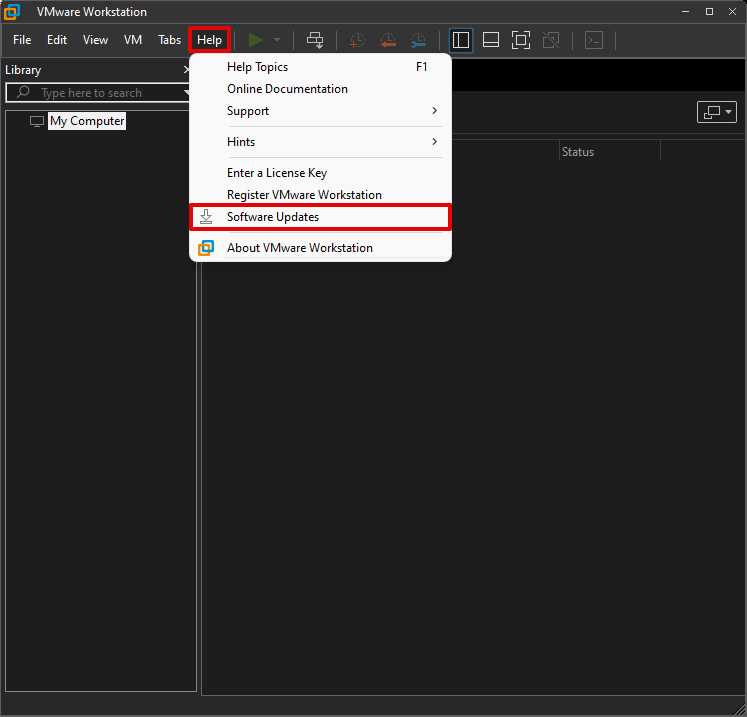
— для обновления Pro-версии откройте меню Help и нажмите Software Updates:
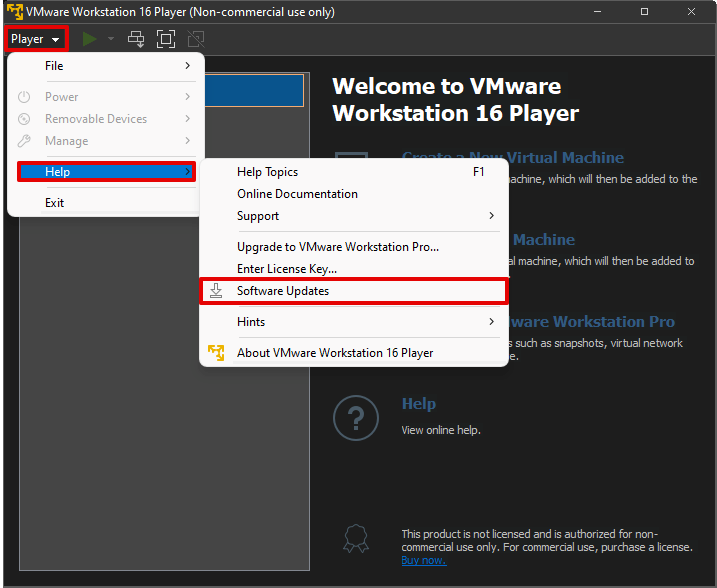
— для обновления версии Player нажмите Player. Затем в выпадающем меню наведите курсор мыши на Help и нажмите Software Updates:
- Обновите программу.
Готово, вы обновили Workstation. Чтобы проверить, возникает ли в VMware workstation ошибка, запустите виртуальную машину.
Как отключить Hyper-V в Windows
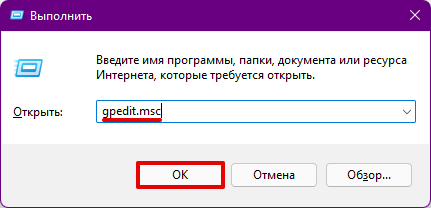
- Нажмите Win + R, введите gpedit.msc и нажмите OK:
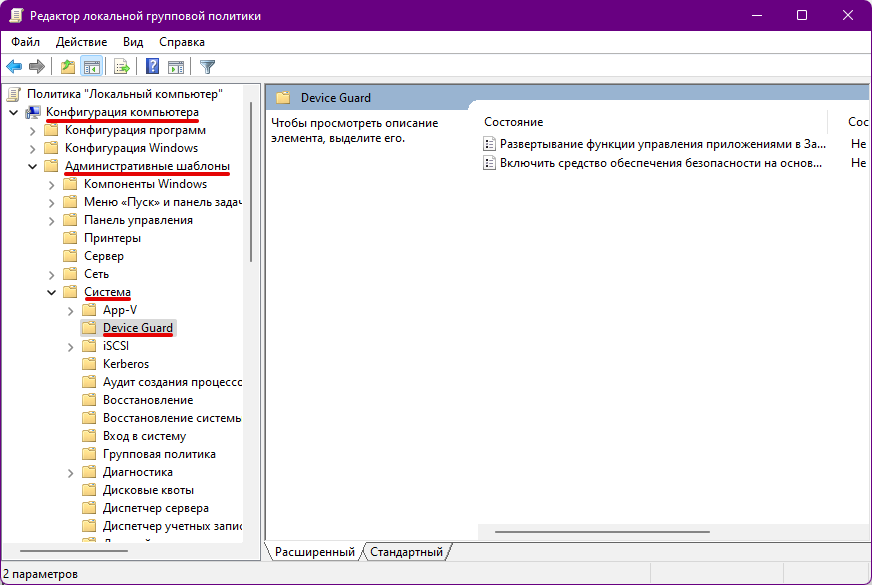
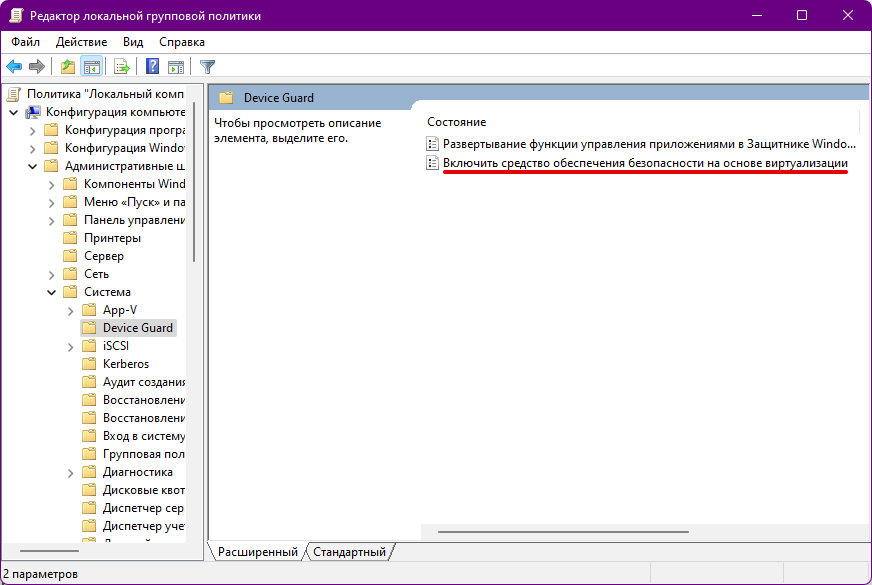
- В левом меню перейдите в Административные шаблоны ― Система ― Device Guard:
- Дважды кликните на «Включить средство обеспечения безопасности на основе виртуализации»:
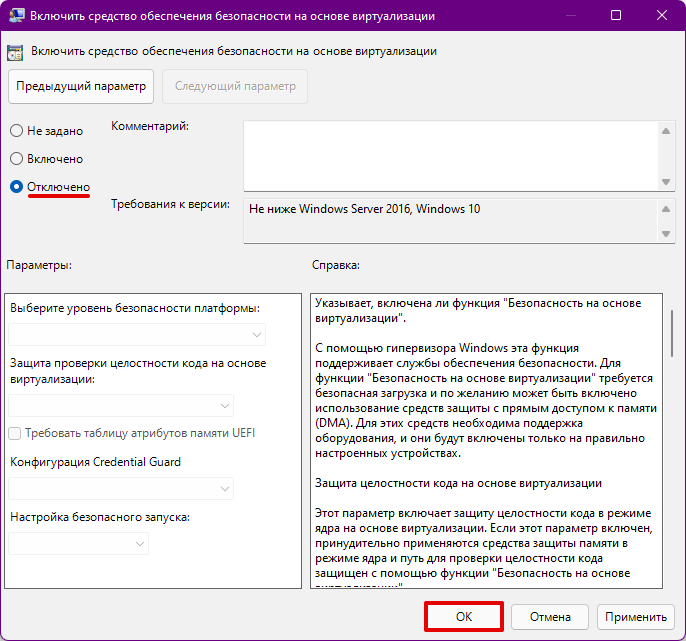
- Выберите «Отключено» и нажмите OK:
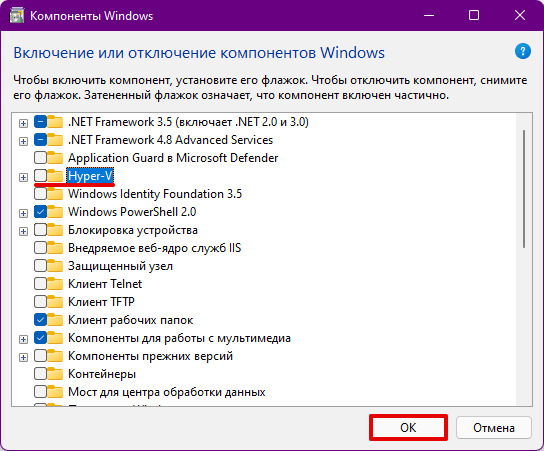
- При помощи встроенного в операционную систему поиска найдите и запустите утилиту «Включение или отключение компонентов Windows».
- В списке уберите галочку напротив компонента Hyper-V и нажмите OK:
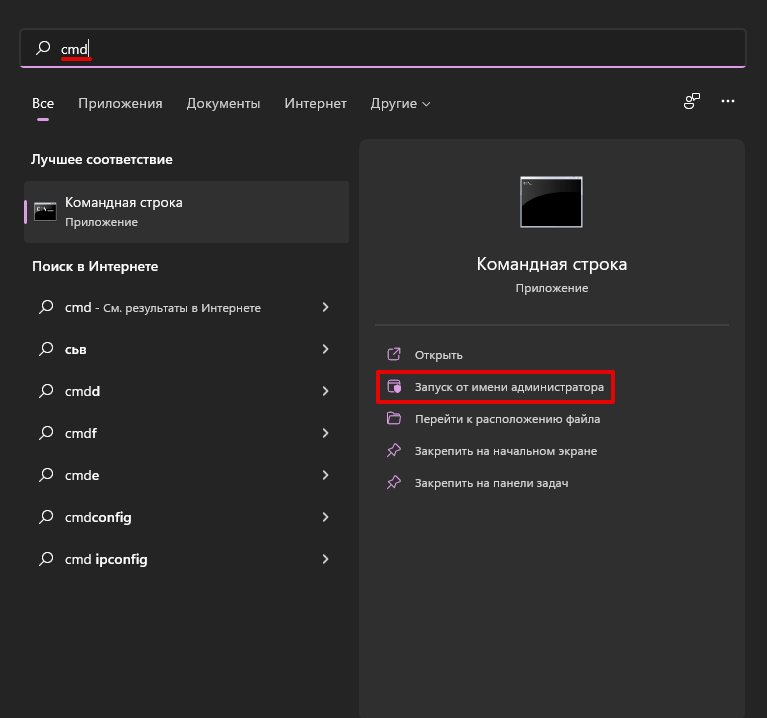
- При помощи встроенного в операционную систему поиска найдите командную строку и запустите её от имени администратора:
- Выполните следующие команды по очереди:
bcdedit /create {0cb3b571-2f2e-4343-a879-d86a476d7215} /d "DebugTool" /application osloaderbcdedit /set {0cb3b571-2f2e-4343-a879-d86a476d7215} path "EFIMicrosoftBootSecConfig.efi"bcdedit /set {bootmgr} bootsequence {0cb3b571-2f2e-4343-a879-d86a476d7215}bcdedit /set {0cb3b571-2f2e-4343-a879-d86a476d7215} loadoptions DISABLE-LSA-ISO,DISABLE-VBSbcdedit /set hypervisorlaunchtype off -
Перезагрузите компьютер и проверьте, возникает ли в VMware ошибка при запуске виртуальной машины.
Готово, вы решили проблему “VMware Workstation and Device”.
VMware Workstation – программа виртуализации одной или нескольких операционных систем на персональном компьютере. Обычно её используют для тестирования различного софта и дистрибутивов. Но многие пользователи столкнулись с проблемой – vmware workstation ошибка при включении виртуальной машины:
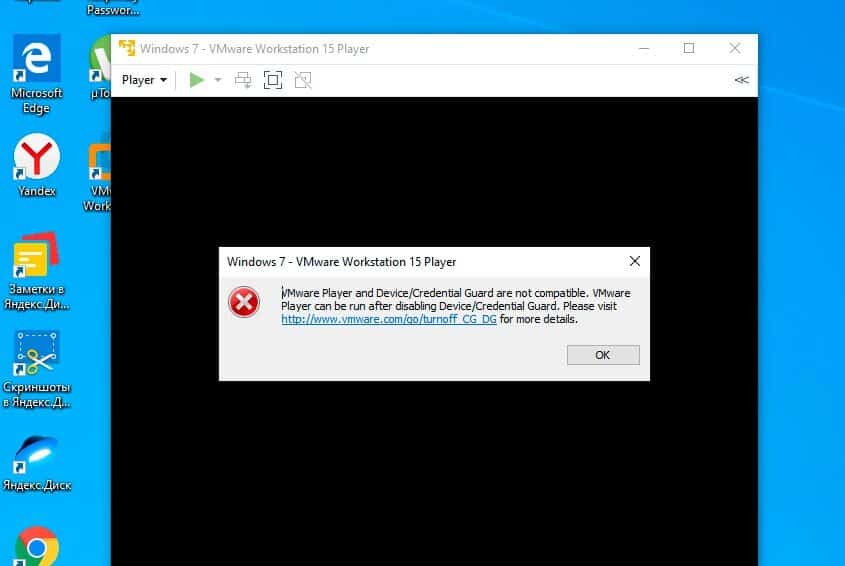
VMware Workstation and Device/Credential Guard are not compatible. VMware Workstation can be run after disabling Device/Credential Guard.
Начиная с версии VMware Workstation 12.5 на Windows 10 не запускается виртуальная машина. Всё из-за защиты учётных записей, и для того чтобы виртуалка работала корректно, нужно отключить этот самый защитник.
Для начала нужно открыть командную строку комбинацией клавиш «WIN+R» и ввести команду «gpedit.msc» и подтвердить действие, кликнув на «ОК» или нажать «Enter» на клавиатуре.
Откроется Редактор групповой политики, ищем раздел «Политика Локальный компьютер», далее переходим в «Конфигурация компьютера», потом «Административные шаблоны», дальше «Система», и справа ищем папку «Device Guard».
В ней находятся два элемента, выбираем и открываем “Включить средство обеспечения безопасности на основе виртуализации”.
В открывшемся окне слева будет три пункта (так называемые «радиобаттон»), нужно будет переключить на “Отключено” и кликнуть на «ОK».
Следующий шаг, заходим в «Панель управления» – «Программы и компоненты» – «Включение или отключение компонентов Windows», снимаем галочку с «Hyper-V», нажимаем «ОК» и не перезагружаем компьютер.
Далее нужно запустить командную строку «CMD» от имени администратора и выполнить несколько команд:
- bcdedit /create {0cb3b571-2f2e-4343-a879-d86a476d7215} /d “DebugTool” /application osloader
- bcdedit /set {0cb3b571-2f2e-4343-a879-d86a476d7215} path “EFIMicrosoftBootSecConfig.efi”
- bcdedit /set {bootmgr} bootsequence {0cb3b571-2f2e-4343-a879-d86a476d7215}
- bcdedit /set {0cb3b571-2f2e-4343-a879-d86a476d7215} loadoptions DISABLE-LSA-ISO,DISABLE-VBS
- bcdedit /set hypervisorlaunchtype off
Теперь можно перезагрузить ПК и запустить виртуальную машину, всё должно заработать и никакой ошибки не должно всплывать.
Теперь вы знаете как исправить ошибку VMware Workstation and Device/Credential Guard are not compatible, если статья вам помогла, вступайте в наш паблик ВК, где можно найти полезную и интересную информацию.
🔥 На прошлой неделе после того как решил потестить windows sandbox у меня перестал загружаться виндоус (если у вас такая же проблема читайте мою статью как я это победил) так вот в выходные переставил свой Windows 10 PRO (скачать оригинальный образ Windows 10PRO можно по этой статье) и при установке WMware версия 15.5.1 и запуску одной из моей виртуалок выдала такую ошибку:

✅ VMware Workstation and Device/Credential Guard are not compatible. VMware Workstation can be run after disabling Device/Credential Guard.
🔥 Не запускается виртуальные машины VMware что делать?
Начал изучать этот вопрос и он в основном появляется на Windows 10, Windows Server 2016 и Windows Server 2019
✅ Что такое Credential Guard — это система защита учётных записей которая изолирует данные с помощью технологий основанных на виртуализации, а доступ к ним могут получить только привилегированные службы и системы.
Более подробно по работе и управлению Credential Guard можно прочитать на официальном сайте Микрософт — ⚡️⚡️⚡️ ссылка
Наша же задача решить данную проблему для того что бы запустить нашу виртуальную машину.
✅ VMware Workstation и Hyper-V несовместимы — Данная проблема возникает по большей части из-за конфликта виртуализации Hyper-V которая уже при загрузки ОС резервирует на себя все аппаратные возможности виртуализации процессора, а остальным ничего не остается поэтому нам это надо отключить!
🔥 В статье приведу несколько способов которые можно использовать!
Способ 1 — Отключаем Hyper-V
- Запускаем командную строку WIN + R
- Вводим команду cmd которая нам откроет терминал в котором мы вводим следующую команду
bcdedit /set hypervisorlaunchtype off
Этой командой мы отключаем службу Hyper-V на нашем компьютеере
- Перезагружаем компьютер
Если его нужно вернуть все обратно, тогда нужно будет выполнить команду bcdedit /set hypervisorlaunchtype auto
PS Если после перезагрузки у Вас не заработала VMware тогда переходите ко второму способу.
Способ 2 — Отключаем ядро
В данном способе мы не просто отключим изоляцию ядра в настройках.
- Заходим в настройки и в меню выбираем Обновление и Безопасность

- Переходим в меню Безопасность Windows и выбираем Безопасность Устройства

- Далее переходим в Безопасность устройства и в пункте Изоляция ядра нажимаем на ссылку

- переводим ползунок в режим Откл закрываем и перезагружаем компьютер

- Если этот способ не помог, переходим ко второй инструкции
Способ 3 — Отключаем Credential Guard
- Запускаем командную строку WIN + R
- Вводим команду gpedit.msc которая нам откроет — Редактор локальной и групповой политики
- Длаее идем в ветку: Конфигурация компьютера => Административные шаблоны => Система => Device Guard
- Открываем службу Включить средство обеспечения безопасности на основе виртуализации и нам надо ее отключить

- на этом закрываем Редактор локальной и групповой политики
- Запускаем командную строку WIN + R
- Вводим команду appwiz.cpl которая нам откроет Программы и компоненты и тут выбираем меню Включение или отключение компонентов Windows

- В открывшемся окне снимаем галку с пункта Hyper-V

- Перезагружаем компьютер
Вот наверно и все! Таким образом мы решили проблему конфликта виртуализации между приложениями VMware Workstation и Hyper-V! Если у вас есть какие то замечания или дополнения пишите в комментариях.

nibbl
Я отец двух сыновей, ITишник, предприниматель и просто человек который любит делиться полезной информацией с другими людьми на такие темы как: Windows, Unix, Linux, Web, SEO и многое другое!
Что делать, если при попытке запуска виртуальной машины в программе-гипервизоре VMware или её проигрывателе машина не запускается, при этом выдаёт ошибку «VMware Workstation does not support virtualized performance counters on this host». Эта ошибка присуща всем программам-гипервизорам компании VMware, давайте посмотрим, как её можно решить. Когда эта ошибка появляется при запуске виртуальной машины, в окошке ошибки есть отсылка на сайт поддержки VMware.
Где описывается причина и предлагается решения.
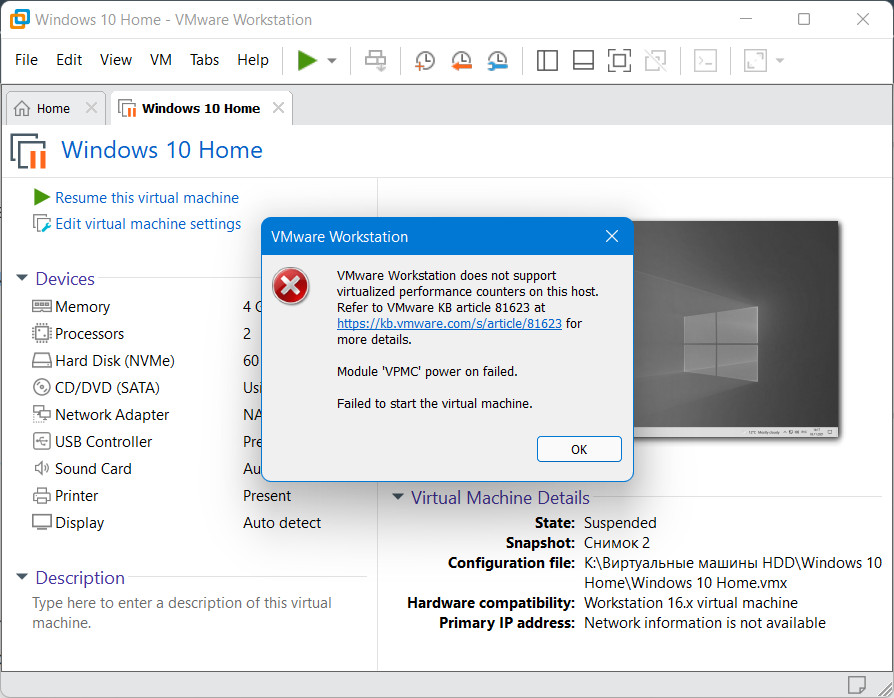
Причиной ошибки, в частности, в среде Windows являются запущенные хост-процессы Hyper-V, нативного гипервизора Windows.
Если в Windows активен непосредственно сам Hyper-V, машины других программ-гипервизоров не запускаются, и это касается всех подряд машин. А вот при активности не самого Hyper-V, а системных компонентов типа песочницы Windows, базирующихся на технологиях Hyper-V, в сторонних программах-гипервизорах виртуальные машины могут вести себя по-разному и выдавать, в частности, такую ошибку.
Компания VMware в качестве решения этой проблемы предлагает зайти в настройки процессора выключенной машины и отключить опцию виртуализации счётчиков производительности.
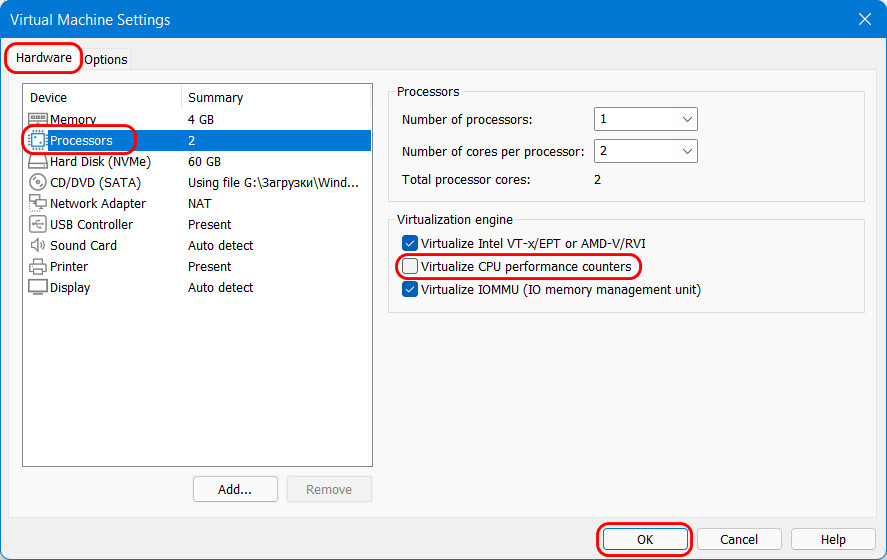
Можете попробовать этот вариант, но, увы, он не всегда может решить проблему.
Кардинальное её решение для Windows – отключить системный компонент, базирующийся на технологиях Hyper-V, который провоцирует конфликт в работе сторонних гипервизоров.
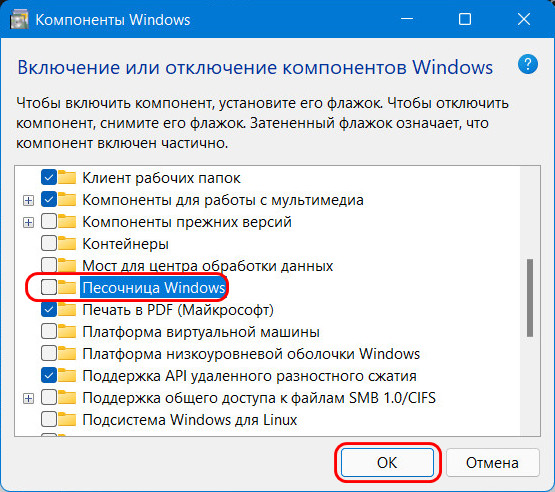
Чтобы отключить этот компонент, в панели управления заходим в раздел «Программы», запускам включение/отключение компонентов Windows.
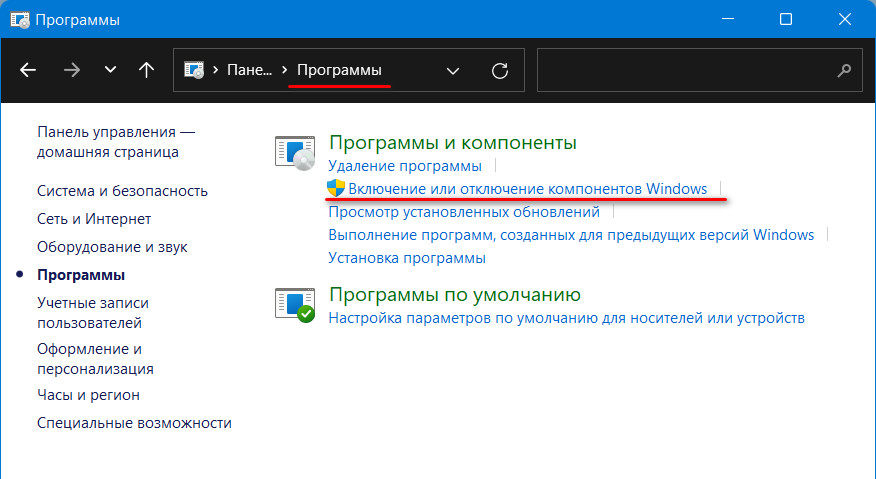
И, снимая галочку, отключаем компонент, вызывающий конфликт, в нашем случае это песочница Windows.
 Загрузка…
by Farhad Pashaei
As a technophile, Farhad has spent the last decade getting hands-on experience with a variety of electronic devices, including smartphones, laptops, accessories, wearables, printers, and so on. When… read more
Published on April 8, 2022
- VMware Workstation has two variants; a Player version for basic users and a Pro version for virtual machines professional users.
- VMX file is corrupted error does not mean your VM file is corrupted because it’s different from the VMDK file that stores all the info.
- The VMware Workstation Pro has VMware-vdiskmanager.exe within its installation package that can help you solve the problems way easier.
XINSTALL BY CLICKING THE DOWNLOAD FILE
This software will repair common computer errors, protect you from file loss, malware, hardware failure and optimize your PC for maximum performance. Fix PC issues and remove viruses now in 3 easy steps:
- Download Restoro PC Repair Tool that comes with Patented Technologies (patent available here).
- Click Start Scan to find Windows issues that could be causing PC problems.
- Click Repair All to fix issues affecting your computer’s security and performance
- Restoro has been downloaded by 0 readers this month.
Although VMware Workstation is a commonly used piece of software, it is not without flaws, one of which is VMX file is corrupted error while opening the virtual machine.
VMware Workstation was initially launched in 2001 and has since developed to become the go-to option until this day.
With excellent hardware compatibility support, you should find your experience with VMware Workstation to be silky smooth and very productive.
The software is used by web developers, software engineers, IT administrators, or simply any technology-loving geek!
However, nothing is perfect, and VMware Workstation is no exception. Right now, we are going to solve one of the common errors, which is known as the VMX file being corrupted.
What are the differences between the Pro and Player version of VMware Workstation?
- VMware Workstation Player is available for free; however, VMware Workstation Pro requires a license. Both operate on top of the host operating system, either Windows or Linux.
- Workstation Player is a simpler, non-commercial virtualization application, whereas Workstation Pro is a more powerful, professional virtualization solution for creating and managing Virtual Machines.
- Workstation Player is a non-advanced virtualization program that is free to use. Also, it can operate VMware Workstation Pro and Fusion Pro Virtual Machines using the licensed version.
- A non-licensed Workstation Player cannot operate several virtual machines at the same time.
- VMware Workstation Pro is a considerably more powerful Hypervisor Application that allows users to build Virtual Machines, Virtual Networks, Snapshots, Clone Virtual Machines, and share VMs.
- VMware Workstation Pro has far more advanced Virtual Machine settings and is intended for technical specialists like systems engineers and IT administrators, among others.
- Above all, the Pro version of VMware Workstation has VMware-vdiskmanager.exe within its installation package that can help you fix VMX file is corrupted error way easier than you can in the player version.
Why I am getting the VMX file corrupted error?
It is very simple. You get the error when VMware can’t find the VMX file, or it is corrupted. The error may be caused when you accidentally delete or alter this file.
The good news is that VMX file corruption won’t affect VMDK (the existing disk in which all your progress is saved), and you can revive everything.
So, now you know the error is not unsolvable, and if you follow the step-by-step guide carefully, you won’t lose anything. Why wait then? Let’s get into our solutions!
How can I fix the VMX file corrupted error while opening the virtual machine in VMware Workstation?
1. VMware Workstation Player fix
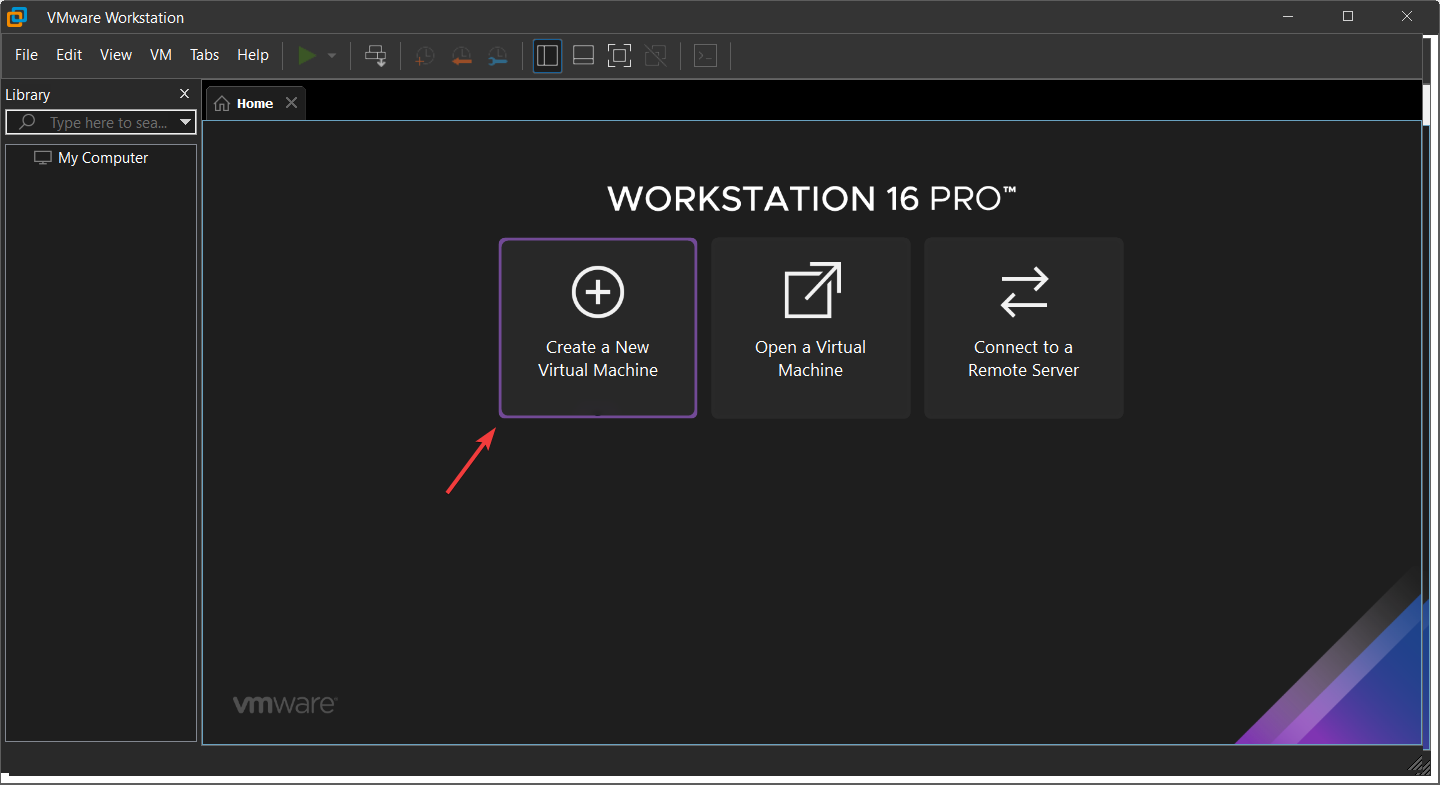
- Launch VMware Workstation and click on Create a New Virtual Machine.
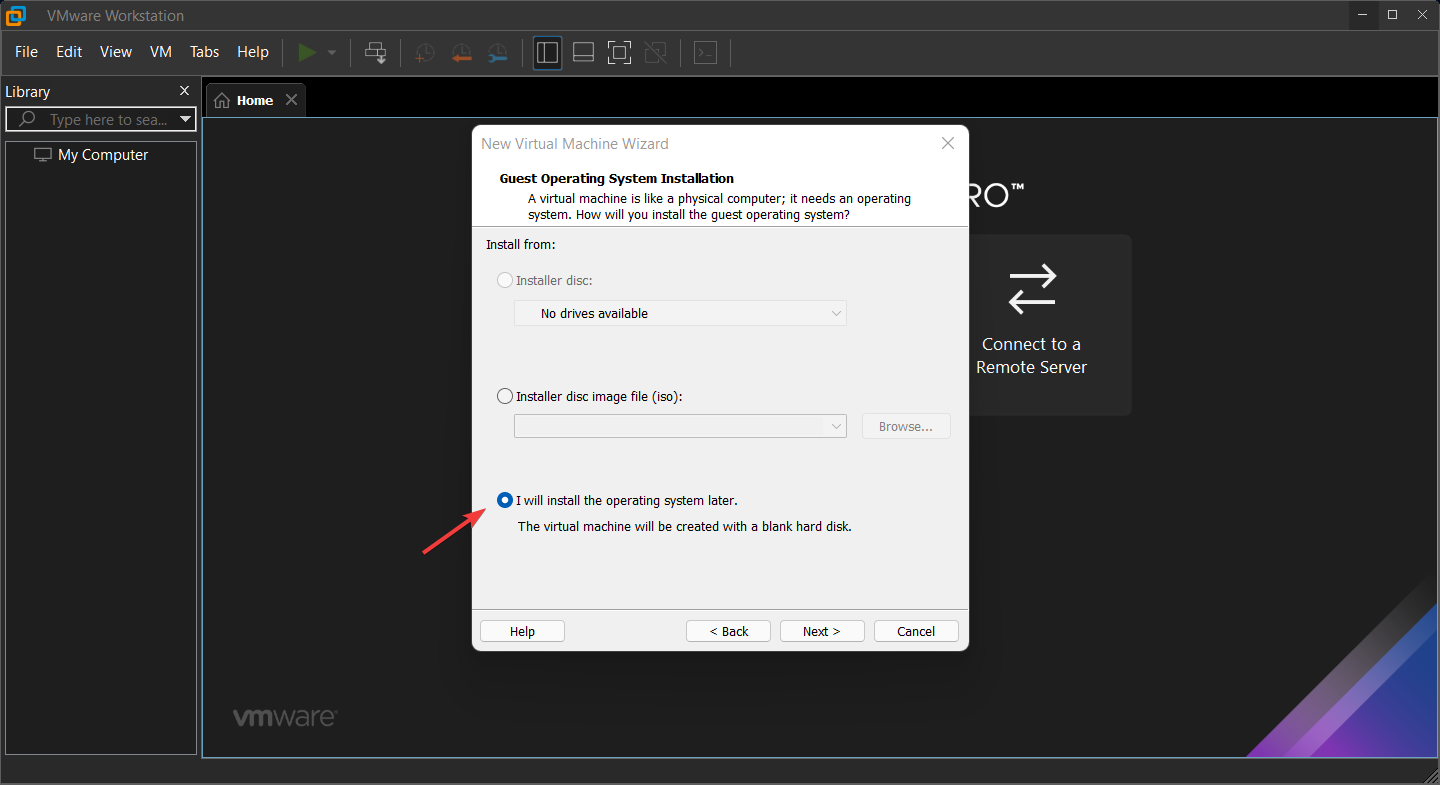
- Click the third option, which says I will select my OS later.
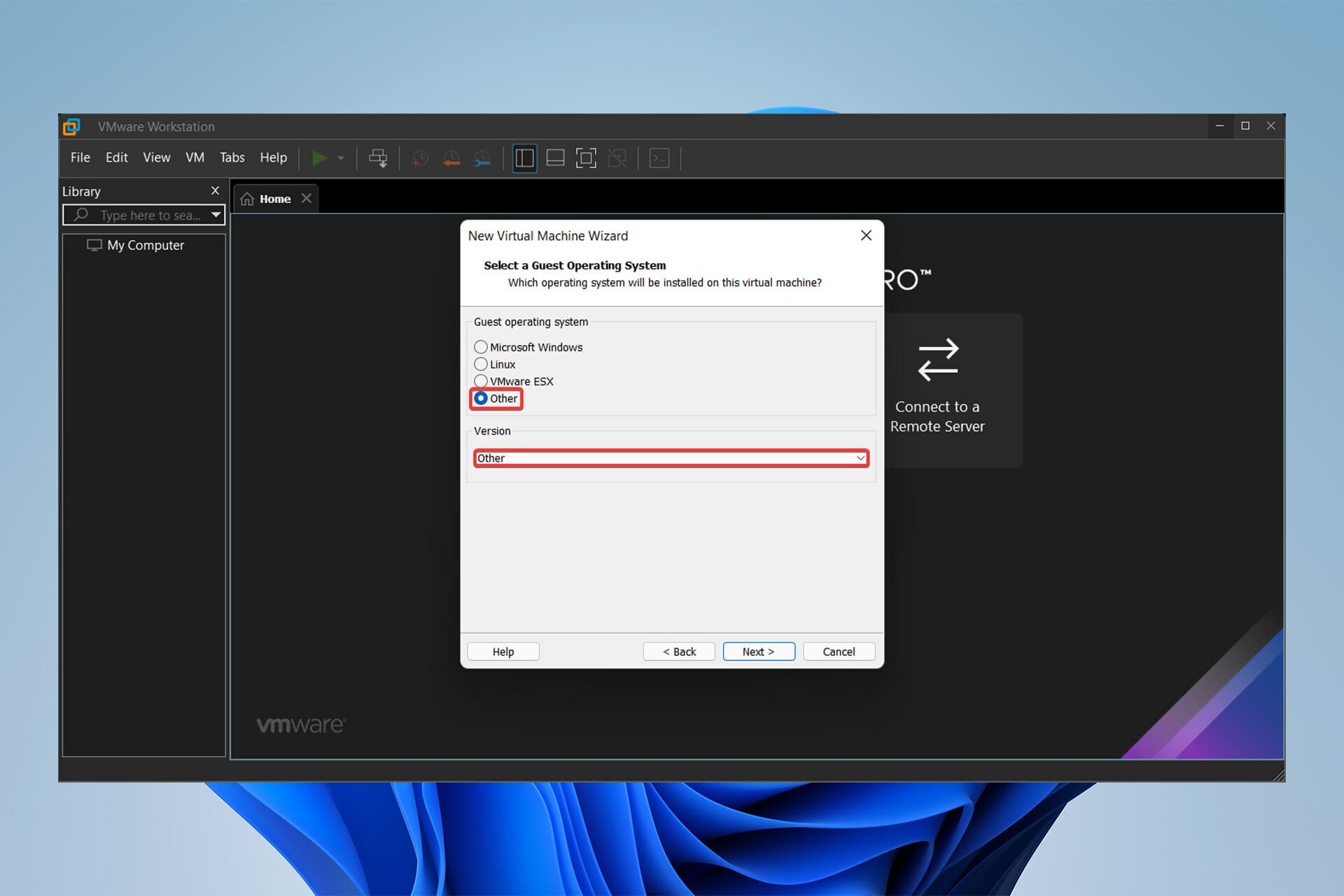
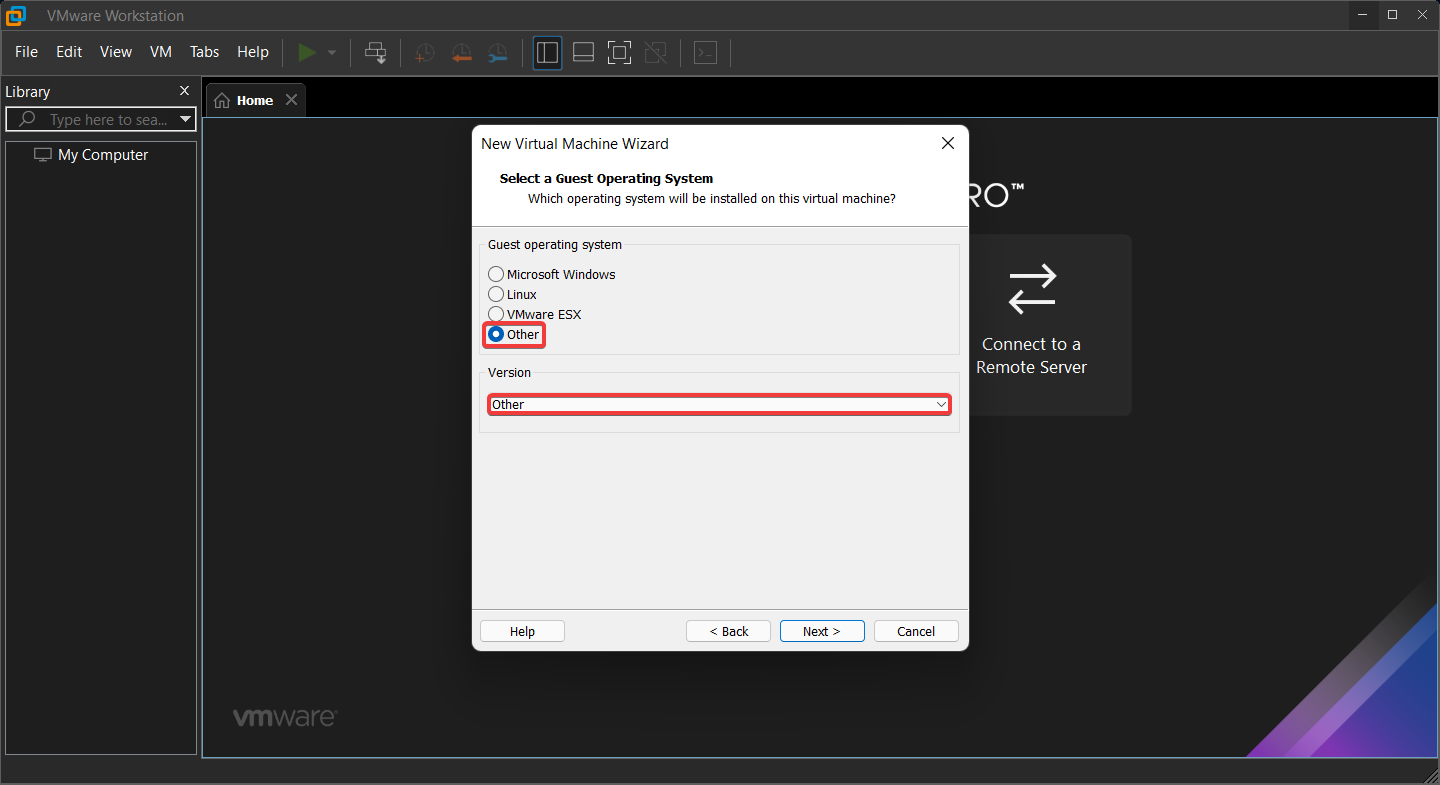
- Select OS and version as Other.
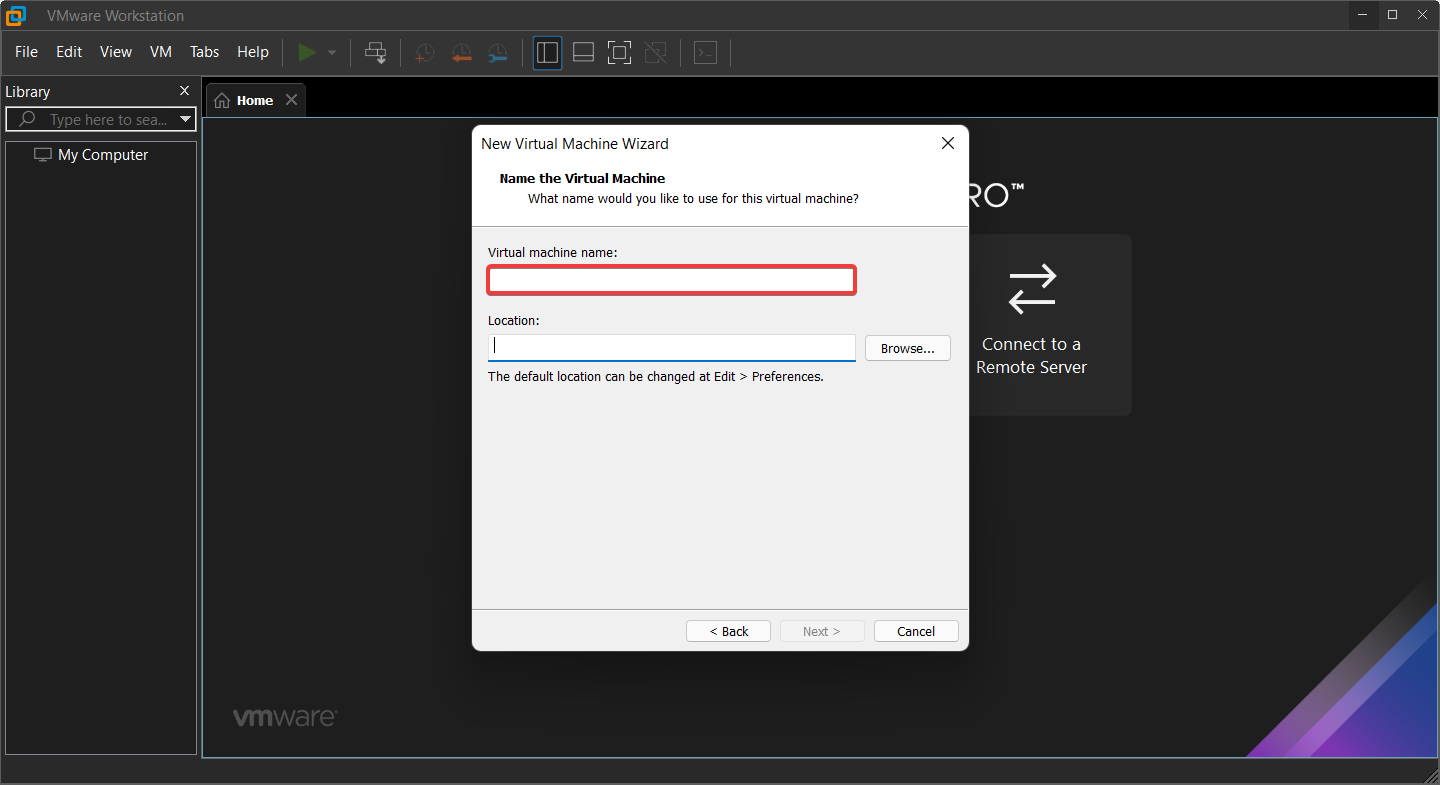
- Copy the name of the VDMK file you downloaded to run in the VMware Workstation in the first place and paste it as the name of the new VM you are creating.
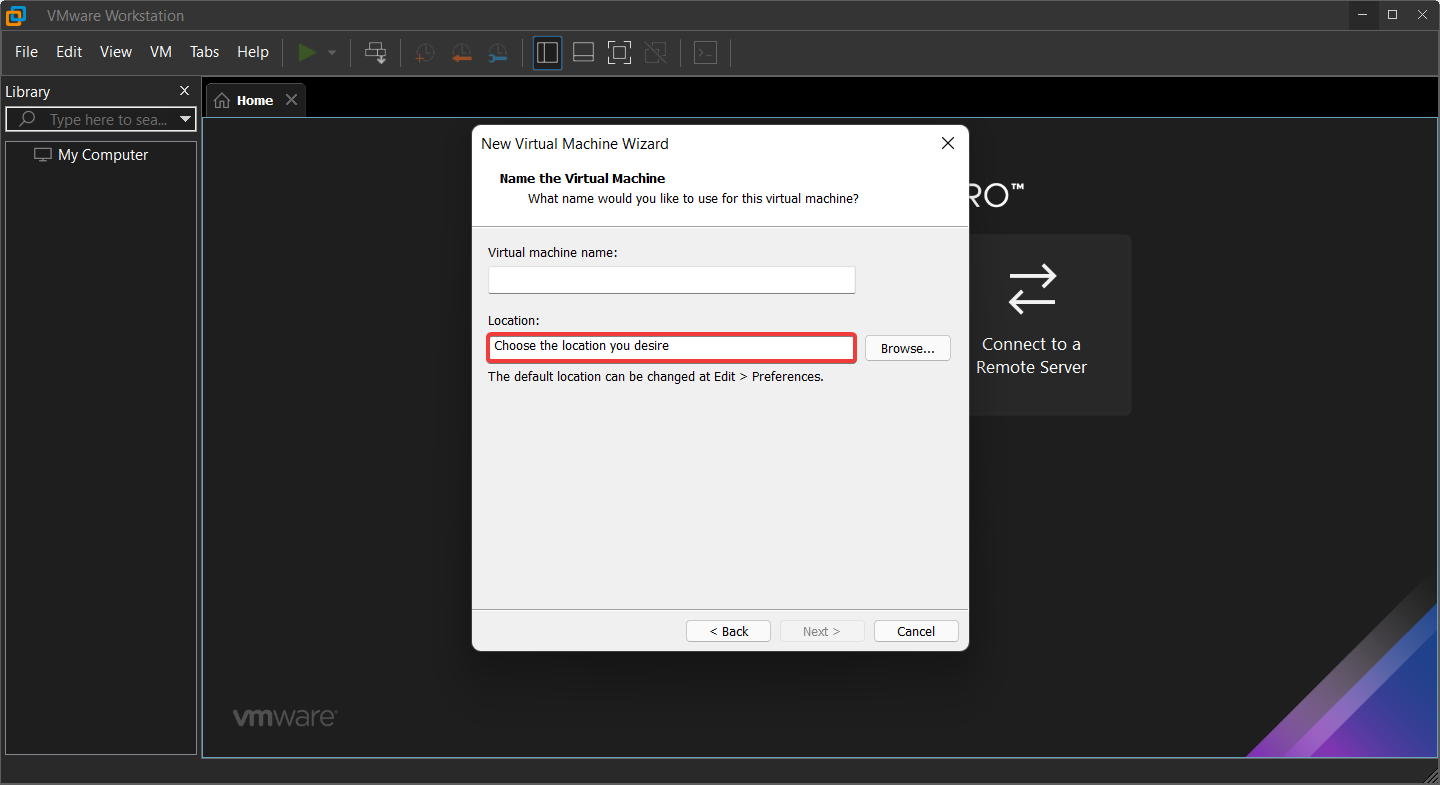
- Select the location where you want the newly created VMX file to save.
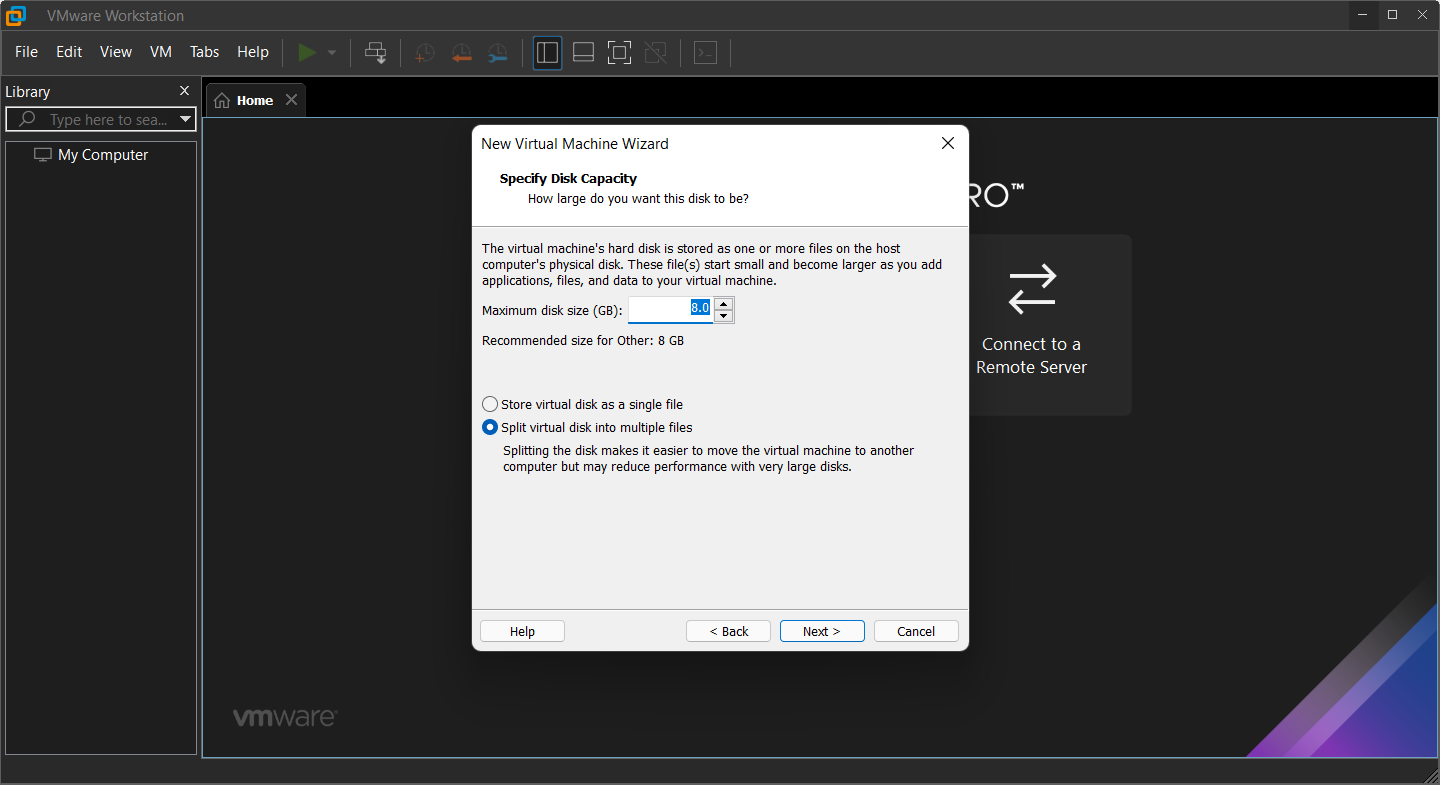
- For Disk space and RAM, choose whatever amount you desire.
- Click finish.
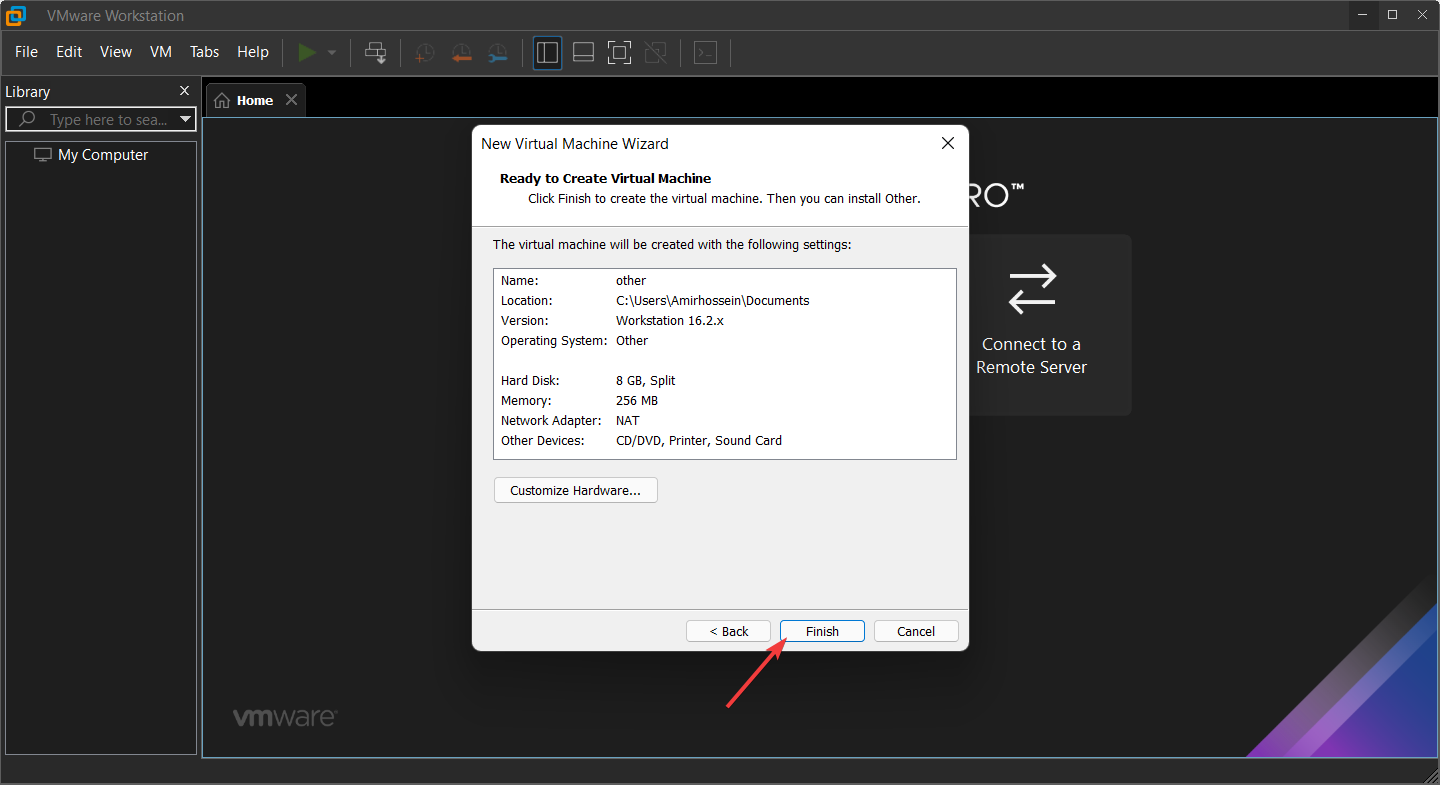
- Now you have successfully created the VMX file for the downloaded VM that you received VMX file is a corrupted error while running it.
- Go to the directory where you created the new virtual machine; now, just copy your downloaded VM and click on replace in the destination—once done, close all windows.
- Head to the newly created Virtual machine and click Play virtual machine. Voila! The error is fixed.
By following the above steps, you can fix the VMX file is corrupted error in a blink.
If the mentioned solution didn’t work for you, check all the steps again, and if everything was fine, try using another VM file to test.
- A Workstation is Out of Compliance: How to Update Policies
- Unable to Connect to Nvidia Try Again Later: 3 Error Fixes
- Can’t Connect to Virtual Machine on Windows 11: Hyper-V Fix
- Could Not Create the Java Virtual Machine: 4 Easy Fixes
2. VMware Workstation Pro fix
- Click on the Start menu, type CMD, then right-click on Command Prompt and select Run as administrator.
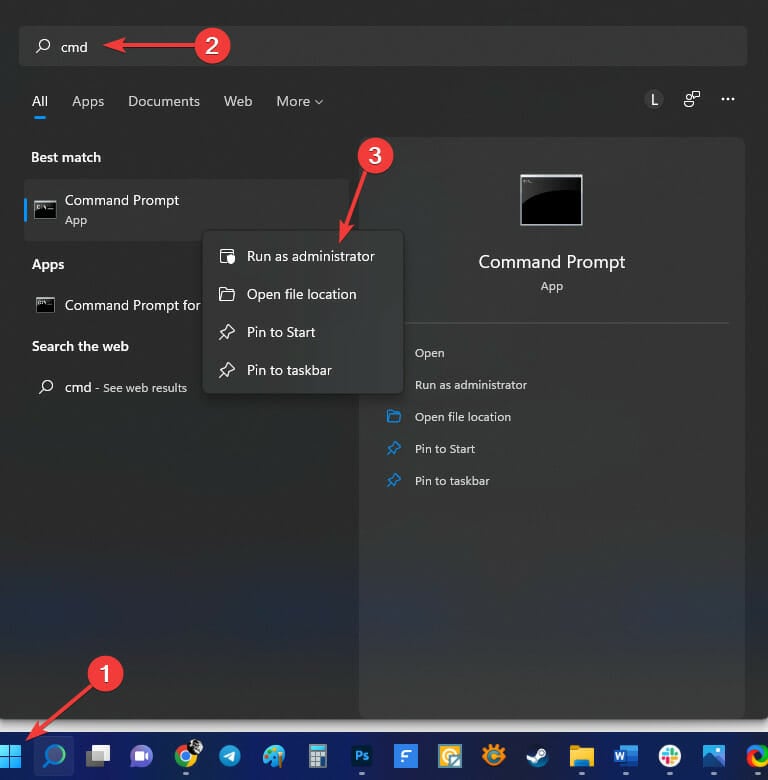
- Type the following command and hit Enter. Make sure that you replace your corrupt VMDK’s full path in the command.
VMware-vdiskmanager.exe –R C:UsersPC NameDownloadsBluemoonBluemoon.vmdk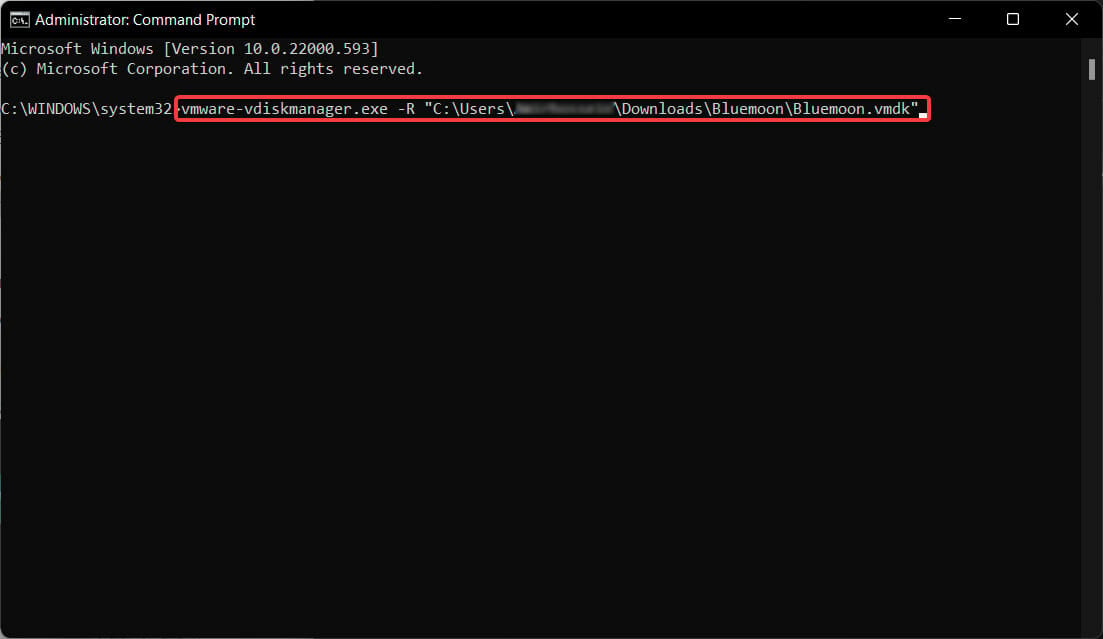
- Run VMware Workstation, navigate to File, and click on New Virtual Machine.
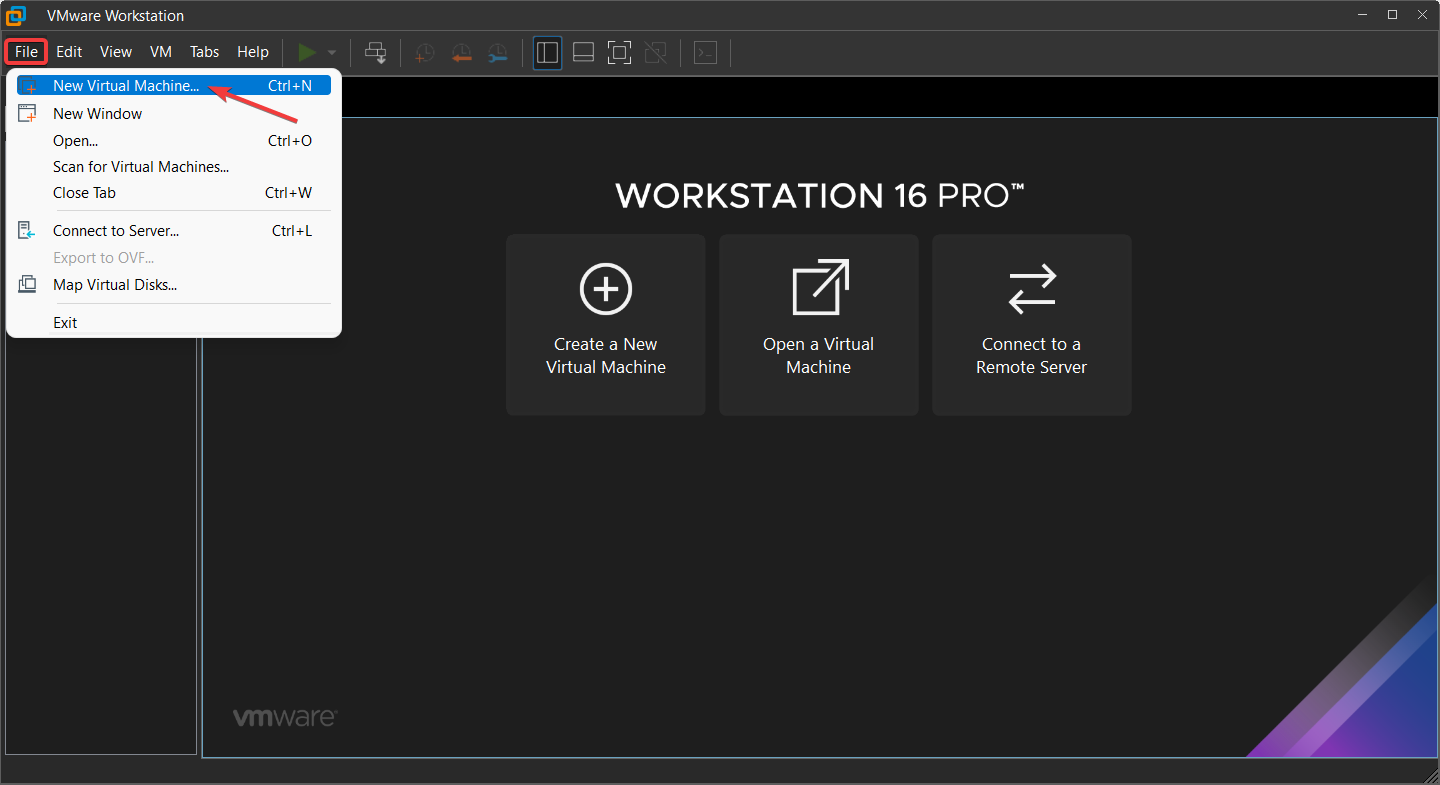
- Then, select the Custom option.
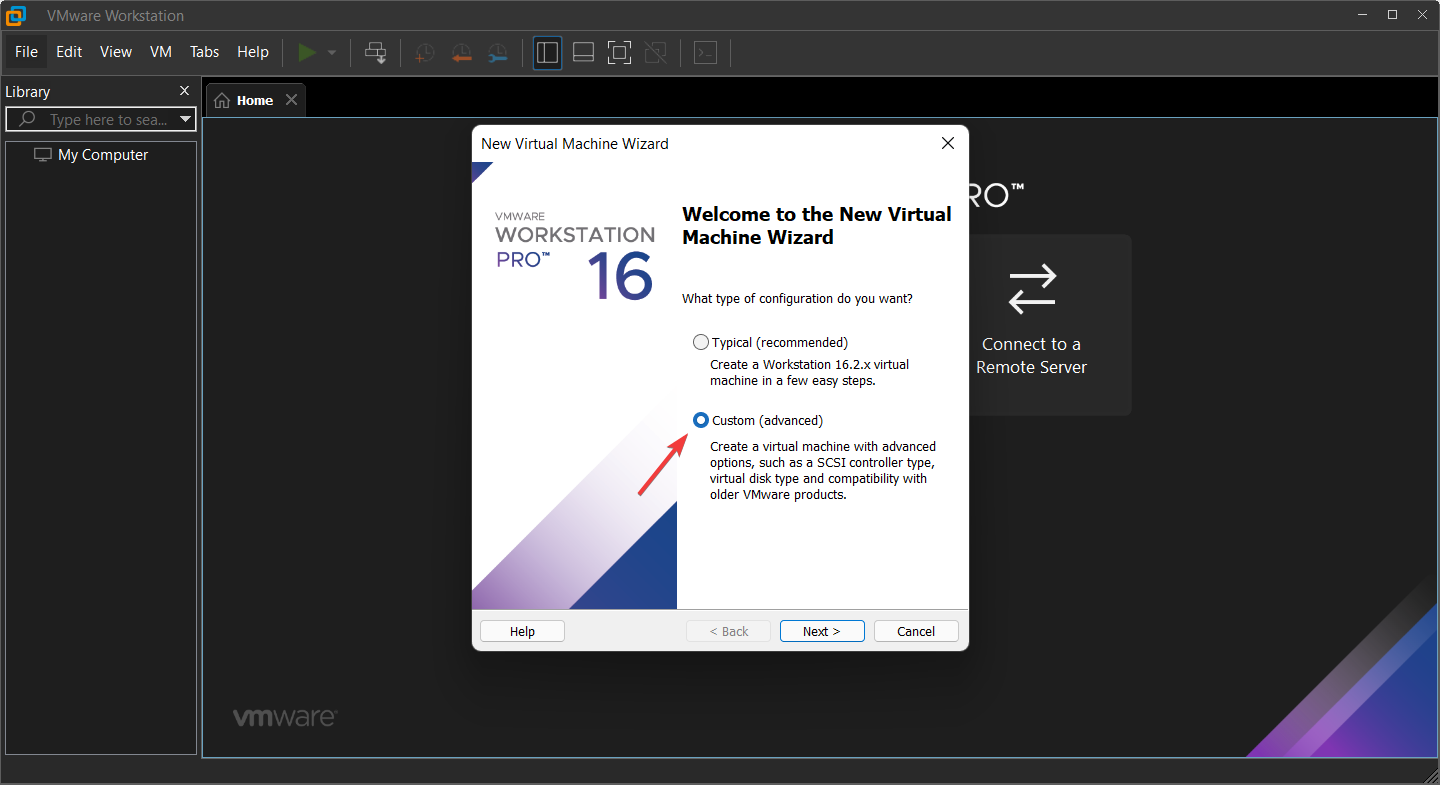
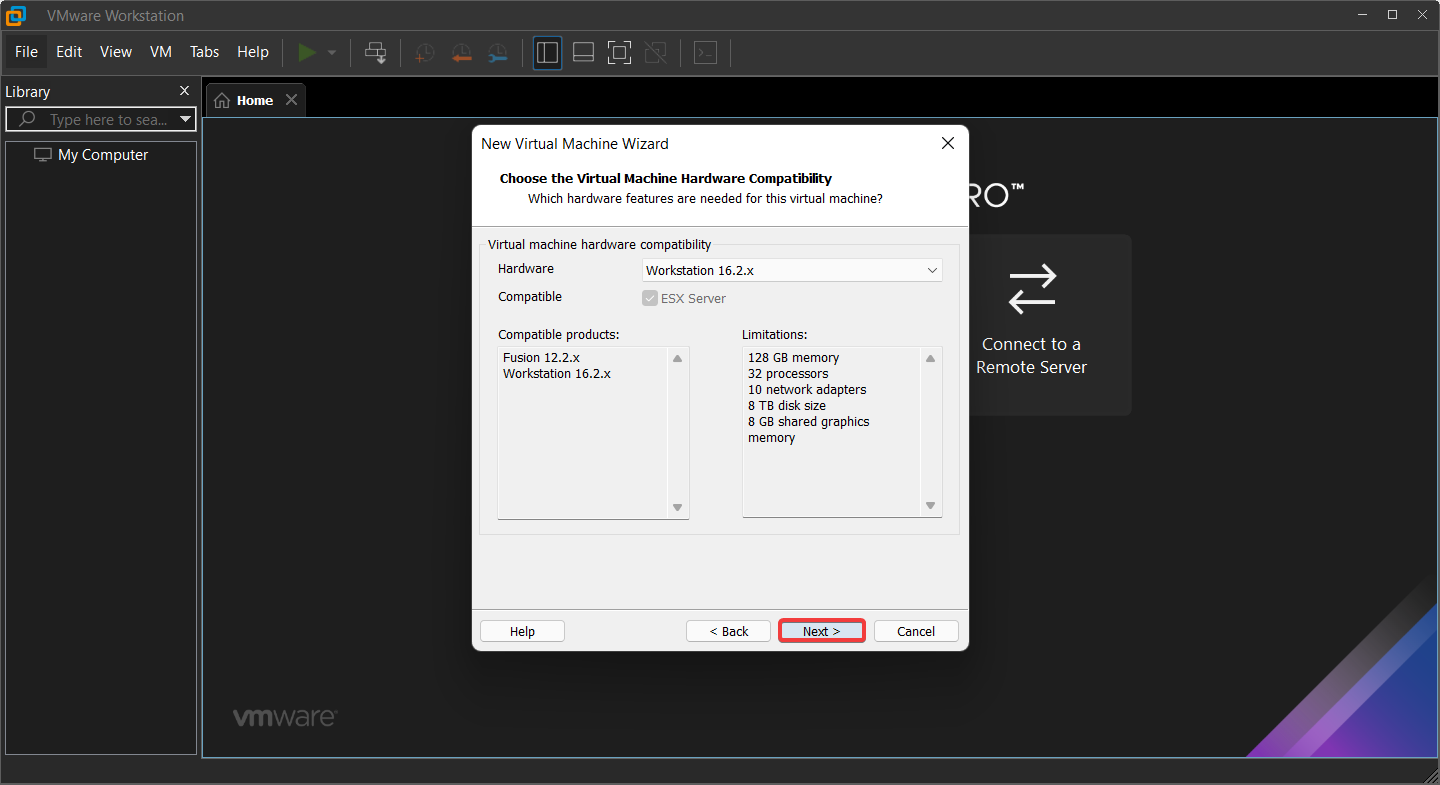
- Choose the appropriate hardware compatibility for your VM and click on Next.
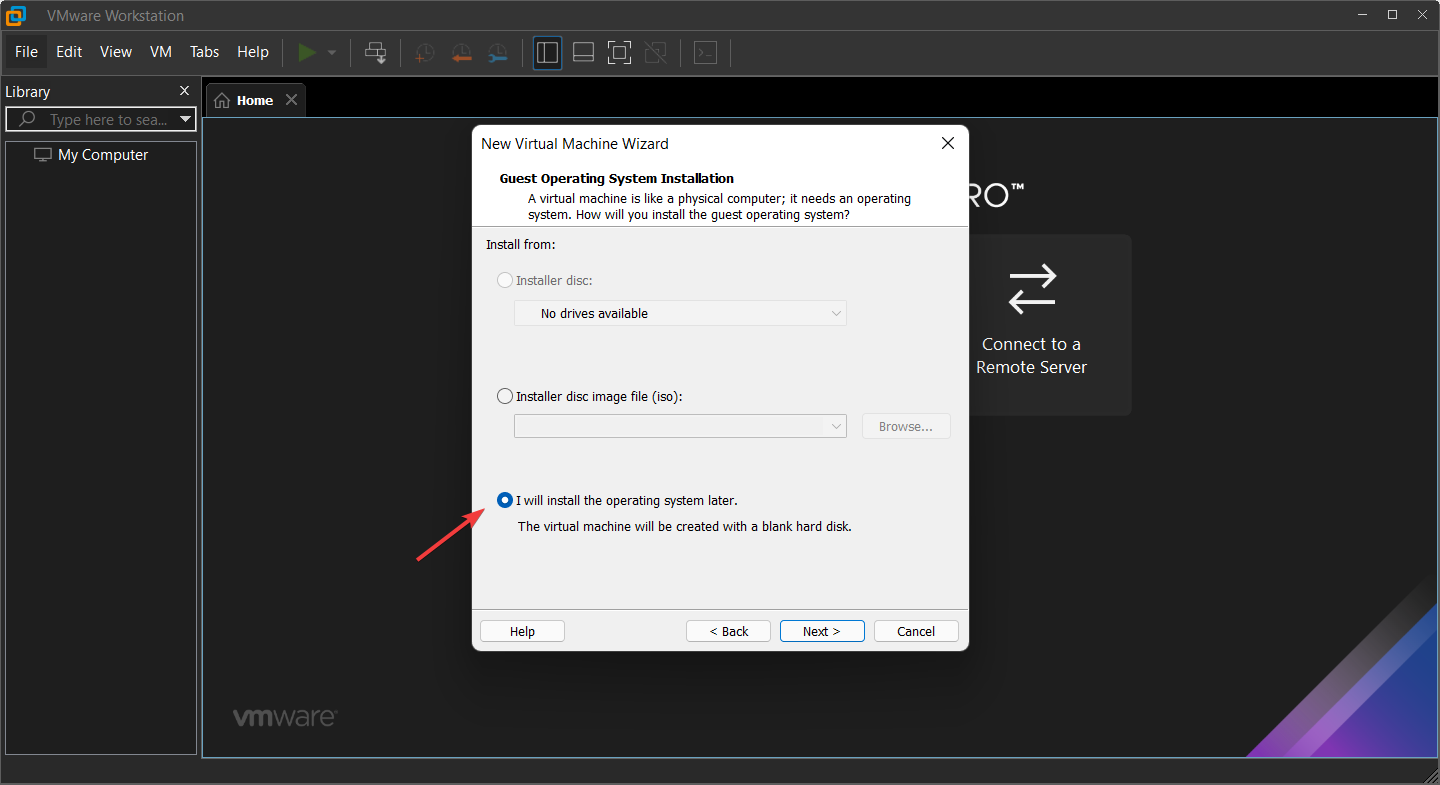
- After that, select the third option, which says I will select my OS later, and click on Next.
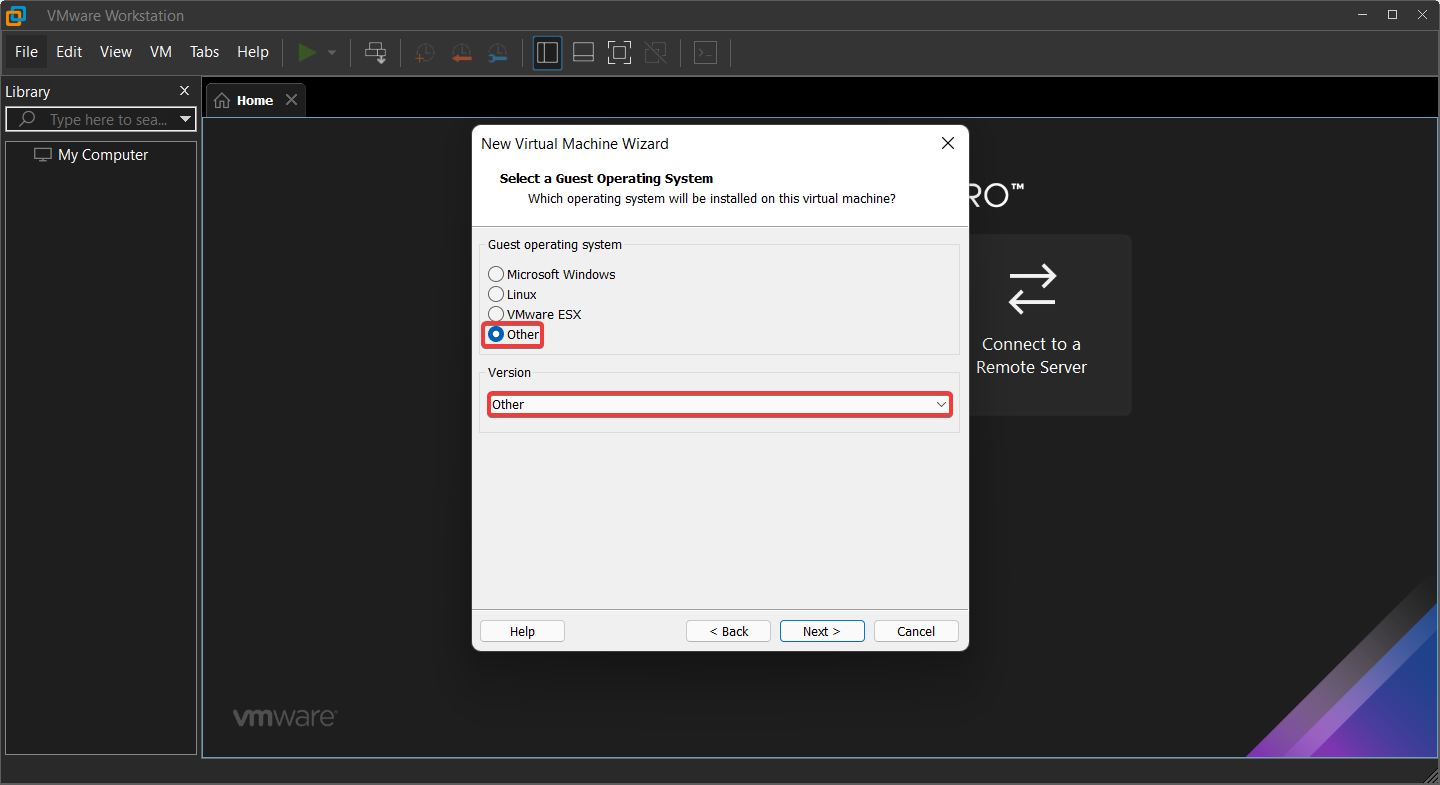
- Select OS and version as Other.
- Chose the locations and enter the same virtual machine name as the corrupted VMX file.
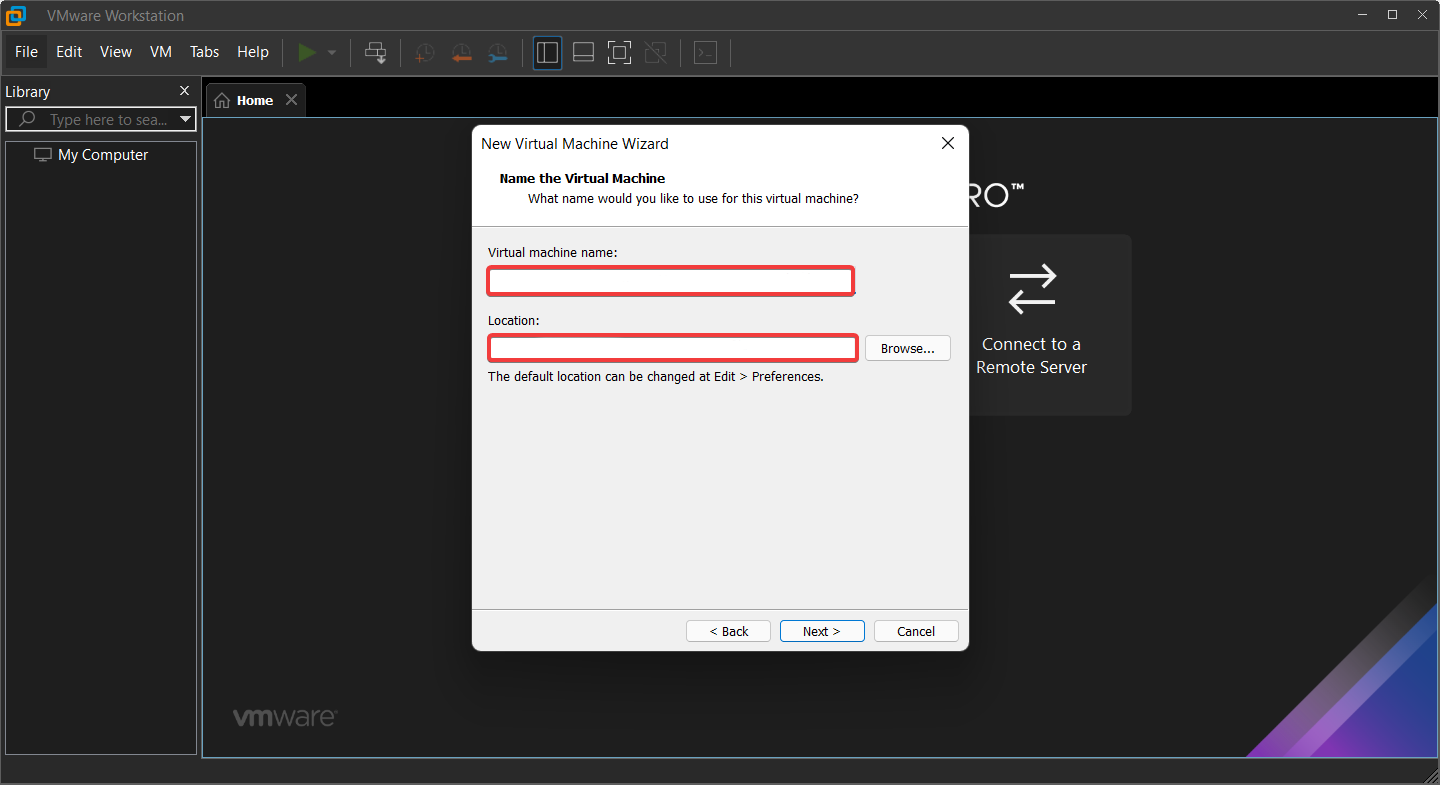
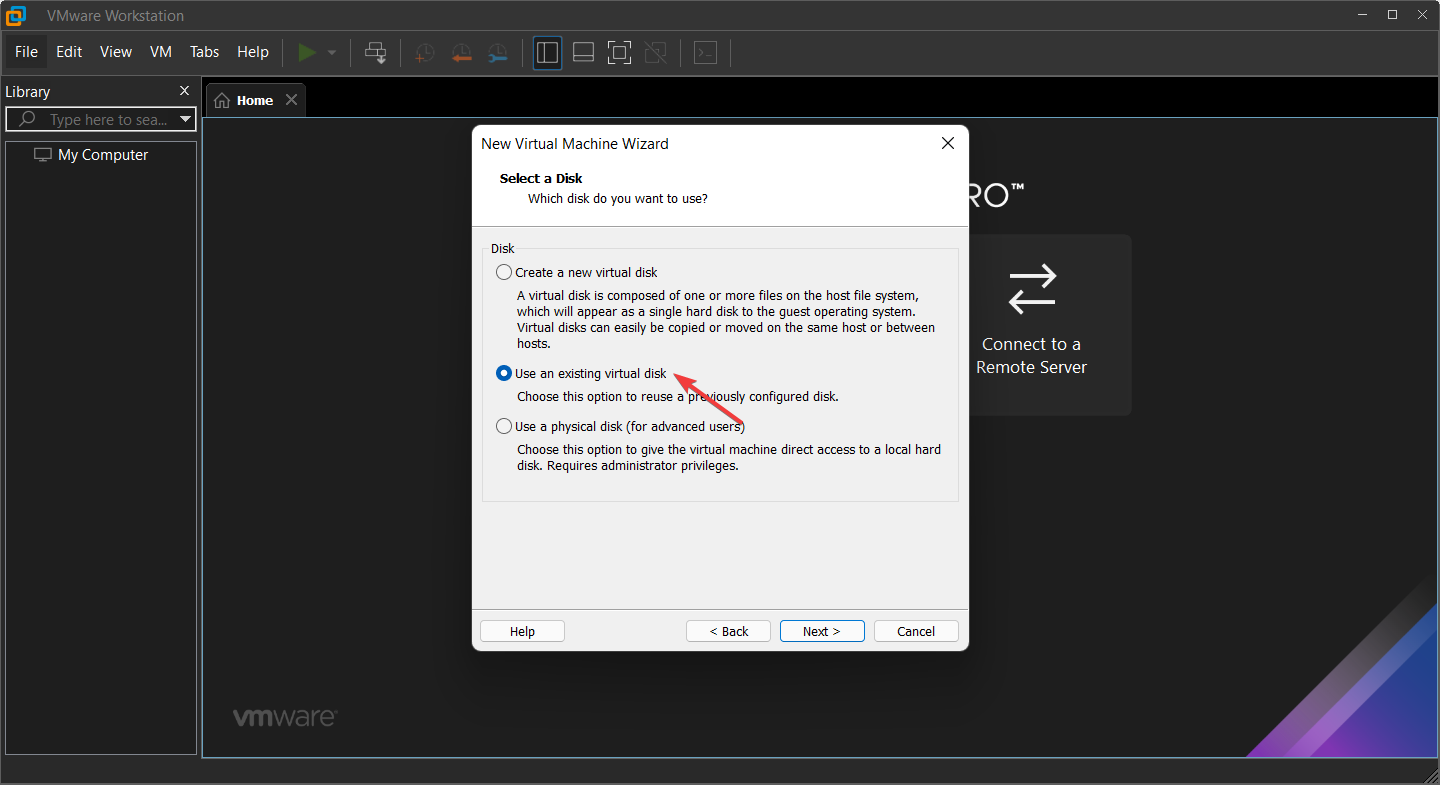
- Now, in selecting a disk window, choose the Use an existing virtual disk option and click on Next.
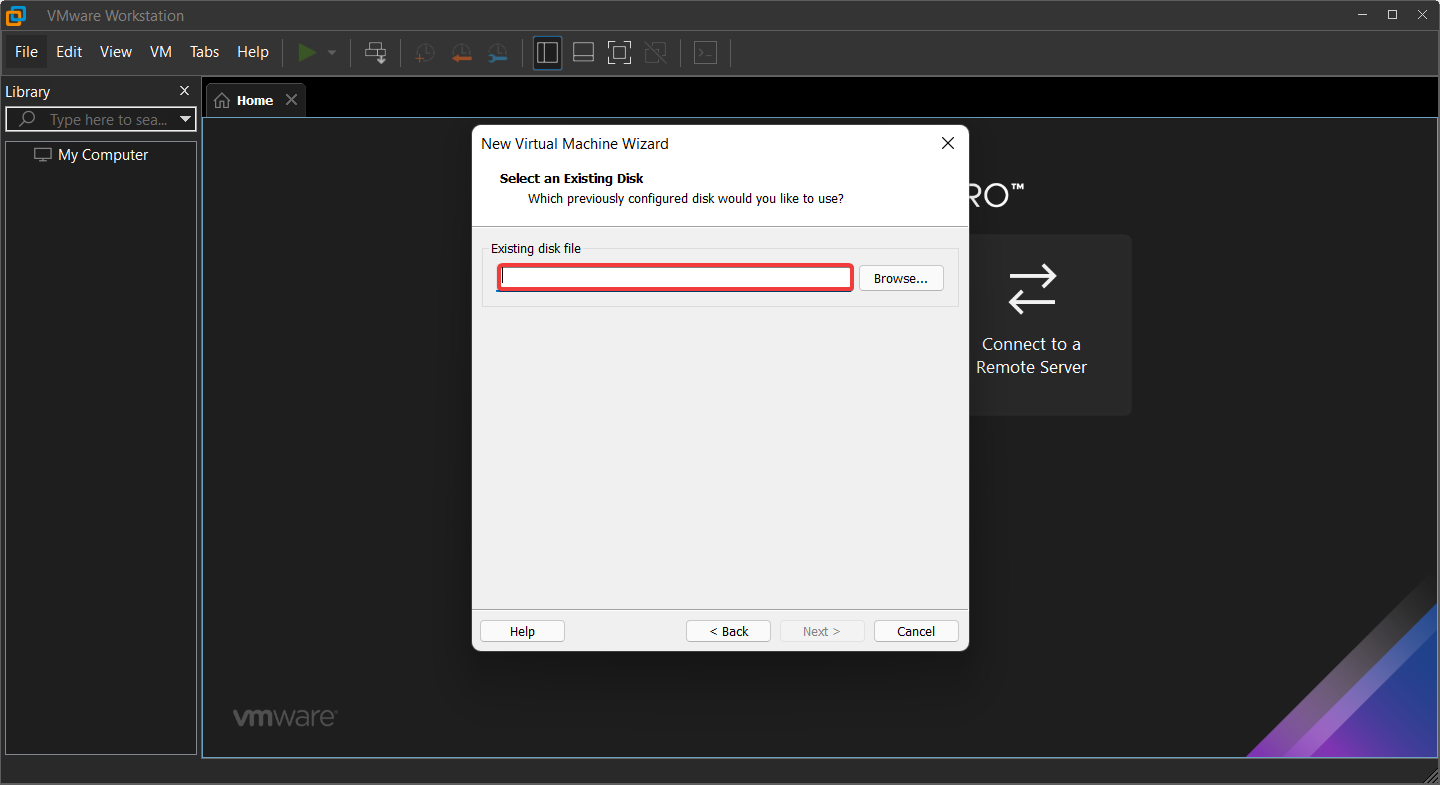
- Then, locate an existing corrupted disk, and in the next step, click on Next and then on Finish. Now we can run our virtual machine.
Some PC issues are hard to tackle, especially when it comes to corrupted repositories or missing Windows files. If you are having troubles fixing an error, your system may be partially broken.
We recommend installing Restoro, a tool that will scan your machine and identify what the fault is.
Click here to download and start repairing.
As we mentioned before, the Pro version benefits from having VMware-vdiskmanager.exe within its installation package, which makes fixing the VMX file is corrupted error way easier in this version.
Why do users prefer VMware Workstation over other options?
VMware Workstation benefits from having VMware Tools, a package including drivers and other software for the many guests operating systems supported by VMware products which install in guest operating systems to provide functionality.
Tools are updated regularly, with v11.2.5 released in January 2021. It is made up of various parts, including the following:
- Drivers for emulated hardware
- Support of shared folders and drag-and-drop file transfer between host and guest.
- Clipboard sharing between host and guest
- Time-synchronization capabilities
- Support for Unity
Aside from the VMware tools, the software has a user-friendly graphical user interface (GUI) as well as the VMrun command-line program for controlling virtual machines, including guest operating systems.
You may also use the VMware command with proper arguments to start Workstation, launch a VM, switch to full-screen mode, etc.
Because of these characteristics, VMware Workstation has become one of the best, if not the best, virtual machine software available.
However, if you’re looking for another Virtual Machine for Windows 10 or 11 PC, take a look at this article.
Errors can occur due to hardware and software incompatibility, which in our case for the VMX file, is a corrupted error while opening the virtual machine, are usually fixable.
As for hardware compatibility, VMware Workstation can work on most the pc and laptops. However, for a seamless experience with the software, your system should run windows 10 and benefit from 4GB or more RAM.
Check out this article if you’re experiencing a different type of error with your VMware Workstation.
Still having issues? Fix them with this tool:
SPONSORED
If the advices above haven’t solved your issue, your PC may experience deeper Windows problems. We recommend downloading this PC Repair tool (rated Great on TrustPilot.com) to easily address them. After installation, simply click the Start Scan button and then press on Repair All.

Newsletter
by Farhad Pashaei
As a technophile, Farhad has spent the last decade getting hands-on experience with a variety of electronic devices, including smartphones, laptops, accessories, wearables, printers, and so on. When… read more
Published on April 8, 2022
- VMware Workstation has two variants; a Player version for basic users and a Pro version for virtual machines professional users.
- VMX file is corrupted error does not mean your VM file is corrupted because it’s different from the VMDK file that stores all the info.
- The VMware Workstation Pro has VMware-vdiskmanager.exe within its installation package that can help you solve the problems way easier.
XINSTALL BY CLICKING THE DOWNLOAD FILE
This software will repair common computer errors, protect you from file loss, malware, hardware failure and optimize your PC for maximum performance. Fix PC issues and remove viruses now in 3 easy steps:
- Download Restoro PC Repair Tool that comes with Patented Technologies (patent available here).
- Click Start Scan to find Windows issues that could be causing PC problems.
- Click Repair All to fix issues affecting your computer’s security and performance
- Restoro has been downloaded by 0 readers this month.
Although VMware Workstation is a commonly used piece of software, it is not without flaws, one of which is VMX file is corrupted error while opening the virtual machine.
VMware Workstation was initially launched in 2001 and has since developed to become the go-to option until this day.
With excellent hardware compatibility support, you should find your experience with VMware Workstation to be silky smooth and very productive.
The software is used by web developers, software engineers, IT administrators, or simply any technology-loving geek!
However, nothing is perfect, and VMware Workstation is no exception. Right now, we are going to solve one of the common errors, which is known as the VMX file being corrupted.
What are the differences between the Pro and Player version of VMware Workstation?
- VMware Workstation Player is available for free; however, VMware Workstation Pro requires a license. Both operate on top of the host operating system, either Windows or Linux.
- Workstation Player is a simpler, non-commercial virtualization application, whereas Workstation Pro is a more powerful, professional virtualization solution for creating and managing Virtual Machines.
- Workstation Player is a non-advanced virtualization program that is free to use. Also, it can operate VMware Workstation Pro and Fusion Pro Virtual Machines using the licensed version.
- A non-licensed Workstation Player cannot operate several virtual machines at the same time.
- VMware Workstation Pro is a considerably more powerful Hypervisor Application that allows users to build Virtual Machines, Virtual Networks, Snapshots, Clone Virtual Machines, and share VMs.
- VMware Workstation Pro has far more advanced Virtual Machine settings and is intended for technical specialists like systems engineers and IT administrators, among others.
- Above all, the Pro version of VMware Workstation has VMware-vdiskmanager.exe within its installation package that can help you fix VMX file is corrupted error way easier than you can in the player version.
Why I am getting the VMX file corrupted error?
It is very simple. You get the error when VMware can’t find the VMX file, or it is corrupted. The error may be caused when you accidentally delete or alter this file.
The good news is that VMX file corruption won’t affect VMDK (the existing disk in which all your progress is saved), and you can revive everything.
So, now you know the error is not unsolvable, and if you follow the step-by-step guide carefully, you won’t lose anything. Why wait then? Let’s get into our solutions!
How can I fix the VMX file corrupted error while opening the virtual machine in VMware Workstation?
1. VMware Workstation Player fix
- Launch VMware Workstation and click on Create a New Virtual Machine.
- Click the third option, which says I will select my OS later.
- Select OS and version as Other.
- Copy the name of the VDMK file you downloaded to run in the VMware Workstation in the first place and paste it as the name of the new VM you are creating.
- Select the location where you want the newly created VMX file to save.
- For Disk space and RAM, choose whatever amount you desire.
- Click finish.
- Now you have successfully created the VMX file for the downloaded VM that you received VMX file is a corrupted error while running it.
- Go to the directory where you created the new virtual machine; now, just copy your downloaded VM and click on replace in the destination—once done, close all windows.
- Head to the newly created Virtual machine and click Play virtual machine. Voila! The error is fixed.
By following the above steps, you can fix the VMX file is corrupted error in a blink.
If the mentioned solution didn’t work for you, check all the steps again, and if everything was fine, try using another VM file to test.
- A Workstation is Out of Compliance: How to Update Policies
- Unable to Connect to Nvidia Try Again Later: 3 Error Fixes
2. VMware Workstation Pro fix
- Click on the Start menu, type CMD, then right-click on Command Prompt and select Run as administrator.
- Type the following command and hit Enter. Make sure that you replace your corrupt VMDK’s full path in the command.
VMware-vdiskmanager.exe –R C:UsersPC NameDownloadsBluemoonBluemoon.vmdk - Run VMware Workstation, navigate to File, and click on New Virtual Machine.
- Then, select the Custom option.
- Choose the appropriate hardware compatibility for your VM and click on Next.
- After that, select the third option, which says I will select my OS later, and click on Next.
- Select OS and version as Other.
- Chose the locations and enter the same virtual machine name as the corrupted VMX file.
- Now, in selecting a disk window, choose the Use an existing virtual disk option and click on Next.
- Then, locate an existing corrupted disk, and in the next step, click on Next and then on Finish. Now we can run our virtual machine.
Some PC issues are hard to tackle, especially when it comes to corrupted repositories or missing Windows files. If you are having troubles fixing an error, your system may be partially broken.
We recommend installing Restoro, a tool that will scan your machine and identify what the fault is.
Click here to download and start repairing.
As we mentioned before, the Pro version benefits from having VMware-vdiskmanager.exe within its installation package, which makes fixing the VMX file is corrupted error way easier in this version.
Why do users prefer VMware Workstation over other options?
VMware Workstation benefits from having VMware Tools, a package including drivers and other software for the many guests operating systems supported by VMware products which install in guest operating systems to provide functionality.
Tools are updated regularly, with v11.2.5 released in January 2021. It is made up of various parts, including the following:
- Drivers for emulated hardware
- Support of shared folders and drag-and-drop file transfer between host and guest.
- Clipboard sharing between host and guest
- Time-synchronization capabilities
- Support for Unity
Aside from the VMware tools, the software has a user-friendly graphical user interface (GUI) as well as the VMrun command-line program for controlling virtual machines, including guest operating systems.
You may also use the VMware command with proper arguments to start Workstation, launch a VM, switch to full-screen mode, etc.
Because of these characteristics, VMware Workstation has become one of the best, if not the best, virtual machine software available.
However, if you’re looking for another Virtual Machine for Windows 10 or 11 PC, take a look at this article.
Errors can occur due to hardware and software incompatibility, which in our case for the VMX file, is a corrupted error while opening the virtual machine, are usually fixable.
As for hardware compatibility, VMware Workstation can work on most the pc and laptops. However, for a seamless experience with the software, your system should run windows 10 and benefit from 4GB or more RAM.
Check out this article if you’re experiencing a different type of error with your VMware Workstation.
Still having issues? Fix them with this tool:
SPONSORED
If the advices above haven’t solved your issue, your PC may experience deeper Windows problems. We recommend downloading this PC Repair tool (rated Great on TrustPilot.com) to easily address them. After installation, simply click the Start Scan button and then press on Repair All.
Newsletter
 Если вы столкнулись с проблемой, когда виртуальная машина VMware выдаёт ошибку вида: «VMware Player and Device/Credential Guard are not compatible…» при попытке запуска любой гостевой системы, то есть способ решения, позволяющий вернуть всё в работоспособное состояние.
Не будем здесь останавливаться на причинах, которые могли привести к возникновению данной проблемы (например, такая ошибка может возникнуть, если вы пытались запустить встроенную в Windows 10 песочницу, которая пока не работает с русской локализацией Windows 10), а перейдём непосредственно к решению, позволяющему устранить данную ошибку в VMware Player.

Как исправить ошибку VMware Player and Device/Credential Guard are not compatible
На этом всё. Перезагружаем компьютер. После этого VMware должен работать без ошибки.
Если это не помогло, то дополнительно выполняем следующее:
Примечание: отключение компонента Hyper-V также может помочь исправить ошибку, приводящую к невозможности запуска виртуальной машины VirtualBox: «Raw-mode is unavailable courtesy of Hyper-V (VERR_SUPDRV_NO_RAW_MODE_HYPER_V_ROOT)» Если после проделанных манипуляций появится «The VM session was aborted», то просто попробуйте перезапустить виртуальную машину.
А вдруг и это будет интересно:
- Как установить Windows 11 без учётной записи Microsoft
- Способы открыть Панель управления в Windows 11
- Vivaldi – безопасный и быстрый браузер
- Не работает микрофон Windows 10 – возможное решение
- SHAREit: передача файлов со смартфона на компьютер по Wi-Fi
- Windows Store: решение проблемы с покупкой – SVC-Service-QueryOrder
Дата: 2019-08-02 | Размещено в Статьи