If using a download manager, you may continue the download
by Sagar Naresh
Sagar is a web developer and technology journalist. Currently associated with WindowsReport and SamMobile. When not writing, he is either at the gym sweating it out or playing… read more
Published on July 30, 2022
Fact checked by
Alex Serban

After moving away from the corporate work-style, Alex has found rewards in a lifestyle of constant analysis, team coordination and pestering his colleagues. Holding an MCSA Windows Server… read more
- Opera download interrupted because of a network issue is a quite common error that has been troubling users for quite some time.
- It pops up in the middle of the download and can be quite frustrating if it shows up while you were downloading a big file.
- This guide gives you some effective solutions that will help you resolve the error. For example, incognito mode might help.
Here’s what Opera can do:
- Optimize resource usage: your RAM memory is used more efficiently than in other browsers
- Enhanced privacy: free and unlimited VPN integrated
- No ads: built-in Ad Blocker speeds up loading of pages and protects against data-mining
- Gaming friendly: Opera GX is the first and best browser for gaming
- Download Opera | Opera GX
Are you coming across an Opera download interrupted network error? If so, and you are looking for solutions, then you are in the correct place.
In this guide, we will give you some of the most effective and tested solutions that will help you fix the Opera download interrupted network error, and get back to download your files.
Such errors are common in browsers and they come in many forms. Notably, there are multiple reasons that could trigger this problem.
The Opera download interrupted network error usually pops up in the middle of the error. It would be really frustrating if it occurred while you were downloading something large in size. Also, the error doesn’t resolve no matter how many times you press the download again button.
Though the error suggests that there is an error with your network, there’s more to it. And that is exactly what we are going to discuss in this guide. So, let us check it out.
What happens if the download is interrupted?
If a download is interrupted for whatever reason, it will mostly get canceled. This means that even though you have downloaded 90% of the file, everything will be gone and you won’t be able to use the file.
In another scenario, it will get paused, and if you are using a download manager, then it will let you continue the download if the problem is sorted out.
But for several users, the problem exists even though they have fixed their internet connection. Whatever the case may be, an interrupted download may be either completely removed from your PC or stored in a partial download file extension.
For example, partially downloaded files in Chrome are saved as CRDOWNLOAD files on the device storage.
What to do if a download stops?
Some PC issues are hard to tackle, especially when it comes to corrupted repositories or missing Windows files. If you are having troubles fixing an error, your system may be partially broken.
We recommend installing Restoro, a tool that will scan your machine and identify what the fault is.
Click here to download and start repairing.
There are a few things that you can do if a download suddenly stops, which we have listed below:
- If your browser allows you then you can resume the download
- Wait till your internet connection gets stable and then try re-downloading
- Try downloading the file back again and see if it gets completed or not
- You can try a different source to download the file
- Install the latest version of the Opera browser and check if this fixes the issue or not
How do I fix an interrupted network error?
1. Try incognito mode
- Launch Opera.
- Click on the Opera logo on the top left.
- Select New private window option or press Ctrl+ Shift+N to open a new private or incognito window.
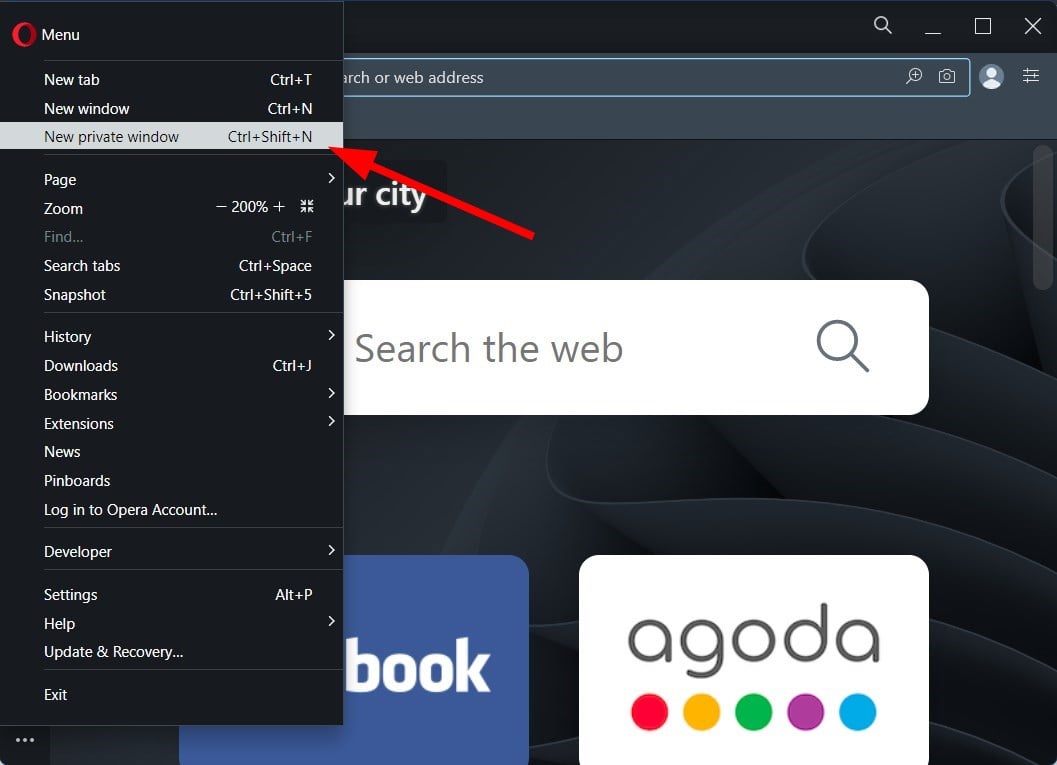
Incognito mode or using the private window mode is a nice way to detect if one of the extensions in your browser is the culprit behind the issue.
Private mode disables all extensions and you can check if you are coming across an Opera download interrupted network error.
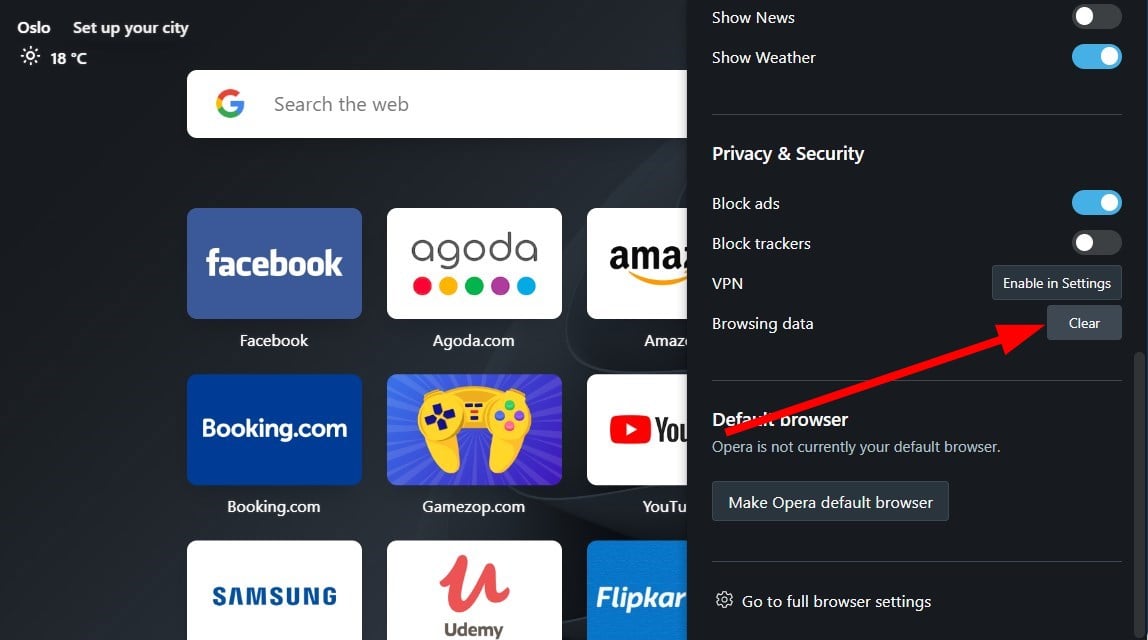
2. Clear browsing data
- Launch Opera.
- Click on Settings.
- Hit the Clear button for Browsing data option.
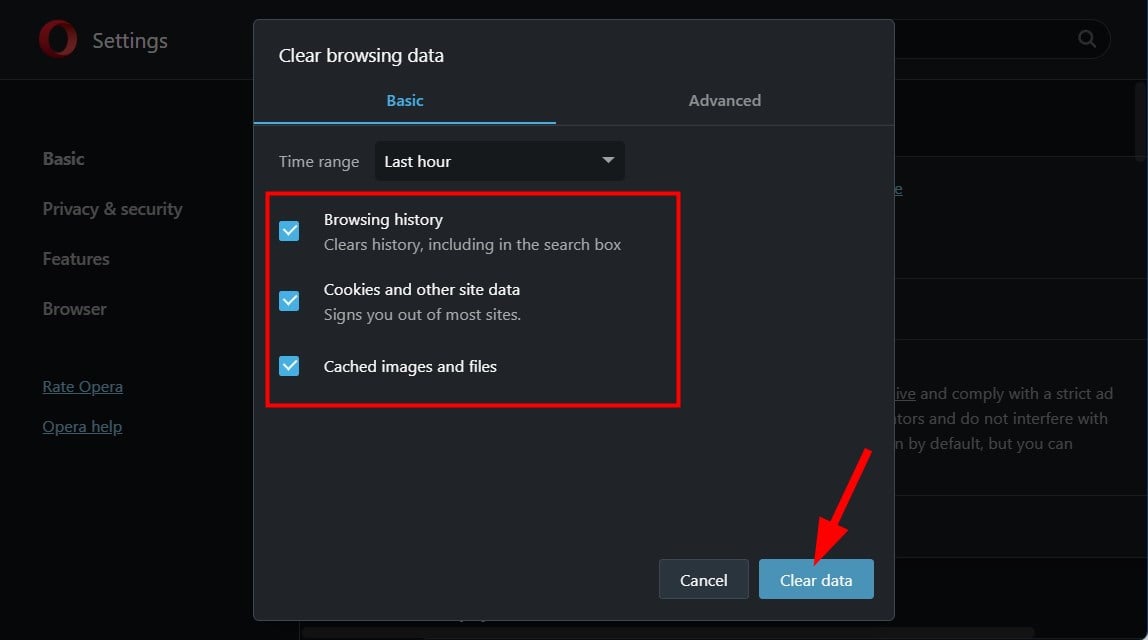
- Check all the boxes and hit the Clear data button.
3. Check for the latest update
- Click on the Opera logo at the top left.
- Select Update & recovery.
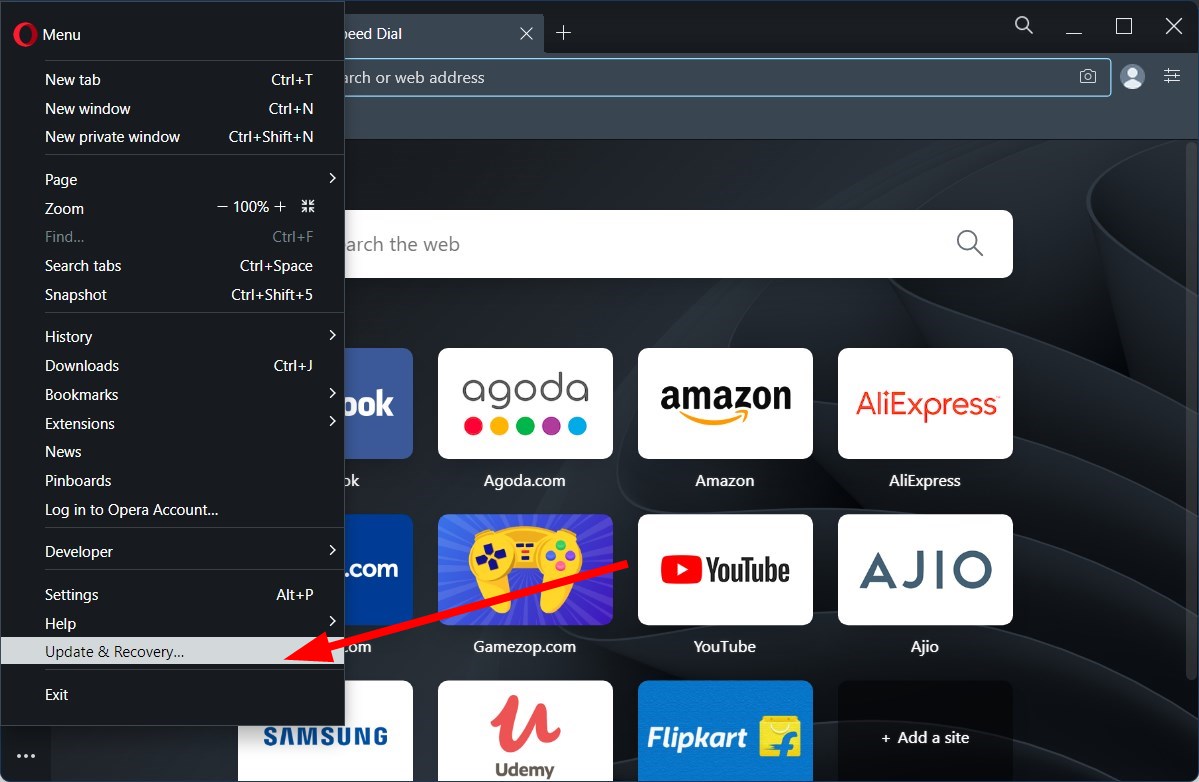
- Opera will automatically start looking for new updates. And if found one, will prompt you to install it.

It is recommended that you keep all apps up to date. This is because not only do you get to enjoy the latest features but also it gets updated with security features.
There could have been a bug in the previous version of the Opera browser that is noticeably causing the Opera download interrupted network error. Install the latest update and check if this fixes the issue or not.
- Opera GX VS Firefox – Which Is Better For You in 2023?
- 7 Best Password Managers For Opera Browser
- Fix: Can’t Set Opera as the Default Browser
- Opera GX is Not Opening or Opens and Closes: 6 Fixes to Try
- Opera GX Download For Windows 11
4. Update network drivers
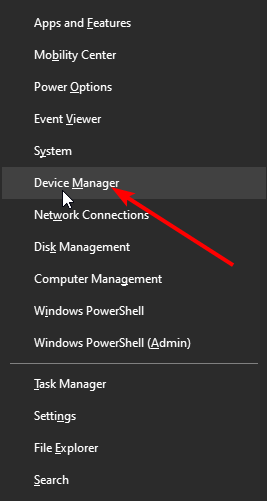
- Right-click on the Start menu icon and select Device Manager.
- Expand the Network adapters section.
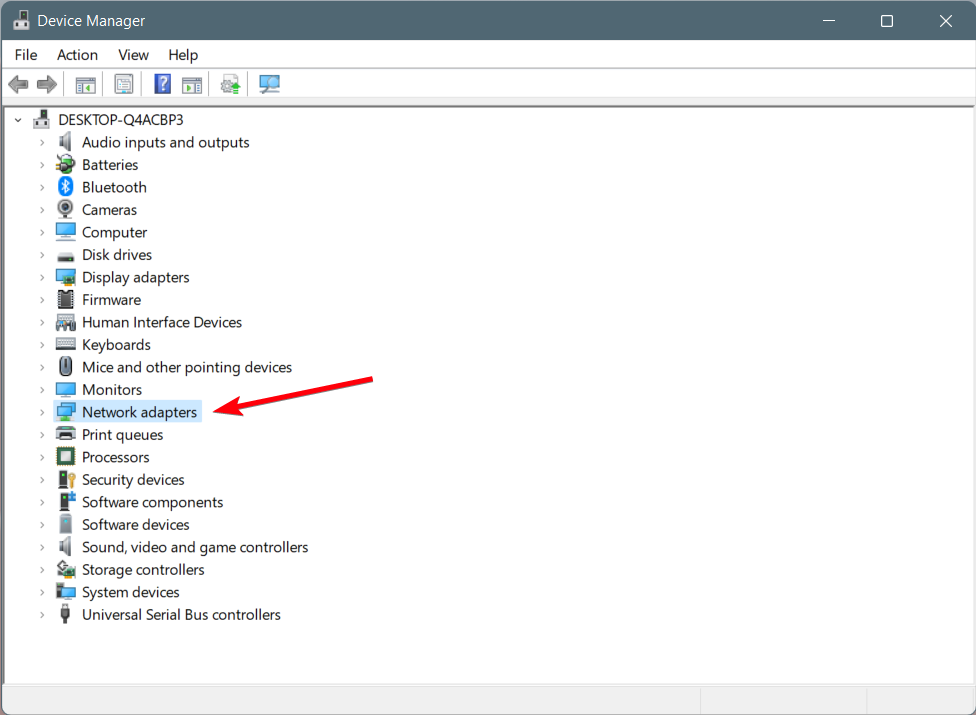
- Right-click on your network driver and select Update driver.
- Then select Search Automatically for Updated Driver Software.
- If there is a new update available, install it and restart your PC to check if this fixes the issue or not.
As an alternative, you can update your network drivers or any others with time-saving driver software like DriverFix.
This automated method will scan your entire system to find outdated or missing drivers on your PC, and thus resolve network Opera errors as we speak.
5. Reinstall Opera
- Open Control Panel.
- Select Programs and Features options.
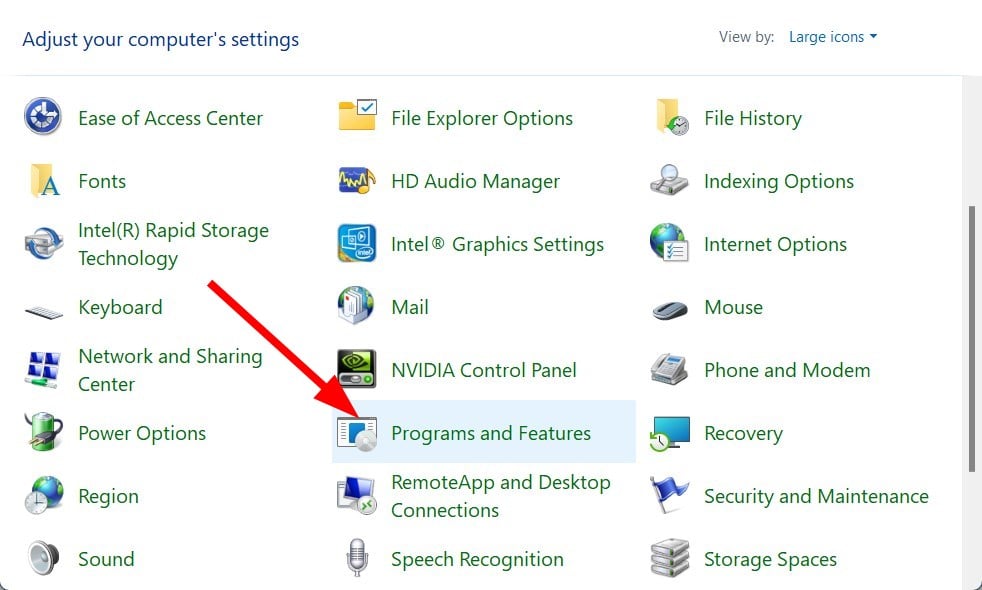
- Click on Opera from the list of apps.
- Hit the Uninstall button at the top.
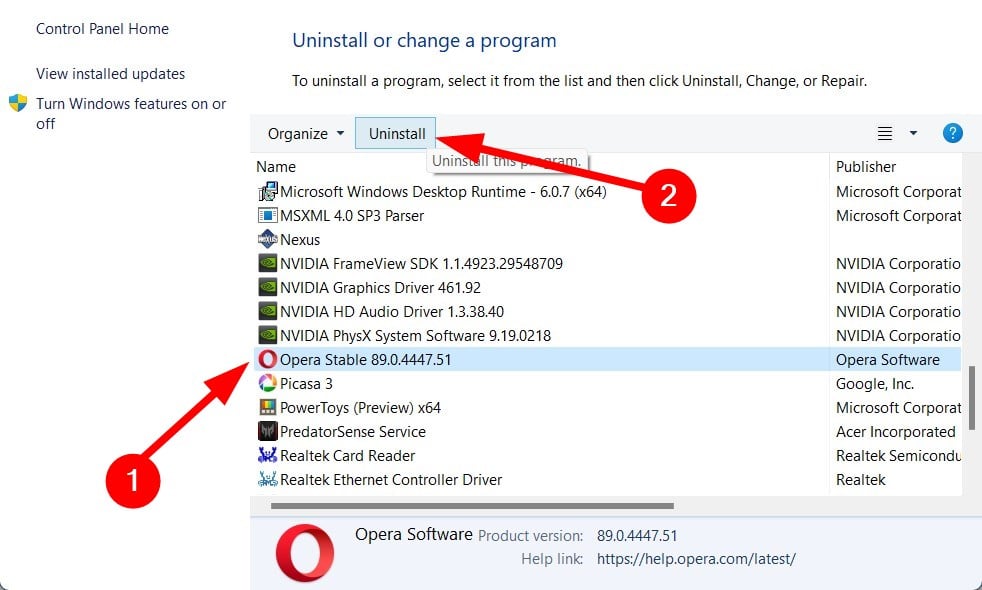
- Once Opera is successfully uninstalled, restart your PC to remove all remaining files.
- Head to the official website.
- Download Opera browser.
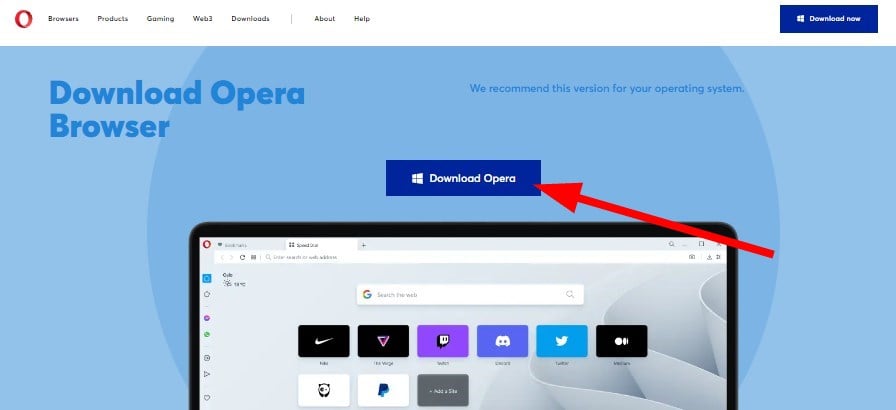
- Install it and do not interrupt the process.
- Check if this fixes the issue or not.
Reinstalling fixes most of the problems, and it might do the same for you and fix the Opera download interrupted network error.
How do I continue downloading after a network error in Opera?
Well, there are a few things that you can do if a download stops because of a network issue in Opera browser:
- You can restart your router and wait for the network to get stable before you start the download again
- You can use the resume download option in Opera
- Check in with your ISP for any network-related issues
- If nothing works, then we would suggest you switch over to a different web browser; you can check out a guide that will help you select the best one
That’s it from us in this guide. We hope that the above solutions helped you fix the Opera download interrupted because of a network error. Let us know which one of the above tips fixed the problem at your end.

Newsletter
If using a download manager, you may continue the download
by Sagar Naresh
Sagar is a web developer and technology journalist. Currently associated with WindowsReport and SamMobile. When not writing, he is either at the gym sweating it out or playing… read more
Published on July 30, 2022
Fact checked by
Alex Serban
After moving away from the corporate work-style, Alex has found rewards in a lifestyle of constant analysis, team coordination and pestering his colleagues. Holding an MCSA Windows Server… read more
- Opera download interrupted because of a network issue is a quite common error that has been troubling users for quite some time.
- It pops up in the middle of the download and can be quite frustrating if it shows up while you were downloading a big file.
- This guide gives you some effective solutions that will help you resolve the error. For example, incognito mode might help.
Here’s what Opera can do:
- Optimize resource usage: your RAM memory is used more efficiently than in other browsers
- Enhanced privacy: free and unlimited VPN integrated
- No ads: built-in Ad Blocker speeds up loading of pages and protects against data-mining
- Gaming friendly: Opera GX is the first and best browser for gaming
- Download Opera | Opera GX
Are you coming across an Opera download interrupted network error? If so, and you are looking for solutions, then you are in the correct place.
In this guide, we will give you some of the most effective and tested solutions that will help you fix the Opera download interrupted network error, and get back to download your files.
Such errors are common in browsers and they come in many forms. Notably, there are multiple reasons that could trigger this problem.
The Opera download interrupted network error usually pops up in the middle of the error. It would be really frustrating if it occurred while you were downloading something large in size. Also, the error doesn’t resolve no matter how many times you press the download again button.
Though the error suggests that there is an error with your network, there’s more to it. And that is exactly what we are going to discuss in this guide. So, let us check it out.
What happens if the download is interrupted?
If a download is interrupted for whatever reason, it will mostly get canceled. This means that even though you have downloaded 90% of the file, everything will be gone and you won’t be able to use the file.
In another scenario, it will get paused, and if you are using a download manager, then it will let you continue the download if the problem is sorted out.
But for several users, the problem exists even though they have fixed their internet connection. Whatever the case may be, an interrupted download may be either completely removed from your PC or stored in a partial download file extension.
For example, partially downloaded files in Chrome are saved as CRDOWNLOAD files on the device storage.
What to do if a download stops?
Some PC issues are hard to tackle, especially when it comes to corrupted repositories or missing Windows files. If you are having troubles fixing an error, your system may be partially broken.
We recommend installing Restoro, a tool that will scan your machine and identify what the fault is.
Click here to download and start repairing.
There are a few things that you can do if a download suddenly stops, which we have listed below:
- If your browser allows you then you can resume the download
- Wait till your internet connection gets stable and then try re-downloading
- Try downloading the file back again and see if it gets completed or not
- You can try a different source to download the file
- Install the latest version of the Opera browser and check if this fixes the issue or not
How do I fix an interrupted network error?
1. Try incognito mode
- Launch Opera.
- Click on the Opera logo on the top left.
- Select New private window option or press Ctrl+ Shift+N to open a new private or incognito window.
Incognito mode or using the private window mode is a nice way to detect if one of the extensions in your browser is the culprit behind the issue.
Private mode disables all extensions and you can check if you are coming across an Opera download interrupted network error.
2. Clear browsing data
- Launch Opera.
- Click on Settings.
- Hit the Clear button for Browsing data option.
- Check all the boxes and hit the Clear data button.
3. Check for the latest update
- Click on the Opera logo at the top left.
- Select Update & recovery.
- Opera will automatically start looking for new updates. And if found one, will prompt you to install it.
It is recommended that you keep all apps up to date. This is because not only do you get to enjoy the latest features but also it gets updated with security features.
There could have been a bug in the previous version of the Opera browser that is noticeably causing the Opera download interrupted network error. Install the latest update and check if this fixes the issue or not.
- Opera GX VS Firefox – Which Is Better For You in 2023?
- 7 Best Password Managers For Opera Browser
4. Update network drivers
- Right-click on the Start menu icon and select Device Manager.
- Expand the Network adapters section.
- Right-click on your network driver and select Update driver.
- Then select Search Automatically for Updated Driver Software.
- If there is a new update available, install it and restart your PC to check if this fixes the issue or not.
As an alternative, you can update your network drivers or any others with time-saving driver software like DriverFix.
This automated method will scan your entire system to find outdated or missing drivers on your PC, and thus resolve network Opera errors as we speak.
5. Reinstall Opera
- Open Control Panel.
- Select Programs and Features options.
- Click on Opera from the list of apps.
- Hit the Uninstall button at the top.
- Once Opera is successfully uninstalled, restart your PC to remove all remaining files.
- Head to the official website.
- Download Opera browser.
- Install it and do not interrupt the process.
- Check if this fixes the issue or not.
Reinstalling fixes most of the problems, and it might do the same for you and fix the Opera download interrupted network error.
How do I continue downloading after a network error in Opera?
Well, there are a few things that you can do if a download stops because of a network issue in Opera browser:
- You can restart your router and wait for the network to get stable before you start the download again
- You can use the resume download option in Opera
- Check in with your ISP for any network-related issues
- If nothing works, then we would suggest you switch over to a different web browser; you can check out a guide that will help you select the best one
That’s it from us in this guide. We hope that the above solutions helped you fix the Opera download interrupted because of a network error. Let us know which one of the above tips fixed the problem at your end.
Newsletter
|
0 / 0 / 0 Регистрация: 01.01.2018 Сообщений: 5 |
|
|
1 |
|
При скачивании с браузера Ошибка: «Ошибка сети»01.01.2018, 21:28. Показов 71012. Ответов 5
Добрый вечер, в течение последних дней наблюдаю очень гадкую ошибку. При скачивании любых файлов с любых браузеров возникает ошибка, в хроме например выдает «Ошибка: Ошибка сети.» Пытался найти решение в гугле, наткнулся только на одно разумное решение, которое еле еле нашел среди ссылок на великих советников с маил.ру. Оно заключалось в восстановлении файла hosts, но успеха за собой не повлекло.. Также пытался поменять папку для загрузок, что тоже не помголо( Ну на всякий микрокартинка ошибки https://c2n.me/3QMbDTC
__________________
0 |

|
киберпаразит
9719 / 2783 / 188 Регистрация: 14.06.2011 Сообщений: 9,586 |
|
|
02.01.2018, 08:54 |
2 |
|
как работает в безопасном режиме с поддержкой сети?
0 |

|
Модератор
6871 / 3816 / 477 Регистрация: 13.03.2013 Сообщений: 14,057 Записей в блоге: 9 |
|
|
02.01.2018, 09:15 |
3 |
|
reewes, попробуйте открыть хром в режиме инкогнито.
0 |


|
0 / 0 / 0 Регистрация: 01.01.2018 Сообщений: 5 |
|
|
03.01.2018, 21:41 [ТС] |
4 |
|
Maks, не знаю как это должно было помочь, но результата нет) Добавлено через 1 час 13 минут
0 |
|
киберпаразит
9719 / 2783 / 188 Регистрация: 14.06.2011 Сообщений: 9,586 |
|
|
04.01.2018, 15:01 |
5 |
|
Не могла ли эта ошибка появиться из за установки столь чудесной программы, как Hamachi? Вот в безопасном режиме и проверите…
0 |


|
30 / 24 / 6 Регистрация: 26.07.2016 Сообщений: 108 |
|
|
04.01.2018, 16:45 |
6 |
|
Решение
При скачивании любых файлов с любых браузеров возникает ошибка Hamachi со временем может полностью вывести из строя стек Windows TCP/IP.Эти программы обычно действуют,проникая в Winsock по существу,в интерфейс между имеющимися приложениями и Internet. Сбрасываем параметры протокола TCP/IP:
5 |
 Сообщение было отмечено reewes как решение
Follow these steps to get back to downloading files in Opera GX
by Megan Moore
Megan is a Windows enthusiast and an avid writer. With an interest and fascination in all things tech, she enjoys staying up to date on exciting new developments… read more
Updated on August 12, 2022
Fact checked by
Alex Serban
After moving away from the corporate work-style, Alex has found rewards in a lifestyle of constant analysis, team coordination and pestering his colleagues. Holding an MCSA Windows Server… read more
- Opera GX is the world’s first browser designed specifically for gamers.
- It is one of the most secure browsers with features that prevent DLL from hijacking downloads and other privacy protection functions.
- Users have reported issues with Opera GX not downloading files properly.
- Make sure you regularly update your browser to avoid issues or bugs.
Here’s what Opera can do:
- Optimize resource usage: your RAM memory is used more efficiently than in other browsers
- Enhanced privacy: free and unlimited VPN integrated
- No ads: built-in Ad Blocker speeds up loading of pages and protects against data-mining
- Gaming friendly: Opera GX is the first and best browser for gaming
- Download Opera | Opera GX
Opera GX gaming browser has taken the internet by storm. This browser is built specifically for gamers with features to optimize in-browser gaming.
With all the perks and features of the original Opera browser, Opera GX adds a cyberpunk feel to surfing the web with its techy interface. So it’s no surprise that this browser has become so popular.
However, some users have reported issues when trying to download files in Opera GX. This guide will offer several solutions to solve this problem.
Why is Opera GX not downloading files?
Well, there are many reasons you are experiencing this problem, among which is the Windows Firewall blocking these downloads for security reasons.
It can also happen due to your browser not being updated, conflicts with browser extensions, the integrated VPN or ad blocker, or maybe even the lack of permissions.
All of these together, or just one of them, can prevent your Opera GX browser from downloading the files you need.
Is Opera GX secure?
Opera GX is one of the safest browsers out there. It’s based on the Chromium engine, so it operates similarly to other popular browsers. However, Opera GX has advanced security features to protect user privacy and data.
Opera GX has Dynamic Link Libraries (DLL) hijacking prevention for downloads and files. It also protects your preferences, homepage, and extensions from malicious activity.
Like the original Opera browser, Opera GX has a built-in ad-blocker and unlimited VPN that encrypts user data and keeps them safe while browsing. However, while Opera browsers have similar features, Opera GX and Opera have quite a few differences that separate them.
How do I fix Opera GX not downloading files?
1. Check for updates
Ensure you have installed the latest version from the official page to ensure you’re running a glitch-free Opera GX.
- Click the Opera GX logo in the top right corner, then click on Update & Recovery.
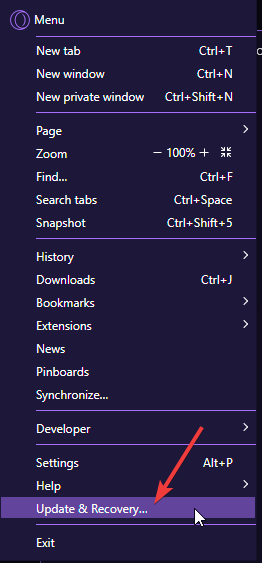
- Opera GX will automatically check for any available updates.
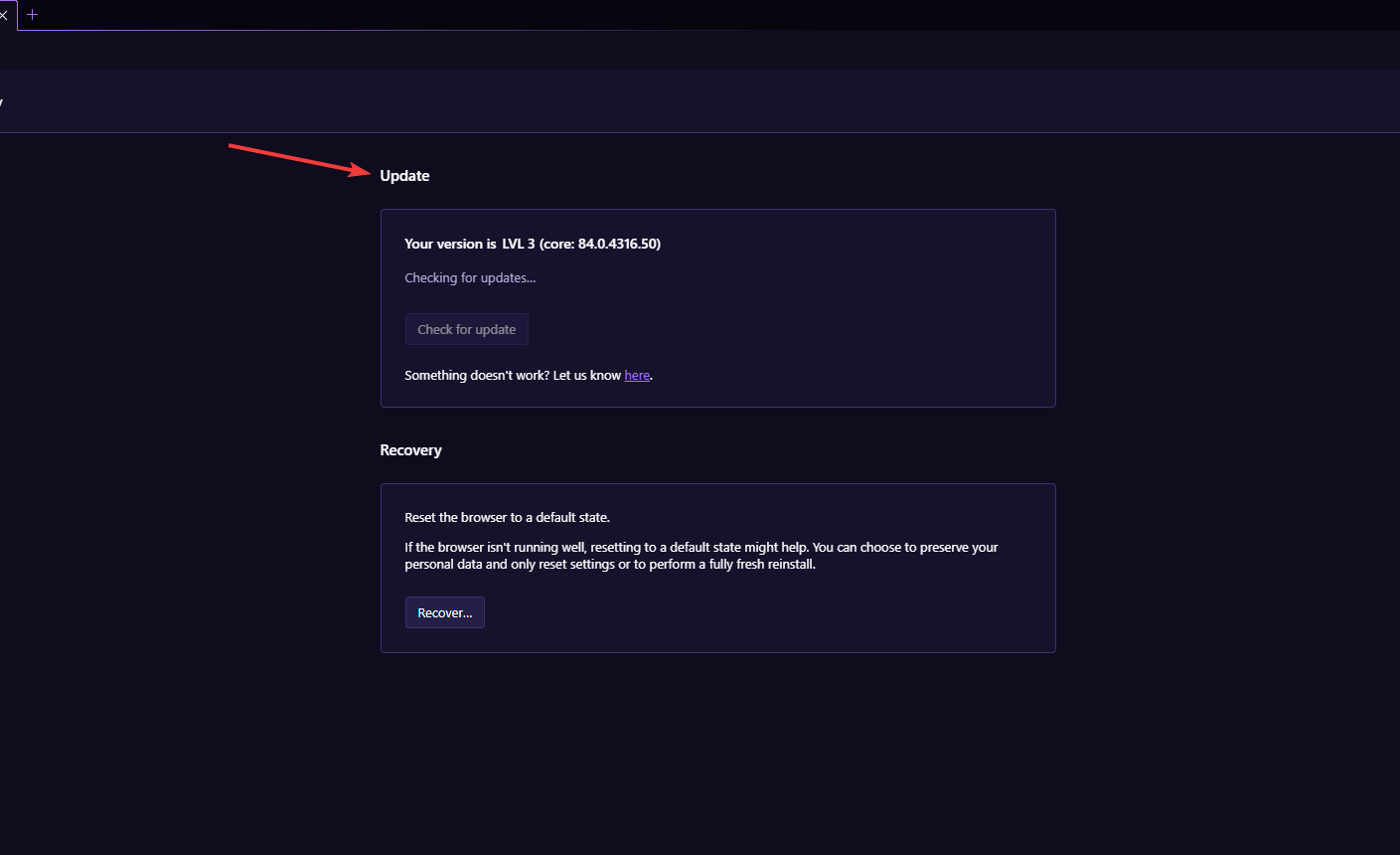
- Click Update if there is an available update.
- Relaunch Opera GX.
Opera is constantly updating and improving its browsers. These updates often fix bugs and problems like downloading issues. Opera GX will usually update automatically, but if you’re running into issues, check if any are available.

Opera GX
A powerful browser built for an immersive browsing and gaming experience.
2. Disable all extensions
- Click the Opera GX logo in the top right corner, then go to Extensions and select Extensions (or press Ctrl+Shift+E).
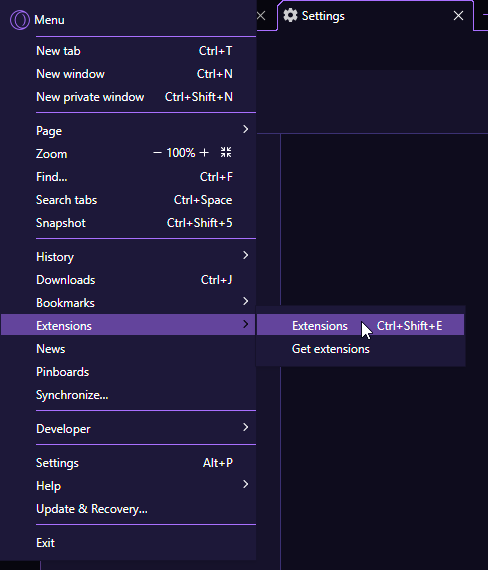
- Go through and disable all your extensions.
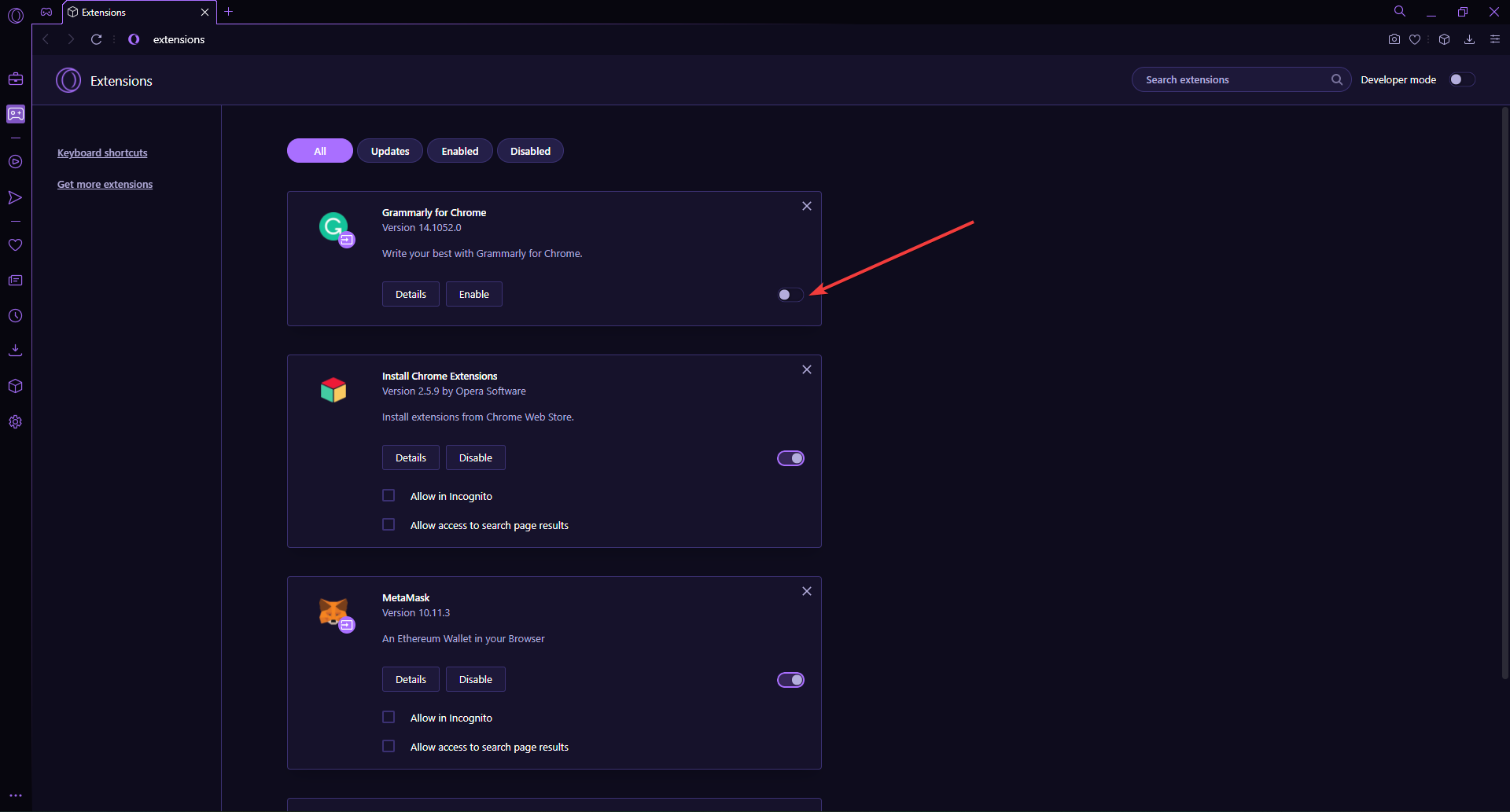
- Relaunch Opera GX.
Some PC issues are hard to tackle, especially when it comes to corrupted repositories or missing Windows files. If you are having troubles fixing an error, your system may be partially broken.
We recommend installing Restoro, a tool that will scan your machine and identify what the fault is.
Click here to download and start repairing.
Sometimes extensions can interfere with downloads. For example, if your downloads are working, it was due to a faulty or interfering extension. After downloading files, the wings can be enabled again.
3. Disable ad-blocker and VPN
- Click the Opera GX logo in the top right corner, then select Settings (or press Alt+P).
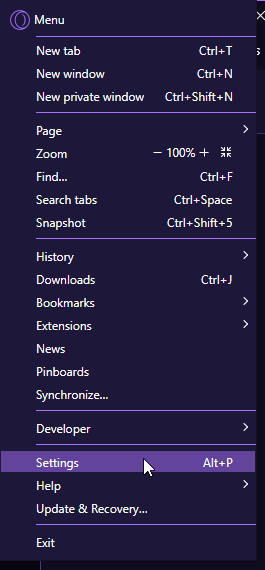
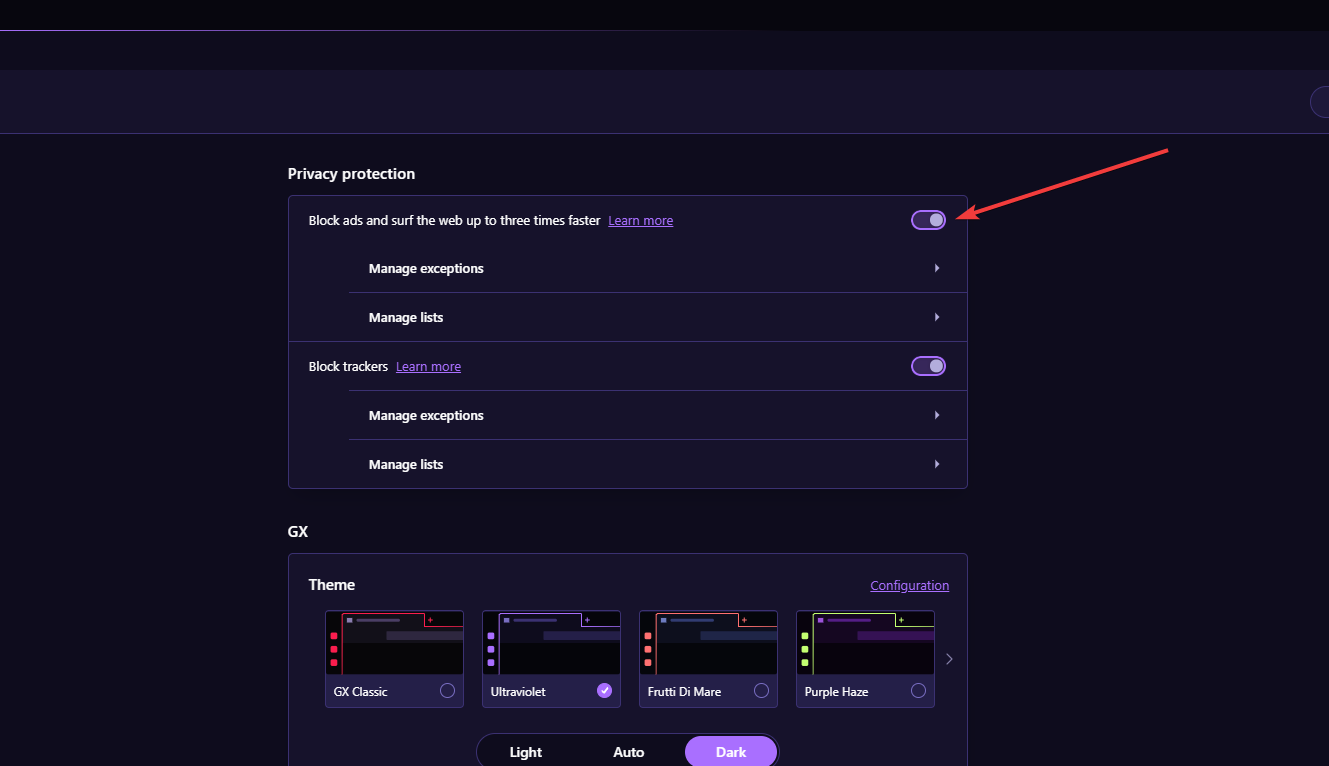
- Under Privacy protection, disable the Block ads feature.
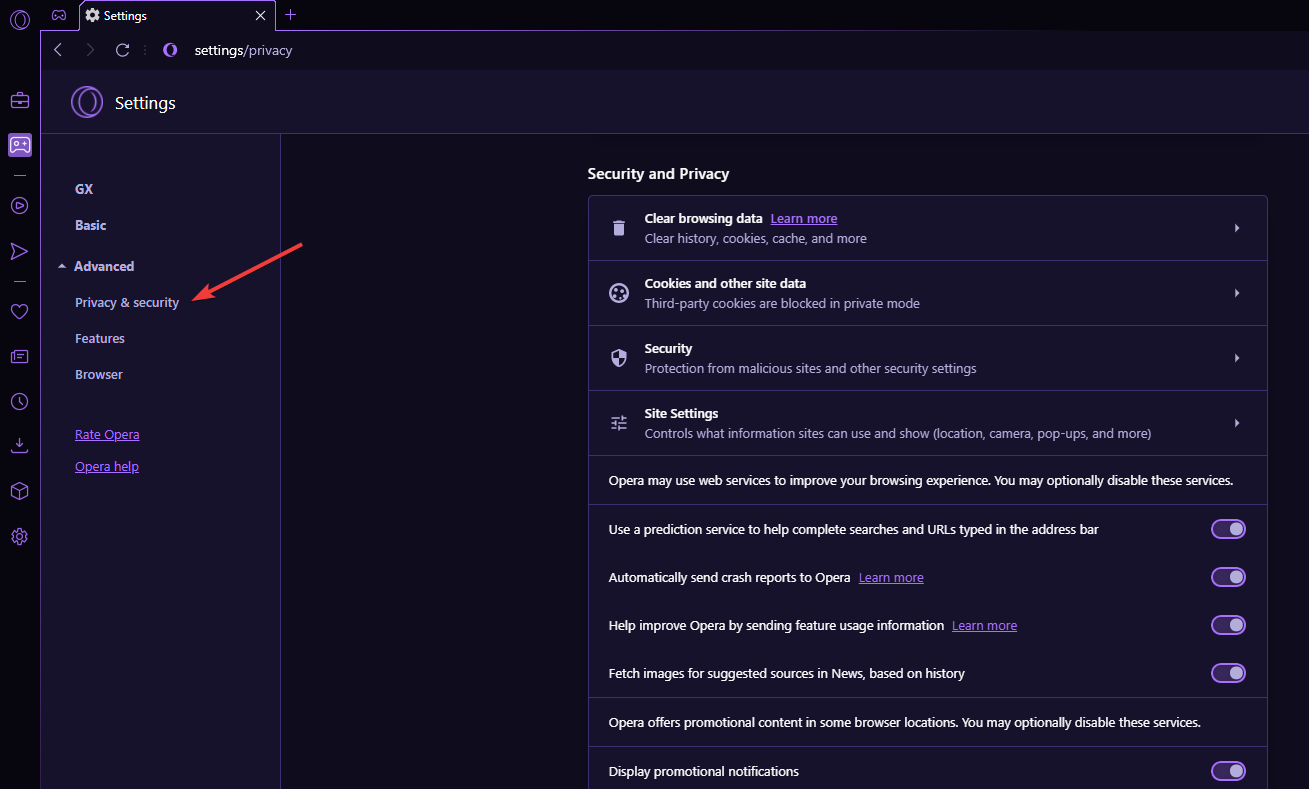
- In the side panel, select Privacy & security.
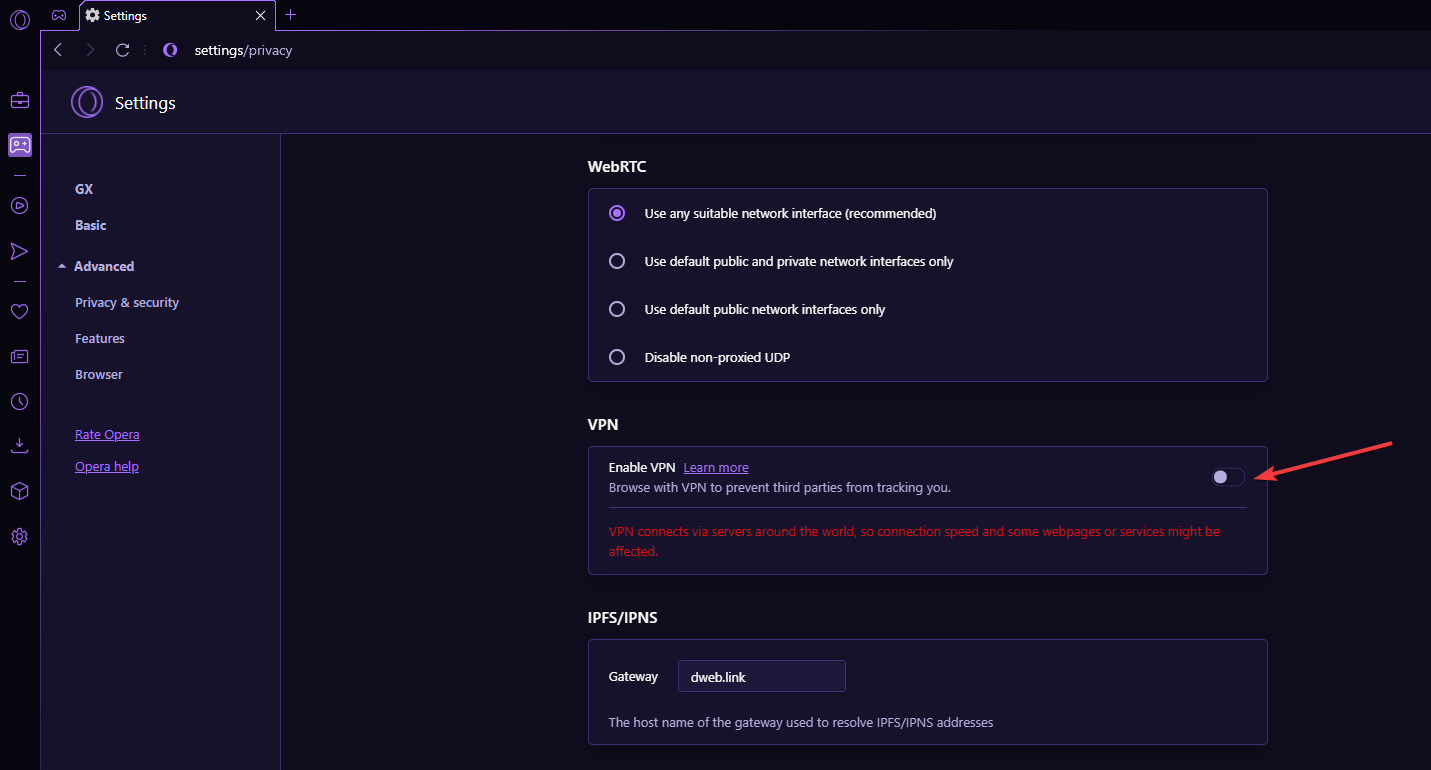
- Could you scroll down to VPN and disable it?
- Relaunch Opera GX.
Disabling the ad-blocker may solve the issue as the ad-blocker might prevent some files from downloading. However, the built-in VPN might also cause download limitations, so try downloading files after disabling these features.
- Why is Google Chrome Not Responding & How to Fix Its Crashes
- Chrome White Screen: Get It Back to Normal With 8 Solutions
4. Check app permissions
- Click on Start and open Settings (or press Windows + I).
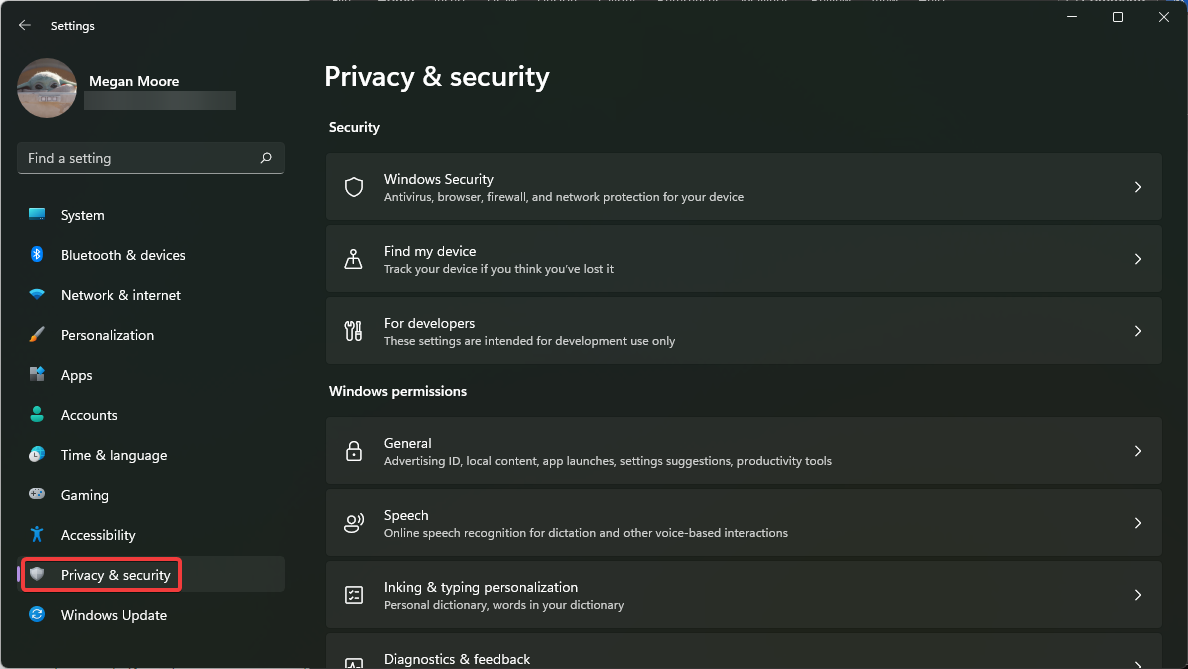
- Click Privacy & security.
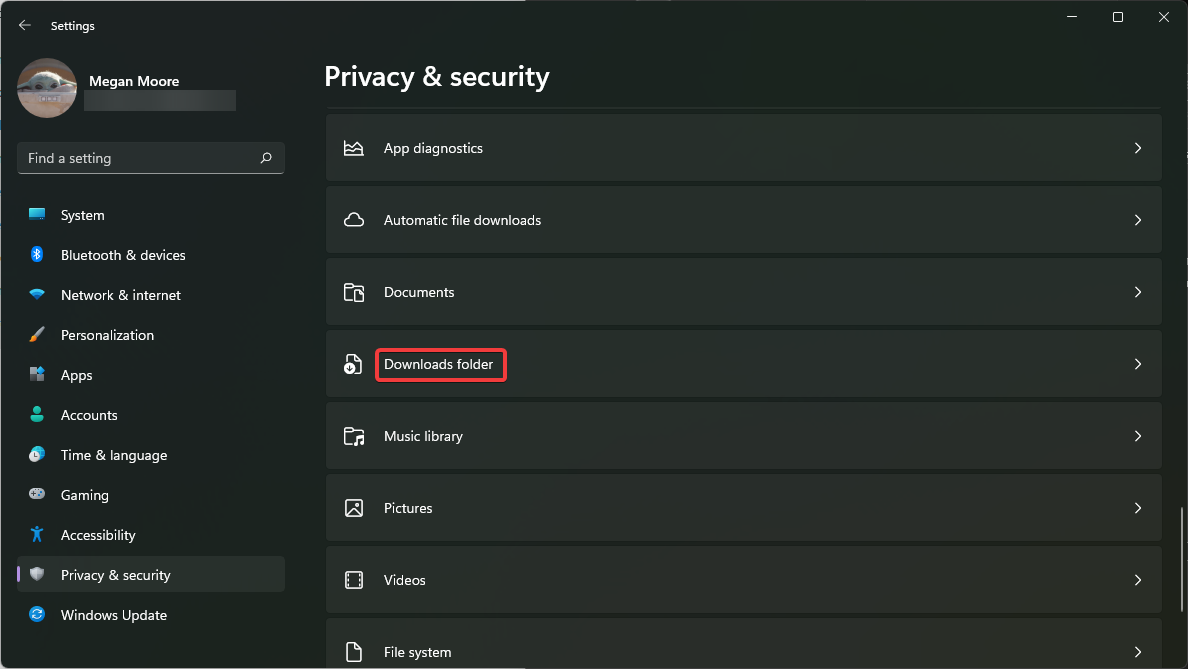
- Under App, Permissions, click the Downloads folder.
- Ensure that Downloads folder access and Let apps access your downloads folder is turned on.
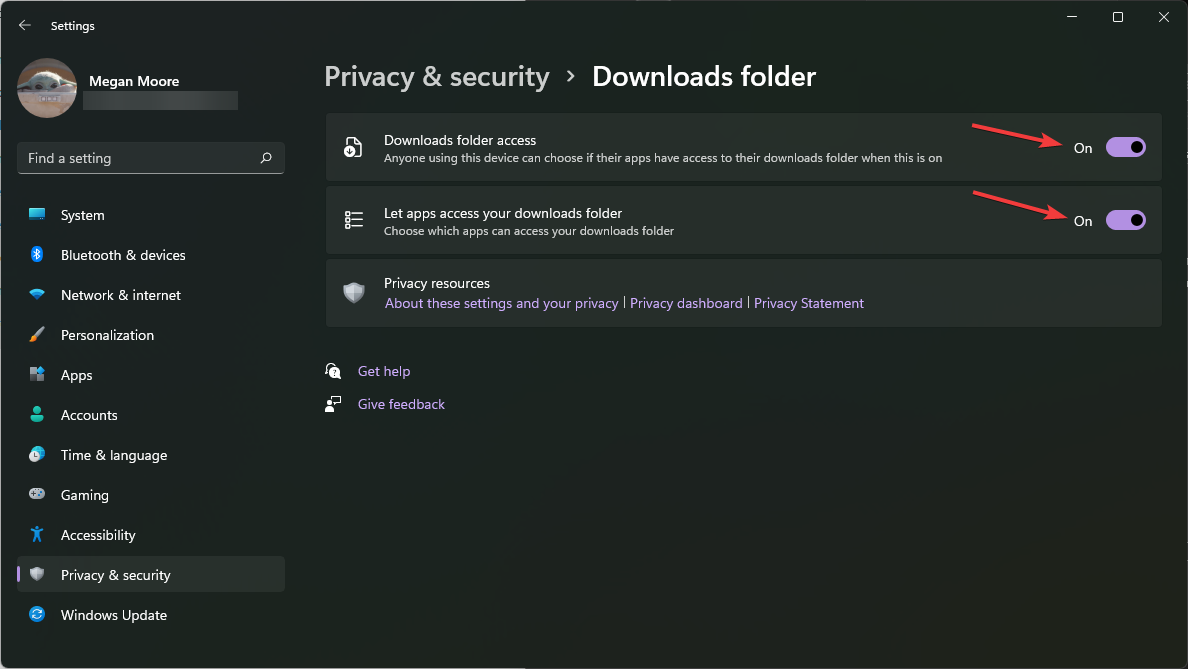
If Opera GX doesn’t have permission to access the downloads folder, then downloads won’t work correctly. Adjust the permissions accordingly.
5. Adjust site settings
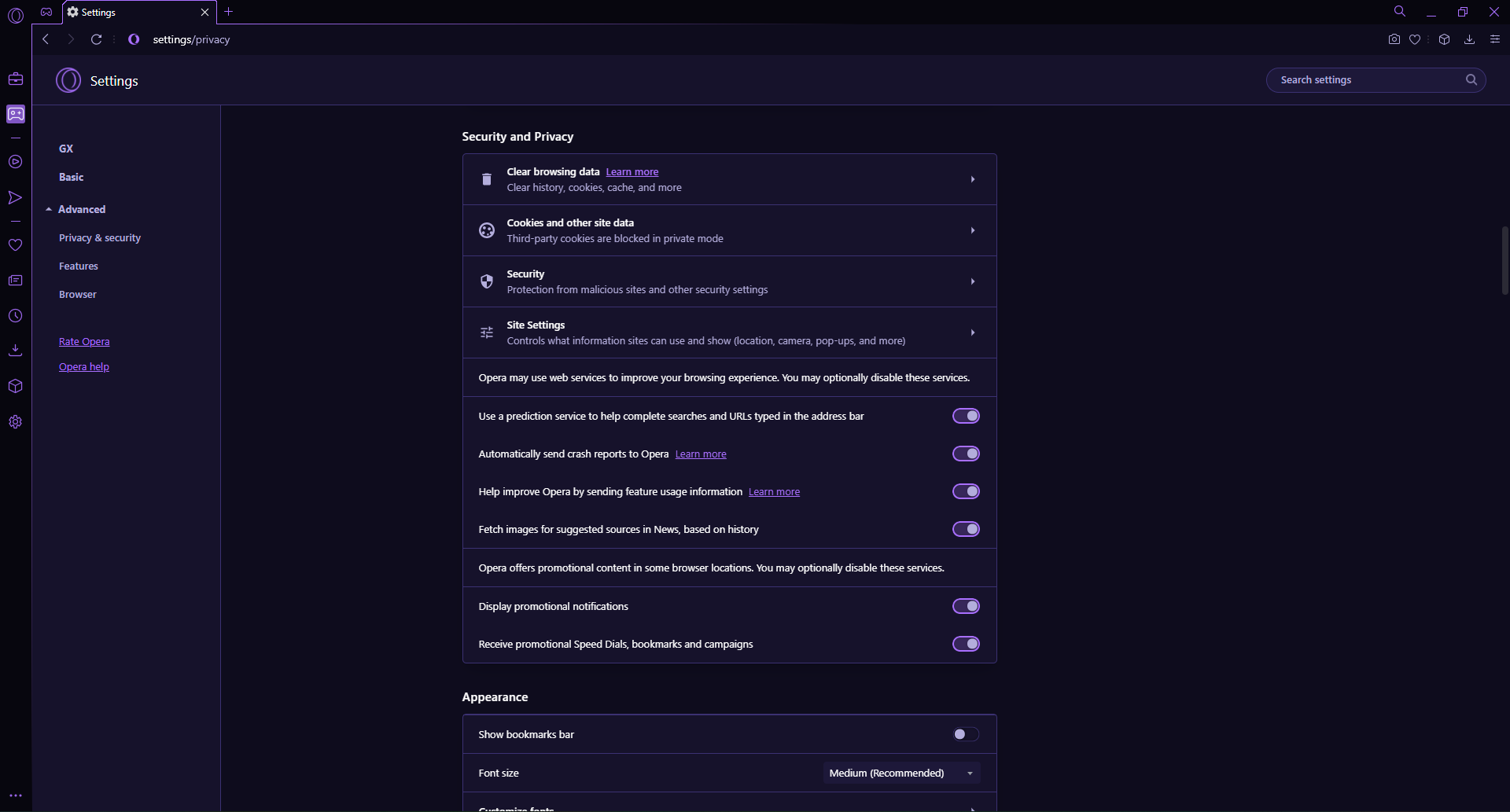
- Click the Opera GX logo in the top right corner, then select Settings (or press Alt + P).
- Click Privacy & security under Advanced.
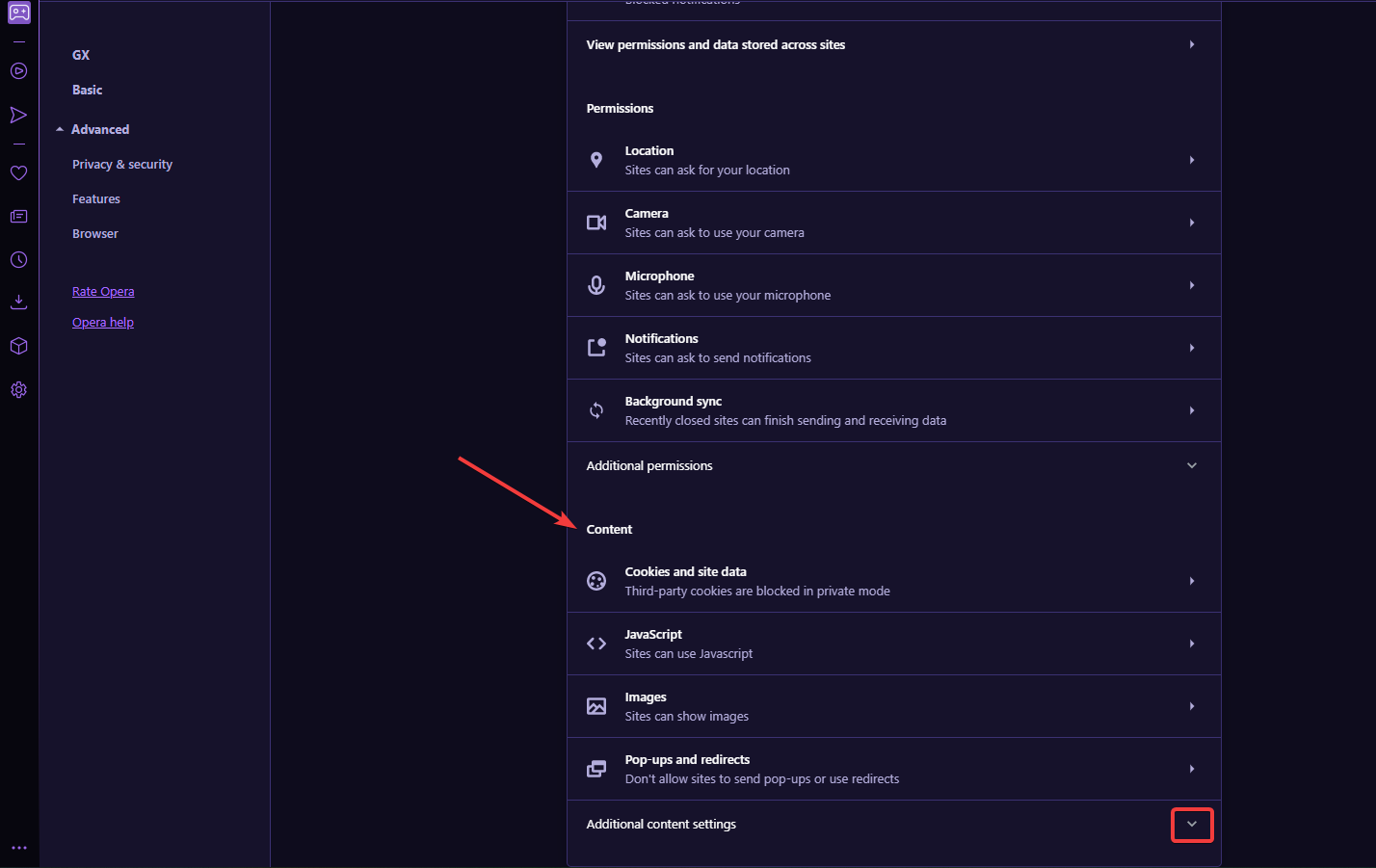
- Then, under Security and Privacy, click Site Settings.
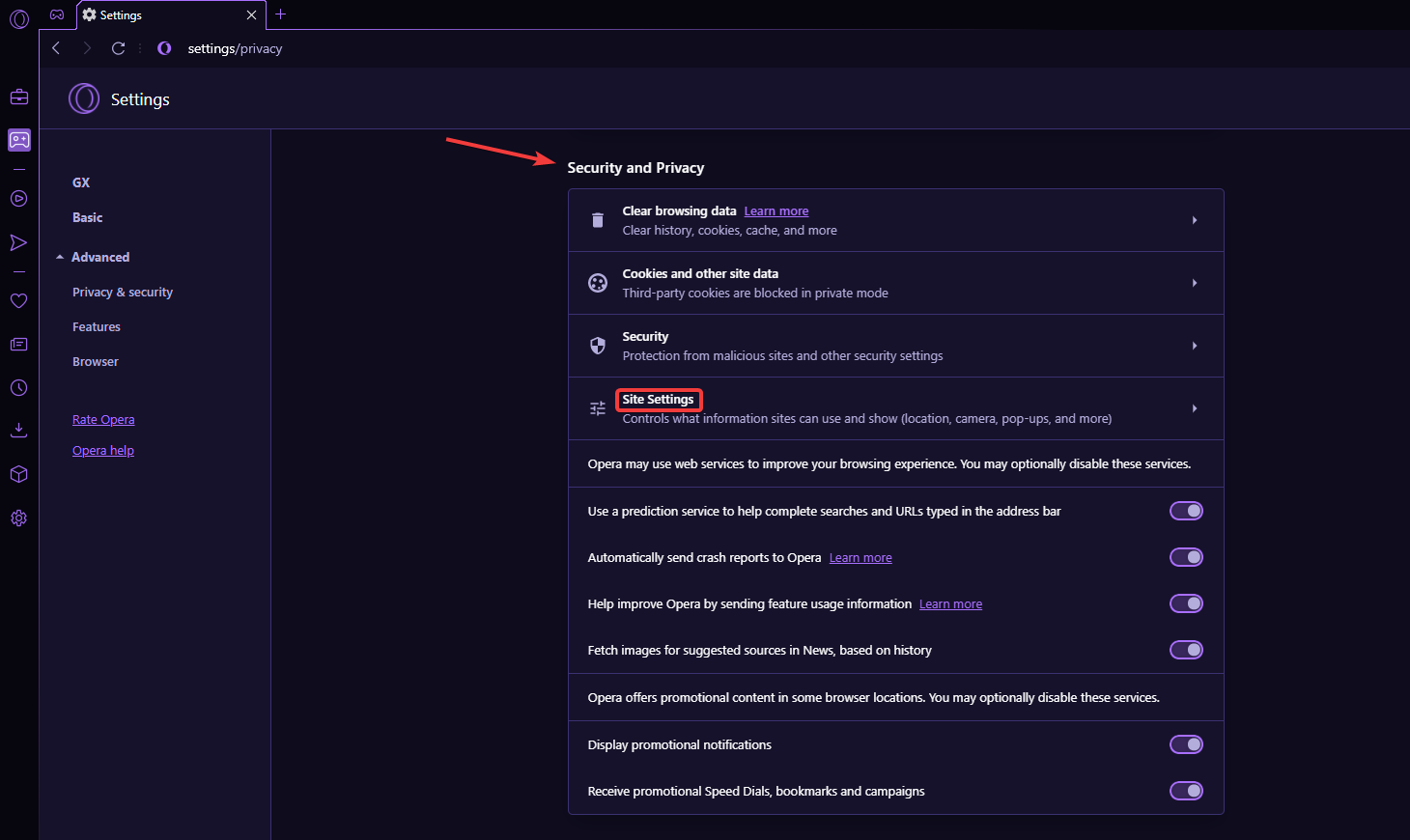
- Scroll down to Content and expand Additional content settings.
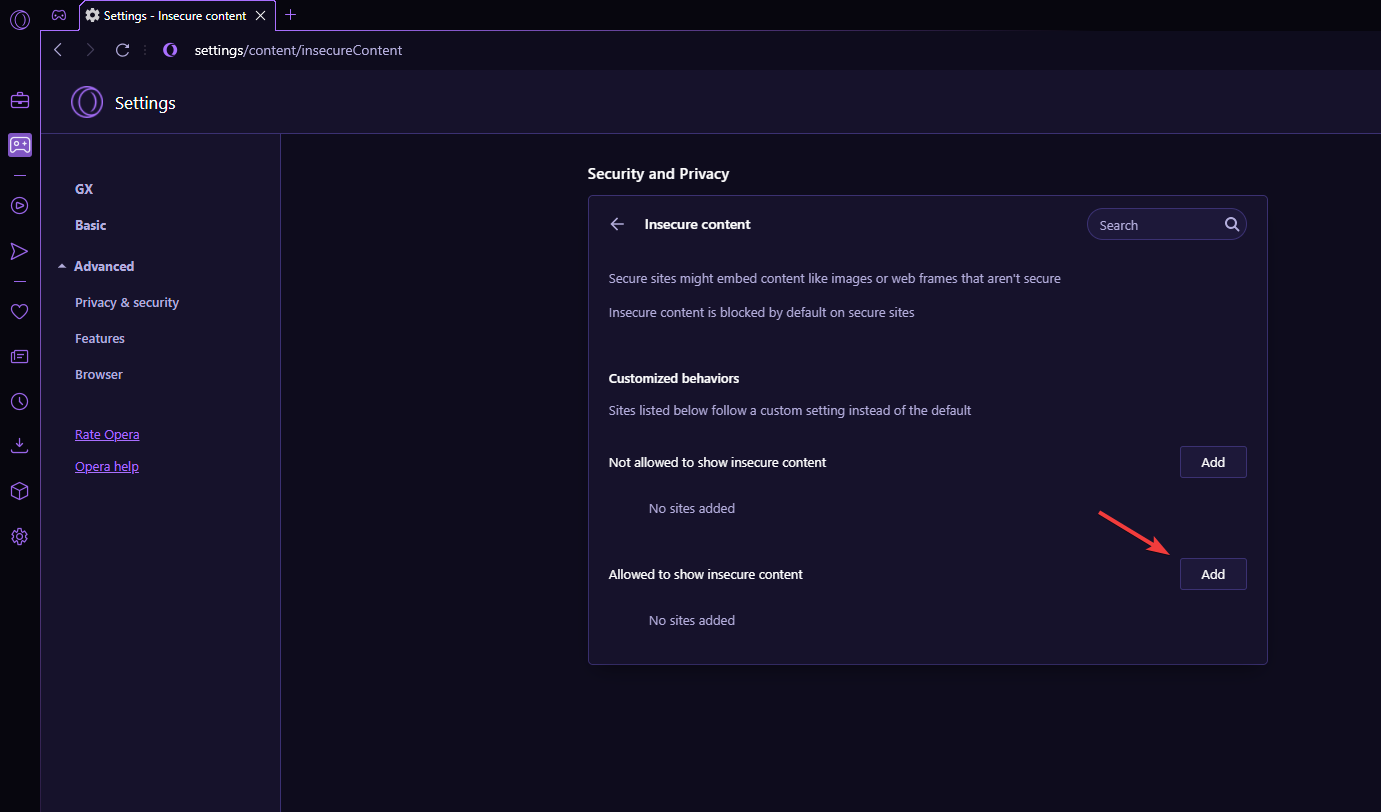
- Open Insecure content.
- Add the URL of the website you are trying to download files from under Allowed to show insecure content.
Opera GX protects its users from the content it deems insecure so that users don’t download malware by mistake. However, this feature may be blocking downloads from specific web pages.
Adding the website you wish to download files from will permit it to download.
6. Temporarily turn off the firewall
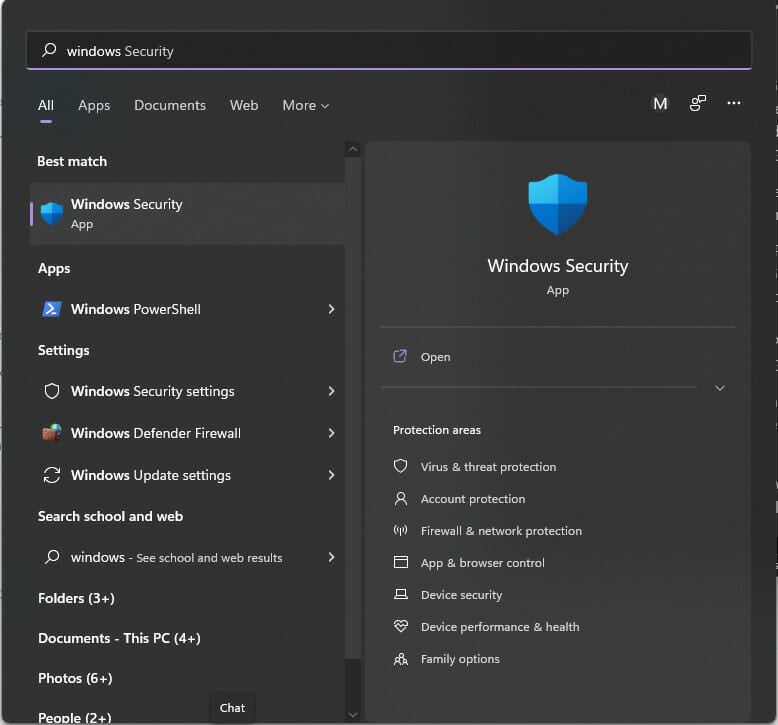
- Click on Start and search Windows Security, then hit enter.
- Select Firewall & network protection from the side panel.
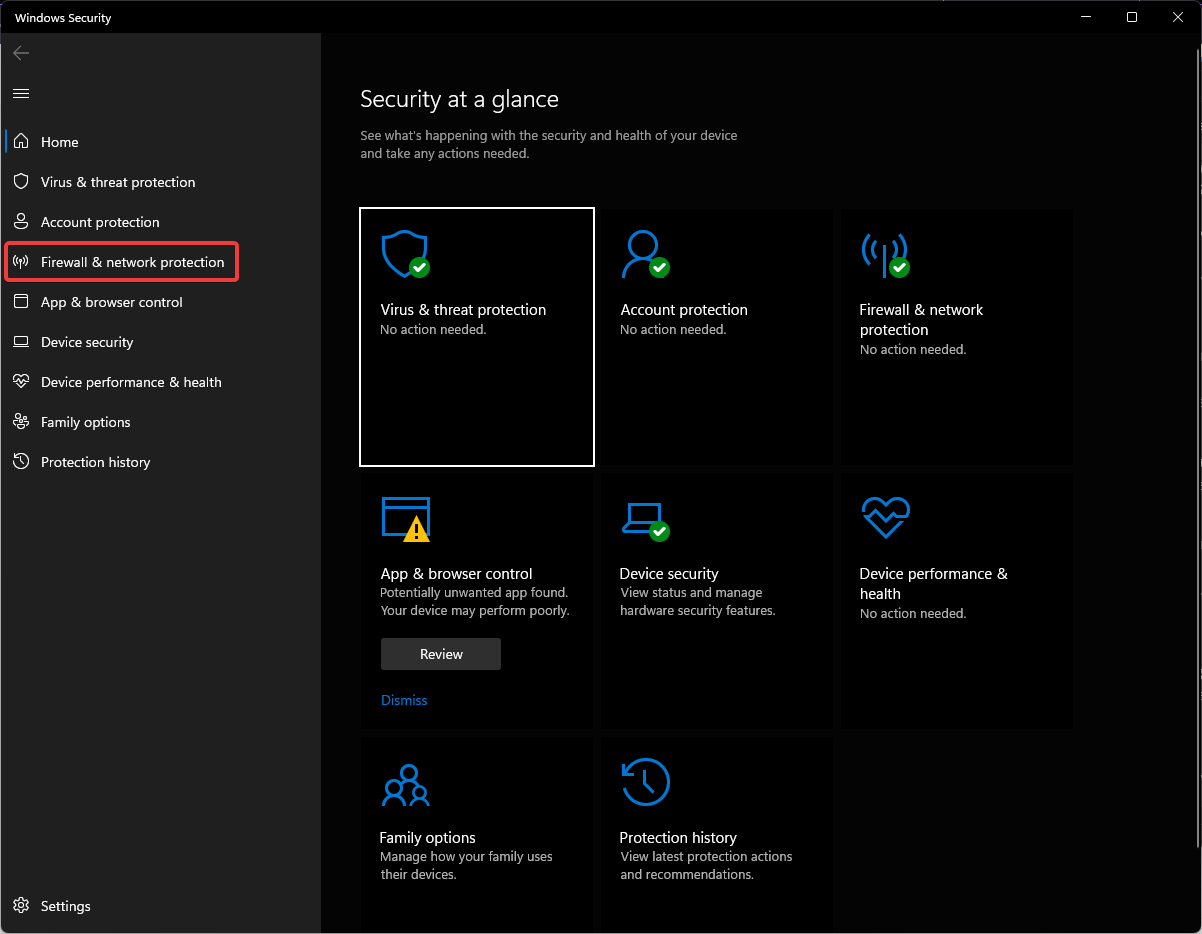
- Choose the network that relates to you.
- Toggle Microsoft Defender Firewall to off.
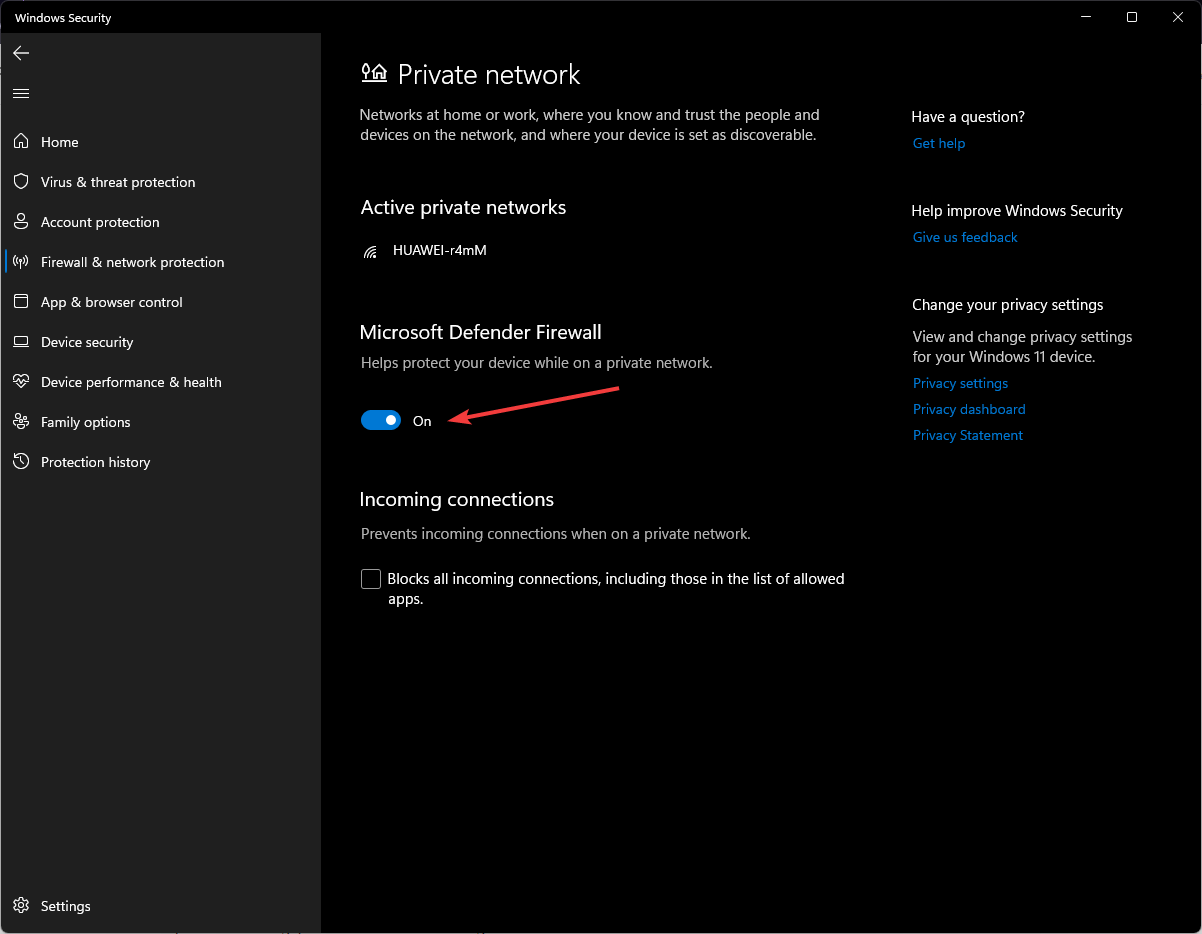
The firewall helps protect devices from malicious attacks, but it may also prevent downloads from the internet. Try downloading your files after disabling the firewall, but remember to turn it back on as soon as your download is finished.
Is Opera GX good for downloading?
The short answer is yes, it’s excellent for downloading. It’s so good that you even have a Network Limiter switch that lists the various network speeds to which you can limit Opera GX.
You can choose download speeds, the lowest being 64 Kb/s, and the maximum limit is 25 Mb/s. You can learn more about the best browsers for downloading large files in our dedicated article.
Since it’s a browser made for gamers, and most games nowadays take up a lot of space, it will suit your downloading needs perfectly.
So, if Opera GX won’t download your files, or Opera GX is taking too long to download them, now you know exactly what to do about it.
We hope these solutions solved the issue of Opera GX not downloading files. If Opera GX is downloading correctly, but your downloads folder is not responding, there are solutions for that issue.
Let us know in the comments below what solution worked for you.
Still having issues? Fix them with this tool:
SPONSORED
If the advices above haven’t solved your issue, your PC may experience deeper Windows problems. We recommend downloading this PC Repair tool (rated Great on TrustPilot.com) to easily address them. After installation, simply click the Start Scan button and then press on Repair All.
Newsletter
Follow these steps to get back to downloading files in Opera GX
by Megan Moore
Megan is a Windows enthusiast and an avid writer. With an interest and fascination in all things tech, she enjoys staying up to date on exciting new developments… read more
Updated on August 12, 2022
Fact checked by
Alex Serban
After moving away from the corporate work-style, Alex has found rewards in a lifestyle of constant analysis, team coordination and pestering his colleagues. Holding an MCSA Windows Server… read more
- Opera GX is the world’s first browser designed specifically for gamers.
- It is one of the most secure browsers with features that prevent DLL from hijacking downloads and other privacy protection functions.
- Users have reported issues with Opera GX not downloading files properly.
- Make sure you regularly update your browser to avoid issues or bugs.
Here’s what Opera can do:
- Optimize resource usage: your RAM memory is used more efficiently than in other browsers
- Enhanced privacy: free and unlimited VPN integrated
- No ads: built-in Ad Blocker speeds up loading of pages and protects against data-mining
- Gaming friendly: Opera GX is the first and best browser for gaming
- Download Opera | Opera GX
Opera GX gaming browser has taken the internet by storm. This browser is built specifically for gamers with features to optimize in-browser gaming.
With all the perks and features of the original Opera browser, Opera GX adds a cyberpunk feel to surfing the web with its techy interface. So it’s no surprise that this browser has become so popular.
However, some users have reported issues when trying to download files in Opera GX. This guide will offer several solutions to solve this problem.
Why is Opera GX not downloading files?
Well, there are many reasons you are experiencing this problem, among which is the Windows Firewall blocking these downloads for security reasons.
It can also happen due to your browser not being updated, conflicts with browser extensions, the integrated VPN or ad blocker, or maybe even the lack of permissions.
All of these together, or just one of them, can prevent your Opera GX browser from downloading the files you need.
Is Opera GX secure?
Opera GX is one of the safest browsers out there. It’s based on the Chromium engine, so it operates similarly to other popular browsers. However, Opera GX has advanced security features to protect user privacy and data.
Opera GX has Dynamic Link Libraries (DLL) hijacking prevention for downloads and files. It also protects your preferences, homepage, and extensions from malicious activity.
Like the original Opera browser, Opera GX has a built-in ad-blocker and unlimited VPN that encrypts user data and keeps them safe while browsing. However, while Opera browsers have similar features, Opera GX and Opera have quite a few differences that separate them.
How do I fix Opera GX not downloading files?
1. Check for updates
Ensure you have installed the latest version from the official page to ensure you’re running a glitch-free Opera GX.
- Click the Opera GX logo in the top right corner, then click on Update & Recovery.
- Opera GX will automatically check for any available updates.
- Click Update if there is an available update.
- Relaunch Opera GX.
Opera is constantly updating and improving its browsers. These updates often fix bugs and problems like downloading issues. Opera GX will usually update automatically, but if you’re running into issues, check if any are available.
Opera GX
A powerful browser built for an immersive browsing and gaming experience.
2. Disable all extensions
- Click the Opera GX logo in the top right corner, then go to Extensions and select Extensions (or press Ctrl+Shift+E).
- Go through and disable all your extensions.
- Relaunch Opera GX.
Some PC issues are hard to tackle, especially when it comes to corrupted repositories or missing Windows files. If you are having troubles fixing an error, your system may be partially broken.
We recommend installing Restoro, a tool that will scan your machine and identify what the fault is.
Click here to download and start repairing.
Sometimes extensions can interfere with downloads. For example, if your downloads are working, it was due to a faulty or interfering extension. After downloading files, the wings can be enabled again.
3. Disable ad-blocker and VPN
- Click the Opera GX logo in the top right corner, then select Settings (or press Alt+P).
- Under Privacy protection, disable the Block ads feature.
- In the side panel, select Privacy & security.
- Could you scroll down to VPN and disable it?
- Relaunch Opera GX.
Disabling the ad-blocker may solve the issue as the ad-blocker might prevent some files from downloading. However, the built-in VPN might also cause download limitations, so try downloading files after disabling these features.
- Why is Google Chrome Not Responding & How to Fix Its Crashes
- Chrome White Screen: Get It Back to Normal With 8 Solutions
- Edge Shortcut Keeps Appearing on Desktop: 5 Easy Fixes
- Did Not Connect: Potential Security Issue In Firefox: Fix
4. Check app permissions
- Click on Start and open Settings (or press Windows + I).
- Click Privacy & security.
- Under App, Permissions, click the Downloads folder.
- Ensure that Downloads folder access and Let apps access your downloads folder is turned on.
If Opera GX doesn’t have permission to access the downloads folder, then downloads won’t work correctly. Adjust the permissions accordingly.
5. Adjust site settings
- Click the Opera GX logo in the top right corner, then select Settings (or press Alt + P).
- Click Privacy & security under Advanced.
- Then, under Security and Privacy, click Site Settings.
- Scroll down to Content and expand Additional content settings.
- Open Insecure content.
- Add the URL of the website you are trying to download files from under Allowed to show insecure content.
Opera GX protects its users from the content it deems insecure so that users don’t download malware by mistake. However, this feature may be blocking downloads from specific web pages.
Adding the website you wish to download files from will permit it to download.
6. Temporarily turn off the firewall
- Click on Start and search Windows Security, then hit enter.
- Select Firewall & network protection from the side panel.
- Choose the network that relates to you.
- Toggle Microsoft Defender Firewall to off.
The firewall helps protect devices from malicious attacks, but it may also prevent downloads from the internet. Try downloading your files after disabling the firewall, but remember to turn it back on as soon as your download is finished.
Is Opera GX good for downloading?
The short answer is yes, it’s excellent for downloading. It’s so good that you even have a Network Limiter switch that lists the various network speeds to which you can limit Opera GX.
You can choose download speeds, the lowest being 64 Kb/s, and the maximum limit is 25 Mb/s. You can learn more about the best browsers for downloading large files in our dedicated article.
Since it’s a browser made for gamers, and most games nowadays take up a lot of space, it will suit your downloading needs perfectly.
So, if Opera GX won’t download your files, or Opera GX is taking too long to download them, now you know exactly what to do about it.
We hope these solutions solved the issue of Opera GX not downloading files. If Opera GX is downloading correctly, but your downloads folder is not responding, there are solutions for that issue.
Let us know in the comments below what solution worked for you.
Still having issues? Fix them with this tool:
SPONSORED
If the advices above haven’t solved your issue, your PC may experience deeper Windows problems. We recommend downloading this PC Repair tool (rated Great on TrustPilot.com) to easily address them. After installation, simply click the Start Scan button and then press on Repair All.
Newsletter
В этом посте мы обсудим, что делать, если Opera GX не загружает файлы. Opera GX — популярный игровой браузер. Многие геймеры выбирают Opera GX в качестве предпочтительного браузера, когда дело касается онлайн-игр. Он предлагает им игровой процесс без задержек, хотя некоторые пользователи сообщают, что сталкиваются с проблемами при загрузке файлов из Opera GX, таких как пакет текстур для Minecraft. Загрузка либо не начинается, либо частично завершается, а затем останавливается.
Почему Opera GX не работает?
Может быть много причин, по которым Opera GX ничего не загружает. Браузер может идентифицировать файл как подозрительный, хотя веб-сайт может казаться безопасным. Или ваш брандмауэр может блокировать загрузку в целях безопасности. Стороннее дополнение, встроенный VPN или блокировщик рекламы Opera также могут конфликтовать с загрузкой. Сброс браузера может помочь, если Opera GX не работает.
Если вы не можете ничего загрузить из Opera GX, перезагрузите компьютер и посмотрите, решит ли это проблему. Кроме того, убедитесь, что у вас стабильное подключение к Интернету, и повторите попытку после временного отключения VPN (если вы активировали VPN в Opera GX), брандмауэра или антивирусного программного обеспечения. Если эти краткие советы не помогут, используйте следующие решения, чтобы исправить Opera GX, не загружающую файлы:
- Обновите Оперу GX
- Включить разрешения приложения для папки «Загрузки»
- Отключить расширения
- Отключить блокировщик рекламы для отдельного сайта
- Очистить куки и кеш
1]Обновите Opera GX
Убедитесь, что ваш браузер Opera GX обновлен до последней версии. Хотя Opera автоматически обновляется до последней версии, когда она доступна, вы можете вручную проверить наличие ожидающих обновлений, щелкнув значок Opera (O) в верхнем левом углу окна браузера и выбрав опцию «Обновление и восстановление». Нажмите на кнопку Проверить наличие обновлений. Затем нажмите «Обновить», если доступно обновление. Перезапустите Opera GX, чтобы завершить установку обновления. Вы также можете попробовать переустановить Opera GX, если обновление не помогло.
2]Включить разрешения приложения для папки «Загрузки»
Opera GX может не загрузить файл, если у него нет разрешения на доступ к папке «Загрузки». Чтобы убедиться в этом, щелкните значок кнопки «Пуск» на панели задач Windows и выберите «Настройки». Затем нажмите «Конфиденциальность и безопасность» слева. Затем в разделе «Разрешения приложений» на правой панели щелкните папку «Загрузки». Убедитесь, что обе кнопки переключения на этой странице включены.
3]Отключить расширения
Нажмите на иконку Opera и откройте меню расширений. Выберите расширения и нажмите кнопку переключения, чтобы отключить расширения, которые вы установили от третьих лиц. Перезапустите Opera GX и попробуйте загрузить файл. Если загрузка завершится, вы сможете снова включить расширения в Opera GX.
4]Отключить блокировку рекламы для отдельного сайта
Затем отключите встроенный блокировщик рекламы Opera для отдельного сайта и попробуйте. Блокировщик рекламы блокирует рекламу и всплывающие окна в Opera GX. Это может помешать загрузке вашего файла, если он появится во всплывающем окне. Opera GX позволяет отключить блокировщик рекламы и разрешить всплывающие окна с отдельных сайтов, которые вы помечаете как «исключения».
- Перейдите на веб-страницу, с которой вы пытаетесь загрузить файл.
- Нажмите на значок щита в правой части адресной строки Opera GX.
- Нажмите «Отключить для этого сайта».
Вы также можете вручную добавить веб-сайт в список исключений через настройки защиты конфиденциальности Opera (Basic).
5]Очистить куки и кеш
Если приведенное выше решение не помогло, очистите файлы cookie и кеш браузера Opera GX.
Чтобы удалить отдельные файлы cookie, перейдите в «Настройки» > «Конфиденциальность и безопасность» > «Файлы cookie и другие данные сайта». Затем прокрутите вниз и нажмите «Просмотреть все файлы cookie и данные сайта». Используйте панель поиска вверху, чтобы найти определенные файлы cookie, и щелкните значок корзины, чтобы удалить их. Вы также можете нажать кнопку «Удалить все», чтобы удалить все файлы cookie. Однако удаление отдельных файлов cookie не позволит вам выйти из системы на всех сайтах в браузере Opera GX.
Чтобы очистить кеш браузера, выберите «Настройки» > «Конфиденциальность и безопасность» > «Очистить данные браузера». Выберите «Кэшированные изображения и файлы» и нажмите кнопку «Очистить данные».
Приведенные выше решения должны решить проблему. Если вы получаете предупреждение о том, что страница, с которой вы пытаетесь загрузить, не защищена, нажмите значок замка слева от адресной строки, затем нажмите «Настройки сайта» и установите для параметра «Небезопасное содержимое» значение «Разрешить». Обратите внимание, что этот параметр может загрузить зараженный файл. Будьте уверены в файле, прежде чем загружать его на свой компьютер.
Всем привет! Сегодня столкнулся с такой проблемой – при заходе на любой сайт выводит ошибку ERR_NETWORK_CHANGED с надписью: «Соединение прервано: Похоже, вы подключились к другой сети». При этом не важно, каким именно браузером вы пользуетесь: Google Chrome, Яндекс, Opera или Firefox – проблема кроется именно в интернет-подключении.
Проблема в том, что за интернет-соединение может отвечать достаточно много вещей в системе. Так что причин может быть несколько. О том, как исправить и что делать при ошибке «Network Error» я написал далее, если у вас будут какие-то вопросы или возникнут трудности, то пишите в комментариях.

Первые действия
В первую очередь делаем две банальные вещи: перезагружаем компьютер или роутер. На компе мог повиснуть драйвер сетевого или Wi-Fi адаптера, ну а роутеры частенько перегреваются и тупят. Попробуйте не просто отключить роутер от питания, а вообще выдернуть его из розетки на несколько минут, а потом подключить.
На всякий случай проверьте и другие браузеры, если они есть, а также попробуйте пооткрывать другие сайты. Если не открывается только один сайт, то скорее всего проблема с сервером, на котором расположен ресурс. Также, если есть проблема только с одним браузером, то советую полностью его удалить с компа, заново скачать и установить.
Попробуйте отключить антивирусник или фаервол. Подойдите к своему роутеру, если он у вас есть и посмотрите на индикаторы.
Должны гореть индикаторы: питания (1), Wi-Fi (2) и интернета (3). Также, если вы подключены по кабелю, то должен гореть соответствующий локальный порт от 1 до 4. Посмотрите, чтобы кабель от провайдера, а также провод до компа был плотно вставлен в гнездо, можно попробовать его вытащить и поплотнее вставить обратно. Если индикатор интернета не горит, то значит следует позвонить провайдеру, так как проблема у него.
Почему при скачивании файла пишет ошибка сети. Как справиться с ошибкой при скачивании торрента
Производитель программного обеспечения Google постоянно предлагает пользователям новые возможности для своего браузера с помощью расширений, скачиваемых из интернет-магазина Chrome.
Однако иногда при установке таких плагинов возникают проблемы. Одной из самых распространённых является ошибка «Network failed», возникающая во время скачивания и предупреждающая о якобы отсутствующем соединении с сетью.
Для её устранения и получения возможности снова пользоваться расширениями стоит узнать причину появления сообщения.
Ошибка «download interrupted»… Знакомство.
Что из себя представляет данная ошибка?
Ну вот, к примеру: собрались вы как обычно установить себе какое-то расширение в браузер или скорее всего обнаружили пропажу уже применяемых, зашли в магазин расширений, нажали на кнопочку «Установить», а в ответ вам выдало такое:
А с чего все началось у меня:
Зашел в свою учетную запись в браузере и, как уже было сказано выше, обнаружил, что нет установленных расширений, захотел добавить новое и результат уже очевиден. Кстати, синхронизация очень удобная штука. А вы используете ее?
Итак, не устанавливаются расширения в Google Chrome, что делать?
Конфликт сетевых адаптеров
Нажмите на сочетание клавиш «Win» и «R». Вылезет вот такое окошко, где нужно будет вписать команду:
ncpa.cpl

На ПК в идеале должно быть одно подключение по кабелю. Если у вас ноутбук или есть Wi-Fi адаптер, то будет также и беспроводное подключение. Если же вы видите ещё дополнительные непонятные адаптеры, то попробуйте нажать правой кнопкой на каждый и отключить все ненужные.
Дело в том, что есть программы, которые устанавливают на комп виртуальные сетевые карты. К подобным программам относят: VPN, виртуальные машины, приложения, работающие с виртуальными локальными сетями. В третьей строке под каждым подключением можно увидеть название ПО. Напомню ещё раз, что нужно отключить все кроме «Ethernet» и «Беспроводного подключения».

Если это не поможет, то можно попробовать зайти в свойства адаптера, через который у вас идет интернет.

В списке отключите 6 протокол (TCP/IPv6) и подтвердите изменение.

Распространенные ошибки при скачивании файлов. Как скачивать файлы с обменников без проблем

Наверняка многие из вас пробовали скачивать файлы с различных обменников. Вот самые распространенные из них — rapidshare, depositefiles, rghost и тд. Случается такое, что при попытке получить желаемый файл, сервис выдает такое сообщение «Ошибка при скачивании файла», и процесс прерывается. В данном материале мы попробуем разобраться с этой ситуацией, понять причины, и какие действия можно предпринять.
Проблемы LAN, Wi-Fi
Как правило, основная масса пользователей использует бесплатные аккаунты на файловых обменниках. Это вполне нормально — приемлемая скорость, и отсутствие необходимости оплачивать доступ. Но существуют и некоторые ограничения. Например, с одного IP-адреса или MAC- адреса, можно скачивать только один файл. Таким образом, если вы попробуйте получить еще один, сервис выдаст вам ошибку «С данного ip адреса уже идет скачивание, попробуйте позже». Сообщение может немного меняться:
Тут нужно обратить внимание на особенности вашего подключения к сети Интернет. Если провайдер выдает вам статический ip-адрес, то вариантов у вас немного. Либо дождаться завершения скачивания текущего файла, либо оплатить VIP-аккаунт на файловом обменнике. Но не стоит забывать, что проблемы могут быть вызваны ddos атакой на сервер файлового обменника.
Для тех, у кого ip динамический, есть хорошие новости. Сменить его можно за пару минут. Сейчас мы этим и займемся.
Обратите внимание: проверяйте, правильно ли указана маска подсети на вашем сетевом интерфейсе. Неверное значение может привести к проблемам в сети.
Меняем динамический IP адрес
Нам нужно запустить командную строку. Делается это либо нажатием клавиш Win+R, либо нажатием кнопки «пуск» -> «выполнить», затем набираете cmd и щелкайте «ок». Если все сделано верно, перед вами появится окно командной строки:
Теперь нам нужно последовательно ввести три команды. Набирайте их с клавиатуры, в том виде, в котором они приведены ниже:
- ipconfig /flushdns
- ipconfig /release
- ipconfig /renew
Обратите внимание, после ввода каждой команды, нужно нажимать клавишу «enter», чтобы она сработала.
Вам пригодится: как сменить ip адрес компьютера.
После этого стоит проверить, исчезла ли ошибка при скачивании файла. В большинстве случаев этого метода будет достаточно.
Обратите внимание:
Желательно посоветоваться с вашим сетевым администратором, или хотя бы почитать документацию по устройству вашей сети. Она может быть настроена таким образом, что внешний ip адрес будет статическим, а внутренние будут динамическими, раздаваемыми по средствам NAT (трансляция сетевых адресов). Таким образом, если вы используйте вышеописанные действия, скажем, для устранения ошибки при скачивании торрента, они не сработают. Ведь вы обновите только внутренние адреса — внешний будет неизменен.
Обратите внимание: если проблемы в вашей сети связаны с настройками маршрутизатора, можете использовать материал из статьи — базовая настройка маршрутизатора cisco.
Альтернативные причины
Давайте немного поговорим про cookies. Для справки:
Cookies — данные, отправленные веб сервером, при подключении к нему, используемые для идентификации пользователя. Хранятся на локальном компьютере, с которого осуществлялось подключение.
Случается такие ситуации, когда поиск причины возникновения ошибки в сети при скачивании файла, приводит к устаревшим cookies. Из-за этого веб сервер видит старую сессию, и не дает возможности подключения. Проблема решается сбросом/обновлением cookies. Давайте сделаем это на примере браузера Firefox.
Нажимаем кнопку «инструменты», затем «настройки». Теперь переходим на вкладку «приватность». Здесь нам интересует два пункта — «удалить вашу недавнюю историю» и «удалить отдельные куки».
Давайте удалим отдельные cookies. Щелкаем соответствующую кнопку. В строке поиска пишем адрес нужного файлового обменника. Пусть это будет «Депозитфайл» — набираем dfiles. Теперь нажимаем кнопку «удалить все куки».
Теперь следует проверить, будет ли возникать ошибка при скачивании файла.
Сброс настроек TCP и IP
Возможно, у вас зависли настройки сетевого адаптера, можно попробовать их сбросить через командную строку.
- Открываем «Пуск».
- Вводим в поисковую строку название консоли (командная строка или cmd) и запускаем её с правами админа.

- Далее поочередно вводим три команды:
netsh winsock reset
netsh int ip reset c:resetlog.txt
ipconfig /flushdns
- В самом конце перезагружаем комп.
Настройка электропитания на ноутбуке
У ноутбука в настройках электропитания стоит фишка, которая позволяет отключать беспроводной или сетевой адаптер при работе от батареи. Тогда может возникнуть ошибка «Соединение прервано». Можно попробовать выставить нужные настройки.
- Нажмите ПКМ по батарее в трее и выберите раздел «Электропитание».

- Напротив действующей схемы выберите настройки.

- Далее нажимаем по ссылке для изменения конфигурации параметров питания.

- Найдите беспроводной адаптер, зайдите в режим и установите в обе строки параметр: «Максимальная производительность».

- Примените и сохраните настройки.
- Зайдите в «Свойства» компьютера.

- Переходим в «Диспетчер устройств».

- В разделе «Сетевых адаптеров» найдите беспроводной – он может иметь в названии: Wireless, Wi-Fi или 802.11. Зайдите в его свойства.

- На вкладке «Управление электропитанием» уберите верхнюю галочку и нажмите «ОК».

Убираем лишнее из автозагрузки и чистим комп от лишнего
Вспомните, не устанавливали ли вы ранее какие-то программы, которые в теории могут мешать работе адаптеру. В первую очередь давайте зайдем в автозагрузку:
Windows 7: нажимаем «Win+R» и вводим «msconfig».
Windows 10: нажимаем правой кнопкой по «Пуску» и выбираем «Диспетчер задач».
Далее на вкладке «Автозагрузка» отключите все программы кроме антивирусника и звуковой карты (по умолчанию это Realtek). Далее нажимаем «Применить» и перезагружаем комп.

Также я советую вам зайти в раздел «Программы и компоненты» и удалить все лишние и ненужные программы с компа. Также проверьте систему антивирусником со свежими базами. В качестве последнего варианта, можно попробовать обновить драйвер на сетевое устройство:
- Сетевой адаптер
- Wi-Fi модуль
Если ничего из вышеперечисленного не помогло, то опишите свою ситуацию в комментариях, и я вам помогу.
Расширения Google Chrome ошибка сети – устранение неполадок

Производитель программного обеспечения Google постоянно предлагает пользователям новые возможности для своего браузера с помощью расширений, скачиваемых из интернет-магазина Chrome.
Однако иногда при установке таких плагинов возникают проблемы. Одной из самых распространённых является ошибка «Network failed», возникающая во время скачивания и предупреждающая о якобы отсутствующем соединении с сетью.
Для её устранения и получения возможности снова пользоваться расширениями стоит узнать причину появления сообщения.
Причины неполадки
Чаще всего сообщение об ошибке возникает в таких ситуациях:
- Прекращение работы некоторых расширений. Определить, что именно эта причина вызвала неполадку, можно, удачно скачав другой плагин;
- Устаревшая версия браузера Google Chrome;
- Удалённая папка Downloads;
- Изменение системного файла hosts.
Первый вариант причины не требует никаких действий со стороны пользователя. Для второго необходимо обновить Гугл Хром до последней версии. Удалённую директорию следует восстановить. А файл hosts возвращают к исходному состоянию.
Обновление браузера
Первыми действиями, которые следует предпринять для исправления неполадки, должна стать попытка обновить Chrome до последней версии.
Ведь, если оставить устаревший вариант браузера, проблема будет заключаться не только в невозможности скачать плагины, но и в появлении других неполадок. Например, неправильного отображения сайтов или не запускающегося файла мультимедиа.
В большинстве случаев обновление происходит автоматически, но, если этого не произошло, придётся совершить необходимые для этого действия вручную.
Включить обновление браузера от Google можно с помощью редактора реестра. Для этого выполняют следующие действия:
- Открывают окно выполнения команд (клавиши Win+R);
- Вводят в появившемся окошке «regedit»;
- Когда откроется меню редактора, переходят на ветку HKEY_LOCAL_MACHINE – SOFTWARE – Policies – Google – Chrome – Update;
- Находят значение Update Default;
- Открывают контекстное меню правой кнопкой мыши;
- Изменяют значение с 0 на 1.
После нажатия кнопки «ОК» изменения в реестре сохранятся. Перезапуск браузера обеспечит применение новых настроек автообновления, а сообщение о проблеме перестанет появляться. Хотя в редакторе реестра может вообще не оказаться нужного пункта. А, значит, решать вопрос придётся другими способами.
Изменение файла hosts
Следующий способ избавиться от ошибки в Google Chrome – восстановить файл hosts до состояния, которое позволит запуск плагинов. При этом желательно сделать его копию – если что-то пойдёт не так, изменения можно будет отменить.
Для исправления файла следует его сначала найти. Один из способов поиска (если нет желания проводить его в системных папках) – вызов окна «Выполнить» и ввод команды notepad %SystemRoot%system32driversetchosts.
Второй – ввод в адресной строке любой открытой папки адреса C:WindowsSystem32driversetc.
Теперь необходимо выполнить изменения файла:
- Открыть его, выбрав из списка предлагаемых программ «Блокнот»;
- Просмотреть информацию из файла в поисках лишних записей (как правило, включающих название приложений и IP-адреса), которые следует стереть. Для сравнения стоит знать, как на самом деле должен выглядеть оригинал hosts;
- Стереть изменения и сохранить файл;
- Перезапустить операционную систему, после чего плагины снова должны загружаться в Хром и работать.
Если проблема не решена
Если браузер был обновлён и файл hosts восстановлен, но расширения по-прежнему не устанавливаются, стоит попробовать ещё один способ решения проблемы. Она возникает из-за удалённой папки Downloads, расположенной в директории «Мои документы».
Вернув папку обратно, назвав тем же именем и выбрав её в качестве места для загрузки, можно восстановить путь для перемещения данных из сети на компьютер.
Иногда помогает также вход в аккаунт Google и установка плагинов от имени уже авторизованного пользователя.
Использовав все варианты устранения ошибки с сетью в браузере, можно восстановить работу плагинов и продолжать улучшать с их помощью функциональность Chrome. Если эти действия не помогли, программу не просто обновляют, а удаляют и устанавливают заново (скачав последнюю версию с официального сайта разработчика). После чего браузер снова может работать в нормальном режиме. А сообщение прекращает появляться при попытке загрузки плагина.
Источник: https://brauzergid.ru/chrome/rasshireniya-google-chrome-oshibka-seti.html