If you are looking for a solution to fix the Error Code HCNetSDK.dll[91] on your Hikvision camera, don’t look any further. Just read this article…
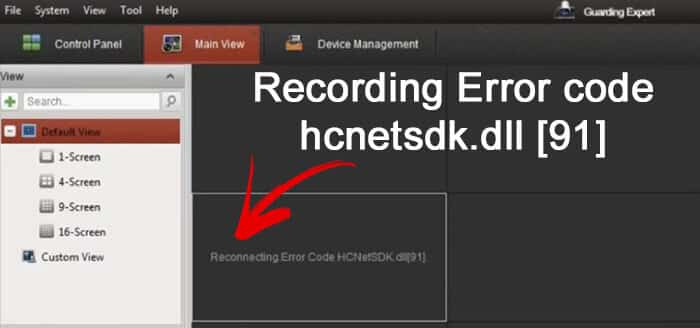
There are two main reasons to have this issue with your IP camera.
The Hikvision reconnecting Error Code HCNetSDK.dll[91] occurs when there’s no enough power for the camera or when the Auto Change stream type is on. The easiest solution to solve the problem is to use a better PoE power supply and turn the auto change stream off.
The problem with power
When using PoE (Power Over Ethernet) to power the camera up, is necessary to follow the international standards such as the IEEE 802.3af and IEEE 802.3at to have enough power.
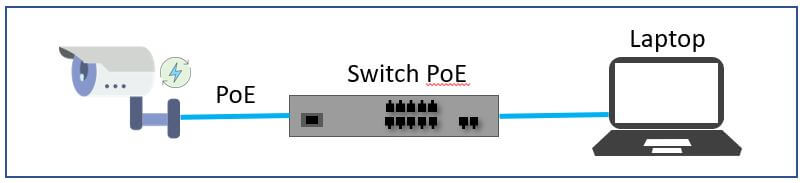
Each one these IEEE standards are designed to have specific voltage (V) and power (W) for the cameras and you need to use the correct power supply to have your camera working properly without some type of error.
You can use either a PoE switch or a PoE power supply, just ask the vendor a model that follows the IEEE 802.3af standard for fix cameras (dome or bullet) or the IEEE 802.3at standard for PTZ cameras.
Some users and technicians have reported a problem with the message in the iVMS-4200 screen «Reconnecting.Error Code HCNetSDK.dll[91]» due to the lack of power for the camera (when using the wrong PoE power supply).
Just make sure you are using the correct PoE power supply or switch.
To learn more about PoE read the article PoE switch for IP camera
The auto change stream type
The IP camera or recorder generates a different type of video stream such as main stream and sub stream to send through the network.
Those type of stream can vary according to the resolution, frame rate and compression (such as H.264, H.264+ and H.265) and when the camera changes the stream automatically that can cause some issues.
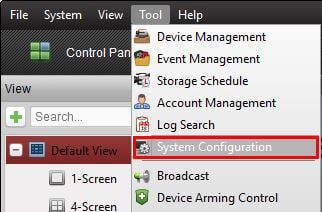
To prevent the Reconnecting.Error Code HCNetSDK.dll[91] error just open the iVMS-4200 to change the parameter (see the picture below).
Click Tools —> System Configuration
Just uncheck the Auto-change Stream Type option in the Image Menu
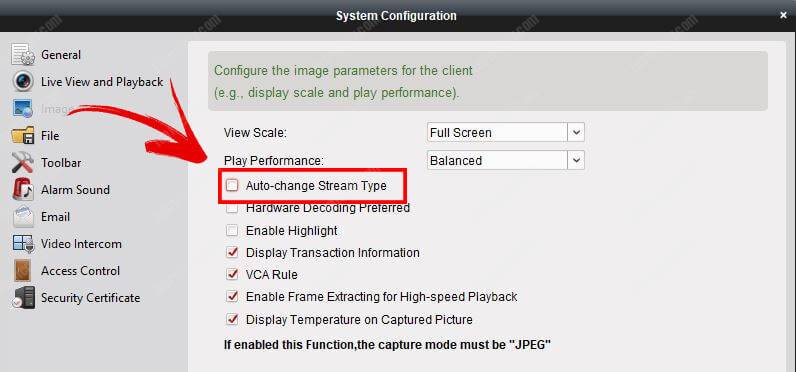
This simple change should do the job, now just come back to the main screen and reload the cameras and the error should go away.
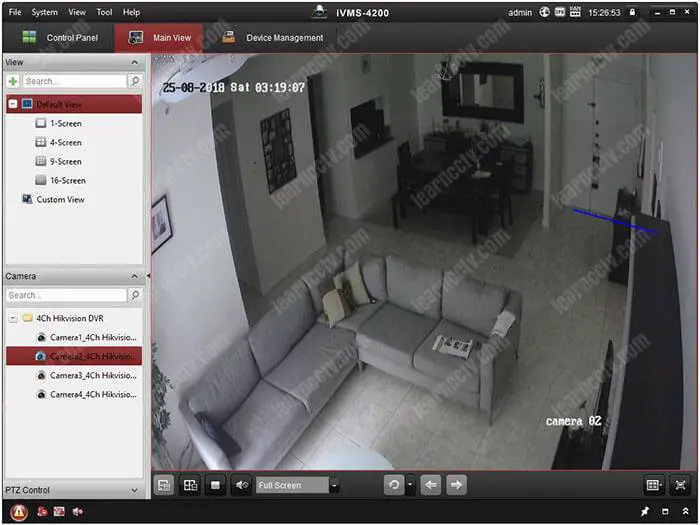
If some reason the cameras are still not loading properly just restart the iVMS-4500, sometimes a refresh can save the day.
Other factors to consider
If you follow the instruction above everything should work correctly, however, sometimes there are some details that can prevent your camera to work.
Let’s see some extra procedures to help you get rid of the problem.
Infrastructure (cables)
Remember we talked about the use of the correct PoE switch or Power supply to power the camera up?
Guess what… they send power through cables !
If you are not using good quality cables the power or data can be compromised and your system can fail and sometimes even generate the same «Reconnecting.Error Code HCNetSDK.dll[91]» error.
For IP camera is recommended to use cat5e or cat 6 UTP cables.
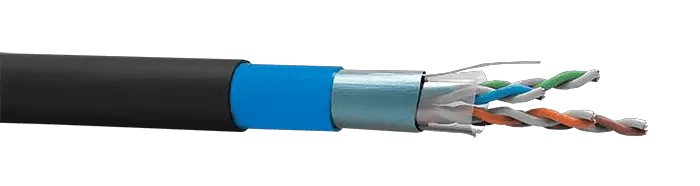
Also, make sure the cable are from a good manufacturer such as Furukawa or another brand that is reliable.
You also have to take the distance into consideration, the limitation for UTP cable for data transmission is 100m according to the international standard.
Camera factory default reset
Sometimes a bad configuration or a corrupted configuration file can hold your camera in an error state, so it’s a good practice to reset the device to factory default and reconfigure it from scratch.
Just login into the camera, go to the Upgrade & Maintenance menu.
Click the restore button (see the picture below).

After restoring the camera to factory default configure it manually (don’t import a file with the old configuration).
Firmware upgrade
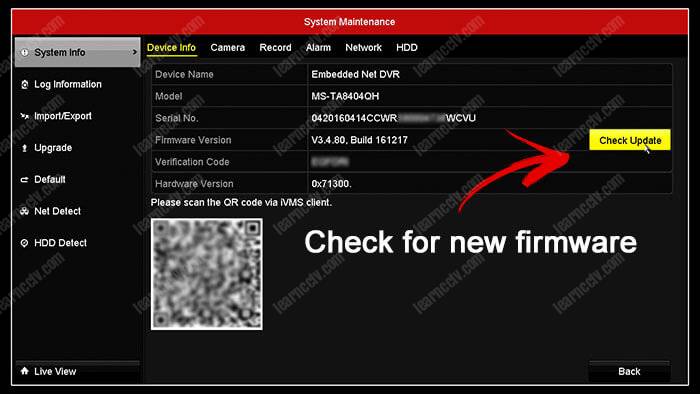
It’s important to keep all the devices with the last firmware to make sure everything works fine, so take a look at the manufacturer website to see if there’s a new firmware for your device.
You can also go directly to your device menu and click the button to check for the last firmware available.
Conclusion
The Reconnecting.Error Code HCNetSDK.dll[91]» can be eliminated by following the instructions in this article, just make sure to execute each step and if some reason the problem still remains call the Hikvision support.
I hope this article can help you to solve your problem.
Want to learn more ?
If you want to become a professional CCTV installer or designer, take a look at the material available in the blog. Just click the links below:

Please share this information with your friends…
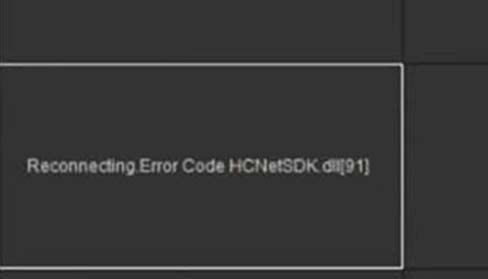
The Hikvision Reconnecting.Error Code HCNetSDK.dll[91] occurs on the iVMS-4200 software and it’s an indication that there’s not enough power juice for the camera or that the Auto-change stream type is enabled.
The fastest solution to solve this issue is to use a better PoE switch and turn the auto-change stream type off. In this guide, you can find steps on how to fix this reconnecting error code issue.
1. Not enough power
This is most likely the main cause of this issue. The camera is not getting enough power juice, it’s struggling and it’s going on and off.
When using a PoE switch to power up the camera, you need to make sure that the switch is certified to be used with PoE cameras and that it follows international standards. So, just make sure you’re using the correct PoE switch.
2. Turn off the auto change stream
The Hikvision IP camera or recorder (DVR NVR) uses two types of video stream: main stream and sub-stream. These types of streams depend on the resolution, frame rate and compression type (H.264, H.264+ or H.265) and when the camera auto changes the stream it can cause the picture not to show up.
To fix the Reconnecting.Error Code HCNetSDK.dll[91] error code, open up the iVMS-4200 software, go to Tool and then System Configuration. Access the Image section and untick Auto-change Stream Type (check the picture below).
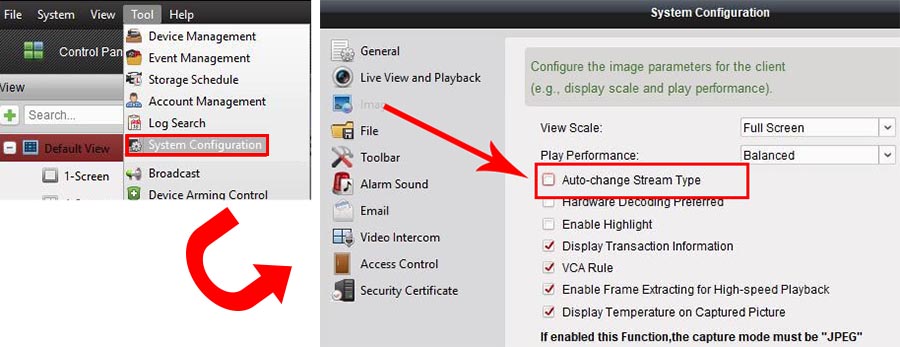 This should the job and you should be able to see your cameras on iVMS-4200 software. If not, to reboot the software, or even your computer.
Ошибка с файлом HCNetSDK появляется при использовании видеорегистратора с несколькими камерами. Часто сбой проявляется в работе только одного записывающего устройства, в то время как остальные функционируют в штатном режиме. Разбираемся с тем, что может быть причиной такого поведения камер.
Ошибки в настройках камеры
При появлении сообщения об ошибке камера перестаёт записывать. Иногда при двойном клике на неё в программе изображение появляется, однако затем снова пропадает. Если ошибка проявляется только на одной или нескольких камерах, а не всех сразу, то пробуем переустановить настройки:
- Отключаем кабель питания.
- Зажимаем кнопку Reset.
- Подключаем питание обратно (кнопку Reset всё ещё держим).
- Ждём, пока камера перезагрузится.
- Настраиваем устройство заново.
-
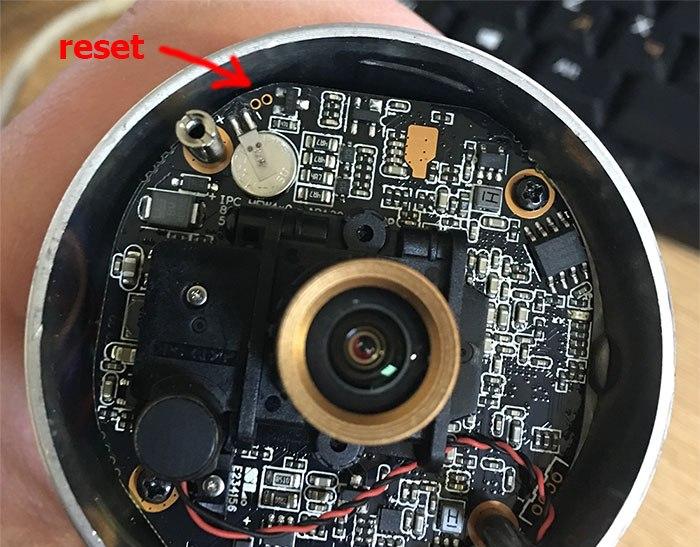
Сбрасываем настройки камеры и устанавливаем подключение заново
После сброса настроек и повторной установки ошибка не должна повторяться. Если не работает несколько камер, то можно попробовать в программе управления ими включить второй поток.
Другие возможные причины и способы исправления ошибки
Ошибка с упоминаем HCNetSDK.dll может возникать также по другим причинам. Если сброс параметров и повторная настройка не помогла, то проверяем следующие факторы:
- Если камера получает питание через POE (Power Over Ethernet) убеждаемся, что источник и устройство поддерживают одинаковые стандарты. Кроме того, источник должен иметь достаточную мощность и не быть перегруженным другими камерами.
- Проверяем качество витой пары. Разъёмы на обоих концах должны быть правильно обжаты, особенно если используется подключение через POE.
- В главном меню изменяем тип потока на автоматический.
-
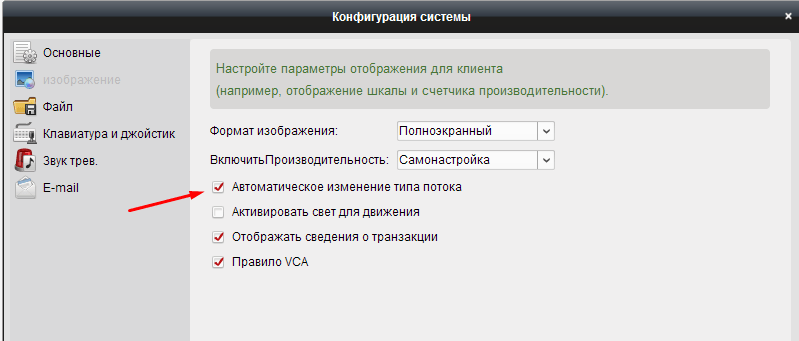
Включаем автоматическое изменение типа потока в настройках регистратора
Если проблема носит массовый характер, то может помочь также обновление прошивки. Однако обычно удаётся решить проблему одним из перечисленных выше способов.
Post Views: 4 368
Содержание
- Исправляем ошибку файла HCNetSDK.dll
- Ошибки в настройках камеры
- Другие возможные причины и способы исправления ошибки
- Reconnecting.Error Code HCNetSDK.dll[91] (solved)
- The problem with power
- ivms 4200 ошибка кода hcnetsdk dll 7
- Шаг 1
- Шаг 2
- Шаг 3
- Шаг 4
- Шаг 5
- Очередь просмотра
- Очередь
- YouTube Premium
- Хотите сохраните это видео?
- Пожаловаться на видео?
- Понравилось?
- Не понравилось?
- Hikvision iVMS-4200 error code 7 (HCNetSDK.ddl[7])
- How to fix Hikvision error code 7
- Ivms hcnetsdk dll error
Исправляем ошибку файла HCNetSDK.dll
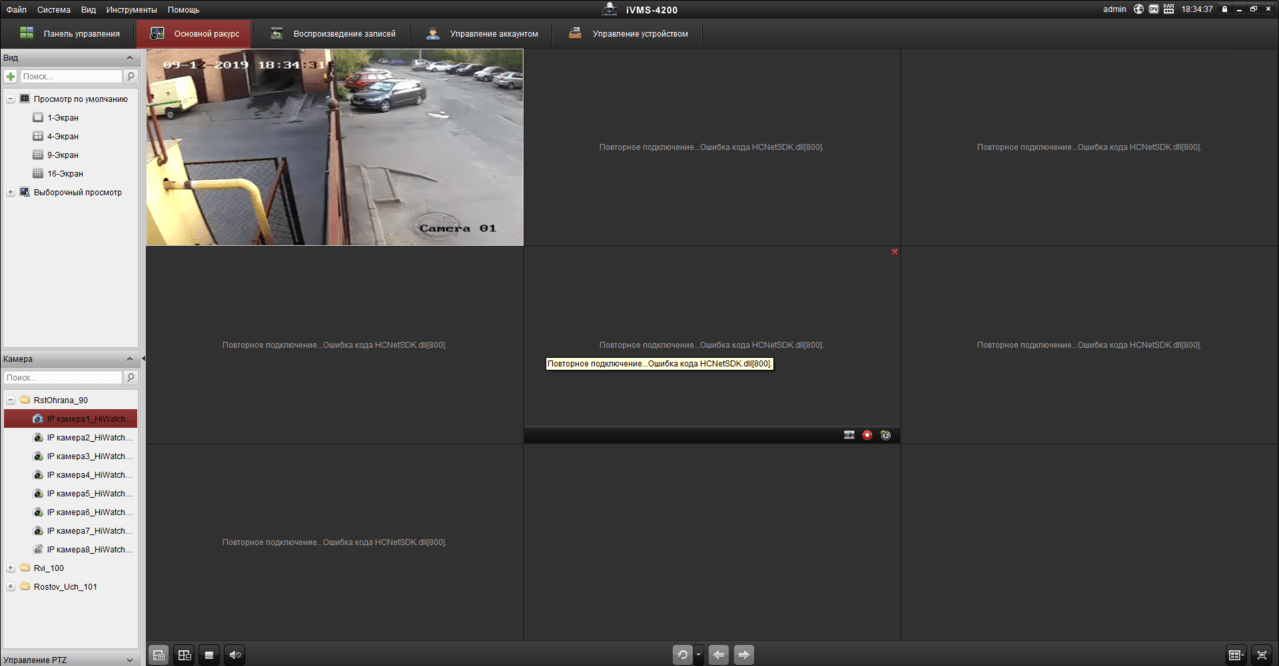
Ошибка с файлом HCNetSDK появляется при использовании видеорегистратора с несколькими камерами. Часто сбой проявляется в работе только одного записывающего устройства, в то время как остальные функционируют в штатном режиме. Разбираемся с тем, что может быть причиной такого поведения камер.
Ошибки в настройках камеры
При появлении сообщения об ошибке камера перестаёт записывать. Иногда при двойном клике на неё в программе изображение появляется, однако затем снова пропадает. Если ошибка проявляется только на одной или нескольких камерах, а не всех сразу, то пробуем переустановить настройки:
- Отключаем кабель питания.
- Зажимаем кнопку Reset.
- Подключаем питание обратно (кнопку Reset всё ещё держим).
- Ждём, пока камера перезагрузится.
- Настраиваем устройство заново.
Сбрасываем настройки камеры и устанавливаем подключение заново
После сброса настроек и повторной установки ошибка не должна повторяться. Если не работает несколько камер, то можно попробовать в программе управления ими включить второй поток.
Другие возможные причины и способы исправления ошибки
Ошибка с упоминаем HCNetSDK.dll может возникать также по другим причинам. Если сброс параметров и повторная настройка не помогла, то проверяем следующие факторы:
- Если камера получает питание через POE (Power Over Ethernet) убеждаемся, что источник и устройство поддерживают одинаковые стандарты. Кроме того, источник должен иметь достаточную мощность и не быть перегруженным другими камерами.
- Проверяем качество витой пары. Разъёмы на обоих концах должны быть правильно обжаты, особенно если используется подключение через POE.
- В главном меню изменяем тип потока на автоматический.
Включаем автоматическое изменение типа потока в настройках регистратора
Если проблема носит массовый характер, то может помочь также обновление прошивки. Однако обычно удаётся решить проблему одним из перечисленных выше способов.
Источник
Reconnecting.Error Code HCNetSDK.dll[91] (solved)
If you are looking for a solution to fix the Error Code HCNetSDK.dll[91] on your Hikvision camera, don’t look any further. Just read this article.
There are two main reasons to have this issue with your IP camera.
The Hikvision reconnecting Error Code HCNetSDK.dll[91] occurs when there’s no enough power for the camera or when the Auto Change stream type is on. The easiest solution to solve the problem is to use a better PoE power supply and turn the auto change stream off.
The problem with power
When using PoE (Power Over Ethernet) to power the camera up, is necessary to follow the international standards such as the IEEE 802.3af and IEEE 802.3at to have enough power.
Each one these IEEE standards are designed to have specific voltage (V) and power (W) for the cameras and you need to use the correct power supply to have your camera working properly without some type of error.
You can use either a PoE switch or a PoE power supply, just ask the vendor a model that follows the IEEE 802.3af standard for fix cameras (dome or bullet) or the IEEE 802.3at standard for PTZ cameras.
Some users and technicians have reported a problem with the message in the iVMS-4200 screen «Reconnecting.Error Code HCNetSDK.dll[91]» due to the lack of power for the camera (when using the wrong PoE power supply).
Just make sure you are using the correct PoE power supply or switch.
To learn more about PoE read the article PoE switch for IP camera
Источник
ivms 4200 ошибка кода hcnetsdk dll 7
Часто в службу технической поддержки hikvision.org.ua обращаются с проблемой подключения к IVMS-4200 устройств, уже привязанных к облаку Ezviz или Hik-Connect. Одни не знают с какой стороны подойти, а у других подключенные устройства не отображают видео.
Сегодня расскажем как решить эти проблемы самостоятельно.
Шаг 1
Зайдите в IVMS-4200.
Откройте вкладку “Управление устройствами” (стрелка 1).
Нажмите “Добавить новый тип устройства” (стрелка 2).

Шаг 2
Выберите “Hik-Connect Device” или “Устройство Hik-Connect” (стрелка 1). У нас этот пункт неактивен, потому что такой тип устройства уже добавлен.
Подтвердите выбор (стрелка 2).

Шаг 3
Перейдите во вкладку Hik-Connect Device. Выберите страну Украина. Нажмите “Login”.

Появится окно входа. Введите свой логин, e-mail, номер телефона и пароль. Нажмите “Login”.

Шаг 4
Если в профиле еще нет устройств, во вкладке Hik-Connect Device нажмите кнопку “Add Device” (стрелка 2).

Добавленное устройство появится в этом окне. Казалось бы, все необходимое сделано, но именно на этом этапе у многих возникают трудности. Что делать дальше?

Шаг 5
Во вкладке “Device Management” выберите пункт “Group” (стрелка 1). Если устройство уже прикреплено к профилю, выберите папку с именем вашего профиля в Hik-Connect.
Если устройство добавлено только что, создайте группу (стрелка 3). Группа будет носить имя устройства (видно по стрелке 2). После того, как найдете новую папку, выделите устройство (стрелка 4) и нажмите на кнопку “Modify” (стрелка 5). Если все сделано правильно, кнопка станет активной, синего цвета.

При нажатии “Modify” в открывшемся окне в поле “Stream Key” (стрелка 1) введите верификационный код. Не забудьте нажать кнопку “ОК”.

Теперь во вкладке онлайн-просмотра все работает корректно, вместо непонятных ошибок вы увидите изображение с камеры.
Очередь просмотра
Очередь
YouTube Premium

Хотите сохраните это видео?
Пожаловаться на видео?
Выполните вход, чтобы сообщить о неприемлемом контенте.
Понравилось?
Не понравилось?
Hello Friends, I am Nitin Khatri running this channel, if you like this video Please Subscribe Channel and Press Bell icon. If you need any help please buy our online technical support services.
Charges are 20$ / 1,200 Indian Rupee Per Call.
Payment Options:
Google Pay — 91-9829692846 (India)
Paypal — https://www.paypal.me/nitinkhatri/USD20
Email : nitinplus@gmail.com Hello All,
See This error has two solutions,1st solution i have shown you in this video and 2nd is the power issue as per Hikvision if camera does not get proper power from PoE Adeptor or PoE Switch then this error comes. please change the power source then it will resolve this error.
In this video i will share a solution for Hikvision error code. 91, if you have this error «Reconnecting.Error Code HCNetSDK.dll
[91] «, Then this video will help you to solve this.Please watch full video. This is the IP camera which has issue.
Please Do Like, Share & Subscribe Channel and Press Bell Icon to Get Latest Videos update .
Многие используют популярные DVR компании Hikvision, для их управления используется родной софт программа — iVMS различных версий. Она же подходит и для просмотра записей и видео с камер в реальном времени из любой точки мира, существуют версии для Windows, Mac и приложения для Android и iOS от Apple.
Приложение iVMS для Windows и Mac: 
Для просмотра видео с камер через интернет согласно официальной инструкции достаточно пробросить на видеорегистратор порт 8000, но по факту в некоторых случая этого недостаточно. Я пробросил нужный порт, добавил в программу видеорегистратор, он успешно нашелся и можно было им управлять, например изменять настройки. Когда я попытался просмотреть видео с камер — получил ошибку HCNetSDK.dll[7] Connection failed: device of-line or connection timout:

Для исправления ошибки нужно пробросить еще два порта 554 и 80. Оказалось что разные версии DVR Hikvision для правильной работы требует разные порты, некоторым достаточно одного порта 8000, некоторым хватает двух 8000 и 554, а некоторым требуется еще и третий порт — 80 для корректной работы приложения через инернет.
Источник
Hikvision iVMS-4200 error code 7 (HCNetSDK.ddl[7])
Hikvision error code 7 shows up when you’re trying to view the cameras remotely on the iVMS-4200 camera management software. It’s caused by a misconfiguration of the local IP address on the recorder and by a port forwarding issue on the router.
The full message for this Hikvision error code is: HCNetSDK.ddl[7]. Failed to connect to the device. The device is off-line, or connection timeout caused by network.
In other cases it can be displayed as: [camera name] Logins failed. Error Code HCNetSDK.dll[7]. (Connecting to device failed. The device is offline or the network timed out).
You may see this error as “The device is off-line”, “The network is unreachable”, “Failed to connect to the device”, “Connection time-out”, “Connecting to device failed”.
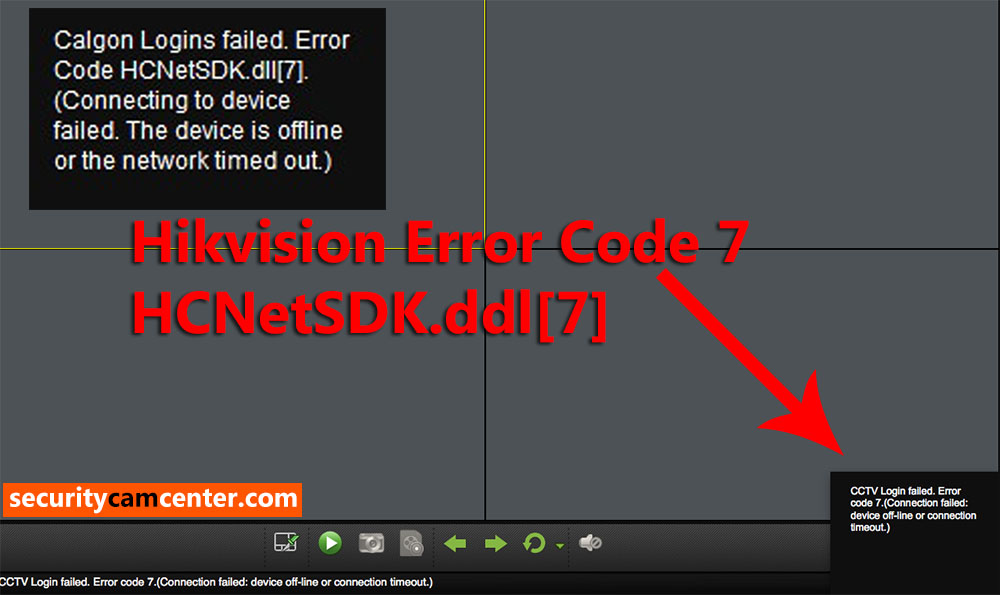
How to fix Hikvision error code 7
There are a few things you need to check and modify in order to fix this issue.
It has been reported that error code 7 can be caused by a misconfiguration of the IP settings on the recorder. Go to the network setting of your recorder and take a look at the IP address, default gateway, subnet mask, preferred DNS, and alternate DNS. Make sure they match your network.
- DVR/NVR IP address: 192.168.1.100
- DVR/NVR Subnet Mask: 255.255.255.0
- DVR/NVR Gateway (your router’s IP address): 192.168.1.1
- Preferred DNS: 8.8.8.8 (for both DVR/NVR and router)
- Alternate DNS: 8.8.4.4 (for both DVR/NVR and router)
Check if all the ports are open on your router. You need to open the HTTP port, Server port, and RTSP port. Make sure these ports show all open. Contact your ISP support if you can’t fix it.
In a few cases, the ISP blocks the ports even if you forwarded them correctly on your router. So, you need to forward all these three ports (http, server, rtsp), most of the time the error code 7 is solved by following this step. Also, forward them on both UDP and TCP.
Many users report that changing the RTSP port from 554 to something else (let’s say 8554) fixed the issue. The new port still needs to be opened on the router.
Double-check the credentials settings on the iVMS-4200. Go to the Device Manager and check the added remote device IP address, username, password, all should be correct and without spaces.
All that being said, ensure you’re using the latest version of iVMS-4200 software and that the firmware on your DVR/NVR is updated to the newest one.
Источник
Ivms hcnetsdk dll error
а так .
NET_DVR_NETWORK_FAIL_CONNECT 7 Failed to connect the device. The device is off-line, or connection timeout caused by network.
Мотивация, направление, посыл 😉
Узнавание паролей Dahua SmartPSS, Hikvision iVMS4200, генерация временного для Uniview. Исследования IT.
www.iTuneDVR.ru
| 5d144 | Дата: Четверг, 01.12.2016, 18:10 | Сообщение # 3 |
 Через IVMS 4200 ошибка Через IVMS 4200 ошибка 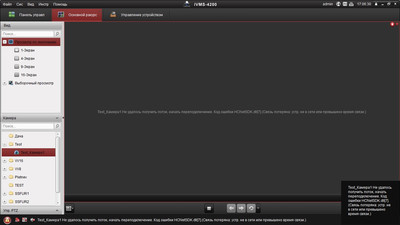
Камеры через интернет порты проброшены в IVMS 4500 (android) отображаются. Пробовал через 8000 hik и ONVIF 80—та же проблема. С регистратора Камера сейчас подключена к локальному сетевому регистратору, на нем все отлично пишется и смотрится уже второй год. Сейчас возникла задача писать камеру удаленно на выше указанном регистраторе, и смотреть на IVMS 4200 на компе. И вот . |
|
| iTuneDVR | Дата: Четверг, 01.12.2016, 19:07 | Сообщение # 4 |
 |
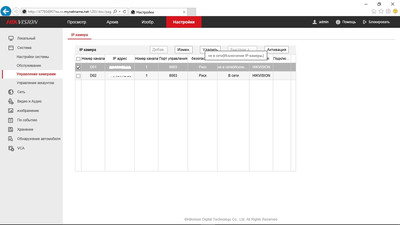
Версия iVMS4200 скриншот? Сетевая нагрузка из диспетчера задач, скриншот? Скриншот с настройками камеры. Сброс настроек на заводские и попробоваать. TFTP перепрошивка камеры и попробовать. Мотивация, направление, посыл 😉 Узнавание паролей Dahua SmartPSS, Hikvision iVMS4200, генерация временного для Uniview. Исследования IT. www.iTuneDVR.ru |
| kaza | Дата: Понедельник, 05.12.2016, 10:41 | Сообщение # 5 |
| какие порты на камеру открыты? нужно два порта открывать к камере sdk и rtsp порт, подключать по sdk, также если подключается по onvif то надо еще http порт открывать. | |

| 5d144 | Дата: Четверг, 08.12.2016, 00:39 | Сообщение # 6 |
| Зачем RTSP открывать? Как IVMS узнает номер RTSP порта? куда его (номер порта) прописывать в IVMS ? | |
| 5d144 | Дата: Четверг, 08.12.2016, 00:49 | Сообщение # 7 |
| iTuneDVR | Дата: Четверг, 08.12.2016, 02:23 | Сообщение # 8 |
|
Залёт — это нечто другое Ошибка в принципе красноречиво говорит о том, что таймаут подключения к камере. Т.е. в момент подключения камера не отвечает на запросы: занята или в оффлайне или пакеты не дошли. По скольку через мобильный она работает, то вопрос сколько таких подключений к камере вообще? Понимаю, что всё работало, значит что-то поменялось. Может клиентов на просмотр добавилось или. |
|

С таймаутом все в порядке. Скачал версию IVMS4200 версия 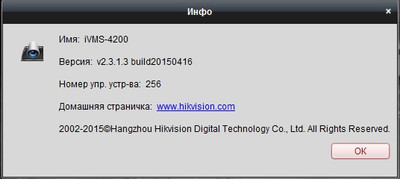
И камера к этой версии нормально подключилась. Т.е. проблема не таймаута.
К камере подключено: регистратор по локальной сети, и переодически подключается IVMS 4500. Сейчас я пытаюсь все настроить и подключаюсь к ней поочередно то 4200клиентом , то 4500, то регистратором DS-7216HQHI-F2/N. В IVMS4500 поток выбирается «четкий», «текущий»,и в «обычный» можно выбрать разрешение кадры и битрейт— выбираю 1920-1080 битрейет 4096 все показывает. Камера подключена прямо в роутер, инет 50-60 мегабит на отдачу, и используется только для просмотра видео.
Половина вопроса решена —смотреть через комп на IVMS4200 переодически.
Теперь остается задача —смотреть и писать регистратором DS-7216HQHI-F2/N постоянно.
Какие есть идеи ?
| 5d144 | Дата: Суббота, 10.12.2016, 22:46 | Сообщение # 9 |
| iTuneDVR | Дата: Воскресенье, 11.12.2016, 02:06 | Сообщение # 10 |
| |
Есть конечно и более свежее версии, но я не стал указывать на это, потому как я понял, что до этого всё работало на этой версии. Возможно изменилась сетевая обстановки и IVMS по каким-то причинам сам не успевал, потому и выкидывал такую ошибку таймаута. Немного не стыкуется со скрином выше с загрузкой сети. Источник |

-
Forums
-
Manufacturer Specific Forums
-
Hikvision
You should upgrade or use an alternative browser.
Reconecting.Error Code HCNetSDK.dll[91]
-
Thread starterFrazer
-
Start dateNov 21, 2016
-
#1
We have recently bought a hikvision system consisting of 37 cameras:
DS-9664NI-I8 (8x 4TB WD Purple NV, RAID-6, 3.4.90 build 160926)
DS-2CD2142FWD-I (5.4.1 build 160525, 5.4.0 build 160511)
DS-2CD2742FWD-I (5.4.0 build 160401)
Powered by multiple HP Procurve 2920 PoE+
Of the 37 cameras we had installed in October, 2 had developed strange faults:
Cam 1:
Connecting to the NVR with iVMS-4200, Select Cam1 for live viewing.
Selecting Main Stream shows the Sub Stream.
Selecting Sub Stream, the camera fails to open.
Directly connecting to the cameras IP:
Selecting Main Stream for live view, shows Main stream
Selecting Sub Stream for live view, shows Sub stream
Tried reset to defaults, power cycling camera, leaving it off for 30 mins, removing camera from NVR/adding to different IP channel.
This camera is being returned via RMA.
Cam 2:
Connecting to the NVR with iVMS-4200, Select Cam 2 for viewing, main stream displays fine.
Select Cam 2 as part of a multi camera view (thus attempting to view Sub-Stream) — given the error :
Reconecting.Error Code HCNetSDK.dll[91]
Directly connecting to the cameras IP:
Selecting Main Stream for live view, shows Main stream
Selecting Sub Stream for live view, shows Sub stream
Any idea what might be causing this? Have we just been unlucky with faulty cameras?
It seems strange that the NVR cannot view certain streams, while both streams appear to work fine when directly connecting to the camera.
Thanks

-
#2
I believe that is bandwith problem. Get directly to ipc menu and descrease bitrates..Then go to Nvr menu and make sure that have the same bitrates (main & sub stream too) ..
- Thread starter
-
#3
I believe you are right about it being a bandwidth issue.
The 9664 specification shows 200Mbit as the maximum throughput while using RAID.
When I looked at the NVR’s remote configuration under ‘resource usage’ in iVMS-4200 it was previously showing 199Mbit whereas under ‘device information’ Received was only showing between 80-120Mbit (variable bit rate).
However all cameras were set to 4Mbit (4*37=148Mb), setting the bit rates again didn’t seem to change this.
I set H.264+ to enabled on all cameras and waited for them to restart. When I disabled H264+ again and applied 4Mbit bit rate — this seemed to bring the Resource Usage down to 166.50Mb and I can see all main and sub streams.
It seems the NVR web GUI/ivms-4200/camera web GUI don’t communicate their settings to each other very well.
-
#4
Similar threads
-
Forums
-
Manufacturer Specific Forums
-
Hikvision